Perform Administrative Tasks

This section contains the following topics:

Manage Users

From the main menu, select Admin > Users to display the User Management window. Using this window, you can add a new user, edit the settings for an existing user, delete a user from the network, and create user roles.


Note

Before you can create a new user that does not have admin-level access to Cisco Crosswork Optimization Engine functionality, you must first create a new role that limits the features they can access. See Define Role Settings for more information.

Only a local admin user can add, update, and delete other local user accounts. A TACACS+ user, regardless of role assigned, will not be able to manage local users.


Administrative Users Created During Installation

During installation, Cisco Crosswork Optimization Engine creates two special administrative IDs:

  1. The virtual machine administrator, with the username cw-admin, and the default passwordcw-admin . Data center administrators use this ID to log in to and troubleshoot the VM hosting the Cisco Crosswork Optimization Engine server.

  2. The Crosswork administrator, with the username admin and the default password admin. Product administrators use this ID to log in to and configure the Cisco Crosswork Optimization Engine user interface, and to perform special operations, such as creating new user IDs.

The default password for both administrative user IDs must be changed the first time they are used. You can also change the Crosswork administrator password using the following methods:

  • Log in as the admin user and edit the admin user password, as explained in Edit Users.

  • Enter the following command: admin(config)# username admin <password>

Add Users

Follow the steps below to create a new Cisco Crosswork Optimization Engine user ID.

The user ID's user name must be unique. You cannot create a new user ID with the same user name as an existing user ID.

The special administrative user names admin (for administering Cisco Crosswork Optimization Engine) and cw-admin (for administering the virtual machine hosting the product) are created during installation and are reserved for those purposes (see Administrative Users Created During Installation).

Procedure


Step 1

From the main menu, choose Admin > Users.

The User Management window opens.

If it is not already displayed, click the User Management tab.

Step 2

Click Add icon to open the Add New User dialog box.

Step 3

Enter the following information for the user you are adding:

  • User Name: Enter the name of the user ID. User Names cannot contain spaces or special characters.

  • First Name and Last Name: Enter the first and last name of the person assigned to this user ID.

  • Password and Confirm Password: Enter the default password for this user ID. The user will be required to change the default password the first time they attempt to log on using it.

Step 4

From the Select Role drop-down at the bottom of the dialog box, choose the role that you want to assign to the user.

See Define Role Settings for more information.

Step 5

Click Add.


Edit Users

Users with administrator privileges can edit any user ID's User Name, First Name, Last Name, and Role.

Administrators cannot change a user's password by editing the user ID. Users can change their passwords by logging in, clicking User Account icon, and selecting Change Password.

Procedure


Step 1

From the main menu, choose Admin > Users.

The User Management window opens.

If it is not already displayed, click the User Management tab.

Step 2

Click on the user ID whose settings you want to update, then click Edit icon to open the Edit User dialog box.

Step 3

Make the necessary updates to the user ID.

Step 4

Click Update to save your changes.


Delete Users

Follow the steps below to delete an existing user ID.

The administrative user IDs admin and cw-admin created during installation cannot be deleted (see Administrative Users Created During Installation).

Procedure


Step 1

From the main menu, choose Admin > Users.

The User Management window opens.

If it is not already displayed, click the User Management tab.

Step 2

Click on the user ID you want to delete, then click Delete icon. TheDelete Username User dialog displays.

Step 3

Click Delete to confirm deletion.


Create User Roles

Local users with administrator privileges can create new users as needed (see Add Users).

Users created in this way can perform only the functions or tasks that are associated with the user role they are assigned.

The local admin role enables access to all functionality. It is created during installation and cannot be changed or deleted. However, its privileges can be assigned to new local users. Only local users can create or update user roles; TACACS users cannot.

Follow the steps below to create a new user role.

Procedure


Step 1

From the main menu, choose Admin > Users.

The User Management window opens.

If it is not already displayed, click the Role Management tab.

Step 2

Click Add icon to display the Add Role dialog box.

Step 3

Enter a unique name for the new role and then click Add.

Step 4

Define the user role's privilege settings:

  1. Check the check box for every API that users with this role can access.

  2. For each API, define whether the user role has Read, Write, and Delete permission by checking the appropriate check box.

Step 5

When you are finished, click Save to create the new role.

To assign the new user role to one or more user IDs, edit the Role setting for the user IDs (see Edit Users).


Edit User Roles

Users with administrator privileges can quickly change the privileges of any user role other than the default admin role.

Procedure


Step 1

From the main menu, choose Admin > Users.

The User Management window opens.

If it is not already displayed, click the Role Management tab.

Step 2

Click on an existing role to select it. The Role Management tab displays the user role's settings.

Step 3

Define the role's settings:

  1. Check the check box for every API that the role can access.

  2. For each API, define whether the role has Read, Write, and Delete permission by checking the appropriate check box.

Step 4

When you are finished, click Save to save your changes.


Clone User Roles

Cloning an existing user role is the same as creating a new user role (see Create User Roles), except that you need not set privileges for it. If you like, you can let the cloned user role inherit all the privileges of the original user role.

Cloning user roles is a handy way to create and assign many new user roles quickly. Following the steps below, you can clone an existing role multiple times. Defining the cloned user role's privileges is an optional step; you are only required to give the cloned role a new name. If you like, you can assign it a name that indicates the role you want a group of users to perform. You can then edit the user IDs of that group of users to assign them their new role (see Edit Users). Later, you can edit the roles themselves to give users the privileges you want (see edit user roles).

Procedure


Step 1

From the main menu, choose Admin > Users.

The User Management window opens.

If it is not already displayed, click the Role Management tab.

Step 2

Click on an existing role to select it.

Step 3

Click Copy icon to display the Clone Role dialog box.

Step 4

Enter a unique name for the cloned role and then click Clone.

Step 5

(Optional) Define the role's settings:

  1. Check the check box for every API that the cloned role can access.

  2. For each API, define whether the clone role has Read, Write, and Delete permission by checking the appropriate check box.

Step 6

Click Save to create the newly cloned role.


Delete User Roles

Users with administrator privileges can delete any user role that is not the default admin user role or that is not currently assigned to a user ID. If you want to delete a role that is currently assigned to one or more user IDs, you must first edit those user IDs to assign them to a different user role.

Procedure


Step 1

From the main menu, choose Admin > Users.

The User Management window opens.

If it is not already displayed, click the Role Management tab.

Step 2

Click on the role you want to delete, to select it.

Step 3

Click Delete icon to display the Delete Role dialog box.

Step 4

Click Delete to confirm that you want to delete the user role.


Manage TACACS+ Servers

In addition to local database authentication, Cisco Crosswork Optimization Engine can use TACACS+ servers to authenticate users. TACACS+ is a security protocol that provides centralized validation of users attempting to access your network. It allows for a single access control server (the TACACS+ daemon) to provide authentication, authorization, and accounting (AAA) services independently of one another.

Local database authorization takes precedence over authorization by TACACS+ server. When adding the TACACS+ server, you can specify the priority value for each instance.

Please note that any operation you do following the instructions in this section will affect all new logins to the Cisco Crosswork Optimization Engine user interface. To minimize session interruption, Cisco recommends that you perform all your TACACS+ changes and submit them in a single session.

Add a TACACS+ Server

Before adding a TACACS+ server, you will need to know the server's IP address, port number, shared secret, and service name.

Procedure


Step 1

From the main menu, choose Admin > AAA.

The AAA window opens.

Step 2

Click Add icon to open the Add Server dialog box.

Step 3

Enter the TACACS+ server's settings, then click Add.

Note 

Only the server's IP address, port number, shared secret, and service name are required. You can leave the other values blank, as needed.


Edit a TACACS+ Server

Procedure


Step 1

From the main menu, choose Admin > AAA.

The AAA window opens.

Step 2

Click the check box next to the TACACS+ server whose settings you want to update, then click Edit icon.

The Edit Server dialog box opens.

Step 3

Make the necessary changes, then click Update.

Note 

You cannot change the value for the Shared Secret parameter.


Delete a TACACS+ Server

Procedure


Step 1

From the main menu, choose Admin > AAA.

The AAA window opens.

Step 2

Click the check box next to the TACACS+ server you want to delete.

Note 

You can delete only one TACACS+ server at a time.

Step 3

Click Delete icon. The Delete server-IP-address dialog box opens.

Step 4

Click Delete to confirm.


Manage Certificates

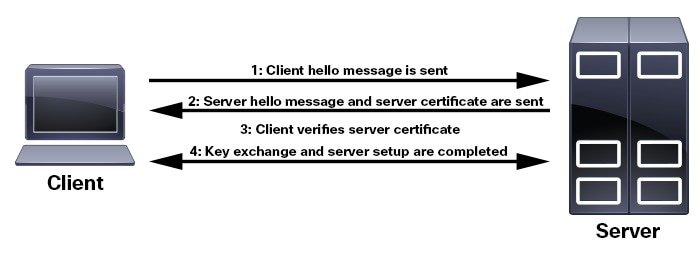
The Cisco Crosswork Optimization Engine VM-hosted server and its browser-based user interface communicate with each other using SSL certificates exchanged over HTTPS. For details about these protocols, see SSL Certificates and HTTPS

When installed, Cisco Crosswork Optimization Engine secures these interactions using a self-signed TLS certificate. This certificate has a two-year lifespan, after which it expires. If you want to continue using the expired self-signed certificate to secure server/client communications, you will need to regenerate it by following the steps in Extend Self-Signed Certificate Expiration

If you prefer to secure these communications with a user-provided certificate, either purchased from a Certificate Authority (CA) or self-signed by your organization, you can validate and upload it by following the steps in Substitute a User-Provided Certificate.

The user-provided certificate must meet the following requirements:

  • Cisco Crosswork Optimization Engine supports IP Subject Alternative Name (SAN) server certificates only. The IP address is the primary means to reach the user interface.

  • The server will present your user-provided certificates to the browser, so the certificates you supply must be valid both for Cisco and for Cisco Crosswork Optimization Engine.

  • It must also include the required fields and field values shown in the following table.

    Table 1. Required User-Provided Certificate Fields and Values

    Field

    Description

    Value

    <NUMBER OF DAYS>

    Number of days the certificate will be valid.

    Must be greater than 30 days and less than 730 days (or two years)

    <COUNTRY>

    Country (C=)

    US

    <STATE>

    State (ST=)

    CALIFORNIA

    <LOCATION>

    Location (L=)

    SAN JOSE

    <ORGANIZATION>

    Organization (O=)

    CISCO SYSTEMS INC

    <ORGANIZATIONAL UNIT NAME>

    Organizational Unit (OU=)

    CROSSWORK

    <COMMON NAME>

    Common Name (CN=)

    The IP address of the Cisco Crosswork Optimization Engine server VM.

  • The certificate must also have the SAN extension set, with both DNS and IP address keys. The following provides an example of how to generate a self-signed certificate using OpenSSL:

    /usr/bin/openssl req \
                       -x509 \
                       -nodes \
                       -days 730 \
                       -newkey rsa:4096 \
                       -keyout "filename.key" \
                       -out "filename.crt" \
                       -subj "/C=US/ST=CALIFORNIA/L=SAN JOSE/O=CISCO SYSTEMS INC/OU=CROSSWORK/CN=1.1.1.1" \
                       -extensions SAN \
                       -config <(cat /etc/ssl/openssl.cnf \
                        <(printf "\n[SAN]\nsubjectAltName=DNS:0.0.0.0,IP:1.1.1.1"))

Extend Self-Signed Certificate Expiration

Follow these steps to regenerate the self-signed certificate and extend its lifetime by two years.

Procedure


Step 1

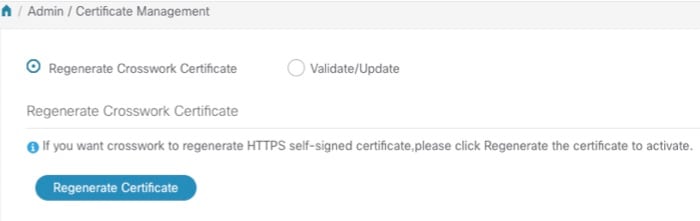
From the main menu, select Admin > Certificate Management. The Certificate Management window appears.

Step 2

Select the Regenerate Crosswork Certificate radio button.

Certificate Management window
Step 3

When you are ready, click Regenerate Certificate.

When Cisco Crosswork Optimization Engine has finished regenerating the certificate, it displays an alert message indicating that the regeneration operation is successful and you will be logged out. You must log in again to continue using Cisco Crosswork Optimization Engine.


Substitute a User-Provided Certificate

Follow the steps below to validate and upload a user-provided certificate. The certificate must meet the requirements explained in Manage Certificates.

Before you begin

You must know the names of the user-provided certificate and key files and their locations in your local storage.

Procedure


Step 1

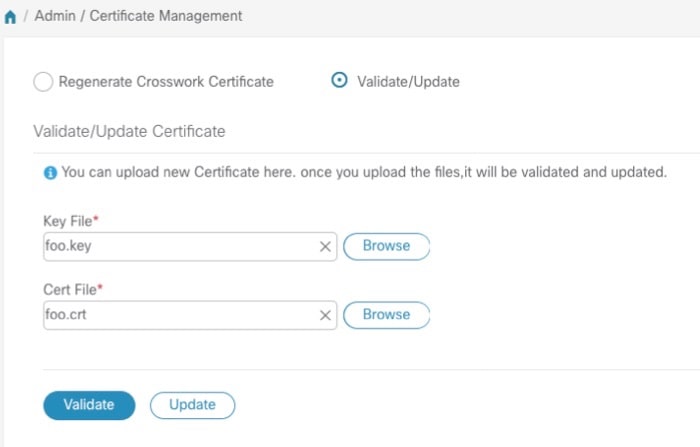
From the main menu, select Admin > Certificate Management. The Certificate Management window appears.

Step 2

Select the Validate/Update radio button.

Step 3

Use the Browse button next to each field to browse to and select the key and certificate files you want to validate and use.

Certificate Management window
Step 4

Click Validate to validate the certificate and key files.

Step 5

Click Update to replace the existing certificate with the user-provided certificate you have validated.


Manage Cisco Crosswork Network Automation

The Crosswork Manager window gives you consolidated information about the current status of each installed Cisco Crosswork Optimization Engine application and its supporting services. It also supplies tools and information that, with support and guidance from your Cisco Customer Experience account team, you can use to identify, diagnose and fix issues with Cisco Crosswork Optimization Engine.

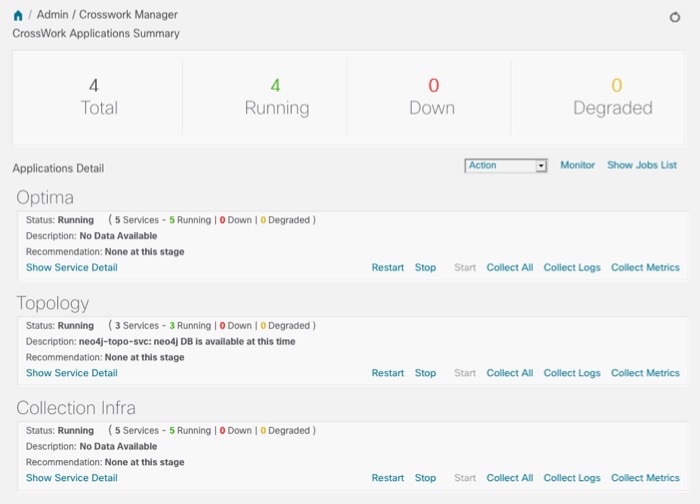
Select Admin > Crosswork Manager to display a Crosswork Manager window, with information like the window shown in the following example.

Figure 1. Crosswork Manager Window
Crosswork Manager Window

The Crosswork Manager window has two main views. The Crosswork Applications Summary view, at the top of the window, is a dashboard giving you a quick look at the overall health of the system. It displays the total number of Cisco Crosswork Optimization Engine applications currently installed in the system, and how many of that total are Running, Down, or Degraded.

The Applications Detail view, below the Crosswork Applications Summary view, allows you to:

  • View the name and current runtime status of each installed application and its supporting services.

  • Get advice about what to do when an application or one of its services has issues.

  • Collect logs and metrics on any application or service, or for the system as a whole.

  • Stop, start, or restart any application or service.

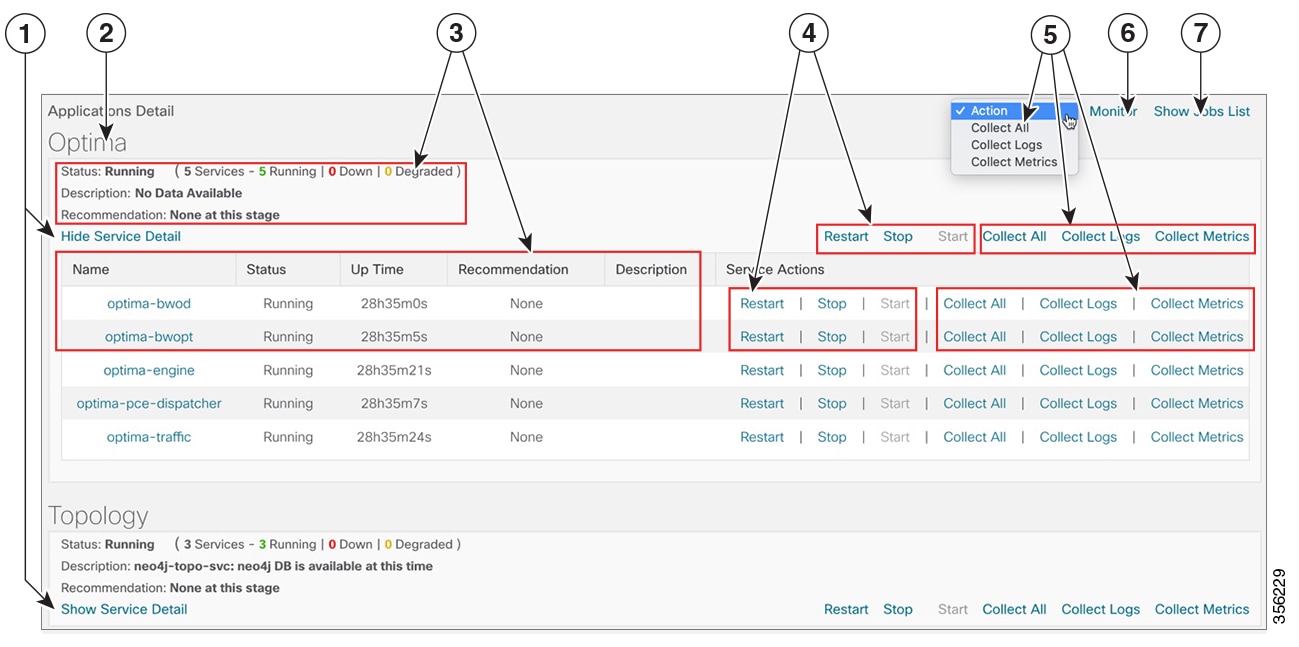
The Applications Detail view, shown in the following figure, is the best way to investigate any system health issues indicated in the Crosswork Applications Summary.

Figure 2. Applications Detail View
Applications Detail view
Figure 3. Applications Detail View
Item Description

1

Click the Show/Hide Service Detail link in each application tile to view the detailed status of the underlying services for that application.

2

An application tile like this shows the current status of the named application and a summary of the status of that application's services. This includes the total number of services, and how many of those services are Running, Down, or Degraded.

3

Both the application tile and its Service Detail table provide the name, status, description and recommendation for the respective application or service. The Service Detail table also provides service uptime, and you can click on the link in the Name column to see more details about the service, such as its process ID and pod identifier.

4

To control an application or service, click on any of the links in this section of the application tile or Service Detail table. You can click:

  • Restart to restart the application or service.

  • Stop to stop the application or service.

  • Start to start the application or service.

See Control Cisco Crosswork Network Automation Applications and Services.

5

To gather logs and metrics for the entire system, or for any application or service, click on any of the "collect" links at the system (in the dropdown menu), application, or service level. You can choose:

  • Collect All to collect both logs and metrics.

  • Collect Logs to collect only logs.

  • Collect Metrics to collect only metrics.

See Collect and Share Cisco Crosswork Network Automation Logs and Metrics.

6

Click the Monitor link to monitor individual Cisco Crosswork Optimization Engine functions and features, using analytical dashboards and data gathered over the last 24 hours of run time.

See Monitor Cisco Crosswork Network Automation Functions in Real Time.

7

Choosing any of the control or collect actions at the system, application or service level will initiate a job. You can view each job's progress by clicking the Show Jobs Listlink at the top right corner of the window. You can also use the Show Jobs Listto publish collected logs and metrics files, and check on the status of publish jobs you initiate.

Monitor Cisco Crosswork Network Automation Functions in Real Time

You can monitor the health of Cisco Crosswork Optimization Engine and any of its functions in real time, using a set of monitoring dashboards you can access from the Crosswork Manager window.

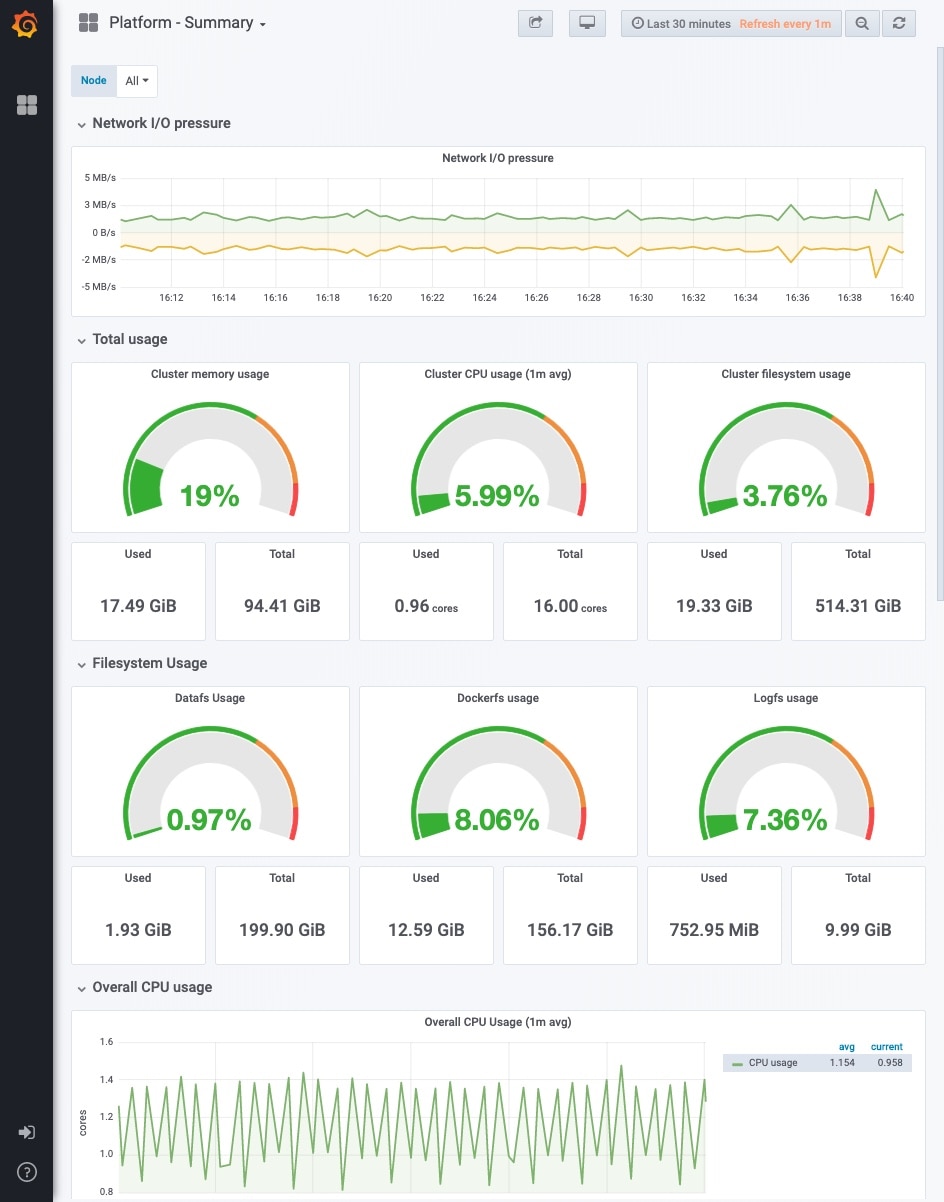
Cisco Crosswork Optimization Engine uses Grafana to create these dashboards. They give you a graphical view of the product's infrastructure, using metrics collected in its database. You can use these dashboards to diagnose problems you may encounter with individual Cisco Crosswork Optimization Engine applications or their underlying services.

There are multiple monitor dashboards, categorized by the type of functionality they monitor and the metrics they provide, as shown in the following table.

Table 2. Monitoring Dashboard Categories

This dashboard category...

Monitors...

Optima

Cisco Crosswork Optimization Engine function pack, traffic, and SR-PCE dispatcher functions.

Topology Topology service and database functions.

Collection Infra

Device-data collection functions. Metrics include telemetry collection latencies, total collection operations, memory and database activity related to telemetry, delayed collections, and so on.

Core Infra

System hardware and communications usage and performance. Metrics include disk and CPU usage, database size, network and disk operations, and client/server communications.

To conserve disk space, Cisco Crosswork Optimization Engine maintains a maximum of 24 hours of collected metric data.

Grafana is an open-source visualization tool. The following provides general information about how to use the Cisco Crosswork Optimization Engine implementation of Grafana. For more information about Grafana itself, see https://grafana.com and http://docs.grafana.org

Procedure


Step 1

From the main menu, choose Admin > Crosswork Manager.

Step 2

At the right, just below the Crosswork Applications Summary view, click the Monitor link, highlighted below.

The Grafana user interface appears within the Crosswork Manager window, replacing the Applications Detail view.

Step 3

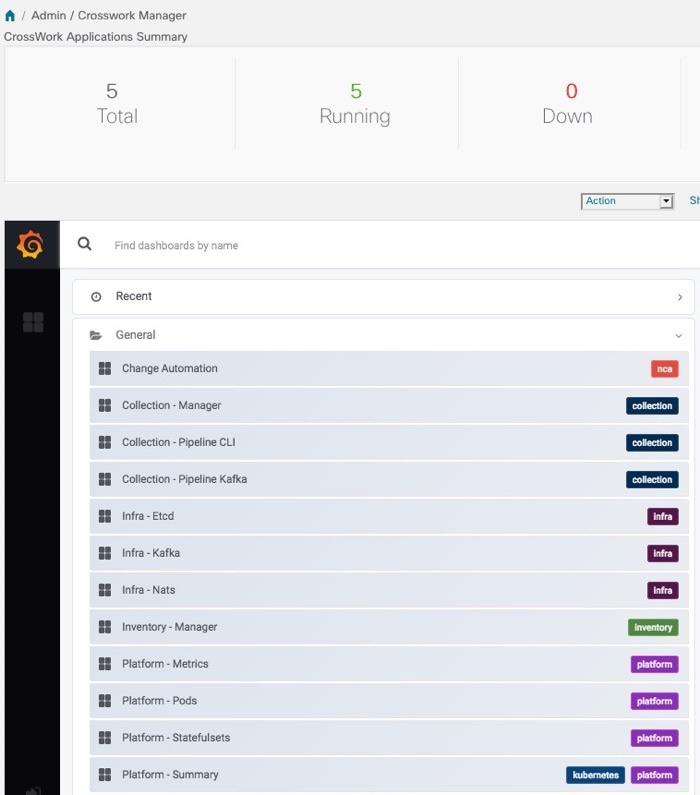
In the Grafana user interface, click Home. Grafana displays the list of monitoring dashboards and their categories, as shown in the following example.

Grafana Dashboard list
Step 4

Click the Grafana dashboard icon next to the dashboard you want to view. For example: Clicking on the Platform - Summary dashboard displays a view like the one shown in the following figure. For more information on how to use Grafana go to htttps://grafana.com.

Collect and Share Cisco Crosswork Network Automation Logs and Metrics

You can collect logs and metrics on multiple levels of Cisco Crosswork Optimization Engine. You can collect logs and metrics for the entire system, for any of its installed application, or for any service supporting an application. You can also choose to collect only logs, only the additional metrics, or both.

Collected logs and metrics are stored in gzipped tar archive files. You can publish these archives to an HTTP or HTTPS server of your choice.

Procedure


Step 1

From the main menu, choose Admin > Crosswork Manager. The Crosswork Manager window displays, with the Application Detail section listing all the applications.

Step 2

Click the option for the collection level and target information you want, as follows:

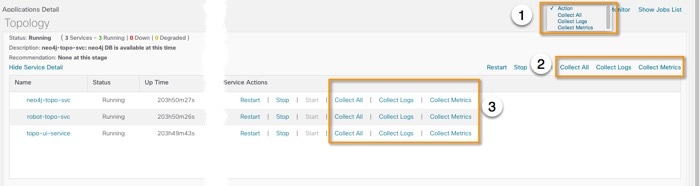
  • To collect for the entire system: From the Action drop down on the right, opposite the Applications Detail section title, choose Collect All, Collect Logs, or Collect Metrics. See item 1 in the following figure.
  • To collect for an application: Scroll to the Application Detail tile for the application you want. Then click the Collect All, Collect Logs, or Collect Metrics link on the right, opposite the application's name. See item 2 in the following figure.
  • To collect for a service: Scroll to the Application Detail tile for the application whose service you want to collect. Click the Show Service Detail link for that application. Then click the Collect All, Collect Logs, or Collect Metrics link on the right, opposite the service's name. See item 3 in the following figure.
Collection Choices
Step 3

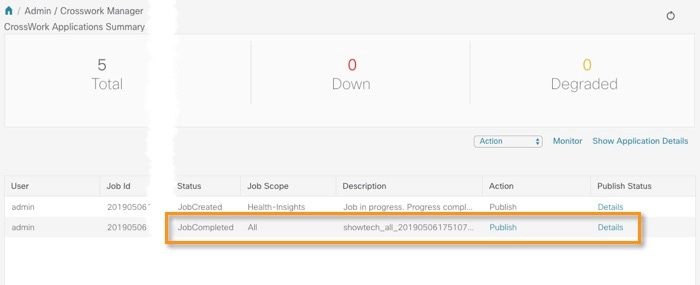
When you click on the collection option you want, the Crosswork Manager window displays a popup message indicating that a job was successfully created and giving the job ID. Click on the Show Jobs List link at the right to view the job's progress in the Crosswork Managerwindow's Jobs List view, which replaces the Applications Detail view.

Step 4

Wait for the job to complete. When the Jobs List view's Status column for your job has changed to JobCompleted, the Action column for the job will show an enabled Publish link for the completed job, and the Description column will show the file name of the gzipped tar archive file containing the collected information.

Step 5

(Optional) Click on the Publish link to publish the collected information to an HTTP or HTTPS server, as follows:

  1. A popup window will prompt you for the destination server host name, the storage path on the server, the port number, and the login user name and password for the server (if required). Enter the server information and click Publish.

  2. The Job List view's Publish Status column for the job shows an enabled Details link. Click the Details link to view a popup window showing the status of the publish job.

Step 6

When you are finished, click the Show Application Details link to re-display the Applications Detail view.


Control Cisco Crosswork Network Automation Applications and Services

Users with administrator privileges can control the runtime status of any Cisco Crosswork Optimization Engine application or service. This can include:

  • Stopping a running application or service

  • Starting a stopped application or service

  • Restarting a running or stopped application or service

Please note that stopping, starting and restarting Cisco Crosswork Optimization Engine applications and services can result in anomalous system behavior and possible data loss. Use these functions only with the supervision of Cisco TAC staff.

Procedure


Step 1

From the main menu, choose Admin > Crosswork Manager. The Crosswork Manager window displays, with the Application Detail view listing all the applications.

Step 2

Display the application or service whose runtime status you want to control:

  • To control an application: Scroll to the Application Detail tile for the application you want.
  • To control a service: Scroll to the Application Detail tile for the application whose service you want to control, then click the Show Service Detail link for that application to show its services.
Step 3

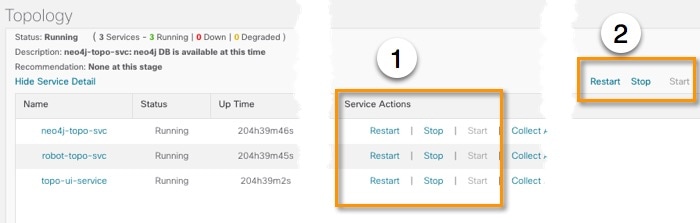
Click on the Start, Stop, or Restart link shown next to the service (item 1 in the following figure) or the application whose runtime status you want to control.

Application and Service Control Choices
Step 4

Click the Show Jobs List link at upper right to view the runtime control job's progress in the Crosswork Managerwindow's Jobs List view.

Step 5

When you are finished, click the Show Application Details link to re-display the Applications Detail view.


Security Hardening Overview

Security hardening entails making adjustments to ensure that the following components optimize their security mechanisms:

  • infrastructure

  • storage system (local or external)

Hardening security requires completion of the following tasks:

  • Shutting down insecure and unused ports

  • Configuring network firewalls

  • Hardening the infrastructure, as needed

Although your primary source of information is your Cisco representative, who can provide server hardening guidance specific to your deployment, you can also follow the steps in this section to secure .

Core Security Concepts

If you are an administrator and are looking to optimize the security of your product, you should have a good understanding of the following security concepts.

HTTPS

Hypertext Transfer Protocol Secure (HTTPS) uses Secure Sockets Layer (SSL) or its subsequent standardization, Transport Layer Security (TLS), to encrypt the data transmitted over a channel. Several vulnerabilities have been found in SSL, so now supports TLS only.


Note

TLS is loosely referred to as SSL often, so we will also follow this convention.

SSL employs a mix of privacy, authentication, and data integrity to secure the transmission of data between a client and a server. To enable these security mechanisms, SSL relies upon certificates, private-public key exchange pairs, and Diffie-Hellman key agreement parameters.

SSL Certificates

SSL certificates and private-public key pairs are a form of digital identification for user authentication and the verification of a communication partner’s identity. Certificate Authorities (CAs), such as VeriSign and Thawte, issue certificates to identify an entity (either a server or a client). A client or server certificate includes the name of the issuing authority and digital signature, the serial number, the name of the client or server that the certificate was issued for, the public key, and the certificate's expiration date. A CA uses one or more signing certificates to create SSL certificates. Each signing certificate has a matching private key that is used to create the CA signature. The CA makes signed certificates (with the public key embedded) readily available, enabling anyone to use them to verify that an SSL certificate was actually signed by a specific CA.

In general, setting up certificates in both High Availability (HA) and non-HA environments involves the following steps:

  1. Generating an identity certificate for a server.

  2. Installing the identity certificate on the server.

  3. Installing the corresponding root certificate on your client or browser.

The specific tasks you need to complete will vary depending on your environment.

Note the following:

  • The start-stop sequencing of servers needs to be done carefully in HA environments.

  • Non-HA environments, where a virtual IP address is configured, require the completion of a more complicated certificate request process.

1-Way SSL Authentication

This authentication method is used when a client needs assurance that it is connecting to the right server (and not an intermediary server), making it suitable for public resources like online banking websites. Authentication begins when a client requests access to a resource on a server. The server on which the resource resides then sends its server certificate (also known as an SSL certificate) to the client in order to verify its identity. The client then verifies the server certificate against another trusted object: a server root certificate, which must be installed on the client or browser. After the server has been verified, an encrypted (and therefore secure) communication channel is established. At this point, the server prompts for the entry of a valid username and password in an HTML form. Entering user credentials after an SSL connection is established protects them from being intercepted by an unauthorized party. Finally, after the username and password have been accepted, access is granted to the resource residing on the server.


Note

A client might need to store multiple server certificates to enable interaction with multiple servers.

To determine whether you need to install a root certificate on your client, look for a lock icon in your browser’s URL field. If you see this icon, this generally indicates that the necessary root certificate has already been installed. This is usually the case for server certificates signed by one of the bigger Certifying Authorities (CAs), because root certificates from these CAs are included with popular browsers.

If your client does not recognize the CA that signed a server certificate, it will indicate that the connection is not secure. This is not necessarily a bad thing. It just indicates that the identity of the server you want to connect has not been verified. At this point, you can do one of two things: First, you can install the necessary root certificate on your client or browser. A lock icon in your browser’s URL field will indicate the certificate was installed successfully. And second, you can install a self-signed certificate on your client. Unlike a root certificate, which is signed by a trusted CA, a self-signed certificate is signed by the person or entity that created it. While you can use a self-signed certificate to create an encrypted channel, understand that it carries an inherent amount of risk because the identity of the server you are connected with has not been verified.

Disable Insecure Ports and Services

As a general policy, any ports that are not needed should be disabled. You need to first know which ports are enabled, and then decide which of these ports can be safely disabled without disrupting the normal functioning of . You can do this by listing the ports that are open and comparing it with a list of ports needed for .

To view a list of all open listening ports:

Procedure


Step 1

Log in as a Linux CLI admin user and enter the netstat -aln command.

The netstat -aln command displays the server's currently open (enabled) TCP/UDP ports, the status of other services the system is using, and other security-related configuration information. The command returns output similar to the following:

[root@vm ~]# netstat -aln
Active Internet connections (servers and established)
Proto  Recv-Q   Send-Q   Local Address            Foreign Address         State
tcp    0        0        0.0.0.0:111              0.0.0.0:*               LISTEN
tcp    0        0        127.0.0.1:8080           0.0.0.0:*               LISTEN
tcp    0        0        0.0.0.0:22               0.0.0.0:*               LISTEN
tcp    0        0        127.0.0.1:25             0.0.0.0:*               LISTEN
tcp    0        0        127.0.0.1:10248          0.0.0.0:*               LISTEN
tcp    0        0        127.0.0.1:10249          0.0.0.0:*               LISTEN
tcp    0        0        192.168.125.114:40764    192.168.125.114:2379    ESTABLISHED
tcp    0        0        192.168.125.114:48714    192.168.125.114:10250   CLOSE_WAIT
tcp    0        0        192.168.125.114:40798    192.168.125.114:2379    ESTABLISHED
tcp    0        0        127.0.0.1:33392          127.0.0.1:8080          TIME_WAIT
tcp    0        0        192.168.125.114:40814    192.168.125.114:2379    ESTABLISHED
tcp    0        0        192.168.125.114:40780    192.168.125.114:2379    ESTABLISHED
tcp    0        0        127.0.0.1:8080           127.0.0.1:44276         ESTABLISHED
tcp    0        0        192.168.125.114:40836    192.168.125.114:2379    ESTABLISHED
tcp    0        0        192.168.125.114:40768    192.168.125.114:2379    ESTABLISHED
tcp    0        0        127.0.0.1:59434          127.0.0.1:8080          ESTABLISHED
tcp    0        0        192.168.125.114:40818    192.168.125.114:2379    ESTABLISHED
tcp    0        0        192.168.125.114:22       192.168.125.1:45837     ESTABLISHED
tcp    0        0        127.0.0.1:8080           127.0.0.1:48174         ESTABLISHED
tcp    0        0        127.0.0.1:49150          127.0.0.1:8080          ESTABLISHED
tcp    0        0        192.168.125.114:40816    192.168.125.114:2379    ESTABLISHED
tcp    0        0        192.168.125.114:55444    192.168.125.114:2379    ESTABLISHED

Step 2

Check the Cisco Crosswork Optimization Engine Installation Guide for the table of ports used by Cisco Crosswork Optimization Engine, and see if your ports are listed in that table. That table will help you understand which services are using the ports, and which services you do not need—and thus can be safely disabled. In this case, safe means you can safely disable the port without any adverse effects to the product.

Note 
If you are not sure whether you should disable a port or service, contact your Cisco representative.  
Step 3

If you have firewalls in your network, configure the firewalls to only allow traffic that is needed for Cisco Crosswork Optimization Engine to operate.


Harden Your Storage

We recommend that you secure all storage elements that will participate in your installation, such as the database, backup servers, and so on.

  • If you are using external storage, contact your storage vendor and your Cisco representative.

  • If you are using internal storage, contact your Cisco representative.

  • If you ever uninstall or remove , make sure that all VM-related files that might contain sensitive data are digitally shredded (as opposed to simply deleted). Contact your Cisco representative for more information.