Provision, Visualize, and Analyze Tree Segment Identifier Policies in Multipath Networks

This section explains the following topics:

Overview

Allow users to provision and visualize Tree Segment Identifier (Tree-SID) Segment Routing policies easily and quickly before associating the policies with an L3VPN service model.

Objective

To provision, visualize, and update static Tree-SID policies within your network using Crosswork Network Controller and associate the (mVPN) policies with an L3VPN service model. Provisioning Tree-SID policies through the Crosswork Network Controller UI allows for visualizing and analyzing multicast paths, root and leaf nodes, transit nodes, and link information among the nodes. This process provides a comprehensive view for creating, visualizing, updating, and maintaining point-to-multipoint (P2MP) network configurations. These static Tree-SID policies can be associated with a L3VPN service model and can be visualized and edited as needed using the Crosswork Network Controller UI.

Challenge

Keeping track of SR PCE and PE paths within networks is a challenge for video broadcasting and streaming service providers, who must use multipath protocols to replicate traffic and send it to different points in the network. To ensure a high-quality service, providers need to use difficult manual approaches to visualize, update, and maintain their point-to-multipoint (P2MP) network configurations. This approach slows response to network problems and increases costs.

Solution

Tree-SID is a method of implementing tree-like multicast flows over a segmented routing network. Using Tree-SID, an SDN controller (a device running SR-PCE using PCEP) calculates the tree. Each node (device) in the tree has a specific role in routing the multicast data through the tree. These roles include Ingress for the root or headend node, Transit or Bud for midpoint nodes that are not leaf nodes, and Egress for destination leaf nodes. The tree itself is assigned a single SID label representing all the tree segments and devices. The SDN controller is highly flexible, as it understands the segmentation and can construct routing paths using any constraints that network architects can specify.

The most interesting use case for constraint-based Tree-SID use is where routers are configured to deliver two P2MP streams with the same content over different paths. Here, the multicast flow is forwarded twice through the network, each copy following a unique path. The two copies never use the same node or link to reach the destination, reducing packet loss due to network failures on any one of the paths.

Using Crosswork Network Controller, you can now create static tree-SID policies using the UI, associate Static mVPN tree-SID policies with a provisioned L3VPN service, and visualize, analyze, edit or delete your tree-SID policies to manage your multicast network actively.


Note


Static and Dynamic mVPN Tree-SID policies can be associated with an L3VPN service model. In this workflow tutorial, only a Static mVPN Tree-SID policy will be associated, visualized, and analyzed with an L3VPN service model.


How does it work?

  • Create a static Tree-SID policy using Crosswork Network Controller UI

  • Visualize and validate the new static Tree-SID policy

  • Associate your static mVPN Tree-SID policy with an L3VPN service model (or import an existing static or dynamic Tree-SID policy)

  • Visualize and analyze the performance details of your static mVPN Tree-SID paths and nodes within the L3VPN service model

  • Edit your existing static mVPN Tree-SID policy to enhance performance or correct issues with your Tree-SID L3VPN service model
Scenario: Provisioning, visualizing, and analyzing Tree-SID policies in a point-to-multipoint L3VPN service

Scenario context

Without Crosswork Network Controller, provisioning and visualizing Tree Segment Identifier (Tree-SID) point-to-multipoint traffic flows is possible only using manual tasks from different sources. When manual tasks are restricted, creating Tree-SID policies, associating a policy with an L3VPN service model, and visualizing and editing the policy and service becomes more difficult. By using Crosswork Network Controller, you can bypass the time-consuming manual setup process and see the traffic flow paths without relying on outdated data from manual configurations. The Crosswork Network Controller can create and discover Tree-SID segmentation directly from network configurations and display the data flow map immediately. This makes it easier to troubleshoot issues with Tree-SID traffic flows quickly.

Crosswork Network Controller’s topology services use PCE topology and LSP data to discover and visualize pre-configured Tree-SID policies in your network. The PCE controller manages the layer 3 topology, LSP, and Tree-SID data using the BGP link state and supports initial discovery and notifications for the Tree-SID trees. Static Tree-SID policies can also be configured and associated with newly created or previously configured L3VPN services directly in Crosswork Network Controller’s UI. Likewise, based on the health of the service and policies, editing capabilities are also performed using the UI to troubleshoot and optimize model operations.

Assumptions and prerequisites

If your network has PCE and Tree-SID policies already configured on your devices, this workflow assumes, at a minimum, the following basic configuration options:

  1. On all nodes involved in the Tree-SID path, irrespective of role:

    1. Enable Path Computation Element Protocol (PCEP)

    2. Enable Computation Client (PCC)

  2. Under SR-PCE, on endpoints: Configure a P2MP SR static or dynamic Policy.

  3. On all root and leaf nodes:

    • Enable multicast routing

    • Configure interface vrf <vrf-number>

    • Configure router bgp on topo nodes and PCE. On corresponding neighbors between PCE and PCC nodes, mention the configured interface vrf <vrf-number>.

    • Configure route-policy <vrf-number> and PASS_ALL

    • Under segment routing traffic engineering: Configure ODN color <same as vrf-number>

  4. On all leaf nodes only: Configure router PIM, route-policy TREESID_CORE.

Step 1 Create a static Tree-SID policy

If you are using preconfigured Static or Dynamic Tree-SID policies already configured on your devices, skip to Step 2 in the workflow. If you are configuring Tree-SID policies using the Crosswork Network Controller’s UI, this task first creates a Static Tree-SID policy, each representing a leaf or root node, before you have the option to associate the policies with a L3VPN service model that can be visualized and edited as necessary:

Procedure


Step 1

From the main menu, choose Services & Traffic Engineering > Traffic Engineering.

The logical map opens and the Traffic Engineering panel is displayed to the right of the map.

Step 2

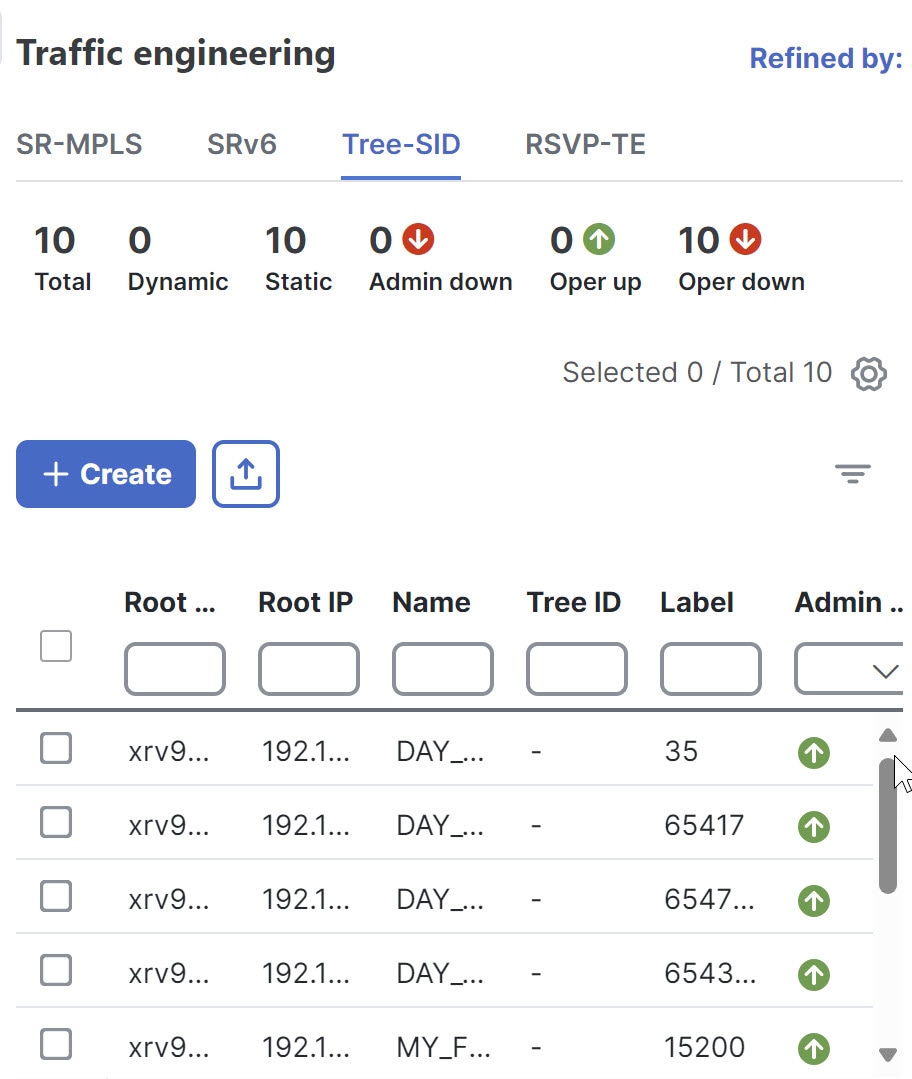
In the Traffic Engineering panel, select the Tree-SID tab.

The Traffic Engineering Tree-SID policy screen appears.

Figure 1. Tree-SID policy
Tree-SID Policy

Step 3

Click + Create.

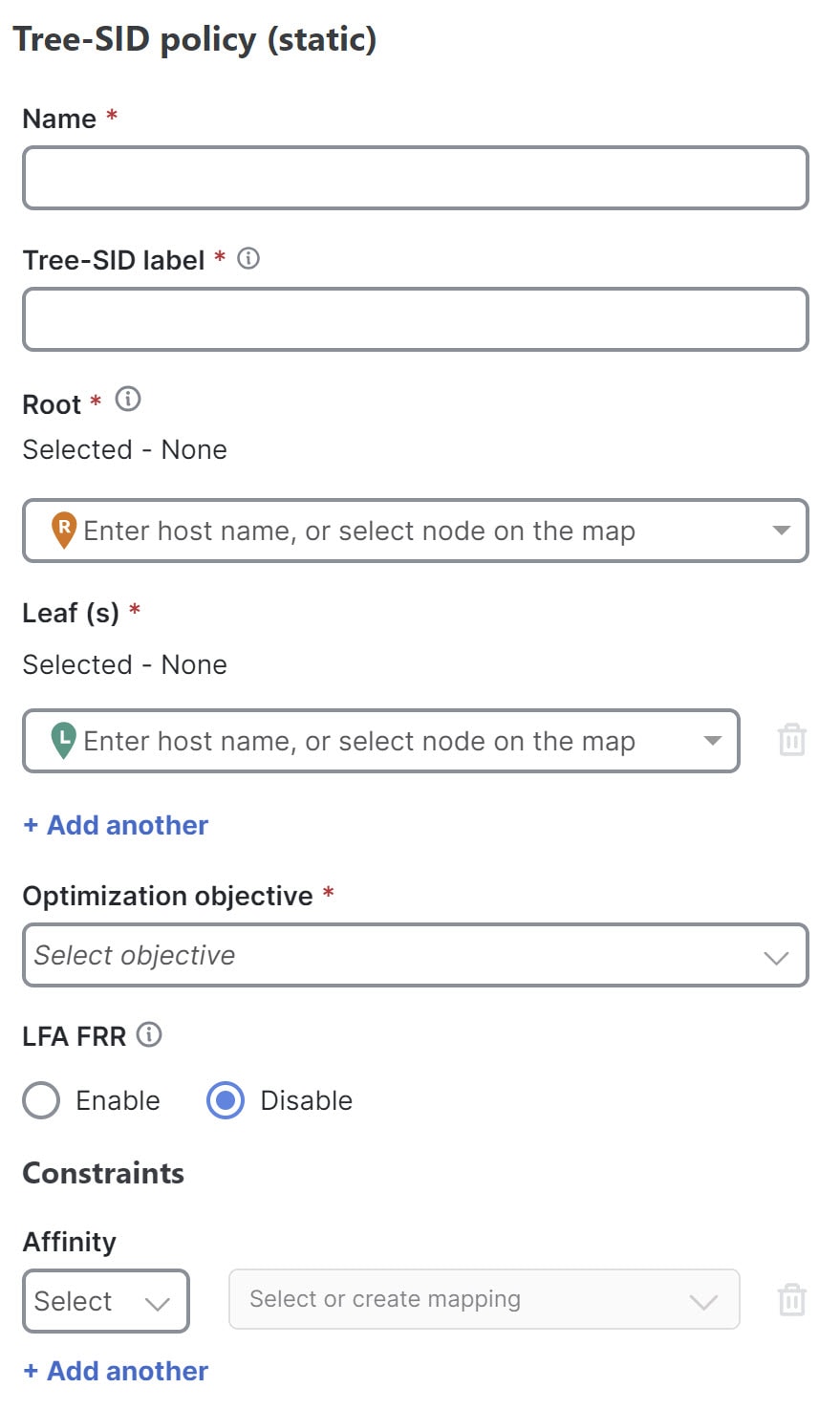
The Tree-SID policy (static) screen appears.

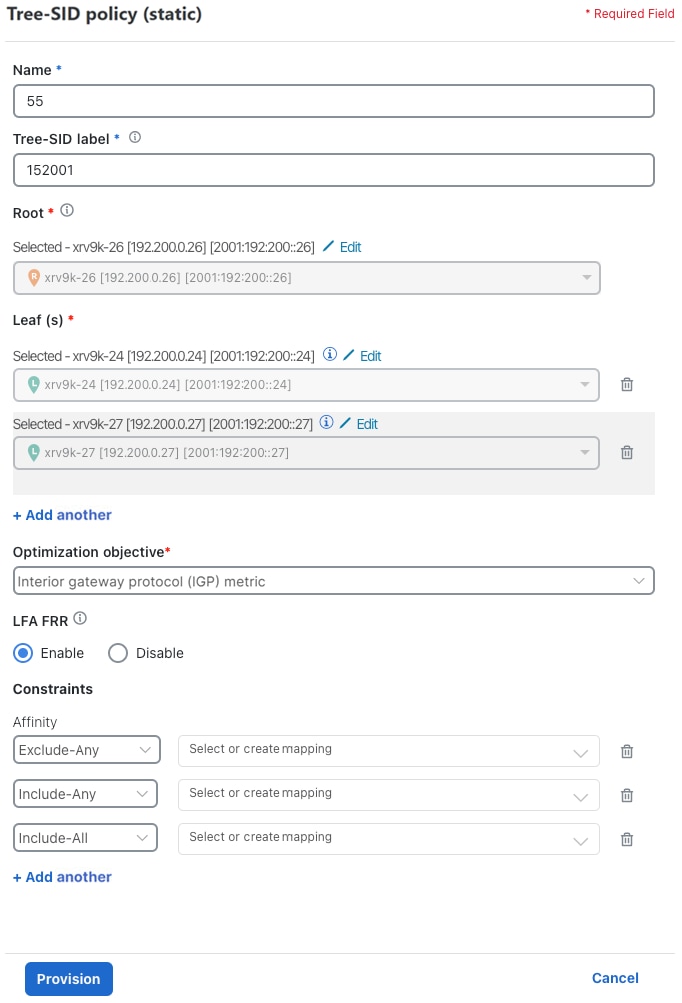
Tree-SID policy (static)
New Tree-SID Policy (Static)

Step 4

To enter or select the required Static Tree-SID policy values, do the following:

  1. After providing a name for your new Static Tree-SID policy, in the Tree-SID Label field, assign the MPLS label associated with the Tree-SID policy (for example, 152001).

    The Tree-SID Label must be in the range from 16 to 1048575.

  2. In the Root field, enter the host name (for example, xrv9k-26) or select a node on the map or an existing device in the list. As you type or select the Root information, a Root label for the selected node appears on the map. Only PCC nodes with PCEP session to PCE can be added as a Root node.

  3. In the Leaf field, enter the host name (for example, xrv9k-24) or select a node on the map. As you type or select the Leaf information, the Leaf label(s) for the selected nodes appear on the map.

    Click + Add another to add additional constraints (for example, xrv9k-27).

  4. For the Optimization Objective, select one of the following constraints: Interior Gateway Protocol (IGP) Metric, Traffic Engineering (TE) Metric, or Latency (for example, IGP).

  5. For LFA FRR, select Enable or Disable (for example, Enable).

    By selecting Enable, the Loop Free Alternate Fast Reroute (LFA FRR) is enabled on all of the nodes in the distribution tree.

  6. For additional Constraints, select one of the following Affinity options: Exclude-Any, Include-Any, Include-All.

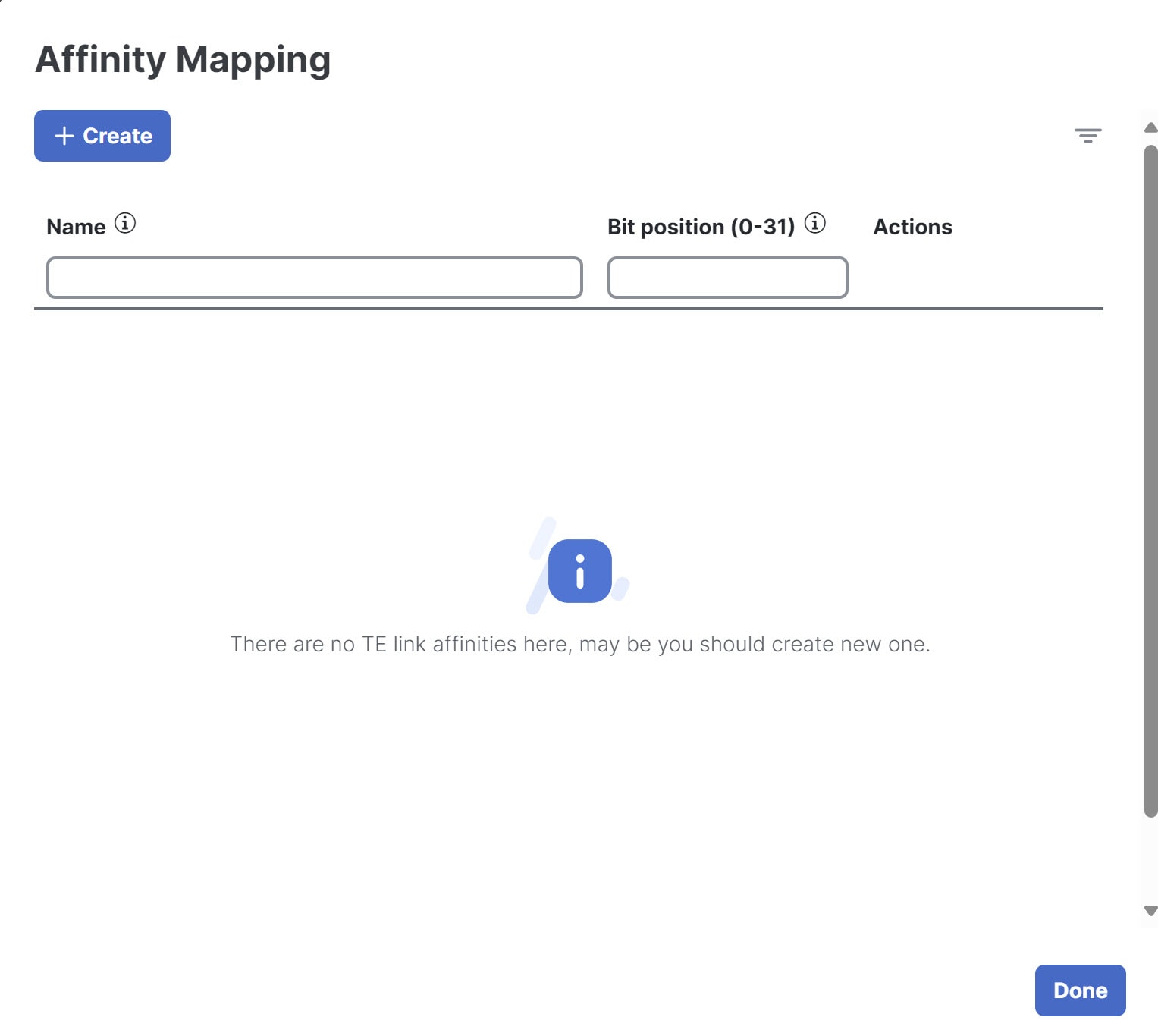
    In addition, from the Select or create mapping drop-down list, click Manage mapping. The Affinity mapping dialog box opens. For more information on Affinities, see the Configure link affinities section in the Crosswork Network Controller 7.1 Traffic Engineering and Optimization guide.

    Figure 2. Affinity mapping
    Affinity Mapping
  7. For Affinity mapping, type the mapping's Name (color) and enter the Bit position (0 – 31). Enter the same bit position as used on the device interface. Click Done.

    To create additional constraints, click + Create.

    Figure 3. New Tree-SID policy (static) details
    New Tree-SID Policy (Static) Details
  8. To commit the policy, click Provision to activate the policy on the network.


The newly provisioned Tree-SID policy may take some time to appear in the Tree-SID table, depending on the network size and performance. The Tree-SID table is auto-refreshed every 30 seconds. Once the request is successful, select View Tree-SID policy list or Create new to add additional policies. If you select View Tree-SID policy list, the Tree-SID policy screen shows the newly created policy in the table.

Step 2 Visualize and validate the new static Tree-SID policy

Procedure


Step 1

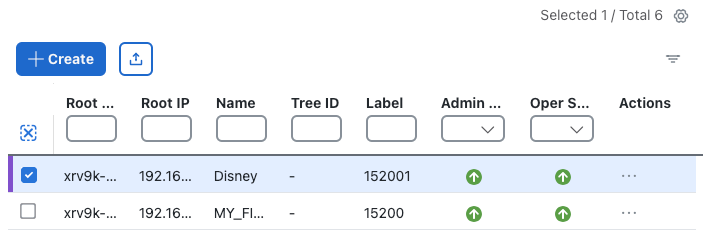
Select the root Tree-SID policy check box from the list. In this example, select xrv9k-26.

Figure 4. Tree-SID policy
Tree-SID Policy

If the table contains a large number of policies, filter by Root IP, Name, Label, or other parameter, to help locate the policy you want to visualize.

The map will show the selected Tree-SID policy as an overlay on the topology. It shows a representation of the Tree-SID policy routes, with icon flags indicating the root node (xrv9k-26, also known as the ingress device) and the two leaf nodes (xrv9k-24 and xrv9k-27, also known as egress devices), with intermediary transit nodes between them. The administrative and operational status for each node is shown in the table.
Note

 
Use the buttons at the top right of the logical map to toggle between the logical map and the geo map views.

Step 2

Select the Geo map button to view the selected Tree-SID service topology overlaid on a world map.

Step 3

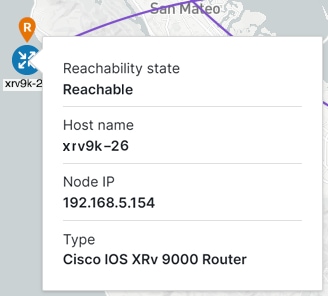
In the map, select the Show: Participating only check box to hide underlay devices that are not participating in the selected Tree-SID policy. Then, use your mouse to hover over the xrv9k-26 root device to view its corresponding Reachability State, Host Name, Node IP, and device Type.

Check any participating Tree-SID device in the same fashion to view their corresponding details.

Figure 5. Tree-SID device details
Tree-SID Device Details

Step 4

In the map, click xrv9k-24.

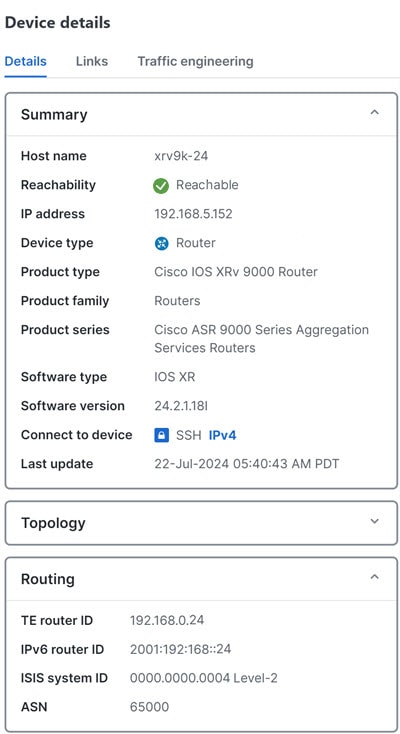
The Device details screen opens, showing xrv9k-24 information organized by Summary and Routing in the Details tab and PCEP sessions in the Traffic Engineering tab.

Figure 6. Device details
Device Details
Figure 7. Device details traffic engineering
Device Details Traffic Engineering

Step 5

Click X in the top-right corner to return to the Tree-SID Policy table to close the Device Details screen and select the Tree-SID tab again.

Step 6

In the Tree-SID Policy list for the selected xrv9k-26 device, click in the Actions column and select View details to drill down to a current and detailed view of the Tree-SID policy.
The Tree-SID Policy Details screen appears.

Note

 
To view all of the Tree-SID Policy Details, click See more.

Note


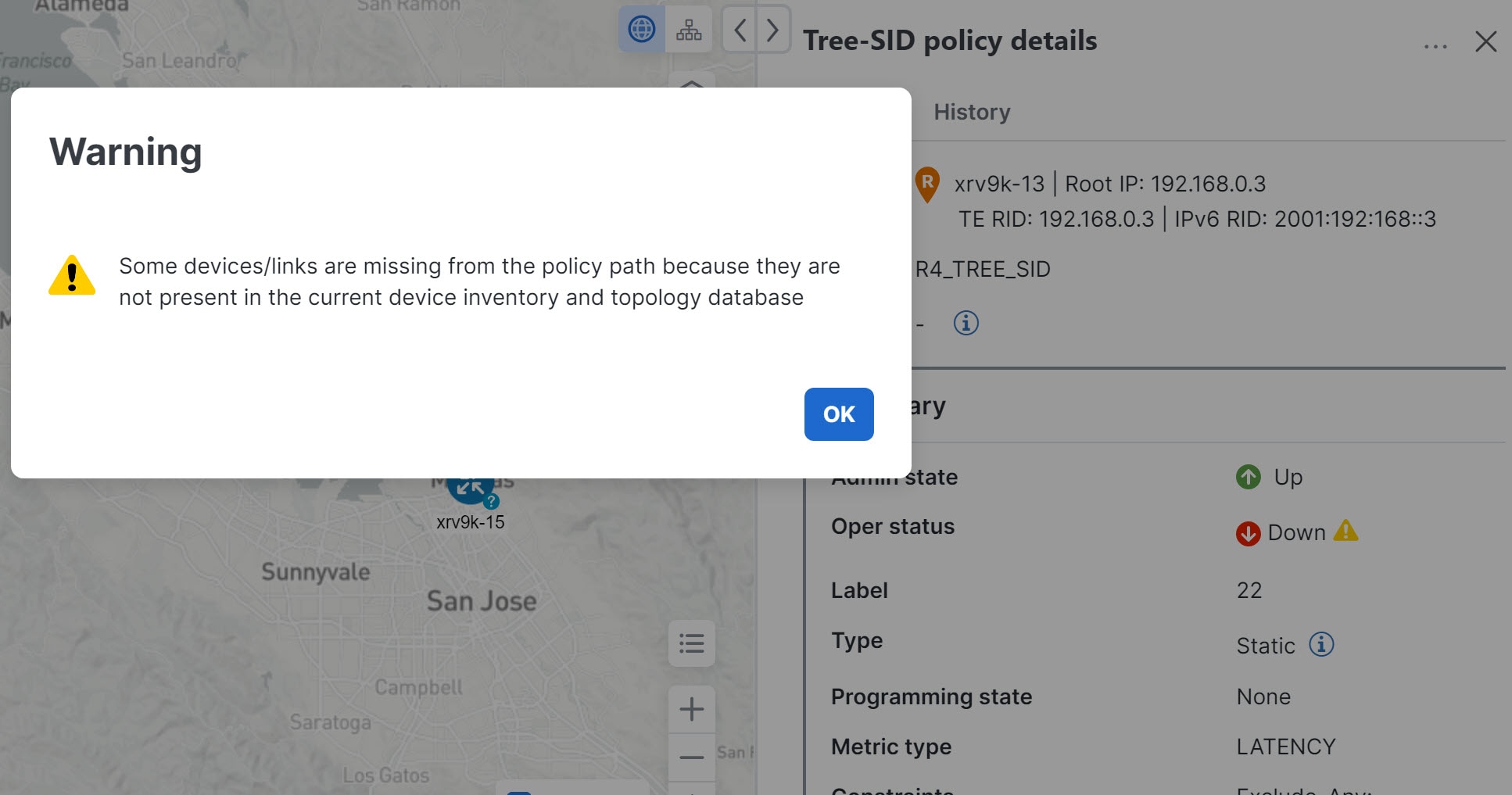
When viewing Tree-SID policy details, if a source node is unavailable, a warning message and a warning icon appears next to the Oper status field, detailing where the connection issue resides. For example:

Figure 8. Missing source node warning icon/message

Missing Source Node Warning Icon/Message

Note


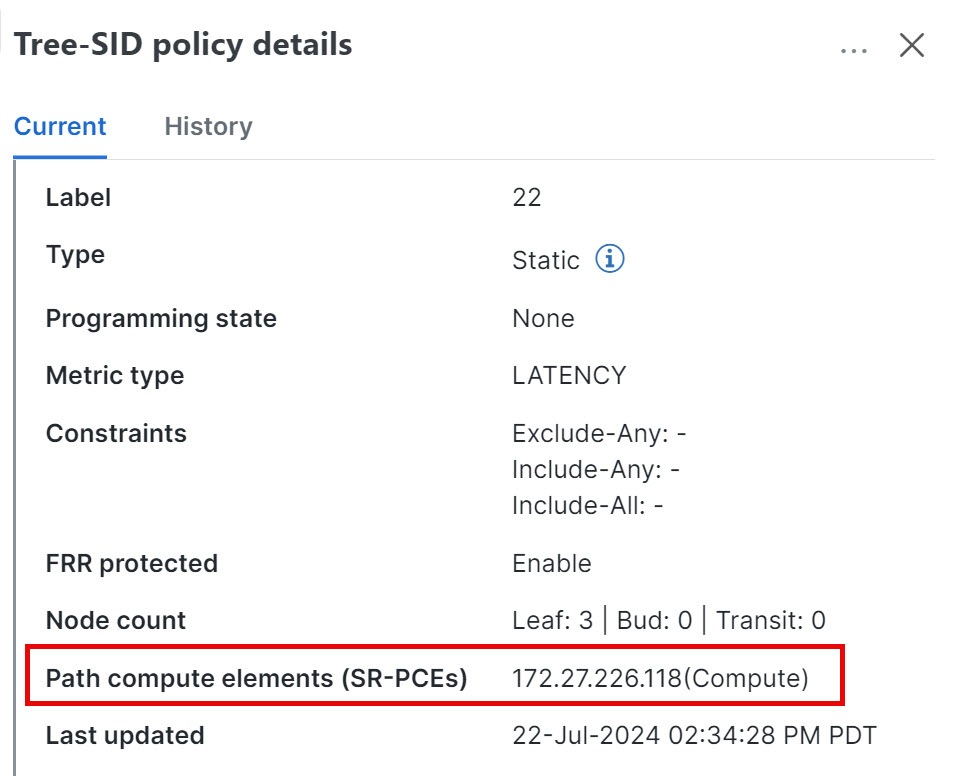
A (Compute) label, next to the SR-PCE field, details the SR-PCE used to create the policies. For example:

Figure 9. SR-PCE path compute details

SR-PCE Compute details the SR-PCE used to create the policies

Step 7

In the Tree-SID path section, click Expand all to view Tree-SID path names and IPs for the xrv9k-24 and xrv9k-27 leaf nodes. The list also shows details for the corresponding Root node, all Transit nodes, the two Leaf nodes, and their Egress Link’s Local IP and Remote IP information.

Step 8

Deselect the xrv9k-22 check box to see Tree-SID path details for xrv9k-24 and xrv9k-27 devices only.

The topology updates to show only the selected xrv9k-24 and xrv9k-27 Tree-SID routes.

Step 9

Click X in the top-right corner to return to the Tree-SID Policy table.

Step 10

Select the root IP Tree-SID policy xrv9k-26 check box from the list. Make sure the geographical map option is selected. The geographical map updates to show the policy and its disjunct routes. You can click on individual links and get details on the Tree-SID policies in which each link participates.


Step 3 Associate the static Tree-SID policy with the newly created L3VPN service model

Procedure


Step 1

From the main menu, choose Services & Traffic Engineering > Provisioning (NSO).

The Provisioning screen appears, showing available Services/Policies.

Step 2

Select L3VPN > L3vpn-Service.

The L3VPN > L3vpn-Service table appears.

Step 3

To create a new L3vpn-Service, click the symbol.

The Create L3VPN > L3vpn-Service screen appears.

Note

 
You may also click the symbol to import an existing L3vpn-Service.
Step 4

In the vpn-id field, type the unique ID for the service (for example, MVPN-TREE-SID-119) and click Continue.

Note

 
This identifier has a local meaning (such as within a service provider network).

Step 5

In the vpn-service-topology drop-down list, select custom to define the service topology.

Note

 
Point-to-point VPN service topology is not supported.

Step 6

Expand the vpn-instance-profiles section and click the symbol to add the profile ID.

The vpn-instance-profiles panel appears.

Step 7

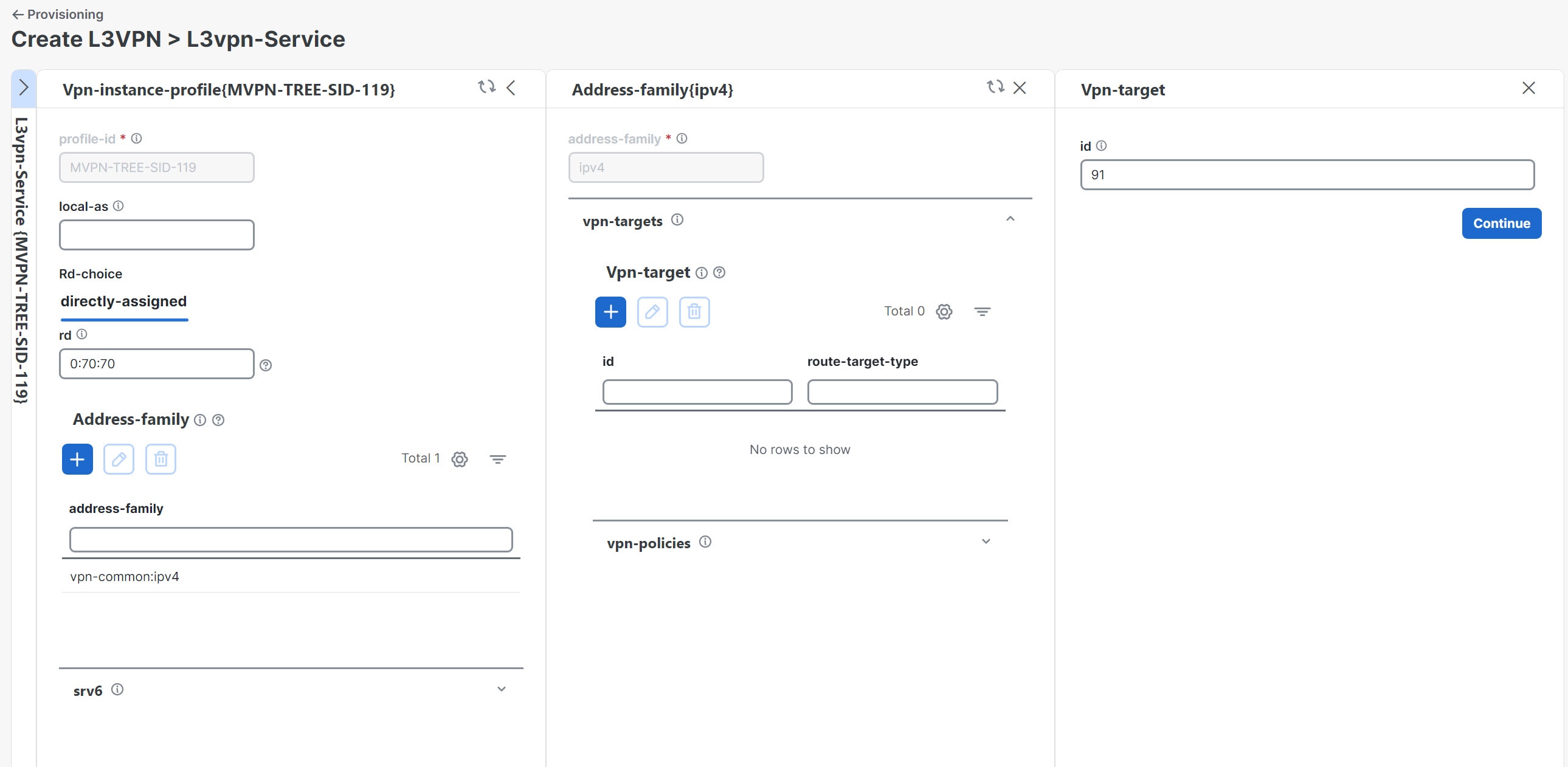
In the profile-id field, type the VPN instance profile identifier (for example, MVPN-TREE-SID-119) and click Continue.

The vpn-instance-profiles panel refreshes with additional fields to fill.

Step 8

In the Rd-choice section, enter the directly-assigned rd that indicates an RD value that is explicitly assigned (for example, 0:70:70).

Step 9

For address-family, click the symbol. The address-family panel appears. Select ipv4 from the address-family list and click Continue.

The address-family{ipv4} panel updates with vpn-targets section included.

Step 10

For vpn-target, click the symbol so to signify the VPN target id and route-target-type.

The vpn-target panel appears.

Step 11

In the id field, enter the id (for example, 91) and click Continue.

Figure 10. L3VPN-service
L3vpn-Service

Step 12

In the vpn-target{91} panel, select the route-target-type drop-down list and select both.

The address-family{ipv4} panel updates showing the vpn-target id (as 91) and route-target-type (as both).

Step 13

In the vpn-target{91} panel for route-targets, click the symbol, type the route-target (for example, 0:70:70), and click Continue. Click X to close the panel.

The route-target table updates with the new information. Click X in the top right to close all of the remaining panels.

Adding the vpn-instance-profiles is now complete.

Step 14

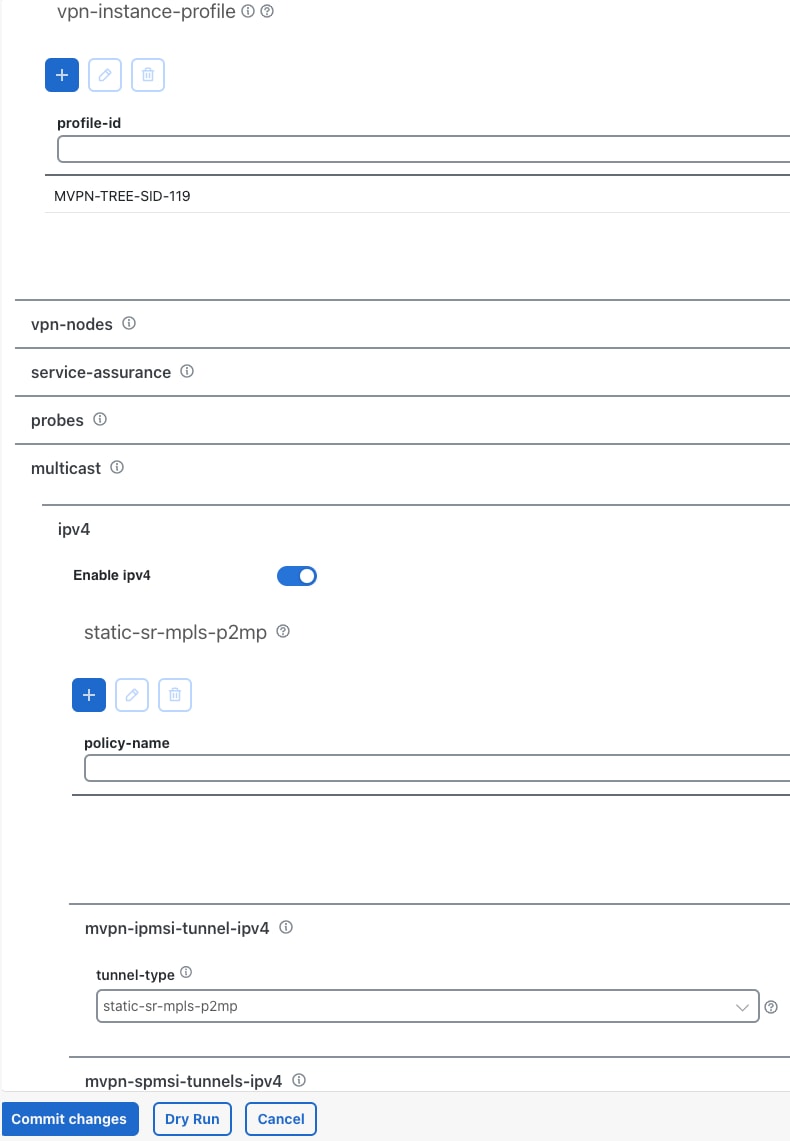
Select multicast and then ipv4 to expand both sections.

Step 15

Expand the mvpn-ipmsi-tunnel-ipv4 section and select static-sr-mpls-p2mp from the tunnel-type list.

The Enable ipv4 toggle is now switched on.

Note

 
The sr-mpls-p2mp selection in the list is for a Dynamic Tree-SID policy.
Figure 11. VPN instance profile
VPN Instance Profile

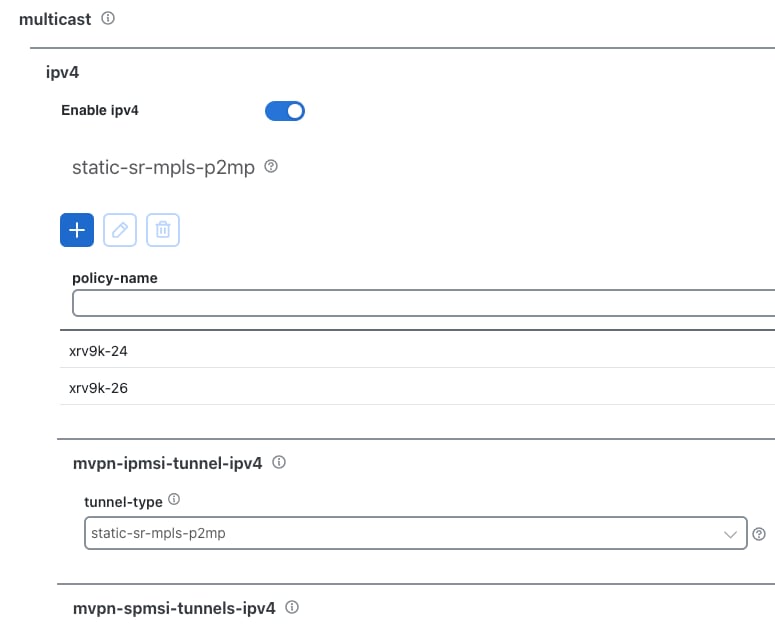
Step 16

For static-sr-mpls-p2mp, click the symbol.

The static-sr-mpls-p2mp panel appears.

Step 17

In the policy-name field, type the previously created Static Tree-SID policy name (for example, xrv9k-26) and click Continue.

The static-sr-mpls-p2mp{Static-xrv9k-26} panel updates.

Step 18

In the sr-p2mp-policy area for the group-address, click the symbol to add the address.

The group-address panel appears.

Step 19

In the Address field, type the IPv4 static multicast group address (for example, 1.1.1.1) and click Continue.

The group-address{1.1.1.1} panel refreshes. Click X at the top right to close any remaining panels.

Step 20

Click the symbol in the multicast > ipv4 subsection to add the other policy name.

The static-sr-mpls-p2mp panel appears.

Step 21

In the policy-name field, type the other previously created static Tree-SID policy name (for example, xrv9k-24) and click Continue.

The static-sr-mpls-p2mp{xrv9k-24} panel updates.

Step 22

In the sr-p2mp-policy area for the group-address, click the symbol to add the address.

The group-address panel appears.

Step 23

In the address field, type the IPv4 static multicast group address (for example, 2.2.2.2) and click Continue.

The group-address{2.2.2.2} panel refreshes. Click X at the top right to close any remaining panels.

You have successfully mapped the static Tree-SID policy to the L3VPN multicast service model. Next, you must add the VPN node details.

Note

 
For advanced configurations, you may select mvpn-spmsi-tunnels-ipv4 subsection under the multicast section to define the tunnel-type, switch-wildcard-mode, switch-threshold, per-item-tunnel-limit, group-acl-ipv4 details.
Figure 12. Multicast section
Multicast Section

Step 4 Add the VPN nodes

Procedure


Step 1

In the vpn-nodes section, click the symbol to add your VPN nodes set up in the static Tree-SID policy (xr9k-26, xr9k-24, and xr9k-27).

The vpn-node panel appears so to add the vpn-node-id.

Step 2

From the vpn-node-id drop down, select the first of the VPN node (for example, xr9k-26) and click Continue.

The vpn-node{xr9k-26} panel updates with additional fields.

Step 3

In the Local-as field, type 65000.

Step 4

In the active-vpn-instance-profiles section, click the symbol to add the VPN instance profile ID.

Step 5

In the profile-id drop down list, the previously added profile ID appears. Select it (for example, MVPN-TREE-SID-119), click Continue and click X to close the panel.

Step 6

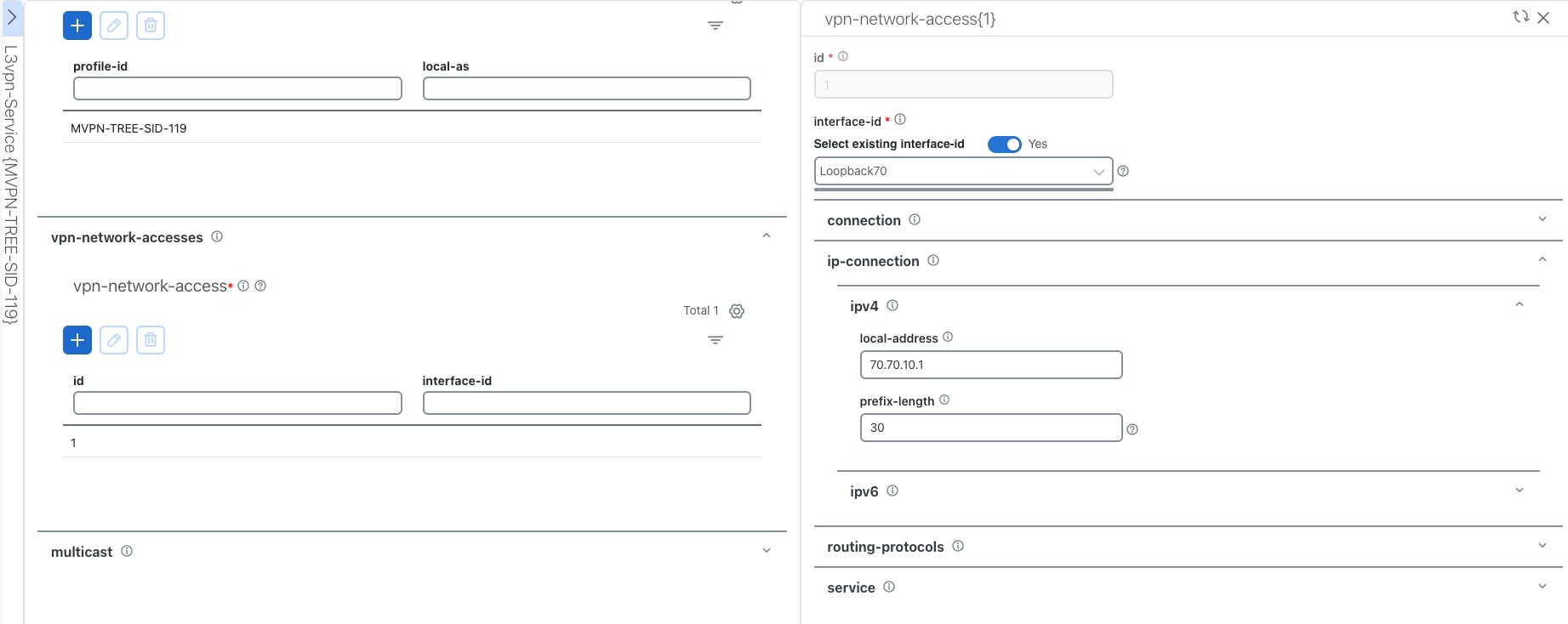
In the vpn-node{xr9k-26} panel, select the vpn-network-accesses section and click the symbol to add the vpn-network-access ID. In the Id field, add a number (for example, 1) and click Continue.

The vpn-network-access{1} panel updates with additional fields.

Step 7

In the interface-id field, type the identifier for the physical or logical interface (for example, Loopback70).

The identification of the sub-interface is provided at the connection level and/or the IP connection level.

Step 8

In the ip-connection section, select the ipv4 subsection, and in the local-address field, type the IP address used at the provider's interface (for example, 70.70.10.1).

Step 9

In the prefix-length field, type 30.

The subnet prefix length is expressed in bits. It is applied to both local and customer addresses.

Figure 13. VPN network access
VPN Network Access

Step 10

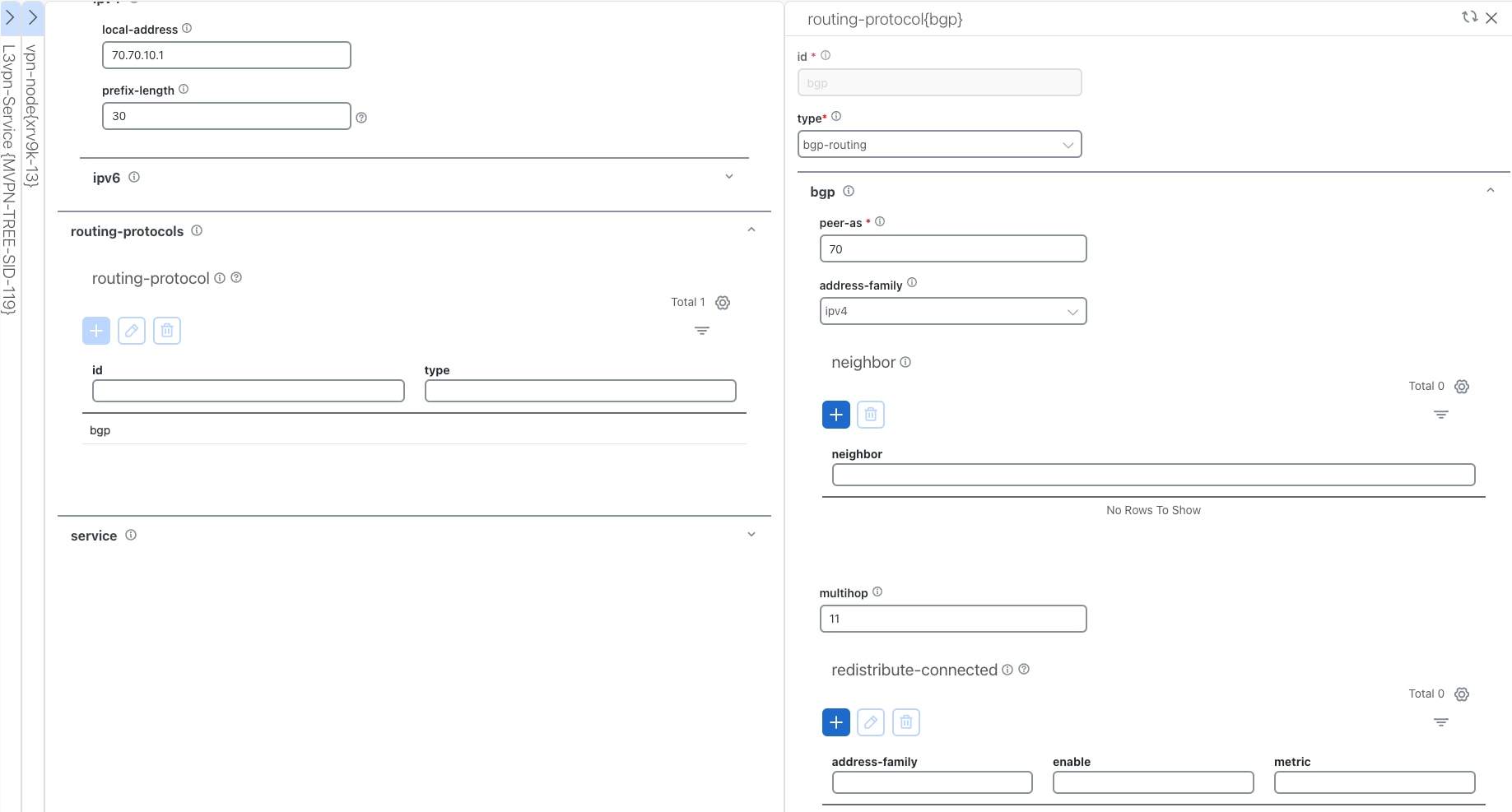
In the routing-protocols section, click the symbol to add the unique identifier for the routing protocol. In the Id field, type bgp and click Continue.

The routing-protocol{bgp} panel appears.

Step 11

In the type drop-down list, select bgp-routing.

The routing-protocol{bgp} panel refreshes with additional sections.

Step 12

In the bgp section, for the peer-as field, type 70 to indicate the customer's ASN when the customer requests BGP routing, and in the address-family drop-down list, select ipv4. This node contains the address families to be activated.

Note

 
If you select dual-stack, it means that both ipv4 and ipv6 will be activated.

Step 13

In the multihop field, type 11 to describe the number of IP hops allowed between a given BGP neighbor and the PE.

Figure 14. Routing protocol
Routing Protocol

Step 14

For the neighbor section, click the symbol. In the Neighbor field, type the device address (for example, 70.70.10.2) and click Continue.

Step 15

For the redistribute-connected section, click the symbol and from the address-family drop-down list, select ipv4 and click Continue.

The redistribute-connected{ipv4} panel appears.

Step 16

In the enable field, select true to enable the redistribution of connected routes.

Close all panels (click X in the top right corner) until the Create L3VPN > L3vpn-Service screen appears.

Step 17

In the vpn-nodes section, you will see xrv9k-26 listed in the vpn-node table. Select xrv9k-26 and select the symbol.

The vpn-node{xrv9k-26} panel appears.

Step 18

Select the multicast section and click the symbol to add the mapping of the policy for each node.

The static-sr-mpls-p2mp panel appears.

Step 19

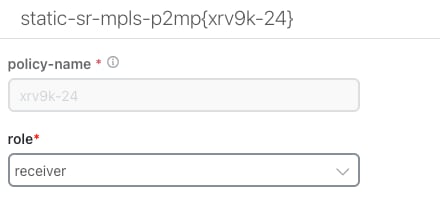
For the policy-name drop-down list, select the policy you want to add to this node (either the source or the receiver). Select xrv9k-24 as a receiver and click Continue.

The static-sr-mpls-p2mp{xrv9k-24} panel updates with additional fields.

Step 20

For the role drop-down list, select receiver.

Close all additional panels (click X in the top right corner) until the Create L3VPN > L3vpn-Service screen appears.

Figure 15. Policy mapping to the node
Policy Mapping to the Node

Step 21

Repeat steps 1 – 20 to add the other two VPN nodes set up in the Static Tree-SID policy: xr9k-24 and xr9k-26.

Step 22

After all the VPN nodes have been added, click Commit changes.


Step 5 Visualize and edit the static mVPN Tree-SID policy's L3VPN service model

Procedure


Step 1

From the main menu, choose Services & Traffic Engineering > Provisioning (NSO).

The Provisioning screen appears, showing available Services/Policies.

Step 2

Select L3VPN > L3vpn-Service.

The L3VPN > L3vpn-Service table appears.

Step 3

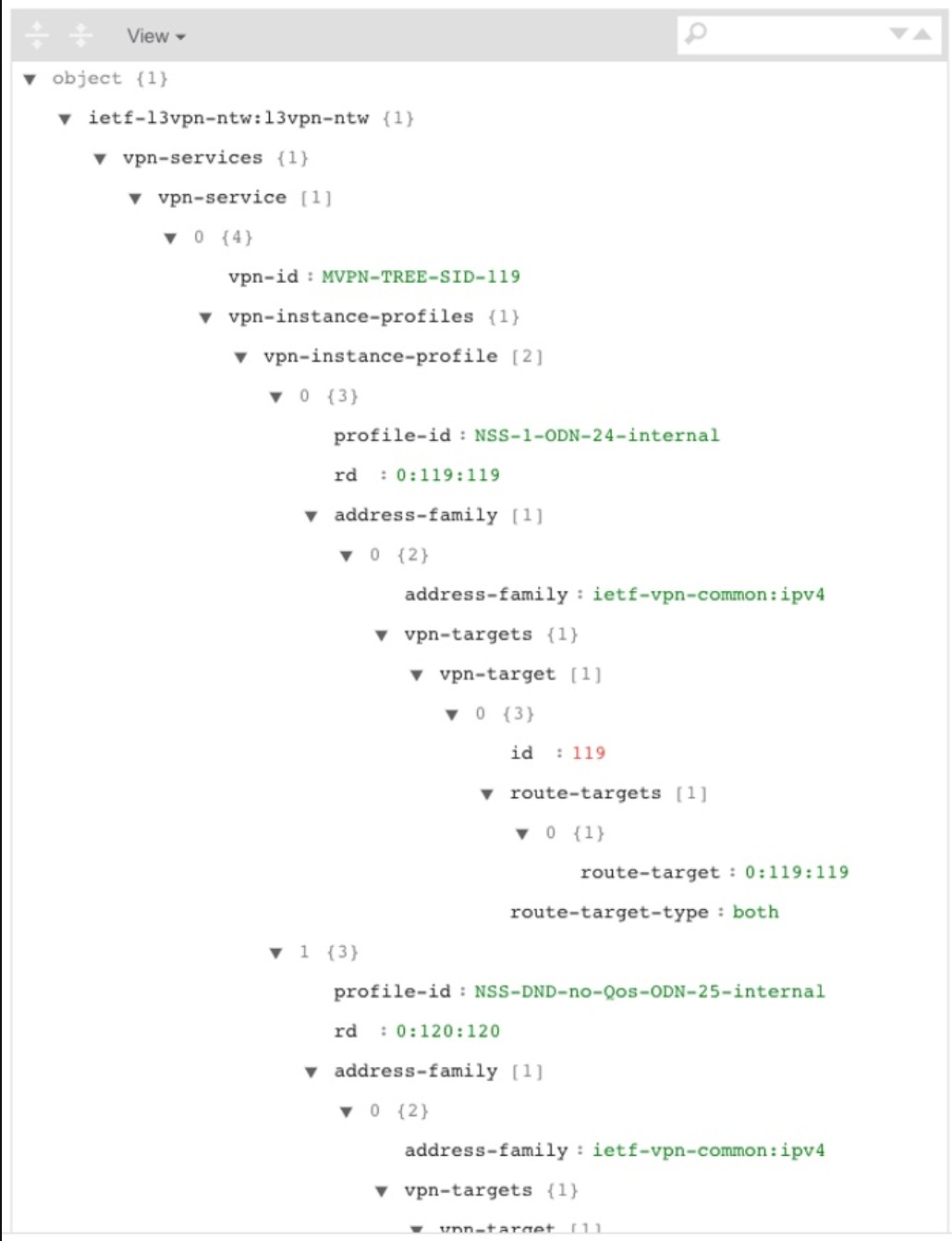
Locate the newly created L3VPN service ID in the table (MVPN-TREE-SID-119), and in the Actions column, click and select Config view.

The Configured Data pop-up screen appears.

Figure 16. Configured data pop-up
Configured Data Pop-up

Step 4

In the Configured data pop-up screen, review the data configuration and click Copy to clipboard if you want to save a copy, or click Cancel to exit.

Step 5

To view the new Static mVPN Tree-SID policy associated with the L3VPN service model, click the name of the VPN Id in the table or the Actions column, click and select View.

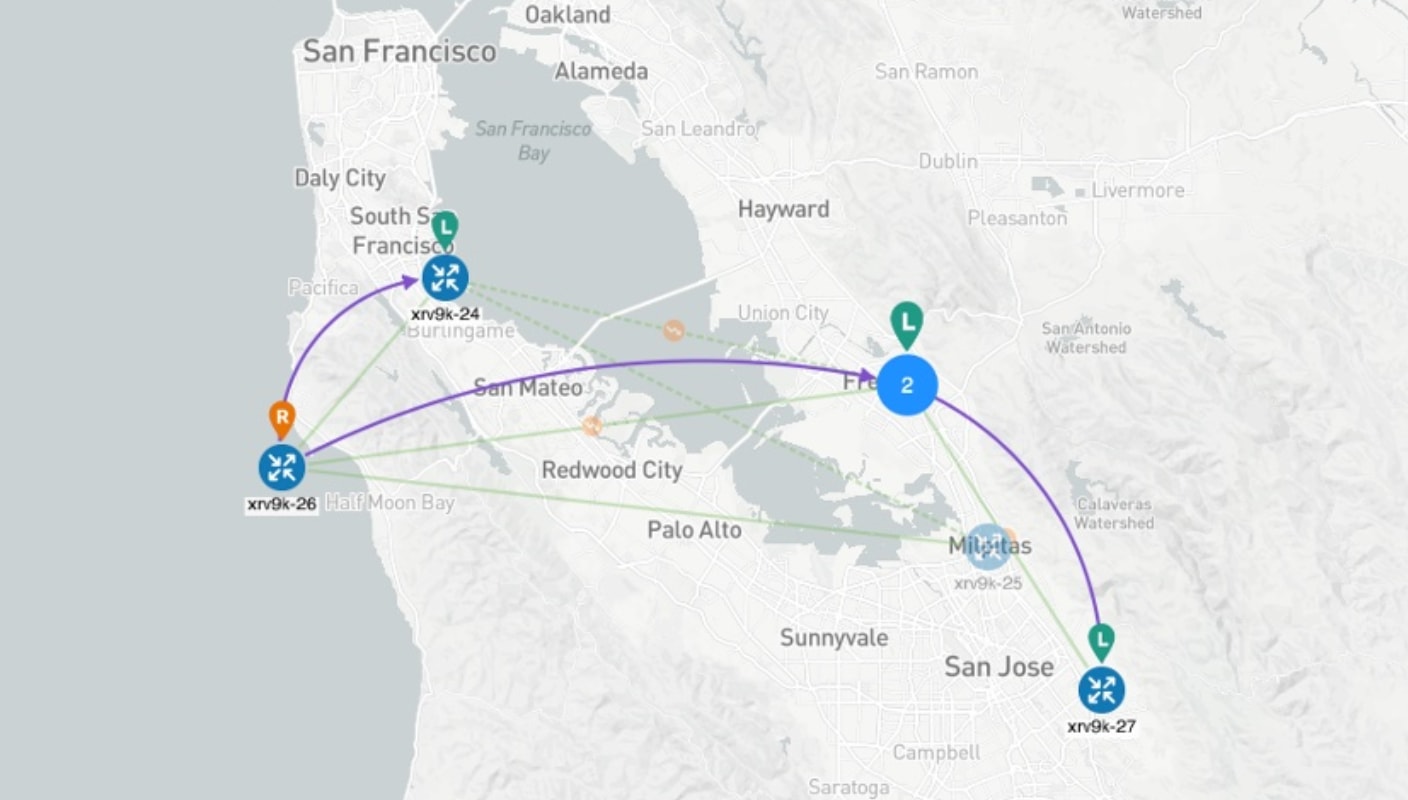
The Service details panel appears, with a geographical map showing the newly created L3VPN service and its associated nodes: xrv9k-26, xrv9k-24, and xrv9k-27. On the right, the Service details panel shows the details of the MVPN-TREE-SID-119 service model.

Step 6

In the Service details panel, select the Transport tab to view the Tree-SID policy information.

Step 7

In the table, select the check box next to xrv9k-26.

In the geographical map, the policy will appear showing the one Root, or source, node (xrv9k-26) and the two Leaf, or receiver, nodes (xrv9k-24 and xrv9k-27).

Figure 17. Policy in geographical map
Policy in Geographical Map

Step 8

Select the second check box next to xrv9k-24.

The geographical map updates.

Step 9

Use your mouse to hover over the Tree-SID policy names in the table. Depending which policy your mouse hovers over, the geographical map will show the designated path(s) between the nodes so to differentiate them from each other.

Step 10

For the first policy in the table, in the Actions column, click and select View details.

The Tree-SID Policy details panel appears, showing the policy’s details, such as the Name, a Summary section, and the Tree-SID path information, which can be expanded to show additional detail. You may also select the History tab to view historical information for the policy.

Step 11

To edit or add additional policies, from the main menu, choose Service & Traffic Engineering > Provisioning (NSO), and select L3VPN > L3vpn-Service.

Step 12

For your L3VPN service, in the Actions column, click and select Edit.

The Edit L3VPN > L3vpn-Service screen appears, where you can make additional updates (such as adding VPN nodes to replace a degraded path and give a different route) and modifications to existing details that make up the service.

While editing, to show all or hide the multiple fields that make up the service configuration, select the Show all fields toggle at the top right. Click on the toggle to turn it on. Click the toggle again to turn it off, showing just a subset of the fields.

Step 13

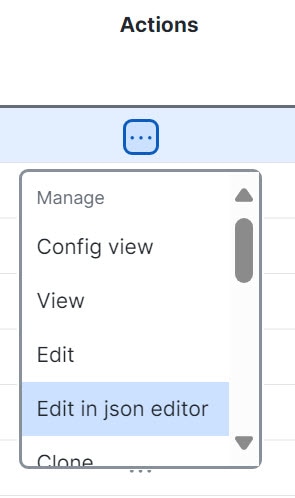
In addition, from the L3VPN > L3vpn-Service screen, click in the Actions column and select Edit in Json editor for your L3VPN service.

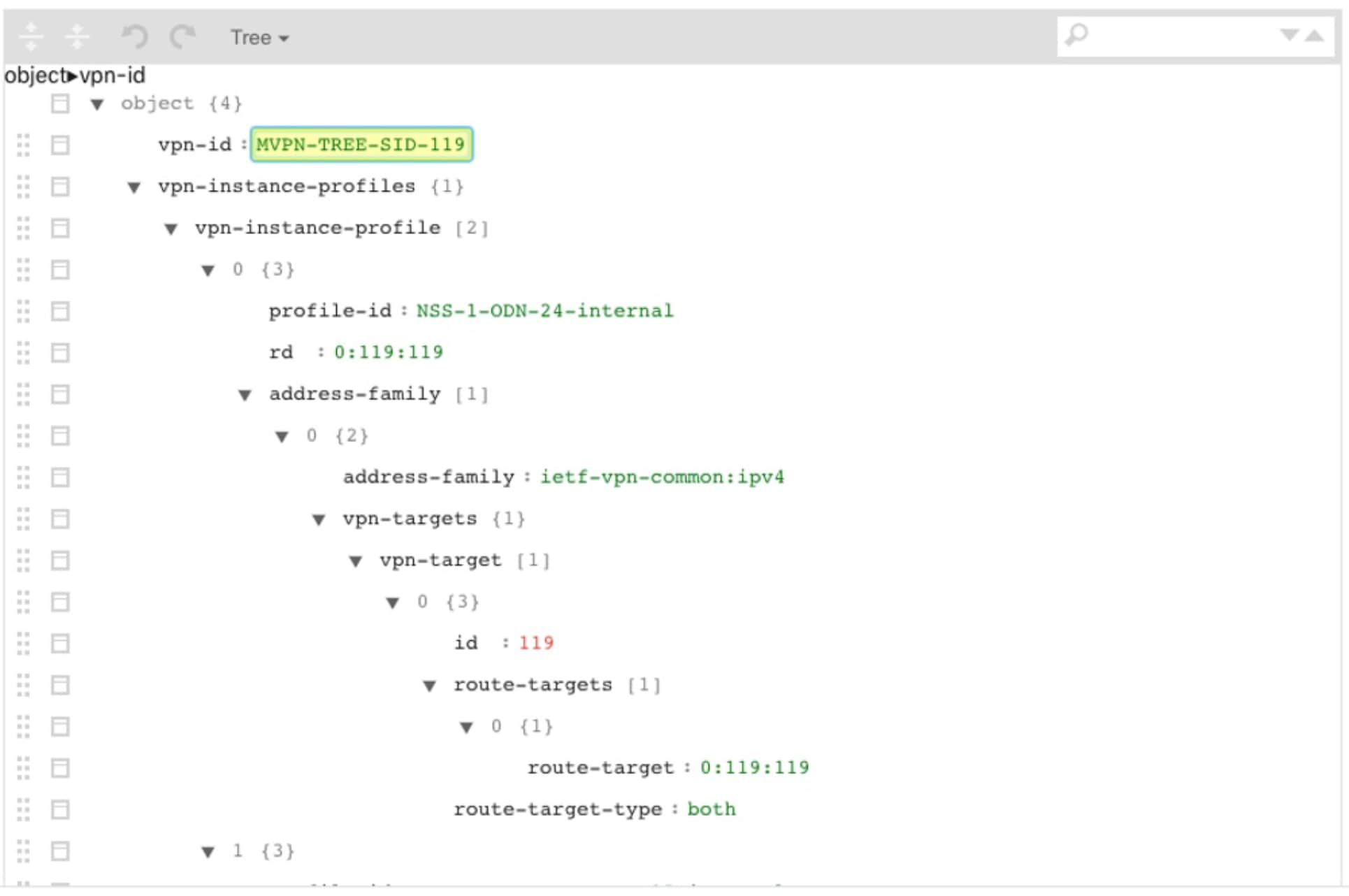
The JSON configuration editor appears. You can highlight different details that make up the service configuration and edit them directly in the json editor.

Figure 18. Actions menu options
Actions Menu Options
Figure 19. JSON editor
JSON Editor

Step 14

Once completed, click Commit to initiate the changes and update the service’s configuration or click Cancel.


Summary and conclusion

As we observed, you can provision new static Tree-SID policies within the Crosswork Network Controller UI. Once provisioned, you can use the Tree-SID tab and its associated map to visualize Tree-SID defined routes, identify disjunct policy routes, and identify problems with transit nodes, interfaces, and links that may affect traffic from the Root to the Leaf nodes. In addition, once the Tree-SID policies are associated with an L3VPN service model, similar capabilities are at hand to visualize and analyze static Tree-SID policies associated with an L3VPN service model and edit in dynamic ways that improve efficiency, accuracy, and ease of use.