Visualize the Network

This section contains the following topics:

Network Visualization Overview

Cisco Crosswork Change Automation and Health Insights provides a graphical, topological map view of devices and the links between them so that you can visualize your network. The network topology can be displayed on a logical map or a geographical map, where the devices and links are shown in their geographic context. From the map, you can drill down to get detailed information about devices and links in order to troubleshoot problems. You can also filter the devices shown on the map using tags (see Filter Network Devices by Tags), and you can customize the map to show just the information you want, and save these custom maps for later recall.

To open the topology map view, choose Network Visualization > View Topology from the left navigation bar in the Cisco Crosswork Change Automation and Health Insights main window.


Note

If you encounter topology issues, such as topology components not rendering as expected or component data not displaying on the map, Cisco recommends the following:
  • If you cannot see geographical map tiles: Make sure your browser has Internet connectivity to your selected geographical map services vendor. The map services vendor and the vendor’s URL are set by the system administrator, as explained inConfigure Geographical Map Settings.

  • If your devices are missing from the geographical map: Ensure that geographic location data was included when onboarding your devices, or entered later. Cisco Crosswork Change Automation and Health Insights cannot position devices properly on the geographical map without location information.

  • If you are having intermittent problems displaying the map or your devices: Clear your browser cache and try again.

Also, please note that disjoint network discovery and display are not supported.
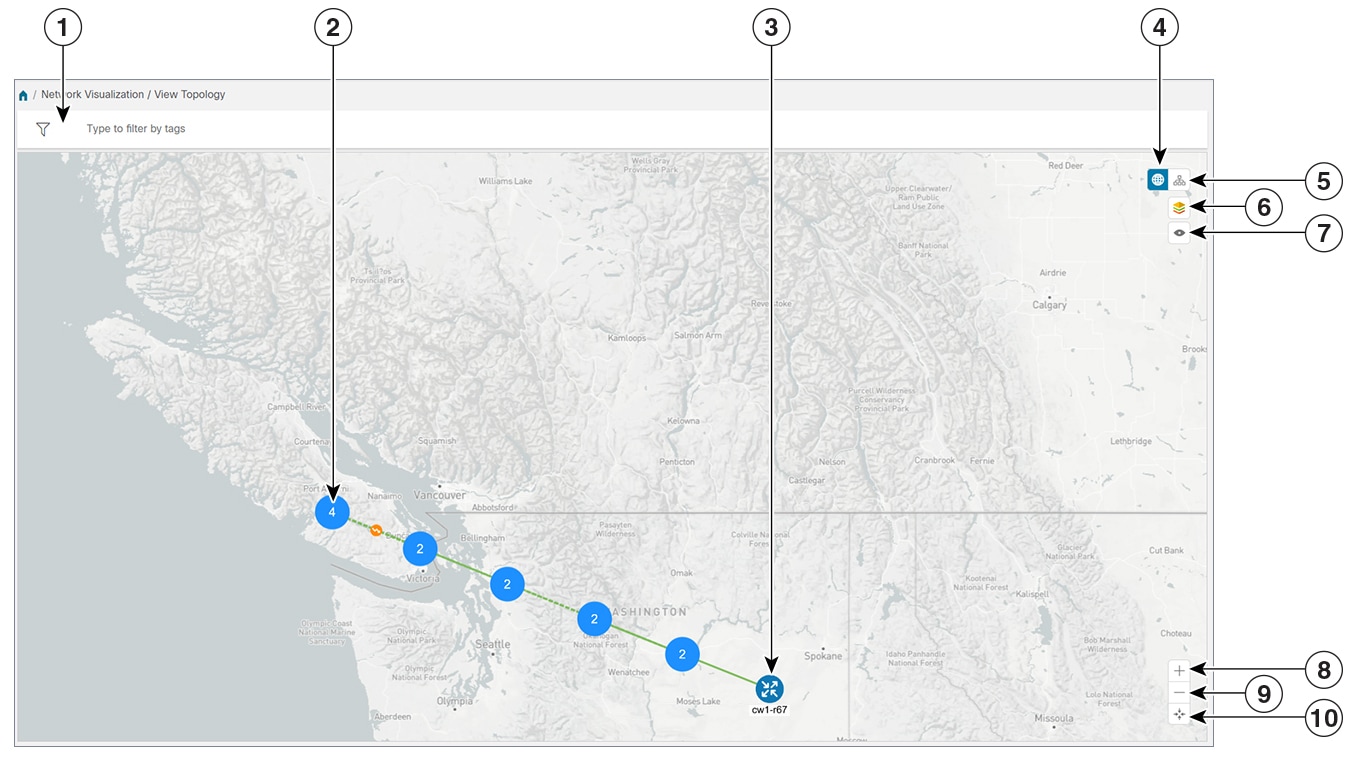
Figure 1. Network Visualization: Geographical Map
Item Description

1

Filter by Tags: If tags have been assigned to devices, you can filter the map to show only devices with specific tags. For help with this task, see Filter Network Devices by Tags

2

Device Cluster: If devices are in close physical proximity, the geographical map shows them as a cluster, represented by a solid blue circle with a number in the center, indicating the number of devices in the cluster. Displaying devices in this manner helps prevent overlap and clutter on the map. In this example, there are two devices in the cluster. To see the individual devices in the cluster, zoom in on the cluster or click on the cluster icon. If all the devices in the cluster are in the same location or extremely close to one another, you will be prompted to show the cluster devices in the logical map. See Identify the Members of a Cluster.

Links: A solid line indicates a single link between two devices. If there is more than one link between two devices, or between a device and a cluster of devices, the line is shown dashed instead. A dashed line indicates an aggregated link that represents more than one link.

3

Single Device: The device icon represents the type of device (router, switch, and so on). A blue icon means the device is reachable; a gray icon means the device is not reachable.

Hover the mouse cursor over the device icon to see device details.

4

Geographical Map: Click this icon to toggle from the logical map to the geographical map.

The geographical map shows single devices, device clusters, and the links between them, superimposed on a map of the world. The location of a device on the map reflects the device's GPS coordinates (longitude and latitude) as defined in the Device Management application.

5

Logical Map: Click this icon to toggle from the geographical map to the logical map. The logical map shows devices and their links, positioned according to an automatic layout algorithm, ignoring their geographical location. You can change the layout algorithm; see Change the Layout of a Logical Map.

The logical map displays up to 1000 devices and never displays devices in clusters.

6

Display Preferences: Lets you view display settings for devices and link color. For example, you can toggle link color based on state or bandwidth utilization for the mapped links. For more information, see Show Bandwidth Utilization for Links on the Map.

7

Custom Views: Lets you create a named custom view using the settings and layout for your current map, or display a custom view you have created previously. See Create Custom Map Views.

8

Zoom In: Click the + icon to zoom in on a specific area.

9

Zoom Out: Click the - icon to zoom out.

10

Zoom Fit: Lets you automatically scale the map to fit your zoom area.

Identify the Members of a Cluster

When there are multiple devices that are too close to be shown individually at the current Zoom level, they are combined together and shown as a single cluster. The cluster is represented on the geographical map by a circle with a number in its center, indicating the number of devices in the cluster.

Zoom in on a cluster to see the individual devices in the cluster displayed on the map.

If cluster members are very close to each other or in the same location, zooming in will not show the individual devices. In this case, follow these steps to see the individual members of the cluster:

Procedure


Step 1

In the geographical map, click device cluster. The map zooms in on the cluster area.

Step 2

Click device cluster again. If you are at the maximum zoom level, the geographical map toggles to the logical map and displays the individual devices in the cluster. When you close the view, you will be switched back to the geographical map.


Device and Link Icons

The following tables describe the icons used to represent device states, link states, and device types in the Cisco Crosswork Change Automation and Health Insights user interface.

Table 1. Device State Icons
Icon Description

Reachable icon

The device is reachable.

Unreachable icon

The device is unreachable.

Reachability Unknown icon

The device has an unknown reachability state (its reachability cannot be determined).

Up icon

The device is operational.

Error icon

The device is not operational. It is either not up, or unreachable, or both.

In some Cisco Crosswork Change Automation and Health Insights applications (not Network Visualization), a number in a circle is shown next to this icon. The number indicates the number of recent errors and can be clicked on to display error details.

Degraded icon

Some connections to the device are down.

Table 2. Link State Icons
Icon Description
Down icon

Link is down.

Up icon

Link is up and traffic is passing through it.

Degraded icon

Link is degraded.

If some (but not all links) in an aggregated link are down, the aggregated link shows a degraded icon. The link will also show as degraded if only one direction of an L2 or L3 link was discovered instead of both directions. Click the degraded icon to see exactly which link or interface is down.

If all links in an aggregated link are down, the connectivity link shows a link down icon.

Table 3. Device Icons
Icon Description

Switch

Switch (unreachable)

Router

Router (unreachable)

Amplifier

Amplifier (unreachable)

Converged Broadband Router (cBR)

cBR (unreachable)

Reconfigurable optical add/drop multiplexer (ROADM)

ROADM (unreachable)

Device is reachable, but is undefined or of an unknown type

Unreachable device

Get More Information About Devices on the Map

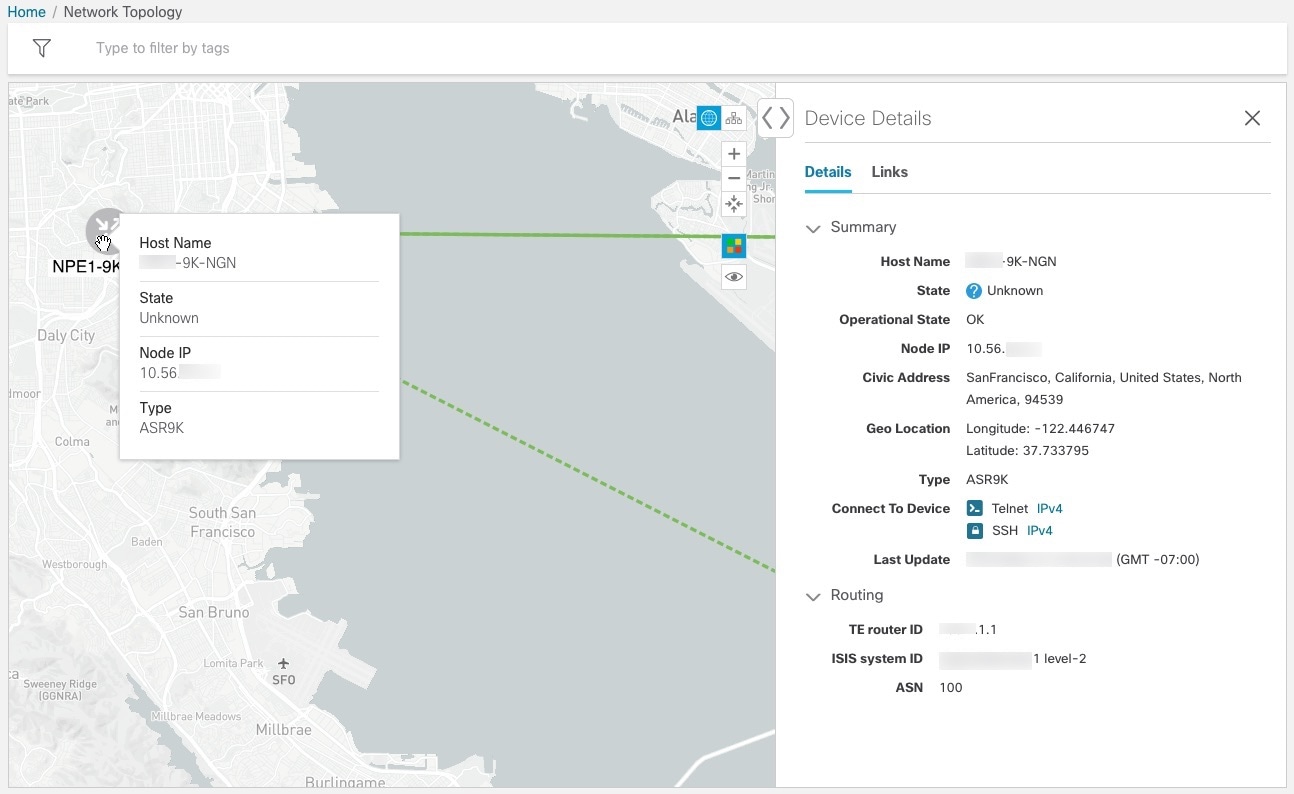
In the topology map, hover over a device icon to open a popup window with the most important device details: hostname, reachability state, IP address, and type. Click on the device icon to open the Device Details pop-up window, where you can view more detailed information about the device and its associated links. See the following examples.

Figure 2. Device Details
Device Details Popups

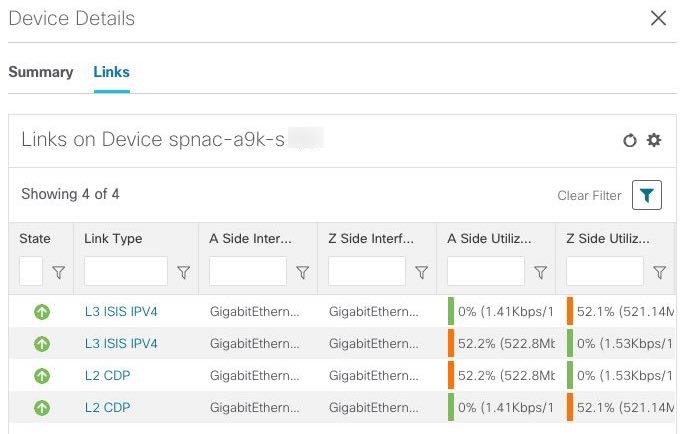
In the Device Details window, click on the Links tab to see a list of all of the device's links to other devices, as in the following example (see Get More Information About Links):

Figure 3. Links Tab of Device Details Window
Device Details window, Links tab

Access the Device Console

After drilling down to a device's details from the topology map, you can access the device's CLI command console from the Device Details window (see Get More Information About Devices on the Map).

Before you begin

  • Depending on your environment, your local machine may not have direct access to your network devices (for example: you cannot ping the device's management address directly from the command line on your local machine). If this is the case, you may need to configure a tunnel. Contact Cisco Services for assistance with this more advanced configuration.

  • Be sure you have installed on your client an application that can connect to devices via Secure Shell (SSH) or Telnet.

Procedure


Step 1

From the main menu, choose Network Visualization > View Topology.

Step 2

In the topology map, click on the icon representing the device to which you want to connect. The Device Details window displays its Details tab, with the device hostname, reachability state, IP address, and other details.

Step 3

In the Connect to Device field, click the relevant link to connect to the device console via Telnet Script icon, or via SSH Connect to Device via SSH icon.

If you have already defined a default connectivity application that you want to launch, Cisco Crosswork Change Automation and Health Insights launches your selected application and attempts to connect to the device. Log into the device and enter the commands you want.

If you have not defined a default application to launch, your browser will prompt you to select one. Your choices and how they are presented will be appropriate for your client operating system, the applications you have installed, and the connectivity protocol you choose. Select the application you want and, for convenience, make sure that you select the check box indicating that this is your default choice before continuing.


Get More Information About Links

You can drill down in the topology map to view detailed information about links, using either of these methods:

  • Click on an aggregated link (symbolized by a dashed line) to show the individual links in the side panel.

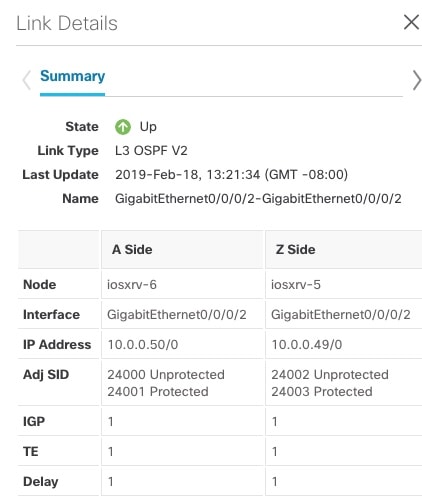
  • Click on a single link (solid line) to show the Link Details page.

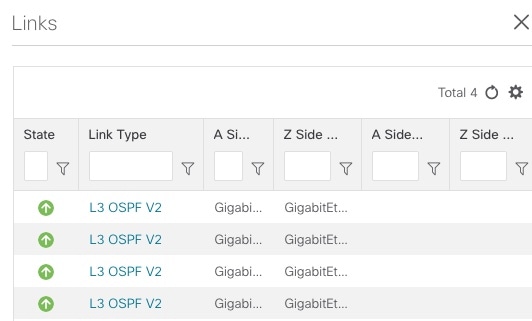
The Links page provides information about the configuration and status of all of a device's links, including each link's type, interfaces, and utilization (you can get the same information from the Links tab on the Device Details window; see Get More Information About Devices on the Map). The Links window lists all the underlying links in the aggregation, as in the following example:

Figure 4. Links Window
Links window

Use the expand and collapse icons (< and >) to the left of the Links title to expand the window to the entire screen, or collapse the window back to its normal size.

Click Settings icon to choose the columns to make visible in the Links window's table:
  • State—Displays each link's state: up, down, degraded, and so on (see Device and Link Icons).

  • Link Type—Displays the type of link. Click on the link type to open the Link Details window for the specific link.

  • A Side Device—Displays the originating device for the link.

  • Z Side Device—Displays the destination device for the link.

  • A Side Interface—Displays the originating interface for the link.

  • Z Side Interface—Displays the destination interface for the link.

  • A Side Utilization—Displays the percentage of bandwidth consumption on the originating side of the link.

  • Z Side Utilization—Displays the percentage of bandwidth consumption on the destination side of the link.

You can also use sorts and filters in the Links window to focus the table on only the links in which you are interested (see Set, Sort and Filter Table Data).

The Link Details window provides information about the configuration and status of a single link, including link type, the link's interfaces, associated adjacent segment IDs, and so on.

Link Details window

Network Link Discovery

Layer 2 links are discovered by enabling SNMP on the inventory. Devices must be onboarded in order to be visible on the topology. SNMP data is required as CDP MIB and/or LLDP MIB are needed to discover the Layer 2 links. For more information on onboarding prerequisites, see Prerequisites for Onboarding Devices

Layer 3 links are discovered from adding the Cisco Segment Routing Path Computation Elements (SR-PCE) providers. At least one SR-PCE provider is required in order to discover the Layer 3 links. Devices must be onboarded (at least in unmanaged state) so that the Layer 3 links and nodes are properly displayed. For more information, see Add Cisco SR-PCE Providers


Note

The SR-PCE provider must be reachable from Cisco Crosswork Change Automation and Health Insights and must have a topology detected before the links can be displayed.


Show Bandwidth Utilization for Links on the Map

In the geographical map and in the logical map, you can enable visualization of the bandwidth utilization for links over which circuits are provisioned. When bandwidth utilization visualization is enabled, links in the map are colored based on the percentage of total bandwidth currently utilized on the link. The utilization value is a percentage calculated by dividing link traffic by link capacity.

In this way, you can easily identify when a link is over-utilized or approaching over-utilization. Bandwidth visualization is enabled by default. The color of the link indicates the percentage of total bandwidth being used by provisioned circuits on the link:

  • Green—0–25% usage

  • Yellow—25–50% usage

  • Orange—50–75% usage

  • Red—75–100% usage

You can adjust the thresholds for each color as needed (see Define Color Thresholds for Link Bandwidth Utilization). When visualization is disabled, the links are shown only in blue.

Please note that link bandwidth utilization data can be collected and displayed only if the linked devices are added to and managed in the device inventory.

To enable or disable visualization of bandwidth utilization:

Procedure


Step 1

From the main menu, choose Network Visualization > View Topology..

Step 2

In the top-right corner of the map, click , to open display preferences which can be used to toggle the display of bandwidth utilization. When usage visualization is enabled, the links can be shown in green, yellow, orange, or red, depending on their utilization. If you see only blue links, usage visualization is disabled.


Define Color Thresholds for Link Bandwidth Utilization

Cisco Crosswork Change Automation and Health Insights comes with a default set of bandwidth utilization thresholds (percentage ranges) and corresponding color indicators. You can customize these to meet your needs, taking into account the following notes and limitations:

  • You can enter values in the "To" ranges. Each row begins automatically from the end of the previous row's range.

  • The thresholds must be sequential, meaning that each row's range must follow on from the previous row's range. For example, if the range in the first row is 0-25%, the second row's range must end with a value greater than 25.

  • You cannot use the same color for multiple thresholds. For example, you cannot choose Green for both the first and second rows.

Administrator privileges are required to change these settings.

Procedure


Step 1

From the main menu, choose Admin > Visualization Settings.

Step 2

Click the Bandwidth Utilization tab.

Step 3

In the Polling Interval field, enter a whole number from 5 to 60 (minutes) to specify how often links will be polled for bandwidth utilization. By default, link bandwidth is polled every 5 minutes.

Step 4

In the Link Coloring Thresholds area, define the criteria for coloring the links. Each row defines a color and the bandwidth percentage range that the color will represent. The default thresholds are:

  • Green—0–25% usage

  • Yellow—25–50% usage

  • Orange—50–75% usage

  • Red—75–100% usage

Step 5

Click Save.


Configure Geographical Map Settings

The geographical map lets you position your network devices on a world map and monitor them within their geographical context. The displayed world map is imported by accessing the map vendor's site over the Internet (online mode). The look of the map will vary depending on the map vendor you choose.

By default, the client machine from where you access the Cisco Crosswork Change Automation and Health Insights UI is setup to get map tiles from a specific Mapbox URL over internet connection. If required, you can use a different map vendor (such as Google Maps or OpenStreetMap) by providing the appropriate URL. Both of these options require an Internet connection from your client machine.

Cisco Crosswork Change Automation and Health Insights administrator privileges are required to change these settings.

Procedure


Step 1

From the main menu, choose Admin > Visualization Settings.

Step 2

Click the Map tab.

Step 3

From the Map Provider drop-down list, choose one of the following:

  • Mapbox—Specifies that you want to display the geographical map using the default map provider.
  • Custom—Identifies the map tiles source (using an Internet connection). To use a map provider other than Mapbox, you must provide the URL for map tiles access. Be sure to request the exact format of this URL from the map tiles provider.
Step 4

If you are using a custom map provider, in the Map Source URL field, enter the URL for map access.

Step 5

Click Save.


Change the Layout of a Logical Map

When you open the logical map, it is displayed according to the default standard layout. You can change the layout, but any changes you make will not persist if you close the map. To save your layout changes, create a custom view (see Create Custom Map Views).

Procedure


Step 1

From the main menu, choose Network Visualization > View Topology.

Step 2

In the top-right corner of the map, toggle from the geographical map view to the logical map view.

Step 3

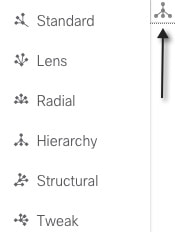
In the logical map, click the System Layouts icon in the toolbar to access the layout options.

Figure 5. System Layouts
Systems Layout
Step 4

Choose one of the predefined options to rearrange the devices and links in the map according to your preference:

  • Standard (default)—Maintains consistent link length and distributes devices evenly. This ensures that adjacent devices are closer to each other and prevents overlap.

  • Lens—Positions highly connected devices in the center, and moves less-connected devices out to the edges. This layout is especially useful in large networks.

  • Radial—Arranges the devices in a circular style around the original subject. Each generation of devices becomes a new concentric ring that orbits the original parent. This layout is useful in networks where each parent has many child devices.

  • Hierarchy—Displays devices in a family tree, where child devices are shown in horizontal layers underneath their parents.

  • Structural—Groups devices with similar attributes together in a fan shape. This layout gives you an overview of the clusters in the network.

  • Tweak—Adjusts the layout as the network evolves. As devices and links are added and removed, the layout adapts itself, allowing you to visualize network changes.


Create Custom Map Views

When you rearrange the devices and links on a map, your changes are not normally saved. When you open the map later, your map settings are lost.

To easily recreate a useful map layout, you can save it as a named custom view and quickly retrieve it, without having to rearrange the map each time. This is especially useful when managing large networks with many devices.

When you save a custom view, the following settings will be saved:

  • Whether it is a geographical or logical map.

  • Device positions in the logical map layout.

  • Whether bandwidth utilization visualization is enabled or disabled.

  • Tag filters that have been applied to the map.


Note

  • The map zoom level will not be saved.

  • Your custom map views are not user-specific. Any Cisco Crosswork Change Automation and Health Insights user who is logged into the same host as you can see and further customize the map views you create.


To create custom views:

Procedure


Step 1

Choose Network Visualization > View Topology from the left navigation bar.

Step 2

Customize the current map view until it contains only the information you want and until the layout meets your needs.

Step 3

When you have the view the way you want it, click Custom View icon.

Step 4

Click Save View and the Save View popup displays a new, blank input field under the Name field.

Step 5

Enter a unique name for the new custom view and click Save.


What to do next

Retrieve, update and delete your custom views as explained in Manage Custom Map Views.

Manage Custom Map Views

You can display, update or delete any of the custom views created using the instructions in Create Custom Map Views. This includes custom views created by other users.

To manage custom views:

Procedure


Step 1

Open the topology map by choosing Network Visualization > View Topology from the left navigation bar.

Step 2

Click Custom View icon and the following options are displayed:

  • View Saved Views—Displays all saved custom views. You can choose to see only custom views saved with your user ID (My Views tab) or all custom views that have been saved on the server (All Views tab).

  • Save View—Allows you to save the current view.

  • Save View As—Click this option if you are currently modifying a custom view and want to save changes as a new custom view with a new name.

  • Rename View—Click this option if you are currently modifying a custom view and want to rename it.

Step 3

To delete a custom view:

  1. Click the View Saved Views to display the list of custom views.

  2. Find the view you want to delete and click Custom View Delete icon from the custom view.