Feedback
|
Table Of Contents
Cisco 5500 Series Wireless Controller Installation Guide
Compliance and Safety Information
FCC Safety Compliance Statement
Statement 371—Power Cable and AC Adapter
Statement 191—VCCI Class A Warning for Japan
Unpacking and Installing the Controller
Required Tools and Information
Initial System Configuration Information
Installing the Controller on a Desktop or Shelf
Installing the Controller in a 4-Post Rack
Installing the Controller in a 2-Post Rack—Flush Mount
Installing the Controller in a 2-Post Rack—Mid-Mount
Connecting the Controller's Console Port
Running the Bootup Script and Power-On Self Test
Verifying Interface Settings and Port Operation
Connecting the Network (Distribution System)
Connecting the Switch's Service Port (Optional)
Installing a Power Supply Unit
Removing and Replacing the Fan Assembly
Obtaining Documentation and Submitting a Service Request
Cisco 90-Day Limited Hardware Warranty Terms
Cisco 5500 Series Wireless Controller Installation Guide
This guide is designed to help you install and minimally configure your Cisco 5500 Series Wireless Controller.
•
Compliance and Safety Information
•
Unpacking and Installing the Controller
•
Obtaining Documentation and Submitting a Service Request
•
Cisco 90-Day Limited Hardware Warranty Terms
Compliance and Safety Information
FCC Safety Compliance Statement
Modifying the equipment without Cisco's authorization may result in the equipment no longer complying with FCC requirements for Class A digital devices. In that event, your right to use the equipment may be limited by FCC regulations, and you may be required to correct any interference to radio or television communications at your own expense.
This equipment has been tested and found to comply with the limits for a Class A digital device, pursuant to Part 15 of the FCC Rules. These limits are designed to provide reasonable protection against harmful interference when the equipment is operated in a commercial environment. This equipment generates, uses, and can radiate radio frequency energy and, if not installed and used in accordance with the instruction manual, may cause harmful interference to radio communications. Operation of this equipment in a residential area is likely to cause harmful interference in which case users will be required to correct the interference at their own expense.
Try to correct the interference by one or more of the following measures:
•
Verify that the ambient temperature remains between 32 to 104° F (0 to 40° C), taking into account the elevated temperatures when installed in a rack or enclosed space.
•
When multiple Cisco 5500 Series Wireless Controllers are mounted in an equipment rack, be sure that the power source is sufficiently rated to safely run all the equipment in the rack.
•
Verify the integrity of the electrical ground before installing the controller.
Safety Information
Safety warnings appear throughout this guide in procedures that may harm you if performed incorrectly. A warning symbol precedes each warning statement. The warnings below are general warnings that apply to the entire guide. Translated versions of the safety warnings in this guide are provided in the Regulatory Compliance and Safety Information for the Cisco 5500 Series Wireless Controller document that accompanies this guide.
Statement 371—Power Cable and AC Adapter
Statement 191—VCCI Class A Warning for Japan
Controller Overview
The Cisco 5500 Series Wireless Controller is currently available in one model: 5508.
The Cisco 5500 Series Wireless Controller, designed for 802.11n performance and maximum scalability, supports up to 500 lightweight access points and 7000 clients, making it ideal for large-sized enterprises and high-density applications. A core component of the Cisco unified wireless solution, these controllers deliver wireless security, intrusion detection, radio management, quality of service (QoS), and mobility across an entire enterprise. The controllers work in conjunction with other controllers, Cisco Wireless Control System (WCS), and access points to provide network managers with a robust wireless LAN solution.
The Cisco 5500 Series Wireless Controller supports the OfficeExtend access point, which provides secure communications from a controller to an access point at a remote location, seamlessly extending the corporate WLAN over the Internet to an employee's residence.
In order to best use this guide, you should have already designed the wireless topology of your network. Because the radio resource management (RRM) feature automatically detects and configures access points as they appear on the network, it is not necessary to have any access points on the network in order to install and configure a controller.
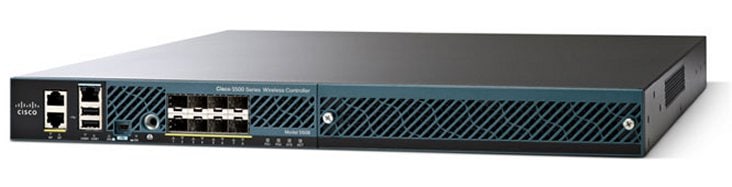
Figure 1 shows the front panel of the Cisco 5508 Wireless Controller.
Figure 1 Front Panel
1Redundant port (RP) for future use (RJ-45)
6SFP distribution ports
2Service port (RJ-45)
7Management port LEDs
3Console port (RJ-45)1
8SFP distribution port Link and Activity LEDs
4USB ports 0 and 1 (Type A)
9Power supply (PS1 and PS2), System (SYS), and Alarm (ALM) LEDs
5Console port (Mini USB Type B)1
10Expansion module (EM) slot
1 You can use only one console port (either RJ-45 or mini-USB). When you connect to one console port, the other is disabled. See the "USB Console" section for information on the USB console port. See the "Connecting the Controller's Console Port" section section for information about connecting the console port.
Console Port Connections
The controller has both EIA/TIA-232 asynchronous (RJ-45) and USB 5-pin mini Type B, 2.0 compliant serial console ports. The default parameters for the console ports are 9600 baud, 8 data bits, 1 stop bit, and no parity. The console ports do not support hardware flow control.
EIA/TIA-232
Depending on the cable and the adapter used, this port appears as a DTE or DCE device at the end of the cable. Only one port can be used at a time.
USB Console
The USB console port connects directly to the USB connector of a PC using a USB Type A to 5-pin mini Type B cable.
For operation with Microsoft Windows, the Cisco Windows USB Console Driver must be installed on any PC connected to the console port. If it is not installed, prompts guide you through a simple installation process.
Note
For information about downloading the latest Cisco Windows USB Console Driver, refer to the Release Notes for Cisco Wireless LAN Controllers and Lightweight Access Points for Release 6.0.
With the Cisco Windows USB Console Driver, you can plug and unplugg the USB cable from the console port without affecting Windows HyperTerminal operations. Mac OS X or Linux require no special drivers.
Only one console port can be active at a time. When a cable is plugged into the USB console port the RJ-45 port becomes inactive. Conversely, when the USB cable is removed from the USB port, the RJ-45 port becomes active.
Note
Four-pin mini Type B connectors are easily confused with 5-pin mini Type B connectors. They are not compatible. Only the 5-pin mini Type B can be used.
USB Console OS Compatibility
•
Microsoft Windows 2000, XP, Vista
•
Apple Mac OS X 10.5.2
•
Linux
Figure 2 shows the back panel with a power supply, a blank power supply cover, and a fan tray.
Figure 2 Back Panel
1Power supply PS1
4Power supply PS2 slot with blank cover
2Power supply PS1 on/off switch
5Fan tray
3Power supply PS1 AC cable connection
Checking the Controller LEDs
If your controller is not working properly, check the LEDs on the front panel of the unit. You can use the LED indications to quickly assess the unit's status. The LED indicators are described in Table 1.
Note
An amber LED could indicate an error or a possible hardware failure.
Table 1 LED Indicators
LED DescriptionRP/SP port
Off: Not present.
Green: Indicates RP/SP port is active and link is established.
Amber: Present with failure.
USB0/USB1 port
Off: Not present.
Green: Present and enabled.
Amber: Present with failure.
Console port (RJ-45)
Green: Indicates active console port.
When this LED is on, the USB console port LED is off.
Console port (mini-USB Type B)
Green: Indicates active aux port.
When this LED is on, the RJ-45 console port LED is off.
Distribution ports 1-8
Off: Not present.
Green: Indicates SFP port is active and link is established.
Amber: Present with failure.
Power supplies (PS1 and PS2)
Continuous green: Indicates that the power supply is operational.
Blinks green: Indicates that a power supply is installed but does not have AC power.
Note
Verify that the power cord in installed correctly and that the power switch is on.
Blinks amber: Indicates that the standby power supply fan is not spinning or that the power supply is over temperature.
Continuous amber: Indicates that the power supply is in failure condition.
Note
When the PS1 or PS2 LED is amber, the power supply shuts down.
System (SYS)
During system power-up:
•
SYS blinks amber.
•
ALM is continuous amber.
During system boot:
•
SYS blinks green.
•
ALM is continuous amber.
After bootup:
•
SYS is continuous green.
•
ALM is off.
During controller image upgrade:
•
SYS is continuous green.
•
ALM blinks green.
System crash:
•
SYS is continuous amber.
•
ALM is off.
Firmware Error:
•
SYS is continuous amber.
•
ALM is continuous amber.
Note
Power cycle the controller to clear the firmware error.
Internal Voltage Error:
•
SYS blinks amber.
•
ALM is continuous amber.
Temperature Error:
•
SYS is off.
•
ALM blinks amber.
Note
Check for blocked air vents and fans on the controller, and make sure that ambient room temperature is below 104° F (40° C).
Alarm (ALM)
Unpacking and Installing the Controller
Follow these steps to unpack the Cisco 5500 Series Wireless Controller and prepare it for operation:
Step 1
Open the shipping container and carefully remove the contents.
Step 2
Return all packing materials to the shipping container and save it.
Step 3
Ensure that all items listed in the "Package Contents" section are included in the shipment. Check each item for damage. If any item is damaged or missing, notify your authorized Cisco sales representative.
Package Contents
Each access point package contains the following items:
•
Cisco 5500 Series Wireless Controller and power cord
•
Mounting hardware kit
•
Regulatory Compliance and Safety Information for the Cisco 5500 Series Wireless Controller
•
This guide
•
Cisco product registration and Cisco documentation feedback cards
Required Tools and Information
You will need the following equipment in order to install the controller:
•
Wireless LAN controller hardware
–
Controller with factory-supplied power cord and mounting hardware
–
Network, operating system service network, and access point cables as required
•
Command-line interface (CLI) console
–
VT-100 terminal emulator on CLI console (PC, laptop, or palmtop)
–
Null modem serial cable to connect CLI console and controller
•
Local TFTP server (required for downloading operating system software updates). Cisco uses an integral TFTP server. This means that third-party TFTP servers cannot run on the same workstation as the Cisco WCS because Cisco WCS and third-party TFTP servers use the same communication port.
You will need the following tools before you can install the controller:
•
#2 Phillips screwdriver for securing the mounting hardware
•
#1 Phillips screwdriver for securing captive installation screws on the power supply and fan
The following additional items (not found in the accessory kit) are required to ground the chassis:
•
Grounding cable (6 AWG recommended), sized according to local and national installation requirements; the required length depends on the proximity of the switch to proper grounding facilities
•
Crimping tool large enough to accommodate girth of lug
•
Wire-stripping tool
Initial System Configuration Information
Obtain the following initial configuration parameters from your wireless LAN or network administrator:
•
A system (controller) name.
•
An administrative username and password. The default administrative username and password are admin and admin, respectively.
•
A service port interface IP address configuration protocol (none or DHCP).
•
A management interface (DS port or network interface port) IP address.
Note
The service port interface and management interface must be on different subnets.
•
A management interface netmask address.
•
A management interface default router IP address.
•
A VLAN identifier if the management interface is assigned to a VLAN, or 0 for an untagged VLAN.
•
Distribution system physical port number—1 through 8 for front panel Gigabit Ethernet ports.
•
IP address of the default DHCP server that will supply IP addresses to clients.
•
The Control And Provisioning of Wireless Access Points Protocol (CAPWAP) transport mode (Layer 3).
•
A virtual gateway IP address (a fictitious, unassigned IP address, such as 1.1.1.1, used by all Cisco wireless LAN controller Layer 3 security and mobility managers).
•
A Cisco wireless LAN controller mobility group name, if required.
•
An 802.11 network name (SSID) for WLAN 1. This is the default SSID that the access points use when they join with the controller.
•
Whether or not to allow static IP addresses from clients.
–
Yes is more convenient, but has lower security (session can be hijacked).
–
No is less convenient, but has higher security and works well for Windows XP devices.
•
RADIUS server IP address, communications port, and secret (if you are configuring a RADIUS server).
•
The country code for this installation. Refer to the Cisco Wireless LAN Controller Configuration Guide for country code information. This guide is available at cisco.com.
•
Status of the 802.11a, 802.11b, 802.11g, and 802.11n networks (enabled or disabled).
•
Status of radio resource management (RRM) (enabled or disabled).
Choosing a Physical Location
You can install the controller almost anywhere, but it is more secure and reliable if you install it in a secure equipment room or wiring closet. For maximum reliability, mount the controller using the following guidelines:
WarningTo prevent the system from overheating, do not operate it in an area that exceeds the maximum recommended ambient temperature of:
104° F (40° C) Statement 1047
WarningTo prevent airflow restriction, allow clearance around the ventilation openings to be at least:
4 in (10.16 cm) Statement 1076
WarningTake care when connecting units to the supply circuit so that wiring is not overloaded. Statement 1018
•
Make sure you can reach the controller and all cables attached to it.
•
Make sure that water or excessive moisture cannot get into the controller.
•
Make sure that the controller is within 328 ft. (100 m) of equipment connected to a 1000BASE-T port.
•
Make sure that the controller is within one of the following distances of equipment connected to the optional 1000BASE-SX or -LX port:
–
722 ft (220 m) when using 160 MHz-km rated 62.5/125 um multimode fiber.
–
902 ft (275 m) when using 200 MHz-km rated 62.5/125 um multimode fiber.
–
1312 ft (400 m) when using 400 MHz-km rated 50/125 um multimode fiber.
–
1641 ft (500 m) when using 500 MHz-km rated 50/125 um multimode fiber.
Note
These distances depend on the small form factor pluggable (SFP) gigabit converter being used (GLC-SX-MM, GLC-T, or GLC-LH-SM). Refer to the Gigabit Interface Converter (GBIC) Module and Small Form-Factor Pluggable (SFP) GBIC Module Installation Information and Specifications, at this URL:
http://www.cisco.com/en/US/docs/routers/7200/install_and_upgrade/gbic_sfp_modules_install/5067g.htmlThe 1000BASE-SX SFP modules provide a 1000-Mb/s wired connection to a network through an 850nM (SX) fiber-optic link using an LC physical connector. The 1000BASE-LX SFP modules provide a 1000-Mb/s wired connection to a network through a 1300 nM (LX/LH) fiber-optic link using an LC physical connector. The 1000BASE-T SFP modules provide a 1000-Mb/s wired connection to a network through a copper link using an RJ-45 physical connector.
Installing the Chassis
The controller ships with rack mounting brackets and the desktop or shelf mounting rubber feet in a separate bag.
An adjustable rack-mount kit is included for mounting the controller in a standard 19-inch (48.3 cm) equipment rack. A standard equipment rack has two unobstructed outer posts, a minimum depth between the front and rear mounting posts of 13 inches (33 cm), and a maximum depth of 32 inches (81.3 cm).
You can also install the controller in a 2-post equipment rack.
This kit is not suitable for racks with obstructions (such as a power strip) that could impair access to system components.
Figure 3 shows the contents of the mounting kit.
Figure 3 Mounting Kit
1Front brackets (2)
512-24 x 0.75 in pan head screws (8)
2Rear bracket adapters (2)
610-32 x 0.75 in pan head screws (8)
3Short slide-mount brackets (2)
7M4x0.7 x 8mm flat head screws (6)
4Long slide-mount brackets (2)
8M3x0.5 x 6mm flat head screws (6)
The following sections cover the different installation options:
•
Installing the Controller on a Desktop or Shelf
•
Installing the Controller in a 4-Post Rack
•
Installing the Controller in a 2-Post Rack—Flush Mount
•
Installing the Controller in a 2-Post Rack—Mid-Mount
Installing the Controller on a Desktop or Shelf
When mounting the controller on a desktop or shelf, attach the rubber feet in the four circular marks near each of the corners on the bottom of the controller chassis, and place the chassis on any secure horizontal surface.
Installing the Controller in a 4-Post Rack
CautionThe controller weighs 20 lbs (9.1 kg) with both power supplies installed. Two or more people must work together to install the controller.
WarningThis unit might have more than one power supply connection. All connections must be removed to de-energize the unit. Statement 1028
Follow these steps to mount the controller in a 4-post equipment rack:
Step 1
Attach one of the front brackets to the controller using three M4 screws (see Figure 4). Follow the same steps to attach the second bracket to the opposite side.
Note
Only three of the four holes on each bracket are used (top, left, and right).
Figure 4 Installing the Front Brackets
Step 2
Attach one of the rear bracket adapters using three M3 screws (see Figure 5). Follow the same steps to attach the second bracket adapter to the opposite side.
Figure 5 Installing the Rear Bracket Adapters
Step 3
Mount the front of the controller chassis into the rack using four 12-24 or four 10-32 screws, depending on the rack rail thread type (see Figure 6).
Figure 6 Installing the Controller in the Rack (Front)
Step 4
Measure the distance between the front and rear rack rails and select the proper slide-mount brackets:
Note
The slide-mount brackets allow you to mount the rear of the controller chassis to the rear rack rails. The brackets are designed to slide within the installed rear bracket adapters and accommodate a range of rack depths.
•
If the distance between the front rack rails and rear rack rails is between 13 inches and 17 inches, use the short slide-mount brackets with the tabs facing the front of the controller (see Figure 7).
Figure 7 Short Slide-Mount Brackets with Tabs Facing Front of the Controller
•
If the distance between the front rack rails and rear rack rails is between 17 inches and 22 inches, use the short slide-mount brackets with the tabs facing the rear of the controller (see Figure 8).
Figure 8 Short Slide-Mount Brackets with Tabs Facing Rear of the Controller
•
If the distance between the front rack rails and rear rack rails is between 21.5 inches and 32 inches, use the long slide-mount brackets with the tabs facing the rear of the controller (see Figure 9).
Figure 9 Long Slide-Mount Brackets with Tabs Facing Rear of the Controller
Step 5
Install the proper slide-mount brackets into the rear bracket adapters on the controller.
Step 6
Secure the slide brackets to the corresponding holes in the rear rack rail using four 12-24 or four 10-32 screws, depending on the rack rail thread type (see Figure 10).
Figure 10 Installing the Controller in the Rack (Rear)
Step 7
(Optional) Use the supplied M4x0.7 x 20mm pan head screw to attach the cable guide to either the left or right bracket (see Figure 11).
Note
We recommend that you attach the cable guide to prevent the cables from obscuring the front panel of the switch and the other devices installed in the rack.
Figure 11 Installing the Cable Guide
Installing the Controller in a 2-Post Rack—Flush Mount
CautionThe controller weighs 20 lbs (9.1 kg) with both power supplies installed. Two or more people must work together to install the controller.
WarningThis unit might have more than one power supply connection. All connections must be removed to de-energize the unit. Statement 1028
Follow these steps to flush mount the controller in a 2-post equipment rack:
Step 1
Attach one of the front brackets to the controller using three M4 screws (see Figure 12). Follow the same steps to attach the second bracket to the opposite side.
Note
Only three of the four holes on each bracket are used (top, left, and right).
Figure 12 Installing the Front Brackets
Step 2
Mount the front of the controller chassis into the rack using four 12-24 or four 10-32 screws, depending on the rack rail thread type (see Figure 13).
Figure 13 Installing the Controller in the Rack
Step 3
(Optional) Use the supplied M4x0.7 x 20mm pan head screw to attach the cable guide to either the left or right bracket (see Figure 14).
Note
We recommend that you attach the cable guide to prevent the cables from obscuring the front panel of the switch and the other devices installed in the rack.
Figure 14 Installing the Cable Guide
Installing the Controller in a 2-Post Rack—Mid-Mount
CautionThe controller weighs 20 lbs (9.1 kg) with both power supplies installed. Two or more people must work together to install the controller.
WarningThis unit might have more than one power supply connection. All connections must be removed to de-energize the unit. Statement 1028
Note
When you use the mid-mount option, you cannot ground the chassis using the chassis grounding pad or the provided grounding lug. You will need to ground the chassis in a different location on the chassis (such as the rear bracket mount holes using an M3 screw) using your own grounding lug.
Follow these steps to mount the controller in a 2-post equipment rack:
Step 1
Attach one of the front brackets to the controller using three M4 screws (see Figure 15). Follow the same steps to attach the second bracket to the opposite side.
Note
Only three of the four holes on each bracket are used (top, left, and right).
Figure 15 Installing the Front Brackets
Step 2
Mount the front of the controller chassis into the rack using four 12-24 or four 10-32 screws, depending on the rack rail thread type (see Figure 16).
Figure 16 Installing the Controller in the Rack
Grounding the Chassis
Note
If you mid-mounted the chassis in a 2-post rack (see Figure 15), you cannot use the chassis grounding pad or the provided grounding lug. You will need to ground the chassis in a different location on the chassis (such as the rear bracket mount holes using an M3 screw) using your own grounding lug.
A grounding pad with two threaded M4 holes is provided on each side of the chassis for attaching a grounding lug.
Note
To maintain the chassis height of one rack unit (RU), install the grounding lug on the right side of the chassis in the wire-up position, or on the left side of the chassis in the wire-down position.
Figure 17 shows the system ground location on the right side of the controller.
Figure 17 Location of Chassis Ground on the Controller (Right Side)
WarningWhen installing or replacing the unit, the ground connection must always be made first and disconnected last. Statement 1046
CautionWe recommend grounding the chassis, even if the rack is already grounded.
CautionAll power supplies must be grounded. The receptacles of the AC power cables used to provide power to the chassis must be the grounding type, and the grounding conductors should connect to protective earth ground at the service equipment.
Note
The grounding lug must be NRTL listed and compatible with copper conductors. Only copper conductors (wires) must be used and the copper conductor must comply with National Electrical Code (NEC) for ampacity.
To attach the grounding lug and cable to the chassis, follow these steps:
Step 1
Use a wire-stripping tool to remove approximately 0.75 inch (19 mm) of the covering from the end of the grounding cable.
Step 2
Insert the stripped end of grounding cable into the open end of the grounding lug.
Step 3
Use the crimping tool to secure the grounding cable in the grounding lug.
Step 4
Remove the adhesive label from either the right or left grounding pad on the chassis.
Step 5
Place the grounding lug against the grounding pad so that there is solid metal-to-metal contact, and insert the two M4 screws with washers through the holes in the grounding lug and into the grounding pad.
Step 6
Ensure that the lug and cable do not interfere with other equipment.
Step 7
Prepare the other end of the grounding cable and connect it to an appropriate grounding point in your site to ensure adequate earth ground.
Preventing ESD Damage
Electrostatic discharge (ESD) damage occurs when electronic cards or components are improperly handled and can result in complete or intermittent failures.
Always use an ESD-preventive wrist or ankle strap and ensure that it makes good skin contact. Connect the strap to one of the following:
•
ESD wrist strap connector (see Figure 18 for the connector location)
•
Any unpainted surface on the chassis
CautionPeriodically check the resistance value of the antistatic strap. The measurement should be between 1 and 10 megohms (Mohms).
Figure 18 ESD Wrist Strap Connector Location
Connecting the Controller's Console Port
Before you can configure the controller for basic operations, you need to connect it to a PC that uses a VT-100 terminal emulator (such as HyperTerminal, ProComm, Minicom, or Tip).
Note
You can use either the RJ-45 console port or the USB console port (see Figure 1).
Note
The first time that you connect a Windows PC to the USB console port, you are prompted to install the USB console driver. Follow the installation prompts to install the driver. The USB console driver maps to a COM port on your PC; you then need to map the terminal emulator application to the COM port. See the "USB Console" section for more information about the USB console driver.
Follow these steps to connect the PC to the controller's console port:
Step 1
If you use the RJ-45 console port, plug the RJ-45 connector on a null-modem serial cable into the controller's RJ-45 console port and the other end of the cable into the PC's serial port.
If you use the USB console port, plug the 5-pin mini Type B connector into the controller's USB console port and the other end of the cable into the PC's USB Type A port.
Step 2
Start the PC's terminal emulation program.
Step 3
Configure the terminal emulation program for the following parameters:
•
9600 baud
•
8 data bits
•
No flow control
•
1 stop bit
•
No parity
Running the Bootup Script and Power-On Self Test
When you plug the controller into an AC power source, the bootup script initializes the system, verifies the hardware configuration, loads its microcode into memory, verifies its operating system software load, and initializes itself with its stored configurations. Before performing this test, you should connect your PC to the controller's CLI console as described in the "Connecting the Controller's Console Port" section. Follow these steps to run the bootup script and conduct the power-on self test (POST).
Step 1
Plug an AC power cord into the back of the controller and connect the other end to a grounded 100 to 240 VAC, 50/60 Hz electrical outlet.
Step 2
Turn on the power supply.
Step 3
Observe the bootup on the CLI screen.
The bootup script displays operating system software initialization (code download and POST verification) and basic configuration as shown in the following sample bootup display:
WLCNG Boot Loader Version 0.14.0 (Built on Dec 22 2008 at 11:54:51 by cisco)Board Revision 1.2 (SN: FCW1303L04E, Type: AIR-CT5508-K9) (G)Verifying boot loader integrity... OK.. . .IDE device 0:- Model: VI DFC1024MB Firm: 20071116 Ser#: DFC1GB 00000E52- Type: Removable Hard Disk- Capacity: 967.6 MB = 0.9 GB (1981728 x 512)Press <ESC> now to access the Boot Menu...Step 4
If desired, press Esc to display the Bootloader Boot Options menu.
Boot OptionsPlease choose an option from below:1. Run primary image2. Run backup image3. Change active boot image4. Clear Configuration5. Format FLASH Drive6. Manually update imagesPlease enter your choice:
Note
Enter 1 to run the current software, enter 2 to run the previous software, or enter 4 to run the current software and set the controller configuration to factory defaults. Do not choose the other options unless directed to do so.
Only options 1 through 3 are available in FIPS mode.Step 5
The rest of the process takes two to three minutes. Do not reboot the controller until the user login prompt appears.
Detecting Hardware . . .Cryptographic library self-test....passed!. . .Cisco is a trademark of Cisco Systems, Inc.Software Copyright Cisco Systems, Inc. All rights reserved.Cisco AireOS Version 6.0.100.1Initializing OS Services: ok. . .Starting SSHPM LSC PROV LIST: okStarting Management Services:Web Server: okCLI: okSecure Web: okLicense Agent: okStep 6
If the controller passes the power-on self test, the bootup script runs the Startup Wizard, which prompts you for basic configuration input.
Using the Startup Wizard
Before you can use the startup wizard, you must obtain the information discussed in the "Required Tools and Information" section.
Note
The available options appear in brackets after each configuration parameter. The default value appears in all uppercase letters.
Note
Press the hyphen key if you need to return to the previous command line.
To configure the controller for basic operation using the Startup Wizard, follow these steps:
Step 1
When prompted to terminate the AutoInstall process, enter yes. If you do not enter yes, the AutoInstall process begins after 30 seconds.
Note
The AutoInstall feature downloads a configuration file from a TFTP server and then loads the configuration onto the controller automatically.
Step 2
Enter the system name, which is the name you want to assign to the controller. You can enter up to 32 ASCII characters.
Step 3
Enter the administrative username and password to be assigned to this controller. You can enter up to 24 ASCII characters for each. The default administrative username and password are admin and admin, respectively.
Step 4
If you want the controller's service-port interface to obtain an IP address from a DHCP server, enter DHCP. If you do not want to use the service port or if you want to assign a static IP address to the service-port interface, enter none.
Note
The service-port interface controls communications through the service port. Its IP address must be on a different subnet from the management interface. This configuration enables you to manage the controller directly or through a dedicated management network to ensure service access during network downtime.
Step 5
If you entered none in Step 4, enter the IP address and netmask for the service-port interface on the next two lines.
Step 6
Enable or disable link aggregation (LAG) by choosing yes or no.
Step 7
Enter the IP address, netmask, default router IP address, and optional VLAN identifier (a valid VLAN identifier or 0 for an untagged VLAN) for the management interface.
Note
The VLAN identifier should be set to match the switch interface configuration.
Step 8
Enter the IP address of the default DHCP server that will supply IP addresses to clients, the controller's management interface, and optionally the service-port interface.
Note
The management interface is the default interface for in-band management of the controller and connectivity to enterprise services such as AAA servers.
Step 9
Enter the IP address of the controller's virtual interface, which will be used by all controller Layer 3 security and mobility managers. You should enter a fictitious, unassigned IP address, such as 1.1.1.1.
Note
The virtual interface is used to support mobility management, DHCP relay, and embedded Layer 3 security such as guest web authentication and VPN termination. All controllers within a mobility group must be configured with the same virtual interface IP address.
Step 10
If desired, enter the name of the mobility group/RF group to which you want the controller to belong.
Note
Although the name that you enter here is assigned to both the mobility group and the RF group, these groups are not identical. Both groups define clusters of controllers, but they have different purposes. All of the controllers in an RF group are usually also in the same mobility group and vice versa. However, a mobility group facilitates scalable, system-wide mobility and controller redundancy while an RF group facilitates scalable, system-wide dynamic RF management.
Step 11
Enter the network name, or service set identifier (SSID). The initial SSID enables basic functionality of the controller and allows access points that have joined the controller to enable their radios.
Step 12
Enter yes to allow clients to assign their own IP address or no to make clients request an IP address from a DHCP server.
Step 13
To configure a RADIUS server now, enter yes and then enter the IP address, communication port, and secret key of the RADIUS server. Otherwise, enter no.
Step 14
Enter the code for the country in which the controller will be used.
Note
Enter help to view the list of available country codes.
Step 15
Enter yes to enable or no to disable each of the 802.11b, 802.11a, 802.11g, and 802.11n lightweight access point networks.
Step 16
Enter yes to enable or no to disable the controller's radio resource management (RRM) auto RF feature.
Note
The auto RF feature enables the controller to automatically form an RF group with other controllers. The group dynamically elects a leader to optimize RRM parameter settings, such as channel and transmit power assignment, for the group.
Step 17
If you want the controller to receive its time setting from an external Network Time Protocol (NTP) server when it powers up, enter yes to configure an NTP server. Otherwise, enter no.
Step 18
If you entered no in the previous step and want to manually configure the system time on your controller now, enter yes. If you do not want to configure the system time now, enter no.
Step 19
If you entered yes in the previous step, enter the current date in MM/DD/YY format and the current time in HH:MM:SS format.
Step 20
When prompted to verify that the configuration is correct, enter yes or no.
The controller saves your configuration, reboots, and prompts you to log in.
Logging into the Controller
Follow these steps to log into the controller.
Step 1
Enter a valid username and password to log into the controller CLI.
Note
The administrative username and password you created in the Startup Wizard are case sensitive.
Step 2
The CLI displays the root level system prompt:
#(system prompt)>The system prompt can be any alphanumeric string up to 31 characters. You can change it by entering the config prompt command.
Note
The CLI automatically logs you out without saving any changes after 5 minutes of inactivity. You can set the automatic logout from 0 (never log out) to 160 minutes using the config serial timeout command.
Note
Cisco Aironet lightweight access points do not connect to the Cisco 5500 Series Wireless Controller if the date and time are not set properly. Set the current date and time on the controller before allowing the access points to connect to it.
Verifying Interface Settings and Port Operation
Follow these steps to verify that your interface configurations have been set properly and the controller's ports are operational.
Step 1
Enter show interface summary. The controller's current interface configurations appear:
Interface Name Port Vlan Id IP Address Type Ap Mgr Guest-------------------------------- ---- -------- -------------- ------- ------- -----management LAG untagged 10.91.104.93 Static Yes Noservice-port N/A N/A 10.10.0.9 Static No Novirtual N/A N/A 1.1.1.1 Static No NoStep 2
Enter show port summary. The following information appears, showing the status of the controller's distribution system ports, which serve as the data path between the controller and Cisco lightweight access points and to which the controller's management interface is mapped.
STP Admin Physical Physical Link Link McastPr Type Stat Mode Mode Status Status Trap Appliance POE-- ------- ---- ------- ---------- ---------- ------ ------- --------- -------1 Normal Forw Enable Auto 1000 Full Up Enable Enable N/A2 Normal Forw Enable Auto 1000 Full Up Enable Enable N/AA link status of Up indicates that the controller's ports are fully operational.
Connecting the Network (Distribution System)
Up to eight of the following SFP modules can be installed in any combination:
•
GLC-SX-MM (1000BASE-SX) SFP modules that provide a 1000 Mb/s wired connection to a network through an 850nM (SX) fiber-optic link using an LC physical connector.
•
GLC-LH-SM (1000BASE-LX) SFP modules that provide a 1000 Mb/s wired connection to a network through a 1300nM (LX/LH) fiber-optic link using an LC physical connector.
•
GLC-T (1000BASE-T) SFP modules that provide a 1000 Mb/s wired connection to a network through a copper link using an RJ-45 physical connector.
Depending on the distribution system physical port to be assigned, use Ethernet Category 5 or higher cables or SX/LX/LH compatible fiber-optic cables to connect the network equipment to the controller.
Connecting the Switch's Service Port (Optional)
The service port is controlled by the service-port interface and is reserved for out-of-band management of the controller and system recovery and maintenance in the event of a network failure. The service-port interface enables the controller to be managed on an interface different from the one used for your network traffic. Use of the service port is optional.
You can perform out-of-band controller management from a PC running a terminal emulation program or a PC running Cisco WCS, a network management tool that enables you to configure and monitor a network of controllers, or the controller GUI. However, you must first connect the PC to the switch's service port in one of two ways:
•
Use an Ethernet cross-over cable to connect the PC directly to the switch's service port.
•
For a remote connection (using Telnet or SSH) through a dedicated management network, use a Category 5, Category 5e, Category 6, or Category 7 Ethernet cable to connect the management network to the switch's service port and the appropriate cable to connect the PC to the management network.
Connecting Access Points
After you have configured the controller, use Category-5, Category-5e, Category-6, or Category-7 Ethernet cables to connect Cisco lightweight access points to the network.
As soon as the controller is operational, it starts to scan for access points. When it detects an access point, it records the access-point MAC address in its database. The controller radio resource management (RRM) feature then automatically configures the access point to start sending and allowing clients to associate.
You have prepared the controller for basic operation. Refer to the Cisco Wireless LAN Controller Configuration Guide, Release 6.0, for information on configuring the controller to meet the specific needs of your wireless network.
Installing a Power Supply Unit
The controller can be powered using one or two power supply units. When the controller is equipped with two power supply units, the power supplies are redundant. Either power supply continues to power the controller should the other power supply unit fail. Also, the power supplies are hot swappable; you do not need to remove power from the controller to replace a power supply.
Note
Before you remove or install a power supply, you must switch off and unplug the power supply.
One power supply unit is installed in slot 1 at the factory. You can order a second power supply unit and install it in slot 2.
Note
If only one power supply will be used, you must use the supplied blank faceplate to cover the empty power slot.
Tools and Equipment Required
To install a power supply unit, you need the following tools and equipment:
•
A power supply unit
•
A number 1 Phillips screwdriver
Follow these steps to install a power supply unit.
Step 1
Locate the empty power supply slot on the controller's back panel. See Figure 19.
Figure 19 Controller Power Supply Slots
Note
The power supply units are hot swappable.
Step 2
Use a Phillips screwdriver to loosen the captive screw on the slot cover.
Step 3
Remove the slot cover and store it in a safe place for future use.
Step 4
Align the power supply unit with the slot so that the unit's power input receptacle is on the left side of the slot. See Figure 20.
Figure 20 Inserting the Power Supply
Step 5
Gently but firmly push the power supply unit into the slot until it is firmly seated in the card electrical connector.
Step 6
Use a Phillips screwdriver to tighten the captive screw. Do not overtighten.
Step 7
Plug the power cord into the power supply unit and the other end into a grounded 100 to 240 VAC 50/60 Hz electrical outlet.
Step 8
Make sure that both power supply units are turned on.
Removing and Replacing the Fan Assembly
This section describes how to remove and install the fan assembly.
Required Tools
To install a fan unit, you need the following tools and equipment:
•
A fan unit
•
A number 1 Phillips screwdriver
Removing the Fan Assembly
WarningWhen removing the fan tray, keep your hands and fingers away from the spinning fan blades. Let the fan blades completely stop before you remove the fan tray. Statement 258
CautionReplace the fan within 2 minutes to avoid overheating the controller.
CautionNever operate the system for an extended period if the fan assembly is removed or if it is not functioning properly. An over-temperature condition can cause severe equipment damage.
Follow these steps to remove the existing fan assembly:
Step 1
Loosen the two captive installation screws on the fan assembly by turning them counterclockwise.
Step 2
Grasp the fan assembly with both hands and pull it outward; gently move it side to side if necessary to unseat it from the backplane. Slide it out of the chassis and place it in a safe place.
Installing the Fan Assembly
Follow these steps to install the new fan assembly:
Step 1
Slide the fan assembly into the chassis until the two captive installation screws make contact with the chassis.
Step 2
Using a screwdriver, tighten the two captive installation screws by turning them clockwise.
Controller Specifications
Chassis Dimensions
Width = 17.3 in (44.0 cm)
Depth = 21.20 in (53.9 cm)
Height = 1.75 in (4.45 cm)
Weight
20 lbs (9.1 kg) with two power supplies installed
18.8 lbs (8.5 kg) with a single power supply installed
Temperature range
Operating: 32 to 104°F (0 to 40°C)
Storage: -13 to 158°F (-25 to 70°C)
Humidity
Operating humidity: 10 - 90%, non-condensing
Storage humidity: up to 95%
Obtaining Documentation and Submitting a Service Request
For information on obtaining documentation, submitting a service request, and gathering additional information, see What's New in Cisco Product Documentation at: http://www.cisco.com/en/US/docs/general/whatsnew/whatsnew.html.
Subscribe to What's New in Cisco Product Documentation, which lists all new and revised Cisco technical documentation, as an RSS feed and deliver content directly to your desktop using a reader application. The RSS feeds are a free service.
Cisco 90-Day Limited Hardware Warranty Terms
There are special terms applicable to your hardware warranty and various services that you can use during the warranty period. Your formal Warranty Statement, including the warranties and license agreements applicable to Cisco software, is available on Cisco.com. Follow these steps to access and download the Cisco Information Packet and your warranty and license agreements from Cisco.com.
1.
Launch your browser, and go to this URL:
http://www.cisco.com/en/US/products/prod_warranties_listing.html
The Warranties and License Agreements page appears.
2.
To read the Cisco Information Packet, follow these steps:
a.
Click the Information Packet Number field, and make sure that the part number 78-5235-03B0 is highlighted.
b.
Select the language in which you would like to read the document.
c.
Click Go.
The Cisco Limited Warranty and Software License page from the Information Packet appears.
d.
Read the document online, or click the PDF icon to download and print the document in Adobe Portable Document Format (PDF).
Note
You must have Adobe Acrobat Reader to view and print PDF files. You can download the reader from Adobe's website: http://www.adobe.com
3.
To read translated and localized warranty information about your product, follow these steps:
a.
Enter this part number in the Warranty Document Number field:
78-5236-01C0
b.
Select the language in which you would like to read the document.
c.
Click Go.
The Cisco warranty page appears.
d.
Review the document online, or click the PDF icon to download and print the document in Adobe Portable Document Format (PDF).
Click this link to browse to the Cisco Support and Documentation page:
http://www.cisco.com/cisco/web/support/index.html
Duration of Hardware Warranty
Ninety (90) days.
Replacement, Repair, or Refund Policy for Hardware
Cisco or its service center will use commercially reasonable efforts to ship a replacement part within ten (10) working days after receipt of a Return Materials Authorization (RMA) request. Actual delivery times can vary, depending on the customer location.
Cisco reserves the right to refund the purchase price as its exclusive warranty remedy.
To Receive a Return Materials Authorization (RMA) Number
Contact the company from whom you purchased the product. If you purchased the product directly from Cisco, contact your Cisco Sales and Service Representative.
Complete the information below, and keep it for reference:
Company product purchased from
Company telephone number
Product model number
Product serial number
Maintenance contract number
Feedback