Table Of Contents
Configuring IP Unicast Routing
Understanding IP Routing
Types of Routing
Steps for Configuring Routing
Configuring IP Addressing
Default Addressing Configuration
Assigning IP Addresses to Network Interfaces
Use of Subnet Zero
Classless Routing
Configuring Address Resolution Methods
Define a Static ARP Cache
Set ARP Encapsulation
Enable Proxy ARP
Routing Assistance When IP Routing is Disabled
Proxy ARP
Default Gateway
ICMP Router Discovery Protocol (IRDP)
Configuring Broadcast Packet Handling
Enabling Directed Broadcast-to-Physical Broadcast Translation
Forwarding UDP Broadcast Packets and Protocols
Establishing an IP Broadcast Address
Flooding IP Broadcasts
Monitoring and Maintaining IP Addressing
Enabling IP Unicast Routing
Configuring RIP
Default RIP Configuration
Configuring Basic RIP Parameters
Configuring RIP Authentication
Configuring Summary Addresses and Split Horizon
Configuring IGRP
Default IGRP Configuration
Understanding Load Balancing and Traffic Distribution Control
Configuring Basic IGRP Parameters
Configuring Split Horizon
Configuring OSPF
Default OSPF Configuration
Configuring Basic OSPF Parameters
Configuring OSPF Interfaces
Configuring OSPF Area Parameters
Configuring Other OSPF Parameters
Changing LSA Group Pacing
Configuring a Loopback Interface
Monitoring OSPF
Configuring EIGRP
Default EIGRP Configuration
Configuring Basic EIGRP Parameters
Configuring EIGRP Interfaces
Configuring EIGRP Route Authentication
Monitoring and Maintaining EIGRP
Configuring BGP
Default BGP Configuration
Enabling BGP Routing
Managing Routing Policy Changes
Configuring BGP Decision Attributes
Configuring BGP Filtering with Route Maps
Configuring BGP Filtering by Neighbor
Configuring Prefix Lists for BGP Filtering
Configuring BGP Community Filtering
Configuring BGP Neighbors and Peer Groups
Configuring Aggregate Addresses
Configuring Routing Domain Confederations
Configuring BGP Route Reflectors
Configuring Route Dampening
Monitoring and Maintaining BGP
Configuring Protocol-Independent Features
Configuring Cisco Express Forwarding
Configuring the Number of Equal-Cost Routing Paths
Configuring Static Unicast Routes
Specifying Default Routes and Networks
Using Route Maps to Redistribute Routing Information
Configuring Policy-Based Routing
PBR Configuration Guidelines
Enabling PBR
Filtering Routing Information
Setting Passive Interfaces
Controlling Advertising and Processing in Routing Updates
Filtering Sources of Routing Information
Managing Authentication Keys
Monitoring and Maintaining the IP Network
Configuring IP Unicast Routing
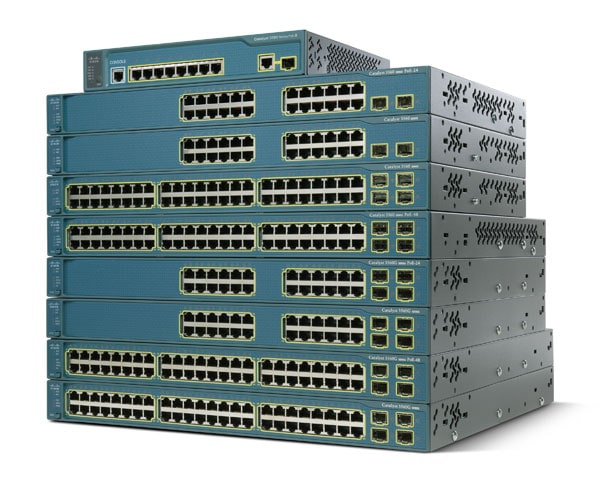
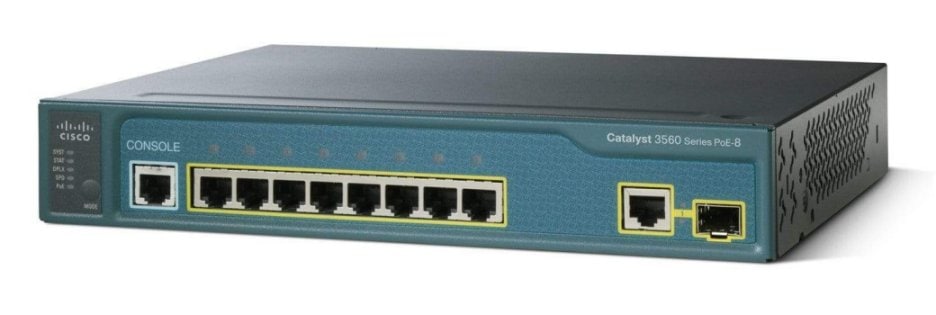
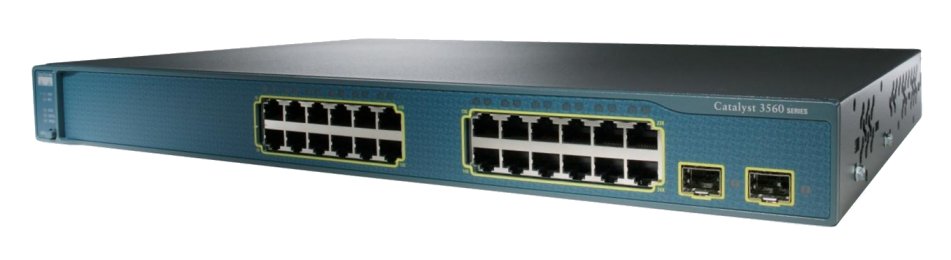
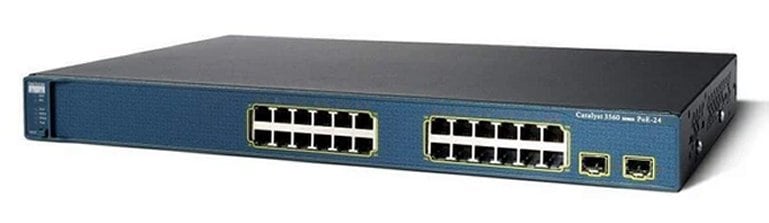
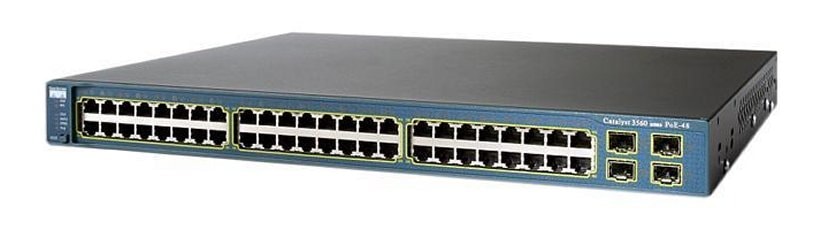
This chapter describes how to configure IP unicast routing on the Catalyst 3560 switch. Basic routing functions, including static routing and the Routing Information Protocol (RIP), are available with both the standard multilayer software image (SMI) and the enhanced multilayer image (EMI). To use advanced routing features and other routing protocols, you must have the enhanced multilayer image installed on the switch.
Note
For more detailed IP unicast configuration information, refer to the Cisco IOS IP and IP Routing Configuration Guide for Release 12.1. For complete syntax and usage information for the commands used in this chapter, refer to the Cisco IOS IP and IP Routing Command Reference for Release 12.1.
This chapter consists of these sections:
•
Understanding IP Routing
•
Steps for Configuring Routing
•
Configuring IP Addressing
•
Enabling IP Unicast Routing
•
Configuring RIP
•
Configuring IGRP
•
Configuring OSPF
•
Configuring EIGRP
•
Configuring BGP
•
Configuring Protocol-Independent Features
•
Monitoring and Maintaining the IP Network
Note
When configuring routing parameters on the switch and to allocate system resources to maximize the number of unicast routes allowed, you can use the sdm prefer routing global configuration command to set the Switch Database Management (sdm) feature to the routing template. For more information on the SDM templates, see "Configuring SDM Templates" or refer to the sdm prefer command in the command reference for this release.
Understanding IP Routing
In some network environments, VLANs are associated with individual networks or subnetworks. In an IP network, each subnetwork is mapped to an individual VLAN. Configuring VLANs helps control the size of the broadcast domain and keeps local traffic local. However, network devices in different VLANs cannot communicate with one another without a Layer 3 device (router) to route traffic between the VLAN, referred to as inter-VLAN routing. You configure one or more routers to route traffic to the appropriate destination VLAN.
Figure 30-1 shows a basic routing topology. Switch A is in VLAN 10, and Switch B is in VLAN 20. The router has an interface in each VLAN.
Figure 30-1 Routing Topology Example
When Host A in VLAN 10 needs to communicate with Host B in VLAN 10, it sends a packet addressed to that host. Switch A forwards the packet directly to Host B, without sending it to the router.
When Host A sends a packet to Host C in VLAN 20, Switch A forwards the packet to the router, which receives the traffic on the VLAN 10 interface. The router checks the routing table, determines the correct outgoing interface, and forwards the packet on the VLAN 20 interface to Switch B. Switch B receives the packet and forwards it to Host C.
Types of Routing
Routers and Layer 3 switches can route packets in three different ways:
•
By using default routing
•
By using preprogrammed static routes for the traffic
•
By dynamically calculating routes by using a routing protocol
Default routing refers to sending traffic with a destination unknown to the router to a default outlet or destination.
Static unicast routing forwards packets from predetermined ports through a single path into and out of a network. Static routing is secure and uses little bandwidth, but does not automatically respond to changes in the network, such as link failures, and therefore, might result in unreachable destinations. As networks grow, static routing becomes a labor-intensive liability.
Dynamic routing protocols are used by routers to dynamically calculate the best route for forwarding traffic. There are two types of dynamic routing protocols:
•
Routers using distance-vector protocols maintain routing tables with distance values of networked resources, and periodically pass these tables to their neighbors. Distance-vector protocols use one or a series of metrics for calculating the best routes. These protocols are easy to configure and use.
•
Routers using link-state protocols maintain a complex database of network topology, based on the exchange of link-state advertisements (LSAs) between routers. LSAs are triggered by an event in the network, which speeds up the convergence time or time required to respond to these changes. Link-state protocols respond quickly to topology changes, but require greater bandwidth and more resources than distance-vector protocols.
Distance-vector protocols supported by the Catalyst 3560 switch are Routing Information Protocol (RIP), which uses a single distance metric (cost) to determine the best path; Interior Gateway Routing Protocol (IGRP), which uses a series of metrics; and Border Gateway Protocol (BGP), which adds a path vector mechanism. The switch also supports the Open Shortest Path First (OSPF) link-state protocol and Enhanced IGRP (EIGRP), which adds some link-state routing features to traditional IGRP to improve efficiency.
Note
The supported protocols are determined by the software running on the switch. If the switch is running the SMI, only default routing, static routing and RIP are supported. All other routing protocols require the EMI.
Steps for Configuring Routing
By default, IP routing is disabled on the switch, and you must enable it before routing can take place. For detailed IP routing configuration information, refer to the Cisco IOS IP and IP Routing Configuration Guide for Release 12.1.
In the following procedures, the specified interface must be one of these Layer 3 interfaces:
•
A routed port: a physical port configured as a Layer 3 port by using the no switchport interface configuration command.
•
A switch virtual interface (SVI): a VLAN interface created by using the interface vlan vlan_id global configuration command and by default a Layer 3 interface.
•
An EtherChannel port channel in Layer 3 mode: a port-channel logical interface created by using the interface port-channel port-channel-number global configuration command and binding the Ethernet interface into the channel group. For more information, see the "Configuring Layer 3 EtherChannels" section.
Note
A Layer 3 switch can have an IP address assigned to each routed port and SVI. The number of routed ports and SVIs that you can configure is not limited by software. However, the interrelationship between this number and the number and volume of features being implemented might have an impact on CPU utilization because of hardware limitations. To optimize system memory for routing, use the sdm prefer routing global configuration command.
All Layer 3 interfaces on which routing will occur must have IP addresses assigned to them. See the "Assigning IP Addresses to Network Interfaces" section.
Configuring routing consists of several main procedures:
•
To support VLAN interfaces, create and configure VLANs on the switch, and assign VLAN membership to Layer 2 interfaces. For more information, see "Configuring VLANs."
•
Configure Layer 3 interfaces.
•
Enable IP routing on the switch.
•
Assign IP addresses to the Layer 3 interfaces.
•
Enable selected routing protocols on the switch.
•
Configure routing protocol parameters (optional).
Configuring IP Addressing
A required task for configuring IP routing is to assign IP addresses to Layer 3 network interfaces to enable the interfaces and allow communication with the hosts on those interfaces that use IP. These sections describe how to configure various IP addressing features. Assigning IP addresses to the interface is required; the other procedures are optional.
•
Default Addressing Configuration
•
Assigning IP Addresses to Network Interfaces
•
Configuring Address Resolution Methods
•
Routing Assistance When IP Routing is Disabled
•
Configuring Broadcast Packet Handling
•
Monitoring and Maintaining IP Addressing
Default Addressing Configuration
Table 30-1 shows the default addressing configuration.
Table 30-1 Default Addressing Configuration
Feature
|
Default Setting
|
IP address
|
None defined.
|
ARP
|
No permanent entries in the Address Resolution Protocol (ARP) cache.
Encapsulation: Standard Ethernet-style ARP.
Timeout: 14400 seconds (4 hours).
|
IP broadcast address
|
255.255.255.255 (all ones).
|
IP classless routing
|
Enabled.
|
IP default gateway
|
Disabled.
|
IP directed broadcast
|
Disabled (all IP directed broadcasts are dropped).
|
IP domain
|
Domain list: No domain names defined.
Domain lookup: Enabled.
Domain name: Enabled.
|
IP forward-protocol
|
If a helper address is defined or User Datagram Protocol (UDP) flooding is configured, UDP forwarding is enabled on default ports.
Any-local-broadcast: Disabled.
Spanning Tree Protocol (STP): Disabled.
Turbo-flood: Disabled.
|
IP helper address
|
Disabled.
|
IP host
|
Disabled.
|
IRDP
|
Disabled.
Defaults when enabled:
• Broadcast IRDP advertisements.
• Maximum interval between advertisements: 600 seconds.
• Minimum interval between advertisements: 0.75 times max interval
• Preference: 0.
|
IP proxy ARP
|
Enabled.
|
IP routing
|
Disabled.
|
IP subnet-zero
|
Disabled.
|
Assigning IP Addresses to Network Interfaces
An IP address identifies a location to which IP packets can be sent. Some IP addresses are reserved for special uses and cannot be used for host, subnet, or network addresses. RFC 1166, "Internet Numbers," contains the official description of IP addresses.
An interface can have one primary IP address. A mask identifies the bits that denote the network number in an IP address. When you use the mask to subnet a network, the mask is referred to as a subnet mask. To receive an assigned network number, contact your Internet service provider.
Beginning in privileged EXEC mode, follow these steps to assign an IP address and a network mask to a Layer 3 interface:
| |
Command
|
Purpose
|
Step 1
|
configure terminal
|
Enter global configuration mode.
|
Step 2
|
interface interface-id
|
Enter interface configuration mode, and specify the Layer 3 interface to configure.
|
Step 3
|
no switchport
|
Remove the interface from Layer 2 configuration mode (if it is a physical interface).
|
Step 4
|
ip address ip-address subnet-mask
|
Configure the IP address and IP subnet mask.
|
Step 5
|
no shutdown
|
Enable the interface.
|
Step 6
|
end
|
Return to privileged EXEC mode.
|
Step 7
|
show interfaces [interface-id] show ip interface [interface-id] show running-config interface [interface-id]
|
Verify your entries.
|
Step 8
|
copy running-config startup-config
|
(Optional) Save your entries in the configuration file.
|
Use of Subnet Zero
Subnetting with a subnet address of zero is strongly discouraged because of the problems that can arise if a network and a subnet have the same addresses. For example, if network 131.108.0.0 is subnetted as 255.255.255.0, subnet zero would be written as 131.108.0.0, which is the same as the network address.
You can use the all ones subnet (131.108.255.0) and even though it is discouraged, you can enable the use of subnet zero if you need the entire subnet space for your IP address.
Beginning in privileged EXEC mode, follow these steps to enable subnet zero:
| |
Command
|
Purpose
|
Step 1
|
configure terminal
|
Enter global configuration mode.
|
Step 2
|
ip subnet-zero
|
Enable the use of subnet zero for interface addresses and routing updates.
|
Step 3
|
end
|
Return to privileged EXEC mode.
|
Step 4
|
show running-config
|
Verify your entry.
|
Step 5
|
copy running-config startup-config
|
(Optional) Save your entry in the configuration file.
|
Use the no ip subnet-zero global configuration command to restore the default and disable the use of subnet zero.
Classless Routing
By default, classless routing behavior is enabled on the switch when it is configured to route. With classless routing, if a router receives packets for a subnet of a network with no default route, the router forwards the packet to the best supernet route. A supernet consists of contiguous blocks of Class C address spaces used to simulate a single, larger address space and is designed to relieve the pressure on the rapidly depleting Class B address space.
In Figure 30-2, classless routing is enabled. When the host sends a packet to 120.20.4.1, instead of discarding the packet, the router forwards it to the best supernet route. If you disable classless routing and a router receives packets destined for a subnet of a network with no network default route, the router discards the packet.
Figure 30-2 IP Classless Routing
In Figure 30-3, the router in network 128.20.0.0 is connected to subnets 128.20.1.0, 128.20.2.0, and 128.20.3.0. If the host sends a packet to 120.20.4.1, because there is no network default route, the router discards the packet.
Figure 30-3 No IP Classless Routing
To prevent the switch from forwarding packets destined for unrecognized subnets to the best supernet route possible, you can disable classless routing behavior.
Beginning in privileged EXEC mode, follow these steps to disable classless routing:
| |
Command
|
Purpose
|
Step 1
|
configure terminal
|
Enter global configuration mode.
|
Step 2
|
no ip classless
|
Disable classless routing behavior.
|
Step 3
|
end
|
Return to privileged EXEC mode.
|
Step 4
|
show running-config
|
Verify your entry.
|
Step 5
|
copy running-config startup-config
|
(Optional) Save your entry in the configuration file.
|
To restore the default and have the switch forward packets destined for a subnet of a network with no network default route to the best supernet route possible, use the ip classless global configuration command.
Configuring Address Resolution Methods
You can control interface-specific handling of IP by using address resolution. A device using IP can have both a local address or MAC address, which uniquely defines the device on its local segment or LAN, and a network address, which identifies the network to which the device belongs.
The local address or MAC address is known as a data link address because it is contained in the data link layer (Layer 2) section of the packet header and is read by data link (Layer 2) devices. To communicate with a device on Ethernet, the software must determine the MAC address of the device. The process of determining the MAC address from an IP address is called address resolution. The process of determining the IP address from the MAC address is called reverse address resolution.
The switch can use these forms of address resolution:
•
Address Resolution Protocol (ARP) is used to associate IP address with MAC addresses. Taking an IP address as input, ARP determines the associated MAC address and then stores the IP address/MAC address association in an ARP cache for rapid retrieval. Then the IP datagram is encapsulated in a link-layer frame and sent over the network. Encapsulation of IP datagrams and ARP requests or replies on IEEE 802 networks other than Ethernet is specified by the Subnetwork Access Protocol (SNAP).
•
Proxy ARP helps hosts with no routing tables determine the MAC addresses of hosts on other networks or subnets. If the switch (router) receives an ARP request for a host that is not on the same interface as the ARP request sender, and if the router has all of its routes to the host through other interfaces, it generates a proxy ARP packet giving its own local data link address. The host that sent the ARP request then sends its packets to the router, which forwards them to the intended host.
Catalyst 3560 switches also use the Reverse Address Resolution Protocol (RARP), which functions the same as ARP does, except that the RARP packets request an IP address instead of a local MAC address. Using RARP requires a RARP server on the same network segment as the router interface. Use the ip rarp-server address interface configuration command to identify the server.
For more information on RARP, refer to the Cisco IOS Configuration Fundamentals Configuration Guide for Release 12.1.
You can perform these tasks to configure address resolution:
•
Define a Static ARP Cache
•
Set ARP Encapsulation
•
Enable Proxy ARP
Define a Static ARP Cache
ARP and other address resolution protocols provide dynamic mapping between IP addresses and MAC addresses. Because most hosts support dynamic address resolution, you usually do not need to specify static ARP cache entries. If you must define a static ARP cache entry, you can do so globally, which installs a permanent entry in the ARP cache that the switch uses to translate IP addresses into MAC addresses. Optionally, you can also specify that the switch respond to ARP requests as if it were the owner of the specified IP address. If you do not want the ARP entry to be permanent, you can specify a timeout period for the ARP entry.
Beginning in privileged EXEC mode, follow these steps to provide static mapping between IP addresses and MAC addresses:
| |
Command
|
Purpose
|
Step 1
|
configure terminal
|
Enter global configuration mode.
|
Step 2
|
arp ip-address hardware-address type
|
Globally associate an IP address with a MAC (hardware) address in the ARP cache, and specify encapsulation type as one of these:
• arpa—ARP encapsulation for Ethernet interfaces
• snap—Subnetwork Address Protocol encapsulation for Token Ring and FDDI interfaces
• sap—HP's ARP type
|
Step 3
|
arp ip-address hardware-address type [alias]
|
(Optional) Specify that the switch respond to ARP requests as if it were the owner of the specified IP address.
|
Step 4
|
interface interface-id
|
Enter interface configuration mode, and specify the interface to configure.
|
Step 5
|
arp timeout seconds
|
(Optional) Set the length of time an ARP cache entry will stay in the cache. The default is 14400 seconds (4 hours). The range is 0 to 2147483 seconds.
|
Step 6
|
end
|
Return to privileged EXEC mode.
|
Step 7
|
show interfaces [interface-id]
|
Verify the type of ARP and the timeout value used on all interfaces or a specific interface.
|
Step 8
|
show arp
or
show ip arp
|
View the contents of the ARP cache.
|
Step 9
|
copy running-config startup-config
|
(Optional) Save your entries in the configuration file.
|
To remove an entry from the ARP cache, use the no arp ip-address hardware-address type global configuration command. To remove all nonstatic entries from the ARP cache, use the clear arp-cache privileged EXEC command.
Set ARP Encapsulation
By default, Ethernet ARP encapsulation (represented by the arpa keyword) is enabled on an IP interface. You can change the encapsulation methods to SNAP if required by your network.
Beginning in privileged EXEC mode, follow these steps to specify the ARP encapsulation type:
| |
Command
|
Purpose
|
Step 1
|
configure terminal
|
Enter global configuration mode.
|
Step 2
|
interface interface-id
|
Enter interface configuration mode, and specify the Layer 3 interface to configure.
|
Step 3
|
arp {arpa | snap}
|
Specify the ARP encapsulation method:
• arpa—Address Resolution Protocol
• snap—Subnetwork Address Protocol
|
Step 4
|
end
|
Return to privileged EXEC mode.
|
Step 5
|
show interfaces [interface-id]
|
Verify ARP encapsulation configuration on all interfaces or the specified interface.
|
Step 6
|
copy running-config startup-config
|
(Optional) Save your entries in the configuration file.
|
To disable an encapsulation type, use the no arp arpa or no arp snap interface configuration command.
Enable Proxy ARP
By default, the switch uses proxy ARP to help hosts determine MAC addresses of hosts on other networks or subnets.
Beginning in privileged EXEC mode, follow these steps to enable proxy ARP if it has been disabled:
| |
Command
|
Purpose
|
Step 1
|
configure terminal
|
Enter global configuration mode.
|
Step 2
|
interface interface-id
|
Enter interface configuration mode, and specify the Layer 3 interface to configure.
|
Step 3
|
ip proxy-arp
|
Enable proxy ARP on the interface.
|
Step 4
|
end
|
Return to privileged EXEC mode.
|
Step 5
|
show ip interface [interface-id]
|
Verify the configuration on the interface or all interfaces.
|
Step 6
|
copy running-config startup-config
|
(Optional) Save your entries in the configuration file.
|
To disable proxy ARP on the interface, use the no ip proxy-arp interface configuration command.
Routing Assistance When IP Routing is Disabled
These mechanisms allow the switch to learn about routes to other networks when it does not have IP routing enabled:
•
Proxy ARP
•
Default Gateway
•
ICMP Router Discovery Protocol (IRDP)
Proxy ARP
Proxy ARP, the most common method for learning about other routes, enables an Ethernet host with no routing information to communicate with hosts on other networks or subnets. The host assumes that all hosts are on the same local Ethernet and that they can use ARP to determine their MAC addresses. If a switch receives an ARP request for a host that is not on the same network as the sender, the switch evaluates whether it has the best route to that host. If it does, it sends an ARP reply packet with its own Ethernet MAC address, and the host that sent the request sends the packet to the switch, which forwards it to the intended host. Proxy ARP treats all networks as if they are local and performs ARP requests for every IP address.
Proxy ARP is enabled by default. To enable it after it has been disabled, see the "Enable Proxy ARP" section. Proxy ARP works as long as other routers support it.
Default Gateway
Another method for locating routes is to define a default router or default gateway. All nonlocal packets are sent to this router, which either routes them appropriately or sends an IP Control Message Protocol (ICMP) redirect message back, defining which local router the host should use. The switch caches the redirect messages and forwards each packet as efficiently as possible. A limitation of this method is that there is no means of detecting when the default router has gone down or is unavailable.
Beginning in privileged EXEC mode, follow these steps to define a default gateway (router) when IP routing is disabled:
| |
Command
|
Purpose
|
Step 1
|
configure terminal
|
Enter global configuration mode.
|
Step 2
|
ip default-gateway ip-address
|
Set up a default gateway (router).
|
Step 3
|
end
|
Return to privileged EXEC mode.
|
Step 4
|
show ip redirects
|
Display the address of the default gateway router to verify the setting.
|
Step 5
|
copy running-config startup-config
|
(Optional) Save your entries in the configuration file.
|
Use the no ip default-gateway global configuration command to disable this function.
ICMP Router Discovery Protocol (IRDP)
Router discovery allows the switch to dynamically learn about routes to other networks using IRDP. IRDP allows hosts to locate routers. When operating as a client, the switch generates router discovery packets. When operating as a host, the switch receives router discovery packets. The switch can also listen to Routing Information Protocol (RIP) and Interior Gateway Routing Protocol (IGRP) routing updates and use this information to infer locations of routers. The switch does not actually store the routing tables sent by routing devices; it merely keeps track of which systems are sending the data. The advantage of using IRDP is that it allows each router to specify both a priority and the time after which a device is assumed to be down if no further packets are received.
Each device discovered becomes a candidate for the default router, and a new highest-priority router is selected when a higher priority router is discovered, when the current default router is declared down, or when a TCP connection is about to time out because of excessive retransmissions.
The only required task for IRDP routing on an interface is to enable IRDP processing on that interface. When enabled, the default parameters apply. You can optionally change any of these parameters.
Beginning in privileged EXEC mode, follow these steps to enable and configure IRDP on an interface:
| |
Command
|
Purpose
|
Step 1
|
configure terminal
|
Enter global configuration mode.
|
Step 2
|
interface interface-id
|
Enter interface configuration mode, and specify the Layer 3 interface to configure.
|
Step 3
|
ip irdp
|
Enable IRDP processing on the interface.
|
Step 4
|
ip irdp multicast
|
(Optional) Send IRDP advertisements to the multicast address (224.0.0.1) instead of IP broadcasts.
Note This command allows for compatibility with Sun Microsystems Solaris, which requires IRDP packets to be sent out as multicasts. Many implementations cannot receive these multicasts; ensure end-host ability before using this command.
|
Step 5
|
ip irdp holdtime seconds
|
(Optional) Set the IRDP period for which advertisements are valid. The default is three times the maxadvertinterval value. It must be greater than maxadvertinterval and cannot be greater than 9000 seconds. If you change the maxadvertinterval value, this value also changes.
|
Step 6
|
ip irdp maxadvertinterval seconds
|
(Optional) Set the IRDP maximum interval between advertisements. The default is 600 seconds.
|
Step 7
|
ip irdp minadvertinterval seconds
|
(Optional) Set the IRDP minimum interval between advertisements. The default is 0.75 times the maxadvertinterval. If you change the maxadvertinterval, this value changes to the new default (0.75 of maxadvertinterval).
|
Step 8
|
ip irdp preference number
|
(Optional) Set a device IRDP preference level. The allowed range is -231 to 231. The default is 0. A higher value increases the router preference level.
|
Step 9
|
ip irdp address address [number]
|
(Optional) Specify an IRDP address and preference to proxy-advertise.
|
Step 10
|
end
|
Return to privileged EXEC mode.
|
Step 11
|
show ip irdp
|
Verify settings by displaying IRDP values.
|
Step 12
|
copy running-config startup-config
|
(Optional) Save your entries in the configuration file.
|
If you change the maxadvertinterval value, the holdtime and minadvertinterval values also change, so it is important to first change the maxadvertinterval value, before manually changing either the holdtime or minadvertinterval values.
Use the no ip irdp interface configuration command to disable IRDP routing.
Configuring Broadcast Packet Handling
After configuring an IP interface address, you can enable routing and configure one or more routing protocols, or you can configure the way the switch responds to network broadcasts. A broadcast is a data packet destined for all hosts on a physical network. The switch supports two kinds of broadcasting:
•
A directed broadcast packet is sent to a specific network or series of networks. A directed broadcast address includes the network or subnet fields.
•
A flooded broadcast packet is sent to every network.
Note
You can also limit broadcast, unicast, and multicast traffic on Layer 2 interfaces by using the storm-control interface configuration command to set traffic suppression levels. For more information, see "Configuring Port-Based Traffic Control."
Routers provide some protection from broadcast storms by limiting their extent to the local cable. Bridges (including intelligent bridges), because they are Layer 2 devices, forward broadcasts to all network segments, thus propagating broadcast storms. The best solution to the broadcast storm problem is to use a single broadcast address scheme on a network. In most modern IP implementations, you can set the address to be used as the broadcast address. Many implementations, including the one in the Catalyst 3560 switch, support several addressing schemes for forwarding broadcast messages.
Perform the tasks in these sections to enable these schemes:
•
Enabling Directed Broadcast-to-Physical Broadcast Translation
•
Forwarding UDP Broadcast Packets and Protocols
•
Establishing an IP Broadcast Address
•
Flooding IP Broadcasts
Enabling Directed Broadcast-to-Physical Broadcast Translation
By default, IP directed broadcasts are dropped; they are not forwarded. Dropping IP-directed broadcasts makes routers less susceptible to denial-of-service attacks.
You can enable forwarding of IP-directed broadcasts on an interface where the broadcast becomes a physical (MAC-layer) broadcast. Only those protocols configured by using the ip forward-protocol global configuration command are forwarded.
You can specify an access list to control which broadcasts are forwarded. When an access list is specified, only those IP packets permitted by the access list are eligible to be translated from directed broadcasts to physical broadcasts. For more information on access lists, see "Configuring Network Security with ACLs."
Beginning in privileged EXEC mode, follow these steps to enable forwarding of IP-directed broadcasts on an interface:
| |
Command
|
Purpose
|
Step 1
|
configure terminal
|
Enter global configuration mode.
|
Step 2
|
interface interface-id
|
Enter interface configuration mode, and specify the interface to configure.
|
Step 3
|
ip directed-broadcast [access-list-number]
|
Enable directed broadcast-to-physical broadcast translation on the interface. You can include an access list to control which broadcasts are forwarded. When an access list is specified, only IP packets permitted by the access list are eligible to be translated.
|
Step 4
|
exit
|
Return to global configuration mode.
|
Step 5
|
ip forward-protocol {udp [port] | nd | sdns}
|
Specify which protocols and ports the router forwards when forwarding broadcast packets.
• udp—Forward UPD datagrams.
port: (Optional) Destination port that controls which UDP services are forwarded.
• nd—Forward ND datagrams.
• sdns—Forward SDNS datagrams
|
Step 6
|
end
|
Return to privileged EXEC mode.
|
Step 7
|
show ip interface [interface-id]
or
show running-config
|
Verify the configuration on the interface or all interfaces.
|
Step 8
|
copy running-config startup-config
|
(Optional) Save your entries in the configuration file.
|
Use the no ip directed-broadcast interface configuration command to disable translation of directed broadcast to physical broadcasts. Use the no ip forward-protocol global configuration command to remove a protocol or port.
Forwarding UDP Broadcast Packets and Protocols
User Datagram Protocol (UDP) is an IP host-to-host layer protocol, as is TCP. UDP provides a low-overhead, connectionless session between two end systems and does not provide for acknowledgment of received datagrams. Network hosts occasionally use UDP broadcasts to determine address, configuration, and name information. If such a host is on a network segment that does not include a server, UDP broadcasts are normally not forwarded. You can remedy this situation by configuring an interface on a router to forward certain classes of broadcasts to a helper address. You can use more than one helper address per interface.
You can specify a UDP destination port to control which UDP services are forwarded. You can specify multiple UDP protocols. You can also specify the Network Disk (ND) protocol, which is used by older diskless Sun workstations and the network security protocol SDNS.
By default, both UDP and ND forwarding are enabled if a helper address has been defined for an interface. The description for the ip forward-protocol interface configuration command in the Cisco IOS IP and IP Routing Command Reference for Release 12.1 lists the ports that are forwarded by default if you do not specify any UDP ports.
If you do not specify any UDP ports when you configure the forwarding of UDP broadcasts, you are configuring the router to act as a BOOTP forwarding agent. BOOTP packets carry Dynamic Host Configuration Protocol (DHCP) information.
Beginning in privileged EXEC mode, follow these steps to enable forwarding UDP broadcast packets on an interface and specify the destination address:
| |
Command
|
Purpose
|
Step 1
|
configure terminal
|
Enter global configuration mode.
|
Step 2
|
interface interface-id
|
Enter interface configuration mode, and specify the Layer 3 interface to configure.
|
Step 3
|
ip helper-address address
|
Enable forwarding and specify the destination address for forwarding UDP broadcast packets, including BOOTP.
|
Step 4
|
exit
|
Return to global configuration mode.
|
Step 5
|
ip forward-protocol {udp [port] | nd | sdns}
|
Specify which protocols the router forwards when forwarding broadcast packets.
|
Step 6
|
end
|
Return to privileged EXEC mode.
|
Step 7
|
show ip interface [interface-id]
or
show running-config
|
Verify the configuration on the interface or all interfaces.
|
Step 8
|
copy running-config startup-config
|
(Optional) Save your entries in the configuration file.
|
Use the no ip helper-address interface configuration command to disable the forwarding of broadcast packets to specific addresses. Use the no ip forward-protocol global configuration command to remove a protocol or port.
Establishing an IP Broadcast Address
The most popular IP broadcast address (and the default) is an address consisting of all ones (255.255.255.255). However, the switch can be configured to generate any form of IP broadcast address.
Beginning in privileged EXEC mode, follow these steps to set the IP broadcast address on an interface:
| |
Command
|
Purpose
|
Step 1
|
configure terminal
|
Enter global configuration mode.
|
Step 2
|
interface interface-id
|
Enter interface configuration mode, and specify the interface to configure.
|
Step 3
|
ip broadcast-address ip-address
|
Enter a broadcast address different from the default, for example 128.1.255.255.
|
Step 4
|
end
|
Return to privileged EXEC mode.
|
Step 5
|
show ip interface [interface-id]
|
Verify the broadcast address on the interface or all interfaces.
|
Step 6
|
copy running-config startup-config
|
(Optional) Save your entries in the configuration file.
|
To restore the default IP broadcast address, use the no ip broadcast-address interface configuration command.
Flooding IP Broadcasts
You can allow IP broadcasts to be flooded throughout your internetwork in a controlled fashion by using the database created by the bridging STP. Using this feature also prevents loops. To support this capability, bridging must be configured on each interface that is to participate in the flooding. If bridging is not configured on an interface, it still can receive broadcasts. However, the interface never forwards broadcasts it receives, and the router never uses that interface to send broadcasts received on a different interface.
Packets that are forwarded to a single network address using the IP helper-address mechanism can be flooded. Only one copy of the packet is sent on each network segment.
To be considered for flooding, packets must meet these criteria. (Note that these are the same conditions used to consider packet forwarding using IP helper addresses.)
•
The packet must be a MAC-level broadcast.
•
The packet must be an IP-level broadcast.
•
The packet must be a TFTP, DNS, Time, NetBIOS, ND, or BOOTP packet, or a UDP specified by the ip forward-protocol udp global configuration command.
•
The time-to-live (TTL) value of the packet must be at least two.
A flooded UDP datagram is given the destination address specified with the ip broadcast-address interface configuration command on the output interface. The destination address can be set to any address. Thus, the destination address might change as the datagram propagates through the network. The source address is never changed. The TTL value is decremented.
When a flooded UDP datagram is sent out an interface (and the destination address possibly changed), the datagram is handed to the normal IP output routines and is, therefore, subject to access lists, if they are present on the output interface.
Beginning in privileged EXEC mode, follow these steps to use the bridging spanning-tree database to flood UDP datagrams:
| |
Command
|
Purpose
|
Step 1
|
configure terminal
|
Enter global configuration mode.
|
Step 2
|
ip forward-protocol spanning-tree
|
Use the bridging spanning-tree database to flood UDP datagrams.
|
Step 3
|
end
|
Return to privileged EXEC mode.
|
Step 4
|
show running-config
|
Verify your entry.
|
Step 5
|
copy running-config startup-config
|
(Optional) Save your entry in the configuration file.
|
Use the no ip forward-protocol spanning-tree global configuration command to disable the flooding of IP broadcasts.
In the Catalyst 3560 switch, the majority of packets are forwarded in hardware; most packets do not go through the switch CPU. For those packets that do go to the CPU, you can speed up spanning tree-based UDP flooding by a factor of about four to five times by using turbo-flooding. This feature is supported over Ethernet interfaces configured for ARP encapsulation.
Beginning in privileged EXEC mode, follow these steps to increase spanning-tree-based flooding:
| |
Command
|
Purpose
|
Step 1
|
configure terminal
|
Enter global configuration mode
|
Step 2
|
ip forward-protocol turbo-flood
|
Use the spanning-tree database to speed up flooding of UDP datagrams.
|
Step 3
|
end
|
Return to privileged EXEC mode.
|
Step 4
|
show running-config
|
Verify your entry.
|
Step 5
|
copy running-config startup-config
|
(Optional) Save your entry in the configuration file.
|
To disable this feature, use the no ip forward-protocol turbo-flood global configuration command.
Monitoring and Maintaining IP Addressing
When the contents of a particular cache, table, or database have become or are suspected to be invalid, you can remove all its contents by using the clear privileged EXEC commands. Table 30-2 lists the commands for clearing contents.
Table 30-2 Commands to Clear Caches, Tables, and Databases
Command
|
Purpose
|
clear arp-cache
|
Clear the IP ARP cache and the fast-switching cache.
|
clear host {name | *}
|
Remove one or all entries from the host name and the address cache.
|
clear ip route {network [mask] |*}
|
Remove one or more routes from the IP routing table.
|
You can display specific statistics, such as the contents of IP routing tables, caches, and databases; the reachability of nodes; and the routing path that packets are taking through the network. Table 30-3 lists the privileged EXEC commands for displaying IP statistics.
Table 30-3 Commands to Display Caches, Tables, and Databases
Command
|
Purpose
|
show arp
|
Display the entries in the ARP table.
|
show hosts
|
Display the default domain name, style of lookup service, name server hosts, and the cached list of host names and addresses.
|
show ip aliases
|
Display IP addresses mapped to TCP ports (aliases).
|
show ip arp
|
Display the IP ARP cache.
|
show ip interface [interface-id]
|
Display the IP status of interfaces.
|
show ip irdp
|
Display IRDP values.
|
show ip masks address
|
Display the masks used for network addresses and the number of subnets using each mask.
|
show ip redirects
|
Display the address of a default gateway.
|
show ip route [address [mask]] | [protocol]
|
Display the current state of the routing table.
|
show ip route summary
|
Display the current state of the routing table in summary form.
|
Enabling IP Unicast Routing
By default, the switch is in Layer 2 switching mode and IP routing is disabled. To use the Layer 3 capabilities of the switch, you must enable IP routing.
Beginning in privileged EXEC mode, follow these steps to enable IP routing:
| |
Command
|
Purpose
|
Step 1
|
configure terminal
|
Enter global configuration mode.
|
Step 2
|
ip routing
|
Enable IP routing.
|
Step 3
|
router ip_routing_protocol
|
Specify an IP routing protocol. This step might include other commands, such as specifying the networks to route with the network (RIP) router configuration command. For information on specific protocols, refer to sections later in this chapter and to the Cisco IOS IP and IP Routing Configuration Guide for Release 12.1.
Note The SMI supports only RIP as a routing protocol
|
Step 4
|
end
|
Return to privileged EXEC mode.
|
Step 5
|
show running-config
|
Verify your entries.
|
Step 6
|
copy running-config startup-config
|
(Optional) Save your entries in the configuration file.
|
Use the no ip routing global configuration command to disable routing.
This example shows how to enable IP routing using RIP as the routing protocol:
Switch# configure terminal