Upgrades

Before You Upgrade


Note

For important notes, caveats, and other considerations, see Cisco Unified Intelligence Center chapter in the Release Notes for Cisco Unified Contact Center Enterprise Solution available at https://www.cisco.com/c/en/us/support/customer-collaboration/unified-contact-center-enterprise/products-release-notes-list.html.


Dashboard Widgets

Cisco Unified Intelligence Center 12.0 supports a maximum of ten widgets per Dashboard. Hence, for Dashboards with more than ten widgets in versions before 12.0, ensure to split those Dashboards with a maximum of ten widgets each before upgrade.

Example: Consider a Dashboard with 15 widgets in Unified Intelligence Center versions before 12.0. Before upgrading to version 12.0, use the Save As feature to clone the Dashboard and manage the widgets up to ten per Dashboard.


Warning

Migrating Dashboards with more than ten widgets to version 12.0 allows you to only run the Dashboards. You cannot modify and save these Dashboards unless you retain only a maximum of ten widgets per Dashboard.


Unsupported Widgets

The Cisco Unified Intelligence Center 12.0 interface for Dashboards does not support the following widgets:

  • Schedule Report widgets

  • URL widgets containing Dashboard permalinks (Nested Dashboards)

Migration Limitations

The following widgets if added to the Dashboard before Cisco Unified Intelligence Center 12.0 are not migrated.

  • Schedule Report widgets.

  • URL widgets containing Dashboard permalinks (Nested Dashboards).

  • Widgets that were placed beyond the new Dashboard canvas size.


    Note

    Post upgrade to Cisco Unified Intelligence Center 12.0, the positions of the widgets placed in the legacy dashboard interface are retained. However, in few cases the position and size of the widgets are modified to fit inside the new dashboard interface.


  • Inaccurate widgets (inaccurate database records)

    Example: Report widgets with missing Report Views.


Note

  • For the Schedule Report widgets and Nested Dashboard widgets that are not migrated, the Cisco Unified Intelligence Center server logs do not capture the logs.

  • For all other widgets, Cisco Unified Intelligence Center server logs captures the log information with the corresponding Dashboard and widget name.


Note

To perform an upgrade of Cisco Unified Intelligence Center to 12.0, you must first perform an upgrade to 10.x from the previous versions and then upgrade to 12.0. For information on upgrade to 10.x, see https://www.cisco.com/c/en/us/support/customer-collaboration/unified-intelligence-center/tsd-products-support-series-home.html.


Upgrade Prerequisites

Before starting the software upgrade,

  • Perform the Unified CCE User Integration to import supervisors and their teams from Unified CCE into Unified Intelligence Center.

  • Back up your system data using the Disaster Recovery system application. To access the DRS application, direct your browser to https://IP address of Intelligence Center:8443/drf. For more information, see the online help provided with the DRS application.

Upgrade and restart the Controller node first. Then upgrade and restart the members. All nodes must be on the same version of Unified Intelligence Center.

Post Upgrade Tasks
  • After upgrading Cisco Unified Intelligence Center to release 12.0, ensure to perform the following:

    1. Disable the Unified CCE User Integration. (Uncheck the Enable UCCE User Integration check box in OAMP > Cluster Configuration > UCCE User Integration.)

    2. Install the latest Cisco Options Package (COP) file for Unified Intelligence Center 12.0 release.

    3. Enable the Unified CCE User Integration manually to import the Supervisors with the required roles. This setting is required to view gadgets in the Cisco Finesse Desktop for Supervisors. For more information on User Integration, see Unified CCE User Integration Configuration section in the Administration Console User Guide for Cisco Unified Intelligence Center at https://www.cisco.com/c/en/us/support/customer-collaboration/unified-intelligence-center/products-maintenance-guides-list.html.

Your configuration information moves automatically to the upgraded version in the active partition.
Download Unified Intelligence Center Upgrade File

Procedure


Step 1

Point your browser to the Download Software page for Cisco Unified Intelligence Center: https://software.cisco.com/download/type.html?mdfid=282163829&i=rm, and click the Unified Intelligence Center Software link.

Step 2

Navigate to the folder and subfolder for the release you want.

Step 3

Select the Unified Intelligence Center installer .iso file and click Download.

Step 4

Click Log in.


Refresh Upgrade

You can perform a refresh upgrade from 10.x to 12.0 on publisher and subscriber nodes of Unified Intelligence Center. Before you begin upgrade, perform a backup, for more information see About Upgrades.

Upgrade VMware vSphere ESXi

If you use VMware vCenter Server in your deployment, upgrade VMware vCenter Server before upgrading VMware vSphere ESXi.

Upgrade VMWare vSphere ESXi on Side A and Side B servers to the latest version supported with this release of HCS for CC. HCS for CC uses standard upgrade procedures, which you can find using VMware documentation (https://www.vmware.com/support/pubs/).

Virtual Machine Parameters to Support Refresh Upgrade

Before you perform a refresh upgrade to 12.0, modify the following virtual machine settings: Red Hat Enterprise Linux version, Memory and Video Card and Hard disk.

Procedure


Step 1

Power down the virtual machine.

Step 2

From VMWare VSphere, select the virtual machine > Edit Settings.

The Virtual Machine Properties window appears.
Step 3

In the Options tab, select General Options and update the Guest Operating System from Red Hat Enterprise Linux 4(32-bit) to Red Hat Enterprise Linux 6(64-bit). Click OK.

Step 4

Again select the virtual machine > Edit Settings. In the Hardware tab, update the following parameters:

  1. Memory > Memory Size > 16GB

    Note 

    If you do not modify the memory size to 16GB, this message Warning! Old OVA detected. Update your OVA displays post an upgrade in the Cisco Unified Intelligence Center Administration and Command Line Interface page.

  2. Video Card > Total Video Memory > 8MB

  3. Hard disk 1 > Provisioned Size>200GB

Step 5

Power on the virtual machine and continue with the refresh upgrade.


Install the Upgrade COP File

Follow the steps to install the upgrade COP file using the Unified Intelligence Center Command line interface (CLI).

You can also install the COP using the upgrade procedure in the Cisco Unified Operating System Administration web interface. For more information, see Access Unified OS Administration.


Note

In a cluster setup, install the COP on the publisher node and restart it. Only then proceed with installation on all the subscriber nodes.


Before you begin

Unified Intelligence Center Release 10.x must be installed or upgraded on your system. Download the COP file ciscocuic.refresh_upgrade_v1.7.cop.sgn from the download software page for Cisco Unified Intelligence Center: https://software.cisco.com/download/home/282163829/type/282377062/release/12.0%25281%2529 to the SFTP server that can be accessed from the Unified Intelligence Center 10.x system.

Procedure


Step 1

Log in to Unified Intelligence Center CLI and specify the System Administration username and password.

Step 2

Enter the command utils system upgrade initiate to initiate the COP installation.

Step 3

Select Remote File System from source list page.

Step 4

Enter the remote path to the directory on the SFTP server where you have downloaded the COP file.

Note 

If the COP file is located on a Linux or UNIX server, you must enter a forward slash (/) at the beginning of the directory path. For example, if the COP file is in the patches directory, enter /patches. If the COP file is located on a Windows server, check with your system administrator for the correct directory path.

Step 5

Enter the SFTP server name or IP address and then enter the credentials.

It is optional for you to enter the SMTP Host Server name.
Step 6

Select the transfer protocol as SFTP. The system displays the list of COP files available in the SFTP location.

Step 7

Select the number corresponding to the COP file that you want to install and press Enter.

Step 8

Enter Yes when you are prompted to start installation. After COP installation, restart the box. If this is a single node, your installation ends here.

Step 9

In a cluster setup, if this installation was performed on a publisher node, restart the box and then proceed with installation on the subscriber nodes (restart this procedure for every node in cluster).


Upgrade Unified Intelligence Center

Follow the steps to install the ISO file using the Unified Intelligence Center Command line interface (CLI).

You can also install the ISO using the upgrade procedure in the Cisco Unified Operating System Administration web interface. For more information, see Access Unified OS Administration.

Before you begin

Before you begin the refresh upgrade, check if the COP ciscocuic.refresh_upgrade_v1.7.cop.sgn is applied on the base version 10.x . Download the ISO file from the download software page for Cisco Unified Intelligence Center: https://software.cisco.com/download/home/282163829/type/282377062/release/12.0%25281%2529 to the SFTP server that can be accessed from the Cisco Unified Intelligence Center 10.x system.

Procedure


Step 1

Log in to Unified Intelligence Center CLI and specify the System Administration username and password.

Step 2

Enter the command utils system upgrade initiate to initiate the ISO installation.

Step 3

Select Remote File System from source list page.

Step 4

Enter the remote path to the directory on the SFTP server where you have downloaded the ISO file.

Note 

If the ISO file is located on a Linux or UNIX server, you must enter a forward slash (/) at the beginning of the directory path. For example, if the COP file is in the patches directory, enter /patches. If the ISO file is located on a Windows server, check with your system administrator for the correct directory path.

Step 5

Enter the SFTP server name or IP address and then enter the credentials.

It is optional for you to enter the SMTP Host Server name.
Step 6

Select the transfer protocol as SFTP. The system displays the list of ISO files available in the SFTP location.

Step 7

Select the number corresponding to the ISO file that you want to install and press Enter.

Step 8

Enter the following options when you are prompted Switch to new version if the upgrade is successful (yes/no).

  • Enter yes to automatically switch version only if you are on a single node deployment.

  • Enter no if you are in multi-node deployments. You need to manually switch version after all nodes are upgraded (refer step 10 for more details)

Note 

Verify if the node is upgraded to 11.x, after successful switch version (where active version is 11.x and inactive version is 10.x).

Step 9

Enter yes when you are prompted Start Refresh Upgrade (yes/no).

Step 10

In cluster setup, first complete the refresh upgrade on the publisher node and perform the refresh upgrade on the subscriber node. After successful upgrades, perform switch version using command utils system switch-version first on the publisher node and later on the subscriber nodes .

Note 

Verify if the nodes are upgraded to 11.x, after successful switch version of the publisher node and subscriber nodes (where active version is 11.x and inactive version is 10.x ).


Upgrade VMware Tools

Use this procedure to upgrade VMware tools from the VMware vSphere Client followed by the CLI command.

To upgrade VMware tools for Cisco Unified Intelligence Center:

Procedure


Step 1

Power on the virtual machine.

Step 2

Right-click the VM and select Guest > Install/Upgrade VMware Tools.

Step 3

Select the Interactive Tools Upgrade option and click OK.

Step 4

Open the administrator console and log in to command prompt.

Step 5

Run the command utils vmtools refresh and confirm.

The server automatically reboots twice. This process takes a few minutes.
Step 6

After reboot, from the vSphere client, select the VM and click the Summary tab.

Step 7

Check for the VMware Tools status is “Running (Current)”.


VM Parameters Change After Refresh Upgrade

Procedure


Step 1

Power down the virtual machine.

Step 2

From VMware VSphere, select the virtual machine > Edit Settings.

The Virtual Machine Properties window appears.
Step 3

To add the new Network Adapter, on the Hardware tab, click Add. The Add Hardware window appears.

Step 4

Select Device Type, Ethernet Adapter, Next. Select the adapter type VMXNET3 , Next, and click Finish.

Step 5

To remove the existing Network Adapter 1(Flexible), under the Hardware tab, select Network Adapter 1, click Remove and select OK .

Step 6

Select CPUs, change the number of Virtual sockets from 2 to 4 and number of cores per socket from 2 to1.

Step 7

Select the third tab Resources, and change the Resource Pool CPU to below value (depending on the user setup) and select OK.

  1. 3600 MHz for Standalone CUIC and

  2. 5500 MHz for Co-Resident setup.

Step 8

Power on the virtual machine.


Support for Aligned Partitions

Unified Intelligence Center now supports aligned partitions, only if you perform a fresh install. If you perform an upgrade from the previous release, the platform detects the unaligned partitions and displays the following error: ERROR-UNSUPPORTED: Partitions unaligned

Unified Intelligence Center continues to function with unaligned partitions. However, to remove this error and benefit from aligned partitions, perform a fresh installation.

To support aligned partitions following an upgrade, perform these steps:

To support aligned partitions following an upgrade, perform these steps:

Procedure


Step 1

Upgrade Unified Intelligence Center to 12.0.

Step 2

Perform a backup on the primary server using the Disaster Recovery System (DRS) application. Direct your browser to https://FQDN of cuic server:8443/drf to access the DRS application.

Step 3

Perform fresh installation of Unified Intelligence Center 12.0.

Step 4

Perform a restore from your backup using the DRS application. For more information on backup, see Administration Console User Guide for Cisco Unified Intelligence Center at https://www.cisco.com/c/en/us/support/customer-collaboration/unified-intelligence-center/products-maintenance-guides-list.html.


L2 Upgrade

You can perform a L2 upgrade from 11.0(1) to 12.0 on publisher and subscriber nodes of Unified Intelligence Center. Before you begin upgrade, perform a backup, for more information see About Upgrades.

Upgrade VMware vSphere ESXi for L2 Upgrade

If you use VMware vCenter Server in your deployment, upgrade VMware vCenter Server before upgrading VMware vSphere ESXi.

Upgrade VMWare vSphere ESXi on Side A and Side B servers to the latest version supported with this release of Packaged CCE. Packaged CCE uses standard upgrade procedures, which you can find using VMware documentation (https://www.vmware.com/support/pubs/).

Virtual Machine Parameters to Support L2 Upgrade

Before you perform a L2 upgrade to 12.0, modify Memory and Hard disk size.

Procedure


Step 1

Power down the virtual machine.

Step 2

From VMWare VSphere, select the virtual machine > Edit Settings.

The Virtual Machine Properties window appears.
Step 3

In the Hardware tab, update the following parameters:

  1. Memory>Memory Size > 16GB

    Note 

    If you do not modify the memory size to 16 GB, this message Warning! " Old OVA detected. Update you OVA", displays. Post an upgrade in the Cisco Unified Intelligence Center Administration and Command Line Interface page.

  2. Hard disk 1 > Provisioned Size > 200GB

Step 4

Power on the virtual machine and continue with the L2 upgrade.

Step 5

Now the user can upgrade to Cisco Unified Intelligence Center 12.0. For more information, see Upgrade Unified Intelligence Center.


Virtual Machine Parameters Change After L2 Upgrade

Procedure


Step 1

Power down the virtual machine.

Step 2

From VMware VSphere, select the virtual machine > Edit Settings.

The Virtual Machine Properties window appears.
Step 3

Select CPUs, change the number of Virtual sockets from 2 to 4 and number of cores per socket from 2 to1.

Step 4

Select the third tab Resources, and change the Resource Pool CPU to below value (depending on the user setup), and select OK.

  1. 3600 MHz for Standalone CUIC and

  2. 5500 MHZ for Co-resident setup

Step 5

Power on the virtual machine.


Access Unified OS Administration

To perform an upgrade from the Cisco Unified OS Administration application, follow the steps.

Procedure


Step 1

Enter http://x.x.x.x/cmplatform, where x.x.x.x is the IP address of the node.

Step 2

Sign in using the username and password of the system administrator account.

Step 3

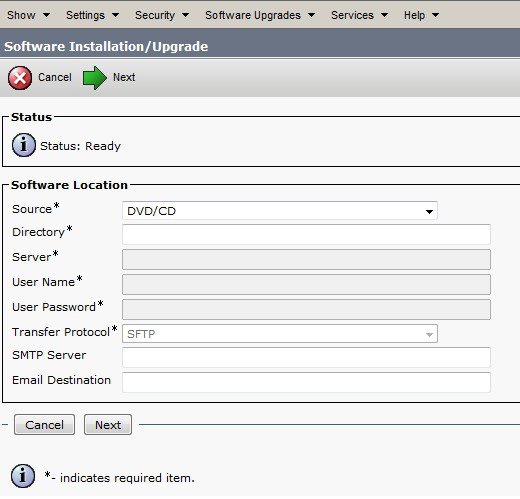
Select Software Upgrades > Install/Upgrade to display the Software Installation/Upgrade page.

Figure 1. Software Upgrade Page


Step 4

Select source: DVD/CD or Remote Filesystem.


Upgrade From DVD/CD

Follow these steps if a DVD/CD is the source for your install or upgrade.

Procedure


Step 1

Prepare a writeable DVD and insert it into the disc drive on the server that is to be upgraded.

Step 2

Select DVD/CD from the Source list on the Software Upgrades > Install/Upgrade page.

Step 3

In the Directory field, enter the path to the upgrade file.

If the file is in the root directory, enter a slash (/) in the Directory field.

Step 4

To continue the upgrade process, click Next.

Step 5

Choose the upgrade version that you want to install and click Next.

Step 6

In the next window, monitor the progress of the download.

Step 7

When the download completes, Click Next.

Step 8

If you want to install the upgrade and automatically reboot to the upgraded partition, choose Reboot to upgraded partition. The system restarts running the upgraded software.

Step 9

If you want to install the upgrade and then manually reboot to the upgraded partition at a later time, do the following:

  1. Choose Do not reboot after upgrade.

  2. Click Next. The Upgrade Status window displays the Upgrade log.

  3. When the installation completes, click Finish.

  4. To restart the system and activate the upgrade, choose Settings > Version, and then click Switch Version.

The system restarts running the upgraded software.

Step 10

Run the utility to update the VMware settings. See Upgrade VMWare Settings Utility.

Step 11

Clear the browser cache and cookies manually before you start working on the new version of Unified Intelligence Center. For more information about clearing the cache and cookies, see your browser-specific documentation.


Upgrade From Remote Filesystem

Follow these steps if Remote Filesystem is the source for your install or upgrade.

Procedure


Step 1

Choose Remote Filesystem from the Source list on the Software Upgrades > Install/Upgrade page.

Step 2

Enter the path to the directory that contains the patch file on the remote system in the Directory field.

If the upgrade file is on a Linux or Unix server, you must enter a forward slash at the beginning of the directory path. For example, if the upgrade file is in the patches directory, enter /patches. If the upgrade file is on a Windows server, check with your system administrator for the correct directory path.

Step 3

In the Server field, enter the server name or IP address.

Step 4

In the User Name field, enter your username on the remote server.

Step 5

In the User Password field, enter your password on the remote server.

Step 6

Select the transfer protocol from the Transfer Protocol field.

Step 7

To continue the upgrade process, click Next.

Step 8

In the next window, monitor the progress of the download.

Step 9

When the download completes, click Next.

Step 10

If you want to install the upgrade and automatically reboot to the upgraded partition, choose Reboot to upgraded partition. The system restarts running the upgraded software.

Step 11

If you want to install the upgrade and then manually reboot to the upgraded partition at a later time, do the following:

  1. Choose Do not reboot after upgrade.

  2. Click Next. The Upgrade Status window displays the Upgrade log.

  3. When the installation completes, click Finish.

  4. To restart the system and activate the upgrade, choose Settings > Version, and then click Switch Version.

The system restarts running the upgraded software.

Note 
It takes about half an hour to complete the Switch Version and the restart.
Step 12

Run the utility to update the VMware settings. See Upgrade VMWare Settings Utility.

Step 13

Clear the browser cache before you start working on the new version of Unified Intelligence Center. For more information about clearing the cache and cookies, see your browser-specific documentation.


Revert to Previous Version

After upgrading, you can revert to the software version that was running before the upgrade, by restarting your system and switching to the software version on the inactive partition

Note

All nodes must be running the same version of Unified Intelligence Center. Reverting is an all-or-none operation when you operate a cluster of Unified Intelligence Center nodes.


Pre-requisites to Revert to Versions 10.x

Before you begin

Before reverting to 10.x you have to follow the VM Parameter changes on Cisco Unified Intelligence Center 12.0.

Procedure


Step 1

Power down the virtual machine.

Step 2

From VMware VSphere, select the virtual machine > Edit Settings.

The Virtual Machine Properties window appears.
Step 3

To add the new Network Adapter, on the Hardware tab, click Add .

The Add Hardware window appears.
Step 4

Select Device Type, Ethernet Adapter, next select the adapter type E1000, next and click Finish.

Step 5

To remove the existing Network Adapter 1(VMXNET3), under the Hardware tab, select Network Adapter 1, click Remove and select OK .

Step 6

Power on the virtual machine.


Pre-requisites to Revert to Version 11.0(1)

For reverting to 11.0(1), no need to change any VM Parameters on Cisco Unified Intelligence Center 12.0.

Procedure to Revert to Previous Version

Revert to previous version can be performed in two ways. You can use the CLI command utils system switch-version on each node or you can also use the user interface in the Unified OS Administration.

Follow these steps to revert using Unified OS Administration:

  1. Open Unified OS Administration page entering the following URL: https://server-name/cmplatform, where server-name is the hostname or IP address of the node.

  2. Sign in using the system administrator credentials.

  3. Choose Settings > Version . This opens the Version Settings screen, which shows the software version on both the active and inactive partitions. To switch versions and restart, click Switch Versions . When the system restarts, it boots to the now-active (formerly inactive) partition with your migrated data in place.


    Note

    It takes about half an hour to complete the Switch Version and the restart.