Manage Agents

View and Monitor Agent Status

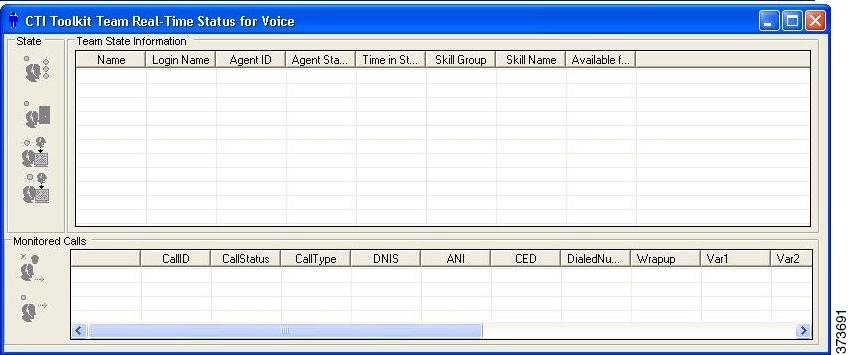
The CTI Toolkit Supervisor Desktop receives the current agent state information for each team member under supervision from CTI OS. The desktop then displays the current agent state for all team members in the Team Real-Time Status window.

The Team Real-Time Status window has the following components:

  • Team State Information — The Team State Information window provides you with the status of members of the agent team. Authorized supervisors can change the state of a monitored agent to Ready and Logout. This section also includes buttons that allow the supervisor to silent monitor, barge in on, or intercept a call.


    Note

    With the CTI OS-based silent monitor, supervisors cannot be silent monitored. Only agents can be silent monitored. With the Unified CM-based silent monitor, supervisors can be silent monitored.


  • Monitored Calls — This section of the window displays call information for the agent that the supervisor selects.

Other supervisor functions include:

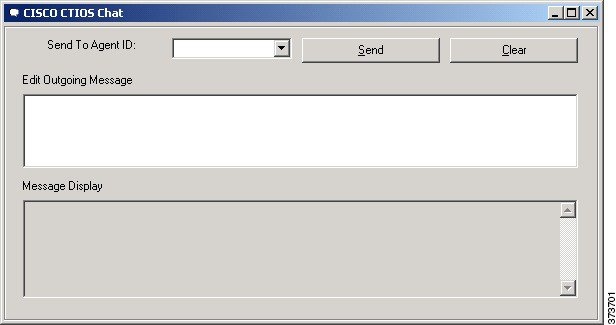
  • Chat — A supervisor can send a message to, or receive a chat message from, a member of the agent team. When the chat message arrives at the supervisor desktop, a CTI OS Chat window displays the message in the Message Display section of the window.

  • Record — With the proper recording equipment installed, supervisors can record any call that appears in their call control window.

  • Agent Re-skilling — Unified Contact Center includes the CCE web Administration application, which is browser-based application separate from the Supervisor Desktop. CCE web administration lets supervisors change the skill group designations of agents on their team, quickly view skill group members, and view details on individual agents.
Team State Information

The Team State Information section of the Team Real-Time Status window displays the following information for agents who are logged in:

  • Name — The agent’s name.

  • AgentID — The agent’s ID, as assigned by the agent’s manager.

  • Status — Current status of the logged-in agent within Voice domain.

  • Time in State — The amount of time the agent has been in the current state.


    Note

    The agent-state times that the CTI Toolkit Supervisor Desktop displays are estimates. The actual amount of time that the agent takes in a respective state may be obtained from the Unified CCE database.


  • Skill Group — Identifiers of the skill groups to which the agent belongs.

  • Skill Name — The names of the skill groups to which the agent belongs.

  • Available for Call — An indication of whether the agent is available to take a call. This column is relevant to multimedia configurations where an agent may be busy in another medium (such as e-mail or collaboration) and, therefore, is not routed calls even if the agent is Ready in the Voice domain.

Change Agent State

The supervisor can use the Agent State Control to change the state of monitored agents. Possible state changes are Logout and Make Ready.


Note

If a supervisor changes the state of a monitored agent, a reason code of 999 is passed down and recorded in the Unified CCE database.


To control the agent state, perform the following steps.

Procedure


Step 1

Choose the agent in the Team State Information grid.

Figure 1. CTI Toolkit Team Real-Time Status for Voice (Team State Information Grid)
Step 2

Click Logout to log the agent out, or click Make Ready to put the agent in a ready state.

Note 
If a monitored agent is on a call when the supervisor clicks Logout, CTI OS logs out the agent as soon as the call ends.

The Agent State Control window contains the following buttons used for call control:

  • Barge-In — To barge in on an agent’s call, a supervisor must choose an agent from the Team State Information grid and then choose a call from the Monitored Calls section. When the supervisor clicks Barge-In, the supervisor now becomes a party to the call.
    Note 

    The supervisor must be in the Not Ready state in order to use the barge-in function.

  • Intercept — A supervisor can use Intercept only after barge-in. The supervisor can click Intercept to drop the agent from the call, leaving only the supervisor and the customer on the call.

Monitor Calls

The Monitored Calls section of the Team Real-Time Status window displays information on calls for the currently selected agent.

The following table lists and describes each column in the Call Information section.

Table 1. Call Information Values
Column Definition

CallID

The Call ID value assigned to this call by Unified Contact Center or the Unified ICM.

CallStatus

The status of the call, such as Ringing, Talking, or Held.

CallType

The general classification of the call type.

DNIS

The Dialed Number Identification Service number provided with the call.

ANI

Automatic Number Identification. The calling line ID of the caller, usually the caller’s phone number.

CED

Caller Entered Digits. The digits entered by the caller in response to VRU prompting.

DialedNumber

The number that the caller dialed.

WrapUp

Call-related wrap-up data.

Var1 through Var10

Call-related variable data.


Note

In addition to the fields listed in the Call Information Values table , the Call Information section may display custom-configured Expanded Call Context (ECC) variables. For details, see the CTI OS System Manager Guide for Cisco Unified ICM at http://www.cisco.com/c/en/us/support/customer-collaboration/unified-contact-center-enterprise/products-installation-guides-list.html.


Silent Monitor

Silent monitoring provides the supervisor with the ability to listen in on agent’s calls for quality control and performance evaluation. Two silent monitoring types are supported for Unified Contact Center:

  • CTI OS-based

  • Unified CM-based

To start or stop CTI OS-based or Unified CM-based silent monitor sessions, click Start Silent Monitor or Stop Monitoring Agent on the Team State window.

Silent Monitor Supervisor State Requirements

When using Unified CM-based silent monitor, the supervisor must be in the Not Ready state in order to silent monitor an agent.

When using CTI OS-based silent monitor, the supervisor can silent monitor when in the Ready state.

CTI OS-Based Silent Monitor

As a supervisor, you can choose to silent monitor an agent on your team. Silent Monitoring means that voice packets sent to and received by the agent’s IP device are captured from the network and sent to the supervisor desktop. At the supervisor desktop, these voice packets are decoded and played on the supervisor’s system sound card.

For an agent to participate in a Silent Monitor session, the CTI OS Agent Desktop must support Silent Monitor. Silent Monitor functionality is enabled in the login configuration settings. In addition, a specific network topology is required for Silent Monitor support. For details about how to set up Silent Monitor configuration settings and necessary network topology, see the CTI OS System Manager Guide for Cisco Unified ICM at http://www.cisco.com/c/en/us/support/customer-collaboration/unified-contact-center-enterprise/products-installation-guides-list.html.

To start a Silent Monitor session, a supervisor must choose a logged-in agent from the Team State Information grid and then click Start Silent Monitor. When the targeted agent desktop accepts the session, the voice conversation between the monitored agent and the caller is forwarded to the supervisor desktop and played back on the sound card of the system.


Note

Silent Monitor does not capture and translate DTMF digits that are selected on either the CTI OS Agent Desktop or on an agent's IP device.


To stop a Silent Monitor session, click Stop Monitoring Agent anytime during the session. The voice conversation stops playing back.

Cisco Unified CM-Based Silent Monitor

Unified CM-based Silent Monitor provides a supervisor with a means to listen in on agent calls in Unified Contact Center call centers that use Unified CM Version 6.0 and later. Supervisors can send Silent Monitor requests to monitor agents without the agent being aware of any monitoring activity. When the Unified CM-based approach is adopted for Silent Monitoring, the agent's phone is used to forward the agent's conversation to the supervisor's phone.

Unified CM-based Silent Monitor is the Unified CM implementation of Silent Monitor. When Unified CM-based Silent Monitor is used, Silent Monitor is implemented as a call. After initiating Silent Monitor, the supervisor can hear the agent’s conversation using the phone. The following section describes how to enable Unified CM-based Silent Monitor in custom CTI OS applications.

Silent Monitor is triggered by clicking Start Silent Monitor on the supervisor desktop. The call that results from the Silent Monitor request displays on the supervisor desktop, but not the agent desktop. On the Real-Time Status Grid, the agent is listed as monitored. Both the original call and the Silent Monitor call are listed in the Monitored Calls grid.

CTI OS- and Unified CM-Based Silent Monitor Differences

Besides the differences in implementation, CTI OS and Unified CM Silent Monitor also differ in when they can be invoked and when they end.

Table 2. Silent Monitor Differences

CTI OS Silent Monitor

Unified ICM Silent Monitor

The supervisor can silent monitor an agent in any state, as long as the agent is logged in.

The supervisor can silent monitor an agent only when the agent and customer are talking.

The supervisor can silent monitor an agent who is on hold.

The supervisor cannot silent monitor an agent who is on hold.

When an agent consults, the supervisor automatically hears the consult call.

When an agent consults, the supervisor must stop Silent Monitoring the held call and start silent monitoring the consult call.

The supervisor can silent monitor while in any state.

The supervisor can silent monitor only when in the Not Ready state.

The supervisor can barge in while silent monitoring.

The supervisor must stop silent monitoring before barging in.

When a call ends, as long as the supervisor has not stopped silent monitoring, the supervisor automatically silent monitors the next call.

When the call that is being silent monitored ends, the silent monitor call ends. The supervisor must restart silent monitor when the agent answers another call.

Chat

A supervisor can send a message to, or receive a chat message from, a member of the agent team. When a new chat message arrives at the supervisor desktop, if a CTI OS Chat window is open, it displays the message in the Message Display section of the window. If the Chat window is not open, the Chat button on the softphone flashes.

Figure 2. CTI OS Chat Window

Note

The Send To Agent ID drop-down list is initially empty. The drop-down list is populated with contacts as you send and receive messages to and from other agents or supervisors. Type the Agent ID into the field if the Agent ID drop-down list does not contain the Agent ID of the agent you want to contact.


To use the Chat function to send a message, perform the following steps.

Procedure


Step 1

Click Chat in the Tools section of the Supervisor Softphone to display the CTI OS Chat window.

Step 2

In the Send To Agent ID field, either use the drop-down list to choose a specific agent or type in the Agent ID. You may be asked to enter the Agent Login name instead.

Step 3

Enter the text of the message in the Edit Outgoing Message section of the window.

Step 4

Click Send.

Any responses to the message appear in the Message Display section of the window.

Record calls

This feature allows a supervisor to record calls using a configured recording device. Calls that can be recorded include barge-in, intercept, silent monitored calls, and any other calls appearing in the supervisor call information display.


Note

Using the Call Recording feature requires that you install third-party recording hardware/software. Contact your Cisco representative for more information.