Configuring a Connection Between the Router and the E-Series Server or NCE

Depending on whether you want the traffic to flow through the router or not, do one of the following:

  • If you do not want the traffic to your application or operating system to flow through the router, use the server’s host operating system to configure the E-Series Server’s or NCE's external interface.

  • If you want the traffic to your application or operating system to flow through the router, use the procedures provided in this chapter to configure an internal connection between the router and the E-Series Server or NCE.

This chapter includes the following sections:

Configuring an Internal Connection Between the Cisco ISR G2 and the E-Series Server

Use this configuration if you want the traffic to your application or operating system to flow through the Cisco ISR G2. To configure an internal connection between the Cisco ISR G2 and the E-Series Server, you must configure these IP addresses:
  • For traffic to flow through the PCIe connection (see next figure), configure the following:

    • IP address of the router's internal PCIe interface that connects the router to the E-Series Server's GE0 interface.

    • IP address of the E-Series Server's GE0 interface.

  • For traffic to flow through the MGF connection (see next figure), configure the following:

    • IP address of the router's internal MGF VLAN interface.

    • IP address of the E-Series Server's GE1 interface.

The following figure shows the internal connection between the router and the E-Series Server.
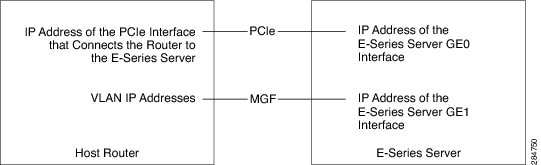
Figure 1. Internal Connection Between the Cisco ISR G2 and the E-Series Server

Procedure

  Command or Action Purpose
Step 1

Router> enable

Enters privileged EXEC mode on the host router. Enter your password if prompted.

Step 2

Router# configure terminal

Enters global configuration mode on the host router.

Step 3

Router (config)# interface ucse slot/0

Enters interface configuration mode for the router’s PCIe slot/0 interface.

Step 4

Enter one of the following commands:

  • Router (config-if)# ip address router-to-e-series-server-interface-ip-address subnet-mask
  • Router (config-if)# ip unnumbered type number

The ip address command specifies the IP address of the router's internal PCIe interface that connects the router to the E-Series Server's GE0 interface. See the figure above.

or

The ip unnumbered command enables IP processing on an interface without assigning an explicit IP address to that interface.

  • type—Type of interface on which the router has an assigned IP address.

  • number—Number of the interface on which the router has an assigned IP address.

Note 

The unnumbered interface must be unique. It cannot be another unnumbered interface.

Caution 

The ip unnumbered command creates a point-to-point interface between devices. Broadcasting is not supported.

Step 5

Router (config-if)# no shut

Causes the interface to be administratively up.

Step 6

Router (config-if)# end

Exits interface configuration mode.

Step 7

Use the server’s operating system to configure the E-Series Server’s GE0 interface. See the figure above.

Step 8

Router (config)# interface ucse slot/1

Enters interface configuration mode for the router’s MGF slot/1 VLAN interface. See the figure above.

Step 9

Router (config-if)# switchport mode trunk

Puts the port into permanent trunking mode. The default configuration is access mode.

Step 10

Router (config-if)# [switchport trunk allowed vlan vlan-numbers]

(Optional) Allows trunking on the specified VLANs.

  • vlan-numbers—VLAN numbers on which to allow trunking.

Step 11

Router (config-if)# exit

Exits interface configuration mode.

Step 12

Router# configure terminal

Enters global configuration mode on the host router.

Step 13

Router (config)# interface vlan vlan-number

Enters interface configuration mode for the specified VLAN number.

Step 14

Router (config-if)# ip address vlan-ip-address subnet-mask

Specifies the IP address for the VLAN. See the figure above.

  • vlan-ip-address—IP address of the VLAN.

  • subnet-mask—Subnet mask to append to the IP address.

Step 15

Router (config-if)# no shut

Causes the interface to be administratively up.

Step 16

Router (config-if)# end

Exits interface configuration mode.

Step 17

Use the server’s operating system to configure the E-Series Server’s GE1 interface. See figure above.

Example

This example shows how to configure an internal connection between the router and the E-Series Server.


Note

The IP addresses in this configuration example are for reference only and might not be valid.


Router> enable
Router# configure terminal

Router(config)# interface ucse 1/0
Router(config-if)# ip address 10.0.0.1 255.0.0.0
Router(config-if)# no shut
Router(config-if)# end

Use the server’s operating system to configure the E-Series Server’s GE0 interface

Router(config)# interface ucse 1/1
Router(config-if)# switchport mode trunk
Router(config-if)# exit

Router# configure terminal
Router(config)# interface vlan 1
Router(config-if)# ip address 20.0.0.1 255.255.255.0
Router(config-if)# no shut
Router(config-if)# end

Use the server’s operating system to configure the E-Series Server’s GE1 interface.
Configuring an Internal Connection Between the Cisco ISR 4000 Series and the E-Series Server

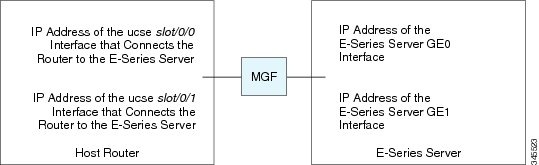
Use this configuration if you want the traffic to your application or operating system to flow through the Cisco ISR 4000 series. To configure an internal connection between the Cisco ISR 4000 series and the E-Series Server, you must configure these IP addresses:
  • For traffic to flow through the router's ucse slot/0/0 and the E-Series Server's internal GE0 interface (see next figure), configure the following:

    • IP address of the router's ucse slot/0/0 interface that connects the router to the E-Series Server's GE0 interface.

    • IP address of the E-Series Server's GE0 interface.

  • For traffic to flow through the router's ucse slot/0/1 and the E-Series Server's internal GE1 interface (see next figure), configure the following:

    • IP address of the router's ucse slot/0/1 interface.

    • IP address of the E-Series Server's GE1 interface.

The following figure shows the internal connection between the router and the E-Series Server.

Figure 2. Internal Connection Between the Cisco ISR 4000 Series and the E-Series Server

Procedure

  Command or Action Purpose
Step 1

Router> enable

Enters privileged EXEC mode on the host router. Enter your password if prompted.

Step 2

Router# configure terminal

Enters global configuration mode on the host router.

Step 3

Router (config)# interface ucse slot/0/0

Enters interface configuration mode for the router’s ucse slot/0/0 interface.

Step 4

Enter one of the following commands:

  • Router (config-if)# ip address router-to-e-series-server-interface-ip-address subnet-mask
  • Router (config-if)# ip unnumbered type number

Specify the IP address of the router's ucse slot 0/0 interface that connects the router to the E-Series Server's GE0 interface. See the figure above.

or

The ip unnumbered command enables IP processing on an interface without assigning an explicit IP address to that interface.

  • type—Type of interface on which the router has an assigned IP address.

  • number—Number of the interface on which the router has an assigned IP address.

Note 

The unnumbered interface must be unique. It cannot be another unnumbered interface.

Caution 

The ip unnumbered command creates a point-to-point interface between devices. Broadcasting is not supported.

Step 5

Router (config-if)# no shut

Causes the interface to be administratively up.

Step 6

Router (config-if)# end

Exits interface configuration mode.

Step 7

Use the server’s operating system to configure the E-Series Server’s GE0 interface. See the figure above.

Step 8

Router (config)# interface ucse slot/0/1

Enters interface configuration mode for the router’s ucse slot/0/1 interface. See the figure above.

Step 9

Router (config-if)# no shut

Causes the interface to be administratively up.

Step 10

Router (config-if)# end

Exits interface configuration mode.

Step 11

Use the server’s operating system to configure the E-Series Server’s GE1 interface. See the figure above.

Example

This example shows how to configure an internal connection between the router and the E-Series Server.


Note

The IP addresses in this configuration example are for reference only and might not be valid.


Router> enable
Router# configure terminal

Router(config)# interface ucse 1/0/0
Router(config-if)# ip address 10.0.0.1 255.0.0.0
Router(config-if)# no shut
Router(config-if)# end

Use the server's operating system to configure the E-Series Server's GE0 interface.

Router(config)# interface ucse 1/0/1
Router(config-if)# ip address 11.0.0.1 255.255.255.0
Router(config-if)# no shut
Router(config-if)# end

Use the server's operating system to configure the E-Series Server's GE1 interface.

Creating an Ethernet Virtual Circuit Between the E-Series Server and the Cisco ISR 4000 Series Using the Native VLAN

Use this procedure if you have added the native VLAN to encapsulate and transport selected data either to the operating system installed on the E-Series Server, or to the virtual machines created on the installed hypervisor.

Before you begin

Configure an internal connection between the Cisco ISR 4000 series and the E-Series Server.

Procedure

  Command or Action Purpose
Step 1

Router> enable

Enters privileged EXEC mode on the host router. Enter your password if prompted.

Step 2

Router# configure terminal

Enters global configuration mode on the host router.

Step 3

Router (config)# interface ucse slot/0/0

Enters interface configuration mode for the router’s ucse slot/0/0 interface.

Step 4

Router (config-if)# service instance id ethernet

Configures an Ethernet service instance on an interface and enters Ethernet service configuration mode.

Step 5

Router (config-if-srv)# encapsulation encapsulation-type vlan-id

Defines the encapsulation type.

Step 6

Router (config-if-srv)# bridge-domain bridge-id

Configures the bridge domain.

Step 7

Router (config-if-srv)# exit

Exits Ethernet service configuration mode.

Step 8

Router (config-if)# interface BDI bridge-id

Enters the bridge domain interface.

Step 9

Router (config-if)# ip address bdi-interface-ip-address

Specifies the IP address of the BDI interface.

Step 10

Router (config-if)# no shut

Causes the interface to be administratively up.

Step 11

Router (config-if)# end

Returns to global configuration mode on the host router.

Step 12

Use the server’s operating system to configure the E-Series Server’s GE0 interface.

Example

This example shows how to create an Ethernet Virtual Circuit using the native VLAN between the E-Series Server and the Cisco ISR 4000 series.


Note

The IP addresses in this configuration example are for reference only.


Router> enable
Router# configure terminal

Router(config)# interface ucse 1/0/0
Router(config-if)# service instance 1 ethernet
Router(config-if-srv)# encapsulation untagged
Router(config-if-srv)# bridge-domain 1
Router(config-if-srv)# exit
Router(config-if)# exit

Router(config-if)# interface BDI 1
Router(config-if)# ip address 10.0.0.1 255.0.0.0
Router(config-if)# no shut
Router(config-if)# end

Use the server's operating system to configure the E-Series Server's GE0 interface.

Creating an Ethernet Virtual Circuit Between the E-Series Server and the Cisco ISR 4000 Series Using a Non-Native VLAN

Use this procedure if you have added a non-native VLAN to encapsulate and transport selected data either to the operating system installed on the E-Series Server, or to the virtual machines created on the installed hypervisor.

Before you begin

Configure an internal connection between the E-Series Server and the Cisco ISR 4000 series.

Procedure

  Command or Action Purpose
Step 1

Router> enable

Enters privileged EXEC mode on the host router. Enter your password if prompted.

Step 2

Router# configure terminal

Enters global configuration mode on the host router.

Step 3

Router (config)# interface ucse slot/0/0

Enters interface configuration mode for the router’s ucse slot/0/0 interface.

Step 4

Router (config-if)# no ip address

Removes an IP address or disables IP processing.

Step 5

Router (config-if)# no negotiation auto

Disables automatic negotiation on the interface.

Step 6

Router (config-if)# switchport mode trunk

Puts the port into permanent trunking mode.

Step 7

Router (config-if)# service instance id ethernet

Configures an Ethernet service instance on an interface and enters Ethernet service configuration mode.

Step 8

Router (config-if-srv)# encapsulation dot1q encapsulation-type vlan-id

Defines the encapsulation type.

Step 9

Enter one of the following commands:

  • Router (config-if-srv)# rewrite egress tag push dot1q encapsulation-type vlan-id
  • Router (config-if-srv)# rewrite ingress tag pop 1 symmetric encapsulation-type vlan-id
  • The rewrite egress tag push dot1q command specifies the encapsulation adjustment to be performed on a frame that is egressing a service instance.

  • The rewrite ingress tag pop 1 symmetric command specifies the encapsulation adjustment to be performed on a frame that is ingressing a service instance.

Step 10

Router (config-if-srv)# bridge-domain bridge-id

Configures the bridge domain.

Step 11

Router (config-if-srv)# exit

Exits Ethernet service configuration mode.

Step 12

Router (config-if)# exit

Exits interface configuration mode.

Step 13

Router (config)# interface BDI bridge-id

Enters the bridge domain interface.

Step 14

Router (config-if)# ip address bdi-interface-ip-address

Specifies the IP address of the BDI interface.

Step 15

Router (config-if)# no shut

Causes the interface to be administratively up.

Step 16

Router (config-if)# end

Returns to global configuration mode on the host router.

Step 17

Use the server’s operating system to configure the E-Series Server’s NIC interface.

Step 18

Router# ping server's-NIC-interface

Shows if connection is established with the E-Series Server’s NIC interface.

Step 19

Router# show arp

Displays the Access Resolution Protocol (ARP) cache.

Step 20

Router# show bridge-domain bridge-id

Displays bridge domain information.

Example

This example shows how to create an Ethernet virtual circuit using a non-native VLAN between the E-Series Server and the Cisco ISR 4000 series.


Note

The IP addresses in this configuration example are for reference only.


Router> enable
Router# configure terminal
Router(config)# interface ucse 2/0/0
Router(config-if)# no ip address
Router(config-if)# no negotiation auto
Router(config-if)# switchport mode trunk
Router(config-if)# service instance 10 ethernet
Router(config-if-srv)# encapsulation dot1q 10 
Router(config-if-srv)# rewrite egress tag push dot1q 10
Router(config-if-srv)# bridge-domain 10
Router(config-if-srv)# exit
Router(config-if)# exit

Router(config)# interface BDI10
Router(config-if)# ip address 192.168.1.1 255.255.255.0 
Router(config-if)# no shut
Router(config-if)# end

Use the server’s operating system to configure the E-Series Server’s NIC interface. 

Router# ping 192.168.1.2
Type escape sequence to abort.
Sending 5, 100-byte ICMP Echos to 192.168.1.2, timeout is 2 seconds:
!!!!!
Success rate is 100 percent (5/5), round-trip min/avg/max = 1/1/2 ms

Router# show arp
Protocol  Address          Age (min)  Hardware Addr   Type   Interface
Internet  192.168.1.1             -   0022.bdfb.2783  ARPA   BDI10
Internet  192.168.1.2             1   0022.bde6.07b4  ARPA   BDI10

Router# show bridge-domain 10 
Bridge-domain 10 (2 ports in all)
State: UP                    Mac learning: Enabled
Aging-Timer: 300 second(s)
    BDI10  (up)
    ucse2/0/0 service instance 10
   MAC address    Policy  Tag       Age  Pseudoport
   0022.BDE6.07B4 forward dynamic   246  ucse2/0/0.EFP10
   0022.BDFB.2783 to_bdi  static    0    BDI10

Note

For additional details about the rewrite commands, see http://www.cisco.com/en/US/docs/ios-xml/ios/cether/command/ce-cr-book.html.


Configuring an Internal Connection Between the Cisco ISR G2 and the EHWIC E-Series NCE

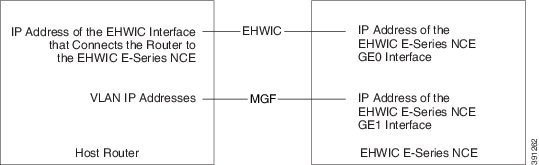
Use this configuration if you want the traffic to your application or operating system to flow through the Cisco ISR G2. To configure an internal connection between the Cisco ISR G2 and the EHWIC E-Series NCE, you must configure these IP addresses:
  • For traffic to flow through the EHWIC connection (see next figure), configure the following:

    • IP address of the router's internal EHWIC interface that connects the router to the EHWIC E-Series NCE's GE0 interface.

    • IP address of the EHWIC E-Series NCE's GE0 interface.

  • For traffic to flow through the MGF connection (see next figure), configure the following:


    Important

    The MGF connection option is not applicable to the Cisco 1921 ISR G2.


    • IP address of the router's internal MGF VLAN interface.

    • IP address of the EHWIC E-Series NCE's GE1 interface.

The following figure shows the internal connection between the router and the EHWIC E-Series NCE.

Figure 3. Internal Connection Between the Cisco ISR G2 and the EHWIC E-Series NCE

Procedure

  Command or Action Purpose
Step 1

Router> enable

Enters privileged EXEC mode on the host router. Enter your password if prompted.

Step 2

Router# configure terminal

Enters global configuration mode on the host router.

Step 3

Router (config)# interface ucse 0/subslot/0

Enters interface configuration mode for the router's EHWIC 0/subslot/0 interface.

Step 4

Enter one of the following commands:

  • Router (config-if)# ip address router-to-e-series-server-interface-ip-address subnet-mask
  • Router (config-if)# ip unnumbered type number

The ip address command specifies the IP address of the router's internal PCIe interface that connects the router to the EHWIC E-Series NCE's GE0 interface. See the figure above.

or

The ip unnumbered command enables IP processing on an interface without assigning an explicit IP address to that interface.

  • type—Type of interface on which the router has an assigned IP address.

  • number—Number of the interface on which the router has an assigned IP address.

Note 

The unnumbered interface must be unique. It cannot be another unnumbered interface.

Caution 

The ip unnumbered command creates a point-to-point interface between devices. Broadcasting is not supported.

Step 5

Router (config-if)# no shut

Causes the interface to be administratively up.

Step 6

Router (config-if)# end

Exits interface configuration mode.

Step 7

Use the server’s operating system to configure the EHWIC E-Series NCE’s GE0 interface. See the figure above.

Step 8

Router (config)# interface ucse 0/subslot/1

Enters interface configuration mode for the router’s MGF 0/subslot/1 VLAN interface. See the figure above.

Important 

This step is not applicable to the Cisco ISR 1921.

Step 9

Router (config-if)# switchport mode trunk

Puts the port into permanent trunking mode. The default configuration is access mode.

Step 10

Router (config-if)# [switchport trunk allowed vlan vlan-numbers]

(Optional) Allows trunking on the specified VLANs.

  • vlan-numbers—VLAN numbers on which to allow trunking.

Step 11

Router (config-if)# end

Exits interface configuration mode.

Step 12

Router# configure terminal

Enters global configuration mode on the host router.

Step 13

Router (config)# interface vlan vlan-number

Enters interface configuration mode for the specified VLAN number.

Step 14

Router (config-if)# ip address vlan-ip-address subnet-mask

Specifies the IP address for the VLAN. See the figure above.

  • vlan-ip-address—IP address of the VLAN.

  • subnet-mask—Subnet mask to append to the IP address.

Step 15

Router (config-if)# no shut

Causes the interface to be administratively up.

Step 16

Router (config-if)# end

Exits interface configuration mode.

Step 17

Use the server’s operating system to configure the EHWIC E-Series NCE’s GE1 interface. See the figure above.

Important 

This step is not applicable to the Cisco 1921 ISR G2.

Example

This example shows how to configure an internal connection between the router and the EHWIC E-Series NCE.


Note

The IP addresses in this configuration example are for reference only and might not be valid.


Router> enable
Router# configure terminal

Router(config)# interface ucse 0/1/0
Router(config-if)# ip address 10.0.0.1 255.0.0.0
Router(config-if)# no shut
Router(config-if)# end

Use the server’s operating system to configure the E-Series Server’s GE0 interface

Router(config)# interface ucse 0/1/1
Router(config-if)# switchport mode trunk
Router(config-if)# end

Router# configure terminal
Router(config)# interface vlan 1
Router(config-if)# ip address 20.0.0.1 255.255.255.0
Router(config-if)# no shut
Router(config-if)# end

Use the server’s operating system to configure the E-Series Server’s GE1 interface.
Configuring an Internal Connection Between the Cisco ISR 4000 Series and the NIM E-Series NCE

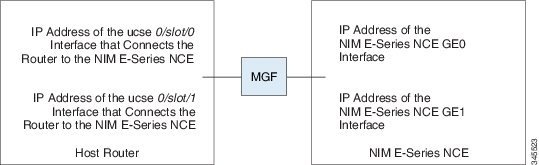
Use this configuration if you want the traffic to your application or operating system to flow through the Cisco ISR 4000 series. To configure an internal connection between the Cisco ISR 4000 series and the NIM E-Series NCE, you must configure these IP addresses:
  • For traffic to flow through the router's ucse 0/subslot/0 and the server's internal GE0 interface (see next figure), configure the following:

    • IP address of the router's ucse 0/subslot/0 interface that connects the router to the server's GE0 interface.

    • IP address of the server's GE0 interface.

  • For traffic to flow through the router's ucse 0/subslot/1 and the server's internal GE1 interface (see next figure), configure the following:

    • IP address of the router's ucse 0/subslot/1 interface.

    • IP address of the server's GE1 interface.

The following figure shows the internal connection between the router and the server.

Figure 4. Internal Connection Between the Cisco ISR 4000 Series and the NIM E-Series NCE

Procedure

  Command or Action Purpose
Step 1

Router> enable

Enters privileged EXEC mode on the host router. Enter your password if prompted.

Step 2

Router# configure terminal

Enters global configuration mode on the host router.

Step 3

Router (config)# interface ucse 0/subslot/0

Enters interface configuration mode for the router’s ucse 0/subslot/0 interface.

Step 4

Enter one of the following commands:

  • Router (config-if)# ip address router-to-e-series-server-interface-ip-address subnet-mask
  • Router (config-if)# ip unnumbered type number

Specify the IP address of the router's ucse 0/subslot/0 interface that connects the router to the server's GE0 interface. See the figure above.

or

The ip unnumbered command enables IP processing on an interface without assigning an explicit IP address to that interface.

  • type—Type of interface on which the router has an assigned IP address.

  • number—Number of the interface on which the router has an assigned IP address.

Note 

The unnumbered interface must be unique. It cannot be another unnumbered interface.

Caution 

The ip unnumbered command creates a point-to-point interface between devices. Broadcasting is not supported.

Step 5

Router (config-if)# no shut

Causes the interface to be administratively up.

Step 6

Router (config-if)# end

Exits interface configuration mode.

Step 7

Use the server’s operating system to configure the server’s GE0 interface. See the figure above.

Step 8

Router (config)# interface ucse 0/subslot/1

Enters interface configuration mode for the router’s ucse 0/subslot/1 interface.

Step 9

Router (config-if)# no shut

Causes the interface to be administratively up.

Step 10

Router (config-if)# end

Exits interface configuration mode.

Step 11

Use the server’s operating system to configure the server’s GE1 interface. See the figure above.

Example

This example shows how to configure an internal connection between the router and the NIM E-Series NCE.


Note

The IP addresses in this configuration example are for reference only and might not be valid.


Router> enable
Router# configure terminal

Router(config)# interface ucse 0/1/0
Router(config-if)# ip address 10.0.0.1 255.0.0.0
Router(config-if)# no shut
Router(config-if)# end

Use the server's operating system to configure the NIM E-Series NCE's GE0 interface.

Router(config)# interface ucse 0/1/1
Router(config-if)# ip address 11.0.0.1 255.255.255.0
Router(config-if)# no shut
Router(config-if)# end

Use the server's operating system to configure the NIM E-Series NCE's GE1 interface.

Creating an Ethernet Virtual Circuit Between the NIM E-Series NCE and the Cisco ISR 4000 Series Using the Native VLAN

Use this procedure if you have added the native VLAN to encapsulate and transport selected data either to the operating system installed on the E-Series Server, or to the virtual machines created on the installed hypervisor.

Before you begin

Configure an internal connection between the Cisco ISR 4000 series and the NIM E-Series NCE.

Procedure

  Command or Action Purpose
Step 1

Router> enable

Enters privileged EXEC mode on the host router. Enter your password if prompted.

Step 2

Router# configure terminal

Enters global configuration mode on the host router.

Step 3

Router (config)# interface ucse 0/subslot/0

Enters interface configuration mode for the router’s 0/subslot/0 interface.

Step 4

Router (config-if)# service instance id ethernet

Configures an Ethernet service instance on an interface and enters Ethernet service configuration mode.

Step 5

Router (config-if-srv)# encapsulation encapsulation-type vlan-id

Defines the encapsulation type.

Step 6

Router (config-if-srv)# bridge-domain bridge-id

Configures the bridge domain.

Step 7

Router (config-if-srv)# exit

Exits Ethernet service configuration mode.

Step 8

Router (config-if)# interface BDI bridge-id

Enters the bridge domain interface.

Step 9

Router (config-if)# ip address bdi-interface-ip-address

Specifies the IP address of the BDI interface.

Step 10

Router (config-if)# no shut

Causes the interface to be administratively up.

Step 11

Router (config-if)# end

Returns to global configuration mode on the host router.

Step 12

Use the server’s operating system to configure the NIM E-Series NCE’s GE0 interface.

Example

This example shows how to create an Ethernet Virtual Circuit using the native VLAN between the NIM E-Series NCE and the Cisco ISR 4000 series.


Note

The IP addresses in this configuration example are for reference only.


Router> enable
Router# configure terminal

Router(config)# interface ucse 0/1/0
Router(config-if)# service instance 1 ethernet
Router(config-if-srv)# encapsulation untagged
Router(config-if-srv)# bridge-domain 1
Router(config-if-srv)# exit
Router(config-if)# exit

Router(config-if)# interface BDI 1
Router(config-if)# ip address 10.0.0.1 255.0.0.0
Router(config-if)# no shut
Router(config-if)# end

Use the server's operating system to configure the NIM E-Series NCE's GE0 interface.

Creating an Ethernet Virtual Circuit Between the NIM E-Series NCE and the Cisco ISR 4000 Series Using a Non-Native VLAN

Use this procedure if you have added a non-native VLAN to encapsulate and transport selected data either to the operating system installed on the NIM E-Series NCE, or to the virtual machines created on the installed hypervisor.

Before you begin

Configure an internal connection between the Cisco ISR 4000 series and the NIM E-Series NCE.

Procedure

  Command or Action Purpose
Step 1

Router> enable

Enters privileged EXEC mode on the host router. Enter your password if prompted.

Step 2

Router# configure terminal

Enters global configuration mode on the host router.

Step 3

Router (config)# interface ucse 0/subslot/0

Enters interface configuration mode for the router’s ucse 0/subslot/0 interface.

Step 4

Router (config-if)# no ip address

Removes an IP address or disables IP processing.

Step 5

Router (config-if)# no negotiation auto

Disables automatic negotiation on the interface.

Step 6

Router (config-if)# switchport mode trunk

Puts the port into permanent trunking mode.

Step 7

Router (config-if)# service instance id ethernet

Configures an Ethernet service instance on an interface and enters Ethernet service configuration mode.

Step 8

Router (config-if-srv)# encapsulation dot1q encapsulation-type vlan-id

Defines the encapsulation type.

Step 9

Enter one of the following commands:

  • Router (config-if-srv)# rewrite egress tag push dot1q encapsulation-type vlan-id
  • Router (config-if-srv)# rewrite ingress tag pop 1 symmetric encapsulation-type vlan-id
  • The rewrite egress tag push dot1q command specifies the encapsulation adjustment to be performed on a frame that is egressing a service instance.

  • The rewrite ingress tag pop 1 symmetric command specifies the encapsulation adjustment to be performed on a frame that is ingressing a service instance.

Step 10

Router (config-if-srv)# bridge-domain bridge-id

Configures the bridge domain.

Step 11

Router (config-if-srv)# exit

Exits Ethernet service configuration mode.

Step 12

Router (config-if)# exit

Exits interface configuration mode.

Step 13

Router (config)# interface BDI bridge-id

Enters the bridge domain interface.

Step 14

Router (config-if)# ip address bdi-interface-ip-address

Specifies the IP address of the BDI interface.

Step 15

Router (config-if)# no shut

Causes the interface to be administratively up.

Step 16

Router (config-if)# end

Returns to global configuration mode on the host router.

Step 17

Use the server’s operating system to configure the NIM E-Series NCE’s NIC interface.

Step 18

Router# ping server's-NIC-interface

Shows if connection is established with the NIM E-Series NCE’s NIC interface.

Step 19

Router# show arp

Displays the Access Resolution Protocol (ARP) cache.

Step 20

Router# show bridge-domain bridge-id

Displays bridge domain information.

Example

This example shows how to create an Ethernet virtual circuit using a non-native VLAN between the NIM E-Series NCE and the Cisco ISR 4000 series.


Note

The IP addresses in this configuration example are for reference only.


Router> enable
Router# configure terminal
Router(config)# interface ucse 0/1/0
Router(config-if)# no ip address
Router(config-if)# no negotiation auto
Router(config-if)# switchport mode trunk
Router(config-if)# service instance 10 ethernet
Router(config-if-srv)# encapsulation dot1q 10 
Router(config-if-srv)# rewrite egress tag push dot1q 10
Router(config-if-srv)# bridge-domain 10
Router(config-if-srv)# exit
Router(config-if)# exit

Router(config)# interface BDI10
Router(config-if)# ip address 192.168.1.1 255.255.255.0 
Router(config-if)# no shut
Router(config-if)# end

Use the server’s operating system to configure the NIM E-Series NCE’s NIC interface. 

Router# ping 192.168.1.2
Type escape sequence to abort.
Sending 5, 100-byte ICMP Echos to 192.168.1.2, timeout is 2 seconds:
!!!!!
Success rate is 100 percent (5/5), round-trip min/avg/max = 1/1/2 ms

Router# show arp
Protocol  Address          Age (min)  Hardware Addr   Type   Interface
Internet  192.168.1.1             -   0022.bdfb.2783  ARPA   BDI10
Internet  192.168.1.2             1   0022.bde6.07b4  ARPA   BDI10

Router# show bridge-domain 10 
Bridge-domain 10 (2 ports in all)
State: UP                    Mac learning: Enabled
Aging-Timer: 300 second(s)
    BDI10  (up)
    ucse2/0/0 service instance 10
   MAC address    Policy  Tag       Age  Pseudoport
   0022.BDE6.07B4 forward dynamic   246  ucse2/0/0.EFP10
   0022.BDFB.2783 to_bdi  static    0    BDI10

Note

For additional details about the rewrite commands, see http://www.cisco.com/en/US/docs/ios-xml/ios/cether/command/ce-cr-book.html.


Understanding Network Interface Mapping

This section shows you how to determine the network interface mapping for the following devices:

  • E-Series Server's GE0, GE1, GE2, and GE3 interfaces—Cisco ISR G2

  • E-Series Server's GE0, GE1, GE2, and GE3 interfaces—Cisco ISR 4000 series

  • EHWIC E-Series NCE's GE0, GE1, and GE2 interfaces—Cisco ISR G2

  • NIM E-Series NCE's GE0, GE1, and GE2 interfaces—Cisco ISR 4000 series

  • NetXtreme II 1 Gigabit Server (PCIe Card)

  • NetXtreme II 10 Gigabit Server (PCIe Card)

Determining Network Interface Mapping for the E-Series Server's GE0, GE1, GE2, and GE3 Interfaces—Cisco ISR G2

You can determine the port numbering of the E-Series Server by looking at the MAC addresses of the network interfaces. Note the following:

  • The lowest numbered MAC address corresponds to the E-Series Server's GE0 interface.

  • The second lowest MAC address corresponds to the E-Series Server's GE1 interface.

  • The third lowest MAC address corresponds to the E-Series Server's GE2 interface.

  • The fourth lowest MAC address corresponds to the E-Series Server's GE3 interface.


Note

To determine the MAC address of an interface, see the Determining the MAC Address in Microsoft Windows, Linux, and VMware vSphere Hypervisor section, or the appropriate platform documentation.


Determining Network Interface Mapping for the E-Series Server's GE0, GE1, GE2, and GE3 Interfaces—Cisco ISR 4000 series

You can determine the port numbering of the E-Series Server by looking at the MAC addresses of the network interfaces. Note the following:

  • The lowest numbered MAC address corresponds to the E-Series Server's GE0 interface.

  • The second lowest MAC address corresponds to the E-Series Server's GE1 interface.

  • The third lowest MAC address corresponds to the E-Series Server's GE2 interface.

  • The fourth lowest MAC address corresponds to the E-Series Server's GE3 interface.


Note

To determine the MAC address of an interface, see the Determining the MAC Address in Microsoft Windows, Linux, and VMware vSphere Hypervisor section, or the appropriate platform documentation.


Determining Network Interface Mapping for the EHWIC E-Series NCE's GE0, GE1, and GE2 Interfaces—Cisco ISR G2

You can determine the port numbering of the EHWIC E-Series NCE by looking at the MAC addresses of the network interfaces. Note the following:

  • The lowest numbered MAC address corresponds to the EHWIC E-Series NCE's GE0 interface.

  • The second lowest MAC address corresponds to the EHWIC E-Series NCE's GE1 interface.

  • The third lowest MAC address corresponds to the EHWIC E-Series NCE's GE2 interface.


Note

To determine the MAC address of an interface, see the Determining the MAC Address in Microsoft Windows, Linux, and VMware vSphere Hypervisor section, or the appropriate platform documentation.


Determining Network Interface Mapping for the NIM E-Series NCE's GE0, GE1, and GE2 Interfaces—Cisco ISR 4000 series

You can determine the port numbering of the NIM E-Series NCE by looking at the MAC addresses of the network interfaces. Note the following:

  • The lowest numbered MAC address corresponds to the NIM E-Series NCE's GE0 interface.

  • The second lowest MAC address corresponds to the NIM E-Series NCE's GE1 interface.

  • The third lowest MAC address corresponds to the NIM E-Series NCE's GE2 interface.


Note

To determine the MAC address of an interface, see the Determining the MAC Address in Microsoft Windows, Linux, and VMware vSphere Hypervisor section, or the appropriate platform documentation.


Determining the Interface Name and Port Mapping for the NetXtreme II 1 Gigabit Server

To determine which interface name maps to which port number in the NetXtreme II 1 Gigabit Server (PCIe card), do the following:
  1. Connect the PCIe card's port 0 to an external network device using a network cable.

  2. From the host operating system, check the status of the interface to determine which interface is connected.

  3. Repeat Step 2 for ports 1, 2, and 3.


Note

For information about how to determine the status of the interface, see the appropriate operating system documentation.


Determining the Interface Name and Port Mapping for the NetXtreme II 10 Gigabit Server


Note

Only one port is enabled in the NetXtreme II 10 Gigabit Server (PCIe card).


To determine which interface name maps to which port number in the NetXtreme II 10 Gigabit Server (PCIe card), do the following:

  1. Connect the PCIe card's port 0 to an external network device using a network cable.

  2. From the host operating system, check the status of the interface to determine which interface is connected.


Note

For information about how to determine the status of the interface, see the appropriate operating system documentation.


Determining the MAC Address in Microsoft Windows, Linux, and VMware vSphere Hypervisor

Determining the MAC Address in the Microsoft Windows Operating System

To determine the MAC address of an interface in the Microsoft Windows operating systems, open a command window, and then enter the ipconfig /all command.

Determining the MAC Address in the Linux Operating System

To determine the MAC address of an interface in the Linux operating systems, open a terminal window, and then enter the ifconfig -a command to display the MAC address of all interfaces or ifconfig interface-name to display the MAC address of a particular interface.

Determining the MAC Address in the VMware vSphere Hypervisor

To determine the MAC address of an interface in the VMware vSphere Hypervisor, do the following:

  1. In your web browser, enter the IP address that you configured to access CIMC during initial setup and then log into CIMC.

    The CIMC Home page, which is the Server Summary page, appears.

  2. From the Actions area of the Server Summary page, click the Launch KVM Console icon.

    The KVM Console opens in a separate window.

  3. From the KVM Console, click the KVM tab, and then do the following:

    • Press F2 to access the VMware vSphere Hypervisor DCUI customization menu. The DCUI login page appears.

    • Log into the DCUI. The System Customization page appears.

    • From the System Customization page, click Configure Management Network.

      The Configure Management Network page appears, which has several menu options, including Network Adapter. The Network Adapter menu option allows you to view the MAC address of the interfaces.

UCS E Series M3 Servers:Reordering ESXi VMNIC Interface Number to Start with Server’s Lowest MAC Address

On Cisco UCS E Series M3 servers, the VMware vSphere Hypervisor DCUI VMNIC interface ordering does not map to server’s lowest MAC address. After installing ESXi on M3 servers, the default DCUI VMNIC interface ordering and server's NIC interface mappings are:

~ Name    MAC Address        UCS-E160S-M3 NIC   Description
------  -------------      ----------------   -------------------------------------------------------
vmnic0  a8:9d:21:fc:61:12  TE2                Intel(R) Ethernet Connection X552/X557-AT 10GBASE-T
vmnic1  a8:9d:21:fc:61:13  TE3                Intel(R) Ethernet Connection X552/X557-AT 10GBASE-T
vmnic2  a8:9d:21:fc:61:10  GE0                Broadcom Corporation NetXtreme BCM5719 Gigabit Ethernet
vmnic3  a8:9d:21:fc:61:11  GE1                Broadcom Corporation NetXtreme BCM5719 Gigabit Ethernet


To make VMNIC interface ordering to start with the server’s lowest MAC address, follow these procedures:
  1. Enable SSH and Shell Access in ESXi.

  2. SSH into ESXi .

  3. Use esxcli network nic list command to display VMNIC number and its correpsonding MAC address.

  4. Use localcli --plugin-dir /usr/lib/vmware/esxcli/int/deviceInternal alias list command to display the Bus address and VMNIC number mappings.

  5. Use localcli command to remap VMNIC number to Bus address that has the lowest MAC address.

  6. Reboot ESXi.

  7. SSH into ESXi and verify changes.

The following example shows how to display VMNIC number and its MAC address:

~ # esxcli network nic list
Name    PCI Device     Driver  Link  Speed  Duplex  MAC Address         MTU  Description
------  -------------  ------  ----  -----  ------  -----------------  ----  -------------------------------------------------------
vmnic0  0000:004:00.0  ixgbe   Up     1000  Full    a8:9d:21:fc:61:12  1500  Intel(R) Ethernet Connection X552/X557-AT 10GBASE-T
vmnic1  0000:004:00.1  ixgbe   Up     1000  Full    a8:9d:21:fc:61:13  1500  Intel(R) Ethernet Connection X552/X557-AT 10GBASE-T
vmnic2  0000:008:00.0  tg3     Up     1000  Full    a8:9d:21:fc:61:10  1500  Broadcom Corporation NetXtreme BCM5719 Gigabit Ethernet
vmnic3  0000:008:00.1  tg3     Up     1000  Full    a8:9d:21:fc:61:11  1500  Broadcom Corporation NetXtreme BCM5719 Gigabit Ethernet

The following example shows how to display Bus address and VMNIC name mapping:

~ # localcli --plugin-dir /usr/lib/vmware/esxcli/int/ deviceInternal alias list
Bus type  Bus address          Alias
------------------------------------
pci       p0000:06:00.0        vmhba0
pci       p0000:08:00.0        vmnic2
pci       p0000:08:00.1        vmnic3
pci       p0000:04:00.1        vmnic1
pci       p0000:04:00.0        vmnic0
logical   pci#p0000:06:00.0#0  vmhba0

The following example shows how to remap VMNIC number to the Bus address that has the lowest MAC adddress:

~ # localcli --plugin-dir /usr/lib/vmware/esxcli/int/ deviceInternal alias store --alias vmnic0 --bus-address p0000:08:00.0 --bus-type pci
~ # localcli --plugin-dir /usr/lib/vmware/esxcli/int/ deviceInternal alias store --alias vmnic1 --bus-address p0000:08:00.1 --bus-type pci
~ # localcli --plugin-dir /usr/lib/vmware/esxcli/int/ deviceInternal alias store --alias vmnic2 --bus-address p0000:04:00.0 --bus-type pci
~ # localcli --plugin-dir /usr/lib/vmware/esxcli/int/ deviceInternal alias store --alias vmnic3 --bus-address p0000:04:00.1 --bus-type pci
~ # reboot

The following example shows how the VMNIC interface ordering looks like after the reboot. The VMNIC interface number begins with the lowest MAC address.:

~ # esxcli network nic list
Name    PCI Device     Driver  Link  Speed  Duplex  MAC Address         MTU  Description
------  -------------  ------  ----  -----  ------  -----------------  ----  -------------------------------------------------------
vmnic0  0000:008:00.0  tg3     Up     1000  Full    a8:9d:21:fc:61:10  1500  Broadcom Corporation NetXtreme BCM5719 Gigabit Ethernet
vmnic1  0000:008:00.1  tg3     Up     1000  Full    a8:9d:21:fc:61:11  1500  Broadcom Corporation NetXtreme BCM5719 Gigabit Ethernet
vmnic2  0000:004:00.0  ixgbe   Up     1000  Full    a8:9d:21:fc:61:12  1500  Intel(R) Ethernet Connection X552/X557-AT 10GBASE-T
vmnic3  0000:004:00.1  ixgbe   Up     1000  Full    a8:9d:21:fc:61:13  1500  Intel(R) Ethernet Connection X552/X557-AT 10GBASE-T
~ # localcli --plugin-dir /usr/lib/vmware/esxcli/int/ deviceInternal alias list
Bus type  Bus address          Alias
------------------------------------
pci       p0000:06:00.0        vmhba0
pci       p0000:08:00.0        vmnic0
pci       p0000:08:00.1        vmnic1
pci       p0000:04:00.1        vmnic3
pci       p0000:04:00.0        vmnic2
logical   pci#p0000:06:00.0#0  vmhba0
~ #