Overview

This chapter includes the following sections:

Cisco UCS E-Series Servers and the Cisco UCS E-Series Network Compute Engine Overview

The Cisco UCS E-Series M6 Servers are size-,weight-, and power-efficient blade servers that are housed within the Cisco Catalyst 8300 Series Edge platforms. These servers provide a general-purpose compute platform for branch-office applications deployed either as bare-metal on operating systems, such as Linux, or as virtual machines on hypervisors, such as VMware vSphere Hypervisor.

The UCS E-Series M6 Server is purpose-built with powerful Intel IceLake-D processors for general purpose compute. It comes in the double-wide form factor, that fits into two SM slots.


Note


Forinformation about the E-Series M6 Servers,and the maximum number of servers that can be installed per router, see the "Hardware Requirements" section in the Hardware Installation Guide for Cisco UCS E-Series M6 Servers.


Server Software

The UCS E-Series M6 Servers require three major software systems:

  • CIMC firmware

  • BIOS firmware

  • Operating system or hypervisor

CIMC Firmware

Cisco Integrated Management Controller (CIMC) is a separate management module built into the motherboard ofthe E-Series M6 Servers. A dedicated processor, separate from the main server CPU, runs the CIMC firmware. The system ships with a running version of the CIMC firmware. You can update the CIMC firmware, but no initial installation is needed.

CIMC is the management service for the E-Series M6 Servers. You can use a web-based GUI or SSH-based CLI to access, configure, administer, and monitor the server.

BIOS Firmware

BIOS initializes the hardware in the system, discovers bootable devices, and boots them in the provided sequence. It boots the operating system and configures the hardware for the operating system to use. BIOS manageabilityfeatures allow you to interact with the hardware and use it. In addition, BIOS provides options to configure the system, and manage firmware.

The system ships with a running version of the BIOS firmware. You can update the BIOS firmware, but no initial installation is required.

Operating System or Hypervisor

Themain server CPU runs on an operating system, such as Linux; or on a hypervisor. You can purchase an E-Series M6 Servers with a preinstalled hypervisor.


Note


For information about the platforms that are available on the E-Series M6 Servers, see the "Software Requirements" section in the Release Notes for Cisco UCS E-Series M6 Servers.


Cisco Integrated Management Controller

The Cisco IMC is the management service for the E-Series servers. Cisco IMC runs within the server.


Note


The management service is used only when the server is operating in Standalone Mode. If your E-Series server is integrated into a UCS system, you must manage it using UCS Manager. For information about using UCS Manager, see the configuration guides listed in the Cisco UCS E-Series Servers Documentation Roadmap at http://www.cisco.com/c/en/us/td/docs/unified_computing/ucs/e/1-0/roadmap/e_series_road_map.html.


Management Interfaces

You can use a web-based GUI or SSH-based CLI or an XML-based API to access, configure, administer, and monitor the server. Almost all tasks can be performed in either interface, and the results of tasks performed in one interface are displayed in another. However, you cannot do the following:

  • Use GUI to invoke CLI

  • View a command that has been invoked through CLI in GUI

  • Generate CLI output from GUI

Tasks You Can Perform in

You can use to perform the following chassis management tasks:

  • Power on, power off, power cycle, reset and shut down the server

  • Toggle the locator LED

  • Configure the server boot order

  • View server properties and sensors

  • Manage remote presence

  • Create and manage local user accounts, and enable remote user authentication through Active Directory

  • Configure network-related settings, including NIC properties, IPv4, VLANs, and network security

  • Configure communication services, including HTTP, SSH, IPMI Over LAN, and SNMP.

  • Manage certificates

  • Configure platform event filters

  • Update firmware

  • Monitor faults, alarms, and server status

  • Set time zone and view local time

  • Install and activate firmware

  • Install and activate BIOS firmware

  • Install and activate CMC firmware

You can use to perform the following server management tasks:

  • Manage remote presence

  • Create and manage local user accounts, and enable remote user authentication through Active Directory

  • Configure network-related settings, including NIC properties, IPv4, VLANs, and network security

  • Configure communication services, including HTTP, SSH, IPMI Over LAN, and SNMP.

  • Manage certificates

  • Configure platform event filters

  • Update firmware

  • Monitor faults, alarms, and server status

  • Set time zone and view local time

No Operating System or Application Provisioning or Management

provisions servers, and as a result, exists below the operating system on a server. Therefore, you cannot use it to provision or manage operating systems or applications on servers. For example, you cannot do the following:

  • Deploy an OS, such as Windows or Linux

  • Deploy patches for software, such as an OS or an application

  • Install base software components, such as anti-virus software, monitoring agents, or backup clients

  • Install software applications, such as databases, application server software, or web servers

  • Perform operator actions, including restarting an Oracle database, restarting printer queues, or handling non- user accounts

  • Configure or manage external storage on the SAN or NAS storage

Overview of the Cisco IMC User Interface

The Cisco IMC user interface is a web-based management interface for Cisco E-Series servers. The web user interface is developed using HTML5 with the eXtensible Widget Framework (XWT) framework. You can launch the user interface and manage the server from any remote host that meets the following minimum requirements:

  • Microsoft Internet Explorer 6.0 or higher, Mozilla Firefox 3.0 or higher

  • Microsoft Windows 7, Microsoft Windows XP, Microsoft Windows Vista, Apple Mac OS X v10.6, Red Hat Enterprise Linux 5.0 or higher operating systems

  • Transport Layer Security (TLS) version 1.2


Note


In case you lose or forget the password that you use to log in to Cisco IMC, see the password recovery instructions in the Hardware Installation Guide for Cisco UCS E-Series Servers and the Cisco UCS E-Series Network Compute Engine. This guide is available at http://www.cisco.com/c/en/us/td/docs/unified_computing/ucs/e/1-0/roadmap/e_series_road_map.html.


Cisco IMC Home Page

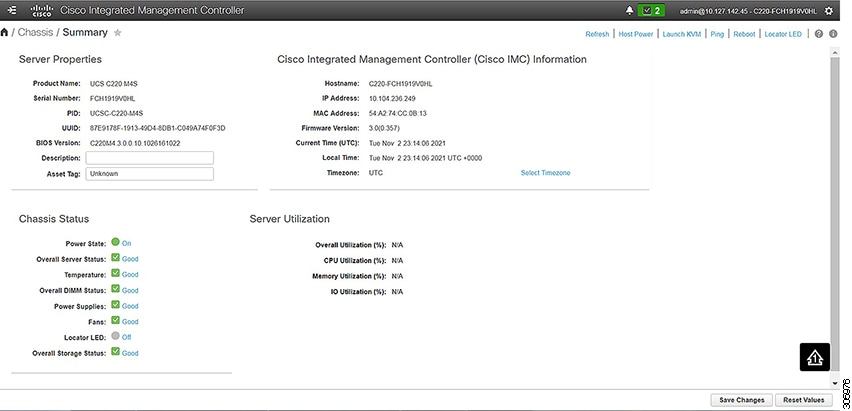
When you first log into , the user interface looks similar to the following illustration:

Navigation and Work Panes

The Cisco Integrated Management Controller GUI comprises the Navigation pane on the left hand side of the screen and the Work pane on the right hand side of the screen. Clicking links on the Server, Chassis, Compute, Storage or Admin menu in the Navigation pane displays the associated tabs in the Work pane on the right.

The Navigation pane header displays action buttons that allow you to view the navigation map of the entire GUI, view the index, or select a favorite work pane to go to, directly. The Pin icon prevents the Navigation pane from sliding in once the Work pane displays.

The Favorite icon is a star shaped button which allows you to make any specific work pane in the application as your favorite. To do this, navigate to the work pane of your choice and click the Favorite icon. To access this work pane directly from anywhere else in the application, click the Favorite icon again.

The GUI header displays information about the overall status of the chassis and user login information.

The GUI header also displays the total number of faults (indicated in green or red), with a Bell icon next to it. However, clicking this icon displays the summary of only the critical and major faults of various components. To view all the faults, click the View All button to display the Fault Summary pane.


Note


User interface options may vary depending on the server.

The Navigation pane has the following menus:

  • Chassis Menu

  • Compute Menu

  • Storage Menu

  • Admin Menu

Chassis Menu

Each node in the Chassis menu leads to one or more tabs that display in the Work pane. These tabs provides access to the following information:

Chassis Menu Node Name Work Pane Tabs Provide Information About...

Inventory

Servers, power supplies, Cisco VIC adapters, and Dynamic Storage management information.

Sensors

Power supply, fan, temperature, voltage, current, and LED readings.

Faults and Logs

Fault summary, fault history, system event log, Cisco IMC logs, and logging controls.

Compute Menu

The Compute menu contains information about the server, and the following information is displayed in the Work pane.

Compute Menu Node Name Work Pane Tabs Provide Information About...

Inventory

Installed CPUs, memory cards, PCI adapters, Cisco VIC adapters, vNICs, storage information and trusted platform module (TPM).

BIOS

The installed BIOS firmware version and the server boot order.

Remote Management

KVM, virtual media, and Serial over LAN settings.

Troubleshooting

Bootstrap processing, Crash recording, and a player to view the last saved bootstrap process.

Power Policies

Power restore policy settings.

Host Image Mapping

Host image mapping information.

Storage Menu

Each node in the Storage menu corresponds to the LSI MegaRAID controllers that are installed in the Cisco UCS E-Series Rack-Mount Servers. Each node leads to one or more tabs that display in the Work pane and provide information about the installed controllers.

Storage Menu Node Name Work Pane Tabs Provide Information About...

Controller Info

General information about the selected LSI MegaRAID controller.

Physical Drive Info

General drive information, identification information, and drive statusl

Virtual Drive Info

General drive information, RAID information, and physical drive information.

Battery Backup Unit

Backup battery information for the selected MegaRAID controller.

Storage Log

Storage messages.

Admin Menu

Each node in the Admin menu leads to one or more tabs that display in the Work pane. These tabs provides access to the following information:

Admin Menu Node Name Work Pane Tabs Provide Information About...

User Management

Locally-defined user accounts, Active Directory settings, and current user session information.

Networking

NIC, IPv4, IPv6, VLAN, and LOM properties, along with network security and NTP settings.

Communication Services

HTTP, XML API, SSH, Redfish, IPMI over LAN, and SNMP settings.

Certificate Management

Security certificate information and management.

Event Management

Platform event management.

Firmware Management

Cisco IMC and BIOS firmware information and management.

Utilities

Technical support data collection, system configuration import and export options, and restore factory defaults settings.

Toolbar

The toolbar displays above the Work pane.

Button Name Description

Refresh

Refreshes the current page.

Host Power

Displays the drop-down menu for you to choose power options.

Launch KVM

Displays the drop-down menu to launch the Java based or HTML based KVM console.

Ping

Launches the Ping Details pop-up window.

Reboot

Enables you to reboot Cisco IMC.

Cisco Integrated Management Controller Online Help Overview

The GUI for the Cisco Integrated Management Controller (Cisco IMC) software is divided into two main sections, a Navigation pane on the left and a Work pane on the right.

This help system describes the fields on each Cisco IMC GUI page and in each dialog box.

To access the page help, do one of the following:

  • In a particular tab in the Cisco IMC GUI, click the Help icon in the toolbar above the Work pane.
  • In a dialog box, click the Help button in that dialog box.

Logging into Cisco IMC

Before you begin

If not installed, install Adobe Flash Player 10 or later on your local machine.

Procedure


Step 1

In your web browser, type or select the web link for .

Step 2

If a security dialog box displays, do the following:

  1. (Optional) Check the check box to accept all content from Cisco.

  2. Click Yes to accept the certificate and continue.

Step 3

In the log in window, enter your username and password.

Tip


When logging in for the first time to an unconfigured system, use admin as the username and password as the password.

The following situations occur when you login to the Web UI for the first time:

  • You cannot perform any operation until you change default admin credentials on the Web UI.

  • You cannot close or cancel the password change pop-up window and opening it in a tab or refreshing the browser page will continue to display the pop-up window. This pop-up window appears when you login after a factory reset.

  • You cannot choose the word 'password' as your new password. If this creates problems for any scripts you may be running, you could change it to password by logging back into the user management options, but this is ENTIRELY at your own risk. It is not recommended by Cisco.

Step 4

Click Log In.


Logging out of Cisco IMC

Procedure


Step 1

In the upper right of , click Log Out.

Logging out returns you to the log in page.

Step 2

(Optional) Log back in or close your web browser.