Managing Network Adapters

This chapter includes the following sections:

Viewing Network Adapter Properties

Before You Begin
  • The server must be powered on, or the properties will not display.

Procedure
    Step 1   In the Navigation pane, click the Networking menu.
    Step 2   In the Networking menu, click Adapter Card 1 or Adapter Card 2.
    Step 3   In the Adapter Card Properties area, review the following information:
    Name Description

    PCI Slot field

    The PCI slot in which the adapter is installed.

    Vendor field

    The vendor for the adapter.

    Product Name field

    The product name for the adapter.

    Product ID field

    The product ID for the adapter.

    Serial Number field

    The serial number for the adapter.

    Version ID field

    The version ID for the adapter.

    Hardware Revision field

    The hardware revision for the adapter.

    Cisco IMC Management Enabled field

    If this field displays yes, then the adapter is functioning in Cisco Card Mode and passing Cisco IMC management traffic through to the server Cisco IMC.

    Configuration Pending field

    If this field displays yes, the adapter configuration has changed in Cisco IMC but these changes have not been communicated to the host operating system.

    To activate the changes, an administrator must reboot the adapter.

    ISCSI Boot Capable field

    Whether iSCSI boot is supported on the adapter.

    CDN Capable field

    Whether CDN is supported on the adapter.

    usNIC Capable field

    Whether the adapter and the firmware running on the adapter support the usNIC.

    Description field

    A user-defined description for the adapter.

    You can enter between 1 and 63 characters.

    Enable FIP Mode check box

    If checked, then FCoE Initialization Protocol (FIP) mode is enabled. FIP mode ensures that the adapter is compatible with current FCoE standards.

    Note   

    We recommend that you use this option only when explicitly directed to do so by a technical support representative.

    Enable LLDP check box

    If checked, then Link Layer Discovery Protocol (LLDP) enables all the Data Center Bridging Capability Exchange protocol (DCBX) functionality, which includes FCoE, priority based flow control.

    By default, LLDP option is enabled.

    Note   

    We recommend that you do not disable LLDP option, as it disables all the DCBX functionality.

    Note   

    This option is available only on some UCS C-Series servers.

    Enable VNTAG Mode check box

    If VNTAG mode is enabled:

    • vNICs and vHBAs can be assigned to a specific channel.

    • vNICs and vHBAs can be associated to a port profile.

    • vNICs can fail over to another vNIC if there are communication problems.

    Port-0 drop-down list

    This can be one of the following:

    • 40 Gbps

    • 4 x 10 Gbps

    • Auto— For Cisco UCS VIC 13xx (or later generation) adapter series, the Auto value allows the adapter to determine the speed of the port based on the transceiver module inserted into the port.

      Note   

      On adapters that support 40 Gbps speed, Auto is the default option.

    Note   

    You need to choose 40 Gbps as the port speed if you are using a 40 Gbps switch.

    Port-1 drop-down list

    This can be one of the following:

    • 40 Gbps

    • 4 x 10 Gbps

    • Auto— For Cisco UCS VIC 13xx (or later generation) adapter series, the Auto value allows the adapter to determine the speed of the port based on the transceiver module inserted into the port.

      Note   

      On adapters that support 40 Gbps speed, Auto is the default option.

    Note   

    You need to choose 40 Gbps as the port speed if you are using a 40 Gbps switch.

    Training Link - 0 check box

    If checked, link training for port-0 is enabled.
    Note   

    Is supported only if port speed of 40 Gbps on port-0 is selected.

    Training Link - 1 check box

    If checked, link training for port-1 is enabled.
    Note   

    Is supported only if port speed of 40 Gbps on port-1 is selected.

    Step 4   In the Firmware area, review the following information:
    Name Description

    Running Version field

    The firmware version that is currently active.

    Backup Version field

    The alternate firmware version installed on the adapter, if any. The backup version is not currently running. To activate it, administrators can click Activate Firmware in the Actions area.

    Note   

    When you install new firmware on the adapter, any existing backup version is deleted and the new firmware becomes the backup version. You must manually activate the new firmware if you want the adapter to run the new version.

    Startup Version field

    The firmware version that will become active the next time the adapter is rebooted.

    Bootloader Version field

    The bootloader version associated with the adapter card.

    Status field

    The status of the last firmware activation that was performed on this adapter.

    Note   

    The status is reset each time the adapter is rebooted.

    Step 5   In the External Ethernet Interfaces area, review the following information:
    Name Description

    ID column

    The uplink port ID.

    MAC Address column

    The MAC address of the uplink port.

    Link State column

    The current operational state of the uplink port. This can be one of the following:

    • Fault

    • Link Up

    • Link Down

    • SFP ID Error

    • SFP Not Installed

    • SFP Security Check Failed

    • Unsupported SFP

    Encap column

    The mode in which adapter operates. This can be one of the following:

    • CE—Classical Ethernet mode.

    • NIV—Network Interface Virtualization mode.

    Admin Speed column

    The data transfer rate for the port. This can be one of the following:

    • 40 Gbps

    • 4 x 10 Gbps

    Note   

    You need to choose 40 Gbps as the port speed if you are using a 40 Gbps switch.

    Operating Speed column

    The operating rate for the port. This can be one of the following:

    • 40 Gbps

    • 4 x 10 Gbps

    Note   

    You need to choose 40 Gbps as the port speed if you are using a 40 Gbps switch.

    Training Link column

    Indicates if link training is enabled on the port.

    Connector Present column

    Indicated whether or not the connector is present. This can be one of the following:
    • Yes—Connector is present.

    • No—Connector not present.

    Note   

    This option is only available for some adapter cards.

    Connector Supported column

    Indicates whether or not the connector is supported by Cisco. This can be one of the following:
    • Yes—The connector is supported by Cisco.

    • No—The connector is not supported by Cisco.

    If the connector is not supported then the link will not be up.
    Note   

    This option is only available for some adapter cards.

    Connector Type column

    The type of the connector.
    Note   

    This option is only available for some adapter cards.

    Connector Vendor column

    The vendor for the connector.
    Note   

    This option is only available for some adapter cards.

    Connector Part Number column

    The part number of the connector.
    Note   

    This option is only available for some adapter cards.

    Connector Part Revision column

    The part revision number of the connector.
    Note   

    This option is only available for some adapter cards.


    Viewing Storage Adapter Properties

    Before You Begin
    • The server must be powered on.

    Procedure
      Step 1   In the Navigation pane, click the Storage menu.
      Step 2   In the (Server 1) RAID controller for UCS C3X60 Storage Servers area, the Controller Info tab displays by default.
      Step 3   In the Work pane's Health/Status area, review the following information:

      Name

      Description

      Composite Health field

      The combined health of the controller, the attached drives, and the battery backup unit. This can be one of the following:

      • Good

      • Moderate Fault

      • Severe Fault

      • N/A

      Controller Status field

      The current status of the controller. This can be one of the following:

      • Optimal — The controller is functioning properly.

      • Failed — The controller is not functioning.

      • Unresponsive — The controller is down.

      RAID Chip Temperature field

      Temperature of the controller in degree centigrade.

      TTY Log Status field

      The current status of the TTY log download. This can be one of the following:

      • Not Downloaded
      • In Progress
      • Complete
      Step 4   In the Firmware Versions area, review the following information:

      Name

      Description

      Product Name field

      The name of the MegaRAID controller.

      Serial Number field

      The serial number of the MegaRAID controller.

      Firmware Package Build field

      The active firmware package version number.

      For the firmware component version numbers, see the Running Firmware Images area.

      Step 5   In the PCI Info area, review the following information:

      Name

      Description

      PCI Slot field

      The name of the PCIe slot in which the controller is located.

      Vendor ID field

      The PCI vendor ID, in hexadecimal.

      Device ID field

      The PCI device ID, in hexadecimal.

      SubVendor ID field

      The PCI subvendor ID, in hexadecimal.

      SubDevice ID field

      The PCI subdevice ID, in hexadecimal.

      Step 6   In the Manufacturing Data area, review the following information:

      Name

      Description

      Manufactured Date field

      The date the MegaRAID card was manufactured, in the format yyy-mm-dd.

      Revision No field

      The board revision number, if any.

      Step 7   In the Boot Drive area, review the following information:

      Name

      Description

      Boot Drive field

      The number of the boot drive.

      Boot Drive is PD field

      If this field displays true, the boot drive is a physical drive.

      Step 8   In the Running Firmware Images area, review the following information:

      Name

      Description

      BIOS Version field

      The BIOS option PROM version number.

      Firmware Version field

      The active firmware version number.

      Preboot CLI Version field

      The pre-boot CLI version number.

      WebBIOS Version field

      The Web BIOS version number.

      NVDATA Version field

      The non-volatile data (NVDATA) version number.

      Boot Block Version field

      The boot block version number.

      Boot Version field

      The firmware boot loader version number on the LSI controller.

      Step 9   In the Startup Firmware Images area, review the following information:

      Name

      Description

      Startup BIOS Version field

      The BIOS option PROM version that will become active when the host server reboots, if different from the current version.

      Startup Firmware Version field

      The firmware version that will become active when the host server reboots, if different from the current version.

      Startup Preboot CLI Version field

      The pre-boot CLI version that will become active when the host server reboots, if different from the current version.

      Startup WebBIOS Version field

      The Web BIOS version that will become active when the host server reboots, if different from the current version.

      Startup NVDATA Version field

      The non-volatile data version that will become active when the host server reboots, if different from the current version.

      Startup Boot Block Version field

      The boot block version that will become active when the host server reboots, if different from the current version.

      Startup Boot Version field

      The firmware boot loader version that will become active when the host server reboots, if different from the current version.

      Step 10   In the Virtual Drive Count area, review the following information:

      Name

      Description

      Virtual Drive Count field

      The number of virtual drives configured on the controller.

      Degraded Drive Count field

      The number of virtual drives in a degraded state on the controller.

      Offline Drive Count field

      The number of virtual drives that have failed on the controller.

      Step 11   In the Physical Drive Count area, review the following information:

      Name

      Description

      Disk Present Count field

      The number of physical drives present on the controller.

      Degraded Disk Count field

      The number of physical drives in a degraded state on the controller.

      Failed Disk Count field

      The number of physical drives that have failed on the controller.

      Step 12   In the Settings area, review the following information:

      Name

      Description

      Predictive Fail Poll Interval field

      The number of seconds between predictive failure polls.

      During each poll, the controller examines the Self-Monitoring Analysis and Reporting Technology (SMART) data on all physical drives to determine if any is about to fail.

      Rebuild Rate field

      The rate at which the controller rebuilds degraded RAID volumes.

      This rate is shown as a percentage of the total bandwidth available.

      Patrol Read Rate field

      The rate at which the controller performs a background read of the physical drives looking for inconsistent data.

      This rate is shown as a percentage of the total bandwidth available.

      Consistency Check Rate field

      The rate at which the controller scans the virtual drives looking for redundant data inconsistencies and fixing them.

      This rate is shown as a percentage of the total bandwidth available.

      Reconstruction Rate field

      The rate at which virtual drives are reconstructed when the capacity or RAID level needs to be changed.

      This rate is shown as a percentage of the total bandwidth available.

      Cache Flush Interval field

      The number of seconds waits before flushing the cache memory to the physical drives.

      Max Drives To Spin Up At Once field

      The number of drives that can be spun up simultaneously after the server is powered on.

      Delay Among Spinup Groups field

      The number of seconds to wait before the controller spins up the next set of drives.

      Physical Drive Coercion Mode field

      Whether the controller rounds the size of physical drives down to a round number. This can be one of the following:

      • None—The controller does not do any rounding.

      • 128 MB—Drive sizes are rounded down to the closest multiple of 128 MB.

      • 1GB—Drive sizes are rounded down to the closest multiple of 1GB.

      Cluster Mode field

      If this field displays true, the drives on this controller are shared with controllers on other servers.

      Battery Warning field

      If this field displays true, missing battery warnings are disabled.

      ECC Bucket Leak Rate field

      The error correcting code (ECC) single-bit error bucket leak rate, in minutes.

      With ECC, the controller increments an error counter when it encounters a single bit error while reading from a physical drive. The controller decrements the error counter each time the number of minutes defined in this field passes.

      If the error counter reaches a system-defined maximum, the controller sends an event message to the system.

      Expose Enclosure Devices field

      If this field displays true, enclosure devices are visible to the host drivers.

      Maintain PD Fail History field

      If this field displays true, the controller remembers which physical drives were determined to be bad across server reboots.

      Enable Copyback on SMART field

      If this field displays true, the controller copies the contents of the drive to a spare drive if Self-Monitoring Analysis and Reporting Technology (SMART) reports an error.

      Enable Copyback to SSD on SMART Error field

      If this field displays true, the controller copies the contents of an SSD card to a spare card if SMART reports an error.

      Native Command Queuing field

      If this field displays true, Native Command Queuing (NCQ) is disabled.

      JBOD field

      If this field displays true, JBOD is enabled.

      Enable Spin Down of Unconfigured Drives field

      If this field displays true, the controller spins down unconfigured drives.

      Enable SSD Patrol Read field

      If this field displays true, the controller performs patrol reads on SSD cards.

      Auto Enhanced Import field

      If this field displays true, foreign configurations are automatically imported when the controller boots.

      Step 13   In the Capabilities area, review the following information:

      Name

      Description

      RAID Levels Supported field

      The RAID levels supported by the controller. This can be one or more of the following:

      • Raid 0—Simple striping.

      • Raid 1—Simple mirroring.

      • Raid 5—Striping with parity.

      • Raid 1E—Integrated offset strip mirroring

      • Raid 6—Striping with two parity drives.

      • Raid 10—Spanned mirroring.

      • Raid 50—Spanned striping with parity.

      • Raid 60—Spanned striping with two parity drives.

      • Raid srl-03—Spanned secondary RAID level

      • Raid 00—Spanned striping.

      • Raid 1e-rlq0—Integrated adjacent strip mirroring with no span.

      • Raid 1e0-rlq0—Integrated adjacent strip mirroring with span.

      Step 14   In the HW Configuration area, review the following information:

      Name

      Description

      SAS Address field

      A MegaRAID controller can have up to 16 serial-attached SCSI (SAS) addresses. This field displays the first 8 SAS addresses, if they are in use.

      BBU Present field

      If this field displays true, the battery backup unit is present.

      NVRAM Present field

      If this field displays true, the NVRAM is present.

      NVRAM Size field

      The size of the NVRAM, in kilobytes.

      Serial Debugger Present field

      If this field displays true, a serial debugger is attached to the RAID card.

      Memory Present field

      If this field displays true, memory is present.

      Flash Present field

      If this field displays true, flash memory is present.

      Flash Size field

      The size of the flash memory, in megabytes.

      Memory Size field

      The size of the memory, in megabytes.

      Cache Memory Size field

      The size of the cache memory, in megabytes.

      Number of Backend Ports field

      The number of SATA or SAS ports on the controller.

      Step 15   In the Error Counters area, review the following information:

      Name

      Description

      Memory Correctable Errors field

      The number of correctable errors in the controller memory.

      Memory Uncorrectable Errors field

      The number of uncorrectable errors in the controller memory.


      Managing vHBAs

      Guidelines for Managing vHBAs

      When managing vHBAs, consider the following guidelines and restrictions:

      • The Cisco UCS P81E Virtual Interface Card and Cisco UCS VIC 1225 Virtual Interface Card provide two vHBAs (fc0 and fc1). You can create up to 16 additional vHBAs on these adapter cards.


        Note


        If Network Interface Virtualization (NIV) mode is enabled for the adapter, you must assign a channel number to a vHBA when you create it.


      • When using the Cisco UCS P81E Virtual Interface Card or Cisco UCS VIC 1225 Virtual Interface Card in an FCoE application, you must associate the vHBA with the FCoE VLAN. Follow the instructions in the Modifying vHBA Properties section to assign the VLAN.

      • After making configuration changes, you must reboot the host for settings to take effect.

      Viewing vHBA Properties

      Procedure
        Step 1   In the Navigation pane, click the Networking menu.
        Step 2   In the Adapter Card pane, click the vHBAs tab.
        Step 3   In the vHBAs pane, click fc0 or fc1.
        Step 4   In the General area of vHBA Properties, review the information in the following fields:
        Name Description

        Name field

        The name of the virtual HBA.

        This name cannot be changed after the vHBA has been created.

        Target WWNN field

        The WWNN associated with the vHBA.

        To let the system generate the WWNN, select AUTO. To specify a WWNN, click the second radio button and enter the WWNN in the corresponding field.

        Target WWPN field

        The WWPN associated with the vHBA.

        To let the system generate the WWPN, select AUTO. To specify a WWPN, click the second radio button and enter the WWPN in the corresponding field.

        FC SAN Boot check box

        If checked, the vHBA can be used to perform a SAN boot.

        Enable Persistent LUN Binding check box

        If checked, any LUN ID associations are retained in memory until they are manually cleared.

        Uplink Port field

        The uplink port associated with the vHBA.

        Note   

        This value cannot be changed for the system-defined vHBAs fc0 and fc1.

        MAC Address field

        The MAC address associated with the vHBA.

        To let the system generate the MAC address, select AUTO. To specify an address, click the second radio button and enter the MAC address in the corresponding field.

        Default VLAN field

        If there is no default VLAN for this vHBA, click NONE. Otherwise, click the second radio button and enter a VLAN ID between 1 and 4094 in the field.

        Class of Service drop-down list

        The CoS for the vHBA.

        Select an integer between 0 and 6, with 0 being lowest priority and 6 being the highest priority.

        Note   

        This option cannot be used in VNTAG mode.

        Rate Limit field

        The data rate limit for traffic on this vHBA, in Mbps.

        If you want this vHBA to have an unlimited data rate, select OFF. Otherwise, click the second radio button and enter an integer between 1 and 10,000.

        Note   

        This option cannot be used in VNTAG mode.

        PCIe Device Order field

        The order in which this vHBA will be used.

        To let the system set the order, select ANY. To specify an order, select the second radio button and enter an integer between 0 and 17.

        EDTOV field

        The error detect timeout value (EDTOV), which is the number of milliseconds to wait before the system assumes that an error has occurred.

        Enter an integer between 1,000 and 100,000. The default is 2,000 milliseconds.

        RATOV field

        The resource allocation timeout value (RATOV), which is the number of milliseconds to wait before the system assumes that a resource cannot be properly allocated.

        Enter an integer between 5,000 and 100,000. The default is 10,000 milliseconds.

        Max Data Field Size field

        The maximum size of the Fibre Channel frame payload bytes that the vHBA supports.

        Enter an integer between 256 and 2112.

        Channel Number field

        The channel number that will be assigned to this vHBA.

        Enter an integer between 1 and 1,000.

        Note   

        VNTAG mode is required for this option.

        Port Profile drop-down list

        The port profile that should be associated with the vHBA, if any.

        This field displays the port profiles defined on the switch to which this server is connected.

        Note   

        VNTAG mode is required for this option.

        Step 5   In the Error Recovery area, review the information in the following fields:
        Name Description

        Enable FCP Error Recovery check box

        If checked, the system uses FCP Sequence Level Error Recovery protocol (FC-TAPE).

        Link Down Timeout field

        The number of milliseconds the uplink port should be offline before it informs the system that the uplink port is down and fabric connectivity has been lost.

        Enter an integer between 0 and 240,000.

        Port Down I/O Retries field

        The number of times an I/O request to a port is returned because the port is busy before the system decides the port is unavailable.

        Enter an integer between 0 and 255.

        Port Down Timeout field

        The number of milliseconds a remote Fibre Channel port should be offline before informing the SCSI upper layer that the port is unavailable.

        Enter an integer between 0 and 240,000.

        Step 6   In the Fibre Channel Interrupt area, review the information in the following fields:
        Name Description

        Interrupt Mode drop-down list

        The preferred driver interrupt mode. This can be one of the following:

        • MSIx—Message Signaled Interrupts (MSI) with the optional extension. This is the recommended option.

        • MSI—MSI only.

        • INTx—PCI INTx interrupts.

        Step 7   In the Fibre Channel Port area, review the information in the following fields:
        Name Description

        I/O Throttle Count field

        The number of I/O operations that can be pending in the vHBA at one time.

        Enter an integer between 1 and 1,024.

        LUNs per Target field

        The maximum number of LUNs that the driver will export. This is usually an operating system platform limitation.

        Enter an integer between 1 and 1,024. The recommended value is 1024.

        Step 8   In the Fibre Channel Port FLOGI area, review the information in the following fields:
        Name Description

        FLOGI Retries field

        The number of times that the system tries to log in to the fabric after the first failure.

        To specify an unlimited number of retries, select the INFINITE radio button. Otherwise select the second radio button and enter an integer into the corresponding field.

        FLOGI Timeout field

        The number of milliseconds that the system waits before it tries to log in again.

        Enter an integer between 1,000 and 255,000.

        Step 9   In the Fibre Channel Port PLOGI area, review the information in the following fields:
        Name Description

        PLOGI Retries field

        The number of times that the system tries to log in to a port after the first failure.

        Enter an integer between 0 and 255.

        PLOGI Timeout field

        The number of milliseconds that the system waits before it tries to log in again.

        Enter an integer between 1,000 and 255,000.

        Step 10   In the SCSI I/O area, review the information in the following fields:
        Name Description

        CDB Transmit Queue Count field

        The number of SCSI I/O queue resources the system should allocate.

        Enter an integer between 1 and 8.

        CDB Transmit Queue Ring Size field

        The number of descriptors in each SCSI I/O queue.

        Enter an integer between 64 and 512.

        Step 11   In the Receive/Transmit Queues area, review the information in the following fields:
        Name Description

        FC Work Queue Ring Size field

        The number of descriptors in each transmit queue.

        Enter an integer between 64 and 128.

        FC Receive Queue Ring Size field

        The number of descriptors in each receive queue.

        Enter an integer between 64 and 128.


        Modifying vHBA Properties

        Procedure
          Step 1   In the Navigation pane, click the Networking menu.
          Step 2   In the Adapter Card pane, click the vHBAs tab.
          Step 3   In the vHBAs pane, click fc0 or fc1.
          Step 4   In the General area, update the following fields:
          Name Description

          Name field

          The name of the virtual HBA.

          This name cannot be changed after the vHBA has been created.

          Target WWNN field

          The WWNN associated with the vHBA.

          To let the system generate the WWNN, select AUTO. To specify a WWNN, click the second radio button and enter the WWNN in the corresponding field.

          Target WWPN field

          The WWPN associated with the vHBA.

          To let the system generate the WWPN, select AUTO. To specify a WWPN, click the second radio button and enter the WWPN in the corresponding field.

          FC SAN Boot check box

          If checked, the vHBA can be used to perform a SAN boot.

          Enable Persistent LUN Binding check box

          If checked, any LUN ID associations are retained in memory until they are manually cleared.

          Uplink Port field

          The uplink port associated with the vHBA.

          Note   

          This value cannot be changed for the system-defined vHBAs fc0 and fc1.

          MAC Address field

          The MAC address associated with the vHBA.

          To let the system generate the MAC address, select AUTO. To specify an address, click the second radio button and enter the MAC address in the corresponding field.

          Default VLAN field

          If there is no default VLAN for this vHBA, click NONE. Otherwise, click the second radio button and enter a VLAN ID between 1 and 4094 in the field.

          Class of Service drop-down list

          The CoS for the vHBA.

          Select an integer between 0 and 6, with 0 being lowest priority and 6 being the highest priority.

          Note   

          This option cannot be used in VNTAG mode.

          Rate Limit field

          The data rate limit for traffic on this vHBA, in Mbps.

          If you want this vHBA to have an unlimited data rate, select OFF. Otherwise, click the second radio button and enter an integer between 1 and 10,000.

          Note   

          This option cannot be used in VNTAG mode.

          PCIe Device Order field

          The order in which this vHBA will be used.

          To let the system set the order, select ANY. To specify an order, select the second radio button and enter an integer between 0 and 17.

          EDTOV field

          The error detect timeout value (EDTOV), which is the number of milliseconds to wait before the system assumes that an error has occurred.

          Enter an integer between 1,000 and 100,000. The default is 2,000 milliseconds.

          RATOV field

          The resource allocation timeout value (RATOV), which is the number of milliseconds to wait before the system assumes that a resource cannot be properly allocated.

          Enter an integer between 5,000 and 100,000. The default is 10,000 milliseconds.

          Max Data Field Size field

          The maximum size of the Fibre Channel frame payload bytes that the vHBA supports.

          Enter an integer between 256 and 2112.

          Channel Number field

          The channel number that will be assigned to this vHBA.

          Enter an integer between 1 and 1,000.

          Note   

          VNTAG mode is required for this option.

          Port Profile drop-down list

          The port profile that should be associated with the vHBA, if any.

          This field displays the port profiles defined on the switch to which this server is connected.

          Note   

          VNTAG mode is required for this option.

          Step 5   In the Error Recovery area, update the following fields:
          Name Description

          Enable FCP Error Recovery check box

          If checked, the system uses FCP Sequence Level Error Recovery protocol (FC-TAPE).

          Link Down Timeout field

          The number of milliseconds the uplink port should be offline before it informs the system that the uplink port is down and fabric connectivity has been lost.

          Enter an integer between 0 and 240,000.

          Port Down I/O Retries field

          The number of times an I/O request to a port is returned because the port is busy before the system decides the port is unavailable.

          Enter an integer between 0 and 255.

          Port Down Timeout field

          The number of milliseconds a remote Fibre Channel port should be offline before informing the SCSI upper layer that the port is unavailable.

          Enter an integer between 0 and 240,000.

          Step 6   In the Fibre Channel Interrupt area, update the following fields:
          Name Description

          Interrupt Mode drop-down list

          The preferred driver interrupt mode. This can be one of the following:

          • MSIx—Message Signaled Interrupts (MSI) with the optional extension. This is the recommended option.

          • MSI—MSI only.

          • INTx—PCI INTx interrupts.

          Step 7   In the Fibre Channel Port area, update the following fields:
          Name Description

          I/O Throttle Count field

          The number of I/O operations that can be pending in the vHBA at one time.

          Enter an integer between 1 and 1,024.

          LUNs per Target field

          The maximum number of LUNs that the driver will export. This is usually an operating system platform limitation.

          Enter an integer between 1 and 1,024. The recommended value is 1024.

          Step 8   In the Fibre Channel Port FLOGI area, update the following fields:
          Name Description

          FLOGI Retries field

          The number of times that the system tries to log in to the fabric after the first failure.

          To specify an unlimited number of retries, select the INFINITE radio button. Otherwise select the second radio button and enter an integer into the corresponding field.

          FLOGI Timeout field

          The number of milliseconds that the system waits before it tries to log in again.

          Enter an integer between 1,000 and 255,000.

          Step 9   In the Fibre Channel Port PLOGI area, update the following fields:
          Name Description

          PLOGI Retries field

          The number of times that the system tries to log in to a port after the first failure.

          Enter an integer between 0 and 255.

          PLOGI Timeout field

          The number of milliseconds that the system waits before it tries to log in again.

          Enter an integer between 1,000 and 255,000.

          Step 10   In the SCSI I/O area, update the following fields:
          Name Description

          CDB Transmit Queue Count field

          The number of SCSI I/O queue resources the system should allocate.

          Enter an integer between 1 and 8.

          CDB Transmit Queue Ring Size field

          The number of descriptors in each SCSI I/O queue.

          Enter an integer between 64 and 512.

          Step 11   In the Receive/Transmit Queues area, update the following fields:
          Name Description

          FC Work Queue Ring Size field

          The number of descriptors in each transmit queue.

          Enter an integer between 64 and 128.

          FC Receive Queue Ring Size field

          The number of descriptors in each receive queue.

          Enter an integer between 64 and 128.

          Step 12   Click Save Changes.

          Creating a vHBA

          The adapter provides two permanent vHBAs. If NIV mode is enabled, you can create up to 16 additional vHBAs.

          Procedure
            Step 1   In the Navigation pane, click the Networking menu.
            Step 2   In the Adapter Card pane, click the vHBAs tab.
            Step 3   In the Host Fibre Channel Interfaces area, choose one of these actions:
            • To create a vHBA using default configuration settings, click Add vHBA.
            • To create a vHBA using the same configuration settings as an existing vHBA, select that vHBA and click Clone vHBA.

            The Add vHBA dialog box appears.

            Step 4   In the Add vHBA dialog box, enter a name for the vHBA in the Name entry box.
            Step 5   Click Add vHBA.

            What to Do Next

            • Reboot the server to create the vHBA.

            • If configuration changes are required, configure the new vHBA as described in Modifying vHBA Properties.

            Deleting a vHBA

            Procedure
              Step 1   In the Navigation pane, click the Networking menu.
              Step 2   In the Adapter Card pane, click the vHBAs tab.
              Step 3   In the Host Fibre Channel Interfaces area, select a vHBA or vHBAs from the table.
              Note    You cannot delete either of the two default vHBAs, fc0 or fc1.
              Step 4   Click Delete vHBAs and click OK to confirm.

              vHBA Boot Table

              In the vHBA boot table, you can specify up to four LUNs from which the server can boot.

              Creating a Boot Table Entry

              Procedure
                Step 1   In the Navigation pane, click the Networking menu.
                Step 2   In the Adapter Card pane, click the vHBAs tab.
                Step 3   In the Fibre Channel Interfaces area, scroll down to the Boot Table area.
                Step 4   Click the Add Boot Entry button to open the Add Boot Entry dialog box.
                Step 5   In the Add Boot Entry dialog box, review the following information and perform the actions specified:
                Name Description

                Target WWPN field

                The World Wide Port Name (WWPN) that corresponds to the location of the boot image.

                Enter the WWPN in the format hh:hh:hh:hh:hh:hh:hh:hh.

                LUN ID field

                The LUN ID that corresponds to the location of the boot image.

                Enter an ID between 0 and 255.

                Add Boot Entry button

                Adds the specified location to the boot table.

                Reset Values button

                Clears the values currently entered in the fields.

                Cancel button

                Closes the dialog box without saving any changes made while the dialog box was open.


                Deleting a Boot Table Entry

                Procedure
                  Step 1   In the Navigation pane, click the Networking menu.
                  Step 2   In the Adapter Card pane, click the vHBAs tab.
                  Step 3   In the Fibre Channel Interfaces area, scroll down to the Boot Table area.
                  Step 4   In the Boot Table area, click the entry to be deleted.
                  Step 5   Click Delete Boot Entry and click OK to confirm.

                  vHBA Persistent Binding

                  Persistent binding ensures that the system-assigned mapping of Fibre Channel targets is maintained after a reboot.

                  Viewing Persistent Bindings

                  Procedure
                    Step 1   In the Navigation pane, click the Networking menu.
                    Step 2   In the Adapter Card pane, click the vHBAs tab.
                    Step 3   In the vHBAs pane, click fc0 or fc1.
                    Step 4   In the Persistent Bindings dialog box, review the following information:
                    Name Description

                    Index column

                    The unique identifier for the binding.

                    Target WWPN column

                    The target World Wide Port Name with which the binding is associated.

                    Host WWPN column

                    The host World Wide Port Name with which the binding is associated.

                    Bus ID column

                    The bus ID with which the binding is associated.

                    Target ID column

                    The target ID on the host system with which the binding is associated.

                    Rebuild Persistent Bindings button

                    Clears all unused bindings and resets the ones that are in use.

                    Close button

                    Closes the dialog box and saves your changes.

                    Step 5   Click Close.

                    Rebuilding Persistent Bindings

                    Procedure
                      Step 1   In the Navigation pane, click the Networking menu.
                      Step 2   In the Adapter Card pane, click the vHBAs tab.
                      Step 3   In the vHBAs pane, click fc0 or fc1.
                      Step 4   In the Fibre Channel Interfaces area, scroll down to the Persistent Bindings area.
                      Step 5   Click the Rebuild Persistent Bindings button.
                      Step 6   Click OK to confirm.

                      Managing vNICs

                      Guidelines for Managing vNICs

                      When managing vNICs, consider the following guidelines and restrictions:

                      • The Cisco UCS P81E Virtual Interface Card and Cisco UCS VIC 1225 Virtual Interface Card provide two default vNICs (eth0 and eth1). You can create up to 16 additional vNICs on these adapter cards.


                        Note


                        If Network Interface Virtualization (NIV) mode is enabled for the adapter, you must assign a channel number to a vNIC when you create it.


                      • After making configuration changes, you must reboot the host for settings to take effect.

                      Cisco C-series servers use Remote Direct Memory Access (RDMA) over Converged Ethernet (RoCE) for packet transfers. RoCE defines the mechanism of performing RDMA over ethernet, based on the similar mechanism of RDMA over Infiniband. However, RoCE, with its performance oriented characteristics, delivers a superior performance compared to traditional network socket implementation because of the lower latency, lower CPU utilization and higher utilization of network bandwidth. RoCE meets the requirement of moving large amount of data across networks very efficiently.

                      The RoCE firmware requires the following configuration parameters provided by Cisco UCS Manager for better vNIC performance:
                      • Queue Pairs

                      • Memory Regions

                      • Resource Groups

                      Viewing vNIC Properties

                      Procedure
                        Step 1   In the Navigation pane, click the Networking menu.
                        Step 2   In the Adapter Card pane, click the vNICs tab.
                        Step 3   In the vNICs pane, click eth0 or eth1.
                        Step 4   In the Ethernet Interfaces pane's vNIC Properties area, review the information in the following fields:
                        Name Description

                        Name field

                        The name for the virtual NIC.

                        This name cannot be changed after the vNIC has been created.

                        CDN field

                        The Consistent Device Name (CDN) that you can assign to the ethernet vNICs on the VIC cards. Assigning a specific CDN to a device helps in identifying it on the host OS.
                        Note   

                        This feature works only when the CDN Support for VIC token is enabled in the BIOS.

                        MTU field

                        The maximum transmission unit, or packet size, that this vNIC accepts.

                        Enter an integer between 1500 and 9000.

                        Uplink Port drop-down list

                        The uplink port associated with this vNIC. All traffic for this vNIC goes through this uplink port.

                        MAC Address field

                        The MAC address associated with the vNIC.

                        To let the adapter select an available MAC address from its internal pool, select Auto. To specify an address, click the second radio button and enter the MAC address in the corresponding field.

                        Class of Service drop-down list

                        The class of service to associate with traffic from this vNIC.

                        Select an integer between 0 and 6, with 0 being lowest priority and 6 being the highest priority.

                        Note   

                        This option cannot be used in VNTAG mode.

                        Trust Host CoS check box

                        Check this box if you want the vNIC to use the class of service provided by the host operating system.

                        PCI Order field

                        The order in which this vNIC will be used.

                        To let the system set the order, select Any. To specify an order, select the second radio button and enter an integer between 0 and 17.

                        Default VLAN field

                        If there is no default VLAN for this vNIC, click NONE. Otherwise, click the second radio button and enter a VLAN ID between 1 and 4094 in the field.

                        Note   

                        This option cannot be used in VNTAG mode.

                        VLAN Mode drop-down list

                        If you want to use VLAN trunking, select TRUNK. Otherwise, select ACCESS. When the VLAN is set to ACCESS mode, any frame received from the specified default VLAN (1-4094) that is received from the switch with a TAG removes that TAG when it is sent to the host OS through the vNIC.

                        Note   

                        This option cannot be used in VNTAG mode.

                        Rate Limit field

                        If you want this vNIC to have an unlimited data rate, select OFF. Otherwise, click the second radio button and enter a rate limit in the associated field.

                        Enter an integer between 1 and 10,000 Mbps or 40,000 Mbps depending on the adapter card you choose.

                        Note   

                        This option cannot be used in VNTAG mode.

                        Enable PXE Boot check box

                        Check this box if the vNIC can be used to perform a PXE boot.

                        Channel Number field

                        Select the channel number that will be assigned to this vNIC.

                        Note   

                        VNTAG mode is required for this option.

                        Port Profile drop-down list

                        Select the port profile that should be associated with the vNIC.

                        This field displays the port profiles defined on the switch to which this server is connected.

                        Note   

                        VNTAG mode is required for this option.

                        Enable Uplink Failover check box

                        Check this box if traffic on this vNIC should fail over to the secondary interface if there are communication problems.

                        Note   

                        VNTAG mode is required for this option.

                        Enable VMQ check box

                        Check this box to enable Virtual Machine Queue (VMQ).

                        Note   

                        Ensure that VMQ is not enabled when SR-IOV or netflow option is enabled on the adapter.

                        This option is available only on some Cisco UCS C-Series servers.

                        Enable aRFS check box

                        Check this box to enable Accelerated Receive Flow steering (aRFS).

                        This option is available only on some Cisco UCS C-Series servers.

                        Enable NVGRE check box

                        Check this box to enable Network Virtualization using Generic Routing Encapsulation.

                        • This option is available only on some Cisco UCS C-Series servers.
                        • This option is available only on C-Series servers with Cisco VIC 1385 cards.

                        Enable VXLAN check box

                        Check this box to enable Virtual Extensible LAN.

                        • This option is available only on some Cisco UCS C-Series servers.
                        • This option is available only on C-Series servers with Cisco VIC 1385 cards.

                        Failback Timeout field

                        After a vNIC has started using its secondary interface, this setting controls how long the primary interface must be available before the system resumes using the primary interface for the vNIC.

                        Enter a number of seconds between 0 and 600.

                        Note   

                        VNTAG mode is required for this option.

                        Step 5   In the Ethernet Interrupt area, review the information in the following fields:
                        Name Description

                        Interrupt Count field

                        The number of interrupt resources to allocate. In general, this value should be equal to the number of completion queue resources.

                        Enter an integer between 1 and 514.

                        Coalescing Time field

                        The time to wait between interrupts or the idle period that must be encountered before an interrupt is sent.

                        Enter an integer between 1 and 65535. To turn off interrupt coalescing, enter 0 (zero) in this field.

                        Coalescing Type drop-down list

                        This can be one of the following:

                        • MIN—The system waits for the time specified in the Coalescing Time field before sending another interrupt event.

                        • IDLE—The system does not send an interrupt until there is a period of no activity lasting as least as long as the time specified in the Coalescing Time field.

                        Interrupt Mode drop-down list

                        The preferred driver interrupt mode. This can be one of the following:

                        • MSI-X—Message Signaled Interrupts (MSI) with the optional extension. This is the recommended option.

                        • MSI—MSI only.

                        • INTx—PCI INTx interrupts.

                        Step 6   In the Ethernet Receive Queue area, review the information in the following fields:
                        Name Description

                        Receive Queue Count field

                        The number of receive queue resources to allocate.

                        Enter an integer between 1 and 256.

                        Receive Queue Ring Size field

                        The number of descriptors in each receive queue.

                        Enter an integer between 64 and 4096.

                        Step 7   In the Ethernet Transmit Queue area, review the information in the following fields:
                        Name Description

                        Transmit Queue Count field

                        The number of transmit queue resources to allocate.

                        Enter an integer between 1 and 256.

                        Transmit Queue Ring Size field

                        The number of descriptors in each transmit queue.

                        Enter an integer between 64 and 4096.

                        Step 8   In the Completion Queue area, review the information in the following fields:
                        Name Description

                        Completion Queue Count field

                        The number of completion queue resources to allocate. In general, the number of completion queue resources you should allocate is equal to the number of transmit queue resources plus the number of receive queue resources.

                        Enter an integer between 1 and 512.

                        Completion Queue Ring Size field

                        The number of descriptors in each completion queue.

                        This value cannot be changed.

                        Step 9   In the TCP Offload area, review the information in the following fields:
                        Name Description

                        Enable TCP Segmentation Offload check box

                        If checked, the CPU sends large TCP packets to the hardware to be segmented. This option may reduce CPU overhead and increase throughput rate.

                        If cleared, the CPU segments large packets.

                        Note   

                        This option is also known as Large Send Offload (LSO).

                        Enable TCP Rx Offload Checksum Validation check box

                        If checked, the CPU sends all packet checksums to the hardware for validation. This option may reduce CPU overhead.

                        If cleared, the CPU validates all packet checksums.

                        Enable TCP Tx Offload Checksum Generation check box

                        If checked, the CPU sends all packets to the hardware so that the checksum can be calculated. This option may reduce CPU overhead.

                        If cleared, the CPU calculates all packet checksums.

                        Enable Large Receive check box

                        If checked, the hardware reassembles all segmented packets before sending them to the CPU. This option may reduce CPU utilization and increase inbound throughput.

                        If cleared, the CPU processes all large packets.

                        Step 10   In the Receive Side Scaling area, review the information in the following fields:
                        Name Description

                        Enable TCP Receive Side Scaling check box

                        Receive Side Scaling (RSS) distributes network receive processing across multiple CPUs in multiprocessor systems.

                        If checked, network receive processing is shared across processors whenever possible.

                        If cleared, network receive processing is always handled by a single processor even if additional processors are available.

                        Enable IPv4 RSS check box

                        If checked, RSS is enabled on IPv4 networks.

                        Enable TCP-IPv4 RSS check box

                        If checked, RSS is enabled for TCP transmissions across IPv4 networks.

                        Enable IPv6 RSS check box

                        If checked, RSS is enabled on IPv6 networks.

                        Enable TCP-IPv6 RSS check box

                        If checked, RSS is enabled for TCP transmissions across IPv6 networks.

                        Enable IPv6 Extension RSS check box

                        If checked, RSS is enabled for IPv6 extensions.

                        Enable TCP-IPv6 Extension RSS check box

                        If checked, RSS is enabled for TCP transmissions across IPv6 networks.


                        Modifying vNIC Properties

                        Procedure
                          Step 1   In the Navigation pane, click the Networking menu.
                          Step 2   In the Adapter Card pane, click the vNICs tab.
                          Step 3   In the vNICs pane, click eth0 or eth1.
                          Step 4   In the Ethernet Interfaces pane's vNIC Properties area, update the following fields:
                          Name Description

                          Name field

                          The name for the virtual NIC.

                          This name cannot be changed after the vNIC has been created.

                          CDN field

                          The Consistent Device Name (CDN) that you can assign to the ethernet vNICs on the VIC cards. Assigning a specific CDN to a device helps in identifying it on the host OS.
                          Note   

                          This feature works only when the CDN Support for VIC token is enabled in the BIOS.

                          MTU field

                          The maximum transmission unit, or packet size, that this vNIC accepts.

                          Enter an integer between 1500 and 9000.

                          Uplink Port drop-down list

                          The uplink port associated with this vNIC. All traffic for this vNIC goes through this uplink port.

                          MAC Address field

                          The MAC address associated with the vNIC.

                          To let the adapter select an available MAC address from its internal pool, select Auto. To specify an address, click the second radio button and enter the MAC address in the corresponding field.

                          Class of Service drop-down list

                          The class of service to associate with traffic from this vNIC.

                          Select an integer between 0 and 6, with 0 being lowest priority and 6 being the highest priority.

                          Note   

                          This option cannot be used in VNTAG mode.

                          Trust Host CoS check box

                          Check this box if you want the vNIC to use the class of service provided by the host operating system.

                          PCI Order field

                          The order in which this vNIC will be used.

                          To let the system set the order, select Any. To specify an order, select the second radio button and enter an integer between 0 and 17.

                          Default VLAN field

                          If there is no default VLAN for this vNIC, click NONE. Otherwise, click the second radio button and enter a VLAN ID between 1 and 4094 in the field.

                          Note   

                          This option cannot be used in VNTAG mode.

                          VLAN Mode drop-down list

                          If you want to use VLAN trunking, select TRUNK. Otherwise, select ACCESS. When the VLAN is set to ACCESS mode, any frame received from the specified default VLAN (1-4094) that is received from the switch with a TAG removes that TAG when it is sent to the host OS through the vNIC.

                          Note   

                          This option cannot be used in VNTAG mode.

                          Rate Limit field

                          If you want this vNIC to have an unlimited data rate, select OFF. Otherwise, click the second radio button and enter a rate limit in the associated field.

                          Enter an integer between 1 and 10,000 Mbps or 40,000 Mbps depending on the adapter card you choose.

                          Note   

                          This option cannot be used in VNTAG mode.

                          Enable PXE Boot check box

                          Check this box if the vNIC can be used to perform a PXE boot.

                          Channel Number field

                          Select the channel number that will be assigned to this vNIC.

                          Note   

                          VNTAG mode is required for this option.

                          Port Profile drop-down list

                          Select the port profile that should be associated with the vNIC.

                          This field displays the port profiles defined on the switch to which this server is connected.

                          Note   

                          VNTAG mode is required for this option.

                          Enable Uplink Failover check box

                          Check this box if traffic on this vNIC should fail over to the secondary interface if there are communication problems.

                          Note   

                          VNTAG mode is required for this option.

                          Enable VMQ check box

                          Check this box to enable Virtual Machine Queue (VMQ).

                          Note   

                          Ensure that VMQ is not enabled when SR-IOV or netflow option is enabled on the adapter.

                          This option is available only on some Cisco UCS C-Series servers.

                          Enable aRFS check box

                          Check this box to enable Accelerated Receive Flow steering (aRFS).

                          This option is available only on some Cisco UCS C-Series servers.

                          Enable NVGRE check box

                          Check this box to enable Network Virtualization using Generic Routing Encapsulation.

                          • This option is available only on some Cisco UCS C-Series servers.
                          • This option is available only on C-Series servers with Cisco VIC 1385 cards.

                          Enable VXLAN check box

                          Check this box to enable Virtual Extensible LAN.

                          • This option is available only on some Cisco UCS C-Series servers.
                          • This option is available only on C-Series servers with Cisco VIC 1385 cards.

                          Failback Timeout field

                          After a vNIC has started using its secondary interface, this setting controls how long the primary interface must be available before the system resumes using the primary interface for the vNIC.

                          Enter a number of seconds between 0 and 600.

                          Note   

                          VNTAG mode is required for this option.

                          Step 5   In the Ethernet Interrupt area, update the following fields:
                          Name Description

                          Interrupt Count field

                          The number of interrupt resources to allocate. In general, this value should be equal to the number of completion queue resources.

                          Enter an integer between 1 and 514.

                          Coalescing Time field

                          The time to wait between interrupts or the idle period that must be encountered before an interrupt is sent.

                          Enter an integer between 1 and 65535. To turn off interrupt coalescing, enter 0 (zero) in this field.

                          Coalescing Type drop-down list

                          This can be one of the following:

                          • MIN—The system waits for the time specified in the Coalescing Time field before sending another interrupt event.

                          • IDLE—The system does not send an interrupt until there is a period of no activity lasting as least as long as the time specified in the Coalescing Time field.

                          Interrupt Mode drop-down list

                          The preferred driver interrupt mode. This can be one of the following:

                          • MSI-X—Message Signaled Interrupts (MSI) with the optional extension. This is the recommended option.

                          • MSI—MSI only.

                          • INTx—PCI INTx interrupts.

                          Step 6   In the Ethernet Receive Queue area, update the following fields:
                          Name Description

                          Receive Queue Count field

                          The number of receive queue resources to allocate.

                          Enter an integer between 1 and 256.

                          Receive Queue Ring Size field

                          The number of descriptors in each receive queue.

                          Enter an integer between 64 and 4096.

                          Step 7   In the Ethernet Transmit Queue area, update the following fields:
                          Name Description

                          Transmit Queue Count field

                          The number of transmit queue resources to allocate.

                          Enter an integer between 1 and 256.

                          Transmit Queue Ring Size field

                          The number of descriptors in each transmit queue.

                          Enter an integer between 64 and 4096.

                          Step 8   In the Completion Queue area, update the following fields:
                          Name Description

                          Completion Queue Count field

                          The number of completion queue resources to allocate. In general, the number of completion queue resources you should allocate is equal to the number of transmit queue resources plus the number of receive queue resources.

                          Enter an integer between 1 and 512.

                          Completion Queue Ring Size field

                          The number of descriptors in each completion queue.

                          This value cannot be changed.

                          Step 9   In the TCP Offload area, update the following fields:
                          Name Description

                          Enable TCP Segmentation Offload check box

                          If checked, the CPU sends large TCP packets to the hardware to be segmented. This option may reduce CPU overhead and increase throughput rate.

                          If cleared, the CPU segments large packets.

                          Note   

                          This option is also known as Large Send Offload (LSO).

                          Enable TCP Rx Offload Checksum Validation check box

                          If checked, the CPU sends all packet checksums to the hardware for validation. This option may reduce CPU overhead.

                          If cleared, the CPU validates all packet checksums.

                          Enable TCP Tx Offload Checksum Generation check box

                          If checked, the CPU sends all packets to the hardware so that the checksum can be calculated. This option may reduce CPU overhead.

                          If cleared, the CPU calculates all packet checksums.

                          Enable Large Receive check box

                          If checked, the hardware reassembles all segmented packets before sending them to the CPU. This option may reduce CPU utilization and increase inbound throughput.

                          If cleared, the CPU processes all large packets.

                          Step 10   In the Receive Side Scaling area, update the following fields:
                          Name Description

                          Enable TCP Receive Side Scaling check box

                          Receive Side Scaling (RSS) distributes network receive processing across multiple CPUs in multiprocessor systems.

                          If checked, network receive processing is shared across processors whenever possible.

                          If cleared, network receive processing is always handled by a single processor even if additional processors are available.

                          Enable IPv4 RSS check box

                          If checked, RSS is enabled on IPv4 networks.

                          Enable TCP-IPv4 RSS check box

                          If checked, RSS is enabled for TCP transmissions across IPv4 networks.

                          Enable IPv6 RSS check box

                          If checked, RSS is enabled on IPv6 networks.

                          Enable TCP-IPv6 RSS check box

                          If checked, RSS is enabled for TCP transmissions across IPv6 networks.

                          Enable IPv6 Extension RSS check box

                          If checked, RSS is enabled for IPv6 extensions.

                          Enable TCP-IPv6 Extension RSS check box

                          If checked, RSS is enabled for TCP transmissions across IPv6 networks.

                          Step 11   Click Save Changes.

                          Creating a vNIC

                          The adapter provides two permanent vNICs. You can create up to 16 additional vNICs.

                          Procedure
                            Step 1   In the Navigation pane, click the Networking menu.
                            Step 2   In the Adapter Card pane, click the vNICs tab.
                            Step 3   In the Host Ethernet Interfaces area, choose one of these actions:
                            • To create a vNIC using default configuration settings, click Add vNIC.
                            • To create a vNIC using the same configuration settings as an existing vNIC, select that vNIC and click Clone vNIC.

                            The Add vNIC dialog box appears.

                            Step 4   In the Add vNIC dialog box, enter a name for the vNIC in the Name entry box.
                            Step 5   (Optional)In the Add vNIC dialog box, enter a channel number for the vNIC in the Channel Number entry box.
                            Note   

                            If NIV is enabled on the adapter, you must assign a channel number for the vNIC when you create it.

                            Step 6   Click Add vNIC.

                            What to Do Next

                            If configuration changes are required, configure the new vNIC as described in Modifying vNIC Properties.

                            Deleting a vNIC

                            Procedure
                              Step 1   In the Navigation pane, click the Networking menu.
                              Step 2   In the Adapter Card pane, click the vNICs tab.
                              Step 3   In the Host Ethernet Interfaces area, select a vNIC from the table.
                              Note    You cannot delete either of the two default vNICs, eth0 or eth1.
                              Step 4   Click Delete vNIC and click OK to confirm.

                              Managing Cisco usNIC

                              Overview of Cisco usNIC

                              The Cisco user-space NIC (Cisco usNIC) feature improves the performance of software applications that run on the Cisco UCS servers in your data center by bypassing the kernel when sending and receiving networking packets. The applications interact directly with a Cisco UCS VIC second generation or later generation adapter, such as the , which improves the networking performance of your high-performance computing cluster. To benefit from Cisco usNIC, your applications must use the Message Passing Interface (MPI) instead of sockets or other communication APIs.

                              Cisco usNIC offers the following benefits for your MPI applications:

                              • Provides a low-latency and high-throughput communication transport.

                              • Employs the standard and application-independent Ethernet protocol.

                              • Takes advantage of low­latency forwarding, Unified Fabric, and integrated management support in the following Cisco data center platforms:
                                • Cisco UCS server

                                • Cisco UCS VIC second generation or later generation adapter

                                • 10 or 40GbE networks

                              Standard Ethernet applications use user-space socket libraries, which invoke the networking stack in the Linux kernel. The networking stack then uses the Cisco eNIC driver to communicate with the Cisco VIC hardware. The following figure shows the contrast between a regular software application and an MPI application that uses Cisco usNIC.
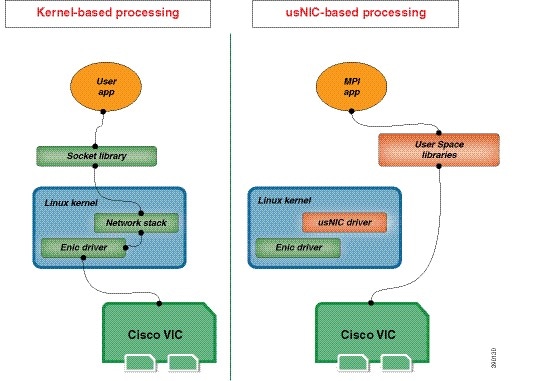
                              Figure 1. Kernel-Based Network Communication versus Cisco usNIC-Based Communication

                              Viewing and Configuring Cisco usNIC using the Cisco IMC GUI

                              Before You Begin

                              You must log in to the Cisco IMC GUI with administrator privileges to perform this task. Click Play on this video to watch how to configure Cisco usNIC in CIMC.

                              Procedure
                                Step 1   Log into the Cisco IMC GUI.

                                For more information about how to log into Cisco IMC, see Cisco UCS C-Series Servers Integrated Management Controller GUI Configuration Guide.

                                Step 2   In the Navigation pane, click the Networking menu.
                                Step 3   In the Adapter Card pane, click the vNICs tab.
                                Step 4   In the vNICs pane, click eth0 or eth1.
                                Step 5   In the Ethernet Interfaces area, select the usNIC area.
                                Step 6   In the Properties area, review and update the following fields:
                                Name Description

                                Name

                                The name for the vNIC that is the parent of the usNIC.

                                Note   

                                This field is read-only.

                                usNIC field

                                The number of usNICs assigned to the specific vNIC.

                                Enter an integer between 0 and 225.

                                To assign additional usNICs to a specified vNIC, enter value higher than the existing value.

                                To delete usNICs from a specified vNIC, enter value smaller than the existing value.

                                To delete all the usNICs assigned to a vNIC, enter zero.

                                Transmit Queue Count field

                                The number of transmit queue resources to allocate.

                                Enter an integer between 1 and 256.

                                Receive Queue Count field

                                The number of receive queue resources to allocate.

                                Enter an integer between 1 and 256.

                                Completion Queue Count field

                                The number of completion queue resources to allocate. In general, the number of completion queue resources you should allocate is equal to the number of transmit queue resources plus the number of receive queue resources.

                                Enter an integer between 1 and 512.

                                Transmit Queue Ring Size field

                                The number of descriptors in each transmit queue.

                                Enter an integer between 64 and 4096.

                                Receive Queue Ring Size field

                                The number of descriptors in each receive queue.

                                Enter an integer between 64 and 4096.

                                Interrupt Count field

                                The number of interrupt resources to allocate. In general, this value should be equal to the number of completion queue resources.

                                Enter an integer between 1 and 514.

                                Interrupt Coalescing Type drop-down list

                                This can be one of the following:

                                • MIN—The system waits for the time specified in the Coalescing Time field before sending another interrupt event.

                                • IDLE—The system does not send an interrupt until there is a period of no activity lasting as least as long as the time specified in the Coalescing Time field.

                                Interrupt Coalescing Timer Time field

                                The time to wait between interrupts or the idle period that must be encountered before an interrupt is sent.

                                Enter an integer between 1 and 65535. To turn off interrupt coalescing, enter 0 (zero) in this field.

                                Class of Service field

                                The class of service to associate with traffic from this usNIC.

                                Select an integer between 0 and 6, with 0 being lowest priority and 6 being the highest priority.

                                Note   

                                This option cannot be used in VNTAG mode.

                                TCP Segment Offload check box

                                If checked, the CPU sends large TCP packets to the hardware to be segmented. This option may reduce CPU overhead and increase throughput rate.

                                If cleared, the CPU segments large packets.

                                Note   

                                This option is also known as Large Send Offload (LSO).

                                Large Receive check box

                                If checked, the hardware reassembles all segmented packets before sending them to the CPU. This option may reduce CPU utilization and increase inbound throughput.

                                If cleared, the CPU processes all large packets.

                                TCP Tx Checksum check box

                                If checked, the CPU sends all packets to the hardware so that the checksum can be calculated. This option may reduce CPU overhead.

                                If cleared, the CPU calculates all packet checksums.

                                TCP Rx Checksum check box

                                If checked, the CPU sends all packet checksums to the hardware for validation. This option may reduce CPU overhead.

                                If cleared, the CPU validates all packet checksums.

                                Step 7   Click Save Changes.

                                The changes take effect upon the next server reboot.


                                Viewing usNIC Properties

                                Procedure
                                  Step 1   In the Navigation pane, click the Networking menu.
                                  Step 2   In the Adapter Card pane, click the vNICs tab.
                                  Step 3   In the vNICs pane, click eth0 or eth1.
                                  Step 4   In the Host Ethernet Interfaces pane's usNIC Properties area, review the information in the following fields:
                                  Name Description

                                  Name

                                  The name for the vNIC that is the parent of the usNIC.

                                  Note   

                                  This field is read-only.

                                  usNIC field

                                  The number of usNICs assigned to the specific vNIC.

                                  Enter an integer between 0 and 225.

                                  To assign additional usNICs to a specified vNIC, enter value higher than the existing value.

                                  To delete usNICs from a specified vNIC, enter value smaller than the existing value.

                                  To delete all the usNICs assigned to a vNIC, enter zero.

                                  Transmit Queue Count field

                                  The number of transmit queue resources to allocate.

                                  Enter an integer between 1 and 256.

                                  Receive Queue Count field

                                  The number of receive queue resources to allocate.

                                  Enter an integer between 1 and 256.

                                  Completion Queue Count field

                                  The number of completion queue resources to allocate. In general, the number of completion queue resources you should allocate is equal to the number of transmit queue resources plus the number of receive queue resources.

                                  Enter an integer between 1 and 512.

                                  Transmit Queue Ring Size field

                                  The number of descriptors in each transmit queue.

                                  Enter an integer between 64 and 4096.

                                  Receive Queue Ring Size field

                                  The number of descriptors in each receive queue.

                                  Enter an integer between 64 and 4096.

                                  Interrupt Count field

                                  The number of interrupt resources to allocate. In general, this value should be equal to the number of completion queue resources.

                                  Enter an integer between 1 and 514.

                                  Interrupt Coalescing Type drop-down list

                                  This can be one of the following:

                                  • MIN—The system waits for the time specified in the Coalescing Time field before sending another interrupt event.

                                  • IDLE—The system does not send an interrupt until there is a period of no activity lasting as least as long as the time specified in the Coalescing Time field.

                                  Interrupt Coalescing Timer Time field

                                  The time to wait between interrupts or the idle period that must be encountered before an interrupt is sent.

                                  Enter an integer between 1 and 65535. To turn off interrupt coalescing, enter 0 (zero) in this field.

                                  Class of Service field

                                  The class of service to associate with traffic from this usNIC.

                                  Select an integer between 0 and 6, with 0 being lowest priority and 6 being the highest priority.

                                  Note   

                                  This option cannot be used in VNTAG mode.

                                  TCP Segment Offload check box

                                  If checked, the CPU sends large TCP packets to the hardware to be segmented. This option may reduce CPU overhead and increase throughput rate.

                                  If cleared, the CPU segments large packets.

                                  Note   

                                  This option is also known as Large Send Offload (LSO).

                                  Large Receive check box

                                  If checked, the hardware reassembles all segmented packets before sending them to the CPU. This option may reduce CPU utilization and increase inbound throughput.

                                  If cleared, the CPU processes all large packets.

                                  TCP Tx Checksum check box

                                  If checked, the CPU sends all packets to the hardware so that the checksum can be calculated. This option may reduce CPU overhead.

                                  If cleared, the CPU calculates all packet checksums.

                                  TCP Rx Checksum check box

                                  If checked, the CPU sends all packet checksums to the hardware for validation. This option may reduce CPU overhead.

                                  If cleared, the CPU validates all packet checksums.


                                  Configuring iSCSI Boot Capability

                                  Configuring iSCSI Boot Capability for vNICs

                                  When the rack-servers are configured in a standalone mode, and when the VIC adapters are directly attached to the Nexus 5000 and Nexus 6000 family of switches, you can configure these VIC adapters to boot the servers remotely from iSCSI storage targets. You can configure Ethernet vNICs to enable a rack server to load the host OS image from remote iSCSI target devices.

                                  To configure the iSCSI boot capability on a vNIC:

                                  • You must log in with admin privileges to perform this task.

                                  • To configure a vNIC to boot a server remotely from an iSCSI storage target, you must enable the PXE boot option on the vNIC.


                                  Note


                                  You can configure a maximum of 2 iSCSI vNICs for each host.


                                  Configuring iSCSI Boot Capability on a vNIC

                                  You can configure a maximum of 2 iSCSI vNICs for each host.

                                  Before You Begin
                                  • To configure a vNIC to boot a server remotely from an iSCSI storage target, you must enable the PXE boot option on the vNIC.

                                  • You must log in with admin privileges to perform this task.

                                  Procedure
                                    Step 1   In the Navigation pane, click the Networking menu.
                                    Step 2   In the Adapter Card pane, click the vNICs tab.
                                    Step 3   In the vNICs pane, click eth0 or eth1.
                                    Step 4   In the Ethernet Interfaces area, select the iSCSI Boot Properties area.
                                    Step 5   In the General Area, update the following fields:
                                    Name Description

                                    Name field

                                    The name of the vNIC.

                                    DHCP Network check box

                                    Whether DHCP Network is enabled for the vNIC.

                                    If enabled, the initiator network configuration is obtained from the DHCP server.

                                    DHCP iSCSI check box

                                    Whether DHCP iSCSI is enabled for the vNIC. If enabled and the DHCP ID is set, the initiator IQN and target information are obtained from the DHCP server.

                                    Note   

                                    If DHCP iSCSI is enabled without a DHCP ID, only the target information is obtained.

                                    DHCP ID field

                                    The vendor identifier string used by the adapter to obtain the initiator IQN and target information from the DHCP server.

                                    Enter a string up to 64 characters.

                                    DHCP Timeout field

                                    The number of seconds to wait before the initiator assumes that the DHCP server is unavailable.

                                    Enter an integer between 60 and 300 (default: 60 seconds)

                                    Link Timeout field

                                    The number of seconds to wait before the initiator assumes that the link is unavailable.

                                    Enter an integer between 0 and 255 (default: 15 seconds)

                                    LUN Busy Retry Count field

                                    The number of times to retry the connection in case of a failure during iSCSI LUN discovery.

                                    Enter an integer between 0 and 255. The default is 15.

                                    IP Version field

                                    The IP version to use during iSCSI boot.

                                    Step 6   In the Initiator Area, update the following fields:
                                    Name Description

                                    Name field

                                    A regular expression that defines the name of the iSCSI initiator.

                                    You can enter any alphanumeric string as well as the following special characters:

                                    • . (period)

                                    • : (colon)

                                    • - (dash)

                                    Note   

                                    The name is in the IQN format.

                                    IP Address field

                                    The IP address of the iSCSI initiator.

                                    Subnet Mask field

                                    The subnet mask for the iSCSI initiator.

                                    Gateway field

                                    The default gateway.

                                    Primary DNS field

                                    The primary DNS server address.

                                    Secondary DNS field

                                    The secondary DNS server address.

                                    TCP Timeout field

                                    The number of seconds to wait before the initiator assumes that TCP is unavailable.

                                    Enter an integer between 0 and 255 (default: 15 seconds)

                                    CHAP Name field

                                    The Challenge-Handshake Authentication Protocol (CHAP) name of the initiator.

                                    CHAP Secret field

                                    The Challenge-Handshake Authentication Protocol (CHAP) shared secret of the initiator.

                                    Step 7   In the Primary Target Area, update the following fields:
                                    Name Description

                                    Name field

                                    The name of the primary target in the IQN format.

                                    IP Address field

                                    The IP address of the target.

                                    TCP Port field

                                    The TCP port associated with the target.

                                    Boot LUN field

                                    The Boot LUN associated with the target.

                                    CHAP Name field

                                    The Challenge-Handshake Authentication Protocol (CHAP) name of the initiator.

                                    CHAP Secret field

                                    The Challenge-Handshake Authentication Protocol (CHAP) shared secret of the initiator.

                                    Step 8   In the Secondary Target Area, update the following fields:
                                    Name Description

                                    Name field

                                    The name of the secondary target in the IQN format.

                                    IP Address field

                                    The IP address of the target.

                                    TCP Port field

                                    The TCP port associated with the target.

                                    Boot LUN field

                                    The Boot LUN associated with the target.

                                    CHAP Name field

                                    The Challenge-Handshake Authentication Protocol (CHAP) name of the initiator.

                                    CHAP Secret field

                                    The Challenge-Handshake Authentication Protocol (CHAP) shared secret of the initiator.

                                    Name Description

                                    Configure ISCSI button

                                    Configures iSCSI boot on the selected vNIC.

                                    Unconfigure ISCSI button

                                    Removes the configuration from the selected vNIC.

                                    Reset Values button

                                    Restores the values for the vNIC to the settings that were in effect when this dialog box was first opened.

                                    Cancel button

                                    Closes the dialog box without making any changes.

                                    Step 9   Click Save Changes.

                                    Removing iSCSI Boot Configuration from a vNIC

                                    Before You Begin

                                    You must log in with admin privileges to perform this task.

                                    Procedure
                                      Step 1   In the Navigation pane, click the Networking menu.
                                      Step 2   In the Adapter Card pane, click the vNICs tab.
                                      Step 3   In the vNICs pane, click eth0 or eth1.
                                      Step 4   In the Ethernet Interfaces area, select the iSCSI Boot Properties area.
                                      Step 5   Click the Unconfigure ISCSI button at the bottom of the area.

                                      Managing VM FEX

                                      Virtual Machine Fabric Extender

                                      Cisco Virtual Machine Fabric Extender (VM FEX) extends the (prestandard) IEEE 802.1Qbh port extender architecture to virtual machines. In this architecture, each VM interface is provided with a virtual Peripheral Component Interconnect Express (PCIe) device and a virtual port on a switch.

                                      For this release, VM FEX supports the following cards and Operating systems:

                                      Cards - Cisco UCS 1225 Virtual Interface Card

                                      Operating Systems:
                                      • VMware ESXi 5.1 Update 2

                                      • VMware ESXi 5.5

                                      VM FEX is not supported on Microsoft Hyper-V and Red Hat KVM for this release.

                                      Viewing Virtual FEX Properties

                                      Before You Begin
                                      • The server must be powered on, or the properties will not display.

                                      • A supported Virtual Interface Card (VIC) must be installed in the chassis and the server must be powered on.

                                      Procedure
                                        Step 1   In the Navigation pane, click the Networking menu.
                                        Step 2   In the Adapter Card pane, click the VM FEXs tab.
                                        Step 3   In the Virtual FEXs area, review the following information:
                                        Name Description

                                        Name column

                                        The name of the VM FEX.

                                        MTU column

                                        The maximum transmission unit, or packet size, that this VM FEX accepts.

                                        CoS column

                                        If enabled, the VM FEX uses the class of service provided by the host operating system.

                                        VLAN column

                                        The VLAN associated with the VM FEX.

                                        VLAN Mode column

                                        The mode for the associated VLAN.

                                        Uplink Failover column

                                        If VNTAG mode is enabled for the adapter, this column displays whether traffic on this VM FEX will fail over to a secondary interface if the primary interface fails.

                                        Step 4   In the Virtual FEXs area, select a VM FEX from the table.
                                        Step 5   Click Properties to open the VM FEX Properties dialog box for the selected VM FEX.
                                        Step 6   In the General Properties area, review the information in the following fields:
                                        Name Description

                                        Name field

                                        The name of the VM FEX.

                                        MTU field

                                        The maximum transmission unit, or packet size, that this VM FEX accepts.

                                        Uplink Port field

                                        The uplink port associated with this VM FEX.

                                        Trust Host CoS field

                                        If enabled, the VM FEX uses the class of service provided by the host operating system.

                                        PCI Order field

                                        The order in which this VM FEX will be used, if any.

                                        Default VLAN field

                                        The VLAN associated with the VM FEX.

                                        Rate Limit field

                                        The data rate limit associated with this VM FEX, if any.

                                        PXE Boot field

                                        Whether PXE boot is enabled or disabled for this VM FEX.

                                        Step 7   In the Ethernet Interrupt area, review the information in the following fields:
                                        Name Description

                                        Interrupt Count field

                                        The number of interrupt resources allocated to this VM FEX.

                                        Coalescing Time field

                                        The time Cisco IMC waits between interrupts or the idle period that must be encountered before an interrupt is sent.

                                        Coalescing Type field

                                        This can be one of the following:

                                        • MIN—The system waits for the time specified in the Coalescing Time field before sending another interrupt event.

                                        • IDLE—The system does not send an interrupt until there is a period of no activity lasting as least as long as the time specified in the Coalescing Time field.

                                        Interrupt Mode field

                                        The preferred driver interrupt mode. This can be one of the following:

                                        • MSIx—Message Signaled Interrupts (MSI) with the optional extension.

                                        • MSI—MSI only.

                                        • INTx—PCI INTx interrupts.

                                        Step 8   In the Ethernet Receive Queue area, review the information in the following fields:
                                        Name Description

                                        Receive Queue Count field

                                        The number of receive queue resources allocated to this VM FEX.

                                        Receive Queue Ring Size field

                                        The number of descriptors in each receive queue.

                                        Step 9   In the Ethernet Transmit Queue area, review the information in the following fields:
                                        Name Description

                                        Transmit Queue Count field

                                        The number of transmit queue resources allocated to this VM FEX.

                                        Transmit Queue Ring Size field

                                        The number of descriptors in each transmit queue.

                                        Step 10   In the Completion Queue area, review the information in the following fields:
                                        Name Description

                                        Completion Queue Count field

                                        The number of completion queue resources allocated to this VM FEX.

                                        Completion Queue Ring Size field

                                        The number of descriptors in each completion queue.

                                        Step 11   In the TCP Offload area, review the information in the following fields:
                                        Name Description

                                        Enable TCP Segmentation Offload field

                                        If enabled, the CPU sends large TCP packets to the hardware to be segmented. If disabled, the CPU segments large packets.

                                        Note   

                                        This option is also known as Large Send Offload (LSO).

                                        Enable TCP Rx Offload Checksum Validation field

                                        If enabled, the CPU sends all packet checksums to the hardware for validation. If disabled, the CPU validates all packet checksums.

                                        Enable TCP Tx Offload Checksum Generation field

                                        If enabled, the CPU sends all packets to the hardware so that the checksum can be calculated. If disabled, the CPU calculates all packet checksums.

                                        Enable Large Receive field

                                        If enabled, the hardware reassembles all segmented packets before sending them to the CPU. If disabled, the CPU processes all large packets.

                                        Step 12   In the Receive Side Scaling area, review the information in the following fields:
                                        Name Description

                                        Enable TCP Receive Side Scaling field

                                        Receive Side Scaling (RSS) distributes network receive processing across multiple CPUs in multiprocessor systems.

                                        If enabled, network receive processing is shared across processors whenever possible. If disabled, network receive processing is always handled by a single processor even if additional processors are available.

                                        Enable IPv4 RSS field

                                        If enabled, RSS is enabled on IPv4 networks.

                                        Enable TCP-IPv4 RSS field

                                        If enabled, RSS is enabled for TCP transmissions across IPv4 networks.

                                        Enable IPv6 RSS field

                                        If enabled, RSS is enabled on IPv6 networks.

                                        Enable TCP-IPv6 RSS field

                                        If enabled, RSS is enabled for TCP transmissions across IPv6 networks.

                                        Enable IPv6 Extension RSS field

                                        If enabled, RSS is enabled for IPv6 extensions.

                                        Enable TCP-IPv6 Extension RSS field

                                        If enabled, RSS is enabled for TCP transmissions across IPv6 networks.


                                        Managing Storage Adapters

                                        Creating Virtual Drive from Unused Physical Drives

                                        Before You Begin

                                        You must log in with admin privileges to perform this task.

                                        Procedure
                                          Step 1   In the Navigation pane, click the Storage menu.
                                          Step 2   On the Storage tab, click the Server 1 tab (RAID controller for UCS 3x60 Storage servers (SLOT-MEZZ)) .
                                          Step 3   In the Actions area, click Create Virtual Drive from Unused Physical Drives.

                                          The Create Virtual Drive from Unused Physical Drives dialog box displays.

                                          Step 4   In the Create Virtual Drive from Unused Physical Drives dialog box, select the RAID level for the new virtual drives:

                                          This can be one of the following:

                                          • Raid 0—Simple striping.

                                          • Raid 1—Simple mirroring.

                                          • Raid 5—Striping with parity.

                                          • Raid 6—Striping with two parity drives.

                                          • Raid 10—Spanned mirroring.

                                          • Raid 50—Spanned striping with parity.

                                          • Raid 60—Spanned striping with two parity drives.

                                          Step 5   In the Create Drive Groups area, choose one or more physical drives to include in the group.

                                          Use the >> button to add the drives to the Drive Groups table. Use the << button to remove physical drives from the drive group.

                                          Note   

                                          The size of the smallest physical drive in the drive group defines the maximum size used for all the physical drives. To ensure maximum use of space for all physical drives, it is recommended that the size of all the drives in the drive group are similar.

                                          Note   

                                          Cisco IMC manages only RAID controllers and not HBAs attached to the server.

                                          Step 6   In the Virtual Drive Properties area, update the following properties:
                                          Name Description

                                          Virtual Drive Name field

                                          The name of the new virtual drive you want to create.

                                          Read Policy drop-down list

                                          The read-ahead cache mode.

                                          Cache Policy drop-down list

                                          The cache policy used for buffering reads.

                                          Strip Size drop-down list

                                          The size of each strip, in KB.

                                          Write Policy drop-down list

                                          This can be one of the following

                                          • Write Through— Data is written through the cache and to the physical drives. Performance is improved, because subsequent reads of that data can be satisfied from the cache.

                                          • Write Back— Data is stored in the cache, and is only written to the physical drives when space in the cache is needed. Virtual drives requesting this policy fall back to Write Through caching when the BBU cannot guarantee the safety of the cache in the event of a power failure.

                                          • Write Back Bad BBU—With this policy, write caching remains Write Back even if the battery backup unit is defective or discharged.

                                          Disk Cache Policy drop-down list

                                          This can be one of the following

                                          • Unchanged— The disk cache policy is unchanged.

                                          • Enabled— Allows IO caching on the disk.

                                          • Disabled— Disallows disk caching.

                                          Access Policy drop-down list

                                          This can be one of the following

                                          • Read Write— Enables host to perform read-write on the VD.

                                          • Read Only— Host can only read from the VD.

                                          • Blocked— Host can neither read nor write to the VD.

                                          Size field

                                          The size of the virtual drive you want to create. Enter a value and select one of the following units:

                                          • MB

                                          • GB

                                          • TB

                                          Step 7   Click the Generate XML API Request button to generate an API request.
                                          Step 8   Click Close.
                                          Step 9   Click Create Virtual Drive.

                                          Creating Virtual Drive from an Existing Drive Group

                                          Before You Begin

                                          You must log in with admin privileges to perform this task.

                                          Procedure
                                            Step 1   In the Navigation pane, click the Storage menu.
                                            Step 2   On the Storage tab, click the Server 1 tab with the appropriate LSI MegaRAID controller.
                                            Step 3   In the Actions area, click Create Virtual Drive from an Existing Virtual Drive Group.

                                            The Create Virtual Drive from an Existing Virtual Drive Group dialog box displays.

                                            Step 4   In the Create Virtual Drive from an Existing Virtual Drive Group dialog box, select the virtual drive whose drive group you want to use to create a new virtual drive.
                                            Step 5   In the Virtual Drive Properties area, update the following properties:
                                            Name Description

                                            Virtual Drive Name field

                                            The name of the new virtual drive you want to create.

                                            Read Policy drop-down list

                                            The read-ahead cache mode.

                                            Cache Policy drop-down list

                                            The cache policy used for buffering reads.

                                            Strip Size drop-down list

                                            The size of each strip, in KB.

                                            Write Policy drop-down list

                                            This can be one of the following

                                            • Write Through— Data is written through the cache and to the physical drives. Performance is improved, because subsequent reads of that data can be satisfied from the cache.

                                            • Write Back— Data is stored in the cache, and is only written to the physical drives when space in the cache is needed. Virtual drives requesting this policy fall back to Write Through caching when the BBU cannot guarantee the safety of the cache in the event of a power failure.

                                            • Write Back Bad BBU—With this policy, write caching remains Write Back even if the battery backup unit is defective or discharged.

                                            Disk Cache Policy drop-down list

                                            This can be one of the following

                                            • Unchanged— The disk cache policy is unchanged.

                                            • Enabled— Allows IO caching on the disk.

                                            • Disabled— Disallows disk caching.

                                            Access Policy drop-down list

                                            This can be one of the following

                                            • Read Write— Enables host to perform read-write on the VD.

                                            • Read Only— Host can only read from the VD.

                                            • Blocked— Host can neither read nor write to the VD.

                                            Size field

                                            The size of the virtual drive you want to create. Enter a value and select one of the following units:

                                            • MB

                                            • GB

                                            • TB

                                            Step 6   Click the Generate XML API Request button to generate an API request.
                                            Step 7   Click Close.
                                            Step 8   Click Create Virtual Drive.

                                            Setting a Virtual Drive to Transport Ready State

                                            You can move a virtual drive from one MegaRAID controller to another using the Set Transport Ready feature. This allows all the pending IOs of the virtual drive to complete their activities, hide the virtual drive from the operating system, flush cache, pause all the background operations, and save the current progress in disk data format, allowing you to move the drive. When you move a virtual drive, all other drives belonging to the same drive group inherit the same change as the moved drive.

                                            When the last configured physical drive on the group is removed from the current controller, the drive group becomes foreign and all foreign configuration rules apply to the group. However, the Transport Ready feature does not change any foreign configuration behavior.

                                            You can also clear a virtual drive from the Transport Ready state. This makes the virtual drive available to the operating systems.

                                            Following restrictions apply to a transport ready virtual drive:
                                            • Only a maximum of 16 transport ready drive groups are currently supported.

                                            • This feature is not supported on high availability.

                                            • A virtual drive cannot be set as transport ready under these conditions:
                                              • When a virtual drive of a drive group is being reconstructed

                                              • When a virtual drive of a drive group contains a pinned cache

                                              • When a virtual drive of a drive group is marked as cacheable or associated with a cachecade virtual drive

                                              • If a virtual drive is a cachecade virtual drive

                                              • If a virtual drive is offline

                                              • If a virtual drive is a bootable virtual drive

                                            Setting a Virtual Drive as Transport Ready

                                            Before You Begin
                                            • You must log in with admin privileges to perform this task.

                                            • The virtual drive must be in optimal state to enable transport ready.

                                            Procedure
                                              Step 1   In the Navigation pane, click the Storage menu.
                                              Step 2   On the Storage menu, click the appropriate LSI MegaRAID or HBA Controller.
                                              Step 3   On the Work pane, click the Virtual Drive Info tab.
                                              Step 4   In the Virtual Drives area, choose the drive that you want set as transport ready.
                                              Step 5   In the Actions area, click Set Transport Ready.

                                              The Set Transport Ready dialog box displays.

                                              Step 6   Update the following properties in the dialog box:
                                              Name Description

                                              Initialize Type drop-down list

                                              Allows you to select the initialization type using which you can set the selected virtual drive as transport ready. This can be one of the following:
                                              • Exlude All— Excludes all the dedicated hot spare drives.

                                              • Include All— Includes any exclusively available or shared dedicated hot spare drives.

                                              • Include Dedicated Hot Spare Drive— Includes exclusive dedicated hot spare drives.

                                              Set Transport Ready button

                                              Sets the selected virtual drive as transport ready.

                                              Cancel button

                                              Cancels the action.

                                              Note    When you set a virtual drive to transport ready all the physical drives associated with it are displayed as Ready to Remove.

                                              Clearing a Virtual Drive from Transport Ready State

                                              Before You Begin
                                              • You must log in with admin privileges to perform this task.

                                              • The virtual drive must be transport ready.

                                              Procedure
                                                Step 1   In the Navigation pane, click the Storage menu.
                                                Step 2   On the Storage menu, click the appropriate LSI MegaRAID or HBA controller.
                                                Step 3   On the Work pane, click the Virtual Drive Info tab.
                                                Step 4   In the Virtual Drives area, choose the drive to set as transport ready.
                                                Step 5   In the Actions area, click Clear Transport Ready.

                                                This reverts the selected transport ready virtual drive to its original optimal state.


                                                Importing Foreign Configuration

                                                When one or more physical drives that have previously been configured with a different controller are inserted into a server, they are identified as foreign configurations. You can import these foreign configurations to a controller.

                                                Before You Begin

                                                You must log in with admin privileges to perform this task.

                                                Procedure
                                                  Step 1   In the Navigation pane, click the Storage menu.
                                                  Step 2   In the (Server 1) RAID controller for UCS C3X60 Storage Servers area, the Controller Info tab displays by default.
                                                  Step 3   In the Actions area, click Import Foreign Config.
                                                  Step 4   Click OK to confirm.

                                                  Clearing Foreign Configuration

                                                  Important:

                                                  This task clears all foreign configuration on the controller. Also, all configuration information from all physical drives hosting foreign configuration is deleted. This action cannot be reverted.

                                                  Before You Begin

                                                  You must log in with admin privileges to perform this task.

                                                  Procedure
                                                    Step 1   In the Navigation pane, click the Storage menu.
                                                    Step 2   In the (Server 1) RAID controller for UCS C3X60 Storage Servers area, the Controller Info tab displays by default.
                                                    Step 3   In the Actions area, click Clear Foreign Config.
                                                    Step 4   Click OK to confirm.

                                                    Clearing a Boot Drive

                                                    Important:

                                                    This task clears the boot drive configuration on the controller. This action cannot be reverted.

                                                    Before You Begin

                                                    You must log in with admin privileges to perform this task.

                                                    Procedure
                                                      Step 1   In the Navigation pane, click the Storage menu.
                                                      Step 2   In the (Server 1) RAID controller for UCS C3X60 Storage Servers area, the Controller Info tab displays by default.
                                                      Step 3   In the Actions area, click Clear Boot Drive.
                                                      Step 4   Click OK to confirm.

                                                      Enabling JBOD Mode

                                                      Procedure
                                                        Step 1   In the Navigation pane, click the Storage menu.
                                                        Step 2   On the Storage tab, click the Server 1 tab with the appropriate LSI MegaRAID Controller.
                                                        Step 3   In the Work pane, click the Physical Drive Info tab.
                                                        Step 4   In the Physical Drives area, select an unconfigured good drive.
                                                        Step 5   In the Actions area, click Enable JBOD.
                                                        Step 6   Click Ok to confirm.

                                                        Disabling a JBOD


                                                        Note


                                                        This option is available only on some UCS C-Series servers.


                                                        Before You Begin

                                                        JBOD option must be enabled for the selected controller.

                                                        Procedure
                                                          Step 1   In the Navigation pane, click the Storage menu.
                                                          Step 2   On the Storage menu, click the Server 1 tab with the appropriate LSI MegaRAID Controller.
                                                          Step 3   On the Work pane, click Physical Drive Info tab.
                                                          Step 4   In the Physical Drives area, select a JBOD drive.
                                                          Step 5   In the Actions area, click Disable JBOD.
                                                          Step 6   Click Ok to confirm.

                                                          Retrieving TTY Logs for a Controller

                                                          This task retrieves the TTY logs for the controller and places it in the /var/log location. This ensures that this log data is available when Technical Support Data is requested.

                                                          Before You Begin

                                                          You must log in with admin privileges to perform this task.

                                                          Procedure
                                                            Step 1   In the Navigation pane, click the Storage menu.
                                                            Step 2   In the (Server 1) RAID controller for UCS C3X60 Storage Servers area, the Controller Info tab displays by default.
                                                            Step 3   In the Actions area, click Get TTY Log.
                                                            Step 4   Click OK to confirm.
                                                            Important:

                                                            Retrieving TTY logs for a controller could take up to 2-4 minutes. Until this process is complete, do not initiate exporting technical support data.


                                                            Preparing a Drive for Removal


                                                            Note


                                                            You can perform this task only on physical drives that display the Unconfigured Good status.


                                                            Before You Begin

                                                            You must log in with admin privileges to perform this task.

                                                            Procedure
                                                              Step 1   In the Navigation pane, click the Storage menu.
                                                              Step 2   On the Storage menu, click the Server 1 tab with the appropriate LSI MegaRAID Controller.
                                                              Step 3   On the Work pane, click the Physical Drive Info tab.
                                                              Step 4   In the Physical Drives area, select the drive you want to remove.
                                                              Step 5   In the Actions area, click Prepare for Removal.
                                                              Step 6   Click OK to confirm.

                                                              Undo Preparing a Drive for Removal

                                                              Before You Begin

                                                              You must log in with admin privileges to perform this task.

                                                              Procedure
                                                                Step 1   In the Navigation pane, click the Storage menu.
                                                                Step 2   On the Storage menu, click the Server 1 tab with the appropriate LSI MegaRAID Controller.
                                                                Step 3   On the Work pane, click the Physical Drive Info tab.
                                                                Step 4   In the Physical Drives area, select a drive with a status of Ready to Remove.
                                                                Step 5   In the Actions area, click Undo Prepare for Removal.
                                                                Step 6   Click OK to confirm.

                                                                Making a Dedicated Hot Spare

                                                                Before You Begin

                                                                You must log in with admin privileges to perform this task.

                                                                Procedure
                                                                  Step 1   In the Navigation pane, click the Storage tab.
                                                                  Step 2   On the Storage menu, click the Server 1 tab with the appropriate LSI MegaRAID Controller.
                                                                  Step 3   On the Work pane, click the Physical Drive Info tab.
                                                                  Step 4   In the Physical Drives area, select an unconfigured good drive you want to make a dedicated hot spare.
                                                                  Step 5   In the Actions area, click Make Dedicated Hot Spare.

                                                                  The Make Dedicated Hot Spare dialog box displays.

                                                                  Step 6   In the Virtual Drive Details area, update the following properties:
                                                                  Name Description

                                                                  Virtual Drive Number drop-down list

                                                                  Select the virtual drive to which you want to dedicate the physical drive as hot spare.

                                                                  Virtual Drive Name field

                                                                  The name of the selected virtual drive.

                                                                  Make Dedicated Hot Spare button

                                                                  Creates the dedicated hot spare.

                                                                  Cancel button

                                                                  Closes the dialog box without saving any changes made while the dialog box was open.

                                                                  Step 7   Click Make Dedicated Hot Spare to confirm.

                                                                  Making a Global Hot Spare

                                                                  Before You Begin

                                                                  You must log in with admin privileges to perform this task.

                                                                  Procedure
                                                                    Step 1   In the Navigation pane, click the Storage tab.
                                                                    Step 2   On the Storage menu, click the Server 1 tab with the appropriate LSI MegaRAID Controller.
                                                                    Step 3   On the Work pane, click the Physical Drive Info tab.
                                                                    Step 4   In the Physical Drives area, select an unconfigured good drive you want to make a global hot spare.
                                                                    Step 5   In the Actions area, click Make Global Hot Spare.

                                                                    Removing a Drive from Hot Spare Pools

                                                                    Before You Begin

                                                                    You must log in with admin privileges to perform this task.

                                                                    Procedure
                                                                      Step 1   In the Navigation pane, click the Storage menu.
                                                                      Step 2   On the Storage tab, click the appropriate LSI MegaRAID controller.
                                                                      Step 3   On the Work pane, click the Physical Drive Info tab.
                                                                      Step 4   In the Physical Drives area, select the global or dedicated hot spare you want to remove from the hot spare pools.
                                                                      Step 5   In the Actions area, click Remove From Hot Spare Pools.

                                                                      Toggling Physical Drive Status

                                                                      Before You Begin
                                                                      • You must log in with admin privileges to perform this task.

                                                                      • The controller must support the JBOD mode and the JBOD mode must be enabled.
                                                                      Procedure
                                                                        Step 1   In the Navigation pane, click the Storage tab.
                                                                        Step 2   On the Storage menu, click the Server 1 tab with the appropriate LSI MegaRAID Controller.
                                                                        Step 3   On the Work pane, click the Physical Drive Info tab.
                                                                        Step 4   In the Physical Drives area, select the drive you want to set as unconfigured good.
                                                                        Step 5   In the Actions area, click Set State as Unconfigured Good.
                                                                        Step 6   Click OK to confirm that the JBOD mode be disabled.

                                                                        The Set State as JBOD option is enabled.

                                                                        Step 7   To enable the JBOD mode for the physical drive, click Set State as JBOD.
                                                                        Step 8   Click OK to confirm.

                                                                        The Set State as Unconfigured Good option is enabled.


                                                                        Setting a Physical Drive as a Controller Boot Drive

                                                                        Before You Begin
                                                                        • You must log in with admin privileges to perform this task.

                                                                        • The controller must support the JBOD mode and the JBOD mode must be enabled.
                                                                        Procedure
                                                                          Step 1   In the Navigation pane, click the Storage menu.
                                                                          Step 2   On the Storage menu, click the Server 1 tab with the appropriate LSI MegaRAID Controller.
                                                                          Step 3   On the Work pane, click the Physical Drive Info tab.
                                                                          Step 4   In the Physical Drives area, select the drive you want to set as boot drive for the controller.
                                                                          Step 5   In the Actions area, click Set as Boot Drive.
                                                                          Step 6   Click OK to confirm.

                                                                          Initializing a Virtual Drive

                                                                          All data on a virtual drive is lost when you initialize the drive. Before you run an initialization, back up any data on the virtual drive that you want to save.

                                                                          Before You Begin

                                                                          You must log in with admin privileges to perform this task.

                                                                          Procedure
                                                                            Step 1   In the Navigation pane, click the Storage menu.
                                                                            Step 2   On the Storage menu, click the Server 1 tab with the appropriate LSI MegaRAID Controller.
                                                                            Step 3   On the Work pane, click the Virtual Drive Info tab.
                                                                            Step 4   In the Virtual Drives area, choose the drive that you want to initialize.
                                                                            Step 5   In the Actions area, click Initialize.

                                                                            The Initialize Virtual Drive dialog box displays.

                                                                            Step 6   Choose the type of initialization you want to use for the virtual drive.

                                                                            This can be one of the following:

                                                                            • Fast Initialize—This option allows you to start writing data to the virtual drive immediately.

                                                                            • Full Initialize—A complete initialization is done on the new configuration. You cannot write data to the new virtual drive until the initialization is complete.

                                                                            Step 7   Click Initialize VD to initialize the drive, or Cancel to close the dialog box without making any changes.
                                                                            Step 8   To view the status of the task running on the drive, in the Operations area, click Refresh.

                                                                            The following details are displayed:

                                                                            Name Description

                                                                            Operation

                                                                            Name of the operation that is in progress on the drive.

                                                                            Progress in %

                                                                            Progress of the operation, in percentage complete.

                                                                            Elapsed Time in secs

                                                                            The number of seconds that have elapsed since the operation began.


                                                                            Set as Boot Drive

                                                                            Before You Begin

                                                                            You must log in with admin privileges to perform this task.

                                                                            Procedure
                                                                              Step 1   In the Navigation pane, click the Storage menu.
                                                                              Step 2   On the Storage menu, click the Server 1 tab with the appropriate LSI MegaRAID Controller.
                                                                              Step 3   On the Work pane, click the Virtual Drive Info tab.
                                                                              Step 4   In the Virtual Drives area, choose the drive from which the controller must boot.
                                                                              Step 5   In the Actions area, click Set as Boot Drive.
                                                                              Step 6   Click OK to confirm.

                                                                              Editing a Virtual Drive

                                                                              Procedure
                                                                                Step 1   In the Navigation pane, click the Storage menu.
                                                                                Step 2   On the Storage menu, click the Server 1 tab with the appropriate LSI MegaRAID Controller.
                                                                                Step 3   On the Work pane, click Virtual Drive Info tab.
                                                                                Step 4   In the Virtual Drives area, click Edit Virtual Drive.
                                                                                Step 5   Review the instructions, and then click OK. The Edit Virtual Drive dialog box displays before prompting you to take a backup of your data.
                                                                                Step 6   From the Select RAID Level to migrate drop-down list, choose a RAID level.

                                                                                See the following table for RAID migration criteria:

                                                                                Name Description

                                                                                Select RAID Level to migrate drop-down list

                                                                                Select the RAID level to which you want to migrate. Migrations are allowed for the following RAID levels:

                                                                                • RAID 0 to RAID 1

                                                                                • RAID 0 to RAID 5

                                                                                • RAID 0 to RAID 6

                                                                                • RAID 1 to RAID 0

                                                                                • RAID 1 to RAID 5

                                                                                • RAID 1 to RAID 6

                                                                                • RAID 5 to RAID 0

                                                                                • RAID 6 to RAID 0

                                                                                • RAID 6 to RAID 5

                                                                                When you are migrating from one raid level to another, the data arms of the new RAID level should be equal to or greater than the existing one.

                                                                                In case of RAID 6, the data arms will be number of drives minus two, as RAID 6 has double distributed parity. For example, when you create RAID 6 with eight drives, the number of data arms will be 8 – 2 = 6. In this case, if you are migrating from RAID 6 to RAID 0, RAID 0 must have a minimum of six drives. If you select lesser number of drives then Edit or Save button will be disabled.

                                                                                If you are adding, you can migrate to RAID 0 as you will not be deleting any drives.

                                                                                Note   

                                                                                RAID level migration is not supported in the following cases:

                                                                                • When there are multiple virtual drives in a RAID group.
                                                                                • With a combination of SSD/HDD RAID groups.
                                                                                Step 7   From the Write Policy drop-down list in the Virtual Drive Properties area, choose one of the following:
                                                                                • Write Through— Data is written through the cache and to the physical drives. Performance is improved, because subsequent reads of that data can be satisfied from the cache.

                                                                                • Write Back— Data is stored in the cache, and is only written to the physical drives when space in the cache is needed. Virtual drives requesting this policy fall back to Write Through caching when the BBU cannot guarantee the safety of the cache in the event of a power failure.

                                                                                • Write Back Bad BBU—With this policy, write caching remains Write Back even if the battery backup unit is defective or discharged.

                                                                                Step 8   Click Save Changes.

                                                                                Deleting a Virtual Drive

                                                                                Important:

                                                                                This task deletes a virtual drive, including the drives that run the booted operating system. So back up any data that you want to retain before you delete a virtual drive.

                                                                                Before You Begin

                                                                                You must log in with admin privileges to perform this task.

                                                                                Procedure
                                                                                  Step 1   In the Navigation pane, click the Storage menu.
                                                                                  Step 2   On the Storage menu, click the Server 1 tab with the appropriate LSI MegaRAID Controller.
                                                                                  Step 3   On the Work pane, click the Virtual Drive Info tab.
                                                                                  Step 4   In the Virtual Drives area, select the virtual drive you want to delete.
                                                                                  Step 5   In the Actions area, click Delete Virtual Drive.
                                                                                  Step 6   Click OK to confirm.

                                                                                  Hiding a Virtual Drive

                                                                                  Before You Begin

                                                                                  You must log in with admin privileges to perform this task.

                                                                                  Procedure
                                                                                    Step 1   In the Navigation pane, click the Storage menu.
                                                                                    Step 2   On the Storage menu, click the Server 1 tab (RAID controller for UCS C3X60 Storage Servers (SLOT-MEZZ)).
                                                                                    Step 3   On the Work pane, click the Virtual Drive Info tab.
                                                                                    Step 4   In the Virtual Drives area, select the virtual drive you want to hide.
                                                                                    Step 5   In the Actions area, click Hide Drive.
                                                                                    Step 6   Click OK to confirm.

                                                                                    Starting Learn Cycles for a Battery Backup Unit

                                                                                    Before You Begin

                                                                                    You must log in with admin privileges to perform this task.

                                                                                    Procedure
                                                                                      Step 1   In the Navigation pane, click the Storage menu.
                                                                                      Step 2   On the Storage menu, click the Server 1 tab with the appropriate LSI MegaRAID Controller.
                                                                                      Step 3   On the Work pane, click the Battery Backup Unit tab.
                                                                                      Step 4   From the Actions pane, click Start Learn Cycle.

                                                                                      A dialog prompts you to confirm the task.

                                                                                      Step 5   Click OK.

                                                                                      Viewing Storage Controller Logs

                                                                                      Before You Begin

                                                                                      You must log in with admin privileges to perform this task.

                                                                                      Procedure
                                                                                        Step 1   In the Navigation pane, click the Storage menu.
                                                                                        Step 2   On the Storage menu, click the Server 1 tab with the appropriate LSI MegaRAID Controller.
                                                                                        Step 3   On the Work pane, click Storage Log tab and review the following information:

                                                                                        Name

                                                                                        Description

                                                                                        Time column

                                                                                        The date and time the event occurred.

                                                                                        Severity column

                                                                                        The event severity. This can be one of the following:

                                                                                        • Emergency

                                                                                        • Alert

                                                                                        • Critical

                                                                                        • Error

                                                                                        • Warning

                                                                                        • Notice

                                                                                        • Informational

                                                                                        • Debug

                                                                                        Description column

                                                                                        A description of the event.


                                                                                        Backing Up and Restoring the Adapter Configuration

                                                                                        Exporting the Adapter Configuration

                                                                                        The adapter configuration can be exported as an XML file to a remote server which can be one of the following:

                                                                                        • TFTP

                                                                                        • FTP

                                                                                        • SFTP

                                                                                        • SCP

                                                                                        • HTTP

                                                                                        Before You Begin

                                                                                        Obtain the remote server IP address.

                                                                                        Procedure
                                                                                          Step 1   In the Navigation pane, click the Networking menu.
                                                                                          Step 2   Click the Adapter Card tab.

                                                                                          The General tab appears.

                                                                                          Step 3   In the Actions area of the General tab, click Export Configuration.

                                                                                          The Export Adapter Configuration dialog box opens.

                                                                                          Step 4   In the Export Adapter Configuration dialog box, update the following fields:
                                                                                          Name Description

                                                                                          Export to drop-down list

                                                                                          The remote server type. This can be one of the following:

                                                                                          • TFTP Server

                                                                                          • FTP Server

                                                                                          • SFTP Server

                                                                                          • SCP Server

                                                                                          • HTTP Server

                                                                                          Note   

                                                                                          If you chose SCP or SFTP as the remote server type while performing this action, a pop-up window is displayed with the message Server (RSA) key fingerprint is <server_finger_print _ID> Do you wish to continue?. Click Yes or No depending on the authenticity of the server fingerprint.

                                                                                          The fingerprint is based on the host's public key and helps you to identify or verify the host you are connecting to.

                                                                                          Server IP/Hostname field

                                                                                          The IPv4 or IPv6 address, or hostname of the server to which the adapter configuration file will be exported. Depending on the setting in the Export to drop-down list, the name of the field may vary.

                                                                                          Path and Filename field

                                                                                          The path and filename Cisco IMC should use when exporting the file to the remote server.

                                                                                          Username

                                                                                          The username the system should use to log in to the remote server. This field does not apply if the protocol is TFTP or HTTP.

                                                                                          Password

                                                                                          The password for the remote server username. This field does not apply if the protocol is TFTP or HTTP.

                                                                                          Step 5   Click Export Configuration.

                                                                                          Importing the Adapter Configuration

                                                                                          Procedure
                                                                                            Step 1   In the Navigation pane, click the Networking menu.
                                                                                            Step 2   Click the Adapter Card tab.

                                                                                            The General tab appears.

                                                                                            Step 3   In the Actions area of the General tab, click Import Configuration.

                                                                                            The Import Adapter Configuration dialog box opens.

                                                                                            Step 4   In the Import Adapter Configuration dialog box, update the following fields:
                                                                                            Name Description

                                                                                            Import from drop-down list

                                                                                            The remote server type. This can be one of the following:

                                                                                            • TFTP Server

                                                                                            • FTP Server

                                                                                            • SFTP Server

                                                                                            • SCP Server

                                                                                            • HTTP Server

                                                                                            Note   

                                                                                            If you chose SCP or SFTP as the remote server type while performing this action, a pop-up window is displayed with the message Server (RSA) key fingerprint is <server_finger_print _ID> Do you wish to continue?. Click Yes or No depending on the authenticity of the server fingerprint.

                                                                                            The fingerprint is based on the host's public key and helps you to identify or verify the host you are connecting to.

                                                                                            Server IP/Hostname field

                                                                                            The IPv4 or IPv6 address, or hostname of the server on which the adapter configuration file resides. Depending on the setting in the Import from drop-down list, the name of the field may vary.

                                                                                            Path and Filename field

                                                                                            The path and filename of the configuration file on the remote server.

                                                                                            Username

                                                                                            The username the system should use to log in to the remote server. This field does not apply if the protocol is TFTP or HTTP.

                                                                                            Password

                                                                                            The password for the remote server username. This field does not apply if the protocol is TFTP or HTTP.

                                                                                            Step 5   Click Import Configuration. The adapter downloads the configuration file from the specified path on the TFTP server at the specified IP address. The configuration will be installed during the next server reboot.

                                                                                            What to Do Next

                                                                                            Reboot the server to apply the imported configuration.

                                                                                            Restoring Adapter Defaults

                                                                                            Procedure
                                                                                              Step 1   In the Navigation pane, click the Networking menu.
                                                                                              Step 2   Click the Adapter Card tab.

                                                                                              The General tab appears.

                                                                                              Step 3   In the Actions area of the General tab, click Reset To Defaults and click OK to confirm.
                                                                                              Note   

                                                                                              Resetting the adapter to default settings sets the port speed to 4 X 10 Gbps. Choose 40 Gbps as the port speed only if you are using a 40 Gbps switch.


                                                                                              Resetting the Adapter

                                                                                              Procedure
                                                                                                Step 1   In the Navigation pane, click the Networking menu.
                                                                                                Step 2   Click the Adapter Card tab.

                                                                                                The General tab appears.

                                                                                                Step 3   In the Actions area of the General tab, click Reset and click Yes to confirm.
                                                                                                Note   

                                                                                                Resetting the adapter also resets the host and requires a reformat.