Integrating UCS Components in the Dynamic Rack

This chapter contains the following sections:

Introduction

This chapter provides the guidelines for preintegrating and preracking Cisco UCS equipment in a Cisco R-Series Rack and all approved third-party racks. Use this information in conjunction with the following Cisco UCS product documentation:

Preparation

Keep the rack bolted to the shock pallet and carefully remove the rack packaging. Retain the packaging so that you can reuse it to protect the integrated rack during shipment to its final destination.

Ensure that all the equipment that you ordered has arrived and is available.

For instructions on how to remove the rack doors and side panels, see the Replacing Components chapter in this guide.

Install the PDUs prior to racking the blade server chassis or fabric interconnects. PDU descriptions and installation instructions are available in the Installing Cisco RP-Series PDUs chapter in this guide.

Equipment Placement Guidelines

Refer to the production documentation for the devices you intend to install and observe the following guidelines:

A list of Cisco products that are certified to ship in approved racks is maintained on an internal Cisco website. Contact you Cisco representative to access the latest information on this site. Shipping a non-certified Cisco UCS component in a rack voids the warranty.

Weight Considerations

The Cisco R42612 R-Series rack is designed to support a dynamic load of up to 2700 lb of IT gear. However, other considerations may make it necessary to limit the weight below that maximum load value. For instance, while moving a fully-loaded rack across an uneven or tilted surface, tipping may be a factor that makes it necessary to reduce the weight.

Always install devices in the bottom of the rack first, heaviest devices in the lowest possible RU space to maintain the lowest center of gravity within the rack. Racks with high centers of gravity can be extremely hazardous.

If different blade server models are inserted in a single chassis, install the chassis with the heaviest total weight in the lowest possible RU space and proceed to install the progressively lighter chassis above it.

Chassis Installation and Cabling

Review the maximum supported chassis configurations mentioned previously and install the UCS 5108 Server Chassis or UCS Mini chassis according to the instructions in the Cisco UCS 5108 Server Chassis Installation Guide. Use the illustrations in this section as a guide to installing power cables and data cables.

Installing the L-Shaped Brackets

Before shipping a preracked UCS 5108 or UCS Mini blade server chassis, install the L-shaped brackets that come in the Accessory Kit that ships with the UCS 5108 blade server chassis .

Procedure


Step 1

Install the UCS 5108 or UCS Mini blade server chassis.

Step 2

See the "Installation" chapter of the Cisco UCS 5108 Server Chassis Installation Guide.


Data Cables for the UCS 5108 Server Chassis

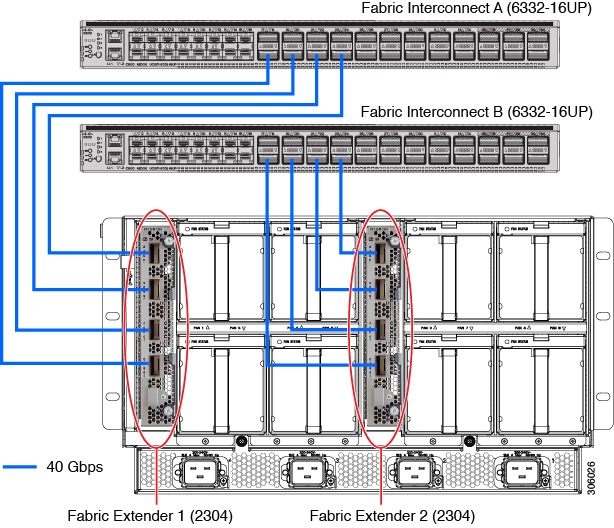
The following figure shows how a 40-Gbps Fabric Extender module connects to an external UCS 6332-16UP Fabric Interconnect.
Figure 1. Data Cabling for the UCS 5108 Blade Server Chassis and 6300 Series Fabric Interconnects
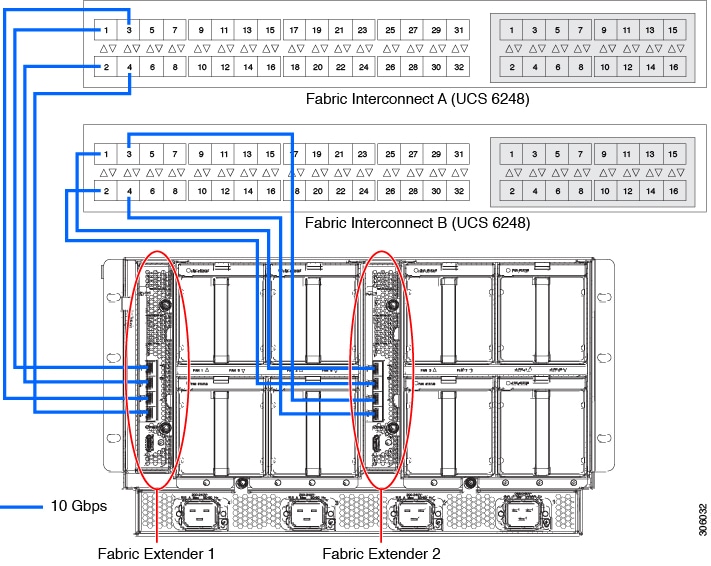
The following figure shows how a 10-Gbps Fabric Extender module connects to an external UCS 6248 Fabric Extender.
Figure 2. Data Cabling for the UCS 5108 Server Chassis and UCS 6248 Fabric Interconnect

Power Cables for the UCS 5108 Server Chassis

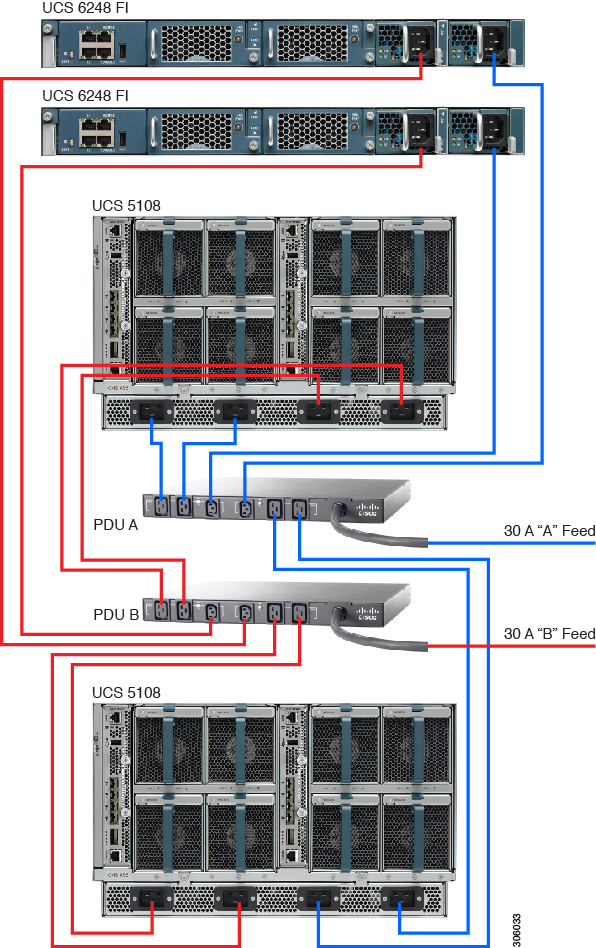
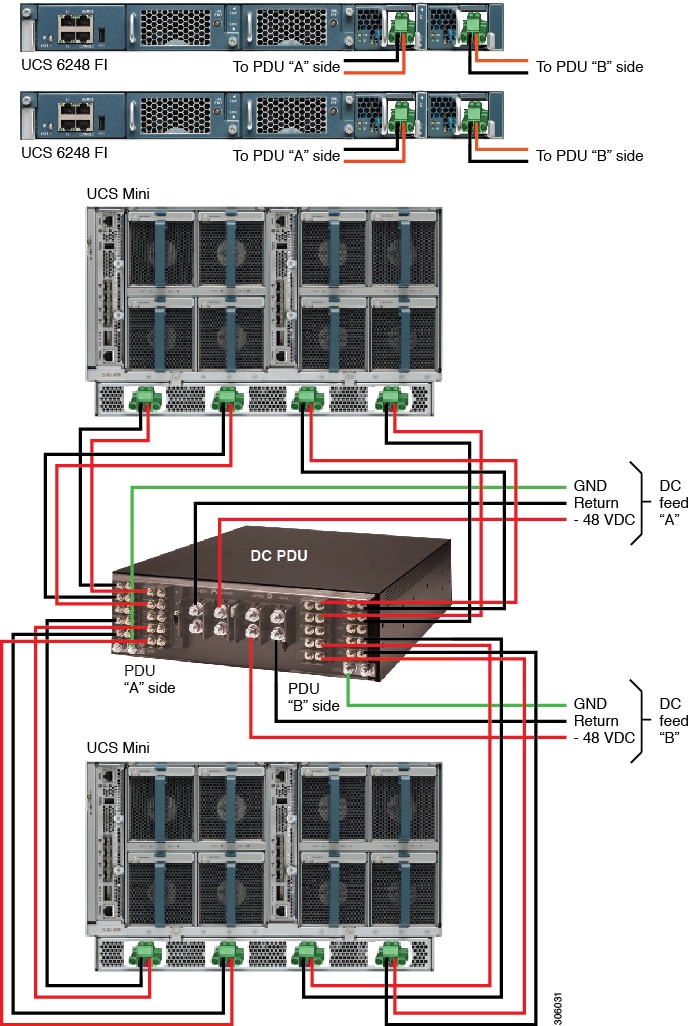
The following figures show separate power feeds connect to each PDU and the routing of power cables from the PDUs to the chassis. This connection method allows for redundancy in case of a power feed failure.

Figure 3. PDUs and Power Cabling for the UCS 5108 Blade Server Chassis (AC Power)
Figure 4. PDUs and Power Cabling for the UCS 5108 Blade Server Chassis (DC Power)

Note

The UCS 5108 Server Chassis can accommodate two types of power supplies. The first operates from -48 VDC to -60 VDC. The second is a high-voltage DC power supply that operates from -200 VDC to -380 VDC.


Data Cables for the UCS Mini Server Chassis

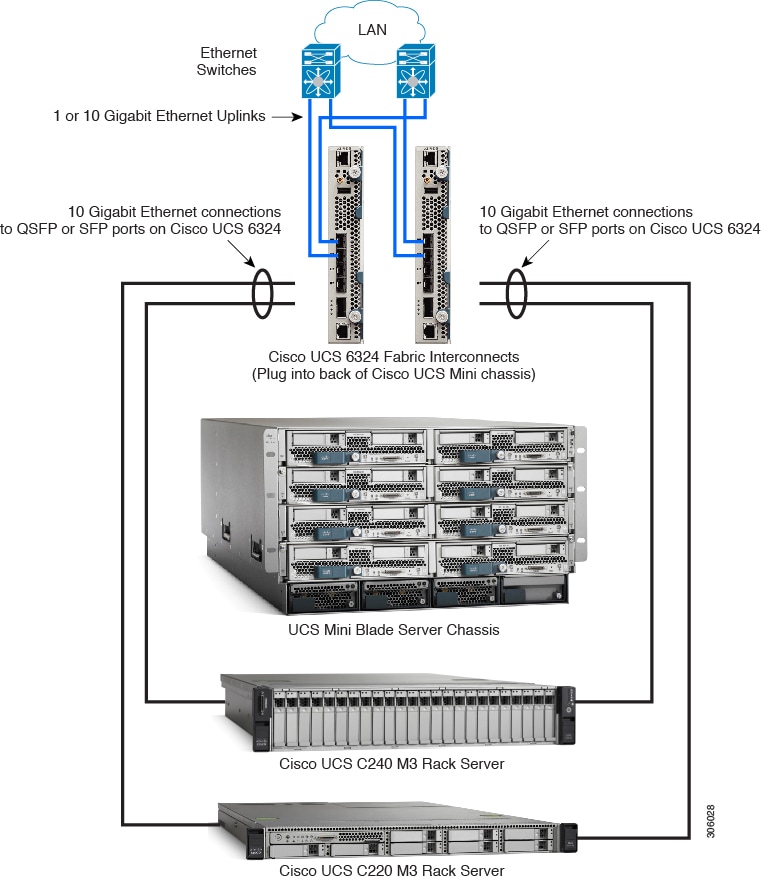
The UCS 6324 Fabric Interconnect is installed in the back of Cisco UCS Mini Server Chassis. Because it is internal to the chassis, there are no data cables to connect it to the UCS Mini chassis. The only data cables that are connected to the UCS Mini chassis are those that connect the UCS 6324 Fabric Interconnect to external switches and servers. See the following figure.
Figure 5. Data Cables Connected to UCS Mini

Power Cables for the Cisco UCS Mini Server Chassis

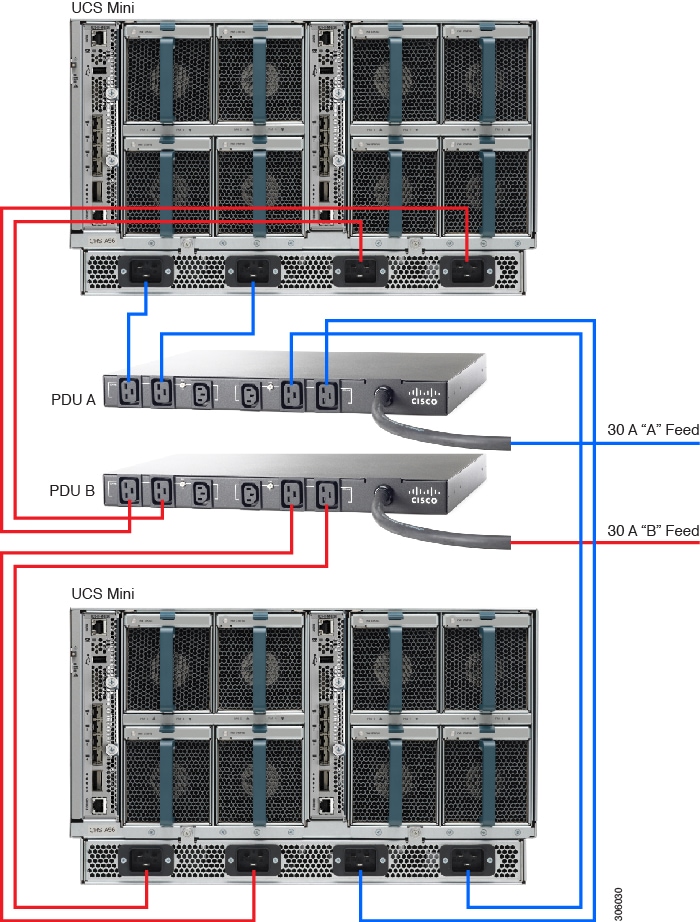
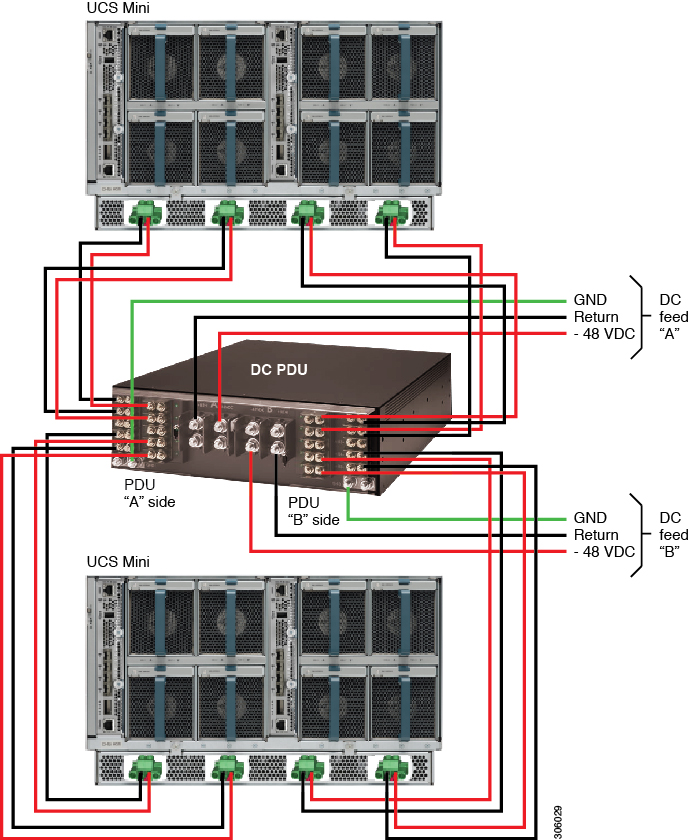
The following figures show separate power feeds connected to each PDU and the routing of the power cables from the PDUs to the chassis. This connection method provides redundancy in case of a power feed failure.
Figure 6. PDUs and Power Cabling for UCS Mini (AC Power)
Figure 7. PDUs and Power Cabling for UCS Mini (DC Power)

Cable Management

Use the cable management brackets and straps that are available for this rack to keep cables organized and out of the way of the exhaust fans.

Make sure that the cables do not impair access to the fabric extenders and expansion modules. In addition, make sure that the cables are installed in such a way that you do not have to disconnect them to perform equipment maintenance or upgrades.
Figure 8. Cable Management

Airflow

Remove airflow obstructions from the intake and exhaust openings of the equipment mounted in the chassis. Lack of sufficient airflow may cause increased equipment fan power consumption to compensate for increased airflow impedance.

Installing Fabric Interconnects

Install the fabric interconnects in the topmost RUs of the rack. Having the fabric interconnects in this position ensures that you can subsequently add a UCS rack server or UCS 5108 Server Chassis between the highest positioned chassis and the lowest positioned fabric interconnect.

Installing a UCS Rack Server

Cisco UCS rack servers chassis include 1RU, 2RU, and 4RU sizes. The rack servers are designed to mount to a standard IEC rack with two types of rail kits: friction rail kit and ball-bearing rail kit. We recommend using the ball-bearing rail kit, but refer to the product documentation for information about the rail kit for your particular server.


Note

Two people are needed to install a 2RU or 4RU UCS rack server chassis, one positioned at the left side of the front of the rack and one positioned at the right side of the front of the rack.


For detailed instructions on installing Cisco UCS C-Series Rack Servers, see the product documentation located here: http://www.cisco.com/c/en/us/support/servers-unified-computing/ucs-c-series-rack-servers/products-installation-guides-list.html

Running Diagnostics

There are diagnostic procedures for component-level testing and system-level discovery, setup, and verification of the following Cisco UCS B-Series and C-Series equipment:

  • Fabric interconnects

  • Blade chassis and IO modules (IOM)

  • Blade servers

  • Rack servers

All components will be tested according to Cisco guidelines. Upon completion of component level testing, the components will be interconnected as a system and powered up. Basic setup will then be initiated to discover and verify system functionality.

Note

The Cisco UCS 5108 Blade Server chassis connects to the external fabric interconnect chassis using data cables. The UCS Mini Blade Server chassis uses the UCS 6324 Fabric Interconnect module that plugs into the back of the UCS Mini chassis. Therefore, no data cables are required to make this connection.


Component Testing

All fabirc interconnects must be brought to the same software and firmware level as the IO Modules (IOMs) per Cisco guidelines.

All blade (B-Series) server chassis and rack (C-Series) server chassis, including IOMs and blade servers must be buildt and tested per the customer order and per Cisco integration and test guidelines.

System Testing and Verification

In the following procedures, the console port is referred to as follows:

  • On the UCS 5108 Blade Server chassis with an external fabric interconnect, the console port is located on the front left side of the fabric interconnect chassis and is labeled "Console."

  • On the UCS Mini chassis, the console port is located on the UCS 6324 Fabric Interconnect module that plugs into the back of the UCS Mini chassis. The console port is located at the bottom of the module and is labeled "Console."

Upgrade Fabric Interconnects

Procedure


Step 1

Ensure that the fabric interconnects are running the lastest software image.

Step 2

If needed, download the latest software image and upgrade the fabric interconnects with the new image.


Connect the Console Port

Procedure


Step 1

Connect the console port to a Digi Console server using a Cisco Console to Digi Console Cable.

Step 2

Connect the Mgmt0 port to the Cisco PE VLAN.

Step 3

Open Putty.

Step 4

Connect to the Digi console server.

Step 5

Select the port you are connected to.

Step 6

If the connection does not automatically appear, press Enter to verify connectivity.


Configure Fabric Interconnect A

Before you begin

This procedure applies to the Cisco UCS 5108 Blade Server chassis. It does not apply to the UCS Mini chassis.

  • Ensure that the console port is properly configured and connected to the designated external fabric interconnect.

  • When setting up a cluster, ensure that ports L1 and L2 from the primary fabric interconnect are connected to the L1 and L2 ports, respectively, on the subordinate fabric interconnnect.

  • Plug in the power cables to both AC power connectors in the fabric interconnect.

  • Wait for the fabric interconnect to initialize.

Procedure


Step 1

Set the following initial settings:

Example:

Enter the configuration method. (console/gui) ? console
Enter the setup mode (restore from backup or initial setup) [restore/setup]? setup
You have chosen to setup a new Fabric interconnect.
Continue? (y/n): y
Enter the password for "admin": Disti100
Confirm the password for "admin": Disti100
Is this Fabric interconnect part of a cluster (select 'no' for standalone)? (yes/no) [n]: yes
Enter the switch fabric (A/B) []: A
Enter the system name: Fabric
Physical Switch Mgmt0 IPv4 address : 192.168.65.x
Physical Switch Mgmt0 IPv4 netmask : 255.255.255.0
IPv4 address of the default gateway : 192.168.65.1
Cluster IPv4 address : 192.168.65.x
Configure the DNS Server IPv4 address? (yes/no) [n]: n
Configure the default domain name? (yes/no) [n]: n
Verify the system configuration before accepting the settings
Apply and save the configuration (select 'no' if you want to re-enter)? (yes/no): yes
Step 2

Be aware that the designated IP address range for the interconnect Mgmt interfaces is: 192.168.65.101 - 192.168.65.151 (255.255.255.0). Any unused IP addresses can be used as needed.

Step 3

Ensure that all IP addresses, such as Mgmt0 and Cluster, are unique.


Configure Fabric Interconnect B

Before you begin

This procedure applies to the Cisco UCS 5108 Blade Server chassis. It does not apply to the UCS Mini chassis.

  • Ensure that the console port is properly configured and connected to the designated external fabric interconnect.

  • Plug in the power cables to both AC power connectors in the fabric interconnect.

  • Wait for the fabric interconnect to initialize.

Procedure


Step 1

Set the following initial settings:

Example:

Enter the configuration method. (console/gui) ? console
Installer has detected the presence of a peer Fabric interconnect. This Fabric interconnect will be added to 
the cluster. Continue (y/n) ? y
Enter the admin password of the peer Fabric interconnect:
Disti100
Physical Switch Mgmt0 IPv4 address : 192.168.65.x
Step 2

Verify the system configuration before accepting the settings.

Example:


Apply and save the configuration (select 'no' if you want to re-enter)? (yes/no): yes
Step 3

Verify the cluster is properly configured.

Step 4

Log into Fabric Interconnect A.

Step 5

Enter the following command to show the cluster state: Fabric-A# sh cluster state

Step 6

Confirm that the fabric interconnects are listed at UP (Primary and Subordinate) and that the HA cluster is in Ready state:

Example:

Cluster Id: 0xc0993f80539311df-0x9063000decd52504

A: UP, PRIMARY

B: UP, SUBORDINATE
 
HA READY
Step 7

Upon confirmation, exit to the login prompt.


Configure Fabric Interconnect A for UCS Mini

Before you begin

This procedure applies to the UCS Mini chassis. It does not apply to the Cisco UCS 5108 Blade Server chassis.

Procedure


Set the following initial settings:

Example:

Enter the configuration method. (console/gui) ? console
Enter the setup mode (restore from backup or initial setup) [restore/setup]? setup
You have chosen to setup a new Fabric interconnect.
Continue? (y/n): y
Enforce strong password? (y/n) [y]: n
Enter the password for "admin":
Confirm the password for "admin":
Admin password confirmation failed. Please try again.
Enter the password for "admin":
Confirm the password for "admin":
Is this Fabric interconnect part of a cluster (select 'no' for standalone)? (yes/no) [n]: yes
Enter the switch fabric (A/B) []: A
Enter the system name: Fabric
Physical Switch Mgmt0 IPv4 address : 192.168.65.x
Physical Switch Mgmt0 IPv4 netmask : 255.255.255.0
IPv4 address of the default gateway : 192.168.65.1
Cluster IPv4 address : 192.168.65.x
Configure the DNS Server IPv4 address? (yes/no) [n]: n
Configure the default domain name? (yes/no) [n]: n
Join centralized management environment (UCS Central)? (yes/no) [n]: n
Apply and save the configuration (select 'no' if you want to re-enter)? (yes/no):Yes
Verify the system configuration before accepting the settings
Apply and save the configuration (select 'no' if you want to re-enter)? (yes/no): yes

Configure Fabric Interconnect B for UCS Mini

Before you begin

This procedure applies to the UCS Mini chassis. It does not apply to the Cisco UCS 5108 Blade Server chassis.

Procedure


Set the following initial settings:

Example:

Enter the configuration method. (console/gui) ? console
Installer has detected the presence of a peer Fabric interconnect. This Fabric interconnect will be added 
to the cluster. Continue (y/n) ? y
Enter the admin password of the peer Fabric interconnect: 

   Connecting to peer Fabric interconnect... done 

   Retrieving config from peer Fabric interconnect... done

   Peer Fabric interconnect Mgmt0 IPv4 Address: 192.168.65.x

   Peer Fabric interconnect Mgmt0 IPv4 Netmask: 255.255.255.0

   Cluster IPv4 address:192.168.65.1

   Peer FI is IPv4 Cluster enabled. Please Provide Local Fabric Interconnect Mgmt0 IPv4 Address

   Physical Switch Mgmt0 IP address : 192.168.65.x

Apply and save the configuration (select 'no' if you want to re-enter)? (yes/no): yes

Applying configuration. Please wait

Configure the Blade Chassis

To configure the blade chassis, follow these steps:

Procedure


Step 1

Launch a web browser and enter the cluster IP address in the URL address field.

Step 2

Click Launch UCS Manager.

Step 3

Log into UCS Manager using the following paramenters:

  1. User ID: admin

  2. Password: Disti100

Step 4

Configure the Equipment Policies.

  1. In the Navigation Pane, select the Equipment tab.

  2. Click the Equipment node and select the Policies tab in the Work Pane.

    Chassis/FEX Discovery Policy
    • On the Action list, select the number of physical links (server port links) to be used by the chassis under the section. This number is the number of links of Twinax connections used under the Cabling section.

    • Under Link Grouping Preference, select None.

    Rack Server Discovery Policy
    • Select Immediate.

    • Scrub Policy <not set>.

    Rack Management Connection Policy
    • In the Action list, select Auto Acknowledged.

    Power Policy
    • In the Redundancy list, select the following for the UCS 5108 Blade Server chassis:

      • For two power supplies, select Non-Redundant.
      • For three power supplies, select N+1.
      • For four power supplies, select Grid.
    Mac Address Table Aging
    • On the Aging Time list, leave the setting as Default Mode.

    Global Power Allocation Policy
    • On the Allocation Method list, leave the setting as Policy Driven Chassis Group Cap.

    Firmware Auto Sync Server Policy
    • On the Sync State list, select Auto Acknowledge.

Step 5

Click Save Changes.

Note 

The remainder of the steps in this section do not apply to systems using a UCS Mini chassis with a UCS 6324 Fabric Interconnect. If using a UCS Mini Chassis, proceed to .

Step 6

Configure server ports.

  1. In the Navigation pane, click the Equipment tab.

  2. Select Fabric Interconnect >Fabric Interconnect [A-B] > Fixed Module > Unconfigured Ports.

  3. Choose one or more of the ports in the Ethernet Ports folder.

  4. Right click and select Configure as Server Port.

  5. Answer Yes to the question prompt.

  6. Verify that the ports were successfully designated as Server Port.

  7. Repeat the previous steps for all ports that are connected from the chassis IOM 1 to Fabric Interconnect A.

  8. Repeat the previous steps for all ports that are connect from the Chassis IOM 2 to Fabric Interconnect B.

  9. Repeat the previous steps for all chassis connected to Fabric Interconnect A and B.

Step 7

Verify that the chassis connected to Fabric Interconnect (A and B) are present in the Equipment Main Topology View or under the Chassis tab in the Navigation Pane.

Step 8

Verify the Connection Topology.

  1. In the Navigation pane, click the Equipment tab.

  2. For the UCS 5108 Blade Server Chassis, select Chassis > Chassis Number > IO Modules > IO Module Number.

  3. Click the Fabric Ports tab.

  4. Right click and select Configure as Server Port.

  5. Use the information on this tab to verify your Server Port connections.

IO Module 1 should be connected to Fabric Interconnect A on ports 1/1 and 1/2. The ports should be up.

IO Module 2 should be connected to Fabric Interconnect B on ports 2/1 and 2/2. The ports should be up.


Blade Connectivity Verification

Before you begin

Use the following procedure along with the Cisco B-Series Checklist to configure the system parameters. If the customer has not provided specific information, use the checklist defaul.

Procedure


Step 1

At the Fabric Interconnect A console, enter the following command to commission the external Fabric Interconnect chassis or UCS 6324 Fabric Interconnect and show the chassis inventory:

Example:

Fabric-A# show chassis detail

The fields of interest in the output are shown here:

Chassis:
Chassis: 1
…
Vendor: Cisco Systems Inc Model: N20-C6508
Serial (SN): FOX1325G5G3
Fabric-A# recommission chassis "Cisco Systems Inc" "N20-C6508" "FOX1325G5G3" Fabric-A* # commit
Repeat above steps for each connected chassis Fabric-A# show chassis
Chassis:
Chassis	   Overall Status	Admin State
----------	--------------	----------
1	        Operable	       Acknowledged
Step 2

Ensure that all chassis are present in the Operable state.

Step 3

Verify the Server Inventory by executing the following commands to see the servers on each chassis:

Example:

Fabric-A# ack chassis 1

Fabric-A# scope chassis 1

Fabric-A# show server inventory

The output is a sample for a UCS 5108 Blade Server chassis:


Server	Equipped PID    Equipped VID    Equipped Serial (SN)	Slot Status	Ackd Memory (MB)	Ackd Cores

-------   ------------	------------	--------------------    ---------------- ----------------	----------
1/1	N20-B6620-1	V01	        QCI1404A3MG	        Equipped	    49152	            8
1/2	N20-B6620-1	V01	        QCI1405A1K0	        Equipped	    49152 	           8
1/3	                                                              Empty
1/4	                                                              Empty
1/5	                                                              Empty
1/6	                                                              Empty
1/7	                                                              Empty
1/8	                                                              Empty
Step 4

Verify that all chassis and servers are listed, and that the Memory and Cores match the BOM.

Step 5

Make sure that your Putty session is set to a minimum of 5000 lines to scroll back.

Step 6

At the console session, enter the following command to inventory the server-specific list: Fabric-A# show server inventory expand

Step 7

Review the results to ensure that they include data for all server nodes.

Step 8

Repeat the preceding commands for Fabric Interconnect B to verify redundancy.


Event Logs

Make sure that there no Non-recoverable or Critical errors in the event logs. Enter the following command to display the content of the log: Fabric-A# show fault

Reset Fabric Interconnects

To reset the fabric interconnects, follow theses steps:

Before you begin

After completion of examining the text log files, save the files in the designated location.

Procedure


Step 1

At the Fabric Interconnect B console, enter the following command:

Example:

Fabric-B# connect local
Fabric-B (local-mgt)# erase config
Step 2

At the warning prompt, enter Yes.

Step 3

Do not disconnect the fabric interconnect until it starts to reboot.

Step 4

After the fabric interconnect power cycles and initializes, disconnect the power cords.

Step 5

Repeat the preceding steps for Fabric Interconnect A.

Step 6

When the configurations on both fabric interconnects have been erased, reconnect the power cords.

Step 7

Verify that both fabric interconnects reboot and prompt you to Enter the configuration method.


Cleanup

To clean up after running diagnostics, follow these steps:

Procedure


Step 1

Power off all applicable PDUs in the rack.

Step 2

Disconnect the Digi Console and the Mgmt0 cables.


C-Series Rack Integration

All C-Series Rack Servers (Except 3160 and 3260)

This section assumes that the C-Series rack servers will be integrated into a rack with a 1 Gbps network management switch and a pair of 10 Gbps switches for data path.

Procedure


Step 1

Install the 1-Gbps management switch and power it on. This switch will provide connectivity to the C-series server CIMC management software.

Step 2

Install the 10-Gbps switch and power it on. If the default settings of the switch ports are set to disabled, enable the ports using the commands provided in the user’s manual for the specific switch. Most network switch will have the ports enabled by default.

Step 3

Install the UCS C-series server per the installation guide for that specific model.

Step 4

If the rack configuration calls for the C-series server to be connected and managed via the dedicated management port, connect the dedicated LOM port on the server to the 1-Gbps management switch. If dedicated mode is not required, connect the first LOM port (eth0) on the server to the 1-Gbps management switch.

Note 

By default, C-Series servers ship in shared-lom mode.

Step 5

Connect a keyboard and monitor to the server and power it on. During power on, press F8 to configure the Cisco IMC for dedicated LOM management and set an IP address as described in the following documents.

An example of this step is shown in the following documents:

  • http://goo.gl/Gi6F2h

  • http://goo.gl/pniYFY

An example of this step is shown in the following documents:

Step 6

Connect to the Cisco IMC URL of the server using the IP address you set in step 5 and verify consistent SW versions across platforms. See the following document for more information regarding the use of the Cisco IMC GUI.

http://goo.gl/QVR7GU

Step 7

Connect the 10GbaseT ports from the 10Gps PCIe NIC/HBA card to the 10Gps switch and verify the link light comes on.

Step 8

Reset the Cisco IMC to factory defaults and reboot.

  • http://goo.gl/h4oUKI

Step 9

(Optional) If the server was ordered with the DLOM option, connect a keyboard and monitor to the server and use the F8 CIMC configuration option at boot to configure Dedicated LOM management.

  • http://goo.gl/Gi6F2h

  • http://goo.gl/pniYFY


C-Series 3160 and 3260 Rack Servers

Procedure


Step 1

Connect Cables.

  1. Connect KVM Cable to Server Node 1 Console Port (top server node for both 3160 and 3260) – used for initial (F8) CIMC configuration.

  2. For 3160: Connect 1-Gb Ethernet Cable to SIOC-1 dedicated management port (left SIOC module) – used for launching KVM window through CIMC after initial IP address configuration.

  3. For 3260: Connect 1-Gb Ethernet Cable to SIOC-1 (left SIOC module) dedicated management port (not console port) and1-Gb Ethernet Cable to SIOC-2 (right SIOC module) dedicated management port (not console port) used for launching KVM window through CIMC after initial IP address configuration.

Step 2

Configure CIMC IP Address

  1. Power on the system by pressing the front panel power button for 4 seconds.

    • LED Amber = Standby Power

    • LED Green = On

  2. Connect Keyboard/Video/Mouse to KVM connector. Reboot server node and choose<F8>Cisco IMC Configuration to enter CIMC Configuration Utility.

  3. Configure IP address information utilizing Dedicated NIC Mode (Shared LOM method is not available on 3160/3260) and NIC Redundancy set to None, and uncheck DHCP enabled if IP address will be entered manually.

    • For 3160: Single Server Node; Single IP address applies only to server node 1 management IP.

    • For 3260: Single or Dual Server Node; Single IP address applies to both server node 1 and server node 2 management IP.

  4. Choose <F10> to save CIMC IP configuration.

Step 3

Verify Firmware and Ethernet Link Status

Connect by means of a browser to the UCS 3160 or 3260 Management IP address and verify consistent firmware across components/nodes/platforms.

  • For the 3260: Launching KVM console access through CIMC Management GUI is not available until IP addresses are assigned to Server 1 BMC-1 and CMC-1 and Server 2 (if installed) BMC-2 and CMC-2. BMC-1/2 and CMC-1/2 IP Addresses are assigned in the CIMC Management GUI in the Admin\Networking tab. The Single IP address initially configured in the <F8> Cisco IMC Configuration Utility is still utilized for CIMC GUI management.

  • For the 3160/3260: Connect the Ethernet ports from the SIOCs to the rack network infrastructure and verify that the link lights on the SIOC Ethernet ports are green.

Step 4

Reset CIMC to Factory Defaults

For the 3160/3260: Log off the CIMC Management GUI and exit the CIMC GUI Management KVM console.

For the 3160:

  1. Reboot server node and choose <F8> Cisco IMC Configuration to enter CIMC Configuration Utility from the server node KVM connection.

  2. Choose <F1>Additional Settings.

  3. Down arrow to FactoryDefaults[]field.

  4. Click the spacebarso that there is a[X].

  5. Choose <F10>Save.

For the 3260:

  1. Reboot server node and choose <F8> Cisco IMC Configuration to enter CIMC Configuration Utility from the server node KVM connection.

  2. Choose <F1>Additional Settings.

  3. Down arrow to FactoryDefaults/Chassis Controller Configuration[]field. (The Server Controller Configuration can be ignored as all CMC/BMC IP address information will be reset to factory defaults with the Chassis Controller Configuration option).

  4. Click the spacebarso that there is a[X].

  5. Choose <F10>Save.


Shipping the Rack

Shipping Guidelines

After you complete the testing of a preracked UCS system, prepare the rack for shipment by following these guidelines:

  • To reduce the possibility of equipment damage or personal injury, remove all of the equipment that is not mechanically secured to the rack rails before shipment. The only Cisco UCS components that can be shipped preracked are certified Cisco UCS components with supplemental hardware. See Equipment Placement Guidelines for more information.

  • Tool-less rail kits must be secured into the rack rails using screws.

  • The cables that connect to the fabric interconnect chassis may be bundled and secured using Velcro straps prior to shipping. Secure all data and power cables.

  • Special shock pallets must be used to ship approved racks with preinstalled UCS components. These pallets were designed and tested for approved racks. They are designed only for one-way shipping and must not be reused after the integrated rack reaches its final destination.

  • The original packing materials that come with approved racks can be reused. These packaging materials are designed for use with the approved racks.

  • Carriers offering specialized, air-ride, padded vans are recommended for shipping all configured racks. White glove service is encouraged and recommended.

  • Cisco preconfigured racks have not been certified for air transport.

  • The preracked Cisco UCS system must ship in an upright position.

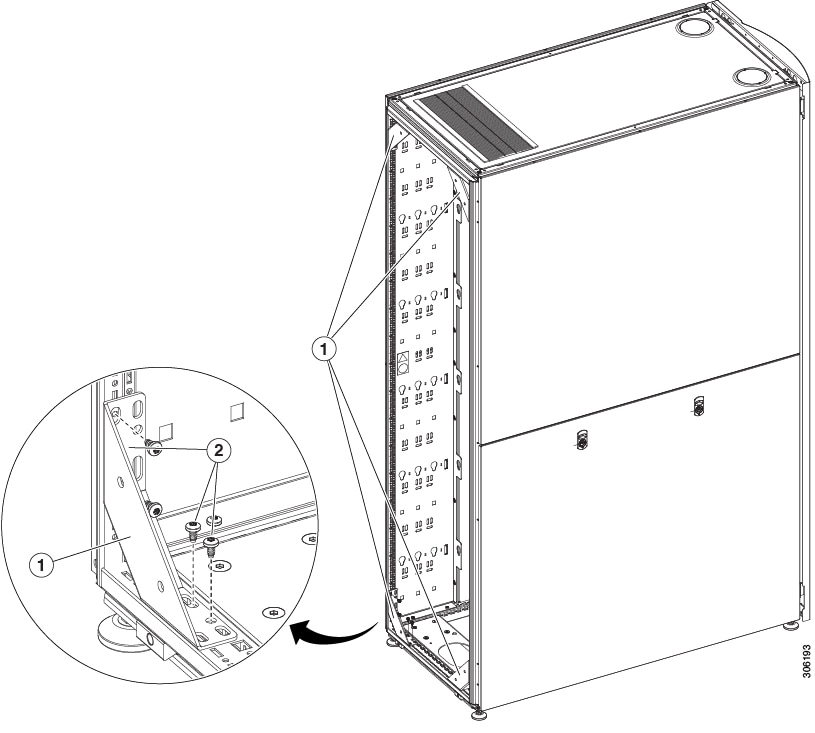
  • Angle brackets should be installed in the corners of the rack to ensure that the equipment is secure and does not move during transport. See the following illustration to see the locations of the brackets and the screws required to install them. These brackets should be removed when the rack reaches its final destination.

    Figure 9. Installing and Removing Rear Corner Angle Brackets

    1

    Bracket installed in the corner of the rack.

    2

    Screws that hold the bracket in place.

  • UCS components may be damaged if the rack tips over during shipment. To avoid such damage, secure the racks by strapping them down in the truck. Strapping the rack will help prevent it from tipping over during transport to the customer site.

  • On a Cisco R-Series rack, check to ensure that the rack mounting brackets are properly secured to the pallet. The bracket with keyhole cutouts should be at an angle to the pallet deck and should not be loose. The front hold-downs for Cisco R-Series rack are right-angled and sit flush to the pallet and frame. Ensure that the bolt that secures the bracket to the frame is torqued to 70-100 in-lb. (6-9 N-m).

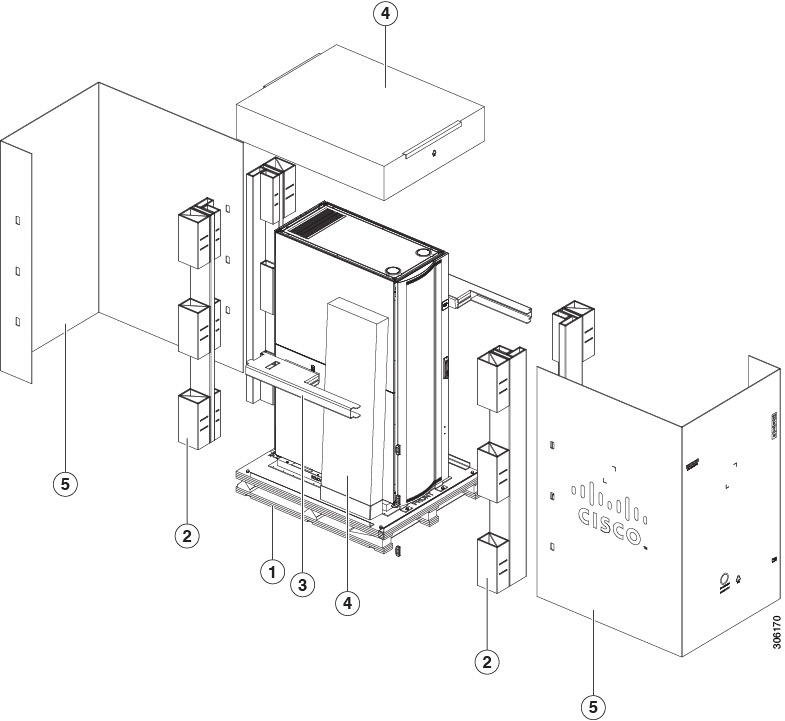
  • Prepare the rack for shipment by attaching the packaging shown in the following illustration.

    Figure 10. Preparing the Cisco R42612 Rack for Shipping

    1

    Pallet

    2

    Corner posts

    3

    Side buffer

    4

    Side packaging

    5

    Packaging sleeve

    6

    Top cap

Cisco Certified Products for Rack Integration and Approved Third-Party Racks

Cisco Certified UCS Products for Rack Integration

Contact Cisco for the latest list of certified equipment. See the Cisco Certified Equipment for Rack Integration document.


Note

You must use an Approved Rack and specified UCS integration hardware; otherwise the Cisco warranty is void.


Third-Party Approved Racks

The following third-party rack is approved for preracking and preintegrating UCS products:

  • Rittal TS IT Dynaload - 24U 600mm wide x 1200mm deep, including shock pallet