Configuring Ethernet Management Port
Finding Feature Information
Your software release may not support all the features documented in this module. For the latest caveats and feature information, see Bug Search Tool and the release notes for your platform and software release. To find information about the features documented in this module, and to see a list of the releases in which each feature is supported, see the feature information table at the end of this module.
Use Cisco Feature Navigator to find information about platform support and Cisco software image support. To access Cisco Feature Navigator, go to http://www.cisco.com/go/cfn. An account on Cisco.com is not required.
Prerequisites for Ethernet Management Ports
When connecting a PC to the Ethernet management port, you must first assign an IP address.
Information about the Ethernet Management Port
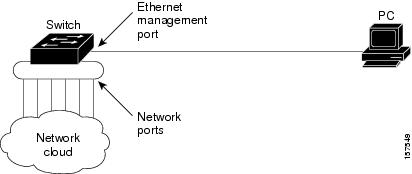
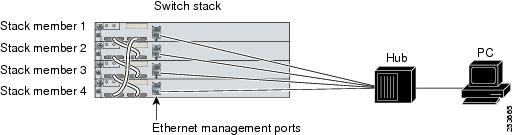
The Ethernet management port, also referred to as the Fa0 or fastethernet0 port, is a Layer 3 host port to which you can connect a PC. You can use the Ethernet management port instead of the switch console port for network management. When managing a switch stack, connect the PC to the Ethernet management port on a stack member.
- Ethernet Management Port Direct Connection to a Switch
- Ethernet Management Port Connection to Stack Switches using a Hub
- Supported Features on the Ethernet Management Port
Ethernet Management Port Direct Connection to a Switch
Ethernet Management Port Connection to Stack Switches using a Hub
In a stack with only stack switches, all the Ethernet management ports on the stack members are connected to a hub to which the PC is connected. The active link is from the Ethernet management port on the stack masterthrough the hub, to the PC. If the activeswitch fails and a new active switch is elected, the active link is now from the Ethernet management port on the new active switch to the PC.
Supported Features on the Ethernet Management Port
The Ethernet management port supports these features:
-
Express Setup (only in switch stacks)
-
Network Assistant
-
Telnet with passwords
-
TFTP
-
Secure Shell (SSH)
-
DHCP-based autoconfiguration
-
SMNP (only the ENTITY-MIB and the IF-MIB)
-
IP ping
- Interface features
-
Cisco Discovery Protocol (CDP)
-
DHCP relay agent
-
IPv4 access control lists (ACLs)
 Caution | Before enabling a feature on the Ethernet management port, make sure that the feature is supported. If you try to configure an unsupported feature on the Ethernet Management port, the feature might not work properly, and the switch might fail. |
How to Configure the Ethernet Management Port
Disabling and Enabling the Ethernet Management Port
1.
configure
terminal
2.
interface
fastethernet0
3.
shutdown
4.
no shutdown
5.
exit
6.
show
interfaces fastethernet0
DETAILED STEPS
Proceed to manage or configure your switch using the Ethernet management port. Refer to the Catalyst 2960-X Switch Network Management Configuration Guide.
Additional References
Related Documents
| Related Topic | Document Title |
|---|---|
| Bootloader configuration |
Catalyst 2960-X Switch System Management Configuration Guide |
| Bootloader commands |
Catalyst 2960-X Switch System Management Configuration Guide |
Error Message Decoder
| Description | Link |
|---|---|
|
To help you research and resolve system error messages in this release, use the Error Message Decoder tool. |
https://www.cisco.com/cgi-bin/Support/Errordecoder/index.cgi |
MIBs
| MIB | MIBs Link |
|---|---|
|
All supported MIBs for this release. |
To locate and download MIBs for selected platforms, Cisco IOS releases, and feature sets, use Cisco MIB Locator found at the following URL: |
Technical Assistance
| Description | Link |
|---|---|
|
The Cisco Support website provides extensive online resources, including documentation and tools for troubleshooting and resolving technical issues with Cisco products and technologies. To receive security and technical information about your products, you can subscribe to various services, such as the Product Alert Tool (accessed from Field Notices), the Cisco Technical Services Newsletter, and Really Simple Syndication (RSS) Feeds. Access to most tools on the Cisco Support website requires a Cisco.com user ID and password. |
Feature Information for Ethernet Management Ports
Release |
Modification |
|---|---|
Cisco IOS 15.0(2)EX |
This feature was introduced. |
 Feedback