Configuring the Switch with the CLI-Based Setup Program
This section provides a command-line interface (CLI)-based setup procedure for a switch.
Before connecting the switch to a power source, review the safety warnings in Switch Installation
For installation procedures for mounting your switch, connecting to the switch ports, or connecting to the small form-factor pluggable (SFP) modules, see Switch Installation
Accessing the CLI Through the Console Port
You can enter Cisco IOS commands and parameters through the CLI. Use one of these options to access the CLI:
Removing the USB Mini-Type B Console Port Cover
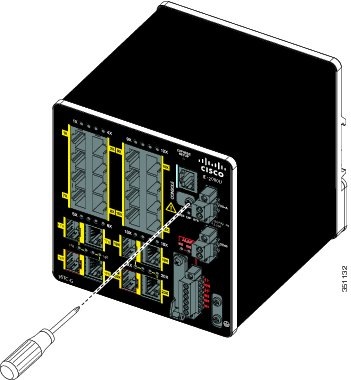
To remove the cover from the USB mini-type B console port:
1. Use a Phillips screwdriver to loosen the captive screw on the USB mini-type B console port cover. See Figure 61.
Figure 61 Removing the USB Mini-Type B Console Port Cover
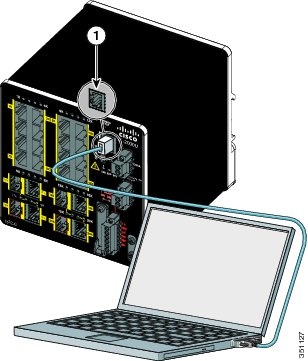
RJ-45 Console Port
1. Connect the RJ-45-to-DB-9 adapter cable to the 9-pin serial port on the PC. Connect the other end of the cable to the switch console port.
2. Start the terminal-emulation program on the PC or the terminal.
The program, frequently a PC application such as HyperTerminal or ProcommPlus, makes communication between the switch and your PC or terminal possible.
Figure 62 Connecting the Console Cable
|
|
|
3. Configure the baud rate and character format of the PC or terminal to match the console port characteristics:
4. Connect power to the switch as described in Switch Installation
The PC or terminal displays the bootloader sequence.
5. Press Enter to display the setup prompt.
6. Follow the steps in the Completing the Setup Program.
USB Mini-Type B Console Port
If you are connecting the switch USB console port (see Figure 63) to a Windows-based PC for the first time, install the USB driver. For installation instructions, see the Installing the Cisco Microsoft Windows USB Device Driver.
To connect the switch to the USB console port:
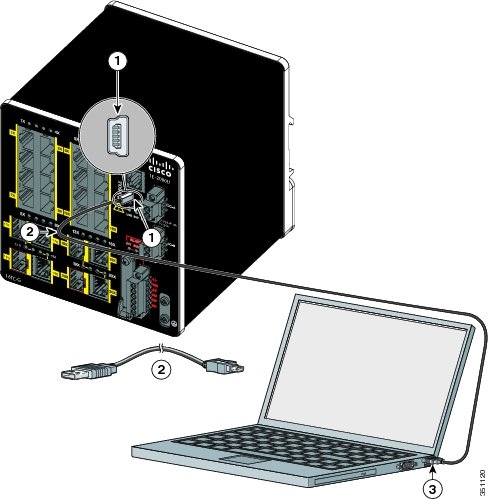
1. Connect an USB cable to the PC USB port. See Figure 63.
Figure 63 Connecting the USB-Mini Console Cable
|
|
|
||
|
|
|
2. Connect the other end of the cable to the switch mini-B (5-pin-connector) USB-mini console port.
3. Identify the COM port assigned to the USB-mini console port:
a. Choose Start > Control Panel > Systems.
b. Click the Hardware tab and choose Device Manager. Expand the Ports section. The assigned COM port appears in parenthesis at the end of the line with this entry: Cisco USB System Management Console.
4. Start the terminal-emulation program on the PC or the terminal.
The program, frequently a PC application such as HyperTerminal or ProcommPlus, makes communication possible between the switch and your PC or terminal.
6. Configure the baud rate and character format of the PC or terminal to match the console port characteristics:
7. Connect power to the switch as described in Switch Installation
The PC or terminal displays the bootloader sequence.
8. Press Enter to display the setup prompt.
9. Follow the steps in the Completing the Setup Program.
Installing the Cisco Microsoft Windows USB Device Driver
A USB device driver must be installed the first time a Microsoft Windows-based PC is connected to the USB console port on the switch.
To install the Microsoft Windows USB Device driver:
1. Obtain the Cisco USB console driver file from the Cisco.com web site and unzip it.
Note: You can download the driver file from the Cisco.com site for downloading the switch software.
2. Follow the documentation included with the driver.
3. Connect the USB cable to the PC and the switch console port.
The USB console port LED turns green, and the Found New Hardware Wizard appears. Follow the instructions to complete the driver installation.
Uninstalling the Cisco Microsoft Windows USB Driver
Use the Windows Add or Remove Programs utility or the setup.exe file:
■Uninstalling the Cisco Microsoft Windows USB Driver Using the Add or Remove Programs Utility
■Uninstalling the Cisco Microsoft Windows USB Driver Using the Setup.exe Program
Uninstalling the Cisco Microsoft Windows USB Driver Using the Add or Remove Programs Utility
■Uninstalling the Cisco Microsoft Windows XP USB Driver
■Uninstalling the Cisco Microsoft Windows Vista and 7 USB Driver
Uninstalling the Cisco Microsoft Windows XP USB Driver
Note: Disconnect the switch console terminal before uninstalling the driver.
1. Click Start > Control Panel > Add or Remove Programs.
2. Scroll to Cisco Virtual Com, and click Remove.
3. When the Program Maintenance window appears, select the Remove radio button.
Uninstalling the Cisco Microsoft Windows Vista and 7 USB Driver
Note: Disconnect the switch console terminal before uninstalling the driver.
1. Click Start > Control Panel > Uninstall or change a program.
2. Select Cisco Virtual Com and click Uninstall.
3. When the Programs and Features window appears, click Yes to confirm.
Uninstalling the Cisco Microsoft Windows USB Driver Using the Setup.exe Program
Note: Disconnect the switch console terminal before uninstalling the driver.
1. Run setup.exe for Windows 32-bit or setup(x64).exe for Windows 64-bit.
3. When the InstallShield Wizard for Cisco Virtual Com appears, click Next.
4. When the Program Maintenance window appears, select the Remove radio button. Click Next.
5. When the Remove the Program window appears, click Remove.
Note: For Windows Vista or 7, if a User Account Control warning appears, click Allow - I trust this program to proceed.
6. When the InstallShield Wizard Completed window appears, click Finish.
Entering the Initial Configuration Information
To set up the switch, you need to complete the setup program, which runs automatically after the switch is powered on. You must assign an IP address and other configuration information necessary for the switch to communicate with the local routers and the Internet. This information is also required if you plan to use Cisco Network Assistant to configure and manage the switch.
IP Settings
You need this information from your network administrator before you complete the setup program:
Completing the Setup Program
To complete the setup program and to create an initial configuration for the switch:
1. Enter Yes at these two prompts:
2. Enter a hostname for the switch, and press Return.
On a command switch, the hostname is limited to 28 characters; on a member switch, it is limited to 31 characters. Do not use -n, where n is a number, as the last character in a hostname for any switch.
3. Enter an enable secret password, and press Return.
The password can be from 1 to 25 alphanumeric characters, can start with a number, is case sensitive, allows spaces, but ignores leading spaces.
The secret password is encrypted, and the enable password is in plain text.
4. Enter an enable password, and press Return.
5. Enter a virtual terminal (Telnet) password, and press Return.
The password can be from 1 to 25 alphanumeric characters, is case sensitive, allows spaces, but ignores leading spaces.
6. (Optional) Configure Simple Network Management Protocol (SNMP) by responding to the prompts.
You can also configure SNMP later through the CLI or the Cisco Network Assistant application. To configure SNMP later, enter no.
7. Enter the interface name (physical interface or VLAN name) of the interface that connects to the management network, and press Return.
For this release, always use vlan1 as that interface.
8. Configure the interface by entering the switch IP address and subnet mask and pressing Return.
Note: The IP address and subnet masks shown here are examples.
9. Enter Y to configure the switch as the cluster command switch. Enter N to configure it as a member switch or as a standalone switch.
You can configure the switch as a command switch later through the CLI. To configure it later, enter no.
You have now completed the initial configuration of the switch, and the switch displays its initial configuration script:
10. Enter your selection, and press Return.
After you complete the setup program, the switch can run the default configuration that you created. If you want to change this configuration or want to perform other management tasks, use the Command-line interface (CLI). To use the CLI, enter commands at the Switch > prompt through the console port by using a terminal emulation program or through the network by using Telnet. For configuration information, see the Cisco Connected Grid Switches System Management Software Configuration Guide.
 Feedback