- Preface
-
- Getting Started with Security Manager
- Preparing Devices for Management
- Managing the Device Inventory
- Managing Activities
- Managing Policies
- Managing Policy Objects
- Managing FlexConfigs
- Managing Deployment
- Troubleshooting Device Communication and Deployment
- Managing the Security Manager Server
- Configuring Security Manager Administrative Settings
-
- Introduction to Firewall Services
- Managing Identity-Aware Firewall Policies
- Managing TrustSec Firewall Policies
- Managing Firewall AAA Rules
- Managing Firewall Access Rules
- Managing Firewall Inspection Rules
- Managing Firewall Web Filter Rules
- Managing Firewall Botnet Traffic Filter Rules
- Working with ScanSafe Web Security
- Managing Zone-based Firewall Rules
- Managing Traffic Zones
- Managing Transparent Firewall Rules
- Configuring Network Address Translation
-
- Managing Site-to-Site VPNs: The Basics
- Configuring IKE and IPsec Policies
- GRE and DM VPNs
- Easy VPN
- Group Encrypted Transport (GET) VPNs
- Managing Remote Access VPNs: The Basics
- Managing Remote Access VPNs on ASA and PIX 7.0+ Devices
- Managing Dynamic Access Policies for Remote Access VPNs (ASA 8.0+ Devices)
- Managing Remote Access VPNs on IOS and PIX 6.3 Devices
- Configuring Policy Objects for Remote Access VPNs
- Using Map View
- Getting Started with IPS Configuration
- Managing IPS Device Interfaces
- Configuring Virtual Sensors
- Defining IPS Signatures
- Configuring Event Action Rules
- Managing IPS Anomaly Detection
- Configuring Global Correlation
- Configuring Attack Response Controller for Blocking and Rate Limiting
- Managing IPS Sensors
- Configuring IOS IPS Routers
-
- Managing Firewall Devices
- Configuring Bridging Policies on Firewall Devices
- Configuring Device Administration Policies on Firewall Devices
- Configuring Device Access Settings on Firewall Devices
- Configuring Failover
- Configuring Hostname, Resources, User Accounts, and SLAs
- Configuring Server Access Settings on Firewall Devices
- Configuring FXOS Server Access Settings on Firepower 2100 Series Devices
- Configuring Logging Policies on Firewall Devices
- Configuring Multicast Policies on Firewall Devices
- Configuring Routing Policies on Firewall Devices
- Configuring Security Policies on Firewall Devices
- Configuring Service Policy Rules on Firewall Devices
- Configuring Security Contexts on Firewall Devices
- User Preferences
- Index
Configuring Service Policy Rules on Firewall Devices
This section describes configuring service policy rules. Service policies provide a consistent and flexible way to configure certain security appliance features, including priority queuing, application inspection, and QoS (quality of service). For example, you can use a service policy to create a timeout configuration that is specific to a particular TCP application, as opposed to one that applies to all TCP applications.

Note Detailed information regarding the range and implementation of particular service policies can be found on cisco.com. For example, the following references may be helpful:
Using Modular Policy Framework
QoS Configuration and Monitoring
About Service Policy Rules
Service policy rules encompass these features:
- TCP and general connection settings (including TCP State Bypass; see About TCP State Bypass)
- Content security control (CSC)
- Application inspection
- Intrusion Prevention Services
- QoS queuing and policing
- ASA CX redirection (see About the ASA CX)
- ASA FirePOWER redirection
- User statistics for identity-based firewall policies
The configuration options for these features are presented on two pages in Security Manager— Priority Queues and Rules —accessed by navigating to Platform > Service Policy.
Priority queuing establishes two queues on an interface, a Low Latency Queuing (LLQ) priority queue and a “best effort” queue. This lets you prioritize latency-sensitive traffic like voice and video, so it is transmitted ahead of other traffic. Packets in the priority queue are always transmitted before packets in the best effort queue.
Because queues are not of infinite size, they can fill and overflow. When a queue is full, additional packets cannot get into the queue and are dropped. This is called “tail drop.” To minimize tail drop, you can increase the queue buffer size. You can also fine-tune the maximum number of packets allowed into the transmit queue. These options let you control the latency and robustness of priority queuing.
Priority queuing is a Quality of Service (QoS) feature. In Security Manager, priority queue size and transmit queue size are managed on the Priority Queues Page, while establishment of priority queuing for a traffic class is an option on the QoS tab of the Service Policy (MPC) Rule Wizard, which is accessed from the Service Policy Rules Page.
Application Inspection and QoS
Some applications require special handling by the security appliance, and specific application inspection engines are provided for this purpose. Specifically, applications that embed IP addressing information in the user data packet, or open secondary channels on dynamically assigned ports require special inspection.
Application inspection is enabled by default for many protocols, while it is disabled for others. In many cases, you can change the port which the application inspection engine monitors for traffic.
Application inspection engines work with network address translation (NAT) to help identify the location of embedded addressing information. This allows NAT to translate these embedded addresses, and to update any checksum or other fields that are affected by the translation.
Service policy rules define how specific types of application inspection are applied to different types of traffic processed by the security appliance. You can apply rules to specific interfaces, or globally to every interface.
These rules provide a means to configure security appliance features in a manner similar to the Cisco IOS software quality-of-service (QoS) CLI. For example, with service policy rules you can include IP Precedence as one of the criteria to identify traffic for rate-limiting. You can also create a timeout configuration that is specific to a particular TCP application, as opposed to one that applies to all TCP applications.
Traffic match criteria are used to define the types of traffic to which you want to apply application inspection. For example, TCP traffic on port 23 might be classified as the Telnet traffic class. You then might use the traffic class to apply connection limits.
Multiple traffic match criteria can be assigned to a single interface, but a packet will only match the first criteria within a specific service policy rule.
About TCP State Bypass
By default, all traffic that enters an ASA or FWSM is inspected using the Adaptive Security Algorithm, and is either allowed through or dropped based on the security policy. The device maximizes its firewall performance by checking the state of each packet—to determine whether this a new connection, or an established connection—and assigning it to the session management path (if it is a new connection SYN packet), the fast path (if it is an established connection), or the control-plane path (for advanced inspection).
Note TCP State Bypass is available on FWSM 3.2+ and ASA 8.2+ devices only.
TCP packets that match existing connections in the fast path can pass through the appliance without every aspect of the security policy being rechecked. This feature maximizes performance. However, the method of establishing the session in the fast path using the SYN packet, and the checks that occur in the fast path (such as TCP sequence number), require that both outbound and inbound flows for a connection pass through the same device, which is not the case in asymmetric routing environments.
For example, assume a new connection is assigned to security device 1. The SYN packet goes through the session management path, and an entry for the connection is added to the fast path table. If subsequent packets of this connection go through device 1, then the packets match the entry in the fast path, and are passed through. But if subsequent packets go to device 2, where a SYN packet did not go through the session management path, there is no entry in the fast path for the connection, and the packets are dropped.
Thus, if you have asymmetric routing configured on upstream routers, and traffic alternates between two security devices, enable TCP state bypass for those specific traffic flows. TCP state bypass alters the way sessions are established in the fast path and disables the fast path checks. TCP traffic is then treated much as a UDP connection is treated: when a non-SYN packet matching the specified networks enters the security device, and there is not a fast path entry, then the packet goes through the session management path to establish a connection in the fast path. Once in the fast path, the traffic bypasses the fast path checks.
The following features are not supported when you enable TCP state bypass:
- Application inspection – Application inspection requires both inbound and outbound traffic to go through the same security device, so application inspection is not supported with TCP state bypass.
- AAA authenticated sessions – When a user authenticates with one security device, traffic returning via the other security device will be denied because the user did not authenticate with that device.
- TCP Intercept, Maximum Embryonic Connections limit, TCP sequence number randomization – If TCP state bypass is enabled, the device does not keep track of the state of the connection, so these features are not applicable.
- Cisco CSC SSM (Content Security and Control Security Services Module) – SSM and SSC functionality cannot be used with TCP state bypass.
Because the translation session is established separately for each security device, be sure to configure static NAT on both devices for TCP state bypass traffic; if you use dynamic NAT, the address chosen for the session on device 1 will differ from the address chosen for the session on device 2.
Priority Queues Page
Priority queues let you define how traffic is prioritized in the network. You can define a series of filters based on packet characteristics to cause traffic to be placed in a higher or lower priority queue. The queue with the highest priority is serviced first until it is empty, then the lower queues are serviced in sequence.
In Security Manager, priority queue size and transmit queue size are managed on this page, while establishment of priority queuing for a traffic class is an option on the QoS tab of the Service Policy (MPC) Rule Wizard, which is accessed from the Service Policy Rules Page.
The Priority Queue Configuration dialog box is used to add and edit these queues. Refer to Priority Queue Configuration Dialog Box for descriptions of the fields displayed in the Priority Queues table on this page.
Note Priority queuing is are not available on Catalyst 6500 service modules (the Firewall Services Module and the Adaptive Security Appliance Service Module).
- (Device view) Select Platform > Service Policy > Priority Queues from the Device Policy selector.
- (Policy view) Select PIX/ASA/FWSM Platform > Service Policy > Priority Queues from the Policy Type selector. Select an existing policy from the Shared Policy selector, or create a new one.
- Chapter 58, “Configuring Service Policy Rules on Firewall Devices”
- Insert/Edit Service Policy (MPC) Rule Wizard
- About Service Policy Rules
- Understanding Queuing Parameters
Priority Queue Configuration Dialog Box
Use the Priority Queue Configuration dialog box to define and edit the priority queues on the Priority Queues page.
Note Priority queuing is are not available on Catalyst 6500 service modules (the Firewall Services Module and the Adaptive Security Appliance Service Module).
You open the Priority Queue Configuration dialog box by clicking the Add Row or Edit Row buttons on the Priority Queues Page.
- Chapter 58, “Configuring Service Policy Rules on Firewall Devices”
- Insert/Edit Service Policy (MPC) Rule Wizard
- About Service Policy Rules
- Understanding Queuing Parameters
Service Policy Rules Page
Use the Service Policy Rules page to define new service policy rules, and to edit or delete existing service policy rules.
Configuring Service Policy Rules consists of three tasks:
1. Configure a service policy. Create a service policy and determine the interfaces to which the service policy applies. For more information, see Step 1. Configure a Service Policy.
2. Configure the traffic class. Specify the criteria you want to use to identify the traffic to which the service policy applies. For more information, see Step 2. Configure the traffic class.
3. Configure the actions. Specify the actions that should be taken to protect information or resources, or to perform QoS functions for the traffic specified in this service policy. For more information, see Step 3. Configure the MPC actions.
The three tasks are performed using the Insert/Edit Service Policy (MPC) Rule Wizard. Refer to the individual task topics for descriptions of the fields displayed in the Service Policy Rules table on this page.
- (Device view) Select Platform > Service Policy > Rules from the Device Policy selector.
- (Policy view) Select PIX/ASA/FWSM Platform > Service Policy > Rules from the Policy Type selector. Select an existing policy from the Shared Policy selector, or create a new one.
ASA CX Auth Proxy Configuration
The CXSC Auth Proxy button below the Service Policy Rules table opens the Add/Edit CXSC Auth Proxy Configuration dialog box, which is described in ASA CX Auth Proxy Configuration.
The CXSC Auth Proxy button is available below the Service Policy Rules table only in Device view; it is not visible in Policy view.
Note Security Manager uses “CXSC” in some places to refer to an ASA CX Security Services Processor (SSP).
- Chapter 58, “Configuring Service Policy Rules on Firewall Devices”
- About Service Policy Rules
- Standard rules table topics:
– Table Columns and Column Heading Features
Insert/Edit Service Policy (MPC) Rule Wizard
Use the Insert/Edit Service Policy (MPC) Rule wizard to add and edit service policy rules on the Service Policy Rules page. The Insert/Edit Service Policy (MPC) Rule wizard presents the following steps:
- Step 1. Configure a Service Policy
- Step 2. Configure the traffic class
- Step 3. Configure the MPC actions
Note “MPC” refers to what is now called the Modular Policy Framework. Refer to Using Modular Policy Framework for additional information.
Open the Insert/Edit Service Policy (MPC) Rule wizard by clicking the Add Row or Edit Row button on the Service Policy Rules Page.
Step 1. Configure a Service Policy
The first step in using the Insert/Edit Service Policy (MPC) Rule Wizard to configure a Service Policy Rule involves enabling the rule and specifying the interface(s) to which it is applied.
Open the Insert/Edit Service Policy (MPC) Rule wizard by clicking the Add Row or Edit Row button on the Service Policy Rules Page.
|
|
|
|---|---|
Check this box to enable this service policy rule. You can deselect this option if you want to define the rule now, but not deploy it to the device until later. |
|
To assign the rule to a category, choose the category from the list. Categories can help you organize and identify rules and objects. For more information, see Using Category Objects. |
|
Optionally, enter a description for the service policy rule. |
|
Select this option to apply the rule globally to all interfaces. This option is not compatible with matching traffic based on the source or destination IP address using an access list. |
|
Select this option to apply the rule to a specific interface or group of interfaces (or interface roles), and then enter or Select the name of an interface or interface object. This selection is required if you want to match traffic based on the source or destination IP address using an access list. Note Interface-specific rules take precedence over the global service policy for a given feature. For example, if you have a global policy with FTP inspection, and an interface policy with TCP connection limits, then both FTP inspection and TCP connection limits are applied to the interface. However, if you have a global policy with FTP inspection, and an interface policy with FTP inspection, then only the interface policy FTP inspection is applied to that interface. |
Step 2. Configure the traffic class
The second step in using the Insert/Edit Service Policy (MPC) Rule Wizard to configure a Service Policy Rule involves specifying the traffic class to which the rule is applied.
Specify the class to use to match traffic for this rule:
- Use class-default As The Traffic Class —Select this option to use the traffic class
class-defaultfor this service policy. The class-default traffic class matches all traffic. - Traffic Class —Select this option to apply this rule to a specific traffic class. Enter the name of the previously defined traffic class, or click Select to select it from the Traffic Flows Selector.
You also can define or edit a traffic flow “on the fly” by clicking the either Create or Edit buttons in the Traffic Flows Selector. (Traffic flows are also created and edited on the Traffic Flows page of the Policy Object Manager.) See Configuring Traffic Flow Objects for more information.
Step 3. Configure the MPC actions
The third step in the Insert/Edit Service Policy (MPC) Rule Wizard involves specifying IPS, CXSC, FirePOWER, Connection Setting, QoS, CSC, User Statistics, ScanSafe Web Security, and NetFlow parameters for the rule; each set of parameters is presented on a separate tabbed panel.
|
|
|
|---|---|
|
|
|
Enables or disables intrusion prevention for this traffic flow. When this box is checked, the other parameters on this panel are available. Note These parameters are applicable only on ASA 7.0+ devices that have an IPS module installed. See About IPS Modules on ASA Devices for more information. |
|
Select the operating mode for intrusion prevention:
Also, while the IPS module is analyzing the traffic, a small amount of traffic may pass through the ASA before the IPS module can shun it. |
|
Specify the action to be taken if the IPS module becomes inoperable. Select either: |
|
Text box in which you can view, edit, or remove the virtual sensor in the service policy that you are adding or editing |
|
| Note Security Manager uses “CXSC” in places to refer to an ASA CX Security Services Processor (SSP). |
|
Check this box to enable redirection of this traffic flow to an ASA CX installed in the ASA. When this box is checked, the other parameters on this panel are available. Note These parameters are applicable only on ASA 5585-X devices running version 8.4(4)+ and ASA 55xx-X devices running version 9.1(1)+ that have an ASA CX SSP installed. |
|
Specify the action to be taken if the ASA CX becomes inoperable. Select either: |
|
Check this box to enable the authentication proxy, which is required if you want to use active authentication in the identity policies on the ASA CX. If not checked, no authentication is performed. Note You can change the port used for authentication proxy; see ASA CX Auth Proxy Configuration for more information. |
|
|
|
|
Check this box to enable redirection of this traffic flow to an ASA FirePOWER module installed in the ASA. When this box is checked, the other parameters on this panel are available. Note These parameters are applicable only on ASA 55xx-X devices running version 9.2(1)+. |
|
Specify the action to be taken if the ASA FirePOWER module becomes inoperable. Select either: |
|
Sets the module to monitor-only mode. In monitor-only mode, the module can process traffic for demonstration purposes, but then drops the traffic. You cannot use the traffic-forwarding interface or the device for production purposes. |
|
|
|
|
Enables or disables connection settings for this traffic flow. When this box is checked, the other parameters on this panel become active. From the Connection Settings tab you can configure maximum connections, embryonic connections, timeouts, and TCP parameters. |
|
You can specify the maximum number of TCP and UDP connections, and the maximum number of embryonic connections for this traffic flow:
|
|
You can specify the following connection timeout settings for this traffic flow:
For FWSMs, the default value is 20 seconds; the maximum value is 255 seconds (four minutes, 15 seconds). For ASA 9.1.2 and later devices, the minimum is 30 seconds. For all other ASA/PIX devices, the minimum is 5 minutes. The default is 10 minutes for all ASA/PIX devices. |
|
If selected, connections are reset after a timeout occurs. Available for ASA/PIX 7.0(4)+ only. |
|
Enables the Dead Connection Detection feature; available for ASA/PIX 7.2+ devices. Selecting this option enables these two fields: |
|
Specify the period of time between a traffic flow becoming idle and the flow’s disconnection. Applicable to FWSM 3.2+ only. The default is 1 hour. |
|
Enables TCP normalization, and activates the TCP Map selection option. Applies to ASA/PIX 7.0+ only; not applicable if TCP State Bypass is enabled. |
|
Specify the TCP map to use for TCP normalization: enter or Select the name of a TCP map. For more information, see Configuring TCP Maps. |
|
Enables the Randomize Sequence Number feature. Disable this feature only if another inline security appliance is also randomizing sequence numbers and the result is scrambling the data. Each TCP connection has two Initial Sequence Numbers: one generated by the client and one generated by the server. The security appliance randomizes the ISN that is generated by the host/server on the higher security interface. At least one ISN must be randomly generated so that attackers cannot predict the next ISN and potentially hijack the session. Not applicable if TCP State Bypass is enabled. |
|
Enables TCP state bypass for this traffic flow. This is allows specific traffic flows in asymmetric routing environments when both the outbound and inbound flow for a connection do not pass through the same device. Applicable to FWSM 3.2+ and ASA 8.2+ only. See About TCP State Bypass for more information. |
|
You can bypass Stream Control Transmission Protocol (SCTP) stateful inspection if you do not want SCTP protocol validation. |
|
Select this option to turn on decrementing of the time-to-live (TTL) value in packets passed by the security appliance. Applicable to PIX/ASA 7.2.2+ only. |
|
Configure Flow Offload (For Firepower 9000/4000 series ASA 9.6(1) and above) |
Note You must enable flow offload manually on the ASA and restart the device, before configuring flow offload in the Service Policy Wizard in Cisco Security Manager. Flow offload and flow offload statistics are supported on the ASA only in the single context and system context modes. It is not supported in the admin or user context. Select this option to offload specific traffic to a super-fast path; traffic is switched and processed in the NIC instead of the ASA. Offloading can help you improve performance for data-intensive applications such as large file transfers. |
|
|
|
Enables Quality of Service (QoS) options for this traffic flow. When selected, the Enable Priority For This Flow and the Traffic Policing options become active. Note The options on this tab are applicable to PIX/ASA 7.0+ devices only. |
|
Enables strict scheduling priority for this flow. The priority queues must be defined on the Priority Queues Page. |
|
Enables output and input traffic policing. Traffic policing lets you control the maximum rate of traffic transmitted or received on an interface. |
|
Enables policing of traffic flowing out of the device. If you enable policing, you can specify the following values:
|
|
Enables policing of traffic flowing into the device; these options apply to ASA/PIX 7.2+ devices only. If you enable policing, you can specify the following values:
|
|
|
|
|
Enables or disables the use of the Cisco CSC SSM (Content Security and Control Security Services Module) for this traffic flow. When this box is checked, the On CSC SSM Failure options become available. These options are applicable on ASA 7.1+ devices only; they are not applicable if TCP State Bypass is enabled. The CSC SSM provides protection against viruses, spyware, spam, and other unwanted traffic by scanning the FTP, HTTP, POP3, and SMTP packets. |
|
Specifies the action to take if the CSC SSM becomes inoperable: |
|
|
|
|
Whether to collect user statistics accounting information for identity-based firewall policies. These statistics are kept for users to which a firewall policy is applied based on user name or user group membership. Select the type of information you want to collect: |
|
|
|
|
Enable Scansafe Web Security for this traffic (ASA 9.0+ only) |
Enables or disables the use of ScanSafe Web Security for this traffic flow. When this box is checked, two options become available: These options are applicable on ASA 9.0+ devices only. |
Enable Diameter Inspection for this traffic (ASA 9.5.2 + only) |
Enables or disables the use of Diameter inspection for this traffic flow. When Diameter Inspection is enabled, you can further enable inspection of encrypted traffic by selecting the Enable encrypted traffic inspection check box. You must select the TLS Proxy to be used for this inspection. |
Enables or disables the use of LISP Inspection for this traffic flow. |
|
Enable STUN Inspection support for devices (ASA 9.6.2 + only) |
Enables or disables the use of STUN inspection for this traffic flow. It is supported on ASA 9.6.2 and above in the single and multi-context mode. Note When you enable STUN inspection on the default inspection class, TCP/UDP port 3478 is watched for STUN traffic. The inspection supports IPv4 addresses and TCP/UDP only.STUN inspection is supported in failover and cluster modes, as pinholes are replicated. However, as the transaction ID is not replicated among units, when a unit fails after receiving a STUN Request and another unit received the STUN Response, the STUN Response will be dropped. |
|
|
|
Enables or disables the use of NetFlow for this traffic flow. When this box is checked, the NetFlow options become available. |
|
Specify the collectors that should be used when sending NetFlow events of a specific event type: Note Only use collectors that have been configured on the NetFlow page at Platform > Logging > NetFlow. Note Cisco Security Manager does not allow duplicate netflow collectors for ASA 9.6(4) to 9.7.0, and 9.8(2) and above devices. Ensure that you remove the duplicate collectors. |
|
About IPS Modules on ASA Devices
Note From version 4.17, though Cisco Security Manager continues to support IPS features/functionality, it does not support any bug fixes or enhancements.
You can install a variety of IPS modules, such as the Advanced Inspection and Prevention Security Services Module (AIP-SSM), in some ASA device models. The IPS modules supported by each ASA model differ. The IPS modules run advanced IPS software that provides proactive, full-featured intrusion prevention services to stop malicious traffic, including worms and network viruses, before they can affect your network.
The ASA IPS module runs separately from the adaptive security appliance, and you need to add it to the device inventory as a separate device. It is, however, integrated into the ASA traffic flow.
When you configure the ASA IPS module, you need to configure the service policy rules on the host ASA as well as the IPS policies on the IPS module. The service policy rules determine which traffic is inspected by the IPS module. For an overview of IPS policy configuration, see Overview of IPS Configuration.
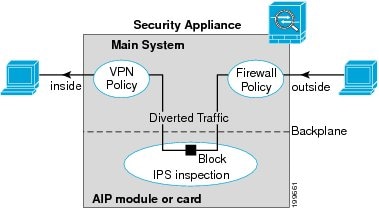
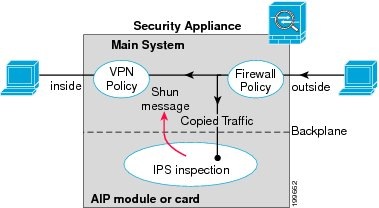
When you identify traffic for IPS inspection, the traffic flows through the ASA and the IPS module as follows:
2. Firewall policies, such as interface access rules, are applied.
3. Traffic is sent to the IPS module over the backplane when you operate in inline mode. If you configure the system to use promiscuous mode, a copy of the traffic is sent to the IPS module.
See IPS Mode in the Intrusion Prevention section of the Insert/Edit Service Policy (MPC) Rule wizard (Step 3. Configure the MPC actions) for more information about Inline and Promiscuous modes.
4. The IPS module applies its security policy to the traffic and takes appropriate actions.
5. Allowed traffic is sent back to the adaptive security appliance over the backplane. In Inline mode, the IPS module may block some traffic according to its security policy; in other words, that traffic is not passed back.
6. VPN policies are applied (if configured).
The following illustration depicts traffic flow when running the IPS module in Inline mode. In this example, the IPS module automatically blocks traffic that it identifies as an attack. All other traffic is returned to the ASA.
The next illustration depicts traffic flow when the IPS module is running in Promiscuous mode. In this example, the IPS module sends a shun message to the ASA for traffic it has identified as a threat.
About the ASA CX
The ASA CX is a Security Services Processor (SSP) that can be installed in the Cisco ASA-5585-X series Adaptive Security Appliance. You configure the parent ASA to redirect traffic to the ASA CX, which then applies its security policies and either drops the traffic, or returns it to the ASA for further processing and routing to the next destination.
There are two basic policies that may need adjustment in the ASA when you add a ASA CX: access rules and inspection rules:
- Access rules, whether global rules or those applied to specific interfaces, are always applied before traffic is redirected to the ASA CX. Thus, the security card sees only the traffic already permitted, and does not process traffic that was dropped at entry to the ASA. Consider adjusting the rules to ensure that all traffic that you want the ASA CX to process is permitted.
- Inspection rules determine which traffic is inspected. The ASA CX does not inspect traffic that has already been inspected by the ASA. Therefore, you must ensure that you do not inspect traffic that you intend the ASA CX to inspect. Specifically, do not inspect HTTP traffic, because HTTP inspection is one of the core functions of the ASA CX. The default inspection rules on the ASA do not include HTTP inspection, so you must alter your inspection rules only if you added HTTP rules.
Determine if you need to create access rules for an interface, or global access rules that apply to all interfaces. Use the ASA access rules to filter traffic before it is redirected to the ASA CX. If you know there are classes of traffic that you never want to pass, it is more efficient to drop them immediately upon entry to the ASA.
If you have already established access rules, there is no requirement to change them. However, you should evaluate whether they need to be relaxed in order to have the ASA CX process certain types of traffic that you are now dropping by means of access rules.
Enabling traffic redirection to an installed ASA CX is described in Step 3. Configure the MPC actions of the Insert/Edit Service Policy (MPC) Rule Wizard.
ASA CX Auth Proxy Configuration
If you enabled ASA CX authentication proxy—on the CXSC tab during Step 3 of the Insert/Edit Service Policy (MPC) Rule Wizard; see Step 3. Configure the MPC actions—and you want to use a non-default port for active authentication, use the Add/Edit CXSC Auth Proxy Configuration dialog box to change the ASA CX Auth Proxy Port number.
If users must be prompted for authentication credentials, the prompting is done through this port.
Note Security Manager uses “CXSC” in some places to refer to an ASA CX Security Services Processor (SSP).
Open the Add/Edit CXSC Auth Proxy Configuration dialog box by clicking the CXSC Auth Proxy button below the rules table on the Service Policy Rules Page.
Note The CXSC Auth Proxy button is available below the IPS, QoS, and Connection Rules table only in Device view; it is not visible in Policy view.
Configuring Traffic Flow Objects
Use the Add and Edit Traffic Flow dialog boxes to configure traffic-match definitions. These traffic-flow definitions correspond to class maps (the class map command) in the IPS, QoS and Connection Rules service policy for devices running the PIX 7.0+, ASA 7.0+, and FWSM 3.2+ operating systems. For more information on configuring these rules, see Chapter 58, “Configuring Service Policy Rules on Firewall Devices”.
Select Manage > Policy Objects, then select Traffic Flows from the Object Type selector. Right-click inside the work area and choose New Object, or right-click a row and choose Edit Object.
These dialog boxes also can be opened by clicking the Create or Edit buttons in the Traffic Flows Selector while defining a Service Policy rule. See for Step 2. Configure the traffic class more information about selecting a Traffic Flow class.
|
|
|
|---|---|
The name of the Traffic Flow object. A maximum of 40 characters is allowed. The name space for class maps is local to a security context. Therefore, the same name may be used in multiple security contexts. The maximum number of class maps per security context is 255. |
|
A description of the Traffic Flow (optional). A maximum of 1024 characters is allowed. |
|
The type of traffic to match. The option you choose may change the fields in the dialog box; all possible fields are explained later in this table. The Traffic Match Type options are:
For ASA 8.4(2+) devices, the ACL can include FQDN objects and user specifications to perform identity-based traffic matching.
|
|
| The following fields may appear in the Add and Edit Traffic Flow dialog boxes, depending on your choice in the Traffic Match Type field. This list is the complete set of possible fields. |
|
A list of the access control list (ACL) objects that you can select for the map. Select the ACL that defines the target traffic, or click the Create button to add a new object. You can also select an object and click Edit to change its definition. If the list of objects is large, use the Filter field to limit the display (see Filtering Items in Selectors). |
|
Radio buttons used to specify a protocol (either TCP, UDP, or SCTP), and a text field used to specify a destination port number or range of numbers to use when matching traffic based on the specified protocol/ports. You can specify a single port value, or a range of port numbers (for example, 0-2000). Valid port numbers are 0 to 65535. |
|
The range of RTP destination ports associated with the traffic flow. You must enter a port range within the valid range of 2000 to 65535. Note When you close the dialog box, the port range you entered is converted to port-span values by subtracting the start value from the end value. For example, if you enter the range 2001-3000 in the dialog box, “RTP port 2001 range 999” appears in the Match Value column of the Traffic Flows policy object table. Port-span values are expected by the device. |
|
Lists available VPN tunnel groups. Choose one or enter the name of a group. You can also select Match Flow IP Destination Address to recognize the destination address as the match type. |
|
The IP precedence numbers. Select the values you want to match and click >> to add them to the Match table. Ctrl-click to select multiple values. You can select a maximum of four values. To remove a value from the Match table, select it and click <<. |
|
The IP DiffServe Code Points (DSCP) numbers. Select the values you want to match and click >> to add them to the Match table. Ctrl-click to select multiple values. You can select a maximum of eight values. To remove a value from the Match table, select it and click <<. |
|
The category assigned to the traffic-flow object. Categories help you organize and identify rules and objects. See Using Category Objects. |
|
Default Inspection Traffic
When you create a Traffic Flow policy object, you can choose to match the default inspection traffic. For more information, see Configuring Traffic Flow Objects. The following table lists the types of traffic included in the Default Inspection Traffic category.
Configuring TCP Maps
Use the Add and Edit TCP Map dialog boxes to define TCP normalization maps for use with IPS, QoS, and Connection Rules service policies. The TCP normalization feature lets you specify criteria that identify abnormal packets, which the security appliance drops when they are detected. The map is used for TCP traffic that passes through the device or that is going to the device.
These TCP maps can be applied to TCP flows on PIX 7.x+ and ASA devices. For more information on configuring IPS, QoS, and Connection Rules, see Chapter 58, “Configuring Service Policy Rules on Firewall Devices”.
Select Manage > Policy Objects, then select Maps > TCP Maps from the Object Type selector. Right-click inside the work area and choose New Object, or right-click a row and choose Edit Object.
These dialog boxes also can be opened by clicking the Create or Edit buttons in the TCP Maps Selector while defining a Service Policy rule. See the “Connection Settings” section of Step 3. Configure the MPC actions for more information about enabling TCP normalization and selecting a TCP map.
|
|
|
|---|---|
The name of the TCP normalization map. A maximum of 128 characters is allowed. |
|
A description of the map object. A maximum of 1024 characters is allowed. |
|
The maximum number of out-of-order packets that can be buffered and put in order for a TCP connection; enter a value between 1 and 250. Enter 0 to disable this setting and use the default system queue limit, which depends on the type of traffic:
However, if you set the Queue Limit to 1 or higher, the number of out-of-order packets allowed for all TCP traffic matches the specified value. For application inspection, IPS, and TCP check-retransmission traffic, any advertised settings are ignored. For other TCP traffic, out-of-order packets are now buffered and put in order instead of passed through untouched. |
|
The maximum amount of time that out-of-order packets can remain in the buffer before they are dropped; enter a value between 1 and 20 seconds. The default is 4 seconds. This setting is ignored if you entered 0 for the Queue Limit. |
|
If checked, connections that change window size unexpectedly are dropped. |
|
If checked, packets that exceed the maximum segment size (MSS) set by a peer are dropped. |
|
If checked, the URG (urgent) flag is cleared through the security appliance. The URG flag is used to indicate that the packet contains information that is of higher priority than other data within the stream. The TCP RFC is vague about the exact interpretation of the URG flag; therefore end systems handle urgent offsets in different ways, which may make the end system vulnerable. |
|
Enables the TTL evasion protection offered by the security appliance. Do not enable this option if you want to prevent attacks that attempt to evade security policy. For example, an attacker can send a packet that passes policy with a very short TTL. When the TTL goes to zero, a router between the security appliance and the endpoint drops the packet. It is at this point that the attacker can send a malicious packet with a long TTL that appears to the security appliance to be a retransmission and is passed. To the endpoint host, however, it is the first packet that has been received. In this case, an attacker is able to succeed without security preventing the attack. |
|
When checked, clears window selective acknowledgment mechanism option and allows packet. When unchecked, allows packets with single selective acknowledgment option. |
|
Whether or not packets with multiple selective acknowledgment mechanism (SACK) are allowed. |
|
| Note If the selective acknowledgment options are not configured, by default, packets with a single selective acknowledgment option are allowed and packets with multiple selective acknowledgment options are dropped. |
|
When checked, clears TCP timestamp option and allows packet. When unchecked, allows packets with single TCP timestamp option. Note When the Clear TCP timestamp option is enabled, PAWS and RTT are disabled. |
|
Whether or not packets with multiple TCP timestamp option are allowed. |
|
| Note If the TCP timestamp options are not configured, by default, packets with a single TCP timestamp option are allowed and packets with multiple TCP timestamp options are dropped. |
|
When checked, clears window scale timestamp option and allows packet. When unchecked, allows packet with single window scale option. |
|
Whether or not the packets with multiple window scale timestamp option are allowed. |
|
| Note If the window scale options are not configured, by default, packets with a single window scale option are allowed and packets with multiple window scale options are dropped. |
|
When checked, clears MSS option and allows packet. When unchecked, allows packet with a single MSS option. |
|
Whether or not the packets with multiple MSS options are allowed. |
|
Enter a value for the TCP MSS limit in bytes. Valid values are between 68- 65535. |
|
| Note If the MSS options are not configured, by default, packets with a single MSS option are allowed and packets with multiple MSS options are dropped. |
|
Whether or not to allow packets with the MD5 option. The Allow, Allow Multiple and Clear checkboxes are available when packets with MD5 option are allowed. Allow: This allows a packet with a single MD5 option. Allow Multiple: This allows a packet with multiple MD5 options. |
|
| Note If the MD5 options are not configured, by default, packets with a single MD5 option are allowed and packets with multiple MD5 options are dropped. |
|
Specify how to handle TCP packets with the reserved bits set in the TCP header. The six reserved bits in the TCP header are for future use and usually have a value of 0. |
|
The TCP Range Options table lists TCP options ranges defined for the TCP map, and the action to take for those options. The typical range numbers are 6-7, 9-18 and 20-255; the lower bound must be less than or equal to the upper bound.
Note Prior to ASA 9.6(2), the TCP values are in the range of 6-7 and 9-255. |
|
The category assigned to the map object. Categories help you organize and identify rules and objects. See Using Category Objects. |
|
Add and Edit TCP Option Range Dialog Boxes
Use the Add and Edit TCP Option Range dialog boxes to define or edit a range of TCP options for use with a TCP normalization map; these are TCP options not explicitly supported on the device. This feature lets you allow or discard packets with the specified TCP options set. The typical range numbers are 6-7, 9-18 and 20-255.
In the Add and Edit TCP Map dialog boxes, right-click inside the TCP Range Options table and choose Add Row, or right-click an existing row and choose Edit Row. See Configuring TCP Maps.
 Feedback