Understanding concepts

Preset

As knowing an industrial network can be really challenging, presets have been created to help you navigating through its numerous data.

A preset is a set of criteria. This concept is a fundamental of Cisco Cyber Vision that will allow you to explore the network in its details from what you need to see. For example, if you are an automatician you could be interested in knowing which PLCs are writing variables. To reach this data, you just need to access one Preset (e.g. OT) and select two criteria (e.g. PLC and Write Var). Think a preset as a magnifying glass in which you can see details of a big network by choosing the metadata processed by Cisco Cyber Vision that meet your business requirements. Several types of view are available to give you full visibility on the results and from different perspectives.

Some generic presets are available by default. You can start by playing with these ones to see what they have to offer. They have been created according to the recommendations and big categories listed in Cisco's playbooks which are the following:

  • Basics, to see all data, or filter data to IT or OT components.

  • Asset management, to identify and make an inventory of all assets associated with OT systems, OT process facilities and IT components.

  • Communications management, to see flows according to their nature (OT, IT, IT infrastructure, IPV6 communications, Microsoft flows).

  • Security, to control remote accesses and insecure activities.

  • Control system integrity, to check the state of industrial processes.

  • Network quality, to see network detection issues.

The category My Preset contains customized presets. You can create presets using criteria to meet your own business logic. However, as Cisco Cyber Vision is a collaborative application, it shouldn't be forgotten that customizations on presets are persistent and impact other users.

Filters

Cyber Vision data can be filtered to build a preset per:

  • Device tags: devices

  • Risk score: device individual risk

  • Groups: devices

  • Activity tags: activities

  • Sensors: device “location”

  • Networks: device IPs

  • Keyword: device properties including IP, MAC, names, vendor, etc…

Filters work differently whether they are affecting devices and/or activities. Their combination will limit the scope of data visualized in the different views for a preset:

Each category allows to define a subset of the components, or activities for the Activity filter.

If filters are defined by several categories, the resulting dataset is the intersect of the selections for each category.

The way each parameter can be used in filters is explained in the next sections.

Device tags

Device tags can be used to select components. Device tag filters can be inclusive or exclusive. The combination of several device tags will select all the components with at least one of the selected device tags. If the device tag filter is exclusive, the system will ignore all components with the selected device tags. For example:

Device tag filters
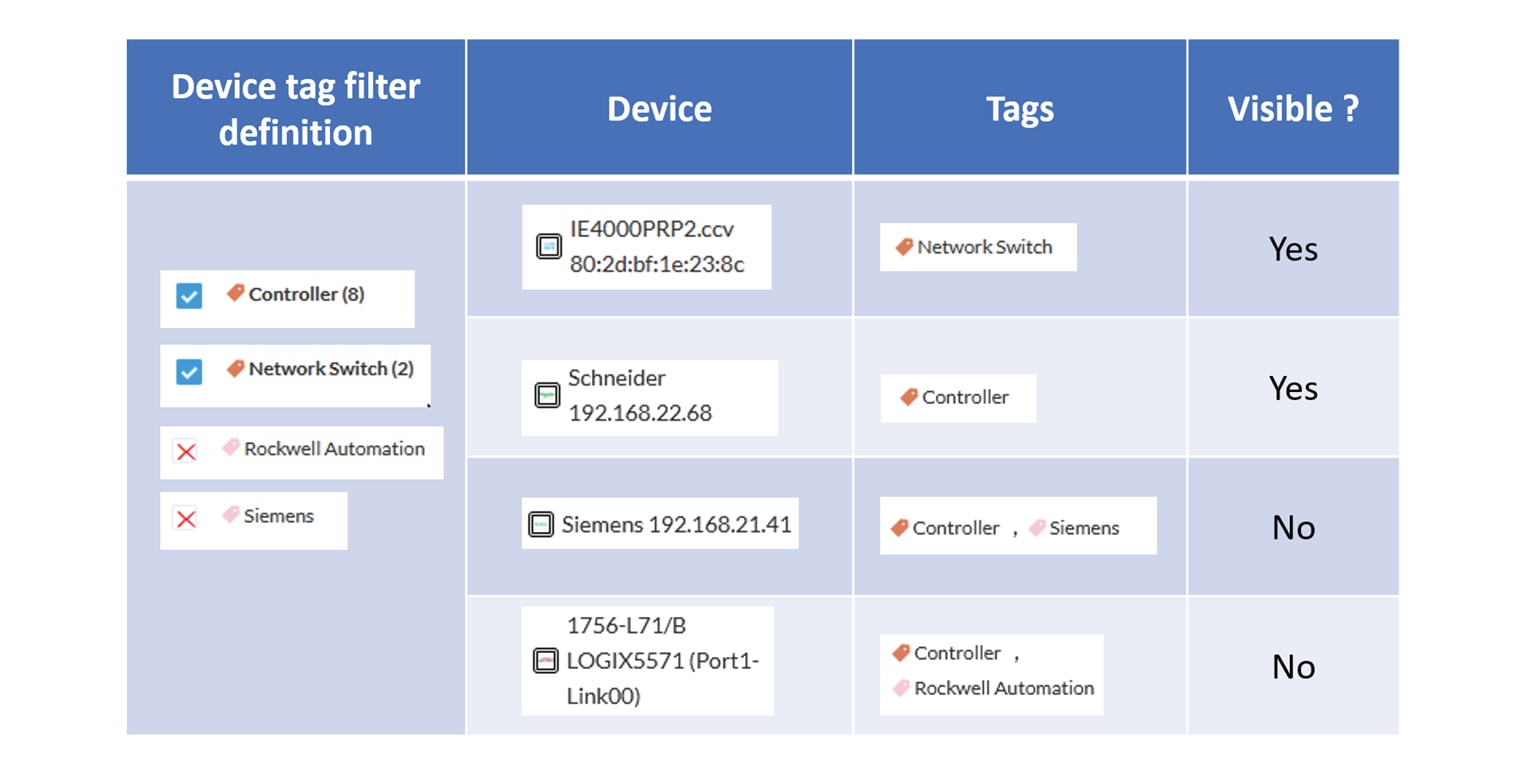
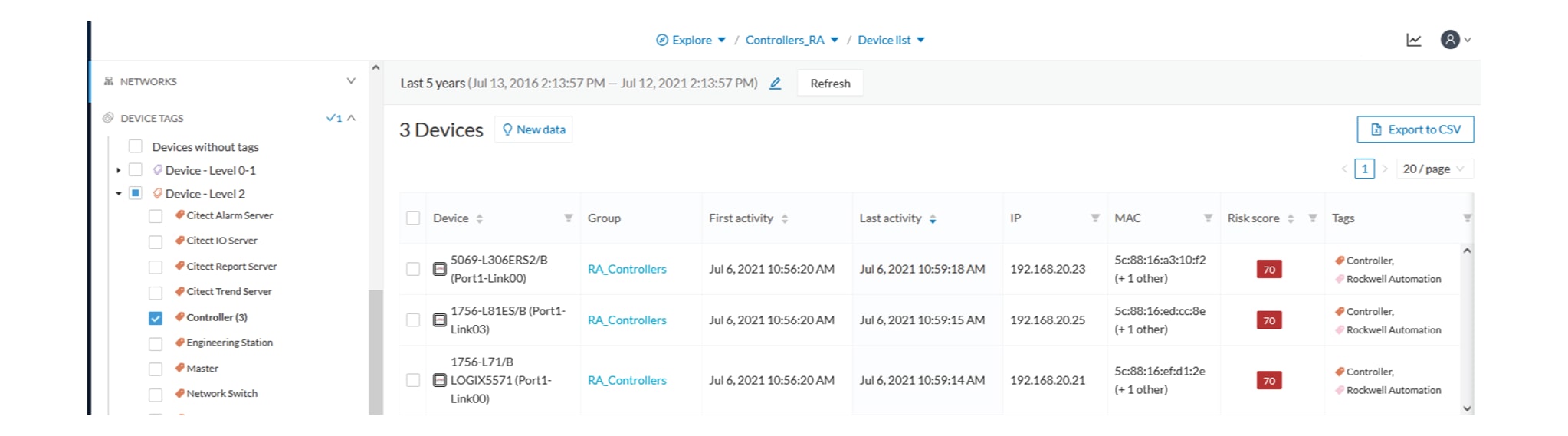
When devices are filtered the “Device view” only presents the devices corresponding to the filter. For example, only the Controllers if the tag “Controller” is selected.

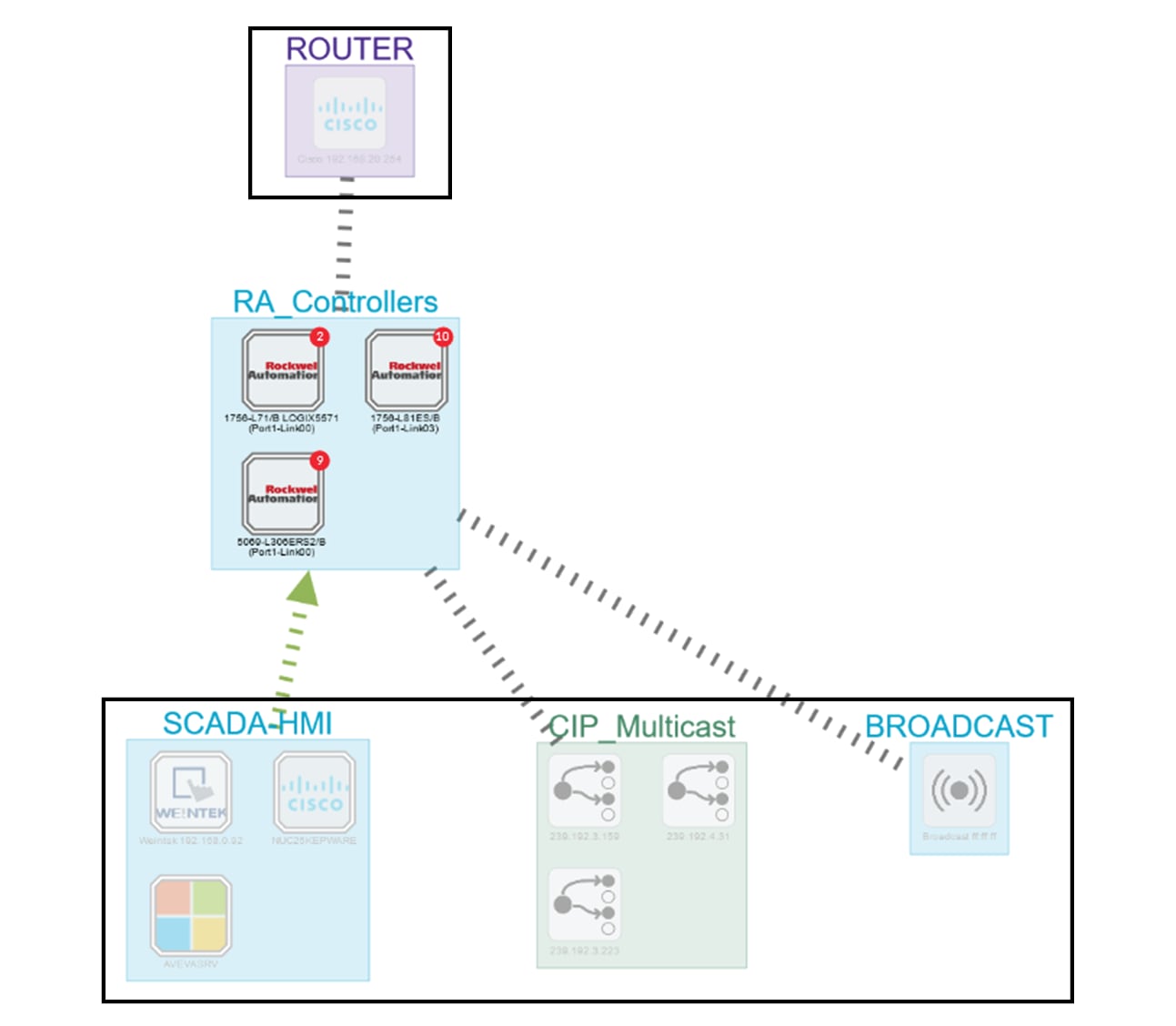
For the other displays like activity list or map, the devices which are communicating with the selected devices will be displayed too (all engineering stations or HMI in our example).

It will give the following results:

Device tag filter, example of Controllers – list of devices
In the associated map all the components which communicate with the controllers will also be displayed. These other components are shadowed to be recognized:

Device tag filter, example of Controllers - map
Risk score

The risk score will be used to filter devices based on their score. A range of Risk score can be defined and used as inclusive or exclusive filter. All devices will be filtered based on this range.

Risk score, filter definition
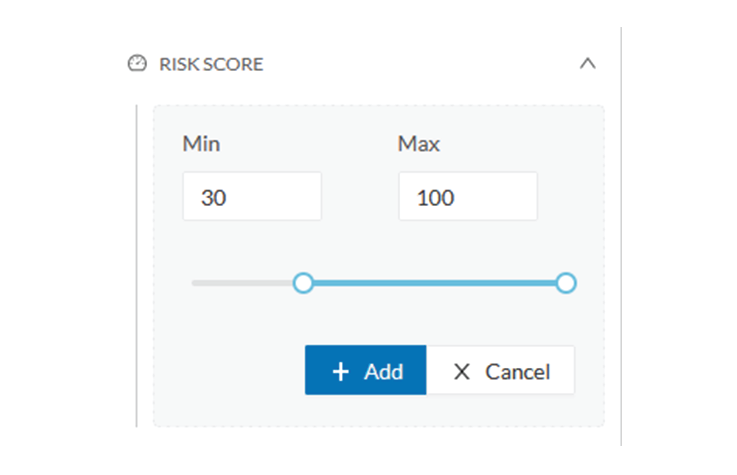
Risk score – inclusive filter
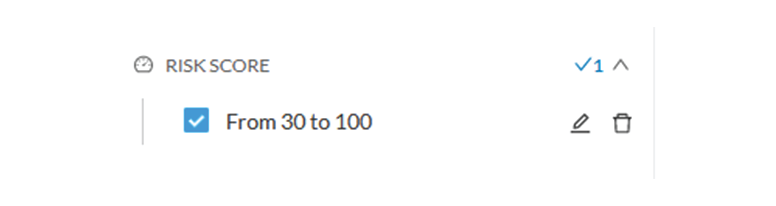
In the example above, only the devices with a risk score in the selected range will be selected.

Groups

Groups can be used to filter devices. Each group or sub-group could be added as inclusive or exclusive filter:

Group filter
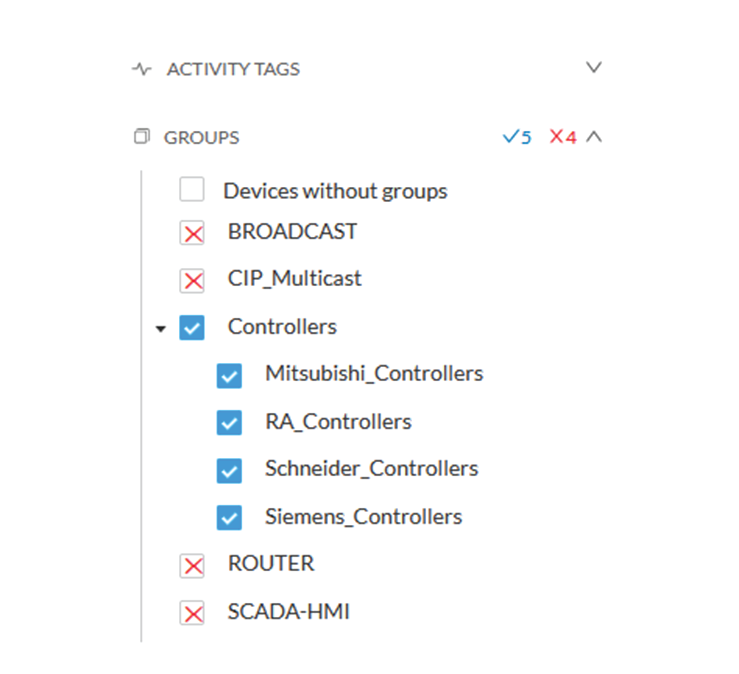
In the example above, only the devices belonging to the selected groups will be selected.

Activities always involve two end points and are selected if either end point is part of a selected group, and none are part of an excluded group.

Keyword

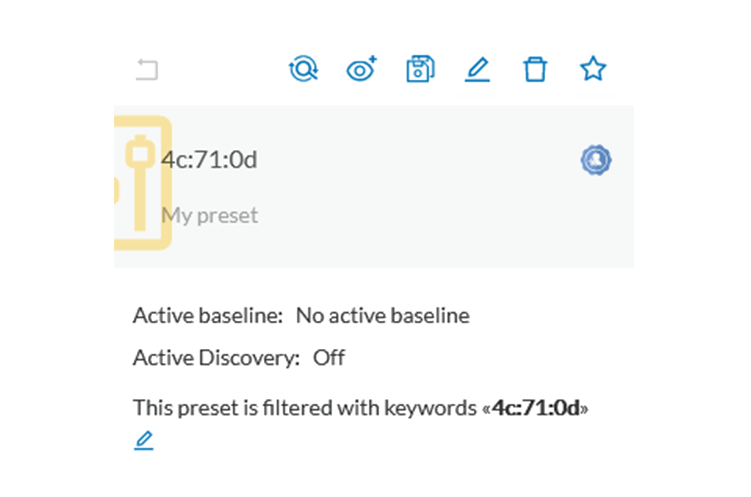
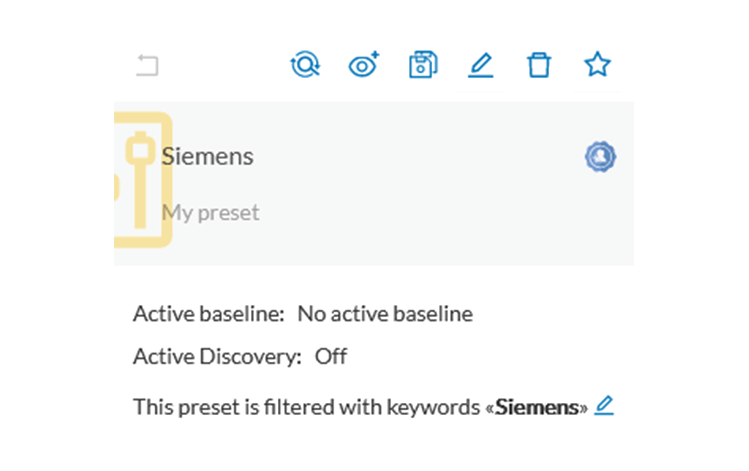
A keyword can be used to filter devices using the “Search” section of the GUI. This keyword will be used to select devices based on their name, properties, IP, MAC and tags.

Keyword = 4c:71:0d
Keyword =siemens
Sensors

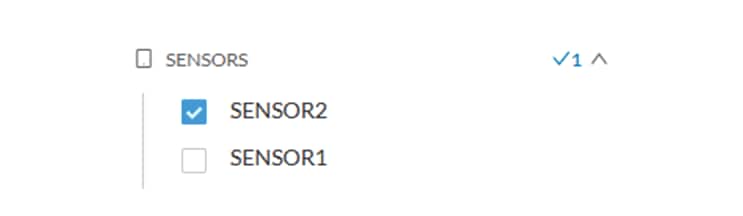
Activities can also be filtered based on the sensor that analyzed the associated packets. As for tags, inclusive and exclusive filters can be used. Usually either option is used, inclusive only to select data coming from a set of sensors, or exclusive only, to ignore the data from a set of sensors.

Sensor filter
Activity tags

Filtering on activity tag will not have the same behavior than a filter based on devices. Inclusive activity tag filters will be the same, but exclusive will remove activities only when all activity tags are included in the set of excluded tags.

For example, if an activity has two tags, both tags need to be excluded to hide the activity.

Activity filter – negative filter 1
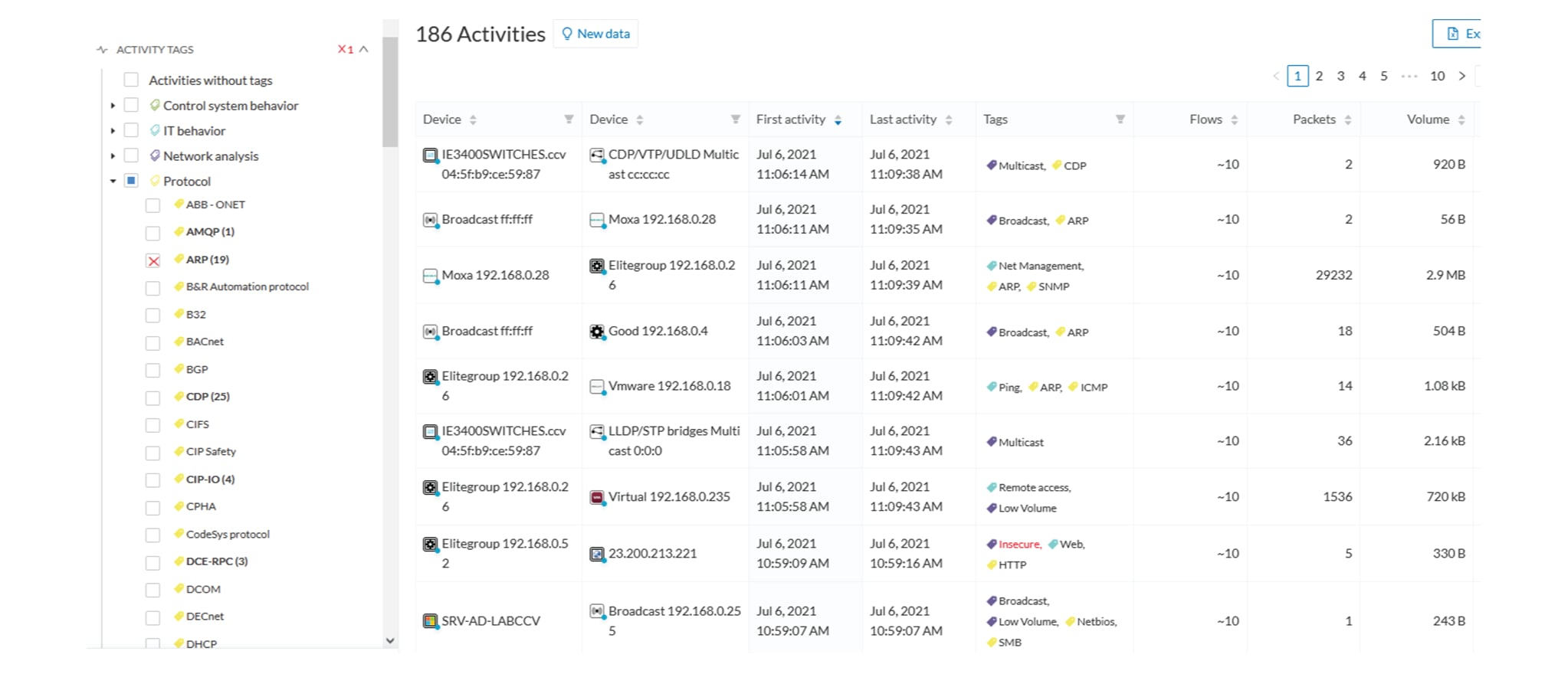
In the example above, several activities are kept because the ARP tag is present as well as other activity tags. There is no exact match. But the activity below is hidden:

filter 2

To remove broadcast and ARP activities, both activity tags need to be selected like below:

Activity filter – negative filter 3
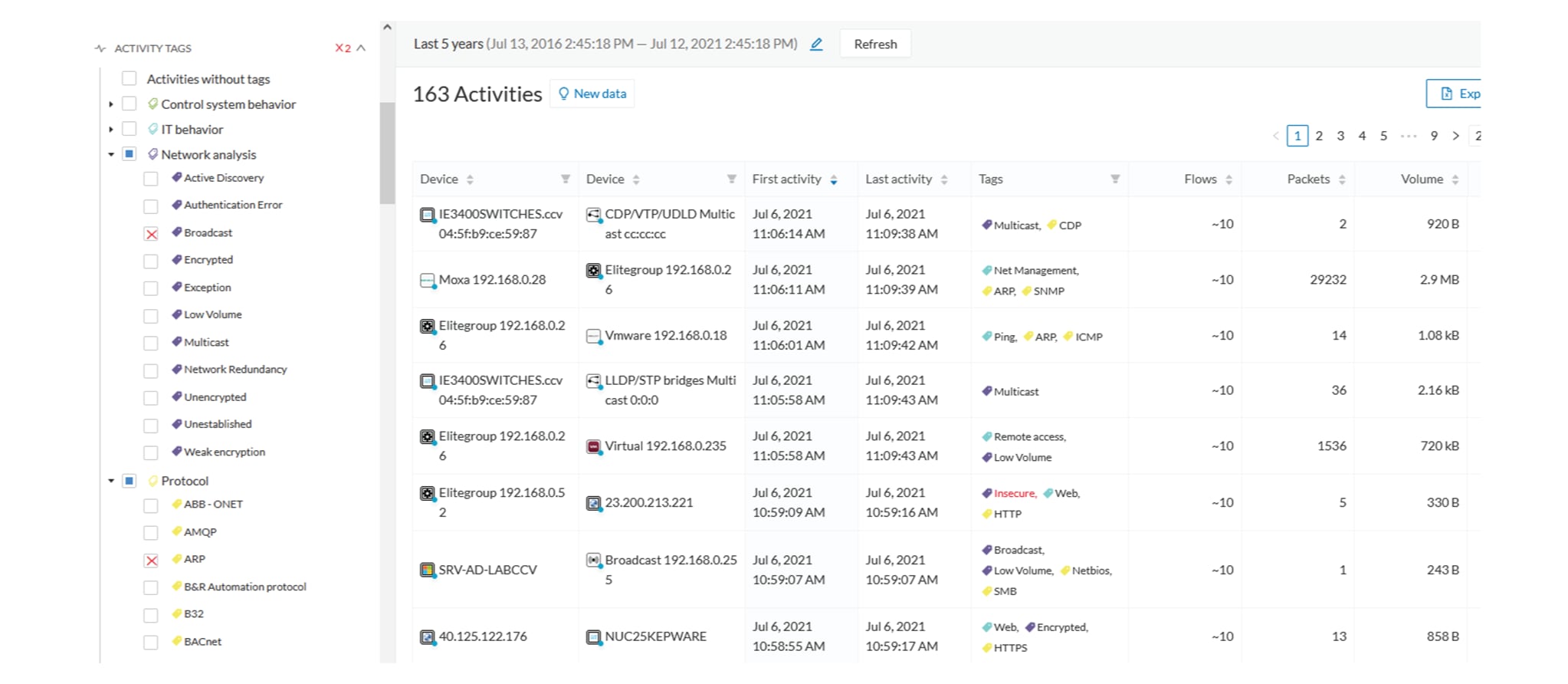
Combined inclusive and exclusive tags are seldom used, but for very specific use cases.

Above rules, for positive and negative selection, are combined, resulting in the following logic:

  • Activities are selected as soon as at least one tag is in the set of included tags

  • From this selection, activities which all tags are in the set of included AND excluded tags are hidden

Networks

A filter can be defined based on network settings: IP range or VLAN ID can be used. This filter will have an impact on the activity list, the result will be “all activities with one end belonging to this network”. Activities with at least one device in the corresponding network will be selected.

Regarding the Device list, only the devices with at least one IP address in the corresponding network range are selected.

Exclusion and combination also can be used, for instance:

Network filter – negative filter
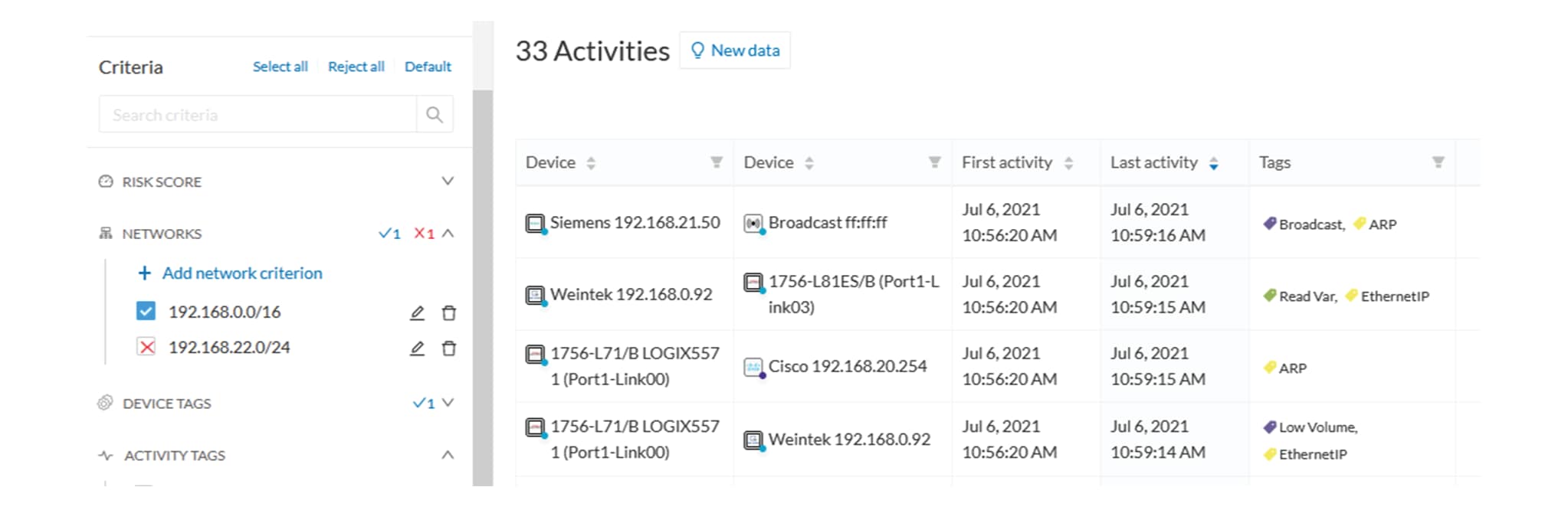
Multiple negative selections are not supported on 4.0.0.

Filter combination

The user can define filters in several categories simultaneously. The preset will be calculated first by filtering the activities with all the activity-based filters. Then, the devices will be filtered with their own filter criteria. The result is the preset dataset. This preset dataset is used to precompute the view that is proposed to the user. The user can select a time frame to further filter the preset dataset.

Component

As of version 4.0.0, the notion of device, which is an aggregation of components, is introduced in Cisco Cyber Vision and changes how data is processed and presented.

A component represents an object of the industrial network from a network point of view. It can be the network interface of a PLC, a PC, a SCADA station, etc, or a broadcast or multicast address.

In the GUI, a component is shown as an icon in a box, either the manufacturer icon (if detected), or a more specific icon (for instance for a known PLC model), a default cogwheel, a planet for a public IP, etc.

Some examples of icons:

Manufacturers icons

SIEMENS PLC icons

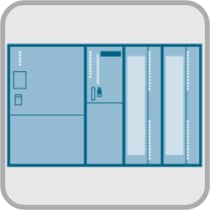
A S7-300 PLC.

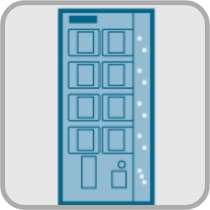
A Scalance X300 switch.

Default cogwheel

The manufacturer has not been detected yet by Cisco Cyber Vision. OR The manufacturer has not been assigned a specific icon in Cisco's icon library.

Public IP

Broadcast

Broadcast destination component.

Multicast

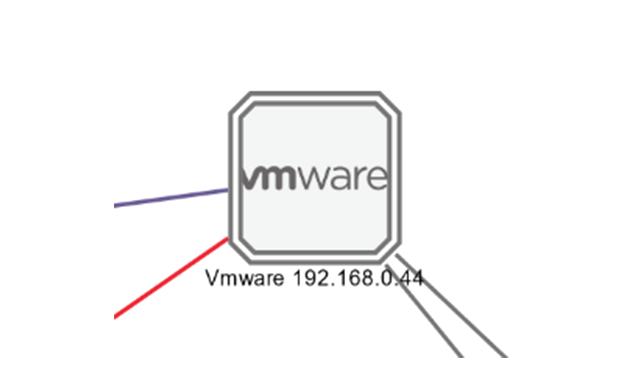
Whenever it's possible, components will be grouped under a device, and represented as such. For example, in the map, you will be able to see a device's components through its right side panel and technical sheet. Other components, that is the ones that don't belong to any device, will be displayed in the map, with the difference that a device is represented with an icon squared with a double border, whereas a component will have a single border.

For more information, refer to the device section.

In Cisco Cyber Vision, components are detected from the properties MAC address and (if applicable) IP address.


Note

MAC addresses are all physical interfaces inside the network. Instead, attribution of IP addresses relies on the network configuration.

To be detected by Cisco Cyber Vision, an object needs to have some network activity (emission or reception). Thanks to Deep Packet Inspection technology, detailed information about a component is provided in the GUI. Thus, information like IP address, MAC address, manufacturer, first and last activity, tags, OS, Model, Firmware version depends on the data retrieved from the network. Data originates from the communications (i.e. flows) exchanged between the components.

When you click a component on the map or a list, a side panel opens on the right with the component detailed information.

Device

The concept of device has been developed to show the network from a physical point of view (in Cisco Cyber Vision versions older than 4.0.0 only components and aggregated components were used). A device represents in Cisco Cyber Vision a physical machine of the industrial network such as a switch, a engineering station, a controller, a PC, a server, etc. Thus, devices simplify data presentation, especially in the map, and enhance performances; because a single device will be shown in place of multiple components. Besides, it complies with a logic of management and inventory, which focuses on users needs.

In the GUI, a device is shown as an icon in a double border, either the manufacturer icon (if detected), or a more specific icon (for instance for a known PLC model), or even a default cogwheel if no icons is available in Cisco Cyber Vision database yet.

Technically, a device is an aggregation of components that have been brought together because they have similar properties. In fact, components can share same characteristics such as same IP address, same MAC address, same Netbios name, etc. In addition, tags and properties which are found in protocols are associated to define the type of device. Aggregation of components into a device and definition of the device type are based on a large set of rules with priorities that can be more or less complex.

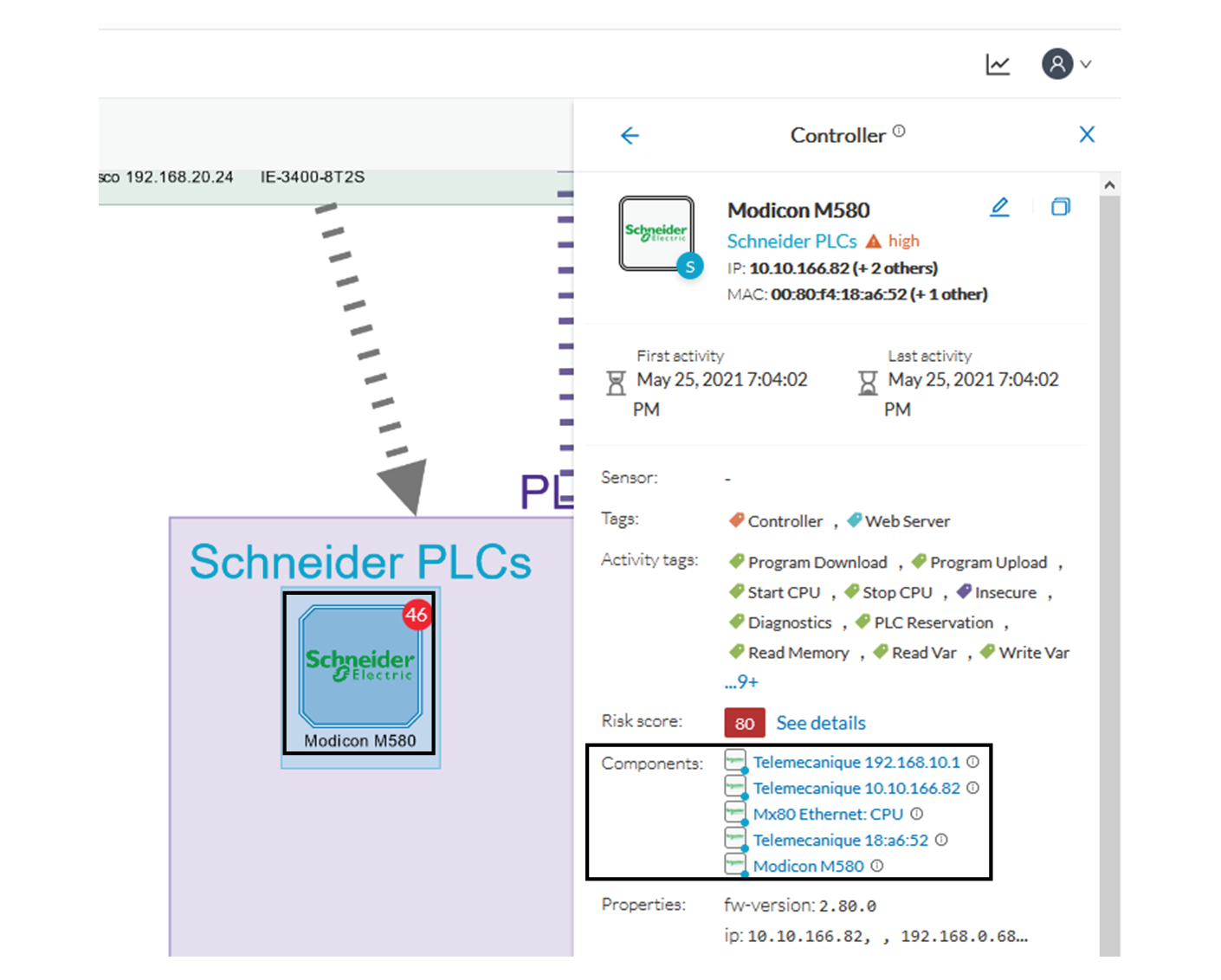
As you click on a device -on the left, a Schneider controller-, a right side panel opens showing its components:

Devices can have a red counter badge which display the number of vulnerabilities detected. For more information, refer to Vulnerabilities.

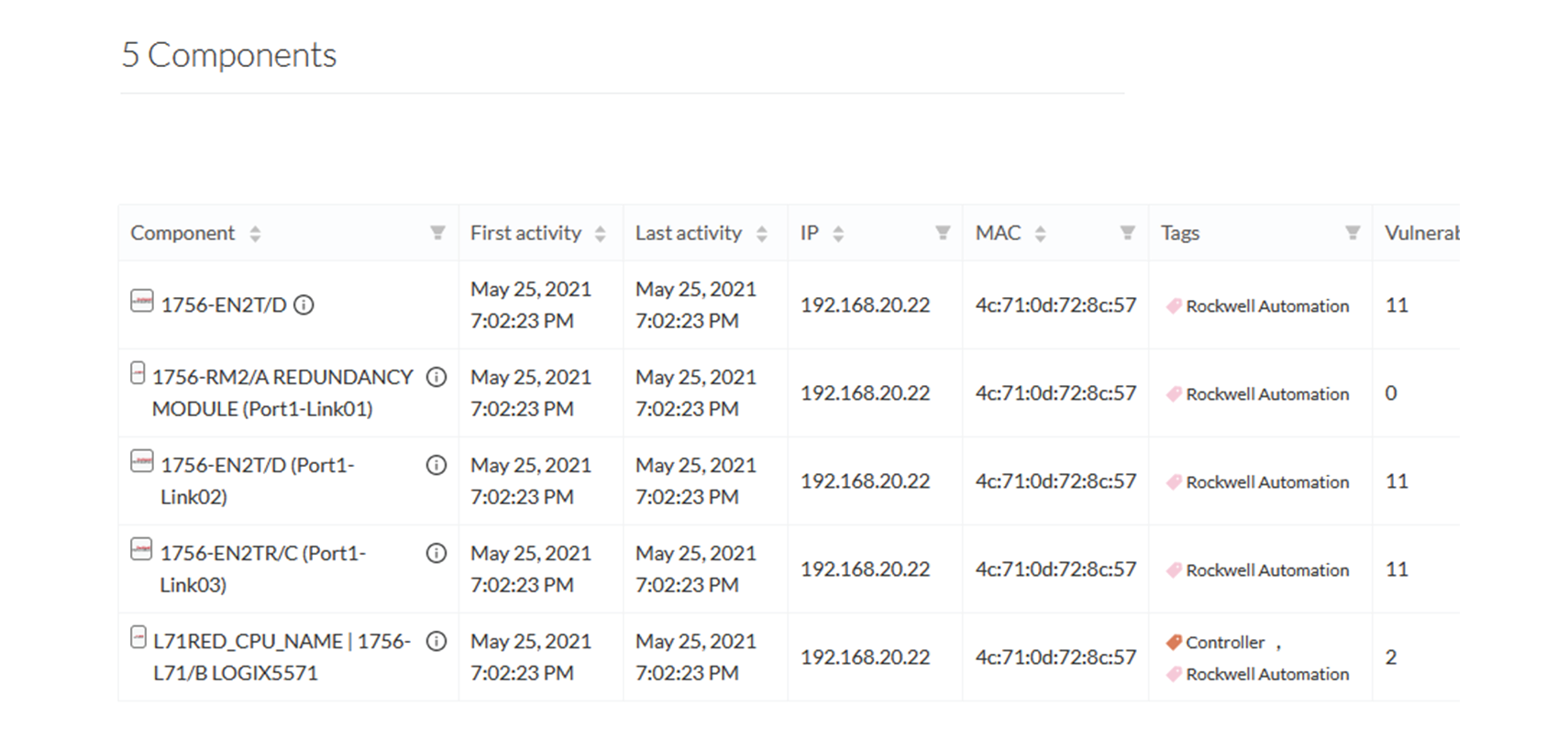
The list of a Rockwell Controller device's components (technical sheet > Basics > Components):

All these device's components have in common activity time, IPs, MACs, and tags. The Controller tag -which is a level 2 device tag, also considered as top priority in aggregation rules to define device type- detected on one of the components is applied at the device level and define the device type as Controller. The Rockwell Automation tag is a system tag which together with other properties is detected as the brand of the device.

To know which types of device Cisco Cyber Vision is capable of detecting, take a look at the device tags classified per level in the Cisco Cyber Vision application.

Activity

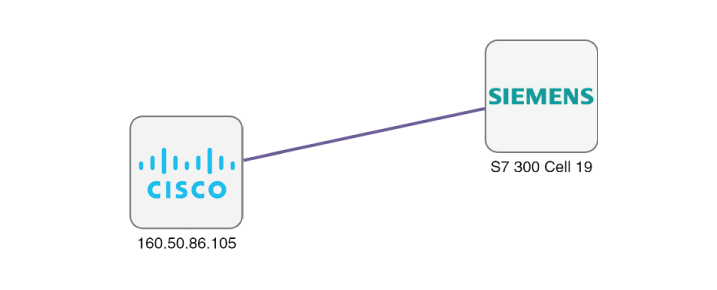
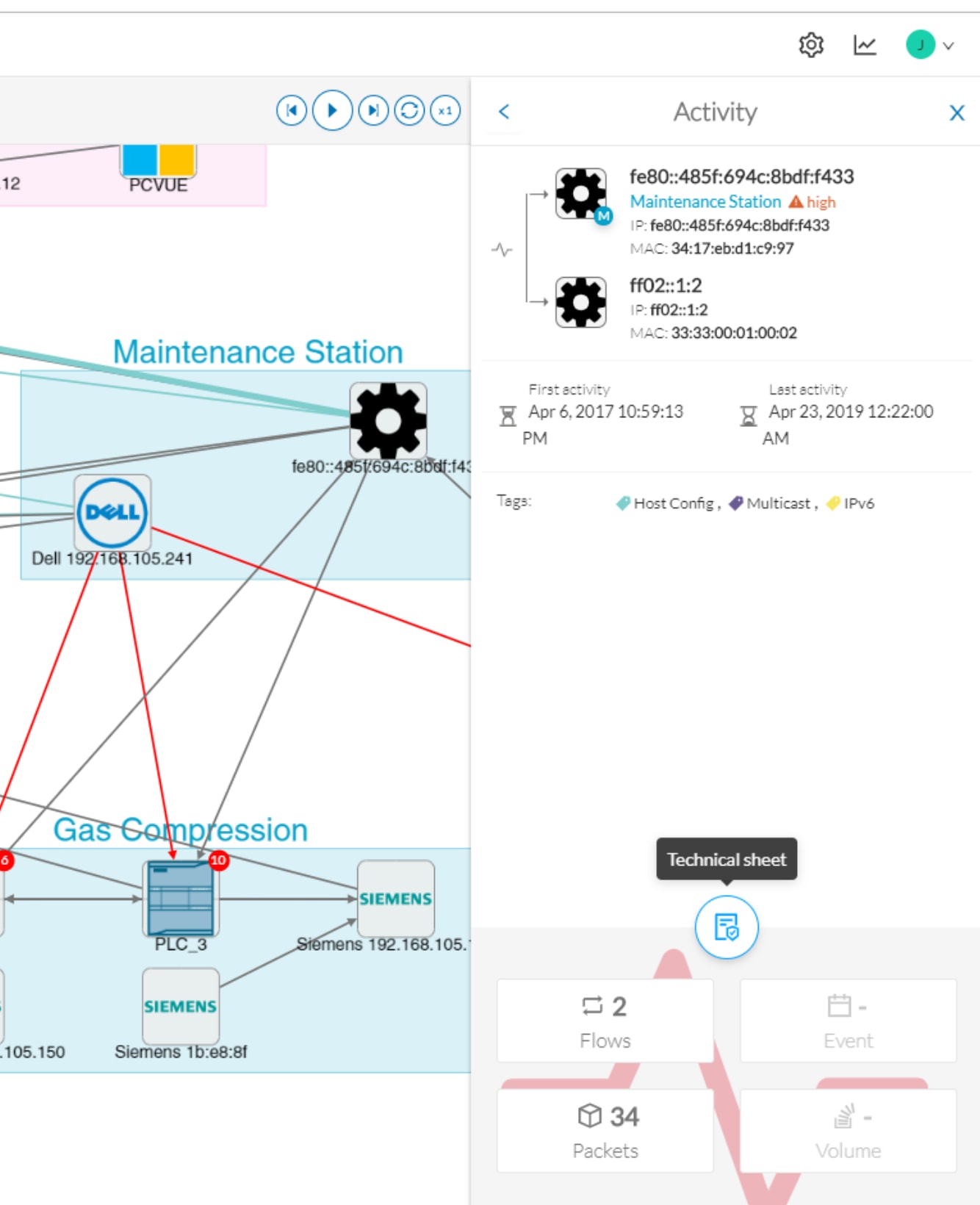
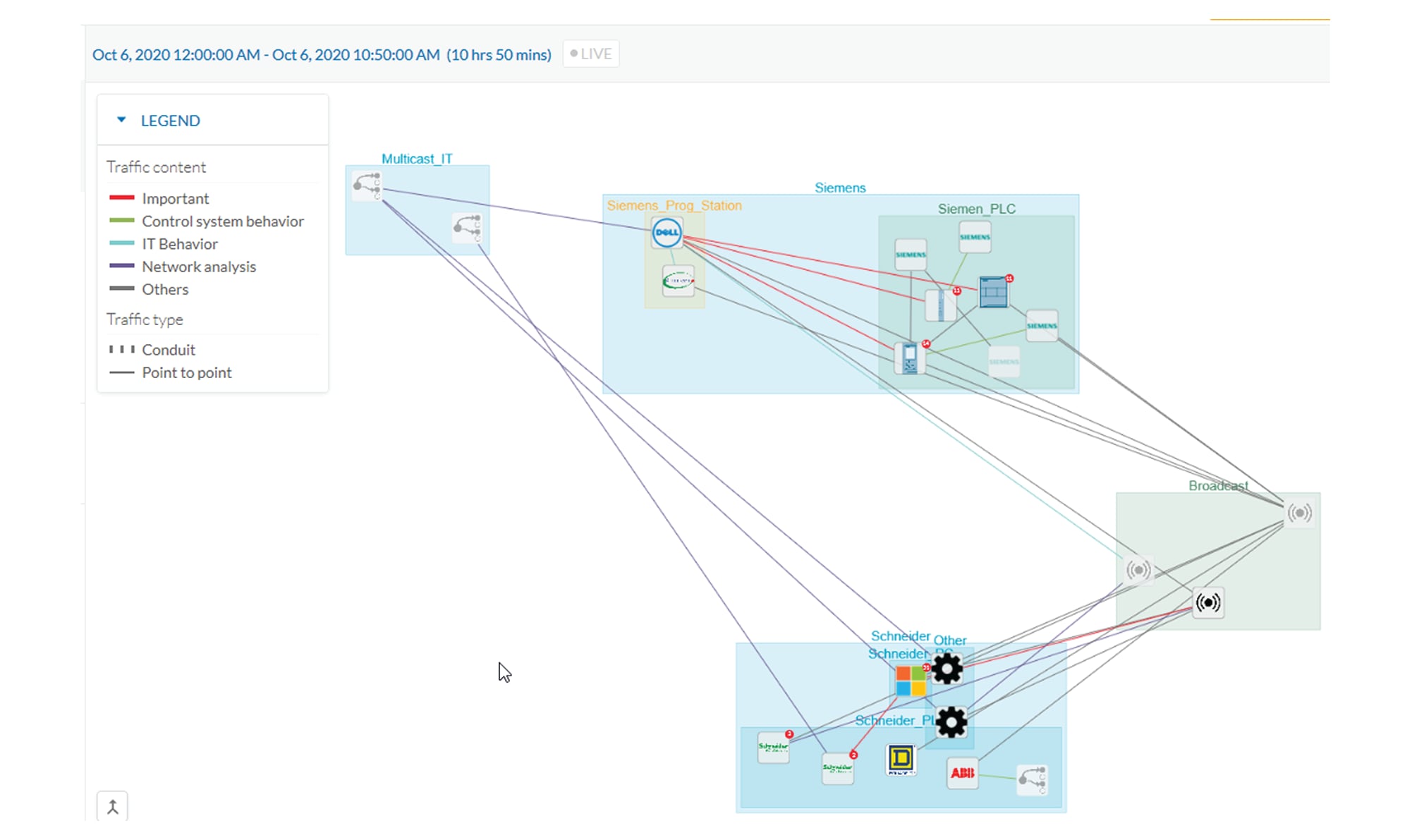
An activity is the representation of the communications exchanged between devices or components. It is recognizable on the map by a line (or an arrow if the source and destination components are known) which links one component to another:

An activity between two components is actually a simplified view of the flows exchanged. You can have many types of flows going in both directions inside an activity represented in the map.

When you click on an activity in the map, a right side panel opens, containing:

  • The date of the first and last communication between the two components.

  • Details about the components (name, IP, MAC and if applicable the group they are part of, their criticality).

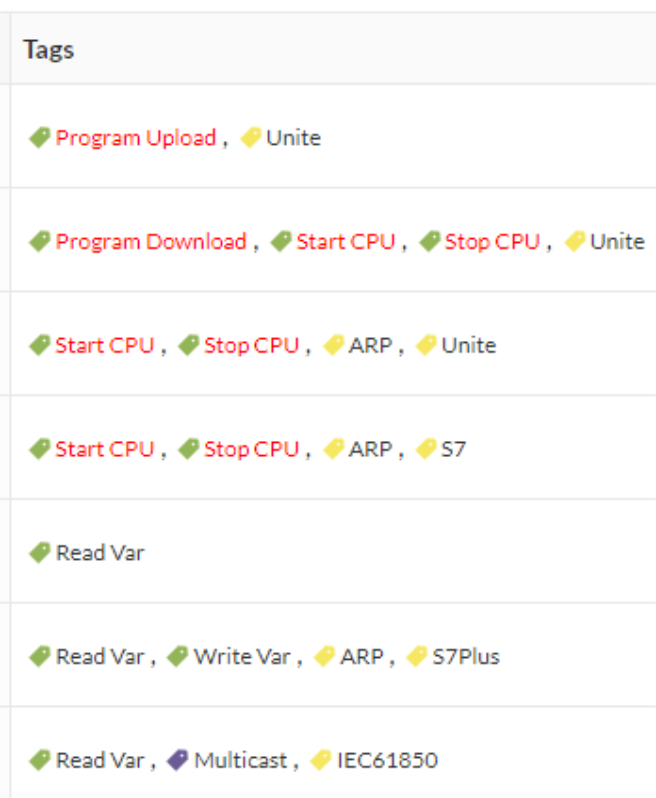
  • The tags on the flows.

  • The number of flows.

  • The number of packets.

  • The volume of data exchanged.

  • The number of events.

  • A button to access the technical sheet that shows more details about tags and flows.

Devices or components with no activity does not mean that it did not have any interaction. In fact, a component can only be detected if at some point it has been involved in a network activity (communication emission/reception). Lack of activity can mean that the other linked component is not part of the preset selected and so doesn't display.

Aggregated activities or conduits:

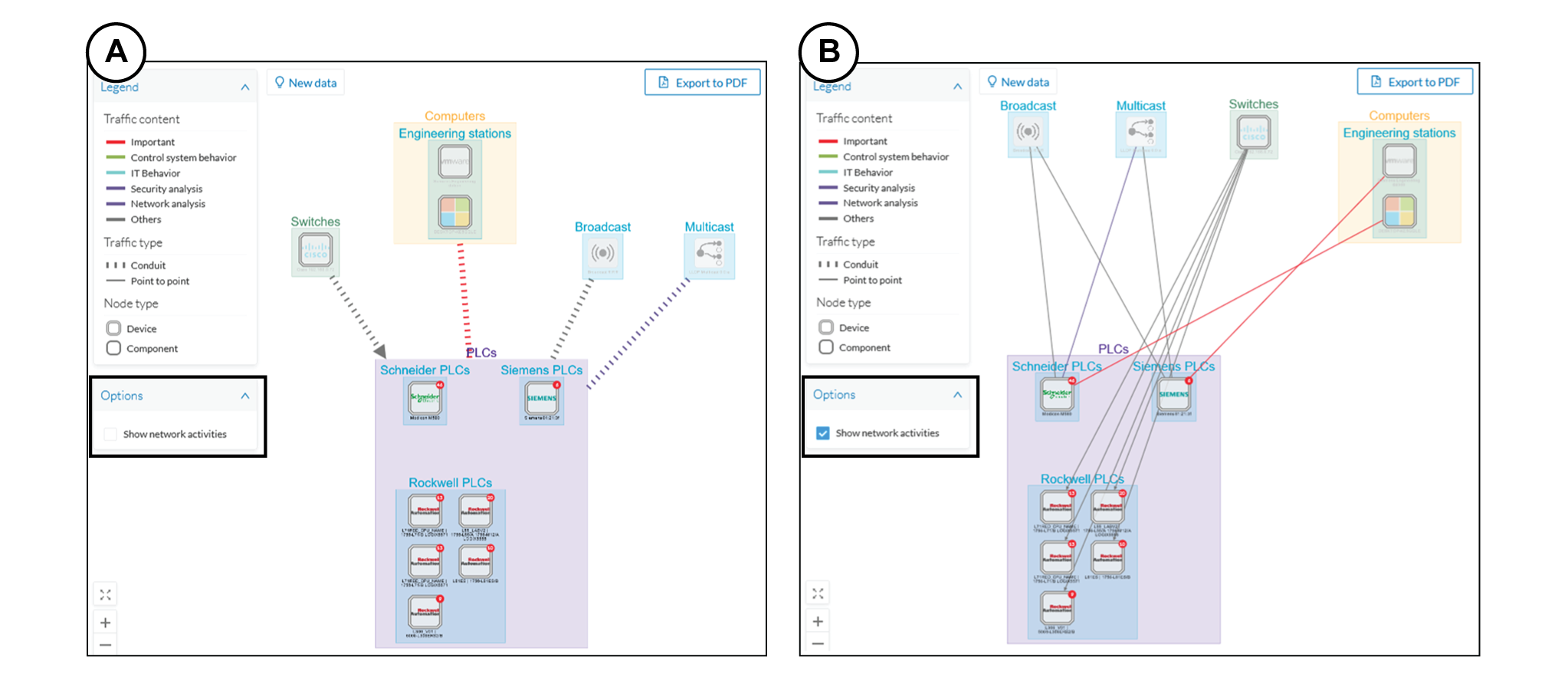
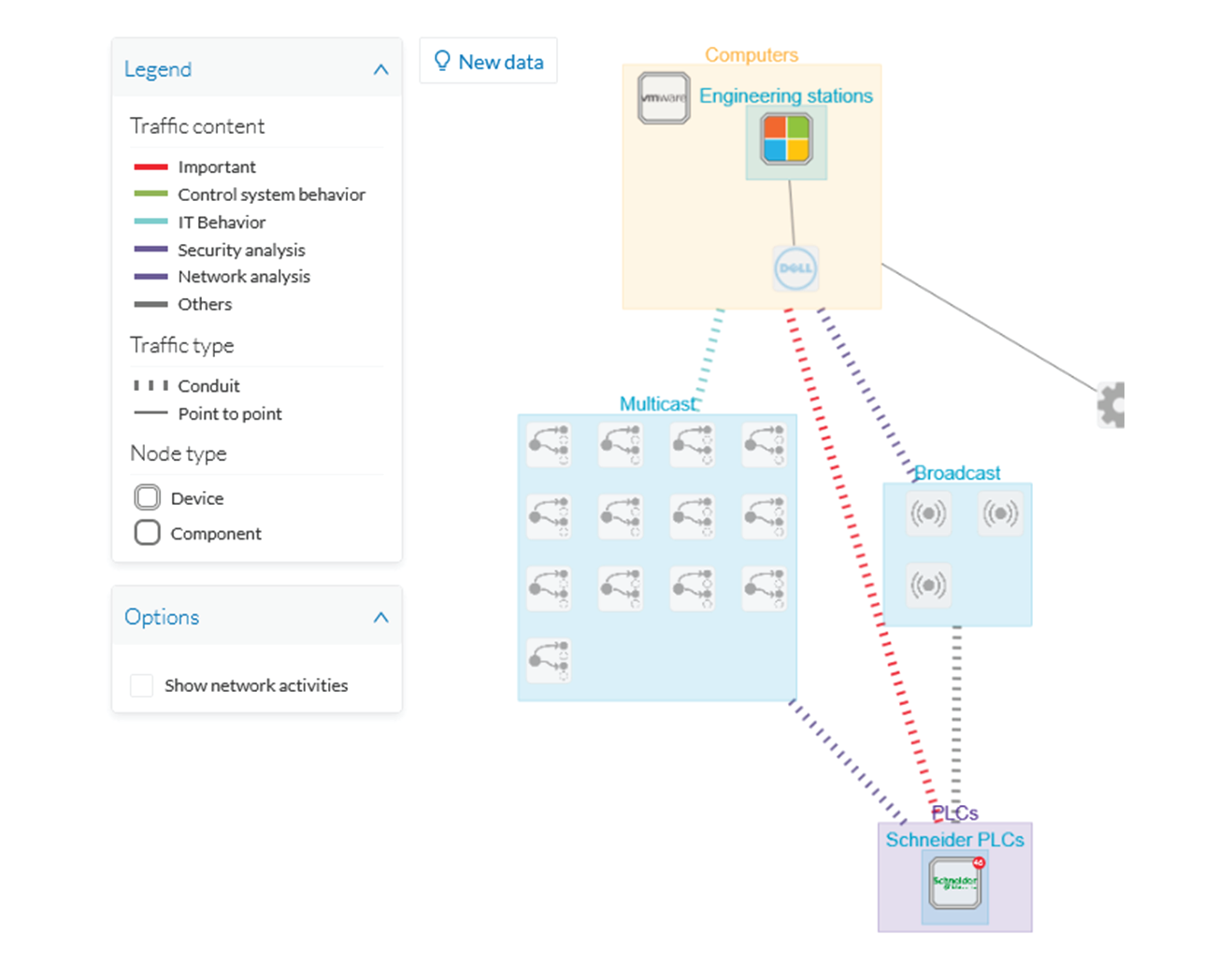
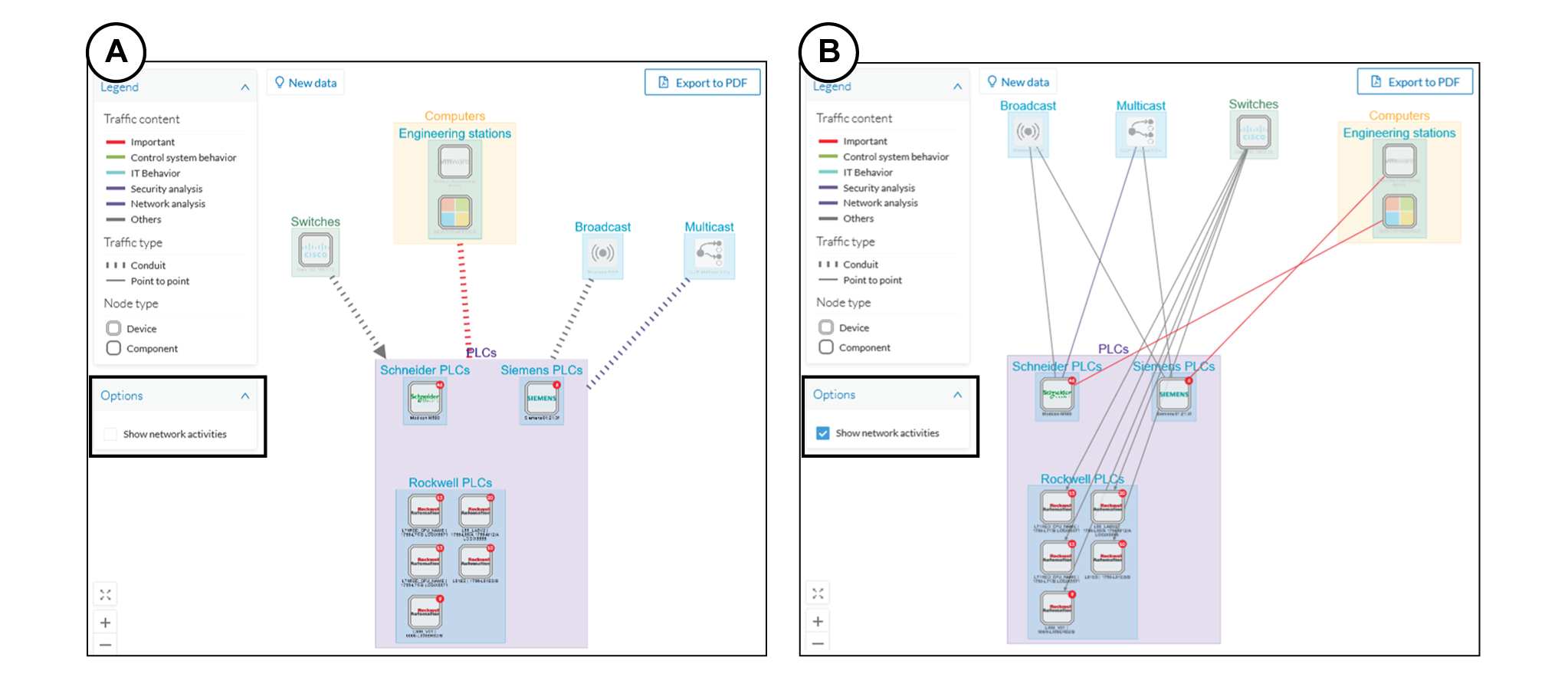
When devices and components are placed inside groups, activities are by default aggregated to enhance visibility. Aggregated activities are called conduits.

Use the Show network activities button at the lower left side of the map to turn on/off the simplified view of the activities between groups. This feature is turned on by default.

Conduit

A conduit is the representation of the communications exchanged between two groups. It is in fact an aggregation of activities to facilitate visibility when devices and components are inside groups. Conduits representation in Cisco Cyber Vision fit the 62443 standard which specifies policies and requirements for system security

A conduit is recognizable on the map by a thick, hyphenated line -which can have an arrow if the source and destination groups are known- that links one group to another:

Conduits view mode is enabled by default. You can disable it by using the Show network activities button at the lower left side of the map.

Flow

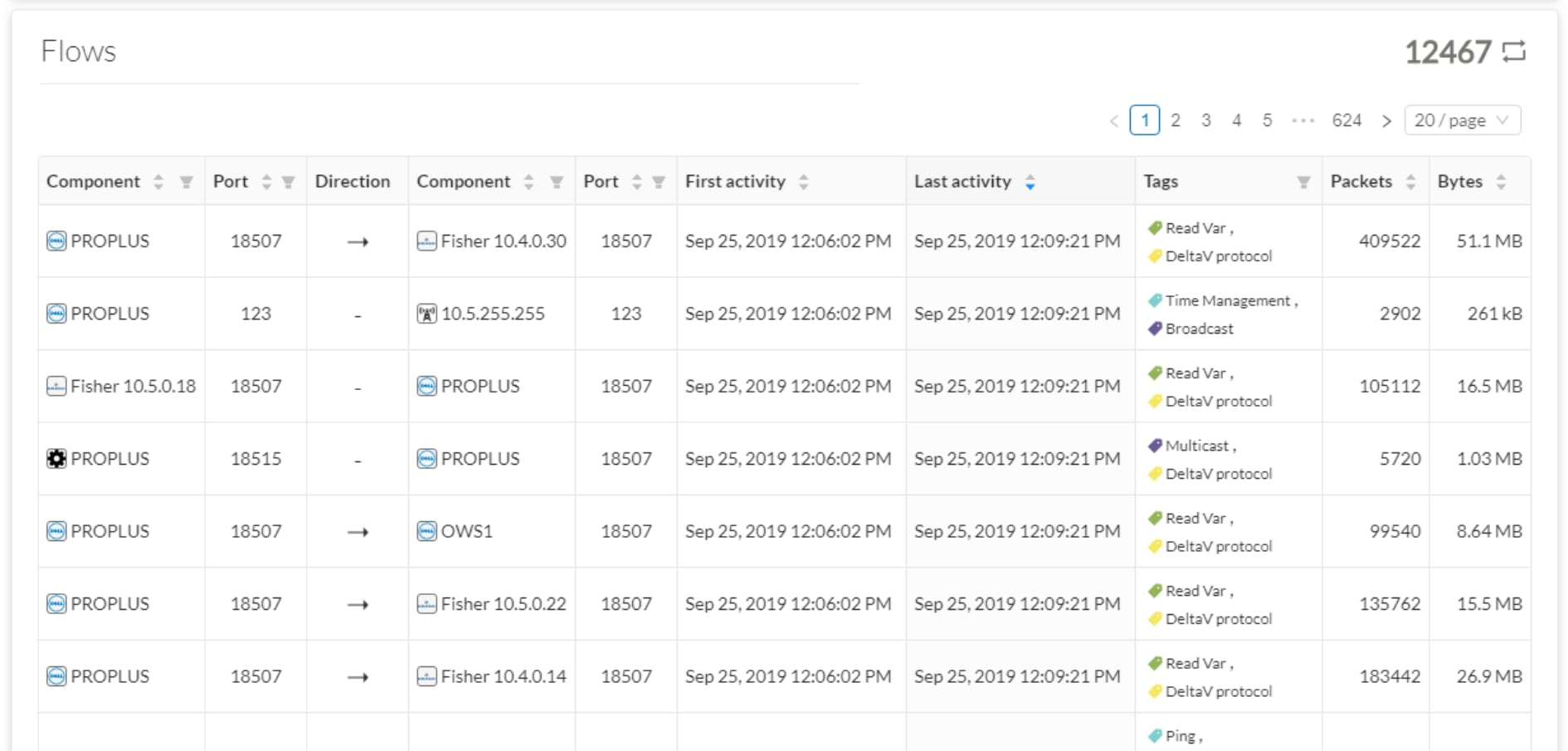
A flow is a single communication exchanged between two components. A group of flows forms an activity, which is identifiable in the Maps by a line that links one component to another. You can see flows by accessing a Technical sheet and then by clicking the Activity tab, or directly by clicking the number of flows on the right side panel.

The Activity tab contains a list of flows which gives you detailed information about each single flow: number of flows in the activity, source and destination components (if known), ports used, first and last activity, and tags which characterize each flow.

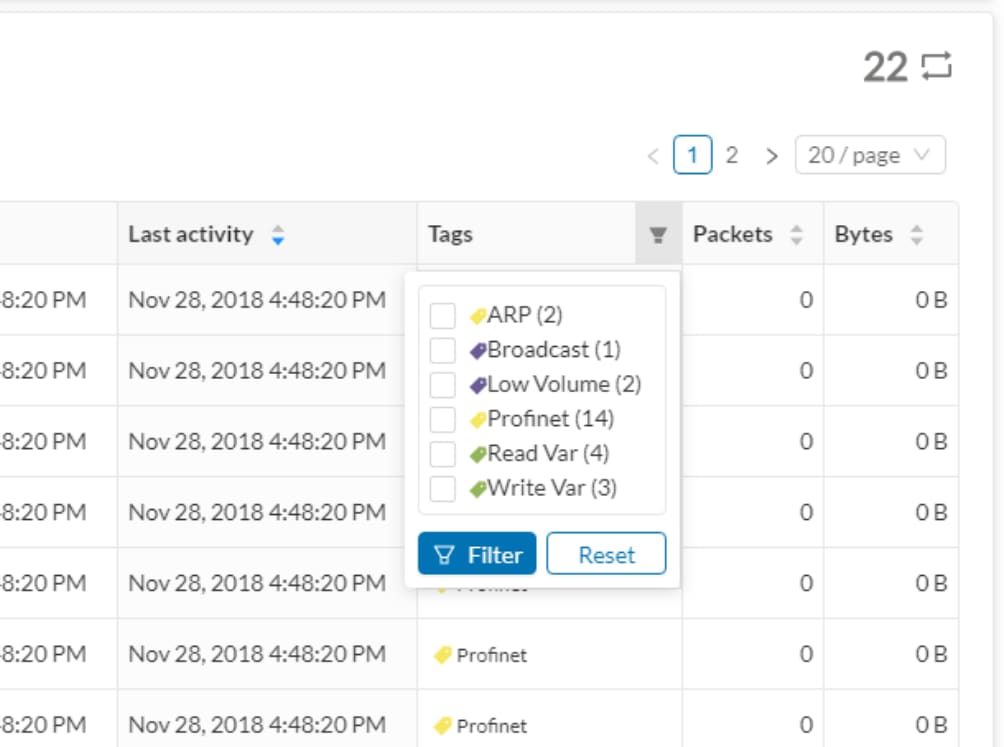
The number of flows can be very important (there could be thousands). Consequently, filters are available in the table to sort flows by typing a component, a port, selecting tags, etc.

You can click on each flow in the list to have access to the flow's technical sheet for further information about the flow's properties and tags.

Time span

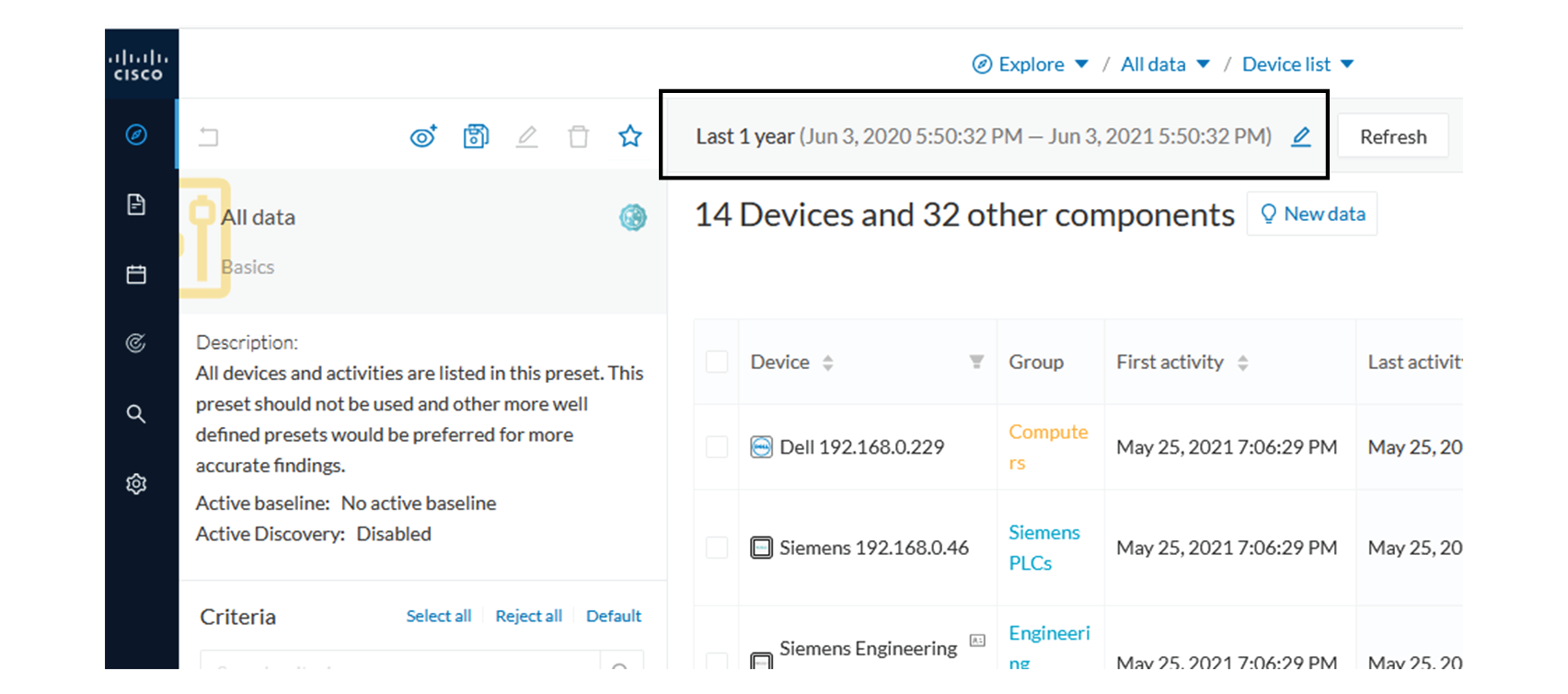
Because Cisco Cyber Vision is a real-time monitoring solution, views are continuously updated with network data. Thus, you can visualize the network activity during a defined period of time by selecting a time span. Time span is used to view less data on the view you're on, or filter data based on time. This feature is available on each preset's view.

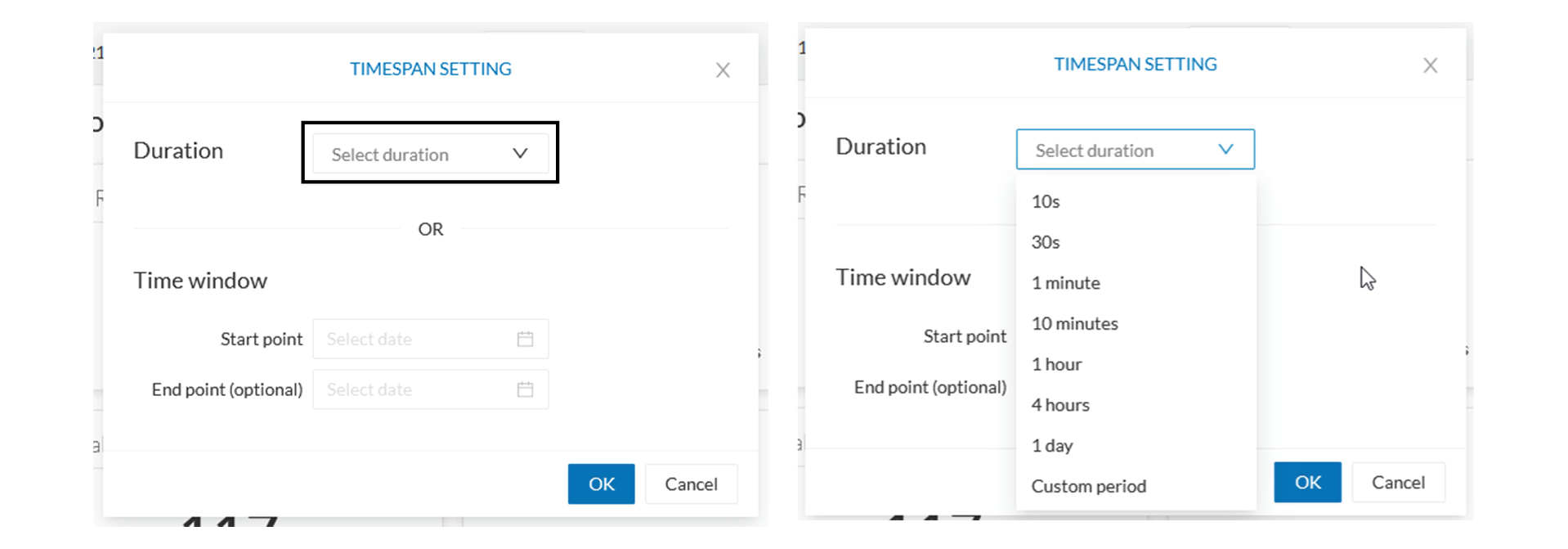
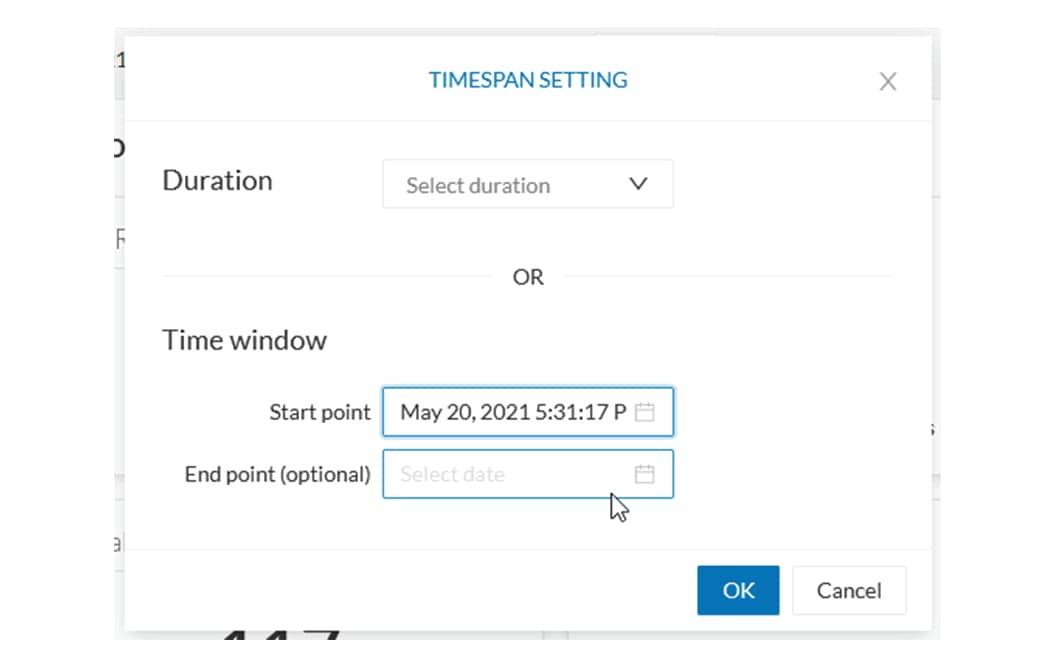
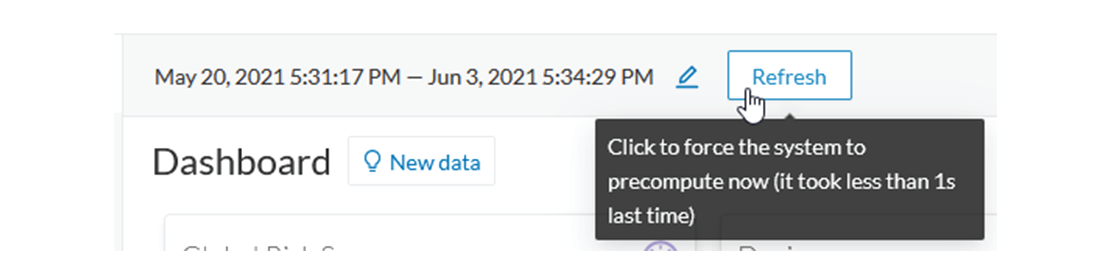
To set a time span, click the pencil button. A window pops up and gives you two options:

  • To set a duration, selecting a period of time (from 10 seconds to 1 day) or a custom period up to now.

  • To set a time window, selecting a start date and optionally an end date. If you don't select one the end date will be set to now.

    You can set a time window to see everything that has happened during the selected period of time such as historical data or to check the network activity in case of on-site intrusion or accident.

Once the time span set, click the Refresh button to compute network data.


Note

No data display is often due to a time span set on an empty period. Remember to first set a long period of time (such as 12mo) before considering a troubleshooting.

Recommendations:

Generally, you can set the time period to 1 or 2 days. This setting is convenient to have an overall view of most supervised standard network activities. This includes daily activities such as maintenance checks and backups.

However, there are many cases where the time frame should be adjusted:

  • Set a period of a few minutes to have more visibility on what is currently happening on the network.

  • Set a period of a few hours to have a view of the daily activity or set a time to see what has happened during the night, the week-end, etc.

  • Set limits to visualize what happened during the night/week-end.

  • Set limits to focus on a time frame close to a specific event.

Tags

What are tags?

Tags are meaningful labels that succinctly describe a network. They can be applied to components or activities. Each tag has a description and an icon color which correspond to its category.

More specifically, tags are metadata on devices and activities. Tags are generated according to the properties of components -which are then applied to devices- and activities. Thus, there are two types of tags:

  • Device tags (1) which describe the functions of the device or component and are correlated to its properties. A device tag is generated at the component level and synthesized at the device level (which is an aggregation of components).

  • Activity tags (2) which describe the protocols used and are correlated to its properties. An activity tag is generated at the flow level and synthesized at the activity level (which is a group of flows between two components).

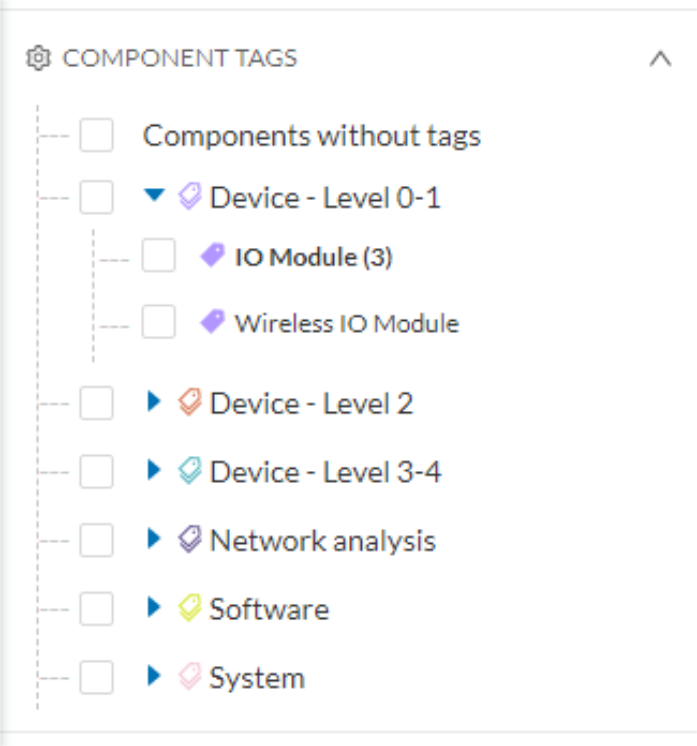
Each tag is classified under categories, which you can find in the filtering area, and applies to a device or an activity.

The device tags categories (Device - Level 0-1, Device - Level 2, etc.) and some tags (IO Module, Wireless IO Module) in the filtering area:


Note

Device levels are based on the definitions presented in the ISA-95 international standard.

What are tags used for?

Exploration of the network and Cisco Cyber Vision is mainly lead by tags. Criteria set on presets are significantly based on tags to filter the different views.

Also, tags are used to define behaviors (i.e. in the Monitor mode) inside an industrial network when combined with information like source and destination ports and flows properties.

Where to find tags?

You will find tags almost everywhere in Cisco Cyber Vision. From criteria, which are based on tags to filter network data, to the different views available. Views take different perspectives and have different approaches concerning tags. For example, the dashboard shows the preset's results bringing out tags over other correlated data, while the device list highlights devices over data like tags. Refer to the different types of view to know more about them.

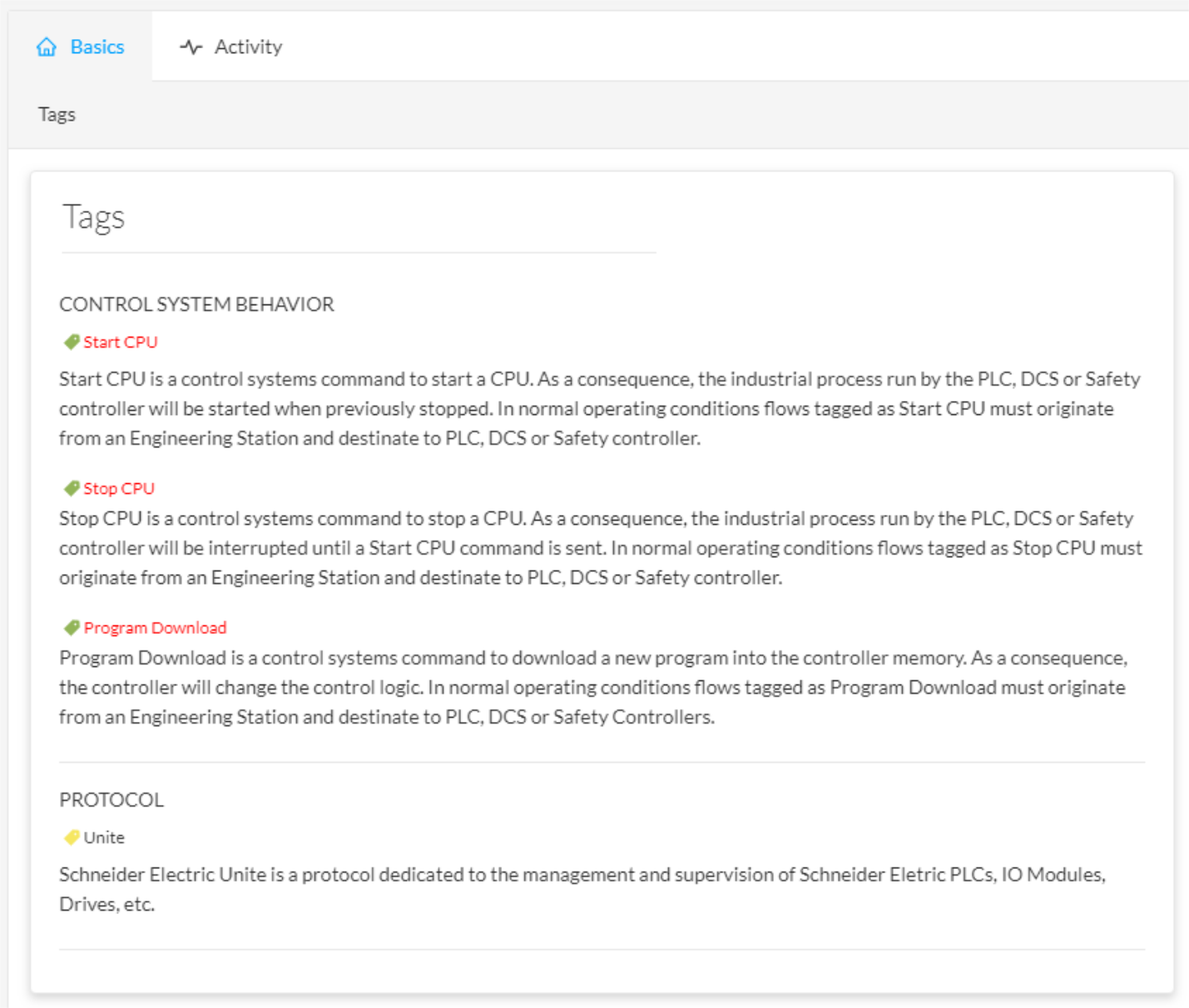
If you want to know more about a tag, access the Basic tab inside a technical sheet to see the tags' definition marked on a component and an activity.

Some definitions of tags inside an activity's technical sheet:

Properties

What are properties?

Properties are information such as IP and MAC addresses, hardware and firmware versions, serial number, etc. that qualify devices, components and flows. The sensor extracts flows properties from the packets captured. The Center then deduces components properties and then devices properties out of flows properties. Some properties are normalized for all devices and components and some properties are protocol or vendor specific.

What are properties used for?

Besides from providing further details about devices, components and flows, properties are crucial in Cisco Cyber Vision to generate tags. And combination of properties and tags are used to define behaviors (i.e. in the Monitor mode) inside the industrial network.

Where to find properties?

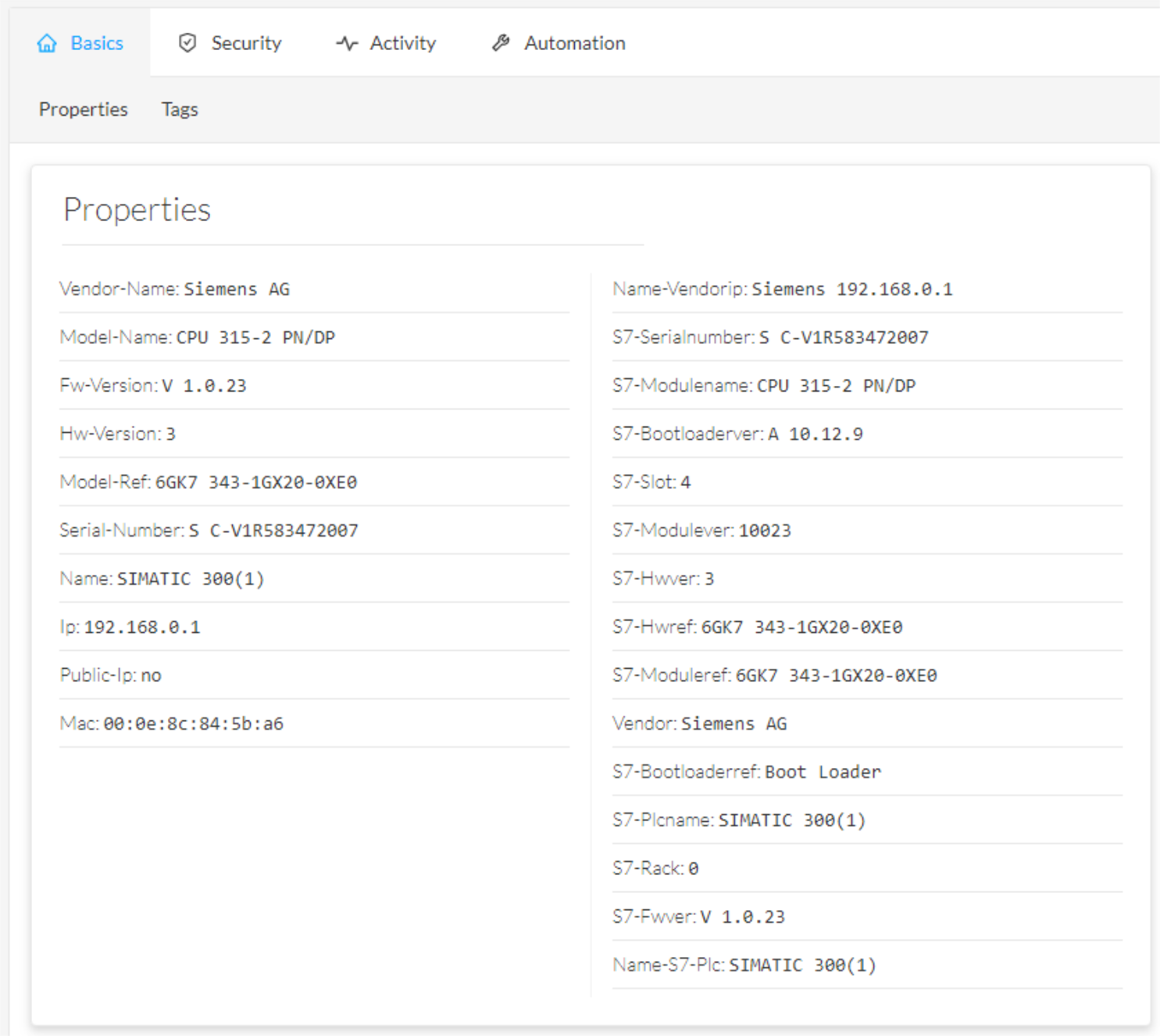
Properties are visible from devices and components right side panels and technical sheets under the tab Basics.

A component's properties inside its technical sheet with normalized properties on the left column, and protocol and vendor specific properties on the right column:


Note

Protocol and vendor specific properties evolve as more protocols are supported by Cisco Cyber Vision.

Risk score

What is a risk score?

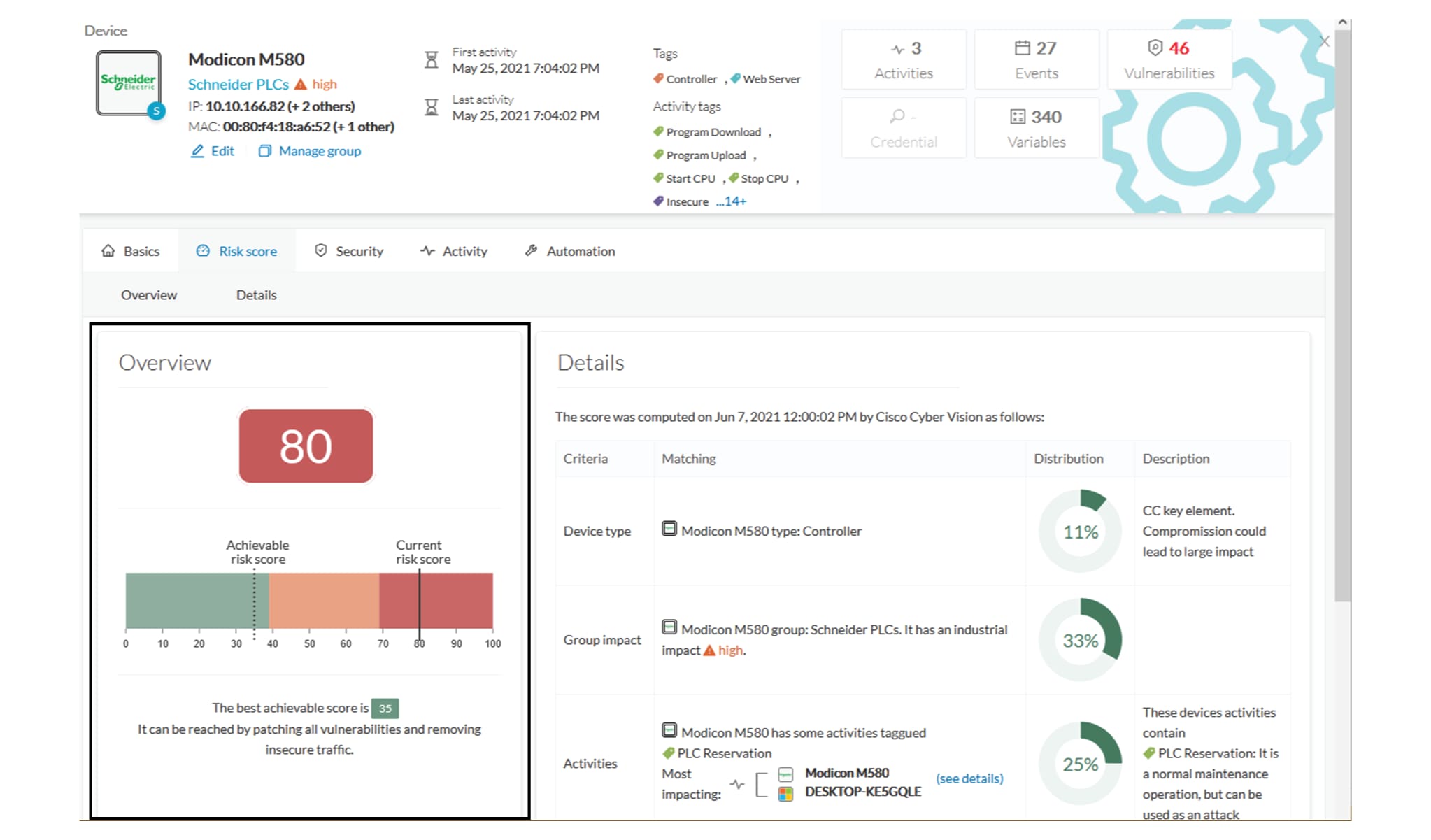
A risk score is an indicator of the good health and criticality level of a device, on a scale from 0 to 100. It has a color code associated to the level of risk:

Score

Color

Risk level

From 0 to 39

Green

Low

From 40 to 69

Orange

Medium

From 70 to 100

Red

High

The notion of risk scores appears in several parts of Cisco Cyber Vision. For example, you will find them in:

  • The filter criteria.

  • The device list.

  • The device technical sheet.

  • The device risk score widget (Home page).

  • The preset highlight widget (Home page).

What is a risk score used for?

The risk score is meant to help the user easily identifying which devices are the most critical within the overall network. It provides limited and simple information on the cybersecurity of the monitored system. It is intended as a first step in security management to take actions by showing the causes of high scores and providing solutions to reduce them. The goal is to minimize and keep risk scores as low a as possible.

The solutions proposed can be:

  • to patch a device to reduce the surface of attack,

  • to remove vulnerabilities,

  • to update firmware,

  • to remove unsafe protocols whenever possible (e.g. FTP, TFTP, Telnet),

  • to install a firewall,

  • to limit communications with the outside, by removing external IPs.

In addition, it is necessary to define the importance of the devices in your system by grouping devices and setting an industrial impact. Thereby, increasing or decreasing the risk score, which will allow you to focus on most critical devices.

All these actions will reduce the risk score which affect its variables, i.e. the impact and the likelihood.

For example, removing unsafe protocols will affect the likelihood of the risk, but patching a device will act on the impact of the risk.

Risk score represents an opportunity to update usage and maintenance habits. However, it is NOT intended to replace a security audit.

In addition, risk scores are used in Cisco Cyber Vision to sort out information by ordering and filtering criteria in lists and to create presets.

How is the risk score computed?

The risk score is computed as follows:

Risk = Impact x Likelihood​

Impact:

The impact answers the question: What is the device “criticality”, that is, what is its impact on the network? Does it control a small, non-significant part of the network, or does it control a large critical part of the network? To do so, the impact depends on:

  • The device tags, because some device types are more critical. Each device type (or device tag) or device tag category has been assigned an industrial impact score by Cisco Cyber Vision. For example, is the device a simple IO device that controls a limited portion of the system, or is it a Scada that controls the entire factory? These will obviously not have the same impact if they are compromised.

  • The user has the possibility to act on the device impact by moving it into a group and setting the group's industrial impact (from very low to very high).

Likelihood:

The likelihood answers the question: What is the likelihood of this device being compromised? It depends on:

  • Device activies, more precisely on the activity tags. Because some protocols are less secure than others. For example, Telnet is less secure than ssh.

  • The exposure of the device communicating with an external subnet.

  • Device vulnerabilities, taking into account their CVSS scoring.

These criteria are visible under Details in the device's technical sheet.

How to take action:

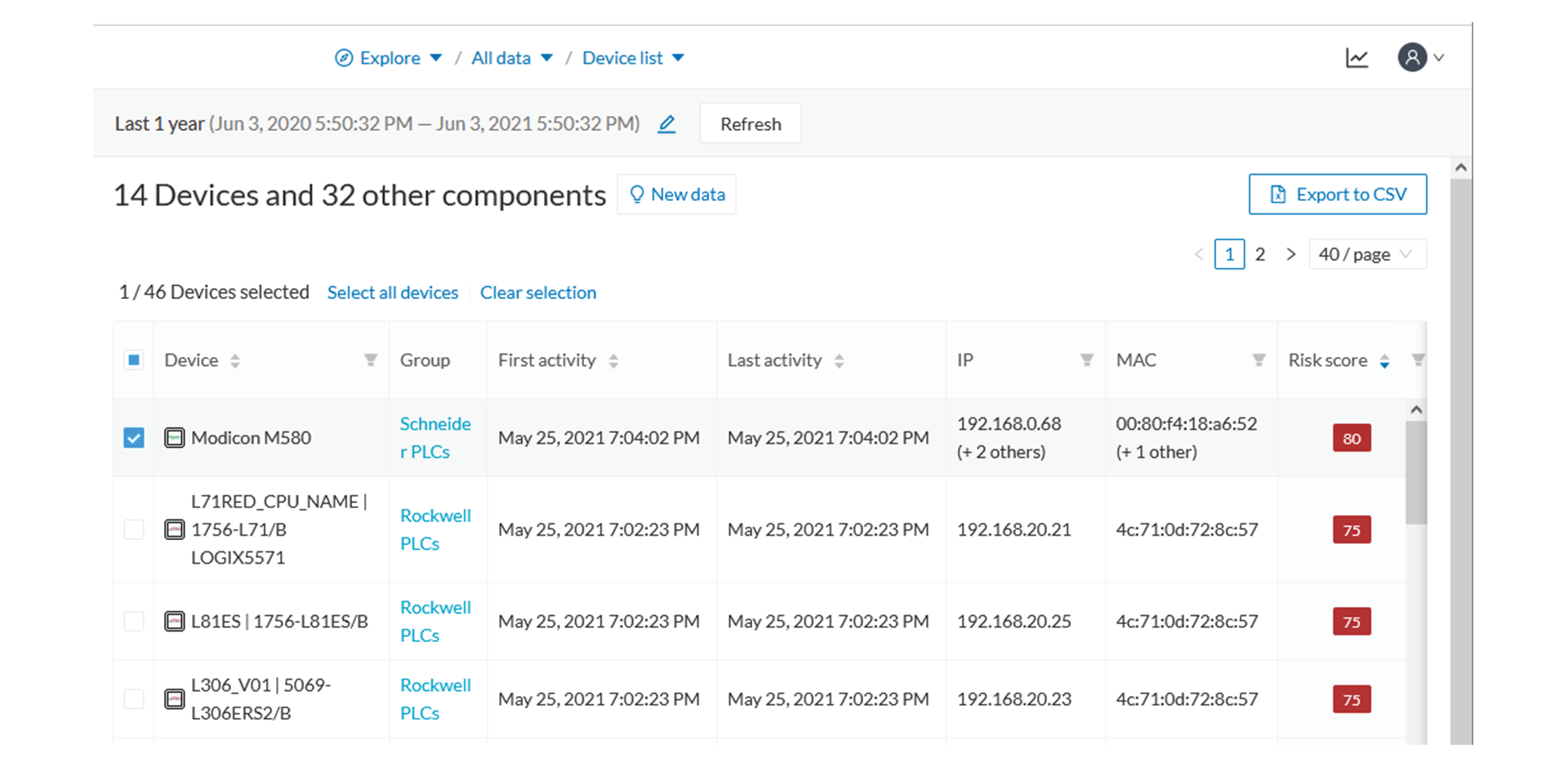
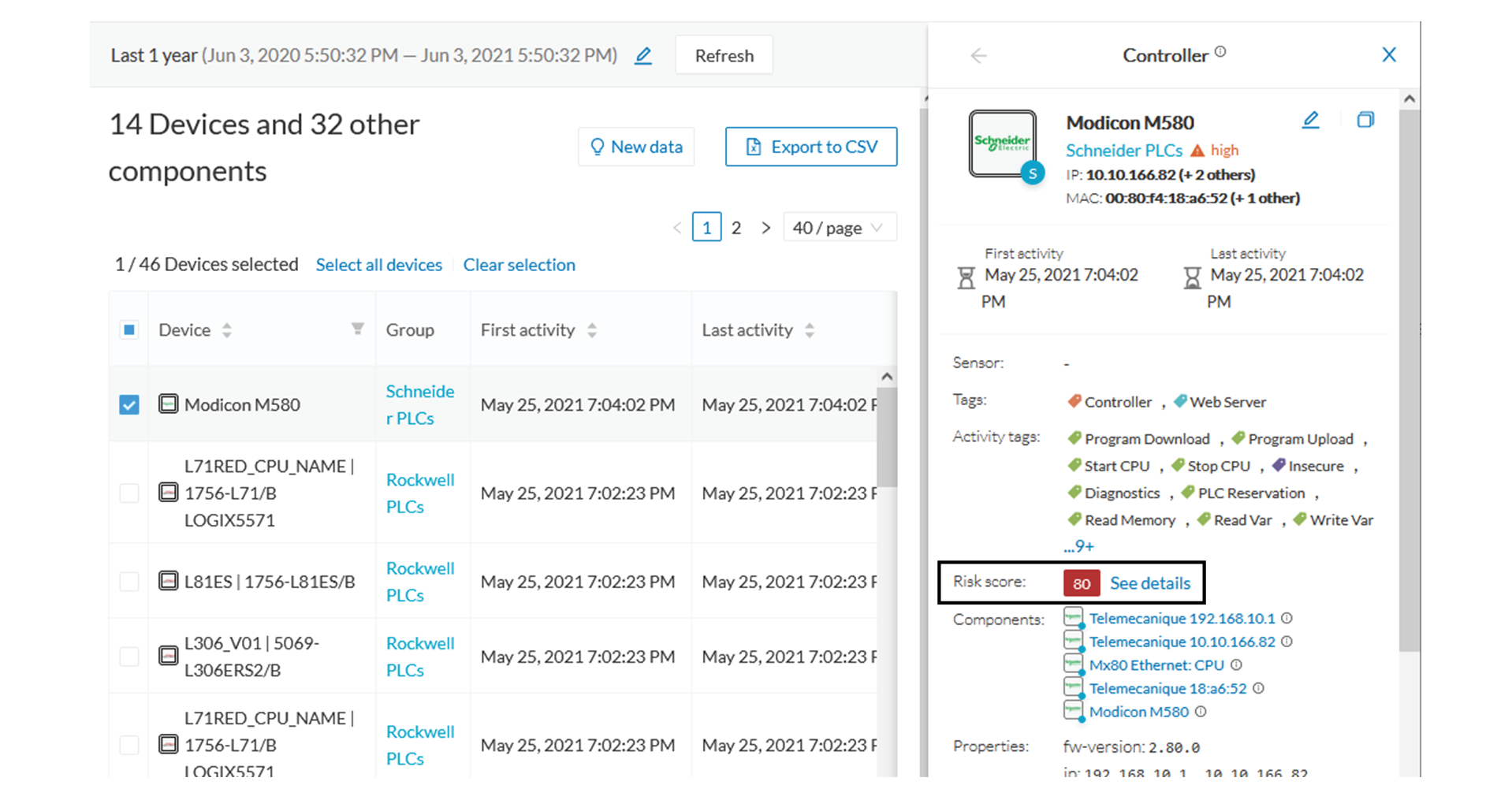
  1. In the device list, in the risk score column, click the sort icon to get the highest risk scores.

  2. Click a device in the list. Its right side panel opens.

  3. Click the risk score's "see details" button.

    The device's technical sheet opens on the risk score's menu.

    Under overview, you can see the current risk score and the achievable risk score.

    The achievable risk score is the best score you can reach if you patch all vulnerabilities on the device and remove all potential insecure network activities. The score cannot be zero because devices have intrinsic risks coming from their device type and, if applicable, their group industrial impact.

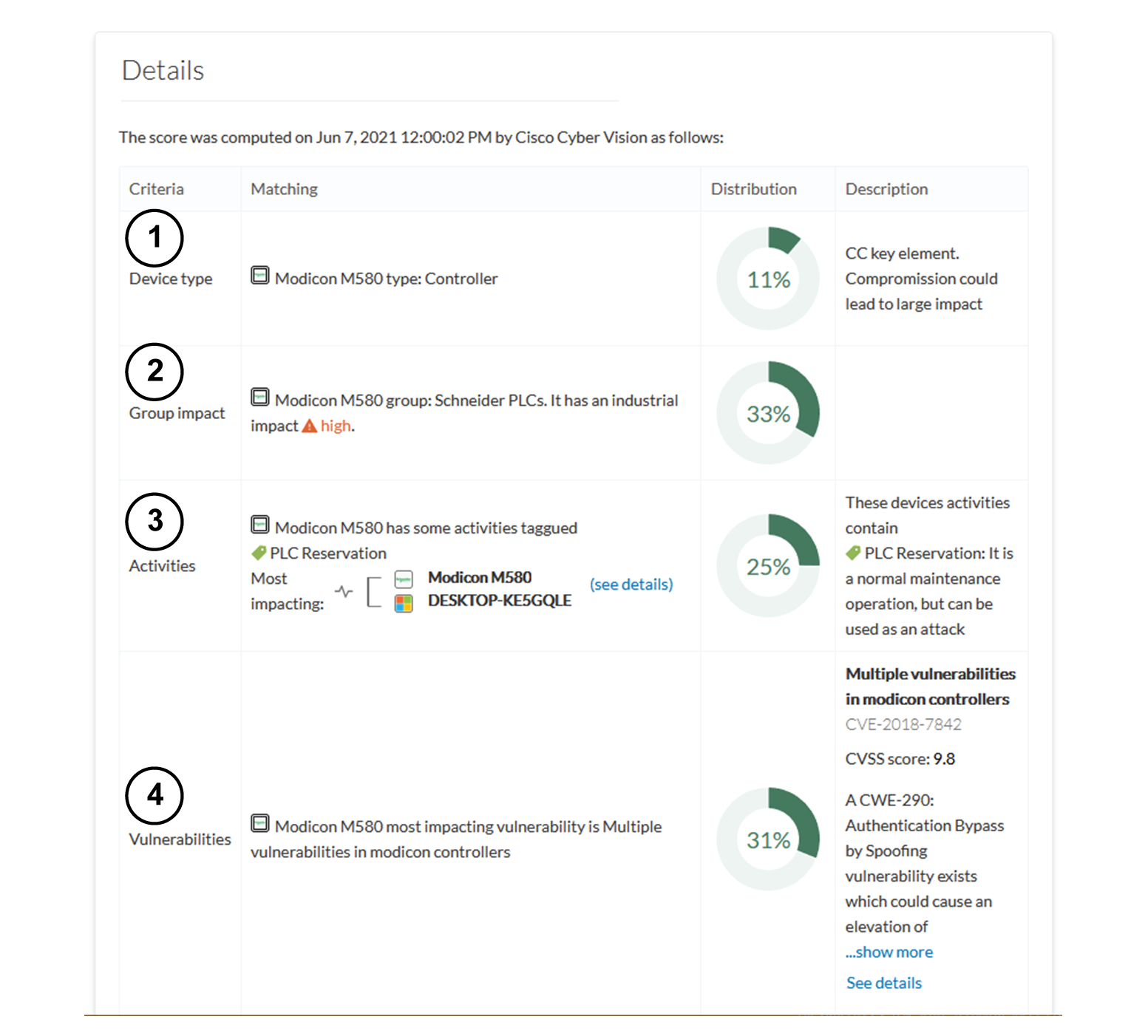
    Under Details, you have further information about the different risks impacting the device, the percentage of the risk they represent within a total risk score, and the solutions to reduce or even eliminate them.

    Device type (1) and group impact (2) affect the risk impact variable, meanwhile activities (3) and vulnerabilities (4) affect the risk likelihood.

As first information, you have the last time the risk score was computed by Cisco Cyber Vision. Risk score computation occurs once an hour. However, you can force computation by using the following command on the Center shell prompt:

sbs-device-engine

Below, appears the information retrieved during the last computation.

  • Device type (1): Each device type corresponds to a device tag detected by Cisco Cyber Vision. There is no action to be done at the device type level, because each device tag is assigned with a risk score by default in Cisco Cyber Vision.

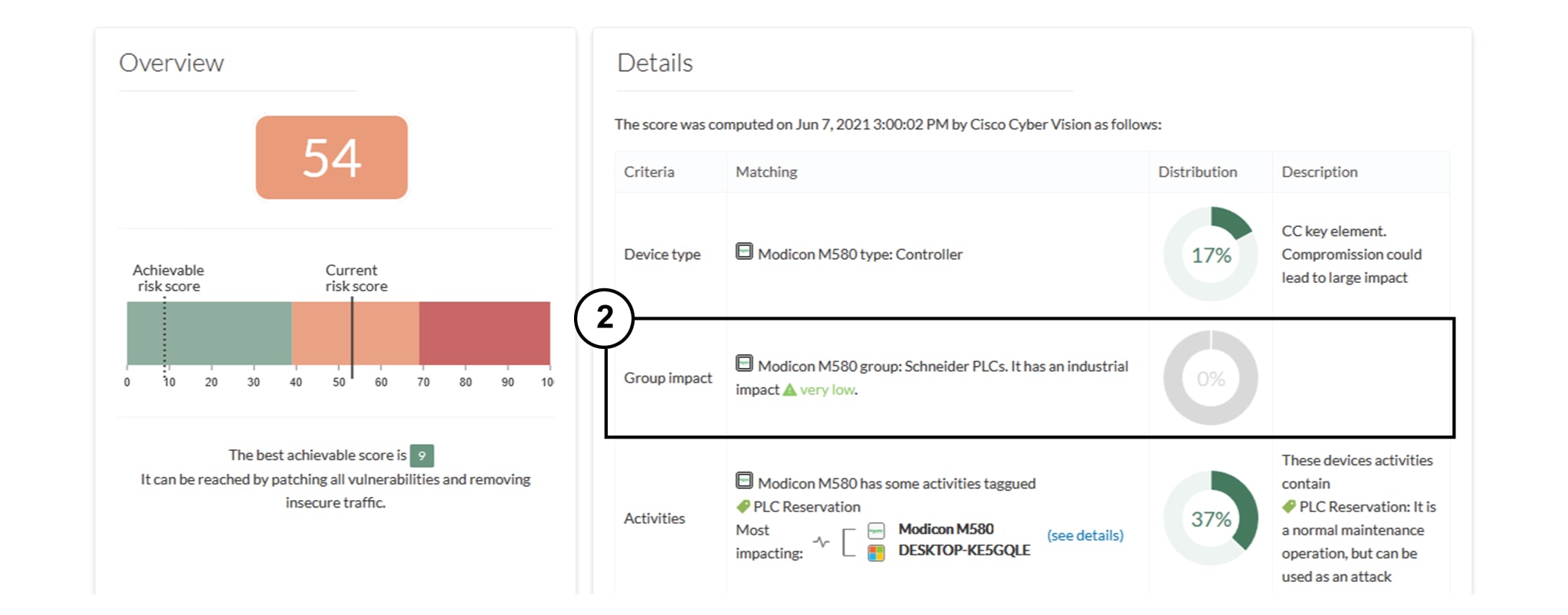
  • The group impact (2): Action is possible if the device belongs to a group. You can decrease the impact by lowering the industrial impact of the group that the device belongs to.

    For example, if I set the group industrial impact to very low (previously high), the overall risk score decreases from 80 to 54:


    Note

    The new industrial impact will be taken into account at the next risk score computation (once an hour).
  • Activities (3): The most impactful activity tag is displayed. The risk can be lowered if all potential insecure network activities are removed.

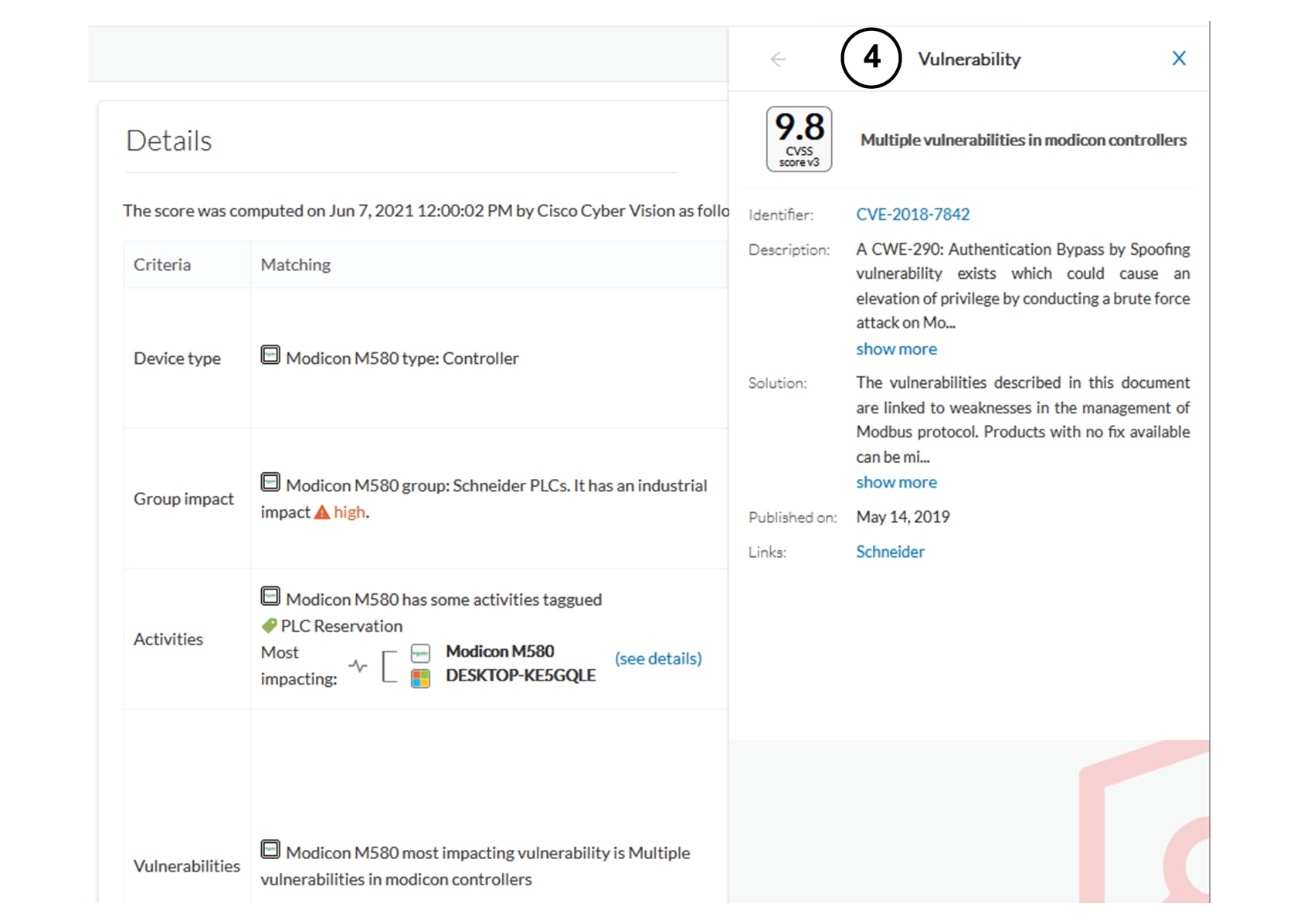
  • Vulnerabilities (4): Click the "see details" button for more information about how to patch the vulnerabilities and so reduce the device risk score.

By taking these actions, the risk score should decrease considerably.

Vulnerability

What are vulnerabilities?

Vulnerabilities are weaknesses detected on devices that can be exploited by a potential attacker to perform malevolent actions on the network.

Vulnerabilities are detected in Cisco Cyber Vision thanks to rules stored in the Knowledge DB. These rules are sourced from several CERTs (Computer Emergency Response Team), manufacturers and partner manufacturers (Schneider, Siemens...). Technically, vulnerabilities are generated from the correlation of the Knowledge DB rules and normalized device and component properties. A vulnerability is detected when a device or a component matches a Knowledge DB rule.


Important

It is important to update the Knowledge DB in Cisco Cyber Vision as soon as possible after notification of a new version to be protected against vulnerabilities.

What are vulnerabilities used for?

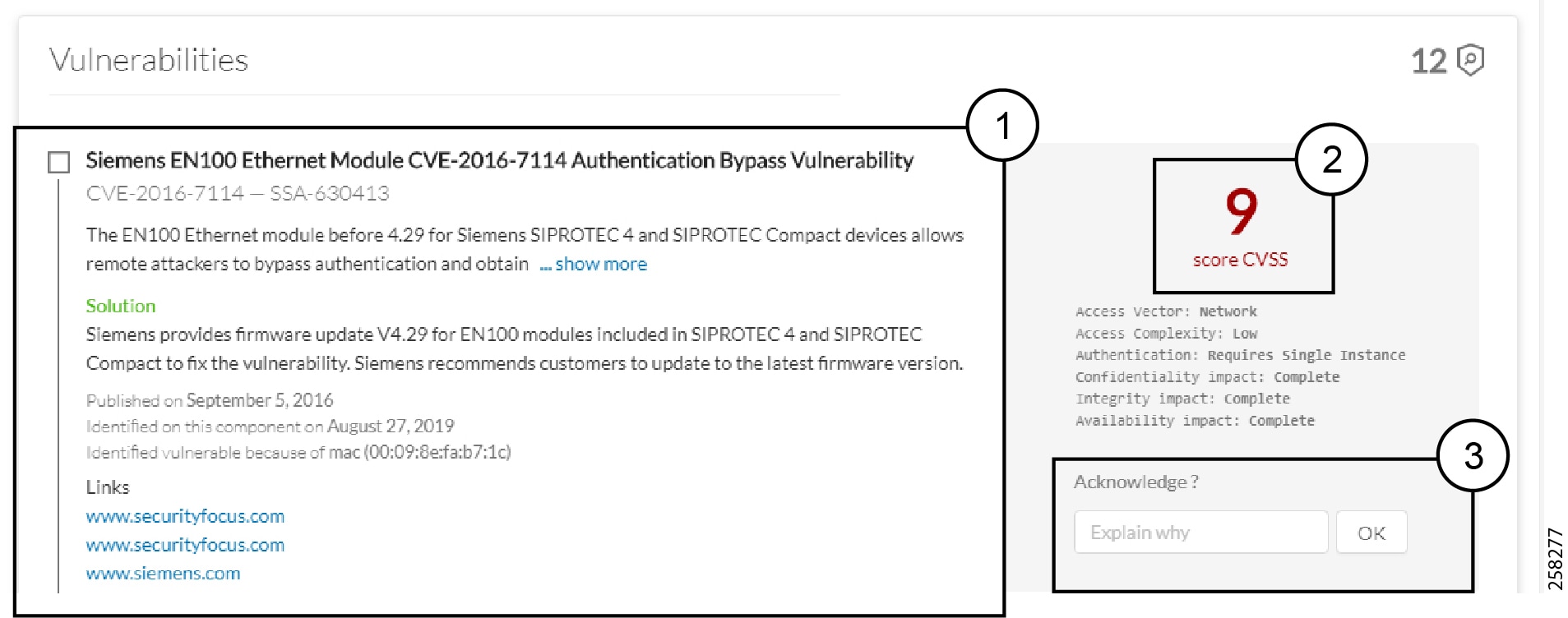
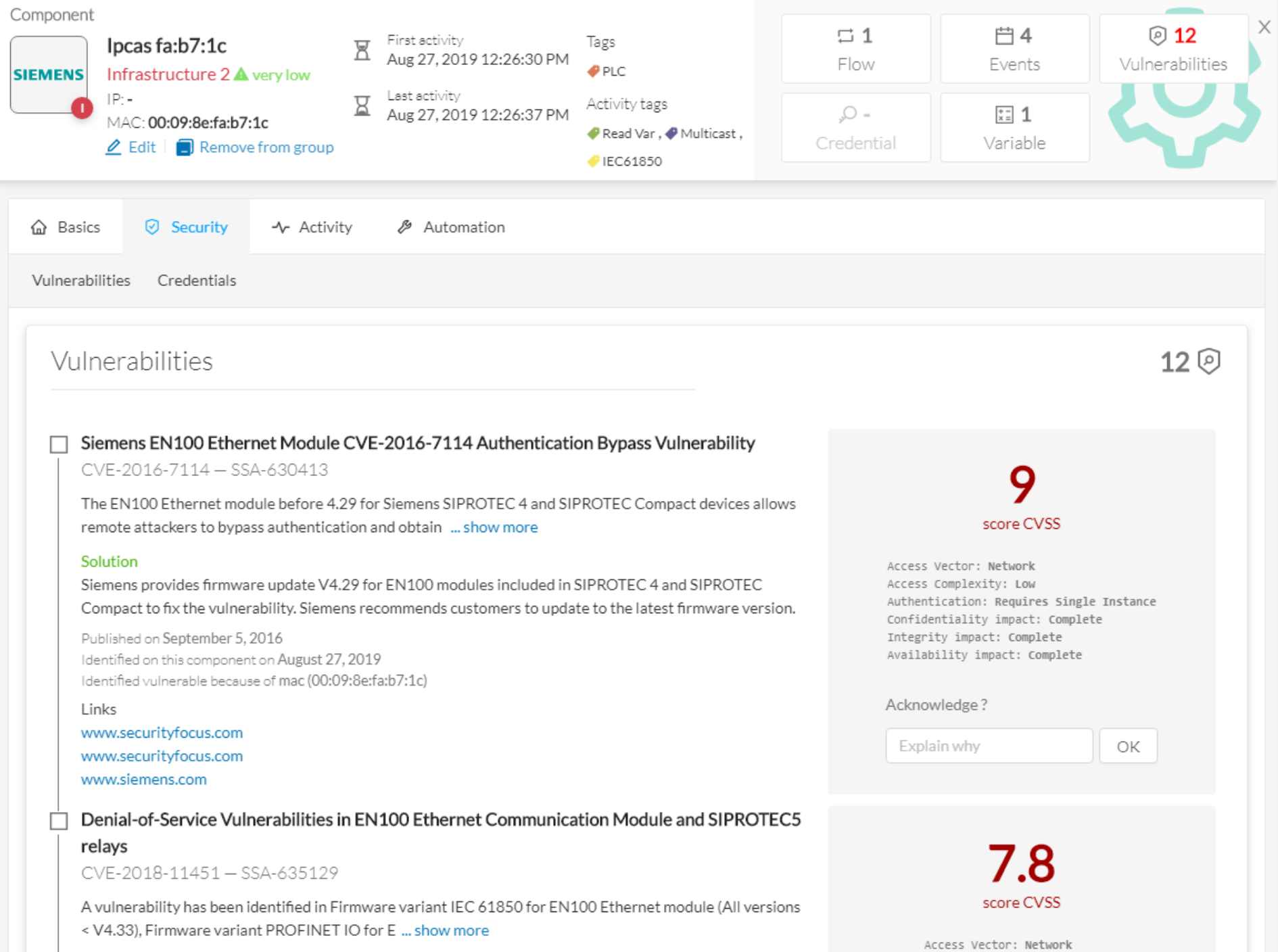
Example of a Siemens component's vulnerability visible on its technical sheet under the Security tab:

Information displayed about vulnerabilities (1) includes the vulnerability type and reference, possible consequences and solutions or actions to take on the network. Most of the time though, it is enough to upgrade the device firmware. Some links to the manufacturer website are also available for more details on the vulnerability.

A score reports the severity of the vulnerability (2). This score is calculated upon criteria from the Common Vulnerability Scoring System or CVSS. Criteria are for example the ease of attack, its impacts, the importance of the component on the network, and whether actions can be taken remotely or not. The score can go from 0 to 10, with 10 being the most critical score.

You also have the option to acknowledge a vulnerability (3) if you don't want to be notified anymore about it. This is used for example when a PLC is detected as vulnerable but a firewall or a security module is placed ahead. The vulnerability is therefore mitigated. An acknowledgment can be canceled at any time. Vulnerabilities acknowledgment/cancelation is accessible to the Admin, Product and Operator users only.

Where to find vulnerabilities?

Vulnerabilities are accessible through the Vulnerability dashboard of a preset.
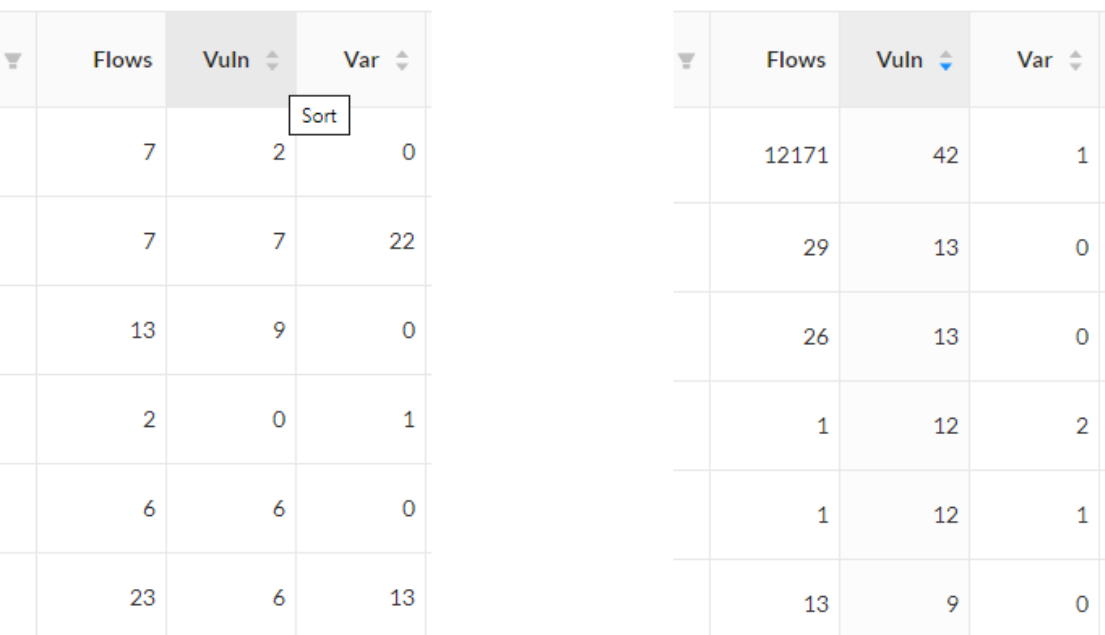
Also, you can see vulnerabilities through the Device list. Sort the vulnerability column to bring vulnerable components up:

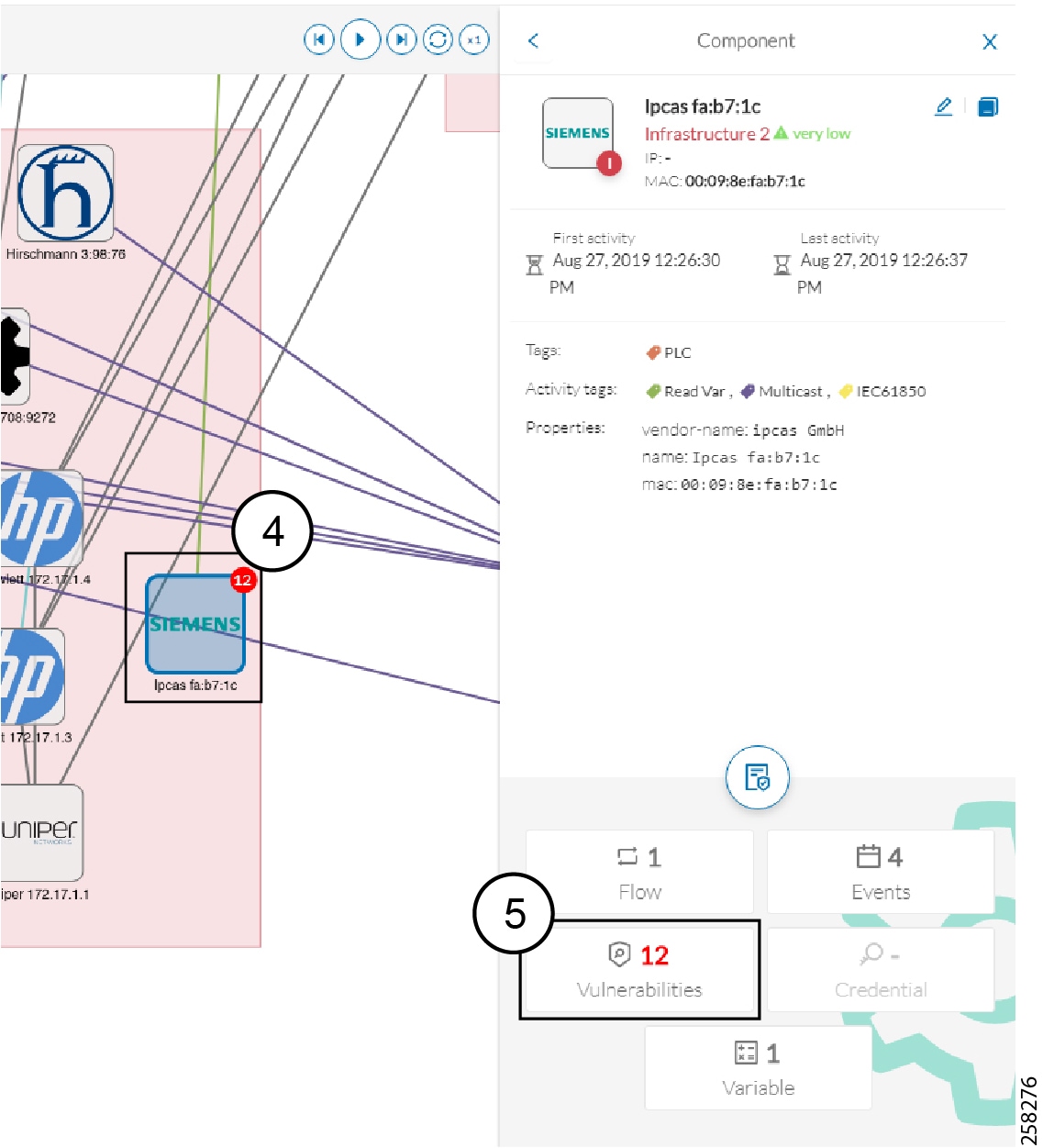
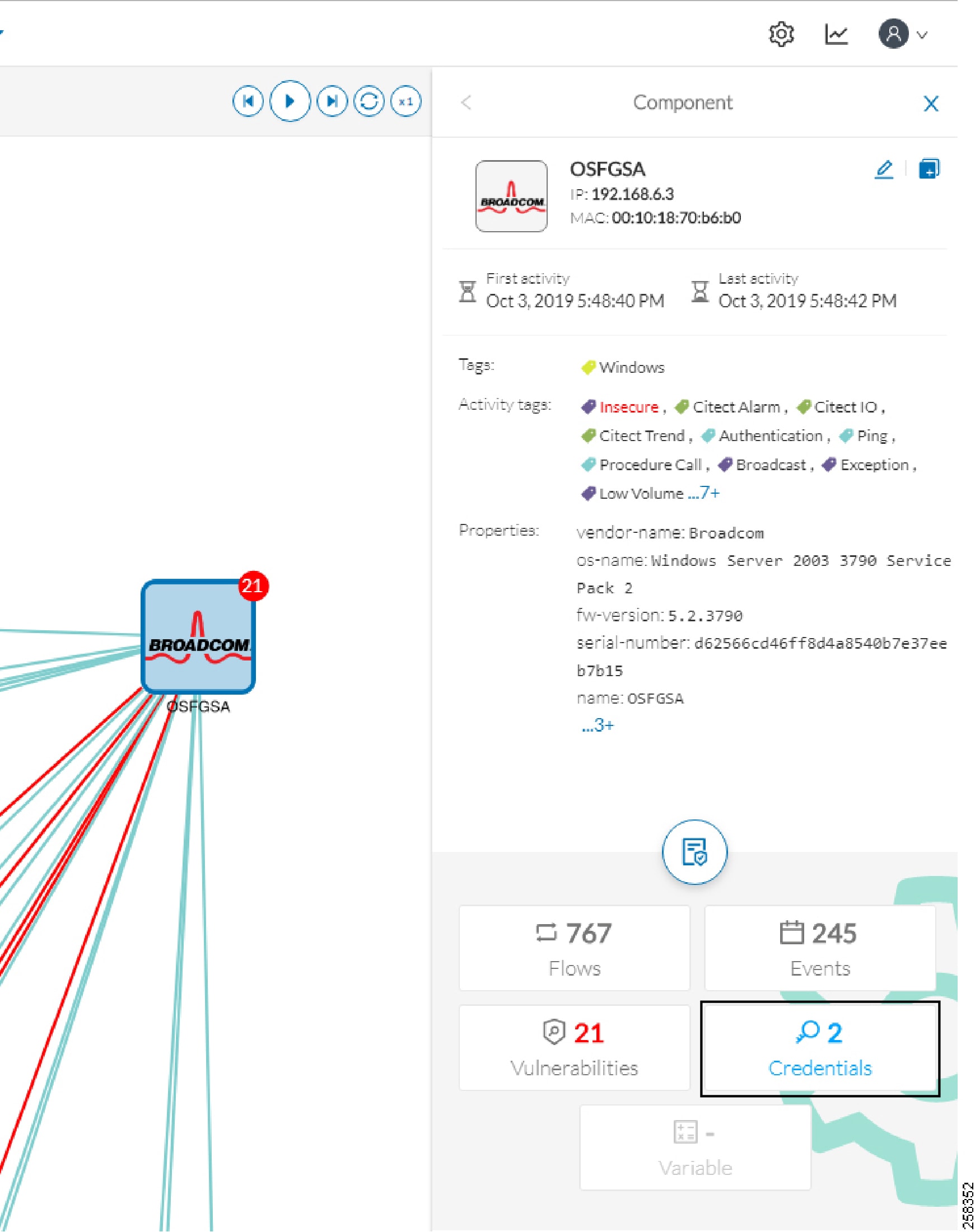
Moreover, vulnerabilities are pointed out in the map by a device or a component with a red counter badge (4). If you click it, its side panel opens on the right with the number of vulnerabilities evidenced in red (5).

Clicking the vulnerabilities displayed in red (5) (in the figure above) opens the device or component's technical sheet with further details about all its vulnerabilities:

However, you'll be notified each time a device or component is detected as vulnerable by an event. One event is generated per vulnerable component. An event is also generated each time a vulnerability is acknowledged or not vulnerable anymore.

Events

Events are used to identify and keep track of significant activities on the network and on Cisco Cyber Vision. It can be an activity, a property or a change whether it concerns software or hardware parts.

For instance, an event can be:

  • A wrong password entered on Cisco Cyber Vision's GUI.

  • A new component which has been connected to the network.

  • An anomaly detected on the Monitor Mode.

  • A component detected as vulnerable.

Events are visible in the Events page.

New events may be generated when the database is updated (in real-time or each time an offline capture is uploaded to Cisco Cyber Vision) with a severity level (Critical, High, Medium and Low) customizable through the Events administration page.

Credentials

Credentials are logins and passwords that circulate between components over the network. Such sensitive data sometimes carry cleartext passwords when unsafe; and if credentials are visible on Cisco Cyber Vision, then they're potentially visible to anyone on the network. Credentials visibility on Cisco Cyber Vision should trigger awareness towards actions to be taken to properly secure the protocols used on a network.

A component's right side panel showing the number of credentials detected:

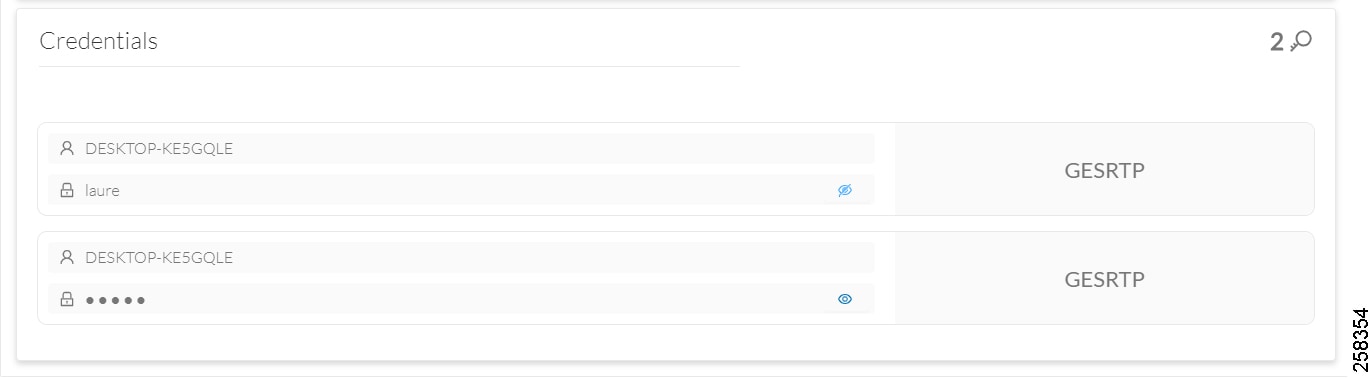
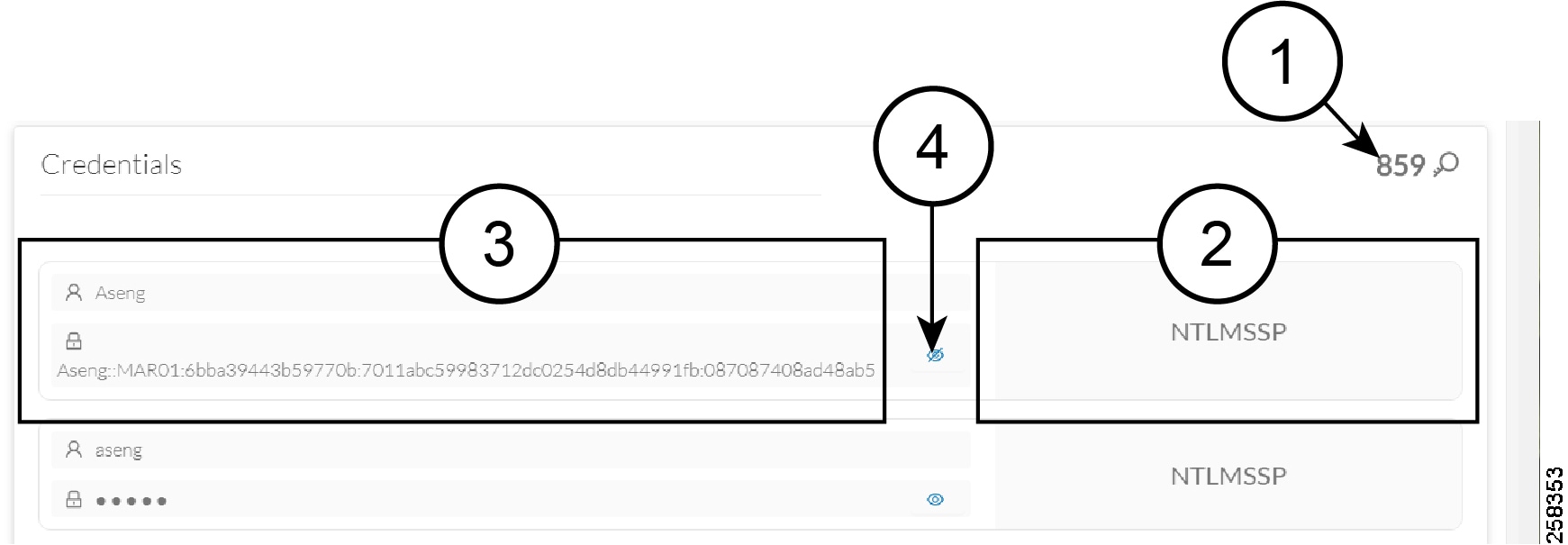
Credential frames are extracted from the network thanks to Deep Packet Inspection. Credentials are then accessible from a component's technical sheet under the security tab. You will find the number of credentials found (1), the protocol used (2), and the user name and password (3) with a button to unveil it (4). If a password appears in clear text, then action should be taken to secure it whether it is hashed or not.

An unsafe password:

A hashed password:

Variable accesses

What are variable accesses?

A Variable is a container that holds information in an equipment such as a PLC or a data server (i.e. OPC data server). There are many different types of variables depending on the PLC or the server that is in use. A variable can be accessed by the network by using a name or a physical address in the equipment memory. Variables are exchanged on the industrial network between PLCs and servers for process control and supervision purposes. Variables can be read or written in any equipment according to need.

A variable can be for example the ongoing temperature on an industrial oven. This value is stored in the oven's PLC and can be controlled by another PLC or accessed by a SCADA system for supervisory purpose. The same value can be read by another PLC which controls the heating system.

What are variable accesses used for?

Reading and writing variables inside a network is strictly controlled. Particular attention should be paid when an unplanned change occurs, especially when it comes to a new written variable. Indeed, such a behavior could be symptomatic of an attacker attempting to take control of the process. Cisco Cyber Vision reports the variables' messages detected on the equipment of the industrial network.

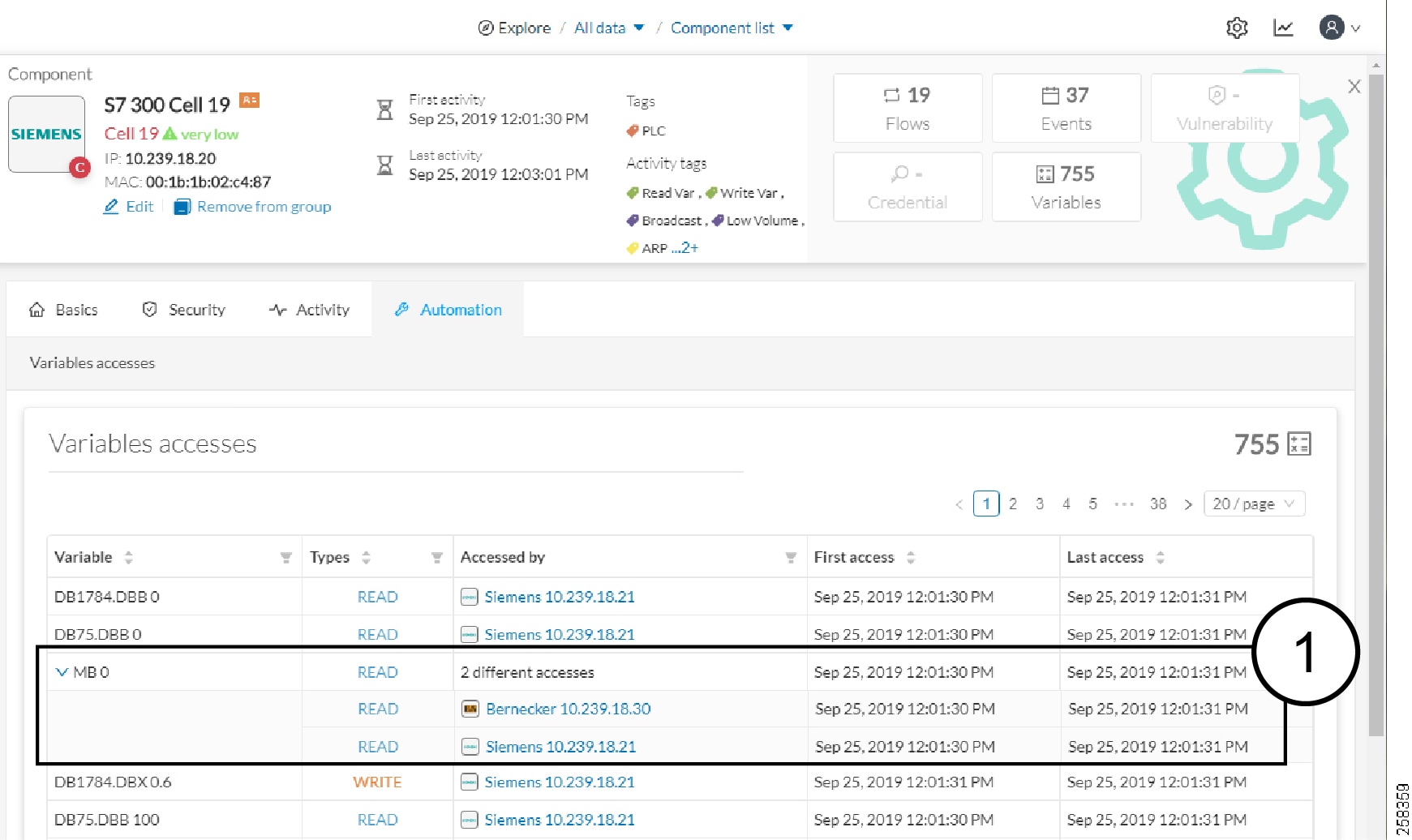
Variable accesses are detailed inside component's technical sheet under a sortable table list, containing:

  • The variable's name.

  • Its type (WRITE or READ, but not the value itself).

  • Which component have accessed the variable.

  • The first and last time the component has accessed the variable.

The mention "2 different accesses" (1) indicates that two components have read the variable.

Where to find variable accesses?

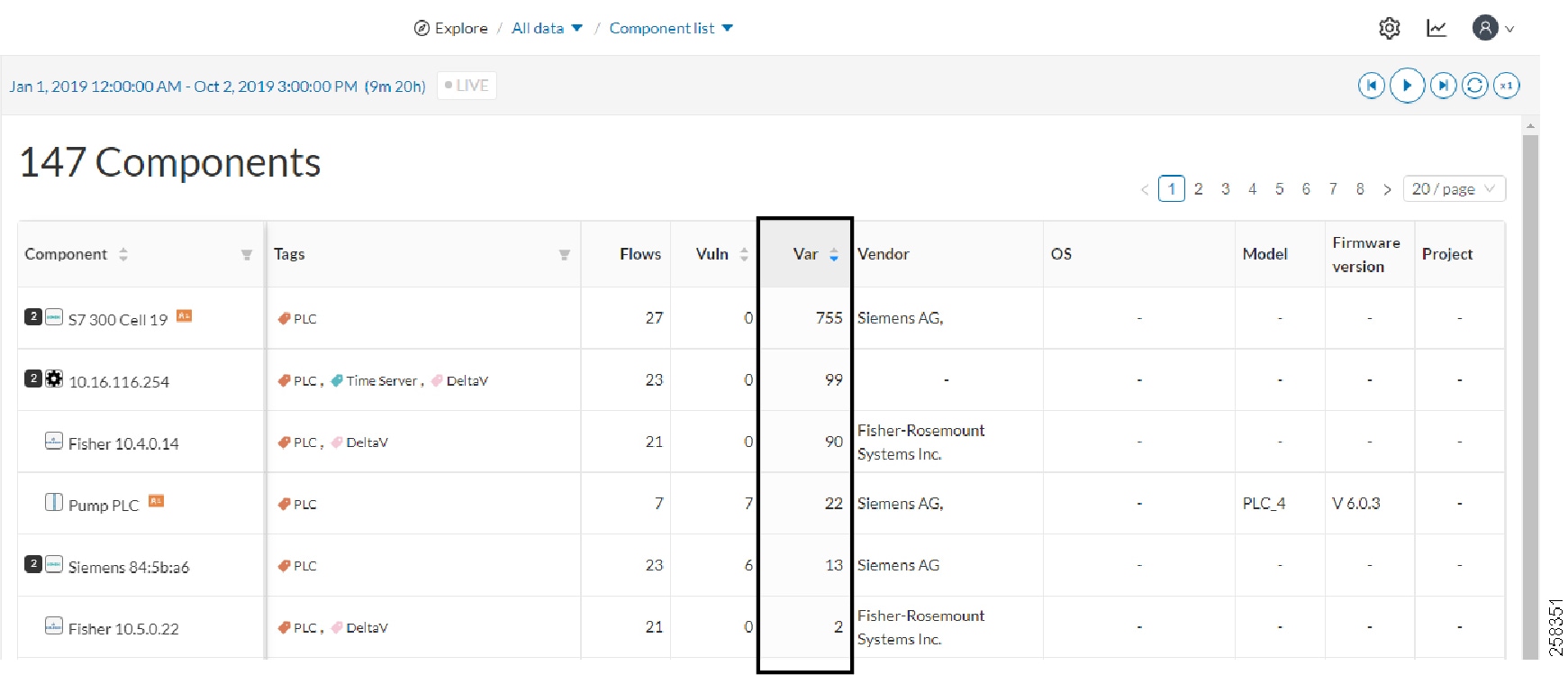
You can see the number of variable accesses per component on the component list view. You can sort the var column by ascending or decreasing number.

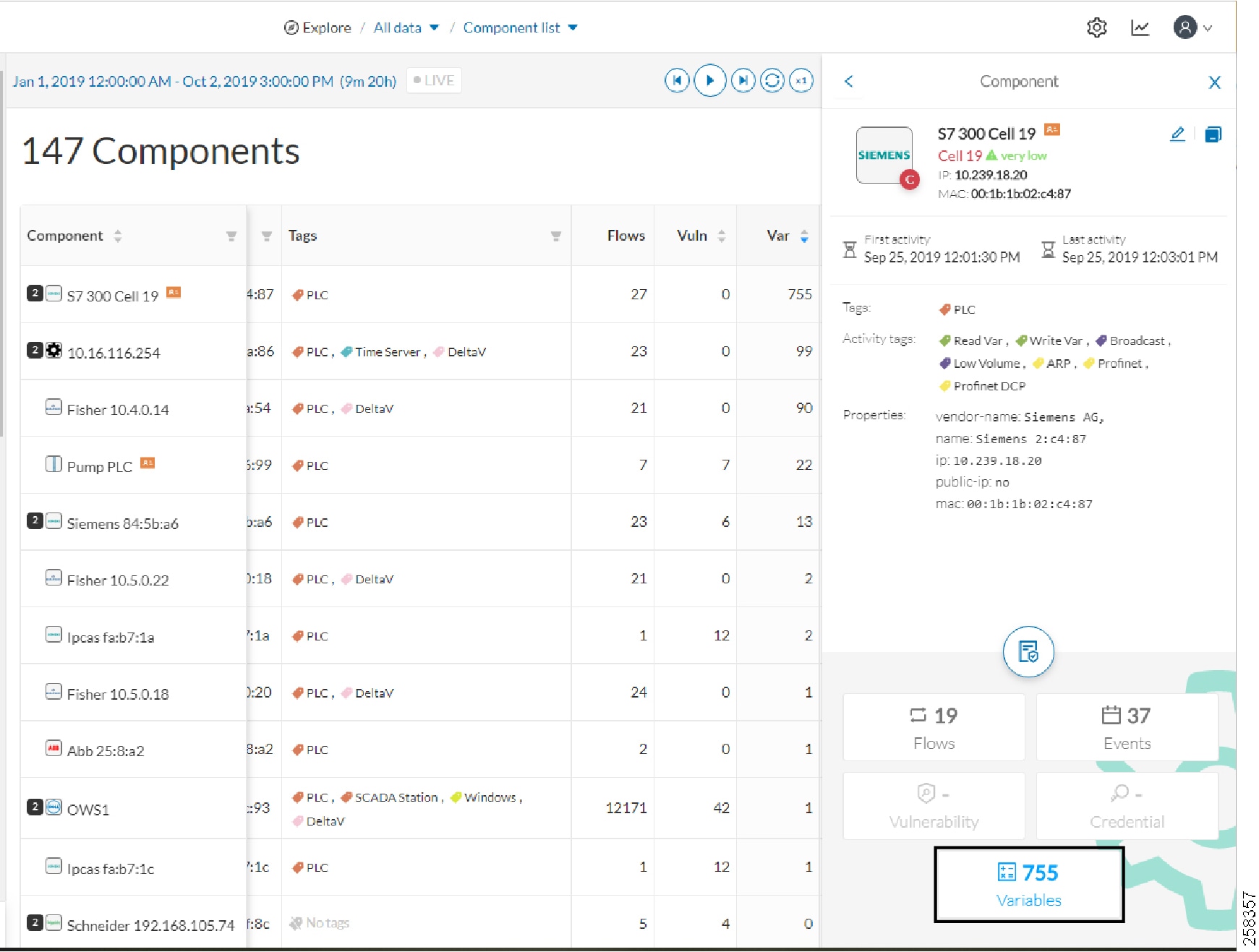
Clicking a component from any view opens its right side panel where the number of variables on this component is indicated.

A detailed list of variable accesses is available under the automation tab on the component's technical sheet (see the first figure above) and on PLC reports.

Creating and customizing groups

Accessibility: Admin, Product and Operator users

You can organize devices and components into groups as you wish to add meaning to your network representation. For example, this can be done according to the devices' location, process, severity, type, etc. You can also create nested groups inside a parents group, that is, add a group into another group to create several layers and structure the data.

You can use this feature inside the map and the device list views.

To create a group:

Procedure


Step 1

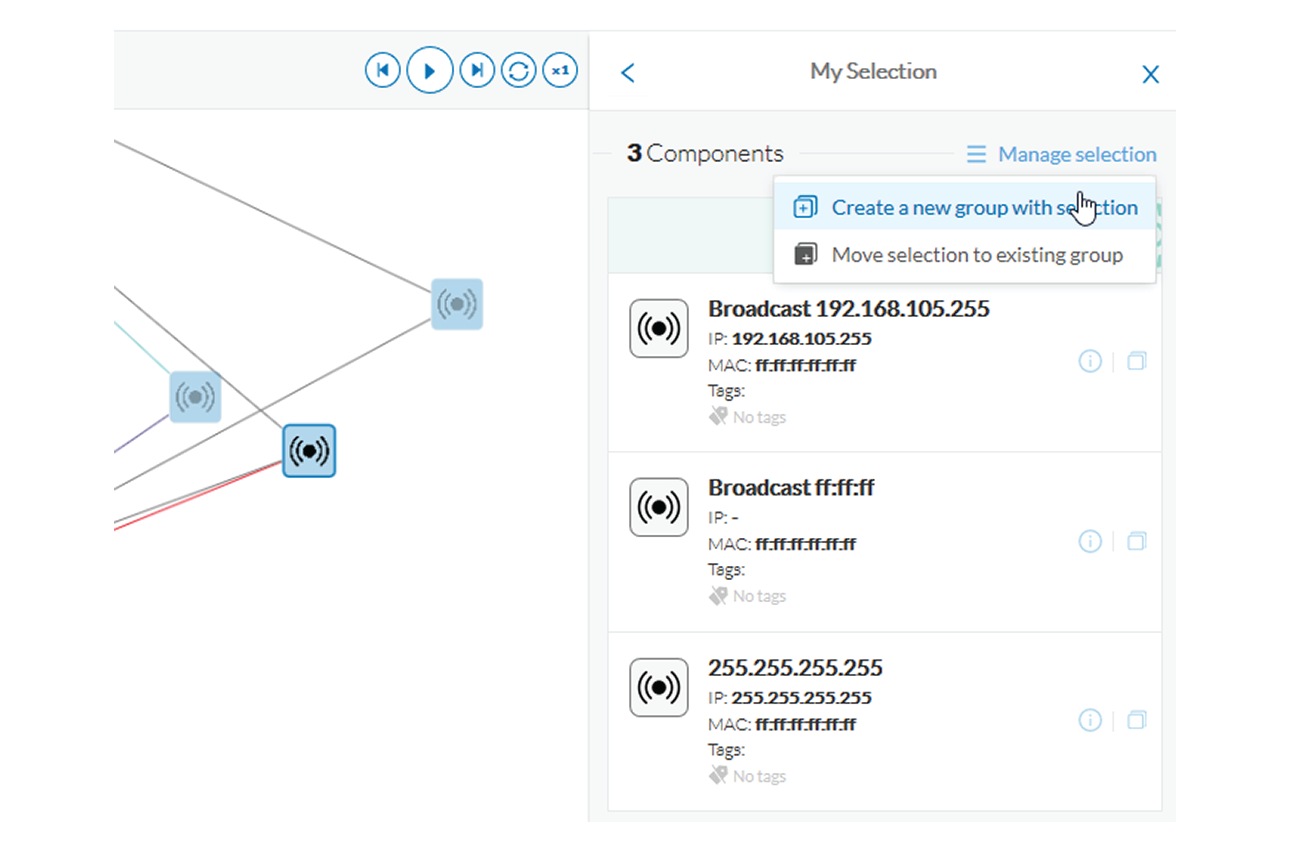
Select one or more devices or components in the map or the device list view.

Tip: To select several components at once in the map, click the devices or components while pressing Shift, or draw a selection box while pressing Ctrl. In the device list view, use the check boxes.

A My Selection panel opens on the right.

Step 2

Click Manage selection.

Step 3

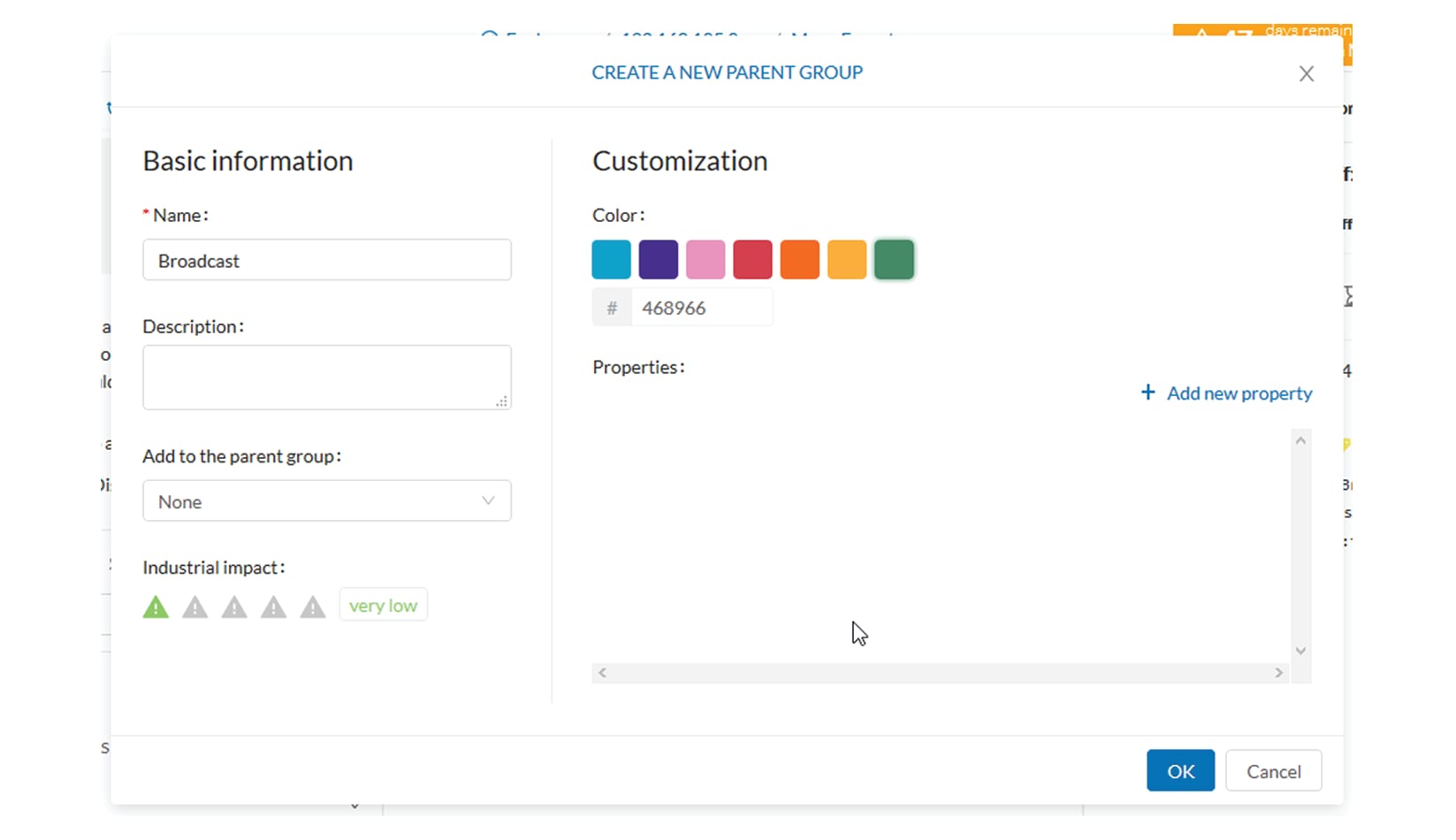
Click Create a new parent group.

A Create a new parent group window pops up:

Step 4

Customize the group by giving it a description, defining its industrial impact (e.g. as opposed to a print server, a PLC that controls a robotic arm is highly critical), changing its color and adding properties.

Step 5

In addition, you can add the group to a parent group if already created.

To create a parent group:

There are several ways to create a hierarchy among groups:

  • Select two groups and create a group as indicated before.

  • Select a device or a component and move it into a group clicking the Move selection to existing group button.

  • Select a group and move it to another group clicking the same button.

Add group properties:

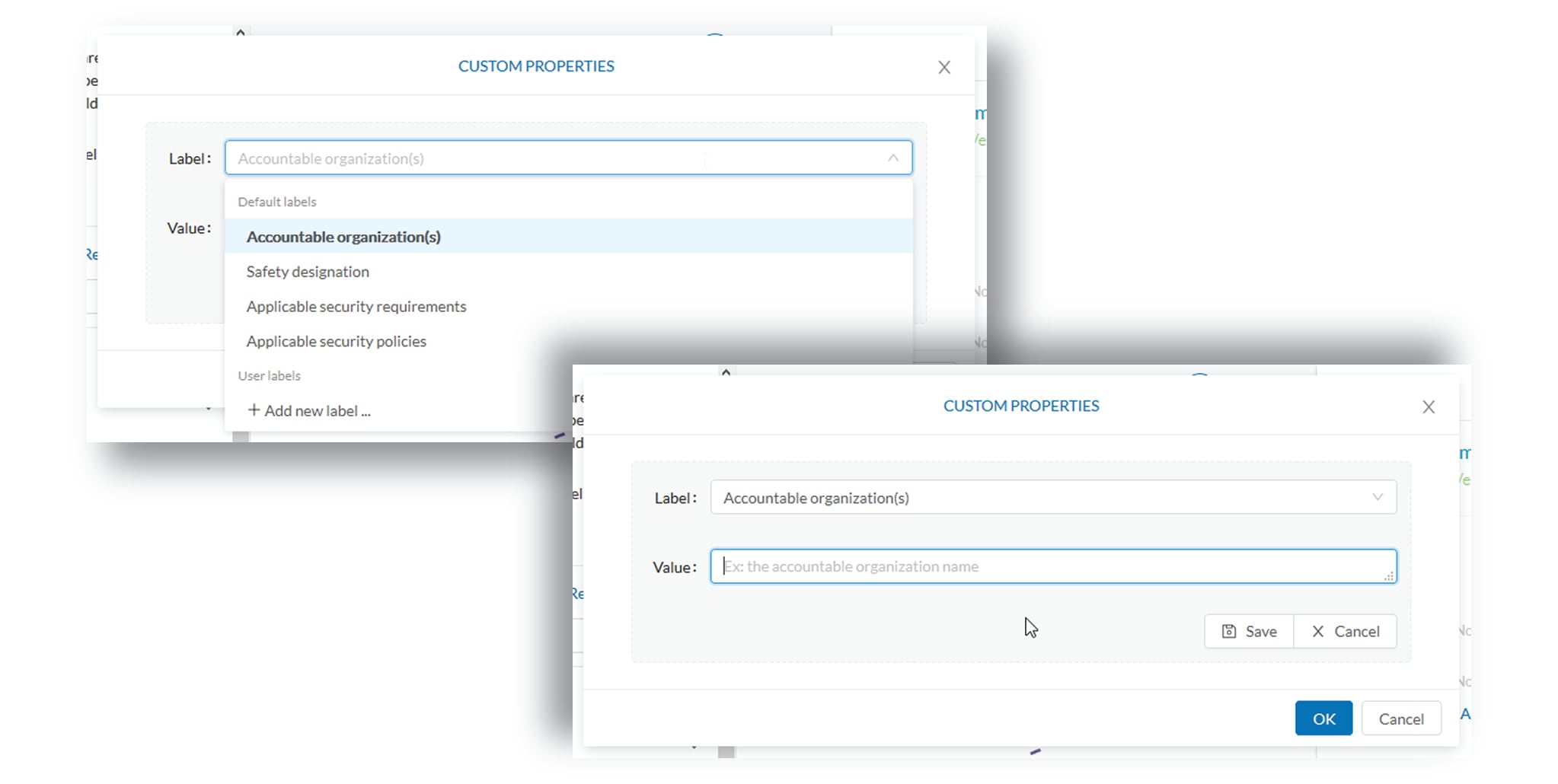
Adding properties to a group can be useful to store specific information. The labels available fit the 62443 standard which specifies policies and requirements for system security. You can also add custom properties.

To add properties to a group, select a group in the map and click Edit or Add properties. Then, choose/define a label and add a value.

Aggregated activities or conduits:

When devices and components are placed inside groups, activities are by default aggregated to enhance visibility. Aggregated activities are called conduits.

Use the Show network activities button at the lower left side of the map to turn on/off the simplified view of the activities between groups. This feature is turned on by default.

Lock/unlock a group:

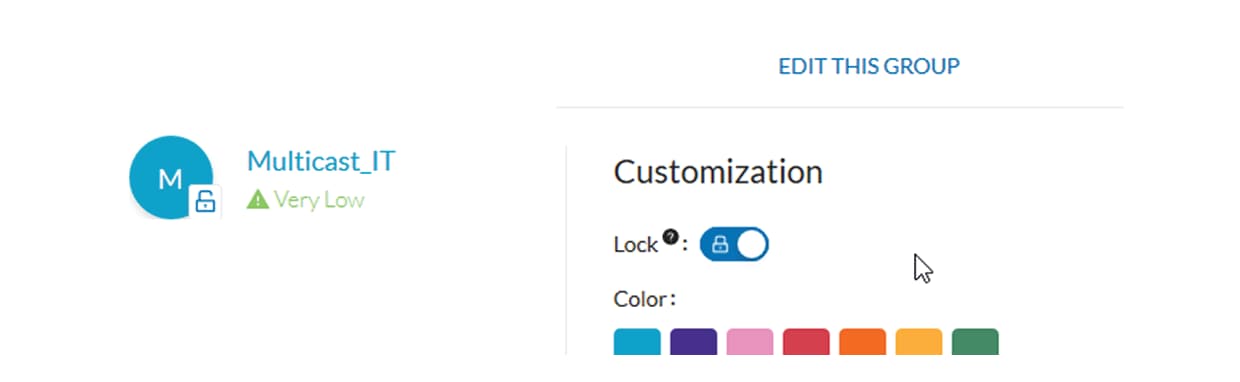
Locking a group:

  • prevents components from being added to or removed from the group.

  • prevents a group to be deleted.

To switch on/off the Lock toggle button,

Step 6

Click a group.

Step 7

Click the Lock button on the group's icon.

or

Click the Edit button on the group's right side panel and toggle on/off the Lock button.

Step 8

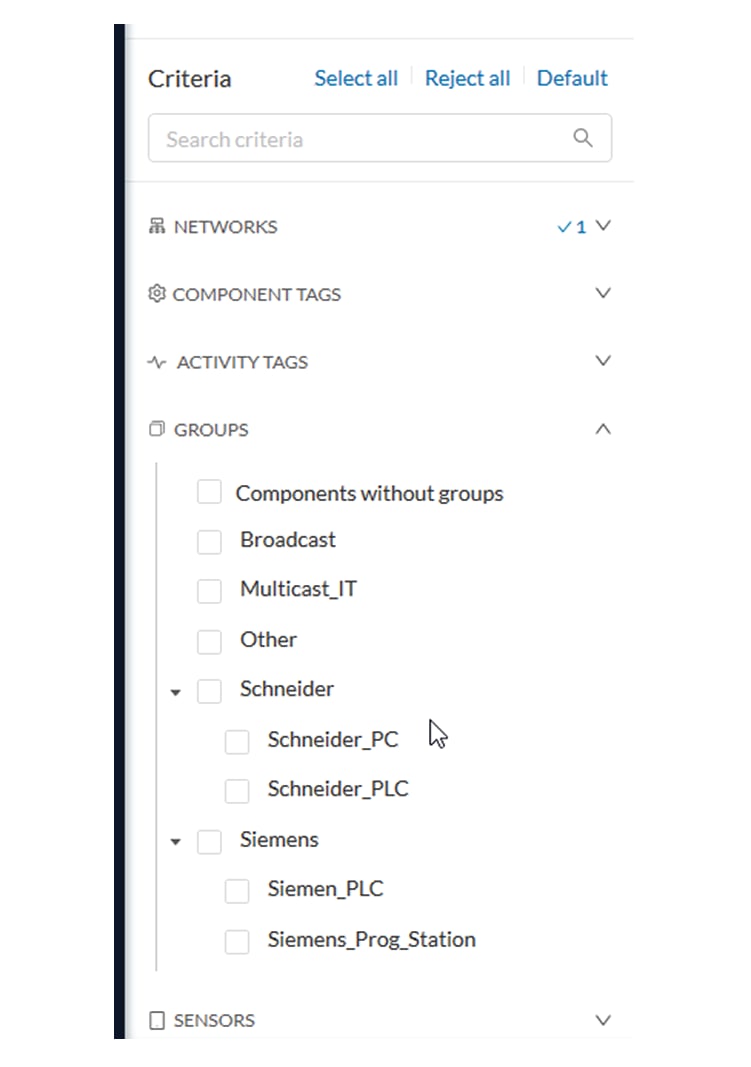
Groups used as criteria to filter data in Cisco Cyber Vision:

Any groups created will be added into the filters to help you refine the dataset and compose presets.


Active Discovery

Active Discovery is a feature to enforce data enrichment on the network. As opposed to passive traffic capture principles on which Cisco Cyber Vision is relying on and was originally built around, Active Discovery is an optional feature that explores traffic in an active way. The reason is, some components are sometimes not found by Cisco Cyber Vision because those devices haven't been communicating from the moment the solution started to run on the network. Moreover, some information like firmware version can be difficult to obtain because they are not exchanged often between components.

With Active Discovery enabled on selected presets, broadcast messages will be sent to the targeted subnetwork through the sensors to speed up network discovery. Then, returned responses will be analyzed through Deep Packet Inspection and tagged as Active Discovery and additional information. Thus, components and activities will be clarified with additional and more reliable information than what is usually found through passive DPI.

Active Discovery's jobs are launched every 10 minutes. In case Active Directory is enabled on several presets that use the same sensor, the job is executed only once to avoid traffic load. You can also choose which broadcast protocol will be active on the subnetwork.

Active Discovery supports three broadcast protocols, which are EtherNet/IP (Rockwell), and Profinet and S7 Discovery (Siemens).

Active Discovery is available on:

  • Cisco Catalyst 9300 Series Switches.

  • Cisco Catalyst IE3400 Rugged Series Switches.

  • Cisco Catalyst IE3300 10G Rugged Series Switches.

  • Cisco IC3000 Industrial Compute Gateway.

To use Active Discovery, you must first perform a few configurations:

Procedure


Step 1

Enable the feature on a sensor, and set the subnetwork to be monitored.

Step 2

Enable Active Discovery on a preset using the sensor set with Active Discovery and choose which protocols to be broadcasted on the subnetwork.

To enable Active Discovery on sensors:

Step 3

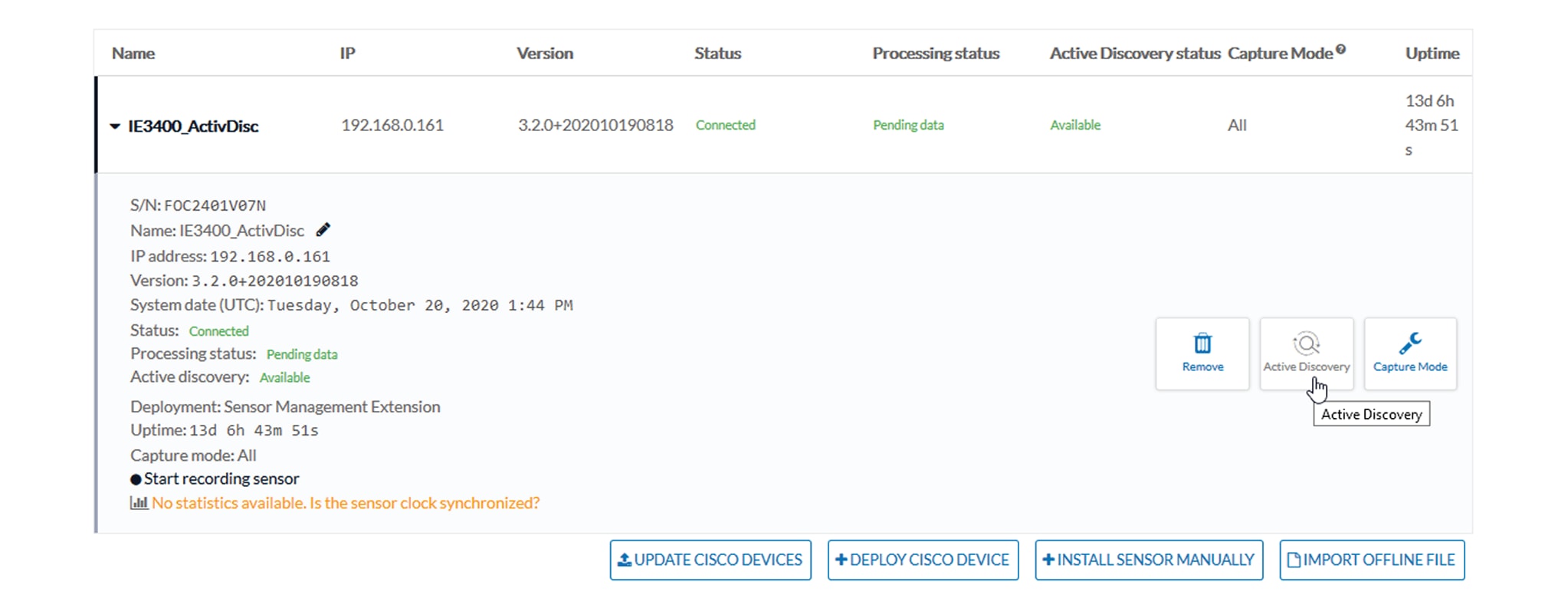
On Cisco Cyber Vision, navigate to Admin > Sensors.

The sensors list displays.

Step 4

Check the sensors' Active Discovery status:

  • Unavailable: This sensor model does not support Active Discovery (i.e. Cisco IR1101 Integrated Services Router Rugged); The Cisco Cyber Vision IOx Application is not up-to-date on the device (version must be 3.2.0 or newer); The IOx Application installed does not include Active Discovery (two packages are available, one includes Active Discovery, the other does not). For more information, refer to the relevant Cisco Cyber Vision Network Sensor Installation Guide.

  • Available: IOx app's version is up-to-date on the device and using Active Discovery is possible.

  • Running: The sensor is scanning the network sending broadcast et the moment.

    The sensor's Active Discovery status must be in Available to continue the procedure.

Step 5

Click the Active Discovery button.

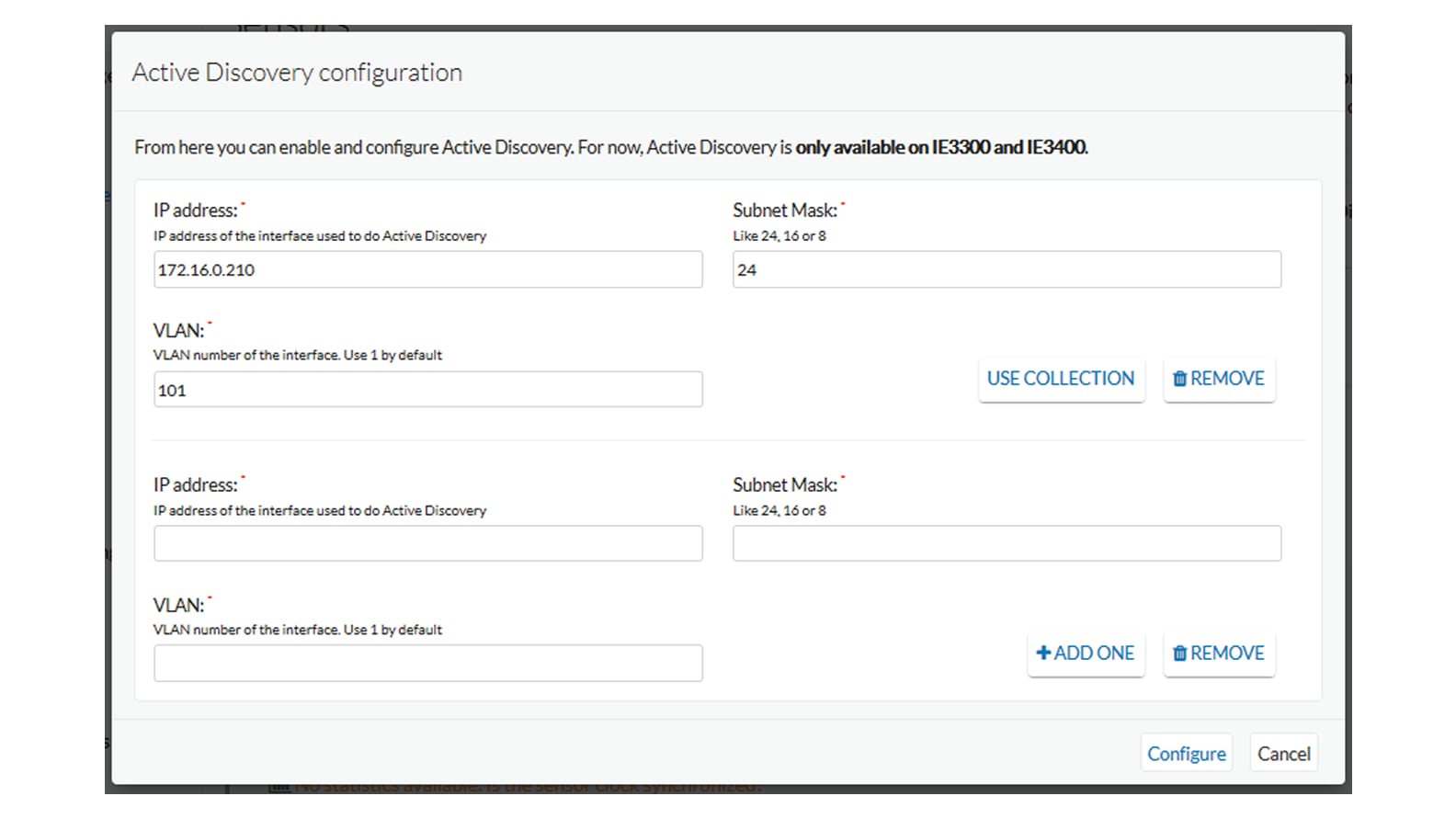
The Active Discovery configuration window pops up.

Step 6

Set the interface corresponding to a subnetwork monitored by the sensor filling the following information:

  • The subnetwork IP address.

  • The subnet mask.

  • The VLAN.

    You can set as many interfaces as subnetworks monitored by the sensor.

Step 7

Click Configure.

To enable Active Discovery and set protocol scanning on a preset:

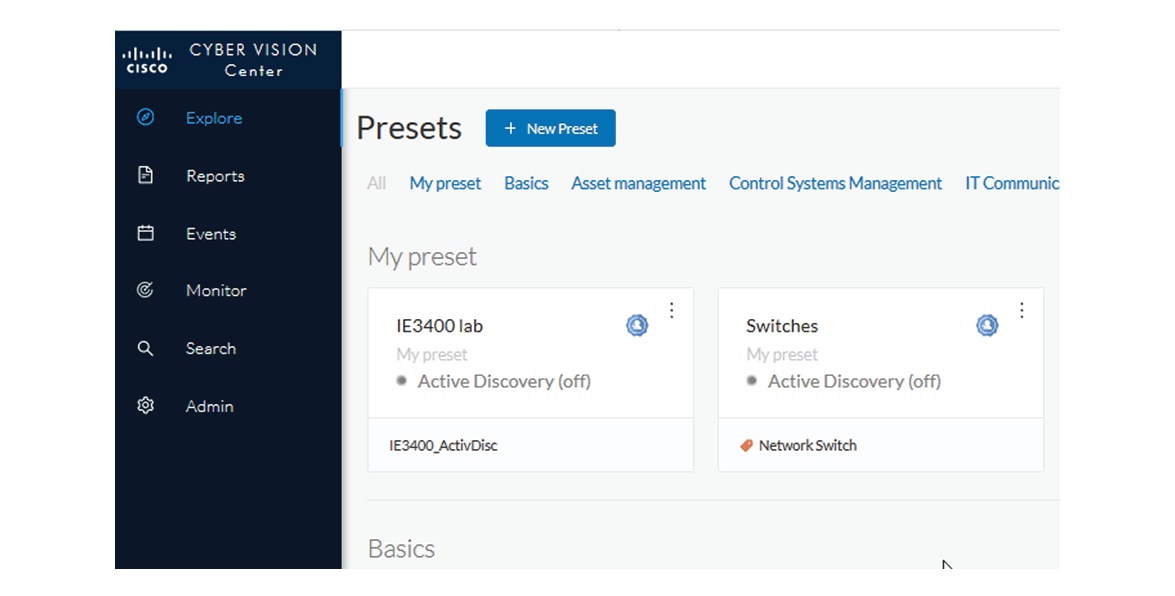
Active Discovery is not available on default presets (under Basics). To use it, you must use a custom preset (under My Presets) or create a new preset. You can create it from a default preset.
Step 8

Access or create a custom preset in the Explore menu.
In the example, we use the IE3400 lab preset that we created with the sensor filter selected, previously configured with Active Discovery.

Step 9

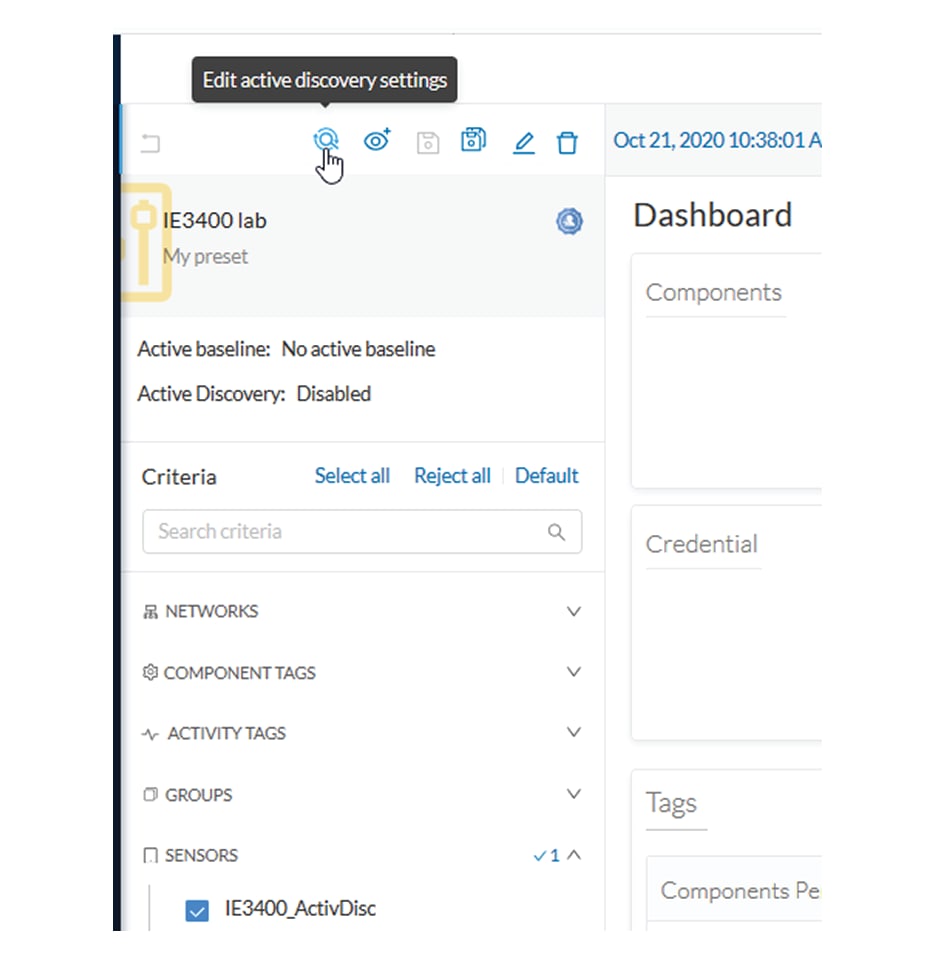
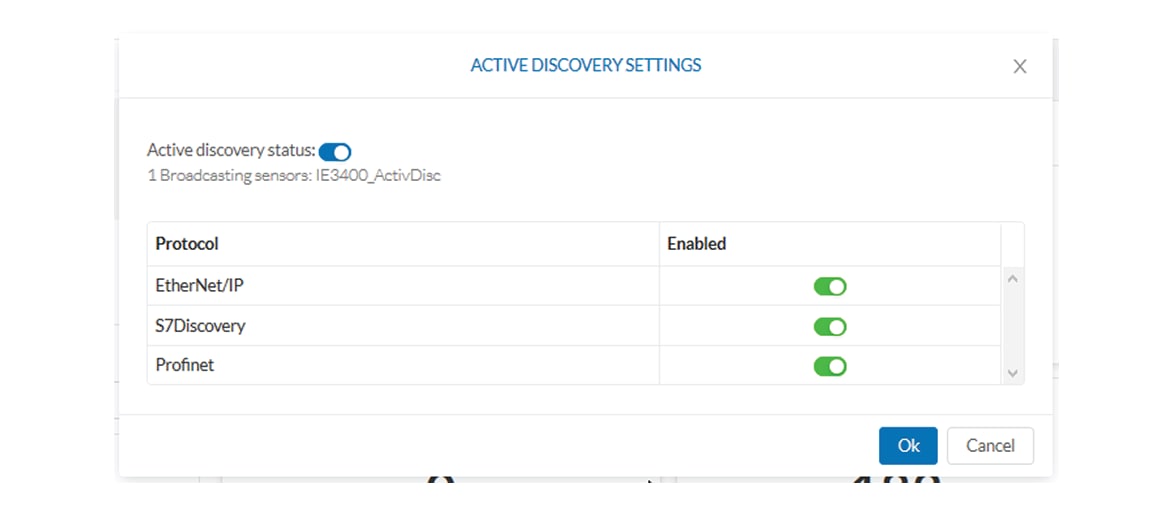
Click the Edit Active Discovery settings button on the top left corner.

The Active Discovery settings window pops up.

Step 10

Use the toggle button to enable Active Discovery.

Step 11

Use the toggle buttons to enable the protocols you want the subnetwork to be scanned with.

To identify elements detected by Active Discovery:

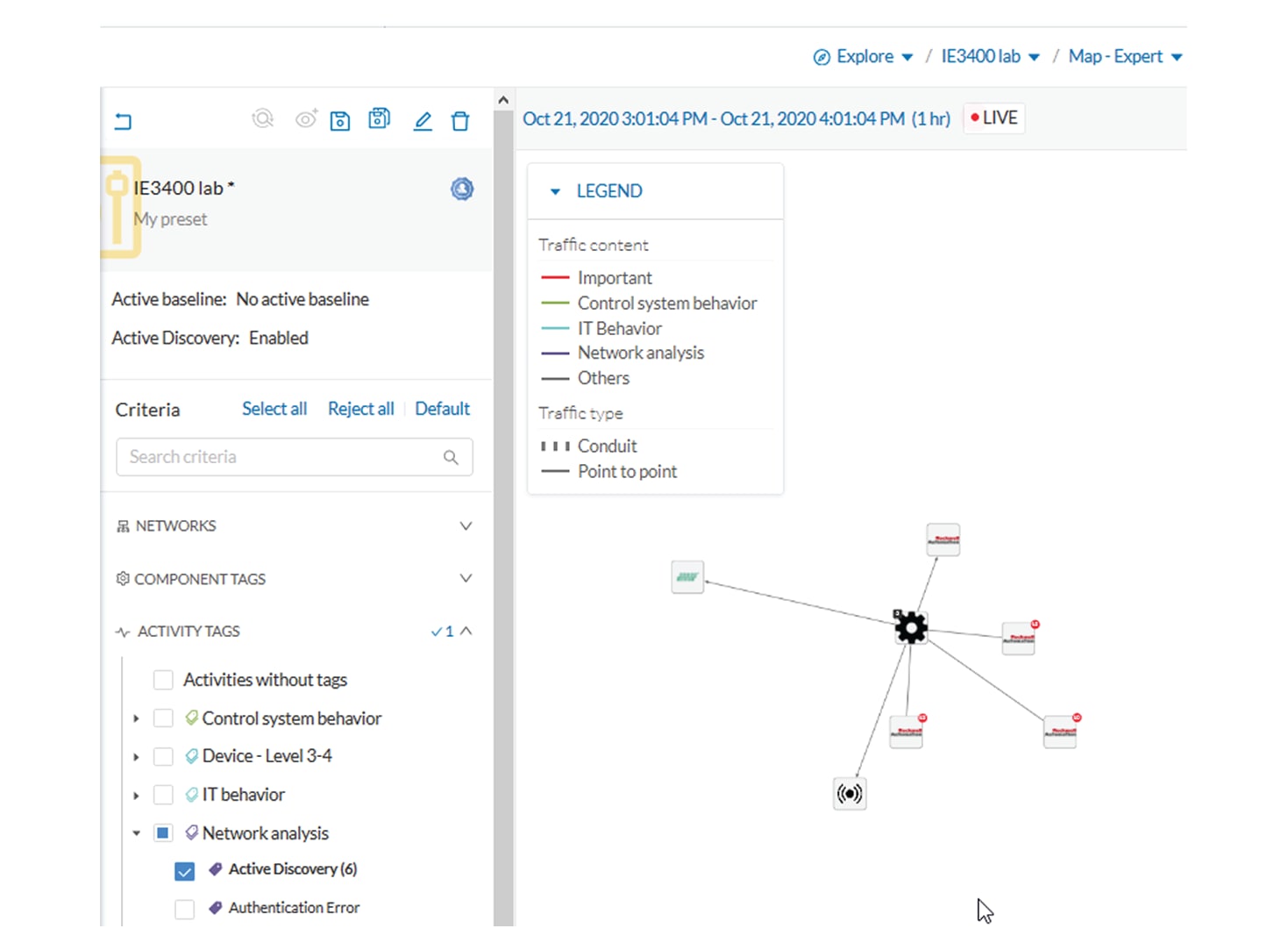
Step 12

In the criteria area > Activity tags > Network Analysis, select the Active Discovery tag.

All components and activity tagged as Active Discovery, and so detected thanks to the feature, display.

Elements found and other related elements detected by Active Discovery in the Map - Expert view:

Components, activities and sensors detected by Active Discovery are tagged as Active Discovery.

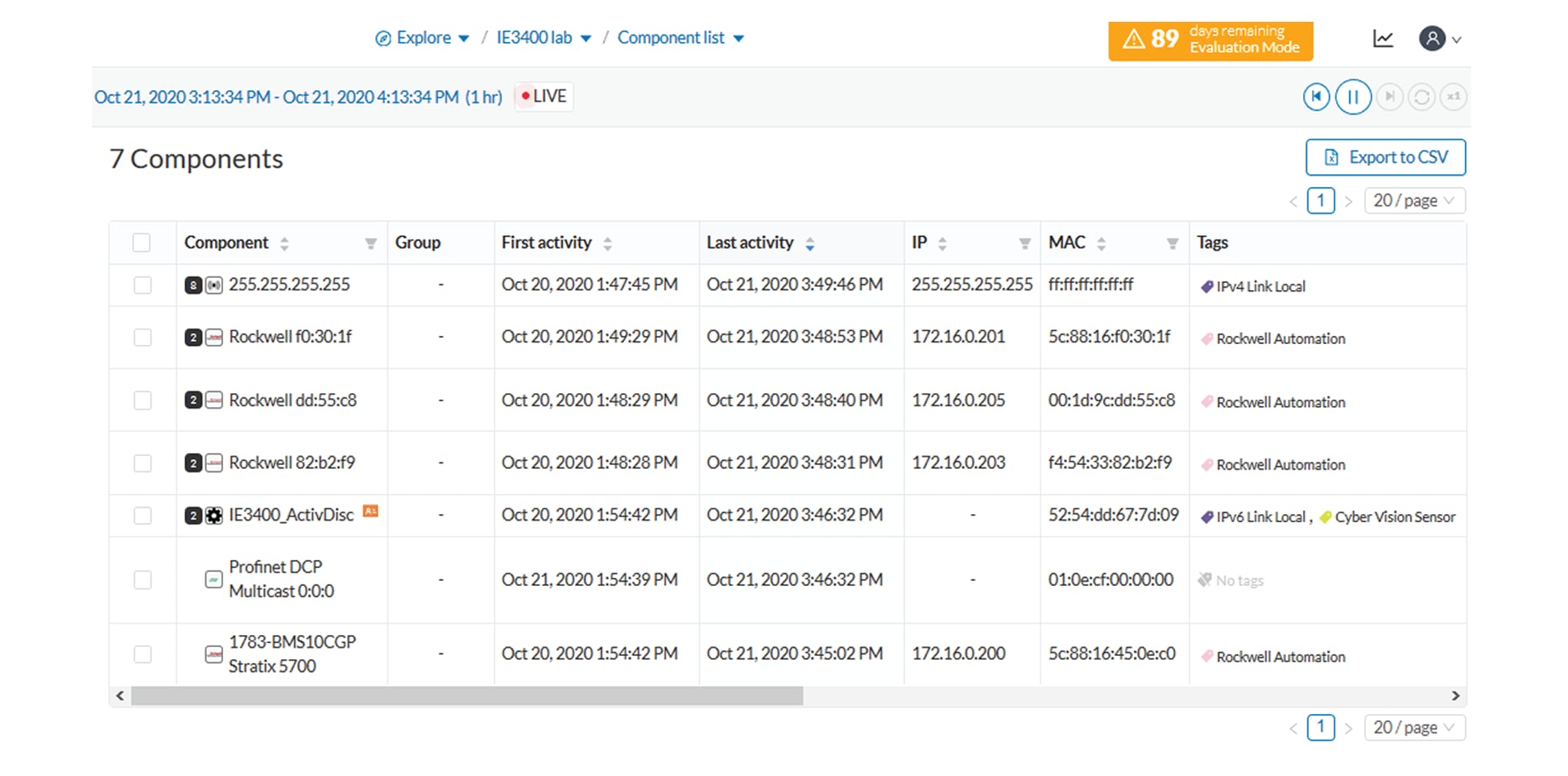
Components related to Active Discovery scanning in the Component list view:

Step 13

  • Components discovered thanks to Active Discovery are tagged as Active Discovery. This is not the case here because these components had already been detected thanks to passive traffic capture. However, they are shown here because their activities have been detected through Active Discovery.

  • Sensors are in passive traffic capture often tagged as Engineering Station or Scada Station, which is incorrect. With Active Discovery, these tags are removed and the sensor is tagged as Cisco Cyber Vision Sensor.

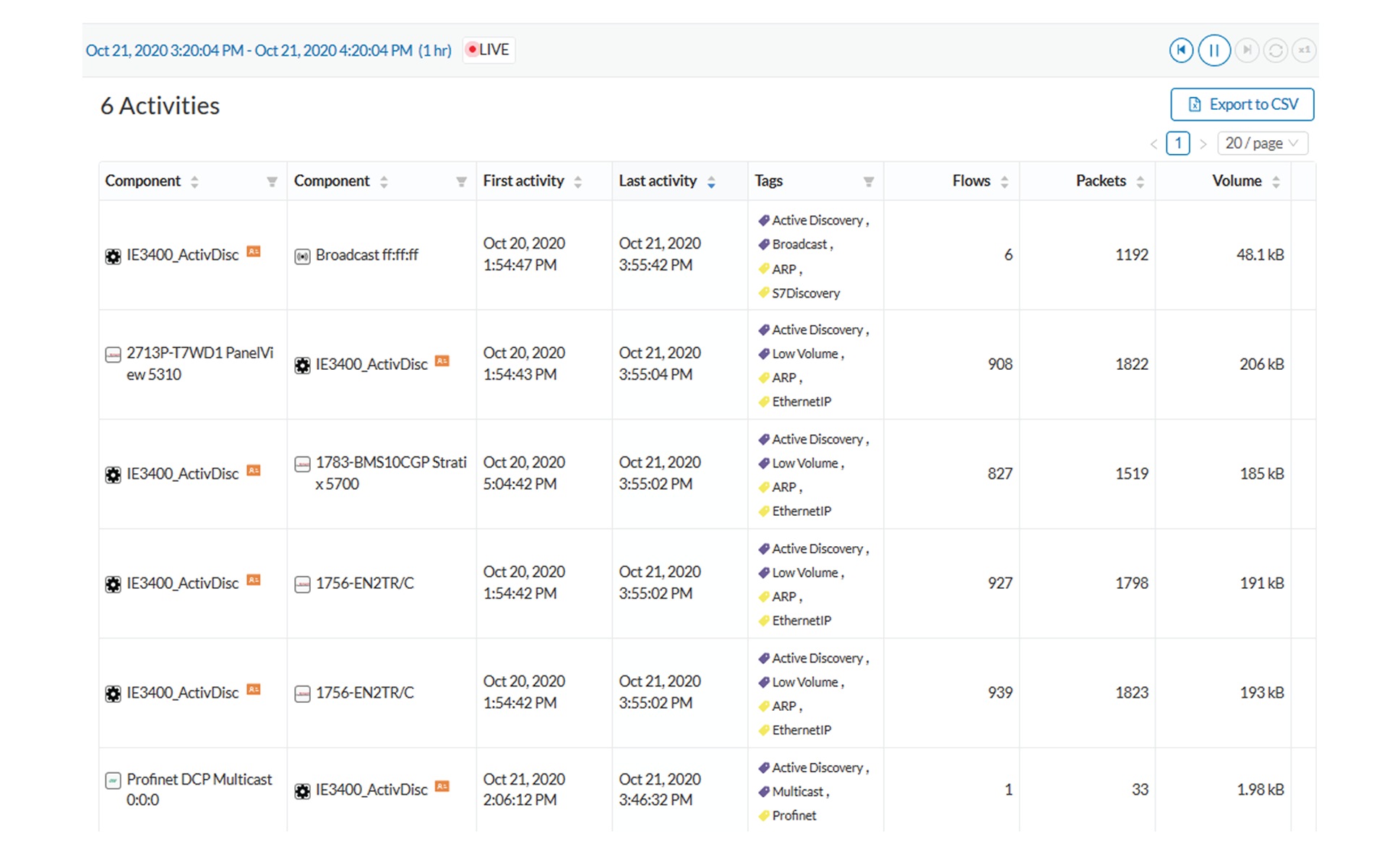
    Activities related to Active Discovery scanning in the Activity list view:

    Activities detected by Active Discovery, which is meant to enrich data, are tagged as Active Discovery and as S7 Discovery, EtherNet/IP or Profinet in addition to other tags detected by passive traffic capture.

Tip: Register this selection as a preset to be informed about any new Active Discovery's elements found on the subnetwork.

Tip: You can see all Active Discovery effects on the network consulting the Active Discovery Activities preset. You will see activities tagged as Active Discovery, the components involved, and the sensors.