Active Discovery
Active Discovery is a feature to enforce data enrichment on the network. As opposed to passive traffic capture principles on which Cisco Cyber Vision is relying on and was originally built around, Active Discovery is an optional feature that explores traffic in an active way. The reason is, some components are sometimes not found by Cisco Cyber Vision because those devices haven't been communicating from the moment the solution started to run on the network. Moreover, some information like firmware version can be difficult to obtain because they are not exchanged often between components.
With Active Discovery enabled on selected presets, broadcast messages will be sent to the targeted subnetwork through the sensors to speed up network discovery. Then, returned responses will be analyzed through Deep Packet Inspection and tagged as Active Discovery and additional information. Thus, components and activities will be clarified with additional and more reliable information than what is usually found through passive DPI.
Active Discovery's jobs are launched every 10 minutes. In case Active Directory is enabled on several presets that use the same sensor, the job is executed only once to avoid traffic load. You can also choose which broadcast protocol will be active on the subnetwork.
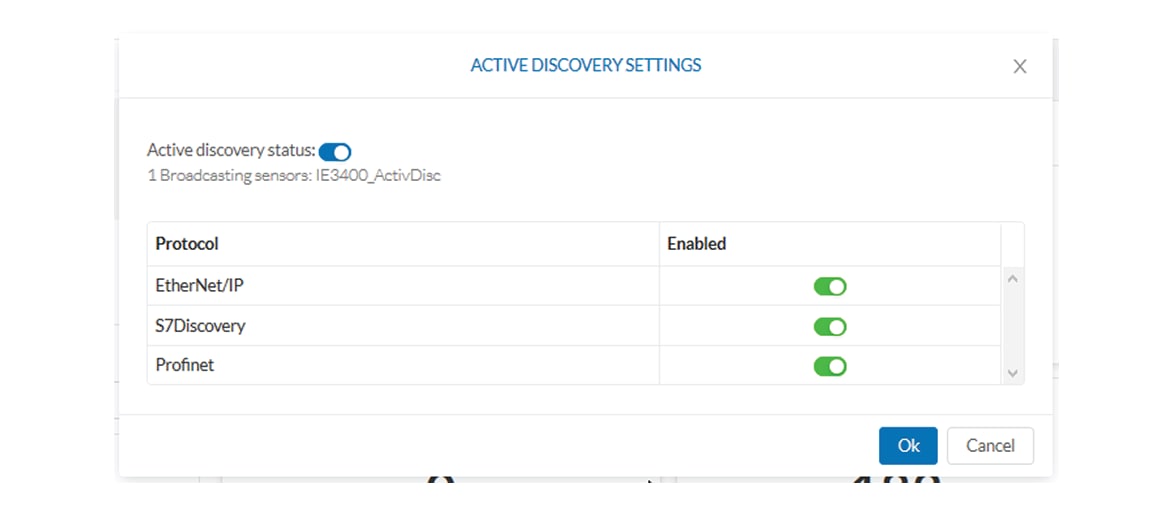
Active Discovery supports three broadcast protocols, which are EtherNet/IP (Rockwell), and Profinet and S7 Discovery (Siemens).
Active Discovery is available on:
-
Cisco Catalyst 9300 Series Switches.
-
Cisco Catalyst IE3400 Rugged Series Switches.
-
Cisco Catalyst IE3300 10G Rugged Series Switches.
-
Cisco IC3000 Industrial Compute Gateway.
To use Active Discovery, you must first perform a few configurations:
Procedure
| Step 1 |
Enable the feature on a sensor, and set the subnetwork to be monitored. |
| Step 2 |
Enable Active Discovery on a preset using the sensor set with Active Discovery and choose which protocols to be broadcasted on the subnetwork. |
To enable Active Discovery on sensors:
| Step 3 |
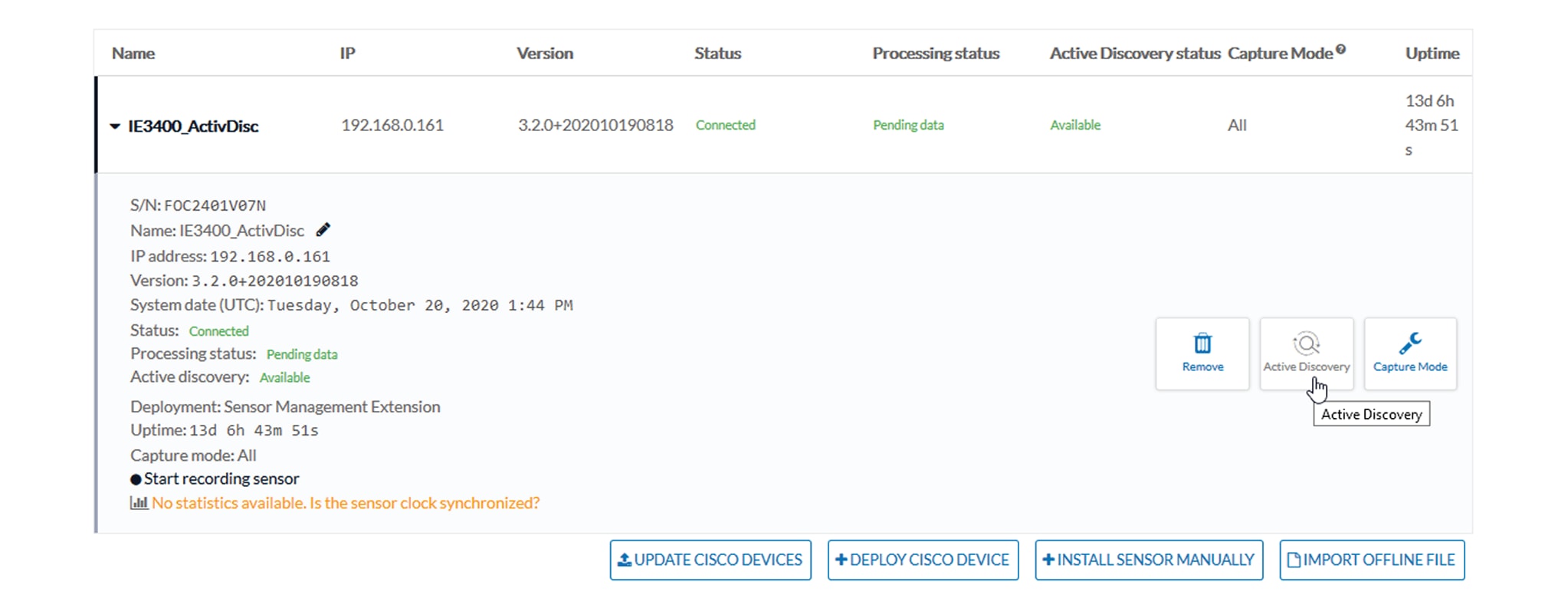
On Cisco Cyber Vision, navigate to Admin > Sensors. The sensors list displays. |
| Step 4 |
Check the sensors' Active Discovery status:
|
| Step 5 |
Click the Active Discovery button.
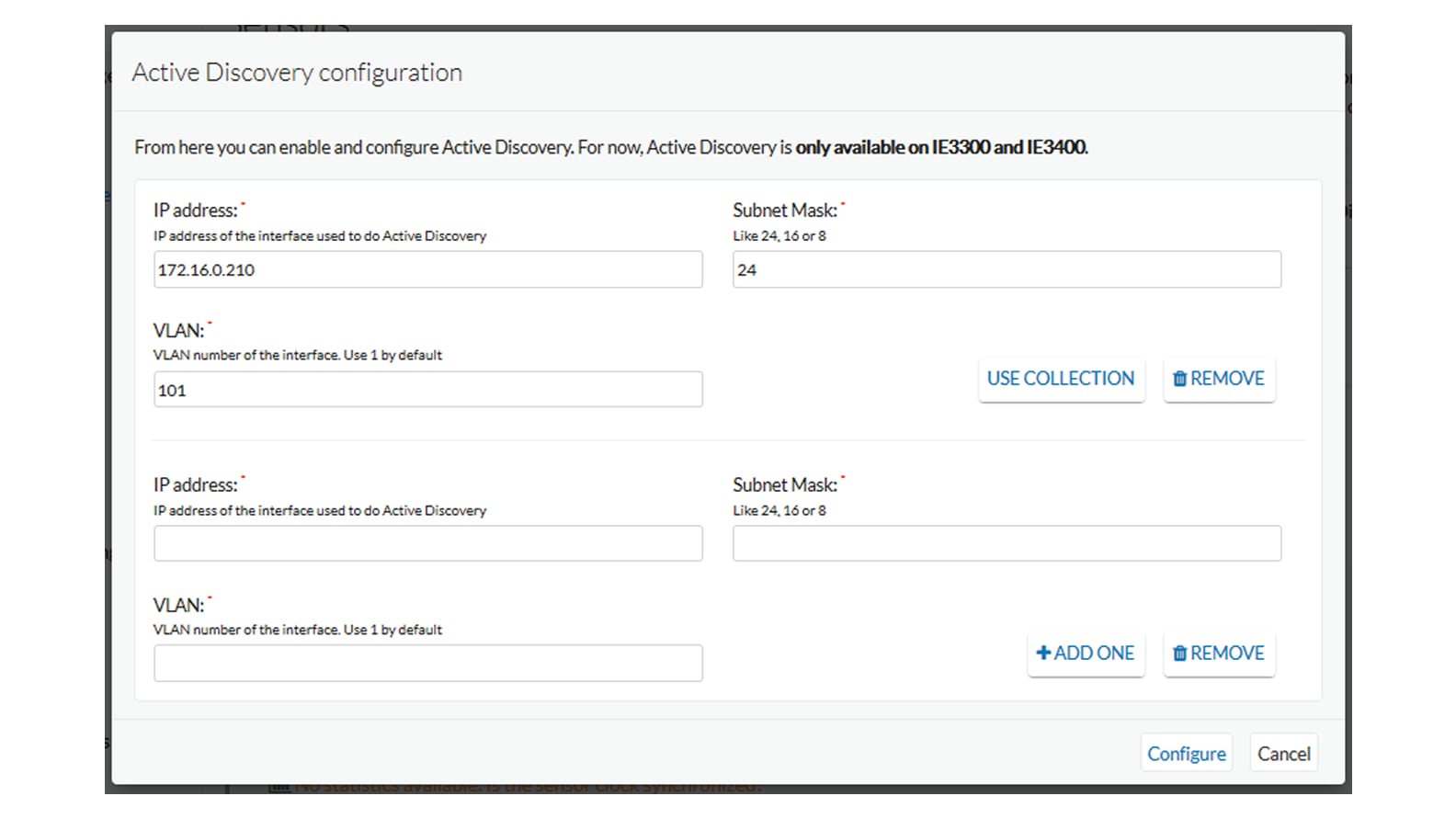
The Active Discovery configuration window pops up.
|
| Step 6 |
Set the interface corresponding to a subnetwork monitored by the sensor filling the following information: |
-
The subnetwork IP address.
-
The subnet mask.
-
The VLAN.
You can set as many interfaces as subnetworks monitored by the sensor.
| Step 7 |
Click Configure. |
To enable Active Discovery and set protocol scanning on a preset:
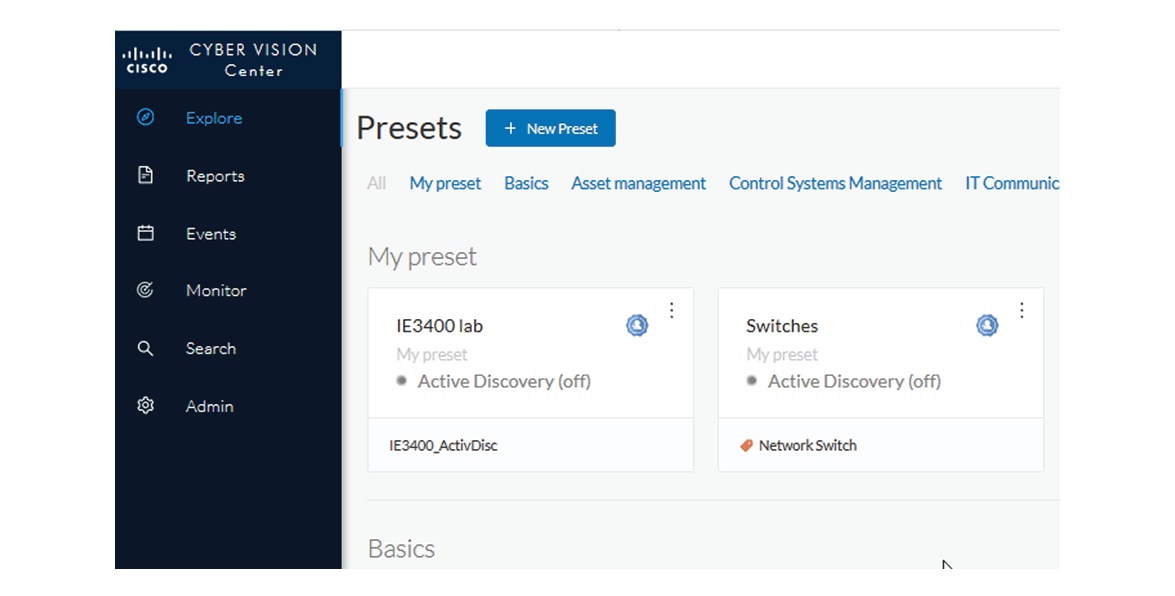
Active Discovery is not available on default presets (under Basics). To use it, you must use a custom preset (under My Presets) or create a new preset. You can create it from a default preset.
| Step 8 |
Access or create a custom preset in the Explore menu.
In the example, we use the IE3400 lab preset that we created with the sensor filter selected, previously configured with Active Discovery. |
| Step 9 |
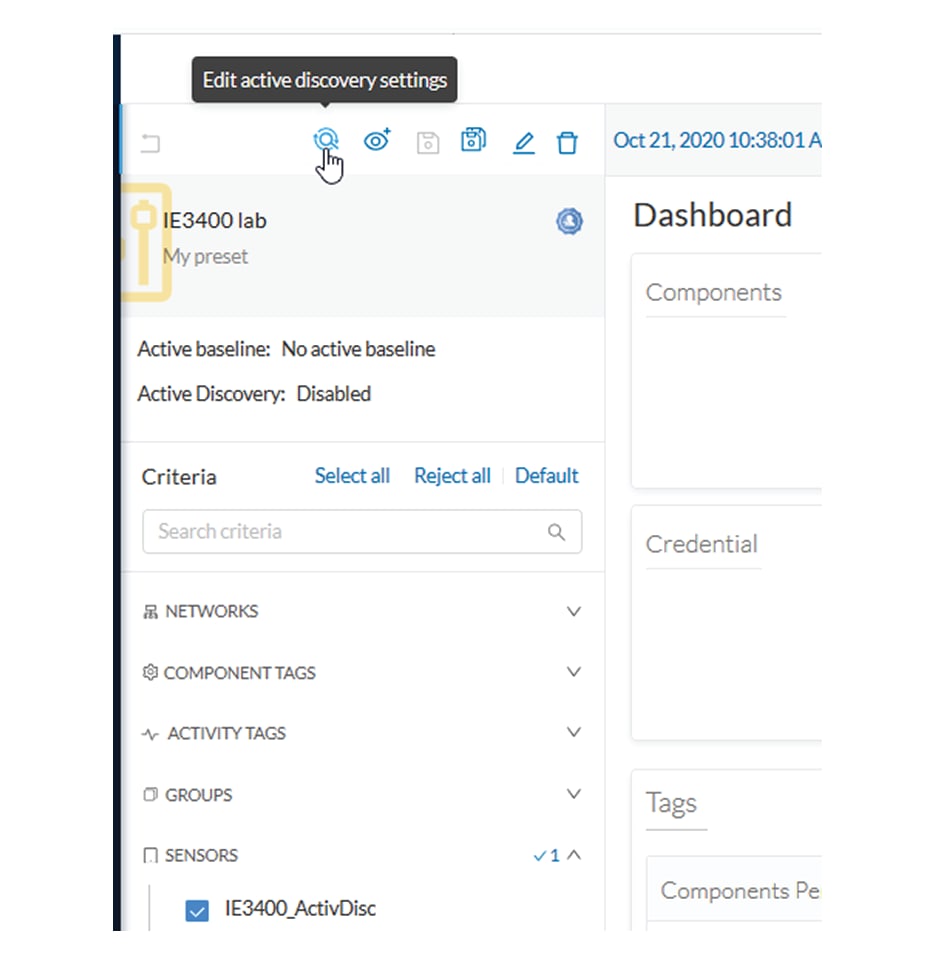
Click the Edit Active Discovery settings button on the top left corner.
The Active Discovery settings window pops up.
|
| Step 10 |
Use the toggle button to enable Active Discovery. |
| Step 11 |
Use the toggle buttons to enable the protocols you want the subnetwork to be scanned with. |
To identify elements detected by Active Discovery:
| Step 12 |
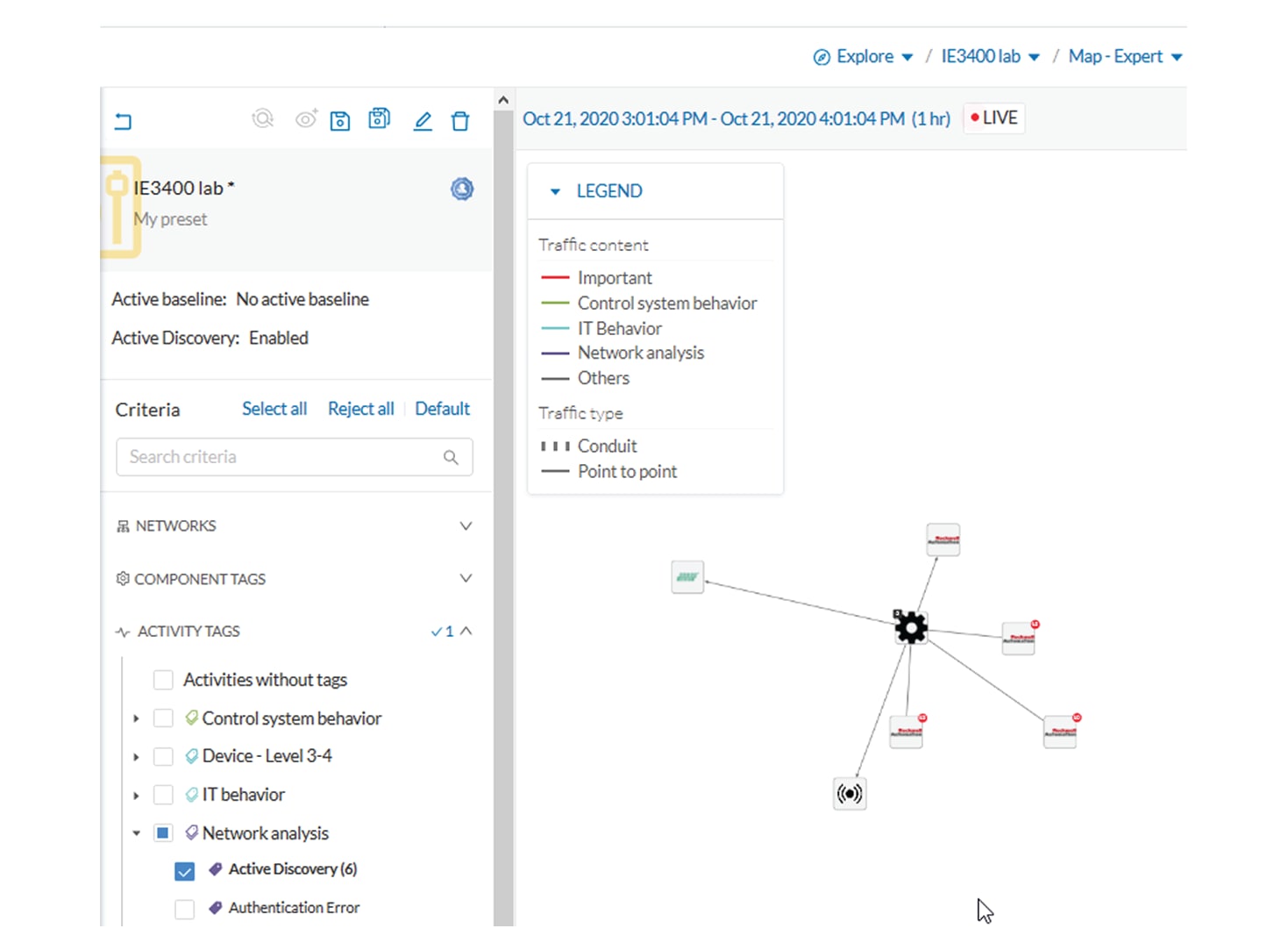
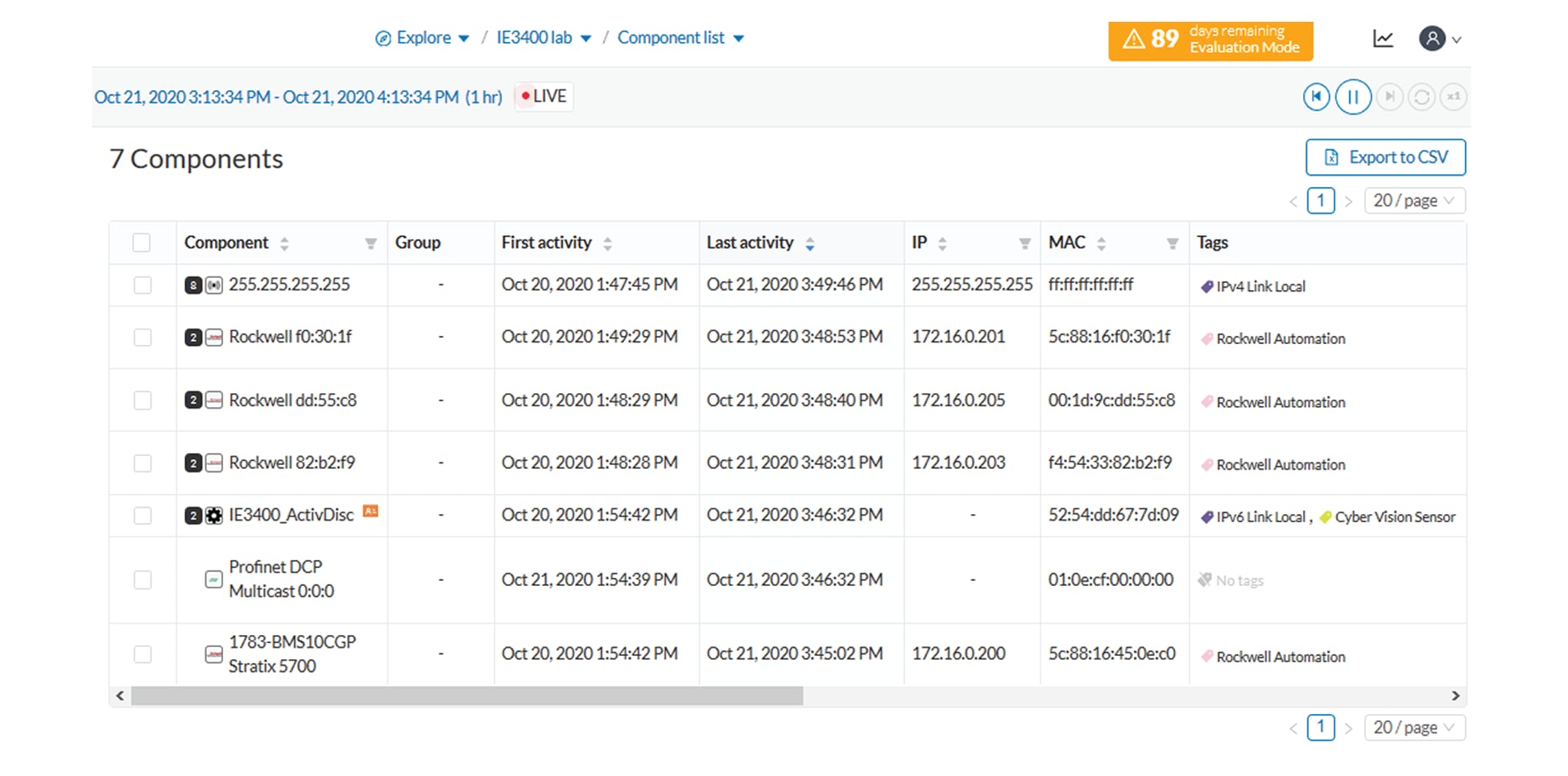
In the criteria area > Activity tags > Network Analysis, select the Active Discovery tag. All components and activity tagged as Active Discovery, and so detected thanks to the feature, display. Elements found and other related elements detected by Active Discovery in the Map - Expert view:
Components, activities and sensors detected by Active Discovery are tagged as Active Discovery. Components related to Active Discovery scanning in the Component list view:
|
| Step 13 |
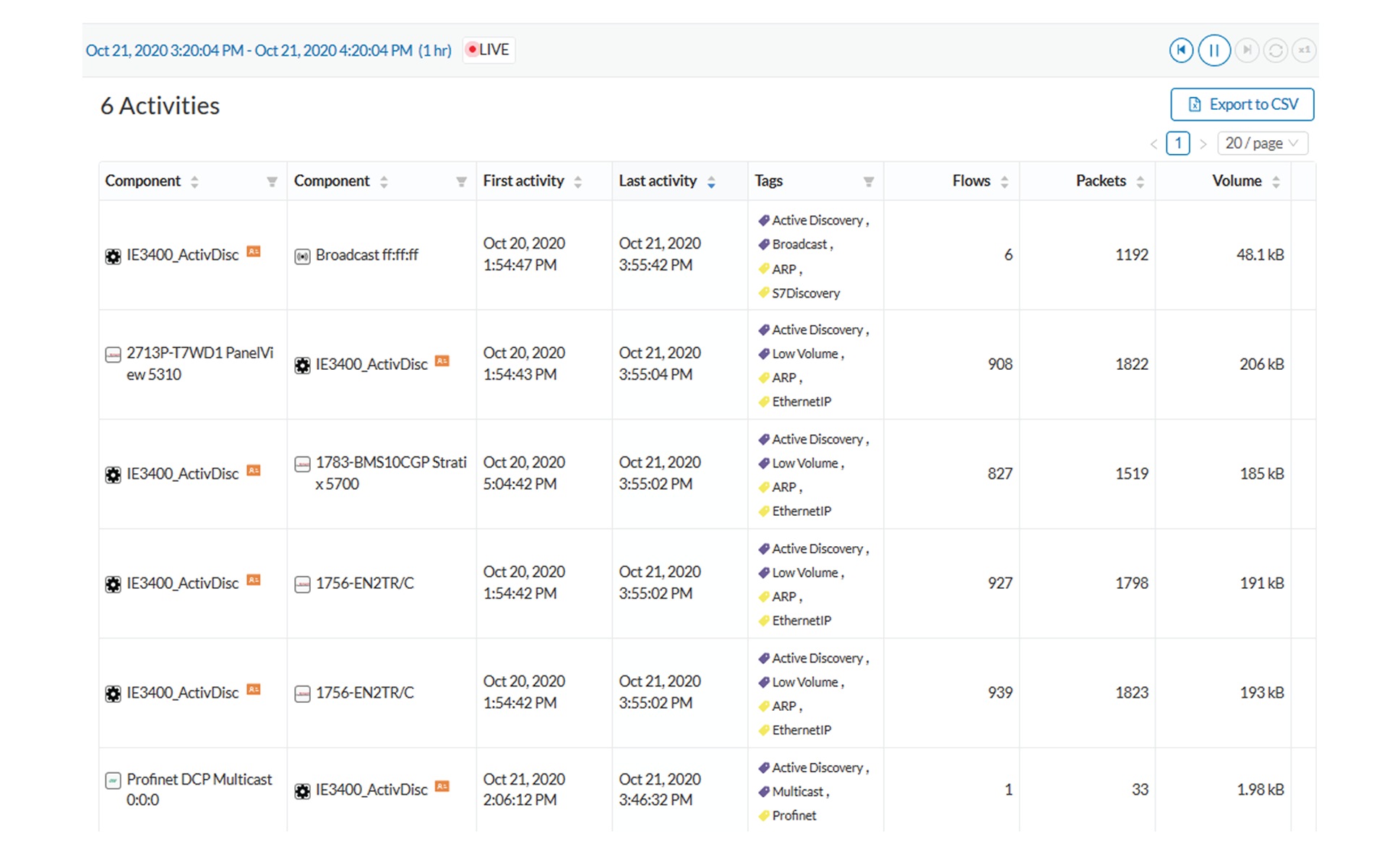
Tip: Register this selection as a preset to be informed about any new Active Discovery's elements found on the subnetwork. Tip: You can see all Active Discovery effects on the network consulting the Active Discovery Activities preset. You will see activities tagged as Active Discovery, the components involved, and the sensors. |
 Feedback