Monitor

Monitor mode

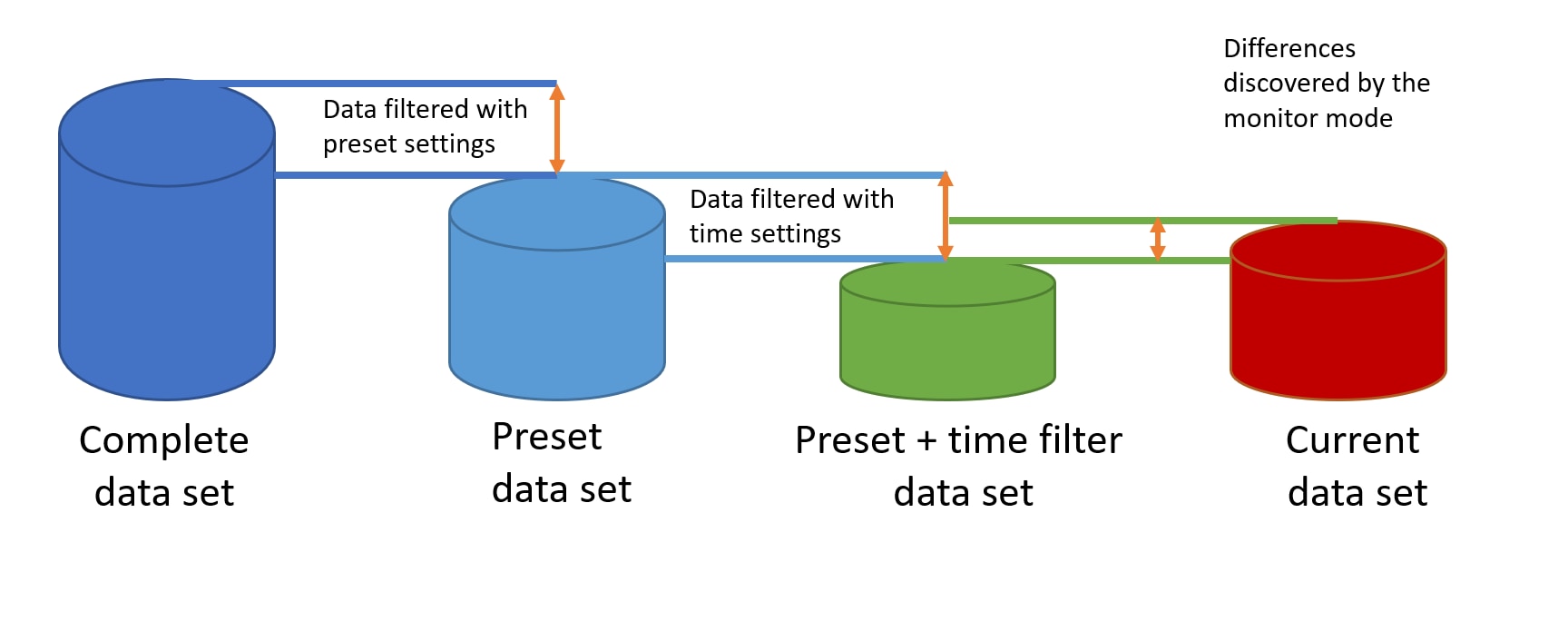
Cisco Cyber Vision provides a monitoring tool called the Monitor mode to detect changes inside industrial networks. Because a network architecture (PLC, switch, SCADA) is constant and its behaviors tend to be stable over time, an established and configured network is predictable. However, some behaviors are unpredictable and can even compromise a network's operation and security. The Monitor mode aims to show the evolution of a network's behaviors, predicted or not, based on presets. Changes, either normal or abnormal, are noted as differences in the Monitor mode when a behavior happens. Using the Monitor mode is particularly convenient for large networks as a preset shows a network fragment and changes are highlighted and managed separately, in the Monitor mode's views.

Baselines as Preset's normal states

A Preset is a set of criteria which aims to show a detailed fragment of a network. To start monitoring a network, you need to pick up a preset, and to define what would be its normal, stable state. This will represent the preset's baseline. A state may rely on a period, as a network fragment may be subject to several states. Hence, it is possible to create several planned, controlled and time-framed baselines per preset, and to monitor the whole network. For example, a normal state of the network can be a typical weekday operating mode, in which numerous processes are performed iteratively. During weekends, these processes may be slowed down, different, or even stopped. Any network phase can be saved as a baseline by selecting the time span in which it occurs, and monitored. Other examples of baselines can be a regular maintenance period, a degraded mode, a weekend and night mode, and so forth. A baseline is created for a situation considered as part of a normal operating process in which all network behaviors (components, activities, properties, tags, variable accesses) will be taken into account for review.

Review and assignment of differences

A difference is a new or changed behavior happening within a fragment of a network. Any difference detected is highlighted in the Monitor mode through several views such as a map, a component list and an activity list. When reviewing these, they can be acknowledged or reported. It depends on whether you consider them as normal or not, and their level of criticality. That is, you can include these changes into your baseline if it is part of a normal network development process, or take action in case of suspicious behavior. By doing so, each baseline will be refined bit by bit over time and become more compliant with your needs.
Monitor mode's views

Like in the Explore mode, the Monitor mode offers several views of data so you can see them through different representations. The difference, though, is that in the Monitor mode views new and changed detected elements are highlighted in red.

For more information about the views listed below, refer to the Explore chapter.

The map view:

non-aggregated components

The component list view:

The activity list view:

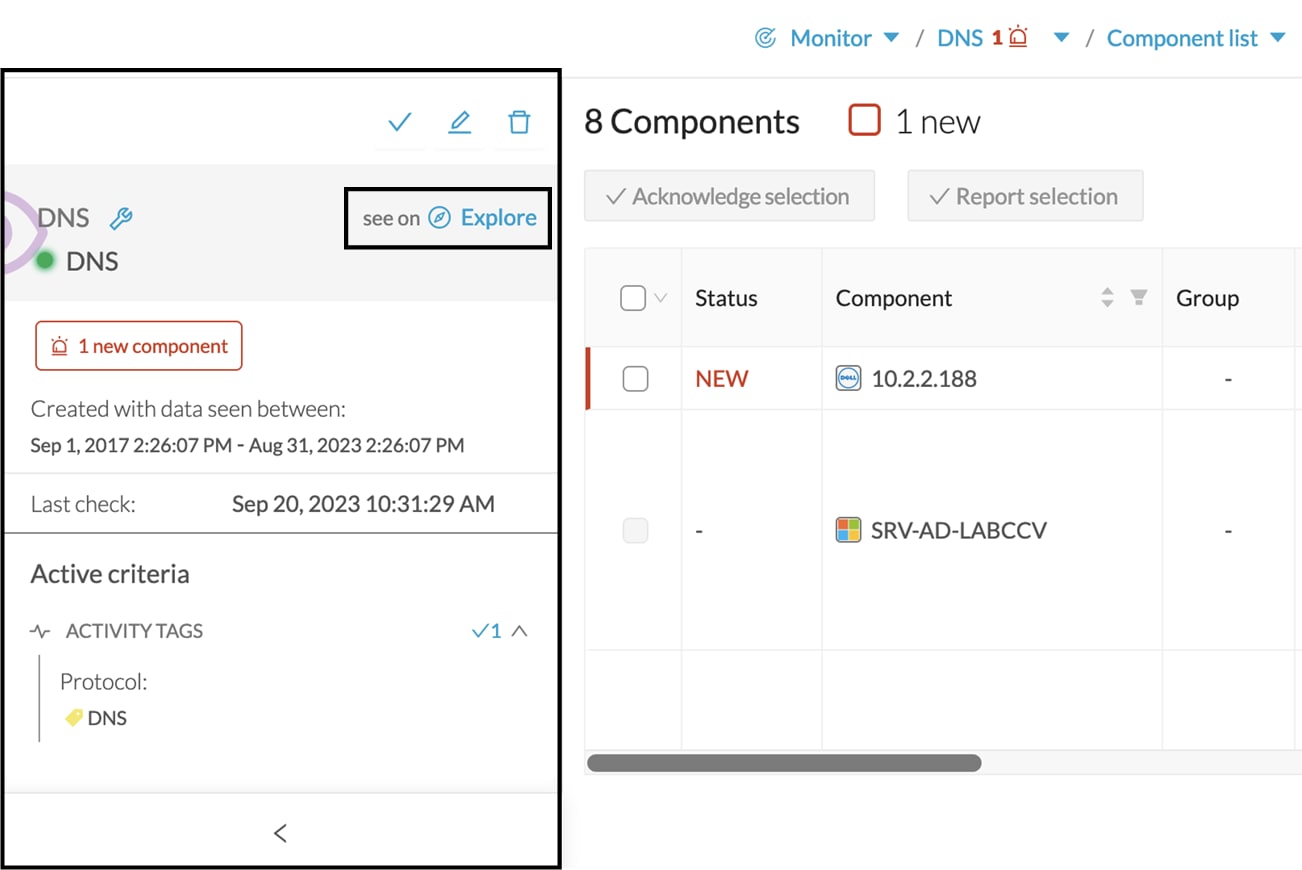
In any view, on the left side, there is:

  • a fixed panel with a summary of the elements that have been detected in the Monitor mode,

  • the last time this baseline has been checked,

  • the preset it belongs to along with the list of criteria selected.

You can also modify the baseline settings. And the Explore button redirects you to the corresponding preset in the Explore mode.

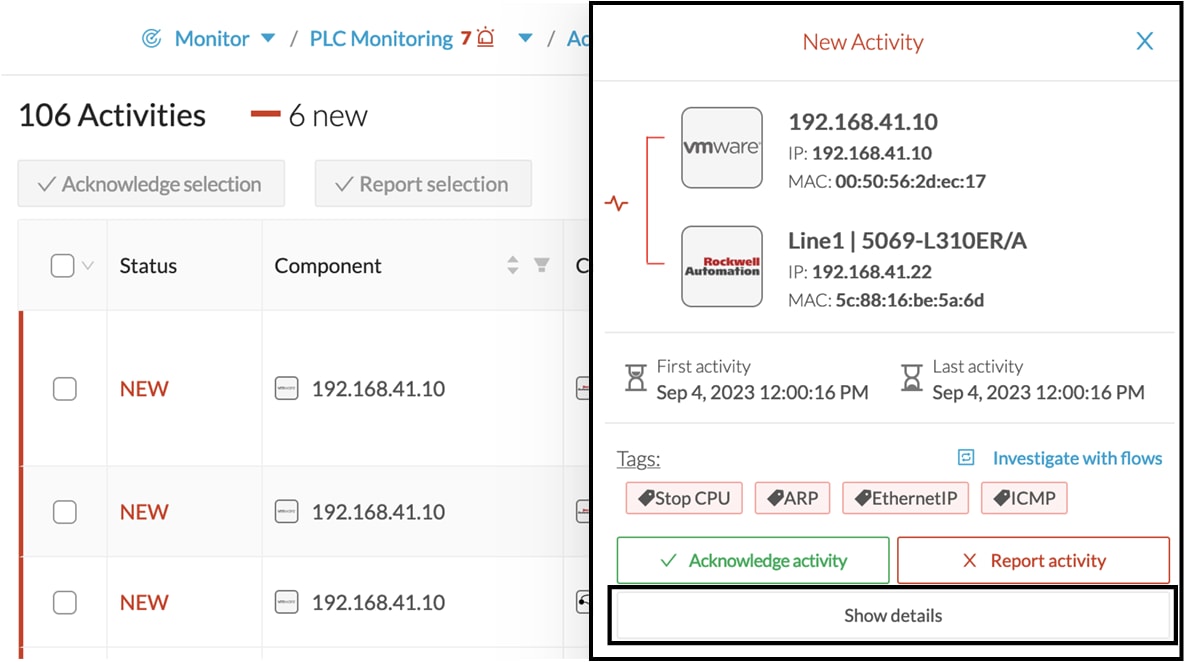
In any view, if you click one of the elements, for example below the activity marked as new in the activity list, a right side panel opens. It gives you:

  • information about the activity such as the two components it belongs to,

  • the date of the first and the last activity,

  • its tags,

  • buttons to perform several actions.

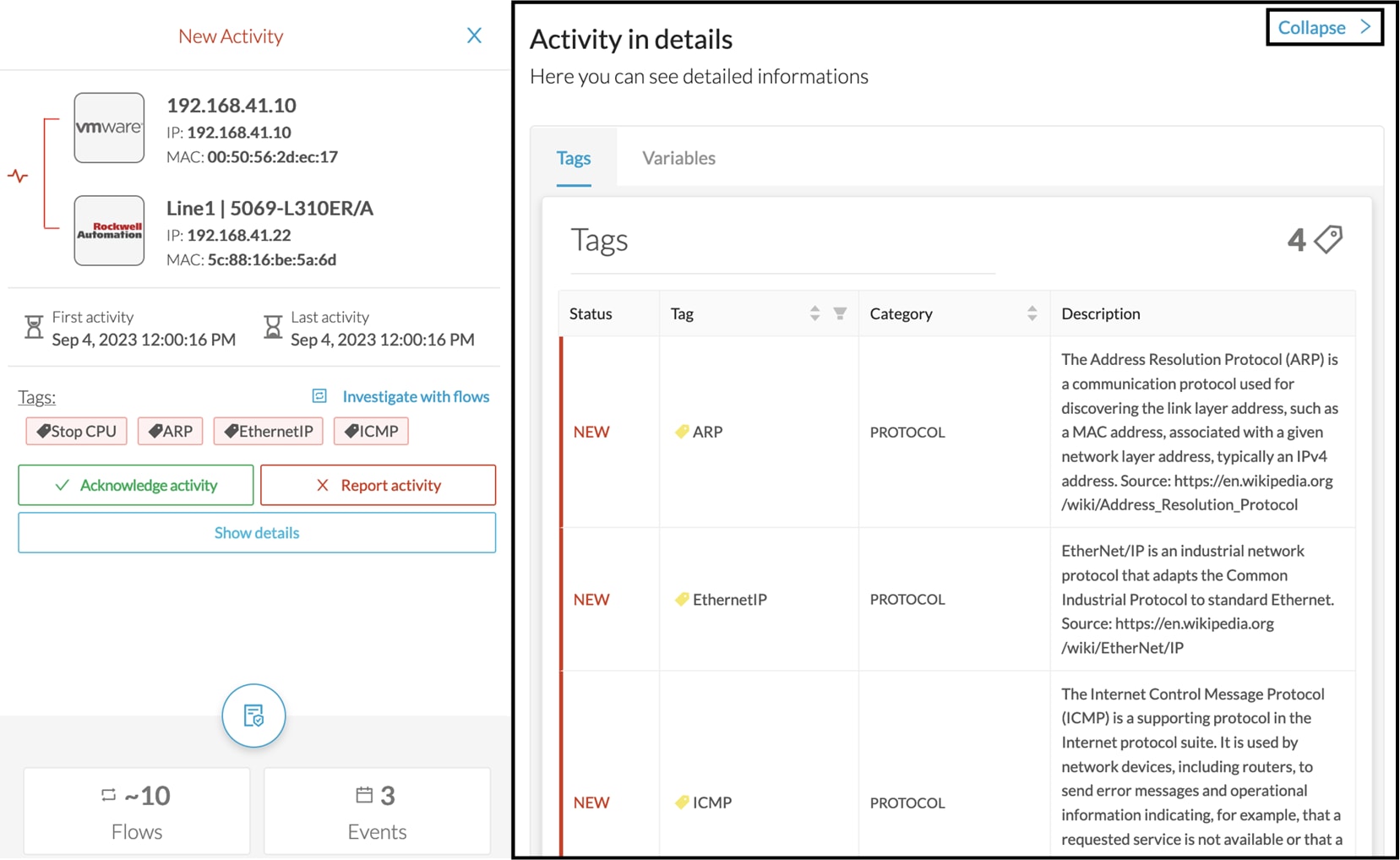
Clicking the Show details buttons opens a window on top with more information, in the example below, it shows the activity tags with the category they belong to and their description.

Click the collapse button to come back to the initial view.

However, to go deeper into analysis, click the Investigate with flows button.

New and changed differences

When a difference is detected, it appears in red in the Monitor mode. There are two types of differences: new and changed ones. A component, an activity, a tag, a property and a variable access can appear (new) or evolve (change). Here below are a few examples of how differences are represented in the Monitor mode:

A new component (plain red) and a changed component (hyphenated red)

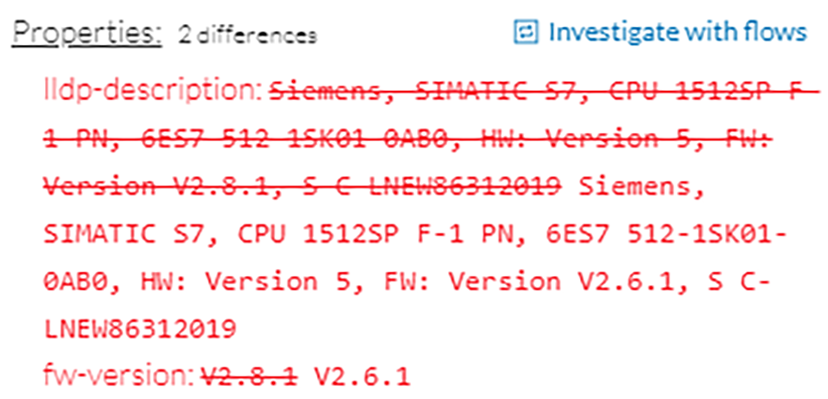
Changed component's properties, with the former crossed out property:

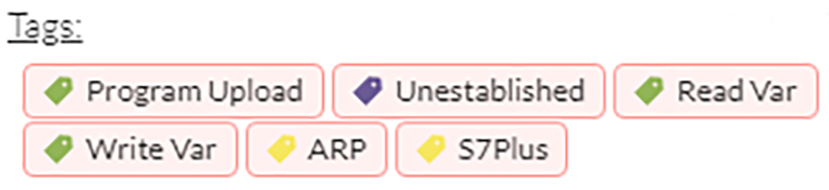
New and changed component and activity tags:

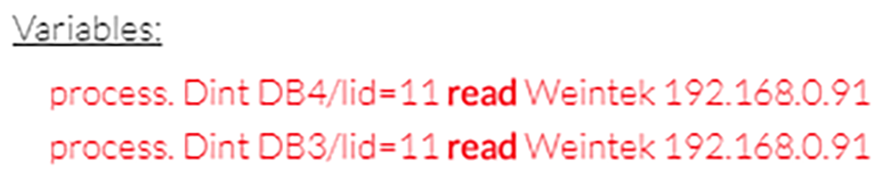
New and changed activity's variable access:

Each difference must be reviewed to identify a potential threat and refine the baseline. Refer to the section Review differences.

Review differences

When differences are detected by the Monitor mode, what one wants to do is to review them to see if they are a potential threat to the network, and clear their data from any red-alarming elements. Several actions are available to help you do so, which will, moreover, allows you to enrich the current baseline, clean it, or report abnormalities. These are available at different levels depending on whether you want to perform a deep behavior review on a component or activity particulars, or at a higher macro level for a quick review. Thus, you can perform these actions on tags, properties, variable accesses, components, activities and baselines.

In any case, any action taken on the Monitor mode will generate an event that you can see on the Events page.

Acknowledge differences

Acknowledge in the Monitor mode

"Acknowledge" is an action to be used to indicate that determined behaviors -or differences- are safe and normal. In fact, by doing this action, the difference will be included in the baseline. You can acknowledge differences on any element of the Monitor mode: tags, properties, variable accesses, components, activities and baselines.

Acknowledge a component or an activity

Acknowledge will display as such if the behavior is notified as changed. However, if the behavior concerning a component or an activity is notified as new, an additional action is required when clicking the button "Acknowledge" because a distinction has to be made according to whether the behavior in question is exceptional or part of an iterative process.

  • Acknowledge & Include

    This action is to be used for a behavior which is part of a normal process and is meant to happen regularly over time. By using this button, the behavior will be included into the current baseline. If later the component or the activity changes -because for example a new tag has been detected on them- you will be alerted through the Monitor mode: it will turn to "changed" and appear hyphenated and red. This action is useful to refine a baseline as it evolves over time.

    Ex: You can perform this action on a new machine installed in the network, or a new activity due to a new supported protocol.

  • Acknowledge & Keep Warning

    This action is to be used when a behavior is punctual and not part of a process. In this case, such behavior must not be considered as abnormal but rather as an unusual one, which doesn't have a bad impact on the network. By using this button, the behavior will be acknowledged and so cleared, but will not be included into the baseline. Consequently, you'll be notified if it happens again as a new behavior in the monitored baseline.

    Ex: You can perform this action on a new component and a new activity due to an exceptional maintenance act.

Report differences

This action is to be applied on a difference you consider to be an anomaly, that is, a behavior that is abnormal and may compromise the operating capability and security of the network. However, before reporting the anomaly, the first thing to do is to investigate, and, if possible, to resolve it. In any case, when reporting an anomaly, you must fill in a message of incident response or acknowledgment (in which context the incident has happened, potential threats, or how it has been fixed). Once an anomaly is reported, it is cleared and not included in the baseline, and an event is generated with a default severity level higher than the acknowledge action. You will be alerted in the Monitor mode if the incident occurs again.

Remove and keep warning

This action will remove the component or activity from the current baseline. This is to be used when you consider an element should not appear in a baseline, or you don't want to see it anymore. However, you will be alerted if the component or activity comes back, and the difference will appear as new. This action is also available on variable accesses through Individual acknowledgment.


Note

If a difference keeps coming back in a baseline and you don't want to see it, you should modify the preset instead.

Individual acknowledgment

Individual acknowledgment is an advanced usage of Cisco Cyber Vision. This feature is available on changed components and activities, that is, on elements already included in a baseline. It allows you to access their details to perform a deep behavior review by acknowledging and reporting one by one the differences detected on the network. Thus, individual acknowledgment is available on components' properties and tags, and on activities' tags and variable accesses.

  • Component properties

    New and changed properties display in red. Concerning changed properties, the former one is crossed out and the new one displays next to it. They will always display in red, unless you acknowledge them.

  • Component and activity tags

    New and changed tags display in red. They will be cleared as you acknowledge or report them (i.e. they are no longer displayed in red).

  • Activity variable accesses

    New and changed variable accesses display in red. A variable access can be acknowledged, reported, and, in addition to other elements, deleted (i.e. button "Remove and keep warning"). Deleting a variable access is to be used when you consider that it should not be part of the current baseline and you don't want to see it. It will be removed from the baseline and disappear. If, however, the variable access happens again, you will be alerted and it will display in red.

Once all component or activity's elements are reviewed (i.e. acknowledged, reported, or removed), the entity they belong to is cleared (the component or activity itself is no longer displayed in red). Any action performed in the Monitor mode will appear in the Event page.

Investigate with flows

This button is not an action but an option to get more information and context about the differences detected on the network. In fact, each difference found, since it belongs to a component or an activity, is related to a flow. This view allows you to perform forensic analysis and may give you some clues to understand what happened.

Ex: You can search from which flow exactly a tag comes from.

Create a baseline from a default preset

  1. Access the Explore page.

  2. In Basics, click the preset Essential data.

  3. Click the button Add a new baseline from preset.

  4. A pop-up appears to invite you to check your new baseline. Click Go check it out.

  5. All elements displays. Some components and activities may already appear in red as new or changed.

Create a baseline from a group

To create groups:

Procedure


Step 1

Access the All data preset.

Step 2

Create two groups of components.

Step 3

Click the Autolayout button.

Example:

We create a group HMI and a group PLC.

To create presets from groups:

Step 4

In criteria, access the groups filter, and select the first one of the group you created.

Example:

We select the HMI group in the filter.

The HMI group displays in the map with its related activities.

Step 5

Create a preset from this view.

Step 6

Click Save as and name the preset HMI.

Step 7

Repeat the previous steps for the PLC group.

Step 8

Go to All Presets. You will see your two new presets.

To create a baseline from presets:

Step 9

Access the HMI preset.

Step 10

Click the button "Add a new baseline from preset".

Step 11

Name it HMI.

Step 12

Repeat the previous steps for the PLC preset.

Step 13

Access the Monitor mode. You will see your two new baselines.


Create a weekend baseline

Create another baseline to monitor the network during weekends.
  1. Access the All data preset.

  2. Set the period for the weekend. For example, from Friday 5 p.m. to Monday 4 a.m.

  3. Click the button "Add a new baseline from preset".

  4. Name the baseline "All data weekend" and add the description "Must be active from Friday 5pm till Monday 4am".

Enable a baseline monitoring

To make the most of the Monitor mode, it is sometimes insightful to create several baselines per preset. However, only one baseline can be active at a time per preset. This is because a baseline is to be used to monitor a well-defined network process during a specific period of time (e.g. baselines Normal operating mode, Maintenance, Week-end, Night). Two baselines cannot happen at the same time on a preset, and you need to enable the proper baseline as the network enters a new operating phase. Consequently, when you enable a baseline on a preset, the active one is automatically disabled.

To enable a baseline:

Procedure


Step 1

Access the Monitor page.

Step 2

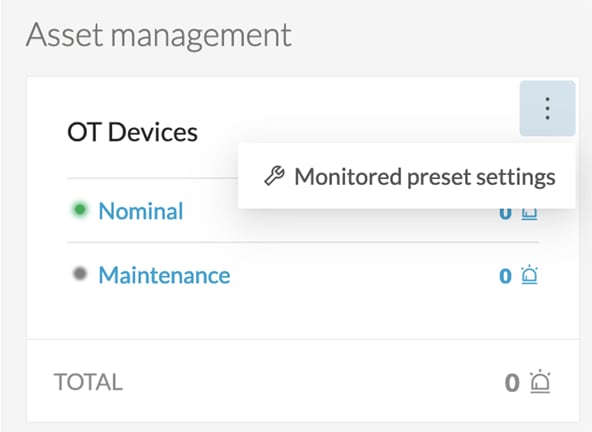
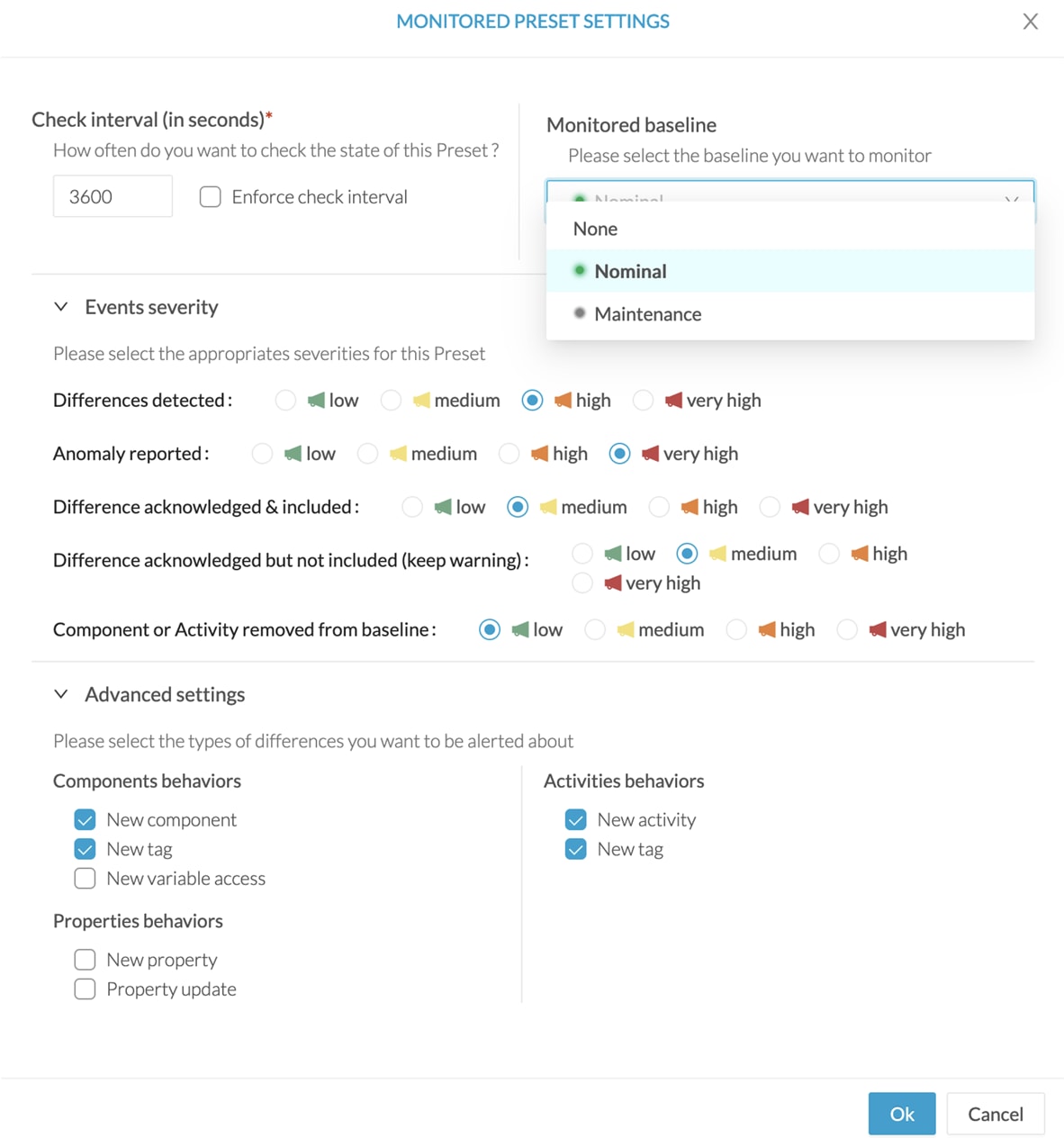
Click the monitored preset settings menu on the preset you want to monitor.

Step 3

Under Monitored baseline, select the baseline you want to enable.

Step 4

Click Ok.

The baseline selected turns to green and is enabled.


Use cases

Detection of assets newly connected to the network

A basic use case in Cisco Cyber Vision is to detect if and when a new equipment connects to the industrial network being monitored. However, the first thing to do when using Cisco Cyber Vision is to organize components in an intelligible way. In this use case, we choose to organize components according to the network's topology, that is, per production chain. In fact, a network can be divided into several areas, such as several production chains with different criticality levels, where a Cisco Cyber Vision Sensor is placed to capture and monitor its traffic. This topology can be reflected in Cisco Cyber Vision by creating groups which represent a production chain and contain its components. In clear, here we intend to detect a new component and its related activities within a specific area. Thus, it will be possible to see whether a component connects with this production chain. Its related activities will also be highlighted in the Monitor mode.

Key Differences: New components and their related activities on the network

Aim: Monitor the production line 2 of the industrial network.

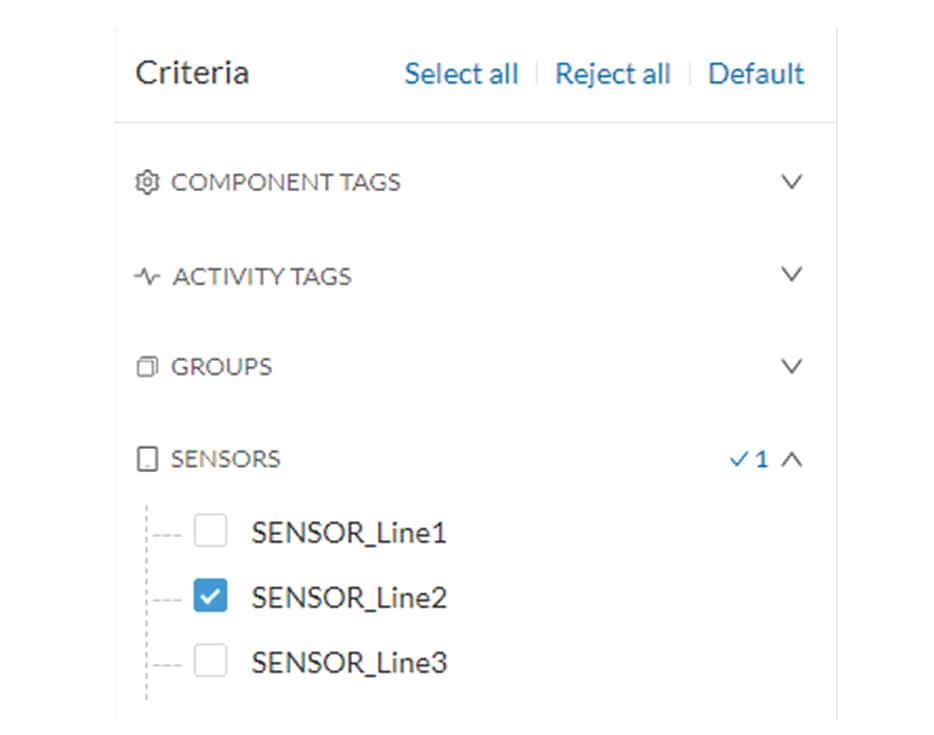
Since a sensor is placed on each production chain, we use the sensor filter to display each production chain. In our example, the industrial network we're monitoring has 3 production lines on which we have positioned a sensor. We want to see and monitor what is happening on production line 2. To do so, we access the Preset All data in the Explore mode and we select the filter SENSOR_Line2 (it is possible to rename sensors to identify which area of the network they're monitoring) so only traffic captured on Production Line 2 appears.

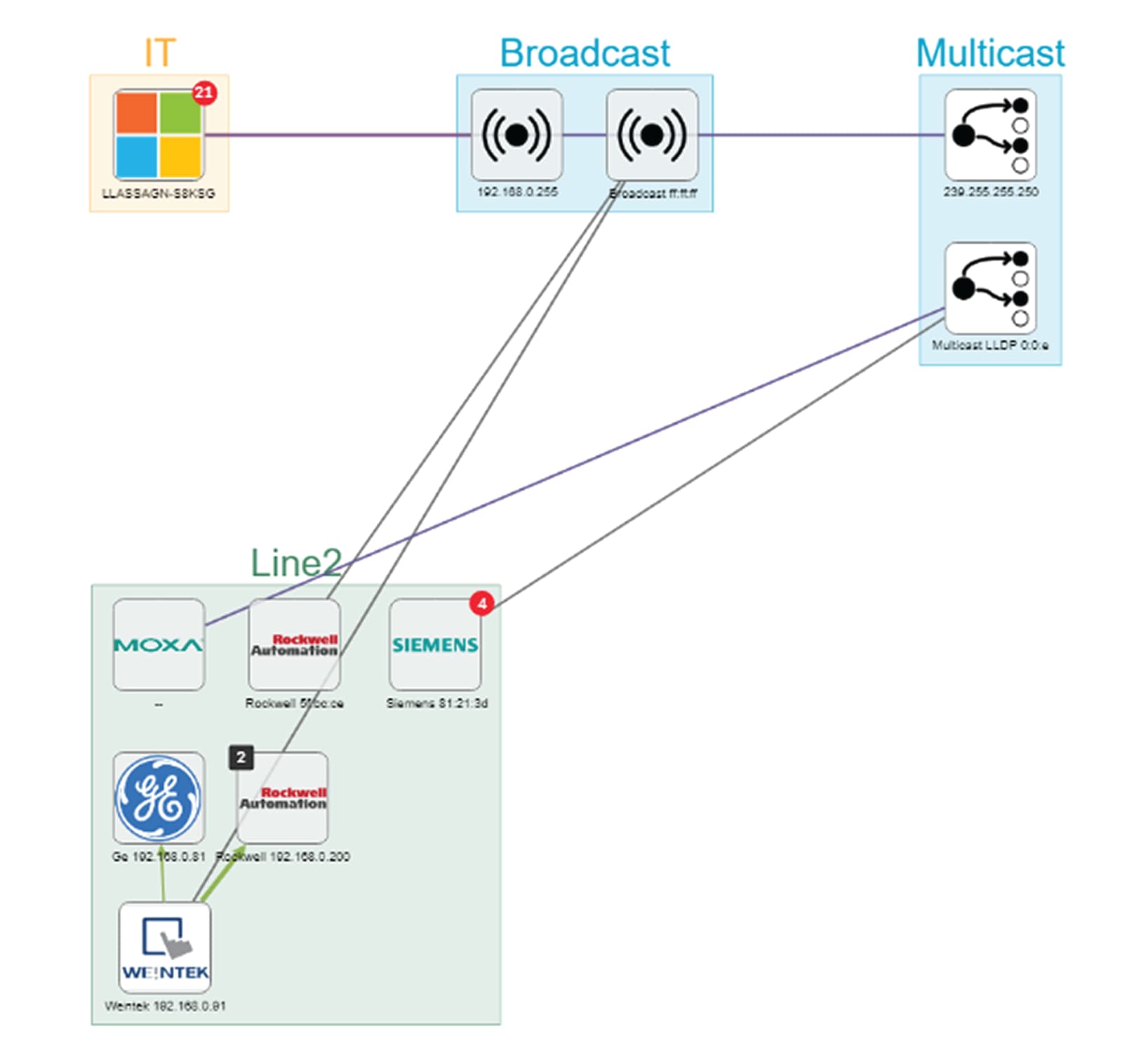
What we need to do then, is to organize the components into groups, per function:

  • PLCs in Line 2

  • IT

  • Broadcast

  • Multicast

As a result, we have a filtered and organized view of production chain 2.

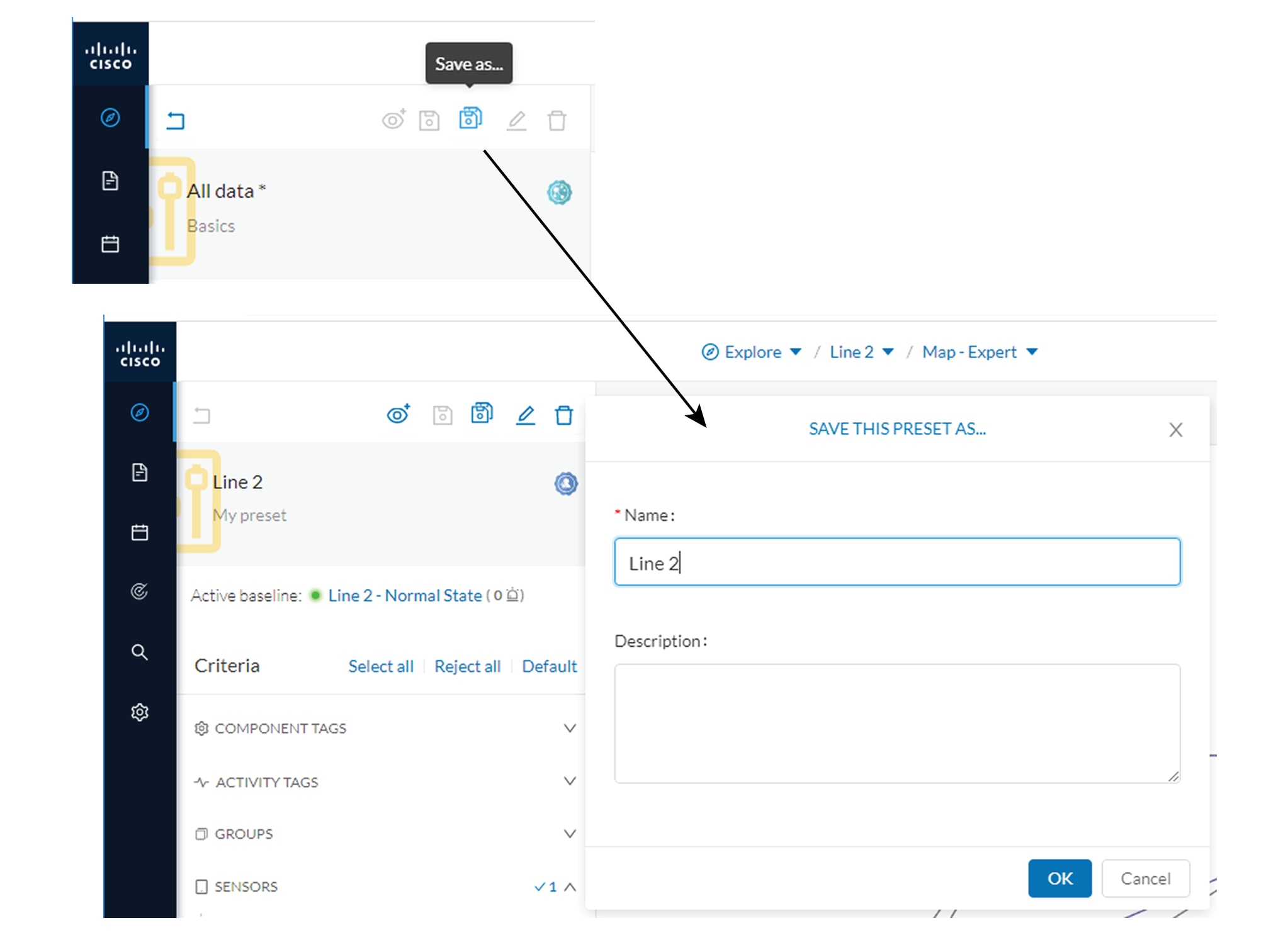
Now that the network data is filtered and grouped, we save the selection as a new preset that we name Line 2.

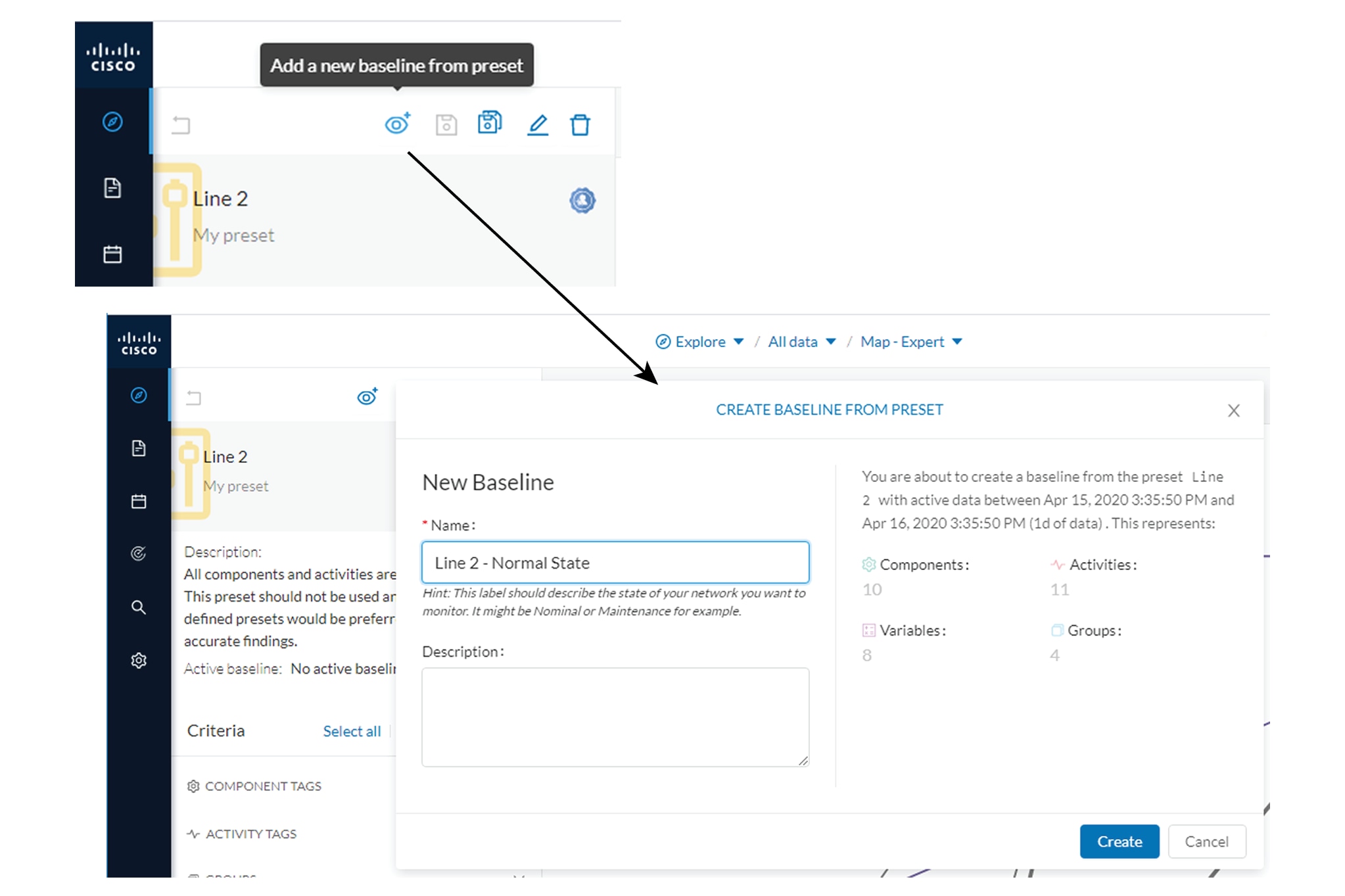
The preset Line 2 contains components and activities we consider to be interacting in a normal way, that is, production line 2 is in normal operating state. We save the preset's normal state as a baseline that we name Line 2 - Normal State.

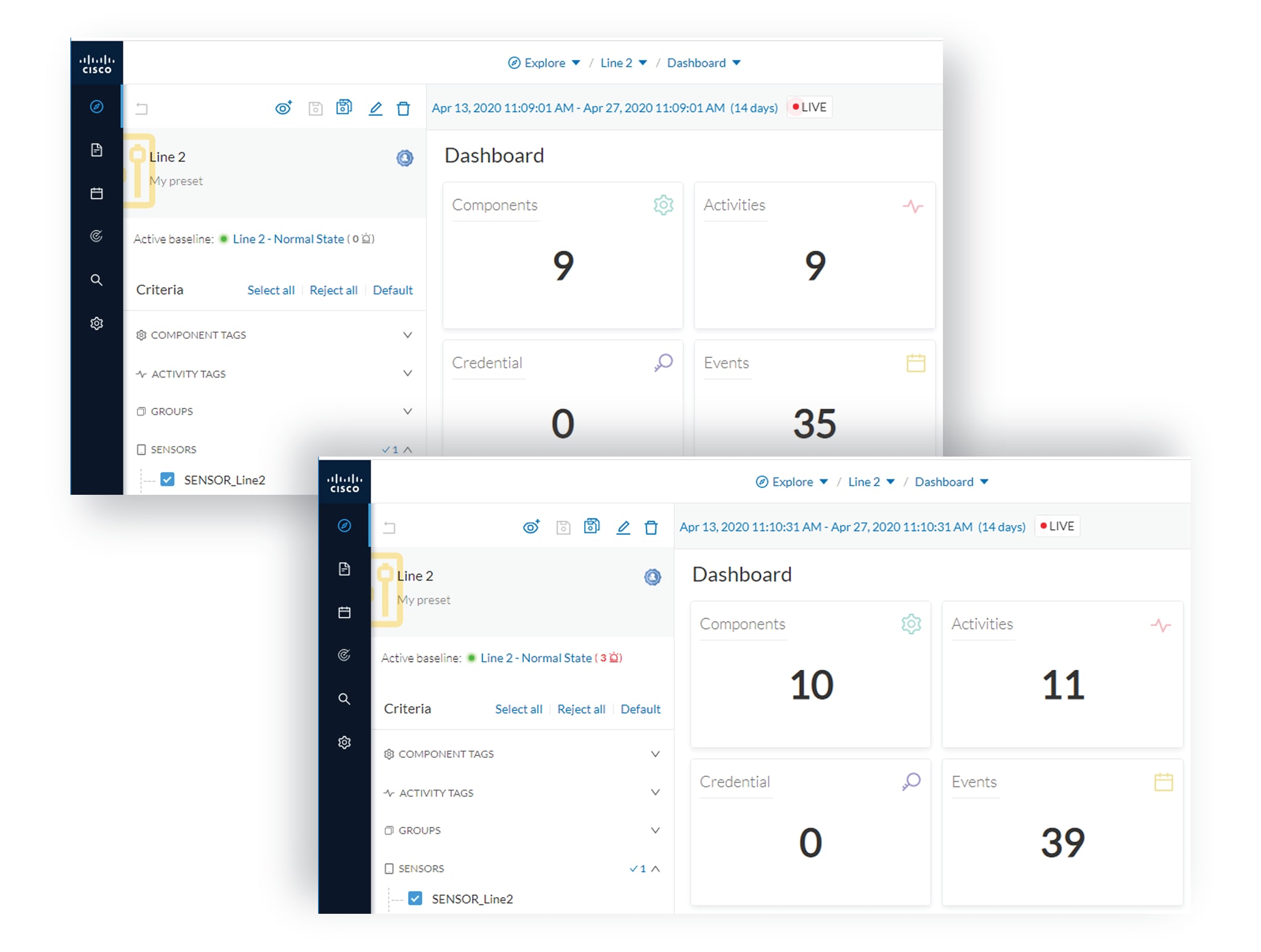
We come back later to check Production Line 2. As we access the Explore mode we notice that there are 10 components instead of 9. Number of activities and events have increased too. The baseline Line 2 - Normal State reports 3 alerts.

To understand what had happened exactly, we access the baseline in the Monitor mode.

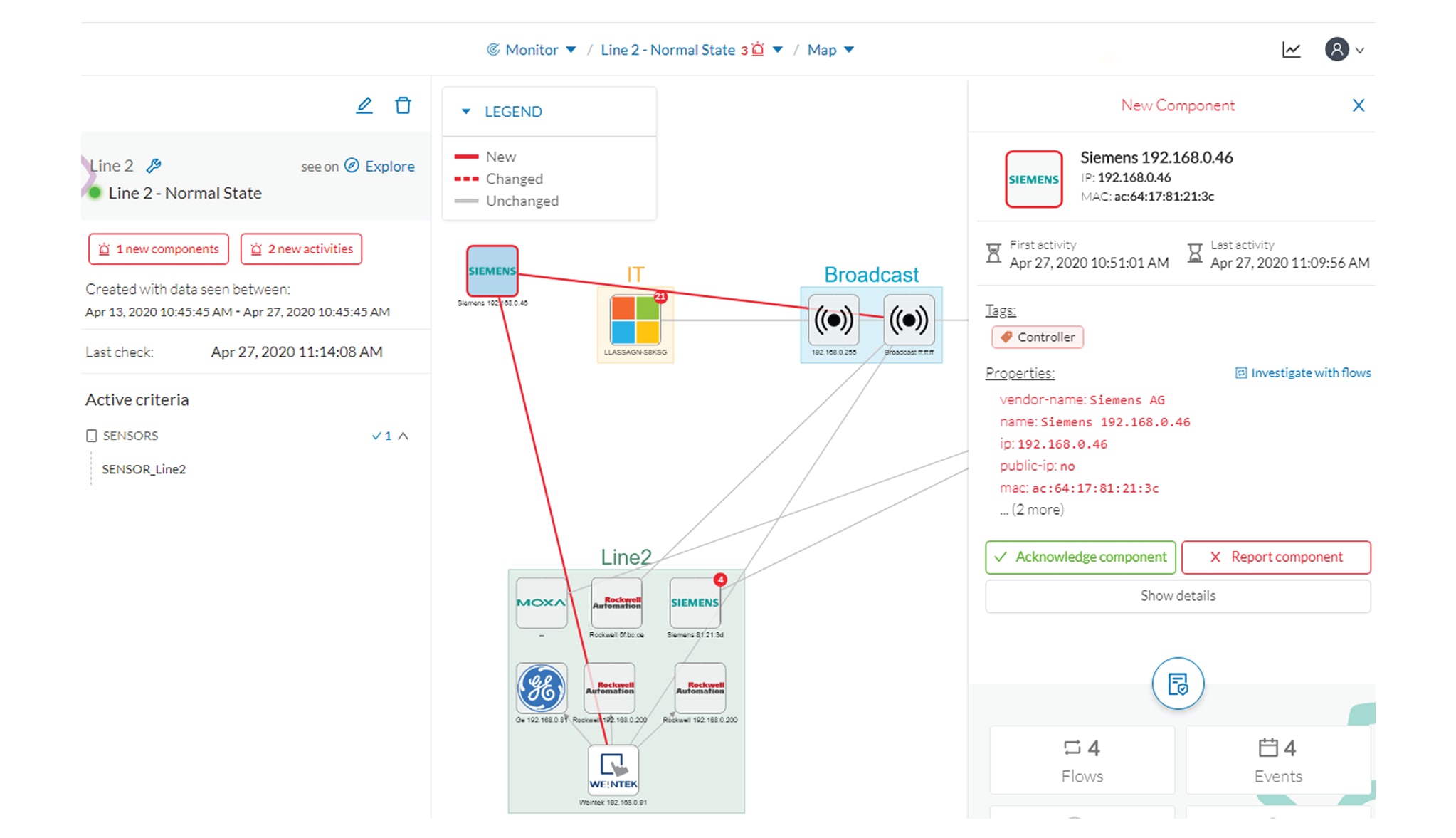
The left panel indicates that 1 new component and 2 new activities have been found.

As we click the new component, the right side panel opens with the component's detailed properties.

As we observe the component's details, we learn that it is in fact a controller, and properties look like what we're already used to see on the network regarding other components' characteristics. After confirming on site, we discover that a new PLC has been connected to the network to enlarge Production Line 2.

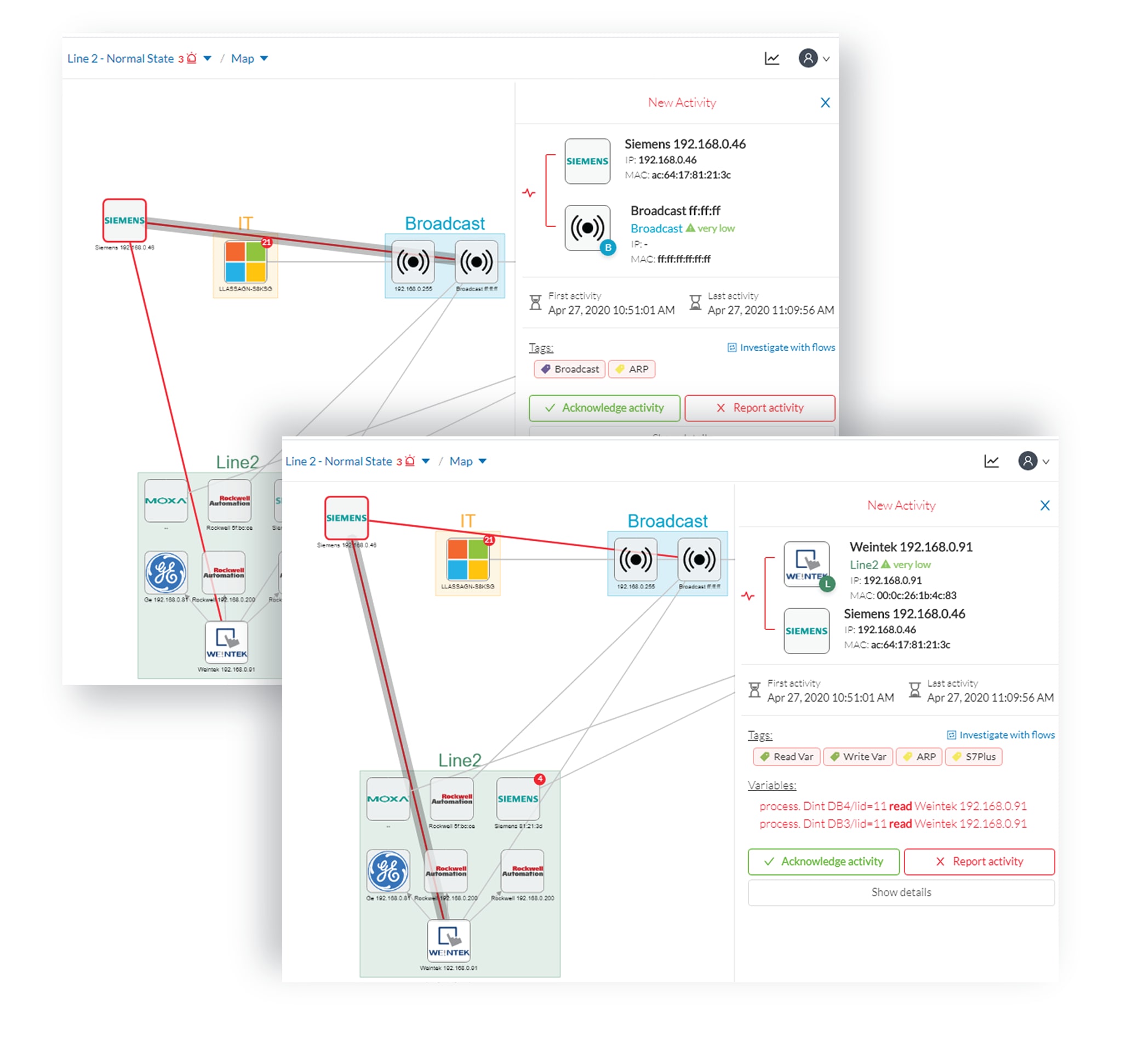
Then, we check that this new component behaves normally by looking at its activities. It has been identified because it has sent a broadcast packet (probably ARP) and then has connected to the Weintek machine using a legitimate protocol. Actions like Read variable accesses look normal too.

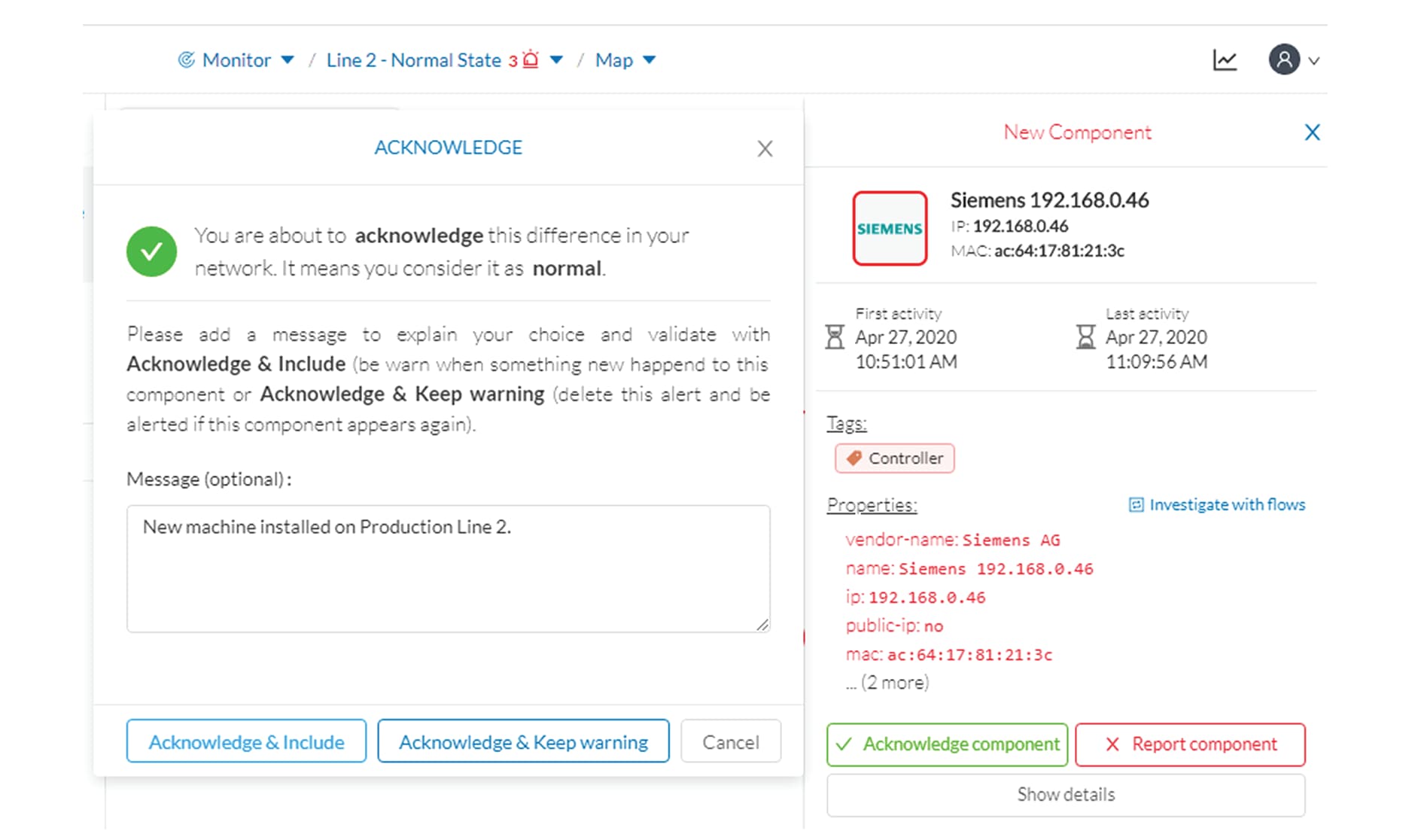
Since the component and activities will be part of the normal operating process of Production Line 2, the differences can be acknowledged and included in the baseline to be notified if any change occurs.

We return to the Explore mode and add the component into the Line 2 group.

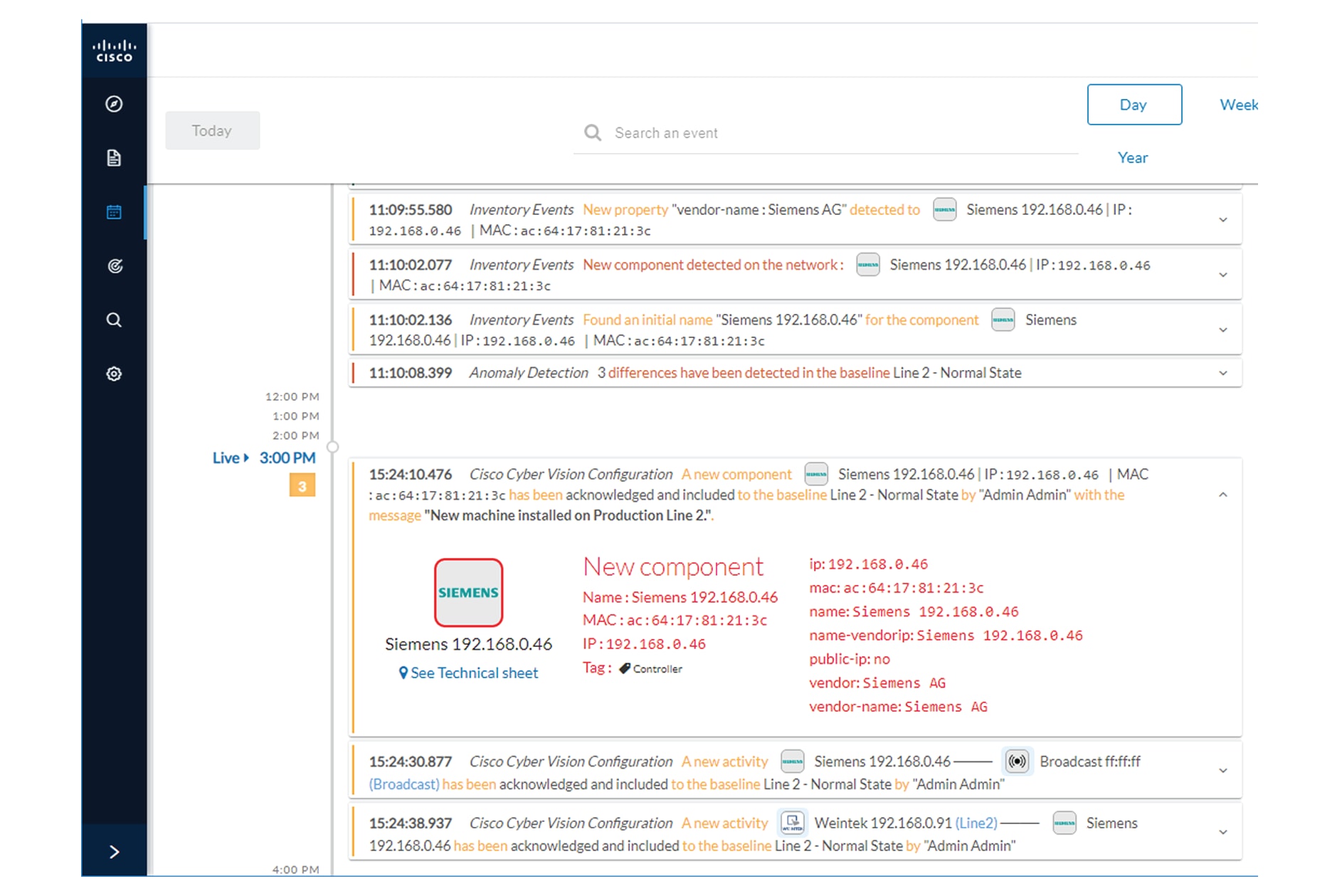
Eventually, we access the Events page and see that all previous actions are reported here, from the detection of a new component and activities on the network, to adding the component into the group Line 2.

Tracking sensitive assets properties

To ensure a network's security, its critical assets need to be monitored closely. Usually, critical assets are controllers which ensure the plant's operation. To monitor them, we're going to check its properties. The properties to keep an eye on are programs and firmware versions changes that might cause malfunctions or even stop a production line.

Preset Definition: Preset need to be defined per Group or multiple Group

Key Differences: New properties or changed properties on components

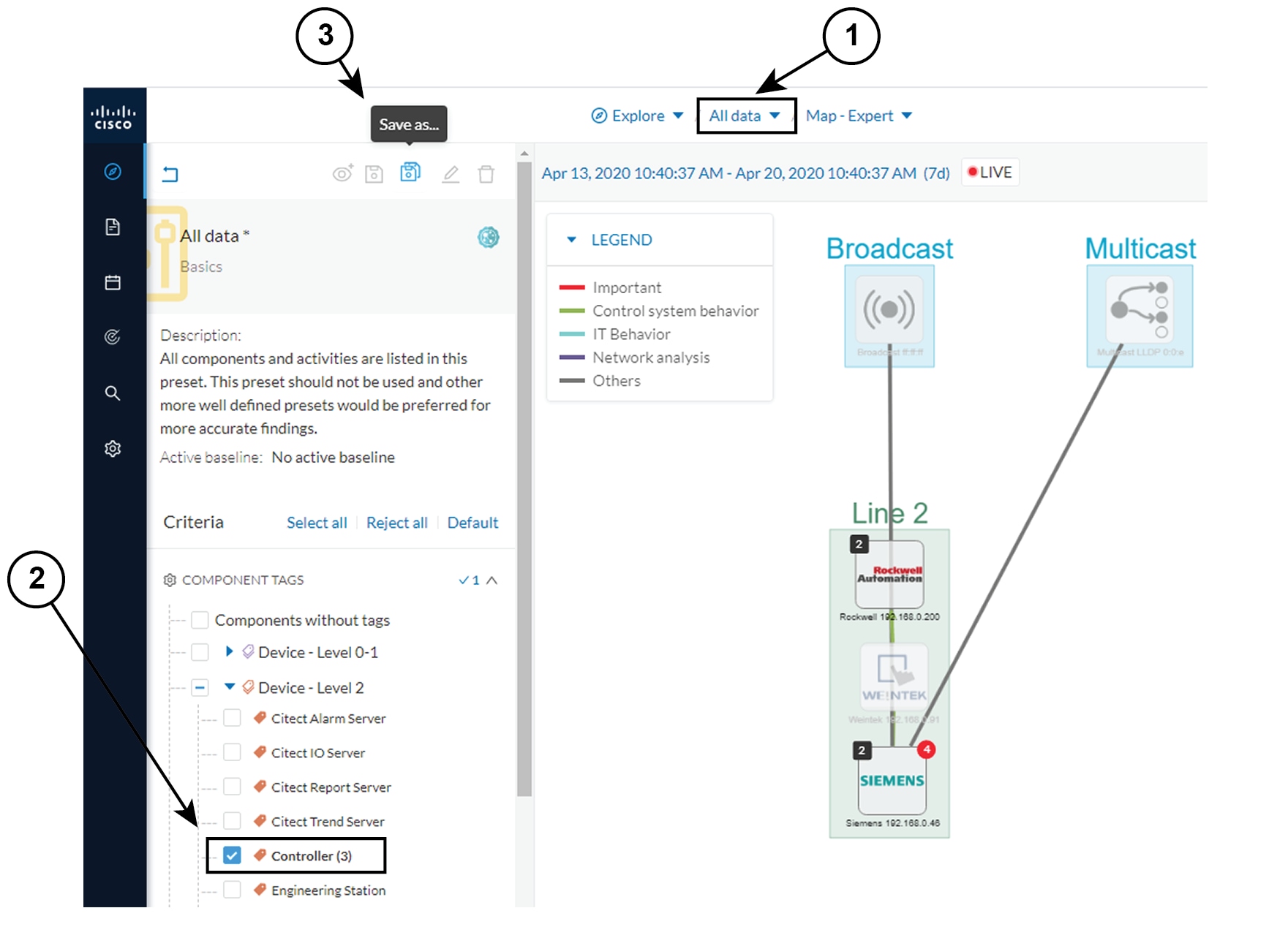
In the Explore mode, we access the Preset All data (1). We group the components per function (Broadcast, Multicast, Production Line 2) to organize our data. We select the Controllers component filter (2), so only the components marked with the Controller tag, their activities and related components display.

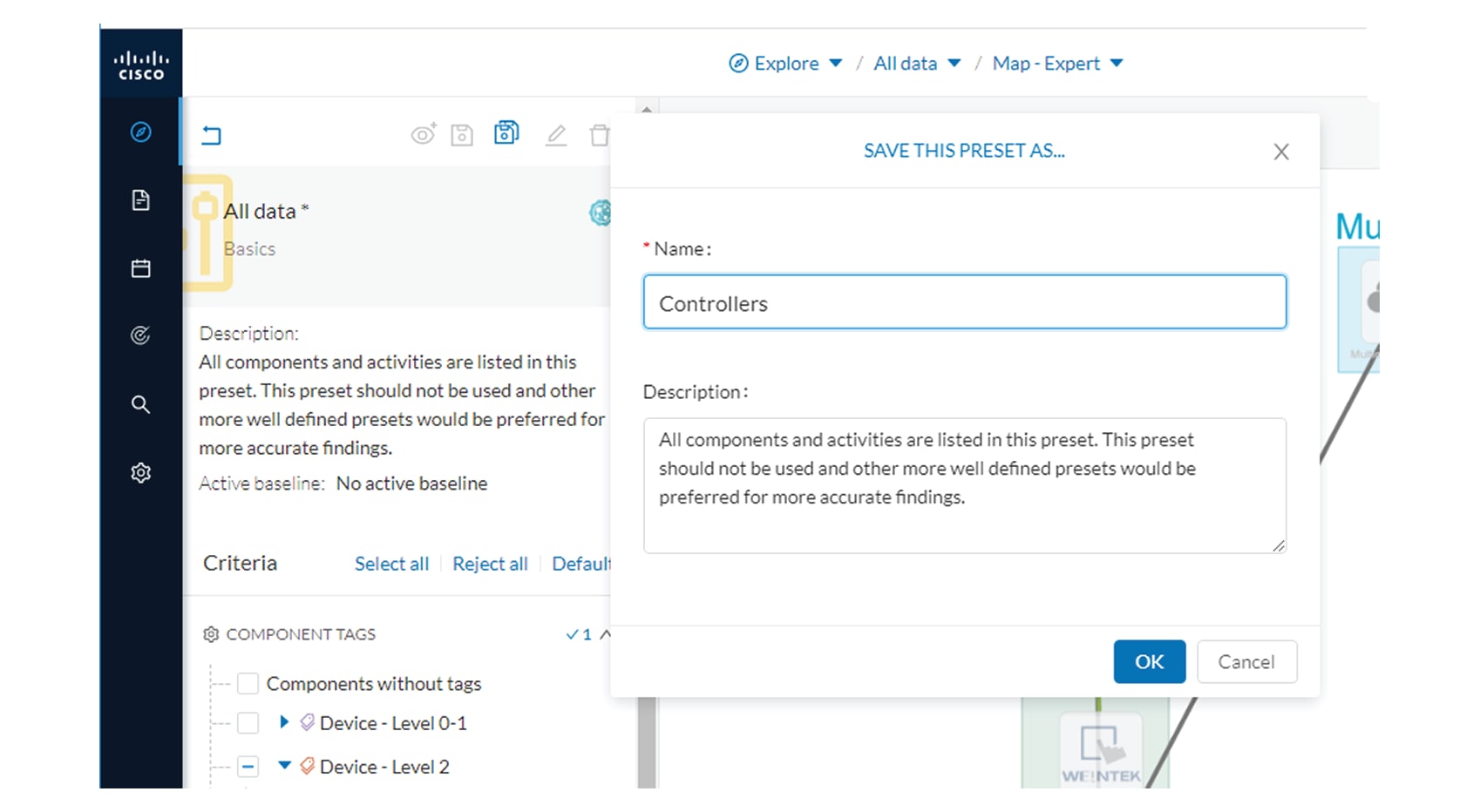
Now that the network data is filtered and grouped, we save the selection as a new preset (3) that we name Controllers.

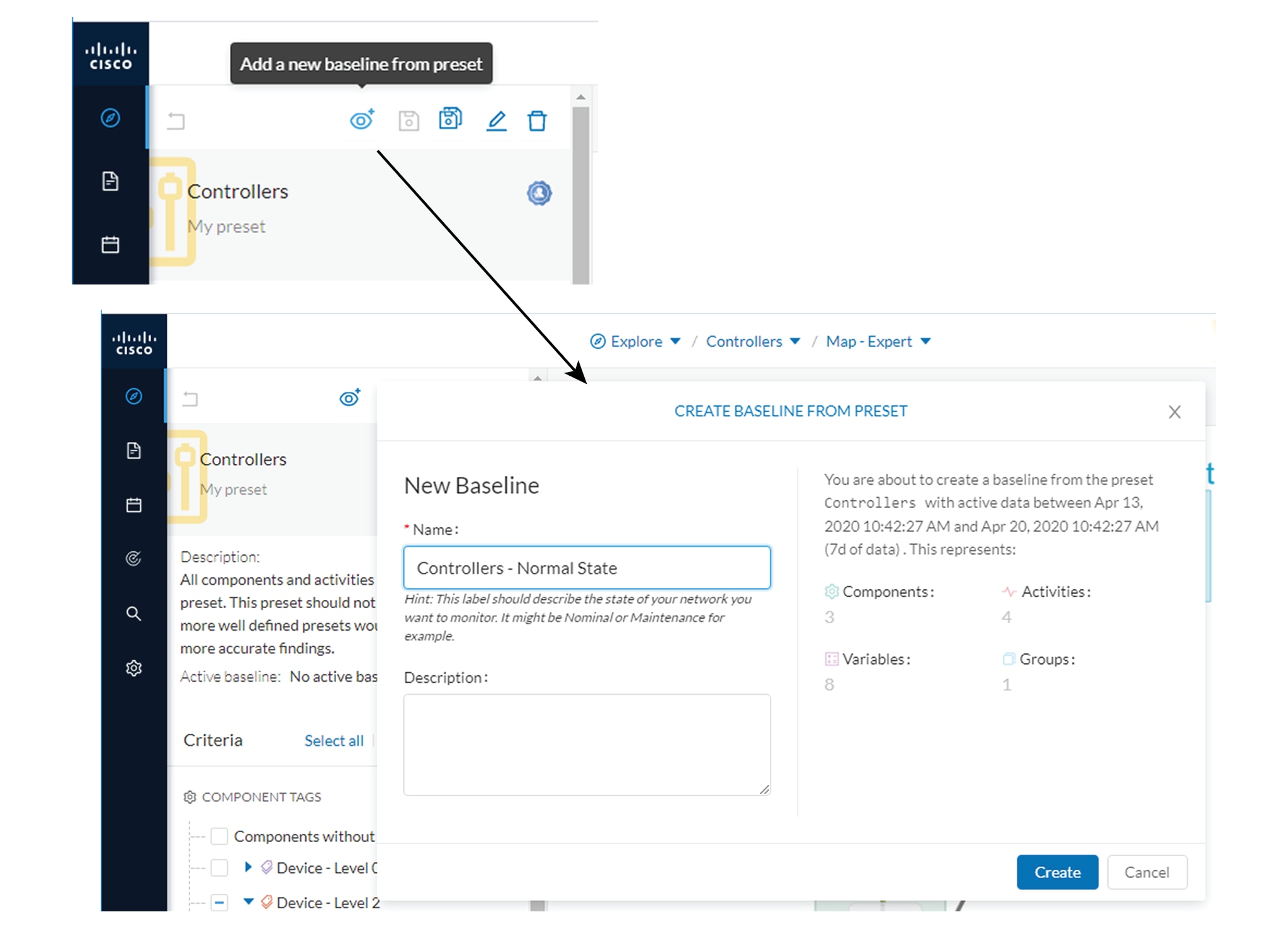
The preset Controllers contains components and activities we consider to be operating in a normal way. We save the preset's normal state as a baseline that we name Controllers - Normal State.

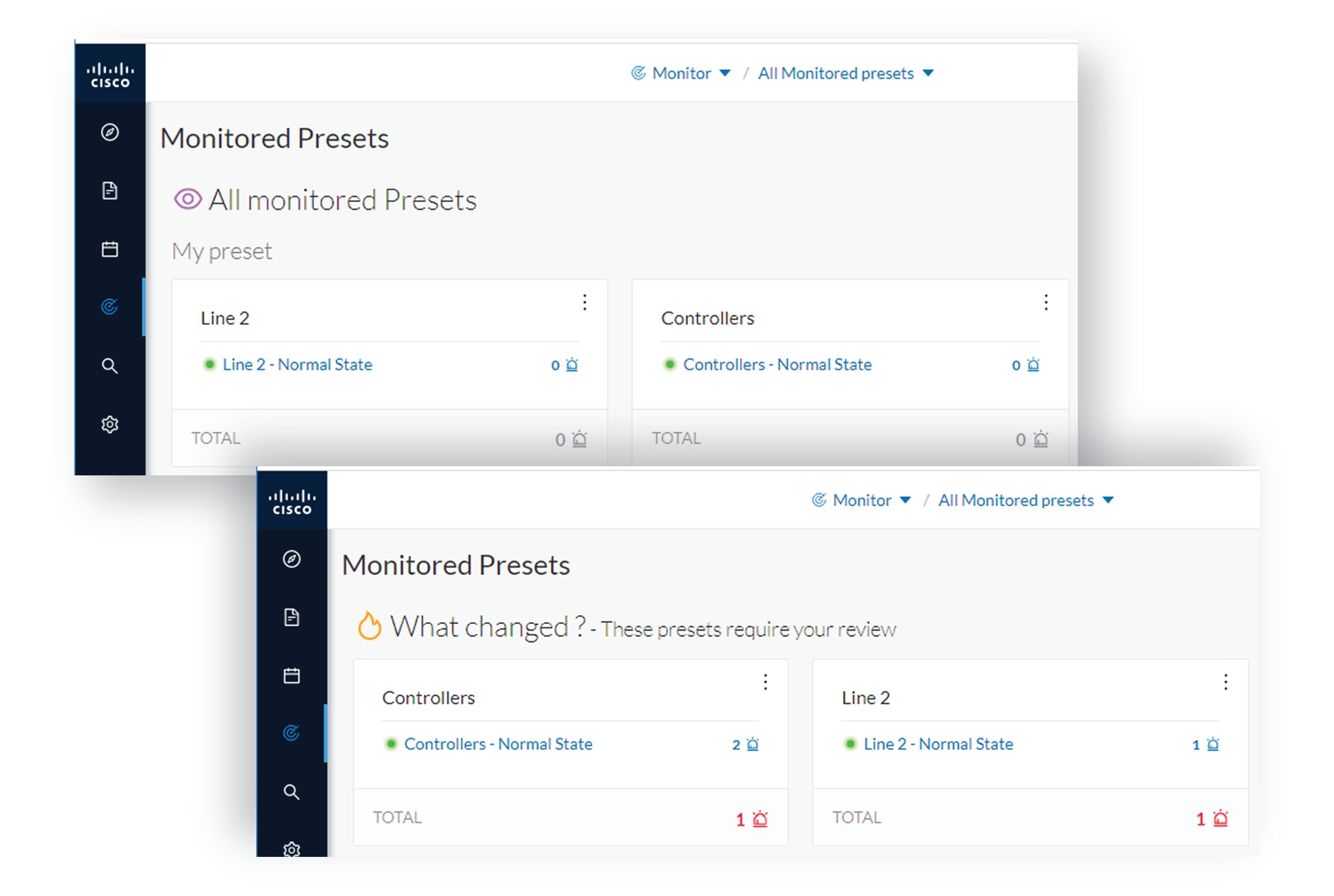
We access the Monitor mode. The new baseline Controllers - Normal State displays.

A few moments pass and two alerts are reported in the Controllers preset. We access the baseline to see what happened.

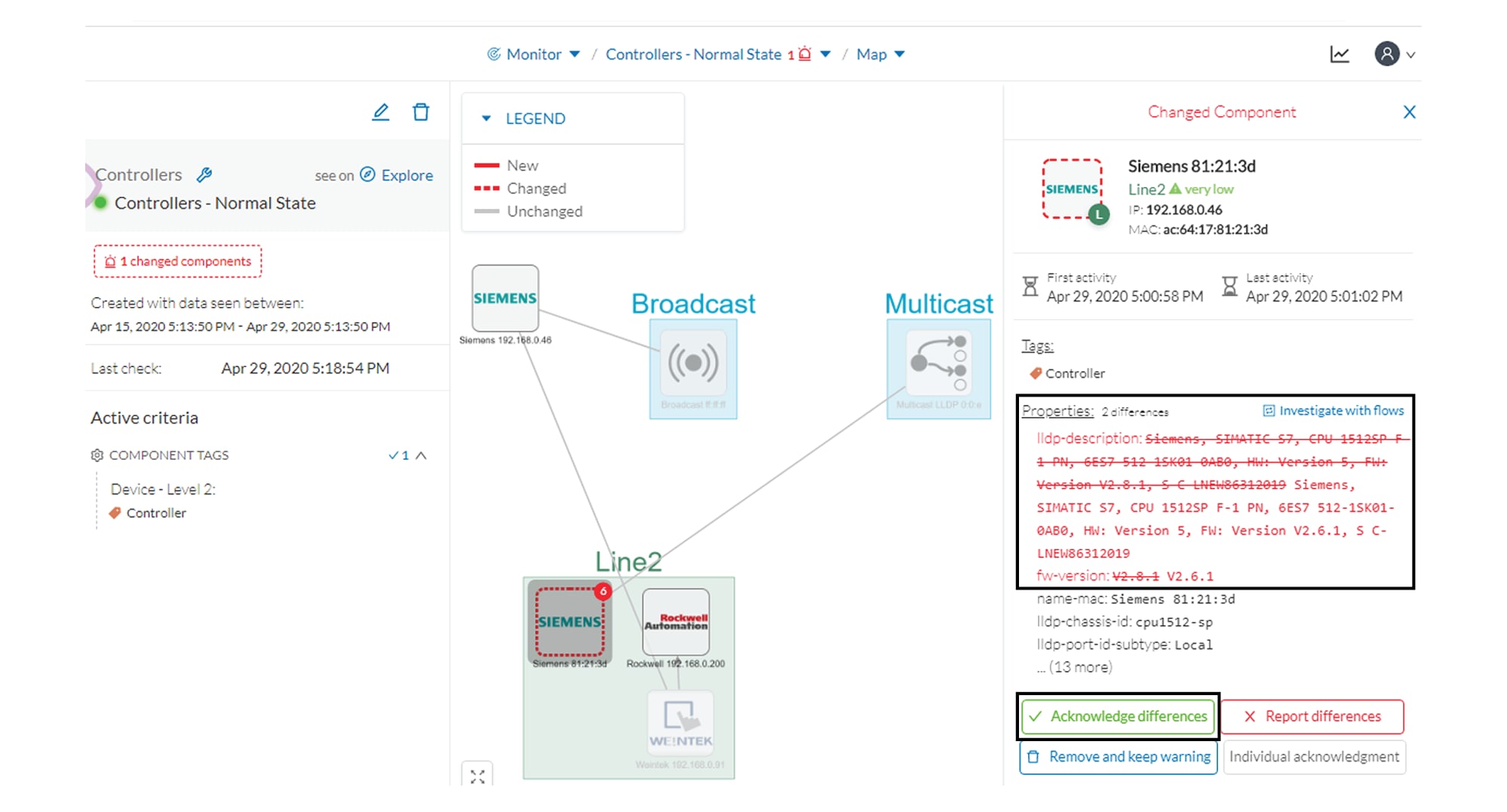
The left panel reports that one component and one activity have changed in the scope of the preset.

As we click on the changed component in the map, a right side panel opens with more information. Changes appear in red. The tag indicates that it's a controller. The properties lldp-description and firmware version have changed and the former version is crossed off.

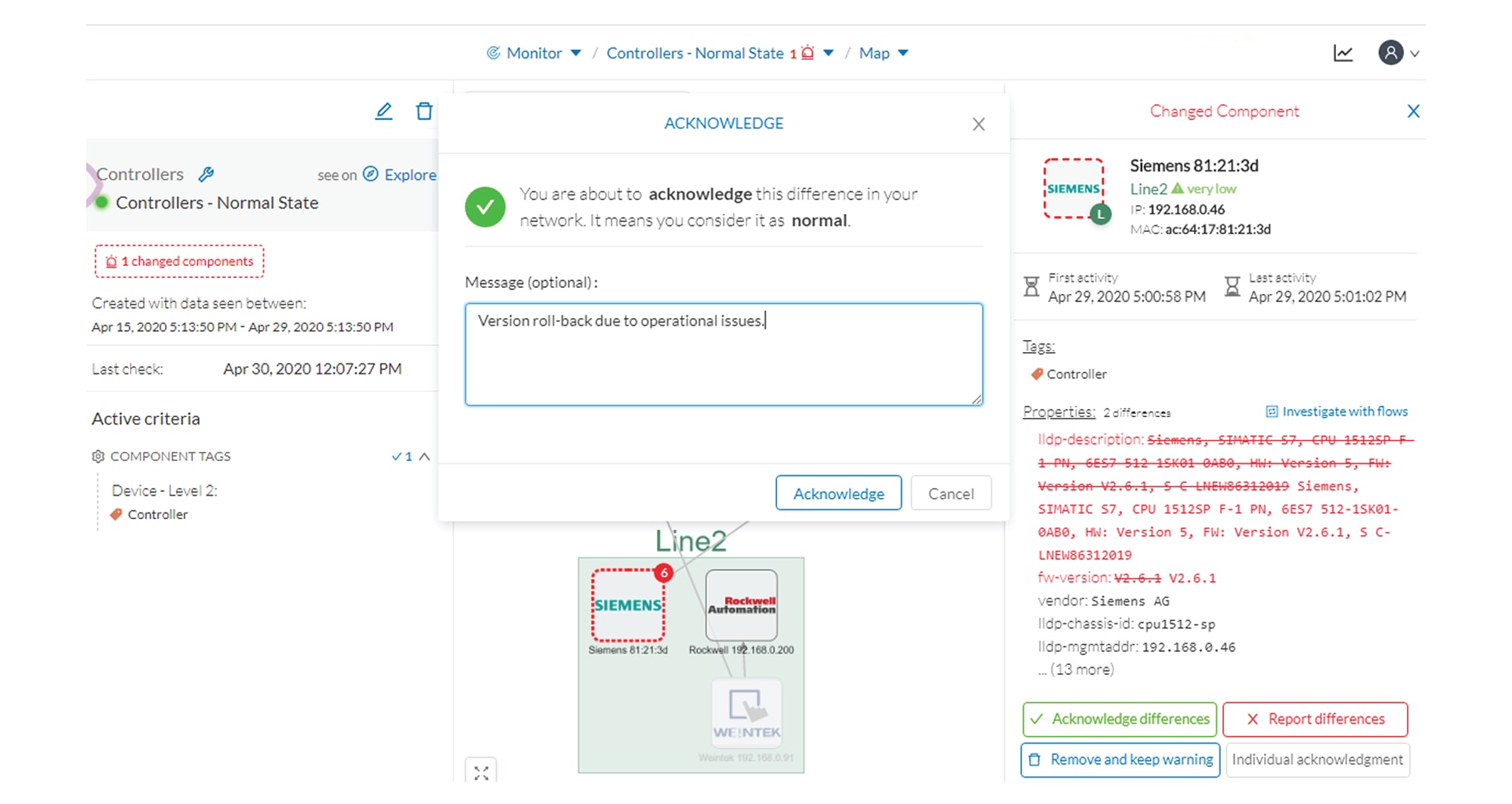
The particularity here is that no activity on the network seems to explain why the SIEMENS component's firmware version rolled back. To figure this out, we meet with the technical operator in charge of the production line. This person informs us that the latest version was causing several issues on the network. Consequently, a rollback has been performed by a maintenance operator to solve these until a new fix comes out. We conclude that this was part of a normal maintenance act and we acknowledge the differences.

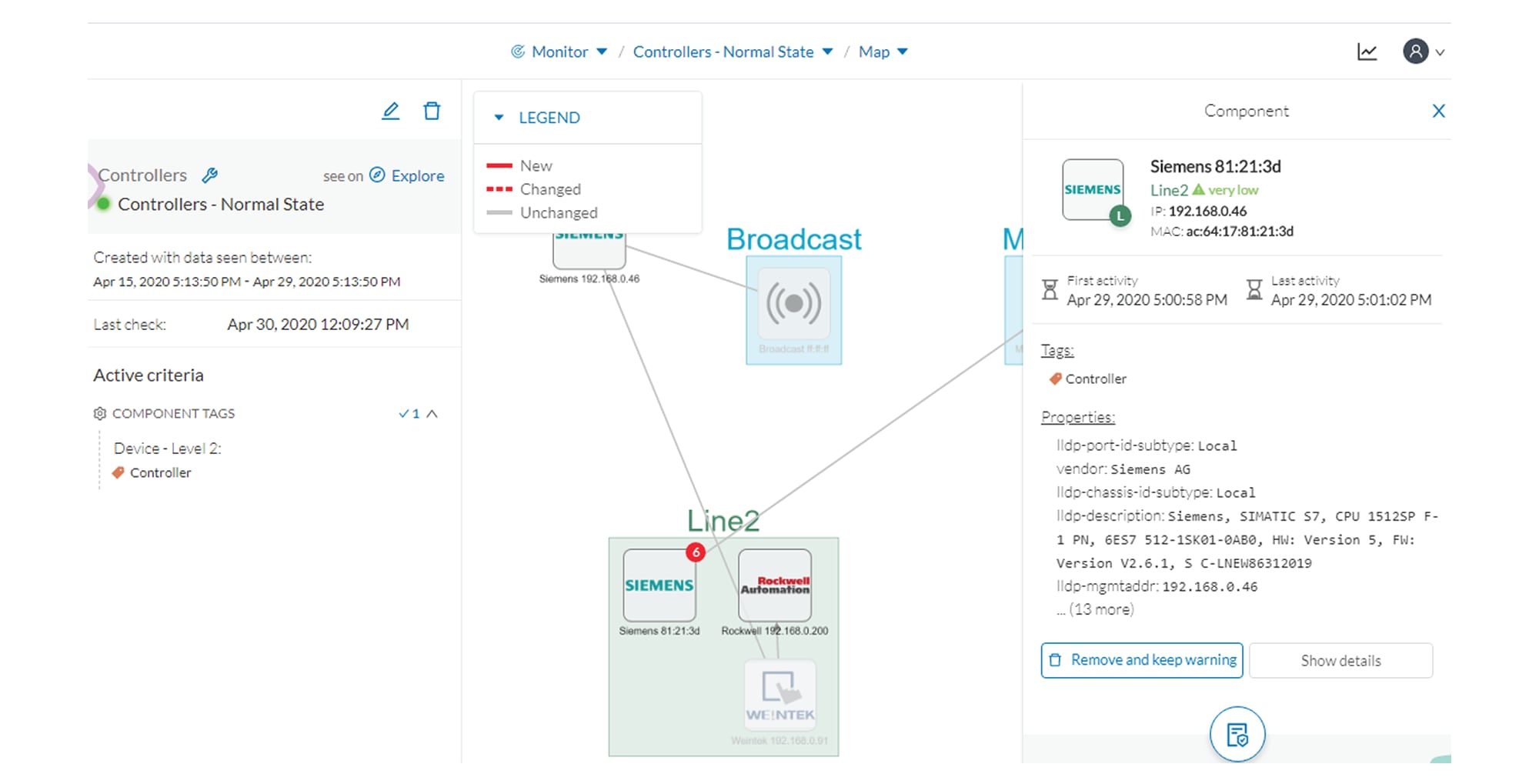
Once differences are acknowledged, they are considered as normal and do not appear in red anymore. If a new change happens such as the version update, the component will appear as changed again in the Monitor mode.

An event is generated accordingly to the previous behaviors that have happened on preset Controllers and actions.

Detect changes that impact availability and integrity

First evidence that someone might have hacked your industrial control system and is trying to disrupt your industrial processes are Stop CPU orders or new programs sent into a Controller's memory. A station that starts to send such content inside a network must be detected as soon as possible. It is possible to monitor a network by watching all control system behaviors.

This can be done in Cisco Cyber Vision by using the Control System Activities preset, which is a default preset and will check all activity tags categorized as Control System Behavior and consequently all related components. Key differences in such use case are new or changed activities. Moreover, components' tags and properties will give further context to help understanding of what is happening in the network.

Preset Definition: Preset need to be defined per activities tag like "Control Systems Behaviors"

Key Differences: New or changed activities

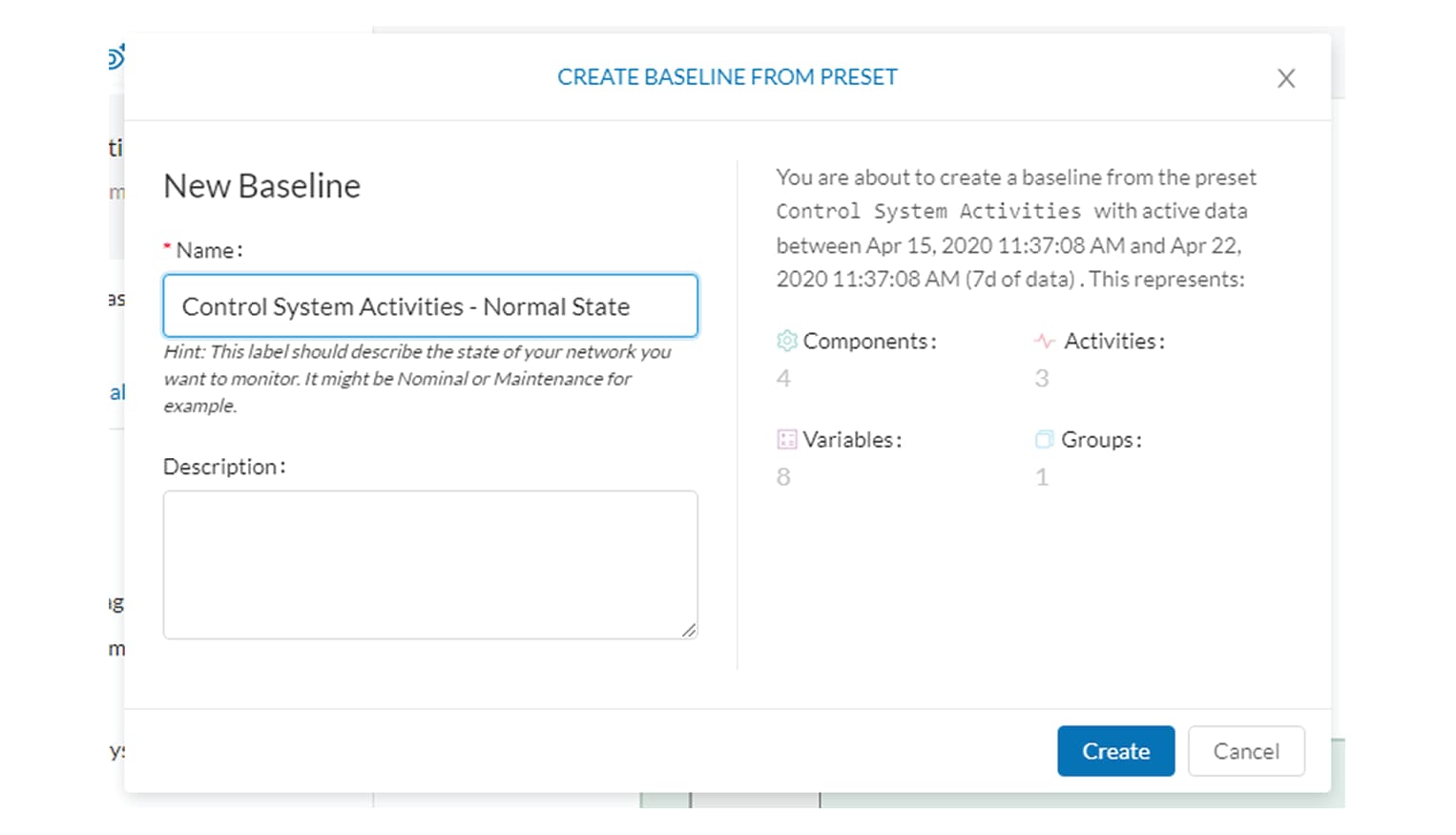
To do so, we access the preset Control System Activities (1) and we create a baseline from this preset (2) that we name Control System Activities - Normal State (3).

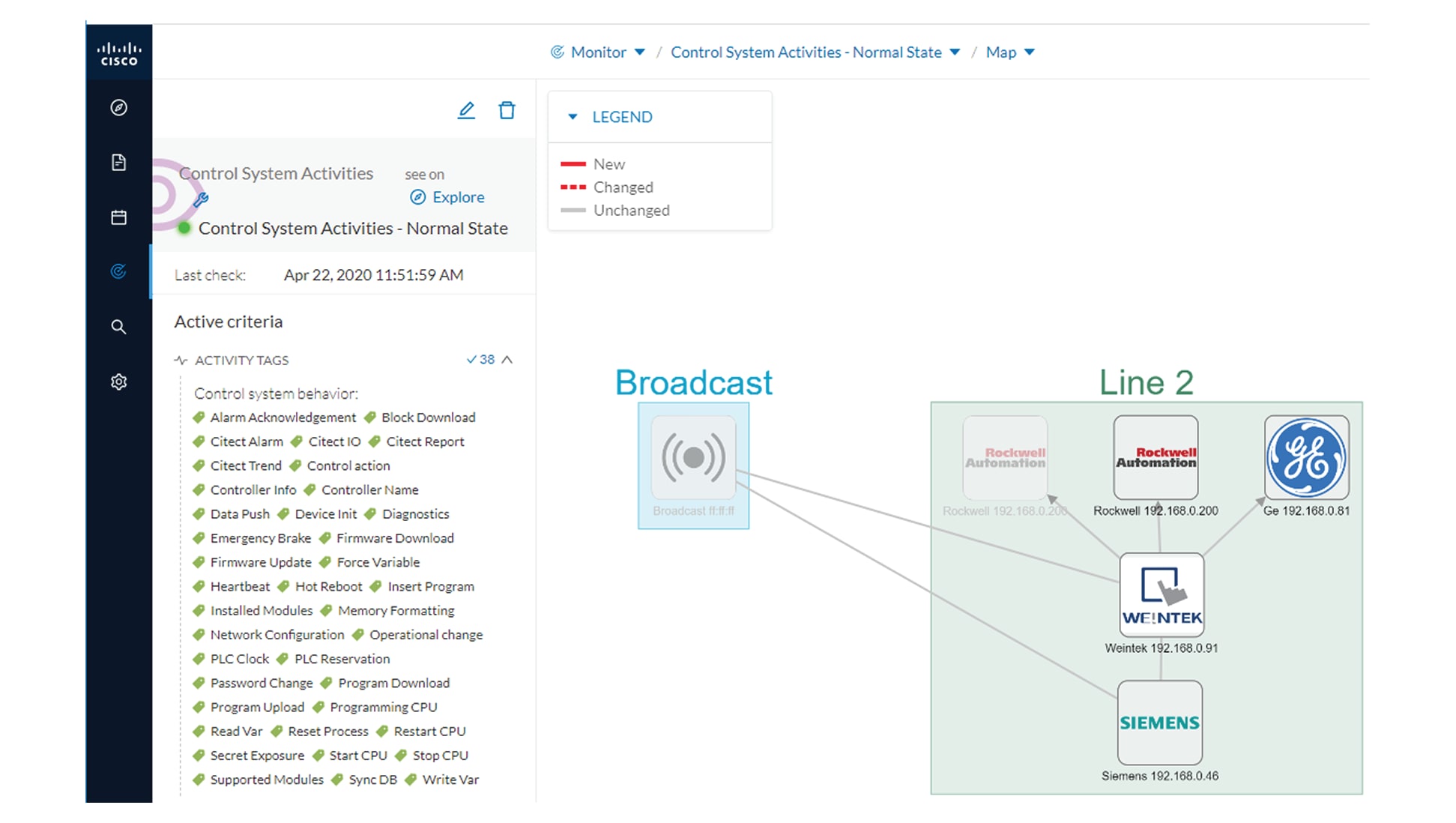
As we access the Monitor mode we can access and see the Control System Activities's baseline we just created. Nothing has happened yet on the preset.

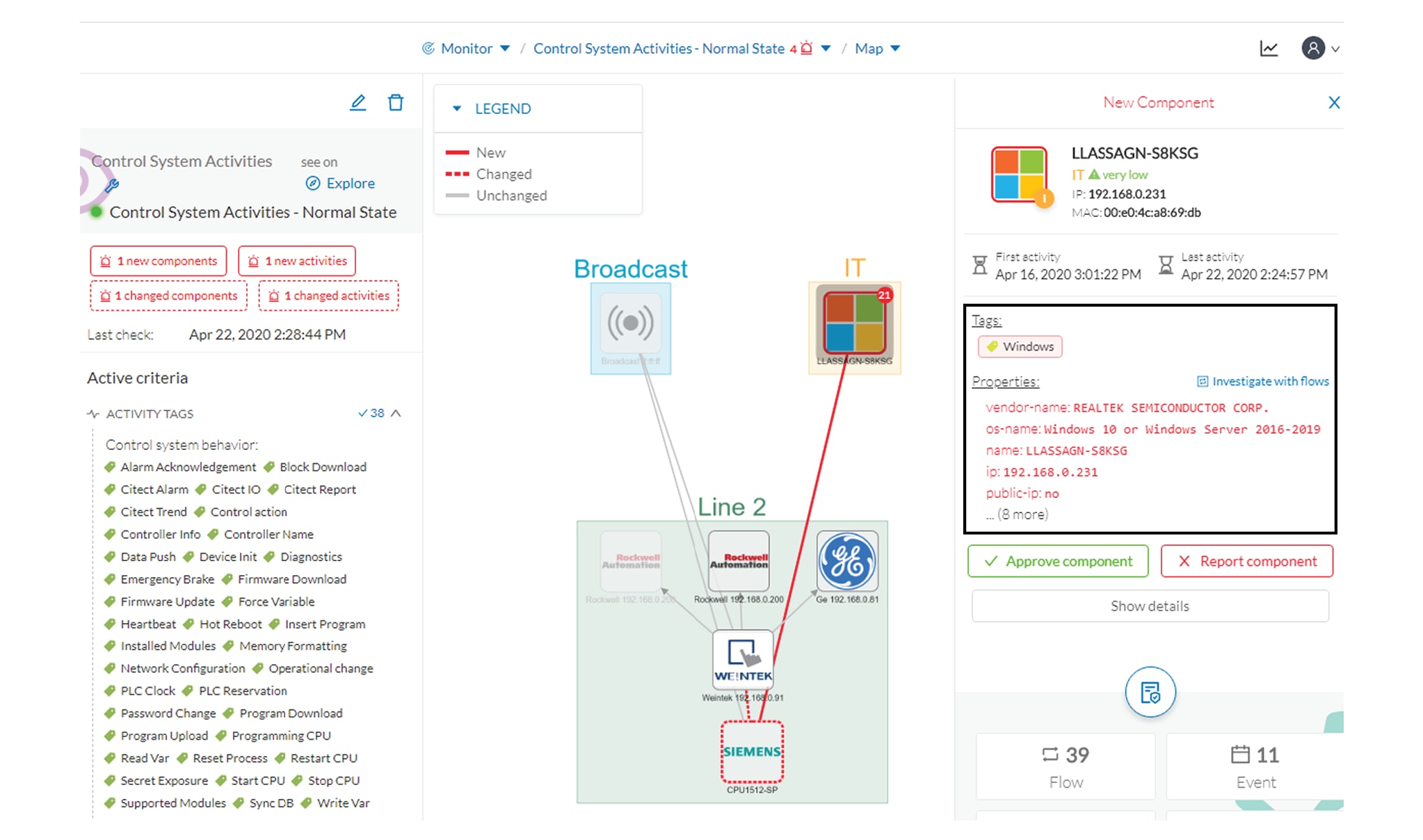
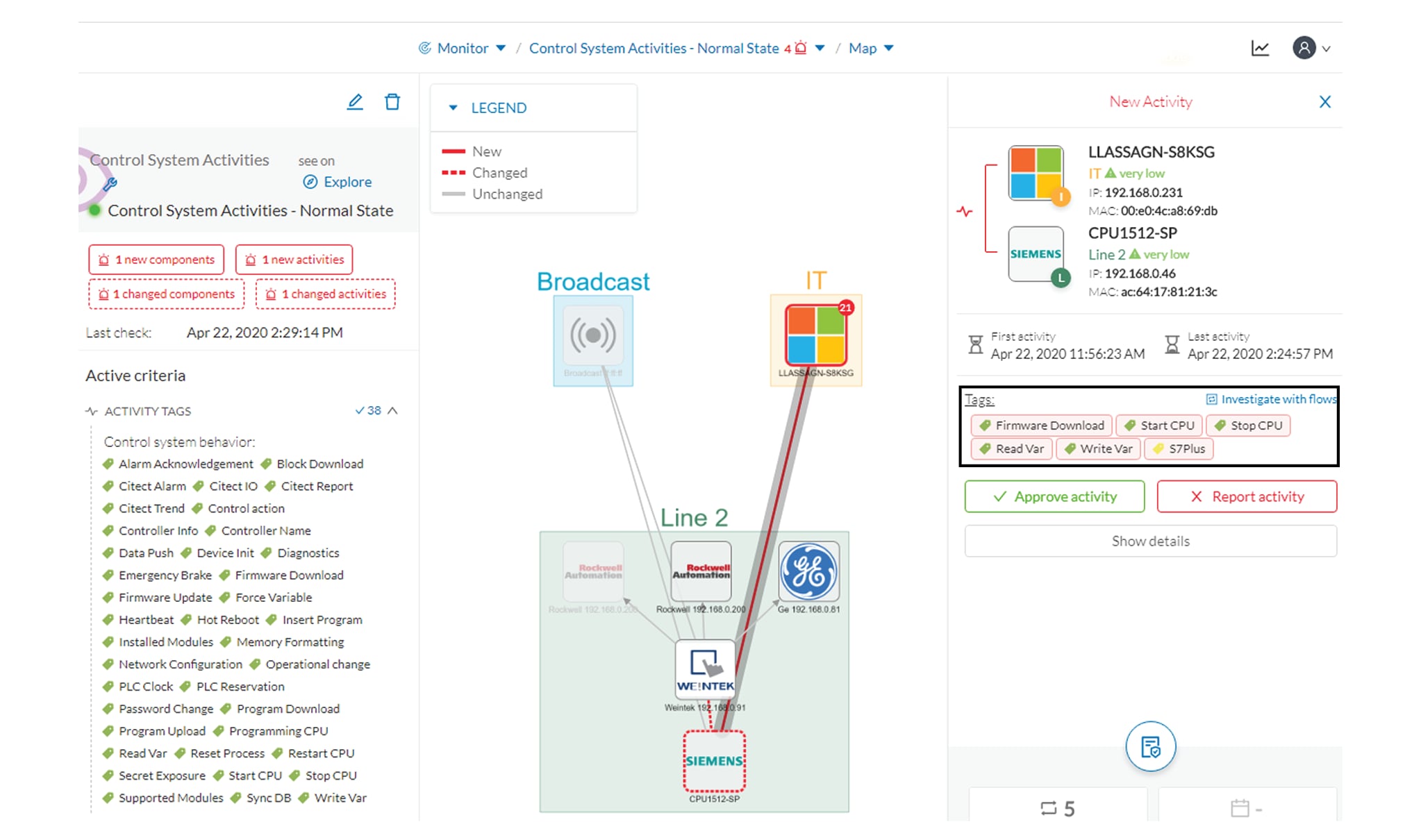
After a few moments, new differences are detected on the preset. The left panel and the Map help identifying what has happened: a new component had an activity which changed another component and its activity with another component (1).

Clicking the new component (2) opens a right side panel which offers more information. The tag Windows indicates that the new component is a Windows machine (3). Below, its properties are listed and give more information about the machine.

Clicking the new activity between the new machine and the CPU opens its right side panel and gives more information about what happened. New tags such as Firmware Download, Start CPU, Stop CPU, Read and Write Var, which are suspicious, indicate the type of actions the new Windows machine has performed on the CPU.

These elements let us think that this is actually an attack. We report this issue and start to counter the attack immediately with the security team. If other suspicious changes happen, the Monitor mode will notify them.