Install the Device

Before you begin this task, ensure that you have read and understood the safety warnings in the Standard Warning Statements section of the Safety Warnings handout topic.

Installing the Cisco NCS 520 involves these tasks:

Rack Compatibility

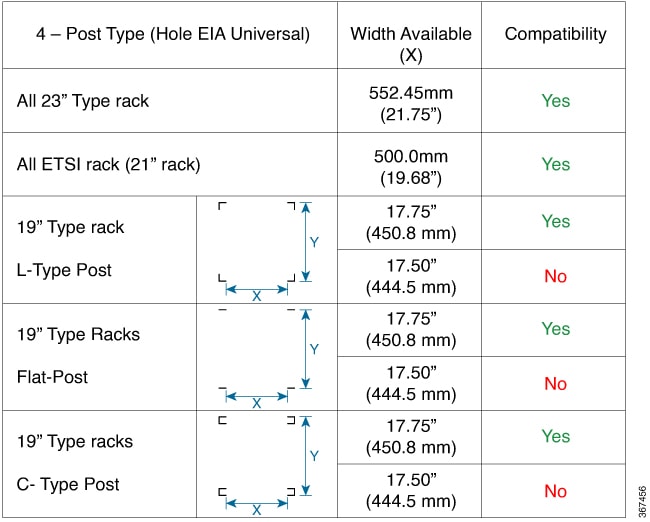
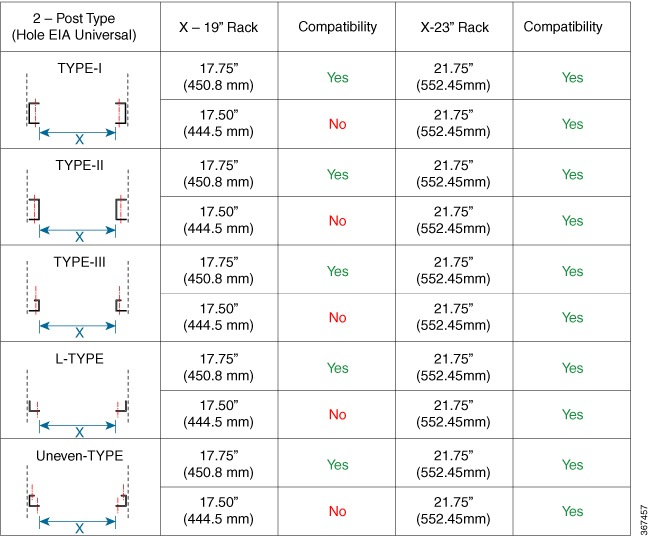
We recommend that you follow these rack specifications.

Rack Types
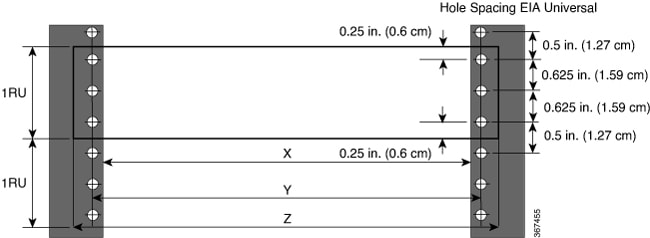
Figure 1. Rack specification EIA (19 inches and 23 inches)
Table 1. Rack specification EIA (19 inches and 23 inches)

Post Type

Rack Type

Rack Front Opening (X)

Rack Mounting Hole Centre-Centre (Y)

Mounting Flange Dimension (Z)

4 Post

19 inches (48.3 centimeters)

17.75 inches (45 centimeters)

18.31 inches (46.5 centimeters)

19 inches (48.2 centimeters)

2 Post

4 Post

23 inches (58.4 centimeters)

21.75 inches (55.24 centimeters)

22.31 inches (56.6 centimeters)

23 inches (58.4 centimeters)

2 Post

Figure 2. Four Post Rack Type
Figure 3. Two Post Rack Type

Set up Device on Rack, Wall, or Desktop

You can choose to either set up the Cisco NCS 520 on a rack, wall mount it, or set it up on a desk.

Rack Mount

You must first install rack mounting brackets on to the chassis before you set up the chassis on the rack.

Install Rack Brackets

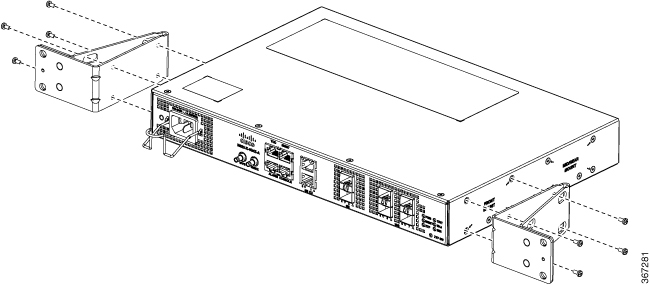
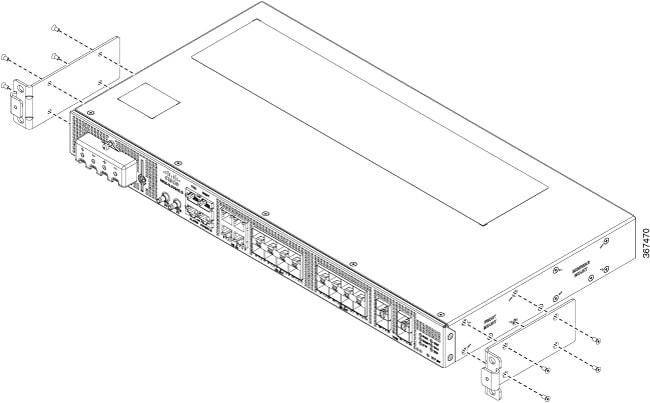
The device is shipped with rack mounting brackets that are to be secured on the sides of the device.

Procedure

Step 1

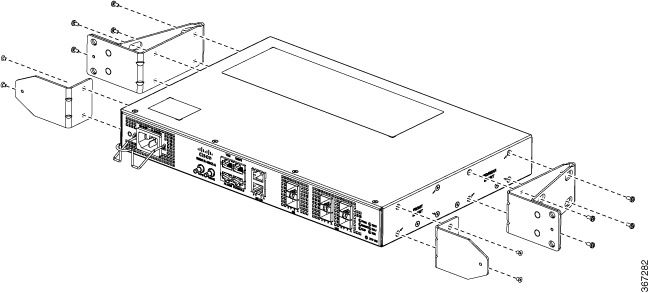
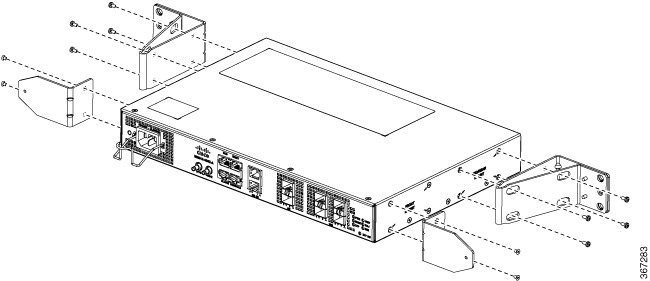
Remove the rack mounting brackets from the accessory kit and position them beside the device.

Note 
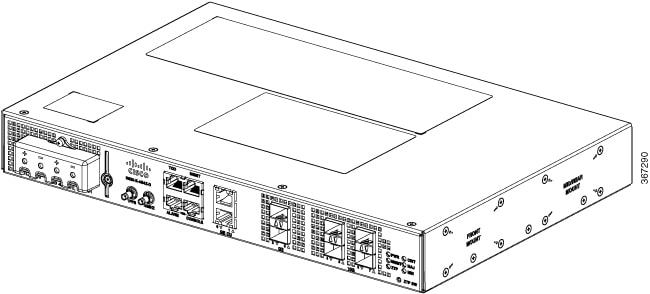
You can install the brackets at any of the 3 positions that are shown in the figure.
Figure 4. Front Mount Bracket
Figure 5. Middle Mount Bracket
Figure 6. Rear Mount Bracket
Step 2

Secure the bracket to the device with the recommended maximum torque of 10 inch-pounds (1.1 newton meters).


Set up Device on Rack


Note

Ensure adequate clearance when mounting the device on a rack.

Note

Install cable guides before installing the device in a 19 inches (48.3 centimeters) EIA rack.
Table 2. Cable Guide Bracket

N520-CBL-BRKT

Cable Guide Bracket

700-116702-01

700-116637-01

N520-X-4G4Z-A

N520-X-20G4Z-A

N520-4G4Z-A

N520-20G4Z-A

N520-X-4G4Z-D

N520-X-20G4Z-D

Not Applicable

N520-20G4Z-D

Procedure

Step 1

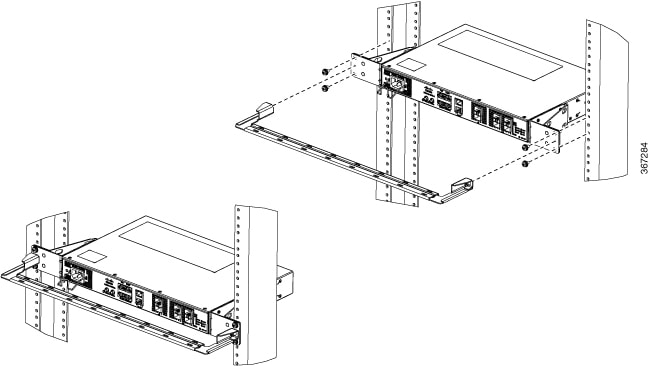
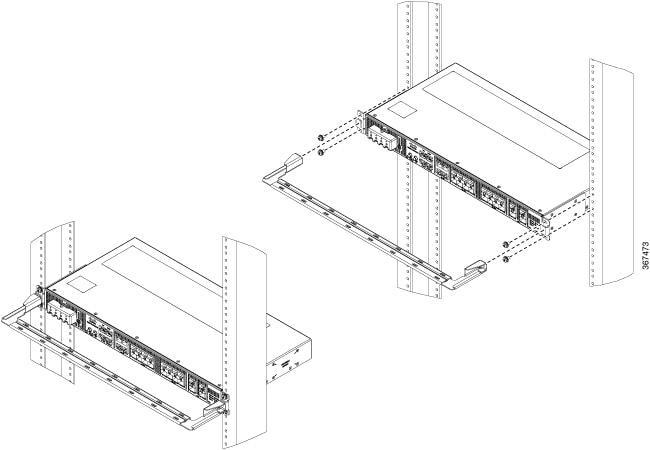
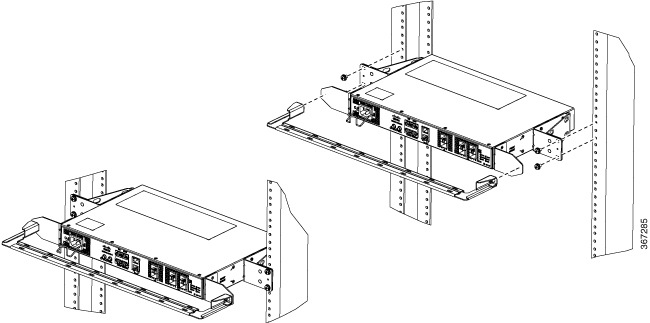
Position the cable guide-left and cable guide-right against the front of the device, and align the four screw holes as shown in the figure.

Step 2

Secure the cable guides with four M6x12mm screws that are supplied with the cable kit. The recommended maximum torque is 26 inch-pounds (3 newton meters).

Step 3

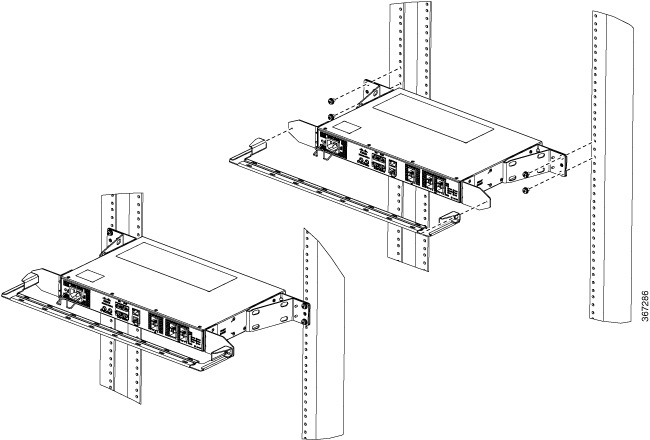
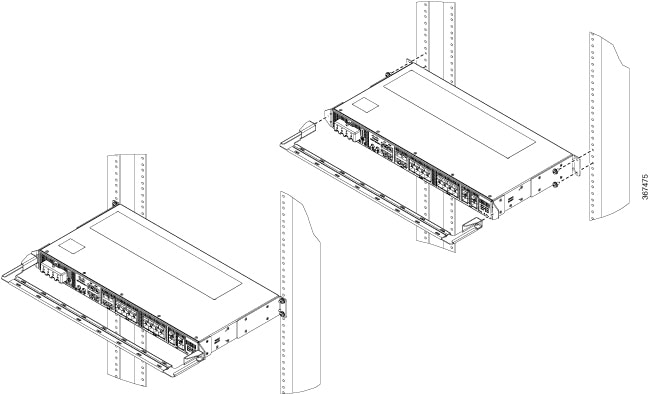
Position the device on the rack, and use the images as a guide to set up the device.

Figure 7. Front Mount Bracket with Cable Guide
Figure 8. Middle Mount Bracket with Cable Guide
Figure 9. Rear Mount Bracket with Cable Guide
Step 4

Use a tape measure and level to verify that the device is installed straight and on level.


Wall Mount

Install the wall mounting brackets and cable guides on to the chassis before you mount the chassis on the wall.

Install Wall Brackets

The device is shipped with wall mounting brackets that are to be secured on the sides of the device.

Procedure

Step 1

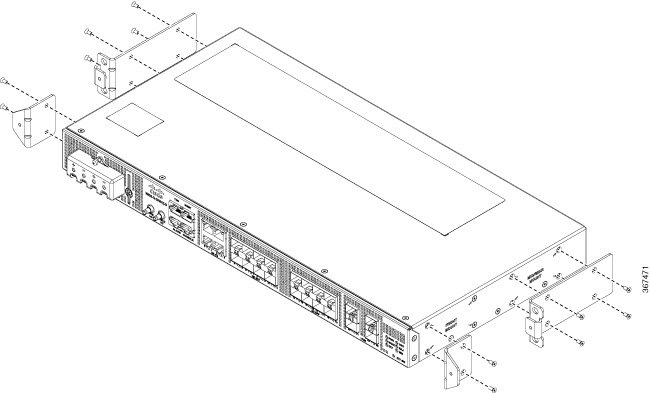
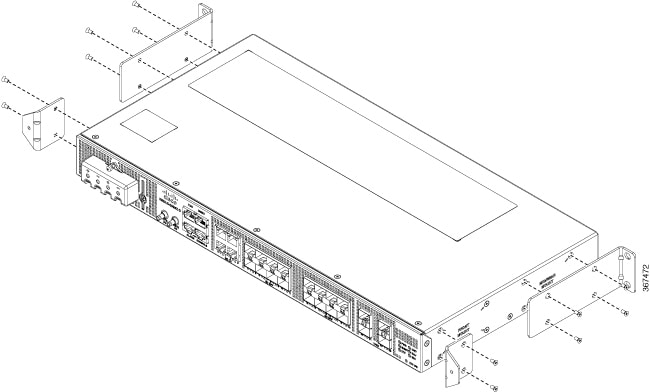
Remove the wall mounting brackets from the accessory kit and position them beside the device.

Note 
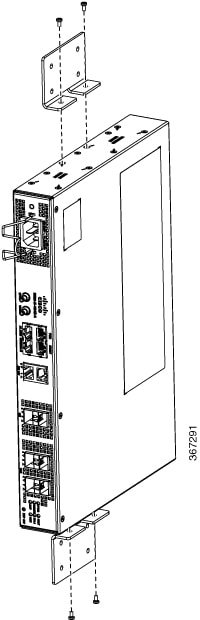
You can install the brackets as shown in the figure.
Figure 10. Wall Mount Bracket
Step 2

Secure the bracket to the device with the recommended maximum torque of 10 inch-pounds (1.1 newton meters).


Wall Mount the Device


Note

Install cable guides before mounting the device on the wall.
Procedure

Step 1

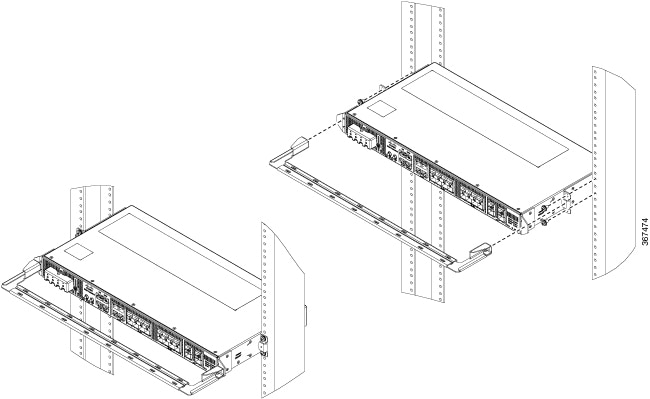
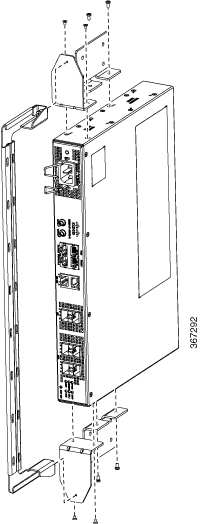
Position the cable guide against the front of the device, and align the four screw holes as shown in the figure.

Step 2

Secure the cable guides with four M6x12mm screws that are supplied with the cable kit. The recommended maximum torque is 26 inch-pounds (3 newton meters).

Step 3

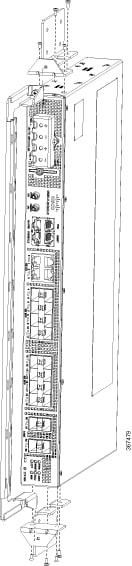
Position the device vertically on the wall.

Note 
Ensure that the power supplies are positioned at the top of the device.
Figure 11. Wall Mount the Device
Caution 
Before mounting the device, ensure that all unused holes at the sides of the device are protected with screws.
Step 4

Use a tape measure and level to verify that the device is installed straight and on level.


Desktop Mount


Note

Desktop mount is supported on only the N520-4G4Z-A variant.

Procedure


Step 1

Attach the four adhesive rubber feet (included in the accessory kit) to the bottom of the device.

Step 2

Set the device on a flat surface near a power source and ensure at least 2 inches (5.1 centimeters) space on all sides for proper airflow.


Ground the Device

Before you begin this task, ensure that you have read and understood the safety warnings in the Preventing ESD Damage section of the Safety Warnings handout topic.

Before you connect the power or turn on the power to the device, you must provide an adequate device ground (earth) connection to your device.

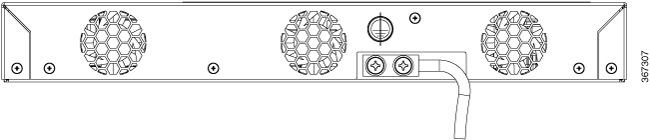
This section describes how to ground the device. The grounding lug location is on the back panel of the device.


Tip

Ensure that the grounding lug wire does not cover the fan opening.


Figure 12. Attaching a Grounding Lug to the Rear of the Device

Caution

To prevent personal injury or damage to the chassis, before making connections to the device, ensure that you disconnect the power at the circuit breaker.


Verify your carrier’s requirements for grounding. This unit must be installed in a restrictive access location and must be permanently grounded to a minimum 6-AWG copper ground wire.

Procedure


Step 1

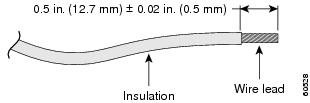
If your ground wire is insulated, use a wire-stripping tool to strip the ground wire to 0.5 inch (12.7 millimeters) ± 0.02 inch (± 0.5 millimeters).

Figure 13. Stripping a Ground Wire


Step 2

Slide the open end of the 2-hole ground lug over the exposed area of the ground wire.

Step 3

Using a crimping tool (the one specified by the ground lug manufacturer), crimp the ground lug to the ground wire.

Step 4

Use a Phillips head screwdriver to attach the 2-hole ground lug and wire assembly to the device with the 2 pan-head Phillips head screws.

Step 5

Connect the other end of the ground wire to a suitable grounding point at your site.


Connect Power Cables

Before you begin this task, ensure that you have read and understood the safety warnings in the Safety with Electricity section of the Safety Warnings handout topic.

The Cisco NCS 520 supports both AC and DC power supplies. Based on your device power supply, attach the AC or the DC power cables.

Install AC Power Cable

Procedure


Step 1

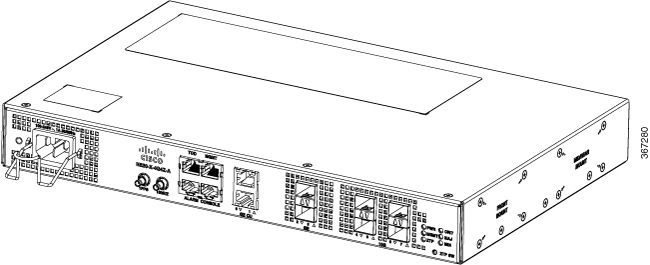
Attach the AC power retainer chord.

Figure 14. Attach the AC Power Retainer Chord
Step 2

Lift the power retainer and plug in the AC power supply.


Activate AC Power Supply

Procedure

Step 1

Plug the power cord into the power supply.

Step 2

Connect the other end of the power cord to an AC-input power source.

Step 3

Verify the power supply operation by ascertaining that the front panel LED is green.

Step 4

If the LEDs indicate a power problem, see the Troubleshooting Aids chapter.

Step 5

If you are also connecting a redundant AC power supply, repeat these steps for the second power source.

Note 
When you connect a redundant AC power supply, ensure that each power supply is connected to a separate power source to prevent power loss during failure.

Install DC Power Cable


Note

When installing DC power supply cables, use 14 AWG, 90°C wires. Always ensure that the building’s installation for short-circuit (overcurrent) protection does not exceed 15 A.

Note

The DC connector or terminal block has an inbuilt screw and cage nut to which a torque of 1.3 to 1.8 newton meters may be applied.
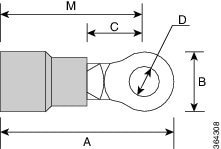
Figure 15. DC Connector with Inbuilt Screw


A

0.97 inches (2.4 centimeters)

C

0.27 inches (0.68 centimeters)

B

0.31 inches (0.78 centimeters)

D

0.17 inches (0.43 centimeters)

M

0.81 inches (2 centimeters)

Procedure


Step 1

Open the DC power supply guard.

Step 2

Attach the DC supply wires to the designated screws.

Figure 16. Attach DC Power Chord
Step 3

Close the DC power supply guard.


Activate DC Power Supply

Procedure

Step 1

Remove the tape from the circuit-breaker device handle, and restore power by moving the circuit-breaker device handle to the On (|) position.

Step 2

Verify the power supply operation by ascertaining that the front panel LED is green.

Step 3

If the LEDs indicate a power problem, see the Troubleshooting Aids chapter.

Step 4

If you are also connecting a redundant DC power supply, repeat these steps for the second power source.

Note 
When you connect a redundant DC power supply, ensure that each power supply is connected to a separate power source to prevent power loss during a failure.

Connect Gigabit Ethernet Ports

Gigabit Ethernet (GE) ports can be connected to other devices using either fiber optic or copper cables. The choice depends on whether the communication distance between your devices is long or short.

If you choose fiber optic cables, connect suitable Small Form-factor Pluggable (SFP) modules. The device supports various SFP and SFP+ modules, including optical and Ethernet modules. For information on how to install and remove SFP and SFP+ modules, see the documentation for the SFP or SFP+ module at: Cisco SFP and SFP+ Transceiver Module Installation Notes. Select the port on the device where you insert the SFP module.

If you choose copper cables, connect to an RJ-45 connector.

The device 10/100/1000 ports configure themselves to operate at the speed of devices to which they are connected. By default, autonegotiation is enabled in the chassis. You can manually set the speed and the duplex parameters. If the device to which the ports are connected does not autonegotiate, low performance or no linkage may result.

To maximize performance, choose one of these methods for configuring the GE ports:

  • Have ports autonegotiate both speed and duplex parameters.
  • Set speed and duplex parameters on both ends of the connection.

Use the mdix auto command in the interface configuration mode to enable an automatic media-dependent interface with crossover detection. After you enable the automatic media-dependent interface, the device detects the required cable type for copper Ethernet connections and configures the interface accordingly. Then, use either a crossover or a straight-through cable for connecting to a copper 10/100/1000 port. If the mdix auto command fails to enable the interface, connect the cable through SFP modules.

Connect SFP Modules

Before you begin this task, ensure that you have read and understood the safety warnings in the Safety Precautions for Module Installation and Removal section of the Safety Warnings handout topic.

Use only Cisco SFP modules on a Cisco device. Each SFP module has an internal serial EEPROM that is encoded with security information. This encoding provides a way for Cisco to identify and validate that the SFP modules meet the requirements of the device.


Caution

We recommend that you wait for 30 seconds between the removal and insertion of an SFP module from the device. The wait period allows the transceiver software to initialize and synchronize with the device. Changing an SFP before this wait period could result in transceiver initialization issues that disable the SFP.


This section provides procedures for installing and connecting SFP modules. Also, it provides the procedure for removing SFP modules.

Install SFP Modules


Caution

We strongly recommend that you do not install (or remove) an SFP module with its cables connected because of the potential damage that may be caused to the cables, the cable connector, or the optical interfaces in the SFP modules. Disconnect all cables before removing or installing an SFP module.

Removing and installing an SFP module can shorten its useful life. Do not remove and insert SFP modules unless necessary.


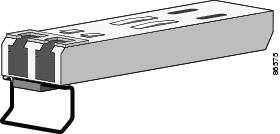
The following figure shows an SFP module that has a bale-clasp latch.

Figure 17. SFP Module with Bale-Clasp Latch


Some SFP modules identify the top side of the module with send (TX) and receive (RX) has markings or arrows that show the direction of the connection. If the SFP module that you are using has such markings, use them to identify the top of the module.

Procedure

Step 1

Attach an ESD-preventive wrist strap to your wrist and to a bare metal surface on the chassis.

Step 2

Align the SFP module at the front of the slot opening.

Step 3

Insert the SFP module into the slot until the connector on the module snaps into place at the rear of the slot.

Caution 
Do not remove the dust plugs from the fiber-optic SFP module port or the rubber caps from the fiber-optic cable until you are ready to connect the cable. The plugs and caps protect the SFP module ports and cables from contamination and ambient light. Store the dust plugs for later use.
Step 4

Insert the appropriate cable connector into the SFP module:

  • For fiber-optic SFP modules, insert the LC cable.

  • For copper 1000BASE-T SFP modules, insert the RJ-45 cable.


Remove SFP Modules

Follow these steps to remove an SFP module when it is necessary.

Procedure

Step 1

Attach an ESD-preventive wrist strap to your wrist and to a bare metal surface on the chassis.

Step 2

Disconnect the cable from the SFP module, and insert a dust plug into the cable end.

Step 3

Unlock and remove the SFP module.

If the module has a bale-clasp latch, pull the bale down and out to eject the module. If the bale-clasp latch is obstructed, use a small, flat-blade screwdriver or any other narrow instrument to open the bale-clasp latch.

Step 4

Grasp the SFP module between your thumb and index finger, and carefully remove it from the module slot.

Step 5

For fiber-optic SFP modules, insert a dust plug into the optical ports of the SFP module to keep the optical interfaces clean.

Step 6

Place the removed SFP module in an antistatic bag or other protective environment.

For information about inspecting and cleaning fiber-optic connections, see: Inspection and Cleaning Procedures for Fiber-Optic Connections.


Connect Fiber Optic SFP Modules


Caution

Do not remove the rubber plugs from the SFP module port or from the fiber optic cable until you are ready to connect the cable. The plugs and caps protect the SFP module ports and cables from contamination and ambient light.


Procedure

Step 1

Remove the rubber plugs from the module port and fiber optic cable, and store them for future use.

Step 2

Insert one end of the fiber optic cable into the SFP module port.

Step 3

Insert the other end into a fiber optic connector at a target device.

Step 4

Observe the port's LED status.

The LED turns green when the device and the target device establish a link.

If the LED is off, check whether the target device is turned on, or whether there is any failure in the target device.

Step 5

If necessary, reconfigure and restart the device or target device.


Connect RJ-45 Connector

Procedure


Step 1

To connect to workstations, servers, and devices, connect a straight-through cable to an RJ-45 connector at the front panel.

When connecting to devices or repeaters, use a crossover cable.

Step 2

Connect the other end of the cable to an RJ-45 connector at the other device. The port's LED turns on when both the device and the connected device have established a link.

If the port LED does not turn on, check whether the device at the other end is turned on or whether there is any failure.

Note 
On user network interface (UNI) ports, the port LED turns green after the link is established.
Step 3

Reconfigure and reboot the connected device if necessary.

Step 4

Repeat Steps 1 to 3 for each device that is to be connected.


Connect Chassis to Network


Note

Connect only SELV services to all the device ports.

Connect to EIA Console Port


Note

The serial console cable kit is not included with the device; it must be ordered separately.

Procedure


Step 1

Connect the RJ-45 cable to the EIA Console port.

Step 2

Connect the DB-9 end of the console cable to the DB-9 end of the terminal.

Step 3

To communicate with the device, start a terminal emulator application, such as Microsoft Windows Hyper-Terminal. Configure the software with the following parameters:

  • 9600 baud

  • 8 data bits

  • No parity

  • 1 stop-bit

  • No flow control


Connect a Management Ethernet Cable

When using the Ethernet Management port in the default mode (speed-auto and duplex-auto), the port operates in the auto-MDI/MDI-X mode. The port automatically provides the correct signal connectivity through the Auto-MDI/MDI-X feature, and senses a crossover or straight-through cable and adapts to it.

However, the Ethernet Management port may be configured to a fixed speed (10, 100, or 1000 Mbps) through command-line interface (CLI) commands. In such a case, the port is forced to operate in the MDI mode.

When in a fixed-speed configuration and MDI mode, use:

  • a crossover cable to connect to an MDI port
  • a straight-through cable to connect to an MDI-X port

Connect Cable to Copper Gigabit Ethernet Port

The device interface modules support RJ-45 and Ethernet SFP ports.

The RJ-45 port supports standard straight-through and crossover Category 5 unshielded twisted-pair (UTP) cables. Cisco does not supply Category 5 UTP cables. These cables are available commercially.

Procedure


Step 1

Confirm that the device is powered off.

Step 2

Connect one end of the cable to the Gigabit Ethernet port on the device.

Step 3

Connect the other end to the BTS patch or demarcation panel at your site.


You have successfully installed the device and you are now ready to carry out a basic device configuration.