Installing and Removing Exterior Cosmetic Components

This chapter provides instructions on how to install and remove the LCC exterior cosmetic components.

This chapter presents the following topics:

  • Information About Exterior Cosmetic Components
  • Installing the Front (PLIM) Side Exterior Cosmetic Components
  • Removing the Front (PLIM) Side Cosmetic Components
  • Installing the Default Rear (MSC) Side Cosmetic Components
  • Installing the Optional Rear (MSC) Side Cosmetic Components
  • Removing the Default Rear (MSC) Cosmetic Components
  • Removing the Optional Rear (MSC) Side Cosmetic Components

Information About Exterior Cosmetic Components

This section contains some general information about the exterior cosmetic components.

The Cisco CRS 16 slot line card chassis is shipped with exterior cosmetic components for the front (PLIM) side and rear (MSC) side of the chassis.


Note

Some exterior cosmetic components are not required to be installed.

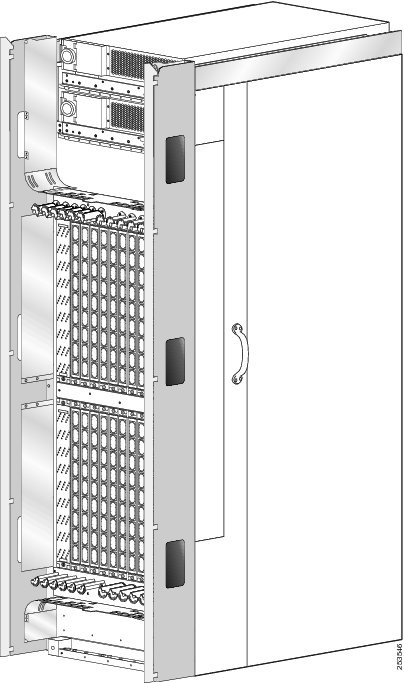
This figure shows the exterior cosmetics for the front (PLIM) side of a chassis with fixed configuration power shelves installed. The front view of a LCC with modular configuration power shelves installed is similar.
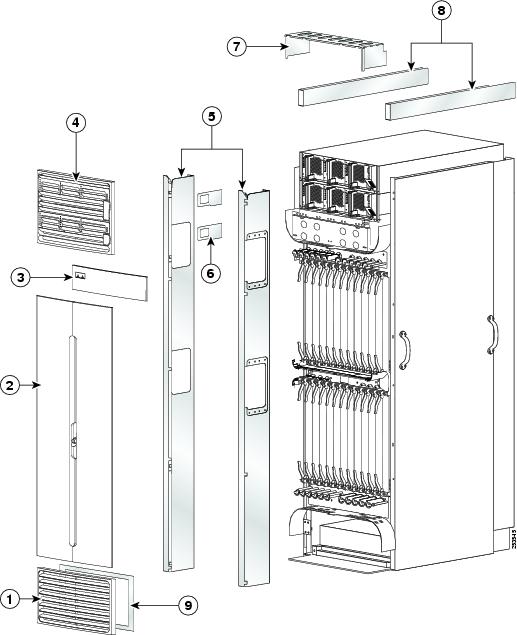
Figure 1. Front (PLIM) Side Exterior Cosmetic Components—Fixed Configuration Shown

1

Lower grille

6

Power shutoff extenders (fixed configuration power only)

2

Doors

7

Upper grille support

3

Logo bezel

8

Unistruts

4

Upper grille

9

Lower grille frame

5

Vertical cable troughs

This figure shows the exterior cosmetics on the rear (MSC) side of a LCC, with fixed configuration power shelves installed. The upper air grille and vertical brackets are shipped with the LCC, but are not pre-installed on the system the system. The rear kick panel kit, shown in the figure, is not included as part of the default shipment and is available to be ordered seperately (Cisco product number CRS-16-LCC-BCK-KP). The rear view of a LCC with modular configuration power shelves installed is similar.
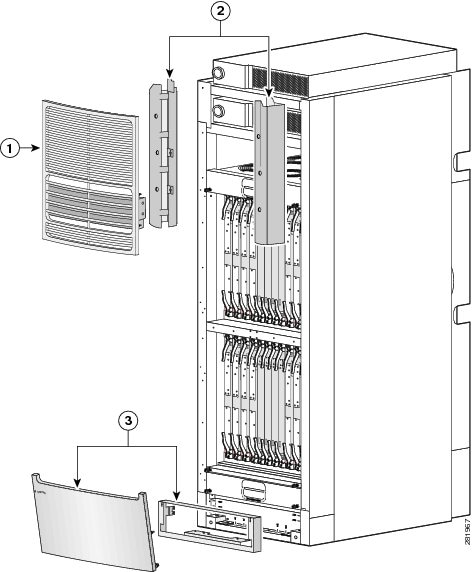
Figure 2. Rear (MSC) Side Exterior Cosmetic Components—Fixed Configuration Shown

1

Upper air grille

2

Vertical brackets

3

Rear kick panel kit

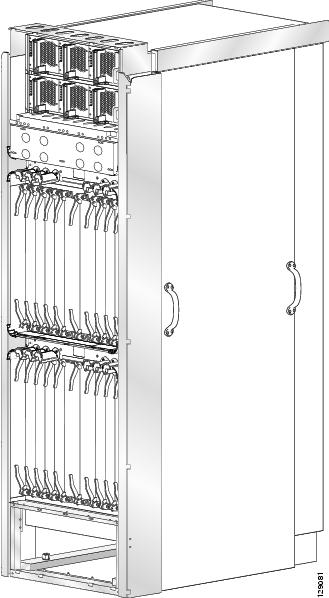
The following figure shows the exterior cosmetics for the rear (MSC) side of an optional multi chassis system with fixed configuration power shelves installed. The rear view of an optional multi chassis system with modular configuration power shelves installed is similar.
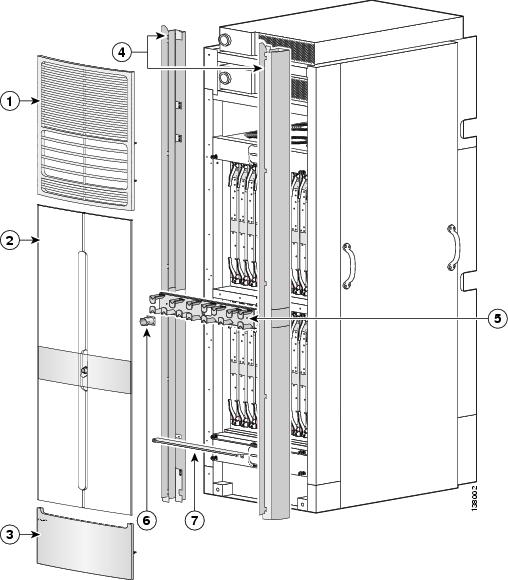
Figure 3. Rear (MSC) Side Exterior Cosmetic Components—Optional Multi Chassis System

1

Upper air grille

5

Mid-chassis horizontal cable management bracket

2

Doors

6

Strike tube

3

Lower chassis cosmetic bezel

7

Door stop

4

Vertical cable troughs

Installing the Front (PLIM) Side Cosmetic Components

This section describes how to install the front (PLIM) side exterior cosmetic covers and accessories on the LCC. This Figure shows the exterior cosmetics for the front (PLIM) side of a chassis with fixed configuration power shelves installed. The front view of a LCC with modular configuration power shelves installed is similar.


Note

While it is possible to install the various exterior components on the LCC in a different order, it is easier to install them in the order outlined in this section.

This section describes how to perform the following tasks:

  • Attaching the Unistruts

  • Attaching the Upper Grille Support

  • Attaching the Power Shelf Shutoff Extenders (fixed configuration power only)

  • Attaching the Front Vertical Cable Troughs

  • Installing the Cable Pass-through Accessory Plates (Optional)

  • Installing the Upper Grille and Logo Bezel

  • Installing the Lower Grille Screen and Frame Assembly

  • Attaching the Lower Grille

  • Attaching the Front Exterior Doors

Prerequisites

Before performing this task, you must first unpack and secure the chassis. See Cisco CRS Carrier Routing System 16-Slot Line Card Chassis Unpacking, Moving, and Securing Guide.

Required Tools and Equipment

You need the following tools and parts to perform this task:

  • 8-in. long number 1 Phillips screwdriver—magnetic head preferable, bit size #1
  • 10-mm hex key wrench
  • 2-mm hex key wrench (for adjusting door set screws)
  • Torque wrench with 10-mm hex key and rated accuracy at 40 to 50 in.-lb (4.52 to 5.65 N-m)
  • Unistrut (Cisco product number 800-23375-XX
  • Upper grille support and power shelf shutoff extender (AC grille kit; Cisco product number 69-1163-XX, or DC grille kit; Cisco product number 69-1164-XX)
  • Lower grille frame assembly (Cisco product number 800-23320-XX, which includes lower grille; Cisco product number 800-23487-XX)
  • Vertical cable trough (Cisco product number 69-1199-XX)
  • Optional cable pass-through accessory kit
  • Logo bezel and support (Cisco product number 800-23488-XX)
  • Exterior doors kit (Cisco product number 69-1160-XX)

Steps

To install front (PLIM) side exterior cosmetic components, perform the following tasks:

Attaching the Unistruts

SUMMARY STEPS

  1. Attach each unistruts to the top of the chassis by inserting twelve M12 hex head bolts and washers, six for each strut, into the bolt holes on the inside of the strut, and tightening with the 10-mm hex key wrench. The closed end of a unistrut faces the front (PLIM) side of the chassis.
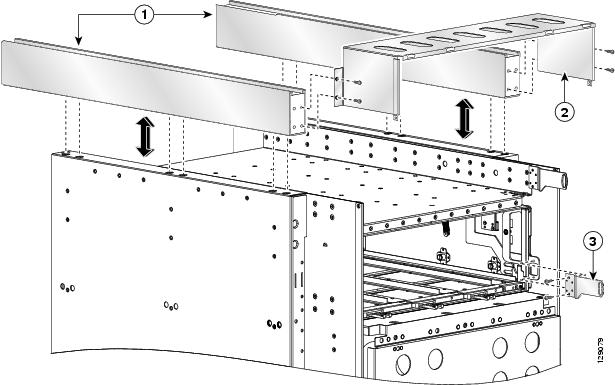
  2. Attach the upper grille support (see previous figure) to the unistruts by inserting four M4x14-mm long flat head screws, two for each unistrut, and tightening them to the unistruts with the screwdriver.
  3. Attach the power shelf shutoff extenders (fixed configuration power only—number 3 in the previous figure) by inserting the four M4 panhead screws, two for each power shelf shutoff extender, and tightening them with the screwdriver.
  4. Attach the vertical cable troughs—one right and one left—to the front (PLIM) side of the chassis (as shown in the next figure):
  5. Remove the blank plates by unscrewing the four screws on each one.
  6. Attach the inner cut-out panels using the four screws provided.
  7. Attach the outer cut-out panel using the four screws provided.
  8. Attach the upper grille (optional) by carefully inserting the tabs on the grille into the hook hanger brackets on the top of the upper grille support (see next figure).
  9. Press the grille firmly against the grille support until it snaps onto the ball stud snaps.
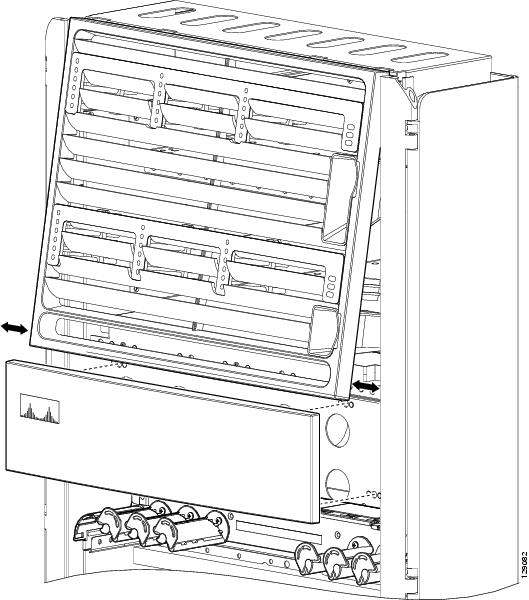
  10. Place the logo bezel (see the next figure) over the bezel support, and press firmly until the bezel snaps onto the ball stud snaps.
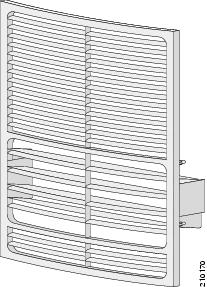
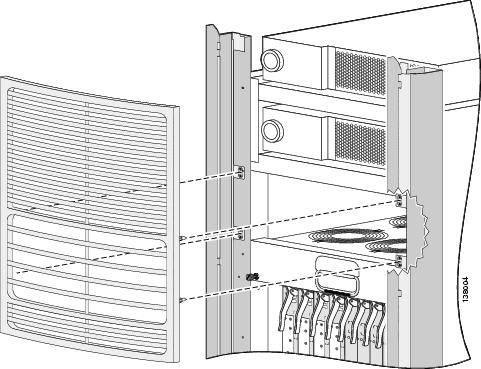
  11. Using the screwdriver, loosen the four captive screws, two on each side, that secure the lower grille screen to its frame assembly; then carefully set the screen aside (see the next figure).
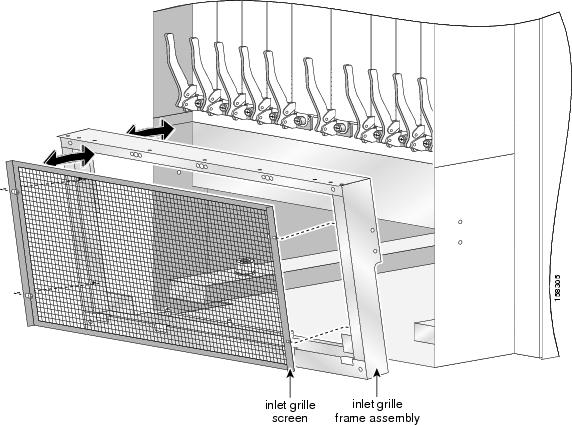
  12. Attach the frame assembly to the chassis as in the previous figure by aligning the four screws, two on each side, on the frame to the screw holes on the chassis and tightening them with the screwdriver.
  13. Reattach the inlet grille screen (see the previous figure) to the frame assembly by aligning the four captive screws on the screen to the screw holes on the frame assembly and tightening the screws with the screwdriver.
  14. Attach the lower grille by carefully inserting the tabs on the grille into the hook hanger brackets on the inlet grille frame.
  15. Press the lower grille firmly until it snaps onto the ball stud snaps.
  16. Orient the doors so that the keyholes slots are pointing up (see the next figure).
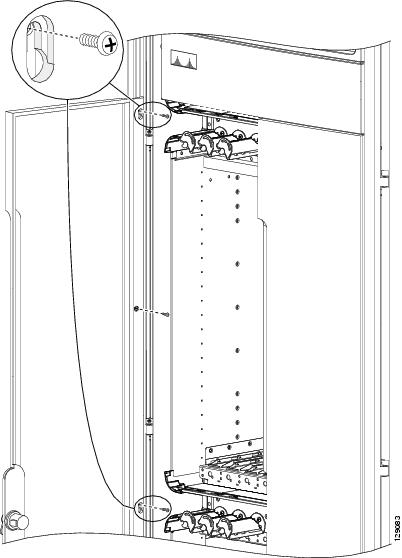
  17. Align the doors vertically in their appropriate positions so that you can determine where to thread the first two screws that are adjacent to the keyholes. Set the doors aside and thread the two screws.
  18. Insert four M4x8-mm wafer head screws (two on each side) into the appropriate screw holes in the doors, and use the screwdriver to tighten fully.
  19. Insert and slightly tighten all screws.
  20. Ensure that the doors are properly aligned.

DETAILED STEPS


Step 1

Attach each unistruts to the top of the chassis by inserting twelve M12 hex head bolts and washers, six for each strut, into the bolt holes on the inside of the strut, and tightening with the 10-mm hex key wrench. The closed end of a unistrut faces the front (PLIM) side of the chassis.

Note 
The right unistrut (as you face the front (PLIM) side of the chassis) has a cutaway in the rear to admit the chassis ground cable; the left strut does not.
Caution 

Cisco recommends an install torque range for the unistrut bolts between 40 and 50 to in.-lb (between 4.52 N-m and 5.65 N-m).

Figure 4. Attaching the Unistrut, Grille Support, and Power Shutoff Extenders—Fixed Configuration Power Shown

1

Left unistrut

3

Upper grille support

2

Right unistrut with cutaway at rear

4

Power shutoff extender (fixed configuration power only)

Attaching the Upper Grille Support

Step 2

Attach the upper grille support (see previous figure) to the unistruts by inserting four M4x14-mm long flat head screws, two for each unistrut, and tightening them to the unistruts with the screwdriver.

Attaching the Power Shelf Shutoff Extenders (fixed configuration power only)

Note 
Both fixed configuration power shelves must be installed in the chassis before installing the power shelf shutoff extenders.
Step 3

Attach the power shelf shutoff extenders (fixed configuration power only—number 3 in the previous figure) by inserting the four M4 panhead screws, two for each power shelf shutoff extender, and tightening them with the screwdriver.

Attaching the Front Vertical Cable Troughs

Step 4

Attach the vertical cable troughs—one right and one left—to the front (PLIM) side of the chassis (as shown in the next figure):

  1. Tug all Velcro straps forward so that they are flush with the back side of the cable troughs (where the troughs attach to the chassis) to ensure that the troughs fit flush to the chassis.

  2. Insert the cable trough hooks into guide slots, and let them slide down and lock into place.

  3. Insert the 12 M4x14-mm flat head screws (six on each side) and use the screwdriver to turn the screws clockwise to attach the cable troughs firmly to the chassis.

  4. Pull the Velcro cable straps taut to hook the troughs to the chassis.

    Figure 5. Front Vertical Cable Troughs Installed—Fixed Configuration Power Shown-
    Note 
    This option only works with trough kits 69-1199-03 and later.
    Note 
    Depending on the size of the installation and the number and type of cables being used, the body of the chassis may become overcrowded and unable to accommodate all the required cables. To resolve this issue, you can install two pass-through accessory plates to allow cables be guided outside the vertical trough.

Installing the Cable Pass-through Accessory Plates (Optional)

Step 5

Remove the blank plates by unscrewing the four screws on each one.

Step 6

Attach the inner cut-out panels using the four screws provided.

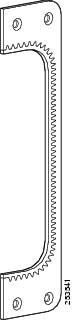
Figure 6. Cut-out plate
Step 7

Attach the outer cut-out panel using the four screws provided.

Installing the Upper Grille and Logo Bezel

Step 8

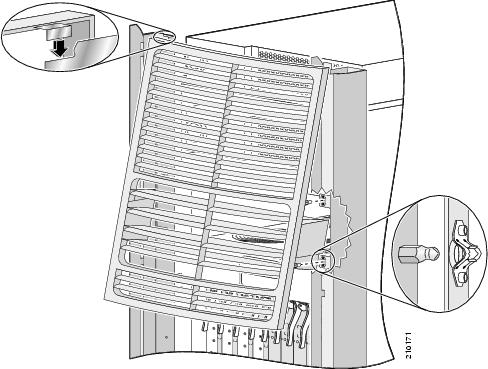
Attach the upper grille (optional) by carefully inserting the tabs on the grille into the hook hanger brackets on the top of the upper grille support (see next figure).

Step 9

Press the grille firmly against the grille support until it snaps onto the ball stud snaps.

Note 
If you attach the upper grille, you must have the power shutoff extenders installed (fixed configuration power only-Step 3).
Step 10

Place the logo bezel (see the next figure) over the bezel support, and press firmly until the bezel snaps onto the ball stud snaps.

Figure 7. Attaching the Front Upper Grille and Logo Bezel

Installing the Lower Grille Screen and Frame Assembly

Note 
In this task, you must first remove the lower grille screen from the frame, because the screws that attach the frame assembly to the chassis are inboard of the screen—that is, the new screen is shipped already installed into the new frame assembly, but you cannot attach the new frame to the chassis until you remove the screen first. When the new frame assembly is installed, you can reinstall the lower grille screen into the new frame.
Step 11

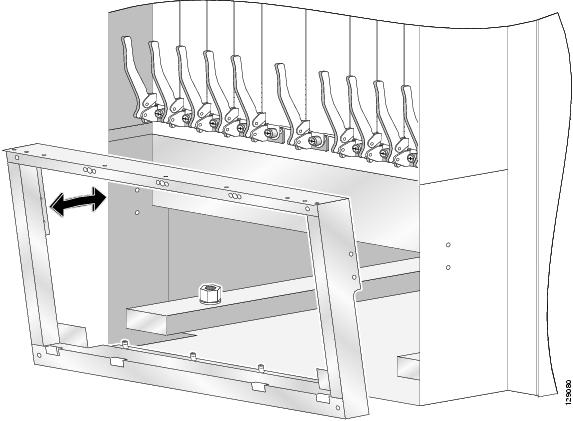
Using the screwdriver, loosen the four captive screws, two on each side, that secure the lower grille screen to its frame assembly; then carefully set the screen aside (see the next figure).

Figure 8. Inlet Grille Screen and Frame Assembly
Step 12

Attach the frame assembly to the chassis as in the previous figure by aligning the four screws, two on each side, on the frame to the screw holes on the chassis and tightening them with the screwdriver.

Step 13

Reattach the inlet grille screen (see the previous figure) to the frame assembly by aligning the four captive screws on the screen to the screw holes on the frame assembly and tightening the screws with the screwdriver.

Attaching the Lower Grille

Step 14

Attach the lower grille by carefully inserting the tabs on the grille into the hook hanger brackets on the inlet grille frame.

Step 15

Press the lower grille firmly until it snaps onto the ball stud snaps.

Attaching the Front Exterior Doors

Step 16

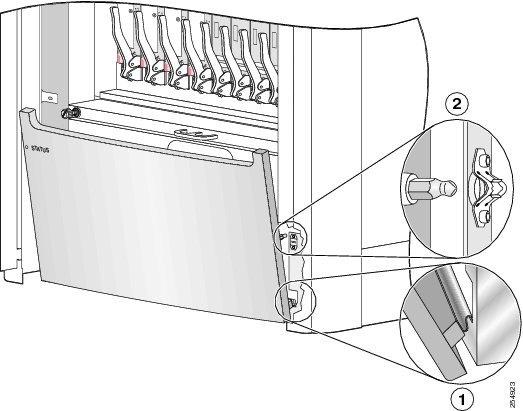
Orient the doors so that the keyholes slots are pointing up (see the next figure).

Figure 9. Attaching the Front Doors
Step 17

Align the doors vertically in their appropriate positions so that you can determine where to thread the first two screws that are adjacent to the keyholes. Set the doors aside and thread the two screws.

Caution 

The doors scratch easily, so they should be handled with care.

Step 18

Insert four M4x8-mm wafer head screws (two on each side) into the appropriate screw holes in the doors, and use the screwdriver to tighten fully.

Note 
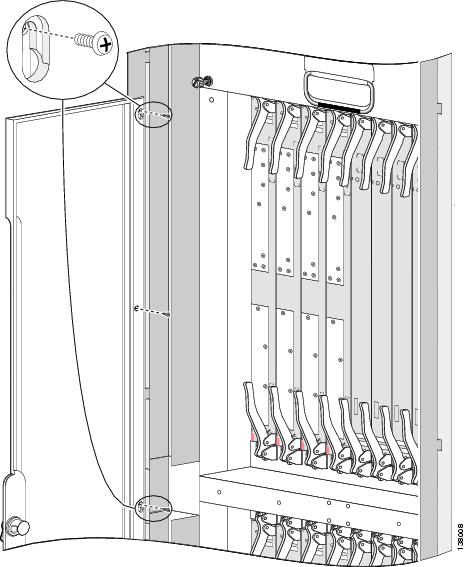
Verify that Step 16 was completed correctly to ensure proper orientation of doors. The screw locations vary depending on the door. If all screw holes for a door do not align with the screw holes on the front (PLIM) side of the chassis, you need to use the other door.
Step 19

Insert and slightly tighten all screws.

Step 20

Ensure that the doors are properly aligned.

  1. Check to see if the doors close without interfering with each other.

    Note 
    Typically, the doors will close without interfering with each other. However, you may need to adjust either the left or right door, or both, to align the doors properly. Adjust doors only if necessary.
  2. To decrease the door gap, loosen the five screws that secure the vertical trough to the chassis. Using the 2 mm hex key wrench, tighten the bottom set screws one full turn. Snug the five screws that attach the vertical trough to the chassis and check the door alignment.

  3. To increase the door gap, loosen the five screws that secure the vertical trough to the chassis. Using the 2 mm hex key wrench, tighten the top set screws one full turn. Snug the five screws that attach the vertical trough to the chassis and check the door alignment.

  4. Repeat the procedure as necessary until the doors are properly aligned.

  5. Tighten the five screws that secure the vertical trough to the chassis.


Removing the Front (PLIM) Side Cosmetic Components

This section describes how to remove exterior cosmetic components, shown in Figure 5-1, from the front (PLIM) side of the chassis. This section includes all the steps you need to remove all the cosmetic parts from the chassis, but you are not required to do so. To remove a particular part, see the appropriate step or steps in the procedure that follows.


Note

While it is possible to remove most of the cosmetic parts on the LCC separately, some parts (such as a unistrut) require that other parts be removed first.

This section describes how to perform the following tasks:

  • Removing the Front Doors

  • Removing the Front Lower Grille

  • Removing the Logo Bezel and Upper Grille

  • Removing the Front Vertical Cable Troughs

  • Removing the Lower Grille Screen and Frame Assembly

  • Removing the Front Upper Grille Support

  • Removing the Unistruts

Prerequisites

No prerequisites exist for this task.

Required Tools and Equipment

You need the following tools to perform this task:

  • 8-in. long number 1 Phillips screwdriver—magnetic head preferable
  • 10-mm hex key wrench

Steps

To remove the front (PLIM) side external cosmetic components, perform the following steps:

SUMMARY STEPS

  1. Ensure that you have all the original packaging material for the cosmetic components available.
  2. Remove the front exterior doors by unscrewing all the screws except those adjacent to the keyholes (see in the next figure) hold the doors to the chassis, lift the doors, and set them carefully aside.
  3. Remove the front lower grille (see the next figure) by unsnapping the top portion from the ball stud snaps on the grille frame.
  4. Rotate the grille toward you on its hook hanger brackets, and then lift it clear of the support, and set it carefully aside.
  5. Remove the logo bezel (see the next figure) by unsnapping it from the ball stud snaps on either side of the bezel support, and then set it carefully aside.
  6. Remove the upper grille (see the next figure) by unsnapping the bottom portion from the ball stud snaps on the logo bezel support assembly.
  7. Rotate the grille toward you on its hook hanger brackets, then lift it clear of the support, and set it carefully aside.
  8. Remove the vertical cable troughs (see the next figure)—one right and one left—from the front (PLIM) side of the chassis:
  9. Use the screwdriver to loosen the four captive screws, two on each side, that attach the inlet grille screen to the frame assembly. Remove the screen from the frame assembly (see the next figure).
  10. Remove the four screws, two on each side, that attach the frame assembly to the chassis (see the next figure).
  11. Rotate the assembly forward, lift it away from the front (PLIM) side of the chassis, and set it aside.
  12. Remove the power shelf shutoff extenders (see the next figure) by unscrewing the four screws, two on each extender, and set the screw and the extenders aside.
  13. Remove the Velcro cable straps from the strap slots in the upper and lower horizontal cable management trays.
  14. Remove the upper grille support from the unistruts (see the next figure) by unscrewing the four M4x14-mm flat head screws, two for each unistrut.
  15. Set the screws aside, then lift the grille support away from the chassis and set it aside.
  16. Use the 10-mm hex key wrench to remove the twelve M12 hex head bolts and washers, six on each unistrut, that attach the unistrut to the top of the chassis (as in the previous figure).

DETAILED STEPS


Step 1

Ensure that you have all the original packaging material for the cosmetic components available.

Removing the Front Doors

Step 2

Remove the front exterior doors by unscrewing all the screws except those adjacent to the keyholes (see in the next figure) hold the doors to the chassis, lift the doors, and set them carefully aside.

Caution 

The doors scratch easily, so they should be handled with care.

Figure 10. Removing the Front Exterior Doors

Removing the Front Lower Grille

Step 3

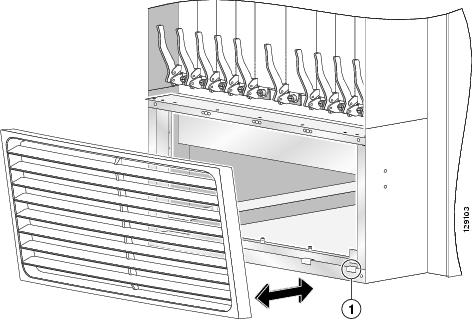
Remove the front lower grille (see the next figure) by unsnapping the top portion from the ball stud snaps on the grille frame.

Step 4

Rotate the grille toward you on its hook hanger brackets, and then lift it clear of the support, and set it carefully aside.

Figure 11. Removing the Front Lower Grille

1

Hook hanger brackets

Removing the Logo Bezel and Upper Grille

Step 5

Remove the logo bezel (see the next figure) by unsnapping it from the ball stud snaps on either side of the bezel support, and then set it carefully aside.

Step 6

Remove the upper grille (see the next figure) by unsnapping the bottom portion from the ball stud snaps on the logo bezel support assembly.

Step 7

Rotate the grille toward you on its hook hanger brackets, then lift it clear of the support, and set it carefully aside.

Figure 12. Removing the Front Logo Bezel and Upper Grille

Removing the Front Vertical Cable Troughs

Step 8

Remove the vertical cable troughs (see the next figure)—one right and one left—from the front (PLIM) side of the chassis:

  1. Use the screwdriver to turn the 12 flat head screws (six on each side) counterclockwise, remove them from the cable troughs, and set them aside.

  2. Slide the cable troughs upward slightly to unhook them from the guide slots; lift them away from the chassis, and set them aside.

    Note 
    We recommend that you use two people to remove the troughs, one person to hold the troughs while the other person removes the screws.
    Figure 13. Vertical Cable Troughs Installed on Chassis—Fixed Configuration Power Shown

Removing the Lower Grille Screen and Frame Assembly

Step 9

Use the screwdriver to loosen the four captive screws, two on each side, that attach the inlet grille screen to the frame assembly. Remove the screen from the frame assembly (see the next figure).

Step 10

Remove the four screws, two on each side, that attach the frame assembly to the chassis (see the next figure).

Figure 14. Removing the Front Lower Grille Frame Assembly
Step 11

Rotate the assembly forward, lift it away from the front (PLIM) side of the chassis, and set it aside.

Removing the Front Upper Grille Support

Step 12

Remove the power shelf shutoff extenders (see the next figure) by unscrewing the four screws, two on each extender, and set the screw and the extenders aside.

Step 13

Remove the Velcro cable straps from the strap slots in the upper and lower horizontal cable management trays.

Step 14

Remove the upper grille support from the unistruts (see the next figure) by unscrewing the four M4x14-mm flat head screws, two for each unistrut.

Step 15

Set the screws aside, then lift the grille support away from the chassis and set it aside.

Figure 15. Removing the Unistrut, Grille Support, and Power Shutoff Extenders—Fixed Configuration Power Shown

1

Unistrut

3

Power shutoff extender (fixed configuration power only)

2

Upper grille support

Removing the Unistruts

Step 16

Use the 10-mm hex key wrench to remove the twelve M12 hex head bolts and washers, six on each unistrut, that attach the unistrut to the top of the chassis (as in the previous figure).


What to do next

Be sure that all parts have been carefully set aside and repackaged as appropriate.

Installing the Default Rear (MSC) Side Cosmetic Components

This section describes how to install the default rear (MSC) side exterior cosmetic components on the LCC.

Figure 5-2 shows the exterior cosmetics on the rear (MSC) side of a LCC, with fixed configuration power shelves installed. The upper air grille and vertical brackets are shipped with the LCC. The rear kick panel kit, is not included as part of the default shipment and is available as an orderable option (Cisco product number CRS-16-LCC-BCK-KP). The rear view of a LCC with modular configuration power shelves installed is similar.

This section contains the following procedures:

  • Installing the Vertical Brackets and Upper Air Grille (Default)
  • Installing the Rear Kick Panel (Optional)

Installing the Vertical Brackets and Upper Air Grille (Default)

This section describes how to install the vertical brackets and upper air grille on the rear (MSC) side of the LCC,

Prerequisites

Before performing these tasks, ensure that the LCC power is off.

Required Tools and Equipment

You need the following tool to perform this task:

  • 6-in long number 1 Phillips screwdriver

Steps

To install the vertical brackets and upper air grille on the rear (MSC) side of the chassis, perform the following steps:

SUMMARY STEPS

  1. Attach the vertical brackets—one left and one right—to the rear of the chassis.
  2. Using the large Phillips screwdriver, tighten the three panel fasteners on each vertical bracket.
  3. Attach the upper air grille by carefully hooking the hanger brackets that are on top of the grille over the hook supports that are on top of the vertical brackets.
  4. Press the upper air grille firmly against the vertical brackets until its ball studs snap onto the vertical bracket's ball stud retainers.

DETAILED STEPS


Step 1

Attach the vertical brackets—one left and one right—to the rear of the chassis.

Step 2

Using the large Phillips screwdriver, tighten the three panel fasteners on each vertical bracket.

Step 3

Attach the upper air grille by carefully hooking the hanger brackets that are on top of the grille over the hook supports that are on top of the vertical brackets.

Note 
Because the upper air grille must be installed at the top of the chassis, it is easier and safer to stand on a ladder while installing them.
Note 
You may need to use the plastic tie wraps to attach the power shelf AC power cables to the rear of the power shelves to provide enough clearance for the upper air grille.
Step 4

Press the upper air grille firmly against the vertical brackets until its ball studs snap onto the vertical bracket's ball stud retainers.


Installing the Rear Kick Panel (Optional)

The rear kick panel is a panel installed at the bottom of a standalone LCC, so that it matches the outward extent of the rear components (the upper air grille). This section describes how to attach the rear kick panel to the rear side of the LCC. The new rear kick panel is installed into the new rear kick panel bracket. The rear kick panel is available as an orderable option (Cisco Product Number CRS-16-LCC-BCK-KP=).

Prerequisites

There are no prerequisites for installing the rear kick panel.

Required Tools and Equipment

You need the following tool and parts to perform this task:

  • 2.5 mm or 3/32-inch Allen wrench
  • Rear kick panel kit (Cisco product number: CRS-16-LCC-BCK-KP=)

Steps

To attach the rear kick panel and bracket to the rear of the LCC, follow these steps:

SUMMARY STEPS

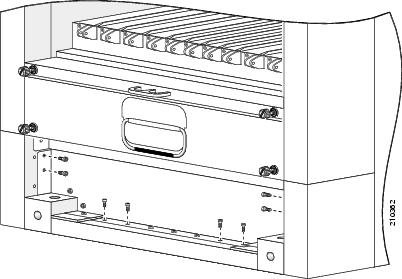
  1. Using a 2.5 mm or 3/32-inch Allen wrench, remove the eight screws from the lower rear bay of the chassis as shown in Figure 5-16.
  2. Align the rear kick panel bracket with the screw holes you removed.
  3. Using the Allen wrench, insert and tighten the screws into the holes in the rear kick panel bracket.
  4. Pick up the Cisco CRS 16-slot rear kick panel in both hands.
  5. Carefully slot the hook hanger brackets on the bottom of the rear kick panel over the tabs at the bottom of the rear kick panel bracket (see the next figure).
  6. To secure the top fasteners, firmly press the top edge of the rear kick panel against the top of the rear kick panel bracket until it snaps onto the ball stud retainers.

DETAILED STEPS


Step 1

Using a 2.5 mm or 3/32-inch Allen wrench, remove the eight screws from the lower rear bay of the chassis as shown in Figure 5-16.

Tip 

To be able to access the bottom screws, the Allen wrench must be no longer than 3 inches.

Figure 16. Removing the Set of Screws from the Lower Chassis Bay
Note 
You do not need to remove the three screws in the bottom middle of the lower bay, nor the additional two screws behind the black powder-coated surfaces on each side.
Step 2

Align the rear kick panel bracket with the screw holes you removed.

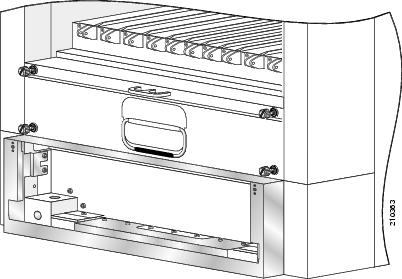
Step 3

Using the Allen wrench, insert and tighten the screws into the holes in the rear kick panel bracket.

When installed, the rear kick panel bracket looks as shown in the next figure.

Figure 17. Rear Kick Panel Bracket Installed
Step 4

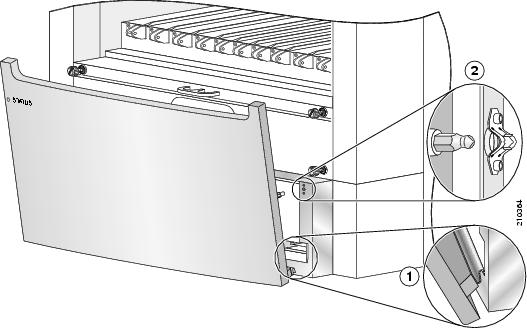
Pick up the Cisco CRS 16-slot rear kick panel in both hands.

Step 5

Carefully slot the hook hanger brackets on the bottom of the rear kick panel over the tabs at the bottom of the rear kick panel bracket (see the next figure).

Figure 18. Attaching the Rear Kick Panel

1

Hook hanger brackets

2

Ball studs

Step 6

To secure the top fasteners, firmly press the top edge of the rear kick panel against the top of the rear kick panel bracket until it snaps onto the ball stud retainers.


Installing the Optional Rear (MSC) Side Cosmetic Components

This section describes how to install the optional rear (MSC) side exterior cosmetic components, shown in Figure 5-3, on the LCC. While it is possible to install the various exterior components on the chassis in a different order, it is easier to install them in the order outlined in this section.

This section contains the following procedures:

  • Attaching the Rear Vertical Cable Troughs
  • Attaching the Rear Door Strike Tube

  • Attaching the Mid-chassis Horizontal Cable Management Bracket

  • Attaching the Door Stop

  • Installing the Rear Doors

Prerequisites

Before performing these tasks, you must first unpack and secure the chassis. See Cisco CRS Carrier Routing System 16-Slot Line Card Chassis Unpacking, Moving, and Securing Guide. If you purchased the rear cosmetics package after you installed the chassis, you must remove the rear upper air grille and short vertical brackets before installing the package. See Installing the Optional Rear (MSC) Side Cosmetic Components for more information.

Required Tools and Equipment

You need the following tool and parts to perform this task:

  • 8-in. long number 1 Phillips screwdriver—magnetic head preferable #1
  • 2-mm hex key wrench
  • Rear vertical cable troughs
  • Midchassis cable management bracket
  • Rear door strike tube
  • Door stop (700-16671-01)
  • Lower chassis cosmetic bezel (800-23776-01)
  • Rear louver grille (CRS-16-LCC-R-GRL=)
  • Rear doors (right—800-25724-01; left—800-24569-01)

Steps

To install the rear (MSC) exterior cosmetic components, follow these steps:

SUMMARY STEPS

  1. Unpack all cosmetic parts to prepare for installation.
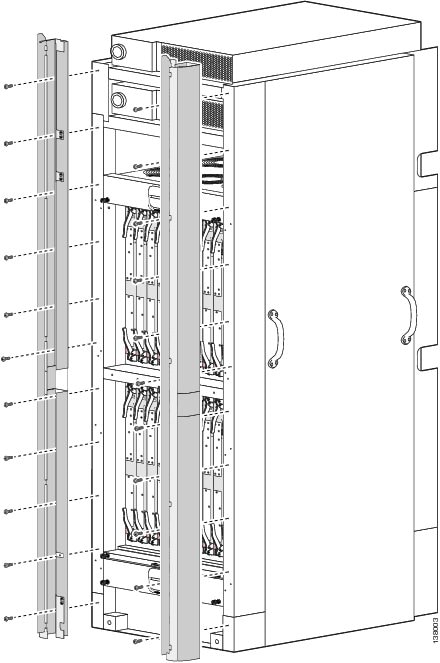
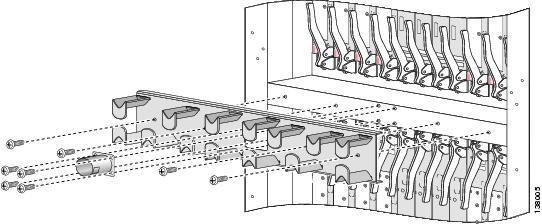
  2. Attach the rear vertical cable troughs—one left and one right—to the rear of the chassis (see the next figure) by inserting the 22 M4x14-mm flat head screws (11 on each side) and using the screwdriver to turn the screws clockwise to attach the cable troughs firmly to the chassis. (You might need to use a ladder to reach the upper screws.)
  3. Attach the mid-chassis horizontal cable management bracket by inserting the four M4 8-mm (two on each side) wafer-head Phillips screws that attach the bracket to the chassis.
  4. Tighten the screws to the chassis with the medium Phillips screwdriver.
  5. Attach the rear door strike tube (see the previous figure) by inserting the four M4 8-mm wafer-head Phillips screws through the holes in the face of the strike tube and into the rear (MSC) side of the chassis.
  6. Tighten the four screws to the chassis with the medium Phillips screwdriver.
  7. Place the door stop tabs behind the attachment tabs on the vertical cable troughs (see the next figure).
  8. Insert and tighten the two M4 8-mm (one on each side) wafer-head Phillips screws that attach the bracket to the cable troughs.
  9. Attach the louver grille by carefully hooking the hanger brackets that are on top of the grille over the hook supports that are on top of the vertical cable troughs (see the next figure).
  10. Press the louver grille firmly until its ball studs snap onto the ball stud retainers.
  11. Carefully slot the hook hanger brackets on the bottom of the lower chassis cosmetic bezel over the tabs on the vertical cable troughs.
  12. To secure the top fasteners, firmly press the top edge of the lower chassis cosmetic bezel against the vertical trough until it snaps onto the ball stud snaps.
  13. Orient the doors so that the keyhole screws are pointing up.
  14. Align the doors vertically in their appropriate positions so that you can determine where to thread the first two screws that are adjacent to the keyholes (see the next figure). Set the door aside, and thread the two screws.
  15. Insert four M4x8-mm wafer-head screws (two on each side) into the appropriate screw holes in the doors, and use the screwdriver to fully tighten.
  16. Insert and fully tighten all screws.
  17. Ensure that the doors are properly aligned.

DETAILED STEPS


Step 1

Unpack all cosmetic parts to prepare for installation.

Attaching the Rear Vertical Cable Troughs

Step 2

Attach the rear vertical cable troughs—one left and one right—to the rear of the chassis (see the next figure) by inserting the 22 M4x14-mm flat head screws (11 on each side) and using the screwdriver to turn the screws clockwise to attach the cable troughs firmly to the chassis. (You might need to use a ladder to reach the upper screws.)

Note 
We recommend that you use two people to install the troughs, one person to hold the troughs in place while the other person inserts and tightens the screws.
Figure 19. Attaching the Rear (MSC) Side Vertical Cable Troughs—Fixed Configuration Power Shown

Attaching the Mid-chassis Horizontal Cable Management Bracket

Step 3

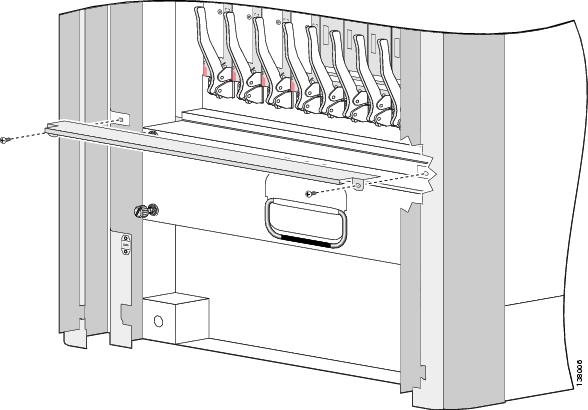
Attach the mid-chassis horizontal cable management bracket by inserting the four M4 8-mm (two on each side) wafer-head Phillips screws that attach the bracket to the chassis.

Figure 20. Attaching the Rear Door Strike Tube and Mid-chassis Cable Management Bracket
Step 4

Tighten the screws to the chassis with the medium Phillips screwdriver.

Tip 

Before tightening all four screws, we recommend that you insert and partially tighten the outer two screws first, followed by the inner two screws.

Attaching the Rear Door Strike Tube

Step 5

Attach the rear door strike tube (see the previous figure) by inserting the four M4 8-mm wafer-head Phillips screws through the holes in the face of the strike tube and into the rear (MSC) side of the chassis.

Step 6

Tighten the four screws to the chassis with the medium Phillips screwdriver.

Note 
Make sure that the slot in the side of the strike tube faces to the right as you face the rear (MSC) side of the chassis.

Attaching the Door Stop

Step 7

Place the door stop tabs behind the attachment tabs on the vertical cable troughs (see the next figure).

Figure 21. Attaching the Door Stop
Step 8

Insert and tighten the two M4 8-mm (one on each side) wafer-head Phillips screws that attach the bracket to the cable troughs.

Note 
We recommend against using a power screwdriver to lessen the chance of stripping the screw heads.

Attaching the Rear Lower Grille

Step 9

Attach the louver grille by carefully hooking the hanger brackets that are on top of the grille over the hook supports that are on top of the vertical cable troughs (see the next figure).

Note 
Because the louver grille must be installed at the top of the chassis, it is easier and safer to stand on a ladder while installing them.
Note 
You may need to use the plastic tie wraps to attach the power shelf AC power cables to the rear of the power shelves to provide enough clearance for the louver grille.
Figure 22. Attaching the Rear Louver Grille
Step 10

Press the louver grille firmly until its ball studs snap onto the ball stud retainers.

Attaching the Rear Lower Bezel

Step 11

Carefully slot the hook hanger brackets on the bottom of the lower chassis cosmetic bezel over the tabs on the vertical cable troughs.

Figure 23. Attaching the Lower Chassis Cosmetic Bezel

1

Hook hanger brackets

2

Ball studs

Step 12

To secure the top fasteners, firmly press the top edge of the lower chassis cosmetic bezel against the vertical trough until it snaps onto the ball stud snaps.

Installing the Rear Doors

Step 13

Orient the doors so that the keyhole screws are pointing up.

The part number for the right door is 800-25724-01; the part number for the left door is 800-24569-01. The door lock is on the left door.

Caution 

The doors scratch easily, so they should be handled with care.

Step 14

Align the doors vertically in their appropriate positions so that you can determine where to thread the first two screws that are adjacent to the keyholes (see the next figure). Set the door aside, and thread the two screws.

Figure 24. Attaching the Rear (MSC) Side Exterior Doors
Step 15

Insert four M4x8-mm wafer-head screws (two on each side) into the appropriate screw holes in the doors, and use the screwdriver to fully tighten.

Note 
Verify that Step 13 was completed correctly to ensure proper orientation of doors. The screw locations vary depending on the door. If all screw holes for a door do not align with the screw holes on the rear (MSC) side of the chassis, you need to use the other door.
Step 16

Insert and fully tighten all screws.

Step 17

Ensure that the doors are properly aligned.

  1. Check to see if the doors close without interfering with each other.

    Note 
    Typically, the doors will close without interfering with each other. However, you may need to adjust either the left or right door, or both, to align the doors properly. Adjust doors only if necessary.
  2. To decrease the door gap, loosen the five screws that secure the vertical trough to the chassis. Tighten the bottom set screws one full turn. Snug the five screws that attach the vertical trough to the chassis and check the door alignment.

  3. To increase the door gap, loosen the five screws that secure the vertical trough to the chassis. Tighten the top set screws one full turn. Snug the five screws that attach the vertical trough to the chassis and check the door alignment.

  4. Repeat the procedure as necessary until the doors are properly aligned.

  5. Tighten the five screws that secure the vertical trough to the chassis.


What to do next

After performing this task, you can insert the rear horizontal Velcro cable bracket straps. Their use is optional when the chassis is lightly populated; you will need the straps as fiber starts filling the troughs above the top of the fiber retainers.

The front (PLIM) side of the fabric chassis has upper and middle horizontal cable troughs; the rear has a middle cable trough.

Installing the Lower Chassis Cosmetic Bezel

To install the lower chassis cosmetic bezel, follow these steps:

SUMMARY STEPS

  1. Carefully slot the hook hanger brackets on the bottom of the lower chassis cosmetic bezel over the tabs on the vertical cable troughs.
  2. To secure the top fasteners, firmly press the top edge of the lower chassis cosmetic bezel against the vertical trough until it snaps onto the ball stud snaps.

DETAILED STEPS


Step 1

Carefully slot the hook hanger brackets on the bottom of the lower chassis cosmetic bezel over the tabs on the vertical cable troughs.

Figure 25. Attaching the Lower Chassis Cosmetic Bezel

1

Hook hanger brackets

2

Ball studs

Step 2

To secure the top fasteners, firmly press the top edge of the lower chassis cosmetic bezel against the vertical trough until it snaps onto the ball stud snaps.


Installing the Rear Louver Grille

This section describes how to install the rear upper louver grille to the LCC. The louver grille redirects the chassis exhaust airflow upward. The rear louver grille includes an internal grille that further improves air flow management.

The louver grille (see the next figure) can be installed in one of two configurations: If you did not order a full rear cosmetics kit for the chassis, the chassis is shipped by default with the louver grille and a pair of vertical air grille mounting brackets. See Installing_the_Vertical_Brackets_and_Upper_Air_Grille_(Default) for more information.

Figure 26. Rear Upper Louver Grille

Prerequisites

Because of the small amount of clearance between the rear of the power shelf and the louver grille, we recommend that you tie the power cables to the rear of the power shelf with the tie-downs provided.

Required Tools and Equipment

You need the following tools and part to perform this task:

  • Rear louver grille kit—Cisco product number: CRS-16-LCC-R-GRL=
  • Ladder or step platform

Steps

To install the louver grille, follow these steps:

SUMMARY STEPS

  1. Attach the louver grille by carefully hooking the hanger brackets that are on top of the grille over the hook supports that are on top of the vertical support brackets (see the next figure).
  2. Press the louver grille firmly against the brackets until its ball studs snap onto the support bracket's ball stud retainers.

DETAILED STEPS


Step 1

Attach the louver grille by carefully hooking the hanger brackets that are on top of the grille over the hook supports that are on top of the vertical support brackets (see the next figure).

Note 
Because the louver grille must be installed at the top of the chassis, it is easier and safer to stand on a ladder while installing them.
Note 
You may need to use the plastic tie wraps to attach the power shelf AC power cables to the rear of the power shelves to provide enough clearance for the louver grille.
Figure 27. Attaching the Rear Louver Grille
Step 2

Press the louver grille firmly against the brackets until its ball studs snap onto the support bracket's ball stud retainers.


What to do next

You may now power up the chassis. The chassis is ready for use.

Removing the Default Rear (MSC) Cosmetic Components

This section describes how to remove the default cosmetic components, shown in Figure 5-2, from the rear (MSC) side of the LCC.

This section includes the following procedures:
  • Removing the Upper Air Grille and Vertical Brackets

  • Removing the Rear Kick Panel

Removing the Upper Air Grille and Vertical Brackets

This section describes how to remove the upper air grille and vertical brackets from the rear (MSC) side of the LCC,

Prerequisites

Before performing these tasks, ensure that the LCC power is off.

Required Tools and Equipment

You need the following tool to perform this task:

  • 6-inch large Phillips screwdriver

Steps

To remove the upper air grille and vertical brackets from the rear (MSC) side of the chassis, perform the following steps:

SUMMARY STEPS

  1. Remove the upper air grille by unsnapping the bottom portion from the ball stud snaps on the vertical mounting brackets.
  2. Rotate the grille toward you on its hook hanger brackets, and then lift it clear of the brackets.
  3. Set it carefully aside.
  4. Using the large Phillips screwdriver, loosen the three panel fasteners on the two short vertical brackets installed on the rear of the chassis.
  5. Remove the vertical brackets and carefully set them aside.

DETAILED STEPS


Step 1

Remove the upper air grille by unsnapping the bottom portion from the ball stud snaps on the vertical mounting brackets.

Step 2

Rotate the grille toward you on its hook hanger brackets, and then lift it clear of the brackets.

Step 3

Set it carefully aside.

Step 4

Using the large Phillips screwdriver, loosen the three panel fasteners on the two short vertical brackets installed on the rear of the chassis.

Step 5

Remove the vertical brackets and carefully set them aside.


Removing the Rear Kick Panel

This section describes how to remove the rear kick panel from the rear side of the LCC.

Prerequisites

There are no prerequisites for removing the rear kick panel.

Steps

To remove the rear kick panel from the LCC, follow these steps:

SUMMARY STEPS

  1. Remove the rear kick panel by unsnapping the top portion from the ball stud retainers on the rear kick panel bracket.
  2. Rotate the grille toward you on its hook hanger brackets, and then lift it clear of the tabs at the bottom of the rear kick panel bracket, and set it carefully aside.

DETAILED STEPS


Step 1

Remove the rear kick panel by unsnapping the top portion from the ball stud retainers on the rear kick panel bracket.

Figure 28. Removing the Rear Kick Panel

1

Hook hanger brackets

2

Ball studs

Step 2

Rotate the grille toward you on its hook hanger brackets, and then lift it clear of the tabs at the bottom of the rear kick panel bracket, and set it carefully aside.


Removing the Optional Rear (MSC) Side Cosmetic Components

This section describes how to remove the rear (MSC) side exterior cosmetic components, shown in Figure 5-3, from the chassis. This section includes all the steps you need to remove all cosmetic parts from the chassis, but you are not required to do so.

This section contains the following procedures:
  • Removing the Rear Doors

  • Removing the Lower Chassis Cosmetic Bezel

  • Removing the Louver Grille

  • Removing the Door Stop

  • Removing the Rear Door Strike Tube

  • Removing the Mid-chassis Horizontal Cable Management Bracket

  • Removing the Rear Vertical Cable Troughs


Note

While it is possible to remove most of the rear cosmetic parts on the fabric chassis separately, some parts (such as a unistrut) require that other parts be removed first.

Prerequisites

Ensure that you have all the original packaging material for the cosmetic components available.

Required Tools and Equipment

You need the following tool to perform this task:

  • 8-in. number 1 Phillips screwdriver—magnetic head preferable

Removing the Rear Doors

To remove the rear (MSC) side cosmetic components, perform the following steps:

Removing the Rear Doors

SUMMARY STEPS

  1. Remove the rear doors by unscrewing all the screws except those adjacent to the keyholes (see the next figure).
  2. Lift the doors and set them carefully aside.
  3. Remove the lower chassis cosmetic bezel (see the next figure) by unsnapping the top portion from the ball stud retainers on the vertical troughs.
  4. Rotate the grille toward you on its hook hanger brackets, and then lift it clear of the tabs at the bottom of the vertical troughs, and set it carefully aside.
  5. Remove the louver grille by unsnapping the bottom portion from the ball stud snaps on the vertical cable troughs.
  6. Rotate the grille toward you on its hook hanger brackets, and then lift it clear of the troughs and set it carefully aside.
  7. Remove the door stop from the vertical cable troughs by unscrewing the two flat head Phillips screws, one for each side, that attach the stop to the troughs.
  8. Set the screws and stop carefully aside
  9. Remove the rear door strike tube by unscrewing the four flat head Phillips screws that attach the strike tube to the chassis.
  10. Set the screws and strike tube carefully aside
  11. Remove the mid-chassis horizontal cable management bracket (as in the previous figure) by unscrewing the four flat head Phillips screws (two for each side) that attach the bracket to the chassis.
  12. Set the screws and bracket carefully aside
  13. Remove the rear vertical cable troughs—one left and one right—from the rear of the chassis (see the next figure).

DETAILED STEPS


Step 1

Remove the rear doors by unscrewing all the screws except those adjacent to the keyholes (see the next figure).

Step 2

Lift the doors and set them carefully aside.

Caution 

The doors scratch easily, so they should be handled with care.

Figure 29. Removing the Rear (MSC) Side Exterior Doors

Removing the Lower Chassis Cosmetic Bezel

Step 3

Remove the lower chassis cosmetic bezel (see the next figure) by unsnapping the top portion from the ball stud retainers on the vertical troughs.

Step 4

Rotate the grille toward you on its hook hanger brackets, and then lift it clear of the tabs at the bottom of the vertical troughs, and set it carefully aside.

Figure 30. Removing the Rear (MSC) Lower Chassis Cosmetic Bezel

1

Hook hanger brackets

2

Ball studs

Removing the Louver Grille

Step 5

Remove the louver grille by unsnapping the bottom portion from the ball stud snaps on the vertical cable troughs.

Figure 31. Removing the Rear (MSC) Side Upper Louver Grille
Step 6

Rotate the grille toward you on its hook hanger brackets, and then lift it clear of the troughs and set it carefully aside.

Removing the Door Stop

Step 7

Remove the door stop from the vertical cable troughs by unscrewing the two flat head Phillips screws, one for each side, that attach the stop to the troughs.

Figure 32. Removing the Door Stop
Step 8

Set the screws and stop carefully aside

Removing the Rear Door Strike Tube

Step 9

Remove the rear door strike tube by unscrewing the four flat head Phillips screws that attach the strike tube to the chassis.

Figure 33. Removing the Rear Mid-chassis Cable Management Bracket and Door Strike Tube
Step 10

Set the screws and strike tube carefully aside

Removing the Mid-chassis Horizontal Cable Management Bracket

Step 11

Remove the mid-chassis horizontal cable management bracket (as in the previous figure) by unscrewing the four flat head Phillips screws (two for each side) that attach the bracket to the chassis.

Step 12

Set the screws and bracket carefully aside

Removing the Rear Vertical Cable Troughs

Step 13

Remove the rear vertical cable troughs—one left and one right—from the rear of the chassis (see the next figure).

  1. Unscrew the 22 flat head Phillips screws (11 on each side) that attach it to the chassis (You might need to use a ladder to reach the upper screws).
  2. Slide the cable troughs upward slightly to unhook them from the guide slots; lift them away from the chassis, and set them carefully aside.
Note 
We recommend that you use two people to remove the troughs, one person to hold the troughs in place while the other person removes the screws.
Figure 34. Removing the Rear (MSC) Side Vertical Cable Troughs-Fixed Configuration Power Shown


What to do next

Be sure that all parts have been carefully set aside and repackaged appropriately.