Configure Controllers

There are six types of controllers for Cisco NCS 1010. The controllers are the OTS, OTS-OCH, OSC, DFB, OCH, and OMS controllers. This chapter describes the tasks that are used to configure and view these controllers.

Table 1. Controllers

Controller Types

Description

Optical Transport Section (OTS)

The OTS controller holds all the optical parameters for the OTS optical interfaces.

OTS-OCH

The OTS-OCH controller is created on the LINE side of the OLT and ILA nodes using the hw-module command in Flex-Grid configuration. OTS-OCH controller supports optical cross-connection between the LINE side and ADD/DROP side of the OLT nodes only. The channel IDs must be the same for both LINE side and COM side OTS-OCH controllers.

Optical Service Channel (OSC)

The OSC controller represents the optical layer of the OSC channel. Line ports host the OSC controller.

Distributed Feedback (DFB)

The DFB controller represents the dedicated DFB laser on the line side of the OLT and ILA nodes with a RAMAN module for link continuity. The line ports host the DFB controller along with the OSC controller.

Optical Channel (OCH)

By default, the OCH controllers are automatically configured when Mux/Demux panels and breakout panels are brought up.

Optical Multiplex Section (OMS)

By default, the OMS controllers are automatically configured when Mux/Demux panels and breakout panels are brought up.

ILA controller models in NCS 1010

This reference lists all the ILA controller models available for the Cisco NCS 1010 platform and details the mapping between their physical ports and controllers. Use this information to identify controller-port assignments for supported in-line amplifier (ILA) line cards, including release-specific models and supported features.

ILA controller models

The ILA controller model is available for the NCS 1010 ILA line cards:


Note


For release information of the ILA line cards, refer to Hardware Installation Guide for Cisco NCS 1010 and Cisco NCS 1000 Passive Modules.


Port and controller mapping for each ILA line card

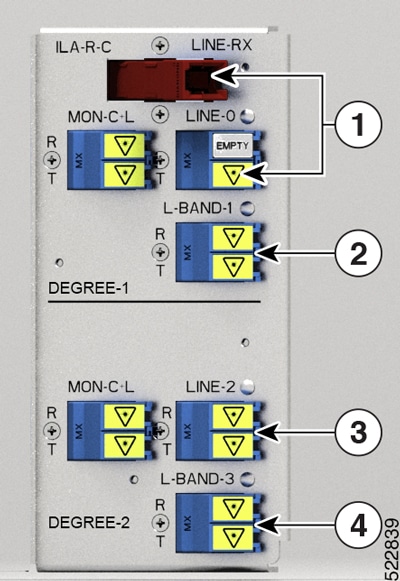
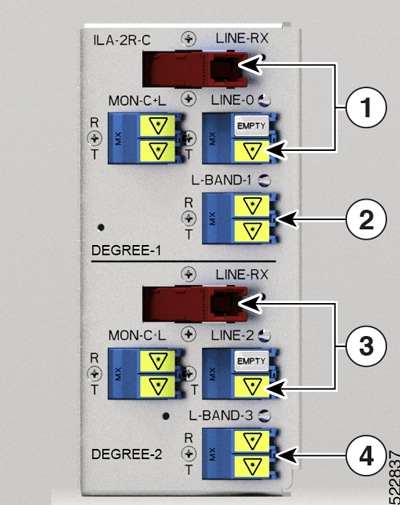
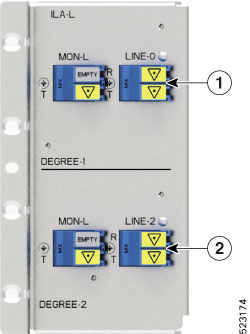
The figures and tables show the three ILA variants and the mapping between physical ports and controllers:
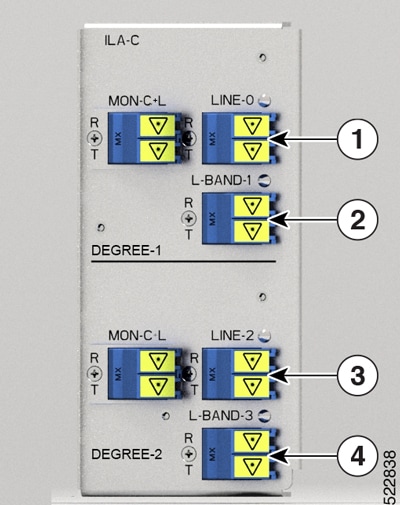
Figure 1. NCS1K-ILA-C front view
NCS1K-ILA-C port mapping
Table 2. NCS1K-ILA-C port mapping

Callout

Port labl

Controller types

1

LINE-0

Parent Controller: OTS0/0/0/0

Child Controller: OSC0/0/0/0, Line OTS-OCH 0/0/0/0/x

2

L-BAND-1

Parent Controller: OTS0/0/0/1

3

LINE-2

Parent Controller: OTS0/0/0/2

Child Controller: OSC0/0/0/2, Line OTS-OCH 0/0/0/2/x

4

L-BAND-3

Parent Controller: OTS0/0/0/3

Figure 2. NCS1K-ILA-R-C front view
NCS1K-ILA-R-C port mapping
Table 3. NCS1K-ILA-R-C port mapping

Callout

Port labl

Controller types

1

RAMAN pump and LINE-0

Parent Controller: OTS0/0/0/0

Child Controller: OSC0/0/0/0, DFB0/0/0/0, Line OTS-OCH 0/0/0/0/x

2

L-BAND-1

Parent Controller: OTS0/0/0/1

3

LINE-2

Parent Controller: OTS0/0/0/2

Child Controller: OSC0/0/0/2, Line OTS-OCH 0/0/0/2/x

4

L-BAND-3

Parent Controller: OTS0/0/0/3

Figure 3. NCS1K-ILA-2R-C front view
NCS1K-ILA-2R-C port mapping
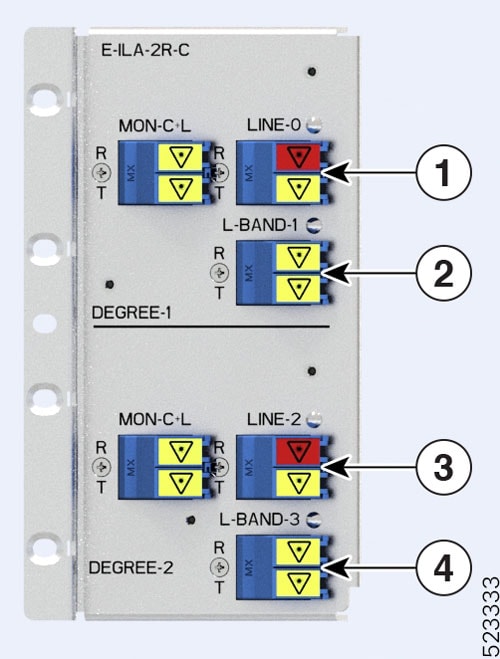
Table 4. NCS1K-ILA-2R-C port mapping

Callout

Port labl

Controller types

1

RAMAN pump and LINE-0

Parent Controller: OTS0/0/0/0

Child Controller: OSC0/0/0/0, DFB0/0/0/0, Line OTS-OCH 0/0/0/0/x

2

L-BAND-1

Parent Controller: OTS0/0/0/1

3

RAMAN pump and LINE-2

Parent Controller: OTS0/0/0/2

Child Controller: OSC0/0/0/2, DFB0/0/0/2, Line OTS-OCH 0/0/0/2/x

4

L-BAND-3

Parent Controller: OTS0/0/0/3

Figure 4. NCS1K-ILA-L front view
NCS1K-ILA-L port mapping
Table 5. NCS1K-ILA-L port mapping

Callout

Port labl

Controller types

1

LINE-0

Parent Controller: OTS0/0/0/0

Child Controller: OSC0/0/0/0, Line OTS-OCH 0/0/0/0/x

2

LINE-2

Parent Controller: OTS0/0/0/2

Child Controller: OSC0/0/0/2, Line OTS-OCH 0/0/0/2/x

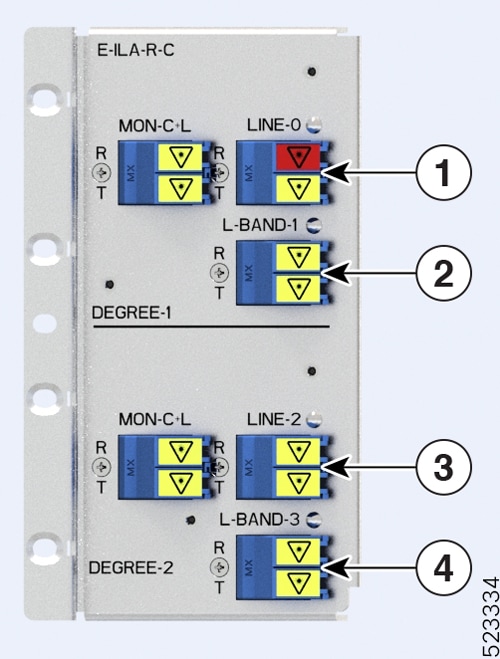
The figures and tables show the three ILA variants that are introduced in Release 7.10.1 and the mapping between their physical ports and controllers:


Note


The new ILA variants have ports that are highlighted in red to indicate the Raman ports.


Figure 5. NCS1K-E-ILA-R-C front view
E-ILA-R-C port mapping
Table 6. E-ILA-R-C port mapping

Callout

Port labl

Controller types

1

RAMAN port and LINE-0

Parent Controller: OTS0/0/0/0

Child Controller: OSC0/0/0/0, DFB0/0/0/0, Line OTS-OCH 0/0/0/0/x

2

L-BAND-1

Parent Controller: OTS0/0/0/1

3

LINE-2

Parent Controller: OTS0/0/0/2

Child Controller: OSC0/0/0/2, Line OTS-OCH 0/0/0/2/x

4

L-BAND-3

Parent Controller: OTS0/0/0/3

Figure 6. NCS1K-E-ILA-2R-C front view
E-ILA-2R-C port mapping
Table 7. E-ILA-2R-C port mapping

Callout

Port labl

Controller types

1

RAMAN port and LINE-0

Parent Controller: OTS0/0/0/0

Child Controller: OSC0/0/0/0, DFB0/0/0/0, Line OTS-OCH 0/0/0/0/x

2

L-BAND-1

Parent Controller: OTS0/0/0/1

3

RAMAN port and LINE-2

Parent Controller: OTS0/0/0/2

Child Controller: OSC0/0/0/2, DFB0/0/0/2, Line OTS-OCH 0/0/0/2/x

4

L-BAND-3

Parent Controller: OTS0/0/0/3

The figure and table show the new ILA variant that is introduced in Release 7.11.1 and the mapping between its physical ports and controllers:
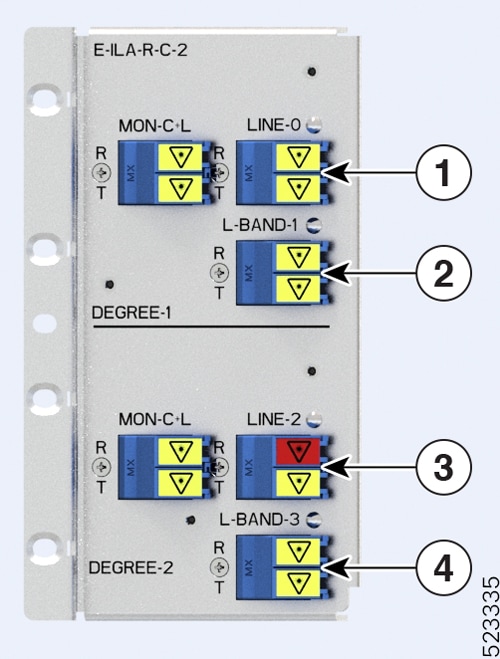
Figure 7. NCS1K-E-ILA-R-C-2 front view
E-ILA-R-C-2 port mapping
Table 8. E-ILA-R-C-2 port mapping

Callout

Port labl

Controller types

1

LINE-0

Parent Controller: OTS0/0/0/0

Child Controller: OSC0/0/0/0, Line OTS-OCH 0/0/0/0/x

2

L-BAND-1

Parent Controller: OTS0/0/0/1

3

RAMAN port and LINE-2

Parent Controller: OTS0/0/0/2

Child Controller: OSC0/0/0/2, DFB0/0/0/2, Line OTS-OCH 0/0/0/2/x

4

L-BAND-3

Parent Controller: OTS0/0/0/3

OLT controller models and their port mappings

This reference lists all the OLT controller models available for the Cisco NCS 1010 and NCS 1020 platform. It details the mapping between physical ports and controllers for each OLT and E-OLT cards. Use this information to identify controller-port assignments for supported optical line terminal (OLT) line cards, including release-specific models and supported features.

OLT controller models

The OLT controller model is available for the NCS 1010 OLT line cards:


Note


For release information of the OLT line cards, refer to Hardware Installation Guide for Cisco NCS 1010 and Cisco NCS 1000 Passive Modules.


Port and controller mapping for each OLT line card

The figures and tables show the two OLT variants and the mapping between physical ports and controllers:

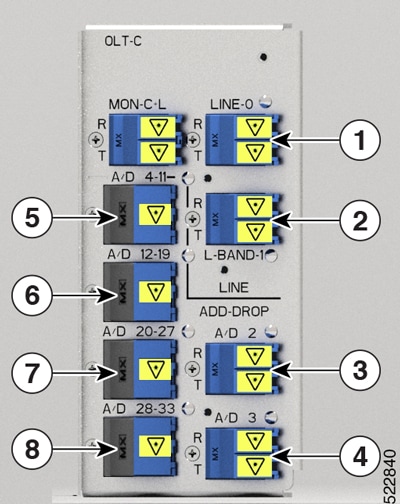
Figure 8. NCS1K-OLT-C
NCS1K-OLT-C Port Mapping
Table 9. NCS1K-OLT-C Port Mapping

Callout

Port label

Controller types

1

LINE-0

Parent Controller: OTS0/0/0/0

Child Controller: OSC0/0/0/0, Line OTS-OCH 0/0/0/0/x

2

L-BAND-1

Parent Controller: OTS0/0/0/1

3

A/D 2

Parent Controller: OTS0/0/0/2

Child Controller: COM OTS-OCH 0/0/0/2/x

4

A/D 4

Parent Controller: OTS0/0/0/3

Child Controller: COM OTS-OCH 0/0/0/3/x

5

A/D 4-11

Parent Controller: OTS0/0/0/4-11

Child Controller: COM OTS-OCH 0/0/0/4-11/x

6

A/D 12-19

Parent Controller: OTS0/0/0/12-19

Child Controller: COM OTS-OCH 0/0/0/12-19/x

7

A/D 20-27

Parent Controller: OTS0/0/0/20-27

Child Controller: COM OTS-OCH 0/0/0/20-27/x

8

A/D 28-33

Parent Controller: OTS0/0/0/28-33

Child Controller: COM OTS-OCH 0/0/0/28-33/x

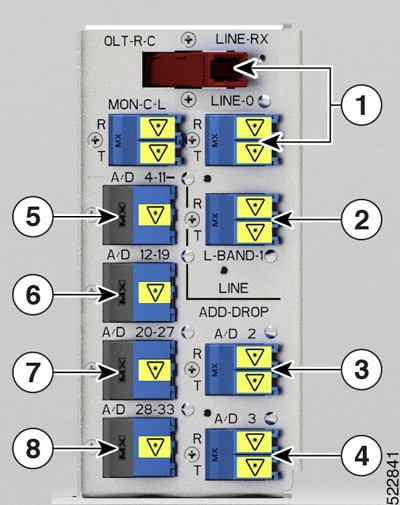
Figure 9. NCS1K-OLT-R-C
NCS1K-OLT-R-C Port Mapping
Table 10. NCS1K-OLT-R-C Port Mapping

Callout

Port label

Controller types

1

LINE-RX and LINE-0

Parent Controller: OTS0/0/0/0

Child Controller: OSC0/0/0/0, DFB0/0/0/0, Line OTS-OCH 0/0/0/0/x

2

L-BAND-1

Parent Controller: OTS0/0/0/1

3

A/D 2

Parent Controller: OTS0/0/0/2

Child Controller: COM OTS-OCH 0/0/0/2/x

4

A/D 3

Parent Controller: OTS0/0/0/3

Child Controller: COM OTS-OCH 0/0/0/3/x

5

A/D 4-11

Parent Controller: OTS0/0/0/4-11

Child Controller: COM OTS-OCH 0/0/0/4-11/x

6

A/D 12-19

Parent Controller: OTS0/0/0/12-19

Child Controller: COM OTS-OCH 0/0/0/12-19/x

7

A/D 20-27

Parent Controller: OTS0/0/0/20-27

Child Controller: COM OTS-OCH 0/0/0/20-27/x

8

A/D 28-33

Parent Controller: OTS0/0/0/28-33

Child Controller: COM OTS-OCH 0/0/0/28-33/x

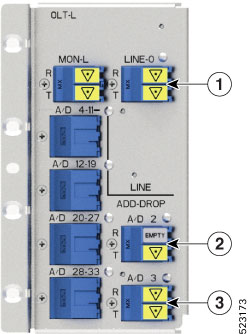
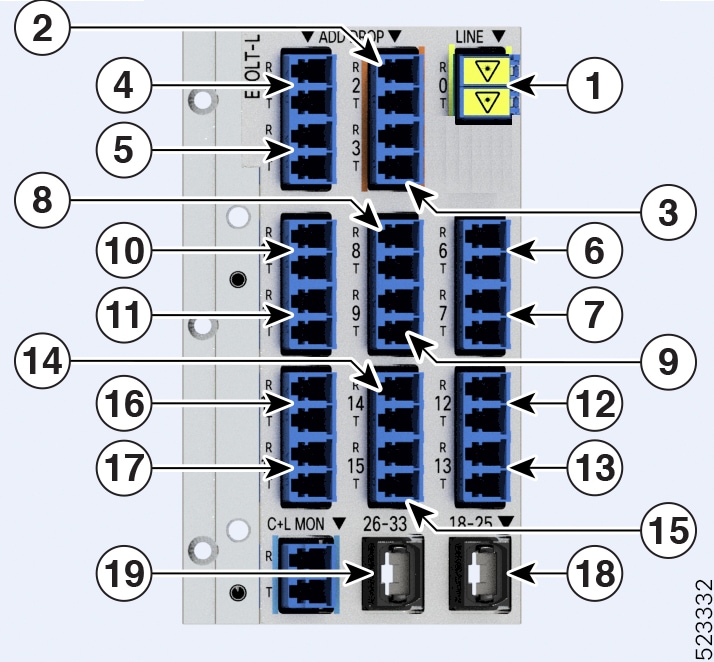
Figure 10. NCS1K-OLT-L
NCS1K-OLT-L Port Mapping
Table 11. NCS1K-OLT-L Port Mapping

Callout

Port label

Controller types

1

LINE-0

Parent Controller: OTS0/0/0/0

Child Controller: OSC0/0/0/0, Line OTS-OCH 0/0/0/0/x

2

A/D 2

Parent Controller: OTS0/0/0/2

Child Controller: OSC0/0/0/2, Line OTS-OCH 0/0/0/2/x

3

A/D 3

Parent Controller: OTS0/0/0/3

The figures and tables show the three OLT variants that are introduced in Release 7.10.1 and the mapping between their physical ports and controllers:

Figure 11. NCS1K-E-OLT-L
NCS1K-E-OLT-L Port Mapping
Table 12. NCS1K-E-OLT-L Port Mapping

Callout

Port

Controller types

1

LINE-0

Parent Controller: OTS0/0/0/0

Child Controller: OSC0/0/0/0, Line OTS-OCH 0/0/0/0/x

2

2

Parent Controller: OTS0/0/0/2

Child Controller: COM OTS-OCH 0/0/0/2/x

3

3

Parent Controller: OTS0/0/0/3

Child Controller: COM OTS-OCH 0/0/0/3/x

4

4

Parent Controller: OTS0/0/0/4

Child Controller: COM OTS-OCH 0/0/0/4/x

5

5

Parent Controller: OTS0/0/0/5

Child Controller: COM OTS-OCH 0/0/0/5/x

6

6

Parent Controller: OTS0/0/0/6

Child Controller: COM OTS-OCH 0/0/0/6/x

7

7

Parent Controller: OTS0/0/0/7

Child Controller: COM OTS-OCH 0/0/0/7/x

8

8

Parent Controller: OTS0/0/0/8

Child Controller: COM OTS-OCH 0/0/0/8/x

9

9

Parent Controller: OTS0/0/0/9

Child Controller: COM OTS-OCH 0/0/0/9/x

10

10

Parent Controller: OTS0/0/0/10

Child Controller: COM OTS-OCH 0/0/0/10/x

11

11

Parent Controller: OTS0/0/0/11

Child Controller: COM OTS-OCH 0/0/0/11/x

12

12

Parent Controller: OTS0/0/0/12

Child Controller: COM OTS-OCH 0/0/0/12/x

13

13

Parent Controller: OTS0/0/0/13

Child Controller: COM OTS-OCH 0/0/0/13/x

14

14

Parent Controller: OTS0/0/0/14

Child Controller: COM OTS-OCH 0/0/0/14/x

15

15

Parent Controller: OTS0/0/0/15

Child Controller: COM OTS-OCH 0/0/0/15/x

16

16

Parent Controller: OTS0/0/0/16

Child Controller: COM OTS-OCH 0/0/0/16/x

17

17

Parent Controller: OTS0/0/0/17

Child Controller: COM OTS-OCH 0/0/0/17/x

18

18-25

Parent Controller: OTS0/0/0/18-25

Child Controller: COM OTS-OCH 0/0/0/18-25/x

19

26-33

Parent Controller: OTS0/0/0/26-33

Child Controller: COM OTS-OCH 0/0/0/26-33/x

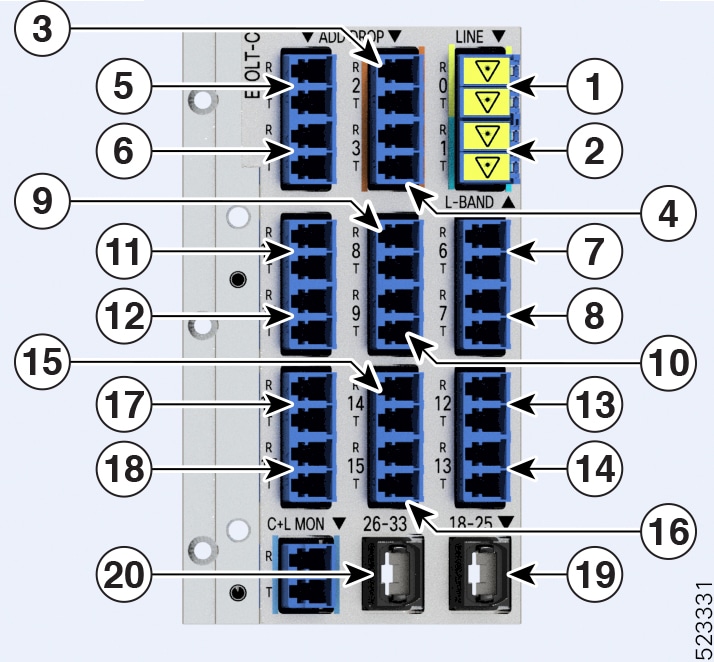
Figure 12. NCS1K-E-OLT-C
NCS1K-E-OLT-C Port Mapping
Table 13. NCS1K-E-OLT-C Port Mapping

Callout

Port label

Controller types

1

LINE-0

Parent Controller: OTS0/0/0/0

Child Controller: OSC0/0/0/0, Line OTS-OCH 0/0/0/0/x

2

1

Parent Controller: OTS0/0/0/1

3

2

Parent Controller: OTS0/0/0/2

Child Controller: COM OTS-OCH 0/0/0/2/x

4

3

Parent Controller: OTS0/0/0/3

Child Controller: COM OTS-OCH 0/0/0/3/x

5

4

Parent Controller: OTS0/0/0/4

Child Controller: COM OTS-OCH 0/0/0/4/x

6

5

Parent Controller: OTS0/0/0/5

Child Controller: COM OTS-OCH 0/0/0/5/x

7

6

Parent Controller: OTS0/0/0/6

Child Controller: COM OTS-OCH 0/0/0/6/x

8

7

Parent Controller: OTS0/0/0/7

Child Controller: COM OTS-OCH 0/0/0/7/x

9

8

Parent Controller: OTS0/0/0/8

Child Controller: COM OTS-OCH 0/0/0/8/x

10

9

Parent Controller: OTS0/0/0/9

Child Controller: COM OTS-OCH 0/0/0/9/x

11

10

Parent Controller: OTS0/0/0/10

Child Controller: COM OTS-OCH 0/0/0/10/x

12

11

Parent Controller: OTS0/0/0/11

Child Controller: COM OTS-OCH 0/0/0/11/x

13

12

Parent Controller: OTS0/0/0/12

Child Controller: COM OTS-OCH 0/0/0/12/x

14

13

Parent Controller: OTS0/0/0/13

Child Controller: COM OTS-OCH 0/0/0/13/x

15

14

Parent Controller: OTS0/0/0/14

Child Controller: COM OTS-OCH 0/0/0/14/x

16

15

Parent Controller: OTS0/0/0/15

Child Controller: COM OTS-OCH 0/0/0/15/x

17

16

Parent Controller: OTS0/0/0/16

Child Controller: COM OTS-OCH 0/0/0/16/x

18

17

Parent Controller: OTS0/0/0/17

Child Controller: COM OTS-OCH 0/0/0/17/x

19

18-25

Parent Controller: OTS0/0/0/18-25

Child Controller: COM OTS-OCH 0/0/0/18-25/x

20

26-33

Parent Controller: OTS0/0/0/26-33

Child Controller: COM OTS-OCH 0/0/0/26-33/x

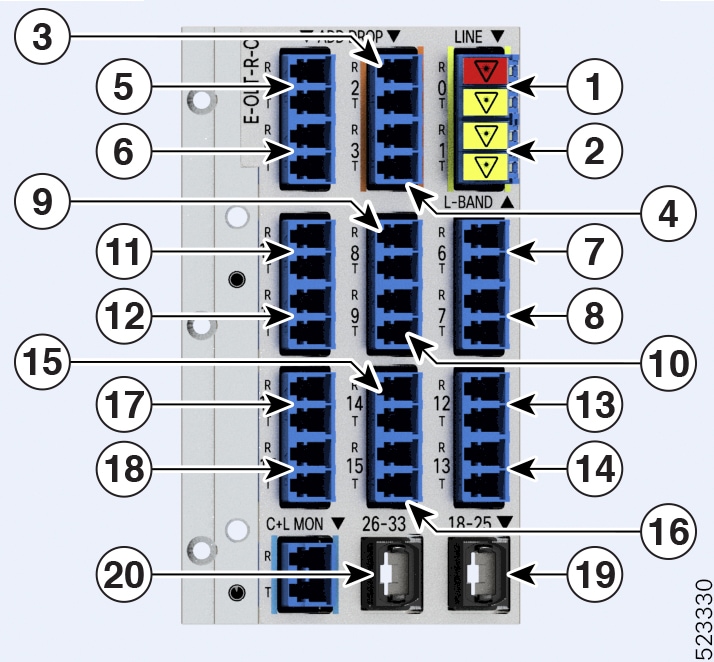
Figure 13. NCS1K-E-OLT-R-C

Note


In the image, the port that is highlighted in red is the Raman port.


NCS1K-E-OLT-R-C Port Mapping
Table 14. NCS1K-E-OLT-R-C Port Mapping

Callout

Port label

Controller types

1

LINE-0

Parent Controller: OTS0/0/0/0

Child Controller: OSC0/0/0/0, Line OTS-OCH 0/0/0/0/x

2

1

Parent Controller: OTS0/0/0/1

3

2

Parent Controller: OTS0/0/0/2

Child Controller: COM OTS-OCH 0/0/0/2/x

4

3

Parent Controller: OTS0/0/0/3

Child Controller: COM OTS-OCH 0/0/0/3/x

5

4

Parent Controller: OTS0/0/0/4

Child Controller: COM OTS-OCH 0/0/0/4/x

6

5

Parent Controller: OTS0/0/0/5

Child Controller: COM OTS-OCH 0/0/0/5/x

7

6

Parent Controller: OTS0/0/0/6

Child Controller: COM OTS-OCH 0/0/0/6/x

8

7

Parent Controller: OTS0/0/0/7

Child Controller: COM OTS-OCH 0/0/0/7/x

9

8

Parent Controller: OTS0/0/0/8

Child Controller: COM OTS-OCH 0/0/0/8/x

10

9

Parent Controller: OTS0/0/0/9

Child Controller: COM OTS-OCH 0/0/0/9/x

11

10

Parent Controller: OTS0/0/0/10

Child Controller: COM OTS-OCH 0/0/0/10/x

12

11

Parent Controller: OTS0/0/0/11

Child Controller: COM OTS-OCH 0/0/0/11/x

13

12

Parent Controller: OTS0/0/0/12

Child Controller: COM OTS-OCH 0/0/0/12/x

14

13

Parent Controller: OTS0/0/0/13

Child Controller: COM OTS-OCH 0/0/0/13/x

15

14

Parent Controller: OTS0/0/0/14

Child Controller: COM OTS-OCH 0/0/0/14/x

16

15

Parent Controller: OTS0/0/0/15

Child Controller: COM OTS-OCH 0/0/0/15/x

17

16

Parent Controller: OTS0/0/0/16

Child Controller: COM OTS-OCH 0/0/0/16/x

18

17

Parent Controller: OTS0/0/0/17

Child Controller: COM OTS-OCH 0/0/0/17/x

19

18-25

Parent Controller: OTS0/0/0/18-25

Child Controller: COM OTS-OCH 0/0/0/18-25/x

20

26-33

Parent Controller: OTS0/0/0/26-33

Child Controller: COM OTS-OCH 0/0/0/26-33/x

OTS controllers

Optical Transport Section (OTS) controller is a datapath controller type for the OTS optical interfaces that

  • manages and monitors all the optical interfaces,

  • sets the parameters for optical signals

  • supports LINE and ADD/DROP ports for C- and L-band signals.

OTS optical interfaces refers to the hardware components in the line cards such as photodiode, VOA, amplifier, and OCM.

OTS controllers for ILA and OLT cards

The OTS controller supports the

  • OLT cards for NCS 1010 and NCS 1020 platforms

  • ILA cards for NCS 1010 platform

This section contains the topics:

Default OTS controllers for ILA cards

When you bring up the ILA and E-ILA cards, the system creates four OTS controllers by default for line and L-band ports.

Use this table to identify the default OTS controllers assigned for each port and band type:

Degrees

Port

OTS Controller

Band type

Degree-1

LINE 0

ots 0/0/0/0

C/L

Degree-1

L-BAND-1

ots 0/0/0/1

L

Degree-2

LINE 2

ots 0/0/0/2

C/L

Degree-2

L-BAND-3

ots 0/0/0/3

L

The card types supported for this allocation are:

  • NCS1K-ILA-C

  • NCS1K-ILA-R-C

  • NCS1K-ILA-2R-C

  • NCS1K-ILA-L

  • NCS1K-E-ILA-R-C

  • NCS1K-E-ILA-2R-C

  • NCS1K-E-ILA-R-C-2

Verify the OTS controllers for ILA cards

Verify the status of the OTS controllers and their values for each port in the ILA card.

By default, when the ILA cards boot, the OTS controllers become activated with default values.

To modify the OTS controllers values, see Command Reference Guide for NCS 1010.

Follow these steps to verify the OTS controllers for the ILA and E-ILA cards.

Procedure


Step 1

Verify the OTS controller status on the card.

Run the show controller description command.

Example:

RP/0/RP0/CPU0:ios#show controller description
This output highlights the status of the OTS controller interfaces (ots0/0/0/0…ots0/0/0/3) on the ILA cards.
Fri Mar 25 09:24:53.386 UTC

Interface                   Status          Description
--------------------------------------------------------------------------------
Osc0/0/0/0                  up
Osc0/0/0/2                  up
Ots0/0/0/0                  up
Ots0/0/0/1                  up
Ots0/0/0/2                  up
Ots0/0/0/3                  up
RP/0/RP0/CPU0:ios#

Step 2

Use the show controllers ots 0/0/0/<port> command to verify the OTS controller values.

Example:

This command displays the LINE-0 OTS controller values.
RP/0/RP0/CPU0:ios#show controllers ots 0/0/0/0

If you want OTS controller status for

then run

LINE-0

show controllers ots 0/0/0/0

L-BAND-2

show controllers ots 0/0/0/1

LINE-1

show controllers ots 0/0/0/2

L-BAND-2

show controllers ots 0/0/0/3

Example:

This output highlights the parameters that indicate the OTS controller is in operation.
Fri Mar 25 09:27:44.146 UTC

 Controller State: Up

 Transport Admin State: In Service

 LED State: Green

         Alarm Status:
         -------------
         Detected Alarms: None


         Alarm Statistics:
         -----------------
         LOW-TX-PWR = 0
         RX-LOS-P = 0
         RX-LOC = 0
         TX-POWER-FAIL-LOW = 0
         INGRESS-AUTO-LASER-SHUT = 0
         INGRESS-AUTO-POW-RED = 0
         INGRESS-AMPLI-GAIN-LOW = 0
         INGRESS-AMPLI-GAIN-HIGH = 0
         EGRESS-AUTO-LASER-SHUT = 0
         EGRESS-AUTO-POW-RED = 0
         EGRESS-AMPLI-GAIN-LOW = 0
         EGRESS-AMPLI-GAIN-HIGH = 0
         HIGH-TX-BR-PWR = 0
         HIGH-RX-BR-PWR = 0
         SPAN-TOO-SHORT-TX = 0
         SPAN-TOO-SHORT-RX = 0

         Parameter Statistics:
         ---------------------
         Total RX Power(C+L) = 20.00 dBm
         Total TX Power(C+L) = 20.00 dBm
         Total RX Power = 20.00 dBm
         Total TX Power = 23.01 dBm
         RX Signal Power = -30.00 dBm
         TX Signal Power = 20.00 dBm
         TX Voa Attenuation = 0.0 dB
         Egress Ampli Gain = 8.0 dB
         Egress Ampli Tilt = 0.0 dB
         Egress Ampli Gain Range = Normal
         Egress Ampli Safety Control mode = auto
         Egress Ampli Osri = OFF
         Egress Ampli Force Apr = OFF


         Configured Parameters:
         -------------
         TX Voa Attenuation = 0.0 dB
         Egress Ampli Gain = 8.0 dB
         Egress Ampli Tilt = 0.0 dB
         Egress Ampli Gain Range = Normal
         Egress Ampli Safety Control mode = auto
         Egress Ampli Osri = OFF
         Egress Ampli Force Apr = OFF

You have verified the status and values of the OTS controller interfaces on the ILA card.

Default OTS controllers for OLT cards

When you bring up the OLT and E-OLT cards, the system creates 34 OTS controllers by default for line and L-band ports.

Use this table to identify the default OTS controllers assigned for each port and band type:

Table 15. Line side OTS controllers for C-band OLT and E-OLT cards

Card type

Port

Connector type

OTS Controller

C-band OLT and E-OLT

LINE 0

LC

ots 0/0/0/0

C-band OLT and E-OLT

L-BAND-1

LC

ots 0/0/0/1

L-band OLT and E-OLT

LINE 0

LC

ots 0/0/0/0

Table 16. Add/Drop side OTS controllers for C-band and L-band OLT and E-OLT cards

Card type

Port

Connector type

OTS Controller

C- and L-band OLT

A/D2…3

LC

ots 0/0/0/2…3

A/D4-11

MPO

ots 0/0/0/4 to ots 0/0/0/11

A/D12-19

MPO

ots 0/0/0/12 to ots 0/0/0/19

A/D20-27

MPO

ots 0/0/0/20 to ots 0/0/0/27

OLT

A/D28-33

MPO

ots 0/0/0/28 to ots 0/0/0/33

C- and L-band E-OLT

A/D2…17

LC

ots 0/0/0/2…17

A/D18-25

MPO

ots 0/0/0/18 to ots 0/0/0/25

E-OLT

A/D26-33

MPO

ots 0/0/0/26 to ots 0/0/0/33

The card types supported for this allocation are:

  • NCS1K-OLT-C

  • NCS1K-OLT-R-C

  • NCS1K-OLT-L

  • NCS1K-E-OLT-L

  • NCS1K-E-OLT-C

  • NCS1K-E-OLT-R-C

Verify the OTS controllers for OLT cards

Verify the status of the OTS controllers and their values for each port in the OLT card.

By default, when the OLT cards boot, the OTS controllers become activated with default values.

To modify the OTS controllers values, see Command Reference Guide for NCS 1010 and NCS 1020.

Follow these steps to verify the OTS controllers for the OLT and E-OLT cards.

Procedure


Step 1

Verify the OTS controller status on the card.

Run the show controller description command.

Example:

RP/0/RP0/CPU0:ios#show controller description
This output highlights the status of the OTS controller interfaces (ots0/0/0/0…ots0/0/0/33) on the OLT cards.
Wed Jun 29 16:03:59.914 UTC

Interface                   Status          Description
--------------------------------------------------------------------------------
Dfb0/0/0/0                  up
Osc0/0/0/0                  up
Ots0/0/0/0                  up
Ots0/0/0/1                  up
Ots0/0/0/2                  up
.
.
Output snipped
.
.
Ots0/0/0/30                 up
Ots0/0/0/31                 up
Ots0/0/0/32                 up
Ots0/0/0/33                 up

Step 2

Use the show controllers ots 0/0/0/<port> command to verify the OTS controller values.

Example:

This command displays the LINE-0 OTS controller values.
RP/0/RP0/CPU0:ios#show controllers ots 0/0/0/0

If you want OTS controller status for

then run

LINE-0

show controllers ots 0/0/0/0

L-BAND-1

show controllers ots 0/0/0/1

A/D2…33

show controllers ots 0/0/0/2…33

Example:

This output highlights the parameters that indicate the OTS controller is in operation.
Wed Jun 29 16:07:16.771 UTC

 Controller State: Up

 Transport Admin State: In Service

 LED State: Green

         Alarm Status:
         -------------
         Detected Alarms: None


         Alarm Statistics:
         -----------------
         RX-LOS-P = 0
         RX-LOC = 0
         TX-POWER-FAIL-LOW = 0
         INGRESS-AUTO-LASER-SHUT = 0
         INGRESS-AUTO-POW-RED = 0
         INGRESS-AMPLI-GAIN-LOW = 0
         INGRESS-AMPLI-GAIN-HIGH = 0
         EGRESS-AUTO-LASER-SHUT = 0
         EGRESS-AUTO-POW-RED = 0
         EGRESS-AMPLI-GAIN-LOW = 0
         EGRESS-AMPLI-GAIN-HIGH = 0
         HIGH-TX-BR-PWR = 0
         HIGH-RX-BR-PWR = 0
         SPAN-TOO-SHORT-TX = 0
         SPAN-TOO-SHORT-RX = 0

         Parameter Statistics:
         ---------------------
         Total RX Power(C+L) = -10.00 dBm
         Total TX Power(C+L) = 20.00 dBm
         Total RX Power = 20.00 dBm
         Total TX Power = 20.00 dBm
         RX Signal Power = 20.00 dBm
         TX Signal Power = 20.00 dBm
         TX Voa Attenuation = 0.0 dB
         Ingress Ampli Gain = 12.0 dB
         Ingress Ampli Tilt = 0.0 dB
         Ingress Ampli Gain Range = Normal
         Ingress Ampli Safety Control mode = auto
         Ingress Ampli Osri = OFF
         Ingress Ampli Force Apr = OFF
         Egress Ampli Gain = 16.0 dB
         Egress Ampli Tilt = 0.0 dB
         Egress Ampli Safety Control mode = auto
         Egress Ampli Osri = OFF
         Egress Ampli Force Apr = OFF


         Configured Parameters:
         -------------
         
         TX Voa Attenuation = 0.0 dB
         Ingress Ampli Gain = 12.0 dB
         Ingress Ampli Tilt = 0.0 dB
         Ingress Ampli Gain Range = Normal
         Ingress Ampli Safety Control mode = auto
         Ingress Ampli Osri = OFF
         Ingress Ampli Force Apr = OFF
         Egress Ampli Gain = 16.0 dB
         Egress Ampli Tilt = 0.0 dB
         Egress Ampli Safety Control mode = auto
         Egress Ampli Osri = OFF
         Egress Ampli Force Apr = OFF

You have verified the status and values of the OTS controller interfaces on the OLT card.

Comparison of configuration commands for OTS controller parameters for OLT and ILA nodes

This table summarizes the configuration commands used to set OTS controller parameters for OLT and ILA nodes. Use the appropriate command depending on the node type and required parameter.
Table 17. Commands to configure OTS controller parameters for OLT and ILA nodes

Command purpose

ILA

OLT

tx-voa-attenuationvalue

tx-voa-attenuationvalue

egress-ampli-gain-range[ normal| extended]

NA

egress-ampli-gainvalue

egress-ampli-gainvalue

egress-ampli-tiltvalue

egress-ampli-tiltvalue

egress-ampli-osri[ on| off]

egress-ampli-osri[ on| off]

egress-ampli-safety-control-mode [ auto| disabled]

egress-ampli-safety-control-mode [ auto| disabled]

egress-ampli-force-apr [ on| off]

egress-ampli-force-apr [ on| off]

raman-tx-powerRaman-transmit-pump-instancepowerpower-value

raman-tx-powerRaman-transmit-pump-instancepowerpower-value

raman-tx-power-disableRaman-transmit-pump-instance

raman-tx-power-disableRaman-transmit-pump-instance

raman-force-apr[ on| off]

raman-force-apr[ on| off]

raman-osri[ on| off]

raman-osri[ on| off]

raman-safety-control-mode[ auto| disabled]

raman-safety-control-mode[ auto| disabled]

NA

ingress-ampli-gain-range {normal | extended}

NA

ingress-ampli-gain value

NA

ingress-ampli-tilt value

NA

ingress-ampli-osri {on | off}

NA

ingress-ampli-safety-control-mode {auto | disabled}

NA

ingress-ampli-force-apr {on | off}

NA

ingress-channel-slice channel-slice attn attenuation-value

For more information on the commands, see Cisco NCS 1010 Command Reference Guide.

OTS Controller Configuration Parameters

This table describes the optical parmater values for the OTS controller configuration.
Table 18. OTS Controller Configuration Parameters

Parameter

Description

Hardware Capability

Range

Default

tx-voa- attenuation

TX VOA attenuation set point

VOA

  • OLT: 0–20 dB

  • ILA: 0–15 dB

0.0

ampli- safety-control-mode

(ingress/egress)

Amplifier control mode

Amplifier

auto and disabled

automatic

ampli-gain-range

(ingress/egress)

Amplifier gain range

If you change the gain range from Normal to Extended or the opposite way, without updating the proper gain value for the new gain range, then the following may happen:

  • The EDFA switches to the preconfigured or default value of the gain causing a mismatch between the operational and configured gain.

  • The gain configuration is lost during the reload of software or line card, as the configured gain mismatches with the latest gain-range. This may result in traffic interruption during these reload operations.

Hence, we recommend that you explicitly configure the gain range mode as normal or extended, and the corresponding gain values for each mode to get the expected results.

The following are a few example scenarios that may not work as expected:

  • Scenario 1:

    Current running config:

    controller Ots R/S/I/P
     egress-ampli-gain-range extended
     egress-ampli-gain <gain value in extended mode>
      

    New applied config:

    controller Ots R/S/I/P
     no egress-ampli-gain-range extended
     commit
  • Scenario 2:

    Current running config:

    controller Ots R/S/I/P
     egress-ampli-gain-range extended
     egress-ampli-gain <gain value in extended mode>

    New applied config:

    controller Ots R/S/I/P
     egress-ampli-gain-range Normal
     commit
  • Scenario 3:

    Current running config:

    controller Ots R/S/I/P
    egress-ampli-gain <gain value in normal mode>

    New applied config:

    controller Ots R/S/I/P
    egress-ampli-gain-range extended
    commit

Another example is a scenario that involves commit-replace command where you replace the existing gain configuration that does not have explicitly configured gain-range, with new gain-range and gain value.

Scenario 4:

Current running config:

controller Ots R/S/I/P
egress-ampli-gain <gain value in normal mode>

New applied config:

…………..
controller Ots R/S/I/P
egress-ampli-gain-range extended
egress-ampli-gain <gain value in extended mode>
commit replace

Amplifier

normal and extended

normal

ampli-gain

(ingress/egress)

Amplifier gain set point

The actual range of amplifier gain set point depends on amplifier gain range.

Note


Gain is calibrated to line port and so the supported range varies in Raman variants (OLT-C-R, ILA-C-R, and ILA-C-2R) due to insertion loss by Raman amplifier.

Amplifier

80–380

OLT ingress: 12, egress: 16

ILA: 8

ampli-tilt

(ingress/egress)

Amplifier tilt

Amplifier

–5 to +5

0.0

osri

(ingress/egress)

Optical safety remote interlock

When osri is on, the EDFA is in shut state and vice versa.

Amplifier

on and off

off

ampli-force-apr

(ingress/egress)

When ampli-force-apr is set to on, the EDFA output power is clamped to 8 dBm.

Amplifier

on and off

off

channel-slice channel-slice attn attenuation

(ingress/egress)

Channel slice attenuation set point

1–1548 (channel slice)

OLT: 0–250 (attenuation value in 0.1 dB)

ILA: 0–50 (attenuation value in 0.1 dB)

0.0

raman-tx-power pump instance value value

Tx power

Raman amplifier

1–5 (pump instance)

The values are:

  • Pump1: 45–390

  • Pump 2: 40–390

  • Pump 3: 40–220

  • Pump 4: 40–220

  • Pump 5: 35–190

raman-tx- power-disable pump instance

Tx power

Raman amplifier

raman-force-apr

Force automatic power reduction

When raman-force-apr is set to on, the Raman pump maximum output power is clamped to 10 mW.

Raman amplifier

on and off

off

raman-osri

Optical safety remote interlock

When raman-osri is set to on, the Raman pumps are switched off.

Raman amplifier

on and off

off

Configuration examples for OTS controllers

Use the CLI examples to configure key attributes for OTS controllers.

Important


The OTS controller commands do not support decimal inputs. The OTS controller commands consider the inputs to one decimal place for the parameter values. For example, if you provided100 to configure the attn value for the egress-channel-slice 10, then the system takes the value as 10.0 dB.


  • This example sets the tx-voa-attenuation to 10 dB.

    RP/0/RP0/CPU0:ios#config
    RP/0/RP0/CPU0:ios(config)#controller ots 0/0/0/0
    RP/0/RP0/CPU0:ios(config-Ots)#tx-voa-attenuation 100
    RP/0/RP0/CPU0:ios(config-Ots)#commit
    
  • In the following example, the egress-ampli-gain is set to 20 dB.

    RP/0/RP0/CPU0:ios#config
    RP/0/RP0/CPU0:ios(config)#controller ots 0/0/0/0
    RP/0/RP0/CPU0:ios(config-Ots)#egress-ampli-gain 200
    RP/0/RP0/CPU0:ios(config-Ots)#commit
    
  • In the following example, the egress-ampli-tilt is set to 2.5 dB.

    RP/0/RP0/CPU0:ios#config
    RP/0/RP0/CPU0:ios(config)#controller ots 0/0/0/0
    RP/0/RP0/CPU0:ios(config-Ots)#egress-ampli-tilt 25
    RP/0/RP0/CPU0:ios(config-Ots)#commit
    
  • In the following examples, the egress-ampli-gain-range is set to extended and Normal.

    RP/0/RP0/CPU0:ios#config
    RP/0/RP0/CPU0:ios(config)#controller ots 0/0/0/0
    RP/0/RP0/CPU0:ios(config-Ots)#egress-ampli-gain-range extended
    RP/0/RP0/CPU0:ios(config-Ots)#egress-ampli-gain 360
    RP/0/RP0/CPU0:ios(config-Ots)#commit
    
    RP/0/RP0/CPU0:ios#config
    RP/0/RP0/CPU0:ios(config)#controller ots 0/0/0/0
    RP/0/RP0/CPU0:ios(config-Ots)#egress-ampli-gain-range normal
    RP/0/RP0/CPU0:ios(config-Ots)#egress-ampli-gain 150
    RP/0/RP0/CPU0:ios(config-Ots)#commit
    
  • In the following example, the egress-ampli-safety-control-mode is set to auto.

    RP/0/RP0/CPU0:ios#config
    RP/0/RP0/CPU0:ios(config)#controller ots 0/0/0/0
    RP/0/RP0/CPU0:ios(config-Ots)#egress-ampli-safety-control-mode auto
    RP/0/RP0/CPU0:ios(config-Ots)#commit
    
  • In the following example, the egress-ampli-osri is set to on.

    RP/0/RP0/CPU0:ios#config
    RP/0/RP0/CPU0:ios(config)#controller ots 0/0/0/0
    RP/0/RP0/CPU0:ios(config-Ots)#egress-ampli-osri on
    RP/0/RP0/CPU0:ios(config-Ots)#commit
    
  • In the following example, the egress-ampli-force-apr is set to on.

    RP/0/RP0/CPU0:ios#config
    RP/0/RP0/CPU0:ios(config)#controller ots 0/0/0/0
    RP/0/RP0/CPU0:ios(config-Ots)#egress-ampli-force-apr on
    RP/0/RP0/CPU0:ios(config-Ots)#commit
    
  • In the following example, the egress-channel-slice attenuation is set to 20 dB.

    RP/0/RP0/CPU0:ios#config
    RP/0/RP0/CPU0:ios(config)#controller ots 0/0/0/0
    RP/0/RP0/CPU0:ios(config-Ots)#egress-channel-slice 1 attn 200
    RP/0/RP0/CPU0:ios(config-Ots)#commit
    
  • In the following example, to establish connection using the existing GRPC framework.

    RP/0/RP0/CPU0:ios#config
    RP/0/RP0/CPU0:ios(config)#optical-line-control
    RP/0/RP0/CPU0:ios(config)#controller ots 0/0/0/0
    RP/0/RP0/CPU0:ios(config-Ots)#partner-band-port ipv4 address 10.10.1.2
    RP/0/RP0/CPU0:ios(config-Ots)#controller Ots0/0/0/0
    RP/0/RP0/CPU0:ios(config-Ots)#commit
    
  • In the following example, the raman-tx-power is set to 55 mW.

    RP/0/RP0/CPU0:ios#config
    RP/0/RP0/CPU0:ios(config)#controller ots 0/0/0/0
    RP/0/RP0/CPU0:ios(config-Ots)#raman-tx-power 1 value 5500
    RP/0/RP0/CPU0:ios(config-Ots)#commit
    
  • This example sets the raman-force-apr to on.

    RP/0/RP0/CPU0:ios#config
    RP/0/RP0/CPU0:ios(config)#controller ots 0/0/0/0
    RP/0/RP0/CPU0:ios(config-Ots)#raman-force-apr on
    RP/0/RP0/CPU0:ios(config-Ots)#commit
    
  • In the following example, the raman-osri is set to on.

    RP/0/RP0/CPU0:ios#config
    RP/0/RP0/CPU0:ios(config)#controller ots 0/0/0/0
    RP/0/RP0/CPU0:ios(config-Ots)#raman-osri on
    RP/0/RP0/CPU0:ios(config-Ots)#commit
    

Modify channel slice attenuation for OLT cards

Manually set the channel slice attenuation values for OLT cards.

The Automatic Power Control (APC) automatically configures the attenuation for the channel slices.

Follow these steps to modify channel slice attenuation:

Before you begin

Ensure APC is disabled. If not, run the commands:

RP/0/RP0/CPU0:ios#config
RP/0/RP0/CPU0:ios(config)#optical-line-control controller ots 0/0/0/0 apc disable
RP/0/RP0/CPU0:ios(config)#commit

For more information on APC commands, see Configure APC".

Procedure


Step 1

Use the show controllers ots R/S/I/P channel-slice-attenuation-info command to view the existing channel slice information.

Example:

This command displays the channel slice attenuation details for LINE-0 port.
RP/0/RP0/CPU0:ios#show controllers ots 0/0/0/0 channel-slice-attenuation-info

Example:

This output shows the existing channel slice attenuation information for both egress and ingress channels.
Sun Mar 27 15:27:27.600 UTC

 Attenuation Slices spacing     :            3.125 GHz
 Attenuation Slices Range       :            1 - 1548
 Slice start wavelength         :            1566.82 nm
 Slice start frequency          :            191337.50 GHz

 Sub Channel Attenuation information :
 Ingress Channel Slice Attenuation :
 ----------------------------------------------------------------------------------
 spectrum-slice num                 Attenuation values (dB)
 ----------------------------------------------------------------------------------
   1 - 12     25.0   25.0   25.0   25.0   25.0   25.0   25.0   25.0   25.0   25.0   25.0   25.0
  13 - 24     25.0   25.0   25.0   25.0   25.0   25.0   25.0   25.0   25.0   25.0   25.0   25.0
  25 - 36     25.0   25.0   25.0   25.0   25.0   25.0   25.0   25.0   25.0   25.0   25.0   25.0
  37 - 48     25.0   25.0   25.0   25.0   25.0   25.0   25.0   25.0   25.0   25.0   25.0   25.0
  49 - 60     25.0   25.0   25.0   25.0   25.0   25.0   25.0   25.0   25.0   25.0   25.0   25.0
  61 - 72     25.0   25.0   25.0   25.0   25.0   25.0   25.0   25.0   25.0   25.0   25.0   25.0
  .
  .
  output snipped
  .
  .
 1501 - 1512   25.0   25.0   25.0   25.0   25.0   25.0   25.0   25.0   25.0   25.0   25.0   25.0
 1513 - 1524   25.0   25.0   25.0   25.0   25.0   25.0   25.0   25.0   25.0   25.0   25.0   25.0
 1525 - 1536   25.0   25.0   25.0   25.0   25.0   25.0   25.0   25.0   25.0   25.0   25.0   25.0
 1537 - 1548   25.0   25.0   25.0   25.0   25.0   25.0   25.0   25.0   25.0   25.0   25.0   25.0
 ----------------------------------------------------------------------------------
 Egress Channel Slice Attenuation :
 ----------------------------------------------------------------------------------
 spectrum-slice num                        Attenuation values (dB)
 ----------------------------------------------------------------------------------
   1 - 12     25.0   25.0   25.0   25.0   25.0   25.0   25.0   25.0   25.0   25.0   25.0   25.0
  13 - 24     25.0   25.0   25.0   25.0   25.0   25.0   25.0   25.0   25.0   25.0   25.0   25.0
  25 - 36     25.0   25.0   25.0   25.0   25.0   25.0   25.0   25.0   25.0   25.0   25.0   25.0
  37 - 48     25.0   25.0   25.0   25.0   25.0   25.0   25.0   25.0   25.0   25.0   25.0   25.0
  49 - 60     25.0   25.0   25.0   25.0   25.0   25.0   25.0   25.0   25.0   25.0   25.0   25.0
  61 - 72     25.0   25.0   25.0   25.0   25.0   25.0   25.0   25.0   25.0   25.0   25.0   25.0
  .
  .
  output snipped
  .
  .
 1501 - 1512   25.0   25.0   25.0   25.0   25.0   25.0   25.0   25.0   25.0   25.0   25.0   25.0
 1513 - 1524   25.0   25.0   25.0   25.0   25.0   25.0   25.0   25.0   25.0   25.0   25.0   25.0
 1525 - 1536   25.0   25.0   25.0   25.0   25.0   25.0   25.0   25.0   25.0   25.0   25.0   25.0
 1537 - 1548   25.0   25.0   25.0   25.0   25.0   25.0   25.0   25.0   25.0   25.0   25.0   25.0

Step 2

Set the attenuation value for an egress channel slice.

Example:

This command sets the attenuation for an egress channel slice 10 to 10.0 dB through LINE-0 port ots 0/0/0/0 controller.
RP/0/RP0/CPU0:ios#config
RP/0/RP0/CPU0:ios(config)#controller ots 0/0/0/0 egress-channel-slice 10 attn 100
RP/0/RP0/CPU0:ios(config)#commit
Sun Apr 10 14:47:37.849 UTC
RP/0/RP0/CPU0:ios(config)#end

Step 3

Verify the modified channel slice information for LINE-0 port.

Example:

This command displays the channel slice attenuation information for LINE-0 port.
RP/0/RP0/CPU0:ios#show controllers ots 0/0/0/0 channel-slice-attenuation-info

Example:

This output highlights the modified attenuation value for egress channel slice 10 that is set to 10.0 dB. Each column represents the attenuation for each channel slice.
Sun Apr 10 14:47:47.050 UTC

 Attenuation Slices spacing     :            3.125 GHz
 Attenuation Slices Range       :            1 - 1548
 Slice start wavelength         :            1566.82 nm
 Slice start frequency          :            191337.50 GHz

 Sub Channel Attenuation information :
 Ingress Channel Slice Attenuation :
 ----------------------------------------------------------------------------------
 spectrum-slice num                 Attenuation values (dB)
 ----------------------------------------------------------------------------------
   1 - 12     25.0   25.0   25.0   25.0   25.0   25.0   25.0   25.0   25.0   25.0   25.0   25.0
  13 - 24     25.0   25.0   25.0   25.0   25.0   25.0   25.0   25.0   25.0   25.0   25.0   25.0
  25 - 36     25.0   25.0   25.0   25.0   25.0   25.0   25.0   25.0   25.0   25.0   25.0   25.0
  37 - 48     25.0   25.0   25.0   25.0   25.0   25.0   25.0   25.0   25.0   25.0   25.0   25.0
  49 - 60     25.0   25.0   25.0   25.0   25.0   25.0   25.0   25.0   25.0   25.0   25.0   25.0
  61 - 72     25.0   25.0   25.0   25.0   25.0   25.0   25.0   25.0   25.0   25.0   25.0   25.0
  .
  .
  output snipped
  .
  . 
 1501 - 1512   25.0   25.0   25.0   25.0   25.0   25.0   25.0   25.0   25.0   25.0   25.0   25.0
 1513 - 1524   25.0   25.0   25.0   25.0   25.0   25.0   25.0   25.0   25.0   25.0   25.0   25.0
 1525 - 1536   25.0   25.0   25.0   25.0   25.0   25.0   25.0   25.0   25.0   25.0   25.0   25.0
 1537 - 1548   25.0   25.0   25.0   25.0   25.0   25.0   25.0   25.0   25.0   25.0   25.0   25.0
 ----------------------------------------------------------------------------------
 Egress Channel Slice Attenuation :
 ----------------------------------------------------------------------------------
 spectrum-slice num                        Attenuation values (dB)
 ----------------------------------------------------------------------------------
   1 - 12     25.0   25.0   25.0   25.0   25.0   25.0   25.0   25.0   25.0   10.0   25.0   25.0
  13 - 24     25.0   25.0   25.0   25.0   25.0   25.0   25.0   25.0   25.0   25.0   25.0   25.0
  25 - 36     25.0   25.0   25.0   25.0   25.0   25.0   25.0   25.0   25.0   25.0   25.0   25.0
  37 - 48     25.0   25.0   25.0   25.0   25.0   25.0   25.0   25.0   25.0   25.0   25.0   25.0
  49 - 60     25.0   25.0   25.0   25.0   25.0   25.0   25.0   25.0   25.0   25.0   25.0   25.0
  61 - 72     25.0   25.0   25.0   25.0   25.0   25.0   25.0   25.0   25.0   25.0   25.0   25.0
 .
  .
  output snipped
  .
  . 
 1501 - 1512   25.0   25.0   25.0   25.0   25.0   25.0   25.0   25.0   25.0   25.0   25.0   25.0
 1513 - 1524   25.0   25.0   25.0   25.0   25.0   25.0   25.0   25.0   25.0   25.0   25.0   25.0
 1525 - 1536   25.0   25.0   25.0   25.0   25.0   25.0   25.0   25.0   25.0   25.0   25.0   25.0
 1537 - 1548   25.0   25.0   25.0   25.0   25.0   25.0   25.0   25.0   25.0   25.0   25.0   25.0
RP/0/RP0/CPU0:ios#

The selected egress channel slice attenuation value is updated and the change is confirmed.

Configure the partner band IP address

Configure the peer IP addresses on C-band and L-band nodes for inter-band connection to increase optical fiber capacity.

NCS1010 devices support both C and L-band wavelengths. Establishing a connection between C- and L-band nodes requires configuring the peer IP addresses so each node can communicate with its counterpart.

Follow these steps to configure the partner band IP address between C- and L-band nodes:

Before you begin

Identify the rack, slot, instance, and port details for both C-band and L-band nodes.

Procedure


Step 1

Enter Optical Line Control configuration mode.

Example:

RP/0/RP0/CPU0:ios(config)# optical-line-control controller Ots0/0/0/0
RP/0/RP0/CPU0:ios(config-olc-ots)#

The terminal is in optical line control configuration mode.

Step 2

Configure the IP address on the peer nodes.

Option Description

For the C-band node

configure the L-band peer IP address using:

optical-line-control
controller ots <Rack/Slot/Instance/Port>
partner-band-port ipv4 address <L-band IP-address> controller ots <Rack/Slot/Instance/Port>

For the L-band node

configure the C-band peer IP address using:

optical-line-control
controller ots <Rack/Slot/Instance/Port>
partner-band-port ipv4 address <C-band IP-address> controller ots <Rack/Slot/Instance/Port>

Note


This configuration should be applied on all C and L-band nodes.

Example:

RP/0/RP0/CPU0:ios#conf
RP/0/RP0/CPU0:ios(config)#optical-line-control controller Ots0/0/0/0
RP/0/RP0/CPU0:ios(config)#partner-band-port ipv4 address 192.168.1.2 controller Ots0/0/0/0

The C-band and L-band nodes are successfully interconnected, providing expanded fiber capacity across both bands.

OTS-OCH controllers

Optical Transport Section and Optical Channel (OTS-OCH) controller is a datapath controller type that

  • is created on the LINE side of the OLT and ILA nodes using the hw-module command in Flex-Grid configuration, and

  • supports optical cross-connection between the LINE side and COM side (Add/Drop ports) of the OLT nodes only.

Optical Cross Connection is a type of configuration that

  • operates only in OLT nodes,

  • defines the line side OTS-OCH channel as the source, and

  • creates an OTS-OCH controller on the Add/Drop port (COM side) to which the cross connection is made.

OTS-OCH controllers for ILA and OLT cards

The OTS-OCH controller supports the

Table 19. OTS-OCH configurations

Configurations

OLT

ILA

Optical cross connections

NCS 1010

NCS 1020

NA

Flex grid

NCS 1010

NCS 1010


Note


Validation rules for Flex Grid channel configuration

The following table summarizes the validation rules for configuring Flex Grid channels on OLT and ILA nodes in NCS 1010 and NCS 1020 platforms before committing hw-module configurations.

Parameter

Validation rule

Supported platform for OLT

Supported platform for ILA

Channel ID

1 to 194.

NCS 1010, NCS 1020

NCS 1010

Center frequency

OLT-C: 191.3375 to 196.1750 THz

OLT-L: 184.6153 to 190.8875 THz

NCS 1010, NCS 1020

NCS 1010

Channel width

25.000 GHz to 4837.500 GHz.

NCS 1010, NCS 1020

NCS 1010

Channel overlap

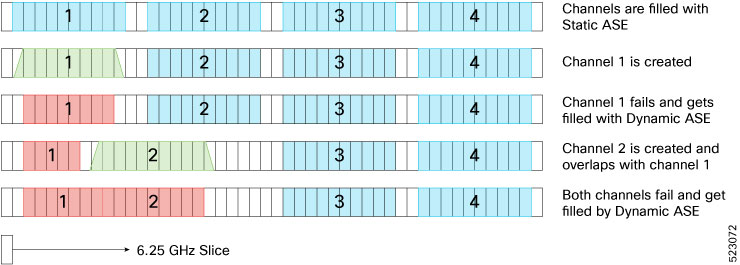
From R7.9.1, permitted as Nyquist channels are supported. See #Cisco_Concept.dita_da0d66f6-405e-4db6-8845-1578e253f5bd__.

NCS 1010, NCS 1020

NCS 1010

Configuration precision

From R7.9.1, you can set channel center frequency and width with 1 MHz resolution.

NCS 1010, NCS 1020

NCS 1010


Optional: Python scripting for Fixed Grid mode setup


The system configures the OLT and ILA nodes for OTS-OCH controllers as complete Flex Grid mode configuration. However, for ease of Fixed Grid Mode setup, there is a configuration script to create 75 or 150 Ghz or appropriate fixed grid channels using the Flex Grid configuration model.


Usage example


Use the python-based configuration script to automatically create 75 or 150 GHz fixed grid channels on ports 2 and 3 using the commands:


Requirement


Use this script only for a colored solution that uses the NCS1K-MD-32O/E-C patch panel with fixed channel width.


Create OTS-OCH controllers on ILA cards

Create OTS-OCH controllers on ILA cards in NCS 1010 using the commands in configuration mode.

  • hw-module location locationinline-ampli grid-modemode

  • channel-idchannel-idcentre-freqfrequencywidthchannel-width

When the ILA cards boot up, the OTS-OCH controllers are not created by default. The LINE OTS-OCH controllers can be created using the hw-module command.

The supported ILA and OLT cards are:

  • NCS1K-ILA-2R-C

  • NCS1K-ILA-R-C

  • NCS1K-ILA-C

  • NCS1K-OLT-R-C

  • NCS1K-OLT-C

Before you begin

Enter the configuration mode using the configure command.

Procedure


Step 1

Create the OTS-OCH controllers on the LINE side of the ILA-C node.

Example:

RP/0/RP0/CPU0:ios(config)#hw-module location 0/0/NXR0 inline-ampli grid-mode flex
RP/0/RP0/CPU0:ios(config-hwmod-ila-flexi)#channel-id 1 centre-freq 196.1 width 75
RP/0/RP0/CPU0:ios(config-hwmod-ila-flexi)# commit

The OTS-OCH controller is created for channel 1 on LINE 0 and LINE 2 ports of the ILA-C node.

Step 2

View the OTS-OCH controllers.

Run show controllers ots-och.

Example:

RP/0/RP0/CPU0:ios#show controllers ots-och ?

Example:

This output displays the OTS-OCH controller that is created on both LINE 0 and LINE 2 ports of the ILA-C node.

  0/0/0/0/1             Ots-Och Interface Instance
  0/0/0/2/1             Ots-Och Interface Instance
  R/S/I/P/B or R/S/I/P  Forward interface in Rack/Slot/Instance/Port/Breakout format or R/S/I/P format

Step 3

Use the show controllers ots-och 0/0/0/0/* command to view the parameters of the OTS-OCH controller.

Example:

This command displays the LINE-0 OTS-OCH controller values for channel ID 1.

RP/0/RP0/CPU0:ios#show controllers ots-och 0/0/0/0/1

If you want OTS-OCH controller status for

then run

LINE-0

show controllers ots-och 0/0/0/0/1

LINE-2

show controllers ots-och 0/0/0/2/1

Example:

This output displays the parameters of the OTS-OCH controller.
Thu Apr  7 13:22:29.125 UTC

 Controller State: Up

 Transport Admin State: In Service

         Alarm Status:
         -------------
         Detected Alarms: None


         Alarm Statistics:
         -----------------
         RX-LOS-P = 0
         TX-POWER-FAIL-LOW = 0

         Parameter Statistics:
         ---------------------
         Total RX Power = -10.50 dBm
         Total TX Power = -10.50 dBm


         Configured Parameters:
         -------------

Step 4

View the flex grid information on the ILA node

Example:

This command provides the flex grid information on the ILA node.

RP/0/RP0/CPU0:ios#show hw-module location 0/0/NXR0 inline-ampli

Example:

This output displays the flex grid information on the ILA node.

Sat Jul  2 02:46:33.657 UTC
Location:             0/0/NXR0
Status:               Provisioned
Flex Grid Info
Channel Number      Centre Frequency(THz)       Channel Width(GHz)
1                   191.375000                  75.000
2                   191.450000                  75.000
3                   191.525000                  75.000
4                   191.600000                  75.000
5                   191.675000                  75.000
6                   191.750000                  75.000
7                   191.825000                  75.000
8                   191.900000                  75.000
9                   191.975000                  75.000
10                  192.050000                  75.000
11                  192.125000                  75.000
12                  192.200000                  75.000
13                  192.275000                  75.000
14                  192.350000                  75.000
15                  192.425000                  75.000
16                  192.500000                  75.000
17                  192.575000                  75.000
18                  192.650000                  75.000
19                  192.725000                  75.000
20                  192.800000                  75.000
21                  192.875000                  75.000
22                  192.950000                  75.000
23                  193.025000                  75.000
24                  193.100000                  75.000
25                  193.175000                  75.000
26                  193.250000                  75.000
27                  193.325000                  75.000
28                  193.400000                  75.000
29                  193.475000                  75.000
30                  193.550000                  75.000
31                  193.625000                  75.000
32                  193.700000                  75.000
33                  193.775000                  75.000
34                  193.850000                  75.000
35                  193.925000                  75.000
36                  194.000000                  75.000
37                  194.075000                  75.000
38                  194.150000                  75.000
39                  194.225000                  75.000
40                  194.300000                  75.000
41                  194.375000                  75.000
42                  194.450000                  75.000
43                  194.525000                  75.000
44                  194.600000                  75.000
45                  194.675000                  75.000
46                  194.750000                  75.000
47                  194.825000                  75.000
48                  194.900000                  75.000
49                  194.975000                  75.000
50                  195.050000                  75.000
51                  195.125000                  75.000
52                  195.200000                  75.000
53                  195.275000                  75.000
54                  195.350000                  75.000
55                  195.425000                  75.000
56                  195.500000                  75.000
57                  195.575000                  75.000
58                  195.650000                  75.000
59                  195.725000                  75.000
60                  195.800000                  75.000
61                  195.875000                  75.000
62                  195.950000                  75.000
63                  196.025000                  75.000
64                  196.100000                  75.000

The OTS-OCH controllers on the ILA cards are created.

What to do next

Create OTS-OCH controllers on OLT cards.

Create OTS-OCH controllers on OLT cards

Create OTS-OCH controllers on OLT cards in NCS 1010 and NCS 1020 using the commands in configuration mode.

  • hw-module location locationterminal-ampli grid-modemode

  • channel-idchannel-idcentre-freqfrequencywidthchannel-width

When the OLT cards boot up, the OTS-OCH controllers are not created by default. The LINE OTS-OCH controllers can be created using the hw-module command.

Before you begin

Enter the configuration mode using the configure command.

Procedure


Step 1

Create the OTS-OCH controllers on the LINE side of the OLT-C node.

Example:

RP/0/RP0/CPU0:ios(config)#hw-module location 0/0/nxr0 terminal-ampli grid-mode flex
RP/0/RP0/CPU0:ios(config-hwmod-olt-flexi)#channel-id 1 centre-freq 196.1 width 75
RP/0/RP0/CPU0:ios(config-hwmod-olt-flexi)#commit

The OTS-OCH controller is created for channel 1 on LINE port in the OLT-C node.

Step 2

View the OTS-OCH controllers.

Run show controllers ots-och.

Example:

RP/0/RP0/CPU0:ios#show controllers ots-och ?

Example:

This output displays the OTS-OCH controller that is created on the LINE port of the OLT-C node.

  0/0/0/0/1             Ots-Och Interface Instance
  R/S/I/P/B or R/S/I/P  Forward interface in Rack/Slot/Instance/Port/Breakout format or R/S/I/P format

Step 3

Use the show controllers ots-och 0/0/0/0/1 command to view the parameters of the OTS-OCH controller.

Example:

This command displays the LINE-0 OTS-OCH controller values for channel ID 1.

RP/0/RP0/CPU0:ios#show controllers ots-och 0/0/0/0/1

Example:

This output displays the parameters of the OTS-OCH controller.
Thu Apr  7 13:22:29.125 UTC

 Controller State: Up

 Transport Admin State: In Service

         Alarm Status:
         -------------
         Detected Alarms: None


         Alarm Statistics:
         -----------------
         RX-LOS-P = 0
         TX-POWER-FAIL-LOW = 0

         Parameter Statistics:
         ---------------------
         Total RX Power = -10.50 dBm
         Total TX Power = -10.50 dBm


         Configured Parameters:
         -------------

Step 4

View the flex grid information on the OLT node

Example:

This command provides the flex grid information on the OLT node.

RP/0/RP0/CPU0:ios#show hw-module location 0/0/NXR0 terminal-ampli

Example:

This output displays the flex grid information on the OLT node.

Tue Jun 28 15:46:07.026 UTC

Legend:
NXC    - Channel not cross-connected
ACTIVE - Channel cross-connected to data port
ASE    - Channel filled with ASE
FAILED - Data channel failed, pending transition to ASE

Location:             0/0/NXR0

Status:               Provisioned

Flex Grid Info

Channel Number      Centre Frequency(THz)       Channel Width(GHz)    Channel Status
1                   196.100000                  75.000                NXC
2                   196.025000                  75.000                NXC
3                   195.950000                  75.000                NXC
4                   195.875000                  75.000                NXC
5                   195.800000                  75.000                NXC
6                   195.725000                  75.000                NXC
7                   195.650000                  75.000                NXC
8                   195.575000                  75.000                NXC
9                   195.500000                  75.000                NXC
10                  195.425000                  75.000                NXC
11                  195.350000                  75.000                NXC
12                  195.275000                  75.000                NXC
13                  195.200000                  75.000                NXC
14                  195.125000                  75.000                NXC
15                  195.050000                  75.000                NXC
16                  194.975000                  75.000                NXC
17                  194.900000                  75.000                NXC
18                  194.825000                  75.000                NXC
19                  194.750000                  75.000                NXC
20                  194.675000                  75.000                NXC
21                  194.600000                  75.000                NXC
22                  194.525000                  75.000                NXC
23                  194.450000                  75.000                NXC
24                  194.375000                  75.000                NXC
25                  194.300000                  75.000                NXC
26                  194.225000                  75.000                NXC
27                  194.150000                  75.000                NXC
28                  194.075000                  75.000                NXC
29                  194.000000                  75.000                NXC
30                  193.925000                  75.000                NXC
31                  193.850000                  75.000                NXC
32                  193.775000                  75.000                NXC
33                  193.700000                  75.000                NXC
34                  193.625000                  75.000                NXC
35                  193.550000                  75.000                NXC
36                  193.475000                  75.000                NXC
37                  193.400000                  75.000                NXC
38                  193.325000                  75.000                NXC
39                  193.250000                  75.000                NXC
40                  193.175000                  75.000                NXC
41                  193.100000                  75.000                NXC
42                  193.025000                  75.000                NXC
43                  192.950000                  75.000                NXC
44                  192.875000                  75.000                NXC
45                  192.800000                  75.000                NXC
46                  192.725000                  75.000                NXC
47                  192.650000                  75.000                NXC
48                  192.575000                  75.000                NXC
49                  192.500000                  75.000                NXC
50                  192.425000                  75.000                NXC
51                  192.350000                  75.000                NXC
52                  192.275000                  75.000                NXC
53                  192.200000                  75.000                NXC
54                  192.125000                  75.000                NXC
55                  192.050000                  75.000                NXC
56                  191.975000                  75.000                NXC
57                  191.900000                  75.000                NXC
58                  191.825000                  75.000                NXC
59                  191.750000                  75.000                NXC
60                  191.675000                  75.000                NXC
61                  191.600000                  75.000                NXC
62                  191.525000                  75.000                NXC
63                  191.450000                  75.000                NXC
64                  191.375000                  75.000                NXC

The OTS-OCH controllers on the ILA cards are created.

What to do next

Create OTS-OCH controllers on OLT cards.

Create optical cross connection on OLT nodes

Create Optical Cross Connection (OXC) between Line and Add/Drop ports in OLT nodes in NCS 1010 and NCS 1020.

By default, all the channels remain blocked in both Add and Drop directions. The OXC configuration unblocks the Add-Drop port channel mentioned as add-drop-channel.

Before you begin

Enter the configuration mode using the configure command.

Procedure


Step 1

Use the controller ots-ochRack/Slot/Instance/Port/Channel-id-numberadd-drop-channel ots-ochRack/Slot/Instance/Port/Channel-id-number command to configure the optical cross-connect.

Example:

RP/0/RP0/CPU0:ios(config)#controller ots-och 0/0/0/0/1 add-drop-channel ots-och 0/0/0/33/1
RP/0/RP0/CPU0:ios(config)#commit

Line port and add/drop port channel IDs must be the same.

The OTS-OCH controller is created on the Add/Drop port to which the cross-connection is made on the COM side.

Step 2

Use the show controller ots-och ? command view the OTS-OCH controller.

Example:

RP/0/RP0/CPU0:ios#show controller ots-och ?

Example:

This output highlights the OTS-OCH controller that is created on the Add/Drop port to which the cross-connection is made on the COM side.

  0/0/0/0/1             Ots-Och Interface Instance
  0/0/0/33/1            Ots-Och Interface Instance
  R/S/I/P/B or R/S/I/P  Forward interface in Rack/Slot/Instance/Port/Breakout format or R/S/I/P format

Step 3

Use the show controllers ots-och 0/0/0/0/* command to view the parameters of the OTS-OCH controller.

Example:

This command displays the LINE-0 OTS-OCH controller values for channel ID 1.

RP/0/RP0/CPU0:ios#show controllers ots-och 0/0/0/0/1

If you want OTS-OCH controller status for

then run

LINE-0

show controllers ots-och 0/0/0/0/1

A/D2…33

show controllers ots-och 0/0/0/2…33/1

Example:

This output displays the parameters of the OTS-OCH controller on the LINE side.

Tue Apr  5 06:32:29.696 UTC

 Controller State: Up

 Transport Admin State: In Service

         Alarm Status:
         -------------
         Detected Alarms: None


         Alarm Statistics:
         -----------------
         RX-LOS-P = 0
         TX-POWER-FAIL-LOW = 0

         Parameter Statistics:
         ---------------------
         Total RX Power = -10.50 dBm
         Total TX Power = -10.50 dBm


         Cross Connect Info:
         ---------------------
         Add-Drop Channel  = Ots-Och0/0/0/33/1


         Configured Parameters:
         -------------

Note


The Add/Drop channel that is cross-connected to the line port 0/0/0/0/1 is displayed in the output.

Step 4

View the created OTS-OCH controller.

Example:

To view the OTS-OCH controllers, use the following command:

RP/0/RP0/CPU0:ios#show controllers ots-och ?

Example:

This output displays the OTS-OCH controller interfaces.

  0/0/0/0/1             Ots-Och Interface Instance
  0/0/0/0/10            Ots-Och Interface Instance
  .
  .
  output snipped
  .
  .
  0/0/0/0/29            Ots-Och Interface Instance
  0/0/0/0/3             Ots-Och Interface Instance
  0/0/0/0/49            Ots-Och Interface Instance
  0/0/0/0/5             Ots-Och Interface Instance
  .
  .
  output snipped
  .
  .
  0/0/0/0/64            Ots-Och Interface Instance
  0/0/0/0/7             Ots-Och Interface Instance
  0/0/0/0/8             Ots-Och Interface Instance
  0/0/0/0/9             Ots-Och Interface Instance
  R/S/I/P/B or R/S/I/P  Forward interface in Rack/Slot/Instance/Port/Breakout format or R/S/I/P format
  

DFB controllers

A distributed feedback (DFB) controller is a datapath controller type for the RAMAN probe that

  • represents the optical layer of a DFB channel alongside the OSC controller,

  • regulates DFB probe power through a variable optical attenuator (VOA) within the range of –14 to +5 dBm, and

  • combines the dedicated DFB probe with other signals at the LINE-TX port in Raman-amplified NCS 1010 nodes.

A DFB probe, also known as a RAMAN probe, is a tuning mechanism that

  • operates at the LINE port of ILA and OLT nodes equipped with RAMAN amplifiers,

  • generates a dedicated DFB laser at 191.1THz (1568.77nm) to perform a link continuity check for optical safety at LINE-TX port, and

  • enables RAMAN tuning to check span loss.

View the parameters of the LINE 0 DFB controller.

Command
RP/0/RP0/CPU0:ios#show controllers dfb 0/0/0/0

This output displays the parameters of the LINE 0 DFB controller.

Example
Wed Mar 23 06:05:09.074 UTC

 Controller State: Up

 Transport Admin State: In Service

 Laser State: On

         Alarm Status:
         -------------
         Detected Alarms: None


         Alarm Statistics:
         -----------------
         RX-LOS-P = 1
         TX-POWER-FAIL-LOW = 106

         Parameter Statistics:
         ---------------------
         Total TX Power = 6.79 dBm
         Total RX Power = -8.30 dBm
         TX Voa Attenuation = 0.0 dB


         Configured Parameters:
         -------------
         TX Voa Attenuation = 0.0 dB

Default DFB controllers for OLT cards

When you bring up the OLT and ILA cards, the system automatically creates a DFB controller for each Raman-enabled line port.


Note


DFB controller is supported only in C-band nodes.


Table 20. Default DFB controllers for OLT and ILA cards

Card type

Port

OTS Controller

ILA and E-ILA

LINE-0 (LINE-RX)

dfb 0/0/0/0

ILA and E-ILA

LINE-2 (LINE-RX)

dfb 0/0/0/2

OLT

LINE-0 (LINE-RX)

dfb 0/0/0/0

E-OLT

LINE R-0-T (LINE-R)

dfb 0/0/0/0

The OLT card types supported for this allocation are:

  • NCS1K-OLT-R-C

  • NCS1K-E-OLT-R-C

  • NCS1K-E2-OLT-R-C

  • NCS1K-E2-OLT-RE-C

The ILA card types supported for this allocation are:

  • NCS1K-ILA-R-C

  • NCS1K-ILA-2R-C

  • NCS1K-E-ILA-R-C

  • NCS1K-E-ILA-2R-C

  • NCS1K-E-ILA-R-C-2

  • NCS1K-E-ILA-RE-C

  • NCS1K-E-ILA-RE-C-2

  • NCS1K-E-ILA-2RE-C

Modify the DFB parameters for OLT and ILA cards

Modify the DFB parameters (such as attenuation, admin state, and shutdown) for OLT and ILA cards.

  • controller dfbRack/Slot/Instance/Port

  • tx-voa-attenuationvalue

  • tx-low-thresholdvalue

  • sec-admin-state[ normal| maintenance]

  • transmit-shutdown

  • shutdown

DFB controllers support multiple parameter adjustments on OLT and ILA nodes.

Follow these steps to configure the DFB parameters for OLT and ILA cards.


Note


The DFB controller commands do not support decimal inputs. The DFB controller commands consider the inputs to one decimal place for the parameter values. For example, to configure the tx-voa-attenuation value for dfb 0/0/0/0 to 2.0 dB, provide the tx-voa-attenuation value for the DFB controller dfb 0/0/0/0 as 20 .


Before you begin

Enter the configuration mode using the configure command.

Procedure


Step 1

Set the tx-voa-attenuation value.

Example:

This example sets the tx-voa-attenutation value to 2.0dB for LINE-0-RX port.
RP/0/RP0/CPU0:ios(config)#controller dfb 0/0/0/0
RP/0/RP0/CPU0:ios(config-Dfb)#tx-voa-attenuation 20
RP/0/RP0/CPU0:ios(config-Dfb)#commit
RP/0/RP0/CPU0:ios(config-Dfb)#end

The DFB laser power is attenuated based on the updated value and the TX power changes accordingly.

Step 2

Set sec-admin-state.

Example:

This example sets the sec-admin-state to maintenance for LINE-0-RX port.
RP/0/RP0/CPU0:ios(config)#controller dfb 0/0/0/0
RP/0/RP0/CPU0:ios(config-Dfb)#sec-admin-state maintenance
RP/0/RP0/CPU0:ios(config-Dfb)#commit
RP/0/RP0/CPU0:ios(config-Dfb)#end

Step 3

Shutdown the DFB controller.

Example:

This example shuts down the DFB controller for LINE-0-RX port.
RP/0/RP0/CPU0:ios(config)#controller dfb 0/0/0/0 
RP/0/RP0/CPU0:ios(config-Dfb)#shutdown
RP/0/RP0/CPU0:ios(config-Dfb)#commit
RP/0/RP0/CPU0:ios(config-Dfb)#end
The DFB controller on LINE-0-RX port is shut down.

Step 4

(Optional) Check the configured value for the DFB controller.

Use the show controllers dfb<R/S/I/P> command to confirm the settings applied.

Example:

RP/0/RP0/CPU0:ios#show controllers dfb 0/0/0/0

Example:

This output highlights the tx-voa-attenuation is set to 2.0 dB and the sec-admin-state set to maintenance.
Thu Apr 21 17:05:41.311 UTC

 Controller State: Up

 Transport Admin State: Maintenance

 Laser State: On

         Alarm Status:
         -------------
         Detected Alarms: None


         Alarm Statistics:
         -----------------
         RX-LOS-P = 0
         TX-POWER-FAIL-LOW = 0

         Parameter Statistics:
         ---------------------
         Total TX Power = 20.00 dBm
         Total RX Power = 10.00 dBm
         TX Voa Attenuation = 2.0 dB


         Configured Parameters:
         -------------
         TX Voa Attenuation = 2.0 dB

Example:

This output highlights the Controller State, Transport Admin State, and Laser State set to shut down.

Thu Apr 21 17:08:40.211 UTC

 Controller State: Administratively Down

 Transport Admin State: Out Of Service

 Laser State: Off

         Alarm Status:
         -------------
         Detected Alarms: None


         Alarm Statistics:
         -----------------
         RX-LOS-P = 0
         TX-POWER-FAIL-LOW = 0

         Parameter Statistics:
         ---------------------
         Total TX Power = -50.00 dBm 
         Total RX Power = 10.00 dBm
         TX Voa Attenuation = 2.0 dB


         Configured Parameters:
         -------------
         TX Voa Attenuation = 2.0 dB

DFB parameters for the selected OLT or ILA card are configured as specified.

What to do next

Verify system alarms or operational impacts using monitoring commands as appropriate.

OCH controllers

An optical channel (OCH) controller is a datapath controller type that

  • manages the optical channel ports on NCS 1010 passive modules and CCMD-16 cards,

  • enables mapping and identification of OCH interfaces, and

  • supports optical cross-connection functions for network operations.

Default OCH controllers for NCs 1010 passive devices and CCMD-16 cards

Passive modules/line cards

Port type

Total channel ports

Port labels

OCH controllers

NCS1K-BRK-8

LC Ports

8

TX-0-RX…TX-7-RX

och R/S/I/0 to och R/S/I/7

NCS1K-BRK-24

LC Ports

24

TX-0-RX…TX-23-RX

och R/S/I/0 to och R/S/I/23

NCS1K-MD-32O/E-C

LC Ports

32

0…31-TX/RX

och R/S/I/0 to och R/S/I/31

NCS1K14-CCMD-16-C

LC Ports

16

A/D1…16

och R/S/I/1 to och R/S/I/16


Note


R/S/I/P stands for Rack/Slot/Instance/Port.


Verify the OCH controller parameters

Verify the status of the OCH controllers and their values for each port in these modules.

  • NCS1K-BRK-8

  • NCS1K-BRK-24

  • NCS1K-MD-32O-C

  • NCS1K-MD-32E-C

  • NCS1K14-CCMD-16-C

  • NCS1K14-CCMD-16-L

By default, when the passive modules and the CCMD-16 modules boot, the OCH controllers become activated with default values.

Follow these steps to verify the OCH controllers for the passive modules and CCMD-16 module.

Procedure


Step 1

View the status of the OCH controllers.

Example:

RP/0/RP0/CPU0:ios#show controller description

Example:

This output highlights the list of activated OCH controllers

Tue Apr 12 17:17:51.306 UTC

Interface                   Status          Description
--------------------------------------------------------------------------------
Och0/1/0/0                  up
Och0/1/0/1                  up
Och0/1/0/2                  up
Och0/1/0/3                  up
Och0/1/0/4                  up
Och0/1/0/5                  up
Och0/1/0/6                  up
.
.
Output snipped
.
.
Och0/1/0/28                 up
Och0/1/0/29                 up
Och0/1/0/30                 up
Och0/1/0/31                 up
Oms0/1/0/32                 up

Step 2

View the parameters of the OCH controller.

Use the show controllers och R/S/I/P command to view the OCH controller parameters.

Example:

This output displays the OCH controller parameters for BRK-8 breakout module.

Tue May 10 11:27:31.354 UTC

 Controller State: Down 

 LED State: Red 

         Alarm Status:
         -------------
         Detected Alarms: 
                 RX-LOS-P    

         Alarm Statistics:
         -----------------
         RX-LOS-P = 1          
         TX-POWER-FAIL-LOW = 0          

         Parameter Statistics:
         ---------------------
         TX Power = -50.00 dBm 
         RX Power = -50.00 dBm

Example:

This output shows the OCH parameters for mux/demux patch panel.

Note

 
The parameters of the OCH controller for the Mux/Demux panel contain information about the Channel Width, Frequency, and Wavelength.
Wed May 25 11:50:03.481 UTC

 Controller State: Down 

 LED State: Red 

         Alarm Status:
         -------------
         Detected Alarms: 
                 RX-LOS-P    

         Alarm Statistics:
         -----------------
         RX-LOS-P = 1          
         TX-POWER-FAIL-LOW = 0 

         Parameter Statistics:
         ---------------------
         TX Power = -50.00 dBm 
         RX Power = -50.00 dBm 
         channel Frequency = 196.025 THz 
         Maximum Channel Width = 150.0 GHz 
         Channel Wavelength = 1529.36 nm

You have verified the operational status and parameter values for all OCH controllers in the specified modules.

OMS Controller

When nodes with Mux/Demux panels and breakout panels are brought up, OMS controllers are created by default. The OMS controllers for the patch panels are:

Table 21. Supported Interfaces

Patch Panel

Port Type

OMS Ports

Interfaces

NCS1K-BRK-8

MPO Ports

8

oms R/S/I/8 to oms R/S/I/15

NCS1K-BRK-24

MPO Ports

8

oms R/S/I/24 to oms R/S/I/31

NCS1K-MD-32O/E-C

LC Ports

1

oms R/S/I/32


Note


R/S/I/P stands for Rack/Slot/Instance/Port.


To view the status of the OMS controller, use the following command:

RP/0/RP0/CPU0:ios#show controller description

The following output shows the status of the OMS controller.

Tue Apr 12 17:17:51.306 UTC

Interface                   Status          Description
--------------------------------------------------------------------------------
Och0/1/0/0                  up
Och0/1/0/1                  up
Och0/1/0/2                  up
.
.
Output snipped
.
.
Och0/1/0/29                 up
Och0/1/0/30                 up
Och0/1/0/31                 up
Oms0/1/0/32                 up
Och0/3/0/0                  up
Och0/3/0/1                  up
.
.
Output snipped
.
.
Och0/3/0/29                 up
Och0/3/0/30                 up
Och0/3/0/31                 up
Oms0/3/0/32                 up

To view the parameters of the OMS controller for the BRK-24 panel, use the following command:

RP/0/RP0/CPU0:ios#show controllers oms 0/1/0/25

The following output shows the parameters of the OMS controller for the BRK-24 panel.

Thu Jul 14 11:05:50.419 UTC

 Controller State: Down 

 Transport Admin State: Automatic In Service 

 LED State: Red 

         Alarm Status:
         -------------
         Detected Alarms: 
                 RX-LOS-P    

         Alarm Statistics:
         -----------------
         RX-LOS-P = 1         
         TX-POWER-FAIL-LOW = 0

         Parameter Statistics:
         ---------------------
         TX Power = -7.40 dBm 
         RX Power = -50.00 dBm

To view the parameters of the OMS controller for the Mux/Demux panel, use the following command:

RP/0/RP0/CPU0:ios#show controllers oms 0/3/0/32 

The following output shows the parameters of the OMS controller for the Mux/Demux panel.

Tue May 10 11:28:02.856 UTC

 Controller State: Down 

 LED State: Red 

         Alarm Status:
         -------------
         Detected Alarms: 
                 RX-LOS-P    

         Alarm Statistics:
         -----------------
         RX-LOS-P = 1          
         TX-POWER-FAIL-LOW = 0          

         Parameter Statistics:
         ---------------------
         TX Power = -50.00 dBm 
         RX Power = -50.00 dBm 

Insertion loss for each port is calculated and the power values are displayed on the OMS controller for NCS1K-BRK-8 and OCH controller for NCS1K-BRK-24. Insertion loss per port for NCS1K-BRK-24 is 5.9 dBm and NCS1K-BRK-8 is 0.6 dBm. The NCS1K-MD-32O/E-C panels have a maximum insertion loss of 6.2 dBm for the respective Mux and Demux sections.

OSC Controllers

The Optical Service Channel (OSC) controller is used to represent the optical capabilities, configuration, and monitoring of the OSC laser. The corresponding Gigabit Ethernet interface is the child interface that represents Ethernet capabilities, configuration, and monitoring.

OSC provides a communication channel for traffic coming from a UDC port. OSC serves as a channel probe to check fiber continuity between two nodes. OSC provides remote node management functionality. OSC is generated and terminated on each line side. OSC-C operates at a frequency of 198.50 THz and OSC-L operates at a frequency of 184.450 THz.

Nodes with NCS1K-OLT-R-C or NCS1K-OLT-C, NCS1K-OLT-L cards have one OSC controller. To view the status of the OSC controller, use the following command:

RP/0/RP0/CPU0:ios#show controller description

The following output highlights the status of the OSC controller for the NCS1K-OLT-R-C or NCS1K-OLT-C, NCS1K-OLT-L or NCS1K-ILA-L cards.

Tue Apr 12 17:17:51.306 UTC

Interface                   Status          Description
--------------------------------------------------------------------------------
Osc0/0/0/0                  up
Ots0/0/0/0                  up
Ots0/0/0/1                  up
Ots0/0/0/2                  up
 .
 .
 output snipped
 .
 .
Ots0/0/0/31                 up
Ots0/0/0/32                 up
Ots0/0/0/33                 up

Nodes with NCS1K-ILA-2R-C, NCS1K-ILA-R-C, NCS1K-ILA-L or NCS1K-ILA-C card have two OSC controllers. To view the OSC controllers, use the following command:

RP/0/RP0/CPU0:ios#show controllers description

The following output highlights the status of the OSC controller for the NCS1K-ILA-2R-C, NCS1K-ILA-R-C , NCS1K-ILA-L or NCS1K-ILA-C card.

Tue Apr 12 17:20:20.667 UTC

Interface                   Status          Description
--------------------------------------------------------------------------------
Osc0/0/0/0                  up
Osc0/0/0/2                  up
Ots0/0/0/0                  up
Ots0/0/0/1                  up
Ots0/0/0/2                  up
Ots0/0/0/3                  up

To view the parameters of the LINE 0 OSC controller, use the following command:

RP/0/RP0/CPU0:ios#show controllers osc 0/0/0/0

The following output shows the parameters of the LINE 0 OSC controller.

Wed Mar 23 06:04:18.565 UTC

 Controller State: Down

 Transport Admin State: In Service

 Laser State: Off

         Alarm Status:
         -------------
         Detected Alarms:
                 RX-LOS-P

         Alarm Statistics:
         -----------------
         RX-LOS-P = 369
         TX-POWER-FAIL-LOW = 0

         Parameter Statistics:
         ---------------------
         Total TX Power = -50.00 dBm
         Total RX Power = -50.00 dBm


         Configured Parameters:
         -------------

Configure OSC Controllers

There are multiple parameters for the OSC controllers. You can configure the parameters that are required for the different configuration for an OSC controller on an ILA or OLT node by using the following commands in the configuration mode:

  • transmit-power value

  • sec-admin-state {normal | maintenance}

  • tx-low-threshold

  • shutdown

Examples

In the following example, the transmit-power is set to 2 dBm. The OSC Tx power can be changed by configuring the OSC transmit power attribute. This attribute internally regulates the OSC Tx VOA.


Note


The OSC controller commands do not support decimal inputs. The OSC controller commands consider the inputs to one decimal place for the parameter values. In this example, the transmit-power parameter is provided as 20 to configure the transmit-power parameter to 2 dBm.


RP/0/RP0/CPU0:ios(config)#controller osc 0/0/0/0 transmit-power 20
Fri May 13 11:26:53.445 UTC
WARNING! Changing TX power can impact traffic
RP/0/RP0/CPU0:ios(config)#commit
Fri May 13 11:26:55.127 UTC
RP/0/RP0/CPU0:ios(config)#end

To view the parameters of the OSC controller, use the following command:

RP/0/RP0/CPU0:ios#show controllers osc 0/0/0/0

The following output shows the parameters of the OSC controller.

Fri May 13 11:26:59.542 UTC

Controller State: Up

Transport Admin State: In Service

Laser State: On

Alarm Status:
-------------
Detected Alarms: None


Alarm Statistics:
-----------------
RX-LOS-P = 0
TX-POWER-FAIL-LOW = 0

Parameter Statistics:
---------------------
Total TX Power = 1.89 dBm
Total RX Power = -17.30 dBm


Configured Parameters:
-------------

In the following example, the sec-admin-state is set to maintenance.

RP/0/RP0/CPU0:ios#config
RP/0/RP0/CPU0:ios(config)#controller osc 0/0/0/0 sec-admin-state maintenance
RP/0/RP0/CPU0:ios(config)#commit
RP/0/RP0/CPU0:ios(config)#end

To view the parameters of the OSC controller, use the following command:

RP/0/RP0/CPU0:ios#show controllers osc 0/0/0/0

The following output highlights the Transport Admin State of the OSC controller that is set to Maintenance.

Fri Apr 22 15:55:36.324 UTC

 Controller State: Up

 Transport Admin State: Maintenance

 Laser State: On

         Alarm Status:
         -------------
         Detected Alarms: None


         Alarm Statistics:
         -----------------
         RX-LOS-P = 0
         TX-POWER-FAIL-LOW = 0

         Parameter Statistics:
         ---------------------
         Total TX Power = -10.00 dBm
         Total RX Power = -30.00 dBm


         Configured Parameters:
         -------------

In the following example, the OSC controller is shut down.

P/0/RP0/CPU0:ios#config
RP/0/RP0/CPU0:ios(config)#controller osc 0/0/0/0 shutdown
RP/0/RP0/CPU0:ios(config)#commit
RP/0/RP0/CPU0:ios(config)#end

To view the parameters of the OSC controller that is shut down, use the following command:

RP/0/RP0/CPU0:ios#show controllers osc 0/0/0/0

The following output highlights the Controller State, Transport Admin State, and Laser State of the OSC controller that is shut down.

Tue Apr 12 17:33:12.998 UTC

 Controller State: Administratively Down

 Transport Admin State: Out Of Service

 Laser State: Off

         Alarm Status:
         -------------
         Detected Alarms: None


         Alarm Statistics:
         -----------------
         RX-LOS-P = 0
         TX-POWER-FAIL-LOW = 0

         Parameter Statistics:
         ---------------------
         Total TX Power = -50.00 dBm 
         Total RX Power = -30.00 dBm


         Configured Parameters:
         -------------

View the Gigabit Ethernet interfaces

Display operational and configuration details for a Gigabit Ethernet interface.

A Gigabit Ethernet interface represents the packet layer of an OSC channel and is used for high-speed data transmission between optical nodes.

Before you begin

Ensure that the node is operational at the intended speed.

Follow these steps to view a Gigabit Ethernet interface:

Procedure


Step 1

Run the show interfaces gigabitEthernet 0/0/0/0 command to view the parameters and status of a Gigabit Ethernet interface.

Example:

Tue Apr 19 10:57:18.251 UTC
GigabitEthernet0/0/0/0 is up, line protocol is up
  Interface state transitions: 1
  Hardware is GigabitEthernet, address is 38fd.f866.096c (bia 38fd.f866.096c)  - IP of the OSC controller
  Internet address is 10.7.1.1/24
  MTU 1514 bytes, BW 1000000 Kbit (Max: 1000000 Kbit)
     reliability 255/255, txload 0/255, rxload 0/255
  Encapsulation ARPA,
  Full-duplex, 1000Mb/s, unknown, link type is force-up
  output flow control is off, input flow control is off
  loopback not set,
  Last link flapped 01:14:28
  ARP type ARPA, ARP timeout 04:00:00
  Last input Unknown, output Unknown
  Last clearing of "show interface" counters Unknown
  5 minute input rate 0 bits/sec, 0 packets/sec
  5 minute output rate 0 bits/sec, 0 packets/sec
 

Step 2

Run the show ipv4 interface brief command to view the IPv4 address, status, operational state, and VRF name.

This output highlights the interface, IPv4 address (IP-Address), status, operational status of the routing protocol (Protocol), VPN routing and forwarding (VRF) instance name (Vrf-Name) of the Gigabit Ethernet interface.

Example:


Tue Apr 19 10:58:02.951 UTC
Interface                      IP-Address      Status          Protocol Vrf-Name
Loopback0                      10.3.3.11       Up              Up       default
Loopback3                      10.1.1.1        Up              Up       default
GigabitEthernet0/0/0/0         10.7.1.1        Up              Up       default
MgmtEth0/RP0/CPU0/0            10.33.0.61      Up              Up       default
PTP0/RP0/CPU0/0                unassigned      Shutdown        Down     default
MgmtEth0/RP0/CPU0/1            unassigned      Shutdown        Down     default
PTP0/RP0/CPU0/1                unassigned      Shutdown        Down     default
MgmtEth0/RP0/CPU0/2            unassigned      Shutdown        Down     default

The Gigabit Ethernet interface must be in Up state for the OSC laser to become active. When the node starts, the Gigabit Ethernet interface changes to Down state.

Step 3

Run the no interface gigabitEthernet command on the Gigabit Ethernet interface to bring it up.

The Gigabit Ethernet interface must be in Up state for the OSC laser to turn up. When the node comes up, the Gigabit Ethernet interface turns to Down state.

Example:


RP/0/RP0/CPU0:ios#config
RP/0/RP0/CPU0:ios(config)#no interface gigabitEthernet 0/0/0/0 shutdown

Step 4

Run the show controllers switch summary command to view port parameters. The UDC ports on the OLT and ILA nodes carry 100 Mbps traffic.

This output highlights the UDC0 and UDC1 ports values including their 100 Mbps traffic speed.

Example:


RP/0/RP0/CPU0:ios#show controllers switch summary
Mon May  9 07:30:03.726 UTC

Rack  Card  Switch   Rack Serial Number
-------------------------------------------
  0   RP0   RP-SW    FCB2546B08L

         Phys      Admin      Port          Protocol    Forward
Port     State     State      Speed         State       State       Connects To
-------------------------------------------------------------------------------
0          Up       Up     10-Gbps            -      Forwarding     CPU0
1          Up       Up     10-Gbps            -      Forwarding     CPU1
2        Down     Down      1-Gbps            -      Forwarding     DEWEY
3        Down     Down     Unknown            -      Forwarding     UnUsed
4          Up       Up      1-Gbps            -      Forwarding     MGMT0
5        Down       Up      1-Gbps            -      Forwarding     MGMT1
6        Down       Up      1-Gbps            -      Forwarding     MGMT2
7        Down     Down      1-Gbps            -      Forwarding     UnUsed
8        Down       Up      1-Gbps            -      Forwarding     PTP0
9        Down       Up      1-Gbps            -      Forwarding     PTP1
10         Up       Up    100-Mbps            -      Forwarding     UDC0
11         Up       Up    100-Mbps            -      Forwarding     UDC1
12         Up       Up    100-Mbps            -      Forwarding     OSC0
13         Up       Up    100-Mbps            -      Forwarding     OSC1
14       Down     Down     10-Mbps            -      Forwarding     UnUsed
15       Down     Down     Unknown            -      Forwarding     UnUsed

Step 5

Run the show controllers switch statistics command to view the statistics. The Tx and Rx drop counters do not increment on the node when the fiber is removed from the UDC0 or UDC1 port of the neighboring node.

This output highlights the Tx and Rx drop counters on the node when the fiber is removed from the UDC0 and UDC1 ports.

Example:


RP/0/RP0/CPU0:ios#show controllers switch statistics
Mon May  9 07:30:10.164 UTC

Rack  Card  Switch   Rack Serial Number
-----------------------------------------
  0   RP0   RP-SW    FCB2546B08L

                                                                 Tx             Rx    
          Phys      State          Tx             Rx             Drops/         Drops/
Port      State     Changes        Packets        Packets        Errors         Errors  Connects To
0       Up            1        8250025        3171592             0              0        CPU0
1       Up            1        6380049       10790031             0              0        CPU1
2     Down            0              0              0             0              0        DEWEY
3     Down            0              0              0             0              0        UnUsed
4       Up            2        3171749        8319773            49              0        MGMT0
5     Down            0              0              0             0              0        MGMT1
6     Down            0              0              0             0              0        MGMT2
7     Down            0              0              0             0              0        UnUsed
8     Down            2              0              0             0              0        PTP0
9     Down            2              0              0             0              0        PTP1
10      Up            0              0              0             0              0        UDC0
11      Up            0      497065830     3937555205             0              0        UDC1
12      Up            0              0              0             0              0        OSC0
13      Up            0      508219613      503446049    3440127611           1218        OSC1
14    Down            0              0              0             0              0        UnUsed
15    Down            0              0              0             0              0        UnUsed

You successfully display operational and configuration details of the Gigabit Ethernet interface, including speed, status, counters, and port parameters.

Headless mode

A headless mode is a system operation mode that

  • enables Cisco NCS 1010 to continue forwarding traffic when the controller card is absent, failed, or being restarted

  • maintains errorless operation for up to 72 hours during software upgrades, controller reload, online insertion and removal (OIR), or process restarts, and

  • restricts provisioning and viewing operational data, until the controller is restored.

During headless mode, NCS 1010 ensures ongoing traffic forwarding without interruption, even when the controller card is physically missing, in a failed state, or undergoing upgrades or reloads. While the control plane is unavailable, users cannot provision, view operational data, or perform performance monitoring based on 15-minute and 24-hour intervals without a functional controller. After restoration, normal management access and monitoring resume.

OIR is a hardware maintenance procedure performed during controller card upgrade or replacement. During OIR, Cisco NCS 1010 is temporarily unreachable, but returns to normal operation upon completion.

Examples of scenarios that require OIR
  • FPD (Field Programmable Device) upgrade failure

  • Software image update failure

  • Bootup failure

ASE loading

The OLT card (both OLT-C and OLT-L) includes a Noise Loader (NL) EDFA, which acts as an Amplified Spontaneous Emission (ASE) or noise source. The NL connected to the 2x33 ports Wavelength Selective Switch (WSS) loads optical noise. The optical noise fills the Line-TX optical spectrum, when the provisioned optical channels are not available on the ADD- 1 RX, ADD- 2 RX, or COM (OTS0/0/0/2 - OTS0/0/0/33) ports. For more details about the ports, see OLT Functional Layout.

The CHANNEL-NOISE-LOADED alarm is raised when an OTS-OCH controller channel fails and the missing carrier power in the channel is replaced with internally generated ASE noise. The alarm is cleared automatically when the original traffic channel is restored and the temporary ASE noise is removed. For more details about the alarm, see CHANNEL-NOISE-LOADED.

Benefits of ASE loading:

  • Completely populates the transmission spectrum at LINE-TX independent of the actual system traffic load, thereby easing the system regulation starting from the Day-1 of the installation.

  • The same channel load is maintained during channel failures or channel deletion, which makes the system tolerant to power transients.

  • System performances can be verified efficiently because the ASE pattern emulates the full spectrum load also for the nonlinear interaction in the fibers, such as Four Wave Mixing (FWM), Cross Phase Modulations (XPM), and Stimulated Raman Scattering (SRS). Also, gradual fiber degradation that affects utilization of full-fiber capacity can be tracked.

  • Keeps the system running the full-channel configuration, which makes the system be intrinsically stable and provide optimal performance.

How ASE operates

The following is the list of operations that are performed as part of the ASE loading:

  1. The NL emits a total power of 16 dBm, and generates a power-spectral density (PSD) that is approximately equal to –10 dBm/12.5 GHz at the WSS input port. The OCM7 port monitors profile of the generated ASE channel. A Variable Optical Attenuator (VOA) available between the NL and the WSS input port regulates the ASE channel level properly.

  2. The controller sets a predefined value for the VOA so that the ASE channels that are obtained at the COM TX-1 port are equalized to the actual traffic channels to fill out the spectrum at the input of the fixed gain amplifier.

  3. When the controller detects a missing channel, for example any failure on the ADD/ EXP ports, it sends an updated attenuation value to the OLT. The OLT applies this value as a new attenuation setpoint and executes the transition from ADDs/EXPs path to ASE in the impacted wavelengths, thus ensuring fast recovery of the initial total optical power on the LINE-TX port.

  4. When the optical power is restored, the controller sends a restoration command to the OLT. The OLT executes the transition from ASE to ADDs/EXPs in the impacted wavelengths ensuring minimal total optical power disturbance on the LINE-TX port, thus allowing a smooth fade-out of the ASE.

How ASE Is managed

The default target ASE Load Spectral Density (AL_SD) is set to 81% for the OLT-C card and 78% for the OLT-L card. This default AL_SD is defined based on the frequency grid at 75 GHz with the first channel centered at 191.375 THz for OLT-C card and 186.125 THz for the OLT-L card. The spectrum is allocated through logical bins with 3.125-GHz width such that each physical slice is associated to two bins. Based on the above, the first ASE channel for the OLT-C card has:

  • Bins 1 and 2 blocked (frequency range 191.33750 – 191.34375 THz)

  • Bins 3–22 opened (frequency range 191.34375 to 191.40625 THz)

  • Bins 23 and 24 blocked (frequency range 191.40625 – 191.4125 THz)

The first ASE channel for the OLT-L card has:

  • Bins 13 and 14 blocked (frequency range 186.0875 – 186.09375 THz)

  • Bins 15–34 opened (frequency range 186.09375 to 186.15625 THz)

  • Bins 35 and 36 blocked (frequency range 186.15625 – 186.1625 THz)

All the other ASE channels are defined similarly by shifting all the settings by 75 GHz (24 bins).


Note


The ASE channels on the bins 1537–1548 and 1-12 are retained as blocked for Automatic VOA Shutdown (AVS) for the OLT-C and OLT-L cards respectively. In this AVS mode, the VOA is set at maximum attenuation value, when the channel is not provisioned to ensure the system reliability in case power is accidentally inserted.


Static ASE—At the system startup, without any channel provisioned, the complete ASE Load pattern is forwarded to the OLT LINE-TX port.

Figure 14. Static ASE

Dynamic ASE—When a traffic channel fails (for example, the PSD within the set of slices that are dedicated to the traffic channel is below a given threshold) an equivalent temporary ASE channel is inserted to maintain the spectral density on the line port. This dynamic ASE channel fills the original traffic channel with only a single slice guard band, at the beginning and the end. When the original traffic channel is restored, the temporary ASE channel is removed, and the original routing on the WSS is reestablished.

Dynamic ASE—With the Nyquist channels, dynamic ASE has the following behavior changes:

  • A minimum guard band of 6.25GHz is maintained between the active channel and the dynamic ASE, so the guard band of dynamic ASE will be 6.25 GHz + unused portion of the next user channel.

  • When there are two channels, and if channel 1 has failed and channel 2 overlaps channel 1, the dynamic ASE is filled in the slices other than the overlapping slices while leaving at least one slice as guard band.

  • If both channel 1 and channel 2 are overlapping and both have failed, dynamic ASE fills both the channels without leaving any guardband.

  • Static ASE and Dynamic ASE cannot overlap.

Figure 15. Dynamic ASE with Nyquist Channels

ASE loading disable

Table 22. Feature History

Feature Name

Release Information

Description

ASE Loading Disable

Cisco IOS XR Release 24.4.15

You can disable ASE loading at both the channel level and the module level to enhance troubleshooting capabilities.

The alarm "ASE Loading Disabled" has been introduced for this feature.

Commands modified:

The keyword ase-loading disable has been added to these commands:

  • hw-module location location terminal-ampli

  • hw-module location location terminal-ampli grid-mode flex channel id<id>

You can now disable ASE loading for improved troubleshooting. Disabling ASE loading at the channel level raises an 'ASE Loading Disabled' alarm on the OTS-OCH interface. Disabling ASE loading at the spectrum level raises the 'ASE Loading Disabled' alarm on the OTS interface.

If both channel-level and spectrum-level configurations are present to disable ASE loading, only the spectrum-level alarm raises.


Note


ASE Loading Disable is not supported on ILA Node.


Configuring ASE Loading Disable at Spectrum Level

Use this sample to configure ASE loading disable feature and verify the configuraiton at spectrum level.

Before you begin
  • Before disabling ASE loading, APC must be paused on all the nodes.

Procedure

Use this sample configuration to enable ASE loading disable feature at spectrum level.

Example:
RP/0/RP0/CPU0:ios#config
RP/0/RP0/CPU0:ios(config)#hw-module location 0/0/NXRO terminal-ampli
RP/0/RP0/CPU0:ios(config)#ase-loading disable
RP/0/RP0/CPU0:ios(config)#commit
RP/0/RP0/CPU0:ios(config)#end
Use this configuration to verify whether ASE loading is disabled at spectrem level.
show running-config hw-module location 0/0/NXR0 terminal-ampli
 ase-loading disable

Remove ASE Loading Disable at Spectrum Level
Procedure

Use this sample configuration to remove ASE loading disable feature at spectrum level.

Example:
RP/0/RP0/CPU0:ios#config
RP/0/RP0/CPU0:ios(config)#hw-module location 0/0/NXRO terminal-ampli
RP/0/RP0/CPU0:ios(config)#no ase-loading disable
RP/0/RP0/CPU0:ios(config)#commit
RP/0/RP0/CPU0:ios(config)#end

Configuring ASE Loading Disable at Channel Level

Configure ASE loading disable and verify the configuraiton at channel level.

Before you begin

Before disabling ASE loading, APC must be paused on all the nodes.

Procedure

Use this sample configuration to remove the ASE loading disable feature at the channel level.

Example:
RP/0/RP0/CPU0:ios#config
RP/0/RP0/CPU0:ios(config)#hw-module location 0/0/NXRO terminal-ampli
RP/0/RP0/CPU0:ios(config)#grid-mode flex
RP/0/RP0/CPU0:ios(config)#channel-id 1 ase-loading disable
RP/0/RP0/CPU0:ios(config)#channel-id 1 centre-freq 193.123 width 75
RP/0/RP0/CPU0:ios(config)#commit
RP/0/RP0/CPU0:ios(config)#end
Use this configuration to verify wheter ASE loading is disabled at channel level.
show running-config hw-module location 0/0/NXR0 terminal-ampli grid-mode flex channel-id

Remove ASE Loading Disable at Channel Level

Remove ASE loading disable at channel level.

Procedure

Use this sample configuration to disable the ASE loading disable feature at the channel level.

Example:
RP/0/RP0/CPU0:ios#config
RP/0/RP0/CPU0:ios(config)#hw-module location 0/0/NXRO terminal-ampli
RP/0/RP0/CPU0:ios(config)#grid-mode flex
RP/0/RP0/CPU0:ios(config)#no channel-id 1 ase-loading disable
RP/0/RP0/CPU0:ios(config)#commit
RP/0/RP0/CPU0:ios(config)#end

Optical channel monitoring

The Optical Channel Monitor (OCM) blocks in the OLT and ILA cards provide perchannel optical power monitoring.

Each OCM refreshes approximately every 200ms. The device reports the channel power based on the OCM power. If the channel power is above the threshold (TH), the channel is declared as Active. If the channel power is below the threshold (TH), the channel is declared as Failed. The dynamic OCM scheduling algorithm creates a list of OCM ports based on the used and unused add/drop ports. Each add/drop port is connected to an OCM port. When creating a cross-connect, the used add/drop port is considered as a used OCM port, and the rest of the ports are considered as unused. Based on the used add/drop ports, the device creates a sequence of used and unused OCM ports. This allows the used OCM ports to refresh the maximum number of times. This approach ensures faster channel recovery.

OCM in OLT-C

The OLT-C card has a single OCM device with 37 OCM measuring points (OCM1 - OCM37). You can read the OCM data for all the OCM blocks through the IOS-XR commands, except OCM1, OCM4, and OCM7.

The measuring points in the OLT-C card are:

  • LINE-TX

  • LINE-RX

  • 2x33 ports of WSS in the multiplexer section of the OLT-C card

See OLT Functional Layout for details of the ports.

Table 23. Optical specifications for OCM in OLT-C
Parameter Unit Minimum Typical Maximum Note
Dynamic ranges dBm/12.5GHz –10 10 Ports: LINE-TX, COM-RX-1 and internal Noise Loader port
–30 0 Port LINE-RX
–35 0 Ports: ADD-RX-1 and ADD-RX-2
–35 5

Ports ADD/DROP-i (i=3..32)

(on DROP ports OCM is virtual)

Accuracy dB ± 0.5 ± 2 Depending on the adjacent channel relative power
Frequency range THz

191.175

191.150

196.175 Out-of-band channel frequency 191.150 - 191.3375 THz are available only as row-data values.
Frequency accuracy (absolute) GHz ± 5
Frequency accuracy (relative) GHz +/-3
Resolution Bandwidth GHz 12.5
Frequency step GHz 3.125
Scan Time ms 250 Single port

OCM in ILA-C

The ILA-C card has a single OCM device with 4 OCM measuring points.

The measuring points in the ILA-C card are:

  • Input port of EDFA1

  • Input port of EDFA2

  • Output port of EDFA1

  • Output port of EDFA2

See ILA Functional Layout for details of the ports.

Table 24. Optical specifications for OCM in ILA-C
Parameter Unit Min. Typical Max Note
Dynamic ranges dBm/12.5GHz –30 0 LINE-RX ports
–10 10 LINE-TX ports
Accuracy dB ± 0.5 ± 2 Depending on the adjacent channel relative power
Frequency range THz 191.175 196.175
Frequency accuracy (absolute) GHz ± 5
Frequency accuracy (relative) GHz ± 3
Resolution Bandwidth GHz 12.5
Frequency step GHz 3.125
Scan Time ms 250 Single port

View OCM Data

You can view the raw OCM data (slice level channel power) using the following commands:

RP/0/RP0/CPU0:ios#sh controllers ots 0/0/0/0 spectrum-info 
Fri Feb 4 13:12:49.841UTC​
Spectrum Slices spacing        :            3.125 GHz​
Spectrum Slices Range          :            1 - 1548​
Slice start wavelength         :            1566.82 nm​
Slice start frequency          :            191337.50 GHz​
Spectrum power information :​
Rx power :​
----------------------------------------------------------------------------------​
spectrum-slice num                        Rx-power values (dBm)​
----------------------------------------------------------------------------------​
   1 - 12               -88.8  -88.8  -88.8  -88.8      -88.8  -88.8  -88.8  -88.8      -88.8  -88.8  -88.8  -88.8​
  13 - 24               -88.8  -88.8  -88.8  -88.8      -88.8  -88.8  -88.8  -88.8      -88.8  -88.8  -88.8  -88.8​
…....​
…....​
…....​
1537 - 1548             -88.8  -88.8  -88.8  -88.8      -88.8  -88.8  -88.8  -88.8      -88.8  -88.8  -88.8  -88.8​
----------------------------------------------------------------------------------​
Tx power :​
----------------------------------------------------------------------------------​
spectrum-slice num                        Tx-power values (dBm)​
----------------------------------------------------------------------------------​
1 - 12                -9.5   -7.3   -6.0   -5.2       -4.9   -4.8   -4.6   -4.4       -4.4   -4.4   -4.4   -4.4​
13 - 24                -4.4   -4.5   -4.6   -4.8       -5.1   -5.5   -6.4   -7.7       -9.6  -12.0  -13.2  -11.4​
25 - 36                -9.2   -7.7   -6.7   -6.2       -6.0   -5.9   -5.7   -5.6       -5.6   -5.5   -5.4   -5.4​
37 - 48                -5.3   -5.3   -5.4   -5.5       -5.8   -6.1   -6.6   -7.3       -8.6  -10.4  -12.2  -11.8​
…...​
…...​
…...​
1525 - 1536              -2.4   -2.4   -2.4   -2.4       -2.4   -2.3   -2.3   -3.0       -4.2   -6.5  -10.3  -14.9​
1537 - 1548             -19.3  -22.6  -24.3  -25.3      -26.1  -26.6  -27.1  -27.6      -27.9  -28.2  -28.4  -28.6​
​

The preceding sample displays the Rx-power values (OCM3 raw data) and Tx-power values (OCM2 raw data) at the line sides. Similarly, you can view the OCM raw data for the COM side controllers OTS0/0/0/2 to 0/0/0/33.

You can also view the grid OCM data (per channel power level) for a particular channel in the ILA-C and OLT-C cards. By default, the channels are not created. Create a channel using the following commands:

configure

hw-module location location terminal-ampli grid-mode mode

channel-id channel id centre-freq frequency width channel-width

commit

The following is a sample to configure the channel on an OLT-C card:

RP/0/RP0/CPU0:ios#config
Fri Feb 4 13:14:49.841 UTC
RP/0/RP0/CPU0:ios(config)#
RP/0/RP0/CPU0:ios(config)#hw-module location 0/0/NXR0 terminal-ampli grid-mode flex
RP/0/RP0/CPU0:ios(config-hwmod-olt-flexi)#channel-id 1 centre-freq 196.1 width 75
RP/0/RP0/CPU0:ios(config-hwmod-olt-flexi)# commit
Fri Feb 4 13:15:12.841 UTC

RP/0/RP0/CPU0:ios(config-hwmod-olt-flexi)#end

The following sample shows the OTS OCH controller channel parameters such as Total Rx power and Total Tx power.

RP/0/RP0/CPU0:ios#sh controllers ots-och 0/0/0/0/1
Fri Feb 4 13:15:59.125 UTC
Controller State: Up
Transport Admin State: In Service
LED State: Yellow
Parameter Statistics:
---------------------
Total RX Power = -10.50 dBm
Total TX Power = -10.50 dBm
Configured Parameters:
-------------
RP/0/RP0/CPU0:ios#

To view the grid OCM data for a particular channel in the ILA-C card, create a channel using the following commands:

configure

hw-module location location inline-ampli grid-mode mode

channel-id channel id centre-freq frequency width channel-width

commit

The following is a sample to a configure the OTS-OCH controller on an ILA-C card:

RP/0/RP0/CPU0:ios#config
Fri Feb 4 13:15:49.841 UTC
RP/0/RP0/CPU0:ios(config)#
RP/0/RP0/CPU0:ios(config)#hw-module location 0/0/NXR0 inline-ampli grid-mode flex
RP/0/RP0/CPU0:ios(config-hwmod-ila-flexi)#channel-id 1 centre-freq 196.1 width 75
RP/0/RP0/CPU0:ios(config-hwmod-ila-flexi)# commit
Fri Feb 4 13:15:12.841 UTC

RP/0/RP0/CPU0:ios(config-hwmod-olt-flexi)#end

The following sample shows the OTS OCH controller channel parameters such as Total Rx power and Total Tx power.

RP/0/RP0/CPU0:ios#sh controllers ots-och 0/0/0/2/1
Fri Feb 4 13:15:59.125 UTC
Controller State: Up
Transport Admin State: In Service
Alarm Status:
-------------
Detected Alarms: None
Alarm Statistics:
-----------------
RX-LOS-P = 0
TX-POWER-FAIL-LOW = 0
Parameter Statistics:
---------------------
Total RX Power = -10.50 dBm
Total TX Power = -10.50 dBm
Configured Parameters:
-------------
RP/0/RP0/CPU0:ios#

Automatic-In-Service (AINS) state

The AINS state is an administrative state that

  • allows the OTS, OMS, and OCH datapath controllers to automatically move to the Automatic In Service state after a system bootup,

  • prevents alarms reporting to the EMS/NMS monitoring system during the soak time period, and

  • helps the affected ports to transition to the In-Service state after the soak time period expires.

In NCS 1010, AINS state affects the

  • OTS controllers on the COM ports for the OLT and E-OLT cards. See

  • OTS-OCH controllers after the optical cross connections are configured on the OLT and E-OLT cards. See

  • OMS and OCH controllers for the passive devices. See

AINS does not affect for the line side OTS-OCH controllers on OLT, E-OLT, ILA and E-ILA cards. Line side OTS-OCH controllers are labeled as OTS-OCH 0/0/0/0/x.

AINS soak time period

Soak time period is a timed delay that

  • keeps the affected NCS 1010 ports in the AINS state for defined duration after system boot,

  • suppress active alarms until the ports transition to the In-Service state, and

  • lasts for one minute by default.

Characteristics of soak time period

The characteristics of soak timer period are:

  • The soak time period for the AINS state is fixed and not configurable.

  • The soak timer restarts automatically during line card cold reloads or power cycles.

  • During the soak time period, any alarms are suppressed and can be viewed using the show alarms brief system conditions command.

  • When all alarms are resolved, the system transitions the affected ports to the In-Service state.

After an NCS 1010 chassis boots up, its COM ports for OLT and E-OLT cards enter the AINS state. The soak time period begins, lasting one minute. During this time, alarms are suppressed. When the soak time ends, if ther are no outstanding alarms, the ports move into In-Service.

  • The soak time period is a predefined value.

  • If an active alarm persists after the soak time, the affected port will not transition to In-Service.

A soak time period acts like a 'buffer zone' that delays action, ensuring that transient issues do not trigger alarms during initial startup or recovery.

Verify the AINS state and the suppressed alarms

Follow the steps to verify the administrative state of the affected controller types that are in AINS state.

  • OLT and E-OLT cards: OTS and OTS-OCH controllers

  • Passive modules: OCH and OMS controllers

When add/drop COM ports enter the AINS state, the alarms reported on those ports are suppressed during the soak time period. Use the steps in this task to check the adminstrative state of those ports and their alarms.

Procedure


Step 1

Use the show controllers ots R/S/I/P command to check the adminstrative status of the OTS controller.

Example:

This command displays the OTS controller statistics for Add/Drop 2 port in OLT and E-OLT cards.

RP/0/RP0/CPU0:ios#show controllers ots 0/0/0/2

This output displays the OTS controller statistics highlighting the adminstrative state as Automatic In Service.

Wed Jun 22 09:43:04.356 UTC

Controller State: Down 

Transport Admin State: Automatic In Service 

LED State: Red 

Alarm Status:
-------------
Detected Alarms:
RX-LOS-P
TX-POWER-FAIL-LOW

Alarm Statistics:
-----------------
RX-LOS-P = 1
RX-LOC = 0
TX-POWER-FAIL-LOW = 1
INGRESS-AUTO-LASER-SHUT = 0
INGRESS-AUTO-POW-RED = 0
INGRESS-AMPLI-GAIN-LOW = 0
INGRESS-AMPLI-GAIN-HIGH = 0
EGRESS-AUTO-LASER-SHUT = 0
EGRESS-AUTO-POW-RED = 0
EGRESS-AMPLI-GAIN-LOW = 0
EGRESS-AMPLI-GAIN-HIGH = 0
HIGH-TX-BR-PWR = 0
HIGH-RX-BR-PWR = 0
SPAN-TOO-SHORT-TX = 0
SPAN-TOO-SHORT-RX = 0

Parameter Statistics:
---------------------
Total RX Power = -50.00 dBm
Total TX Power = -50.00 dBm
Ingress Ampli Gain = 0.0 dB
Ingress Ampli Tilt = 0.0 dB


Configured Parameters:
------------
Ingress Ampli Gain = 16.0 dB
Ingress Ampli Tilt = 0.0 dB

Step 2

Use the show controllers ots-och R/S/I/P/x command to check the adminstrative status of the OTS-OCH controller.

Example:

This command displays the OTS-OCH cross-connect controller statistics for Add/Drop 13 port in E-OLT cards.

RP/0/RP0/CPU0:ios#show controllers ots-och 0/0/0/13/20

This output displays the OTS-OCH controller statistics highlighting the adminstrative state as Automatic In Service.


Tue Jul 12 10:19:48.838 UTC

 Controller State: Down 

 Transport Admin State: Automatic In Service 

         Alarm Status:
         -------------
         Detected Alarms: 
                 RX-LOS-P    
                 TX-POWER-FAIL-LOW    

         Alarm Statistics:
         -----------------
         RX-LOS-P = 1          
         TX-POWER-FAIL-LOW = 1          

         Parameter Statistics:
         ---------------------
         Total RX Power = -50.00 dBm 
         Total TX Power = -50.00 dBm 


         Cross Connect Info:
         ---------------------
         line Channel  = Ots-Och0/0/0/0/20


         Configured Parameters:
         -------------
         Rx Low Threshold = -50.0 dBm 
         Tx Low Threshold = -50.0 dBm 

Step 3

Use the show controllers och R/S/I/P command to check the adminstrative status of the OCH controller in passive modules.

Example:

This command displays the OCH controller statistics for port 0 in passive modules.

RP/0/RP0/CPU0:ios#show controllers och 0/1/0/0

This output displays the OCH controller statistics highlighting the adminstrative state as Automatic In Service.

Wed Jul 6 14:28:12.500 UTC

Controller State: Down

Transport Admin State: Automatic In Service

LED State: Red

Alarm Status:
-------------
Detected Alarms:
RX-LOS-P

Alarm Statistics:
-----------------
RX-LOS-P = 1
TX-POWER-FAIL-LOW = 0

Parameter Statistics:
---------------------
TX Power = -50.00 dBm
RX Power = -20.72 dBm

This example displays the OCH controller statistics after AINS Soak time expiry. When the soak time expires, the Transport Admin State of OCH controller changes from Automatic In Service to In Service.

Wed Jul 6 14:29:59.242 UTC

Controller State: Up

Transport Admin State: In Service

LED State: Off

Alarm Status:
-------------
Detected Alarms: None


Alarm Statistics:
-----------------
RX-LOS-P = 1
TX-POWER-FAIL-LOW = 0

Parameter Statistics:
---------------------
TX Power = -50.00 dBm
RX Power = 2.79 dBm

Step 4

Use the show controllers oms R/S/I/P command to check the adminstrative status of the OMS controller in passive modules.

Example:

This command displays the OMS controller statistics for port 25 in NCS1K-MD-32O/E-C passive module.

RP/0/RP0/CPU0:ios#show controllers oms 0/1/0/25

This output displays the OMS controller statistics highlighting the administrative state as Automatic In Service.


Tue Jul 12 10:32:05.258 UTC

 Controller State: Down 

 Transport Admin State: Automatic In Service 

 LED State: Red 

         Alarm Status:
         -------------
         Detected Alarms: 
                 RX-LOS-P    

         Alarm Statistics:
         -----------------
         RX-LOS-P = 1          
         TX-POWER-FAIL-LOW = 0          

         Parameter Statistics:
         ---------------------
         TX Power = -7.40 dBm 
         RX Power = -19.91 dBm 

Step 5

(Optional) Use the show alarms brief system conditions command to check the alarms suppressed for the controllers in AINS state.

Example:

This command displays the suppressed alarms in AINS state.
RP/0/RP0/CPU0:ios#show alarms brief system conditions

This output displays the alarms reported for the affected controller types in AINS state.

Mon Jul 25 05:43:50.073 UTC

------------------------------------------------------------------------------------
Conditions 
------------------------------------------------------------------------------------
Location        Severity     Group            Set Time                   Description                                                                                                                                                                                                                                                
------------------------------------------------------------------------------------
0/1             Critical     Controller       07/21/2022 11:11:54 UTC    Och0/1/0/1 - Loss of Signal - Payload
0/1             Critical     Controller       07/21/2022 11:11:54 UTC    Och0/1/0/2 - Loss of Signal - Payload
0/1             Critical     Controller       07/21/2022 11:11:54 UTC    Och0/1/0/4 - Loss of Signal - Payload
0/1             Critical     Controller       07/21/2022 11:11:54 UTC    Och0/1/0/5 - Loss of Signal - Payload
0/1             Critical     Controller       07/21/2022 11:11:54 UTC    Och0/1/0/6 - Loss of Signal - Payload
0/1             Critical     Controller       07/21/2022 11:11:54 UTC    Och0/1/0/7 - Loss of Signal - Payload
0/1             Critical     Controller       07/21/2022 11:11:54 UTC    Och0/1/0/8 - Loss of Signal - Payload
0/1             Critical     Controller       07/21/2022 11:11:54 UTC    Och0/1/0/9 - Loss of Signal - Payload
0/1             Critical     Controller       07/21/2022 11:11:54 UTC    Och0/1/0/10 - Loss of Signal - Payload
0/1             Critical     Controller       07/21/2022 11:11:54 UTC    Och0/1/0/11 - Loss of Signal - Payload
0/1             Critical     Controller       07/21/2022 11:11:54 UTC    Och0/1/0/12 - Loss of Signal - Payload
0/1             Critical     Controller       07/21/2022 11:11:54 UTC    Och0/1/0/13 - Loss of Signal - Payload
0/1             Critical     Controller       07/21/2022 11:11:54 UTC    Och0/1/0/14 - Loss of Signal - Payload
0/1             Critical     Controller       07/21/2022 11:11:54 UTC    Och0/1/0/15 - Loss of Signal - Payload
0/1             Critical     Controller       07/21/2022 11:11:54 UTC    Och0/1/0/16 - Loss of Signal - Payload
0/1             Critical     Controller       07/21/2022 11:11:54 UTC    Och0/1/0/17 - Loss of Signal - Payload
0/1             Critical     Controller       07/21/2022 11:11:54 UTC    Och0/1/0/18 - Loss of Signal - Payload
0/1             Critical     Controller       07/21/2022 11:11:54 UTC    Och0/1/0/19 - Loss of Signal - Payload
0/1             Critical     Controller       07/21/2022 11:11:54 UTC    Och0/1/0/21 - Loss of Signal - Payload
0/1             Critical     Controller       07/21/2022 11:11:54 UTC    Och0/1/0/22 - Loss of Signal - Payload
0/1             Critical     Controller       07/21/2022 11:11:54 UTC    Oms0/1/0/31 - Loss of Signal - Payload
0/1             Critical     Controller       07/21/2022 11:11:54 UTC    Oms0/1/0/26 - Loss of Signal - Payload
0/1             Critical     Controller       07/21/2022 11:11:54 UTC    Oms0/1/0/27 - Loss of Signal - Payload
0/1             Critical     Controller       07/21/2022 11:11:54 UTC    Oms0/1/0/28 - Loss of Signal - Payload
0/1             Critical     Controller       07/21/2022 11:11:54 UTC    Oms0/1/0/29 - Loss of Signal - Payload
0/1             Critical     Controller       07/21/2022 11:11:54 UTC    Oms0/1/0/30 - Loss of Signal - Payload
0/0             Critical     Controller       07/21/2022 11:12:00 UTC    Ots0/0/0/33 - Output OTS Power Reading Below The Fail-Low Threshold
0/0             Critical     Controller       07/21/2022 11:12:00 UTC    Ots0/0/0/33 - Loss of Signal - Payload
0/0             Critical     Controller       07/21/2022 11:12:00 UTC    Ots0/0/0/9 - Output OTS Power Reading Below The Fail-Low Threshold
0/0             Critical     Controller       07/21/2022 11:12:00 UTC    Ots0/0/0/9 - Loss of Signal - Payload 
0/0             Critical     Controller       07/21/2022 11:12:00 UTC    Ots0/0/0/8 - Output OTS Power Reading Below The Fail-Low Threshold
0/0             Critical     Controller       07/21/2022 11:12:00 UTC    Ots0/0/0/8 - Loss of Signal - Payload 
0/0             Critical     Controller       07/21/2022 11:12:00 UTC    Ots0/0/0/7 - Output OTS Power Reading Below The Fail-Low Threshold
0/0             Critical     Controller       07/21/2022 11:12:00 UTC    Ots0/0/0/7 - Loss of Signal - Payload 
0/0             Critical     Controller       07/21/2022 11:12:00 UTC    Ots0/0/0/6 - Output OTS Power Reading Below The Fail-Low Threshold
0/0             Critical     Controller       07/21/2022 11:12:00 UTC    Ots0/0/0/6 - Loss of Signal - Payload 
0/0             Critical     Controller       07/21/2022 11:12:00 UTC    Ots0/0/0/5 - Output OTS Power Reading Below The Fail-Low Threshold
0/0             Critical     Controller       07/21/2022 11:12:00 UTC    Ots0/0/0/5 - Loss of Signal - Payload 
0/0             Critical     Controller       07/21/2022 11:12:00 UTC    Ots0/0/0/4 - Output OTS Power Reading Below The Fail-Low Threshold
0/0             Critical     Controller       07/21/2022 11:12:00 UTC    Ots0/0/0/4 - Loss of Signal - Payload 
0/0             Critical     Controller       07/21/2022 11:12:00 UTC    Ots0/0/0/3 - Output OTS Power Reading Below The Fail-Low Threshold
0/0             Critical     Controller       07/21/2022 11:12:00 UTC    Ots0/0/0/3 - Loss of Signal - Payload 
0/0             Critical     Controller       07/21/2022 11:12:00 UTC    Ots0/0/0/2 - Output OTS Power Reading Below The Fail-Low Threshold
0/0             Critical     Controller       07/21/2022 11:12:00 UTC    Ots0/0/0/2 - Loss of Signal - Payload 
0/0             Critical     Controller       07/21/2022 11:12:00 UTC    Ots0/0/0/32 - Output OTS Power Reading Below The Fail-Low Threshold
0/0             Critical     Controller       07/21/2022 11:12:00 UTC    Ots0/0/0/32 - Loss of Signal - Payload
0/0             Critical     Controller       07/21/2022 11:12:00 UTC    Ots0/0/0/31 - Output OTS Power Reading Below The Fail-Low Threshold
0/0             Critical     Controller       07/21/2022 11:12:00 UTC    Ots0/0/0/31 - Loss of Signal - Payload
0/0             Critical     Controller       07/21/2022 11:12:00 UTC    Ots0/0/0/30 - Output OTS Power Reading Below The Fail-Low Threshold
0/0             Critical     Controller       07/21/2022 11:12:00 UTC    Ots0/0/0/30 - Loss of Signal - Payload
0/0             Critical     Controller       07/21/2022 11:12:00 UTC    Ots0/0/0/29 - Output OTS Power Reading Below The Fail-Low Threshold
0/0             Critical     Controller       07/21/2022 11:12:00 UTC    Ots0/0/0/29 - Loss of Signal - Payload
0/0             Critical     Controller       07/21/2022 11:12:00 UTC    Ots0/0/0/28 - Output OTS Power Reading Below The Fail-Low Threshold
0/0             Critical     Controller       07/21/2022 11:12:00 UTC    Ots0/0/0/28 - Loss of Signal - Payload
0/0             Critical     Controller       07/21/2022 11:12:00 UTC    Ots0/0/0/25 - Output OTS Power Reading Below The Fail-Low Threshold
0/0             Critical     Controller       07/21/2022 11:12:00 UTC    Ots0/0/0/25 - Loss of Signal - Payload
0/0             Critical     Controller       07/21/2022 11:12:00 UTC    Ots0/0/0/10 - Output OTS Power Reading Below The Fail-Low Threshold
0/0             Critical     Controller       07/21/2022 11:12:00 UTC    Ots0/0/0/10 - Loss of Signal - Payload
0/0             Critical     Controller       07/21/2022 11:12:00 UTC    Ots0/0/0/11 - Output OTS Power Reading Below The Fail-Low Threshold
0/0             Critical     Controller       07/21/2022 11:12:00 UTC    Ots0/0/0/11 - Loss of Signal - Payload
0/0             Critical     Controller       07/21/2022 11:12:00 UTC    Ots0/0/0/12 - Output OTS Power Reading Below The Fail-Low Threshold