Guided tasks

This section contains the following topics:

Forms

Forms are customizable templates that are used for guided tasks to introduce an element of human intervention into a workflow. They are configurable using the drag-and-drop Forms Designer in CWM UI and can contain a number of different optional input components, like text, buttons, dropdowns, radio buttons, checkboxes, and layout components, like tabs, columns, cards, HTML elements, and others.

With forms, you define what kind of input you want to include in your manual task and how it will be layed out in the task prompt itself. Forms can be set to contain static form elements (set values) or dynamic data elements (where values can be set using jq expressions).

Forms list

To access the Forms, click on the Forms tab located in the main menu. Here, you can view, edit, export, and delete all the existing forms, or access the Forms Designer by clicking Create form.


Note


To export a form to a CSV file, check one or multiple forms in the list and click the Export button.


Forms Designer

The Forms Designer is a user-friendly drag-and-drop editor accessible via the Forms in the CWM UI. To get started, simply click the Create form button. The designer consists of two main panels:

  • Basic configuration: Here, you provide a name and a description for your form. Those are required fields.

    The name you provide for your form determines the Form ID that you will need to provide inside your workflow. To retrieve the Form ID, click on the name of the newly added form in the forms list.

  • Form elements: This is where you design and preview your form.

Within the Form elements panel, the Designer field is where you craft the input, structure, and visual layout of your form.

It has a number of components grouped into four categories:

  • Basic

  • Advanced

  • Layout

  • Data

Input components

The Basic and Advanced categories contain customizable input components. Using those components you can define how you would like to structure your task and what type of input(s) would be required to proceed. It can be:

  • text fields or areas,

  • numbers,

  • passwords,

  • checkboxes or select boxes,

  • drop-down lists (called selects in the UI),

  • radio buttons or simple buttons,

  • email fields,

  • date and time fields, and

  • signatures.

Inside a component

To add and customize a component, drag and drop it onto the blue rectangle inside the Designer field. A panel will appear containing a few tabs and a Preview field.

  • The Display tab is where you customize your input field. It features options like placeholder, description, tooltip and others. Those options may differ depending on the type of component that you selected, but there is one that is required:

    • Label: provide a name for the field that will appear next to it in the task prompt.

    Note that the name you provide in the the Label field will be used for the Property Name field in the API tab of the component.

  • The Data tab allows you to add default values in the input and modify the way those values are handled. This tab is available for selected components.

  • The Validation tab features a Required checkbox which you can use to indicate if the input field needs to be filled before submission.

  • The API tab features the Property Name field which you need to provide as the component name inside your workflow.

  • The Conditional tab lets you configure the behavior of the component in relation to the input provided in any other component inside yur task prompt.

To edit an added component, hover over the component and click the cogwheel icon.

Layout components

Use a Layout component to change the general layout and position of fields on a form. It allows you to add logos, headers, or static contextual language to your form.

For example, you can use the Column component to position the Approve and Reject buttons so that they are placed side by side. To do that, pick the Columns component from the menu and drop it in the free space. Inside the component, change width of both columns to 2 and save. To create an Approve button, from the Basic components, pick the Button component and place it the column on the left, change it's label, then save it. For the Reject button, drag the Button component and drop in the right-hand side column. CHange label to Reject and from the Theme drop-down list, select Danger, then save.

Data components

Data components are special components that are used to not only visually show the data being collected in a data structured way, but will also change the data structure of the submissions being produced by the rendered form.

Dynamic data

To display data accessed by the workflow within a guided task, you can use jq expressions. These allow you to filter or modify the data before passing it to the task prompt. For example, you might want to retrieve the dry run of a network configuration change in Cisco NSO and present its payload for approval or rejection by the workflow operator.

Here is how you configure the use of dynamic data when creating a form in Forms Designer:

  • In Forms Designer, click Layout to expand it. From there, drag and drop the HTML element component.

  • In the Content field, provide the jq expression inside the code brackets, for example: code${ .dryrunPre }/code.

    The expression begins with a $ and is enclosed in curly brackets. The text inside the brackets can be custom, but it needs to start with a dot. You will later reference it in the workflow definition and the input from the workflow will be presented inside the HTML element once the task is prompted.

  • Click Save.

Let's now confugire the workflow side of the dynamic data.

  • In your workflow definition, find the callback state.

  • Inside the callback state, add the metadata key. Then, inside it, add formData and provide a value in the following format: "${ { dryrunPre : .result.data } }".

    Note that dryrunPre refers to the expression defined within the HTML element inside the form, whereas the other part refers to the value of the toStateData key inside actionDataFilter. In this case, actionDataFilter handles and filters the payload provided by NSO during the execution of a dry run for the Create L3VPN operation. Be sure to customize the provided example according to your specific use case.

  • A sample workflow with the dynamic data part configured may look like this:


Note


      {
          "name": "decision",
          "type": "callback",
          "action": {
              "name": "show-dry-run",
               ....
              "actionDataFilter": {
                  "toStateData": "${ .result }"
              }
          },
          "eventRef": "cwm.forms.NSO_dry_run",
          "metadata": {
              "formData": "${ { dryrunPre : .result.data } }",
              "taskName": "Create L3VPN with dry run"
          },
      }

Once you start the workflow and the task is invoked, you will see the payload presented inside the prompt.
Overview - tasks

Guided tasks allow you to introduce an element of human interaction into a workflow using the Callback state and customizable forms. In a running workflow, they can be used as decision points for approval or rejection by the workflow operator, for submission of additional data to the workflow during its execution, or any other human intervention.

Before you introduce a guided task to your workflow, you need to configure a form using the drag-and-drop Forms Designer in CWM UI or use the CWM API to load a ready-made form into CWM. For a more detailed description of Forms, see the Forms overview chapter.

Tasks can be set to contain static elements (set values) or dynamic data (where values can be set with arguments). See the Dynamic data section to learn more.

The following tutorial will guide you through the process of designing and running a guided task as part of two different workflows: a simple one and an advanced one.

The first workflow will consist in checking age of an applicant againt the input provided by the Operator in the task prompt. Based on the input, the workflow will complete with either of two results: Application approved or Application rejected.

The advanced workflow will involve performing a dry run of an operation consisting in creating an L3 VPN in Cisco NSO, displaying the payload of the dry run inside the task prompt, and either accepting or rejecting it.

Example workflow #1

Click the links to download the full workflow definition and the JSON form schema.

Step 1: Create a form

There are two ways you can create a form in CWM. To create the form without Forms Designer, use the POST/form API endpoint to send a JSON object that defines the form schema. Download the example JSON here (in a .zip archive). The other option is to use the CWM UI and create the form in a step-by-step process. Follow the steps below:

Procedure


Step 1

In CWM UI, select Forms from the main menu, then click Create form.

Step 2

In Basic configuration, provide name and description for your form. Both fields are required:

  1. Form name: type Check applicant age.

  2. Description: provide your description.


Substep 1: Add Number component

The number component will add a field in the guided task that the operator will use to type the applicant age.

Procedure

Step 1

In Form elements, click the Designer to expand it.

Step 2

In Basic components, locate the Number component and drag and drop it onto the blue rectangle in the center space. This will open a new window.

Step 3

In the Label field, change the default name to Provide applicant age:.

In the API tab of the component, you'll find the Property name which will be needed later when defining the task on the workflow side.

Step 4

Click Save to create the component.


Substep 2: Add Submit component

A Submit button is always a required component for any kind of task. It allows for submitting the data provided by the operator to the running workflow.

Procedure

Step 1

In Basic components, locate the Button component and drag and drop it onto the blue rectangle in the center space. This will open a new window.

Step 2

Click Save to create the component.


Step 2: Define task in the workflow

After you create a form, you can proceed to define how it will be employed by the workflow. The workflow that will serve as an example consists in a simple action: checking applicant age using the guided task feature and then rejecting or accepting an application based on the provided input.

In the workflow definition, let's start by setting up the events parameter with the data of the form we created.

  "events": [
    {
      "kind": "consumed",
      "name": "cwm.forms.Check_applicant_age",
      "type": "cwm.forms.Check_applicant_age",
      "source": "system.internal.cwm"
    }
  ],

Keys:

  • kind: The event is consumed, since the input provided in the task is treated as external and will be consumed by the workflow.

  • name: It's the Form ID which you can find in the form details when selecting it from the Forms list.

  • type: It takes the same value as the name key.

  • source: It needs to be system.internal.cwm as the source

Next, we want to include a callback state into the workflow and refer to the event (the form ID) that it will use to invoke the task.

 "states": [
    {
      "name": "start",
      "type": "callback",
      "action": {
        "name": "no operation",
        "functionRef": {
          "refName": "noop",
          "arguments": {}
        }
      },
      "eventRef": "cwm.forms.Check_applicant_age",
      "metadata": {
        "formData": "${ {user : .user} }",
        "taskName": "Provide applicant age"
      },
      "timeouts": {
        "eventTimeout": "PT15S",
        "stateExecTimeout": "PT15M",
        "actionExecTimeout": "PT15S"
      },
      "transition": "evaluate"
    },
    ...
 ]

Note that the callback state requires the action parameter to be stated. The name and functionRef keys need to have values provided even if no action is expected to happen during this state. Therefore, a mock action needs to be provided. For this, you can use a CWM utility function, like noOp, or any activity of your custom adapter, but keep in mind that the action needs to complete successfully for the workflow to pass to another step.

Keys:

  • eventRef : provide the ID of the form.

  • taskName: this can be an arbitrary name that refers to the task.

The next state in the example workflow is a switch state. It is where you provide conditions for the task input. If the age of applicant is stated to be under 18, the application is rejected. If it is 18 or more, the application is approved.

      {
      "name": "evaluate",
      "type": "switch",
      "dataConditions": [
        {
          "name": "adult",
          "condition": "${ .provideApplicantAge = 18 }",
          "transition": "approve"
        },
        {
          "name": "underage",
          "condition": "${ .provideApplicantAge  18 }",
          "transition": "reject"
        }
      ],
      "defaultCondition": {
        "transition": "reject"
      }
    },

Keys:

  • condition: here is where you refer to the Property name of the component that you can find under the API tab inside the component. The component property name needs to be referred to inside a jq expression that starts with $. The condition is stated in form of a inequality: .provideApplicantAge = 18

The last two states would be the inject states where the workflow either accepts or rejects the application and prints the result in the job execution logs.

   {
      "end": true,
      "data": {
        "application": "approved"
      },
      "name": "approve",
      "type": "inject"
    },
    {
      "end": true,
      "data": {
        "application": "rejected"
      },
      "name": "reject",
      "type": "inject"
    }

Step 3: Run workflow and submit task

If you have created a workflow definition based on the example, you may want to test it against the system. To do that, follow the steps below.

Procedure


Step 1

In Workflows, click Create workflow and provide name and version for it. In the Code tab, add your workflow definition. Click Save.

Step 2

Find your workflow in the list of workflow definitions, enter it and click Run. In the dialog, click Run job.

Step 3

Go to Job Manager - Tasks and look for the Applicant age check task (or your custom task name, if applicable).

Step 4

Click the task, provide input (in the example, it will be a number) in the field and click Submit.

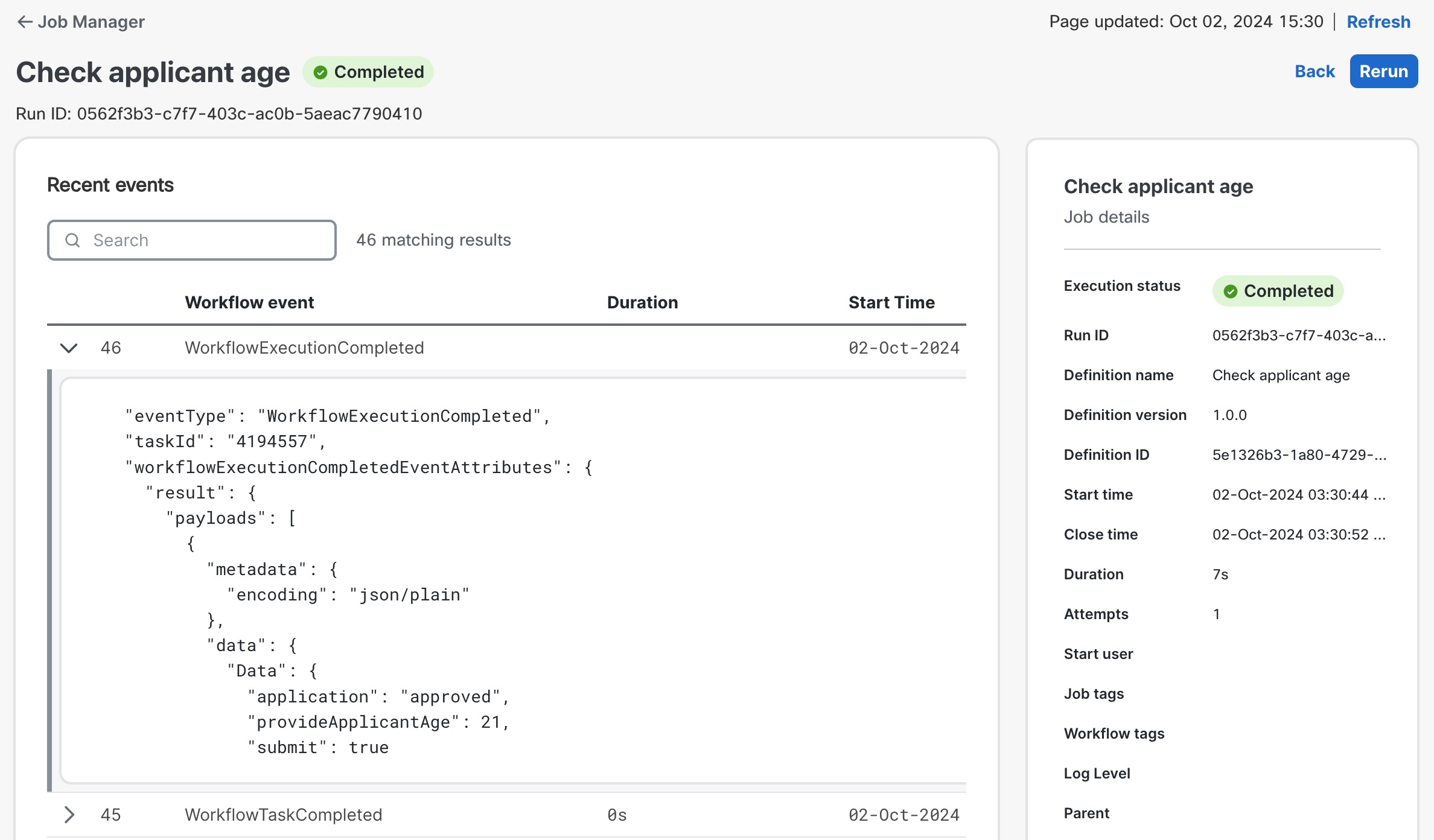
The workflow will process the input given in the task and finish execution. You can see the result by going to Job Manager - All jobs and looking up the logs of your job.


Example workflow #2

Prerequisite To use the following example workflow, you need to have a running instance of Cisco Network Service Orchestrator.

This example workflow definition consists in creating an L3 VPN in Cisco NSO with given parameters. Before executing the operation, a dry run is performed to simulate the configuration. During execution, the dry run payload is displayed in the task prompt, allowing the user to either accept or reject the operation based on the previewed results.

Click the link to download the full workflow definition, the JSON form schema and job input data.

Step 1: Create a form

For the purpose of this example, we will focus on creating the example form using the POST/form API endpoint.

Procedure


Step 1

Download the example JSON here.

Step 2

Go to CWM Swagger API and expand the POST/form section.

Step 3

Click Try it out, copy the content of the JSON file and paste it into the request field.

Step 4

Click Execute. The form has been created in CWM.


Step 2: Define task in the workflow

Let's see how the task that will employ the created form is defined inside the workflow definition.

In the workflow definition, let's start by setting up the events parameter with the data of the form we created.

  "events": [
    {
      "kind": "consumed",
      "name": "cwm.forms.NSO_dry_run",
      "type": "cwm.forms.NSO_dry_run",
      "source": "system.internal.cwm"
    }
  ],

Keys:

  • kind: The event is consumed, since the input provided in the task is treated as external and will be consumed by the workflow.

  • name: It's the Form ID which you can find in the form details when selecting it from the Forms list.

  • type: It takes the same value as the name key.

  • source: It needs to be system.internal.cwm as the source.

Next, we want to include the callback state into the workflow and refer to the event (the form ID) that it will use to invoke the task. For this, we need to add the eventRef key and its accompanying metadata: formData, where you refer to the variable used to retrieve the result of the dry run operation.

Note that inside the callback state, we need to state the action parameter. Inside the functionRef key we state refName and give the name of the NSO adapter activity there: NSO.restconfPost.

    "states": [
        {
            "name": "decision",
            "type": "callback",
            "action": {
                "name": "show-dry-run",
                "functionRef": {
                    "refName": "NSO.restconfPost",
                    "arguments": {
                        "input": {
                            "data": {
                                "l3vpn": [
                                    {
                                        "name": "${ .vpnName }",
                                        "endpoint": "${  [range( .endpoint | length) as $i | {id: .endpoint[$i].name, \"ce-device\":.endpoint[$i].device, \"ce-interface\":\"GigabitEthernet0/2\" , \"ip-network\":.endpoint[$i].ipNetwork, bandwidth: .endpoint[$i].bandwidth, \"as-number\":65002 }] }",
                                        "route-distinguisher": "${ .rd }"
                                    }
                                ]
                            },
                            "path": "restconf/data/l3vpn:vpn",
                            "queries": {
                                "additional": {
                                    "dry-run": "cli"
                                }
                            }
                        },
                        "config": {
                            "resourceId": "${ .nsoResource }"
                        }
                    }
                },
                "actionDataFilter": {
                    "toStateData": "${ .result }"
                }
            },
            "eventRef": "cwm.forms.NSO_dry_run",
            "metadata": {
                "formData": "${ { dryrunPre : .result.data } }",
                "taskName": "Approve/reject dry run operation"
            },
        },
    ]
    

Keys:

  • eventRef: provide the ID of the form.

  • metadata: use this key to decide what data will be presented in the task:

    • formData: build a jq expression to make the dry run result appear inside the task prompt. Note that the first element of the expression, dryrunPre, is what is provided in the HTML component in the form so that whatever the dry run result is, it will be displayed in the task. The other element is the part of the expression that specifies what data exactly is to be shown out of the whole payload of the dry run operation collected by the toStateData key inside actionDataFilter.

    • taskName: this can be an arbitrary name that refers to the task.

The next state in the example workflow is a switch state. It is where you provide conditions for the task input. If the configuration shown by the dry run result is correct, the operator approves the operation. If it is not correct, the operator rejects the change.

"name": "evaluate-decision",
"type": "switch",
"dataConditions": [
        {
            "name": "start-application",
            "condition": "${ .approve == true }",
            "transition": "commit-service"
         },
        {
            "name": "reject-application",
            "condition": "${ .approve == false}",
            "transition": "abandon-service"
        }
    ],
"defaultCondition": {
        "transition": "abandon-service"
    }

Keys:

  • condition: here is where you refer to the Property name of the component that you can find under the API tab inside the component. The component property name needs to be referred to inside a jq expression that starts with $. The condition is stated in form of a equality: .approve == true.

The last two states would be the operation states where the workflow either creates the VPN or rejects the operation and prints the result in the job execution logs.

Step 3: Run workflow and submit task

If you have created a workflow definition based on the example, you may want to test it against the system. To do that, follow the steps below.

Procedure


Step 1

In Workflows, click Create workflow and provide name and version for it. In the Code tab, add your workflow definition. Click Save.

Step 2

Find your workflow in the list of workflow definitions, enter it and click Run. In the dialog, click Run job.

Step 3

Go to Job Manager - Tasks and look for the Approve/reject dry run operation task (or your custom task name, if applicable).

Step 4

Click the task, provide your signature and click either Approve or Reject.

The workflow will process the input given in the task and finish execution. You can see the result by going to Job Manager - All jobs and looking up the logs of your job.