User Workspace Management

Access the User Workspace Management Interface

After you have started the Cisco Modeling Labs server, you can access the User Workspace Management interface to manage user accounts, projects, licenses, and virtual machine images on the Cisco Modeling Labs server.

To access the User Workspace Management interface, complete the following steps:
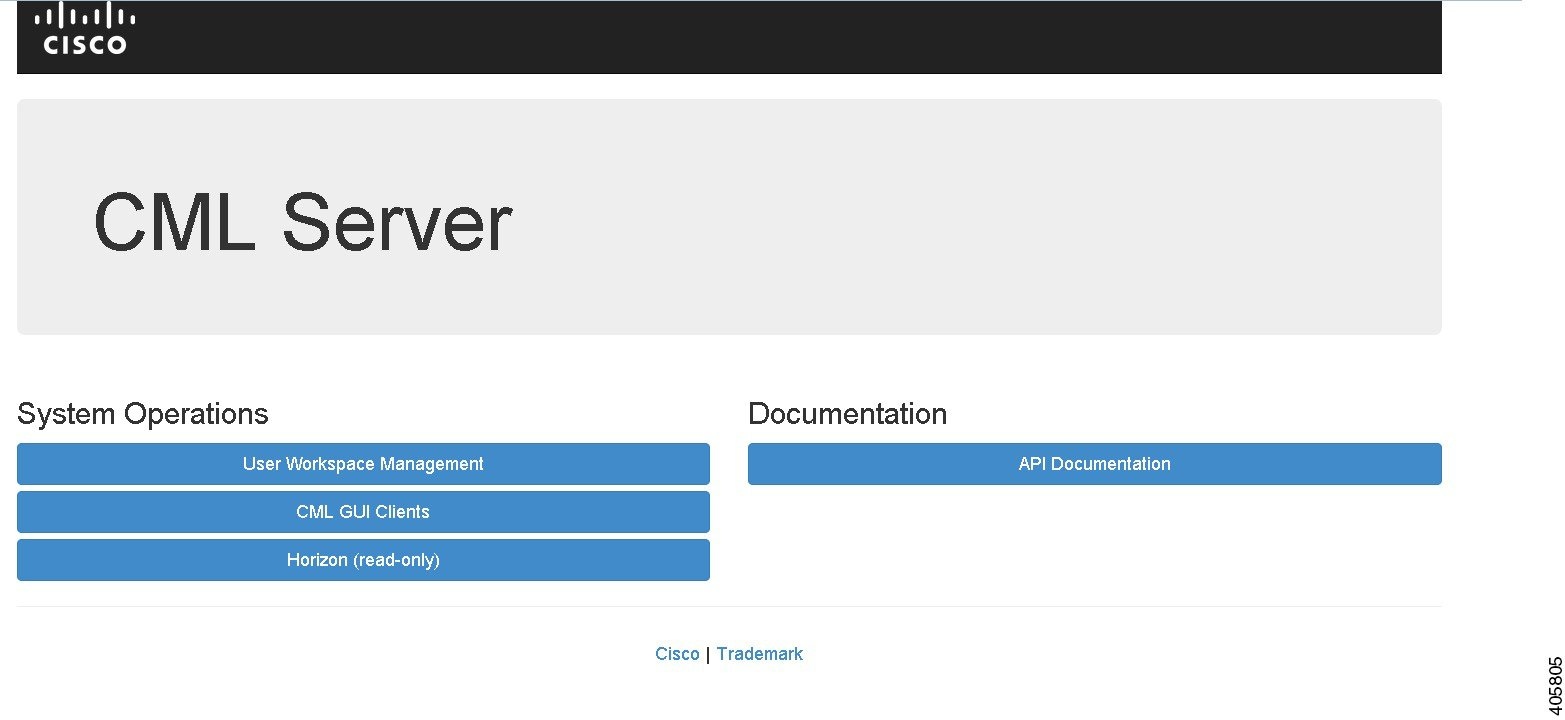

    Step 1   In a web browser, enter the IP address or hostname in the format, http://<IP address | hostname>. The CML Server main menu page is displayed.
    Figure 1. CML Server Main Menu


    Step 2   Click User Workspace Management to access the User Workspace Management interface.
    Step 3   Log in to the User Workspace Management interface using the username uwmadmin and the password password.
    Note    You can log in to the User Workspace Management as either an administrator or as a non-administrative user. Uwmadmin is an administrative user.
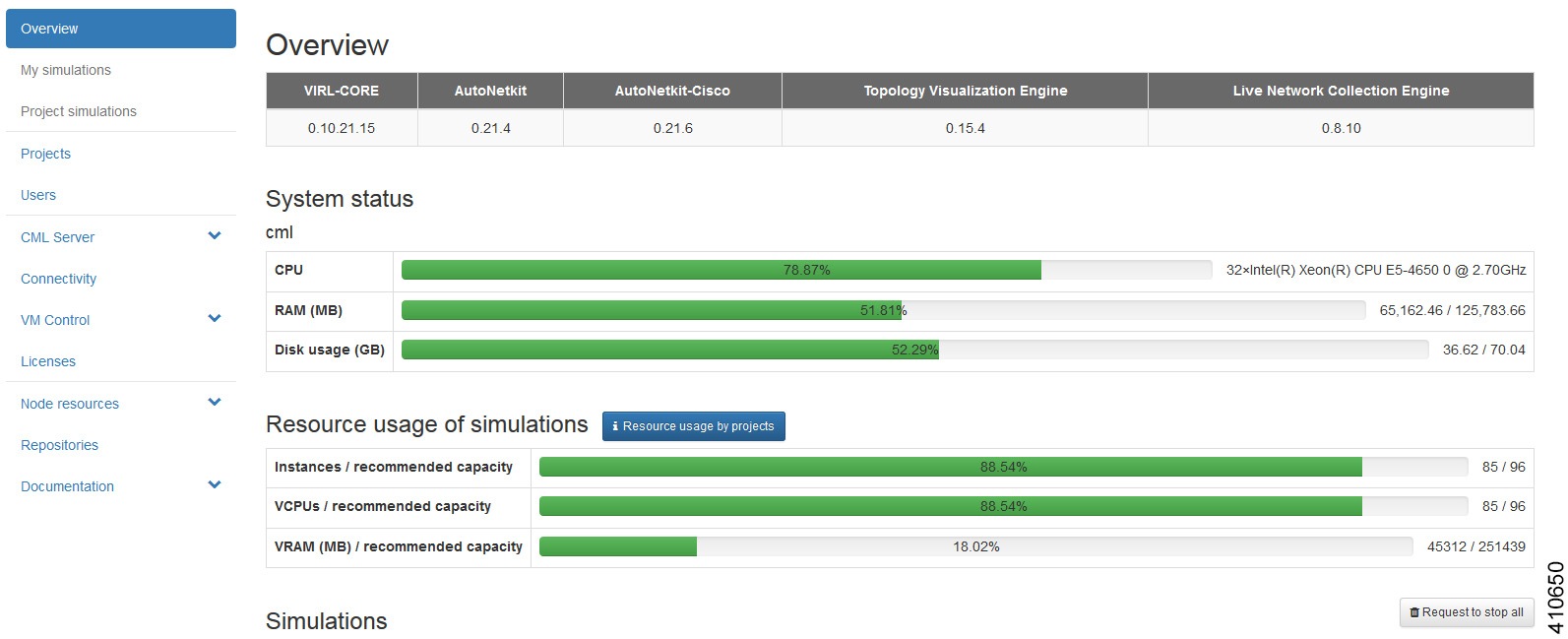
    The application opens on the Overview page.
    Figure 2. User Workspace Management Overview


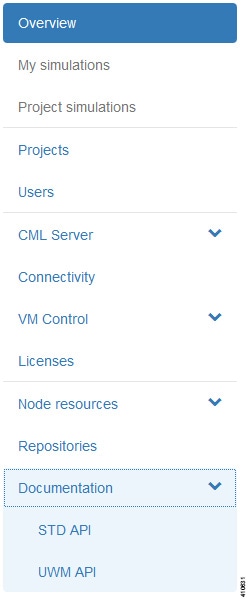
    The task bar on the left enables the following functions:
    • Projects—Allows you to import and export projects. You can also add new projects, enable, disable, modify, and delete current projects.

    • Users—Allows you add new user accounts, enable, disable, modify, and delete current user accounts.

    • CML Server—Available options are:
      • System Configuration—Allows you to control system configuration. You can set configuration parameters for the System, Networks, VIRL Services, Infrastructure, and Resources.

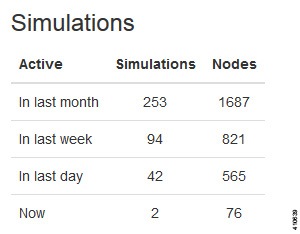
      • System Status—Allows you to collect, view and download system status information. Display Statistics reports historical system operation data such as the number simulations that have been run, the mix of nodes in the simulations, and so on. Download System Logs Collection gathers log files from the system which are invaluable when troubleshooting and diagnosing issues; delivered as a .ZIP file. Check Health Status performs a system check and generates a report on same.

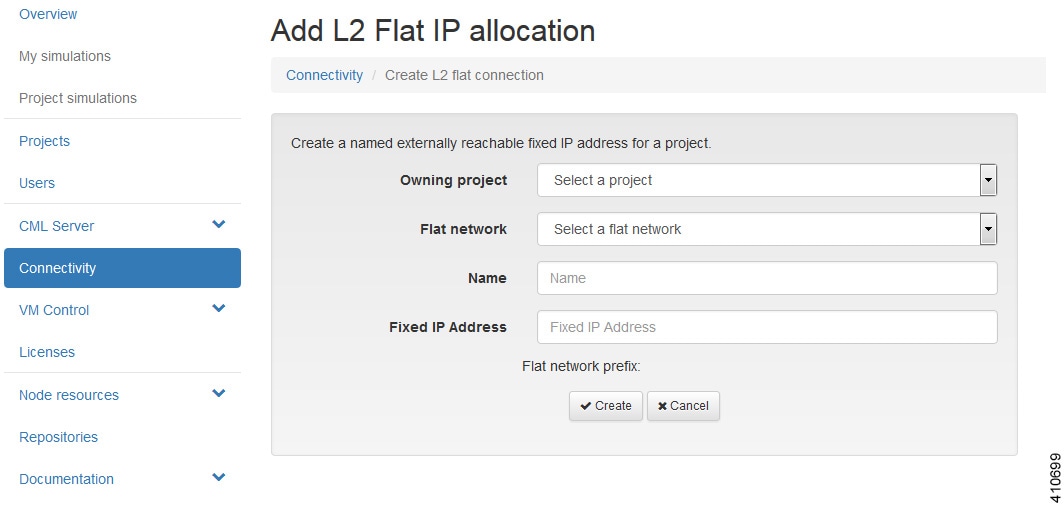
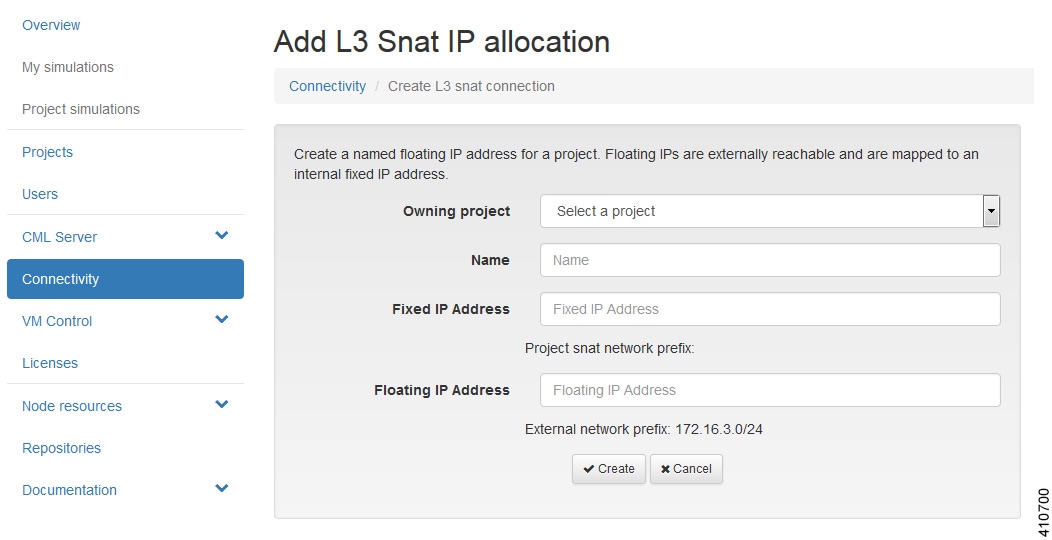
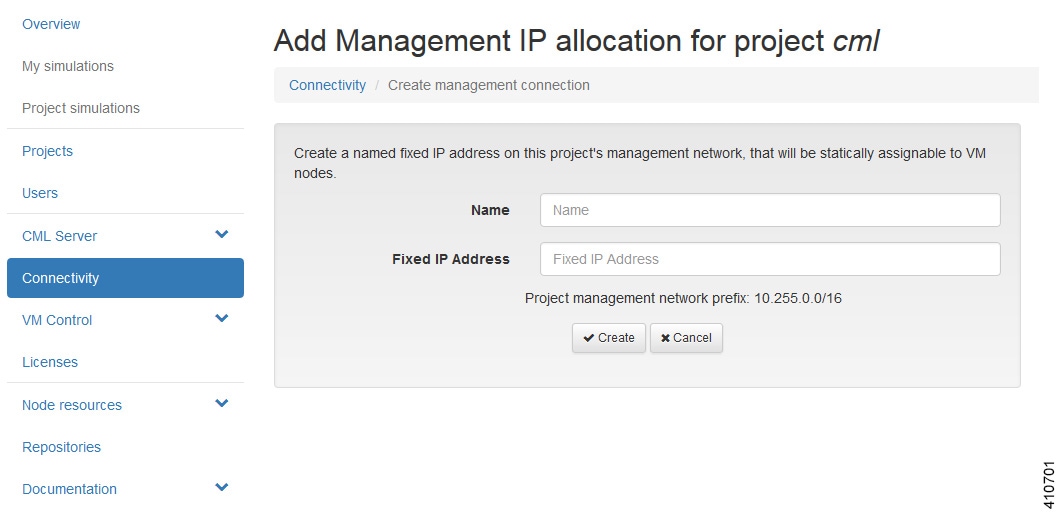
    • Connectivity—Allows you to add L2 FLAT IP addresses, L3 SNAT IP addresses, and Project Management IP Addresses.

    • VM Control—Allows system administrators to stop specific components of an active simulation. Available options are:

      • Nodes

      • Networks

      • Ports and Floating IPs

      • Hosts

    • Licenses—Allows you to manage product licenses on the system.

    • Node Resources—Available options are:

      • Flavors—Allows you add and delete virtual machine flavors.

      • Images—Allows you add new virtual machine images, modify, and delete current images. You can also modify and delete image snapshots.

      • Containers—Allows you to manage and add new LXC images and templates.

      • Subtypes—Allows you to import, export, and duplicate subtypes.

    • Repositories—Allows you add, delete, and refresh files from Git repositories.

    • Documentation—Available options are:
      • STD API—Allows you to access STD API documentation.

      • UWM API—Allows you to access to UWM API documentation.


    User Management Workspace User Types

    Within the User Management Workspace interface there are two types of users available. These are administrator and non-administrator user. The following tables describe the different functions available for each user type.

    Table 1 Available Functions for Administrator Users

    Function

    Description

    Overview

    Allows you to view current system version information, physical resource usage, and a list of all deployed simulations. You can stop all or selected simulations.

    Projects

    Allows you to import and export projects. You can also add new projects, enable, disable, modify, and delete current projects.

    Users

    Allows you add new users, enable, disable, modify, and delete current users.

    CML Server

    Under System Configuration, you can set configuration parameters. Under System Status, you can collect, view and download system status information.

    Connectivity

    Allows you to add and delete L2 Flat IP, L3 Snat IP, and Management IP allocations for projects.

    VM Control

    Allows you to delete nodes, networks, ports and IP allocations, as well as disable some host services when problems are encountered.

    Licenses

    Allows you to manage product licenses on the system.

    Node Resources

    Allows you add new images, modify, and delete current images. You can also modify and delete image snapshots. You can add and delete flavors and import and export subtypes. You can also create a new subtype based on one of the available built in subtypes. You can manage and add new LXC images and templates.

    Repositories

    Allows you to add, delete, and refresh files from Git repositories.

    Documentation

    Allows you to access STD and UWM API documentation.

    Table 2 Available Functions for Non-Administrator Users

    Function

    Description

    My Simulations

    Review and operate a user's own simulations.

    Project Simulations

    Review simulations in a user's own project.

    Connectivity

    Review a user's own IP address allocations.

    Node Resources

    Review details for flavors and subtypes. Review and add new images, LXC images and templates for use by the user's own project.

    Repositories

    Allows you to add, delete, and refresh files from Git repositories.

    Documentation

    Allows you to access STD and UWM API documentation.

    Projects (Admin User)

    Within the User Workspace Management interface, a project represents a set of resources that are available to all users of that project. It has the following characteristics:

    • By default, each project is created with one user account that has the same name as the project.
    • Each user belongs to exactly one project. Users should typically each have a project of their own, hence creating a new project is the preferred and efficient process for adding new users.
    • Additional users can be assigned to a project as required.
    • If a user is added to a project, the username of the user is prefixed with the project name.
    • Deleting a user account does not delete a project that the user is assigned to.
    • Deleting a project deletes all users of the project.
    In the Projects page, you can perform a number of operations for projects. These operations are:

    Operation

    Description

    Import

    Imports a project and its users from a JavaScript Object Notation (JSON) or tab-Separated values (TSV) file.

    Export

    Exports a project and its users as a JSON or TSV file.

    Add

    Creates a new project and its default user.

    Enable

    Enables a selected project.

    Disable

    Disables a selected project.

    Modify

    Modifies details for a selected project.

    Delete

    Deletes a selected project and its users.

    Create a Project

    To create a new project, and a user for the project complete the following steps:


      Step 1   In the User Workspace Management interface, click Projects.

      The Projects page, which lists all of the current projects, appears.
      Step 2   Click Add to create a new project. The Create Project page appears.
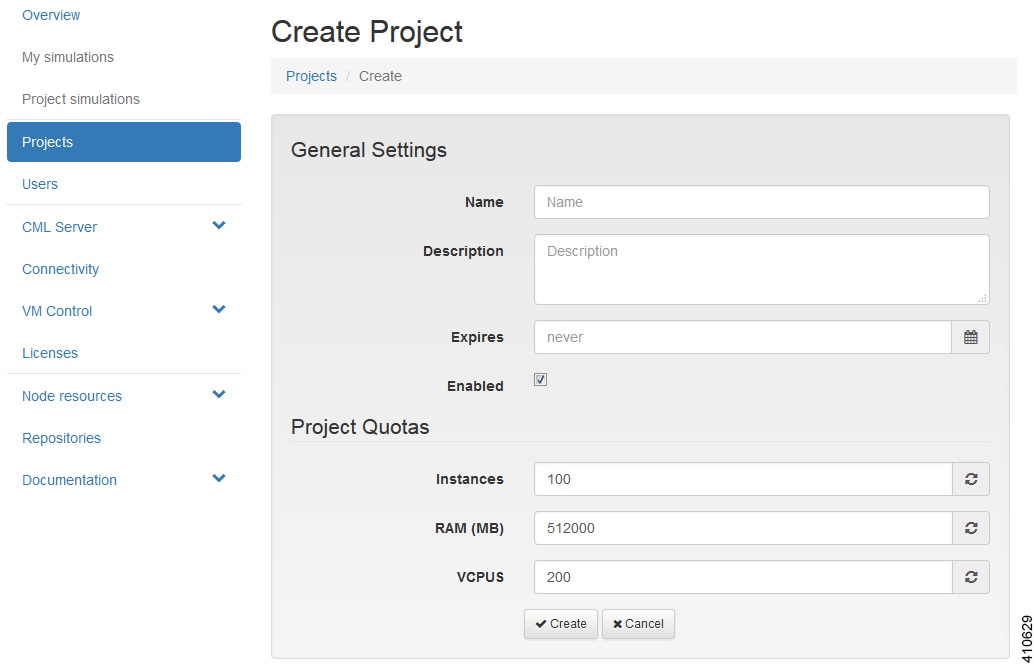
      Figure 3. Create a New Project


      Step 3   Under General Settings, add a name and a description for the project. In the Expires field, you can either add an expiry date for the project or accept the default, which is Never, meaning the project will never expire. Leave the Enabled check box checked to enable the project for use.
      Step 4   Under Project Quotas, you can either accept the default values for the system quotas or increase or decrease them based on your project requirements:
      • Instances quota is the maximum number of virtual machines of any type that can be operational at any given time within the project per user or for all users associated with that project.
      • RAM (MB) is the maximum RAM that can be consumed by virtual machines running in the project per user or for all users associated with that project.
      • VCPUS is the maximum number of virtual cores consumed by the virtual machines running in the project.
      Step 5   Click Create.

      The Edit User page appears.
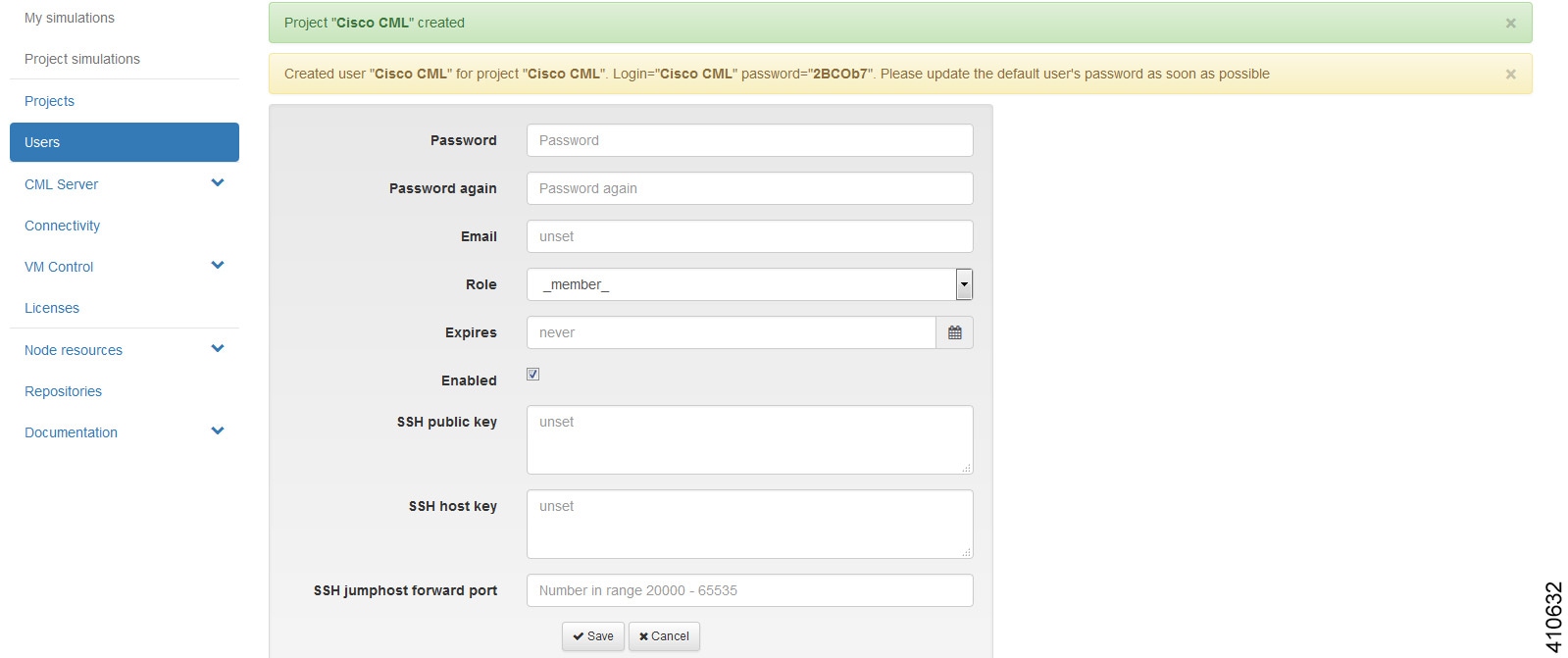
      Figure 4. Edit the Project User


      Using this window, you can add details for the new user created when the project is created.

      Step 6   In the Password and Password Again fields, enter a new password for the user.
      Note    The default password can be used or a more meaningful password can be entered. This password can also be changed at a later time.
      Step 7   In the Email field, add a valid email address for the user. By default, the user is assigned a member role, which means the user is a non-admin account. Set Role to admin if the user needs to perform the same administrative functions as the uwmadmin user.
      Step 8   In the Expires field, you can add an expiry date for the user or accept the default Never. Leave the Enabled check box checked to enable the project for immediate use. Alternatively, you can set up a project and users, but you cannot enable them to be configured and available at a later time.
      Step 9   Click Save to save the changes for the user.
      Step 10   (Optional) To confirm that the project has been added, click Projects to view the newly added project, and click Users to view the newly added user.

      Export a Project

      Export allows you to export selected projects and all their users to a JSON or TSV file.

      To export a project and all its users, complete the following steps:


        Step 1   In the User Workspace Management interface, click Projects. The Projects page, which lists all of the current projects, appears.
        Step 2   Check the check box beside the project or projects for export.
        Step 3   Click Export to export the selected projects and all their users.

        Step 4   From the drop-down list, choose the type of file to export to, JSON or TSV. The Open dialog box appears.
        Step 5   Click the Save File radio button and click OK to save the file. The exported file is saved to the specified location.

        Import a Project

        Files for import must be in the JSON or TSV format and must have previously been exported from the User Workspace Management interface.

        Note


        The uwmadmin project and user are not modified by this function when imported data contains it.

        To import a project and its users, complete the following steps:


          Step 1   In the User Workspace Management interface, click Projects. The Projects page, which lists all of the current projects, appears.
          Step 2   Click Import to import a new project and its associated users.

          The Import Projects and Users page appears.
          Step 3   Click Browse to locate the applicable JSON or TSV file for import.
          Note    If you import projects and users that already exist, they will be updated.
          Step 4   Click Import. The newly imported project is listed on the Projects page.

          Users (Admin User)

          Within the User Workspace Management interface, you can manage user accounts from the Users page. User accounts permit access to the Cisco Modeling Cisco Modeling Labs server from the Cisco Modeling Labs client.

          In the Users page, you can perform a number of operations for users. These operations are:

          Operation

          Description

          Add

          Creates a new user account.

          Enable

          Enables a selected user account.

          Disable

          Disables a selected user account.

          Modify

          Modifies details for a selected user account.

          Delete

          Deletes a selected user account.

          Create a User

          To create an additional user under an existing project, complete the following steps:

          Note


          It is preferred for each user to have their own project.

            Step 1   In the User Workspace Management interface, log in as admin and click Users. The Users page, which lists all the users, appears.
            Step 2   Click Add to create a new user.

            The Create User page appears.
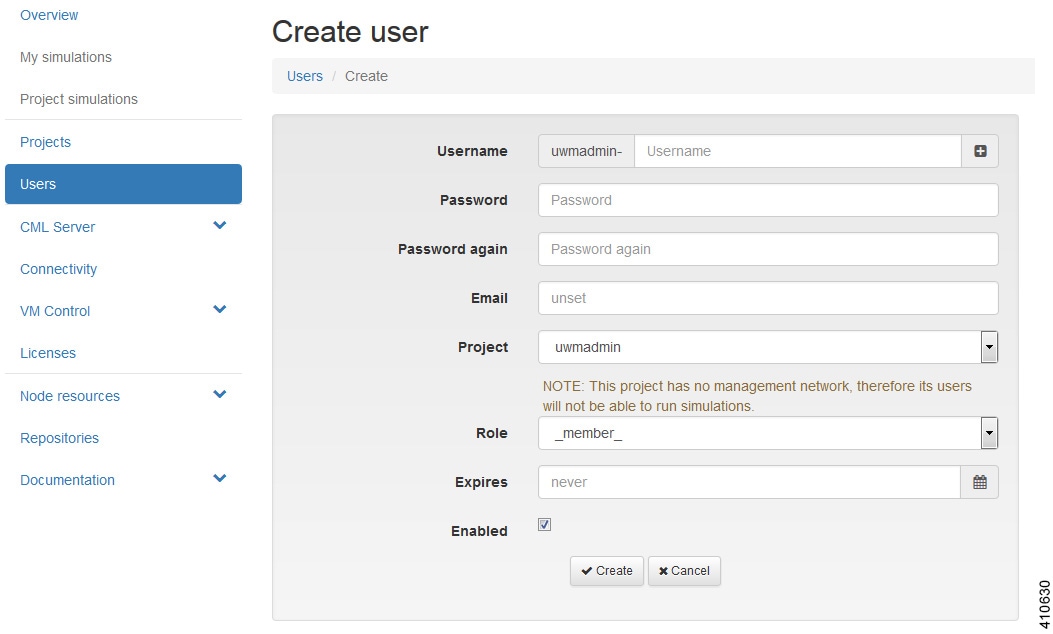
            Figure 5. Create a New User


            Step 3   In the Username field, enter a username for the new user.
            Note    To create multiple users, click the Add (+) icon to the right of the Username field.
            Step 4   In the Password and Password Again fields, enter a password for the new user.
            Step 5   In the Email field, enter a valid email address for the user.
            Step 6   From the Project drop-down list, choose the applicable project for the user.
            Step 7   From the Role drop-down list, choose the applicable role for the user.
            Note    A user with administrative rights has administrative rights across the entire system.
            Step 8   In the Expires field, you can either add an expiry date for the user or accept the default, which is Never.
            Step 9   Leave the Enabled check box checked.
            Step 10   Click Create.

            The User <Project Name>-<Username> page appears.

            This page presents details and project quotas for the user.
            Step 11   (Optional) Click Modify User to amend the details for a user, or click Delete User to delete the user.
            Step 12   Click Users to view the newly created user.

            Change an Account Password

            You can at anytime change the password for a user account, admin or non-admin. To change a password, complete the following steps:


              Step 1   Login in to the User Workspace Management interface.

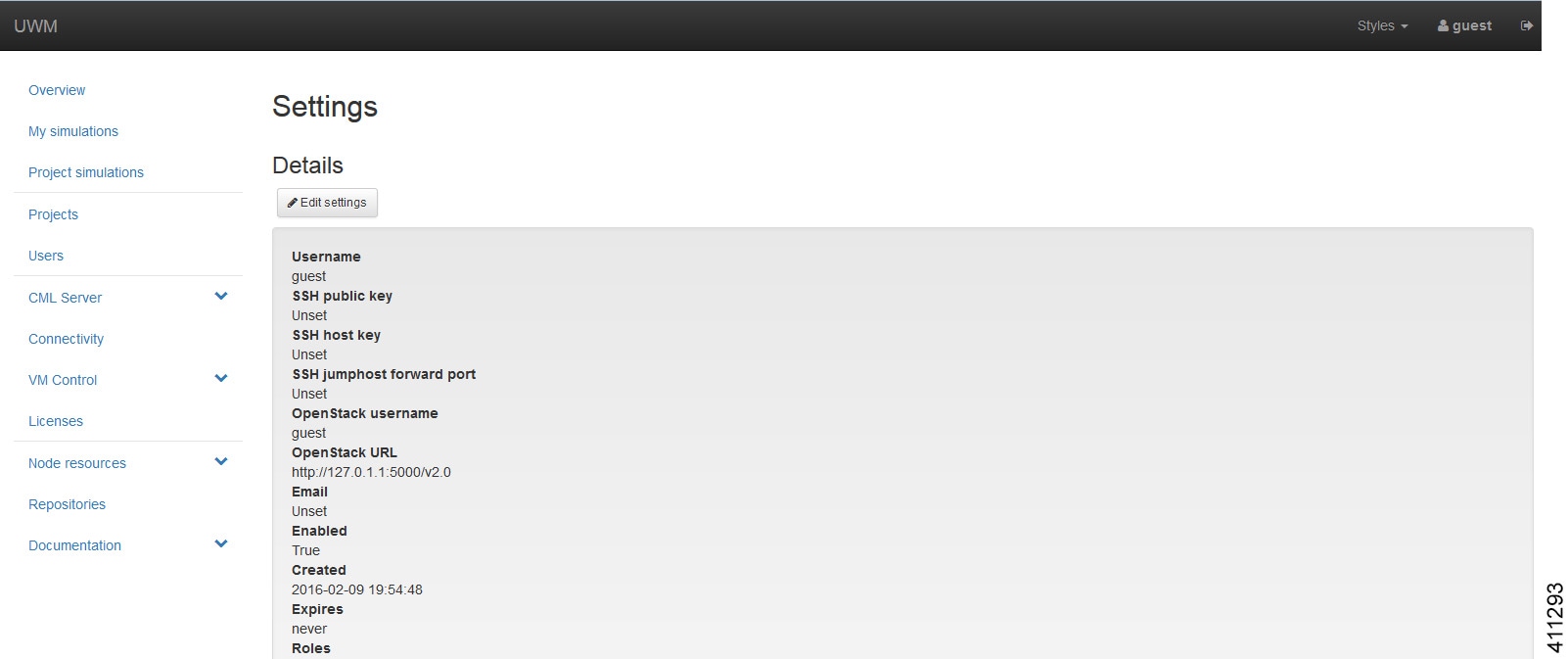
              Step 2   At the top right of the page, click the User icon to access the User Settings page, as shown in red.
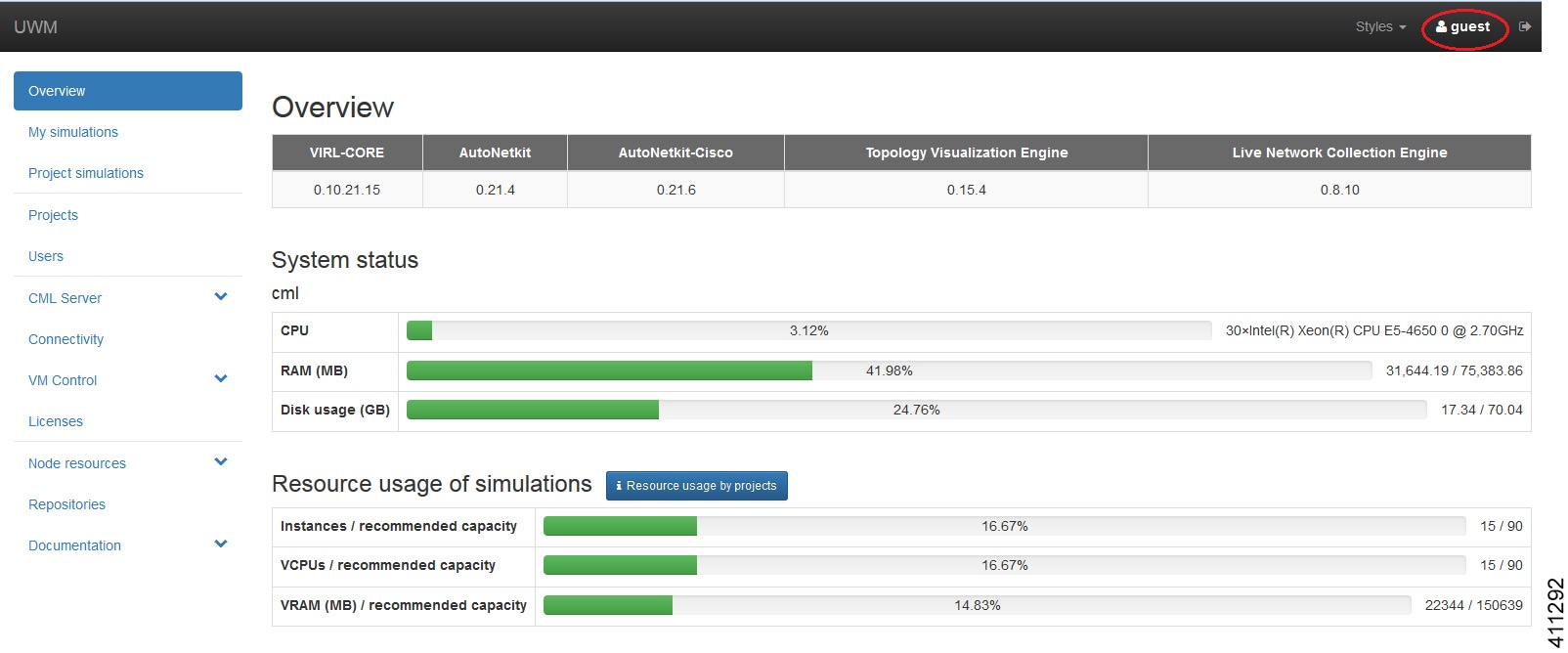
              Figure 6. Access the User Settings Page


              The Settings page is displayed.
              Figure 7. Settings Page


              Step 3   Click Edit Settings. The Edit Settings page is displayed.
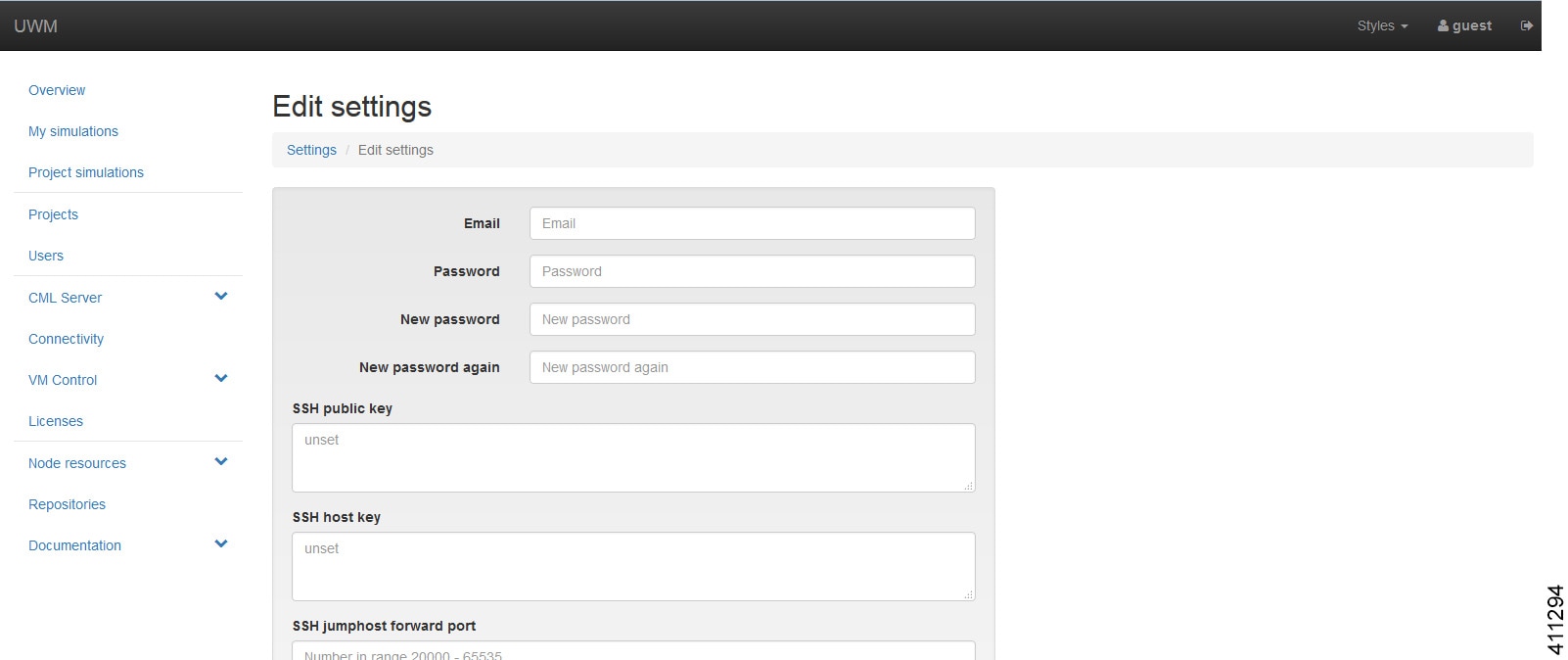
              Figure 8. Edit Settings Page


              Step 4   Enter new password details and click Confirm to save the changes.

              CML Server (Admin User)

              Within the User Workspace Management interface, under CML Server, you are able to make changes to your Cisco Modeling Labs server configuration under the System Configuration option.

              Under the System Status option, you can review system operational statuses and download log files.
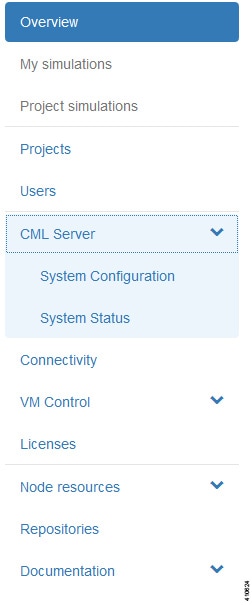
              Figure 9. CML Server Options


              System Configuration

              Within the User Workspace Management interface, under CML Server > System ConfigurationCML Server, you are able to make changes to your Cisco Modeling Labs server configuration.

              You can update the following system control parameters.
              • System

              • Networks

              • VIRL Services

              • Infrastructure

              • Resources

              System Configuration Controls

              To update system configuration controls, complete the following steps:


                Step 1   In the User Workspace Management interface, click CML Server > System Configuration.

                The System Configuration Controls page appears.
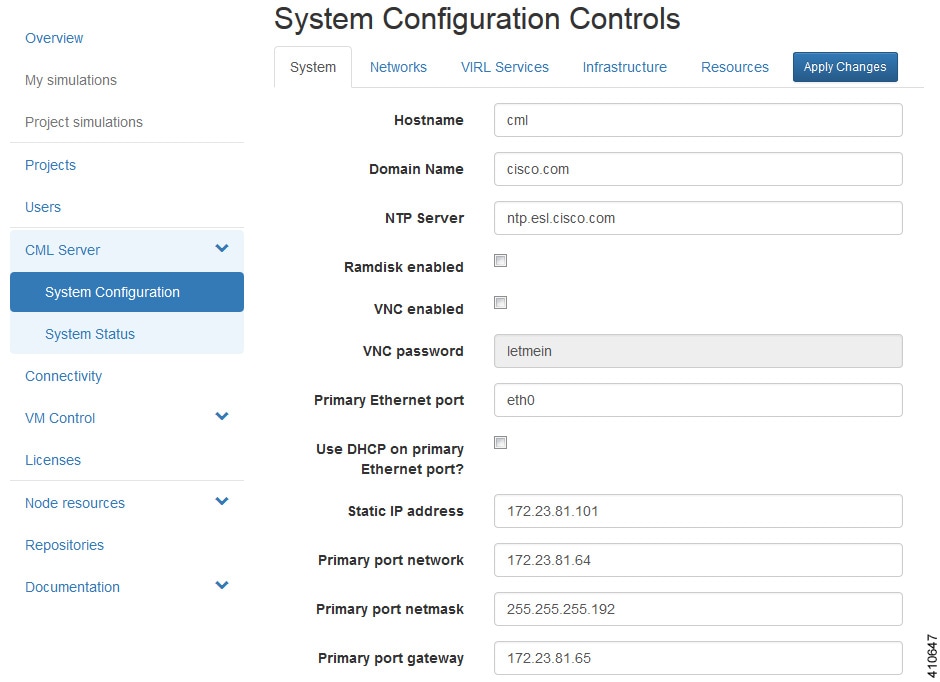
                Figure 10. System Configuration Controls


                Step 2   Update the fields as required.
                Table 3 System Configuration Parameters

                Parameter

                Description

                Hostname

                Enter the server hostname.

                Domain Name

                Enter the domain name.

                NTP Server

                Enter the DNS name or IP address for the NTP server. If you are behind a firewall/proxy, ensure that your NTP server is reachable from this location.

                Ramdisk enabled

                Use this option if you have at least 16 GB free RAM, to speed up I/O operations.

                VNC enabled

                Use this option to start the VNC server on the host. It operates on TCP port 5901.

                VNC Password

                Enter the password for the VNC server.

                Primary Ethernet Port

                Enter the primary ethernet port.

                Use DHCP on Primary Ethernet port?

                Use this option to enable DHCP on the primary ethernet port.

                Static IP address

                Enter the static IP address.

                Primary port network

                Enter the primary port network.

                Primary port netmask

                Enter the primary port netmask.

                Primary port gateway

                Enter the primary port gateway.

                Primary DNS server IP address

                Enter the primary DNS server IP address.

                Secondary DNS server IP address

                Enter the secondary DNS server IP address. Ensure you do not set the same address as you set for the primary DNS server IP address.

                Is your system behind a proxy?

                Use this option if your system is behind a proxy.

                HTTP/HTTPS Proxy

                Enter the URL of your internal access proxy in the following format "http://<proxy IP or name>:<port number>/".

                Step 3   Click Apply Changes when you are finished to save your changes.

                Networks Configuration

                To update the Networks configuration, complete the following steps:


                  Step 1   In the User Workspace Management interface, click CML Server > System Configuration.

                  The System Configuration Controls page appears. Click the Networks tab to access the network parameters.
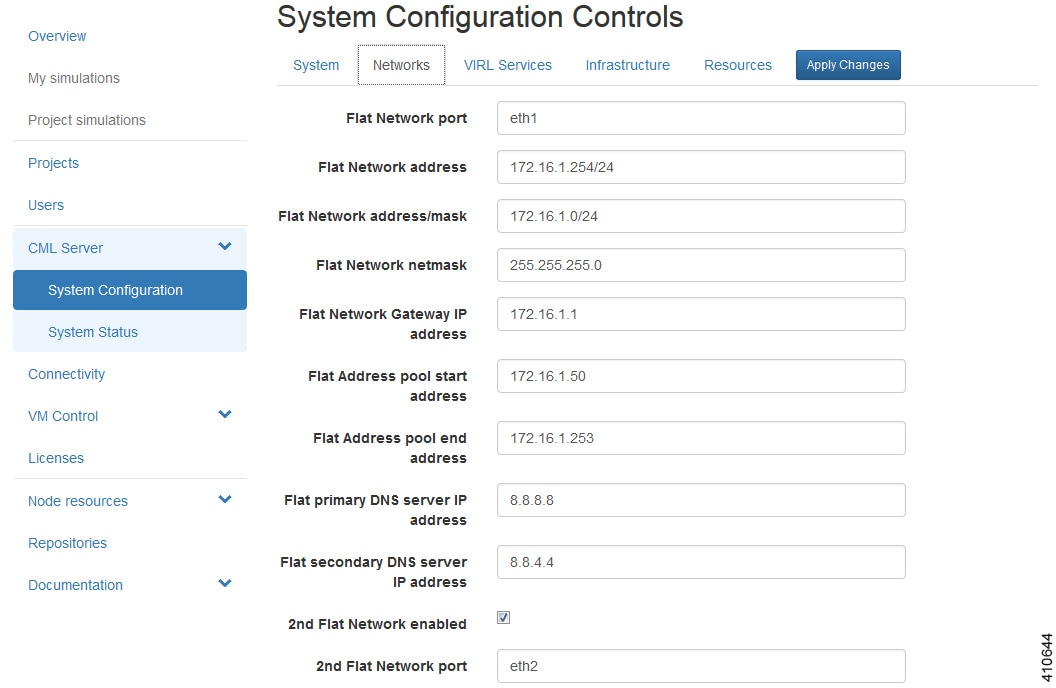
                  Figure 11. Networks Configuration


                  Step 2   Update the fields as required.
                  Table 4  Networks Configuration Parameters

                  Parameter

                  Description

                  Flat Network Port

                  Enter the Flat network port.

                  Flat Network Address

                  Enter the Flat network address.

                  Flat Network Address/Mask

                  Enter the Flat network address/mask.

                  Flat Network Netmask

                  Enter the Flat network netmask.

                  Flat Network Gateway IP Address

                  Enter the Flat network gateway IP address.

                  Flat Address Pool Start Address

                  Enter the Flat address pool start address.

                  Flat Address Pool End Address

                  Enter the Flat address pool end address.

                  Flat Primary DNS server IP address

                  Enter the Flat primary DNS server IP address.

                  Flat Secondary DNS server IP address

                  Enter the Flat secondary DNS server IP address. Ensure you do not set the same address as you set for the primary DNS server IP address.

                  2nd Flat Network Enabled

                  Use this option if a second Flat network, Flat1, is to be enabled.

                  2nd Flat Network Port

                  Enter the name of the host's physical port used for the L2 Flat network, Flat1.

                  2nd Flat Network Address

                  Enter the IP address for the second Flat network, Flat1.

                  2nd Flat Network Address/Mask

                  Enter the Flat network address/mask for Flat1.

                  2nd Flat Network Netmask

                  Enter the Flat network netmask for Flat1.

                  2nd Flat Network Gateway IP Address

                  Enter the Flat network gateway IP address for Flat1.

                  2nd Flat Address Pool Start Address

                  Enter the Flat address pool start address for Flat1.

                  2nd Flat Address Pool End Address

                  Enter the Flat address pool end address for Flat1.

                  2nd Flat Primary DNS server IP address

                  Enter the Flat primary DNS server IP address for Flat1.

                  2nd Flat Secondary DNS server IP address

                  Enter the Flat secondary DNS server IP address for Flat1. Ensure you do not set the same address as you set for the primary DNS server IP address.

                  Snat Network Port

                  Enter the name of the host's physical port used for L3 Snat network, ext-net.

                  Snat Network Address

                  Enter the IP address for the CML host in the L3 Snat network.

                  Snat Network Address/Mask

                  Enter the Snat network address/mask.

                  Snat Network Netmask

                  Enter the Snat network netmask.

                  Snat Network Gateway IP Address

                  Enter the Snat network gateway IP address.

                  Snat Address Pool Start Address

                  Enter the Snat address pool start address.

                  Snat Address Pool End Address

                  Enter the Snat address pool end address.

                  Snat Primary DNS server IP address

                  Enter the Snat primary DNS server IP address.

                  Snat Secondary DNS server IP address

                  Enter the Snat secondary DNS server IP address. Ensure you do not set the same address as you set for the primary DNS server IP address.

                  Step 3   Click Apply Changes when you are finished to save your changes.

                  VIRL Services Configuration

                  To update the VIRL services configuration, complete the following steps:


                    Step 1   In the User Workspace Management interface, click CML Server > System Configuration.

                    The System Configuration Controls page appears. Click the VIRL Services tab to access the VIRL services parameters.
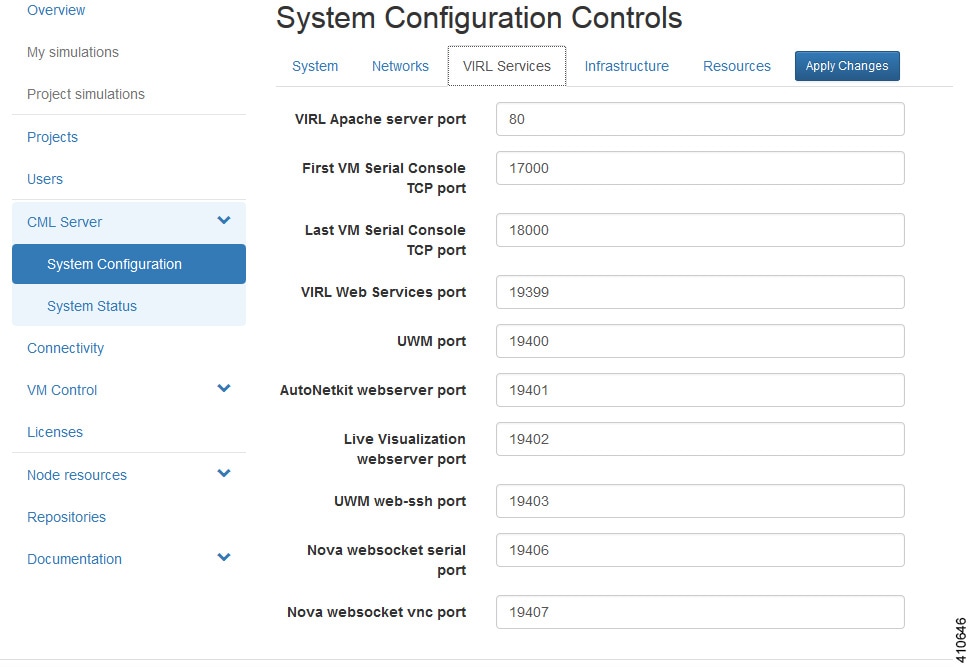
                    Figure 12. VIRL Services Configuration


                    Step 2   Update the fields as required.
                    Table 5 VIRL Services Configuration Parameters

                    Parameter

                    Description

                    VIRL Apache Server Port

                    Enter the number of the VIRL Apache server port.

                    First VM Serial Console TCP Port

                    Simulated VMs with serial consoles use TCP ports starting from this value.

                    Last VM Serial Console TCP Port

                    Simulated VMs with serial consoles use TCP ports ending with this value.

                    VIRL Web Services Port

                    Enter the TCP port number for the simulation engine services.

                    UWM Port

                    Enter the TCP port number for the User Workspace Management interface.

                    AutoNetkit Webserver Port

                    Enter the TCP port number for the configuration engine preview interface.

                    Live Visualization Webserver Port

                    Enter the TCP port number for the Live Visualization interface.

                    UWM Web-SSH Port

                    Enter the TCP port number for the User Workspace Management SSH web interface.

                    Nova Websocket Serial Port

                    Enter the TCP port number for the websocket-based serial console connections.

                    Nova Websocket VNC Port

                    Enter the TCP port number for the websocket-based VNC console connections.

                    Step 3   Click Apply Changes when you are finished to save your changes.

                    Infrastructure Configuration

                    To update the Infrastructure configuration, complete the following steps:


                      Step 1   In the User Workspace Management interface, click CML Server > System Configuration.

                      The System Configuration Controls page appears. Click the Infrastructure tab to access the infrastructure parameters.
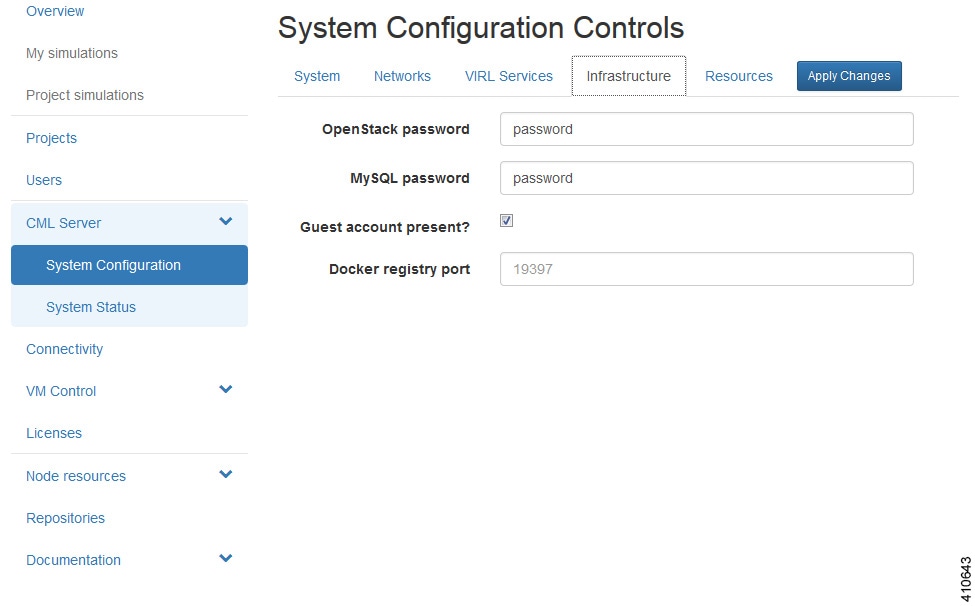
                      Figure 13. Infrastructure Configuration


                      Step 2   Update the fields as required.
                      Table 6 Infrastructure Configuration Parameters

                      Parameter

                      Description

                      OpenStack Password

                      Enter the password for administrator access to OpenStack operations.

                      MySQL Password

                      Enter the password for OpenStack database access.

                      Guest Account Present?

                      Use this option to create a default guest account.

                      Docker Registry Port

                      Enter the port number for the docker registry.

                      Step 3   Click Apply Changes when you are finished to save your changes.

                      Resources Configuration

                      To update the Resources configuration, complete the following steps:


                        Step 1   In the User Workspace Management interface, click CML Server > System Configuration.

                        The System Configuration Controls page appears. Click the Resources tab to access the resources parameters.
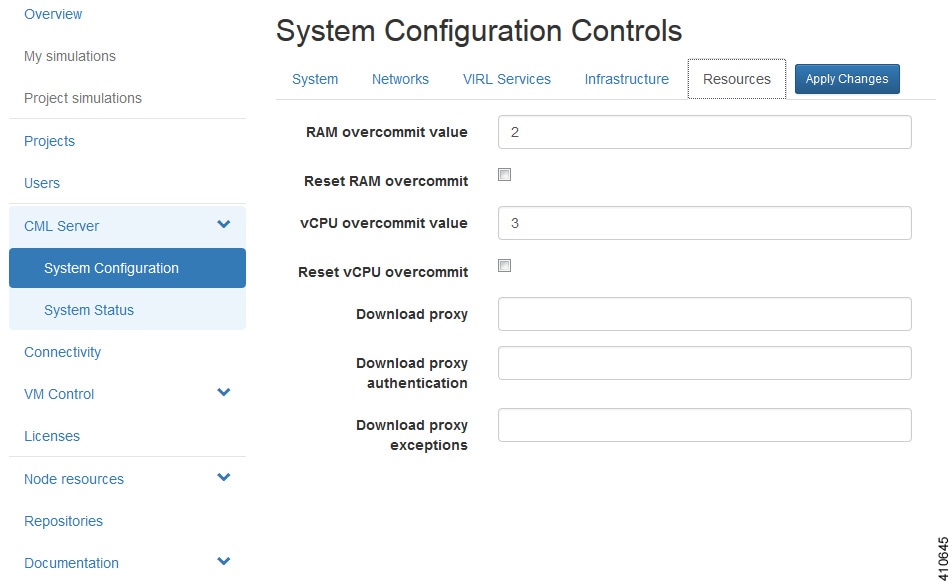
                        Figure 14. Resources Configuration


                        Step 2   Update the fields as required.
                        Table 7 Resources Configuration Parameters

                        Parameter

                        Description

                        RAM Overcommit Value

                        Enter a value. The value range is 1 to 4. The value format is floating, such as 2.0. Overcommiting RAM allows you to run more virtual machines in the available memory. However, running more virtual machines reduces overall performance. We recommend that you change this value in small increments since setting a high initial value may result in the system becoming unresponsive.

                        Reset RAM Overcommit

                        Use this option to reset the RAM overcommit value to the default built-in value. The reset occurs after you have applied your changes.

                        vCPU Overcommit Value

                        Enter a value. The value range is 1 to 30. The value format is floating, such as 2.0. Overcommiting vCPU allows you to run more virtual machines in the available CPU capacity. However, running more virtual machines reduces overall performance. We recommend that you change this value in small increments since setting a high initial value may result in the system becoming unresponsive.

                        Reset vCPU Overcommit

                        Use this option to reset the vCPU overcommit value to the default built-in value. The reset occurs after you have applied your changes.

                        Download Proxy

                        Enter the proxy server for downloading files, such as images and external git repositories, from outside the local network. Leave blank if the use of a proxy is not required.

                        Download Proxy Authentication

                        Enter download proxy credentials in the format "<username>:<password>".

                        Download Proxy Exceptions

                        Provide a list all host names and/or IP addresses for image and git repository sources where the download proxy shall not be used, such as servers, on the local network.

                        Step 3   Click Apply Changes when you are finished to save your changes.

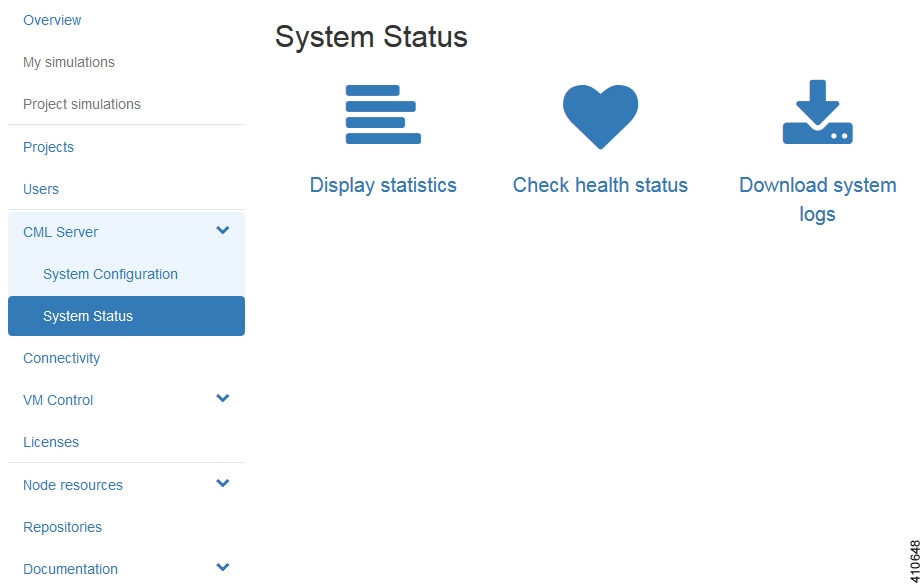
                        System Status

                        Within the User Workspace Management interface, under CML Server > System Status, you can view various statistics concerning the usage and operation of your system and check on server status and system services. You also have the ability to download system log files.
                        Figure 15. System Status Options


                        To download the system log files, click Download System Logs. A dialog box is displayed where you can opt to open or save the system log file.

                        System Statistics

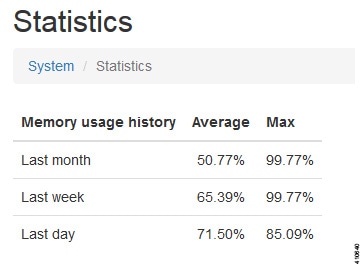
                        You can view various statistics concerning the usage and operation of your Cisco Modeling Labs system. System statistics are available from the User Workspace Management interface under CML Server > System Status > Display Statistics.

                        The following areas are covered:

                        Table 8 System Statistics

                        Area

                        Description

                        Statistics

                        Lists the memory usage history per day, week and month and their average and maximum usage stats.


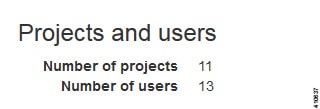
                        Projects and Users

                        Lists the number of current projects and users.


                        Simulations

                        Lists details for the number of active simulations and nodes for the last week, the last month, the previous 24 hours, and those currently running.


                        There are two further categories:

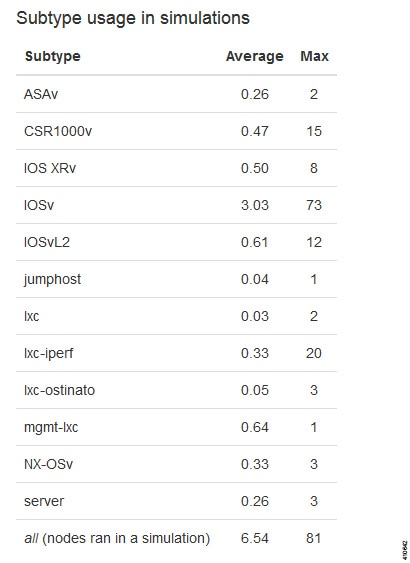
                        Subtype Usage in Simulations

                        Lists the subtypes and their average and maximum usage stats.


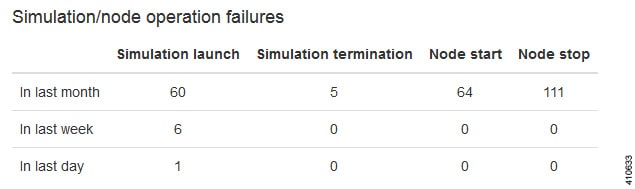
                        Simulation/node Operation Failures

                        Lists the number of simulation/node failures for the last week, the last month, and the previous 24 hours.


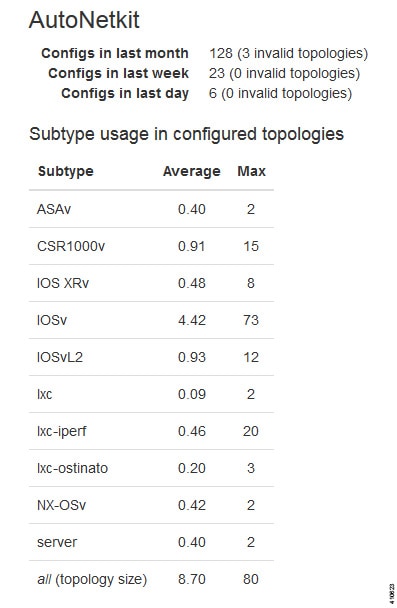
                        AutoNetkit

                        Lists details for the number of configurations generated in the last week, the last month, and the previous 24 hours, including the number of invalid topologies encountered. The category Subtype Usage in Configured Topologies lists the subtypes used in configuration requests along with their average and maximum usage stats.


                        System Health Status

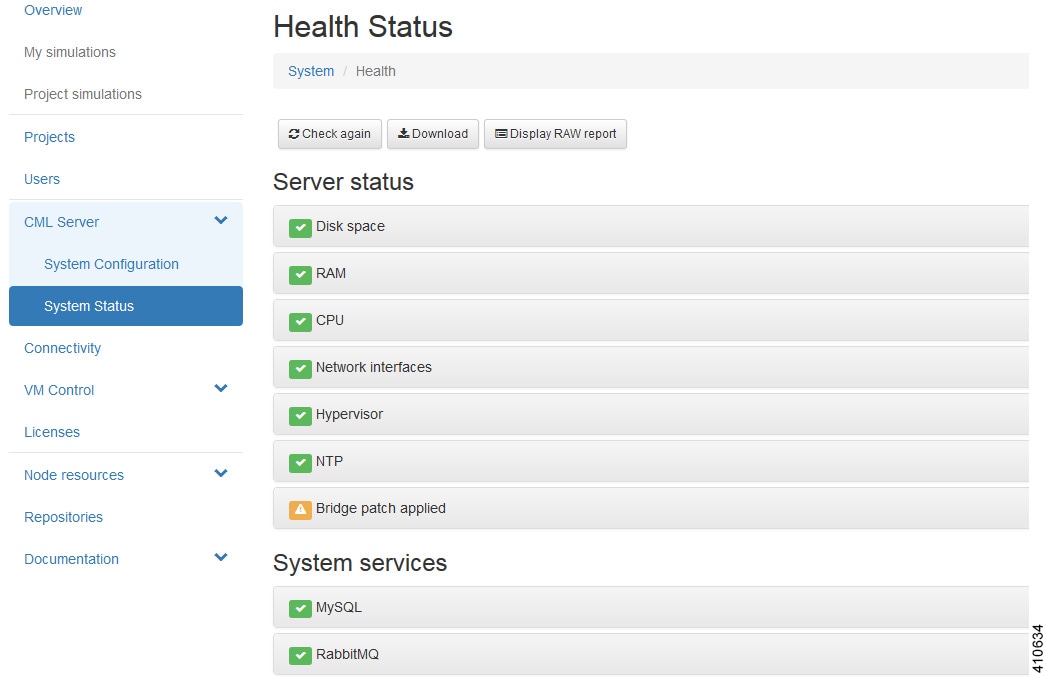
                        You can check on server status and system services that are running using the Check Health Status option. It performs a system check and generates a report. It is available from the User Workspace Management interface under CML Server > System Status > Check Health Status.

                        Table 9 Health Status Check

                        Area

                        Services Checked

                        Server Status

                        Click each entry to view further details.
                        • Disk space

                        • RAM

                        • CPU

                        • Network interfaces

                        • Hypervisor

                        • NTP

                        System Services

                        Click each entry to view further details.
                        • MySQL

                        • RabbitMQ

                        • Salt communications

                        • OpenStack system services

                        • OpenStack system response

                        • AutoNetkit services

                        • STD configuration

                        • VIRL-core services

                        Figure 16. Health Status Page


                        Note


                        When an issue is discovered, a red x is displayed next to the entry. Click the entry to view further details.
                        Available options on the Health Status page are:
                        • Check Again: Allows you to run the health status check again.

                        • Download: Allows you to open or download the health status log file.

                        • Display RAW Report: Displays the health status log file to screen.

                        Connectivity

                        Within the User Workspace Management interface, the Connectivity page provides details on all OpenStack ports available on the external (FLAT and SNAT) and project management networks.

                        • L2 FLAT IP address allocations—Create an externally reachable fixed IP address for a project.
                        • L3 SNAT IP address allocations—Create a floating IP address for a project. Floating IPs are externally reachable and are mapped to an internal fixed IP address.
                        • Project Management IP address allocations—Create a fixed IP address on the management network of the selected project. This IP address can be statically assigned to the nodes.

                        Create a Port Connection

                        To create a new port connection, complete the following steps:


                          Step 1   In the User Workspace Management interface, click Connectivity. The Outside Connections page, which lists all current port connections appears.
                          Step 2   Connections are grouped into three areas: L2 FLAT, L3 SNAT, and Project Management. Click Add in the applicable group to create the required port connection for that type.

                          The corresponding Add IP Allocation page appears.
                          Step 3   Complete the fields as required for the applicable port connection.

                          Connection Type

                          Field

                          Description

                          Layer 2 FLAT IP Address Allocations


                          Owning Project

                          Choose a project from the drop-down list.

                          FLAT Network

                          Choose a FLAT network from the drop-down list.

                          Name

                          Enter a name for the new port connection.

                          Fixed IP address

                          Enter a custom IP address from the range defined by the prefix displayed, or to have an address automatically assigned, leave this field blank.

                          Layer 3 SNAT IP Address Allocations


                          Owning Project

                          Choose a project from the drop-down list.

                          Name

                          Enter a name for the new port connection.

                          Fixed IP Address

                          Enter a custom IP address from the range defined by the prefix displayed, or to have an address automatically assigned, leave this field blank.

                          Floating IP Address

                          Enter a custom IP address from the range defined by the prefix displayed, or to have an address automatically assigned, leave this field blank.

                          Project Management


                          Name

                          Enter a name for the new port connection.

                          Fixed IP Address

                          Enter a custom IP address from the range defined by the prefix displayed, or to have an address automatically assigned, leave this field blank.

                          Step 4   Click Create.

                          The new connection is created and its details are displayed in the Connectivity page.


                          Using the VM Control Tool (Admin User)
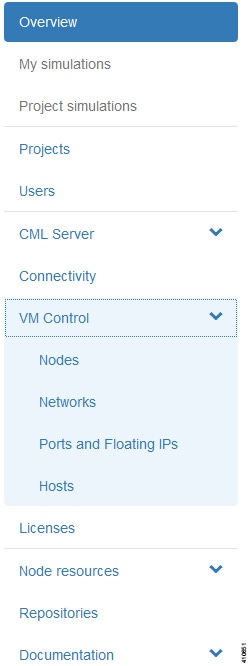
                          The VM Control tool is available to aid system administrators with troubleshooting issues encountered in the User Workspace Management interface. The tool enables system administrators to stop specific components of an active session. In circumstances where components of a session fail to be deleted through the normal shutdown methods, this tool enables system administrators to remove blocked components.
                          Figure 17. VM Control Tool


                          VM Control Nodes

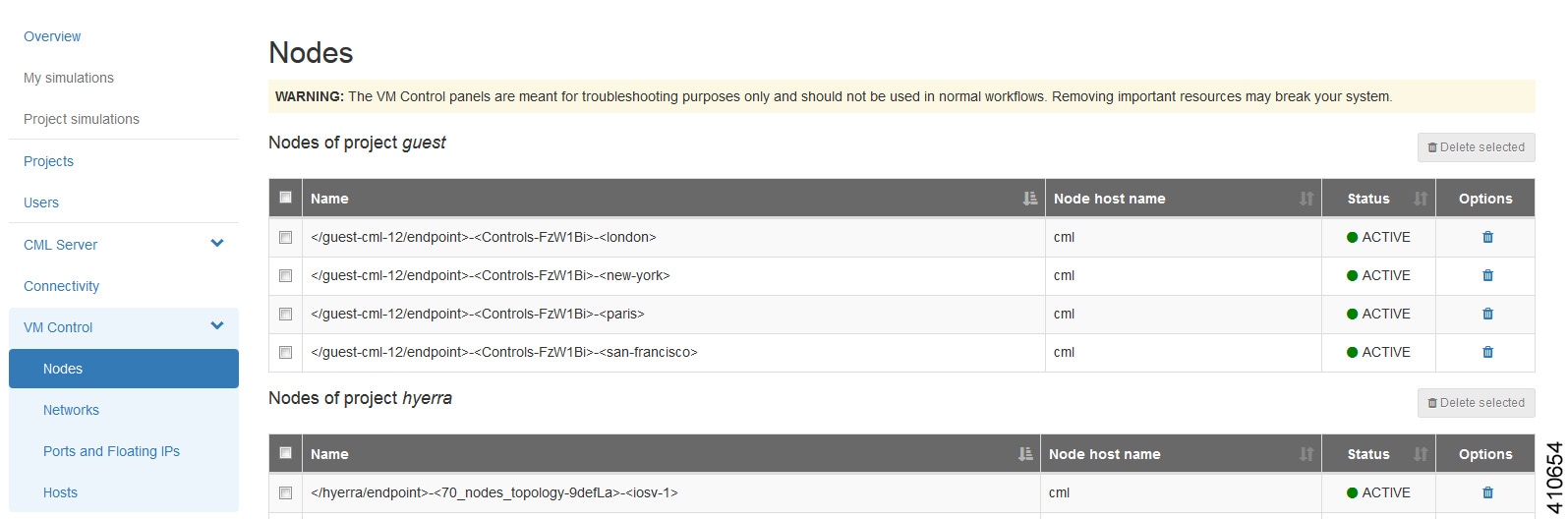
                          The Nodes page lists all the nodes for all the currently running projects for all users. You can delete a specific node or all the nodes for a specific project or projects.
                          Figure 18. Nodes Page


                            Step 1   To delete a specific node:
                            1. In the node list for the applicable project, check the corresponding check box.
                            2. Click Delete in the Options column. The node is deleted.
                            Step 2   To delete all the nodes for a specific project:
                            1. In the node list for the applicable project, check the corresponding Name check box.
                              Note    When you check the Name check box for a particular project, the check boxes for all the nodes in the project are automatically checked. You cannot uncheck individual nodes within a project; either all the nodes or no nodes are checked.
                            2. Click Delete Selected. All nodes for the particular project are deleted.

                            VM Control Networks

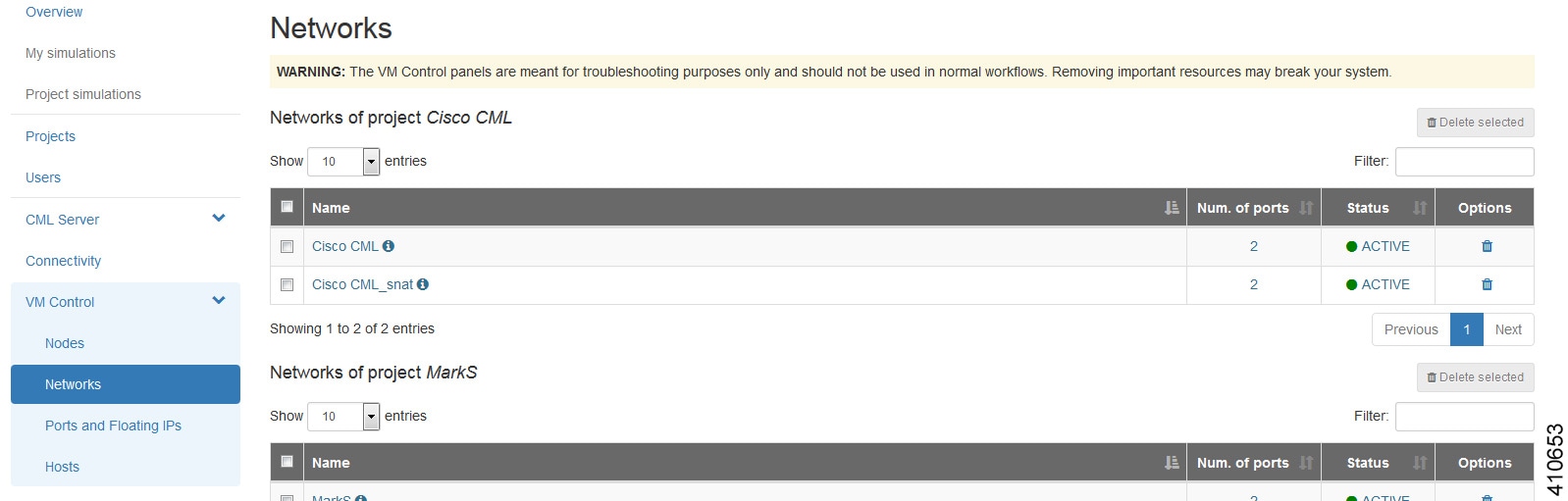
                            The Networks page lists all the networks for all the currently running projects for all the users. You can delete a specific network or all the networks for a specific project or projects.
                            Figure 19. Networks Page


                              Step 1   To delete a specific network:
                              1. In the network list for the applicable project, check the corresponding Name check box.
                              2. Click Delete in the Options column. The network is deleted.
                              Step 2   To delete all the networks for a specific project:
                              1. In the network list for the applicable project, check the corresponding Name check box.
                                Caution    When you check the Name check box, the check boxes for all the networks in the project are automatically checked. In the Networks page, for each user project, two networks are listed in blue with an information icon. These two networks are specifically created for use by all users of the project when the project is created. These networks cannot be recreated automatically; the project would need to be deleted and recreated as a whole. We recommend that you do not delete these networks. Uncheck the check boxes for these two networks before clicking Delete Selected.
                              2. Click Delete Selected. All the networks for the particular project are deleted.

                              VM Control Ports and Floating IPs

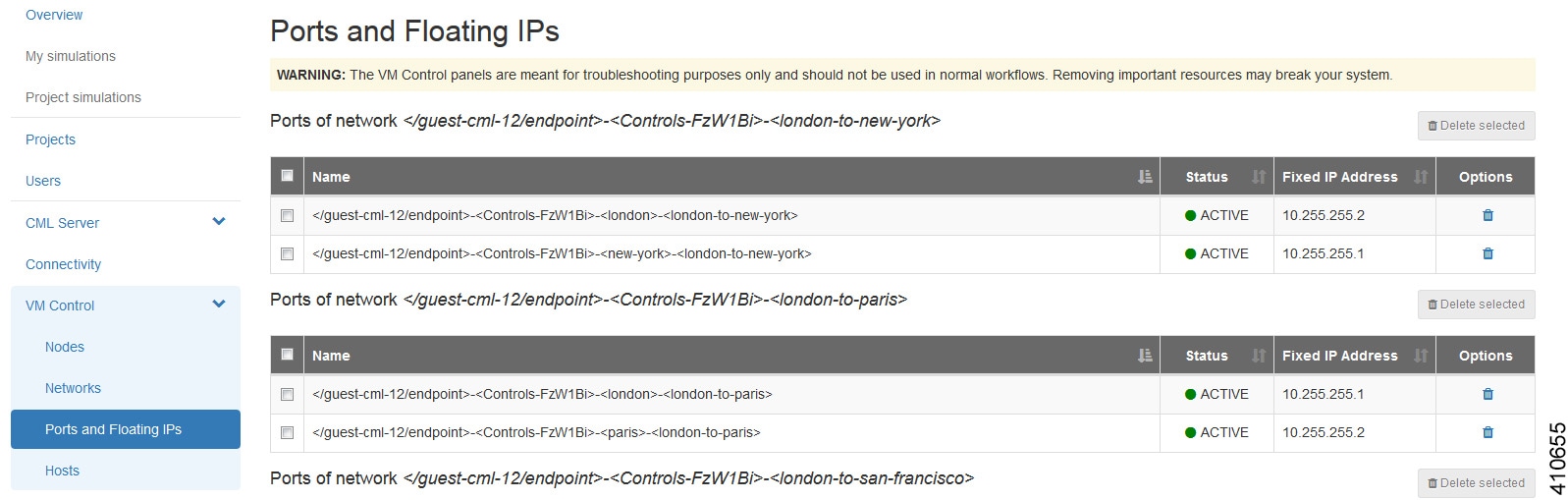
                              The Ports and Floating IPs page lists all the ports and floating IPs for all the currently running projects for all the users. You can delete a specific port or floating IP or all the ports and floating IPs for a specific project or projects.
                              Figure 20. Ports and Floating IPs Page


                                Step 1   To delete a specific port or floating IP:
                                1. In the port or floating IP list for the applicable project, check the corresponding check box.
                                2. Click Delete in the Options column. The port or floating IP is deleted.
                                Step 2   To delete all the ports or floating IPs for a specific project:
                                1. In the port or floating IP list for the applicable project, check the Name check box.
                                  Note    When you check the Name check box for a particular project, the check boxes for all the ports or floating IPs in the project are automatically checked. You can uncheck individual ports or floating IPs within the project as required.
                                2. Click Delete Selected. All ports or all floating IPs for the particular project are deleted.

                                VM Control Hosts

                                The Hosts page lists all the compute services and network agents. Maintenance mode on a host disables the compute service on that node. It prevents new virtual machines from being deployed on that host.
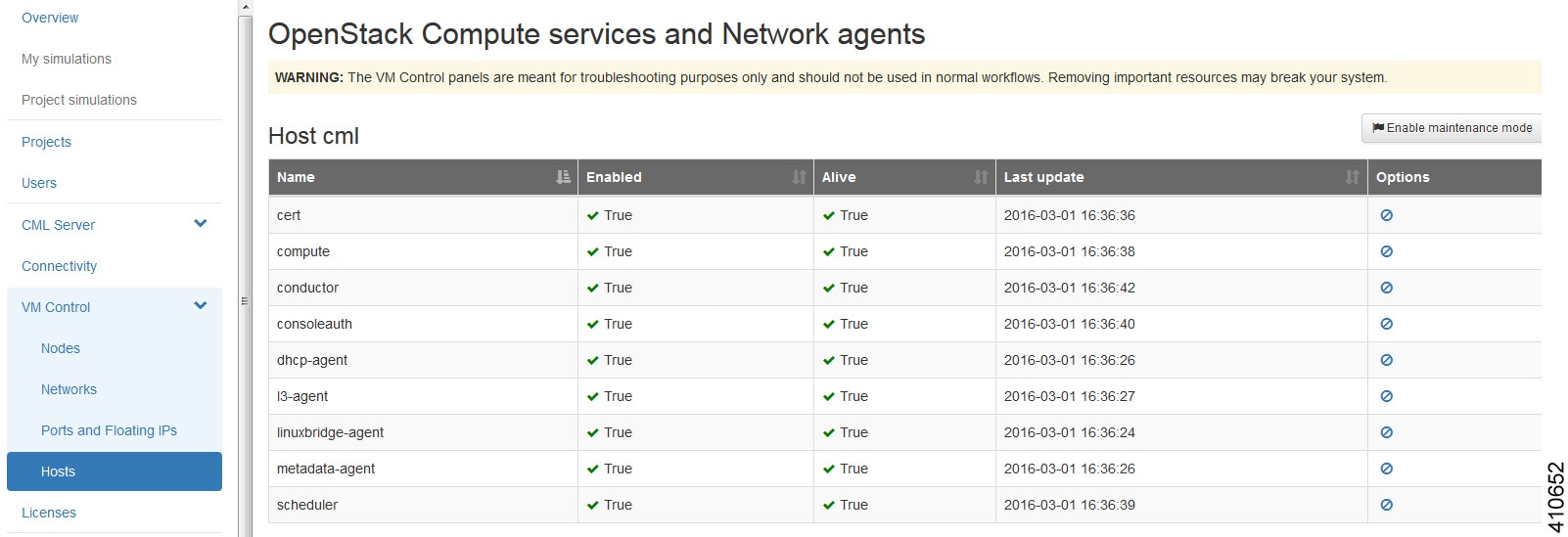
                                Figure 21. Hosts Page


                                Cisco Modeling Labs Licenses (Admin User)

                                Within the User Workspace Management interface, you can manage Cisco Modeling Labs licenses. A license specifies the options that are enabled for Cisco Modeling Labs.
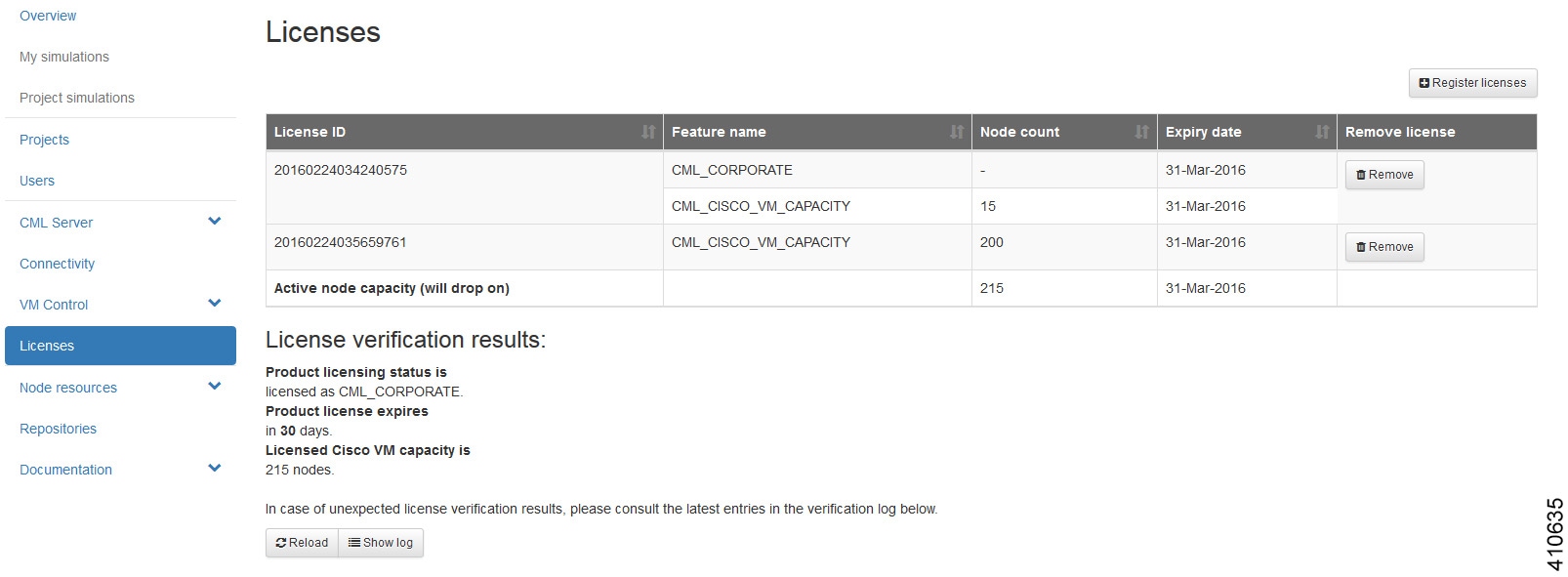
                                The Licenses page provides details on all the licenses that are currently installed on the CML server. These include the license ID, type of license, number of nodes per license, and the expiry date.
                                Figure 22. Licenses Page


                                Register a Cisco Modeling Labs License

                                To register a license, complete the following steps:

                                  Step 1   Open the email containing your Cisco Modeling Labs license key.
                                  Step 2   Using a text editor, open the attached .lic file.
                                  Step 3   In the User Workspace Management interface, click Licenses. The Licenses page, which lists all valid licenses, appears.
                                  Step 4   Click Register License to register a valid license. The Register licenses page appears.
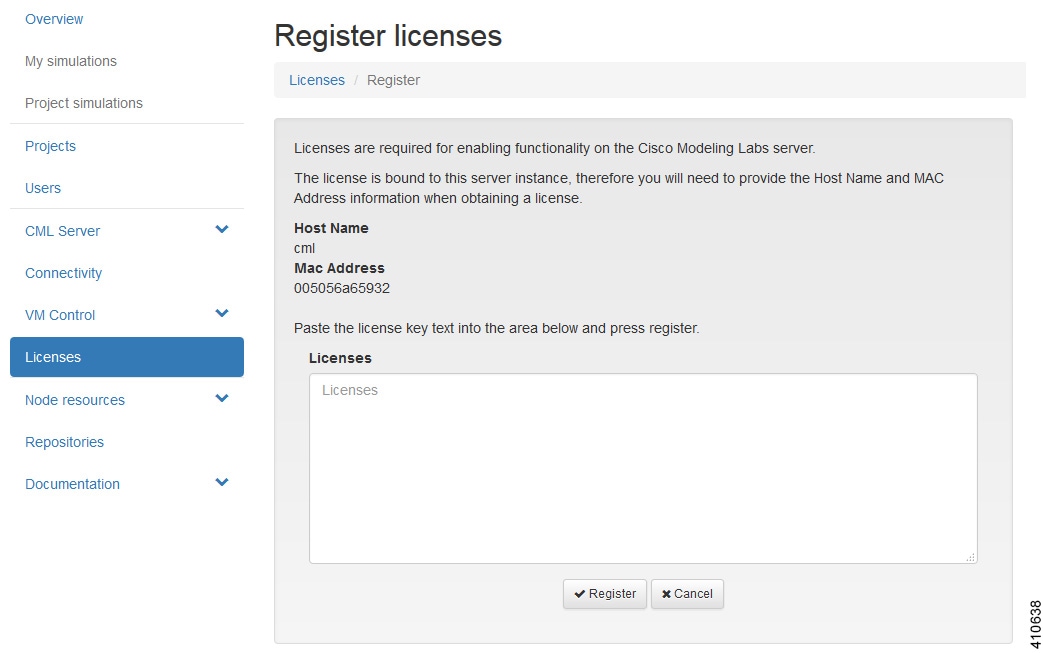
                                  Figure 23. Register Licenses


                                  Step 5   Copy and paste the license key from the .lic file into the Licenses text area.
                                  Step 6   Click Register. The license is applied.
                                  Step 7   Return to the Licenses page to view the newly registered license.

                                  Node Resources

                                  Within the User Workspace Management interface, under Node Resources, you can manage virtual machine run-time parameters and virtual machine images. You can also manage LXC container images and templates.
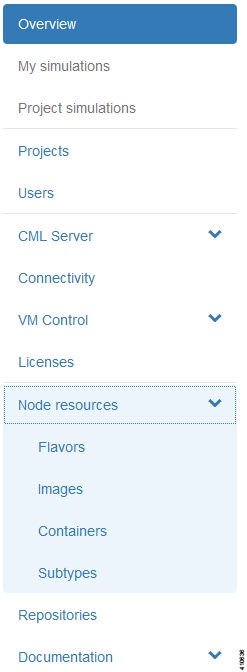
                                  Figure 24. Available Node Resources


                                  Virtual Machine Flavors

                                  Within the User Workspace Management interface, as part of the creation process for virtual machine images, a virtual machine flavor is created. Flavors are used in each virtual machine to define the CPU, memory (RAM) allocation, disk space, the number of cores, and so on.

                                  In the Flavors page, you can perform two operations for flavors. These operations are:

                                  Operation

                                  Description

                                  Add

                                  Creates a new flavor.

                                  Delete

                                  Deletes a selected flavor.

                                  Create a Virtual Machine Flavor

                                  To create a new virtual machine flavor, complete the following steps:


                                    Step 1   In the User Workspace Management interface, in admin mode, click Flavors.

                                    The Flavors page, which lists all of the available flavors, appears.
                                    Step 2   Click Add to create a new flavor.

                                    The Create Flavor page appears.
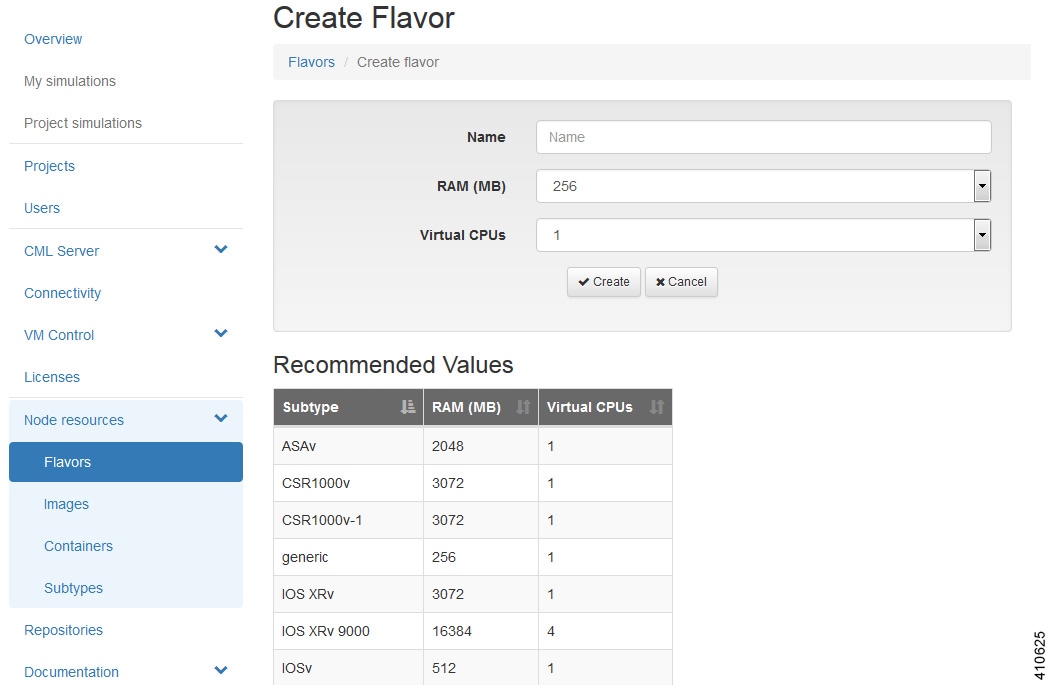
                                    Figure 25. Create a Flavor


                                    Step 3   In the Name field, enter a name for the flavor.
                                    Step 4   From the RAM drop-down list, choose the amount of memory allocation for the flavor.
                                    Step 5   From the Virtual CPUs drop-down list, choose the number of virtual CPUs for the flavor.
                                    Step 6   Click Create to create your virtual machine flavor.

                                    The Flavors page appears with the newly created flavor listed.
                                    Step 7   Under the Options column, use the Delete option to delete a virtual machine flavor.

                                    Images

                                    Within the User Workspace Management interface, you can add new images, update details for existing images, or delete images from the system. Additionally, you can take a snapshot of the disk content of a virtual machine image. This newly created user-specific disk image can be used in other simulated sessions.

                                    Cisco Modeling Labs 1.2 includes the following images built into the Cisco Modeling Labs client:
                                    • Cisco Virtual IOS (IOSv) Software Release 15.6(2)T

                                    • Cisco IOSv Layer 2 Switch Software Release 15.2.(4.0.55) DSGS

                                    • Cisco IOS XRv Software Release 6.0.1 CCO

                                    • Linux server (Ubuntu 14.04.2 LTS Cloud-init)

                                    • Cisco ASAv Software Release 9.5.1

                                    For the most up-to-date list of virtual images, see Release Notes for Cisco Modeling Labs 1.2.
                                    The following demo images are available from the FileExchange:
                                    • Cisco IOS XRv 9000 Software Release 6.0.1 demo image

                                    • Cisco CSR1000v Software Release 3.1.7 XE-based demo image

                                    In the Images page, you can perform a number of operations for images. These operations are:

                                    Operation

                                    Description

                                    Add

                                    Creates a new virtual machine image.

                                    Modify

                                    Modifies details for a selected virtual machine image.

                                    Delete

                                    Deletes a selected virtual machine image.

                                    Create a Virtual Machine Image

                                    To create a new virtual machine image, complete the following steps:


                                      Step 1   In the User Workspace Management interface, log in as admin and click Images.

                                      The Images page, which lists all of the available registered images, appears.

                                      Step 2   Click Add to create a new image.

                                      The Create VM Image page appears.
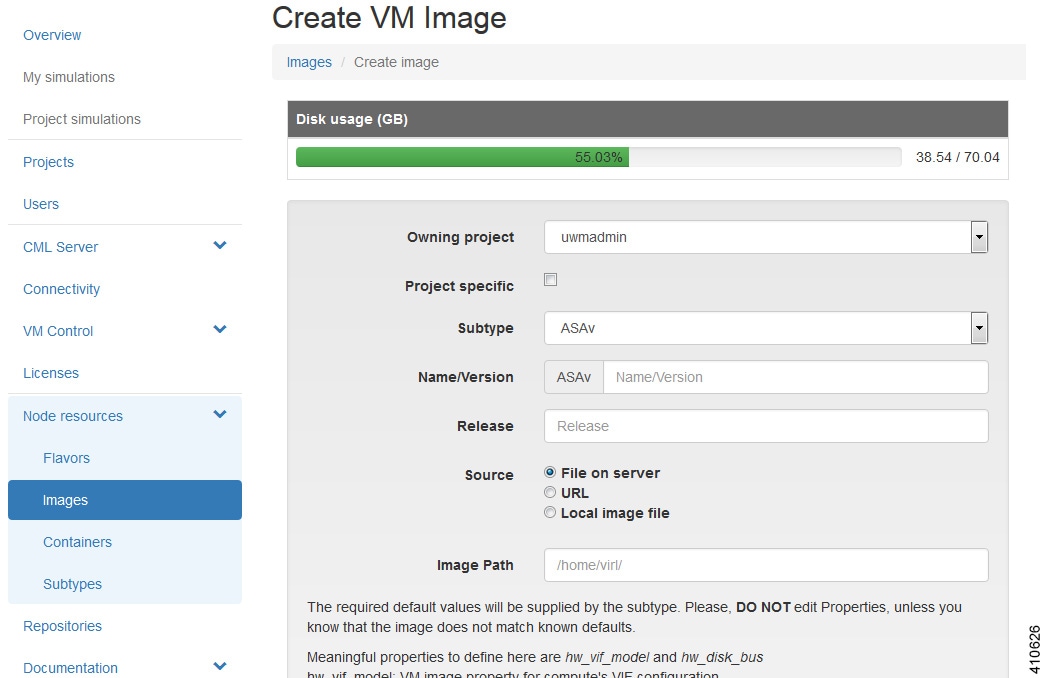
                                      Figure 26. Create VM Image


                                      Step 3   From the Owning Project drop-down list, choose the appropriate project for the new image.
                                      Step 4   Click the Project Specific check box if you want the new image to be private and only available to the owning project.
                                      Step 5   From the Subtype drop-down list, choose the appropriate subtype for the new image.
                                      Step 6   In the Name/Version field, enter a name or version number for the image.
                                      Step 7   In the Release field, enter the release number for the image.
                                      Step 8   Click the appropriate Image Source: File on Server, URL, or Local Image File.
                                      Step 9   In the Image Path field, enter a path on the server/virtual machine (an HTTP, FTP or TFTP URL) or choose a file to upload.
                                      Step 10   To upload an image from your own device, click Browse to navigate to the image file.
                                      Step 11   Click Create to create your virtual machine image.

                                      Note    The creation process can take a while depending on where the image file is located relative to the Cisco Modeling Labs server. Both virtual machine disk (VMDK) and QEMU copy-on-write 2 (QCOW2) image formats are supported. As part of the creation process for images, a default flavor is also created if missing, which contains information on the CPU and memory allocation for the virtual machine image.

                                      The Image <Image Name> page, which contains the details and properties of the virtual machine image, appears.

                                      Step 12   Click Images to view the newly added image.
                                      Step 13   Under the Options column, use the Modify or Delete options to amend the details for the virtual machine or to delete a virtual machine image. After the image is installed, it is available for users to select for their topology simulation.
                                      Step 14   In the Cisco Modeling Labs client, click File > Preferences > Node Subtypes. The Node Subtypes dialog box is displayed.
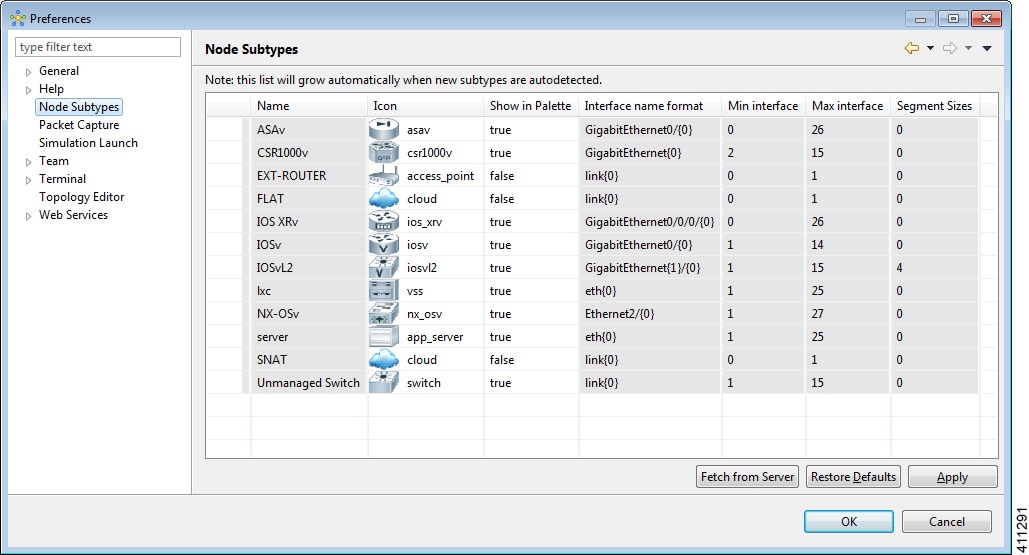
                                      Figure 27. Available Node Subtypes


                                      Step 15   In the Node Subtypes dialog box, click Fetch from Server. The Confirm dialog box is displayed.
                                      Step 16   Click OK to update the list of node subtypes based on the currently configured Cisco Modeling Labs server.

                                      Create an Image Snapshot

                                      When a Linux server is present in a running simulation, you can take a snapshot of the disk content of the server. This newly created user-specific disk image can be used in other simulated sessions.

                                      To take a snapshot of the server's disk content, complete the following steps.


                                        Step 1   Log in to the User Workspace Management interface.
                                        Note    You must log in as a user other than the uwmadmin user, for example, guest.
                                        Step 2   On the Overview page, under Sessions, choose the applicable running session. A list of active virtual machines is displayed.
                                        Step 3   Choose the applicable virtual machine image, and under the Options column, click the Create Snapshot icon.
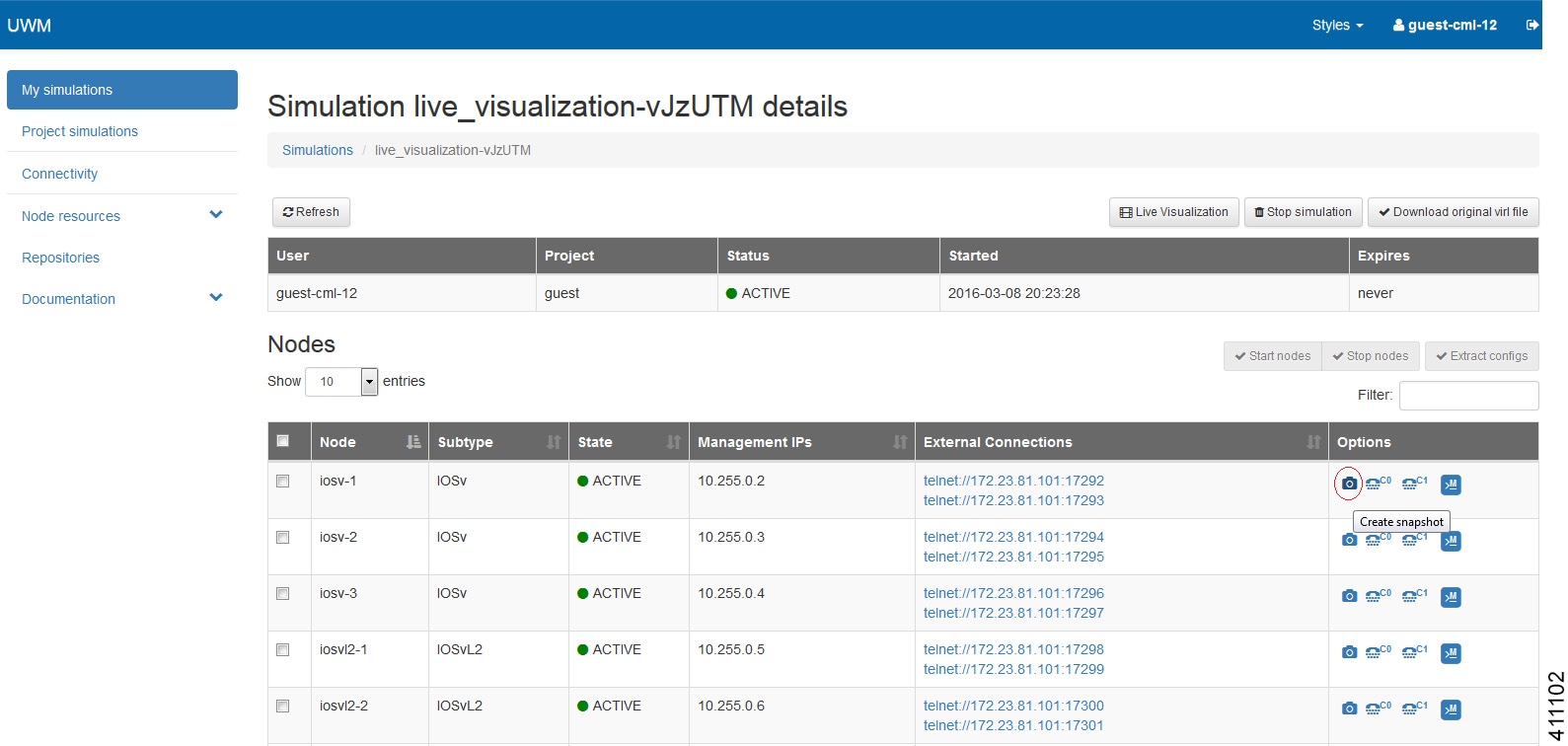
                                        Figure 28. Create Snapshot Icon


                                        Project details for the newly created snapshot are displayed.
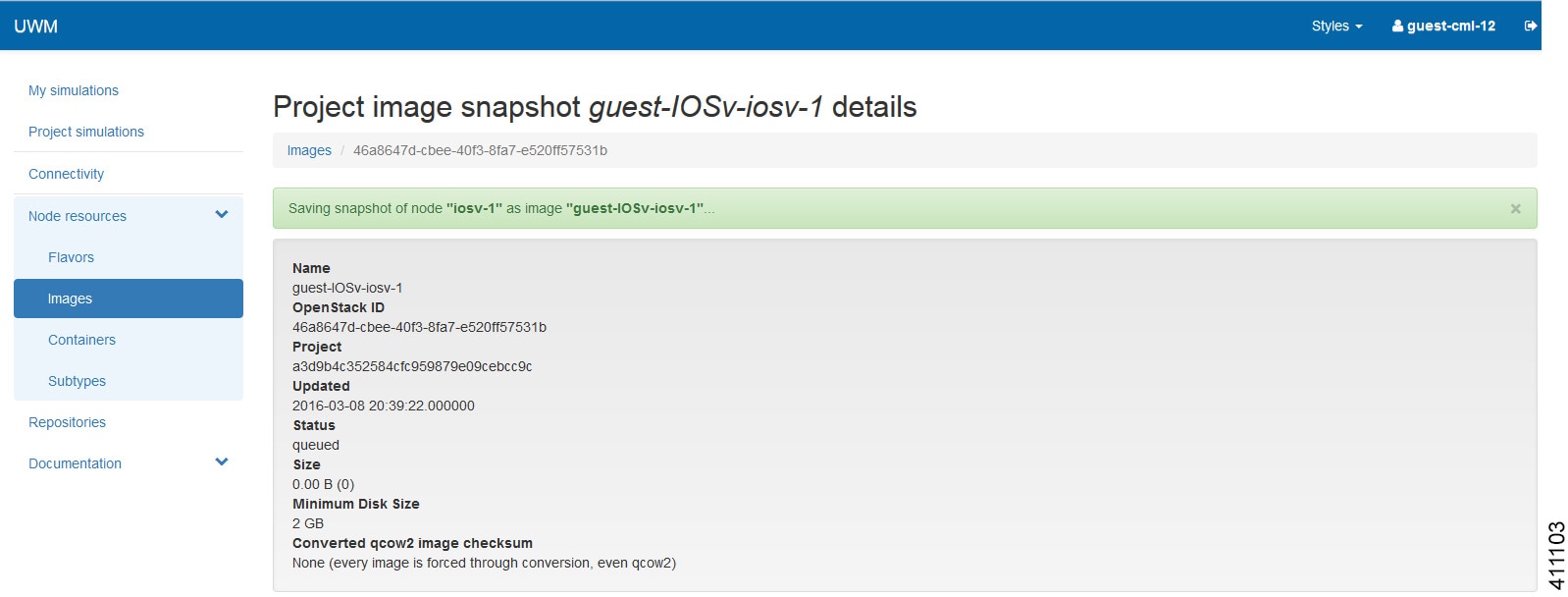
                                        Figure 29. Newly Created Image Snapshot


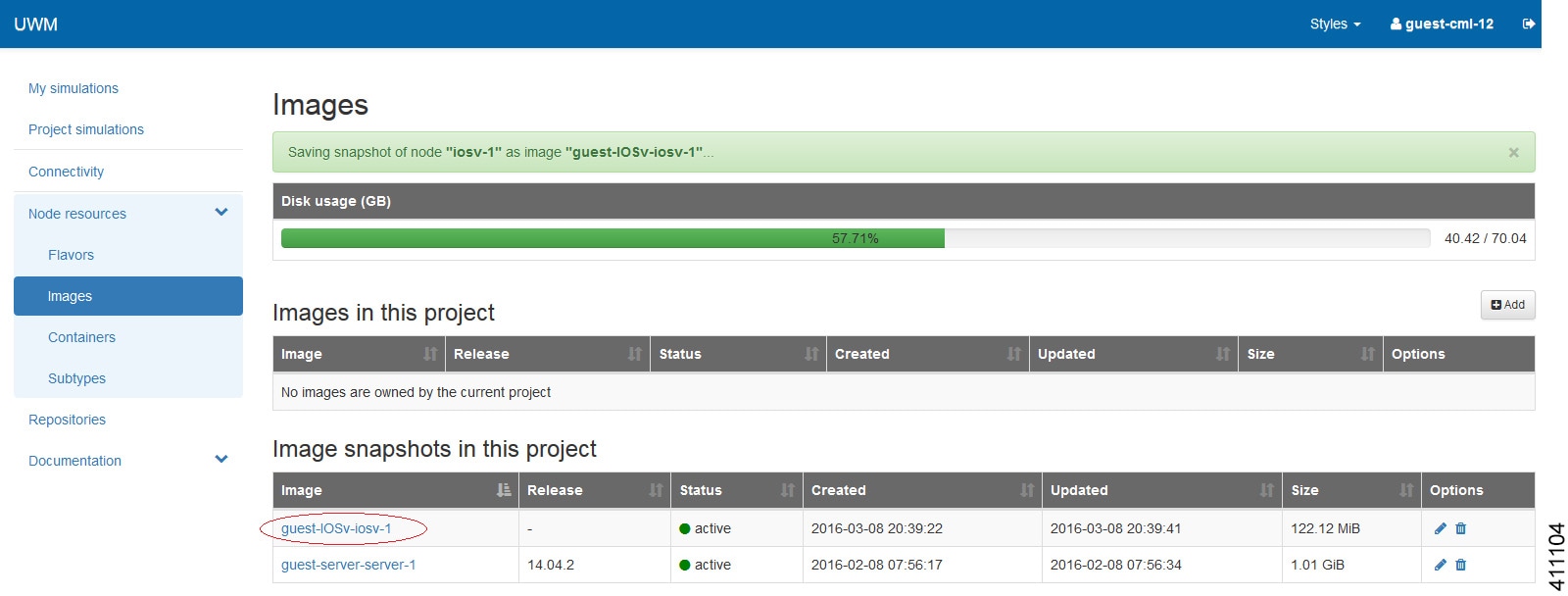
                                        The new image snapshot is listed under the Image Snapshot section on the Images page.
                                        Figure 30. Available Image Snapshots


                                        The image snapshot can be reused in the Cisco Modeling Labs client under Properties > Node > VM Image.

                                        See Cisco Modeling Labs Corporate Edition User Guide, Release 1.2 for more information.


                                        Containers

                                        In the User Workspace Management interface, the Containers page provides a list of LXC images and templates. Here you can manage LXC container images and templates.

                                        In the Containers page, you can perform a number of operations for LXC images and templates. These operations are:

                                        Operation

                                        Description

                                        Add

                                        Create a new LXC image and/or LXC template.

                                        Modify

                                        Modify details for LXC images

                                        Delete

                                        Delete LXC images and templates as required.

                                        Create an LXC Image

                                        To create a new LXC image, complete the following steps:


                                          Step 1   Click Node Resources > Containers in the User Workspace Management interface.

                                          The Containers page, which lists all of the available LXC images and templates, appears.
                                          Step 2   Click Add to create a new LXC image.

                                          The Create LXC Image page appears.
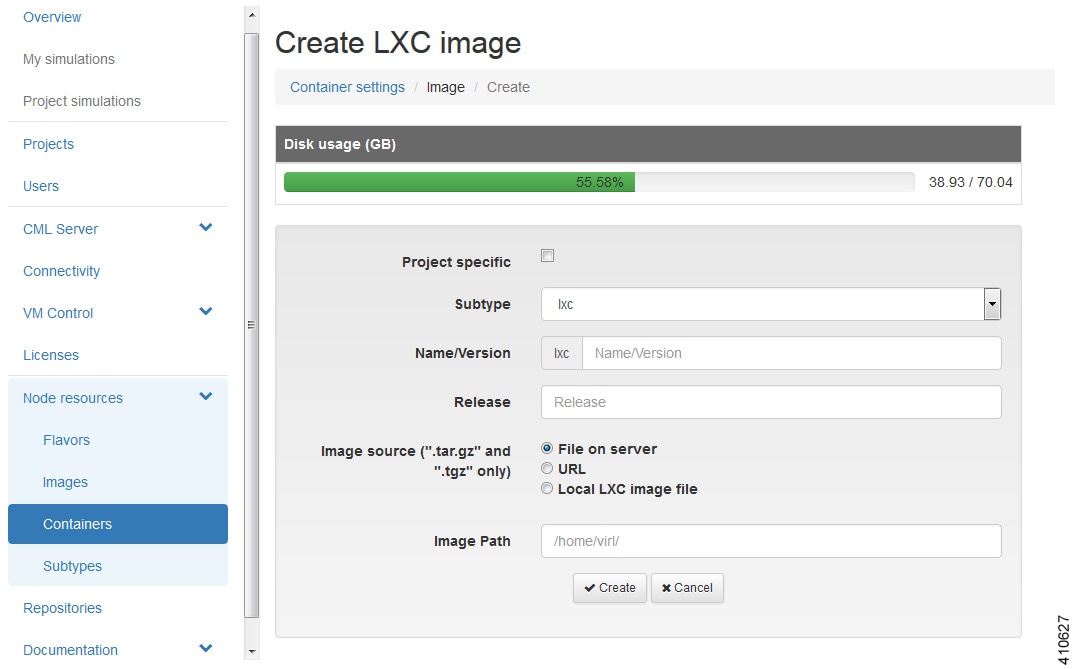
                                          Figure 31. Create an LXC Image


                                          Step 3   Click the Project Specific check box if you want the new image to be private and only available to the owning project.
                                          Step 4   Choose the appropriate subtype for the new LXC image from the Subtype drop-down list.
                                          Step 5   Enter a name or version number for the image in the Name/Version field.
                                          Step 6   Enter the release number for the image in the Release field.
                                          Step 7   Click the appropriate Image Source: File on Server, URL, or Local Image File.
                                          Step 8   Enter a path on the server/virtual machine (an HTTP, FTP or TFTP URL) or choose a file to upload in the Image Path field.
                                          Step 9   Click Browse to navigate to the LXC image file to upload an image from your own device.
                                          Step 10   Click Create to create your LXC image.
                                          Step 11   Click Images to view the newly added image.
                                          Step 12   Under the Options column, use the Modify or Delete options to amend the details for the LXC image or to delete an LXC image. After the LXC image is installed, it is available for users to select for their topology simulation.

                                          Create an LXC Template

                                          To create a new LXC template, complete the following steps:


                                            Step 1   Click Node Resources > Containers in the User Workspace Management interface.

                                            The Containers page, which lists all of the available LXC images and templates, appears.
                                            Step 2   Click Add to create a new LXC template.

                                            The Create LXC Template page appears.
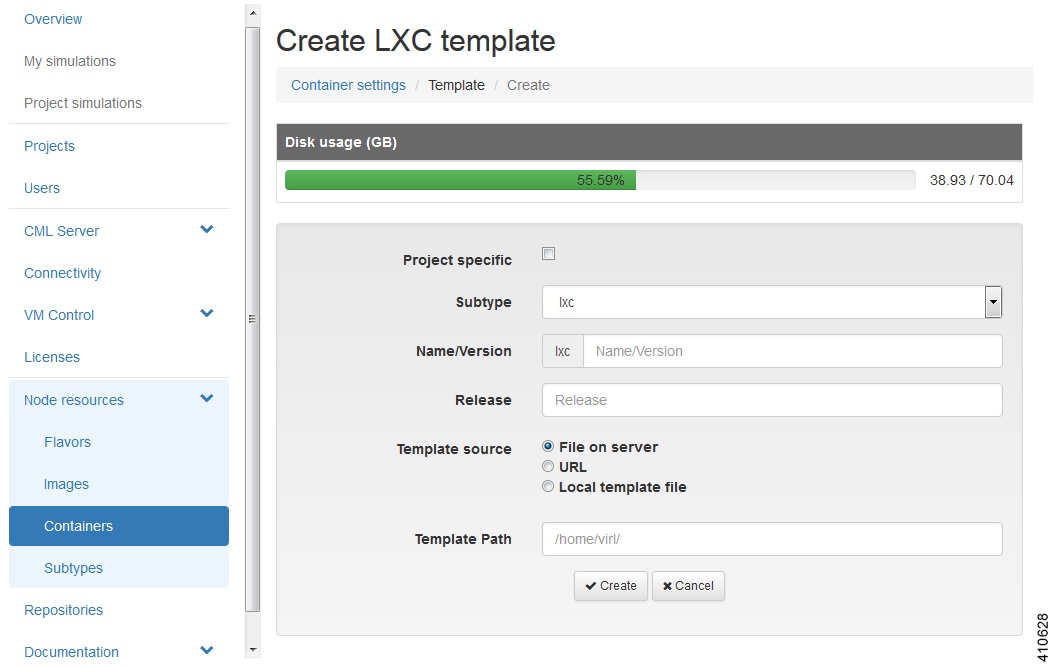
                                            Figure 32. Create a LXC Template


                                            Step 3   Click the Project Specific check box if you want the new image to be private and only available to the owning project.
                                            Step 4   Choose the appropriate subtype for the new LXC image from the Subtype drop-down list.
                                            Step 5   Enter a name or version number for the image in the Name/Version field.
                                            Step 6   Enter the release number for the image in the Release field.
                                            Step 7   Click the appropriate Template Source: File on Server, URL, or Local Image File.
                                            Step 8   Enter a path on the server/virtual machine (an HTTP, FTP or TFTP URL) or choose a file to upload in the Template Path field.
                                            Step 9   Click Browse to navigate to the LXC image file to upload from your own device.
                                            Step 10   Click Create to create your LXC template.
                                            Step 11   Click Images to view the newly added LXC template.

                                            Subtypes

                                            In the User Workspace Management interface, the Subtypes page provides a list of integrated subtypes, which users can use as templates to create their own custom subtypes. Using the Specialize option for a subtype, a user can duplicate the subtype template and make the necessary updates to create a new custom subtype. Subtypes can be imported and exported, which allows users to apply their custom subtypes to other Cisco Modeling Labs server installations.

                                            In the Subtypes page, you can perform a number of operations for subtypes. These operations are:

                                            Operation

                                            Description

                                            Import

                                            Imports a subtype from a JSON file.

                                            Export

                                            Exports a subtype to a JSON file.

                                            Specialize

                                            Duplicates an available subtype to create a custom subtype.

                                            Import a Subtype

                                            Subtypes for import must be available in a JSON file.

                                            To import a subtype, complete the following steps:


                                              Step 1   Click Subtypes in the User Workspace Management interface, under Node Resources. The Subtypes page, which lists the integrated subtypes, appears.
                                              Step 2   Click Import to import a new subtype.

                                              The Import Subtypes page appears.
                                              Step 3   Paste the subtype details from the JSON file into the text area.
                                              Step 4   Click Import. The newly imported subtype is listed on the Subtypes page.
                                              Step 5   (Optional) Click Specialize to create a custom subtype based on the newly imported subtype, click Modify to amend the details for the subtype, or click Delete to delete the subtype.

                                              Create a Custom Subtype

                                              To create a custom subtype, complete the following steps:


                                                Step 1   In the User Workspace Management interface, under Node Resources, click Subtypes. The Subtypes page, which lists the integrated subtypes available, appears.
                                                Step 2   For the applicable subtype, under the Options column and click the Specialize icon. The Specialize Subtype page appears.
                                                Step 3   Update the subtype fields as required.
                                                Note    You can use the default values on the Subtypes page; however, you must provide a new name for the new subtype.
                                                Table 10 New Subtype Fields

                                                Field

                                                Description

                                                Name of new subtype

                                                Enter a name for the new subtype.

                                                Description of plugin

                                                Provide a description of the plug-in to be created.

                                                Name of management interface

                                                Enter a name for the management interface.

                                                Names of dummy interfaces

                                                Enter names for dummy interfaces, inserted between management interface and first data interface.

                                                Pattern for data interface names

                                                Provide the interface name format, for example, GigabitEthernet0/{0}.

                                                First data interface number

                                                Enter a valid integer for the first interface.

                                                Max count of data interfaces

                                                Enter the maximum allowed number of interfaces.

                                                Number of interfaces per LC

                                                Enter the permitted number of interfaces per line card (LC) allowed.

                                                Number of serial interfaces

                                                Choose the number of interfaces allowed. Options are 0, 1, 2, 3, and 4.

                                                Protocol for network CLI

                                                Choose the type of console connection. Options are Telnet or SSH.

                                                Make VNC access available

                                                Allow VNC access. Enabled when the check box is checked.

                                                Name of icon for GUI

                                                Enter a name for the subtype icon that is displayed in the Cisco Modeling Labs client.

                                                Show subtype on GUI palette

                                                Allow the subtype icon to be displayed in the Cisco Modeling Labs client. Enabled when the check box is checked.

                                                Configuration disk type

                                                Choose the type of configuration disk. Options are cdrom, disk, cloud-init, iso9660, and vfat. For LXC subtypes, set to lxc.

                                                ISO 9660 Level in cdrom Disk

                                                Choose the ISO 9660 level in cdrom disk. Options are 2, 3, and 4.

                                                Name of file for config drive

                                                Enter a name for the configuration drive file.

                                                Virtual interface model

                                                Choose a virtual interface model. Options are e1000, virtio, and rtl8139.

                                                Main disk bus model

                                                Choose a main disk bus model. Options are ide, virtio, and scsi.

                                                RAM (MB) allocated per node

                                                Specify the amount of RAM (MB) to use for each node.

                                                Number of CPUs allocated per node

                                                Choose the number of CPUs to allocate per node. Value range is 1 to 16.

                                                Extra comma-separated image properties

                                                Enter any additional image properties, set on all images added for that subtype through the Create New Image page.

                                                Name of default image

                                                Enter a name for the default image.

                                                Name of default flavor

                                                Enter a name for the default flavor for VM-based subtypes and a default template name for LXC subtypes.

                                                Note    You can choose to go with the default values on the Subtypes page; though you must provide a name for the new subtype.
                                                Step 4   When completed, click Create to create the new custom subtype. The new subtype is created and its details are displayed in the Subtypes page for the new subtype.
                                                Note    For a newly created subtype, the value in the Dynamic column is Yes, which indicates that the subtype is not built into the server, and therefore may be modified or deleted.
                                                Step 5   (Optional) On this page, you can click Specialize to create a custom subtype based on the newly created subtype, click Modify to amend the details for the subtype, or click Delete to delete the subtype.
                                                Step 6   Click the Subtypes tab to see the custom subtype listed on the page.

                                                Documentation

                                                Within the User Workspace Management interface, you can access STD API and User Workspace Management API documentation. It is available from User Workspace Management > Documentation.

                                                Figure 33. Documentation Options


                                                To access the STD API, click STD API. The STD API page is displayed.
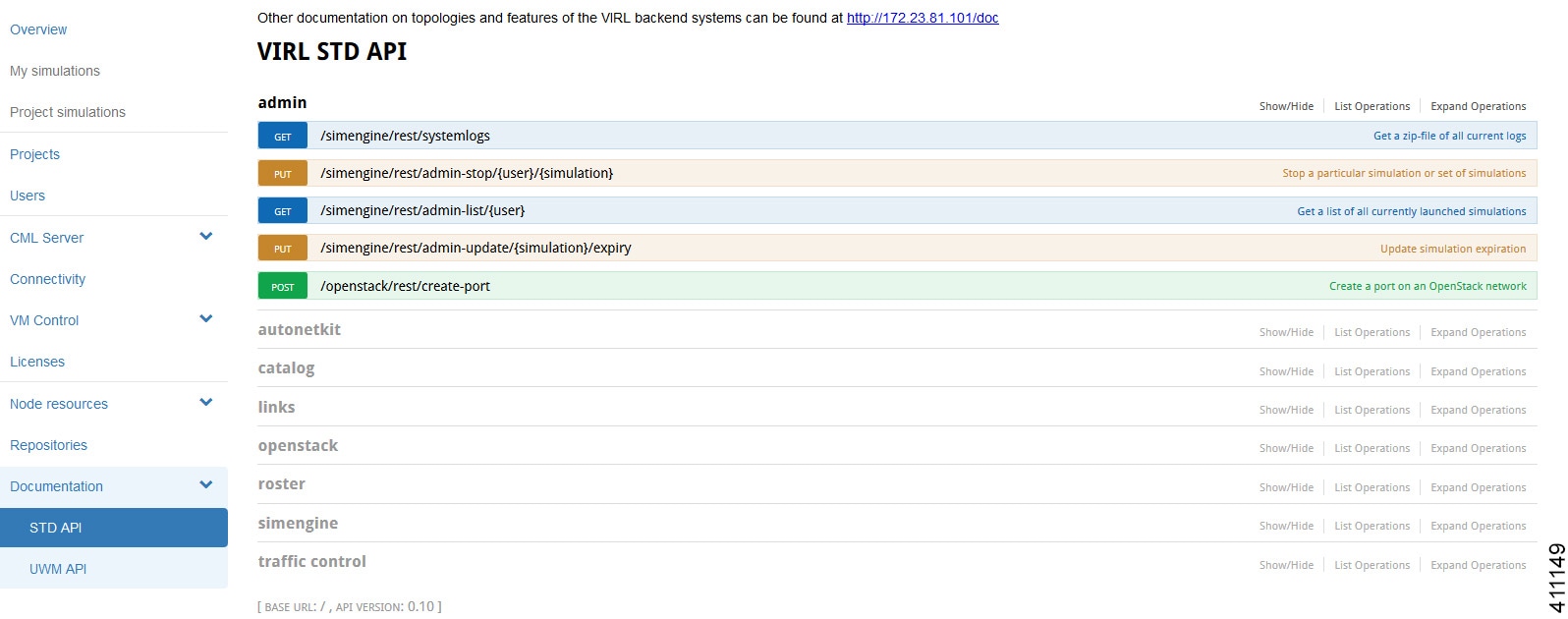
                                                Figure 34. Standard API


                                                From this page, you are able to browse the available REST calls and see examples of the call structures for the STD API.

                                                To access the User Workspace Management API, click UWM API. The UWM API page is displayed.
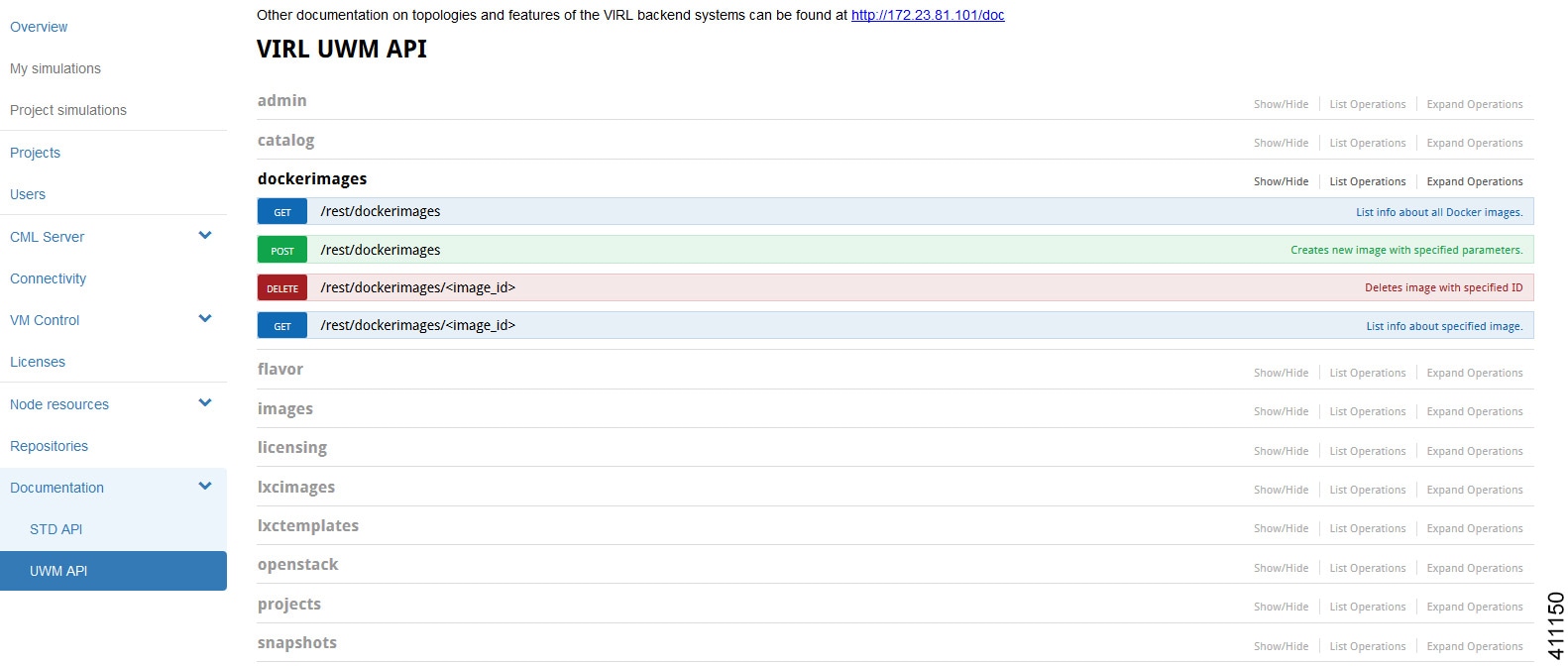
                                                Figure 35. UWM API


                                                From this page, you are able to browse the available REST calls and see examples of the call structures for the UWM API.

                                                Python Client Libraries

                                                Cisco Modeling Labs provides Python Client Libraries for STD and UWM services. These are available as .whl files that can be downloaded from http://<IP address>/download/ with installation information at http://<IP address>/doc/clients.html. The package can be installed using the command sudo pip install <filename>.whl. This provides the Cisco Modeling Labs STD, UWM and Openstack CLIs and client modules which can be imported into your Python projects.

                                                The pydoc function is available for these modules and can be accessed by issuing the commands pydoc virl_client.std, pydoc virl_client.uwm and pydoc virl_client.openstack. Help can be obtained by issuing the commands virl_std_client --help, virl_uwm_client --help and virl_openstack_client --help. The .whl file does not need to be installed on the CML server as it is already installed. The modules should be installed on your local Linux workstation. These .whl files are specifically for Linux only.
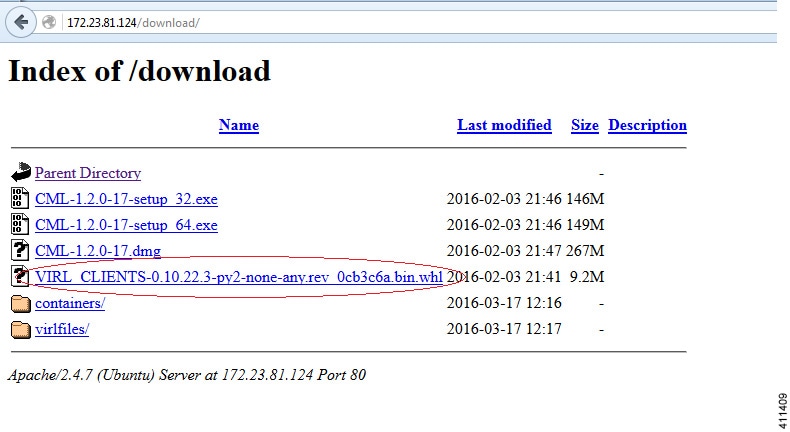
                                                Figure 36. Accessing Python Client Libraries