Removing and Replacing FRUs

This chapter describes procedures for removing and replacing field-replaceable units (FRUs) from the Cisco DNA Traffic Telemetry Appliance.

Removing and Replacing the Cisco DNA Traffic Telemetry Appliance Power Supplies

The following sections describes the procedures for removing and replacing the Cisco DNA Traffic Telemetry Appliance power supplies.


Note

The Cisco DNA Traffic Telemetry Appliance has redundant power supplies that can be hot-swapped.

DANGER

The covers are an integral part of the safety design of the product. Do not operate the unit without the covers installed. Statement 1077


DANGER

When you install the unit, the ground connection must always be made first and disconnected last. Statement 1046


DANGER

Before performing any of the following procedures, ensure that power is removed from the DC circuit. Statement 1003


DANGER

Only trained and qualified personnel should be allowed to install, replace, or service this equipment. Statement 1030


Removing AC Power Supplies from the Cisco DNA Traffic Telemetry Appliance

This section describes how to remove an AC power supply from the Cisco DNA Traffic Telemetry Appliance. The appliance has two power supply slots, power supply slot 0 (PS0) next to the Standby switch and power supply slot 1 (PS1) to the right, as shown in the following figures.


Note

The appliance has redundant power supplies that can be hot-swapped.

Follow these steps to remove an AC power supply from the appliance:

Procedure


Step 1

At the rear of the appliance, ensure that the power switch is in the Standby position.

Note 
It is not required to place the power switch in the Standby position if you want to hot-swap a single power supply.
Step 2

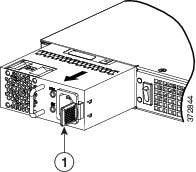
Unplug the power cable from the power supply as shown in the following figure.

Step 3

Press the retaining latch towards the pull handle, grasp the handle with one hand, and pull the power supply out of the slot while supporting the weight of the power supply with the other hand, as shown in the following figure.
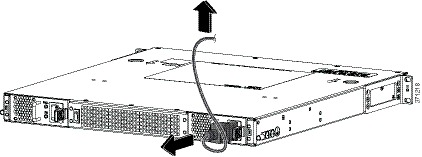
Figure 1. Removing the AC Power Supply Cable in Slot PS1
Figure 2. Removing the AC Power Supply

1

Retaining latch

Step 4

Repeat these steps if you want to remove the other AC power supply.


What to do next

This completes the procedure for removing the AC power supplies from the Cisco DNA Traffic Telemetry Appliance.

Installing AC Power Supplies in the Cisco DNA Traffic Telemetry Appliance


Note

Do not install the power supplies with the chassis cover off.

Follow these steps to install AC power supplies in the Cisco DNA Traffic Telemetry Appliance.

Procedure


Step 1

At the rear of the chassis, ensure that the power switch on the chassis is in the Standby position.

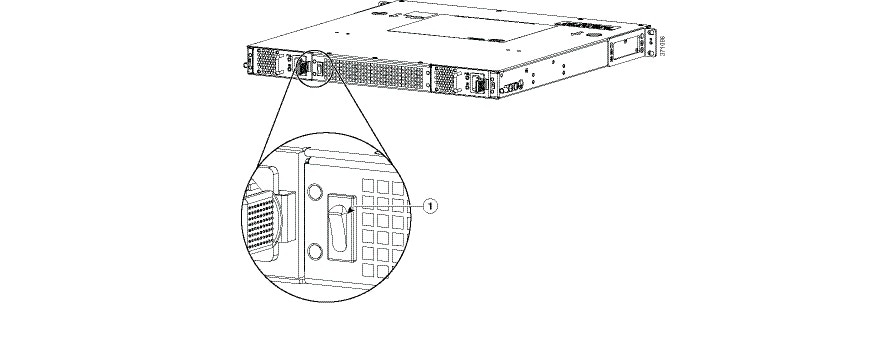
The following figure shows the AC power supply Standby switch.
Note 
It is not required to place the power switch in the Standby position if you want to hot-swap a single power supply.
Figure 3. AC Power Supply Standby Switch

1

Standby switch, which does not disconnect power from the power source.

Step 2

Insert the power supply module into the appropriate slot(s), making sure that the retention latch is firmly placed. You can verify that the power supply module is firmly latched by gently pulling the power supply handle.

Step 3

Insert the power supply cables firmly into the power supplies.

Note 
Ensure that both power supplies are inserted firmly and the power cords are in place.
Step 4

Ensure that the AC power cords are positioned, as shown in the following figure.
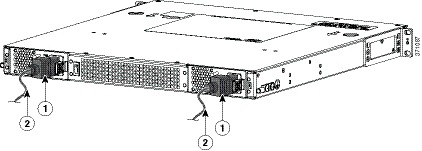
Figure 4. Correct Position of the AC Power Supply Cables

1

AC power supply

2

Position of power supply cable

Step 5

If you have changed the Standby switch to the standby position in step 1, turn the Standby switch to the On position.

The power supply LEDs are illuminated (green).


What to do next

This completes the procedure for connecting AC input power.

Removing DC Input Power from the Cisco DNA Traffic Telemetry Appliance


Note

The appliance has redundant power supplies that can be hot-swapped.

Follow these steps to remove a DC power supply from the Cisco DNA Traffic Telemetry Appliance.

Procedure


Step 1

Turn off the circuit breaker from the power source.

Step 2

At the rear of the appliance, ensure that the power switch is in the Standby position.

Note 
It is not required to place the power switch in the Standby position if you want to hot-swap a single power supply.
Step 3

Unscrew the two terminal block wire connectors (negative and positive) on the unit. See the following figure.

Step 4

Press the retaining latch towards the pull handle, grasp the handle with one hand, and pull the power supply out of the slot while supporting the weight of the power supply with the other hand. See the following figure.
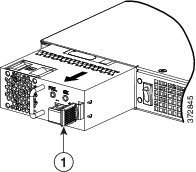
Figure 5. Removing DC Power Supply

1

Retaining latch


Installing DC Input Power on the Cisco DNA Traffic Telemetry Appliance


DANGER

Before performing any of the following procedures, ensure that power is removed from the DC circuit. Statement 1003


DANGER

Only trained and qualified personnel should be allowed to install, replace, or service this equipment. Statement 1030


This section describes how to install the DC power supply input power leads to the Cisco DNA Traffic Telemetry Appliance DC input power supply. Before you begin, read these important notices:

  • The color coding of the DC input power supply leads depends on the color coding of the DC power source at your site. Ensure that the lead color coding you choose for the DC input power supply matches the lead color coding used at the DC power source and verify that the power source is connected to the negative (–) terminal and to the positive (+) terminal on the power supply.

  • Ensure that the chassis ground is connected on the chassis before you begin installing the DC power supply. See Attaching a Chassis Ground Connection.

Wiring the DC Input Power Source

The Cisco DNA Traffic Telemetry Appliance DC power supply has a terminal block that is installed into the power supply terminal block header.

Use the following steps to wire the DC input power source:

Procedure

Step 1

Turn off the circuit breaker from the power source.

Step 2

At the rear of the appliance, ensure that the power switch is in the Standby position.

Note 
It is not required to place the power switch in the Standby position if you want to hot-swap a single power supply.
Step 3

Use a wire-stripping tool to strip each of the two wires coming from the DC input power source and strip the wires to approximately 0.39 inch (10 mm) + 0.02 inch (0.5 mm). Do not strip more than the recommended length of wire because doing so could leave the wire exposed from the terminal block. The following figure shows a stripped DC input power source wire.
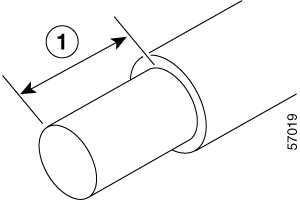
Figure 6. Stripped DC Input Power Source Wire

1

0.39 inch (10 mm) is the recommended wire-strip length for the terminal block.

DANGER 

An exposed wire lead from a DC input power source can conduct harmful levels of electricity. Be sure that no exposed portion of the DC input power source wire extends from the terminal block. Statement 122

Step 4

Identify the positive and negative feed positions for the terminal block connection. The wiring sequence is:

  1. Positive (+) lead wire (right)

  2. Negative (?) lead wire (left)

Step 5

Insert the exposed wire into the terminal block. Ensure that you cannot see any wire lead outside the plastic cover. Only wires with insulation should extend from the terminal block.

Caution 

Do not overtorque the terminal block captive screws. Ensure that the connection is snug, but the wire is not crushed. Verify by tugging lightly on each wire to ensure that they do not move.

Step 6

Use a screwdriver to tighten the terminal block captive screws, as shown in the following figure.
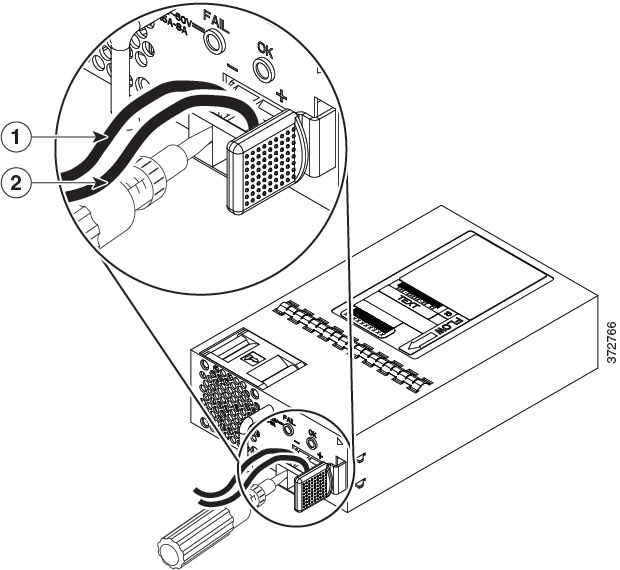
Figure 7. DC Power Supply with Lead Wires

1

Negative (?) lead wire

2

Positive (+) lead wire

Step 7

Repeat these steps for the remaining DC input power source wire as applicable.

Step 8

Use a tie wrap to secure the wires to the rack, so that the wires are not pulled from the terminal block by casual contact.

Step 9

Turn on the circuit breaker at the power source.

Step 10

If you have changed the Standby switch to the standby position in step 1, turn the Standby switch to the On position.

The power supply LEDs illuminate green.


What to do next

This completes the procedure for connecting the DC power supply in the Cisco DNA Traffic Telemetry Appliance.
Removing and Replacing the Cisco DNA Traffic Telemetry Appliance USB Flash Memory Stick or Secure Token

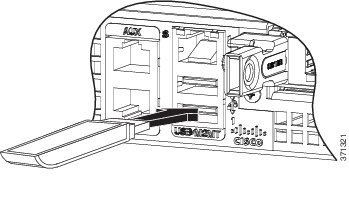
The Cisco DNA Traffic Telemetry Appliance contains ports for a flash memory stick or a secure token, to store configurations or Cisco IOS XE consolidated packages.

The following figure shows USB port 0 or 1 connector on the Cisco DNA Traffic Telemetry Appliance for the flash memory stick or secure token.

Figure 8. FlashToken Memory Stick Port

Caution

Do not remove a USB flash memory stick or secure token when issuing a file access command or a read/write operation to the flash memory stick or secure token when it is processing. The appliance might reload or the USB flash memory stick or secure token may get damaged. Prior to the removal of the USB device, check to see if the USB activity LED on the front panel is flashing.


To remove and then replace a USB flash token memory stick, follow these steps:

Procedure


Step 1

Pull the flash memory stick or secure token from the USB port.

Step 2

To replace a Cisco USB flash memory stick or secure token, insert the module into USB port 0 or 1, as shown in the preceding figure. The flash memory stick or secure token can be inserted only in one way, and can be inserted or removed regardless of whether the appliance is powered up or not.

This completes the USB flash memory installation procedure.


Removing and Replacing the Cisco DNA Traffic Telemetry Appliance DIMM

This section describes how to replace the DIMMs on the Cisco DNA Traffic Telemetry Appliance.

Note

The appliance supports an 8-GB and 16-GB configuration.

You might have to upgrade a DIMM if you upgraded to a new Cisco IOS feature set or release that requires more memory.

Removing and Replacing the Cisco DNA Traffic Telemetry Appliance DIMM Memory Module

Perform the following steps before you begin the process of removing and replacing a DIMM memory module:

  • Use an ESD-preventive wrist strap.

  • Back up the data that you want to save.

  • Remove the power supplies before you remove the chassis top cover.


Caution

The top cover cannot be removed until the power supplies are removed from the chassis. The chassis has a safety mechanism built in to prevent the removal of the top cover until the power supplies are removed.


  • The DIMM component is keyed and slotted for easier connection.

  • The appliance has two DIMM slots.

The following table shows the slots that are supported for inserting the memory DIMMs in the appliance.

Table 1. Supported Slots for Inserting the DIMMs

Memory PID Option

Slot 0 (U101D)

Slot 1 (U103D)

U1D0

4 GB

4 GB

U1D1

8 GB

8 GB

This section describes how to remove the chassis cover and then remove and replace the DIMMs.

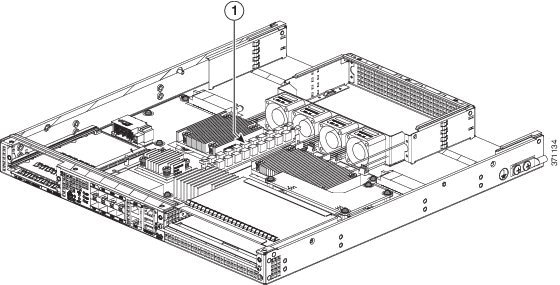
The following figure shows the location of the DIMM slots in the appliance.

Figure 9. Internal Component Location

1

Cisco DNA Traffic Telemetry Appliance DIMM location (two slots)

Removing a Cisco DNA Traffic Telemetry Appliance DIMM

Follow these steps to remove a Cisco DNA Traffic Telemetry Appliance DIMM:

Procedure

Step 1

With an ESD wrist strap on, remove the power supplies from the chassis.

Note 
The chassis cover cannot be removed until the power supplies are removed from the chassis.
Step 2

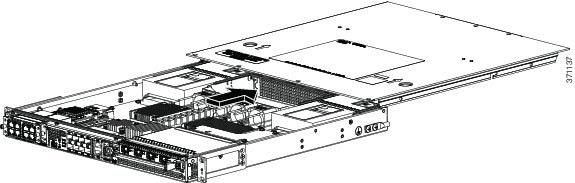
After the power supplies are removed, remove the chassis top cover:

  1. Remove all the top surface screws on the chassis cover.

  2. Remove the two side screws from the left and the right side of the chassis.

  3. Using both hands, gently slide the cover slightly backward and off of the chassis.

    Figure 10. Removing the Cover
    Note 
    The cover will not come off the chassis if the power supplies are present in the chassis.
Step 3

Position the chassis so that you have the most comfortable access to the chassis to remove the DIMM.

Step 4

Locate the DIMMs on the appliance. See the following figure.

Step 5

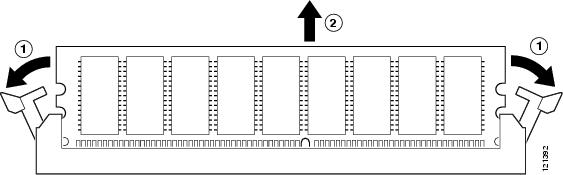
Pull down the DIMM module spring latches to release the corresponding DIMM from the socket. See the following figure.

Figure 11. DIMM Module Spring Latches to Remove the DIMMs from the Appliance
Step 6

When both ends of the DIMM are released from the socket, grasp each end of the DIMM with your thumb and forefinger and pull the DIMM completely out of the socket. Handle only the edges of the DIMM; avoid touching the memory module, pins, and the metal traces (the metal fingers along the connector edge of the DIMM) along the socket edge.

Step 7

Place the DIMM in an antistatic bag to protect it from ESD damage.

Step 8

Repeat Step 5 through Step 7 for the remaining DIMMs, if required, for your upgrade.


What to do next

This completes the steps for removing the DIMMs from the chassis.

Replacing a Cisco DNA Traffic Telemetry Appliance DIMM

This section lists the steps to replace a DIMM in the Cisco DNA Traffic Telemetry Appliance.
Procedure

Step 1

Place the DIMM on an antistatic mat or pad while wearing an antistatic device, such as a wrist strap.

Caution 

DIMMs are sensitive components that can be shorted by mishandling; they are susceptible to ESD damage. Handle the DIMM by the edges only, and avoid touching the pins.

Step 2

Remove the new DIMM from the antistatic bag.

Step 3

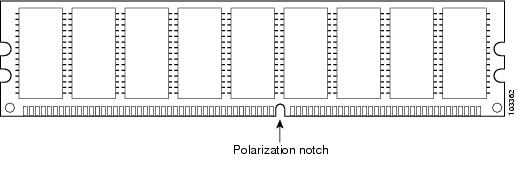
Locate the polarization notch and align the DIMM with the socket before inserting it. See the following figure.

Figure 12. DIMM Polarization Notch
Step 4

Gently insert the new DIMM, taking care not to damage the pins on the edge of the DIMM. Using two hands, hold both sides of DIMM?s top edges with your index fingers and thumbs and gently slide the DIMM straight in to the socket. Press the top of the DIMM towards the socket, being careful to apply force only on the DIMM that is parallel with the plane of the DIMM.

Caution 

When inserting DIMMs, use firm but not excessive pressure. If you damage a socket, you will have to return the appliance for repair.

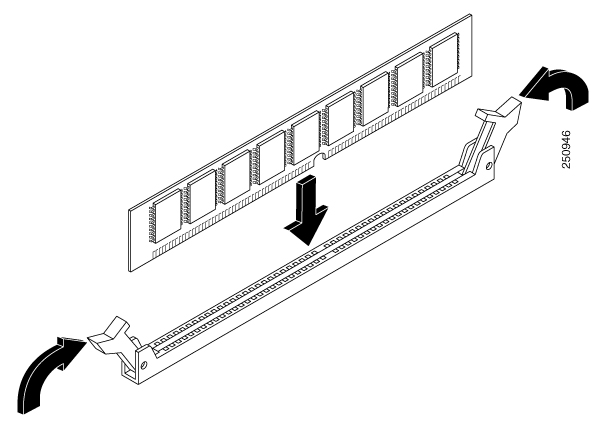
Step 5

Use light insertion force and insert smoothly, but ensure that the DIMM is inserted straight. If necessary, rock the DIMM gently back and forth to seat it properly. The following figure shows how to install the DIMM in the socket for the appliance.

Figure 13. Installing a DIMM in the Socket of the Appliance
Step 6

After the DIMM is installed, check whether the release levers are flush against the sides of the DIMM socket. If they are not, the DIMM might not be seated properly. If the DIMM appears misaligned, carefully remove it according to the removal procedure and then reseat it in the socket. Push the DIMM firmly back into the socket until the release levers are flush against the sides of the DIMM socket.

Step 7

Repeat Step 4 through Step 6 for the remaining DIMM.

Step 8

Replace the top cover:

  1. Slide the cover onto the chassis ensuring that the interlock hook feature fits on the chassis cover and base.

  2. Install the top surface screws and the side screws and tighten them slightly.

Step 9

Install the power supplies in the chassis.


What to do next

This completes the procedure for replacing the DIMM.

After you have correctly installed the DIMMs, the system should reboot properly.

If the system fails to reboot properly or if the console terminal displays a checksum or memory error after you have installed the new DIMMs, ensure that both the DIMMs are installed correctly. If necessary, shut down the system and remove the chassis cover. Check the DIMMs by looking straight down on them to inspect them at eye level. The DIMMs should be aligned at the same angle and the same height when properly installed. If a DIMM appears to stick out or rest in the socket at a different angle from the other, remove the DIMM and reinsert it. Replace the top chassis cover, and reboot the system for another installation check.


Note

After several attempts, if the system fails to restart properly, contact a Cisco service representative for assistance. Before you call, make note of any error messages, unusual LED states, or other indications that might help solve the problem.

Removing and Replacing a NIM on the Cisco DNA Traffic Telemetry Appliance

The OIR feature allows you to install and replace a NIM while the appliance is operating. You do not have to shut down the system’s power, although you should not run traffic through the NIM while it is being removed. OIR is a method that is seamless to end users on the network.


Note

As you disengage the NIM from the appliance, OIR shuts down all the active interfaces in the NIM.

We recommend that you have the following tools and parts readily available for installing a NIM:

  • Number 2 Phillips or a 3/16-inch flat-blade screwdriver

  • NIM

  • Cables

  • Your own ESD-prevention equipment or the disposable grounding wrist strap included with all upgrade kits, FRUs, and spares

  • Antistatic mat or surface, or static shielding bag

If you need additional equipment, contact a Cisco service representative for ordering information.

Removing a NIM

To remove a NIM, follow these steps.

Procedure


Step 1

Attach an ESD wrist strap between you and an unpainted chassis surface.

Step 2

Stop the NIM so that there is no traffic running through the NIM when it is removed, using the following steps:

Caution 

Removing a NIM while traffic is flowing through the ports may cause system disruption.

  1. At the # prompt, enter hw-module subslot 0/2 stop and press Enter .

  2. At the # prompt, enter end and press Enter .

Step 3

Disconnect all the cables from the NIM.

Step 4

Unscrew the captive installation screws on either side of the NIM.

Step 5

Grasp the handles using both hands and pull out the NIM.

You have completed the NIM removal procedure.


Replacing a NIM

To replace a NIM, follow these steps:

Procedure


Step 1

To insert a NIM, locate the guide rails that hold the NIM in place. They are at the top left and top right of the NIM slot and are recessed about an inch.

Step 2

Carefully slide the NIM all the way in using both hands until the NIM is firmly seated in the NIM interface connector. When fully seated, the NIM might be slightly behind the faceplate.

Step 3

After the NIM is properly seated, fasten the NIM in place with the captive installation screws on either side of the NIM.

Note 
Ensure that you screw down the captive installation screws to provide appropriate connectivity.

The NIM should power up after installation.

Step 4

Use the show platform command to verify whether the status of subslot 0/2 is OK.

You have completed the NIM replacement procedure.


Removing and Replacing an SSD from the NIM-SSD Module

This section explains how to remove a solid state drive (SSD) from the NIM-SSD module.


Caution

The NIM-SSD module of the Cisco DNA Traffic Telemetry Appliance recognizes both hard drives as one partition. For example, two 200-GB hard drives are treated as one 400-GB hard drive. Because there is no data backup capability in the NIM-SSD module, replacing any SSD will cause complete data loss. Ensure that you clean up and back up all important data before replacing any SSD.


Restrictions

  • The Cisco DNA Traffic Telemetry Appliance does not support dynamic removal and shutdown of SSD drives while the NIM-SSD module is still powered on. Such ungraceful actions may cause disk corruption and you will see kernel messages indicating that the module did not shutdown gracefully. Power down the NIM-SSD module and wait for the power LED to turn off before removing and replacing the SSD.

  • Cisco SSD Carrier Card NIM without SSD drives is not supported.

Removing an SSD from the NIM-SSD Module

To remove an SSD from the NIM-SSD module, follow these steps:

Procedure


Step 1

Access the NIM-SSD slot.

Step 2

Stop the SSD module using the following steps:

  1. At the # prompt, enter hw-module subslot 0/2 stop and press Enter .

  2. At the # prompt, enter end and press Enter .

Step 3

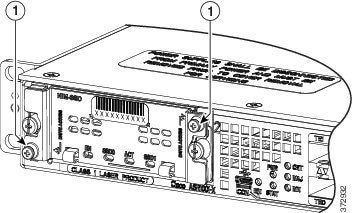
Unscrew the captive installation screws on either side of the NIM-SSD to remove the front faceplate of the NIM, as shown in the following figure.

Figure 14. Captive Installation Screws Location

1. Captive screws on the SSD slot cover attaching the SSD drive to the NIM carrier card

Step 4

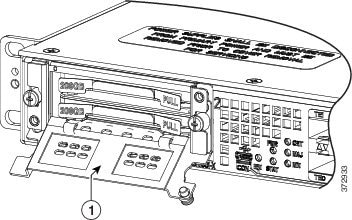
Pull the NIM-SSD card slot cover down, exposing the SSD slot, as shown in the following figure.

Figure 15. Slot Cover

1. Carrier card slot cover

Step 5

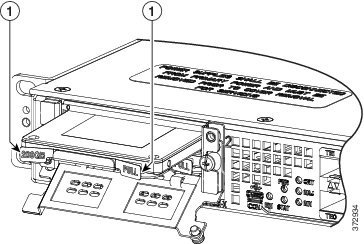
Pull the NIM-SSD out of the connector on the motherboard using both hands, as shown in the following figure. While pulling, keep the NIM-SSD parallel with the motherboard to prevent damage to the slot and the standoff.

Figure 16. Pulling Out the SSD

1. Tabs to pull out the SSD drive

Step 6

Place the NIM-SSD in an antistatic bag to protect it from ESD damage.

This completes the removal of the NIM-SSD.


Installing an SSD into the NIM-SSD Module

To install an SSD into the NIM-SSD module, follow these steps:

Procedure


Step 1

On the NIM-SSD, loosen the captive screws that retain the SSD card slot cover.

Step 2

Pull the NIM-SSD card slot cover down, exposing the SSD slot.

Step 3

Insert an SSD into the appropriate slot.

Step 4

The SSD(s) connector end should be inserted first, with the connector side facing down and the serial number facing up.

Step 5

Pull the NIM-SSD card slot cover up and into place over the SSD.

Step 6

Verify that the NIM-SSD is installed correctly.

Step 7

Start the NIM-SSD module using the following steps:

  1. At the # prompt, enter hw-module subslot 0/2 start and press Enter .

  2. At the # prompt, enter end and press Enter .

Step 8

Use the show platform command and the show inventory command to verify whether the status of subslot 0/2 is OK.

Step 9

Use the dir hardisk: command to verify whether the total file size of the hard disk partitions is correct.

You have completed the NIM-SSD replacement procedure.


Repacking the Appliance

If your system is damaged, you must repack it for return shipment.

Before you return the appliance or move it to a different location, repack the system using the original packaging material.