Uninstall

This section contains the following topics:

Delete VM using Cluster Installer

In case of a failed installation, the cluster installer tool is used to cleanup or delete any previously created VMs based on the cluster-state. this is a critical activity during failed deployments. Any changes made to the VM settings or the DC host requires a cleanup operation before redeployment.


Note

The cleanup procedure is similar for both vCenter and CSP deployments, with the only exception being the addition of "-t csp" option when running a CSP cleanup.


Note

The installer cleanup option will delete the cluster deployment based on the inventory in /data directory.


Procedure


Step 1

Enter the directory storing the deployment info.

For example, _cd ~/cw-cluster.

Step 2

Run the container on the host.

docker run --rm -it -v `pwd`:/data <cw-installer docker container>
Note 

Add the "-t csp" option when running a CSP cleanup.

Step 3

Edit the copy of the template file (for example, v4.tfvars) in a text editor, adding the data center access parameters. Remaining parameters can be provided with dummy values, or entered on the command line during the execution of the operation.

Step 4

Run the _cw-installer.sh install_ script with the clean directive along with the deployment manifest using the -m flag. For example:

./cw-installer.sh clean -m /data/deployment.tfvars
Step 5

Enter "yes" when prompted to confirm the operation.

Step 6

(Optional) In addition to removing the VMs, adding the -o option to the clean directive will also remove the Cisco Crosswork image template from the data center.

Example:

./cw-installer.sh clean -m/data/deployment.tfvars -o
Step 7

(Optional) To clean the cluster quickly (without verification), users can run the installer using the following command:

docker run --rm -it -v `pwd`:/data <cw installer docker image> -exec './cw-installer.sh clean -m /data/deployment.tfvars'

Uninstall Crosswork Applications

This section explains how to uninstall a application via the Crosswork GUI.


Note

The Uninstall option removes the application, the associated data and services (application-specific menus, UI etc.).


Note

Crosswork Platform Infrastructure cannot be deactivated.


Procedure


Step 1

Click on Admin > Crosswork Management, and select the Application Management tab.

The Crosswork Platform Infrastructure and any applications that are added are displayed here as tiles.

Step 2

Click (…) on the application tile that you want to uninstall, and select the Uninstall option from the drop down list.

A pop-up is displayed to confirm the action.

Step 3

Click Uninstall to confirm.

The selected application is uninstalled and the application tile is modified to reflect the same.

Note 

Uninstall operation does not remove the CAPP file from the repository. The CAPP file will remain visible in the UI, in case user wants to install in the future.


Delete Crosswork Data Gateway VM from Cisco Crosswork

Before you begin

The Crosswork Data Gateway VM you want to delete must be in maintenance mode.

Procedure


Step 1

Log in to Cisco Crosswork.

Step 2

From the navigation panel, select Administration > Data Gateway Management.

Click on the Virtual Machines tab.

Step 3

In the Virtual Machines list, find the Crosswork Data Gateway VM you want to delete and click Edit icon under Actions column.

Click Delete.

Step 4

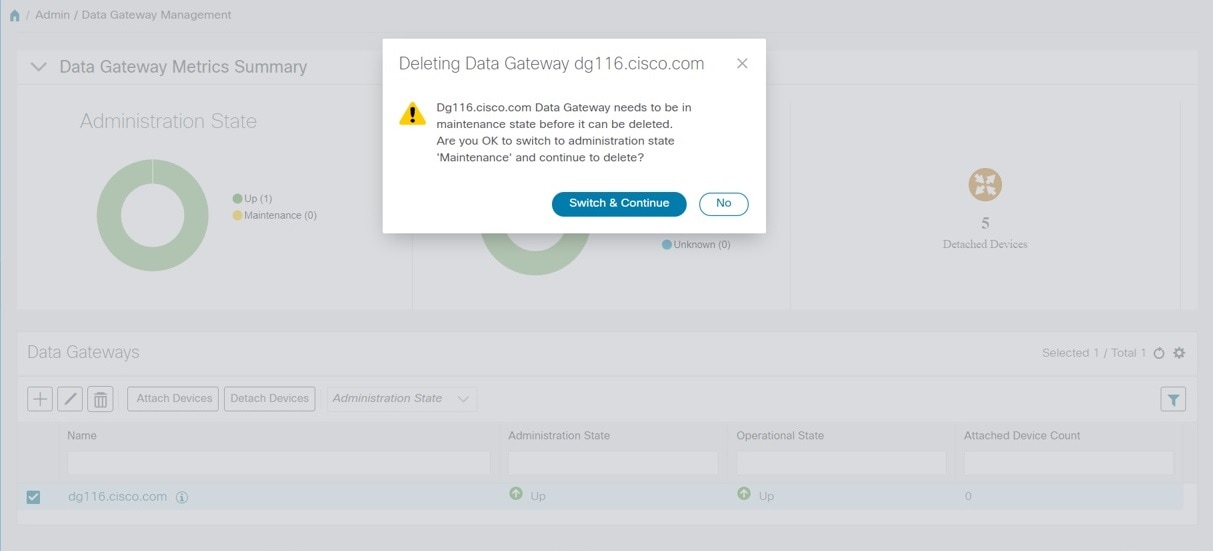
If the Crosswork Data Gateway VM is not in maintenance state, Cisco Crosswork prompts you to switch it to maintenance state. Click Switch to maintenance & continue.


The Crosswork Data Gateway VM is deleted.


Delete VM using vSphere UI

This section explains the procedure to delete a VM from vCenter. This procedure is used to delete any Cisco Crosswork application VM.


Note

  • Be aware that this procedure deletes all your app data.

  • If you want to delete Crosswork Data Gateway only, ensure you have done the following:

    • Detach the devices from the Crosswork Data Gateway VM you want to delete. The procedure to detach devices from a Crosswork Data Gateway is described in the Section: Delete Cisco Crosswork Data Gateway VM from Cisco Crosswork in Cisco Crosswork Infrastructure 4.0 and Applications Administration Guide.

    • Delete the Crosswork Data Gateway VM from Cisco Crosswork as described in Delete Crosswork Data Gateway VM from Cisco Crosswork.


Procedure


Step 1

Log in to the VMware vSphere Web Client.

Step 2

In the Navigator pane, right-click the app VM that you want to remove and choose Power > Power Off.

Step 3

Once the VM is powered off, right-click the VM again and choose Delete from Disk.

The VM is deleted.


Delete Crosswork Data Gateway Service from Cisco CSP

Follow the steps to delete the Crosswork Data Gateway Service from Cisco CSP:

Before you begin

Before deleting the Crosswork Data Gateway VM, ensure you have done the following:

Procedure


Step 1

Log in to your Cisco CSP.

Step 2

Go to Configuration > Services.

The Service table shows the current status of the services.

Step 3

Find your service instance in the Service Name column and click Delete under the Action column.