Upgrade Process for AireOS Wireless LAN Controllers
Available Languages
Contents
Introduction
This document describes and explains the procedure and requirements to upgrade software on a Wireless LAN Controller (WLC).
Prerequisites
Requirements
In addition to basic network knowledge and familiarity with the simple configuration and installation of Cisco WLCs, ensure that you read the Guidelines and Recommendations present in the release notes.
For example, refer to Version 8.10.190.0.
Supported Upgrade Path to Cisco Wireless Release 8.10.x:
| Current Software Release | Upgrade Path to Release 8.10.x |
| 8.5.x | You can upgrade directly to Release 8.10.x. |
| 8.8.x | You can upgrade directly to Release 8.10.x |
| 8.10.x | You can upgrade directly to Release 8.10.x |
It is highly recommended that you keep your WLC updated with the current recommended release. You can check the current recommended releases: Recommended AireOS Wireless LAN Controller Releases.
See WLC Software Release Notes for an accurate upgrade path, download information, and upgrade procedure information for each specific release.
For example, if you migrate to Release 8.10.190.0, see the Upgrading Cisco Wireless Release section of Release Notes for Cisco Wireless Controllers and Lightweight Access Points, Cisco Wireless Release 8.10.171.0.
Do not power down the controller or any access point in this process; otherwise, you can corrupt the software image. The upgrade of a controller with a large number of access points can take up to 30 minutes (it depends on the size of your network). However, with the increased number of concurrent access point upgrades supported in the controller software release, the upgrade time is significantly reduced. The access points must remain powered, and the controller must not be reset at this time.
You can reduce the network downtime with these options:
-
You can predownload the AP image. This feature allows you to download the upgrade image to the controller, and then download the image to the access points while the network is still up. A new CLI allows you to specify the boot image for both devices and to reset the access points when the controller resets.
For information on how to configure the WLC and LAPs for this feature, read the section: Predownloading an Image to an Access Point of Cisco Wireless LAN Controller Configuration Guide, Release 8.10. -
For FlexConnect access points, use the FlexConnect Efficient AP upgrade feature to reduce traffic between the controller and the AP (main site and the branch).
For more information about the configuration of FlexConnect AP upgrades, see the Configuring FlexConnect AP Upgrades for FlexConnect APs chapter of Cisco Wireless LAN Controller Configuration Guide, Release 8.10.
Ensure your APs support the new version when you upgrade. Refer to the Cisco Wireless Solutions Software Compatibility Matrix.
Components Used
The information in this document is based on these software and hardware versions:
-
An FTP server with the upgrade files stored.
- A PC with HTTP/S access to the WLC for file transfer via HTTPs.
- A Cisco 3504 WLC that runs 8.5.182.0 to be upgraded to software release 8.10.171.0.
The information in this document was created from the devices in a specific lab environment. All of the devices used in this document started with a cleared (default) configuration. If your network is live, ensure that you understand the potential impact of any command.
Platforms Supported
This document is also applicable to these hardware platforms:
- Cisco 5520/8540 Series Wireless LAN Controllers
-
Cisco 3504 Series Wireless LAN Controller
- Cisco Virtual Wireless Controller (vWLC)

Note: Verify your APs are compatible with the software you plan to upgrade to, this avoids the loss of APs during the upgrade. Refer to the Cisco Wireless Solutions Software Compatibility Matrix.
WLC Software Upgrade Procedure
You can use the CLI or GUI to upgrade to the Cisco WLC.
Note: Cisco highly recommends backing up the configuration on the WLC before you perform your upgrade.
GUI Upgrade Procedure
In this section, you are presented with the information to upgrade the WLC with the use of the GUI on the controller.
When you upgrade the WLC with the use of the GUI, you lose Layer 3 (IP) connectivity within a period of time when the controller reboots.
For this reason, it is recommended that you use a console port connection to check the state of the controller during the upgrade process and expedite any recovery procedures, if necessary.
Perform these steps:
- Upload your controller configuration files to a server to back up the configuration files.
- To obtain controller software:
- Browse the Software Download portal at: Cisco Software Download.
- Search for the controller model: Downloads Home > Wireless > Wireless LAN Controller > Standalone Controllers.
- Click the WLC model you have and then on Wireless LAN Controller Software.
- The software releases are labeled as described to help you determine which release to download. Click a controller software release number:
- Early Deployment (ED): These software releases provide new features and new hardware platform support and bug fixes.
- Maintenance Deployment (MD): These software releases provide bug fixes and continuous software maintenance.
- Deferred (DF): These software releases have been deferred; it is recommended you migrate to an upgraded release.
- Click the filename <filename.aes>.
- Click Download.
- Read the Cisco End User Software License Agreement and click Agree.
- Save the file to your hard drive.
- Copy the controller software file <filename.aes> to the default directory on your TFTP, FTP, or SFTP server.
- (Optional) Disable the controller 802.11 network.
Note: For busy networks, controllers on high utilization, and small controller platforms, it is recommended that you disable the 802.11 networks as a precautionary measure.
- Choose Commands > Download File to open the Download File to Controller page.
- From the File Type drop-down list, choose Code.
- From the Transfer Mode drop-down list, choose TFTP, FTP, SFTP, or HTTP.
- If you choose HTTP, you are prompted for the location of the file. You must have the file available from the PC where you access the GUI of the WLC. Proceed to step 13 if you choose HTTP.
 Download File Controller
- If you choose TFTP, FTP, or SFTP server, enter the IP address of the TFTP, FTP, or SFTP server.
- If you use a TFTP server, the default value of 10 retries for the Maximum Retries field, and 6 seconds for the Timeout field work correctly without any adjustment. However, you can change these values, if required. To do so, enter the maximum number of times the TFTP server attempts to download the software in the Maximum Retries field and the amount of time (in seconds) for the TFTP server attempts to download the software, in the Timeout field.
- In the File Path field, enter the directory path of the software.
- In the File Name field, enter the name of the software file <filename.aes>.
- If you use an FTP server, complete these steps:
- In the Server Login Username field, enter the username with which to log on to the FTP server.
- In the Server Login Password field, enter the password with which to log on to the FTP server.
- In the Server Port Number field, enter the port number on the FTP server through which the download occurs. The default value is 21.
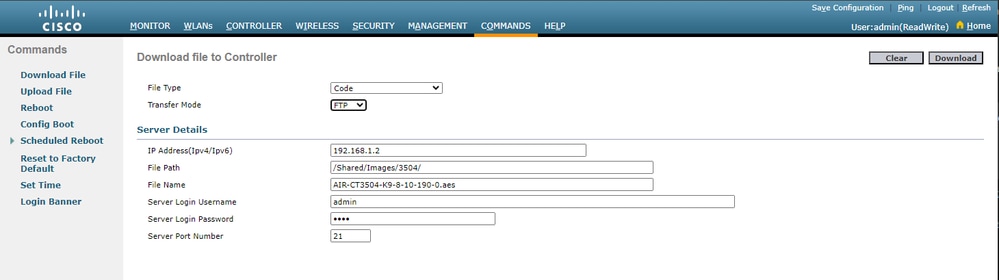 FTP Transfer Settings
- Click Download to download the software to the controller (a message indicates the status of the download is displayed).
- After the download is complete, click Reboot.
- If you are prompted to save your changes, click Save and Reboot.
- Click OK to confirm your decision to reboot the controller.
- If you have disabled the 802.11 networks, re-enable them.
- (Optional) To verify the controller software is installed on your controller, on the controller GUI, click Monitor and view the Software Version field under Controller.
CLI Upgrade Procedure
In this section, you are presented with the information to upgrade the WLC with the usage of the CLI on the controller with the files in an FTP server.
Complete these steps:
-
Ensure the FTP server is reachable from the controller, and ensure the upgrade file resides in a directory on the FTP server.
-
It is best to complete this procedure via the console port, but you can SSH or Telnet (if enabled) to the WLC management IP address to complete this procedure. The use of SSH or Telnet results in the loss of connectivity with the controller in the reboot process after the image download. Therefore, console access is available to expedite the troubleshoot and recovery of the controller if the upgrade fails. Log in to the controller and issue the show sysinfo command to verify the current software that runs on the controller.
-
This is a sample output of the show sysinfo command, which shows the controller runs 8.5.182.0:
(c3504-01) >show sysinfo

Manufacturer's Name.............................. Cisco Systems Inc.
Product Name..................................... Cisco Controller
Product Version.................................. 8.5.182.0
RTOS Version..................................... 8.5.182.0
Bootloader Version............................... 8.5.103.0
Emergency Image Version.......................... 8.5.103.0 -
Complete these steps to define the download parameters:
-
Run the transfer download mode ftp command to define the mode of the file transfer.
- Run the transfer download username/password command to define the username and password to access the FTP server.
-
Run the transfer download serverip FTP_server_IP_address command to define the FTP server IP address.
-
Run the transfer download path 'FTP_server_path' command to define the path of the FTP default directory where the controller OS software is located.
-
Run the transfer download filename command to specify the name of the image.
-
See this example:
(c3504-01) >transfer download datatype code
(c3504-01) >transfer download mode ftp
(c3504-01) >transfer download username admin
(c3504-01) >transfer download password ********
(c3504-01) >transfer download serverip 192.168.1.2
(c3504-01) >transfer download path /Shared/AIR-CT3504/
(c3504-01) >transfer download filename AIR-CT3504-K9-8-10-190-0.aes
Run the transfer download start command to initiate the upgrade process. See the example of the upgrade process:
(c3504-01) >show boot
Primary Boot Image............................... 8.5.182.0 (default) (active)
Backup Boot Image................................ 8.10.190.0
(c3504-01) >transfer download start

Mode............................................. FTP
Data Type........................................ Code
FTP Server IP.................................... 192.168.1.2
FTP Server Port.................................. 21
FTP Path......................................... /Shared/Images/3504/
FTP Filename..................................... AIR-CT3504-K9-8-10-190-0.aes
FTP Username..................................... admin
FTP Password..................................... *********

This may take some time.
Are you sure you want to start? (y/N) y

FTP Code transfer starting.
FTP receive complete... extracting components.
Checking Version Built.
Image version check passed.
Executing Product Check TLV.
Executing init script.
Executing backup script.
Writing new RTOS to flash disk.
Executing install_rtos script.
Writing new Kernel-args to flash disk.
Writing new FP to flash disk.
Writing new AP Image Bundle to flash disk.
Writing AVC Files to flash disk.
Executing fini script.
Reading AP IMAGE version info.
File transfer is successful.
Reboot the controller for update to complete.
Optionally, pre-download the image to APs before rebooting to reduce network downtime.


(c3504-01) >show boot
Primary Boot Image............................... 8.10.190.0 (default)
Backup Boot Image................................ 8.5.182.0 (active)
Reboot the controller after the upgrade process is complete for the new code to take effect. Run the reset system command, and enter y or yes in response to the question, "Would you like to save them now?"
(Cisco Controller) >reset system

The system has unsaved changes.
Would you like to save them now? (y/N) y

Read from Flash Completed ...

Updating HBL license statistics file
Done.


Configuration Saved!
System will now restart!
Updating license storage ... Done.

Exiting SL process !
There was change in the boot image, System will go for a reboot
Cannot Cancel the WDT. Not petting the WDT.
Collect the core using oct utility
Rebooting the system..
[74411.034881] reboot: Restarting system


Cisco bootloader . . .

Cisco BootLoader Version : 8.5.103.0 (Cisco build) (Build time: Jul 25 2017 - 07:47:10)

Octeon unique ID: 03c000610221f31e0057
OCTEON CN7240-AAP pass 1.3, Core clock: 1500 MHz, IO clock: 800 MHz, DDR clock: 1067 MHz (2134 Mhz DDR)
DRAM: 8 GiB
Clearing DRAM...... done
CPLD Revision : a5
Reset Reason : Soft reset due to RST_SOFT_RST write
SF: Detected S25FL064A with page size 256 Bytes, erase size 64 KiB, total 8 MiB
MMC: Octeon MMC/SD0: 0 (Type: MMC, Version: MMC v5.1, Manufacturer ID: 0x15, Vendor: Man 150100 Snr 0707a546, Product: BJNB4R, Revision: 0.7)
Net: octmgmt0, octmgmt1, octeth0, octeth1, octeth2, octeth3, octeth4, octeth5, octeth6
SF: Detected S25FL064A with page size 256 Bytes, erase size 64 KiB, total 8 MiB


Press <ESC> now to access the Boot Menu...

Loading backup image (8.10.190.0)
94767283 bytes read in 2229 ms (40.5 MiB/s)
Launching...
Verifying images... OK
Launching images...

[...]

XML config selected
Validating XML configuration
octeon_device_init: found 1 DPs
Cisco is a trademark of Cisco Systems, Inc.
Software Copyright Cisco Systems, Inc. All rights reserved.

Cisco AireOS Version 8.10.190.0
Initializing OS Services: ok
Initializing Serial Services: ok
Initializing Network Services: ok
[...]
The configuration is not kept when you downgrade versions of controller code. Controllers can be upgraded from one release to another. If you require a downgrade from one release to another, you (possibly) cannot use the higher release configuration. The workaround is to reload the previous controller configuration files that were saved on the backup server or reconfigure the controller.
Use the Cisco Prime Infrastructure to Upgrade the WLC
The manual upgrade of your devices to the latest software version can be error-prone and time consuming. Cisco Prime Infrastructure (PI) simplifies the version management and routine deployment of software updates to your devices with the help of the plan, schedule, download, and monitor software image updates. You can also view software image details, view recommended software images, and delete software images. The software image management page provides a consolidated view of the various aspects of image management such as the software image management lifecycle widget, software image summary, and job details.
Prime Infrastructure stores all of the software images for the devices in your network. The images are stored in accordance with the image type and version.
Visit the Manage Device Software Images chapter of the Cisco PI User Guide for detailed information and guidelines.
Upgrade the WLC in the HA AP-SSO Environment
In this section, you have a list of some software upgrade scenarios:
-
A software upgrade on the active controller ensures the upgrade of the standby-hot controller.
-
An in-service upgrade is not supported, therefore, it is recommended that you plan your network downtime before you upgrade the controllers in an HA environment.
-
If you reboot the active controller after a software upgrade, it also reboots the standby-hot controller.
-
It is recommended that both active and standby-hot controllers have the same software image in the backup before you run theconfig boot backupcommand. If both active and standby-hot controllers have different software images in the backup, and if you run theconfig boot backupcommand in the active controller, both the controllers reboot with their respective backup images; it breaks the HA pair due to a software mismatch.
-
A schedule reset applies to both the controllers in an HA environment. The peer controller reboots a minute before the scheduled time expires on the active controller.
-
You can reboot the standby-hot controller from the active controller with thereset peer-systemcommand if the scheduled reset is not planned. If you reset only the standby-hot controller with this command, any unsaved configurations on the standby-hot controller are lost. Therefore, ensure you save the configurations on the active controller before you reset the standby-hot controller.
-
A preimage download is reinitiated if an SSO is triggered at the time of the image transfer.
-
Onlydebug andshow commands are allowed on the standby-hot controller.
For detailed instructions on upgrading the WLC in HA AP-SSO setup, perform the steps in the High Availability (SSO) Deployment Guide document.
Remove the Primary or Secondary Image on the Wireless LAN C
When you upgrade the WLC with a new image, the WLC automatically copies the new image over the backup image.
To see the active image that your controller currently runs (the primary image), click Monitor from the WLC GUI and look at the Software Version field under Controller Summary on the WLC GUI. From the CLI, you can use the command show boot to view the primary and backup the image present on the WLC. See this example:
(c3504-01) >show boot
Primary Boot Image............................... 8.5.182.0 (default) (active)
Backup Boot Image................................ 8.10.190.0
To remove or overwrite an image on the WLC, boot up the WLC with the image you want to keep and perform an upgrade. This way, the new image replaces the backup image.
You can also change the active boot image of the WLC manually by running the command config boot <primary/backup>
(Cisco Controller) >config boot ?

primary        Sets the primary image as active.
backup         Sets the backup image as active.
The config boot image can also be configured with the WLC GUI. Refer to How to Use the Backup Image on Wireless LAN Controllers (WLCs) for more information on the detailed procedure.
Note: You must save and reboot the WLC configuration so the WLC uses the new active image.
Verify
To verify the version of WLC software that is installed, log in to the controller after the system reboots.
From the GUI:
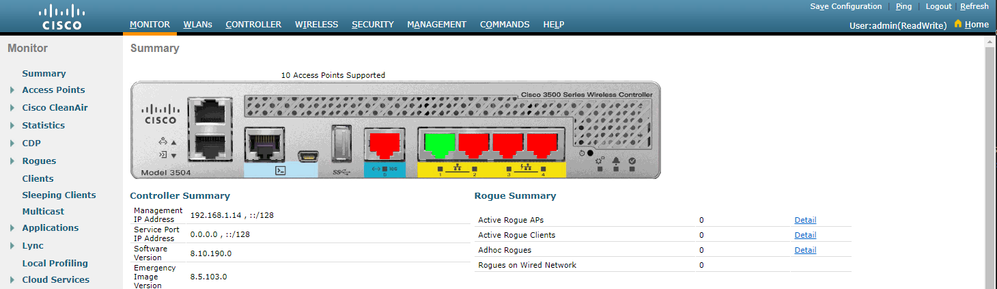 WLC Version Verification
After the upgrade, from the CLI:
(c3504-01) >show sysinfo

Manufacturer's Name.............................. Cisco Systems Inc.
Product Name..................................... Cisco Controller
Product Version.................................. 8.10.190.0
RTOS Version..................................... 8.10.190.0
Bootloader Version............................... 8.5.103.0
Emergency Image Version.......................... 8.5.103.0
Debug Options
You can run the debug transfer all enable command to view the events that occur in the controller software upgrade process. Here is an example that shows the debug command output used for a successful software upgrade:
(Cisco Controller) >debug transfer all enable
(Cisco Controller) >transfer download start

Mode............................................. FTP
Data Type........................................ Code
FTP Server IP.................................... 192.168.1.2
FTP Server Port.................................. 21
FTP Path......................................... /Shared/AIR-CT3504/
FTP Filename..................................... AIR-CT3504-K9-8-10-190-0.aes
FTP Username..................................... admin
FTP Password..................................... *********

This may take some time.
Are you sure you want to start? (y/N) y
*TransferTask: Mar 06 14:56:49.928: Memory overcommit policy changed from 0 to 1

*TransferTask: Mar 06 14:56:49.928: Delete ramdisk for ap bundle

*TransferTask: Mar 06 14:56:49.939: RESULT_STRING: FTP Code transfer starting.

*TransferTask: Mar 06 14:56:49.939: RESULT_CODE:1


FTP Code transfer starting.
*TransferTask: Mar 06 14:58:52.024: ftp operation returns error code:0 error:Transfer Successful

*TransferTask: Mar 06 14:58:52.034: tftp = 6, file_name=/Shared/AIR-CT3504/AIR-CT3504-K9-8-10-190-0.aes, ip_address=192.168.1.2, msg=Transfer Successful

*TransferTask: Mar 06 14:58:52.034: upd_get_code = 6 (target=268435457 msg=Transfer Successful)

*TransferTask: Mar 06 14:58:52.034: RESULT_STRING: FTP receive complete... extracting components.

*TransferTask: Mar 06 14:58:52.034: RESULT_CODE:6


FTP receive complete... extracting components.
*TransferTask: Mar 06 14:59:07.442: RESULT_STRING: Checking Version Built.


Checking Version Built.
*TransferTask: Mar 06 14:59:09.442: RESULT_STRING: Image version check passed.


Image version check passed.
*TransferTask: Mar 06 14:59:12.443: RESULT_STRING: Executing Product Check TLV.

*TransferTask: Mar 06 14:59:12.444: RESULT_STRING: Executing Version Built TLV.

*TransferTask: Mar 06 14:59:12.444: RESULT_STRING: Executing init script.

*TransferTask: Mar 06 14:59:12.457: RESULT_STRING: Executing backup script.

*TransferTask: Mar 06 14:59:13.508: RESULT_STRING: Writing new RTOS to flash disk.


Writing new RTOS to flash disk.
*TransferTask: Mar 06 14:59:20.810: RESULT_STRING: Executing install_rtos script.


Executing install_rtos script.
*TransferTask: Mar 06 14:59:24.878: RESULT_STRING: Writing new Kernel-args to flash disk.

*TransferTask: Mar 06 14:59:24.892: RESULT_STRING: Writing new FP to flash disk.

*TransferTask: Mar 06 14:59:25.451: RESULT_STRING: Writing new AP Image Bundle to flash disk.


Writing new AP Image Bundle to flash disk.
*TransferTask: Mar 06 14:59:44.044: RESULT_STRING: Writing AVC Files to flash disk.


Writing AVC Files to flash disk.
*TransferTask: Mar 06 14:59:44.703: RESULT_STRING: Executing fini script.


Executing fini script.
*TransferTask: Mar 06 14:59:52.860: RESULT_STRING: Reading AP IMAGE version info.

*TransferTask: Mar 06 14:59:52.865: RESULT_CODE:11

*TransferTask: Mar 06 14:59:52.865: RESULT_STRING: File transfer is successful.
Reboot the controller for update to complete.
Optionally, pre-download the image to APs before rebooting to reduce network downtime.


File transfer is successful.
Reboot the controller for update to complete.
Optionally, pre-download the image to APs before rebooting to reduce network downtime.
*TransferTask: Mar 06 14:59:58.871: Create ramdisk for ap bundle

*TransferTask: Mar 06 14:59:58.884: Memory overcommit policy restored from 1 to 0

(Cisco Controller) >
Troubleshoot
Use this section to troubleshoot your software upgrade.
In the upgrade process, you can encounter errors. This section explains several common errors, along with typical causes and corrective actions you can take to complete the WLC software upgrade:
- "% Error: Code file transfer failed - Could not connect to the server": You receive this error message if the server is not reachable. Check WLC to Server IP connectivity and ensure the TFTP/FTP/SCP traffic is not blocked by any firewall in the network. Also, determine if the TFTP/FTP/SCP service is enabled/run on the server. In some cases, the machine that runs the server application can have the firewall turned on. This could be one reason why the WLC upgrade does not happen as expected.
- "% Error: Code file transfer failed - Failure with receiving network data": You receive this error if there was an error in the file transfer such as packets lost or out of order. You can troubleshoot with packet captures along the network path to find the hop where the packets are lost or out of order.
- "% Error: Code file transfer failed - Server returns login failure": You receive this error if the ftp/scp username/password does not match the user credentials in the server. You can verify if the username and password configured match the ones configured on the server-side.
- "% Error: Code file transfer failed - The URL does not exist, wrong path or filename": You receive this error message if the software upgrade file is not present in the default directory of the server or if you have entered the incorrect file name in the File Name field of the controller upgrade page. To eliminate this error, copy the image file to the default directory on the server and verify that the name and file extension are exactly the same on the server and the File Name field of the Controller Upgrade page.
Related Information
- Cisco Wireless Controller Configuration Guide, Release 8.10
- High Availability (SSO) Deployment Guide
- Technical Support & Documentation - Cisco Systems
Revision History
| Revision | Publish Date | Comments |
|---|---|---|
6.0 |
22-Jun-2026
|
Updated spelling, grammar, sentence structure, spacing, and CCW callouts. |
5.0 |
15-May-2025
|
Updated SEO, Title, and Formatting. |
4.0 |
20-Mar-2024
|
Revised WLC versions and text.
Updated Machine Translation, Image Captions, and Formatting. |
3.0 |
07-Jul-2022
|
Revised WLC versions and text. |
1.0 |
24-Jan-2006
|
Initial Release |

 Feedback
Contact Cisco
- Open a Support Case

- (Requires a Cisco Service Contract)