Feedback
|
Table Of Contents
Cisco Unified Wireless IP Phone 7925G and 7921G Release Notes for Firmware Version 1.3(2)
Call Recording and Silent Monitoring Features
Federal Information Processing Standards Mode
802.1x Authentication Configuration Requirement for Autonomous Access Points
Power-off Date and Time for Cisco Unified Wireless IP Phone 7925G
Cisco Unified Wireless IP Phone 7925G Multi-Charger
Installing Firmware Release 1.3(2) on Cisco Unified Communications Manager
Firmware Installation Procedure
Installing Firmware Release 1.3(2) on Cisco Unified Communications Manager Express
Cisco Unified Wireless IP Phone 792XG Configuration Utility Requirement for Wavelink Server
Coexistence (802.11b/g and Bluetooth)
USB Connection Disabled After Powering Off/On the Phone
Auto 802.11a Preferred Over 802.11b/g (Dual Band) Mode
Use in Healthcare Environments
Unplugging the Headset from the Phone
Online Help for the Cisco Unified Wireless IP Phone
Cisco Unified Communications Manager Password Feature and TFTP Encryption
Adjusting the PHY Rate When Using 802.11b and Call Admission Control
System Log Trace Files Can Impact Voice Quality
Regulatory Domains for Cisco Unified Wireless IP Phone
Configuring Cisco Unified Access Points with EAP-FAST
Correction for Scan Mode Documentation
Obtaining Documentation and Submitting a Service Request
Cisco Unified Wireless IP Phone 7925G and 7921G Release Notes for Firmware Version 1.3(2)
January 22, 2009Use these Release Notes with the Cisco Unified Wireless IP Phone 7925G or 7921G running with Cisco Unified Communications Manager Versions 7.0, 6.1, 6.0, 5.1, 4.3, 4.2, and 4.1.
Contents
These release notes provide the following information:
•
Obtaining Documentation and Submitting a Service Request
Related Documentation
Cisco Unified IP Phone Documentation
Refer to publications that are specific to your language, phone model and Cisco Unified Communications Manager release. Navigate from the following documentation URL:
http://www.cisco.com/en/US/products/hw/phones/ps379/tsd_products_support_series_home.html
Cisco Unified Communications Manager Documentation
Refer to the Cisco Unified Communications Manager Documentation Guide and other publications specific to your Cisco Unified Communications Manager release. Navigate from the following URL:
http://www.cisco.com/en/US/products/sw/voicesw/ps556/tsd_products_support_series_home.html
Cisco Unified Communications Manager Business Edition Documentation
Refer to the Cisco Unified Communications Manager Business Edition Documentation Guide and other publications that are specific to your Cisco Unified Communications Manager release. Navigate from the following URL:
http://www.cisco.com/en/US/products/ps7273/tsd_products_support_series_home.html
New and Changed Information
This sections contains the following topics:
•
Call Recording and Silent Monitoring Features
•
Federal Information Processing Standards Mode
•
802.1x Authentication Configuration Requirement for Autonomous Access Points
•
Power-off Date and Time for Cisco Unified Wireless IP Phone 7925G
•
Cisco Unified Wireless IP Phone 7925G Multi-Charger
Call Recording and Silent Monitoring Features
Cisco Unified Wireless IP Phone 7925G now supports the Call Recording and Silent Monitoring features:
•
Call Recording—Allows a supervisor to record an active call. If the Cisco Unified Communications Manager (Unified CM) is configured for tones, the user will hear a beep tone when a call is recorded.
•
Silent Monitoring—Allows a supervisor to silently monitor an active call. The supervisor cannot be heard by either party on the call. If the Unified CM is configured for tones, the user will hear a beep tone when a call is recorded.
For more information, see the Cisco Unified Communications Manager Features and Services Guide, "Monitoring and Recording" chapter.
Federal Information Processing Standards Mode
The Federal Information Processing Standards (FIPS) mode can be enabled from the Cisco Unified Communications Manager Administration Phone Configuration page (in the "Product Specific Configuration Layout" section).
You must download the latest device pack from the firmware download link. Refer to the Installation Notes for more information.
Note
Firmware upgrade is disabled when FIPS mode is enabled.
Note
If the Unified CM phone load configuration differs from the Cisco Unified Wireless IP Phone 7925G or 7921G phone load, you may receive an upgrade failure message. This message does not interfere with the ability to send and receive calls from your phone. For more information, refer to CSCsx18232 using the Software Bug Toolkit.
Note
During the downgrade process, if you change the load name on Cisco Unified Communications Manager and reset the phone with the FIPS mode flag on, you may have a download failure. For more information, refer to CSCsx18232 using the Software Bug Toolkit.
Note
After changing FIPS mode, the existing locally significant certificates and corresponding private keys are removed and the Cisco Unified Wireless IP Phone will reboot. Your administrator will need to reinstall Locally Significant Certificate (LSC).
802.1x Authentication Configuration Requirement for Autonomous Access Points
If you use an autonomous access point (AP), you must configure the SSID for open + eap and network-eap authentication if using LEAP, EAP-FAST, PEAP, or EAP-TLS.
•
Firmware 1.3(1) or earlier, network-eap is required (for Cisco Unified Wireless IP Phone 7925G and 7921G)
•
Firmware 1.3(2) or later, open eap is required (for Cisco Unified Wireless IP Phone 7925G and 7921G)
The following configuration example allows the Cisco Unified Wireless IP Phone 7925G and 7921G with firmware 1.3(1) and earlier or 1.3(2) and later to authenticate to the autonomous access point successfully.
dot11 ssid voicevlan 21authentication open eap eap_methodsauthentication network-eap eap_methodsauthentication key-management wpa cckmPower-off Date and Time for Cisco Unified Wireless IP Phone 7925G
If you turn off the phone (without removing the battery) and then turn it on again, the current date and time will display on the phone screen during power-on, even before the phone connects to the access point and registers with Cisco Unified Communications Manager.
Cisco Unified Wireless IP Phone 7925G Multi-Charger
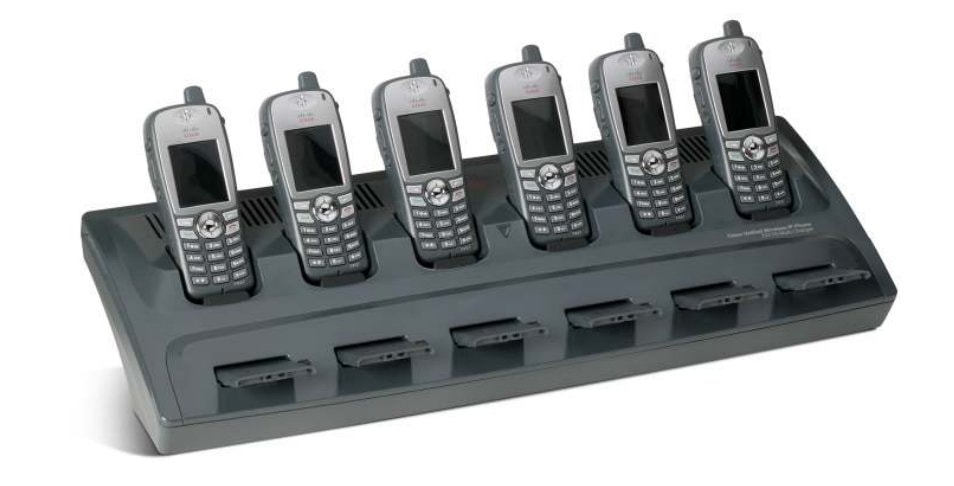
The new Cisco Unified Wireless IP Phone 7925G Multi-Charger is ideal for environments in which users have multiple shifts and must keep their Cisco Unified Wireless IP Phone 7925G charged throughout the day. The multi-charger can charge up to six phones and six phone batteries simultaneously. Its flexible design allows the unit to be placed on a desk or mounted on a wall to save space.
For more information, see the Cisco Unified Wireless IP Phone 7925G Multi-Charger Installation Guide.
Installation Notes
This section contains these topics:
•
Installing Firmware Release 1.3(2) on Cisco Unified Communications Manager
•
Installing Firmware Release 1.3(2) on Cisco Unified Communications Manager Express
Installing Firmware Release 1.3(2) on Cisco Unified Communications Manager
This section describes how to install firmware release 1.3(2) on Cisco Unified Communications Manager.
Firmware Installation Procedure
Before using the Cisco Unified Wireless IP Phone 7925G or 7921G with Cisco Unified Communications Manager, you must install the latest firmware on all Cisco Unified Communications Manager servers in the cluster.
Before You Begin
To make the Cisco Unified Wireless IP Phone 7925G or 7921G available in the Cisco Unified Communications Manager system, you might need to upgrade your system with the latest DevPack patch for your release of Cisco Unified Communications Manager. Check the Readme file (cmterm-7925-sccp.1-3-2-Readme.html or cmterm-7921-sccp.1-3-2-Readme.html) that is posted with the firmware version 1.3(2) for more information.
To download and install the firmware, follow these steps:
Procedure
Step 1
To access the firmware files, go to this URL:
http://tools.cisco.com/support/downloads/pub/Redirect.x?mdfid=278875240
Step 2
Log in to the Tools and Resources Download page.
Step 3
Choose the IP Telephony folder by clicking +.
Step 4
Choose IP Phones > Cisco Unified IP Phones 7900 Series.
Step 5
Choose either Cisco Unified Wireless IP Phone 7925G or Cisco Unified Wireless IP Phone 7921G.
Step 6
Choose Skinny Client Control Protocol (SCCP) Software.
Step 7
Do one of the following:
–
For the Cisco Unified Wireless IP Phone 7925G, choose 1.3(2) under the Latest Releases folder.
–
For the Cisco Unified Wireless IP Phone 7921G, choose Expand All and select the latest firmware version.
Step 8
Click one of these hyperlinks, and follow the prompts to download the firmware:
•
For Cisco Unified CallManager release 4.3 and earlier:
Cisco Unified Wireless IP Phone 7925G:
cmterm-7925-sccp.1-3-2.exe
Cisco Unified Wireless IP Phone 7921G:
cmterm-7921-sccp.1-3-2.exe
•
For Cisco Unified CallManager release 5.1 and later:
Cisco Unified Wireless IP Phone 7925G:
cmterm-7925-sccp.1-3-2.cop.sgn
Cisco Unified Wireless IP Phone 7921G:
cmterm-7921-sccp.1-3-2.cop.sgn
•
For image upgrade via USB:
Cisco Unified Wireless IP Phone 7925G:
CP7925G-1.3.2.TAR
Cisco Unified Wireless IP Phone 7921G:
CP7921G-1.3.2.TAR
Step 9
Double-click one of the downloadable files in Step 1, and click the Readme hyperlink, under the Additional Information section, which contains installation instructions for the corresponding firmware:
•
Cisco Unified Wireless IP Phone 7925G:
cmterm-7925-sccp.1-3-2-Readme.html
•
Cisco Unified Wireless IP Phone 7921G:
cmterm-7921-sccp.1-3-2-Readme.html
Step 10
Follow the instructions in the Readme file to install the firmware.
Installing Firmware Release 1.3(2) on Cisco Unified Communications Manager Express
The Cisco Unified Wireless IP Phone 7925G or 7921G is only supported with Cisco Unified Communications Manager Express 7.0. You must download the Cisco Unified Wireless IP Phone 7925G or 7921G version 1.3(2) firmware image file from the software download center.
To install the firmware, follow these steps:
Procedure
Step 1
To access the firmware files, go to this URL:
http://tools.cisco.com/support/downloads/pub/Redirect.x?mdfid=278875240
Step 2
Log in to the Tools and Resources Download page.
Step 3
Choose the IP Telephony folder by clicking +.
Step 4
Choose IP Phones > Cisco Unified IP Phones 7900 Series > Cisco Unified IP Phone 7925G.
Step 5
On the web page, click this hyperlink, and follow the prompts to download the firmware image:
•
CP7925G-1.3.2.TAR
•
CP7921G-1.3.2.TAR
Step 6
Extract these files from the TAR image, manually copy them to Cisco Unified Communications Manager Express TFTP server (router flash), and enable them for TFTP.
For the Cisco Unified Wireless IP Phone 7925G:
•
APPSH-1.3.2.SBN
•
GUIH-1.3.2.SBN
•
SYSH-1.3.2.SBN
•
TNUXH-1.3.2.SBN
•
WLANH-1.3.2.SBN
•
CP7925G-1.3.2.LOADS
For the Cisco Unified Wireless IP Phone 7921G:
•
APPS-1.3.2.SBN
•
GUI-1.3.2.SBN
•
SYS-1.3.2.SBN
•
TNUX-1.3.2.SBN
•
WLAN-1.3.2.SBN
•
CP7921G-1.3.2.LOADS
Step 7
For the 7925G device type, set the load type to CP7925G-1.3.2.LOADS
For the 7921G device type, set the load type to CP7921G-1.3.2.LOADS
For more information about this procedure, refer to the "Installing and Upgrading Cisco Unified CME Software" chapter in the Cisco Unified Communications Manager Express System Administrator Guide at this URL:
Installing the Cisco Unified Wireless IP Phone 792XG Configuration Utility Software Package Using the Wavelink Avalanche Server Console
To install the Cisco Wireless IP Phone 792XG Configuration utility, follow these steps:
Step 1
To access the file, go to this URL:
http://tools.cisco.com/support/downloads/pub/Redirect.x?mdfid=278875240
Step 2
Log in to the Tools and Resources Download page.
Step 3
Choose the IP Telephony folder by clicking +.
Step 4
Choose IP Phones > Cisco Unified IP Phones 7900 Series > Cisco Unified IP Phone 7925G or Cisco Unified IP Phone 7921G.
Step 5
Download the 7925CU-1.3.1.AVA or 7921CU-1.2.1.AVA file to a host that is accessible to the Avalanche Console.
Step 6
Launch the Avalanche Console and connect to an Avalanche agent.
Step 7
Select Software Management > Installing Software Package from the menu.
Step 8
Enter the path for the 7925CU-1.3.1.AVA or 7921CU-1.2.1.AVA file.
Step 9
Click New, and enter the 7925CU-1.3.2.AVA or 7921CU-1.2.1.AVA file name.
Step 10
Follow the prompts to complete the installation.
Cisco Unified Wireless IP Phone 792XG Configuration Utility Requirement for Wavelink Server
For firmware release 1.3(2), Cisco Unified Wireless IP Phone 7925G Configuration Utility version 1.3(1) or the Cisco Unified Wireless IP Phone 7921G Configuration Utility version 1.2(1), depending on which model is used, is required for using the Wavelink Avalanche server to configure the phone.
Note
If you use the Wavelink Avalanche Management Console to configure your phone, be aware that the Cisco Unified Wireless IP Phone 7925G Configuration Utility (CU) version 1.3(1) is labeled as 7921G, but that CU works for the both the Cisco Unified Wireless IP Phone 7925G and Cisco Unified Wireless IP Phone 7921G.
Important Notes
This section provides general information about using and supporting the Cisco Unified Wireless IP Phone 7925G in your system:
•
Coexistence (802.11b/g and Bluetooth)
•
USB Connection Disabled After Powering Off/On the Phone
•
Auto 802.11a Preferred Over 802.11b/g (Dual Band) Mode
•
Use in Healthcare Environments
•
Unplugging the Headset from the Phone
•
Online Help for the Cisco Unified Wireless IP Phone
•
Cisco Unified Communications Manager Password Feature and TFTP Encryption
•
Adjusting the PHY Rate When Using 802.11b and Call Admission Control
•
System Log Trace Files Can Impact Voice Quality
•
Regulatory Domains for Cisco Unified Wireless IP Phone
•
Configuring Cisco Unified Access Points with EAP-FAST
EAP-TLS and PEAP Support
Cisco Unified Wireless IP Phone 7921G firmware version 1.1(1) and later supports advanced wireless security features such as EAP-TLS and PEAP. If you use EAP-TLS or PEAP for authentication, it is highly recommended that you do not downgrade the firmware because the authentication settings will not be valid on firmware releases prior to 1.1(1) and the phones will lose connectivity to the network.
Note
Firmware release 1.3(2) supports PEAP with the server validation option.
Note
A downgrade attempt to a firmware release earlier than 1.1(1) will be blocked if a current enabled profile is configured for EAP-TLS or PEAP.
If you must downgrade the firmware, you need to disable any network profiles that use EAP-TLS and PEAP. If you upgrade to firmware version 1.3(2) again after a downgrade, reconfigure the EAP-TLS and PEAP settings, including any user installed certificates required for authentication.
WLAN IP Address Restriction
It is recommended that you do not use the network 192.168.1.0 /24 for the WLAN. This is the default network used by the USB interface for Cisco Unified Wireless IP Phones. Using this network for the WLAN can cause problems if the USB interface is enabled to use that same network.
Workarounds include changing the WLAN network, changing the USB interface IP address on the phone, or restricting users from charging the phone via the USB interface.
Coexistence (802.11b/g and Bluetooth)
Note
This section refers to the Cisco Unified Wireless IP Phone 7925G only.
When using coexistence where 802.11b/g and Bluetooth are used simultaneously, consider these limitations and deployment requirements:
•
Capacity—Only up to two bi-directional RTP streams per access point or channel are supported.
•
Battery Life—There can be up to 40-50% reduction of battery life when on call and using coexistence.
•
Multicast Audio—Multicast audio from Push To Talk (PTT), Music on Hold (MMOH) and other applications are not supported when using coexistence.
•
Data Rate Configuration—It is advised to only enable 802.11g (OFDM) data rates (that is > 12 Mbps) to prevent from engaging in CTS for 802.11g protection, which can impact voice quality.
USB Connection Disabled After Powering Off/On the Phone
If you power off the Cisco Unified Wireless IP Phone 7925G with the USB cable connected and then power it on again, the USB connection might fail.
To enable the USB connection, unplug the USB cable from the phone and then plug it back in.
Auto 802.11a Preferred Over 802.11b/g (Dual Band) Mode
If you configured the 802.11 mode (in Network Profile) as Auto 802.11a preferred over 802.11b/g (dual band), the preferred band (if available) will be used at power-on, but the phone may switch to the less preferred 2.4 GHz band (if available) and the preferred band is lost. Once the phone has connected to the less preferred band, it will not scan for the preferred band if the current band is acceptable, and may remain connected to the less preferred band.
Use in Healthcare Environments
This product is not a medical device and uses an unlicensed frequency band that is susceptible to interference from other devices or equipment.
Unplugging the Headset from the Phone
If the headset plug is removed slowly while a call is active, the call may be disconnected. To avoid an unexpected call drop, disconnect the call before unplugging the headset.
Online Help for the Cisco Unified Wireless IP Phone
Online help for the Cisco Unified Wireless IP Phone 7925G or 7921G is available only for systems with Cisco Unified Communications Manager 7.0 and later. Users can access online help by pressing the center navigation button from the main phone screen.
When users access online help for earlier releases of Cisco Unified Communications Manager, a message states that the online help feature is not available.
Cisco Unified Communications Manager Password Feature and TFTP Encryption
If you are running Cisco Unified Communications Manager 5.1 or later, you must set the password in Cisco Unified Communications Manager Administration on the Phone Configuration window. The password set in Cisco Unified Communications Manager takes precedence over the password that is set on the Cisco Unified Wireless IP Phone 7925G web pages.
CautionWhen setting the Administration Password in the Product Specific Configuration section in Cisco Unified Communications Manager 5.1 Administration, you must enable TFTP encryption. Otherwise, the password appears in readable text in the phone configuration file and can be viewed from any host that has access to TFTP server.
Adjusting the PHY Rate When Using 802.11b and Call Admission Control
If your wireless LAN has access points that use 802.11b and you plan to use Call Admission Control (CAC) with TSPEC, then you must modify the PHY rate to a supported rate for your 802.11b access points.
To modify the PHY rate on the phone web page, follow these steps:
Procedure
Step 2
Choose the network profile that you want to configure.
Step 3
Click the Advanced Profile link at the top of the page.
Step 4
In the TSPEC Setting area, change the Minimum PHY Rate to a supported rate, such as 11 Mbps.
Step 5
Click Save to make the change.
System Log Trace Files Can Impact Voice Quality
Voice quality can be impaired when you set system log trace files for higher debug levels. Set only the modules that are required when capturing trace files for a phone.
Regulatory Domains for Cisco Unified Wireless IP Phone
You can use a Cisco Unified Wireless IP Phone only within the region in which it is purchased. The Cisco Unified Wireless IP Phone might not function properly in another region, because it is manufactured and sold for specific regulatory domains. For example, domains such as North America and Japan, have regulations that control the radio frequency (RF) channels and transmission power that are available for wireless phones.
You can determine the regulatory domain for your phone by accessing Settings > Model Information > WLAN Regulatory Domain.
Table 1 shows the supported regulatory domains.
Note
The model filename in the above table will specify either a 1 or 5 in the filename, depending on the model type (ex. CP-7925G-A-K9 or CP-7921G-A-K9).
Note
When deploying the Cisco Unified Wireless IP Phone 7925G with World regulatory domain (CP-7925G-W-K9), you must enable the access points for world mode (802.11d). The world model phone gets the channels and power information from the access point.
For more information about supported regulatory domains, go to the Wireless LAN Compliance Status page at this URL:
http://www.cisco.com/application/pdf/en/us/guest/products/ps5861/c1650/cdccont_0900aecd80537b6a.pdf
Supported Access Points
When deploying voice over the wireless LAN, ensure the autonomous access points have Cisco IOS Version 12.3(8)JEA or later, and controllers have version 4.0 or later.
The Cisco Unified Wireless IP Phone 7925G or 7921G uses Cisco Aironet Access Points (APs) that support Cisco IOS in autonomous mode and APs in unified mode with lightweight access point protocol (LWAPP) that use a wireless LAN controller.
Table 2 lists the supported AP models and their operation mode in the WLAN.
.
Note
Voice over the wireless LAN (VoWLAN) does not currently support MESH technology such as Cisco Aironet 1500 Series.
Wi-Fi compliant APs that are manufactured by third-party vendors should support the Cisco Unified Wireless IP Phone 7925G, but might not support key features such as Wi-Fi MultiMedia (WMM), Unscheduled Auto Power Save Delivery (U-APSD), Traffic Specification (TSPEC), QoS Basic Service Set (QBSS), Dynamic Transmit Power Control (DTPC), or proxy ARP.
Configuring Cisco Unified Access Points with EAP-FAST
If you are using EAP-FAST with the Cisco Unified Wireless LAN Controller, you must increase the EAP request (802.1x) timeout to a minimum of 20 seconds to enable the phone to receive the PAC credentials successfully.
To change the EAP request timeout, follow these steps:
Procedure
Step 1
Use SSH or Telnet to access the Cisco Unified Wireless LAN Controller.
Step 2
Enter config advanced eap request-timeout 20.
Step 3
Enter save config.
Step 4
Enter y to confirm.
Caveats
This section contains these topics:
Using Bug Toolkit
Known problems (bugs) are graded according to severity level. These release notes contain descriptions of:
•
All severity level 1 or 2 bugs.
•
Significant severity level 3 bugs.
You can search for problems by using the Cisco Software Bug Toolkit.
To access Bug Toolkit, you need the following items:
•
Internet connection
•
Web browser
•
Cisco.com user ID and password
To use the Software Bug Toolkit, follow these steps:
Procedure
Step 1
To access the Bug Toolkit, go to http://tools.cisco.com/Support/BugToolKit/action.do?hdnAction=searchBugs.
Step 2
Log on with your Cisco.com user ID and password.
To look for information about a specific problem, enter the bug ID number in the "Search for bug ID" field, then click Go.
Open Caveats
There are no open bugs for firmware release 1.3(2).
Resolved Caveats
Table 3 lists Severity 1, 2 and 3 defects that are resolved for the Cisco Unified Wireless IP Phone 7925G and 7921G using firmware release 1.3(2).
For more information about an individual defect, you can access the online record for the defect by clicking the Identifier or going to the URL shown. You must be a registered Cisco.com user to access this online information.
Because defect status continually changes, be aware that Table 3 reflects a snapshot of the defects that were resolved at the time this report was compiled. For an updated view of resolved defects, access Bug Toolkit as described in the "Using Bug Toolkit" section.
Documentation Updates
This section contains documentation updates for the Cisco Unified Wireless IP Phone 7921G Administration Guide for Cisco Unified Communications Manager 7.0 and Cisco Unified Wireless IP Phone 7925G Administration Guide for Cisco Unified Communications Manager 7.0.
Correction for Scan Mode Documentation
Beginning with firmware release 1.2(1), Scan Mode can only be configured from Cisco Unified Communications Manager, and not from the phone web page or on the phone. The Scan Mode option was included in the following documents in error:
•
Cisco Unified Wireless IP Phone 7921G Administration Guide for Cisco Unified Communications Manager 7.0—Table 4-2, Network Profile Settings Items, and Table 5-3, WLAN Configuration Settings
•
Cisco Unified Wireless IP Phone 7925G Administration Guide for Cisco Unified Communications Manager 7.0—Table 4-3, Basic Network Profile Settings, and Table 5-3, WLAN Configuration Settings
For information about configuring Scan Mode, see the following sections in the "Configuring Features, Templates, Services, and Users" chapter in these guides:
•
Cisco Unified Wireless IP Phone 7921G Administration Guide for Cisco Unified Communications Manager 7.0—"Product-Specific Configuration Options for the Cisco Unified IP Phone 7921G"
•
Cisco Unified Wireless IP Phone 7925G Administration Guide for Cisco Unified Communications Manager 7.0—"Product-Specific Configuration Options for the Cisco Unified IP Phone 7925G"
Obtaining Documentation and Submitting a Service Request
For information on obtaining documentation, submitting a service request, and gathering additional information, see the monthly What's New in Cisco Product Documentation, which also lists all new and revised Cisco technical documentation, at:
http://www.cisco.com/en/US/docs/general/whatsnew/whatsnew.html
Subscribe to the What's New in Cisco Product Documentation as a Really Simple Syndication (RSS) feed and set content to be delivered directly to your desktop using a reader application. The RSS feeds are a free service and Cisco currently supports RSS version 2.0.
CCDE, CCENT, Cisco Eos, Cisco HealthPresence, the Cisco logo, Cisco Lumin, Cisco Nexus, Cisco StadiumVision, Cisco TelePresence, Cisco WebEx, DCE, and Welcome to the Human Network are trademarks; Changing the Way We Work, Live, Play, and Learn and Cisco Store are service marks; and Access Registrar, Aironet, AsyncOS, Bringing the Meeting To You, Catalyst, CCDA, CCDP, CCIE, CCIP, CCNA, CCNP, CCSP, CCVP, Cisco, the Cisco Certified Internetwork Expert logo, Cisco IOS, Cisco Press, Cisco Systems, Cisco Systems Capital, the Cisco Systems logo, Cisco Unity, Collaboration Without Limitation, EtherFast, EtherSwitch, Event Center, Fast Step, Follow Me Browsing, FormShare, GigaDrive, HomeLink, Internet Quotient, IOS, iPhone, iQuick Study, IronPort, the IronPort logo, LightStream, Linksys, MediaTone, MeetingPlace, MeetingPlace Chime Sound, MGX, Networkers, Networking Academy, Network Registrar, PCNow, PIX, PowerPanels, ProConnect, ScriptShare, SenderBase, SMARTnet, Spectrum Expert, StackWise, The Fastest Way to Increase Your Internet Quotient, TransPath, WebEx, and the WebEx logo are registered trademarks of Cisco Systems, Inc. and/or its affiliates in the United States and certain other countries.
All other trademarks mentioned in this document or website are the property of their respective owners. The use of the word partner does not imply a partnership relationship between Cisco and any other company. (0812R)
Any Internet Protocol (IP) addresses used in this document are not intended to be actual addresses. Any examples, command display output, and figures included in the document are shown for illustrative purposes only. Any use of actual IP addresses in illustrative content is unintentional and coincidental.
© 2009 Cisco Systems, Inc. All rights reserved.
Feedback