Feedback
|
Table Of Contents
Cisco Unified IP Phone 6921, 6941, and 6961 Release Notes for Firmware Release 9.2(2) (SCCP and SIP)
Where to Find More Information
Client Matter Codes and Forced Authorization Codes
Where to find more information
Enhanced Version Negotiation with Cisco Unified Manager Express
Where to Find More Information
Phone Display Message for Extension Mobility Users
Programmable Feature Buttons as Softkeys
Where to find more information
Where to Find More Information
Installing Cisco Unified Communications Manager
Installing Cisco Unified Communications Manager Express
Installing Firmware Release 9.2(2) for Cisco Unified IP Phone 6921, 6941, and 6961 (SIP)
Installing Firmware Release 9.2(2) for Cisco Unified IP Phone 6921, 6941, and 6961 (SCCP)
Queuing and Notification Limitation
Obtaining Documentation and Submitting a Service Request
Configuring the Phone to Support Call Waiting
Cisco Unified IP Phone 6921, 6941, and 6961 Release Notes for Firmware Release 9.2(2) (SCCP and SIP)
Published: November 29, 2011
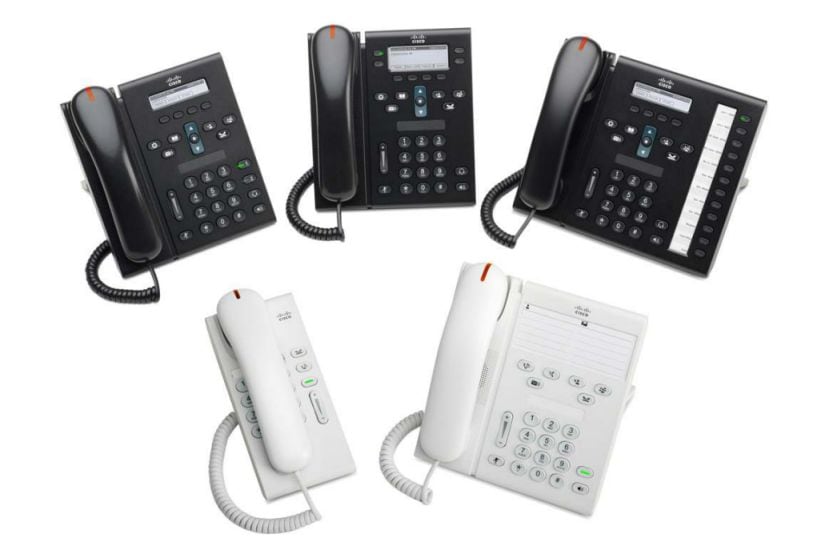
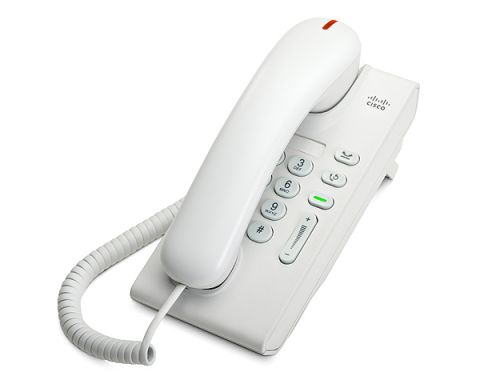
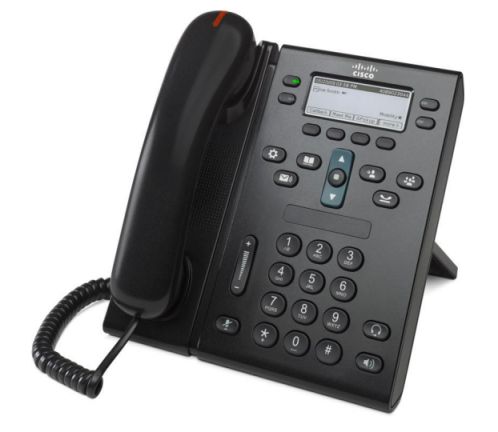
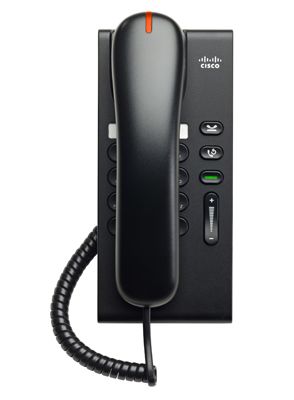
The information in this release note applies to the Cisco Unified IP Phone 6921, 6941, and 6961.
Use these release notes with Cisco Unified IP Phone 6921, 6941, and 6961 running firmware release 9.2(2) (SCCP and SIP). This version of firmware is compatible with Cisco Unified Communications Manager 7.1.5 and later.
Contents
These release notes provide the following information. You might need to notify your users about some of the information provided in this document.
•
Obtaining Documentation and Submitting a Service Request
Related Documentation
Cisco Unified IP Phone Documentation
Refer to publications that are specific to your language, phone model and Cisco Unified Communications Manager release. Navigate from the following documentation URL:
http://www.cisco.com/en/US/products/ps10326/tsd_products_support_series_home.html
Cisco Unified Communications Manager Documentation
Refer to the Cisco Unified Communications Manager Documentation Guide and other publications specific to your Cisco Unified Communications Manager release. Navigate from the following URL:
http://www.cisco.com/en/US/products/sw/voicesw/ps556/tsd_products_support_series_home.html
Cisco Unified Communications Manager Business Edition 5000 Documentation
Refer to the Cisco Unified Communications Manager Business Edition 5000 Documentation Guide and other publications that are specific to your Cisco Unified Communications Manager Business Edition 5000 release. Navigate from the following URL:
http://www.cisco.com/en/US/products/ps7273/tsd_products_support_series_home.html
Cisco Business Edition 3000 Documentation
Refer to the Cisco Business Edition 3000 Documentation Guide and other publications that are specific to your Cisco Business Edition 3000 release. Navigate from the following URL:
http://www.cisco.com/en/US/products/ps11370/tsd_products_support_series_home.html
Cisco Unified Communications Manager Express Documentation
Refer to the Cisco Unified Communications Manager Express Documentation Guide and other publications specific to your Cisco Unified Communications Manager Express release. Navigate from the following URL:
http://www.cisco.com/en/US/products/sw/voicesw/ps4625/tsd_products_support_series_home.html
New and Changed Information
This section contains these topics:
•
Client Matter Codes and Forced Authorization Codes
•
Enhanced Version Negotiation with Cisco Unified Manager Express
•
Phone Display Message for Extension Mobility Users
•
Programmable Feature Buttons as Softkeys
Calling Party Normalization
In accordance with E.164 standards, calling party normalization enhances the dialing capabilities of some phones and improves call back functionality when a call is routed to multiple geographical locations. The feature ensures that the called party can return a call without having to modify the directory number in the call log directories on the phone. Calling party normalization allows phone numbers to be presented on the phone based on where the call is going to (intra-city, inter-city, international).
The SCCP and SIP phones support the following functions:
•
For the final presentation of the calling number to the user, the phone screen displays the calling number based on the international, national, or local subscriber numbers.
For example, if the call is an intra-city call, the phone displays the number in the subscriber format (without the area or city code). For inter-city calls, the phone displays the number in a national number format. For international calls, the phone displays the number in the E.164 format, with the "+" prefix digit.•
The call logs directories record the calling number in the received and missed call logs with the appropriate escape codes (for example, 9/0, 0/1, +). The user can go into directories, and select and dial one of these entries with the escape code without having to edit the number.
For information on how to configure this feature for your phone, see "Calling Party Normalization" in the Cisco Unified Communications Manager Features and Services Guide.
Depending on your configuration for global and local calling party number, the phone user may see a localized number, a globalized number with access codes and prefixes, or the international escape character, +, in the calling party number.
•
If a phone supports calling party normalization, the phone can show the localized calling party number on the phone screen and the globalized number in the call log directories on the phone. In addition, these phones show both the global and local calling party number in the Call Details.
•
If a phone does not support calling party normalization, the phone shows the localized calling party on the phone screen and in the call log directories on the phone.
In the Call History Details, the E.164 number displays in the Alternate number field.
The Calling Party Normalization feature is supported on the following Cisco Unified IP Phones (SCCP and SIP):
•
Cisco Unified IP Phone 6921
•
Cisco Unified IP Phone 6941
•
Cisco Unified IP Phone 6961
Where to Find More Information
•
Cisco Unified Communications Manager Features and Services Guide
Client Matter Codes and Forced Authorization Codes
The Forced Authentication Code (FAC) and Client Matter Code (CMC) Support feature extends the FAC and CMC features to more Cisco Unified IP Phones.
•
FAC controls the types of calls that certain users can place. When placing a call, a user receives a prompt to enter a valid authorization code before the call is made.
•
CMC enables a user to specify that a call relates to a specific client matter. When placing a call, a user can enter a code to indicate the type of call being placed (for example, to a specific customer).
This release extends the feature from SCCP phones to SIP phones.
The Client Matter Code (CMC) and Forced Authentication Code (FAC) Support feature is supported on the following Cisco Unified IP Phones (SCCP and SIP):
•
Cisco Unified IP Phone 6921
•
Cisco Unified IP Phone 6941
•
Cisco Unified IP Phone 6961
Where to find more information
•
Cisco Unified Communications Manager Features and Services Guide
Disable Single Button Barge
The Disable Single Button Barge feature provides the ability to conference using cBarge. The "Line Key Barge" in the Cisco Unified Communications Manager administration window has the following options:
•
Default: Pressing the line button causes the user to barge into the selected call.
•
Off: The result of pressing line button depends on the multiple number of calls per line feature.
–
When only one call is supported on the line, nothing happens.
–
When more than one call is supported on the line, a new call starts.
•
Turn on softkey: When the line button is pressed, the phone displays the softkeys as defined in the remote-in-use template. The phone displays cBarge if configured in the template.
Note
The phones do not support the Barge softkey.
The Disable Single Button Barge feature is supported on the following Cisco Unified IP Phones (SCCP and SIP):
•
Cisco Unified IP Phone 6921
•
Cisco Unified IP Phone 6941
•
Cisco Unified IP Phone 6961
Where to find more information
•
Cisco Unified Communications Manager Features and Services Guide
Enhanced Version Negotiation with Cisco Unified Manager Express
The Enhanced Version Negotiation with Cisco Unified Manager Express (Unified CME) feature offers an improved conference call flow process for users of the following Cisco IP Phones (SIP only):
•
Cisco Unified IP Phone 6921
•
Cisco Unified IP Phone 6941
•
Cisco Unified IP Phone 6961
Where to Find More Information
For more information, see:
•
Cisco Unified Communications Manager Express System Administrator Guide
Incoming Call Toast Timer
The Incoming Call Toast Timer feature controls the time that the Call Notification Pop-up Window (toast) remains visible for an incoming call. The administrator selects a time for all phones. The user cannot alter the timer.
The administrator sets up the feature from one of the following Cisco Unified Communications Manager windows:
•
System > Enterprise Phone Configuration
•
Device > Device Settings > Common Phone Profile
•
Device > Phone > Phone Configuration
This feature is supported on the following Cisco Unified IP Phones (SCCP and SIP):
•
Cisco Unified IP Phone 6921
•
Cisco Unified IP Phone 6941
•
Cisco Unified IP Phone 6961
Where to Find More Information
•
Cisco Unified Communications Manager Features and Services Guide
Jitter Buffer
The Jitter Buffer feature handles jitter from 10 milliseconds (ms) to 1000 ms for audio streams.
This feature has no administration or user impacts.
This feature is supported on the following Cisco Unified IP Phones (SCCP and SIP):
•
Cisco Unified IP Phone 6921
•
Cisco Unified IP Phone 6941
•
Cisco Unified IP Phone 6961
Phone Display Message for Extension Mobility Users
The Phone Display Message for Extension Mobility Users feature enhances the phone interface for the Extension Mobility user by providing friendly messages. This feature applies to Extension Mobility and Extension Mobility Cross Clusters users.
When the Extension Mobility user logs into the phone, the phone retrieves configuration information from the Cisco Unified Communications Manager, and resets to use the profile of the user. During the reset, the user sees the message "Resetting please wait..." and then "Registering", before the main screen displays.
The Phone Display Message for Extension Mobility Users feature is supported on the following Cisco Unified IP Phones (SCCP and SIP):
•
Cisco Unified IP Phone 6921
•
Cisco Unified IP Phone 6941
•
Cisco Unified IP Phone 6961
Programmable Feature Buttons as Softkeys
The Cisco Unified IP Phones support certain features as either softkeys or programmable feature buttons. The features are:
•
cBarge
•
Do not disturb (DND)
•
Malicious Caller ID (MCID)
•
Mobility
•
Quality Reporting Tool (QRT)
The Programmable Feature Buttons as Softkeys feature is supported on the following Cisco Unified IP Phones (SCCP and SIP):
•
Cisco Unified IP Phone 6921
•
Cisco Unified IP Phone 6941
•
Cisco Unified IP Phone 6961
Where to find more information
•
Cisco Unified Communications Manager Features and Services Guide
SRST Notification
The Survivable Remote Site Telephony (SRST) feature maintains a basic level of telephony functionality when the phone cannot communicate with the Cisco Unified Communications Manager cluster. The SRST Notification feature informs the user when the phone cannot communicate with the Cisco Unified Communications Manager.
When communication is lost, the phone displays the message "Service interruption". The message informs the user that the phone is in CM Fallback Service. When communications with the Cisco Unified Communications Manager are restored, the message does not appear.
While communication is lost, some phone features cannot be used because they rely on the Cisco Unified Communications Manager. The following table lists that features that are supported when communication is lost.
This feature is supported on the following Cisco Unified IP Phones (SCCP and SIP):
•
Cisco Unified IP Phone 6921
•
Cisco Unified IP Phone 6941
•
Cisco Unified IP Phone 6961
Where to Find More Information
•
Cisco Unified Communications Manager Features and Services Guide
Installation Notes
This section contains these sections:
•
Installing Cisco Unified Communications Manager
•
Installing Cisco Unified Communications Manager Express
•
Installing Firmware Release 9.2(2) for Cisco Unified IP Phone 6921, 6941, and 6961 (SIP)
•
Installing Firmware Release 9.2(2) for Cisco Unified IP Phone 6921, 6941, and 6961 (SCCP)
Installation Upgrade Notes
Direct upgrades, using signed load files, are supported to firmware releases 9.2(2) from 9.x. You can use the following firmware release file for these direct upgrades. For Cisco Unified IP Phone 6921, 6941, and 6961 (SCCP and SIP):
–
cmterm-69xx-sccp.9-2-2-6.cop.sgn
–
cmterm-69xx-sip.9-2-2-7.cop.sgn
Note
Converting SIP to previous 9.1(2) SCCP does not work due to a known issue CSCtj89983. The workaround is to perform factory reset after upgrade completes.
Note
Converting previous 9.1(2) SCCP to SIP does not support Auto-Registration due to a known issue CSCth26499.
Note
A direct upgrade from firmware release 9.0(x) to 9.2(2) is supported. After you upgrade from an earlier firmware release to 9.2(2) and for subsequent firmware releases, you can upgrade or downgrade only to signed firmware releases.
Before You Begin
If you are using unsigned load and want to upgrade Cisco Unified Communication Manager to release 8.6 and later then manually install unsigned load to upgrade because phone load upgrade will fail due to signed load in Cisco Unified Communication Manager by default.
Installing Cisco Unified Communications Manager
Before using the Cisco Unified IP Phone with Cisco Unified Communications Manager, you must install the latest firmware on all Cisco Unified Communications Manager servers in the cluster.
To download and install the Cisco Unified Communications Manager version, follow these steps:
Procedure
Step 1
Go to the following URL:
http://tools.cisco.com/support/downloads/pub/Redirect.x?mdfid=278875240
Step 2
Log in to the Products > Voice and Unified Communications > IP Telephony.
Step 3
Choose Call Control > Cisco Unified Communications Manager (CallManager).
Step 4
Choose your Cisco Unified Communications Manager version.
Installing Cisco Unified Communications Manager Express
To download and install the Cisco Unified Communications Manager Express version, follow these steps:
Procedure
Step 1
Go to the following URL:
http://tools.cisco.com/support/downloads/pub/Redirect.x?mdfid=278875240
Step 2
Log in to the Products > Voice and Unified Communications > IP Telephony.
Step 3
Choose Call Control > Cisco Unified Communications Manager Express.
Step 4
Choose your Cisco Unified Communications Manager Express version from the Select a File to Download section.
Installing Firmware Release 9.2(2) for Cisco Unified IP Phone 6921, 6941, and 6961 (SIP)
To download and install the phone firmware, follow these steps:
Procedure
Step 1
Go to the following URL:
http://tools.cisco.com/support/downloads/go/Redirect.x?mdfid=278875240
Step 2
Log in to the Products > Voice and Unified Communications > IP Telephony > IP Phones > Cisco Unified IP Phone 6900 Series.
Step 3
Choose your phone type.
Step 4
Choose Session Initiation Protocol (SIP) Software.
Step 5
Choose 9.2(2) under the Latest Releases folder.
Step 6
To download the SIP firmware for the Cisco Unified IP Phone, choose one of the following firmware releases. Click the Download Now or Add to cart button and follow the prompts:
•
cmterm-69xx-sip.9-2-2-7.cop.sgn
Note
If you added the firmware file to the cart, click the Download Cart link when you are ready to download the file.
Step 7
Click the + next to the firmware file name in the Download Cart section to access additional information about this file. The hyperlink for the Readme files is in the Additional Information section, which contains installation instructions for the corresponding firmware:
•
cmterm-6921_6941_6961-sip.9-2-2-7-readme.html
Step 8
Follow the instructions in the Readme file to install the firmware.
Installing Firmware Release 9.2(2) for Cisco Unified IP Phone 6921, 6941, and 6961 (SCCP)
To download and install the phone firmware, follow these steps:
Procedure
Step 1
Go to the following URL:
http://tools.cisco.com/support/downloads/go/Redirect.x?mdfid=278875240
Step 2
Log in to the Products > Voice and Unified Communications > IP Telephony > IP Phones > Cisco Unified IP Phone 6900 Series.
Step 3
Choose your phone type.
Step 4
Choose Skinny Client Control Protocol (SCCP) Software.
Step 5
Choose 9.2(2) under the Latest Releases folder.
Step 6
To download the SCCP firmware for the Cisco Unified IP Phone, choose one of the following firmware releases. Click the Download Now or Add to cart button and follow the prompts:
•
cmterm-69xx-sccp.9-2-2-6.cop.sgn
Note
If you added the firmware file to the cart, click the Download Cart link when you are ready to download the file.
Step 7
Click the + next to the firmware file name in the Download Cart section to access additional information about this file. The hyperlink for the Readme files is in the Additional Information section, which contains installation instructions for the corresponding firmware:
•
cmterm-6921_6941_6961-sccp.9-2-2-6-readme.html
Step 8
Follow the instructions in the Readme file to install the firmware.
Important Notes
The following section contains important information that applies to Cisco Unified IP Phone 6921, 6941, and 6961.
Queuing and Notification Limitation
The Cisco Unified IP Phone 6921, 6941, and 6961 does not support the queuing and notification architecture to ensure serialization for XSI objects. Between each XML service item, the Cisco Unified IP Phone 6921, 6941, and 6961 will wait 3 seconds for each command to finish process. For more information, refer to CSCtn62201 using the Software Bug Toolkit.
Caveats
This section contains these topics:
Using Bug Toolkit
Known problems (bugs) are graded according to severity level. These release notes contain descriptions of:
•
All severity level 1 or 2 bugs.
•
Significant severity level 3 bugs.
You can search for problems by using the Cisco Software Bug Toolkit.
To access Bug Toolkit, you need the following items:
•
Internet connection
•
Web browser
•
Cisco.com user ID and password
To use the Software Bug Toolkit, follow these steps:
Procedure
Step 1
To access the Bug Toolkit, go to http://tools.cisco.com/Support/BugToolKit/action.do?hdnAction=searchBugs.
Step 2
Log on with your Cisco.com user ID and password.
Step 3
To look for information about a specific problem, enter the bug ID number in the "Search for bug ID" field, then click Go.
Open Caveats
There are no open Severity 1, 2 and 3 defects for the Cisco Unified IP Phone 6921, 6941, and 6961 using SIP firmware release 9.2(2). Table 2 lists Severity 1, 2 and 3 defects that are open for Cisco Unified IP Phone 6921, 6941, and 6961 using SCCP firmware release 9.2(2).
For more information about an individual defect, you can access the online record for the defect by clicking the Identifier or going to the URL shown. You must be a registered Cisco.com user to access this online information.
Because defect status continually changes, be aware that the tables reflect a snapshot of the defects that were open at the time this report was compiled. For an updated view of open defects, access Bug Toolkit as described in the "Using Bug Toolkit" section.
Resolved Caveats
Table 3 lists Severity 1, 2 and 3 defects that are resolved for the Cisco Unified IP Phone 6921, 6941, and 6961 using SIP firmware release 9.2(2). Table 4 lists Severity 1, 2 and 3 defects that are resolved for the Cisco Unified IP Phone 6921, 6941, and 6961 using SCCP firmware release 9.2(2).
For more information about an individual defect, you can access the online record for the defect by clicking the Identifier or going to the URL shown. You must be a registered Cisco.com user to access this online information.
Because defect status continually changes, be aware that the tables reflect a snapshot of the defects that were resolved at the time this report was compiled. For an updated view of resolved defects, access Bug Toolkit as described in the "Using Bug Toolkit" section.
Table 3 Resolved Caveats for the Cisco Unified IP Phone 6921, 6941, and 6961 for Firmware Release 9.2(2) SIP
Identifier Headline6921 SIP phone unable to dial number with a space from directory
Obtaining Documentation and Submitting a Service Request
For information on obtaining documentation, submitting a service request, and gathering additional information, see the monthly What's New in Cisco Product Documentation, which also lists all new and revised Cisco technical documentation, at:
http://www.cisco.com/en/US/docs/general/whatsnew/whatsnew.html
Subscribe to the What's New in Cisco Product Documentation as a Really Simple Syndication (RSS) feed and set content to be delivered directly to your desktop using a reader application. The RSS feeds are a free service and Cisco currently supports RSS version 2.0.
Errata
The Cisco Unified IP Phone 6921, 6941, and 6961 Administration Guide for Cisco Unified Communications Manager 8.6 has an error in the section "Configuring the Phone to Support Call Waiting" (Chapter 5, page 5-26). The following section replaces the erroneous section.
Configuring the Phone to Support Call Waiting
The Cisco Unified IP Phones 6921, 6941, and 6961 support multiple calls per line. With multiple calls per line, setting up call waiting is simplified on the Cisco Unified Communications Manager. For more information, see the "Understanding Directory Numbers" chapter in the Cisco Unified Communications Manager System Guide.
Cisco and the Cisco logo are trademarks or registered trademarks of Cisco and/or its affiliates in the U.S. and other countries. To view a list of Cisco trademarks, go to this URL: www.cisco.com/go/trademarks. Third-party trademarks mentioned are the property of their respective owners. The use of the word partner does not imply a partnership relationship between Cisco and any other company. (1110R)
© 2011 Cisco Systems, Inc. All rights reserved.
Feedback