Cisco Unified Communications Manager Express System Administrator Guide
Configuring Phones to Make Basic Calls

Table Of Contents

Configuring Phones to Make Basic Calls

Contents

Prerequisites for Configuring Phones to Make Basic Calls

Restrictions for Configuring Phones to Make Basic Calls

Information About Configuring Phones to Make Basic Calls

Phones in Cisco Unified CME

Directory Numbers

Single-Line

Dual-Line

Octo-Line

SIP Shared-Line (Nonexclusive)

Two Directory Numbers with One Telephone Number

Dual-Number

Shared Line (Exclusive)

Overlaid

Monitor Mode for Shared Lines

Watch Mode for Phones

PSTN FXO Trunk Lines

Codecs for Cisco Unified CME Phones

Analog Phones

Cisco ATAs in SCCP Mode

FXS Ports in SCCP Mode

FXS Ports in H.323 Mode

Fax Support

Cisco VG202, VG204, and VG224 Autoconfiguration

Remote Teleworker Phones

Media Termination Point for Remote Phones

G.729r8 Codec on Remote Phones

Busy Trigger and Channel Huntstop for SIP Phones

Digit Collection on SIP Phones

KPML Digit Collection

SIP Dial Plans

Session Transport Protocol for SIP Phones

Ephone-Type Configuration

How to Configure Phones for a PBX System

SCCP: Creating Directory Numbers

Prerequisites

Restrictions

Examples

What to Do Next

SCCP: Configuring Ephone-Type Templates

Prerequisites

Restrictions

Ephone-Type Parameters for Supported Phone Types

Examples

SCCP: Assigning Directory Numbers to Phones

Prerequisites

Restrictions

Examples

What to Do Next

SIP: Creating Directory Numbers

Prerequisites

Restrictions

Examples

SIP: Assigning Directory Numbers to Phones

Examples

What to Do Next

SIP: Configuring Dial Plans

Prerequisites

Restrictions

Examples

What to Do Next

SIP: Verifying Dial Plan Configuration

SIP: Enabling KPML

Prerequisites

Restrictions

What to Do Next

SIP: Selecting Session-Transport Protocol for a Phone

Prerequisites

Restrictions

What to Do Next

SIP: Disabling SIP Proxy Registration for a Directory Number

Prerequisites

Restrictions

What to Do Next

Modifying the Global Codec

Prerequisites

Restrictions

What to Do Next

Configuring Codecs of Individual Phones for Calls Between Local Phones

Prerequisites

Restrictions

What to Do Next

How to Configure Phones for a Key System

SCCP: Creating Directory Numbers for a Simple Key System

Restrictions

SCCP: Configuring Trunk Lines for a Key System

SCCP: Configuring a Simple Key System Phone Trunk Line Configuration

SCCP: Configuring an Advanced Key System Phone Trunk Line Configuration

SCCP: Configuring Individual IP Phones for Key System

Restrictions

What to Do Next

How to Configure Cisco ATA, Analog Phone Support, Remote Phones, and Cisco IP Communicator

Configuring Cisco ATA Support

Restrictions

What to Do Next

Verifying Cisco ATA Support

Troubleshooting Cisco ATA Support

Using Call Pickup and Group Call Pickup with Cisco ATA

SCCP: Enabling Auto-Configuration for Cisco VG202, VG204, and VG224

Prerequisites

Restrictions

Examples

What to Do Next

SCCP: Configuring Phones on SCCP Controlled Analog (FXS) Ports

Prerequisites

Restrictions

What to Do Next

SCCP: Verifying Analog Phone Support

SCCP: Enabling a Remote Phone

Prerequisites

Restrictions

What to Do Next

SCCP: Verifying Remote Phones

SCCP: Configuring Cisco IP Communicator Support

Prerequisites

SCCP: Verifying Cisco IP Communicator Support

SCCP: Troubleshooting Cisco IP Communicator Support

Configuration Examples for Making Basic Calls

Configuring SCCP Phones for Making Basic Calls: Example

Configuring SIP Phones for Making Basic Calls: Example

Disabling a Bulk Registration for a SIP Phone: Example

Cisco ATA: Example

SCCP Analog Phone: Example

Remote Teleworker Phones: Example

Where to Go Next

Additional References

Related Documents

Technical Assistance

Feature Information for Configuring Phones to Make Basic Calls


Configuring Phones to Make Basic Calls


Last Updated: May 28, 2009

This module describes how to configure Cisco Unified IP phones in Cisco Unified Communications Manager Express (Cisco Unified CME) so that you can make and receive basic calls.

Finding Feature Information in This Module

Your Cisco Unified CME version may not support all of the features documented in this module. For a list of the versions in which each feature is supported, see the "Feature Information for Configuring Phones to Make Basic Calls" section.

Contents

Prerequisites for Configuring Phones to Make Basic Calls

Restrictions for Configuring Phones to Make Basic Calls

Information About Configuring Phones to Make Basic Calls

How to Configure Phones for a PBX System

How to Configure Phones for a Key System

How to Configure Cisco ATA, Analog Phone Support, Remote Phones, and Cisco IP Communicator

Configuration Examples for Making Basic Calls

Where to Go Next

Additional References

Feature Information for Configuring Phones to Make Basic Calls

Prerequisites for Configuring Phones to Make Basic Calls

Cisco IOS software and Cisco Unified CME software, including phone firmware files for Cisco Unified IP phones to be connected to Cisco Unified CME, must be installed in router flash memory. See "Installing and Upgrading Cisco Unified CME Software" on page 51.

For Cisco Unified IP phones that are running SIP and are connected directly to Cisco Unified CME, Cisco Unified CME 3.4 or later must be installed on the router. See "Installing and Upgrading Cisco Unified CME Software" on page 51.

Procedures in "Defining Network Parameters" on page 75 and "Configuring System-Level Parameters" on page 101 must be completed before you start the procedures in this section.

Restrictions for Configuring Phones to Make Basic Calls

When you are configuring dial peers or ephone-dns, including park slots and conferencing extensions, on Cisco Integrated Services Router Voice Bundles, the following message may appear to warn you that free memory is not available:

%DIALPEER_DB-3-ADDPEER_MEM_THRESHOLD: Addition of dial-peers limited by available memory

To configure more dial peers or ephone-dns, increase the DRAM in the system. A moderately complex configuration may exceed the default 256 MB DRAM and require 512 MB DRAM. Note that many factors contribute to memory usage, in addition to the number of dial peers and ephone-dns configured.

Information About Configuring Phones to Make Basic Calls

To configure phones to make basic calls, you should understand the following concepts:

Phones in Cisco Unified CME

Directory Numbers

Monitor Mode for Shared Lines

Watch Mode for Phones

PSTN FXO Trunk Lines

Codecs for Cisco Unified CME Phones

Analog Phones

Remote Teleworker Phones

Busy Trigger and Channel Huntstop for SIP Phones

Digit Collection on SIP Phones

Session Transport Protocol for SIP Phones

Ephone-Type Configuration

Phones in Cisco Unified CME

An ephone, or "Ethernet phone," for SCCP or a voice-register pool for SIP is the software configuration for a phone in Cisco Unified CME. This phone can be either a Cisco Unified IP phone or an analog phone. Each physical phone in your system must be configured as an ephone or voice-register pool on the Cisco Unified CME router to receive support in the LAN environment. Each phone has a unique tag, or sequence number, to identify it during configuration.

Directory Numbers

A directory number, also known as an ephone-dn for SCCP or a voice-register dn for SIP, is the software configuration in Cisco Unified CME that represents the line connecting a voice channel to a phone. A directory number has one or more extension or telephone numbers associated with it to allow call connections to be made. Generally, a directory number is equivalent to a phone line, but not always. There are several types of directory numbers, which have different characteristics.

Each directory number has a unique dn-tag, or sequence number, to identify it during configuration. Directory numbers are assigned to line buttons on phones during configuration.

One virtual voice port and one or more dial peers are automatically created for each directory number, depending on the configuration for SCCP phones, or for SIP phones, when the phone registers in Cisco Unified CME.

The number of directory numbers that you create corresponds to the number of simultaneous calls that you can have, because each directory number represents a virtual voice port in the router. This means that if you want more than one call to the same number to be answered simultaneously, you need multiple directory numbers with the same destination number pattern.

The directory number is the basic building block of a Cisco Unified CME system. Six different types of directory number can be combined in different ways for different call coverage situations. Each type will help with a particular type of limitation or call-coverage need. For example, if you want to keep the number of directory numbers low and provide service to a large number of people, you might use shared directory numbers. Or if you have a limited quantity of extension numbers that you can use and you need to have a large quantity of simultaneous calls, you might create two or more directory numbers with the same number. The key is knowing how each type of directory number works and its advantages.

Not all types of directory numbers can be configured for all phones or for all protocols. In the remaining information about directory numbers, we have used SCCP in the examples presented but that does not imply exclusivity. The following sections describe the types of directory numbers in a Cisco Unified CME system:

Single-Line

Dual-Line

Octo-Line

SIP Shared-Line (Nonexclusive)

Two Directory Numbers with One Telephone Number

Dual-Number

Shared Line (Exclusive)

Monitor Mode for Shared Lines

Overlaid

Single-Line

A single-line directory number has the following characteristics:

Makes one call connection at a time using one phone line button. A single-line directory number has one telephone number associated with it.

Should be used when phone buttons have a one-to-one correspondence to the PSTN lines that come into a Cisco Unified CME system.

Should be used for lines that are dedicated to intercom, paging, message-waiting indicator (MWI), loopback, and music-on-hold (MOH) feed sources.

When used with multiple-line features like call waiting, call transfer, and conferencing, there must be more than one single-line directory number on a phone.

Can be combined with dual-line directory numbers on the same phone.

Note that you must make the choice to configure each directory number in your system as either dual-line or single-line when you initially create configuration entries. If you need to change from single-line to dual-line later, you must delete the configuration for the directory number, then recreate it.

Figure 7 shows a single-line directory number for an SCCP phone in Cisco Unified CME.

Figure 7 Single-Line Directory Number

Dual-Line

A dual-line directory number has the following characteristics:

One voice port with two channels.

Supported on IP phones that are running SCCP; not supported on IP phones that are running SIP.

Can make two call connections at the same time using one phone line button. A dual-line directory number has two channels for separate call connections.

Can have one number or two numbers (primary and secondary) associated with it.

Should be used for a directory number that needs to use one line button for features like call waiting, call transfer, or conferencing.

Cannot be used for lines that are dedicated to intercom, paging, message-waiting indicator (MWI), loopback, and music-on-hold (MOH) feed sources.

Can be combined with single-line directory numbers on the same phone.

Note that you must make the choice to configure each directory number in your system as either dual-line or single-line when you initially create configuration entries. If you need to change from single-line to dual-line later, you must delete the configuration for the directory number, then recreate it.

Figure 8 shows a dual-line directory number for an SCCP phone in Cisco Unified CME.

Figure 8 Dual-Line Directory Number

Octo-Line

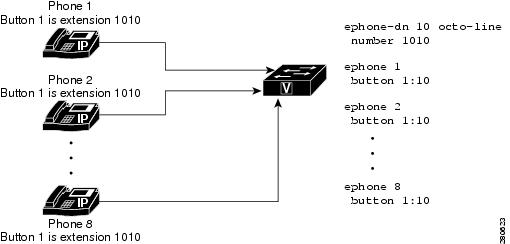
An octo-line directory number supports up to eight active calls, both incoming and outgoing, on a single button of a SCCP phone. Unlike a dual-line directory number, which is shared exclusively among phones (after a call is answered, that phone owns both channels of the dual-line directory number), an octo-line directory number can split its channels among other phones that share the directory number. All phones are allowed to initiate or receive calls on the idle channels of the shared octo-line directory number.

Because octo-line directory numbers do not require a different ephone-dn for each active call, one octo-line directory number can handle multiple calls. Multiple incoming calls to an octo-line directory number ring simultaneously. After a phone answers a call, the ringing stops on that phone and the call-waiting tone plays for the other incoming calls. When phones share an octo-line directory number, incoming calls ring on phones without active calls and these phones can answer any of the ringing calls. Phones with an active call hear the call-waiting tone.

After a phone answers an incoming call, the answering phone is in the connected state. Other phones that share the octo-line directory number are in the remote-in-use state.

After a connected call on an octo-line directory number is put on-hold, any phone that shares this directory number can pick up the held call. If a phone user is in the process of initiating a call transfer or creating a conference, the call is locked and other phones that share the octo-line directory number cannot steal the call.

Figure 9 Octo-Line Directory Number

The Barge and Privacy features control whether other phones are allowed to view call information or join calls on the shared octo-line directory number.

Feature Comparison by Directory Number Line-Mode (SCCP Phones)

Table 10 lists some common directory number features and their support based on the type of line mode defined with the ephone-dn command.

Table 10 Feature Comparison by Line Mode (SCCP Phones) 

Feature
Single-Line
Dual-Line
Octo-Line

Barge

Yes

Busy Trigger

Yes

Conferencing (8-party)

4 directory numbers

1 directory number

FXO Trunk Optimization

Yes

Yes

Huntstop Channel

Yes

Yes

Intercom

Yes

Key System
(one call per button)

Yes

Maximum Calls

Yes

MWI

Yes

Overlay directory numbers
(c, o, x)

Yes

Yes

Paging

Yes

Park

Yes

Privacy

Yes


SIP Shared-Line (Nonexclusive)

Cisco Unified CME 7.1 and later versions support SIP shared lines to allow multiple phones to share a common directory number. All phones sharing the directory number can initiate and receive calls at the same time. Calls to the shared line ring simultaneously on all phones without active calls and any of these phones can answer the incoming calls. After a phone answers a call, the ringing stops on all phones and the call-waiting tone plays for other incoming calls to the connected phone.

The phone that answers an incoming call is in the connected state. Other phones that share the directory number are in the remote-in-use state. The first user that answers the call on the shared line is connected to the caller and the remaining users see the call information and status of the shared line.

Calls on a shared line can be put on hold like calls on a nonshared line. When a call is placed on hold, other phones with the shared-line directory number receive a hold notification so all phones sharing the line are aware of the held call. Any shared-line phone user can resume the held call. If the call is placed on hold as part of a conference or call transfer operation, the resume is not allowed. The ID of the held call is used by other shared-line members to resume the call. Notifications are sent to all associated phones when a held call is resumed on a shared line.

Shared lines support up to 16 calls, depending on the configuration in Cisco Unified CME, which rejects any new call that exceeds the configured limit. For configuration information, see the "SIP: Creating Directory Numbers" section.

The Barge and Privacy features control whether other phones are allowed to view call information or join calls on the shared-line directory number. See "Configuring Barge and Privacy" on page 489.

Two Directory Numbers with One Telephone Number

Two directory numbers with one telephone or extension number have the following characteristics:

Have the same telephone number but two separate virtual voice ports, and therefore can have two separate call connections.

Can be dual-line (SCCP only) or single-line directory numbers.

Can appear on the same phone on different buttons or on different phones.

Should be used when you want the ability to make more call connections while using fewer numbers.

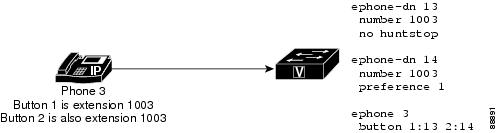
Figure 10 shows a phone with two buttons that have the same number, extension 1003. Each button has a different directory number (button 1 is directory number 13 and button 2 is directory number 14), so each button can make one independent call connection if the directory numbers are single-line and two call connections (for a total of four) if the directory numbers are dual-line.

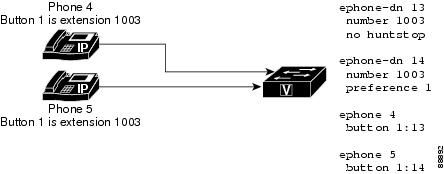
Figure 11 shows two phones that each have a button with the same number. Because the buttons have different directory numbers, the calls that are connected on these buttons are independent of one another. The phone user at phone 4 can make a call on extension 1003, and the phone user on phone 5 can receive a different call on extension 1003 at the same time.

The two directory numbers-with-one-number situation is different than a shared line, which also has two buttons with one number but has only one directory number for both of them. A shared directory number will have the same call connection at all the buttons on which the shared directory number appears. If a call on a shared directory number is answered on one phone and then placed on hold, the call can be retrieved from the second phone on which the shared directory number appears. But when there are two directory numbers with one number, a call connection appears only on the phone and button at which the call is made or received. In the example in Figure 11, if the user at phone 4 makes a call on button 1 and puts it on hold, the call can be retrieved only from phone 4. For more information about shared lines, see the "Shared Line (Exclusive)" section.

The examples in Figure 10 and Figure 11 show how two directory numbers with one number are used to provide a small hunt group capability. In Figure 10, if the directory number on button 1 is busy or does not answer, an incoming call to extension 1003 rolls over to the directory number associated with button 2 because the appropriate related commands are configured. Similarly, if button 1 on phone 4 is busy, an incoming call to 1003 rolls over to button 1 on phone 5.

Figure 10 Two Directory Numbers with One Number on One Phone

Figure 11 Two Directory Numbers with One Number on Two Phones

Dual-Number

A dual-number directory number has the following characteristics:

Has two telephone numbers, a primary number and a secondary number.

Can make one call connection if it is a single-line directory number.

Can make two call connections at a time if it is a dual-line directory number (SCCP only).

Should be used when you want to have two different numbers for the same button without using more than one directory number.

Figure 12 shows a directory number that has two numbers, extension 1006 and extension 1007.

Figure 12 Dual-Number Directory

Shared Line (Exclusive)

An exclusively shared directory number has the following characteristics:

Line appears on two different phones but uses the same directory number, and extension or phone number.

Can make one call at a time and that call appears on both phones.

Should be used when you want the capability to answer or pick up a call at more than one phone.

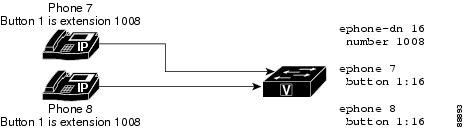
Because this directory number is shared exclusively among phones, if the directory number is connected to a call on one phone, that directory number is unavailable for calls on any other phone. If a call is placed on hold on one phone, it can be retrieved on the second phone. This is like having a single-line phone in your house with multiple extensions. You can answer the call from any phone on which the number appears, and you can pick it up from hold on any phone on which the number appears.

Figure 13 shows a shared directory number on phones that are running SCCP. Extension 1008 appears on both phone 7 and phone 8.

Figure 13 Shared Directory Number (Exclusive)

Overlaid

An overlaid directory number has the following characteristics:

Is a member of an overlay set, which includes all the directory numbers that have been assigned together to a particular phone button.

Can have the same telephone or extension number as other members of the overlay set or different numbers.

Can be single-line or dual-line, but cannot be mixed single-line and dual-line in the same overlay set.

Can be shared on more than one phone.

Overlaid directory numbers provide call coverage similar to shared directory numbers because the same number can appear on more than one phone. The advantage of using two directory numbers in an overlay arrangement rather than as a simple shared line is that a call to the number on one phone does not block the use of the same number on the other phone, as would happen if it were a shared directory number.

For information about configuring call coverage using overlaid ephone-dns, see "Configuring Call-Coverage Features" on page 609.

You can overlay up to 25 lines on a single button. A typical use of overlaid directory numbers would be to create a "10x10" shared line, with ten lines in an overlay set shared by ten phones, resulting in the possibility of ten simultaneous calls to the same number. For configuration information, see the "SCCP: Creating Directory Numbers for a Simple Key System" section

Monitor Mode for Shared Lines

In Cisco CME 3.0 and later versions, monitor mode for shared lines provides a visible line status indicating whether the line is in-use or not. A monitor-line lamp is off or unlit only when its line is in the idle call state. The idle state occurs before a call is made and after a call is completed. For all other call states, the monitor line lamp is lit. A receptionist who monitors the line can see that it is in use and can decide not to send additional calls to that extension, assuming that other transfer and forwarding options are available, or to report the information to the caller; for example, "Sorry, that extension is busy, can I take a message?"

In Cisco CME 3.2 and later versions, consultative transfers can occur during Direct Station Select (DSS) for transferring calls to idle monitored lines. The receptionist who transfers a call from a normal line can press the Transfer button and then press the line button of the monitored line, causing the call to be transferred to the phone number of the monitored line. For information about consultative transfer with DSS, see "Configuring Call Transfer and Forwarding" on page 541.

In Cisco Unified CME 4.0(1) and later versions, the line button for a monitored line can be used as a DSS for a call transfer when the monitored line is idle or in-use, provided that the call transfer can succeed; for example, when the monitored line is configured for Call Forward Busy or Call Forward No Answer.


Note Typically, Cisco Unified CME does not attempt a transfer that causes the caller (transferee) to hear a busy tone. However, the system does not check the state of subsequent target numbers in the call-forward path when the transferred call is transferred more than once. Multiple transfers can occur because a call-forward-busy target is also busy and configured for Call Forward Busy.


In Cisco Unified CME 4.3 and later versions, a receptionist can use the Transfer to Voicemail feature to transfer a caller directly to a voice-mail extension for a monitored line. For configuration information, see "SCCP: Enabling Transfer to Voice Mail" section on page 385.

For configuration information for monitor mode, see the "SCCP: Assigning Directory Numbers to Phones" section.

Monitor mode is intended for use only in the context of shared lines so that a receptionist can visually monitor the in-use status of several users' phone extensions; for example, for Busy Lamp Field (BLF) notification. To monitor all lines on an individual phone so that a receptionist can visually monitor the in-use status of that phone, see the "Watch Mode for Phones" section.

For BLF monitoring of speed-dial buttons and directory call-lists, see "Configuring Presence Service" on page 929.

Watch Mode for Phones

In Cisco Unified CME 4.1 and later versions, a line button that is configured for Watch mode on one phone provides Busy Lamp Field (BLF) notification for all lines on another phone (watched phone) for which the watched directory number is the primary line. Watch mode allows a phone user, such as a receptionist, to visually monitor the in-use status of an individual phone. The line and line button on the watching phone are available in watch mode for visual status only. Calls cannot be made or received using a line button that has been set in watch mode. Incoming calls on a line button that is in watch mode do not ring and do not display caller ID or call-waiting caller ID.

The line button for a watched phone can also be used as a direct-station-select for a call transfer when the watched phone is idle. In this case, the phone user who transfers a call from a normal line can press the Transfer button and then press the line button of the watched directory number, causing the call to be transferred to the phone number associated with the watched directory number.

For configuration information, see the "SCCP: Assigning Directory Numbers to Phones" section.


Note If the watched directory number is a shared line and the shared line is not idle on any phone with which it is associated, then in the context of watch mode, the status of the line button indicates that the watched phone is in use.

For best results when monitoring the status of an individual phone based on a watched directory number, the directory number configured for watch mode should not be a shared line. To monitor a shared line so that a receptionist can visually monitor the in-use status of several users' phone extensions, see the "Monitor Mode for Shared Lines" section.


For BLF monitoring of speed-dial buttons and directory call-lists, see "Configuring Presence Service" on page 929.

PSTN FXO Trunk Lines

In Cisco CME 3.2 and later, IP phones running SCCP can be configured to have buttons for dedicated PSTN FXO trunk lines, also known as FXO lines. FXO lines may used by companies whose employees require private PSTN numbers. For example, a salesperson may need a special number that customers can call without having to go through a main number. When a call comes in to the direct number, the salesperson knows that the caller is a customer. In the salesperson's absence the customer can leave voice mail. FXO lines can use PSTN service provider voice mail: when the line button is pressed, the line is seized, allowing the user to hear the stutter dial tone provided by the PSTN to indicate that voice messages are available.

Because FXO lines behave as private lines, users do not have to dial a prefix, such as 9 or 8, to reach an outside line. To reach phone users within the company, FXO-line users must dial numbers that use the company's PSTN number. For calls to nonPSTN destinations, such as local IP phones, a second directory number must be provisioned.

Calls placed to or received on an FXO line have restricted Cisco Unified CME services and cannot be transferred by Cisco Unified CME. However, phone users are able to access hookflash-controlled PSTN services using the Flash soft key.

In Cisco Unified CME 4.0(1), the following FXO trunk enhancements were introduced to improve the keyswitch emulation behavior of PSTN lines on phones running SCCP, in a Cisco Unified CME system.

FXO port monitoring—Allows the line button on IP phones to reliably show the status of an FXO port when the port is in use. The status indicator, either a lamp or an icon, depending on the phone model, accurately displays the status of the FXO port during the duration of the call, even after the call is forwarded or transferred. The same FXO port can be monitored by multiple phones using multiple trunk ephone-dns.

Transfer recall—If a transfer-to phone does not answer after a specified timeout, the call is returned to the phone that initiated the transfer and it resumes ringing on the FXO line button. The directory number must be dual-lined.

Transfer-to button optimization—When an FXO call is transferred to a private extension button on another phone, and that phone has a shared line button for the FXO port, after the transfer is committed and the call is answered, the connected call displays on the FXO line button of the transfer-to phone. This frees up the private extension line on the transfer-to phone. The directory number n must be dual-line.

Dual-line ephone-dns— Directory numbers for FXO lines can now be configured for dual-line to support the FXO monitoring, transfer recall, and transfer-to button optimization features.

For configuration information, see the "SCCP: Configuring Trunk Lines for a Key System" section.

Codecs for Cisco Unified CME Phones

In Cisco CME 3.4, support for connecting and provisioning SIP phones was added. The default codec of the POTS dial peer for an SCCP phone is G.711 and the default codec of a VoIP dial peer for a SIP phone is G.729. If neither the SCCP phone nor the SIP phone in Cisco Unified CME is specifically configured to change the codec, calls between the two phones on the same router will produce a busy signal caused by the mismatched default codecs. To avoid codec mismatch, specify the codec for individual IP phones in Cisco Unified CME. Modify the configuration for either SIP or SCCP phones to ensure that the codec for all phones match. Do not modify the configuration for SIP and SCCP phones. For configuration information, see the "Configuring Codecs of Individual Phones for Calls Between Local Phones" section.

In Cisco Unified CME 4.3, support for G.722-64K and the Internet Low Bit Rate Codec (iLBC) was added. This enables Cisco Unified CME to support the same codecs that are used in newer Cisco Unified IP phones, mobile wireless networks, and internet telephony without transcoding. This feature provides support for the following:

iLBC and G.722-capable SIP and SCCP IP phones in Cisco Unified CME

iLBC-capable SCCP analog endpoints and remote phones in Cisco Unified CME

Conferencing support for G.722 and ILBC

Supplementary services, such as transfer, call forward, MOH, support for G.722 and iLBC, including any supplementary services that require transcoding between G.722 and any other codec

Transcoding for G.722 and iLBC, including G.722 to G.711 and G.722 to any other codec

With the introduction of G.722 and iLBC codecs, there can be a disparity between codec capabilities of different phones and different firmware versions on same phone type. For example, when a H.323 call is established, the codec is negotiated based on the dial-peer codec and the assumption is that the codecs supported on H.323 side are supported by the phones. This assumption is not valid after G.722 and ILBC codec are introduced in your network. If the phones do not support the codecs on the H.323 side, a transcoder is required. To avoid transcoding in this situation, configure incoming dial-peers so that G.722 and iLBC codecs are not used for calls to phones that are not capable of supporting these codecs. Instead, configure these phones for G.729 or G.711. Also, when configuring shared directory numbers, ensure that phones with the same codec capabilities are connected to the shared directory number.

G.722-64K

Traditional PSTN telephony codecs, including G.711 and G.729, are classified as narrowband codecs because they encode audio signals in a narrow audio bandwidth, giving telephone calls a characteristic "tinny" sound. Wideband codecs such as G.722 provide a superior voice experience because wideband frequency response is 200 Hz to 7 kHz compared to narrowband frequency response of 300 Hz to 3.4 kHz. At 64 kbps, the G.722 codec offers conferencing performance and good music quality.

A wideband handset for certain Cisco Unified IP phones, such as the Cisco Unified IP Phone 7906G, 7911G, 7941G-GE, 7942G, 7945G, 7961G-GE, 7962G, 7965G, and 7975G, take advantage of the higher voice quality provided by wideband codecs to enhance end-user experience with high-fidelity wideband audio. When users use a headset that supports wideband, they experience improved audio sensitivity when the wideband setting on their phones is enabled. You can configure phone-user access to the wideband headset setting on IP phones by setting the appropriate VendorConfig parameters in the phone's configuration file. For configuration information, see the "Modifying Cisco Unified IP Phone Options" on page 1027.

If the system is not configured for a wideband codec, phone users may not detect any additional audio sensitivity, even when they are using a wideband headset.

You can configure the G.722-64K codec at a system-level for all calls through Cisco Unified CME. For configuration information, see the "Modifying the Global Codec" section. To configure individual phones and avoid codec mismatch for calls between local phones, see "Configuring Codecs of Individual Phones for Calls Between Local Phones" section.

iLBC codec

Internet Low Bit Rate Codec (iLBC) enables graceful speech quality degradation in a network where frames get lost. Consider iLBC suitable for real-time communications, such as telephony and video conferencing, streaming audio, archival, and messaging. This codec is widely used by internet telephony softphones.The SIP, SCCP, and MGCP call protocols support use of the iLBC as an audio codec. iLBC provides better voice quality than G.729 but less than G.711. Supporting codecs that have standardized use in other networks, such as iLBC, enables end-to-end IP calls without the need for transcoding.

To configure individual SIP or SCCP phones, including analog endpoints in Cisco Unified CME, and avoid codec mismatch for calls between local phones, see "Configuring Codecs of Individual Phones for Calls Between Local Phones" section.

Analog Phones

Cisco Unified CME supports analog phones and fax machines using Cisco Analog Telephone Adaptors (ATAs) or FXS ports in SCCP mode or H.323 mode. The FXS ports used for analog phones or fax can be on the Cisco Unified CME router, Cisco VG224 voice gateway, or integrated services router (ISR).

This section provides information on the following topics:

Cisco ATAs in SCCP Mode

FXS Ports in SCCP Mode

FXS Ports in H.323 Mode

Fax Support

Cisco VG202, VG204, and VG224 Autoconfiguration

Cisco ATAs in SCCP Mode

You can configure the Cisco ATA 186 or Cisco ATA 188 to cost-effectively support analog phones using SCCP in Cisco IOS Release 12.2(11)T and later. Each Cisco ATA enables two analog phones to function as IP phones. For configuration information, see the "Configuring Cisco ATA Support" section.

FXS Ports in SCCP Mode

FXS ports on Cisco VG224 Voice Gateways and Cisco 2800 Series and Cisco 3800 Series ISRs can be configured for SCCP supplementary features. For information about using SCCP supplementary features on analog FXS ports on a Cisco IOS gateway under the control of a Cisco Unified CME router, see SCCP Controlled Analog (FXS) Ports with Supplementary Features in Cisco IOS Gateways.

FXS Ports in H.323 Mode

FXS ports on platforms that cannot enable SCCP supplementary features can use H.323 mode to support call waiting, caller ID, hookflash transfer, modem pass-through, fax (T.38, Cisco fax relay, and pass-through), and PLAR. These features are provisioned as Cisco IOS voice features and not as Cisco Unified CME features. Note that when using Cisco Unified CME, you can configure FXS ports in H.323 mode for call waiting or hookflash transfer, but not both at the same time.

See the following documents for details on configuring features for FXS ports in H.323 mode:

"Configuring Analog Voice Ports" section in the Voice Ports Configuration Guide

"Caller ID" document in the Cisco IOS Voice Configuration Library

Cisco IOS Fax, Modem, and Text Support over IP Application Guide

Fax Support

Cisco Unified CME 4.0 introduced the use of G.711 fax pass-through for SCCP on the Cisco VG224 voice gateway and Cisco ATA. In Cisco Unified CME 4.0(3) and later versions, fax relay using the Cisco-proprietary fax protocol is the only supported fax option for SCCP-controlled FXS ports on the Cisco VG224 and integrated service routers; G.711 fax pass-through is no longer supported for SCCP-controlled FXS ports. See "Configuring Fax Relay" on page 845.

Cisco VG202, VG204, and VG224 Autoconfiguration

The Autoconfiguration feature in Cisco Unified CME 7.1 and later versions allows you to automatically configure the Cisco VG202, VG204, and VG224 Analog Phone Gateway. You can configure basic voice gateway information in Cisco Unified CME, which then generates XML configuration files for the gateway and saves the files to either the default location in system:/its/ or to a location you define in system memory, flash memory, or an external TFTP server. When the voice gateway powers up, it downloads the configuration files from Cisco Unified CME and based on the information in the files, the voice gateway provisions its analog voice ports and creates the corresponding dial peers.

Using this Autoconfiguration feature with the existing Auto Assign feature allows you to quickly set up analog phones to make basic calls. After the voice gateway is properly configured and it downloads its XML configuration files from Cisco Unified CME, the SCCP telephony control (STC) application registers each configured voice port to Cisco Unified CME.

If you enable the Auto Assign feature, the gateway automatically assigns the next available directory number from the pool set by the auto assign command, binds that number to the requesting voice port, and creates an ephone entry associated with the voice port. The MAC address for the ephone entry is calculated based on the MAC address of the gateway and the port number. You can manually assign a directory number to each of the voice ports by creating the ephone-dn and corresponding ephone entry.

You can initiate a reset or restart of the analog endpoints from Cisco Unified CME, which triggers the autoconfiguration process. The voice gateway downloads its configuration files from Cisco Unified CME and applies the new changes.

For configuration information, see the "SCCP: Enabling Auto-Configuration for Cisco VG202, VG204, and VG224" section.

Remote Teleworker Phones

IP phones or instances of Cisco IP Communicator can be connected to a Cisco Unified CME system over a wide area network (WAN) to support teleworkers who have offices that are remote from the Cisco Unified CME router. The maximum number of remote phones that can be supported is determined by the available bandwidth.

IP addressing is a determining factor in the most critical aspect of remote teleworker phone design. The following two scenarios represent the most common designs, the second one is the most common for small and medium businesses:

Remote site IP phones and the hub Cisco Unified CME router use globally routable IP addresses.

Remote site IP phones use NAT with unroutable private IP addresses and the hub Cisco Unified CME router uses a globally routable address (see Figure 14). This scenario results in one-way audio unless you use one of the following workarounds:

Configure static NAT mapping on the remote site router (for example, a Cisco 831 Ethernet Broadband Router) to convert between a private address and a globally routable address. This solution uses fewer Cisco Unified CME resources, but voice is unencryped across the WAN.

Configure an IPsec VPN tunnel between the remote site router (or example, a Cisco 831) and the Cisco Unified CME router. This solution requires an Advanced IP Services or higher image on the Cisco Unified CME router if this router is used to terminate the VPN tunnel. Voice will be encrypted across the WAN. This method will also work with the Cisco VPN client on a PC to support Cisco IP Communicator.

Figure 14 Remote Site IP Phones Using NAT

Media Termination Point for Remote Phones

Media termination point (MTP) configuration is used to ensure that Real-Time Transport Protocol (RTP) media packets from remote phones always transit through the Cisco Unified CME router. Without the MTP feature, a phone that is connected in a call with another phone in the same Cisco Unified CME system sends its media packets directly to the other phone, without the packets going through the Cisco Unified CME router. MTP forces the packets to be sourced from the Cisco Unified CME router.

When this configuration is used to instruct a phone to always send its media packets to the Cisco Unified CME router, the router acts as an MTP or proxy and forwards the packets to the destination phone. If a firewall is present, it can be configured to pass the RTP packets because the router uses a specified UDP port for media packets. In this way, RTP packets from remote IP phones can be delivered to IP phones on the same system though they must pass through a firewall.

You must use the mtp command to explicitly enable MTP for each remote phone that sends media packets to Cisco Unified CME.

One factor to consider is whether you are using multicast music on hold (MOH) in your system. Multicast packets generally cannot be forwarded to phones that are reached over a WAN. The multicast MOH feature checks to see if MTP is enabled for a phone and if it is, MOH is not sent to that phone. If you have a WAN configuration that can forward multicast packets and you can allow RTP packets through your firewall, you can decide not to use MTP.

For configuration information, see the "SCCP: Enabling a Remote Phone" section.

G.729r8 Codec on Remote Phones

You can select the G.729r8 codec on a remote IP phone to help save network bandwidth. The default codec is G.711 mu-law. If you use the codec g729r8 command without the dspfarm-assist keyword, the use of the G.729 codec is preserved only for calls between two phones on the Cisco Unified CME router (such as between an IP phone and another IP phone or between an IP phone and an FXS analog phone). The codec g729r8 command has no affect on a call directed through a VoIP dial peer unless the dspfarm-assist keyword is also used.

For configuration information, see the "SCCP: Enabling a Remote Phone" section.

For information about transcoding behavior when using the G.729r8 codec, see the "Transcoding When a Remote Phone Uses G.729r8" section on page 321.

Busy Trigger and Channel Huntstop for SIP Phones

Cisco Unified CME 7.1 introduces busy trigger and huntstop channel support for SIP phones such as the Cisco Unified IP Phone 7941G, 7941GE, 7942G, 7945G, 7961G, 7961GE, 7962G, 7965G, 7970G, 7971GE, 7975G, and 7985. For these SIP phones, the number of channels supported is limited by the amount of memory on the phone. To prevent incoming calls from overloading the phone, you can configure a busy trigger and a channel huntstop for the directory numbers on the phone.

The Channel Huntstop feature limits the number of channels available for incoming calls to a directory number. If the number of incoming calls reaches the configured limit, Cisco Unified CME does not present the next incoming call to the directory number. This reserves the remaining channels for outgoing calls or for features such as call transfer and conferencing.

The Busy Trigger feature limits the calls to a directory number by triggering a busy response. After the number of active calls, both incoming and outgoing, reaches the configured limit, Cisco Unified CME forwards the next incoming call to the Call Forward Busy destination, or rejects the call with a busy tone if Call Forward Busy is not configured.

The busy-trigger limit applies to all directory numbers on a phone. If a directory number is shared among multiple SIP phones, Cisco Unified CME presents incoming calls to those phones that have not reached their busy-trigger limit. Cisco Unified CME initiates the busy trigger for an incoming call only if all the phones sharing the directory number exceed their limit.

For configuration information, see the "SIP: Creating Directory Numbers" section and the "SIP: Assigning Directory Numbers to Phones" section.

Digit Collection on SIP Phones

Digit strings dialed by phone users must be collected and matched against predefined patterns to place calls to the destination corresponding to the user's input. Before Cisco Unified CME 4.1, SIP phone users had to press the DIAL soft key or # key, or wait for the interdigit-timeout to trigger call processing. In Cisco United CME 4.1 and later, two methods of collecting and matching digits are supported for SIP phones, depending on the model of phone:

KPML Digit Collection

SIP Dial Plans

KPML Digit Collection

Key Press Markup Language (KPML) uses SIP SUBSCRIBE and NOTIFY methods to report user input digit by digit. Each digit dialed by the phone user generates its own signaling message to Cisco Unified CME, which performs pattern recognition by matching a destination pattern to a dial peer as it collects the dialed digits. This process of relaying each digit immediately is similar to the process used by SCCP phones. It eliminates the need for the user to press the Dial soft key or wait for the interdigit timeout before the digits are sent to Cisco Unified CME for processing.

KPML is supported on Cisco Unified IP Phones 7911G, 7941G, 7941GE, 7961G, 7961GE, 7970G, and 7971GE. For configuration information, see the "SIP: Enabling KPML" section.

SIP Dial Plans

A dial plan is a set of dial patterns that SIP phones use to determine when digit collection is complete after a user goes off-hook and dials a destination number. Dial plans allow SIP phones to perform local digit collection and recognize dial patterns as user input is collected. After a pattern is recognized, the SIP phone sends an INVITE message to Cisco Unified CME to initiate the call to the number matching the user's input. All of the digits entered by the user are presented as a block to Cisco Unified CME for processing. Because digit collection is done by the phone, dial plans reduce signaling messages overhead compared to KPML digit collection.

SIP dial plans eliminate the need for a user to press the Dial soft key or # key, or to wait for the interdigit timeout to trigger an outgoing INVITE. You configure a SIP dial plan and associate the dial plan with a SIP phone. The dial plan is downloaded to the phone in the configuration file.

You can configure SIP dial plans and associate them with the following SIP phones:

Cisco Unified IP Phone 7911G, 7941G, 7941GE, 7961G, 7961GE, 7970G, and 7971GE—These phones use dial plans and support KPML. If both a dial plan and KPML are enabled, the dial plan has priority.

If a matching dial plan is not found and KPML is disabled, the user must wait for the interdigit timeout before the SIP NOTIFY message is sent to Cisco Unified CME. Unlike other SIP phones, these phones do not have a Dial soft key to indicate the end of dialing, except when on-hook dialing is used. In this case, the user can press the Dial soft key at any time to send all the dialed digits to Cisco Unified CME.

Cisco Unified IP Phone 7905, 7912, 7940, and 7960—These phones use dial plans and do not support KPML. If you do not configure a SIP dial plan for these phones, or if the dialed digits do not match a dial plan, the user must press the Dial soft key or wait for the interdigit timeout before digits are sent to Cisco Unified CME.

When you reset a phone, the phone requests its configuration files from the TFTP server, which builds the appropriate configuration files depending on the type of phone.

Cisco Unified IP Phone 7905 and 7912—The dial plan is a field in their configuration files.

Cisco Unified IP Phone 7911G, 7940, 7941G, 7941GE, 7960, 7961G, 7961GE, 7970G, and 7971GE—The dial plan is a separate XML file that is pointed to from the normal configuration file.

For configuration information for Cisco Unified CME, see the "SIP: Configuring Dial Plans" section.

Session Transport Protocol for SIP Phones

In Cisco Unified CME 4.1 and later versions, you can select TCP as the transport protocol for connecting supported SIP phones to Cisco Unified CME. Previously only UDP was supported. TCP is selected for individual SIP phones by using the session-transport command in voice register pool or voice register template configuration mode. For configuration information, see the "SIP: Selecting Session-Transport Protocol for a Phone" section.

Ephone-Type Configuration

In Cisco Unified CME 4.3 and later versions, you can dynamically add a new phone type to your configuration without upgrading your Cisco IOS software. New phone models that do not introduce new features can easily be added to your configuration without requiring a software upgrade.

The ephone-type configuration template is a set of commands that describe the features supported by a type of phone, such as the particular phone type's device ID, number of buttons, and security support. Other phone-related settings under telephony-service, ephone-template, and ephone configuration mode can override the features set within the ephone-type template. For example, an ephone-type template can specify that a particular phone type supports security and another configuration setting can disable this feature. However, if an ephone-type template specifies that this phone does not support security, the other configuration cannot enable support for the security feature.

Cisco Unified CME uses the ephone-type template to generate XML files to provision the phone. System-defined phone types continue to be supported without using the ephone-type configuration. Cisco Unified CME checks the ephone-type against the system-defined phone types. If there is conflict with the phone type or the device ID, the configuration is rejected.

For configuration information, see the "SCCP: Configuring Ephone-Type Templates" section.

How to Configure Phones for a PBX System

This section contains the following tasks:

SCCP: Creating Directory Numbers (required)

SCCP: Configuring Ephone-Type Templates (optional)

SCCP: Assigning Directory Numbers to Phones (required)

SIP: Creating Directory Numbers (required)

SIP: Assigning Directory Numbers to Phones (required)

SIP: Configuring Dial Plans (optional)

SIP: Verifying Dial Plan Configuration (optional)

SIP: Enabling KPML (optional)

SIP: Selecting Session-Transport Protocol for a Phone (optional)

SIP: Disabling SIP Proxy Registration for a Directory Number (required)

Modifying the Global Codec

Configuring Codecs of Individual Phones for Calls Between Local Phones (required)

SCCP: Creating Directory Numbers

To create a directory number in Cisco Unified CME for a SCCP phone, intercom line, voice port, or a message-waiting indicator (MWI), perform the following steps for each directory number to be created. Each ephone-dn becomes a virtual line, or extension, on which call connections can be made. Each ephone-dn configuration automatically creates one or more virtual dial peers and virtual voice ports to make those call connections.


Note To create and assign directory numbers to be included in an overlay set, see "SCCP: Configuring Overlaid Ephone-dns" on page 663.


Prerequisites

The maximum number of directory numbers must be changed from the default of 0 by using the max-dn command.

Octo-line directory numbers are supported in Cisco Unified CME 4.3 and later versions.

Restrictions

The Cisco Unified IP Phone 7931G is a SCCP keyset phone and when configured for a key system, does not support the dual-line option for a directory number. To configure a Cisco Unified IP Phone 7931G, see the "How to Configure Phones for a Key System" section.

Octo-line directory numbers are not supported by the Cisco Unified IP Phone 7902, 7920, or 7931, or by analog phones connected to the Cisco VG224 or Cisco ATA.

Octo-line directory numbers are not supported in button overlay sets.

Octo-line directory numbers do not support the trunk command.

SUMMARY STEPS

1. enable

2. configure terminal

3. ephone-dn dn-tag [dual-line | octo-line]

4. number number [secondary number] [no-reg [both | primary]]

5. huntstop [channel number]

6. name name

7. end

DETAILED STEPS

 
Command or Action
Purpose

Step 1 

enable

Example:

Router> enable

Enables privileged EXEC mode.

Enter your password if prompted.

Step 2 

configure terminal

Example:

Router# configure terminal

Enters global configuration mode.

Step 3 

ephone-dn dn-tag [dual-line | octo-line]

Example:

Router(config)# ephone-dn 7 octo-line

Enters ephone-dn configuration mode to create a directory number for a SCCP phone.

dual-line—(Optional) Enables two calls per directory number. Supports features such as call waiting, call transfer, and conferencing with a single ephone-dn.

octo-line—(Optional) Enables eight calls per directory number. Supported in Cisco Unified CME 4.3 and later versions.

To change the line mode of a directory number, for example from dual-line to octo-line or the reverse, you must first delete the ephone-dn and then recreate it.

Step 4 

number number [secondary number] [no-reg [both | primary]]

Example:

Router(config-ephone-dn)# number 2001

Configures an extension number for this directory number.

Configuring a secondary number supports features such as call waiting, call transfer, and conferencing with a single ephone-dn.

Step 5 

huntstop [channel number]

Example:

Router(config-ephone-dn)# huntstop channel 4

(Optional) Enables channel huntstop, which keeps a call from hunting to the next channel of a directory number if the first channel is busy or does not answer.

channel number—Number of channels available to accept incoming calls. Remaining channels are reserved for outgoing calls and features such as call transfer, call waiting, and conferencing. Range: 1 to 8. Default: 8.

Number argument is supported for octo-line directory numbers only.

Step 6 

name name

Example:

Router(config-ephone-dn)# name Smith, John

(Optional) Associates a name with this directory number.

Name is used for caller-ID displays and in the local directory listings.

Must follow the name order that is specified with the directory command.

Step 7 

end

Example:

Router(config-ephone-dn)# end

Returns to privileged EXEC mode.

Examples

Nonshared Octo-Line Directory Number

In the following example, ephone-dn 7 is assigned to phone 10 and not shared by any other phone. There are two active calls on ephone-dn 7. Because the busy-trigger-per-button command is set to 2, a third incoming call to extension 2001 is either rejected with a busy tone or forwarded to another destination if Call Forward Busy is configured. The phone user can still make an outgoing call or transfer or conference a call on ephone-dn 7 because the max-calls-per-button command is set to 3, which allows a total of three calls on ephone-dn 7.

ephone-dn 7 octo-line

 number 2001

 name Smith, John

 huntstop channel 4

!

!

ephone 10

 max-calls-per-button 3

 busy-trigger-per-button 2

 mac-address 00E1.CB13.0395

 type 7960

 button 1:7


Shared Octo-Line Directory Number

In the following example, ephone-dn 7 is shared between phone 10 and phone 11. There are two active calls on ephone-dn 7. A third incoming call to ephone-dn 7 rings only phone 11 because its busy-trigger-per-button command is set to 3. Phone 10 allows a total of three calls, but it rejects the third incoming call because its busy-trigger-per-button command is set to 2. A fourth incoming call to ephone-dn 7 on ephone 11 is either rejected with a busy tone or forwarded to another destination if Call Forward Busy is configured. The phone user can still make an outgoing call or transfer or conference a call on ephone-dn 7 on phone 11 because the max-calls-per-button command is set to 4, which allows a total of four calls on ephone-dn 7 on phone 11.

ephone-dn 7 octo-line

 number 2001

 name Smith, John

 huntstop channel 4

!

!

ephone 10

 max-calls-per-button 3

 busy-trigger-per-button 2

 mac-address 00E1.CB13.0395

 type 7960

 button 1:7

!

!

!

ephone 11

 max-calls-per-button 4

 busy-trigger-per-button 3

 mac-address 0016.9DEF.1A70

 type 7960

 button 1:7

What to Do Next

After creating directory numbers, you can assign one or more directory number to a Cisco Unified IP Phone. See "SCCP: Assigning Directory Numbers to Phones" section.

SCCP: Configuring Ephone-Type Templates

To add an IP phone type by defining an ephone-type template, perform the following steps.

Prerequisites

Cisco Unified CME 4.3 or a later version.

Restrictions

Ephone-type templates are not supported for system-defined phone types. For a list of system-defined phone types, see the type command in the Cisco Unified CME Command Reference.

SUMMARY STEPS

1. enable

2. configure terminal

3. ephone-type phone-type [addon]

4. device-id number

5. device-name name

6. device-type phone-type

7. num-buttons number

8. max-presentation number

9. addon

10. security

11. phoneload

12. utf8

13. end

DETAILED STEPS

 
Command or Action
Purpose

Step 1 

enable

Example:

Router> enable

Enables privileged EXEC mode.

Enter your password if prompted.

Step 2 

configure terminal

Example:

Router# configure terminal

Enters global configuration mode.

Step 3 

ephone-type phone-type [addon]

Example:

Router(config)# ephone-type E61

Enters ephone-type configuration mode to create an ephone-type template.

phone-type—Unique label that identifies the type of IP phone for which the phone-type template is being defined.

addon—(Optional) Phone type is an add-on module, such as the Cisco Unified IP Phone 7915 Expansion Module.

Step 4 

device-id number

Example:

Router(config-ephone-type)# device-id 376

Specifies the device ID for the phone type.

This device ID must match the predefined device ID for the specific phone model.

If this command is set to the default value of 0, the ephone-type is invalid.

See Table 11 for a list of supported device IDs.

Step 5 

device-name name

Example:

Router(config-ephone-type)# device-name E61 Mobile Phone

Assigns a name to the phone type.

Step 6 

device-type phone-type

Example:

Router(config-ephone-type)# device-type E61

Specifies the device type for the phone.

See Table 11 for a list of supported device types.

Step 7 

num-buttons number

Example:

Router(config-ephone-type)# num-buttons 1

Number of line buttons supported by the phone type.

number—Range: 1 to 100. Default: 0.

See Table 11 for the number of buttons supported by each phone type.

Step 8 

max-presentation number

Example:

Router(config-ephone-type)# max-presentation 1

Number of call presentation lines supported by the phone type.

number—Range: 1 to 100. Default: 0.

See Table 11 for the number of presentation lines supported by each phone type.

Step 9 

addon

Example:

Router(config-ephone-type)# addon

(Optional) Specifies that this phone type supports an add-on module such as the Cisco Unified IP Phone 7915 Expansion Module.

Step 10 

security

Example:

Router(config-ephone-type)# security

(Optional) Specifies that this phone type supports security features.

This command is enabled by default.

Step 11 

phoneload

Example:

Router(config-ephone-type)# phoneload

(Optional) Specifies that this phone type requires that the load command be configured.

This command is enabled by default.

Step 12 

utf8

Example:

Router(config-ephone-type)# utf8

(Optional) Specifies that this phone type supports UTF8.

This command is enabled by default.

Step 13 

end

Example:

Router(config-ephone-type)# end

Exits to privileged EXEC mode.

Ephone-Type Parameters for Supported Phone Types

Table 11 lists the required device ID, device type, and the maximum number of buttons and call presentation lines that are supported for each phone type that can be added with ephone-type templates.

Table 11 Supported Values for Ephone-Type Commands

Supported Device
device-id
device-type
num-buttons
max-presentation

Cisco Unified IP Phone 7915 Expansion Module with 12 buttons

227

7915

12

0 (default)

Cisco Unified IP Phone 7915 Expansion Module with 24 buttons

228

7915

24

0

Cisco Unified IP Phone 7916 Expansion Module with 12 buttons

229

7916

12

0

Cisco Unified IP Phone 7916 Expansion Module with 24 buttons

230

7916

24

0

Cisco Unified Wireless IP Phone 7925

484

7925

6

4

Cisco Unified IP Conference Station 7937G

431

7937

1

6

Nokia E61

376

E61

1

1


Examples

The following example shows the Nokia E61 added with an ephone-type template, which is then assigned to ephone 2:

ephone-type E61

 device-id 376

 device-name E61 Mobile Phone

 num-buttons 1

 max-presentation 1

 no utf8

 no phoneload

!

ephone 2

 mac-address 001C.821C.ED23

 type E61

 button 1:2

SCCP: Assigning Directory Numbers to Phones

This task sets up the initial ephone-dn-to-ephone relationships—that is, how and which extensions appear on each phone. To create and modify phone-specific parameters for individual SCCP phones, perform the following steps for each SCCP phone to be connected in Cisco Unified CME.


Note To create and assign directory numbers to be included in an overlay set, see "SCCP: Configuring Overlaid Ephone-dns" on page 663.


Prerequisites

To configure a phone line for Watch (w) mode by using the button command, Cisco Unified CME 4.1 or a later version.

To configure a phone line for Monitor (m) mode by using the button command, Cisco CME 3.0 or a later version.

To assign a user-defined phone type in Cisco Unified CME 4.3 or a later version, you must first create an ephone-type template. See the "SCCP: Configuring Ephone-Type Templates" section.

Restrictions

For Watch mode. If the watched directory number is associated with several phones, then the watched phone is the one on which the watched directory number is on button 1 or the one on which the watched directory number is on the button that is configured by using the auto-line command, with auto-line having priority. For configuration information, see "Configuring Automatic Line Selection" on page 483.

Octo-line directory numbers are not supported by the Cisco Unified IP Phone 7902, 7920, or 7931, or by analog phones connected to the Cisco VG224 or Cisco ATA.

Octo-line directory numbers are not supported in button overlay sets.

SUMMARY STEPS

1. enable

2. configure terminal

3. ephone phone-tag

4. mac-address [mac-address]

5. type phone-type [addon 1 module-type [2 module-type]]

6. button button-number{separator}dn-tag [,dn-tag...] [button-number{x}overlay-button-number] [button-number...]

7. max-calls-per-button number

8. busy-trigger-per-button number

9. keypad-normalize

10. nte-end-digit-delay [milliseconds]

11. end

DETAILED STEPS

 
Command or Action
Purpose

Step 1 

enable

Example:

Router> enable

Enables privileged EXEC mode.

Enter your password if prompted.

Step 2 

configure terminal

Example:

Router# configure terminal

Enters global configuration mode.

Step 3 

ephone phone-tag

Example:

Router(config)# ephone 6

Enters ephone configuration mode.

phone-tag—Unique sequence number that identifies this ephone during configuration tasks. The maximum number of ephones is version and platform-specific. Type ? to display range.

Step 4 

mac-address [mac-address]

Example:

Router(config-ephone)# mac-address 2946.3f2.311

Specifies the MAC address of the IP phone that is being configured.

mac-address—(Optional) For Cisco Unified CME 3.0 and later, not required to register phones before configuring the phone because Cisco Unified CME can detect MAC addresses and automatically populate phone configurations with the MAC addresses and phone types for individual phones. Not supported for voice-mail ports.

Step 5 

type phone-type [addon 1 module-type [2 module-type]]

Example:

Router(config-ephone)# type 7960 addon 1 7914

Specifies the type of phone.

Cisco Unified CME 4.0 and later versions—The only types to which you can apply an add-on module are 7960, 7961, 7961GE, and 7970.

Cisco CME 3.4 and earlier versions—The only type to which you can apply an add-on module is 7960.

Step 6 

button button-number{separator}dn-tag [,dn-tag...] [button-number{x}overlay-button-number] [button-number...]

Example:

Router(config-ephone)# button 1:10 2:11 3b12 4o13,14,15

Associates a button number and line characteristics with an extension (ephone-dn). Maximum number of buttons is determined by phone type.

Note The Cisco Unified IP Phone 7910 has only one line button, but can be given two ephone-dn tags.

Step 7 

max-calls-per-button number

Example:

Router(config-ephone)# max-calls-per-button 3

(Optional) Sets the maximum number of calls, incoming and outgoing, allowed on an octo-line directory number on this phone.

number—Range: 1 to 8. Default: 8.

This command is supported in Cisco Unified CME 4.3 and later versions.

This command must be set to a value that is more than or equal to the value set with the busy-trigger-per-button command.

This command can also be configured in ephone-template configuration mode and applied to one or more phones. The ephone configuration has priority over the ephone-template configuration.

Step 8 

busy-trigger-per-button number

Example:

Router(config-ephone)# busy-trigger-per-button 2

(Optional) Sets the maximum number of calls allowed on this phone's octo-line directory numbers before triggering Call Forward Busy or a busy tone.

number—Range: 1 to 8. Default: 0 (disabled).

This command is supported in Cisco Unified CME 4.3 and later versions.

After the number of existing calls, incoming and outgoing, on an octo-line directory number exceeds the number of calls set with this command, the next incoming call to the directory number is forwarded to the Call Forward Busy destination if configured, or the call is rejected with a busy tone.

This command must be set to a value that is less than or equal to the value set with the max-calls-per-button command.

This command can also be configured in ephone-template configuration mode and applied to one or more phones. The ephone configuration has priority over the ephone-template configuration.

Step 9 

keypad-normalize

Example:

Router(config-ephone)# keypad-normalize

(Optional) Imposes a 200-millisecond delay before each keypad message from an IP phone.

When used with the nte-end-digit-delay command, this command ensures that the delay configured for a dtmf-end event is always honored.

Step 10 

nte-end-digit-delay [milliseconds]

Example:

Router(config-ephone)# nte-end-digit-delay 150

(Optional) Specifies the amount of time that each digit in the RTP NTE end event in an RFC 2833 packet is delayed before being sent.

This command is supported in Cisco Unified CME 4.3 and later versions.

milliseconds—length of delay. Range: 10 to 200. Default: 200.

To enable the delay, you must also configure the dtmf-interworking rtp-nte command in voice-service or dial-peer configuration mode. For information, see "Enabling DTMF Integration Using RFC 2833" on page 396.

This command can also be configured in ephone-template configuration mode. The value set in ephone configuration mode has priority over the value set in ephone-template mode.

Step 11 

end

Example:

Router(config-ephone)# end

Returns to privileged EXEC mode.

Examples

The following example assigns extension 2225 in the Accounting Department to button 1 on ephone 2.

ephone-dn 25

 number 2225

 name Accounting


ephone 2

 mac-address 00E1.CB13.0395

 type 7960

 button 1:25

What to Do Next

If you have SIP and SCCP phones connected to the same Cisco Unified CME, see the "Configuring Codecs of Individual Phones for Calls Between Local Phones" section.

After configuring phones in Cisco Unified CME to make basic calls, you are ready to generate configuration files for the phones to be connected. See "SCCP: Generating Configuration Files for SCCP Phones" on page 251.

SIP: Creating Directory Numbers

To create a directory number in Cisco Unified CME for a SIP phone, intercom line, voice port, or a message-waiting indicator (MWI), perform the following steps for each directory number to be created.

Prerequisites

Cisco CME 3.4 or a later version.

SIP shared-line directory numbers are supported in Cisco Unified CME 7.1 and later versions.

The registrar server command must be configured. For configuration information, see "Enabling Calls in Your VoIP Network" on page 80.

In Cisco Unified CME 7.1 and later versions, the maximum number of directory numbers must be changed from the default of 0 by using the max-dn (voice register global) command. For configuration information, see "SIP: Setting Up Cisco Unified CME" on page 119.

Restrictions

The maximum number of directory numbers supported by a router is version and platform dependent.

Call Forward All, Presence, and message-waiting indication (MWI) features in Cisco Unified CME 4.1 and later versions require that SIP phones be configured with a directory number by using the dn keyword with the number command; direct line numbers are not supported.

SIP endpoints are not supported on H.323 trunks. SIP endpoints are supported on SIP trunks only.

The Media Flow-around feature configured with the media flow-around command is not supported by Cisco Unified CME with SIP phones.

SIP shared-line directory numbers are not supported by the Cisco Unified IP Phone 7902, 7920, 7931, 7940, or 7960, or by analog phones connected to the Cisco VG224 or Cisco ATA.

SIP shared-line directory numbers cannot be members of hunt groups.

SUMMARY STEPS

1. enable

2. configure terminal

3. voice register dn dn-tag

4. number number

5. shared-line [max-calls number-of-calls]

6. huntstop channel number-of-channels

7. end

DETAILED STEPS

 
Command or Action
Purpose

Step 1 

enable

Example:

Router> enable

Enables privileged EXEC mode.

Enter your password if prompted.

Step 2 

configure terminal

Example:

Router# configure terminal

Enters global configuration mode.

Step 3 

voice register dn dn-tag

Example:

Router(config)# voice register dn 17

Enters voice register dn configuration mode to define a directory number for a SIP phone, intercom line, voice port, or a message-waiting indicator (MWI).

Step 4 

number number

Example:

Router(config-register-dn)# number 7001

Defines a valid number for a directory number.

Step 5 

shared-line [max-calls number-of-calls]

Example:

Router(config-register-dn)# shared-line max-calls 6

(Optional) Creates a shared-line directory number.

max-calls number-of-calls—(Optional) Maximum number of calls, both incoming and outgoing. Range: 2 to 16. Default: 2.

Must be set to a value that is more than or equal to the value set with the busy-trigger-per-button command.

This command is supported in Cisco Unified CME 7.1 and later versions.

Step 6 

huntstop channel number-of-channels

Example:

Router(config-register-dn)# huntstop channel 3

(Optional) Enables channel huntstop, which keeps a call from hunting to the next channel of a directory number if the first channel is busy or does not answer.

number-of-channels—Number of channels available to accept incoming calls on the directory number. Remaining channels are reserved for outgoing calls and features such as call transfer, call waiting, and conferencing. Range: 1 to 50. Default: 0 (disabled).

This command is supported in Cisco Unified CME 7.1 and later versions.

Step 7 

end

Example:

Router(config-register-dn)# end

Exits to privileged EXEC mode.

Examples

The following example shows directory number 24 is configured as a shared line and assigned to phone 124 and phone 125.

voice register dn 24

 number 8124

 shared-line max-calls 6

!

voice register pool 124

 id mac 0017.E033.0284

 type 7965

 number 1 dn 24

!

voice register pool 125

 id mac 00E1.CB13.0395

 type 7965

 number 1 dn 24

SIP: Assigning Directory Numbers to Phones

This task sets up which extensions appear on each phone. To create and modify phone-specific parameters for individual SIP phones, perform the following steps for each SIP phone to be connected in Cisco Unified CME.


Note If your Cisco Unified CME system supports SCCP and also SIP phones, do not connect your SIP phones to your network until after you have verified the configuration profile for the SIP phone.


SUMMARY STEPS

1. enable

2. configure terminal

3. voice register pool pool-tag

4. id mac address

5. type phone-type

6. number tag dn dn-tag

7. busy-trigger-per-button number-of-calls

8. username name password string

9. dtmf-relay [cisco-rtp] [rtp-nte] [sip-notify]

10. end

DETAILED STEPS

 
Command or Action
Purpose

Step 1 

enable

Example:

Router> enable

Enables privileged EXEC mode.

Enter your password if prompted.

Step 2 

configure terminal

Example:

Router# configure terminal

Enters global configuration mode.

Step 3 

voice register pool pool-tag

Example:

Router(config)# voice register pool 3

Enters voice register pool configuration mode to set phone-specific parameters for a SIP phone.

Step 4 

id {network address mask mask | ip address mask mask | mac address}

Example:

Router(config-register-pool)# id mac 0009.A3D4.1234

Explicitly identifies a locally available individual SIP phone to support a degree of authentication.

Step 5 

type phone-type

Example:

Router(config-register-pool)# type 7960-7940

Defines a phone type for the SIP phone being configured.

Step 6 

number tag dn dn-tag

Example:

Router(config-register-pool)# number 1 dn 17

Associates a directory number with the SIP phone being configured.

dn dn-tag—Identifies the directory number for this SIP phone as defined by the voice register dn command.

Step 7 

busy-trigger-per-button number-of-calls

Example:

Router(config-register-pool)# busy-trigger-per-button 2

(Optional) Sets the maximum number of calls allowed on any of this phone's directory numbers before triggering Call Forward Busy or a busy tone.

number-of-calls—Maximum number of calls allowed before Cisco Unified CME forwards the next incoming call to the Call Forward Busy destination, if configured, or rejects the call with a busy tone. Range: 1 to 50. Default: 0 (disabled).

This command is supported in Cisco Unified CME 7.1 and later versions.

Step 8 

username username password string

Example:

Router(config-register-pool)# username smith password 123zyx

(Optional) Required only if authentication is enabled with the authenticate command. Creates an authentication credential.

Note This command is not for SIP proxy registration. The password will not be encrypted. All lines in a phone will share the same credential.

username—Identifies a local Cisco Unified IP phone user. Default: Admin.

Step 9 

dtmf-relay {[cisco-rtp] [rtp-nte] [sip-notify]}

Example:

Router(config-register-pool)# dtmf-relay rtp-nte

(Optional) Specifies a list of DTMF relay methods that can be used by the SIP phone to relay DTMF tones.

Note SIP phones natively support in-band DTMF relay as specified in RFC 2833.

Step 10 

end

Example:

Router(config-register-pool)# end

Returns to privileged EXEC mode.

Examples

SIP Nonshared Line

In the following example, voice register dn 23 is assigned to phone 123. The fourth incoming call to extension 8123 is not presented to the phone because the huntstop channel command is set to 3. Because the busy-trigger-per-button command is set to 2 on phone 123, the third incoming call to extension 8123 is forwarded to extension 8200 because Call Forward Busy is configured.

voice register dn 23

 number 8123

 call-forward b2bua busy 8200

 huntstop channel 3

!

voice register pool 123

 busy-trigger-per-button 2

 id mac 0009.A3D4.1234

 type 7965

 number 1 dn 23

SIP Shared Line

In the following example, voice register dn 24 is shared by phones 124 and 125. The first two incoming calls to extension 8124 ring both phones. A third incoming call rings only phone 125 because its busy-trigger-per-button command is set to 3. The fourth incoming call to extension 8124 triggers Call Forward Busy because the busy trigger limit on all phones is exceeded.

voice register dn 24

 number 8124

 call-forward b2bua busy 8200

 shared-line max-calls 6

 huntstop channel 6

!

voice register pool 124

 busy-trigger-per-button 2

 id mac 0017.E033.0284

 type 7965

 number 1 dn 24

!

voice register pool 125

 busy-trigger-per-button 3

 id mac 00E1.CB13.0395

 type 7965

 number 1 dn 24

What to Do Next

If you have SIP and SCCP phones connected to the same Cisco Unified CME, see the "Configuring Codecs of Individual Phones for Calls Between Local Phones" section.

If you want to select the session-transport protocol for a SIP phone, see the "SIP: Selecting Session-Transport Protocol for a Phone" section.

If you are finished configuring phones to make basic calls, you are ready to generate configuration files for the phones to be connected. See "SIP: Generating Configuration Profiles for SIP Phones" on page 253.

SIP: Configuring Dial Plans

Dial plans enable SIP phones to recognize digit strings dialed by users. After the phone recognizes a dial pattern, it automatically sends a SIP INVITE message to Cisco Unified CME to initiate the call and does not require the user to press the Dial key or wait for the interdigit timeout. To define a dial plan for a SIP phone, perform the following steps.

Prerequisites

Cisco Unified CME 4.1 or a later version.

mode cme command must be enabled in Cisco Unified CME.

Restrictions

If you create a dial plan by downloading a custom XML dial pattern file to flash and using the filename command, and the XML file contains an error, the dial plan might not work properly on a phone. We recommend creating a dial pattern file using the pattern command.

To remove a dial plan that was created using a custom XML file with the filename command, you must remove the dial plan from the phone, create a new configuration profile, and then use the reset command to reboot the phone. You can use the restart command after removing a dial plan from a phone only if the dial plan was created using the pattern command.

To use KPML if a matching dial plan is not found, when both a dial plan and KPML are enabled on a phone, you must configure a dial pattern with a single wildcard character (.) as the last pattern in the dial plan. For example:

voice register dialplan 10
 type 7940-7960-others
 pattern 1 66...
 pattern 2 91.......
 pattern 3 .

SUMMARY STEPS

1. enable

2. configure terminal

3. voice register dialplan dialplan-tag

4. type phone-type

5. pattern tag string [button button-number] [timeout seconds] [user {ip | phone}]
or
filename filename

6. exit

7. voice register pool pool-tag

8. dialplan dialplan-tag

9. end

DETAILED STEPS

 
Command or Action
Purpose

Step 1 

enable

Example:

Router> enable

Enables privileged EXEC mode.

Enter your password if prompted.

Step 2 

configure terminal

Example:

Router# configure terminal

Enters global configuration mode.

Step 3 

voice register dialplan dialplan-tag

Example:

Router(config)# voice register dialplan 1

Enters voice register dialplan configuration mode to define a dial plan for SIP phones.

Step 4 

type phone-type

Example:

Router(config-register-dialplan)# type 7905-7912

Defines a phone type for the SIP dial plan.

7905-7912—Cisco Unified IP Phone 7905, 7905G, 7912, or 7912G.

7940-7960-others—Cisco Unified IP Phone 7911, 7940, 7940G, 7941, 7941GE, 7960, 7960G, 7961, 7961GE, 7970, or 7971.

The phone type specified with this command must match the type of phone for which the dial plan is used. If this phone type does not match the type assigned to the phone with the type command in voice register pool mode, the dial-plan configuration file is not generated.

You must enter this command before using the pattern or filename command in the next step.

Step 5 

pattern tag string [button button-number] [timeout seconds] [user {ip | phone}]

or

filename filename

Example:

Router(config-register-dialplan)# pattern 1 52...

or

Router(config-register-dialplan)# filename dialsip

Defines a dial pattern for a SIP dial plan.

tag—Number that identifies the dial pattern. Range: 1 to 24.

string—Dial pattern, such as the area code, prefix, and first one or two digits of the telephone number, plus wildcard characters or dots (.) for the remainder of the dialed digits.

button button-number—(Optional) Button to which the dial pattern applies.

timeout seconds—(Optional) Time, in seconds, that the system waits before dialing the number entered by the user. Range: 0 to 30. To have the number dialed immediately, specify 0. If you do not use this parameter, the phone's default interdigit timeout value is used (10 seconds).

user—(Optional) Tag that automatically gets added to the dialed number. Do not use this keyword if Cisco Unified CME is the only SIP call agent.

ip—Uses the IP address of the user.

phone—Uses the phone number of the user.

Repeat this command for each pattern that you want to include in this dial plan.

or

Specifies a custom XML file that contains the dial patterns to use for the SIP dial plan.

You must load the custom XML file must into flash and the filename cannot include the .xml extension.

The filename command is not supported for the Cisco Unified IP Phone 7905 or 7912.

Step 6 

exit

Example:

Router(config-register-dialplan)# exit

Exits dialplan configuration mode.

Step 7 

voice register pool pool-tag

Example:

Router(config)# voice register pool 4

Enters voice register pool configuration mode to set phone-specific parameters for a SIP phone.

pool-tag—Unique sequence number of the SIP phone to be configured. Range is version and platform-dependent; type ? to display range. You can modify the upper limit for this argument by using the the max-pool command.

Step 8 

dialplan dialplan-tag

Example:

Router(config-register-pool)# dialplan 1

Assigns a dial plan to a SIP phone.

dialplan-tag—Number that identifies the dial plan to use for this SIP phone. This is the number that was used with the voice register dialplan command in Step 3. Range: 1 to 24.

Step 9 

end

Example:

Router(config-register-global)# end

Exits to privileged EXEC mode.

Examples

The following example shows the configuration for dial plan 1 which is assigned to SIP phone 1.

voice register dialplan 1

 type 7940-7960-others

 pattern 1 2... timeout 10 user ip

 pattern 2 1234 user ip button 4

 pattern 3 65...

 pattern 4 1...!

!

voice register pool 1

 id mac 0016.9DEF.1A70

 type 7961GE

 number 1 dn 1

 number 2 dn 2

 dialplan 1

 dtmf-relay rtp-nte

 codec g711ulaw

What to Do Next

If you are done modifying parameters for SIP phones, you must generate a new configuration profile and restart the phones. See "Generating Configuration Files for Phones" on page 249.

SIP: Verifying Dial Plan Configuration


Step 1 show voice register dialplan tag

This command displays the configuration information for a specific SIP dial plan.

Router# show voice register dialplan 1
 
Dialplan Tag 1
Config:
  Type is 7940-7960-others
  Pattern 1 is 2..., timeout is 10, user option is ip, button is default
  Pattern 2 is 1234, timeout is 0, user option is ip, button is 4
  Pattern 3 is 65..., timeout is 0, user option is phone, button is default
  Pattern 4 is 1..., timeout is 0, user option is phone, button is default
 

Step 2 show voice register pool tag

This command displays the dial plan assigned to a specific SIP phone.

Router# show voice register pool 29
 
Pool Tag 29
Config:
  Mac address is 0012.7F54.EDC6
  Number list 1 : DN 29
  Proxy Ip address is 0.0.0.0
  DTMF Relay is disabled
  Call Waiting is enabled
  DnD is disabled
  keep-conference is enabled
  dialplan tag is 1
  kpml signal is enabled
  service-control mechanism is not supported
.
.
.

Step 3 show voice register template tag

This command displays the dial plan assigned to a specific template.

Router# show voice register template 3
 
Temp Tag 3
Config:
  Attended Transfer is disabled
  Blind Transfer is enabled
  Semi-attended Transfer is enabled
  Conference is enabled
  Caller-ID block is disabled
  DnD control is enabled
  Anonymous call block is disabled
  Voicemail is 62000, timeout 15
  Dialplan Tag is 1
  Transport type is tcp
 

SIP: Enabling KPML

To enable KPML digit collection on a SIP phone, perform the following steps.

Prerequisites

Cisco Unified CME 4.1 or a later version.

Restrictions

This feature is supported only on Cisco Unified IP Phone 7911G, 7941G, 7941GE, 7961G, 7961GE, 7970G, and 7971GE.

A dial plan assigned to a phone has priority over KPML.

SUMMARY STEPS

1. enable

2. configure terminal

3. voice register pool pool-tag

4. digit collect kpml

5. end

6. show voice register dial-peer

DETAILED STEPS

 
Command or Action
Purpose

Step 1 

enable

Example:

Router> enable

Enables privileged EXEC mode.

Enter your password if prompted.

Step 2 

configure terminal

Example:

Router# configure terminal

Enters global configuration mode.

Step 3 

voice register pool pool-tag

Example:

Router(config)# voice register pool 4

Enters voice register pool configuration mode to set phone-specific parameters for a SIP phone.

pool-tag—Unique sequence number of the SIP phone to be configured. Range is version and platform-dependent; type ? to display range. You can modify the upper limit for this argument by using the max-pool command.

Step 4 

digit collect kpml

Example:

Router(config-register-pool)# digit collect kpml

Enables KPML digit collection for the SIP phone.

Note This command is enabled by default for supported phones in Cisco Unified CME.

Step 5 

end

Example:

Router(config-register-pool)# end

Exits to privileged EXEC mode.

Step 6 

show voice register dial-peers

Example:

Router# show voice register dial-peers

Displays details of all dynamically created VoIP dial peers associated with the Cisco Unified CME SIP register including the defined digit collection method.

What to Do Next

If you are done modifying parameters for SIP phones, you must generate a new configuration profile and restart the phones. See "Generating Configuration Files for Phones" on page 249.

SIP: Selecting Session-Transport Protocol for a Phone

To change the session-transport protocol for a SIP phone to TCP, from the default of UDP, perform the following steps.

Prerequisites

Cisco Unified CME 4.1 or a later version.

SIP phone to which configuration is to be applied must be already configured. For configuration information, see the "SIP: Assigning Directory Numbers to Phones" section.

Restrictions

TCP is not supported as a session-transport protocol for the Cisco Unified IP Phone 7905, 7912, 7940, or 7960. If TCP is assigned to an unsupported phone using this command, calls to that phone will not complete successfully. The phone can originate calls, but it uses UDP, although TCP has been assigned.

SUMMARY STEPS

1. enable

2. configure terminal

3. voice register pool pool-tag

4. session-transport {tcp | udp}

5. end

DETAILED STEPS

 
Command or Action
Purpose

Step 1 

enable

Example:

Router> enable

Enables privileged EXEC mode.

Enter your password if prompted.

Step 2 

configure terminal

Example:

Router# configure terminal

Enters global configuration mode.

Step 3 

voice register pool pool-tag

Example:

Router(config)# voice register pool 3

Enters voice register pool configuration mode to set phone-specific parameters for a SIP phone in Cisco Unified CME.

Step 4 

session-transport {tcp | udp}

Example:

Router(config-register-pool)# session-transport tcp

(Optional) Specifies the transport layer protocol that a SIP phone uses to connect to Cisco Unified CME.

This command can also be configured in voice register template configuration mode and applied to one or more phones. The voice register pool configuration has priority over the voice register template configuration.

Step 5 

end

Example:

Router(config-register-pool)# end

Exits configuration mode and enters privileged EXEC mode.

What to Do Next

If you want to disable SIP Proxy registration for an individual directory number, see the "SIP: Disabling SIP Proxy Registration for a Directory Number" section.

If you have SIP and SCCP phones connected to the same Cisco Unified CME, see the "Configuring Codecs of Individual Phones for Calls Between Local Phones" section.

If you are finished configuring phones to make basic calls, you are ready to generate configuration files for the phones to be connected. See "SIP: Generating Configuration Profiles for SIP Phones" on page 253

SIP: Disabling SIP Proxy Registration for a Directory Number

To prevent a particular directory number from registering with an external SIP proxy server, perform the following steps.

Prerequisites

Cisco Unified CME 3.4 or a later version.

Bulk registration is configured at system level. For configuration information, see "Configuring Bulk Registration" on page 106.

Restrictions

Phone numbers that are registered under voice register dn must belong to a SIP phone that is itself registered in Cisco Unified CME.

SUMMARY STEPS

1. enable

2. configure terminal

3. voice register dn dn-tag

4. number number

5. no-reg

6. end

DETAILED STEPS

 
Command or Action
Purpose

Step 1 

enable

Example:

Router> enable

Enables privileged EXEC mode.

Enter your password if prompted.

Step 2 

configure terminal

Example:

Router# configure terminal

Enters global configuration mode.

Step 3 

voice register dn dn-tag

Example:

Router(config-register-global)# voice register dn 1

Enters voice register dn configuration mode to define a directory number for a SIP phone, intercom line, voice port, or an MWI.

Step 4 

number number

Example:

Router(config-register-dn)# number 4085550152

Defines a valid number for a directory number to be assigned to a SIP phone in Cisco Unified CME.

Step 5 

no-reg

Example:

Router(config-register-dn)# no-reg

Causes directory number being configured to not register with an external proxy server.

Step 6 

end

Example:

Router(config-register-dn)# end

Exits configuration mode and enters privileged EXEC mode.

What to Do Next

If you want to configure the G.722-64K codec for all calls through your Cisco Unified CME system, see the "Modifying the Global Codec" section.

If you have SIP and SCCP phones connected to the same Cisco Unified CME, see the "Configuring Codecs of Individual Phones for Calls Between Local Phones" section.

If you want to configure individual phones to support some codec other than the system-level codec or some codec other than the phone's native codec, see the "Codecs for Cisco Unified CME Phones" section.

If you are finished configuring phones to make basic calls, you are ready to generate configuration files for the phones to be connected. See "SIP: Generating Configuration Profiles for SIP Phones" on page 253

Modifying the Global Codec

To change the global codec from the default (G.711ulaw) to G722-64 for all calls through Cisco Unified CME, perform the following steps.

Prerequisites

Cisco Unified CME 4.3 or later versions.

Restrictions

If G.722-64K codec is configured globally and a phone does not support the codec, the fallback codec is G.711ulaw.

SUMMARY STEPS

1. enable

2. configure terminal

3. telephony-service

4. codec {g711-ulaw | g722-64k}

5. service phone 722CodecSupport {0 | 1 | 2}

6. end

DETAILED STEPS

 
Command or Action
Purpose

Step 1 

enable

Example:

Router> enable

Enables privileged EXEC mode.

Enter your password if prompted.

Step 2 

configure terminal

Example:

Router# configure terminal

Enters global configuration mode.

Step 3 

telephony-service

Example:

Router(config)# telephony-service

Enters telephony service configuration mode to set parameters for SCCP and SIP phones in Cisco Unified CME.

Step 4 

codec {g711-ulaw | g722-64k}

Example:

Router(config-telephony)# codec g722-64k

Specifies the preferred codec for phones in Cisco Unified CME.

Required only if you want to modify codec from the default (G.711ulaw) to G722-64K.

codec-type—Default: g711ulaw

Step 5 

service phone 722CodecSupport {0 | 1 | 2}

Example:

Router(config)# service phone 722CodecSupport 2

Causes all phones to advertise the G.722-64K codec to Cisco Unified CME.

Required only if you configured the codec g722-64k command in telephony-service configuration mode.

722CodecSupport—Default: 0, phone default set by manufacturer and equal to enabled or disabled.

Cisco phone firmware 8.2.1 or a later version is required to support the G.722-64K codec on G.722-capable SCCP phones.

Cisco phone firmware 8.3.1 or a later version is required to support the G.722-64K codec on G.722-capable SIP phones.

For SCCP only: This command can also be configured in ephone- template configuration mode and applied to one or more SCCP phones.

Step 6 

end

Example:

Router(config-telephony)# end

Exits the configuration mode and enters privileged EXEC mode.

What to Do Next

If you have SIP and SCCP phones connected to the same Cisco Unified CME, see the "Configuring Codecs of Individual Phones for Calls Between Local Phones" section.

If you want to configure individual phones to support some codec other than the system-level codec or some codec other than the phone's native codec, see the "Configuring Codecs of Individual Phones for Calls Between Local Phones" section.

If you are finished configuring SCCP phones to make basic calls, you are ready to generate configuration files for the phones to be connected. See "SCCP: Generating Configuration Files for SCCP Phones" on page 251.

Configuring Codecs of Individual Phones for Calls Between Local Phones

To designate a codec for individual phones to ensure connectivity between a variety of phones connected to the same Cisco Unified CME router, perform the following steps for each SCCP or SIP phone.


Note If codec values for the dial peers of an internal connection do not match, the call fails. For calls to external phones; that is, phones that are not in the same Cisco Unified CME, such as VoIP calls, the codec is negotiated based on the protocol that is used for the call, such as H.323. Cisco Unified CME plays no part in the negotiation.


Prerequisites

For SIP phones in Cisco Unified CME: Cisco Unified CME 3.4 or a later version.

For G.722-64K and iLBC codecs: Cisco Unified CME 4.3 or a later version.

To support G.722-64K on an individual phone: Cisco phone firmware 8.2.1 or a later version for SCCP phones and 8.3.1 or a later version for SIP pones. For information about upgrading Cisco phone firmware, see "Installing and Upgrading Cisco Unified CME Software" on page 51.

To support iLBC on an individual phone: Cisco phone firmware 8.3.1 or a later version for SCCP and SIP phones. For information about upgrading Cisco phone firmware, see "Installing and Upgrading Cisco Unified CME Software" on page 51.

Cisco Unified IP phone to which the codec is to be applied must be already configured. For configuration information for SIP phones, see the "SIP: Assigning Directory Numbers to Phones" section. For configuration information for SCCP phones, see the "SCCP: Assigning Directory Numbers to Phones" section.

Restrictions

Not all phones support all codecs. To verify whether your phone supports a particular codec, see your phone documentation.

For SIP and SCCP phones in Cisco Unified CME: Modify the configuration for either SIP or SCCP phones to ensure that the codec for all phones match. Do not modify the configuration for SIP and SCCP phones.

If G.729 is the desired codec for Cisco ATA-186 and Cisco ATA-188, then only one port of the Cisco ATA device should be configured in Cisco Unified CME. If a call is placed to the second port of the Cisco ATA device, it will be disconnected gracefully. If you want to use both Cisco ATA ports simultaneously, then configure G.711 in Cisco Unified CME.

If G.722-64K or iLBC codecs are configured in ephone configuration mode and the phone does not support the codec, the fallback is the global codec or G.711 ulaw if the global codec is not supported. To configure a global codec, see the "Modifying the Global Codec" section.

SUMMARY STEPS

1. enable

2. configure terminal

3. ephone ephone-tag
or
voice register pool-tag

4. codec codec-type

5. end

DETAILED STEPS

 
Command or Action
Purpose

Step 1 

enable

Example:

Router> enable

Enables privileged EXEC mode.

Enter your password if prompted.

Step 2 

configure terminal

Example:

Router# configure terminal

Enters global configuration mode.

Step 3 

ephone ephone-tag

or

voice register pool pool-tag

Example:

Router(config)# telephony-service

Enters ephone configuration mode to set phone-specific parameters for a SCCP phone in Cisco Unified CME.

or

Enters voice register pool configuration mode to set phone-specific parameters for a SIP phone in Cisco Unified CME.

Step 4 

codec codec-type

Example:

Router(config-ephone)# codec g729r8

or

Router(config-register-pool)# codec g711alaw

Specifies the codec for the dial peer for the IP phone being configured.

codec-type—Type ? for a list of codecs.

This command overrides any previously configured codec selection set with the voice-class codec command.

This command overrides any previously configured codec selection set with the codec command in telephony-service configuration mode.

SCCP only—This command can also be configured in ephone-template configuration mode and applied to one or more phones.

Step 5 

end

Example:

Router(config-ephone)# end

or

Router(config-register-pool)# end

Exits the configuration mode and enters privileged EXEC mode.

What to Do Next

If you want to select the session-transport protocol for a SIP phone, see the "SIP: Selecting Session-Transport Protocol for a Phone" section.

If you are finished configuring SIP phones to make basic calls using, you are ready to generate configuration files for the phones to be connected. See "SIP: Generating Configuration Profiles for SIP Phones" on page 253.

If you are finished configuring SCCP phones to make basic calls, you are ready to generate configuration files for the phones to be connected. See "SCCP: Generating Configuration Files for SCCP Phones" on page 251.

How to Configure Phones for a Key System

This section contains the following tasks:

SCCP: Creating Directory Numbers for a Simple Key System (required)

SCCP: Configuring Trunk Lines for a Key System (required)

SCCP: Configuring Individual IP Phones for Key System (required)

SCCP: Creating Directory Numbers for a Simple Key System

To create a set of directory numbers with the same number to be associated with multiple line buttons on an IP phone and provide support for call waiting and call transfer on a key system phone, perform the following steps.

Restrictions

Do not configure directory numbers for a key system for dual-line mode because this does not conform to the key system one-call-per-line button usage model for which the phone is designed.

Provisioning support for the Cisco Unified IP Phone 7931 is available only in Cisco Unified CME 4.0(2) and later versions.

SUMMARY STEPS

1. enable

2. configure terminal

3. ephone-dn dn-tag

4. number number [secondary number] [no-reg [both | primary]]

5. preference preference-order

6. no huntstop
or
huntstop

7. mwi-type {visual | audio | both}

8. end

DETAILED STEPS

 
Command or Action
Purpose

Step 1 

enable

Example:

Router> enable

Enables privileged EXEC mode.

Enter your password if prompted.

Step 2 

configure terminal

Example:

Router# configure terminal

Enters global configuration mode.

Step 3 

ephone-dn dn-tag

Example:

Router(config)# ephone-dn 11

Enters ephone-dn configuration mode to create a directory number.

Step 4 

number number [secondary number] [no-reg [both | primary]]

Example:

Router(config-ephone-dn)# number 101

Configures a valid phone or extension number for this directory number.

Step 5 

preference preference-order

Example:

Router(config-ephone-dn)# preference 1

Sets dial-peer preference order for a directory number associated with a Cisco Unified IP phone.

Default: 0.

Increment the preference order for all subsequent instances within a set of ephone dns with the same number to be associated with a key system phone. That is, the first instance of the directory number is preference 0 by default and you must specify 1 for the second instance of the same number, 2 for the next, and so on. This allows you to create multiple buttons with the same number on an IP phone.

Required to support call waiting and call transfer on a key system phone.

Step 6 

no huntstop

or

huntstop

Example:

Router(config-ephone-dn)# no huntstop

or

Router(config-ephone-dn)# huntstop

Explicitly enables call hunting behavior for a directory number.

Configure no huntstop for all instances, except the final instance, within a set of ephone dns with the same number to be associated with a key system phone.

Required to allow call hunting across multiple line buttons with the same number on an IP phone.

or

Disables call hunting behavior for a directory number.

Configure the huntstop command for the final instance within a set of ephone dns with the same number to be associated with a key system phone.

Required to limit the call hunting to a set of multiple line buttons with the same number on an IP phone.

Step 7 

mwi-type {visual | audio | both}

Example:

Router(config-ephone-dn)# mwi-type audible

Specifies the type of MWI notification to be received.

This command is supported only by Cisco Unified IP Phone 7931s and Cisco Unified IP Phone 7911s.

This command can also be configured in ephone-dn-template configuration mode. The value set in ephone-dn configuration mode has priority over the value set in ephone-dn-template mode.

Step 8 

end

Example:

Router(config-ephone-dn)# end

Exits to privileged EXEC mode.

Examples

The following example shows the configuration for six instances of directory number 101, assigned to the first six buttons of an IP phone.

ephone-dn 10

 number 101

 no huntstop


ephone-dn 11

 number 101

 preference 1

 no huntstop


ephone-dn 12

 number 101

 preference 2

 no huntstop


ephone-dn 13

 number 101

 preference 3

 no huntstop


ephone-dn 14

 number 101

 preference 4

 no huntstop


ephone-dn 15

 number 101

 preference 5


ephone 1

 mac-address 0001.2345.6789

 type 7931

 button 1:10 2:11 3:12 4:13 5:14 6:15

SCCP: Configuring Trunk Lines for a Key System

To set up trunk lines for your key system, perform only one of the following procedures:

To only enable direct status monitoring of the FXO port on the line button of the IP phone, see the "SCCP: Configuring a Simple Key System Phone Trunk Line Configuration" section

To enable direct status monitoring and allow transferred PSTN FXO line calls to be automatically recalled if the transfer target does not answer, see the "SCCP: Configuring an Advanced Key System Phone Trunk Line Configuration" section.

SCCP: Configuring a Simple Key System Phone Trunk Line Configuration

Perform the steps in this section to:

Create directory numbers corresponding to each FXO line that allows phones to have shared or private lines connected directly to the PSTN.

Enable direct status monitoring of the FXO port on the line button of the IP phone. The line button indicator, either a lamp or an icon depending on the phone, shows the in-use status of the FXO port during the duration of the call.

Prerequisites

FXO port for a private line automatic ringdown (PLAR) off-premises extension (OPX) connection must be configured; for example:

voice-port 1/0/0
 connection plar-opx 801 <<----Private number
 

Dial peers for FXO port must be configured; for example:

dial-peer voice 111 pots
 destination-pattern 811 <<----Trunk-tag
 port 1/0/0

Restrictions

A directory number with a trunk line cannot be configured for call forward, busy, or no answer.

Numbers entered after a trunk line is seized will not be displayed. Only the trunk tag is displayed on IP phones.

Numbers entered after trunk line is seized will not appear in call history or call detail records (CDRs) of a Cisco Unified CME router. Only the trunk tag is logged for calls made from trunk lines.

FXO trunk lines do not support the CFwdALL, Transfer, Pickup, GPickUp, Park, CallBack, and NewCall soft keys.

FXO trunk lines do not support conference initiator dropoff.

FXO trunk lines do not support on-hook redial. The phone user must explicitly select the FXO trunk line before pressing the Redial button.

FXO trunk lines do not support call transfer to IP phones. However, the call initiator can conference an FXO line with an IP phone by pressing the Hold button, which leaves the FXO trunk line and IP phone connected. The conference initiator is unable to participate in the conference, but can place calls on other lines.

FXO trunk lines do not support bulk speed dial.

FXO port monitoring has the following restrictions:

Not supported before Cisco Unified CME 4.0.

Supported only for analog FXO loop-start and ground-start ports and T1/E1 FXO CAS ports. FXS loop-start and ground-start ports and PRI/BRI PSTN trunks are not supported.

Not supported for analog ports on the Cisco VG224 or Cisco ATA 180 Series.

T1 CAS DS0 group must be configured per time slot (cannot bundle more than one time slot into a ds0-group).

Transfer recall and transfer-to button optimization are supported on dual-line directory numbers only in Cisco Unified CME 4.0 and later.

Transfer-to button optimization is not supported for call forwarding, call-park recall, call pickup on hold, or call pickup at alert.

SUMMARY STEPS

1. enable

2. configure terminal

3. ephone-dn dn-tag

4. number number [secondary number] [no-reg [both | primary]]

5. trunk digit-string [timeout seconds] monitor-port port

6. end

DETAILED STEPS

 
Command or Action
Purpose

Step 1 

enable

Example:

Router> enable

Enables privileged EXEC mode.

Enter your password if prompted.

Step 2 

configure terminal

Example:

Router# configure terminal

Enters global configuration mode.

Step 3 

ephone-dn dn-tag

Example:

Router(config)# ephone-dn 51

Enters ephone-dn configuration mode to create a directory number.

Configure this command in the default single line mode, without the dual-line keyword, when configuring a simple key system trunk line.

Step 4 

number number [secondary number] [no-reg [both | primary]]

Example:

Router(config-ephone-dn)# number 801

Configures a valid phone or extension number for this directory number.

Step 5 

trunk trunk-tag [timeout seconds] monitor-port port

Example:

Router(config-ephone-dn)# trunk 811 monitor-port 1/0/0

Associates a directory number with a foreign exchange office (FXO) port.

The monitor-port keyword is not supported before Cisco Unified CME 4.0.

The monitor-port keyword is not supported on directory numbers for analog ports on the Cisco VG224 or Cisco ATA 180 Series.

Step 6 

end

Example:

Router(config-ephone-dn)# end

Returns to privileged EXEC mode.

Examples

The following example shows the configuration for six instances of directory number 101, assigned to the first six buttons of an IP phone, plus four PSTN line appearances that are assigned to buttons 7 to 10.

ephone-dn 10

 number 101

 no huntstop


ephone-dn 11

 number 101

 preference 1

 no huntstop


ephone-dn 12

 number 101

 preference 2

 no huntstop


ephone-dn 13

 number 101

 preference 3

 no huntstop


ephone-dn 14

 number 101

 preference 4

 no huntstop


ephone-dn 15

 number 101

 preference 5


ephone-dn 51

 number 801

 trunk 811 monitor-port 1/0/0


ephone-dn 52

 number 802

 trunk 812 monitor-port 1/0/1


ephone-dn 53

 number 803

 trunk 813 monitor-port 1/0/2


ephone-dn 54

 number 804

 trunk 814 monitor-port 1/0/3


ephone 1

 mac-address 0001.2345.6789

 type 7931

 button 1:11 2:12 3:13 4:14 5:15 6:16 7:51 8:52 9:53 10:54


voice-port 1/0/0

 connection plar opx 801


voice-port 1/0/1

 connection plar opx 802


voice-port 1/0/2

 connection plar opx 803


voice-port 1/0/3

 connection plar opx 804


dial-peer voice 811 pots

 destination-pattern 811

 port 1/0/0


dial-peer voice 812 pots

 destination-pattern 812

 port 1/0/1


dial-peer voice 813 pots

 destination-pattern 813

 port 1/0/2


dial-peer voice 814 pots

 destination-pattern 814

 port 1/0/3

What to Do Next

You are ready to configure each individual phone and assign button numbers, line characteristics, and directory numbers to buttons on the phone. See the "SCCP: Configuring Individual IP Phones for Key System" section.

SCCP: Configuring an Advanced Key System Phone Trunk Line Configuration

Perform the steps in this section to:

Create directory numbers corresponding to each FXO line that allows phones to have shared or private lines connected directly to the PSTN.

Enable direct status monitoring of the FXO port on the line button of the IP phone. The line button indicator, either a lamp or an icon depending on the phone, shows the in-use status of the FXO port during the duration of the call.

Allow transferred PSTN FXO line calls to be automatically recalled if the transfer target does not answer after the specified number of seconds. The call is withdrawn from the transfer-to phone and the call resumes ringing on the phone that initiated the transfer.

Prerequisites

FXO port for a private line automatic ringdown (PLAR) off-premises extension (OPX) connection must be configured; for example:

voice-port 1/0/0
 connection plar-opx 801 <<----Private number
 

Dial peers for FXO port must be configured; for example:

dial-peer voice 111 pots
 destination-pattern 811 <<----Trunk-tag
 port 1/0/0

Restrictions

An ephone-dn with a trunk line cannot be configured for call forward, busy, or no answer.

Numbers entered after a trunk line is seized will not be displayed. Only the trunk tag is displayed on IP phones.

Numbers entered after trunk line is seized will not appear in call history or call detail records (CDRs) of a Cisco Unified CME router. Only the trunk tag is logged for calls made from trunk lines.

FXO trunk lines do not support the CFwdALL, Transfer, Pickup, GPickUp, Park, CallBack, and NewCall soft keys.

FXO trunk lines do not support conference initiator dropoff.

FXO trunk lines do not support on-hook redial. The phone user must explicitly select the FXO trunk line before pressing the Redial button.

FXO trunk lines do not support call transfer to IP phones. However, the call initiator can conference an FXO line with an IP phone by pressing the Hold button, which leaves the FXO trunk line and IP phone connected. The conference initiator is unable to participate in the conference, but can place calls on other lines.

FXO trunk lines do not support bulk speed dial.

FXO port monitoring has the following restrictions:

Not supported before Cisco Unified CME 4.0.

Supported only for analog FXO loop-start and ground-start ports and T1/E1 FXO CAS ports. FXS loop-start and ground-start ports and PRI/BRI PSTN trunks are not supported.

Not supported for analog ports on the Cisco VG224 or Cisco ATA 180 Series.

T1 CAS DS0 group must be configured per time slot (cannot bundle more than one time slot into a ds0-group).

Transfer recall and transfer-to button optimization is supported on dual-line directory numbers only in Cisco Unified CME 4.0 and later.

Transfer-to button optimization is not supported for call forwarding, call-park recall, call pickup on hold, or call pickup at alert.

Transfer recall is not supported for analog ports on the Cisco VG224 or Cisco ATA 180 Series.

SUMMARY STEPS

1. enable

2. configure terminal

3. ephone-dn dn-tag dual-line

4. number number [secondary number] [no-reg [both | primary]]

5. trunk digit-string [timeout seconds] [transfer-timeout seconds] [monitor-port port]

6. huntstop [channel]

7. end

DETAILED STEPS

 
Command or Action
Purpose

Step 1 

enable

Example:

Router> enable

Enables privileged EXEC mode.

Enter your password if prompted.

Step 2 

configure terminal

Example:

Router# configure terminal

Enters global configuration mode.

Step 3 

ephone-dn dn-tag dual-line

Example:

Router(config)# ephone-dn 51 dual-line

Enters ephone-dn configuration mode for the purposes of creating and configuring a telephone or extension number.

dual-line—Required when configuring an advanced key system phone trunk line. Dual-line mode provides a second call channel for the directory number on which to place an outbound consultation call during the call transfer attempt. This also allows the phone to remain part of the call in order to monitor the progress of the transfer attempt and if the transfer is not answered, to pull the call back to the phone on the original PSTN line button.

Step 4 

number number [secondary number] [no-reg [both | primary]]

Example:

Router(config-ephone-dn)# number 801

Configures a valid telephone number or extension number for this directory number.

Step 5 

trunk digit-string [timeout seconds] [transfer-timeout seconds] [monitor-port port]

Example:

Router(config-ephone-dn)# trunk 811 transfer-timeout 30 monitor-port 1/0/0

Associates this directory number with a foreign exchange office (FXO) port.

transfer-timeout seconds—For dual-line ephone-dns only. Range: 5 to 60000. Default: Disabled.

The monitor-port keyword is not supported before Cisco Unified CME 4.0.

The monitor-port and transfer-timeout keywords are not supported on directory numbers for analog ports on the Cisco VG224 or Cisco ATA 180 Series.

Step 6 

huntstop [channel]

Example:

Router(config-ephone-dn)# huntstop channel

Disables call hunting to the second channel of this directory number if the first channel is busy or does not answer.

channel—Required when configuring an advanced key system phone trunk line. Reserves the second channel created by configuring dual-line mode for the ephone-dn command so that an outbound consultation call can be placed during a call transfer attempt.

Step 7 

end

Example:

Router(config-ephone-dn)# end

Exits to privileged EXEC mode.

Examples

The following example shows the configuration for six instances of directory number 101, assigned to the first six buttons of an IP phone, plus four PSTN line appearances that are assigned to buttons 7 to 10. These four PSTN line appearances are configured as dual lines to provide a second call channel on which to place an outbound consultation call during a call transfer attempt. This configuration allows the phone to remain part of the call in order to monitor the progress of the transfer attempt, and if the transfer is not answered, to pull the call back to the phone on the original PSTN line button.

ephone-dn 10

 number 101

 no huntstop


ephone-dn 11

 number 101

 preference 1

 no huntstop


ephone-dn 12

 number 101

 preference 2

 no huntstop


ephone-dn 13

 number 101

 preference 3

 no huntstop


ephone-dn 14

 number 101

 preference 4

 no huntstop


ephone-dn 15

 number 101

 preference 5


ephone-dn 51 dual-line

 number 801

 trunk 811 transfer-timeout 30 monitor-port 1/0/0

 huntstop channel


ephone-dn 52 dual-line

 number 802

 trunk 812 transfer-timeout 30 monitor-port 1/0/1

 huntstop channel


ephone-dn 53 dual-line

 number 803

 trunk 813 transfer-timeout 30 monitor-port 1/0/2

 huntstop channel


ephone-dn 54 dual-line

 number 804

 trunk 814 transfer-timeout 30 monitor-port 1/0/3

 huntstop channel


ephone 1

 mac-address 0001.2345.6789

 type 7931

 button 1:11 2:12 3:13 4:14 5:15 6:16 7:51 8:52 9:53 10:54


voice-port 1/0/0

 connection plar opx 801


voice-port 1/0/1

 connection plar opx 802


voice-port 1/0/2

 connection plar opx 803


voice-port 1/0/3

 connection plar opx 804


dial-peer voice 811 pots

 destination-pattern 811

 port 1/0/0


dial-peer voice 812 pots

 destination-pattern 812

 port 1/0/1


dial-peer voice 813 pots

 destination-pattern 813

 port 1/0/2


dial-peer voice 814 pots

 destination-pattern 814

 port 1/0/3

SCCP: Configuring Individual IP Phones for Key System

To assign button numbers, line characteristics, and directory numbers to buttons on an individual phone to operate as a key system phone, perform the following steps.

Restrictions

Provisioning for Cisco Unified IP Phone 7931G is available only in Cisco Unified CME 4.0(2) and later versions.

Cisco Unified IP Phone 7931G can support only one call waiting overlaid per directory number.

Cisco Unified IP Phone 7931G cannot support overlays that contain directory numbers configured for dual-line mode.

SUMMARY STEPS

1. enable

2. configure terminal

3. ephone phone-tag

4. mac-address [mac-address]

5. type phone-type

6. button button-number{separator}dn-tag [,dn-tag...] [button-number{x}overlay-button-number] [button-number...]

7. mwi-line line-number

8. end

DETAILED STEPS

 
Command or Action
Purpose

Step 1 

enable

Example:

Router> enable

Enables privileged EXEC mode.

Enter your password if prompted.

Step 2 

configure terminal

Example:

Router# configure terminal

Enters global configuration mode.

Step 3 

ephone phone-tag

Example:

Router(config)# ephone 1

Enters ephone configuration mode.

Step 4 

mac-address [mac-address]

Example:

Router(config-ephone)# mac-address 0001.2345.6789

Specifies the MAC address of the IP phone that is being configured.

Step 5 

type phone-type

Example:

Router(config-ephone)# type 7931

Specifies the type of phone that is being configured.

Step 6 

button button-number{separator}dn-tag [,dn-tag...] [button-number{x}overlay-button-number] [button-number...]

Example:

Router(config-ephone)# button 1:11 2:12 3:13 4:14 5:15 6:16 7:51 8:52 9:53 10:54

Associates a button number and line characteristics with an ephone-dn. Maximum number of buttons is determined by phone type.

Tip The line button layout for the Cisco Unified IP Phone 7931G is a bottom-up array. Button 1 is at the bottom right of the array and button 24 is at the top left of the array.

Step 7 

mwi-line line-number

Example:

Router(config-ephone)# mwi-line 3

Selects a phone line to receive MWI treatment; when a message is waiting for the selected line, the message waiting indicator is activated.

line-number—Range: 1 to 34. Default: 1.

Step 8 

end

Example:

Router(config-ephone)# end

Exits configuration mode and enters privileged EXEC mode.

What to Do Next

If you have SIP and SCCP phones connected to the same Cisco Unified CME, see the "Configuring Codecs of Individual Phones for Calls Between Local Phones" section.

To select a fixed-button layout for a Cisco Unified IP Phone 7931G, see "SCCP: Selecting Button Layout for a Cisco Unified IP Phone 7931G" on page 1031.

If you are finished configuring phones to make basic calls, you are ready to generate configuration files for the phones to be connected. See "SCCP: Generating Configuration Files for SCCP Phones" on page 251.

How to Configure Cisco ATA, Analog Phone Support, Remote Phones, and Cisco IP Communicator

This section contains the following tasks:

Cisco ATA

Configuring Cisco ATA Support (required)

Verifying Cisco ATA Support (optional)

Using Call Pickup and Group Call Pickup with Cisco ATA (optional)

Analog Phones

SCCP: Enabling Auto-Configuration for Cisco VG202, VG204, and VG224

SCCP: Configuring Phones on SCCP Controlled Analog (FXS) Ports (required)

SCCP: Verifying Analog Phone Support (optional)

Remote phones

SCCP: Enabling a Remote Phone (required)

SCCP: Verifying Remote Phones (optional)

Cisco IP Communicator

SCCP: Configuring Cisco IP Communicator Support (required)

SCCP: Verifying Cisco IP Communicator Support (required)

SCCP: Troubleshooting Cisco IP Communicator Support (optional)

Configuring Cisco ATA Support

To enable an analog phone that uses a Cisco ATA to register with Cisco Unified CME, perform the following steps.

Restrictions

For a Cisco ATA that is registered to a Cisco Unified CME system to participate in fax calls, it must have its ConnectMode parameter set to use the same RTP payload type as the Cisco voice gateway that is performing the fax pass-through. Cisco voice gateways use standard payload type 0/8, which is selected on Cisco ATAs by setting bit 2 of the ConnectMode parameter to 1. For more information, see the "Parameters and Defaults" chapter in the Cisco ATA 186 and Cisco ATA 188 Analog Telephone Adaptor Administrator's Guide for SCCP (version 3.0).

SUMMARY STEPS

1. Install Cisco ATA.

2. Configure Cisco ATA for SCCP.

3. Upgrade firmware.

4. Set network parameters on Cisco ATA.

5. Configure analog phones in Cisco Unified CME.

DETAILED STEPS


Step 1 Install the Cisco ATA. See the "Installing the Cisco ATA" chapter in the in Cisco ATA 186 and Cisco ATA 188 Analog Telephone Adaptor Administrator's Guide for SCCP (version 3.0).

Step 2 Configure the Cisco ATA. See the "Configuring the Cisco ATA for SCCP" chapter in the Cisco ATA 186 and Cisco ATA 188 Analog Telephone Adaptor Administrator's Guide for SCCP (version 3.0).

Step 3 Upgrade to the latest Cisco ATA image. If you are using either the v2.14 or v2.14ms Cisco ATA 186 image based on the 2.14 020315a build for H.323/SIP or the 2.14 020415a build for MGCP or SCCP, you must upgrade to the latest version to install a security patch. This patch fixes a security hole in the Cisco ATA Web server that allows users to bypass the user interface password.

For information about upgrading firmware, see "Installing and Upgrading Cisco Unified CME Software" on page 51. Alternatively, you can use a manual method, as described in the "Upgrading the Cisco ATA Signaling Image" chapter of the Cisco ATA 186 and Cisco ATA 188 Analog Telephone Adaptor Administrator's Guide for SCCP (version 3.0).

Step 4 Configure the Cisco ATA to set the following parameters:

DHCP parameter to 1 (enabled).

TFTP parameter to 1 (enabled).

TFTPURL parameter to the IP address of the router running Cisco Unified CME.

SID0 parameter to a period (.) or the MAC address of the Cisco ATA (to enable the first port).

SID1 parameter to a period (.) or a modified version the Cisco ATA's MAC address, with the first two hexadecimal numbers removed and 01 appended to the end, if you want to use the second port. For example, if the MAC address of the Cisco ATA is 00012D01073D, set SID1 to 012D01073D01.

Nprintf parameter to the IP address and port number of the host to which all Cisco ATA debug messages are sent. The port number is usually set to 9001.

To prevent tampering and unauthorized access to the Cisco ATA 186, you can disable the web-based configuration. However, if you disable the web configuration page, you must use either a TFTP server or the voice configuration menu to configure the Cisco ATA 186.

Step 5 Configure analog phones that use a Cisco ATA in the same way as a Cisco Unified IP phone. In the type command, use the ata keyword. For information on how to provision phones, see the "SCCP: Creating Directory Numbers" section.


What to Do Next

If you have SIP and SCCP phones connected to the same Cisco Unified CME, see the "Configuring Codecs of Individual Phones for Calls Between Local Phones" section.

To select a fixed-button layout for a Cisco Unified IP Phone 7931G, see "SCCP: Selecting Button Layout for a Cisco Unified IP Phone 7931G" on page 1031.

If you are finished configuring phones to make basic calls, you are ready to generate configuration files for the phones to be connected. See "SCCP: Generating Configuration Files for SCCP Phones" on page 251 and "SIP: Generating Configuration Profiles for SIP Phones" on page 253.

Verifying Cisco ATA Support

Use the show ephone ata command to display SCCP phone configurations with the type ata command.

The following is sample output for a Cisco Unified CME configured for two analog phones using a 
Cisco ATA with MAC address 000F.F758.E70E. 


ephone-30 Mac:000F.F758.E70E TCP socket:[2] activeLine:0 REGISTERED in SCCP ver 1 and Server in ver 1

mediaActive:0 offhook:0 ringing:0 reset:0 reset_sent:0 paging 0 debug:0 caps:7

IP:1.4.188.72 15325 ATA Phone keepalive 7 max_line 2 dual-line

button 1: dn 80 number 8080 CH1 IDLE CH2 IDLE


ephone-31 Mac:0FF7.58E7.0E01 TCP socket:[3] activeLine:0 REGISTERED in SCCP ver 1 and Server in ver 1

mediaActive:0 offhook:0 ringing:0 reset:0 reset_sent:0 paging 0 debug:0 caps:3

IP:1.4.188.72 15400 ATA Phone keepalive 7 max_line 2 dual-line

button 1: dn 81 number 8081 CH1 IDLE CH2 IDLE

Troubleshooting Cisco ATA Support

Use the debug ephone detail command to diagnose problems with analog phones that use Cisco ATAs.

The following is sample output for two analog phones using a Cisco ATA with MAC address 000F.F758.E70E. The sample shows the activities that take place when the phones register.

Router# debug ephone detail mac-address 000F.F758.E70E


*Apr 5 02:50:11.966: New Skinny socket accepted [1] (33 active)

*Apr 5 02:50:11.970: sin_family 2, sin_port 15325, in_addr 1.4.188.72

*Apr 5 02:50:11.970: skinny_add_socket 1 1.4.188.72 15325

21:21:49: %IPPHONE-6-REG_ALARM: Name=ATA000FF758E70E Load=ATA030203SCCP051201A.zup Last=Initialized

*Apr 5 02:50:11.974:

Skinny StationAlarmMessage on socket [2] 1.4.188.72 ATA000FF758E70E

*Apr 5 02:50:11.974: severityInformational p1=0 [0x0] p2=0 [0x0]

*Apr 5 02:50:11.974: Name=ATA000FF758E70E Load=ATA030203SCCP051201A.zup Last=Initialized

*Apr 5 02:50:12.066: ephone-(30)[2] StationRegisterMessage (29/31/48) from 1.4.188.72

*Apr 5 02:50:12.066: ephone-(30)[2] Register StationIdentifier DeviceName ATA000FF758E70E

*Apr 5 02:50:12.070: ephone-(30)[2] StationIdentifier Instance 1 deviceType 12

*Apr 5 02:50:12.070: ephone-30[-1]:stationIpAddr 1.4.188.72

*Apr 5 02:50:12.070: ephone-30[-1]:maxStreams 0

*Apr 5 02:50:12.070: ephone-30[-1]:protocol Ver 0x1

*Apr 5 02:50:12.070: ephone-30[-1]:phone-size 5392 dn-size 632

*Apr 5 02:50:12.070: ephone-(30) Allow any Skinny Server IP address 1.4.188.65

*Apr 5 02:50:12.070: ephone-30[-1]:Found entry 29 for 000FF758E70E

*Apr 5 02:50:12.070: ephone-30[-1]:socket change -1 to 2

*Apr 5 02:50:12.070: ephone-30[-1]:FAILED: CLOSED old socket -1

*Apr 5 02:50:12.074: ephone-30[2]:phone ATA000FF758E70E re-associate OK on socket [2]

21:21:49: %IPPHONE-6-REGISTER: ephone-30:ATA000FF758E70E IP:1.4.188.72 Socket:2 DeviceType:Phone has registered.

*Apr 5 02:50:12.074: Phone 29 socket 2

*Apr 5 02:50:12.074: Phone 29 socket 2: Running Bravo ??

*Apr 5 02:50:12.074: Skinny Local IP address = 1.4.188.65 on port 2000


*Apr 5 02:50:12.074: Skinny Phone IP address = 1.4.188.72 15325

*Apr 5 02:50:12.074: ephone-30[2]:Signal protocol ver 8 to phone with ver 1

*Apr 5 02:50:12.074: ephone-30[2]:Date Format M/D/Y

*Apr 5 02:50:12.078: ephone-30[2]:RegisterAck sent to ephone 2: keepalive period 30 use sccp-version 1

*Apr 5 02:50:12.078: ephone-30[2]:CapabilitiesReq sent

*Apr 5 02:50:12.090: ephone-30[2]:VersionReq received

*Apr 5 02:50:12.090: ephone-30[2]:Version String not needed for ATA device. Part of XML file

*Apr 5 02:50:12.090: ephone-30[2]:Version Message sent

*Apr 5 02:50:12.094: ephone-30[2]:CapabilitiesRes received

*Apr 5 02:50:12.098: ephone-30[2]:Caps list 7

G711Ulaw64k 60 ms

G711Alaw64k 60 ms

G729 60 ms

G729AnnexA 60 ms

G729AnnexB 60 ms

G729AnnexAwAnnexB 60 ms

Unrecognized Media Type 257 60 ms


*Apr 5 02:50:12.098: ephone-30[2]:ButtonTemplateReqMessage

*Apr 5 02:50:12.098: ephone-30[2]:StationButtonTemplateReqMessage set max presentation
to 2

*Apr 5 02:50:12.098: ephone-30[2]:CheckAutoReg

*Apr 5 02:50:12.102: ephone-30[2]:AutoReg is disabled

*Apr 5 02:50:12.102: ephone-30[2][ATA000FF758E70E]:Setting 1 lines 4 speed-dials on phone (max_line 2)

*Apr 5 02:50:12.102: ephone-30[2]:First Speed Dial Button location is 2 (0)

*Apr 5 02:50:12.102: ephone-30[2]:Configured 4 speed dial buttons

*Apr 5 02:50:12.102: ephone-30[2]:ButtonTemplate lines=1 speed=4 buttons=5 offset=0

*Apr 5 02:50:12.102: ephone-30[2]:Skinny IP port 16384 set for socket [2]

*Apr 5 02:50:12.126: ephone-30[2]:StationSoftKeyTemplateReqMessage

*Apr 5 02:50:12.126: ephone-30[2]:StationSoftKeyTemplateResMessage

*Apr 5 02:50:12.206: ephone-30[2]:StationSoftKeySetReqMessage

*Apr 5 02:50:12.206: ephone-30[2]:StationSoftKeySetResMessage

*Apr 5 02:50:12.307: ephone-30[2]:StationLineStatReqMessage from ephone line 1

*Apr 5 02:50:12.307: ephone-30[2]:StationLineStatReqMessage ephone line 1 DN 80 = 8080 desc = 8080 label =

*Apr 5 02:50:12.307: ephone-30[2][ATA000FF758E70E]:StationLineStatResMessage sent to ephone (1 of 2)

*Apr 5 02:50:12.427: ephone-30[2]:StationSpeedDialStatReqMessage speed 9

*Apr 5 02:50:12.427: ephone-30[2]:No speed-dial set 9

*Apr 5 02:50:12.427: ephone-30[2]:StationSpeedDialStatMessage sent

*Apr 5 02:50:12.547: ephone-30[2]:StationSpeedDialStatReqMessage speed 8

*Apr 5 02:50:12.547: ephone-30[2]:No speed-dial set 8

*Apr 5 02:50:12.547: ephone-30[2]:StationSpeedDialStatMessage sent

*Apr 5 02:50:12.635: ephone-30[2]:StationSpeedDialStatReqMessage speed 7

*Apr 5 02:50:12.635: ephone-30[2]:No speed-dial set 7

*Apr 5 02:50:12.635: ephone-30[2]:StationSpeedDialStatMessage sent

*Apr 5 02:50:12.707: New Skinny socket accepted [1] (34 active)

*Apr 5 02:50:12.707: sin_family 2, sin_port 15400, in_addr 1.4.188.72

*Apr 5 02:50:12.711: skinny_add_socket 1 1.4.188.72 15400

*Apr 5 02:50:12.711: ephone-30[2]:StationSpeedDialStatReqMessage speed 6

*Apr 5 02:50:12.711: ephone-30[2]:No speed-dial set 6

*Apr 5 02:50:12.715: ephone-30[2]:StationSpeedDialStatMessage sent

21:21:50: %IPPHONE-6-REG_ALARM: Name=ATA0FF758E70E01 Load=ATA030203SCCP051201A.zup Last=Initialized

*Apr 5 02:50:12.715:

Skinny StationAlarmMessage on socket [3] 1.4.188.72 ATA000FF758E70E

*Apr 5 02:50:12.715: severityInformational p1=0 [0x0] p2=0 [0x0]

*Apr 5 02:50:12.715: Name=ATA0FF758E70E01 Load=ATA030203SCCP051201A.zup Last=Initialized

*Apr 5 02:50:12.811: ephone-30[2]:StationSpeedDialStatReqMessage speed 5

*Apr 5 02:50:12.811: ephone-30[2]:No speed-dial set 5

*Apr 5 02:50:12.811: ephone-30[2]:StationSpeedDialStatMessage sent

21:21:50: %IPPHONE-6-REGISTER: ephone-31:ATA0FF758E70E01 IP:1.4.188.72 Socket:3 DeviceType:Phone has registered.

*Apr 5 02:50:12.908: ephone-30[2]:StationSpeedDialStatReqMessage speed 4

*Apr 5 02:50:12.908: ephone-30[2]:No speed-dial set 4

*Apr 5 02:50:12.908: ephone-30[2]:StationSpeedDialStatMessage sent

*Apr 5 02:50:13.008: ephone-30[2]:StationSpeedDialStatReqMessage speed 3

*Apr 5 02:50:13.008: ephone-30[2]:No speed-dial set 3

*Apr 5 02:50:13.008: ephone-30[2]:StationSpeedDialStatMessage sent

*Apr 5 02:50:13.108: ephone-30[2]:StationSpeedDialStatReqMessage speed 2

*Apr 5 02:50:13.108: ephone-30[2]:No speed-dial set 2

*Apr 5 02:50:13.108: ephone-30[2]:StationSpeedDialStatMessage sent

*Apr 5 02:50:13.208: ephone-30[2]:StationSpeedDialStatReqMessage speed 1

*Apr 5 02:50:13.208: ephone-30[2]:No speed-dial set 1

*Apr 5 02:50:13.208: ephone-30[2]:StationSpeedDialStatMessage sent

*Apr 5 02:50:14.626: New Skinny socket accepted [1] (33 active)

*Apr 5 02:50:14.626: sin_family 2, sin_port 15593, in_addr 1.4.188.72

*Apr 5 02:50:14.630: skinny_add_socket 1 1.4.188.72 15593

*Apr 5 02:50:15.628: New Skinny socket accepted [1] (34 active)

*Apr 5 02:50:15.628: sin_family 2, sin_port 15693, in_addr 1.4.188.72

*Apr 5 02:50:15.628: skinny_add_socket 1 1.4.188.72 15693

*Apr 5 02:50:21.538: ephone-30[2]:SkinnyCompleteRegistration

Using Call Pickup and Group Call Pickup with Cisco ATA

Most of the procedures for using Cisco ATAs with Cisco Unified CME are the same as those for using Cisco ATAs with Cisco Unified Communications Manager, as described in the "How to Use Pre-Call and Mid-Call Services" chapter of the Cisco ATA 186 and Cisco ATA 188 Analog Telephone Adaptor Administrator's Guide for SCCP (version 3.0). However, the call pickup and group call pickup procedures are different when using Cisco ATAs with Cisco Unified CME, as described below:

Call Pickup

When using Cisco ATAs with Cisco Unified CME:

To pickup the last parked call, press **3*.

To pickup a call on a specific extension, press **3 and enter the extension number.

To pickup a call from a park slot, press **3 and enter the park slot number.

Group Call Pickup

When using Cisco ATAs with Cisco Unified CME:

To answer a phone within your call pickup group, press **4*.

To answer a phone outside of your call pickup group, press **4 and the group ID number.


Note If there is only one pickup group, you do not need to enter the group ID after the **4 to pickup a call.


SCCP: Enabling Auto-Configuration for Cisco VG202, VG204, and VG224

To use the Autoconfiguration feature for voice gateways, perform the following steps on the Cisco Unified CME router.

Prerequisites

Cisco Unified CME 7.1 or a later version. The Cisco Unified CME router must be configured and running before you boot the analog voice gateway. See the "SCCP: Setting Up Cisco Unified CME" section on page 108.

Default location of configuration files is system:/its/. To define an alternate location at which to save the gateway configuration files, see the "SCCP: Defining Per-Phone Configuration Files and Alternate Location" section on page 113.

To automatically assign the next available directory number to the voice port as it registers to Cisco Unified CME, and create an ephone entry associated with each voice port, enable the auto assign command in Cisco Unified CME.

Restrictions

Supported only for the Cisco VG202, VG204, and VG224 voice gateways.

SUMMARY STEPS

1. enable

2. configure terminal

3. voice-gateway system tag

4. mac-address mac-address

5. type {vg202 | vg204 | vg224}

6. voice-port port-range

7. network-locale locale-code

8. create cnf-file

9. reset
or
restart

10. end

DETAILED STEPS

 
Command or Action
Purpose

Step 1 

enable

Example:

Router> enable

Enables privileged EXEC mode.

Enter your password if prompted.

Step 2 

configure terminal

Example:

Router# configure terminal

Enters global configuration mode.

Step 3 

voice-gateway system tag

Example:

Router(config)# voice-gateway system 1

Enters voice gateway configuration mode and creates a voice gateway configuration.

Step 4 

mac-address mac-address

Example:

Router(config-voice-gateway)# mac-address

Defines the MAC address of the voice gateway to autoconfigure.

Step 5 

type {vg202 | vg204 | vg224}

Example:

Router(config-voice-gateway)# type vg224

Defines the type of voice gateway to autoconfigure.

Step 6 

voice-port port-range

Example:

Router(config-voice-gateway)# voice-port 0-23

Identifies the ports on the voice gateway that register to Cisco Unified CME.

Step 7 

network-locale locale-code

Example:

Router(config-voice-gateway)# network-locale FR

Selects a geographically specific set of tones and cadences for the voice gateway's analog endpoints that register to Cisco Unified CME.

Step 8 

create cnf-files

Example:

Router(config-voice-gateway)# create cnf-files

Generates the XML configuration files that are required for the voice gateway to autoconfigure its analog ports that register to Cisco Unified CME.

Step 9 

reset

or

restart

Example:

Router(config-voice-gateway)# reset

or

Router(config-voice-gateway)# restart

(Optional) Performs a complete reboot of all analog phones associated with the voice gateway and registered to Cisco Unified CME.

or

(Optional) Performs a fast restart of all analog phones associated with the voice gateway, after simple changes to buttons, lines, or speed-dial numbers.

Use these commands to download new configuration files to the analog phones after making configuration changes to the phones in Cisco Unified CME.

Step 10 

end

Example:

Router(config-voice-gateway)# end

Exits to privileged EXEC mode.

Examples

The following example shows the voice gateway configuration in Cisco Unified CME:

voice-gateway system 1

 network-locale FR

 type VG224

 mac-address 001F.A30F.8331

 voice-port 0-23

 create cnf-files

What to Do Next

Cisco VG202 or VG204 voice gateway—Enable the gateway for autoconfiguration. See the "Auto-Configuration on the Cisco VG202 and Cisco VG204 Voice Gateways" section in the Cisco VG202 and Cisco VG204 Voice Gateways Software Configuration Guide.

Cisco VG224 analog phone gateway—Enable SCCP and the STC application on the gateway. See the "Configuring FXS Ports for Basic Calls" chapter in the Supplementary Services Features for FXS Ports on Cisco IOS Voice Gateways Configuration Guide.

SCCP: Configuring Phones on SCCP Controlled Analog (FXS) Ports

Configuring Cisco Unified CME to support calls and features on analog endpoints connected to SCCP controlled analog (FXS) ports is basically the same as configuring any SCCP phone in Cisco Unified CME. This section describes only the steps that have special meaning for phones connected to a Cisco VG224 Analog Phone Gateway.

Prerequisites

For phones connected to analog FXS ports on the Cisco VG224 Analog Phone Gateway: Cisco CME 3.2.2 or a later version.

For phones connected to analog FXS ports on the Cisco Integrated Services Routers (ISR) voice gateway: Cisco Unified CME 4.0 or a later version.

Cisco ISR voice gateway or Cisco VG224 analog phone gateway is installed and configured for operation. For information, see the appropriate Cisco configuration documentation.

Prior to Cisco IOS Release 12.4(11)T, set the timeouts ringing command to infinity for all SCCP-controlled analog ports. In Cisco IOS Release 12.4(11)T and later, the default for this command is infinity.

SCCP is enabled on the Cisco IOS voice gateway. For configuration information, see the SCCP Controlled Analog (FXS) Ports with Supplementary Features in Cisco IOS Gateways document.

Restrictions

FXS ports on Cisco VG 248 analog phone gateways are not supported by Cisco Unified CME.

SUMMARY STEPS

1. Set up ephone-dns for up to 24 analog endpoints on the Cisco IOS gateway.

2. Set the maximum number of ephones.

3. Assign ephone-dns to ephones.

4. Set up feature parameters as desired.

5. Set up feature restrictions as desired.

DETAILED STEPS


Step 1 Set up ephone-dns for up to 24 endpoints on the Cisco IOS gateway.

Use the ephone-dn command:

ephone-dn 1 dual-line

 number 1000

.

.

.

ephone-dn 24 dual-line

 number 1024


Step 2 Set the maximum number of ephones.

Use the max ephones command to set a number equal to or greater than the total number of endpoints that you intend to register on the Cisco Unified CME router, including both IP and analog endpoints. For example, if you have 6 IP phones and 12 analog phones, set the max ephones command to 18 or greater.

Step 3 Assign ephone-dns to ephones.

Use the auto assign command to enable the automatic assignment of an available ephone-dn to each phone as the phone contacts the Cisco Unified CME router to register. Note that the order of ephone-dn assignment is not guaranteed. For example, if you have analog endpoints on ports 2/0 through 2/23 on the Cisco IOS gateway, port 2/0 does not necessarily become ephone 1. Use one of the following commands to enable automatic ephone-dn assignment.

auto assign 1 to 24—You do not need to use the type keyword if you have only analog endpoints to be assigned or if you want all endpoints to be automatically assigned.

auto assign 1 to 24 type anl—Use the type keyword if you have other phone types in the system and you want only the analog endpoints to be assigned to ephone-dns automatically.

An alternative to using the auto assign command is to manually assign ephone-dns to ephones (analog phones on FXS ports). This method is more complicated, but you might need to use it if you want to assign a specific extension number (ephone-dn) to a particular ephone. The reason that manual assignment is more complicated is because a unique device ID is required for each registering ephone and analog phones do not have unique MAC addresses like IP phones do. To create unique device IDs for analog phones, the auto assign process uses a particular algorithm. When you make manual ephone assignments, you have to use the same algorithm for each phone that receives a manual assignment.

The algorithm uses the single 12-digit SCCP local interface MAC address on the Cisco IOS gateway as the base to create unique 12-digit device IDs for all the FXS ports on the Cisco IOS gateway. The rightmost 9 digits of the SCCP local interface MAC address are shifted left three places and are used as the leftmost 9 digits for all 24 individual device IDs. The remaining 3 digits are the hexadecimal translation of the binary representation of the port's slot number (3 digits), subunit number (2 digits), and port number (7 digits). The following example shows the use of the algorithm to create a unique device ID for one port:

a. The MAC address for the Cisco VG224 SCCP local interface is 000C.8638.5EA6.

b. The FXS port has a slot number of 2 (010), a subunit number of 0 (00), and a port number of 1 (0000001). The binary digits are strung together to become 0100 0000 0001, which is then translated to 401 in hexadecimal to create the final device ID for the port and ephone.

c. The resulting unique device ID for this port is C863.85EA.6401.

When manually setting up an ephone configuration for an analog port, assign it just one button because the port represents a single-line device. The button command can use the ":" (colon, for normal), "o" (overlay) and "c" (call-waiting overlay) modes.


Note Once you have assigned ephone-dns to all the ephones that you want to assign manually, you can use the auto assign command to automatically assign the remaining ports.


Step 4 Set up feature parameters as desired. The following list includes commonly configured features. For information about supported features, see the SCCP Controlled Analog (FXS) Ports with Supplementary Features in Cisco IOS Gateways document.

Call transfer—To use call transfer from analog endpoints, the transfer-system command must be configured for full-blind or full-consult in telephony-service configuration mode on the Cisco Unified CME router. This is the recommended setting for Cisco CME 3.0 and later versions, but it is not the default.

Call forwarding—Call forwarding destinations are specified for all, busy, and no-answer conditions for each ephone-dn using the call-forward all, call-forward busy, and call-forward noan commands in ephone-dn configuration mode.

Call park—Call-park slots are created using the park-slot command in ephone-dn configuration mode. Phone users must be instructed how to transfer calls to the call-park slots and use directed pickup to retrieve the calls.

Call pickup groups—Extensions are added to pickup groups using the pickup-group command in ephone-dn configuration mode. Phone users must be told which phones are in which groups.

Caller ID—Caller names are defined using the name command in ephone-dn configuration mode. Caller numbers are defined using the number command in ephone-dn configuration mode.

Speed dial—Numbers to be speed-dialed are stored with their associated speed-dial codes using the speed-dial command in ephone configuration mode.

Speed dial to voice mail—The voice-mail number is defined using the voicemail command in telephony-service configuration mode.

Step 5 Set up feature restrictions as desired.

Features such as transfer, conference, park, pickup, group pickup (gpickup), and call forward all (cfwdall) can be restricted from individual ephones using the appropriate Cisco Unified CME softkey template command, even though analog phones do not have soft keys. Simply create a template that leaves out the soft key that represents the feature you want to restrict and apply the template to the ephone for which you want the feature restricted. For more information about soft-key template customization, see "Customizing Soft Keys" on page 973.


What to Do Next

If you have SIP and SCCP phones connected to the same Cisco Unified CME, see the "Configuring Codecs of Individual Phones for Calls Between Local Phones" section.

To select a fixed-button layout for a Cisco Unified IP Phone 7931G, see "SCCP: Selecting Button Layout for a Cisco Unified IP Phone 7931G" on page 1031.

After configuring phones in Cisco Unified CME to make basic calls, you are ready to generate configuration files for the phones to be connected. See "SCCP: Generating Configuration Files for SCCP Phones" on page 251.

SCCP: Verifying Analog Phone Support

Use the following show commands to display information about analog endpoints.

show ephone anl—Displays MAC address, registration status, ephone-dn, and speed-dial numbers for analog ephones.

show telephony-service ephone-dn—Displays call forward, call waiting, pickup group, and more information about ephone-dns.

show running-config—Displays running configuration nondefault values.

SCCP: Enabling a Remote Phone

To enable IP phones or instances of Cisco IP Communicator to connect to a Cisco Unified CME system over a WAN, perform the following steps.

Prerequisites

The WAN link supporting remote teleworker phones should be configured with a Call Admission Control (CAC) or Resource Reservation Protocol (RSVP) solution to prevent the oversubscription of bandwidth, which can degrade the quality of all voice calls.

If DSP farms will be used for transcoding, you must configure them separately. See "Configuring Transcoding Resources" on page 317.

A SCCP phone to be enabled as a remote phone is configured in Cisco Unified CME. For configuration information, see the "SCCP: Creating Directory Numbers" section

Restrictions

Because Cisco Unified CME is not designed for centralized call processing, remote phones are supported only for fixed teleworker applications, such as working from a home office.

Cisco Unified CME does not support CAC for remote SCCP phones, so voice quality can degrade if a WAN link is oversubscribed. High-bandwidth data applications used over a WAN can cause degradation of voice quality for remote IP phones.

Cisco Unified CME does not support Emergency 911 (E911) calls from remote IP phones. Teleworkers using remote phones connected to Cisco Unified CME over a WAN should be advised not to use these phones for E911 emergency services because the local public safety answering point (PSAP) will not be able to obtain valid calling-party information from them.

We recommend that you make all remote phone users aware of this issue. One way is to place a label on all remote teleworker phones that reminds users not to place 911 emergency calls on remote IP phones. Remote workers should place any emergency calls through locally configured hotel, office, or home phones (normal land-line phones) whenever possible. Inform remote workers that if they must use remote IP phones for emergency calls, they should be prepared to provide specific location information to the answering PSAP personnel, including street address, city, state, and country.

SUMMARY STEPS

1. enable

2. configure terminal

3. ephone phone-tag

4. mtp

5. codec {g711ulaw | g722r64 | g729r8 [dspfarm-assist]}

6. end

DETAILED STEPS

 
Command or Action
Purpose

Step 1 

enable

Example:

Router> enable

Enables privileged EXEC mode.

Enter your password if prompted.

Step 2 

configure terminal

Example:

Router# configure terminal

Enters global configuration mode.

Step 3 

ephone phone-tag

Example:

Router(config)# ephone 36

Enters ephone configuration mode.

phone-tag—Unique sequence number that identifies this ephone during configuration tasks.

Step 4 

mtp

Example:

Router(config-ephone)# mtp

Sends media packets to the Cisco Unified CME router.

Step 5 

codec {g711ulaw | g722r64 | g729r8 [dspfarm-assist]}

Example:

Router(config-ephone)# codec g729r8 dspfarm-assist

(Optional) Selects a preferred codec for setting up calls.

Default: G.711 mu-law codec.

The g722r64 keyword requires Cisco Unified CME 4.3 and later versions.

dspfarm-assist—Attempts to use DSP-farm resources for transcoding the segment between the phone and the Cisco Unified CME router if G.711 is negotiated for the call.

Note The dspfarm-assist keyword is ignored if the SCCP endpoint type is ATA, VG224, or VG248.

Step 6 

end

Example:

Router(config-ephone)# end

Returns to privileged EXEC mode.

What to Do Next

If you have SIP and SCCP phones connected to the same Cisco Unified CME, see the "Configuring Codecs of Individual Phones for Calls Between Local Phones" section.

To select a fixed-button layout for a Cisco Unified IP Phone 7931G, see "SCCP: Selecting Button Layout for a Cisco Unified IP Phone 7931G" on page 1031.

After configuring phones in Cisco Unified CME to make basic calls, you are ready to generate configuration files for the phones to be connected. See "SCCP: Generating Configuration Files for SCCP Phones" on page 251.

SCCP: Verifying Remote Phones


Step 1 Use the show running-config command or the show telephony-service ephone command to verify parameter settings for remote ephones.


SCCP: Configuring Cisco IP Communicator Support

To enable support for Cisco IP Communicator, perform the following steps.

Prerequisites

Cisco Unified CME 4.0 or a later version.

IP address of the Cisco Unified CME TFTP server.

PC for Cisco IP Communicator is installed. For hardware and platform requirements, see the appropriate Cisco IP Communicator User Guide.

Audio devices, such as headset and handsets for users, are installed. You can install audio devices any time, but the ideal time to do this is before you install and launch Cisco IP Communicator.

Directory numbers and ephone configuration for Cisco IP Communicator are configured in Cisco Unified CME. For information, see the "How to Configure Phones for a PBX System" section.

SUMMARY STEPS

1. Download software.

2. Install and launch Cisco IP Communicator.

3. Perform registration and configuration tasks on the Cisco IP Communicator interface, including:

a. Configure IP address of the Cisco Unified CME TFTP server.

b. Disable the Optimize for low bandwidth parameter.

4. Wait for the Cisco IP Communicator to register.

5. Test the Cisco IP Communicator.

DETAILED STEPS


Step 1 Download the Cisco IP Communicator 2.0 or a later version software or a later version from the software download site at http://www.cisco.com/pcgi-bin/tablebuild.pl/ip-iostsp.

Step 2 Install the software on your PC, then launch the Cisco IP Communicator application. For information, see the "Installing and Launching Cisco IP Communicator" section in the appropriate Cisco IP Communicator User Guide.

Step 3 Complete configuration and registration tasks on the Cisco IP Communicator as required, including the following:

a. Specify the IP address of the Cisco Unified CME TFTP server.

Right-click on the Cisco IP Communicator interface, then choose Preferences >Network > Use these TFTP servers.

Enter the IP address of the Cisco Unified CME TFTP server in the field.

b. Disable the Optimize for low bandwidth parameter to ensure that Cisco IP Communicator sends voice packets for all calls.


Note The following steps are required to enable the Cisco  IP Communicator to support the G.711 codec, which is the fallback codec for Cisco Unified CME. You can compensate for disabling the optimization parameter by using the codec command in ephone configuration mode to configure G.729 or another advanced codec as the preferred codec for the Cisco IP Communicator. This helps to ensure that the codec for a VoIP (e.g. SIP or H.323) dial-peer is supported by the Cisco IP Communicator and can prevent audio problems caused by insufficient bandwidth.


Right-click on the Cisco IP Communicator interface and choose Preferences > Audio.

Uncheck the checkbox next to Optimize for low bandwidth.

Step 4 Wait for the Cisco IP Communicator application to connect and register to Cisco Unified CME.

Step 5 Test the Cisco IP Communicator. For information, see the "SCCP: Verifying Cisco IP Communicator Support" section.


SCCP: Verifying Cisco IP Communicator Support


Step 1 Use the show running-config command to display ephone-dn and ephone information associated with this phone.

Step 2 After Cisco IP Communicator registers with Cisco Unified CME, it displays the phone extensions and soft keys in its configuration. Verify that these are correct.

Step 3 Make a local call from the phone and have someone call you. Verify that you have a two-way voice path.


SCCP: Troubleshooting Cisco IP Communicator Support


Step 1 Use the debug ephone detail command to diagnose problems with calls. For more information, see the Cisco Unified CME Command Reference.


Configuration Examples for Making Basic Calls

This section contains the following examples of the required Cisco Unified CME configurations with some of the additional options that are discussed in other modules.

Configuring SCCP Phones for Making Basic Calls: Example

Configuring SIP Phones for Making Basic Calls: Example

Disabling a Bulk Registration for a SIP Phone: Example

Cisco ATA: Example

SCCP Analog Phone: Example

Remote Teleworker Phones: Example

Configuring SCCP Phones for Making Basic Calls: Example

Router# show running-config


version 12.4

service tcp-keepalives-in

service tcp-keepalives-out

service timestamps debug datetime msec

service timestamps log datetime msec

no service password-encryption

!

hostname CME40

!

boot-start-marker

boot-end-marker

!

logging buffered 2000000 debugging

!

no aaa new-model

!

resource policy

!

clock timezone PST -8

clock summer-time PDT recurring

no network-clock-participate slot 2

voice-card 0

 no dspfarm

 dsp services dspfarm

!

voice-card 2

 dspfarm

!

no ip source-route

ip cef

!

!

!

ip domain name cisco.com

ip multicast-routing

!

!

ftp-server enable

ftp-server topdir flash:

isdn switch-type primary-5ess

!

!

!

voice service voip

 allow-connections h323 to sip

 allow-connections sip to h323

 no supplementary-service h450.2

 no supplementary-service h450.3

 h323

  call start slow

!

!

!

controller T1 2/0/0

 framing esf

 linecode b8zs

 pri-group timeslots 1-24

!

controller T1 2/0/1

 framing esf

 linecode b8zs

!

!

interface GigabitEthernet0/0

 ip address 192.168.1.1 255.255.255.0

 ip pim dense-mode

 duplex auto

 speed auto

 media-type rj45

 negotiation auto

!

interface Service-Engine1/0

 ip unnumbered GigabitEthernet0/0

 service-module ip address 192.168.1.2 255.255.255.0

 service-module ip default-gateway 192.168.1.1

!

interface Serial2/0/0:23

 no ip address

 encapsulation hdlc

 isdn switch-type primary-5ess

 isdn incoming-voice voice

 isdn map address ^.* plan unknown type international

 no cdp enable

!

!

ip route 0.0.0.0 0.0.0.0 192.168.1.254

ip route 192.168.1.2 255.255.255.255 Service-Engine1/0

ip route 192.168.2.253 255.255.255.255 10.2.0.1

ip route 192.168.3.254 255.255.255.255 10.2.0.1

!

!

ip http server

ip http authentication local

no ip http secure-server

ip http path flash:

!

!

!

!

tftp-server flash:P00307020300.loads

tftp-server flash:P00307020300.sb2

tftp-server flash:P00307020300.sbn

!

control-plane

!

!

!

voice-port 2/0/0:23

!

!

!

sccp local GigabitEthernet0/0

sccp ccm 192.168.1.1 identifier 1

sccp

!

sccp ccm group 1

 associate ccm 1 priority 1

 associate profile 1 register MTP0013c49a0cd0

 keepalive retries 5

!

dspfarm profile 1 transcode

 codec g711ulaw

 codec g711alaw

 codec g729ar8

 codec g729abr8

 codec gsmfr

 codec g729r8

 maximum sessions 90

 associate application SCCP

!

!

dial-peer voice 9000 voip

 mailbox-selection last-redirect-num

 destination-pattern 78..

 session protocol sipv2

 session target ipv4:192.168.1.2

 dtmf-relay sip-notify

 codec g711ulaw

 no vad

!

dial-peer voice 2 pots

 incoming called-number .

 direct-inward-dial

 port 2/0/0:23

 forward-digits all

!

dial-peer voice 1 pots

 destination-pattern 9[2-9]......

 port 2/0/0:23

 forward-digits 8

!

dial-peer voice 3 pots

 destination-pattern 91[2-9]..[2-9]......

 port 2/0/0:23

 forward-digits 12!

!

gateway

 timer receive-rtp 1200

!

!

telephony-service

 load 7960-7940 P00307020300

 max-ephones 100

 max-dn 300

 ip source-address 192.168.1.1 port 2000

 system message CCME 4.0

 sdspfarm units 1

 sdspfarm transcode sessions 128

 sdspfarm tag 1 MTP0013c49a0cd0

 voicemail 7800

 max-conferences 24 gain -6

 call-forward pattern .T

 moh music-on-hold.au

 multicast moh 239.1.1.1 port 2000

 web admin system name admin password sjdfg

 transfer-system full-consult

 transfer-pattern .T

 secondary-dialtone 9

 create cnf-files version-stamp Jan 01 2002 00:00:00

!

!

ephone-dn-template 1

!

!

ephone-template 1

 keep-conference endcall local-only

 codec g729r8 dspfarm-assist

!

!

ephone-template 2

!

!

ephone-dn 1

 number 6001

 call-forward busy 7800

 call-forward noan 7800 timeout 10

!

!

ephone-dn 2

 number 6002

 call-forward busy 7800

 call-forward noan 7800 timeout 10

!

!

ephone-dn 10

 number 6013

 paging ip 239.1.1.1 port 2000

!

!

ephone-dn 20

 number 8000....

 mwi on

!

!

ephone-dn 21

 number 8001....

 mwi off

!

!

!

!

ephone 1

 device-security-mode none

 username "user1"

 mac-address 002D.264E.54FA

 codec g729r8 dspfarm-assist

 type 7970

 button 1:1

!

!

!

ephone 2

 device-security-mode none

 username "user2"

 mac-address 001C.821C.ED23

 type 7960

 button 1:2

!

!

!

line con 0

 stopbits 1

line aux 0

 stopbits 1

line 66

 no activation-character

 no exec

 transport preferred none

 transport input all

 transport output all

line 258

 no activation-character

 no exec

 transport preferred none

 transport input all

 transport output all

line vty 0 4

 exec-timeout 0 0

 privilege level 15

 password sgpxw

 login

!

scheduler allocate 20000 1000

ntp server 192.168.224.18

!

!

end

Configuring SIP Phones for Making Basic Calls: Example

The following is a configuration example for SIP phones running on Cisco Unified CME:

voice service voip

 allow-connections sip to sip

 sip

 registrar server expires max 600 min 60

!

voice class codec 1

 codec preference 1 g711ulaw

!

voice hunt-group 1 parallel

 final 8000

 list 2000,1000,2101

 timeout 20

 pilot 9000

!

voice hunt-group 2 sequential

 final 1000

 list 2000,2300

 timeout 25

 pilot 9100 secondary 9200

!

voice hunt-group 3 peer

 final 2300

 list 2100,2200,2101,2201

 timeout 15

 hops 3

 pilot 9300

 preference 5

!

voice hunt-group 4 longest-idle

 final 2000

 list 2300,2100,2201,2101,2200

 timeout 15

 hops 5

 pilot 9400 secondary 9444

 preference 5 secondary 9

!

voice register global

 mode cme

!

 external-ring bellcore-dr3

!

voice register dn 1

 number 2300

 mwi

!

voice register dn 2

 number 2200

 call-forward b2bua all 1000

 call-forward b2bua mailbox 2200

 mwi

!

voice register dn 3

 number 2201

 after-hour exempt

!

voice register dn 4

 number 2100

 call-forward b2bua busy 2000

 mwi


voice register dn 5

 number 2101

 mwi


voice register dn 76

 number 2525

 call-forward b2bua unreachable 2300

 mwi

!

voice register template 1

!

voice register template 2

 no conference enable

 voicemail 7788 timeout 5

!

voice register pool 1

 id mac 000D.ED22.EDFE

 type 7960

 number 1 dn 1

 template 1

 preference 1

 no call-waiting

 codec g711alaw

!

voice register pool 2

 id mac 000D.ED23.CBA0

 type 7960

 number 1 dn 2

 number 2 dn 2

 template 1

 preference 1

!

 dtmf-relay rtp-nte

 speed-dial 3 2001

 speed-dial 4 2201

!

voice register pool 3

 id mac 0030.94C3.053E

 type 7960

 number 1 dn 3

 number 3 dn 3

 template 2

!

voice register pool 5

 id mac 0012.019B.3FD8

 type ATA

 number 1 dn 5

 preference 1

 dtmf-relay rtp-nte

 codec g711alaw

!

voice register pool 6

 id mac 0012.019B.3E88

 type ATA

 number 1 dn 6

 number 2 dn 7

 template 2

 dtmf-relay-rtp-nte

 call-forward b2bua all 7778

!

voice register pool 7

!

voice register pool 8

 id mac 0006.D737.CC42

 type 7940

 number 1 dn 8

 template 2

 preference 1

 codec g711alaw

!

voice-port 1/0/0

!

voice-port 1/0/1

!

dial-peer voice 100 pots

 destination-pattern 2000

 port 1/0/0

!

dial-peer voice 101 pots

 destination-pattern 2010

 port 1/0/1

!

dial-peer voice 1001 voip

 preference 1

 destination-pattern 1...

 session protocol sipv2

 session target ipv4:10.15.6.13

 codec g711ulaw

!

sip-ua

 mwi-server ipv4:1.15.6.200 expires 3600 port 5060 transport udp

!

telephony-service

 load 7960-7940 P0S3-07-2-00

 max-ephones 24

 max-dn 96

 ip source-address 10.15.6.112 port 2000

 create cnf-files version-stamp Aug 24 2004 00:00:00

 max-conferences 8

 after-hours block pattern 1 1...

 after-hours day Mon 17:00 07:00

Disabling a Bulk Registration for a SIP Phone: Example

The following example shows the configuration for all phone numbers that match the pattern "408555.." can register with the SIP proxy server (IP address 1.5.49.240) except directory number 1, number "4085550101," for which bulk registration is disabled

voice register global

 mode cme

 bulk 408555....

!

voice register dn 1

 number 4085550101

 no-reg

sip-ua

 registrar ipv4:1.5.49.240

Cisco ATA: Example

The following example shows the configuration for two analog phones using a single Cisco ATA with MAC address 000F.F758.E70E. The analog phone attached to the first port uses the MAC address of the Cisco ATA. The analog phone attached to the second port uses a modified version of the Cisco ATA's MAC address; the first two hexadecimal numbers are removed and 01 is appended to the end.

telephony-service

 conference hardware

 load ATA ATA030203SCCP051201A.zup

!

ephone-dn 80 dual-line

 number 8080

!

ephone-dn 81 dual-line

 number 8081

!

ephone 30

 mac-address 000F.F758.E70E

 type ata

 button 1:80

!

ephone 31

 mac-address 0FF7.58E7.0E01

 type ata

 button 1:81

SCCP Analog Phone: Example

The following excerpt from a Cisco Unified CME configuration sets transfer type to full-blind and sets the voice-mail extension to 5200. Ephone-dn 10 has the extension 4443 and is assigned to Tommy; that number and name will be used for caller-ID displays. The description field under ephone-dn is used to indicate that this ephone-dn is on the Cisco VG224 voice gateway at port 1/3. Extension 4443 is assigned to ephone 7, which is an analog phone type with 10 speed-dial numbers.

CME_Router# show running-config

.

.

.

telephony-service

 load 7910 P00403020214

 load 7960-7940 P00305000301

 load 7905 CP79050101SCCP030530B31

 max-ephones 60

 max-dn 60

 ip source-address 10.8.1.2 port 2000

 auto assign 1 to 60

 create cnf-files version-stamp 7960 Sep 28 2004 17:23:02

 voicemail 5200

 mwi relay

 mwi expires 99999

 max-conferences 8 gain -6

 web admin system name cisco password lab

 web admin customer name ac2 password cisco

 dn-webedit

 time-webedit

 transfer-system full-blind

 transfer-pattern 6...

 transfer-pattern 5...

!

!

ephone-dn 10 dual-line

 number 4443 secondary 9191114443

 pickup-group 5

 description vg224-1/3

 name tommy

!

ephone 7

 mac-address C863.9018.0402

 speed-dial 1 4445

 speed-dial 2 4445

 speed-dial 3 4442

 speed-dial 4 4441

 speed-dial 5 6666

 speed-dial 6 1111

 speed-dial 7 1112

 speed-dial 8 9191114441

 speed-dial 9 9191114442

 speed-dial 10 9191114442

 type anl

 button 1:10

Remote Teleworker Phones: Example

The following example shows the configuration for ephone 270, a remote teleworker phone with its codec set to G.729r8. The dspfarm-assist keyword is used to ensure that calls from this phone will use DSP resources to maintain the G.729r8 codec when calls would normally be switched to a G.711 codec.

ephone 270

 button 1:36

 mtp

 codec g729r8 dspfarm-assist

 description teleworker remote phone

Where to Go Next

To select a fixed-button layout for a Cisco Unified IP Phone 7931G, see "SCCP: Selecting Button Layout for a Cisco Unified IP Phone 7931G" on page 1031.

After configuring phones in Cisco Unified CME to make basic calls, you are ready to generate configuration files for the phones to be connected to your router. See "Generating Configuration Files for Phones" on page 249.

Additional References

The following sections provide references related to Cisco Unified CME features.

Related Documents


Technical Assistance

Description
Link

The Cisco Support website provides extensive online resources, including documentation and tools for troubleshooting and resolving technical issues with Cisco products and technologies.

To receive security and technical information about your products, you can subscribe to various services, such as the Product Alert Tool (accessed from Field Notices), the Cisco Technical Services Newsletter, and Really Simple Syndication (RSS) Feeds.

Access to most tools on the Cisco Support website requires a Cisco.com user ID and password.

http://www.cisco.com/techsupport


Feature Information for Configuring Phones to Make Basic Calls

Table 12 lists the features in this module and enhancements to the features by version.

To determine the correct Cisco IOS release to support a specific Cisco Unified CME version, see the Cisco Unified CME and Cisco IOS Software Version Compatibility Matrix at http://www.cisco.com/en/US/docs/voice_ip_comm/cucme/requirements/guide/33matrix.htm.

Use Cisco Feature Navigator to find information about platform support and software image support. Cisco Feature Navigator enables you to determine which Cisco IOS software images support a specific software release, feature set, or platform. To access Cisco Feature Navigator, go to http://www.cisco.com/go/cfn. An account on Cisco.com is not required.


Note Table 12 lists the Cisco Unified CME version that introduced support for a given feature. Unless noted otherwise, subsequent versions of Cisco Unified CME software also support that feature.


Table 12 Feature Information for Basic Call Features 

Feature Name
Cisco Unified CME Versions
Feature Information

SIP Shared Lines

7.1

Adds support for nonexclusive shared lines on SIP phones.

Autoconfiguration for Cisco VG202, VG204, and VG224

Adds autoconfiguration for the Cisco VG202, VG204, and VG224 Analog Phone Gateway.

Ephone-Type Templates

7.0/4.3

Adds support for dynamically adding new phone types without upgrading Cisco IOS software.

Octo-Line Directory Numbers

Adds octo-line directory numbers that support up to eight active calls.

G.722 and iLBC Transcoding and Conferencing Support in Cisco Unified CME

Support for the G.722-64K and iLBC codecs was added.

Dial Plans for SIP Phones

4.1

Dial plans for SIP phones was added.

KPML

KPML for SIP phones was added.

Session Transport Protocol

Added selection for session-transport protocol for SIP phones.

Watch Mode

Provides Busy Lamp Field (BLF) notification on a line button that is configured for watch mode on one phone for all lines on another phone (watched phone) for which the watched directory number is the primary line.

Remote Teleworker Phones

4.0

Support for teleworker remote phones was introduced.

Analog Phones

4.0

Support was introduced for analog phones with SCCP supplementary features using FXS ports on Cisco Integrated Services Routers.

3.2.1

Support was introduced for analog phones with SCCP supplementary features using FXS ports on a Cisco VG224 voice gateway.

3.0

Support was introduced for Cisco ATA 186 and Cisco ATA 188.

1.0

Support was introduced for analog phones in H.323 mode using FXS ports.

Cisco IP Communicator

4.0

Support for Cisco IP Communicator was introduced.

Direct FXO Trunk Lines

4.0

Enhancements were added to improve the keyswitch emulation behavior of PSTN lines in a Cisco Unified CME system including the following:

Status monitoring of the FXO port on the line button of the IP phone.

Transfer recall if a transfer-to phone does not answer after a specified timeout.

Transfer-to button optimization to free up the private extension line on the transfer-to phone

Directory numbers for FXO lines can be configured for dual-line to support the FXO monitoring, transfer recall, and transfer-to button optimization features.

3.2

Direct FXO trunk line capability was introduced.

SIP Phones

3.4

Added support for SIP phones connected to Cisco CME system.

Monitor Mode for Shared Lines

3.0

Provides a visible line status indicating whether the line is in-use or not.