Table Of Contents
Installation and Configuration Note for the Catalyst 4500 Series Supervisor Engine II-Plus TS
Installing and Removing the Supervisor Engine
Installing the Supervisor Engine
Removing the Supervisor Engine
Attaching Module Interface Cables
Configuring Your Supervisor Engine
Standards Compliance Specifications
Obtaining Documentation and Submitting a Service Request
Installation and Configuration Note for the Catalyst 4500 Series Supervisor Engine II-Plus TS
Product Numbers: WS-X4013+TS = Catalyst 4500 Series Supervisor Engine II-Plus TS
This publication describes how to install and verify the operation of the Catalyst 4500 series switch Supervisor Engine II-Plus TS. Refer to the software configuration guide for your switch to obtain configuration information for the supervisor engines and switching modules.
Contents
This document contains these sections:
•
Installing and Removing the Supervisor Engine
•
Attaching Module Interface Cables
•
Configuring Your Supervisor Engine
•
Standards Compliance Specifications
•
Obtaining Documentation and Submitting a Service Request
Safety Overview
Throughout this publication, safety warnings appear in procedures that may harm you if performed incorrectly. A warning symbol precedes each warning statement.
Supervisor Engine II-Plus TS
This section describes the Catalyst 4500 series Supervisor Engine II-Plus TS (WS-X4013+ TS). This supervisor engine provides data path and data control for all network interfaces, and also provides 12 10/100/1000BASE-T IEEE 802.3af compliant Power over Ethernet (PoE) ports and 8 1000BASE-X SFP ports. A PoE-capable power supply is not needed to use PoE devices connected to the front panel ports on the Catalyst 4500 series Supervisor Engine II-Plus TS. A PoE-capable power supply would be needed to use PoE devices connected to modules in slot 2 and slot 3.
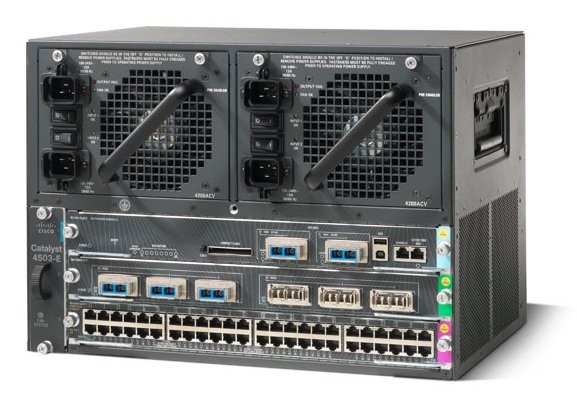
The Catalyst 4500 series Supervisor Engine II-Plus TS is only used in Catalyst 4503 switches. Install the Catalyst 4500 series Supervisor Engine II-Plus TS in slot 1.
The supervisor engine is hot swappable, but packets are not forwarded when the supervisor engine has been removed. When a supervisor engine is reinserted, the system reboots.
The Catalyst 4500 series Supervisor Engine II-Plus TS provides:
•
64-Gbps full-duplex switching, with an actual forwarding rate of 48 million packets-per-second
•
32K MAC addresses for Layer 2 switching
•
16K IP unicast adjacencies
•
2048 VLANs with 802.1Q VLAN tagging on all ports
•
Cisco Inter Switch Link (ISL) tagging on all ports
•
Support for Jumbo Frames on all non-blocking GE ports
Figure 1 Catalyst 4500 Series Supervisor Engine II-Plus TS (WS-X4013+TS)
The supervisor engine includes interfaces for SNMP, console, and Telnet and provides management functions such as environmental status monitoring.
The following sections describe the LEDs, connectors, and switches on the Catalyst 4500 series Supervisor Engine II-Plus TS:
•
LEDs
LEDs
Table 1 describes the LEDs on the supervisor engine front panel.
SFP Ports
The Gigabit Ethernet SFP ports operate in full-duplex mode only. These ports use the 1000BASE-SX, 1000BASE-LX, Cisco Coarse Wave Division Multiplexing (CWDM ) SFPs, 1000BASE-T SFP, and 1000BASE-ZX SFP. SFP connectors vary with interface type and may use multimode fiber (MMF), single-mode fiber (SMF) cable, or copper Ethernet cables. For further information on SFPs, see the "SFP Guidelines" section.
10/100/1000 Ports
The 10/100/1000 ports operate in full-duplex mode or in half-duplex mode. These ports use RJ-45 connectors.
Ethernet Management Port
The Ethernet management port can be used (in ROMMON mode only) to recover a switch software image that has been corrupted or destroyed due to a network catastrophe. When using Cisco IOS Release 12.2(50)SG or later, this port can also perform the same functions as the console port. For earlier Cisco IOS software releases, this port is not active while the switch is operating normally.
Console Port
The Catalyst 4500 series Supervisor Engine II-Plus TS console port has an EIA/TIA-232 RJ-45 connector. The console port allows you to perform the following functions:
•
Configure the switch from the CLI
•
Monitor network statistics and errors
•
Configure SNMP agent parameters
Note
EIA/TIA-232 was known as recommended standard RS-232 before its acceptance as a standard by the Electronic Industries Alliance (EIA) and Telecommunications Industry Association (TIA).
RESET Button
The RESET button is used to restart the switch.
Note
Use a paper clip or other small, pointed object to press the RESET button.
Flash Port
The Flash port accepts a Type 1 compact Flash card. You can use it for file transfer tasks such as loading a new software image. The Flash card is optional and can be obtained from Cisco resellers or directly from Cisco.
For more information, refer to Using the Compact Flash on the Catalyst 4000 Family Supervisor Engine III and IV at the following URL:
http://www.cisco.com/en/US/docs/switches/lan/catalyst4500/hardware/configuration/notes/OL_2788.html
Port Cabling Specifications
This section provides port cabling specifications.
The length of your networks and the distances between connections depend on the type of signal, the signal speed, and the transmission medium (the type of cabling used to transmit the signals). The distance and rate limits in this document are the IEEE-recommended maximum speeds and distances for signaling. Table 2 shows the transmission speed versus the distance.
Table 2 EIA/TIA-232 Transmission Speed in Contrast with Distance
Rate (bps) Distance (ft) Distance (m)2400
200
60
4800
100
30
9600
50
15
19,200
25
7.6
38,400
12
3.7
56,000
8.6
2.6
Maximum Cable Distances
Table 3 shows the maximum cable distances for transceiver speed and cable type.
Table 4 provides cabling specifications for the SFPs that you install in the SFP port modules.
Installing and Removing the Supervisor Engine
Warning
Only trained and qualified personnel should be allowed to install, replace, or service this equipment. Statement 1030
All Catalyst 4500 series switches support hot swapping, which lets you install, remove, replace, and rearrange supervisor engines and switching modules without powering off the system. When the system detects that a switching module has been installed or removed, it runs diagnostic and discovery routines automatically, acknowledges the presence or absence of the module, and resumes system operation with no operator intervention.
This section contains the following subsections:
•
Installing the Supervisor Engine
•
Removing the Supervisor Engine
Required Tools
You will need these tools to install a supervisor engine in a Catalyst 4500 series switch:
•
Number 1 and number 2 Phillips screwdrivers for the captive installation screws on most modules
•
3/16-inch flat-blade screwdriver for the captive installation screws on other modules
•
Antistatic mat or antistatic foam
•
Wrist strap or other grounding device
Note
Whenever you handle supervisor engines, use a wrist strap or other grounding device to prevent ESD damage.
Installing the Supervisor Engine
The Catalyst 4500 series Supervisor Engine II-Plus TS is only used in Catalyst 4503 switches. Install the Catalyst 4500 series Supervisor Engine II-Plus TS in slot 1.
Warning
Hazardous voltage or energy is present on the backplane when the system is operating. Use caution when servicing. Statement 1034
CautionTo prevent ESD damage, handle supervisor engines by the carrier edges only.
To install a supervisor engine in a Catalyst 4503 switch, follow this procedure:
Step 1
Take the necessary precautions to prevent ESD damage.
Step 2
Ensure that you have enough clearance to accommodate any interface equipment that you will connect directly to the supervisor engine ports.
Step 3
Loosen the captive installation screws that secure the switching-module filler plate or the existing supervisor engine (whichever is present), and remove it.
Step 4
Remove the supervisor engine filler plate or the existing supervisor engine from slot 1. If a switching module filler plate was installed, save it for future use. If you are removing an existing supervisor engine, see the "Removing the Supervisor Engine" section.
Step 5
To install the new supervisor engine, grasp the switching module front panel with one hand and place your other hand under the carrier to support the supervisor engine, as shown in Figure 2. Do not touch the printed circuit boards or connector pins.
Step 6
Align the edges of the supervisor engine carrier with the slot guides on the sides of the switch chassis, as shown in Figure 2.
Figure 2 Installing the Supervisor Engine in the Chassis
Step 7
Pivot the two module ejector levers out and away from the faceplate.
Step 8
Carefully slide the supervisor engine into the slot until the notches on both ejector levers engage the chassis sides.
Step 9
Using the thumb and forefinger of each hand, simultaneously pivot in both ejector levers to fully seat the supervisor engine in the backplane connector.
CautionAlways use the ejector levers when installing or removing a supervisor engine. A supervisor engine that is partially seated in the backplane will not function correctly.
Step 10
Use a screwdriver to tighten the captive installation screws on each end of the supervisor engine faceplate.
To check the status of the module, perform these steps:
Step 1
Ensure that the LED labeled Status is green (module operational).
Step 2
When the switch is online, enter the show module command. Verify that the system acknowledges the new module and that the module status is good.
Step 3
If the module is not operational, reseat it. If the module is still not operational, contact your customer service representative.
Removing the Supervisor Engine
Warning
Invisible laser radiation may be emitted from disconnected fibers or connectors. Do not stare into beams or view directly with optical instruments. Statement 1051
Warning
Hazardous voltage or energy is present on the backplane when the system is operating. Use caution when servicing. Statement 1034
CautionTo prevent ESD damage, handle supervisor engines by the carrier edges only.
To remove a supervisor engine from a Catalyst 4500 series switch, perform these steps:
Step 1
Disconnect any network interface cables attached to the ports on the supervisor engine that you intend to remove.
Step 2
Loosen the captive installation screws. (See Figure 3.)
Figure 3 Captive Installation Screws and Ejector Levers
Step 3
Grasp the left and right ejector levers, and simultaneously pivot the levers outward to release the supervisor engine from the backplane connector. Figure 3 shows a close-up of the right ejector lever.
Step 4
Grasp the front panel of the supervisor engine with one hand, and place your other hand under the carrier to support and guide it out of the slot. Do not touch the printed circuit boards or connector pins.
Step 5
Carefully pull the supervisor engine straight out of the slot, keeping your other hand under the carrier to guide it.
Step 6
Place the supervisor engine on an antistatic mat or antistatic foam, or immediately install it in another slot 1 in another chassis.
Warning
Blank faceplates and cover panels serve three important functions: they prevent exposure to hazardous voltages and currents inside the chassis; they contain electromagnetic interference (EMI) that might disrupt other equipment; and they direct the flow of cooling air through the chassis. Do not operate the system unless all cards, faceplates, front covers, and rear covers are in place. Statement 1029
Step 7
If the slot is to remain empty, install a switching-module filler plate (part number 800-00292-01).
Warning
Ultimate disposal of this product should be handled according to all national laws and regulations. Statement 1040
Attaching Module Interface Cables
Figure 4 shows the connector types used to attach interface cables to the supervisor engine.
Figure 4 RJ-45 Connector
Figure 5 MT-RJ Connector
Note
Always keep caps and plugs on the fiber-optic connectors on the cable and the switch when they are not in use.
Warning
Voltages that present a shock hazard may exist on Power over Ethernet (PoE) circuits if interconnections are made using uninsulated exposed metal contacts, conductors, or terminals. Avoid using such interconnection methods, unless the exposed metal parts are located within a restricted access location and users and service people who are authorized within the restricted access location are made aware of the hazard. A restricted access area can be accessed only through the use of a special tool, lock and key or other means of security. Statement 1072
Warning
To avoid electric shock, do not connect safety extra-low voltage (SELV) circuits to telephone-network voltage (TNV) circuits. LAN ports contain SELV circuits, and WAN ports contain TNV circuits. Some LAN and WAN ports both use RJ-45 connectors. Use caution when connecting cables. Statement 1021
Warning
Invisible laser radiation may be emitted from disconnected fibers or connectors. Do not stare into beams or view directly with optical instruments. Statement 1051
Configuring Your Supervisor Engine
For information and commands to configure your supervisor engine, refer to the Software Configuration Guide for your switch.
SFP Guidelines
SFP modules are hot-pluggable and field-replaceable, and you can insert them into the eight SFP module slots on the front panel of the Supervisor Engine II+TS. You can use the SFP modules for connections to other network devices.
You can use any combination of supported SFP modules. Use only Cisco SFP modules on your Cisco device. Each SFP module has an internal serial EEPROM that is encoded with security information. This encoding provides a way for Cisco to identify and validate that the SFP module meets the requirements for the device.
The following SFP media types are supported:
•
1000BASE-SX (GLC-SX-MM)
•
1000BASE-LX/LH (GLC-LH-SM)
•
1000BASE-ZX (GLC-ZX-SM)
•
1000BASE-T (GLC-T)
•
CWDM (CWDM-SFP-xxxx)
Cisco 1000BASE-LX/LH interfaces fully comply with the IEEE 802.3z 1000BASE-LX standard. However, their higher optical quality allows them to reach 6.2 miles (10 km) over SMF cable instead of the 3.1 miles (5 km) specified in the standard.
If an LX/LH SFP designed for operation on an SMF cable is directly coupled to an MMF cable, an effect known as Differential Mode Delay (DMD) might occur. See the Catalyst 4500 Series Module Installation Guide for more information.
This section describes the following topics:
Fiber-Optic SFP Modules
Some fiber-optic SFP modules use LC-type connectors, as shown in Figure 6.
CautionProtect your fiber-optic SFP modules by inserting clean dust plugs into the SFP modules after you remove the cables. Be sure to clean the optic surfaces of the fiber-optic cables with a soft antistatic cloth before you reconnect them to another SFP module. Avoid getting dust and other contaminants into the optical bores, as the optics do not work correctly when obstructed with dust.
Figure 6 LC Fiber-Optic SFP Module
LC SFPs provide duplex single-mode and multimode connections in supported devices. Table 4 lists the cable specifications for fiber-optic SFP module ports.
Table 4 Fiber-Optic SFP Module Port Cabling Specifications
SFP Module Wavelength (nanometers) Fiber Type Core Size (micron) Modal Bandwidth (MHz/km) Cable Distance1000BASE-SX
850
MMF
62.5
62.5
50.0
50.0160
200
400
500722 feet (220 m)
902 feet (275 m)
1640 feet (500 m)
1804 feet (550 m)1000BASE-LX/LH
1300
MMF1
SMF62.5
50.0
50.0
9/10500
400
500
—1804 feet (550 m)
1804 feet (550 m)
1804 feet (550 m)
32,810 feet (10 km)1000BASE-ZX
1550
SMF
9/10
—
43.4 to 62 miles (70 to 100 km)2
1 A mode-conditioning patch cord is required. Using an ordinary patch cord with MMF, 1000BASE-LX/LH SFP modules, and a short link distance can cause transceiver saturation, resulting in an elevated bit error rate (BER). When using the LX/LH SFP module with 62.5-micron diameter MMF, you must also install a mode-conditioning patch cord between the SFP module and the MMF cable on both the sending and receiving ends of the link. The mode-conditioning patch cord is required for link distances greater than 984 feet (300 m).
2 1000BASE-ZX SFP modules can reach up to 62 miles (100 km) by using dispersion-shifted SMF or low-attenuation SMF; the distance depends on the fiber quality, the number of splices, and the connectors.
Note
When using shorter distances of single-mode fiber cable, you might need to insert an inline optical attenuator in the link to avoid overloading the receiver.
When the fiber-optic cable span is less than 15.43 miles (25 km), you should insert a 5-decibel (dB) or 10-dB inline optical attenuator between the fiber-optic cable plant and the receiving port on the 1000BASE-ZX SFP module at each end of the link.Fiber-optic SFP modules also use MT-RJ connectors, as shown in Figure 7.
Figure 7 MT-RJ Fiber-Optic SFP Module
1000BASE-T SFP Modules
Copper 1000BASE-T SFP modules use RJ-45 connectors, as shown in Figure 8.
Figure 8 1000BASE-T Copper SFP Module
1000BASE-T copper SFP modules used with the Catalyst 4500 series Supervisor Engine II-Plus TS operate only in 1000BASE-T mode, or at 1000 Mbps. Copper 1000BASE-T SFP modules use standard four twisted-pair, Category 5 cable at lengths up to 328.08 feet (100 meters).
CWDM SFPs
You can connect the CWDM SFPs to CWDM passive optical system optical add/drop multiplexer (OADM) or multiplexer/demultiplexer plug-in modules using single-mode fiber-optic cables with standard SC connectors. Figure 9 shows a CWDM SFP with the optical port dust plug removed. Figure 10 shows an SC-type connector.
Figure 9 CWDM SFP Module (Yellow-Coded CWDM-SFP-1550= Shown)
Figure 10 SC-Type Fiber-Optic Connector
CWDM SFPs come in eight wavelengths that range from 1470 nm to 1610 nm. Color markings on the devices identify the wavelength to which the Gigabit Ethernet channel is mapped. Table 5 lists the CWDM SFPs with their wavelengths and color codes.
Standards Compliance Specifications
When installed in a system, the Catalyst 4500 series modules comply with the standards listed in Table 6.
Table 6 Standards Compliance Specifications
Item Specification ComplianceCE1 Marking
SafetyUL2 60950, CSA3 -C22.2 No. 60950, EN4 60950, IEC5 60950, TS0016 ,
AS/NZS7 3260 EMC8FCC9 Part 15, Class A (CFR10 47) (USA), ICES11 -003 Class A (Canada), EN 55022 Class A (Europe), CISPR2212 Class A (International), AS/NZS 3548 Class A (Australia), and VCCI13 Class A (Japan) with UTP14
1 CE = European Compliance
2 UL = Underwriters Laboratory
3 CSA = Canadian Standards Association
4 EN = European Norm
5 IEC = International Electrotechnical Commission
6 TS = technical specifications
7 AS/NZS = Australia Standards/New Zealand Standards
8 EMC = electromagnetic compatibility
9 FCC = U.S. Federal Communications Commission
10 CFR = Code of Federal Regulations
11 ICES = Interference-Causing Equipment Standard
12 CISPR = Comite International Special des Perturbation Radioelectriques
13 VCCI = Voluntary Control Council for Information Technology Equipment
14 UTP = unshielded twisted-pair
The Catalyst 4500 series modules have been found to comply with the limits for a Class A digital device per FCC (CFR 47) Part 15, ICES 003, EN55022, CISPR22, AS/NZS 3548, and VCCI with UTP cables, and complies with the limits for a Class B digital device per EN55022, CISPR22, AS/NZS 3548, and VCCI with shielded FTP cables.
Related Documentation
For more detailed installation and configuration information, refer to the following:
•
Catalyst 4000 Series Installation Guide
•
Catalyst 4500 Series Installation Guide
•
Catalyst 4000 Series Module Installation Guide
•
Regulatory Compliance and Safety Information for the Catalyst 4500 Series Switches
•
Software Configuration Guide—Catalyst 4000 Family, Catalyst 2948G, and Catalyst 2980G Switches
•
Command Reference—Catalyst 4000 Family, Catalyst 2948G, and Catalyst 2980G Switches
•
System Message Guide—Catalyst 6000 Family, Catalyst 5000 Family, Catalyst 4000 Family, Catalyst 2926G Series, Catalyst 2948G, and Catalyst 2980G Switches
Obtaining Documentation and Submitting a Service Request
For information on obtaining documentation, submitting a service request, and gathering additional information, see the monthly What's New in Cisco Product Documentation, which also lists all new and revised Cisco technical documentation, at:
http://www.cisco.com/en/US/docs/general/whatsnew/whatsnew.html
Subscribe to the What's New in Cisco Product Documentation as a Really Simple Syndication (RSS) feed and set content to be delivered directly to your desktop using a reader application. The RSS feeds are a free service and Cisco currently supports RSS version 2.0.