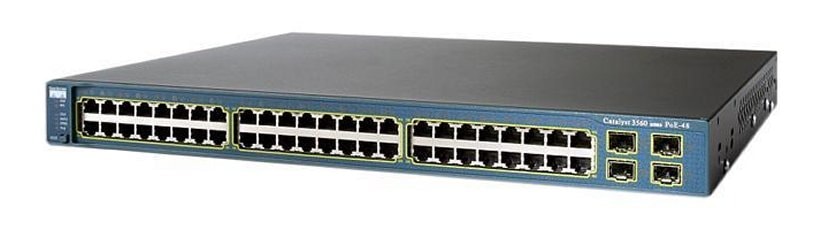
Catalyst 3560 Switch Command Reference, Rel. 12.2(46)SE
Catalyst 3560 Switch Cisco IOS Commands - rmon collection through show vtp

Table Of Contents

rmon collection stats

sdm prefer

service password-recovery

service-policy

set

setup

setup express

show access-lists

show archive status

show arp access-list

show auto qos

show boot

show cable-diagnostics tdr

show class-map

show cluster

show cluster candidates

show cluster members

show controllers cpu-interface

show controllers ethernet-controller

show controllers power inline

show controllers tcam

show controllers utilization

show diagnostic

show dot1q-tunnel

show dot1x

show dtp

show eap

show env

show errdisable detect

show errdisable flap-values

show errdisable recovery

show etherchannel

show fallback profile

show flowcontrol

show interfaces

show interfaces counters

show inventory

show ip arp inspection

show ip dhcp snooping

show ip dhcp snooping binding

show ip dhcp snooping database

show ip dhcp snooping statistics

show ip igmp profile

show ip igmp snooping

show ip igmp snooping groups

show ip igmp snooping mrouter

show ip igmp snooping querier

show ip source binding

show ip verify source

show ipc

show ipv6 access-list

show ipv6 dhcp conflict

show ipv6 mld snooping

show ipv6 mld snooping address

show ipv6 mld snooping mrouter

show ipv6 mld snooping querier

show ipv6 route updated

show l2protocol-tunnel

show lacp

show location

show link state group

show mac access-group

show mac address-table

show mac address-table address

show mac address-table aging-time

show mac address-table count

show mac address-table dynamic

show mac address-table interface

show mac address-table learning

show mac address-table move update

show mac address-table notification

show mac address-table static

show mac address-table vlan

show mls qos

show mls qos aggregate-policer

show mls qos input-queue

show mls qos interface

show mls qos maps

show mls qos queue-set

show mls qos vlan

show monitor

show mvr

show mvr interface

show mvr members

show pagp

show parser macro

show policy-map

show port-security

show power inline

show sdm prefer

show setup express

show spanning-tree

show storm-control

show system mtu

show udld

show version

show vlan

show vlan access-map

show vlan filter

show vmps

show vtp


2]

rmon collection stats

Use the rmon collection stats interface configuration command to collect Ethernet group statistics, which include usage statistics about broadcast and multicast packets, and error statistics about cyclic redundancy check (CRC) alignment errors and collisions. Use the no form of this command to return to the default setting.

rmon collection stats index [owner name]

no rmon collection stats index [owner name]

Syntax Description

index

Remote Network Monitoring (RMON) collection control index. The range is 1 to 65535.

owner name

(Optional) Owner of the RMON collection.


Defaults

The RMON statistics collection is disabled.

Command Modes

Interface configuration

Command History

Release
Modification

12.1(19)EA1

This command was introduced.


Usage Guidelines

The RMON statistics collection command is based on hardware counters.

Examples

This example shows how to collect RMON statistics for the owner root:

Switch(config)# interface gigabitethernet0/1
Switch(config-if)# rmon collection stats 2 owner root

You can verify your setting by entering the show rmon statistics privileged EXEC command.

Related Commands

Command
Description

show rmon statistics

Displays RMON statistics.

For syntax information, select Cisco IOS Configuration Fundamentals Command Reference, Release 12.2 > System Management Commands > RMON Commands.


sdm prefer

Use the sdm prefer global configuration command on the switch to configure the template used in Switch Database Management (SDM) resource allocation. You can use a template to allocate system resources to best support the features being used in your application. Use a template to provide maximum system usage for unicast routing or for VLAN configuration, or to select the dual IPv4 and IPv6 template to support IPv6 forwarding (supported only when the switch is running the advanced IP services image). Use the no form of this command to return to the default template.

sdm prefer {access | default | dual-ipv4-and-ipv6 {default | routing | vlan} | routing | vlan}

no sdm prefer

Syntax Description

access

Provide maximum system usage for access control lists (ACLs). Use this template if you have a large number of ACLs.

default

Give balance to all functions.

dual-ipv4-and-ipv6 {default | routing | vlan}

Select a template that supports both IPv4 and IPv6 routing.

default—Provide balance to IPv4 and IPv6 Layer 2 and Layer 3 functionality.

routing—Provide maximum system usage for IPv4 and IPv6 routing, including IPv4 policy-based routing.

vlan—Provide maximum system usage for IPv4 and IPv6 VLANs.

routing

Provide maximum system usage for unicast routing. You would typically use this template for a router or aggregator in the middle of a network.

vlan

Provide maximum system usage for VLANs. This template maximizes system resources for use as a Layer 2 switch with no routing.


Defaults

The default template provides a balance to all features.

Command Modes

Global configuration

Command History

Release
Modification

12.1(19)EA1

This command was introduced.

12.2(25)SEA

The dual-ipv4-and-ipv6 templates were added.

12.2(25)SED

The access templates were added.

12.2(25)SEE

The dual-ipv4-and-ipv6 routing template was added.


Usage Guidelines

You must reload the switch for the configuration to take effect. If you enter the show sdm prefer command before you enter the reload privileged EXEC command, the show sdm prefer command shows the template currently in use and the template that will become active after a reload.

Use the no sdm prefer command to set the switch to the default desktop template.

The access template maximizes system resources for access control lists (ACLs) as required to accommodate a large number of ACLs.

The default template balances the use of system resources.

Use the sdm prefer vlan global configuration command only on switches intended for Layer 2 switching with no routing. When you use the VLAN template, no system resources are reserved for routing entries, and any routing is done through software. This overloads the CPU and severely degrades routing performance.

Do not use the routing template if you do not have routing enabled on your switch. Entering the sdm prefer routing global configuration command prevents other features from using the memory allocated to unicast routing in the routing template.

Do not use the ipv4-and-ipv6 templates if you do not plan to enable IPv6 routing on the switch. Entering the sdm prefer ipv4-and-ipv6 {default | routing | vlan} global configuration command divides resources between IPv4 and IPv6, limiting those allocated to IPv4 forwarding.

Table 2-15 lists the approximate number of each resource supported in each of the IPv4-only templates for a switch. The values in the template are based on eight routed interfaces and approximately one thousand VLANs and represent the approximate hardware boundaries set when a template is selected. If a section of a hardware resource is full, all processing overflow is sent to the CPU, seriously impacting switch performance.

Table 2-15 Approximate Number of Feature Resources Allowed by Each Template

Resource
Access
Default
Routing
VLAN

Unicast MAC addresses

4 K

6 K

3 K

12 K

IGMP groups and multicast routes

1 K

1 K

1 K

1 K

Unicast routes

6 K

8 K

11 K

0

Directly connected hosts

4 K

6 K

3 K

0

Indirect routes

2 K

2 K

8 K

0

Policy-based routing access control entries (ACEs)

512

0

512

0

Quality of service (QoS) classification ACEs

512

512

512

512

Security ACEs

2 K

1 K

1 K

1 K

Layer 2 VLANs

1 K

1 K

1 K

1 K


Table 2-16 lists the approximate number of each resource supported in each of the dual IPv4-and IPv6 templates for a switch.

Table 2-16 Approximate Feature Resources Allowed by Dual IPv4-IPv6 Templates 

Resource
Default
Routing
VLAN

Unicast MAC addresses

2 K

1536

8 K

IPv4 IGMP groups and multicast routes

1 K

1K

1 K

Total IPv4 unicast routes:

3 K

2816

0

Directly connected IPv4 hosts

2 K

1536

0

Indirect IPv4 routes

1 K

1280

0

IPv6 multicast groups

1 K

1152

1 K

Total IPv6 unicast routes:

3 K

2816

0

Directly connected IPv6 addresses

2 K

1536

0

Indirect IPv6 unicast routes

1 K

1280

0

IPv4 policy-based routing ACEs

0

256

0

IPv4 or MAC QoS ACEs (total)

512

512

512

IPv4 or MAC security ACEs (total)

1 K

512

1 K

IPv6 policy-based routing ACEs1

0

255

0

IPv6 QoS ACEs

510

510

510

IPv6 security ACEs

510

510

510

1 IPv6 policy-based routing is not supported in this release.


Examples

This example shows how to configure the access template on a switch:

Switch(config)# sdm prefer access
Switch(config)# exit
Switch# reload

This example shows how to configure the routing template on a switch:

Switch(config)# sdm prefer routing
Switch(config)# exit
Switch# reload

This example shows how to configure the dual IPv4-and-IPv6 default template on a switch:

Switch(config)# sdm prefer dual-ipv4-and-ipv6 default
Switch(config)# exit
Switch# reload

This example shows how to change a switch template to the default template.

Switch(config)# no sdm prefer
Switch(config)# exit
Switch# reload

You can verify your settings by entering the show sdm prefer privileged EXEC command.

Related Commands

Command
Description

show sdm prefer

Displays the current SDM template in use or displays the templates that can be used, with approximate resource allocation per feature.


service password-recovery

Use the service password-recovery global configuration command to enable the password-recovery mechanism (the default). This mechanism allows an end user with physical access to the switch to hold down the Mode button and interrupt the bootup process while the switch is powering up and to assign a new password. Use the no form of this command to disable part of the password-recovery functionality. When the password-recovery mechanism is disabled, interrupting the bootup process is allowed only if the user agrees to set the system back to the default configuration.

service password-recovery

no service password-recovery

Syntax Description

This command has no arguments or keywords.

Defaults

The password-recovery mechanism is enabled.

Command Modes

Global configuration

Command History

Release
Modification

12.1(19)EA1

This command was introduced.


Usage Guidelines

As a system administrator, you can use the no service password-recovery command to disable some of the functionality of the password recovery feature by allowing an end user to reset a password only by agreeing to return to the default configuration.

To use the password-recovery procedure, a user with physical access to the switch holds down the Mode button while the unit powers up and for a second or two after the LED above port 1X turns off. When the button is released, the system continues with initialization.

If the password-recovery mechanism is disabled, this message appears:

The password-recovery mechanism has been triggered, but
is currently disabled.  Access to the boot loader prompt
through the password-recovery mechanism is disallowed at
this point.  However, if you agree to let the system be
reset back to the default system configuration, access
to the boot loader prompt can still be allowed.

Would you like to reset the system back to the default configuration (y/n)?


Note If the user chooses not to reset the system to the default configuration, the normal bootup process continues, as if the Mode button had not been pressed. If you choose to reset the system to the default configuration, the configuration file in flash memory is deleted, and the VLAN database file, flash:vlan.dat (if present), is deleted.If you use the no service password-recovery command to control end user access to passwords, we recommend that you save a copy of the config file in a location away from the switch in case the end user uses the password recovery procedure and sets the system back to default values. Do not keep a backup copy of the config file on the switch.

If the switch is operating in VTP transparent mode, we recommend that you also save a copy of the vlan.dat file in a location away from the switch.


You can verify if password recovery is enabled or disabled by entering the show version privileged EXEC command.

Examples

This example shows how to disable password recovery on a switch so that a user can only reset a password by agreeing to return to the default configuration.

Switch(config)# no service-password recovery
Switch(config)# exit

Related Commands

Command
Description

show version

Displays version information for the hardware and firmware.


service-policy

Use the service-policy interface configuration command on the switch to apply a policy map defined by the policy-map command to the input of a physical port or a switch virtual interface (SVI). Use the no form of this command to remove the policy map and port association.

service-policy input policy-map-name

no service-policy input policy-map-name

Syntax Description

input policy-map-name

Apply the specified policy map to the input of a physical port or an SVI.


Note Though visible in the command-line help strings, the history keyword is not supported, and you should ignore the statistics that it gathers. The output keyword is also not supported.


Defaults

No policy maps are attached to the port.

Command Modes

Interface configuration

Command History

Release
Modification

12.1(19)EA1

This command was introduced.

12.2(25)SE

A policy map can now be applied to a physical port or an SVI.

12.2(25)SED

Hierarchical policy-maps can now be applied to an SVI.


Usage Guidelines

Only one policy map per ingress port is supported. In software releases earlier than Cisco IOS Release 12.2(25)SE, policy maps can be configured only on physical ports.

In Cisco IOS Release 12.2(25)SE or later, policy maps can be configured on physical ports or on SVIs. When VLAN-based quality of service (QoS) is disabled by using the no mls qos vlan-based interface configuration command on a physical port, you can configure a port-based policy map on the port. If VLAN-based QoS is enabled by using the mls qos vlan-based interface configuration command on a physical port, the switch removes the previously configured port-based policy map. After a hierarchical policy map is configured and applied on an SVI, the interface-level policy map takes effect on the interface.

In software releases earlier than Cisco IOS Release 12.2(25)SE, you can apply a policy map only to the incoming traffic on a physical port. In Cisco IOS Release 12.2(25)SE or later, you can apply a policy map to incoming traffic on a physical port or on an SVI. In Cisco IOS Release 12.2(25)SED or later, you can configure different interface-level policy maps for each class defined in the VLAN-level policy map. For more information about hierarchical policy maps, see the "Configuring QoS" chapter in the software configuration guide for this release.

Classification using a port trust state (for example, mls qos trust [cos | dscp | ip-precedence] and a policy map (for example, service-policy input policy-map-name) are mutually exclusive. The last one configured overwrites the previous configuration.

Examples

This example shows how to apply plcmap1 to an physical ingress port:

Switch(config)# interface gigabitethernet0/1
Switch(config-if)# service-policy input plcmap1

This example shows how to remove plcmap2 from a physical port:

Switch(config)# interface gigabitethernet0/2
Switch(config-if)# no service-policy input plcmap2

This example shows how to apply plcmap1 to an ingress SVI when VLAN-based QoS is enabled:

Switch(config)# interface vlan 10
Switch(config-if)# service-policy input plcmap1

This example shows how to create a hierarchical policy map and attach it to an SVI:

Switch> enable
Switch# configure terminal
Enter configuration commands, one per line. End with CNTL/Z.
Switch(config)# access-list 101 permit ip any any 
Switch(config)# class-map cm-1 
Switch(config-cmap)# match access 101 
Switch(config-cmap)# exit 
Switch(config)# exit 
Switch#
Switch# 
Switch# configure terminal 
Enter configuration commands, one per line.  End with CNTL/Z.
Switch(config)# class-map cm-interface-1
Switch(config-cmap)# match input gigabitethernet0/1 - gigabitethernet0/2 
Switch(config-cmap)# exit
Switch(config)# policy-map port-plcmap 
Switch(config-pmap)# class-map cm-interface-1 
Switch(config-pmap-c)# police 900000 9000 exc policed-dscp-transmit 
Switch(config-pmap-c)# exit 
Switch(config-pmap)#exit
Switch(config)# policy-map vlan-plcmap 
Switch(config-pmap)# class-map cm-1 
Switch(config-pmap-c)# set dscp 7 
Switch(config-pmap-c)# service-policy port-plcmap-1 
Switch(config-pmap-c)# exit 
Switch(config-pmap)# class-map cm-2
Switch(config-pmap-c)# match ip dscp 2
Switch(config-pmap-c)# service-policy port-plcmap-1
Switch(config-pmap)# exit
Switch(config-pmap)# class-map cm-3
Switch(config-pmap-c)# match ip dscp 3
Switch(config-pmap-c)# service-policy port-plcmap-2
Switch(config-pmap)# exit
Switch(config-pmap)# class-map cm-4
Switch(config-pmap-c)# trust dscp 
Switch(config-pmap)# exit
Switch(config)# interface vlan 10
Switch(config-if)# 
Switch(config-if)# ser input vlan-plcmap 
Switch(config-if)# exit 
Switch(config)# exit 

You can verify your settings by entering the show running-config privileged EXEC command.

Related Commands

Command
Description

policy-map

Creates or modifies a policy map that can be attached to multiple ports to specify a service policy.

show policy-map

Displays QoS policy maps.

show running-config

Displays the running configuration on the switch. For syntax information, select Cisco IOS Configuration Fundamentals Command Reference, Release 12.2 > File Management Commands > Configuration File Management Commands.


set

Use the set policy-map class configuration command to classify IP traffic by setting a Differentiated Services Code Point (DSCP) or an IP-precedence value in the packet. Use the no form of this command to remove traffic classification.

set {dscp new-dscp | [ip] precedence new-precedence}

no set {dscp new-dscp | [ip] precedence new-precedence}

Syntax Description

dscp new-dscp

New DSCP value assigned to the classified traffic. The range is 0 to 63. You also can enter a mnemonic name for a commonly used value.

[ip] precedence new-precedence

New IP-precedence value assigned to the classified traffic. The range is 0 to 7. You also can enter a mnemonic name for a commonly used value.


Defaults

No traffic classification is defined.

Command Modes

Policy-map class configuration

Command History

Release
Modification

12.1(19)EA1

This command was introduced.

12.2(25)SE

The ip dscp new-dscp keyword was changed to dscp new-dscp.

The set dscp new-dscp command replaces the set ip dscp new-dscp command.

12.2(25)SEC

The ip keyword is optional.


Usage Guidelines

In Cisco IOS Release 12.2(25)SE or later, if you have used the set ip dscp policy-map class configuration command, the switch changes this command to set dscp in the switch configuration. If you enter the set ip dscp policy-map class configuration command, this setting appears as set dscp in the switch configuration.

In Cisco IOS Release 12.2(25)SEC or later, you can use the set ip precedence policy-map class configuration command or the set precedence policy-map class configuration command. This setting appears as set ip precedence in the switch configuration.

The set command is mutually exclusive with the trust policy-map class configuration command within the same policy map.

For the set dscp new-dscp or the set ip precedence new-precedence command, you can enter a mnemonic name for a commonly used value. For example, you can enter the set dscp af11 command, which is the same as entering the set dscp 10 command. You can enter the set ip precedence critical command, which is the same as entering the set ip precedence 5 command. For a list of supported mnemonics, enter the set dscp ? or the set ip precedence ? command to see the command-line help strings.

To return to policy-map configuration mode, use the exit command. To return to privileged EXEC mode, use the end command.

Examples

This example shows how to assign DSCP 10 to all FTP traffic without any policers:

Switch(config)# policy-map policy_ftp
Switch(config-pmap)# class ftp_class
Switch(config-pmap-c)# set dscp 10
Switch(config-pmap)# exit

You can verify your settings by entering the show policy-map privileged EXEC command.

Related Commands

Command
Description

class

Defines a traffic classification match criteria (through the police, set, and trust policy-map class configuration commands) for the specified class-map name.

police

Defines a policer for classified traffic.

policy-map

Creates or modifies a policy map that can be attached to multiple ports to specify a service policy.

show policy-map

Displays QoS policy maps.

trust

Defines a trust state for traffic classified through the class policy-map configuration command or the class-map global configuration command.


setup

Use the setup privileged EXEC command to configure the switch with its initial configuration.

setup

Syntax Description

This command has no arguments or keywords.

Command Modes

Privileged EXEC

Command History

Release
Modification

12.1(19)EA1

This command was introduced.


Usage Guidelines

When you use the setup command, make sure that you have this information:

IP address and network mask

Password strategy for your environment

Whether the switch will be used as the cluster command switch and the cluster name

When you enter the setup command, an interactive dialog, called the System Configuration Dialog, appears. It guides you through the configuration process and prompts you for information. The values shown in brackets next to each prompt are the default values last set by using either the setup command facility or the configure privileged EXEC command.

Help text is provided for each prompt. To access help text, press the question mark (?) key at a prompt.

To return to the privileged EXEC prompt without making changes and without running through the entire System Configuration Dialog, press Ctrl-C.

When you complete your changes, the setup program shows you the configuration command script that was created during the setup session. You can save the configuration in NVRAM or return to the setup program or the command-line prompt without saving it.

Examples

This is an example of output from the setup command:

Switch# setup
--- System Configuration Dialog ---

Continue with configuration dialog? [yes/no]: yes

At any point you may enter a question mark '?' for help.
Use ctrl-c to abort configuration dialog at any prompt.
Default settings are in square brackets '[]'.

Basic management setup configures only enough connectivity
for management of the system, extended setup will ask you
to configure each interface on the system.

Would you like to enter basic management setup? [yes/no]: yes
Configuring global parameters:
Enter host name [Switch]:host-name

  The enable secret is a password used to protect access to
  privileged EXEC and configuration modes. This password, after
  entered, becomes encrypted in the configuration.
  Enter enable secret: enable-secret-password

  The enable password is used when you do not specify an
  enable secret password, with some older software versions, and
  some boot images.
  Enter enable password: enable-password

  The virtual terminal password is used to protect
  access to the router over a network interface.
  Enter virtual terminal password: terminal-password

  Configure SNMP Network Management? [no]: yes
  Community string [public]: 

Current interface summary
Any interface listed with OK? value "NO" does not have a valid configuration

Interface                  IP-Address      OK? Method Status                Protocol
Vlan1                      172.20.135.202  YES NVRAM  up                    up

GigabitEthernet0/1 unassigned      YES unset  up                    up

GigabitEthernet0/2 unassigned      YES unset  up                    down

<output truncated>

Port-channel1              unassigned      YES unset  up                    down

Enter interface name used to connect to the
management network from the above interface summary: vlan1

Configuring interface vlan1:
Configure IP on this interface? [yes]: yes 
IP address for this interface: ip_address
Subnet mask for this interface [255.0.0.0]: subnet_mask

Would you like to enable as a cluster command switch? [yes/no]: yes

Enter cluster name: cluster-name

The following configuration command script was created:

hostname host-name
enable secret 5 $1$LiBw$0Xc1wyT.PXPkuhFwqyhVi0
enable password enable-password
line vty 0 15
password terminal-password
snmp-server community public
!
no ip routing
!
interface GigabitEthernet0/1
no ip address
!
interface GigabitEthernet0/2
no ip address
! 


cluster enable cluster-name
!
end
Use this configuration? [yes/no]: yes
!
[0] Go to the IOS command prompt without saving this config.

[1] Return back to the setup without saving this config.

[2] Save this configuration to nvram and exit.

Enter your selection [2]:

Related Commands

Command
Description

show running-config

Displays the running configuration on the switch. For syntax information, select Cisco IOS Configuration Fundamentals Command Reference, Release 12.2 > File Management Commands > Configuration File Management Commands.

show version

Displays version information for the hardware and firmware.


setup express

Use the setup express global configuration command to enable Express Setup mode. Use the no form of this command to disable Express Setup mode.

setup express

no setup express

Syntax Description

This command has no arguments or keywords.

Defaults

Express Setup is enabled.

Command Modes

Global configuration

Command History

Release
Modification

12.1(19)EA1

This command was introduced.


Usage Guidelines

When Express Setup is enabled on a new (unconfigured) switch, pressing the Mode button for 2 seconds activates Express Setup. You can access the switch through an Ethernet port by using the IP address 10.0.0.1 and then can configure the switch with the web-based Express Setup program or the command-line interface (CLI)-based setup program.

When you press the Mode button for 2 seconds on a configured switch, the LEDs above the Mode button start blinking. If you press the Mode button for a total of 10 seconds, the switch configuration is deleted, and the switch reboots. The switch can then be configured like a new switch, either through the web-based Express Setup program or the CLI-based setup program.


Note As soon as you make any change to the switch configuration (including entering no at the beginning of the CLI-based setup program), configuration by Express Setup is no longer available. You can only run Express Setup again by pressing the Mode button for 10 seconds. This deletes the switch configuration and reboots the switch.


If Express Setup is active on the switch, entering the write memory or copy running-configuration startup-configuration privileged EXEC commands deactivates Express Setup. The IP address 10.0.0.1 is no longer valid on the switch, and your connection using this IP address ends.

The primary purpose of the no setup express command is to prevent someone from deleting the switch configuration by pressing the Mode button for 10 seconds.

Examples

This example shows how to enable Express Setup mode:

Switch(config)# setup express

You can verify that Express Setup mode is enabled by pressing the Mode button:

On an unconfigured switch, the LEDs above the Mode button turn solid green after 3 seconds.

On a configured switch, the mode LEDs begin blinking after 2 seconds and turn solid green after 10 seconds.


Caution If you hold the Mode button down for a total of 10 seconds, the configuration is deleted, and the switch reboots.

This example shows how to disable Express Setup mode:

Switch(config)# no setup express

You can verify that Express Setup mode is disabled by pressing the Mode button. The mode LEDs do not turn solid green or begin blinking green if Express Setup mode is not enabled on the switch.

Related Commands

Command
Description

show setup express

Displays if Express Setup mode is active.


show access-lists

Use the show access-lists privileged EXEC command to display access control lists (ACLs) configured on the switch.

show access-lists [name | number | hardware counters | ipc] [ | {begin | exclude | include} expression]

Syntax Description

name

(Optional) Name of the ACL.

number

(Optional) ACL number. The range is 1 to 2699.

hardware counters

(Optional) Display global hardware ACL statistics for switched and routed packets.

ipc

(Optional) Display Interprocess Communication (IPC) protocol access-list configuration download information.

| begin

(Optional) Display begins with the line that matches the expression.

| exclude

(Optional) Display excludes lines that match the expression.

| include

(Optional) Display includes lines that match the specified expression.

expression

Expression in the output to use as a reference point.


Note Though visible in the command-line help strings, the rate-limit keywords are not supported.


Command Modes

Privileged EXEC

Command History

Release
Modification

12.1(19)EA1

This command was introduced.


Usage Guidelines

The switch supports only IP standard and extended access lists. Therefore, the allowed numbers are only 1 to 199 and 1300 to 2699.

This command also displays the MAC ACLs that are configured.

Expressions are case sensitive. For example, if you enterexclude output, the lines that contain output are not displayed, but the lines that contain Output are displayed.

Examples

This is an example of output from the show access-lists command:

Switch# show access-lists
Standard IP access list 1
    10 permit 1.1.1.1
    20 permit 2.2.2.2
    30 permit any
    40 permit 0.255.255.255, wildcard bits 12.0.0.0
Standard IP access list videowizard_1-1-1-1
    10 permit 1.1.1.1
Standard IP access list videowizard_10-10-10-10
    10 permit 10.10.10.10
Extended IP access list 121
    10 permit ahp host 10.10.10.10 host 20.20.10.10 precedence routine
Extended IP access list CMP-NAT-ACL
    Dynamic Cluster-HSRP deny   ip any any
    10 deny ip any host 19.19.11.11
    20 deny ip any host 10.11.12.13
    Dynamic Cluster-NAT permit ip any any
    10 permit ip host 10.99.100.128 any
    20 permit ip host 10.46.22.128 any
    30 permit ip host 10.45.101.64 any
    40 permit ip host 10.45.20.64 any
    50 permit ip host 10.213.43.128 any
    60 permit ip host 10.91.28.64 any
    70 permit ip host 10.99.75.128 any
    80 permit ip host 10.38.49.0 any 

This is an example of output from the show access-lists hardware counters command:

Switch# show access-lists hardware counters
L2 ACL INPUT Statistics
     Drop:                All frame count: 855
     Drop:                All bytes count: 94143
     Drop And Log:        All frame count: 0
     Drop And Log:        All bytes count: 0
     Bridge Only:         All frame count: 0
     Bridge Only:         All bytes count: 0
     Bridge Only And Log: All frame count: 0
     Bridge Only And Log: All bytes count: 0
     Forwarding To CPU:   All frame count: 0
     Forwarding To CPU:   All bytes count: 0
     Forwarded:           All frame count: 2121
     Forwarded:           All bytes count: 180762
     Forwarded And Log:   All frame count: 0
     Forwarded And Log:   All bytes count: 0

 L3 ACL INPUT Statistics
     Drop:                All frame count: 0
     Drop:                All bytes count: 0
     Drop And Log:        All frame count: 0
     Drop And Log:        All bytes count: 0
     Bridge Only:         All frame count: 0
     Bridge Only:         All bytes count: 0
     Bridge Only And Log: All frame count: 0
     Bridge Only And Log: All bytes count: 0
     Forwarding To CPU:   All frame count: 0
     Forwarding To CPU:   All bytes count: 0
     Forwarded:           All frame count: 13586
     Forwarded:           All bytes count: 1236182
     Forwarded And Log:   All frame count: 0
     Forwarded And Log:   All bytes count: 0

 L2 ACL OUTPUT Statistics
     Drop:                All frame count: 0
     Drop:                All bytes count: 0
     Drop And Log:        All frame count: 0
     Drop And Log:        All bytes count: 0
     Bridge Only:         All frame count: 0
     Bridge Only:         All bytes count: 0
     Bridge Only And Log: All frame count: 0
     Bridge Only And Log: All bytes count: 0
     Forwarding To CPU:   All frame count: 0
     Forwarding To CPU:   All bytes count: 0
     Forwarded:           All frame count: 232983
     Forwarded:           All bytes count: 16825661
     Forwarded And Log:   All frame count: 0
     Forwarded And Log:   All bytes count: 0

 L3 ACL OUTPUT Statistics
     Drop:                All frame count: 0
     Drop:                All bytes count: 0
     Drop And Log:        All frame count: 0
     Drop And Log:        All bytes count: 0
     Bridge Only:         All frame count: 0
     Bridge Only:         All bytes count: 0
     Bridge Only And Log: All frame count: 0
     Bridge Only And Log: All bytes count: 0
     Forwarding To CPU:   All frame count: 0
     Forwarding To CPU:   All bytes count: 0
     Forwarded:           All frame count: 514434
     Forwarded:           All bytes count: 39048748
     Forwarded And Log:   All frame count: 0
     Forwarded And Log:   All bytes count: 0

Related Commands

Command
Description

access-list

Configures a standard or extended numbered access list on the switch. For syntax information, select Cisco IOS IP Command Reference, Volume 1 of 3:Addressing and Services, Release 12.2 > IP Services Commands.

ip access list

Configures a named IP access list on the switch. For syntax information, select Cisco IOS IP Command Reference, Volume 1 of 3:Addressing and Services, Release 12.2 > IP Services Commands.

mac access-list extended

Configures a named or numbered MAC access list on the switch.


show archive status

Use the show archive status privileged EXEC command to display the status of a new image being downloaded to a switch with the HTTP or the TFTP protocol.

show archive status [ | {begin | exclude | include} expression]

Syntax Description

| begin

(Optional) Display begins with the line that matches the expression.

| exclude

(Optional) Display excludes lines that match the expression.

| include

(Optional) Display includes lines that match the specified expression.

expression

Expression in the output to use as a reference point.


Command Modes

Privileged EXEC

Command History

Release
Modification

12.2(20)SE

This command was introduced.


Usage Guidelines

If you use the archive download-sw privileged EXEC command to download an image to a TFTP server, the output of the archive download-sw command shows the status of the download.

If you do not have a TFTP server, you can use Network Assistant or the embedded device manager to download the image by using HTTP. The show archive status command shows the progress of the download.

Expressions are case sensitive. For example, if you enter | exclude output, the lines that contain output are not displayed, but the lines that contain Output are displayed.

Examples

These are examples of output from the show archive status command:

Switch# show archive status
IDLE: No upgrade in progress

Switch# show archive status
LOADING: Upgrade in progress

Switch# show archive status
EXTRACT: Extracting the image

Switch# show archive status
VERIFY: Verifying software

Switch# show archive status
RELOAD: Upgrade completed. Reload pending

Related Commands

Command
Description

archive download-sw

Downloads a new image from a TFTP server to the switch.


show arp access-list

Use the show arp access-list user EXEC command to display detailed information about Address Resolution Protocol (ARP) access control (lists).

show arp access-list [acl-name] [ | {begin | exclude | include} expression]

Syntax Description

acl-name

(Optional) Name of the ACL.

| begin

(Optional) Display begins with the line that matches the expression.

| exclude

(Optional) Display excludes lines that match the expression.

| include

(Optional) Display includes lines that match the specified expression.

expression

Expression in the output to use as a reference point.


Command Modes

User EXEC

Command History

Release
Modification

12.2(20)SE

This command was introduced.


Usage Guidelines

Expressions are case sensitive. For example, if you enter | exclude output, the lines that contain output are not displayed, but the lines that contain Output are displayed.

Examples

This is an example of output from the show arp access-list command:

Switch> show arp access-list
ARP access list rose
    permit ip 10.101.1.1 0.0.0.255 mac any
    permit ip 20.3.1.0 0.0.0.255 mac any

Related Commands

Command
Description

arp access-list

Defines an ARP ACL.

deny (ARP access-list configuration)

Denies an ARP packet based on matches against the Dynamic Host Configuration Protocol (DHCP) bindings.

ip arp inspection filter vlan

Permits ARP requests and responses from a host configured with a static IP address.

permit (ARP access-list configuration)

Permits an ARP packet based on matches against the DHCP bindings.


show auto qos

Use the show auto qos user EXEC command to display the quality of service (QoS) commands entered on the interfaces on which automatic QoS (auto-QoS) is enabled.

show auto qos [interface [interface-id]]

Syntax Description

interface [interface-id]

(Optional) Display auto-QoS information for the specified port or for all ports. Valid interfaces include physical ports.


Command Modes

User EXEC

Command History

Release
Modification

12.1(19)EA1

This command was introduced.

12.2(20)SE

The information in the command output changed, and the user guidelines were updated.

12.2(40)SE

The information in the command output changed.


Usage Guidelines

In releases earlier than Cisco IOS Release 12.2(20)SE, the show auto qos [interface [interface-id]] command output shows the initial generated auto-QoS configuration.

In Cisco IOS Release 12.2(20)SE or later, the show auto qos command output shows only the auto-QoS command entered on each interface. The show auto qos interface interface-id command output shows the auto-QoS command entered on a specific interface.

Use the show running-config privileged EXEC command to display the auto-QoS configuration and the user modifications.

Beginning in Cisco IOS Release 12.2(40)SE, the show auto qos command output also shows the service policy information for the Cisco IP phone.

To display information about the QoS configuration that might be affected by auto-QoS, use one of these commands:

show mls qos

show mls qos maps cos-dscp

show mls qos interface [interface-id] [buffers | queueing]

show mls qos maps [cos-dscp | cos-input-q | cos-output-q | dscp-cos | dscp-input-q | dscp-output-q]

show mls qos input-queue

show running-config

Examples

This is an example of output from the show auto qos command after the auto qos voip cisco-phone and the auto qos voip cisco-softphone interface configuration commands are entered:

Switch> show auto qos 
GigabitEthernet0/4
auto qos voip cisco-softphone

GigabitEthernet0/5
auto qos voip cisco-phone

GigabitEthernet0/6
auto qos voip cisco-phone

This is an example of output from the show auto qos interface interface-id command when the auto qos voip cisco-phone interface configuration command is entered:


Switch> show auto qos interface gigabitethernet 0/5
GigabitEthernet0/5
auto qos voip cisco-phone

This is an example of output from the show running-config privileged EXEC command when the auto qos voip cisco-phone and the auto qos voip cisco-softphone interface configuration commands are entered:

Switch# show running-config
Building configuration...
...
mls qos map policed-dscp  24 26 46 to 0
mls qos map cos-dscp 0 8 16 26 32 46 48 56
mls qos srr-queue input bandwidth 90 10
mls qos srr-queue input threshold 1 8 16
mls qos srr-queue input threshold 2 34 66
mls qos srr-queue input buffers 67 33
mls qos srr-queue input cos-map queue 1 threshold 2  1
mls qos srr-queue input cos-map queue 1 threshold 3  0
mls qos srr-queue input cos-map queue 2 threshold 1  2
mls qos srr-queue input cos-map queue 2 threshold 2  4 6 7
mls qos srr-queue input cos-map queue 2 threshold 3  3 5
mls qos srr-queue input dscp-map queue 1 threshold 2  9 10 11 12 13 14 15
mls qos srr-queue input dscp-map queue 1 threshold 3  0 1 2 3 4 5 6 7
mls qos srr-queue input dscp-map queue 1 threshold 3  32
mls qos srr-queue input dscp-map queue 2 threshold 1  16 17 18 19 20 21 22 23
mls qos srr-queue input dscp-map queue 2 threshold 2  33 34 35 36 37 38 39 48
mls qos srr-queue input dscp-map queue 2 threshold 2  49 50 51 52 53 54 55 56
mls qos srr-queue input dscp-map queue 2 threshold 2  57 58 59 60 61 62 63
mls qos srr-queue input dscp-map queue 2 threshold 3  24 25 26 27 28 29 30 31
mls qos srr-queue input dscp-map queue 2 threshold 3  40 41 42 43 44 45 46 47
mls qos srr-queue output cos-map queue 1 threshold 3  5
mls qos srr-queue output cos-map queue 2 threshold 3  3 6 7
mls qos srr-queue output cos-map queue 3 threshold 3  2 4
mls qos srr-queue output cos-map queue 4 threshold 2  1
mls qos srr-queue output cos-map queue 4 threshold 3  0
mls qos srr-queue output dscp-map queue 1 threshold 3  40 41 42 43 44 45 46 47
mls qos srr-queue output dscp-map queue 2 threshold 3  24 25 26 27 28 29 30 31
mls qos srr-queue output dscp-map queue 2 threshold 3  48 49 50 51 52 53 54 55
mls qos srr-queue output dscp-map queue 2 threshold 3  56 57 58 59 60 61 62 63
mls qos srr-queue output dscp-map queue 3 threshold 3  16 17 18 19 20 21 22 23
mls qos srr-queue output dscp-map queue 3 threshold 3  32 33 34 35 36 37 38 39
mls qos srr-queue output dscp-map queue 4 threshold 1  8
mls qos srr-queue output dscp-map queue 4 threshold 2  9 10 11 12 13 14 15
mls qos srr-queue output dscp-map queue 4 threshold 3  0 1 2 3 4 5 6 7
mls qos queue-set output 1 threshold 1 100 100 100 100
mls qos queue-set output 1 threshold 2 75 75 75 250
mls qos queue-set output 1 threshold 3 75 150 100 300
mls qos queue-set output 1 threshold 4 50 100 75 400
mls qos queue-set output 2 threshold 1 100 100 100 100
mls qos queue-set output 2 threshold 2 35 35 35 35
mls qos queue-set output 2 threshold 3 55 82 100 182
mls qos queue-set output 2 threshold 4 90 250 100 400
mls qos queue-set output 1 buffers 15 20 20 45
mls qos queue-set output 2 buffers 24 20 26 30
mls qos
...
!
class-map match-all AutoQoS-VoIP-RTP-Trust
  match ip dscp ef
class-map match-all AutoQoS-VoIP-Control-Trust
  match ip dscp cs3  af31
!
policy-map AutoQoS-Police-SoftPhone
  class AutoQoS-VoIP-RTP-Trust
   set dscp ef
    police 320000 8000 exceed-action policed-dscp-transmit
  class AutoQoS-VoIP-Control-Trust
   set dscp cs3
    police 32000 8000 exceed-action policed-dscp-transmit
!
policy-map AutoQoS-Police-CiscoPhone
  class AutoQoS-VoIP-RTP-Trust
   set dscp ef
    police 320000 8000 exceed-action policed-dscp-transmit
  class AutoQoS-VoIP-Control-Trust
   set dscp cs3
    police 32000 8000 exceed-action policed-dscp-transmit
...
!
interface GigabitEthernet0/4
 switchport mode access
 switchport port-security maximum 400
 service-policy input AutoQoS-Police-SoftPhone
 speed 100
 duplex half
 srr-queue bandwidth share 10 10 60 20
 priority-queue out
 auto qos voip cisco-softphone
!
interface GigabitEthernet0/5
 switchport mode access
 switchport port-security maximum 1999
 speed 100
 duplex full
 srr-queue bandwidth share 10 10 60 20
 priority-queue out
 mls qos trust device cisco-phone
 mls qos trust cos
 auto qos voip cisco-phone
!
interface GigabitEthernet0/6
switchport trunk encapsulation dot1q
 switchport trunk native vlan 2
 switchport mode access
 speed 10
 srr-queue bandwidth share 10 10 60 20
 priority-queue out
 mls qos trust device cisco-phone
 mls qos trust cos
 auto qos voip cisco-phone
!
interface GigabitEthernet0/1
srr-queue bandwidth share 10 10 60 20
 priority-queue out
 mls qos trust device cisco-phone
 mls qos trust cos
 mls qos trust device cisco-phone 
service-policy input AutoQoS-Police-CiscoPhone

<output truncated>

This is an example of output from the show auto qos interface interface-id command when the auto qos voip cisco-phone interface configuration command is entered:

Switch> show auto qos interface fastethernet0/2
FastEthernet0/2
auto qos voip cisco-softphone

This is an example of output from the show auto qos command when auto-QoS is disabled on the switch:

Switch> show auto qos
AutoQoS not enabled on any interface

This is an example of output from the show auto qos interface interface-id command when auto-QoS is disabled on an interface:

Switch> show auto qos interface gigabitethernet0/1
AutoQoS is disabled

Related Commands

Command
Description

auto qos voip

Automatically configures QoS for VoIP within a QoS domain.

debug auto qos

Enables debugging of the auto-QoS feature.


show boot

Use the show boot privileged EXEC command to display the settings of the boot environment variables.

show boot [ | {begin | exclude | include} expression]

Syntax Description

| begin

(Optional) Display begins with the line that matches the expression.

| exclude

(Optional) Display excludes lines that match the expression.

| include

(Optional) Display includes lines that match the specified expression.

expression

Expression in the output to use as a reference point.


Command Modes

Privileged EXEC

Command History

Release
Modification

12.1(19)EA1

This command was introduced.


Usage Guidelines

Expressions are case sensitive. For example, if you enterexclude output, the lines that contain output are not displayed, but the lines that contain Output are displayed.

Examples

This is an example of output from the show boot command. Table 2-17 describes each field in the display.

Switch# show boot
BOOT path-list: flash:c3560-ipservices-mz.122-25.SEB/c3560-ipservices-mz.122-25.SEB.bin
Config file:         flash:/config.text
Private Config file: flash:/private-config
Enable Break:        no
Manual Boot:         yes
HELPER path-list:
NVRAM/Config file
      buffer size:   32768 

Table 2-17 show boot Field Descriptions

Field
Description

BOOT path-list

Displays a semicolon separated list of executable files to try to load and execute when automatically booting up.

If the BOOT environment variable is not set, the system attempts to load and execute the first executable image it can find by using a recursive, depth-first search through the flash file system. In a depth-first search of a directory, each encountered subdirectory is completely searched before continuing the search in the original directory.

If the BOOT variable is set but the specified images cannot be loaded, the system attempts to boot up with the first bootable file that it can find in the flash file system.

Config file

Displays the filename that Cisco IOS uses to read and write a nonvolatile copy of the system configuration.

Private Config file

Displays the filename that Cisco IOS uses to read and write a nonvolatile copy of the system configuration.

Enable Break

Displays whether a break during booting up is enabled or disabled. If it is set to yes, on, or 1, you can interrupt the automatic bootup process by pressing the Break key on the console after the flash file system is initialized.

Manual Boot

Displays whether the switch automatically or manually boots up. If it is set to no or 0, the bootloader attempts to automatically boot up the system. If it is set to anything else, you must manually boot up the switch from the bootloader mode.

Helper path-list

Displays a semicolon separated list of loadable files to dynamically load during the bootloader initialization. Helper files extend or patch the functionality of the bootloader.

NVRAM/Config file buffer size

Displays the buffer size that Cisco IOS uses to hold a copy of the configuration file in memory. The configuration file cannot be larger than the buffer size allocation.


Related Commands

Command
Description

boot config-file

Specifies the filename that Cisco IOS uses to read and write a nonvolatile copy of the system configuration.

boot enable-break

Enables interrupting the automatic boot process.

boot manual

Enables manually booting up the switch during the next bootup cycle.

boot private-config-file

Specifies the filename that Cisco IOS uses to read and write a nonvolatile copy of the private configuration.

boot system

Specifies the Cisco IOS image to load during the next bootup cycle.


show cable-diagnostics tdr

Use the show cable-diagnostics tdr privileged EXEC command to display the Time Domain Reflector (TDR) results.

show cable-diagnostics tdr interface interface-id [ | {begin | exclude | include} expression]

Syntax Description

interface-id

Specify the interface on which TDR was run.

| begin

(Optional) Display begins with the line that matches the expression.

| exclude

(Optional) Display excludes lines that match the expression.

| include

(Optional) Display includes lines that match the specified expression.

expression

Expression in the output to use as a reference point.


Command Modes

Privileged EXEC

Command History

Release
Modification

12.2(20)SE3

This command was introduced.


Usage Guidelines

TDR is supported only on 10/100/1000 copper Ethernet ports. It is not supported on 10/100 ports or on SFP module ports. For more information about TDR, see the software configuration guide for this release.

Expressions are case sensitive. For example, if you enterexclude output, the lines that contain output do not appear, but the lines that contain Output appear.

Examples

This is an example of output from the show cable-diagnostics tdr interface interface-id command on a switch other than a Catalyst 3560G-24PS or 3560G-48PS switch:

Switch# show cable-diagnostics tdr interface gigabitethernet0/2
TDR test last run on: March 01 20:15:40
Interface Speed Local pair Pair length        Remote pair Pair status
--------- ----- ---------- ------------------ ----------- --------------------
Gi0/2     auto  Pair A     0    +/- 2  meters N/A         Open
                Pair B     0    +/- 2  meters N/A         Open
                Pair C     0    +/- 2  meters N/A         Open
                Pair D     0    +/- 2  meters N/A         Open

This is an example of output from the show cable-diagnostics tdr interface interface-id command on a Catalyst 3560G-24PS or 3560G-48PS switch:

Switch# show cable-diagnostics tdr interface gigabitethernet0/2
TDR test last run on: March 01 20:15:40
Interface Speed Local pair Pair length        Remote pair Pair status
--------- ----- ---------- ------------------ ----------- --------------------
Gi0/2     auto  Pair A     0    +/- 4 meters  N/A         Open
                Pair B     0    +/- 4 meters  N/A         Open
                Pair C     0    +/- 4 meters  N/A         Open
                Pair D     0    +/- 4 meters  N/A         Open

Table 2-18 lists the descriptions of the fields in the show cable-diagnostics tdr command output.

Table 2-18 Fields Descriptions for the show cable-diagnostics tdr Command Output 

Field
Description

Interface

Interface on which TDR was run.

Speed

Speed of connection.

Local pair

Name of the pair of wires that TDR is testing on the local interface.

Pair length

Location on the cable where the problem is, with respect to your switch. TDR can only find the location in one of these cases:

The cable is properly connected, the link is up, and the interface speed is 1000 Mb/s.

The cable is open.

The cable has a short.

Remote pair

Name of the pair of wires to which the local pair is connected. TDR can learn about the remote pair only when the cable is properly connected and the link is up.

Pair status

The status of the pair of wires on which TDR is running:

Normal—The pair of wires is properly connected.

Not completed—The test is running and is not completed.

Not supported—The interface does not support TDR.

Open—The pair of wires is open.

Shorted—The pair of wires is shorted.

ImpedanceMis—The impedance is mismatched.

Short/Impedance Mismatched—The impedance mismatched or the cable is short.

InProgress—The diagnostic test is in progress


This is an example of output from the show interfaces interface-id command when TDR is running:

Switch# show interfaces gigabitethernet0/2
gigabitethernet0/2 is up, line protocol is up (connected: TDR in Progress)

This is an example of output from the show cable-diagnostics tdr interface interface-id command when TDR is not running:

Switch# show cable-diagnostics tdr interface gigabitethernet0/2
% TDR test was never issued on Gi0/2

If an interface does not support TDR, this message appears:

% TDR test is not supported on switch 1

Related Commands

Command
Description

test cable-diagnostics tdr

Enables and runs TDR on an interface.


show class-map

Use the show class-map user EXEC command to display quality of service (QoS) class maps, which define the match criteria to classify traffic.

show class-map [class-map-name] [ | {begin | exclude | include} expression]

Syntax Description

class-map-name

(Optional) Display the contents of the specified class map.

| begin

(Optional) Display begins with the line that matches the expression.

| exclude

(Optional) Display excludes lines that match the expression.

| include

(Optional) Display includes lines that match the specified expression.

expression

Expression in the output to use as a reference point.


Command Modes

User EXEC

Command History

Release
Modification

12.1(19)EA1

This command was introduced.


Usage Guidelines

Expressions are case sensitive. For example, if you enterexclude output, the lines that contain output are not displayed, but the lines that contain Output are displayed.

Examples

This is an example of output from the show class-map command:

Switch> show class-map 
Class Map match-all videowizard_10-10-10-10 (id 2)
   Match access-group name videowizard_10-10-10-10

 Class Map match-any class-default (id 0)
   Match any
 Class Map match-all dscp5 (id 3)
   Match ip dscp 5

Related Commands

Command
Description

class-map

Creates a class map to be used for matching packets to the class whose name you specify.

match (class-map configuration)

Defines the match criteria to classify traffic.


show cluster

Use the show cluster user EXEC command to display the cluster status and a summary of the cluster to which the switch belongs. This command can be entered on the cluster command switch and cluster member switches.

show cluster [ | {begin | exclude | include} expression]

Syntax Description

| begin

(Optional) Display begins with the line that matches the expression.

| exclude

(Optional) Display excludes lines that match the expression.

| include

(Optional) Display includes lines that match the specified expression.

expression

Expression in the output to use as a reference point.


Command Modes

User EXEC

Command History

Release
Modification

12.1(19)EA1

This command was introduced.


Usage Guidelines

If you enter this command on a switch that is not a cluster member, the error message Not a management cluster member appears.

On a cluster member switch, this command displays the identity of the cluster command switch, the switch member number, and the state of its connectivity with the cluster command switch.

On a cluster command switch, this command displays the cluster name and the total number of members. It also shows the cluster status and time since the status changed. If redundancy is enabled, it displays the primary and secondary command-switch information.

Expressions are case sensitive. For example, if you enterexclude output, the lines that contain output are not displayed, but the lines that contain Output are displayed.

Examples

This is an example of output when the show cluster command is entered on the active cluster command switch:

Switch> show cluster
Command switch for cluster "Ajang"
        Total number of members:        7
        Status:                         1 members are unreachable
        Time since last status change:  0 days, 0 hours, 2 minutes
        Redundancy:                     Enabled
                Standby command switch: Member 1
                Standby Group:          Ajang_standby
                Standby Group Number:   110
        Heartbeat interval:             8
        Heartbeat hold-time:            80
        Extended discovery hop count:   3 

This is an example of output when the show cluster command is entered on a cluster member switch:

Switch1> show cluster
Member switch for cluster "hapuna"
        Member number:                  3
        Management IP address:          192.192.192.192
        Command switch mac address:     0000.0c07.ac14
        Heartbeat interval:             8
        Heartbeat hold-time:            80 

This is an example of output when the show cluster command is entered on a cluster member switch that is configured as the standby cluster command switch:

Switch> show cluster
Member switch for cluster "hapuna"
        Member number:                  3 (Standby command switch)
        Management IP address:          192.192.192.192
        Command switch mac address:     0000.0c07.ac14
        Heartbeat interval:             8
        Heartbeat hold-time:            80 

This is an example of output when the show cluster command is entered on the cluster command switch that has lost connectivity with member 1:

Switch> show cluster
Command switch for cluster "Ajang"
        Total number of members:        7
        Status:                         1 members are unreachable
        Time since last status change:  0 days, 0 hours, 5 minutes
        Redundancy:                     Disabled
        Heartbeat interval:             8
        Heartbeat hold-time:            80
        Extended discovery hop count:   3 

This is an example of output when the show cluster command is entered on a cluster member switch that has lost connectivity with the cluster command switch:

Switch> show cluster
Member switch for cluster "hapuna"
        Member number:                  <UNKNOWN>
        Management IP address:          192.192.192.192
        Command switch mac address:     0000.0c07.ac14
        Heartbeat interval:             8
        Heartbeat hold-time:            80 

Related Commands

Command
Description

cluster enable

Enables a command-capable switch as the cluster command switch, assigns a cluster name, and optionally assigns a member number to it.

show cluster candidates

Displays a list of candidate switches.

show cluster members

Displays information about the cluster members.


show cluster candidates

Use the show cluster candidates privileged EXEC command to display a list of candidate switches.

show cluster candidates [detail | mac-address H.H.H.] [ | {begin | exclude | include} expression]

Syntax Description

detail

(Optional) Display detailed information for all candidates.

mac-address H.H.H.

(Optional) MAC address of the cluster candidate.

| begin

(Optional) Display begins with the line that matches the expression.

| exclude

(Optional) Display excludes lines that match the expression.

| include

(Optional) Display includes lines that match the specified expression.

expression

Expression in the output to use as a reference point.


Command Modes

User EXEC

Command History

Release
Modification

12.1(19)EA1

This command was introduced.


Usage Guidelines

This command is available only on the cluster command switch.

If the switch is not a cluster command switch, the command displays an empty line at the prompt.

The SN in the display means switch member number. If E appears in the SN column, it means that the switch is discovered through extended discovery. If E does not appear in the SN column, it means that the switch member number is the upstream neighbor of the candidate switch. The hop count is the number of devices the candidate is from the cluster command switch.

Expressions are case sensitive. For example, if you enterexclude output, the lines that contain output are not displayed, but the lines that contain Output are displayed.

Examples

This is an example of output from the show cluster candidates command:

Switch> show cluster candidates
                                                             |---Upstream---|
MAC Address    Name         Device Type      PortIf  FEC Hops SN PortIf  FEC
00d0.7961.c4c0 StLouis-2    WS-C3560-12T     Gi0/1        2   1  Fa0/11 
00d0.bbf5.e900 ldf-dist-128 WS-C3524-XL      Fa0/7        1   0  Fa0/24      
00e0.1e7e.be80 1900_Switch  1900             3        0   1   0  Fa0/11      
00e0.1e9f.7a00 Surfers-24   WS-C2924-XL      Fa0/5        1   0  Fa0/3       
00e0.1e9f.8c00 Surfers-12-2 WS-C2912-XL      Fa0/4        1   0  Fa0/7       
00e0.1e9f.8c40 Surfers-12-1 WS-C2912-XL      Fa0/1        1   0  Fa0/9       

This is an example of output from the show cluster candidates command that uses the MAC address of a cluster member switch directly connected to the cluster command switch:

Switch> show cluster candidates mac-address 00d0.7961.c4c0
Device 'Tahiti-12' with mac address number 00d0.7961.c4c0
        Device type:            cisco WS-C3560-12T
        Upstream MAC address:   00d0.796d.2f00 (Cluster Member 0)
        Local port:             Gi0/1   FEC number:
        Upstream port:          GI0/11  FEC Number:
Hops from cluster edge: 1
        Hops from command device: 1

This is an example of output from the show cluster candidates command that uses the MAC address of a cluster member switch three hops from the cluster edge:

Switch> show cluster candidates mac-address 0010.7bb6.1cc0
Device 'Ventura' with mac address number 0010.7bb6.1cc0
        Device type:            cisco WS-C2912MF-XL
        Upstream MAC address:   0010.7bb6.1cd4
        Local port:             Fa2/1   FEC number: 
        Upstream port:          Fa0/24  FEC Number: 
        Hops from cluster edge: 3
        Hops from command device: -

This is an example of output from the show cluster candidates detail command:

Switch> show cluster candidates detail
Device 'Tahiti-12' with mac address number 00d0.7961.c4c0
        Device type:            cisco WS-C3512-XL
        Upstream MAC address:   00d0.796d.2f00 (Cluster Member 1)
        Local port:             Fa0/3   FEC number: 
        Upstream port:          Fa0/13  FEC Number: 
        Hops from cluster edge: 1
        Hops from command device: 2
Device '1900_Switch' with mac address number 00e0.1e7e.be80
        Device type:            cisco 1900
        Upstream MAC address:   00d0.796d.2f00 (Cluster Member 2)
        Local port:             3       FEC number: 0
        Upstream port:          Fa0/11  FEC Number: 
        Hops from cluster edge: 1
        Hops from command device: 2
Device 'Surfers-24' with mac address number 00e0.1e9f.7a00
        Device type:            cisco WS-C2924-XL
        Upstream MAC address:   00d0.796d.2f00 (Cluster Member 3)
        Local port:             Fa0/5   FEC number: 
        Upstream port:          Fa0/3   FEC Number: 
        Hops from cluster edge: 1
        Hops from command device: 2

Related Commands

Command
Description

show cluster

Displays the cluster status and a summary of the cluster to which the switch belongs.

show cluster members

Displays information about the cluster members.


show cluster members

Use the show cluster members privileged EXEC command to display information about the cluster members.

show cluster members [n | detail] [ | {begin | exclude | include} expression]

Syntax Description

n

(Optional) Number that identifies a cluster member. The range is 0 to 15.

detail

(Optional) Display detailed information for all cluster members.

| begin

(Optional) Display begins with the line that matches the expression.

| exclude

(Optional) Display excludes lines that match the expression.

| include

(Optional) Display includes lines that match the specified expression.

expression

Expression in the output to use as a reference point.


Command Modes

Privileged EXEC

Command History

Release
Modification

12.1(19)EA1

This command was introduced.


Usage Guidelines

This command is available only on the cluster command switch.

If the cluster has no members, this command displays an empty line at the prompt.

Expressions are case sensitive. For example, if you enterexclude output, the lines that contain output are not displayed, but the lines that contain Output are displayed.

Examples

This is an example of output from the show cluster members command. The SN in the display means switch number.

Switch# show cluster members
                                                |---Upstream---|
SN MAC Address    Name         PortIf FEC Hops   SN PortIf  FEC  State
0  0002.4b29.2e00 StLouis1                 0                    Up   (Cmdr)
1  0030.946c.d740 tal-switch-1 Fa0/13      1     0  Gi0/1       Up
2  0002.b922.7180 nms-2820     10      0   2     1  Fa0/18      Up
3  0002.4b29.4400 SanJuan2     Gi0/1       2     1  Fa0/11      Up
4  0002.4b28.c480 GenieTest    Gi0/2       2     1  Fa0/9       Up

This is an example of output from the show cluster members for cluster member 3:

Switch# show cluster members 3
Device 'SanJuan2' with member number 3
        Device type:            cisco WS-C3560
        MAC address:            0002.4b29.4400
        Upstream MAC address:   0030.946c.d740 (Cluster member 1)
        Local port:             Gi0/1   FEC number:
        Upstream port:          GI0/11  FEC Number:
        Hops from command device: 2    

This is an example of output from the show cluster members detail command:

Switch# show cluster members detail
Device 'StLouis1' with member number 0 (Command Switch)
        Device type:            cisco WS-C3560
        MAC address:            0002.4b29.2e00
        Upstream MAC address:
        Local port:                     FEC number:
        Upstream port:                  FEC Number:
        Hops from command device: 0                 
Device 'tal-switch-14' with member number 1
        Device type:            cisco WS-C3548-XL
        MAC address:            0030.946c.d740
        Upstream MAC address:   0002.4b29.2e00 (Cluster member 0)
        Local port:             Fa0/13  FEC number:
        Upstream port:          Gi0/1   FEC Number:
        Hops from command device: 1                   
Device 'nms-2820' with member number 2
        Device type:            cisco 2820
        MAC address:            0002.b922.7180
        Upstream MAC address:   0030.946c.d740 (Cluster member 1)
        Local port:             10      FEC number: 0
        Upstream port:          Fa0/18  FEC Number:
        Hops from command device: 2                        
Device 'SanJuan2' with member number 3
        Device type:            cisco WS-C3560
        MAC address:            0002.4b29.4400
        Upstream MAC address:   0030.946c.d740 (Cluster member 1)
        Local port:             Gi0/1   FEC number:
        Upstream port:          Fa0/11  FEC Number:
        Hops from command device: 2
Device 'GenieTest' with member number 4
        Device type:            cisco SeaHorse
        MAC address:            0002.4b28.c480
        Upstream MAC address:   0030.946c.d740 (Cluster member 1)
        Local port:             Gi0/2   FEC number:
        Upstream port:          Fa0/9   FEC Number:
        Hops from command device: 2
Device 'Palpatine' with member number 5
        Device type:            cisco WS-C2924M-XL
        MAC address:            00b0.6404.f8c0
        Upstream MAC address:   0002.4b29.2e00 (Cluster member 0)
        Local port:             Gi2/1   FEC number:
        Upstream port:          Gi0/7   FEC Number:
        Hops from command device: 1                            

Related Commands

Command
Description

show cluster

Displays the cluster status and a summary of the cluster to which the switch belongs.

show cluster candidates

Displays a list of candidate switches.


show controllers cpu-interface

Use the show controllers cpu-interface privileged EXEC command to display the state of the CPU network interface ASIC and the send and receive statistics for packets reaching the CPU.

show controllers cpu-interface [ | {begin | exclude | include} expression]

Syntax Description

| begin

(Optional) Display begins with the line that matches the expression.

| exclude

(Optional) Display excludes lines that match the expression.

| include

(Optional) Display includes lines that match the specified expression.

expression

Expression in the output to use as a reference point.


Command Modes

Privileged EXEC

Command History

Release
Modification

12.1(19)EA1

This command was introduced.


Usage Guidelines

This display provides information that might be useful for Cisco technical support representatives troubleshooting the switch.

Expressions are case sensitive. For example, if you enterexclude output, the lines that contain output are not displayed, but the lines that contain Output are displayed.

Examples

This is a partial output example from the show controllers cpu-interface command:

Switch# show controllers cpu-interface
cpu-queue-frames  retrieved  dropped    invalid    hol-block
----------------- ---------- ---------- ---------- ----------
rpc               4523063    0          0          0
stp               1545035    0          0          0
ipc               1903047    0          0          0
routing protocol  96145      0          0          0
L2 protocol       79596      0          0          0
remote console    0          0          0          0
sw forwarding     5756       0          0          0
host              225646     0          0          0
broadcast         46472      0          0          0
cbt-to-spt        0          0          0          0
igmp snooping     68411      0          0          0
icmp              0          0          0          0
logging           0          0          0          0
rpf-fail          0          0          0          0
queue14           0          0          0          0
cpu heartbeat     1710501    0          0          0

Supervisor ASIC receive-queue parameters
----------------------------------------
 queue 0 maxrecevsize 5EE pakhead 1419A20 paktail 13EAED4
 queue 1 maxrecevsize 5EE pakhead 15828E0 paktail 157FBFC
 queue 2 maxrecevsize 5EE pakhead 1470D40 paktail 1470FE4
 queue 3 maxrecevsize 5EE pakhead 19CDDD0 paktail 19D02C8

<output truncated>

Supervisor ASIC Mic Registers
------------------------------
MicDirectPollInfo               80000800
MicIndicationsReceived          00000000
MicInterruptsReceived           00000000
MicPcsInfo                      0001001F
MicPlbMasterConfiguration       00000000
MicRxFifosAvailable             00000000
MicRxFifosReady                 0000BFFF
MicTimeOutPeriod:       FrameTOPeriod: 00000EA6 DirectTOPeriod: 00004000

<output truncated>

MicTransmitFifoInfo:
Fifo0:   StartPtrs:     038C2800        ReadPtr:        038C2C38
        WritePtrs:      038C2C38        Fifo_Flag:      8A800800
        Weights:        001E001E
Fifo1:  StartPtr:       03A9BC00        ReadPtr:        03A9BC60
        WritePtrs:      03A9BC60        Fifo_Flag:      89800400
        writeHeaderPtr: 03A9BC60
Fifo2:  StartPtr:       038C8800        ReadPtr:        038C88E0
        WritePtrs:      038C88E0        Fifo_Flag:      88800200
        writeHeaderPtr: 038C88E0
Fifo3:  StartPtr:       03C30400        ReadPtr:        03C30638
        WritePtrs:      03C30638        Fifo_Flag:      89800400
        writeHeaderPtr: 03C30638
Fifo4:  StartPtr:       03AD5000        ReadPtr:        03AD50A0
        WritePtrs:      03AD50A0        Fifo_Flag:      89800400
        writeHeaderPtr: 03AD50A0
Fifo5:  StartPtr:       03A7A600        ReadPtr:        03A7A600
        WritePtrs:      03A7A600        Fifo_Flag:      88800200
        writeHeaderPtr: 03A7A600
Fifo6:  StartPtr:       03BF8400        ReadPtr:        03BF87F0
        WritePtrs:      03BF87F0        Fifo_Flag:      89800400 

<output truncated>

Related Commands

Command
Description

show controllers ethernet-controller

Displays per-interface send and receive statistics read from the hardware or the interface internal registers.

show interfaces

Displays the administrative and operational status of all interfaces or a specified interface.


show controllers ethernet-controller

Use the show controllers ethernet-controller privileged EXEC command without keywords to display per-interface send and receive statistics read from the hardware. Use with the phy keyword to display the interface internal registers or the port-asic keyword to display information about the port ASIC.

show controllers ethernet-controller [interface-id] [phy [detail]] [port-asic {configuration | statistics}] [fastethernet 0][ | {begin | exclude | include} expression]

Syntax Description

interface-id

The physical interface (including type, module, and port number).

phy

(Optional) Display the status of the internal registers on the switch physical layer device (PHY) for the device or the interface. This display includes the operational state of the automatic medium-dependent interface crossover (auto-MDIX) feature on an interface.

detail

(Optional) Display details about the PHY internal registers.

port-asic

(Optional) Display information about the port ASIC internal registers.

configuration

Display port ASIC internal register configuration.

statistics

Display port ASIC statistics, including the Rx/Sup Queue and miscellaneous statistics.

| begin

(Optional) Display begins with the line that matches the expression.

| exclude

(Optional) Display excludes lines that match the expression.

| include

(Optional) Display includes lines that match the specified expression.

expression

Expression in the output to use as a reference point.


Command Modes

Privileged EXEC (only supported with the interface-id keywords in user EXEC mode)

Command History

Release
Modification

12.1(19)EA1

This command was introduced.


Usage Guidelines

This display without keywords provides traffic statistics, basically the RMON statistics for all interfaces or for the specified interface.

When you enter the phy or port-asic keywords, the displayed information is useful primarily for Cisco technical support representatives troubleshooting the switch.

Expressions are case sensitive. For example, if you enterexclude output, the lines that contain output are not displayed, but the lines that contain Output are displayed.

Examples

This is an example of output from the show controllers ethernet-controller command for an interface. Table 2-19 describes the Transmit fields, and Table 2-20 describes the Receive fields.

Switch# show controllers ethernet-controller gigabitethernet0/1
Transmit GigabitEthernet0/1 						 	 	 	 	 	 Receive
         0 Bytes                             0 Bytes
         0 Unicast frames                    0 Unicast frames
         0 Multicast frames                  0 Multicast frames
         0 Broadcast frames                  0 Broadcast frames
         0 Too old frames                    0 Unicast bytes
         0 Deferred frames                   0 Multicast bytes
         0 MTU exceeded frames               0 Broadcast bytes
         0 1 collision frames                0 Alignment errors
         0 2 collision frames                0 FCS errors
         0 3 collision frames                0 Oversize frames
         0 4 collision frames                0 Undersize frames
         0 5 collision frames                0 Collision fragments
         0 6 collision frames
         0 7 collision frames                0 Minimum size frames
         0 8 collision frames                0 65 to 127 byte frames
         0 9 collision frames                0 128 to 255 byte frames
         0 10 collision frames               0 256 to 511 byte frames
         0 11 collision frames               0 512 to 1023 byte frames
         0 12 collision frames               0 1024 to 1518 byte frames
         0 13 collision frames               0 Overrun frames
         0 14 collision frames               0 Pause frames
         0 15 collision frames               0 Symbol error frames
         0 Excessive collisions
         0 Late collisions                   0 Invalid frames, too large
         0 VLAN discard frames               0 Valid frames, too large
         0 Excess defer frames               0 Invalid frames, too small
         0 64 byte frames                    0 Valid frames, too small
         0 127 byte frames
         0 255 byte frames                   0 Too old frames
         0 511 byte frames                   0 Valid oversize frames
         0 1023 byte frames                  0 System FCS error frames
         0 1518 byte frames                  0 RxPortFifoFull drop frame
         0 Too large frames
         0 Good (1 coll) frames

Table 2-19 Transmit Field Descriptions 

Field
Description

Bytes

The total number of bytes sent on an interface.

Unicast Frames

The total number of frames sent to unicast addresses.

Multicast frames

The total number of frames sent to multicast addresses.

Broadcast frames

The total number of frames sent to broadcast addresses.

Too old frames

The number of frames dropped on the egress port because the packet aged out.

Deferred frames

The number of frames that are not sent after the time exceeds 2*maximum-packet time.

MTU exceeded frames

The number of frames that are larger than the maximum allowed frame size.

1 collision frames

The number of frames that are successfully sent on an interface after one collision occurs.

2 collision frames

The number of frames that are successfully sent on an interface after two collisions occur.

3 collision frames

The number of frames that are successfully sent on an interface after three collisions occur.

4 collision frames

The number of frames that are successfully sent on an interface after four collisions occur.

5 collision frames

The number of frames that are successfully sent on an interface after five collisions occur.

6 collision frames

The number of frames that are successfully sent on an interface after six collisions occur.

7 collision frames

The number of frames that are successfully sent on an interface after seven collisions occur.

8 collision frames

The number of frames that are successfully sent on an interface after eight collisions occur.

9 collision frames

The number of frames that are successfully sent on an interface after nine collisions occur.

10 collision frames

The number of frames that are successfully sent on an interface after ten collisions occur.

11 collision frames

The number of frames that are successfully sent on an interface after 11 collisions occur.

12 collision frames

The number of frames that are successfully sent on an interface after 12 collisions occur.

13 collision frames

The number of frames that are successfully sent on an interface after 13 collisions occur.

14 collision frames

The number of frames that are successfully sent on an interface after 14 collisions occur.

15 collision frames

The number of frames that are successfully sent on an interface after 15 collisions occur.

Excessive collisions

The number of frames that could not be sent on an interface after 16 collisions occur.

Late collisions

After a frame is sent, the number of frames dropped because late collisions were detected while the frame was sent.

VLAN discard frames

The number of frames dropped on an interface because the CFI1 bit is set.

Excess defer frames

The number of frames that are not sent after the time exceeds the maximum-packet time.

64 byte frames

The total number of frames sent on an interface that are 64 bytes.

127 byte frames

The total number of frames sent on an interface that are from 65 to 127 bytes.

255 byte frames

The total number of frames sent on an interface that are from 128 to 255 bytes.

511 byte frames

The total number of frames sent on an interface that are from 256 to 511 bytes.

1023 byte frames

The total number of frames sent on an interface that are from 512 to 1023 bytes.

1518 byte frames

The total number of frames sent on an interface that are from 1024 to 1518 bytes.

Too large frames

The number of frames sent on an interface that are larger than the maximum allowed frame size.

Good (1 coll) frames

The number of frames that are successfully sent on an interface after one collision occurs. This value does not include the number of frames that are not successfully sent after one collision occurs.

1 CFI = Canonical Format Indicator


Table 2-20 Receive Field Descriptions 

Field
Description

Bytes

The total amount of memory (in bytes) used by frames received on an interface, including the FCS1 value and the incorrectly formed frames. This value excludes the frame header bits.

Unicast frames

The total number of frames successfully received on the interface that are directed to unicast addresses.

Multicast frames

The total number of frames successfully received on the interface that are directed to multicast addresses.

Broadcast frames

The total number of frames successfully received on an interface that are directed to broadcast addresses.

Unicast bytes

The total amount of memory (in bytes) used by unicast frames received on an interface, including the FCS value and the incorrectly formed frames. This value excludes the frame header bits.

Multicast bytes

The total amount of memory (in bytes) used by multicast frames received on an interface, including the FCS value and the incorrectly formed frames. This value excludes the frame header bits.

Broadcast bytes

The total amount of memory (in bytes) used by broadcast frames received on an interface, including the FCS value and the incorrectly formed frames. This value excludes the frame header bits.

Alignment errors

The total number of frames received on an interface that have alignment errors.

FCS errors

The total number of frames received on an interface that have a valid length (in bytes) but do not have the correct FCS values.

Oversize frames

The number of frames received on an interface that are larger than the maximum allowed frame size.

Undersize frames

The number of frames received on an interface that are smaller than 64 bytes.

Collision fragments

The number of collision fragments received on an interface.

Minimum size frames

The total number of frames that are the minimum frame size.

65 to 127 byte frames

The total number of frames that are from 65 to 127 bytes.

128 to 255 byte frames

The total number of frames that are from 128 to 255 bytes.

256 to 511 byte frames

The total number of frames that are from 256 to 511 bytes.

512 to 1023 byte frames

The total number of frames that are from 512 to 1023 bytes.

1024 to 1518 byte frames

The total number of frames that are from 1024 to 1518 bytes.

Overrun frames

The total number of overrun frames received on an interface.

Pause frames

The number of pause frames received on an interface.

Symbol error frames

The number of frames received on an interface that have symbol errors.

Invalid frames, too large

The number of frames received that were larger than maximum allowed MTU2 size (including the FCS bits and excluding the frame header) and that have either an FCS error or an alignment error.

Valid frames, too large

The number of frames received on an interface that are larger than the maximum allowed frame size.

Invalid frames, too small

The number of frames received that are smaller than 64 bytes (including the FCS bits and excluding the frame header) and that have either an FCS error or an alignment error.

Valid frames, too small

The number of frames received on an interface that are smaller than 64 bytes (or 68 bytes for VLAN-tagged frames) and that have valid FCS values. The frame size includes the FCS bits but excludes the frame header bits.

Too old frames

The number of frames dropped on the ingress port because the packet aged out.

Valid oversize frames

The number of frames received on an interface that are larger than the maximum allowed frame size and have valid FCS values. The frame size includes the FCS value but does not include the VLAN tag.

System FCS error frames

The total number of frames received on an interface that have a valid length (in bytes) but that do not have the correct FCS values.

RxPortFifoFull drop frames

The total number of frames received on an interface that are dropped because the ingress queue is full.

1 FCS = frame check sequence

2 MTU = maximum transmission unit


This is an example of output from the show controllers ethernet-controller phy command for a specific interface:

Switch# show controllers ethernet-controller gigabitethernet0/2 phy
Control Register                      :  0001 0001 0100 0000
 Control STATUS                        :  0111 1001 0100 1001
 Phy ID 1                              :  0000 0001 0100 0001
 Phy ID 2                              :  0000 1100 0010 0100
 Auto-Negotiation Advertisement        :  0000 0011 1110 0001
 Auto-Negotiation Link Partner         :  0000 0000 0000 0000
 Auto-Negotiation Expansion Reg        :  0000 0000 0000 0100
 Next Page Transmit Register           :  0010 0000 0000 0001
 Link Partner Next page Registe        :  0000 0000 0000 0000
 1000BASE-T Control Register           :  0000 1111 0000 0000
 1000BASE-T Status Register            :  0100 0000 0000 0000
 Extended Status Register              :  0011 0000 0000 0000
 PHY Specific Control Register         :  0000 0000 0111 1000
 PHY Specific Status Register          :  1000 0001 0100 0000
 Interrupt Enable                      :  0000 0000 0000 0000
 Interrupt Status                      :  0000 0000 0100 0000
 Extended PHY Specific Control         :  0000 1100 0110 1000
 Receive Error Counter                 :  0000 0000 0000 0000
 Reserved Register 1                   :  0000 0000 0000 0000
 Global Status                         :  0000 0000 0000 0000
 LED Control                           :  0100 0001 0000 0000
 Manual LED Override                   :  0000 1000 0010 1010
 Extended PHY Specific Control         :  0000 0000 0001 1010
 Disable Receiver 1                    :  0000 0000 0000 1011
 Disable Receiver 2                    :  1000 0000 0000 0100
 Extended PHY Specific Status          :  1000 0100 1000 0000
 Auto-MDIX                             :  On   [AdminState=1   Flags=0x00052248]

This is an example of output from the show controllers ethernet-controller port-asic configuration command:

Switch# show controllers ethernet-controller port-asic configuration
========================================================================
Switch 1, PortASIC 0 Registers
------------------------------------------------------------------------
DeviceType                         : 000101BC
Reset                              : 00000000
PmadMicConfig                      : 00000001
PmadMicDiag                        : 00000003
SupervisorReceiveFifoSramInfo      : 000007D0 000007D0 40000000
SupervisorTransmitFifoSramInfo     : 000001D0 000001D0 40000000
GlobalStatus                       : 00000800
IndicationStatus                   : 00000000
IndicationStatusMask               : FFFFFFFF
InterruptStatus                    : 00000000
InterruptStatusMask                : 01FFE800
SupervisorDiag                     : 00000000
SupervisorFrameSizeLimit           : 000007C8
SupervisorBroadcast                : 000A0F01
GeneralIO                          : 000003F9 00000000 00000004
StackPcsInfo                       : FFFF1000 860329BD 5555FFFF FFFFFFFF
                                     FF0FFF00 86020000 5555FFFF 00000000
StackRacInfo                       : 73001630 00000003 7F001644 00000003
                                     24140003 FD632B00 18E418E0 FFFFFFFF
StackControlStatus                 : 18E418E0
stackControlStatusMask             : FFFFFFFF
TransmitBufferFreeListInfo         : 00000854 00000800 00000FF8 00000000
                                     0000088A 0000085D 00000FF8 00000000
TransmitRingFifoInfo               : 00000016 00000016 40000000 00000000
                                     0000000C 0000000C 40000000 00000000
TransmitBufferInfo                 : 00012000 00000FFF 00000000 00000030
TransmitBufferCommonCount          : 00000F7A
TransmitBufferCommonCountPeak      : 0000001E
TransmitBufferCommonCommonEmpty    : 000000FF
NetworkActivity                    : 00000000 00000000 00000000 02400000
DroppedStatistics                  : 00000000
FrameLengthDeltaSelect             : 00000001
SneakPortFifoInfo                  : 00000000
MacInfo                            : 0EC0801C 00000001 0EC0801B 00000001
                                     00C0001D 00000001 00C0001E 00000001

<output truncated>

This is an example of output from the show controllers ethernet-controller port-asic statistics command:

Switch# show controllers ethernet-controller port-asic statistics
===========================================================================
 Switch 1, PortASIC 0 Statistics
---------------------------------------------------------------------------
         0 RxQ-0, wt-0 enqueue frames            0 RxQ-0, wt-0 drop frames
   4118966 RxQ-0, wt-1 enqueue frames            0 RxQ-0, wt-1 drop frames
         0 RxQ-0, wt-2 enqueue frames            0 RxQ-0, wt-2 drop frames

         0 RxQ-1, wt-0 enqueue frames            0 RxQ-1, wt-0 drop frames
       296 RxQ-1, wt-1 enqueue frames            0 RxQ-1, wt-1 drop frames
   2836036 RxQ-1, wt-2 enqueue frames            0 RxQ-1, wt-2 drop frames

         0 RxQ-2, wt-0 enqueue frames            0 RxQ-2, wt-0 drop frames
         0 RxQ-2, wt-1 enqueue frames            0 RxQ-2, wt-1 drop frames
    158377 RxQ-2, wt-2 enqueue frames            0 RxQ-2, wt-2 drop frames

         0 RxQ-3, wt-0 enqueue frames            0 RxQ-3, wt-0 drop frames
         0 RxQ-3, wt-1 enqueue frames            0 RxQ-3, wt-1 drop frames
         0 RxQ-3, wt-2 enqueue frames            0 RxQ-3, wt-2 drop frames


        15 TxBufferFull Drop Count               0 Rx Fcs Error Frames
         0 TxBufferFrameDesc BadCrc16            0 Rx Invalid Oversize Frames
         0 TxBuffer Bandwidth Drop Cou           0 Rx Invalid Too Large Frames
         0 TxQueue Bandwidth Drop Coun           0 Rx Invalid Too Large Frames
         0 TxQueue Missed Drop Statist           0 Rx Invalid Too Small Frames
        74 RxBuffer Drop DestIndex Cou           0 Rx Too Old Frames
         0 SneakQueue Drop Count                 0 Tx Too Old Frames
         0 Learning Queue Overflow Fra           0 System Fcs Error Frames
         0 Learning Cam Skip Count

        15 Sup Queue 0 Drop Frames               0 Sup Queue 8 Drop Frames
         0 Sup Queue 1 Drop Frames               0 Sup Queue 9 Drop Frames
         0 Sup Queue 2 Drop Frames               0 Sup Queue 10 Drop Frames
         0 Sup Queue 3 Drop Frames               0 Sup Queue 11 Drop Frames
         0 Sup Queue 4 Drop Frames               0 Sup Queue 12 Drop Frames
         0 Sup Queue 5 Drop Frames               0 Sup Queue 13 Drop Frames
         0 Sup Queue 6 Drop Frames               0 Sup Queue 14 Drop Frames
         0 Sup Queue 7 Drop Frames               0 Sup Queue 15 Drop Frames
===========================================================================
 Switch 1, PortASIC 1 Statistics
---------------------------------------------------------------------------
         0 RxQ-0, wt-0 enqueue frames            0 RxQ-0, wt-0 drop frames
        52 RxQ-0, wt-1 enqueue frames            0 RxQ-0, wt-1 drop frames
         0 RxQ-0, wt-2 enqueue frames            0 RxQ-0, wt-2 drop frames

<output truncated>

Related Commands

Command
Description

show controllers cpu-interface

Displays the state of the CPU network ASIC and send and receive statistics for packets reaching the CPU.

show controllers tcam

Displays the state of registers for all ternary content addressable memory (TCAM) in the system and for TCAM interface ASICs that are CAM controllers.


show controllers power inline

Use the show controllers power inline user EXEC command to display the values in the registers of the specified Power over Ethernet (PoE) controller.

show controllers power inline [instance] [ | {begin | exclude | include} expression]

Syntax Description

instance

(Optional) Power controller instance, where each instance corresponds to four ports. See the "Usage Guidelines" section for more information. If no instance is specified, information for all instances appear.

| begin

(Optional) Display begins with the line that matches the expression.

| exclude

(Optional) Display excludes lines that match the expression.

| include

(Optional) Display includes lines that match the specified expression.

expression

Expression in the output to use as a reference point.


Command Modes

User EXEC

Command History

Release
Modification

12.1(19)EA1

This command was introduced.


Usage Guidelines

For the Catalyst 3560-48PS switches, the instance range is 0 to 11.

For the Catalyst 3560-24PS switches, the instance range is 0 to 5.

For the Catalyst 3560G-48PS switches, the instance range is 0 to 2. For instances other than 0 to 2, the switches provides no output.

For the Catalyst 3560G-24PS switches, the instance range is 0 to 1. For instances other than 0 to 1, the switches provides no output.

Though visible on all switches, this command is valid only for PoE switches. It provides no information for switches that do not support PoE.

The output provides information that might be useful for Cisco technical support representatives troubleshooting the switch.

Expressions are case sensitive. For example, if you enterexclude output, the lines that contain output do not appear, but the lines that contain Output appear.

Examples

This is an example of output from the show controllers power inline command on a switch other than a Catalyst 3560G-48PS or 3560G-24PS switch:

Switch> show controllers power inline
Controller Instance 0, Address 0x40
Interrupt           Reg 0x0  = 0x0
Intr Mask           Reg 0x1  = 0xF6
Power Event         Reg 0x2  = 0x0
Detect Event        Reg 0x4  = 0x0
Fault Event         Reg 0x6  = 0x0
T-Start Event       Reg 0x8  = 0x0
Supply Event        Reg 0xA  = 0x0
Port 1 Status       Reg 0xC  = 0x64
Port 2 Status       Reg 0xD  = 0x3
Port 3 Status       Reg 0xE  = 0x3
Port 4 Status       Reg 0xF  = 0x3
Power Status        Reg 0x10 = 0xFF
Pin Status          Reg 0x11 = 0x0
Operating Mode      Reg 0x12 = 0xAA
Disconnect Enable   Reg 0x13 = 0xF0
Detect/Class Enable Reg 0x14 = 0xFF
Reserved            Reg 0x15 = 0x0
Timing Config       Reg 0x16 = 0x0
Misc Config         Reg 0x17 = 0xA0
ID Revision         Reg 0x1A = 0x64

Controller Instance 1, Address 0x42
<output truncated>

This is an example of output from the show controllers power inline command on a Catalyst 3560G-24PS switch:

Switch> show controllers power inline
Alchemy instance 0, address 0
 Pending event flag    :N N N N N N N N N N N N
 Current State         :00 05 10 51 61 11
 Current Event         :00 01 00 10 40 00
 Timers                :00 C5 57 03 12 20 04 B2 05 06 07 07
 Error State           :00 00 00 00 10 00
 Error Code            :00 00 00 00 00 00 00 00 00 00 00 00
 Power Status          :N Y N N Y N N N N N N N
 Auto Config           :N Y Y N Y Y Y Y Y Y Y Y
 Disconnect            :N N N N N N N N N N N N
 Detection Status      :00 00 00 30 00 00
 Current Class         :00 00 00 30 00 00
 Tweetie debug         :00 00 00 00
 POE Commands pending at sub:
     Command 0 on each port :00 00 00 00 00 00
     Command 1 on each port :00 00 00 00 00 00
     Command 2 on each port :00 00 00 00 00 00
     Command 3 on each port :00 00 00 00 00 00

Related Commands

Command
Description

logging event power-inline-status

Enables the logging of PoE events.

power inline

Configures the power management mode for the specified PoE port or for all PoE ports.

show power inline

Displays the PoE status for the specified PoE port or for all PoE ports.


show controllers tcam

Use the show controllers tcam privileged EXEC command to display the state of the registers for all ternary content addressable memory (TCAM) in the system and for all TCAM interface ASICs that are CAM controllers.

show controllers tcam [asic [number]] [detail] [ | {begin | exclude | include} expression]

Syntax Description

asic

(Optional) Display port ASIC TCAM information.

number

(Optional) Display information for the specified port ASIC number. The range is from 0 to 15.

detail

(Optional) Display detailed TCAM register information.

| begin

(Optional) Display begins with the line that matches the expression.

| exclude

(Optional) Display excludes lines that match the expression.

| include

(Optional) Display includes lines that match the specified expression.

expression

Expression in the output to use as a reference point.


Command Modes

Privileged EXEC

Command History

Release
Modification

12.1(19)EA1

This command was introduced.


Usage Guidelines

This display provides information that might be useful for Cisco technical support representatives troubleshooting the switch.

Expressions are case sensitive. For example, if you enterexclude output, the lines that contain output do not appear, but the lines that contain Output appear.

Examples

This is an example of output from the show controllers tcam command:

Switch# show controllers tcam
------------------------------------------------------------------------
TCAM-0 Registers
------------------------------------------------------------------------
  REV:    00B30103
  SIZE:   00080040
  ID:     00000000
  CCR:    00000000_F0000020

  RPID0:  00000000_00000000
  RPID1:  00000000_00000000
  RPID2:  00000000_00000000
  RPID3:  00000000_00000000

  HRR0:   00000000_E000CAFC
  HRR1:   00000000_00000000
  HRR2:   00000000_00000000
  HRR3:   00000000_00000000
  HRR4:   00000000_00000000
  HRR5:   00000000_00000000
  HRR6:   00000000_00000000
  HRR7:   00000000_00000000
<output truncated>

  GMR31:  FF_FFFFFFFF_FFFFFFFF
  GMR32:  FF_FFFFFFFF_FFFFFFFF
  GMR33:  FF_FFFFFFFF_FFFFFFFF

=============================================================================
 TCAM related PortASIC 1 registers
=============================================================================
LookupType:                   89A1C67D_24E35F00
LastCamIndex:                 0000FFE0
LocalNoMatch:                 000069E0
ForwardingRamBaseAddress:
                              00022A00 0002FE00 00040600 0002FE00 0000D400
                              00000000 003FBA00 00009000 00009000 00040600
                              00000000 00012800 00012900

Related Commands

Command
Description

show controllers cpu-interface

Displays the state of the CPU network ASIC and send and receive statistics for packets reaching the CPU.

show controllers ethernet-controller

Displays per-interface send and receive statistics read from the hardware or the interface internal registers.


show controllers utilization

Use the show controllers utilization user EXEC command to display bandwidth utilization on the switch or specific ports.

show controllers [interface-id] utilization [ | {begin | exclude | include} expression]

Syntax Description

interface-id

(Optional) ID of the switch interface.

| begin

(Optional) Display begins with the line that matches the specified expression.

| exclude

(Optional) Display excludes lines that match the specified expression.

| include

(Optional) Display includes lines that match the specified expression.

expression

Expression in the output to use as a reference point.


Command Modes

User EXEC

Command History

Release
Modification

12.2(25)SE

This command was introduced.


Usage Guidelines

Expressions are case sensitive. For example, if you enterexclude output, the lines that contain output do not appear, but the lines that contain Output appear.

Examples

This is an example of output from the show controllers utilization command.

Switch> show controllers utilization
Port       Receive Utilization  Transmit Utilization
Fa0/1            0                    0
Fa0/2 		 	 	 	0                    0
Fa0/3 	 	 	 	 	0
Fa0/4 	 	 	 	 	0                    0
Fa0/5            0                    0
Fa0/6            0                    0
Fa0/7            0                    0
<output truncated>

<output truncated>

Switch Receive Bandwidth Percentage Utilization  : 0
Switch Transmit Bandwidth Percentage Utilization : 0

Switch Fabric Percentage Utilization : 0

This is an example of output from the show controllers utilization command on a specific port:

Switch> show controllers gigabitethernet0/1 utilization
Receive Bandwidth Percentage Utilization   : 0
Transmit Bandwidth Percentage Utilization  : 0

Table 2-21 show controllers utilization Field Descriptions

Field
Description

Receive Bandwidth Percentage Utilization

Displays the received bandwidth usage of the switch, which is the sum of the received traffic on all the ports divided by the switch receive capacity.

Transmit Bandwidth Percentage Utilization

Displays the transmitted bandwidth usage of the switch, which is the sum of the transmitted traffic on all the ports divided it by the switch transmit capacity.

Fabric Percentage Utilization

Displays the average of the transmitted and received bandwidth usage of the switch.


Related Commands

Command
Description

show controllers ethernet-controller

Displays the interface internal registers.


show diagnostic

Use the show diagnostic user EXEC command to view the test results of the online diagnostics and to list the supported test suites.

show diagnostic content {begin | exclude | include} expression]

show diagnostic post {begin | exclude | include} expression]

show diagnostic result [detail | test {test-id | test-id-range | all} [detail]] [ | {begin | exclude | include} expression]

show diagnostic schedule [ | {begin | exclude | include} expression]

show diagnostic status {begin | exclude | include} expression]

show diagnostic [detail] [ | {begin | exclude | include} expression]

Syntax Description

content

Display test information including test ID, test attributes, and supported coverage test levels for each test and for all modules.

post

Display the power-on self-test (POST) results; the command output is the same as the show post command.

result

Displays the test results.

detail

(Optional) Displays the all test statistics.

test

Specify a test.

test-id

Identification number for the test; see the "Usage Guidelines" section for additional information.

test-id-range

Range of identification numbers for tests; see the "Usage Guidelines" section for additional information.

all

All the tests.

schedule

Displays the current scheduled diagnostic tasks.

status

Displays the test status.

|begin

(Optional) Display begins with the line that matches the expression.

|exclude

(Optional) Display excludes lines that match the expression.

|include

(Optional) Display includes lines that match the specified expression.

expression

Expression in the output to use as a reference point.


Defaults

This command has no default settings.

Command Modes

User EXEC

Command History

Release
Modification

12.2(35)SE

This command was introduced.


Usage Guidelines

In the command output, the possible testing results are as follows:

Passed (.)

Failed (F)

Unknown (U)

Examples

This example shows how to display the online diagnostics that are configured on a switch:

Switch# show diagnostic content

Diagnostics test suite attributes:
    B/* - Basic ondemand test / NA
  P/V/* - Per port test / Per device test / NA
  D/N/* - Disruptive test / Non-disruptive test / NA
    S/* - Only applicable to standby unit / NA
    X/* - Not a health monitoring test / NA
    F/* - Fixed monitoring interval test / NA
    E/* - Always enabled monitoring test / NA
    A/I - Monitoring is active / Monitoring is inactive
    R/* - Switch will reload after test list completion / NA
                                                     Test Interval   Thre-
ID    Test Name                          attributes  day hh:mm:ss.ms shold
==== ================================== ============ =============== =====
 1)    TestPortAsicStackPortLoopback     B*N****A**   000 00:01:00.00  n/a
 2)    TestPortAsicLoopback              B*D*X**IR*   not configured  n/a
 3)    TestPortAsicCam                   B*D*X**IR*   not configured  n/a
 4)    TestPortAsicRingLoopback          B*D*X**IR*   not configured  n/a
 5)    TestMicRingLoopback               B*D*X**IR*   not configured  n/a
 6)    TestPortAsicMem                   B*D*X**IR*   not configured  n/a

This example shows how to display the online diagnostic results for a switch:

Switch# show diagnostic result
Switch 1: SerialNo :
Overall diagnostic result: PASS
Test results: (. = Pass, F = Fail, U = Untested)
1) TestPortAsicStackPortLoopback ---> .
2) TestPortAsicLoopback ------------> .
3) TestPortAsicCam -----------------> .
4) TestPortAsicRingLoopback --------> .
5) TestMicRingLoopback -------------> .
6) TestPortAsicMem -----------------> .

This example shows how to display the online diagnostic test schedule for a switch:

Switch# show diagnostic schedule
Current Time = 14:39:49 PST Tue Jul 5 2005
Schedule #1:
To be run daily 12:00
Test ID(s) to be executed: 1.

Related Commands

Command
Description

clear arp inspection log

Configures the health-monitoring diagnostic test.

diagnostic schedule

Sets the scheduling of test-based online diagnostic testing.

diagnostic start

Starts the online diagnostic test.


show dot1q-tunnel

Use the show dot1q-tunnel user EXEC command to display information about IEEE 802.1Q tunnel ports.

show dot1q-tunnel [interface interface-id] [ | {begin | exclude | include} expression]

Syntax Description

interface interface-id

(Optional) Specify the interface for which to display IEEE 802.1Q tunneling information. Valid interfaces include physical ports and port channels.

| begin

(Optional) Display begins with the line that matches the expression.

| exclude

(Optional) Display excludes lines that match the expression.

| include

(Optional) Display includes lines that match the specified expression.

expression

Expression in the output to use as a reference point.


Command Modes

User EXEC

Command History

Release
Modification

12.2(25)EA1

This command was introduced.


Usage Guidelines

Expressions are case sensitive. For example, if you enterexclude output, the lines that contain output do not appear, but the lines that contain Output appear.

Examples

These are examples of output from the show dot1q-tunnel command:

Switch> show dot1q-tunnel
dot1q-tunnel mode LAN Port(s)
-----------------------------
Gi0/1
Gi0/2
Gi0/3
Gi0/6
Po2

Switch> show dot1q-tunnel interface gigabitethernet0/1 
dot1q-tunnel mode LAN Port(s)
-----------------------------
Gi0/1

Related Commands

Command
Description

show vlan dot1q tag native

Displays IEEE 802.1Q native VLAN tagging status.

switchport mode dot1q-tunnel

Configures an interface as an IEEE 802.1Q tunnel port.


show dot1x

Use the show dot1x user EXEC command to display IEEE 802.1x statistics, administrative status, and operational status for the switch or for the specified port.

show dot1x [{all [summary] | interface interface-id} [details | statistics]] [ | {begin | exclude | include} expression]

Syntax Description

all [summary]

(Optional) Display the IEEE 802.1x status for all ports.

interface interface-id

(Optional) Display the IEEE 802.1x status for the specified port (including type, module, and port number).

details

(Optional) Display the IEEE 802.1x interface details.

statistics

(Optional) Display IEEE 802.1x statistics for the specified port.

| begin

(Optional) Display begins with the line that matches the expression.

| exclude

(Optional) Display excludes lines that match the expression.

| include

(Optional) Display includes lines that match the specified expression.

expression

Expression in the output to use as a reference point.


Command Modes

User EXEC

Command History

Release
Modification

12.1(19)EA1

This command was introduced.

12.2(25)SED

The display was expanded to include auth-fail-vlan in the authorization state machine state and port status fields.

12.2(25)SEE

The command syntax was changed, and the command output was modified.

12.2(35)SE

The display was expanded to include the status of a port that is configured as both a host and an IP phone (a Cisco IP phone or phone from another manufacturer).


Usage Guidelines

If you do not specify a port, global parameters and a summary appear. If you specify a port, details for that port appear.

If the port control is configured as unidirectional or bidirectional control and this setting conflicts with the switch configuration, the show dot1x {all | interface interface-id} privileged EXEC command output has this information:

ControlDirection          = In (Inactive)

Expressions are case sensitive. For example, if you enterexclude output, the lines that contain output are not displayed, but the lines that contain Output appear.

Examples

This is an example of output from the show dot1x user EXEC command:

Switch> show dot1x 
Sysauthcontrol              Enabled
Dot1x Protocol Version            2
Critical Recovery Delay         100
Critical EAPOL             Disabled

This is an example of output from the show dot1x all user EXEC command:

Switch> show dot1x all
Sysauthcontrol              Enabled
Dot1x Protocol Version            2
Critical Recovery Delay         100
Critical EAPOL             Disabled

Dot1x Info for GigabitEthernet0/1
-----------------------------------
PAE                       = AUTHENTICATOR
PortControl               = AUTO
ControlDirection          = Both
HostMode                  = SINGLE_HOST
Violation Mode            = PROTECT
ReAuthentication          = Disabled
QuietPeriod               = 60
ServerTimeout             = 30
SuppTimeout               = 30
ReAuthPeriod              = 3600 (Locally configured)
ReAuthMax                 = 2
MaxReq                    = 2
TxPeriod                  = 30
RateLimitPeriod           = 0

<output truncated>

This is an example of output from the show dot1x all summary user EXEC command:

Interface       PAE     Client          Status
--------------------------------------------------------
Gi0/1         AUTH    none            UNAUTHORIZED
Gi0/2         AUTH    00a0.c9b8.0072  AUTHORIZED
Gi0/3 AUTH    none            UNAUTHORIZED

This is an example of output from the show dot1x interface interface-id user EXEC command:

Switch> show dot1x interface gigabitethernet0/2
Dot1x Info for GigabitEthernet0/2
-----------------------------------
PAE                       = AUTHENTICATOR
PortControl               = AUTO
ControlDirection          = In
HostMode                  = SINGLE_HOST
ReAuthentication          = Disabled
QuietPeriod               = 60
ServerTimeout             = 30
SuppTimeout               = 30
ReAuthPeriod              = 3600 (Locally configured)
ReAuthMax                 = 2
MaxReq                    = 2
TxPeriod                  = 30
RateLimitPeriod           = 0

This is an example of output from the show dot1x interface interface-id details user EXEC command:

Switch# show dot1x interface gigabitethernet0/2 details
Dot1x Info for GigabitEthernet0/2
-----------------------------------
PAE                       = AUTHENTICATOR
PortControl               = AUTO
ControlDirection          = Both
HostMode                  = SINGLE_HOST
ReAuthentication          = Disabled
QuietPeriod               = 60
ServerTimeout             = 30
SuppTimeout               = 30
ReAuthPeriod              = 3600 (Locally configured)
ReAuthMax                 = 2
MaxReq                    = 2
TxPeriod                  = 30
RateLimitPeriod           = 0

Dot1x Authenticator Client List Empty

This is an example of output from the show dot1x interface interface-id details commmand when a port is assigned to a guest VLAN and the host mode changes to multiple-hosts mode:

Switch# show dot1x interface gigabitethernet0/1 details
Dot1x Info for GigabitEthernet0/1
-----------------------------------
PAE                       = AUTHENTICATOR
PortControl               = AUTO
ControlDirection          = Both 
HostMode                  = SINGLE_HOST
ReAuthentication          = Enabled
QuietPeriod               = 60
ServerTimeout             = 30
SuppTimeout               = 30
ReAuthPeriod              = 3600 (Locally configured)
ReAuthMax                 = 2
MaxReq                    = 2
TxPeriod                  = 30
RateLimitPeriod           = 0
Guest-Vlan                = 182

Dot1x Authenticator Client List Empty

Port Status               = AUTHORIZED
Authorized By             = Guest-Vlan
Operational HostMode      = MULTI_HOST 
Vlan Policy               = 182

This is an example of output from the show dot1x interface interface-id details commmand when a port is configured as both a host and an IP phone (a Cisco IP phone or phone from another manufacturer). The HostMode field shows MULTI-DOMAIN.

LOTR# show dot1x interface gigabitEthernet 2/0/3 details  
 
Dot1x Info for GigabitEthernet2/0/3 
----------------------------------- 
PAE = AUTHENTICATOR 
PortControl = AUTO 
ControlDirection = Both  
HostMode = MULTI_DOMAIN 
ReAuthentication = Disabled 
QuietPeriod = 60 
ServerTimeout = 30 
SuppTimeout = 30 
ReAuthPeriod = 3600 (Locally configured) 
ReAuthMax = 2 
MaxReq = 2 
TxPeriod = 1 
RateLimitPeriod = 0 
Mac-Auth-Bypass = Enabled 
Critical-Auth = Enabled 
Critical Recovery Action = Reinitialize 
Critical-Auth VLAN = 10 
Guest-Vlan = 15 
 
Dot1x Authenticator Client List 
 
------------------------------- 
Domain = DATA 
Supplicant = 0000.aaaa.bbbb 
Auth SM State = AUTHENTICATED 
Auth BEND SM Stat = IDLE 
Port Status = AUTHORIZED 
Authentication Method = MAB 
Vlan Policy = 20

This is an example of output from the show dot1x interface interface-id statistics command. Table 2-22 describes the fields in the display.

Switch> show dot1x interface gigabitethernet0/2 statistics
Dot1x Authenticator Port Statistics for GigabitEthernet0/2
--------------------------------------------
RxStart = 0     RxLogoff = 0    RxResp = 1      RxRespID = 1
RxInvalid = 0   RxLenErr = 0    RxTotal = 2

TxReq = 2       TxReqID = 132   TxTotal = 134

RxVersion = 2   LastRxSrcMAC = 00a0.c9b8.0072

Table 2-22 show dot1x statistics Field Descriptions 

Field
Description

RxStart

Number of valid EAPOL-start frames that have been received.

RxLogoff

Number of EAPOL-logoff frames that have been received.

RxResp

Number of valid EAP-response frames (other than response/identity frames) that have been received.

RxRespID

Number of EAP-response/identity frames that have been received.

RxInvalid

Number of EAPOL frames that have been received and have an unrecognized frame type.

RxLenError

Number of EAPOL frames that have been received in which the packet body length field is invalid.

RxTotal

Number of valid EAPOL frames of any type that have been received.

TxReq

Number of EAP-request frames (other than request/identity frames) that have been sent.

TxReqId

Number of Extensible Authentication Protocol (EAP)-request/identity frames that have been sent.

TxTotal

Number of Extensible Authentication Protocol over LAN (EAPOL) frames of any type that have been sent.

RxVersion

Number of received packets in the IEEE 802.1x Version 1 format.

LastRxSrcMac

Source MAC address carried in the most recently received EAPOL frame.


Related Commands

Command
Description

dot1x default

Resets the IEEE 802.1x parameters to their default values.


show dtp

Use the show dtp privileged EXEC command to display Dynamic Trunking Protocol (DTP) information for the switch or for a specified interface.

show dtp [interface interface-id] [ | {begin | exclude | include} expression]

Syntax Description

interface interface-id

(Optional) Display port security settings for the specified interface. Valid interfaces include physical ports (including type, module, and port number).

| begin

(Optional) Display begins with the line that matches the expression.

| exclude

(Optional) Display excludes lines that match the expression.

| include

(Optional) Display includes lines that match the specified expression.

expression

Expression in the output to use as a reference point.


Command Modes

User EXEC

Command History

Release
Modification

12.1(19)EA1

This command was introduced.


Usage Guidelines

Expressions are case sensitive. For example, if you enterexclude output, the lines that contain output are not displayed, but the lines that contain Output are displayed.

Examples

This is an example of output from the show dtp command:

Switch# show dtp
Global DTP information
        Sending DTP Hello packets every 30 seconds
        Dynamic Trunk timeout is 300 seconds
        21 interfaces using DTP

This is an example of output from the show dtp interface command:

Switch# show dtp interface gigabitethernet0/1
DTP information for GigabitEthernet0/1:
  TOS/TAS/TNS:                              ACCESS/AUTO/ACCESS
  TOT/TAT/TNT:                              NATIVE/NEGOTIATE/NATIVE
  Neighbor address 1:                       000943A7D081
  Neighbor address 2:                       000000000000
  Hello timer expiration (sec/state):       1/RUNNING
  Access timer expiration (sec/state):      never/STOPPED
  Negotiation timer expiration (sec/state): never/STOPPED
  Multidrop timer expiration (sec/state):   never/STOPPED
  FSM state:                                S2:ACCESS
  # times multi & trunk                     0
  Enabled:                                  yes
  In STP:                                   no

  Statistics
  ----------
  3160 packets received (3160 good)
  0 packets dropped
      0 nonegotiate, 0 bad version, 0 domain mismatches, 0 bad TLVs, 0 other
  6320 packets output (6320 good)
      3160 native, 3160 software encap isl, 0 isl hardware native
  0 output errors
  0 trunk timeouts
  1 link ups, last link up on Mon Mar 01 1993, 01:02:29
  0 link downs

Related Commands

Command
Description

show interfaces trunk

Displays interface trunking information.


show eap

Use the show eap privileged EXEC command to display Extensible Authentication Protocol (EAP) registration and session information for the switch or for the specified port.

show eap {{registrations [method [name] | transport [name]]} | {sessions [credentials name [interface interface-id] | interface interface-id | method name | transport name]}} [credentials name | interface interface-id | transport name] [ | {begin | exclude | include} expression]

Syntax Description

registrations

Display EAP registration information.

method name

(Optional) Display EAP method registration information.

transport name

(Optional) Display EAP transport registration information.

sessions

Display EAP session information.

credentials name

(Optional) Display EAP method registration information.

interface interface-id

(Optional) Display the EAP information for the specified port (including type, module, and port number).

| begin

(Optional) Display begins with the line that matches the expression.

| exclude

(Optional) Display excludes lines that match the expression.

| include

(Optional) Display includes lines that match the specified expression.

expression

Expression in the output to use as a reference point.


Command Modes

Privileged EXEC

Command History

Release
Modification

12.2(25)SEE

This command was introduced.


Usage Guidelines

When you use the show eap registrations privileged EXEC command with these keywords, the command output shows this information:

None—All the lower levels used by EAP and the registered EAP methods.

method name keyword—The specified method registrations.

transport name keyword—The specific lower-level registrations.

When you use the show eap sessions privileged EXEC command with these keywords, the command output shows this information:

None—All active EAP sessions.

credentials name keyword—The specified credentials profile.

interface interface-id keyword—The parameters for the specified interface.

method name keyword—The specified EAP method.

transport name keyword—The specified lower layer.

Expressions are case sensitive. For example, if you enterexclude output, the lines that contain output are not displayed, but the lines that contain Output appear.

Examples

This is an example of output from the show eap registrations privileged EXEC command:

Switch> show eap registrations
Registered EAP Methods:
  Method  Type            Name
    4     Peer            MD5

Registered EAP Lower Layers:
  Handle  Type            Name
    2     Authenticator   Dot1x-Authenticator
    1     Authenticator   MAB

This is an example of output from the show eap registrations transport privileged user EXEC command:

Switch> show eap registrations transport all
Registered EAP Lower Layers:
  Handle  Type            Name
    2     Authenticator   Dot1x-Authenticator
    1     Authenticator   MAB

This is an example of output from the show eap sessions privileged EXEC command:

Switch> show eap sessions 
Role:                    Authenticator   Decision:                Fail
Lower layer:             Dot1x-AuthenticaInterface:               Gi0/1
Current method:          None            Method state:            Uninitialised
Retransmission count:    0  (max: 2)     Timer:                   Authenticator
ReqId Retransmit (timeout: 30s, remaining: 2s)
EAP handle:              0x5200000A      Credentials profile:     None
Lower layer context ID:  0x93000004      Eap profile name:        None
Method context ID:       0x00000000      Peer Identity:           None
Start timeout (s):       1               Retransmit timeout (s):  30 (30)
Current ID:              2               Available local methods: None

Role:                    Authenticator   Decision:                Fail
Lower layer:             Dot1x-AuthenticaInterface:               Gi0/2
Current method:          None            Method state:            Uninitialised
Retransmission count:    0  (max: 2)     Timer:                   Authenticator
ReqId Retransmit (timeout: 30s, remaining: 2s)
EAP handle:              0xA800000B      Credentials profile:     None
Lower layer context ID:  0x0D000005      Eap profile name:        None
Method context ID:       0x00000000      Peer Identity:           None
Start timeout (s):       1               Retransmit timeout (s):  30 (30)
Current ID:              2               Available local methods: None

<Output truncated>

This is an example of output from the show eap sessions interface interface-id privileged EXEC command:

Switch# show eap sessions gigabitethernet0/1
Role:                    Authenticator   Decision:                Fail
Lower layer:             Dot1x-AuthenticaInterface:               Gi0/1
Current method:          None            Method state:            Uninitialised
Retransmission count:    1  (max: 2)     Timer:                   Authenticator
ReqId Retransmit (timeout: 30s, remaining: 13s)
EAP handle:              0x5200000A      Credentials profile:     None
Lower layer context ID:  0x93000004      Eap profile name:        None
Method context ID:       0x00000000      Peer Identity:           None
Start timeout (s):       1               Retransmit timeout (s):  30 (30)
Current ID:              2               Available local methods: None

Related Commands

Command
Description

clear eap sessions

Clears EAP session information for the switch or for the specified port.


show env

Use the show env user EXEC command to display fan, temperature, redundant power system (RPS) availability, and power information for the switch .

show env {all | fan | power | rps| temperature [status]} [ | {begin | exclude | include} expression]

Syntax Description

all

Display both fan and temperature environmental status.

fan

Display the switch fan status.

power

Display the switch power status.

rps

Display whether an RPS 300 Redundant Power System is connected to the switch.

temperature

Display the switch temperature status.

status

(Optional) Display the switch internal temperature (not the external temperature) and the threshold values. This keyword is available only on the Catalyst3560G-48TS, 3560G-48PS, 3560G-24TS, and 3560G-24PS switches.

| begin

(Optional) Display begins with the line that matches the expression.

| exclude

(Optional) Display excludes lines that match the expression.

| include

(Optional) Display includes lines that match the specified expression.

expression

Expression in the output to use as a reference point.


Command Modes

User EXEC

Command History

Release
Modification

12.1(19)EA1

This command was introduced.

12.2(20)SE3

The temperature status keyword was added.


Usage Guidelines

Though visible on all switches, the show env temperature status command is valid only for the Catalyst 3560G-48TS, 3560G-48PS, 3560G-24TS, and 3560G-24PS switches. If you enter this command on these switches, the command output shows the switch temperature states and the threshold levels. If you enter the command on a switch other than these four switches, the output field shows Not Applicable.

On a Catalyst 3560G-48PS or 3560G-24PS switch, you can also use the show env temperature command to display the switch temperature status. The command output shows the green and yellow states as OK and the red state as FAULTY. If you enter the show env all command on this switch, the command output is the same as the show env temperature status command output.

For more information about the threshold levels, see the software configuration guide for this release.

Expressions are case sensitive. For example, if you enterexclude output, the lines that contain output are not displayed, but the lines that contain Output are displayed.

Examples

This is an example of output from the show env all command:

Switch> show env all
FAN is OK
TEMPERATURE is OK
POWER is OK
RPS is AVAILABLE

This is an example of output from the show env fan command:

Switch> show env fan
FAN is OK

This example shows how to display the temperature value, state, and the threshold values. Table 2-23 describes the temperature states in the command output.

Switch> show env temperature status
Temperature Value:28 Degree Celsius
Temperature State:GREEN
Yellow Threshold :70 Degree Celsius
Red Threshold    :75 Degree Celsius

Table 2-23 States in the show env temperature status Command Output

State
Description

Green

The switch temperature is in the normal operating range.

Yellow

The temperature is in the warning range. You should check the external temperature around the switch.

Red

The temperature is in the critical range. The switch might not run properly if the temperature is in this range.


show errdisable detect

Use the show errdisable detect user EXEC command to display error-disabled detection status.

show errdisable detect [ | {begin | exclude | include} expression]

Syntax Description

| begin

(Optional) Display begins with the line that matches the expression.

| exclude

(Optional) Display excludes lines that match the expression.

| include

(Optional) Display includes lines that match the specified expression.

expression

Expression in the output to use as a reference point.


Command Modes

User EXEC

Command History

Release
Modification

12.1(19)EA1

This command was introduced.


Usage Guidelines

A displayed gbic-invalid error reason refers to an invalid small form-factor pluggable (SFP) module.

Expressions are case sensitive. For example, if you enterexclude output, the lines that contain output are not displayed, but the lines that contain Output are displayed.

Examples

This is an example of output from the show errdisable detect command:

Switch> show errdisable detect
ErrDisable Reason    Detection    Mode
-----------------    ---------    ----
arp-inspection       Enabled      port
bpduguard            Enabled      vlan
channel-misconfig    Enabled      port
community-limit      Enabled      port
dhcp-rate-limit      Enabled      port
dtp-flap             Enabled      port
gbic-invalid         Enabled      port
inline-power         Enabled      port
invalid-policy       Enabled      port
l2ptguard            Enabled      port
link-flap            Enabled      port
loopback             Enabled      port
lsgroup              Enabled      port
pagp-flap            Enabled      port
psecure-violation    Enabled      port/vlan
security-violatio    Enabled      port
sfp-config-mismat    Enabled      port
storm-control        Enabled      port
udld                 Enabled      port
vmps                 Enabled      port

Related Commands

Command
Description

errdisable detect cause

Enables error-disabled detection for a specific cause or all causes.

show errdisable flap-values

Displays error condition recognition information.

show errdisable recovery

Displays error-disabled recovery timer information.

show interfaces status

Displays interface status or a list of interfaces in error-disabled state.


show errdisable flap-values

Use the show errdisable flap-values user EXEC command to display conditions that cause an error to be recognized for a cause.

show errdisable flap-values [ | {begin | exclude | include} expression]

Syntax Description

| begin

(Optional) Display begins with the line that matches the expression.

| exclude

(Optional) Display excludes lines that match the expression.

| include

(Optional) Display includes lines that match the specified expression.

expression

Expression in the output to use as a reference point.


Command Modes

User EXEC

Command History

Release
Modification

12.1(19)EA1

This command was introduced.


Usage Guidelines

The Flaps column in the display shows how many changes to the state within the specified time interval will cause an error to be detected and a port to be disabled. For example, the display shows that an error will be assumed and the port shut down if three Dynamic Trunking Protocol (DTP)-state (port mode access/trunk) or Port Aggregation Protocol (PAgP) flap changes occur during a 30-second interval, or if 5 link-state (link up/down) changes occur during a 10-second interval.

ErrDisable Reason    Flaps    Time (sec)
-----------------    ------   ----------
pagp-flap              3       30
dtp-flap               3       30
link-flap              5       10

Expressions are case sensitive. For example, if you enterexclude output, the lines that contain output are not displayed, but the lines that contain Output are displayed.

Examples

This is an example of output from the show errdisable flap-values command:

Switch> show errdisable flap-values
ErrDisable Reason    Flaps    Time (sec)
-----------------    ------   ----------
pagp-flap              3       30
dtp-flap               3       30
link-flap              5       10

Related Commands

Command
Description

errdisable detect cause

Enables error-disabled detection for a specific cause or all causes.

show errdisable detect

Displays error-disabled detection status.

show errdisable recovery

Displays error-disabled recovery timer information.

show interfaces status

Displays interface status or a list of interfaces in error-disabled state.


show errdisable recovery

Use the show errdisable recovery user EXEC command to display the error-disabled recovery timer information.

show errdisable recovery [ | {begin | exclude | include} expression]

Syntax Description

| begin

(Optional) Display begins with the line that matches the expression.

| exclude

(Optional) Display excludes lines that match the expression.

| include

(Optional) Display includes lines that match the specified expression.

expression

Expression in the output to use as a reference point.


Command Modes

User EXEC

Command History

Release
Modification

12.1(19)EA1

This command was introduced.


Usage Guidelines

A gbic-invalid error-disable reason refers to an invalid small form-factor pluggable (SFP) module interface.

Expressions are case sensitive. For example, if you enter | exclude output, the lines that contain output are not displayed, but the lines that contain Output are displayed.

Examples

This is an example of output from the show errdisable recovery command:

Switch> show errdisable recovery
ErrDisable Reason    Timer Status
-----------------    --------------
udld                 Disabled
bpduguard            Disabled
security-violatio    Disabled
channel-misconfig    Disabled
vmps                 Disabled
pagp-flap            Disabled
dtp-flap             Disabled
link-flap            Enabled
l2ptguard            Disabled
psecure-violation    Disabled
gbic-invalid         Disabled
dhcp-rate-limit      Disabled
unicast-flood        Disabled
storm-control        Disabled
arp-inspection       Disabled
loopback             Disabled

Timer interval:300 seconds

Interfaces that will be enabled at the next timeout:

Interface    Errdisable reason    Time left(sec)
---------    -----------------    --------------
Gi0/2        link-flap             279 


Note Though visible in the output, the unicast-flood field is not valid.


Related Commands

Command
Description

errdisable recovery

Configures the recover mechanism variables.

show errdisable detect

Displays error-disabled detection status.

show errdisable flap-values

Displays error condition recognition information.

show interfaces status

Displays interface status or a list of interfaces in error-disabled state.


show etherchannel

Use the show etherchannel user EXEC command to display EtherChannel information for a channel.

show etherchannel [channel-group-number {detail | port | port-channel | protocol | summary}] {detail | load-balance | port | port-channel | protocol | summary} [ | {begin | exclude | include} expression]

Syntax Description

channel-group-number

(Optional) Number of the channel group. The range is 1 to 48.

detail

Display detailed EtherChannel information.

load-balance

Display the load-balance or frame-distribution scheme among ports in the port channel.

port

Display EtherChannel port information.

port-channel

Display port-channel information.

protocol

Display the protocol that is being used in the EtherChannel.

summary

Display a one-line summary per channel-group.

| begin

(Optional) Display begins with the line that matches the expression.

| exclude

(Optional) Display excludes lines that match the expression.

| include

(Optional) Display includes lines that match the specified expression.

expression

Expression in the output to use as a reference point.


Command Modes

User EXEC

Command History

Release
Modification

12.1(19)EA1

This command was introduced.

12.2(25)SE

The channel-group-number range was changed from 1 to 12 to 1 to 48.


Usage Guidelines

If you do not specify a channel-group, all channel groups are displayed.

In the output, the Passive port list field is displayed only for Layer 3 port channels. This field means that the physical port, which is still not up, is configured to be in the channel group (and indirectly is in the only port channel in the channel group).

Expressions are case sensitive. For example, if you enterexclude output, the lines that contain output are not displayed, but the lines that contain Output are displayed.

Examples

This is an example of output from the show etherchannel 1 detail command:

Switch> show etherchannel 1 detail
Group state = L2
Ports: 2   Maxports = 16
Port-channels: 1 Max Port-channels = 16
Protocol:   LACP
                Ports in the group:
                -------------------
Port: Gi0/1
------------

Port state    = Up Mstr In-Bndl
Channel group = 1           Mode = Active      Gcchange = -
Port-channel  = Po1         GC   =   -         Pseudo port-channel = Po1
Port index    = 0           Load = 0x00        Protocol =   LACP

Flags:  S - Device is sending Slow LACPDUs   F - Device is sending fast LACPDU
        A - Device is in active mode.        P - Device is in passive mode.

Local information:
                            LACP port     Admin     Oper    Port     Port
Port      Flags   State     Priority      Key       Key     Number   State
Gi0/1     SA      bndl      32768         0x0       0x1     0x0      0x3D
Age of the port in the current state: 01d:20h:06m:04s
                Port-channels in the group:
                ----------------------

Port-channel: Po1    (Primary Aggregator)
------------

Age of the Port-channel   = 01d:20h:20m:26s
Logical slot/port   = 10/1          Number of ports = 2
HotStandBy port = null
Port state          = Port-channel Ag-Inuse
Protocol            =   LACP

Ports in the Port-channel:

Index   Load   Port     EC state        No of bits
------+------+------+------------------+-----------
  0     00     Gi0/1    Active          0
  0     00     Gi0/2    Active          0
Time since last port bundled:    01d:20h:20m:20s    Gi0/2

This is an example of output from the show etherchannel 1 summary command:

Switch> show etherchannel 1 summary
Flags:  D - down        P - in port-channel
        I - stand-alone s - suspended
        H - Hot-standby (LACP only)
        R - Layer3      S - Layer2
        u - unsuitable for bundling
        U - in use      f - failed to allocate aggregator
        d - default port

Number of channel-groups in use: 1
Number of aggregators:           1

Group  Port-channel  Protocol    Ports
------+-------------+-----------+----------------------------------------
1      Po1(SU)         LACP      Gi0/1(P)    Gi0/2(P) 

This is an example of output from the show etherchannel 1 port-channel command:

Switch> show etherchannel 1 port-channel 
                Port-channels in the group: 
                ----------------------
Port-channel: Po1    (Primary Aggregator)

------------

Age of the Port-channel   = 01d:20h:24m:50s
Logical slot/port   = 10/1          Number of ports = 2
HotStandBy port = null
Port state          = Port-channel Ag-Inuse
Protocol            =   LACP

Ports in the Port-channel:

Index   Load   Port     EC state        No of bits
------+------+------+------------------+-----------
  0     00     Gi0/1    Active          0
  0     00     Gi0/2    Active          0
Time since last port bundled:    01d:20h:24m:44s    Gi0/2

This is an example of output from the show etherchannel protocol command:

Switch# show etherchannel protocol
                Channel-group listing:
                -----------------------
Group: 1
----------
Protocol:  LACP

Group: 2
----------
Protocol:  PAgP

Related Commands

Command
Description

channel-group

Assigns an Ethernet port to an EtherChannel group.

channel-protocol

Restricts the protocol used on a port to manage channeling.

interface port-channel

Accesses or creates the port channel.


show fallback profile

Use the show fallback profile privileged EXEC command to display the fallback profiles that are configured on a switch.

show fallback profile [append | begin | exclude | include | { [redirect | tee] url} expression]

Syntax Description

| append

(Optional) Append redirected output to a specified URL

| begin

(Optional) Display begins with the line that matches the expression.

| exclude

(Optional) Display excludes lines that match the expression.

| include

(Optional) Display includes lines that match the specified expression.

| redirect

(Optional) Copy output to a specified URL.

| tee

(Optional) Copy output to a specified URL.

expression

Expression in the output to use as a reference point.

url

Specified URL where output is directed.


Command Modes

Privileged EXEC

Command History

Release
Modification

Usage Guidelines

Use the show fallback profile privileged EXEC command to display profiles that are configured on the switch.

Expressions are case sensitive. For example, if you enterexclude output, the lines that contain output are not displayed, but the lines that contain Output are displayed.

Examples

This is an example of output from the show fallback profile command:

switch# show fallback profile 
Profile Name: dot1x-www
------------------------------------
Description       : NONE
IP Admission Rule : webauth-fallback
IP Access-Group IN: default-policy
Profile Name: dot1x-www-lpip
------------------------------------
Description       : NONE
IP Admission Rule : web-lpip
IP Access-Group IN: default-policy
Profile Name: profile1
------------------------------------
Description       : NONE
IP Admission Rule : NONE
IP Access-Group IN: NONE

Related Commands

Command
Description

dot1x fallback profile

Configure a port to use web authentication as a fallback method for clients that do not support IEEE 802.1x authentication.

fallback profile profile

Create a web authentication fallback profile.

ip admission rule

Enable web authentication on a switch port

ip admission name proxy http

Enable web authentication globally on a switch

show dot1x [interface interface-id]

Displays IEEE 802.1x status for the specified port.


show flowcontrol

Use the show flowcontrol user EXEC command to display the flow control status and statistics.

show flowcontrol [interface interface-id | module number] [ | {begin | exclude | include} expression]

Syntax Description

interface interface-id

(Optional) Display the flow control status and statistics for a specific interface.

module number

(Optional) Display the flow control status and statistics for all interfaces on the switch. The only valid module number is 1. This option is not available if you have entered a specific interface ID.

| begin

(Optional) Display begins with the line that matches the expression.

| exclude

(Optional) Display excludes lines that match the expression.

| include

(Optional) Display includes lines that match the specified expression.

expression

Expression in the output to use as a reference point.


Command Modes

User EXEC

Command History

Release
Modification

12.1(14)EA1

This command was introduced.

12.1(19)EA1

This command was introduced.


Usage Guidelines

Use this command to display the flow control status and statistics on the switch or for a specific interface.

Use the show flowcontrol command to display information about all the switch interfaces. The output from the show flowcontrol command is the same as the output from the show flowcontrol module number command.

Use the show flowcontrol interface interface-id command to display information about a specific interface.

Expressions are case sensitive. For example, if you enterexclude output, the lines that contain output do not appear, but the lines that contain Output appear.

Examples

This is an example of output from the show flowcontrol command.

Switch> show flowcontrol
Port       Send FlowControl  Receive FlowControl  RxPause TxPause
           admin    oper     admin    oper
---------  -------- -------- -------- --------    ------- -------
Gi0/1      Unsupp.  Unsupp.  off      off         0       0
Gi0/2      desired  off      off      off         0       0
Gi0/3      desired  off      off      off         0       0
<output truncated>

This is an example of output from the show flowcontrol interface interface-id command:

Switch> show flowcontrol gigabitethernet0/2
Port       Send FlowControl  Receive FlowControl  RxPause TxPause
           admin    oper     admin    oper
---------  -------- -------- -------- --------    ------- -------
Gi0/2      desired  off      off      off         0       0

Related Commands

Command
Description

flowcontrol

Sets the receive flow-control state for an interface.


show interfaces

Use the show interfaces privileged EXEC command to display the administrative and operational status of all interfaces or a specified interface.

show interfaces [interface-id | vlan vlan-id] [accounting | capabilities [module number] | counters | description | etherchannel | flowcontrol | private-vlan mapping | pruning | stats | status [err-disabled] | switchport [backup | module number] | transceiver {tengigabitethernet interface-id} | properties | detail [module number] | trunk] [ | {begin | exclude | include} expression]

Syntax Description

interface-id

(Optional) Valid interfaces include physical ports (including type, module, and port number) and port channels. The port-channel range is 1 to 48.

vlan vlan-id

(Optional) VLAN identification. The range is 1 to 4094.

accounting

(Optional) Display accounting information on the interface, including active protocols and input and output packets and octets.

Note The display shows only packets processed in software; hardware-switched packets do not appear.

capabilities

(Optional) Display the capabilities of all interfaces or the specified interface, including the features and options that you can configure on the interface. Though visible in the command line help, this option is not available for VLAN IDs.

module number

(Optional) Display capabilities, switchport configuration, or transceiver characteristics (depending on preceding keyword) of all interfaces on the switch. The only valid module number is 1. This option is not available if you enter a specific interface ID.

counters

(Optional) See the show interfaces counters command.

description

(Optional) Display the administrative status and description set for an interface.

etherchannel

(Optional) Display interface EtherChannel information.

flowcontrol

(Optional) Display interface flowcontrol information

private-vlan mapping

(Optional) Display private-VLAN mapping information for the VLAN switch virtual interfaces (SVIs). This keyword is available only if your switch is running the IP services image, formerly known as the enhanced multilayer image (EMI).

pruning

(Optional) Display interface trunk VTP pruning information.

stats

(Optional) Display the input and output packets by switching path for the interface.

status

(Optional) Display the status of the interface. A status of unsupported in the Type field means that a non-Cisco small form-factor pluggable (SFP) module is inserted in the module slot.

err-disabled

(Optional) Display interfaces in error-disabled state.

switchport

(Optional) Display the administrative and operational status of a switching (nonrouting) port, including port blocking and port protection settings.

backup

(Optional) Display Flex Link backup interface configuration and status for the specified interface or all interfaces on the switch.

tengigabitethernet

Display the status of a connected ten-gigabit module.

transceiver [detail | properties]

(Optional) Display the physical properties of a CWDM1 or DWDM2 small form-factor (SFP) module interface. The keywords have these meanings:

detail(Optional) Display calibration properties, including high and low numbers and any alarm information.

properties—(Optional) Display speed, duplex, and inline power settings on an interface.

trunk

Display interface trunk information. If you do not specify an interface, only information for active trunking ports appears.

| begin

(Optional) Display begins with the line that matches the expression.

| exclude

(Optional) Display excludes lines that match the expression.

| include

(Optional) Display includes lines that match the specified expression.

expression

Expression in the output to use as a reference point.

1 Coarse wavelength-division multiplexer

2 Dense wavelength-division multiplexer


Note Though visible in the command-line help strings, the crb, fair-queue, irb, mac-accounting, precedence, random-detect, rate-limit, and shape keywords are not supported.


Command Modes

Privileged EXEC

Command History

Release
Modification

12.1(19)EA1

This command was introduced.

12.2(20)SE

The private-vlan mapping, backup, transceiver calibration, detail, and properties, keywords were added.

12.2(25)SEA

The calibration keyword was removed.

12.2(25)SEE

Added the backup, counters, detail, and trunk keywords.

12.2(44)SE

Added the tengigabitethernet interface-id transceiver detail keywords.


Usage Guidelines

The show interfaces capabilities command with different keywords has these results:

Use the show interfaces capabilities module 1 to display the capabilities of all interfaces on the switch. Entering any other number is invalid.

Use the show interfaces interface-id capabilities to display the capabilities of the specified interface.

Use the show interfaces capabilities (with no module number or interface ID) to display the capabilities of all interfaces on the switch.

Use the show interfaces switchport module 1 to display the switch port characteristics of all interfaces on the switch. Entering any other number is invalid.

Expressions are case sensitive. For example, if you enterexclude output, the lines that contain output are not displayed, but the lines that contain Output are displayed.

Examples

This is an example of output from the show interfaces command for an interface:

Switch# show interfaces gigabitethernet0/2 
GigabitEthernet0/2 is down, line protocol is down
  Hardware is Gigabit Ethernet, address is 0009.43a7.d085 (bia 0009.43a7.d085)
  MTU 1500 bytes, BW 10000 Kbit, DLY 1000 usec,
     reliability 255/255, txload 1/255, rxload 1/255
  Encapsulation ARPA, loopback not set
  Keepalive set (10 sec)
  Auto-duplex, Auto-speed
  input flow-control is off, output flow-control is off
  ARP type: ARPA, ARP Timeout 04:00:00 Last input never, output never, output hang never
  Last clearing of "show interfaces" counters never
  Input queue: 0/75/0/0 (size/max/drops/flushes); Total output drops: 0
  Queueing strategy: fifo
  Output queue :0/40 (size/max)
  5 minute input rate 0 bits/sec, 0 packets/sec
  5 minute output rate 0 bits/sec, 0 packets/sec
     2 packets input, 1040 bytes, 0 no buffer
     Received 0 broadcasts, 0 runts, 0 giants, 0 throttles
     0 input errors, 0 CRC, 0 frame, 0 overrun, 0 ignored
     0 watchdog, 0 multicast, 0 pause input
     0 input packets with dribble condition detected
     4 packets output, 1040 bytes, 0 underruns
     0 output errors, 0 collisions, 3 interface resets
     0 babbles, 0 late collision, 0 deferred
     0 lost carrier, 0 no carrier, 0 PAUSE output
     0 output buffer failures, 0 output buffers swapped out

This is an example of output from the show interfaces accounting command.

Switch# show interfaces accounting
Vlan1
                Protocol    Pkts In   Chars In   Pkts Out  Chars Out
                      IP    1094395  131900022     559555   84077157
           Spanning Tree     283896   17033760         42       2520
                     ARP      63738    3825680        231      13860
Interface Vlan2 is disabled
Vlan7
                Protocol    Pkts In   Chars In   Pkts Out  Chars Out
No traffic sent or received on this interface.
Vlan31
                Protocol    Pkts In   Chars In   Pkts Out  Chars Out
No traffic sent or received on this interface.

GigabitEthernet0/1
                Protocol    Pkts In   Chars In   Pkts Out  Chars Out
No traffic sent or received on this interface.
GigabitEthernet0/2
                Protocol    Pkts In   Chars In   Pkts Out  Chars Out
No traffic sent or received on this interface.

<output truncated>

This is an example of output from the show interfaces capabilities command for an interface.

Switch# show interfaces gigabitethernet0/2 capabilities
GigabitEthernet1/0/2
  Model:                 WS-C3560-24PS
Type:                  10/100/1000BaseTX
  Speed:                 10,100,1000,auto
  Duplex:                full,auto
  Trunk encap. type:     802.1Q,ISL
  Trunk mode:            on,off,desirable,nonegotiate
  Channel:               yes
  Broadcast suppression: percentage(0-100)
  Flowcontrol:           rx-(off,on,desired),tx-(none)
  Fast Start:            yes
  QoS scheduling:        rx-(not configurable on per port basis),tx-(4q2t)
  CoS rewrite:           yes
  ToS rewrite:           yes
  UDLD:                  yes
  Inline power:          no
  SPAN:                  source/destination
  PortSecure:            yes
  Dot1x:                 yes

This is an example of output from the show interfaces interface description command when the interface has been described as Connects to Marketing by using the description interface configuration command.

Switch# show interfaces gigabitethernet0/2 description
Interface Status         Protocol Description
Gi0/2       up             down     Connects to Marketing

This is an example of output from the show interfaces etherchannel command when port channels are configured on the switch:

Switch# show interfaces etherchannel
----
Port-channel1:
Age of the Port-channel   = 03d:20h:17m:29s
Logical slot/port   = 10/1           Number of ports = 0
GC                  = 0x00000000      HotStandBy port = null
Port state          = Port-channel Ag-Not-Inuse

Port-channel2:
Age of the Port-channel   = 03d:20h:17m:29s
Logical slot/port   = 10/2           Number of ports = 0
GC                  = 0x00000000      HotStandBy port = null
Port state          = Port-channel Ag-Not-Inuse

Port-channel3:
Age of the Port-channel   = 03d:20h:17m:29s
Logical slot/port   = 10/3           Number of ports = 0
GC                  = 0x00000000      HotStandBy port = null
Port state          = Port-channel Ag-Not-Inuse

This is an example of output from the show interfaces private-vlan mapping command when the private-VLAN primary VLAN is VLAN 10 and the secondary VLANs are VLANs 501 and 502:

Switch# show interfaces private-vlan mapping
Interface Secondary VLAN Type
--------- -------------- -----------------
vlan10    501            isolated
vlan10    502            community

This is an example of output from the show interfaces interface-id pruning command when pruning is enabled in the VTP domain:

Switch# show interfaces gigibitethernet0/2 pruning
Port    Vlans pruned for lack of request by neighbor
Gi0/2     3,4
Port    Vlans traffic requested of neighbor
Gi0/2     1-3

This is an example of output from the show interfaces stats command for a specified VLAN interface.

Switch# show interfaces vlan 1 stats
Switching path    Pkts In   Chars In   Pkts Out  Chars Out
        Processor    1165354  136205310     570800   91731594
      Route cache          0          0          0          0
            Total    1165354  136205310     570800   91731594

This is an example of partial output from the show interfaces status command. It displays the status of all interfaces.

Switch# show interfaces status
Port      Name               Status       Vlan       Duplex  Speed Type
Fa0/1                        connected    routed     a-half  a-100 10/100BaseTX
Fa0/2                        notconnect   121,40       auto   auto 10/100BaseTX
Fa0/3                        notconnect   1            auto   auto 10/100BaseTX
Fa0/4                        notconnect   18           auto   auto Not Present
Fa0/5                        connected    121        a-full a-1000 10/100BaseTX
Fa0/6                        connected    122,11     a-full a-1000 10/100BaseTX 

<output truncated>
Gi0/1                        notconnect   1            auto   auto 10/100/1000BaseTX
Gi0/2                        notconnect   1            auto   auto unsupported

These are examples of output from the show interfaces status command for a specific interface when private VLANs are configured. Port 22 is configured as a private-VLAN host port. It is associated with primary VLAN 20 and secondary VLAN 25.

Switch# show interfaces fastethernet0/22 status
Port      Name               Status       Vlan       Duplex  Speed Type
Fa0/22                       connected    20,25      a-full  a-100 10/100BaseTX

In this example, port 20 is configured as a private-VLAN promiscuous port. The display shows only the primary VLAN 20.

Switch# show interfaces fastethernet0/20 status
Port      Name               Status       Vlan       Duplex  Speed Type
Fa0/20                       connected    20         a-full  a-100 10/100BaseTX

This is an example of output from the show interfaces status err-disabled command. It displays the status of interfaces in the error-disabled state.

Switch# show interfaces status err-disabled 
Port      Name               Status       Reason
Gi0/2                        err-disabled dtp-flap

This is an example of output from the show interfaces switchport command for a port. Table 2-24 describes the fields in the display.


Note Private VLAN trunks are not supported in this release, so those fields are not applicable.


Switch# show interfaces gigabitethernet0/1 switchport
Name: Gi0/1
Switchport: Enabled
Administrative Mode: dynamic auto
Operational Mode: static access
Administrative Trunking Encapsulation: negotiate
Operational Trunking Encapsulation: native
Negotiation of Trunking: On
Access Mode VLAN: 1 (default)
Trunking Native Mode VLAN: 1 (default)
Voice VLAN: none
Administrative private-vlan host-association:10 (VLAN0010) 502 (VLAN0502)
Administrative private-vlan mapping: none 
Administrative private-vlan trunk native VLAN: none
Administrative private-vlan trunk encapsulation: dot1q
Administrative private-vlan trunk normal VLANs: none
Administrative private-vlan trunk private VLANs: none
Operational private-vlan: none
Trunking VLANs Enabled: ALL
Pruning VLANs Enabled: 2-1001
Capture Mode Disabled
Capture VLANs Allowed: ALL

Protected: false
Unknown unicast blocked: disabled
Unknown multicast blocked: disabled

Voice VLAN: none (Inactive)
Appliance trust: none

Table 2-24 show interfaces switchport Field Descriptions 

Field
Description

Name

Displays the port name.

Switchport

Displays the administrative and operational status of the port. In this display, the port is in switchport mode.

Administrative Mode

Operational Mode

Displays the administrative and operational modes.

Administrative Trunking Encapsulation

Operational Trunking Encapsulation

Negotiation of Trunking

Displays the administrative and operational encapsulation method and whether trunking negotiation is enabled.

Access Mode VLAN

Displays the VLAN ID to which the port is configured.

Trunking Native Mode VLAN

Trunking VLANs Enabled

Trunking VLANs Active

Lists the VLAN ID of the trunk that is in native mode. Lists the allowed VLANs on the trunk. Lists the active VLANs on the trunk.

Pruning VLANs Enabled

Lists the VLANs that are pruning-eligible.

Protected

Displays whether or not protected port is enabled (True) or disabled (False) on the interface.

Unknown unic