- Preface
- Mesh Network Components
- Mesh Deployment Modes
- Design Considerations
- Air Time Fairness in Mesh Deployments rel 8.4
- Site Preparation and Planning
- Connecting the Cisco Mesh Access Points to the Network
- Checking the Health of the Network
- Troubleshooting Mesh Access Points
- Managing Mesh Access Points with Cisco Prime Infrastructure
- Index
- Wireless Mesh Network
- Wireless Backhaul
- Point-to-Multipoint Wireless Bridging
- Point-to-Point Wireless Bridging
- Introduction to Flex+Mesh in release 8.7
- Mesh COS AP that support new 8.7 Feature
- Flexible Antenna port configuration
- Flex Mesh AP Running Modes
- Connected Mode
- Standalone Mode
- Abandoned Mode or Persistent SSID Mode
- Mode/State transitions in the Flex Mesh COS APs
- Design considerations for Flex AP in standalone mode:
- Special standalone mode for COS Flex RAPs
- Existing Flex-connect AP mode design
- Design considerations to support new requirement
- Configuring Mesh Enhancements
- Steps for testing RAP Persistent Mode in Rel 8.7
Mesh Deployment Modes
This chapter describes the mesh deployment modes and contains the following sections:
- Wireless Mesh Network
- Wireless Backhaul
- Point-to-Multipoint Wireless Bridging
- Point-to-Point Wireless Bridging
- Introduction to Flex+Mesh in release 8.7
Wireless Mesh Network
In a Cisco wireless outdoor mesh network, multiple mesh access points comprise a network that provides secure, scalable outdoor wireless LAN.
The three RAPs are connected to the wired network at each location and are located on the building roof. All the downstream access points operate as MAPs and communicate using wireless links (not shown).
Both MAPs and RAPs can provide WLAN client access; however, the location of RAPs are often not suitable for providing client access. All the three access points in are located on the building roofs and are functioning as RAPs. These RAPs are connected to the network at each location.
Some of the buildings have onsite controllers to terminate CAPWAP sessions from the mesh access points but it is not a mandatory requirement because CAPWAP sessions can be back hauled to a controller over a wide-area network (WAN).
 Note | CAPWAP over CAPWAP is not supported. AP in local mode connected on the RAP or MAP ethernet port is not a supported configuration. |
Wireless Backhaul
In a Cisco wireless backhaul network, traffic can be bridged between MAPs and RAPs. This traffic can be from wired devices that are being bridged by the wireless mesh or CAPWAP traffic from the mesh access points. This traffic is always AES encrypted when it crosses a wireless mesh link such as a wireless backhaul.
AES encryption is established as part of the mesh access point neighbor relationship with other mesh access points. The encryption keys used between mesh access points are derived during the EAP authentication process.
Universal Access
You can configure the backhaul on mesh access points to accept client traffic over its 802.11a radio. This feature is identified as Backhaul Client Access in the controller GUI (Monitor > Wireless). When this feature is disabled, backhaul traffic is transmitted only over the 802.11a or 802.11a/n radio and client association is allowed only over the 802.11b/g or 802.11b/g/n radio. For more information about the configuration, see the “Configuring Advanced Features” section on page 159.
Note | In rel 8.2 and higher the backhaul is also supported on 2.4 GHz. |
Point-to-Multipoint Wireless Bridging
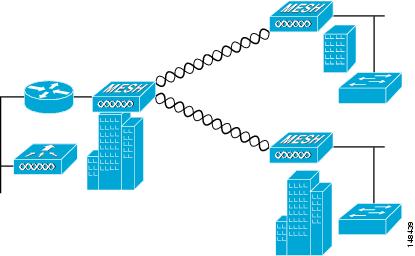
In the point-to-multipoint bridging scenario, a RAP acting as a root bridge connects multiple MAPs as non-root bridges with their associated wired LANs. By default, this feature is disabled for all MAPs. If Ethernet bridging is used, you must enable it on the controller for the respective MAP and for the RAP.
Point-to-Point Wireless Bridging
In a point-to-point bridging scenario, a 1500 Series Mesh AP can be used to extend a remote network by using the backhaul radio to bridge two segments of a switched network. This is fundamentally a wireless mesh network with one MAP and no WLAN clients. Just as in point-to-multipoint networks, client access can still be provided with Ethernet bridging enabled, although if bridging between buildings, MAP coverage from a high rooftop might not be suitable for client access.
If you intend to use an Ethernet bridged application, we recommend that you enable the bridging feature on the RAP and on all MAPs in that segment. You must verify that any attached switches to the Ethernet ports of your MAPs are not using VLAN Trunking Protocol (VTP). VTP can reconfigure the trunked VLANs across your mesh and possibly cause a loss in connection for your RAP to its primary WLC. An incorrect configuration can take down your mesh deployment.
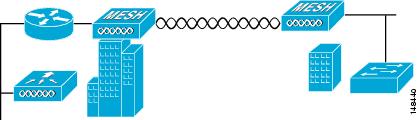
For security reasons the Ethernet port on the MAPs is disabled by default. It can be enabled only by configuring Ethernet bridging on the Root and the respective MAPs. To enable Ethernet bridging using the controller GUI, choose page, click the Mesh tab, and then select the Ethernet Bridging check box.
Note | The overall throughput of backhaul radio decreases by half for each hop of a mesh tree. When the Ethernet-bridged clients are used in MAPs and heavy traffic is passed, it may result in a high throughput consumption, which may cause the downlink MAPs to disassociate from the network due to throughput starvation. |
Ethernet bridging has to be enabled for the following two scenarios:
When you want to use the mesh nodes as bridges.
When you want to connect Ethernet devices such as a video camera on the MAP using its Ethernet port.
Ensure that you enable Ethernet bridging for every parent mesh AP taking the path from the mesh AP in question to the controller. For example, if you enable Ethernet bridging on MAP2 in Hop 2, then you must also enable Ethernet bridging on MAP1 (parent MAP), and on the RAP connecting to the controller.
To configure range parameters for longer links, choose . Optimum distance (in feet) should exist between the root access point (RAP) and the farthest mesh access point (MAP). Range from the RAP bridge to the MAP bridge has to be mentioned in feet.
The following global parameter applies to all mesh access points when they join the controller and all existing mesh access points in the network:
Configuring Mesh Range (CLI)
To configure the distance between the nodes doing the bridging, enter the config mesh range command.
APs reboot after you specify the range.
Note
To estimate the range and the AP density, you can use range calculators that are available at:
Range Calculator for all access points: http://173.37.206.125/aspnet_client/system_web/2_0_50727/WNG_Coverage_Capacity_Calculator_V2.0_HTML/WNG_Coverage_Capacity_Calculator_V2.0.htm
To view the mesh range, enter the show mesh config command.
Introduction to Flex+Mesh in release 8.7
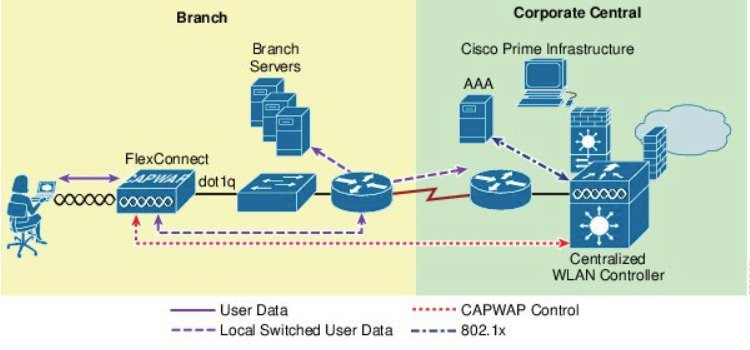
Below is a general FlexMesh architecture. The CAPWAP AP is in Flex connect + Bridge mode with a wired uplink to the core network in a 'Root' AP or RAP mode. The AP is still managed by a centralized controller over CAPWAP. The AP however is capable of moving to a standalone mode where the AP will be able to continue to serve the 802.11 clients depending on the data switching method of the WLAN configured on the AP. The data can be centrally or locally switched. When data is centrally switched, all data is sent to the WLC that does the switching further. In a local switch network, the data is sent to RAP where RAP switches locally on the wired uplink. There is no difference to the central and local switched WLAN configurations and functionality between a Flex-Connect and Flex+Mesh mode AP.
- Mesh COS AP that support new 8.7 Feature
- Flexible Antenna port configuration
- Flex Mesh AP Running Modes
- Connected Mode
- Standalone Mode
- Abandoned Mode or Persistent SSID Mode
- Mode/State transitions in the Flex Mesh COS APs
- Design considerations for Flex AP in standalone mode:
- Special standalone mode for COS Flex RAPs
- Existing Flex-connect AP mode design
- Design considerations to support new requirement
- Configuring Mesh Enhancements
- Steps for testing RAP Persistent Mode in Rel 8.7
Mesh COS AP that support new 8.7 Feature
1562 supported mesh in 8.4 release. 1542 AP (1542D and 1542I) models supported Mesh in 8.5 release. All these Aps should be able to support Flex Mesh as Flex Mesh designed on 1542 should be applicable to 1562 as well since Flex Mesh is a platform independent feature.
Flex Mesh feature is supported on the IOS based Mesh AP even prior to release 8.7; however in rel 8.7 this feature is supported on the COS based Mesh AP. In addition the IPv6 is now supported on the COS based Mesh APs.
There are two new SKUs of 1542 that are developed. The AP1540 Series released in 8.5 meets most of the technical requirement, but does not have external antennas. AP1542E2 and AP1542E4 are hardware variants of 1541D/I AP. The 1542E2 is a dual band mode AP with dual-radio dual-band 2.4GHz (802.11b/g/n, 20MHz) & 5 GHz (802.11a/n/acW2, 20/40/80 MHz). The 1542E4 is a single band mode AP with antenna A and B to support 2.4G and C and D to support 5G. The Aps support minimum 2 TX & 2 RX chains, 2 spatial streams. AP expected to support minimum 22 dBm (2.4 GHz) and 24 dBm (5 GHz) conducted transmit output power per TX. Basic new PID additions and power table changes for this new platform will be done on both AP and WLC. New power tables for -D(INDIA) with external antennas.
Flexible Antenna port configuration
The above HW changes have requirements for SW changes as well. The AP needs to support a flexible antenna port configuration. SW changes are done to let the user configure the antennas to support either in a single band mode or dual band mode. Software configurable Single Band Vs Dual Band mode. This is similar to the 1532 AP configuration. The user can configure the antenna band modes using WLC CLI or GUI.
Flex Mesh AP Running Modes
Flex mesh COS AP can be running in connected or standalone mode. Standalone mode in flex connect will undergo some changes to inherit standalone functionality for a mesh network. There is also another mode called 'abandoned' mode discussed below in this section of the guide.
Connected Mode
A COS Flex Mesh AP (Root AP or Child Mesh AP) is considered to be in connected mode when it can access and join the WLC and can exchange periodic keep alive messages with WLC. In this mode, Flex Mesh AP will be able support locally and centrally switched WLAN's. It shall allow regular client and Child mesh APs to join.
Standalone Mode
A COS Flex Mesh AP, is considered to be in standalone mode if it loses connection to the controller but it can access the local gateway. In this mode, the COS Flex+Mesh AP will disable all the centrally switched WLANs, and shall keep the locally switched WLANs up and running. It will also allow the new clients to join on local switched WLANs using local authentication as long as the authentication server is reachable in the local network. Child mesh APs will NOT be allowed to join in this mode.
Abandoned Mode or Persistent SSID Mode
A COS Flex+Mesh AP is in abandoned mode when it can no longer access the gateway IP and has no connectivity to the local network. Possible scenarios are:
-
AP is still not locked on to any uplink wired or wireless.
-
A wireless uplink has been established but has not been authenticated.
-
An uplink is established and authenticated, but IP address has the gateway IP has not been configured.
-
An uplink is established, authenticated and also IP address and gateway IP has been configured, but the gateway is not reachable for over a minute.
Neither Child Mesh APs nor the clients are allowed to join in this mode. Local as well as centrally switched WLANs will be disabled. AP may still be scanning for an uplink in this mode so no beacons will be transmitted during this time.
Note | For flex mesh COS APs, in abandoned mode, reboot timer shall be enabled so the AP will have rebooted after 40 minutes, if it does not transition to either standalone mode or connected mode. |
Mode/State transitions in the Flex Mesh COS APs
-
Flex Mesh mode COS AP will always boot up in abandoned mode, in which it would need to scan for the uplink (wired or radio).
-
Once a new uplink is selected either during initial stage or during inter gateway roaming scenario, it is expected that the authentication should pass and the CAPWAP connection needs to be formed within 2 minutes, else the selected parent will be blacklisted. This function should be same as a regular Mesh mode COS AP.
-
If a Flex mesh AP has a valid CAPWAP connection and it loses the CAPWAP connection it will transition to standalone mode, and will stay in standalone mode, as long as the gateway is reachable. A Flex Mesh AP will keep track of the IP mode (IPV6 or IPV4) used for the last successful CAPWAP connection and with track the reachability of the GW for that IP mode.
-
For Flex mesh AP in standalone mode, Mesh control will start a timer (20 second) to periodically refresh the ARP entry for GW IP (IPV4 or IPV6) and to also query the GW reachability status from the Path Control Protocol. PCP will maintain the gateway reachability status from that AP either reported by the Root AP via PCP messages or if it is Root AP by doing an ARP lookup for the gateway IP address. If the GW is unreachable for over a minute, the Flex Mesh AP will blacklist the parent and will transition to abandoned mode and will re-scan for a new uplink.
-
To come out of the abandoned mode, AP must connect to the WLC and transition to the connected mode. Transition from abandoned mode directly to standalone mode is not supported and needs to be considered in future design enhancements.
Design considerations for Flex AP in standalone mode:
-
When the Flex AP is in standalone mode, it will stick to the same parent and will NOT try to discover or roam to a better neighbor, even if it is a preferred parent. The reason is that there is no guarantee that the security will pass with the new parent and the roaming will be successful. If the security fails, the perspective parent may get blacklisted unnecessarily. It is best to consider standalone roaming once standalone security is supported for Mesh APs in future design enhancements.
-
BGN timer will be stopped in standalone mode. So, if the child mesh AP is in standalone mode and it joins a parent with a different BGN and goes back into standalone mode after that, BGN timer will be stopped so that the child Mesh AP does not go into re-scan mode after 15 minutes (BGN timer expiry).
-
In standalone mode, reboot timer will be stopped so that the AP does not reboot after 40 minutes, in the absence of a CAPWAP connection.
-
After moving back to connected mode, from standalone mode, best neighbor selection timer and BGN timer will be restarted, so allow the child mesh AP to roam to the best possible neighbor.
Special standalone mode for COS Flex RAPs
In this mode the SSID will be broadcasted always (Persistent SSID). In addition, after reboot, when this special Persistent mode is enabled, Flex Mesh RAP should be able to start broadcasting the SSID even if the gateway is not reachable.
Existing Flex-connect AP mode design
-
Locally switched WLANs are stored in config.flex file and Flex-connect AP broadcasts the local WLAN SSIDs as long as it is standalone mode.
-
On boot up Flex-connect AP would only start broadcasting the locally switched WLANs if the gateway provisioned.
-
If for a COS Flex connect AP, gateway information is removed at some point, it moves out of the standalone mode and stops broadcasting the locally switched SSIDs and waits for gateway to be provisioned again.
-
Once the gateway is provisioned, Flex AP again transitions into the standalone mode and starts broadcasting the locally switched SSIDs again.
-
Without a valid gateway, flex-connect AP eventually stops broadcasting SSIDs, since the local network is not reachable so no reason to connect the clients.
Parts of the existing Flex-connect AP mode design is used to retain WLAN configuration during reboot and to be able to start broadcasting Local SSIDs etc. However, for Flex RAP we have a special standalone mode requirement for NBN deployment as stated below:
-
Flex RAP should be able to boot up directly into the standalone mode and start broadcasting SSIDs, even if the gateway is not reachable.
-
Flex RAP will continue to be in standalone mode and keep broadcasting SSIDs if the gateway was reachable earlier and becomes unreachable at some point.
-
Even if the Flex RAP cannot support any real clients, it still needs to broadcast SSID so that the operator can check if the AP is UP and running.
Design considerations to support new requirement
-
Flex RAP should join the controller at least once to download the WLAN configuration that gets stored in the config.flex file. This WLAN is a local switched one.
-
Once the configuration is stored in the config.flex file, it will become persistent across the reboots and AP does not need to join WLC again as long as the configuration is not erased.
-
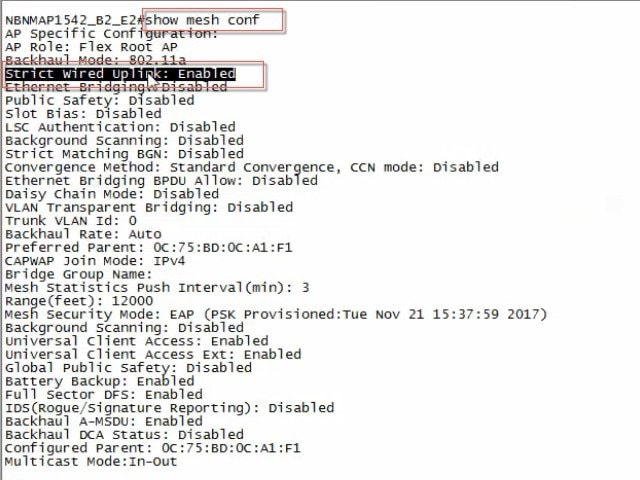
A new configuration that is needed for the RAP to maintain the wired link is supported and will be stored in mesh configuration file i.e. "strict_wired_uplink".
-
If the following conditions are true, FLEX Mesh AP will broadcast the local WLANs stored in flex configuration file even if the gateway is not reachable.
-
A new AP CLI command will be supported to configure a Flex Mesh AP as a strict wired AP.
# CAPWAP ap mesh strict-wired-uplink <true/false>
-
New configuration parameter "strict_wired_uplink" will be stored in config.mesh file in storage directory so that it is persistent across the reboots. Default value of this parameter will be false.
-
Strict wired uplink configuration is only valid if the AP is configured as Flex-Mesh Root AP. For all other AP modes and for Mesh AP role, strict wired uplink configuration will not be effective, even if configured.
-
When strict wired uplink is true for Flex Mesh Root AP:
-
Wired uplink will be immediately selected on mesh restart.
-
Wired uplink will never be blacklisted
-
CAPWAP up timer will not run
-
Mesh Reboot timer will not run
-
Seek of the wired adjacency will always return true, even if the interface is down
-
Wireless backhaul can never be selected as an uplink
-
Wireless backhaul can still be used as downlink to provide connectivity to the Mesh child nodes
-
-
To avoid issues due to gateway configuration checks, static IP and gateway must be configured on the Flex RAP (even if it just a dummy IP or gateway).
-
Having Static IP and Gateway configuration will allow the Flex RAP to transition into standalone mode after reboot even when there is no connectivity to the local network (i.e. no DHCP server to provision IP and gateway). Flex RAP will then continue broadcasting the locally switched SSIDs even in absence of any network connectivity.
-
If the IP and gateway are not valid, and once AP has connectivity to DHCP server, DHCP IP overwrites the static IP configuration and DHCP IP and gateway configuration takes over.
-
-
A Simple WLC CLI to enable/disable the 'Persistent SSID' feature will be provided. The WLC and AP should have communication for this configuration to take effect.
-
The AP 'show mesh config' will also dump the current status of this feature.
Configuring Mesh Enhancements

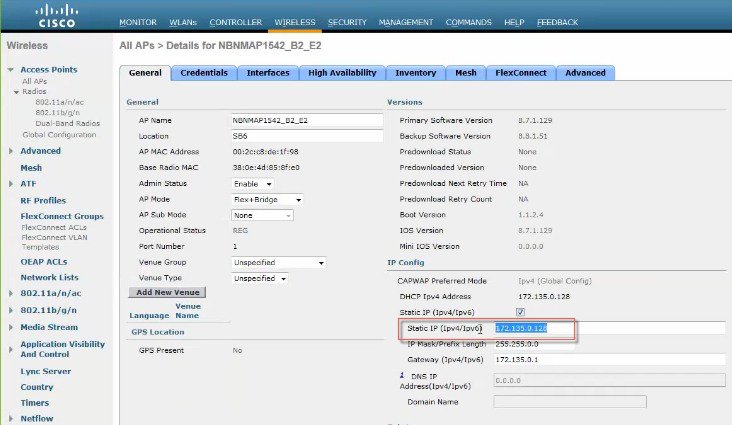
Steps for testing RAP Persistent Mode in Rel 8.7
In order to test the setup best is to configure one RAP with perrsistant SSID or in abandoned mode and one in a regular RAP mode. Connect a client to both RAP and observe behavior when RAPs lose their connectivity to the controller.
 Feedback