SSO Configuration for Cisco Webex on On-Premise and MRA with OKTA IdP

SAML-Based SSO Solution

SAML is an XML-based open standard data format that enables administrators to access a defined set of Cisco collaboration applications seamlessly after signing into one of those applications. SAML describes the exchange of security related information between trusted business partners. It is an authentication protocol used by service providers (for example, Unified Communications Manager) to authenticate a user. SAML enables exchange of security authentication information between an Identity Provider (IdP) and a service provider.

With SAML SSO enabled, you can launch the Security Assertion Markup Language (SAML) SSO-supported applications or other supported applications, such as Unified Communications Manager, after a single sign-in with an Identity Provider (IdP). You no longer need to sign in to these applications separately.

Although Cisco Collaboration infrastructure may prove to be compatible with other IdPs claiming SAML 2.0 compliance, only the following IdPs have been tested with Cisco Collaboration solutions:

  • OpenAM 10.0.1

  • Microsoft® Active Directory® Federation Services 2.0, 3.0, 4.0, and 5.0

  • PingFederate® 6.10.0.4

  • F5 BIG-IP 11.6.0

  • Okta 2017.38

See SSO Configuration for Cisco Webex on On-Premise and MRA with OKTA IdP for SSO configuration examples with OKTA IdP.

See SAML SSO Deployment Guide for Cisco Unified Communications Applications, for more information.
SSO Configuration for Cisco Webex on On-Premise and MRA with OKTA IdP

Okta provides Single Sign-On (SSO) access to cloud, on-premise, and mobile applications. It provides access to cloud applications with the Okta Integration Network (OIN). SSO protocols and provisioning APIs are maintained by Okta. Okta also provides integrations for on-premise web-based applications and mobile applications.

Single sign-on (SSO) is a session or user authentication process that permits a user to provide credentials to access one or more applications. The process authenticates users for all the applications that they are given rights to. It eliminates further prompts when users switch applications during a particular session.

Cisco Webex Control Hub SSO configuration

Procedure


Step 1

Login to Unified CM as an administrator.

Step 2

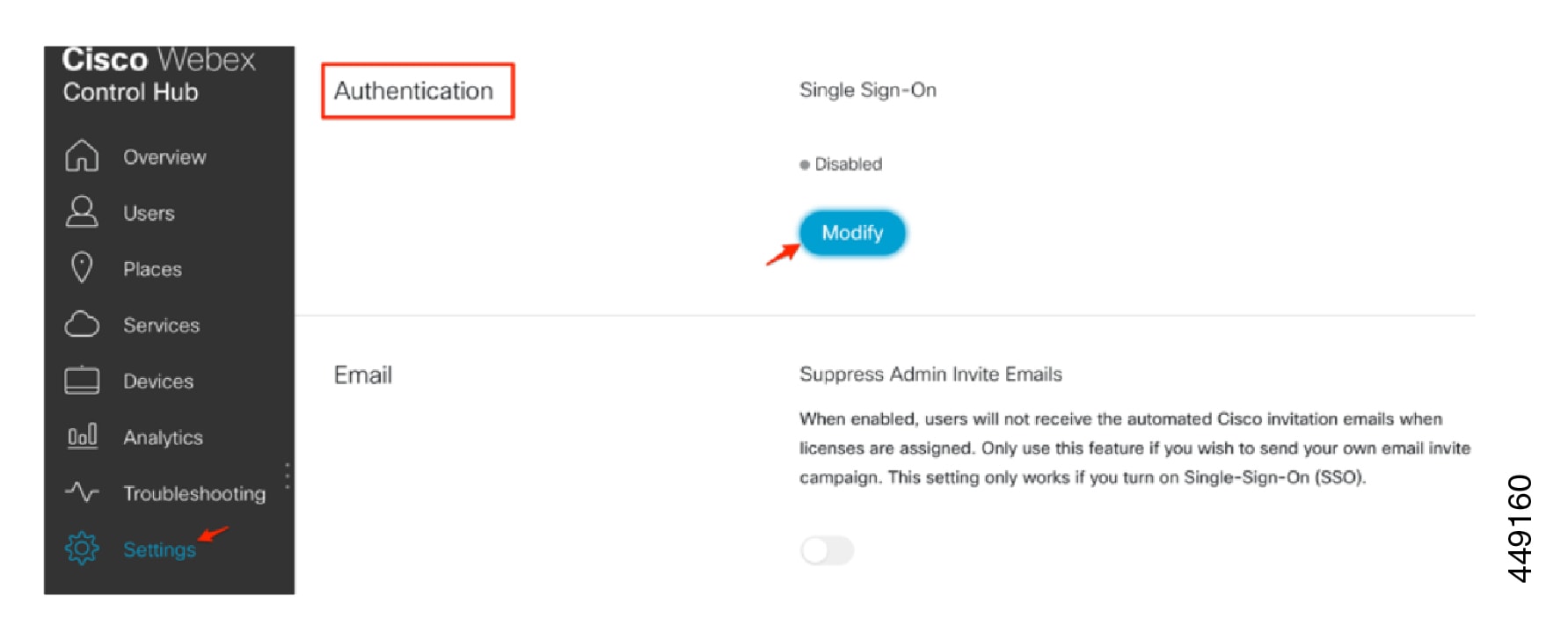
Navigate to Settings > Authentication. Click Modify.

Step 3

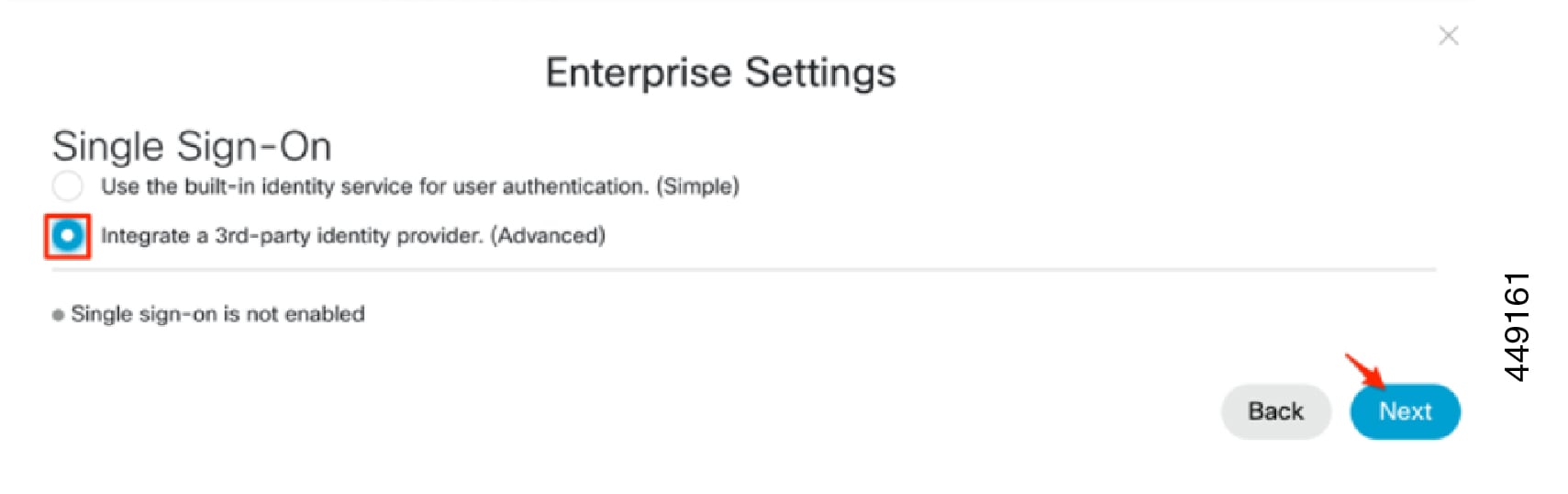
Select Integrate a 3rd-party identity provider. (Advanced). Click Next.

Step 4

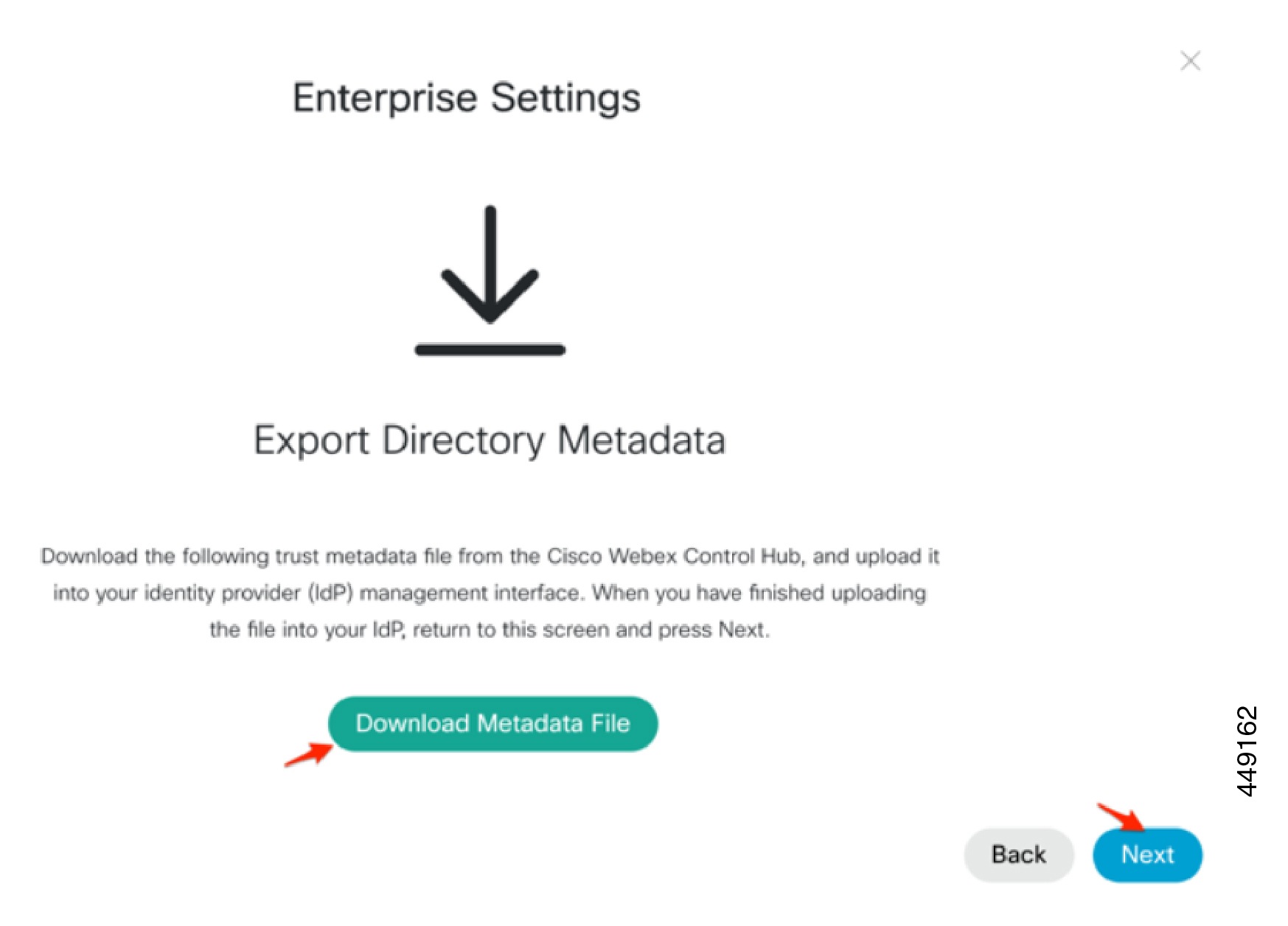
Click Download Metadata File and click Next.

Step 5

Open the downloaded Metadata file in a text editor. Locate and make a copy of the following values:

  1. entityID:

    For example, https://idbroker.webex.com/1a2b3c4d...

  2. AssertionConsumerService:

    For example, https://idbroker.webex.com/idb/Consumer/metaAlias/1a2b3c4d.../sp

Step 6

Perform Step 1 through Step 6 of Webex Control Hub SSO Configuration on OKTA

Step 7

Navigate back to Enterprise Settings.

Step 8

Click file browser to locate and upload the saved metadata.xml file from Step 5 of Webex Control Hub SSO Configuration on OKTA.

Step 9

Select Allow self-signed certificate in Metadata (less secure) and click Next.

Step 10

Click Test SSO Connection.

Note 

Test SSO connect action is performed in a browser. Make sure that your browser allows pop-ups.

Step 11

Close the browser up on Single Sign-on succeeded message.

Step 12

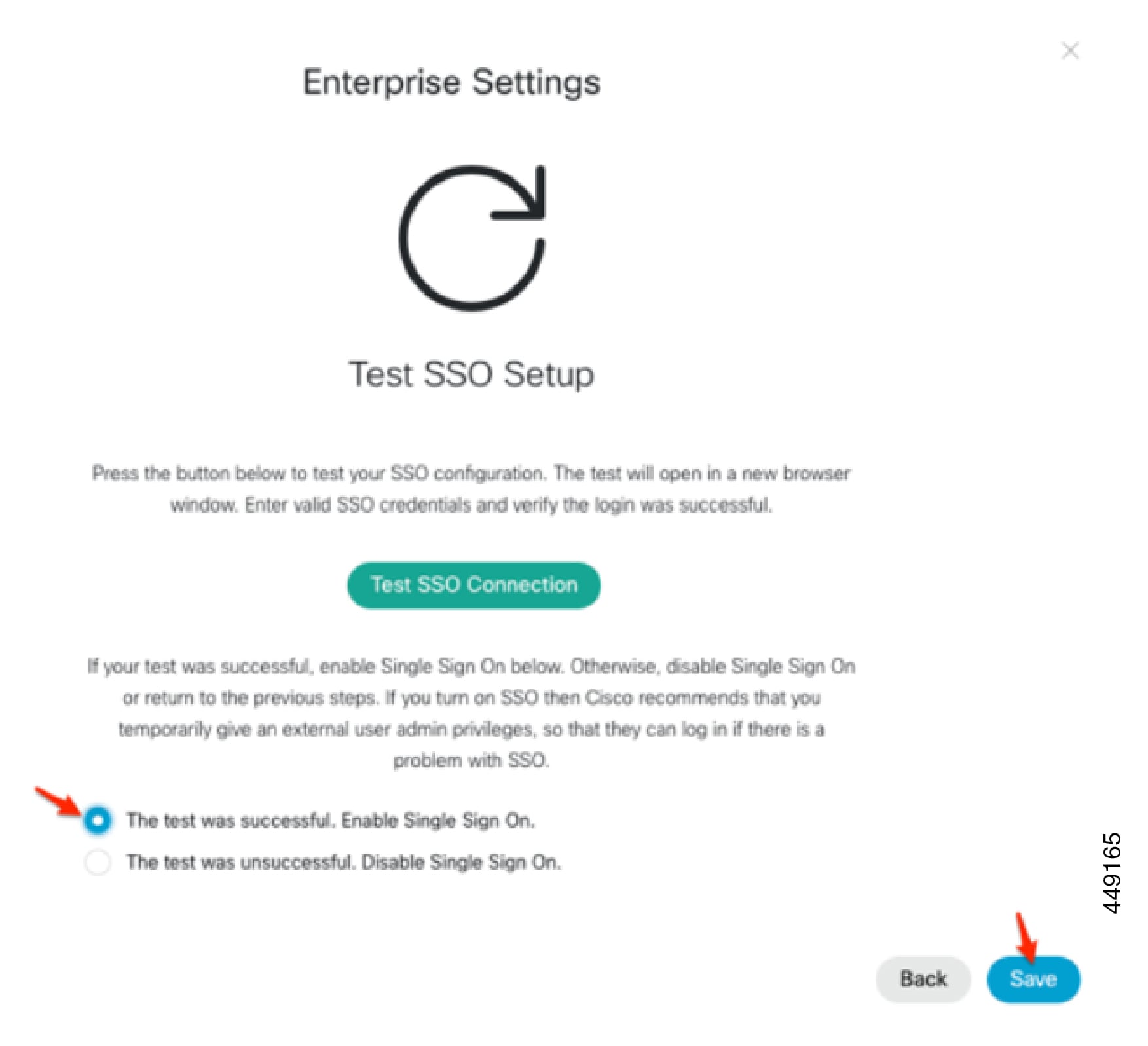
Return to the Cisco Webex Control Hub browser tab and select one of the following:

  1. If the test was successful, select This test was successful. Enable Single Sign-On option and click Save.

  2. If the test was unsuccessful, select This test was unsuccessful. Disable Single Sign-On option and click Save.


Cisco Webex Control Hub SSO Configuration on OKTA

Procedure


Step 1

Login to the OKTA Tenant as an administrator (example.okta.com), where example is the company or organization name.

Step 2

Navigate to Applications, and click Add Application.

Step 3

Search for Cisco Webex and click Add to add Cisco Webex application to your tenant.

Step 4

Click Next and click SAML 2.0.

Step 5

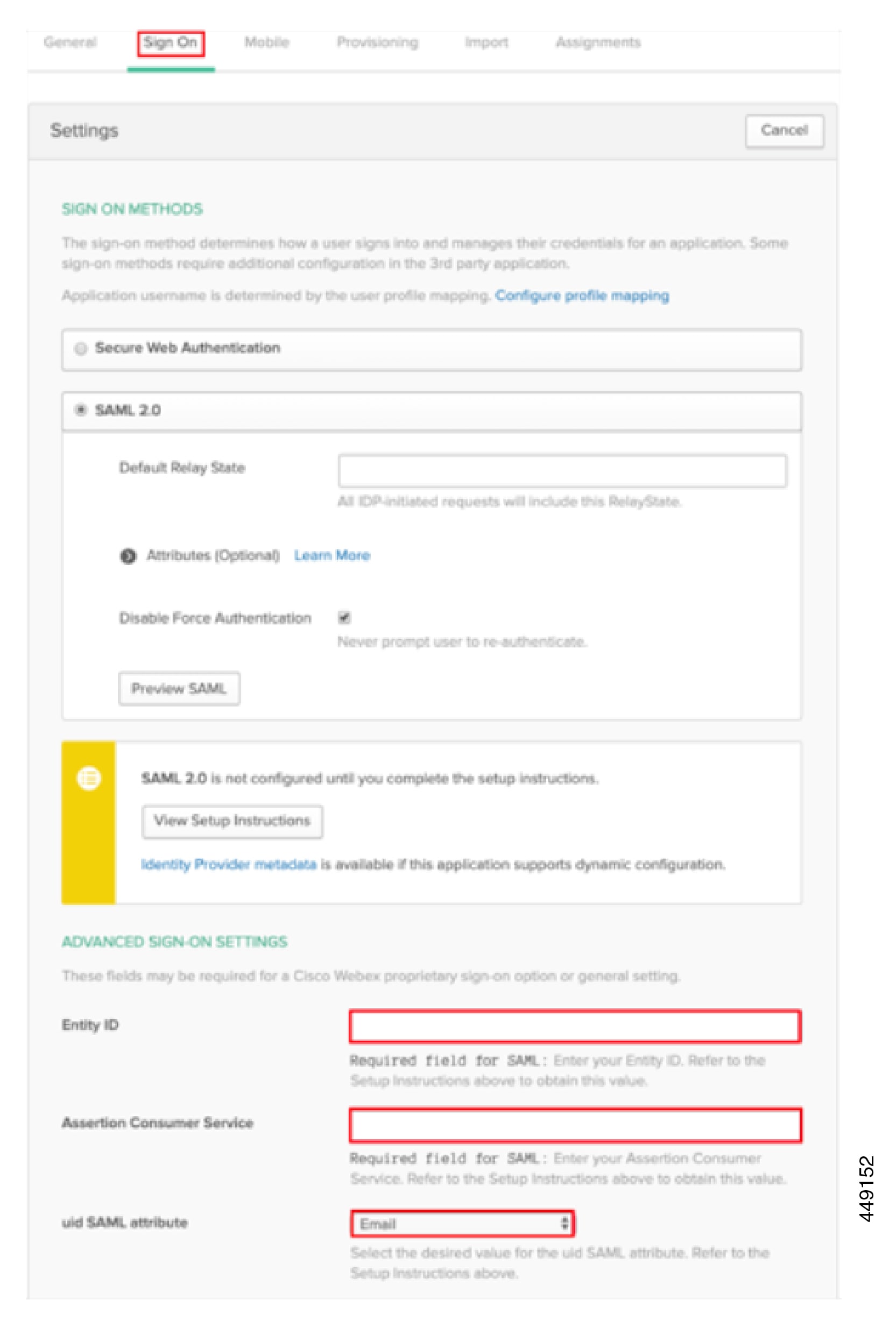
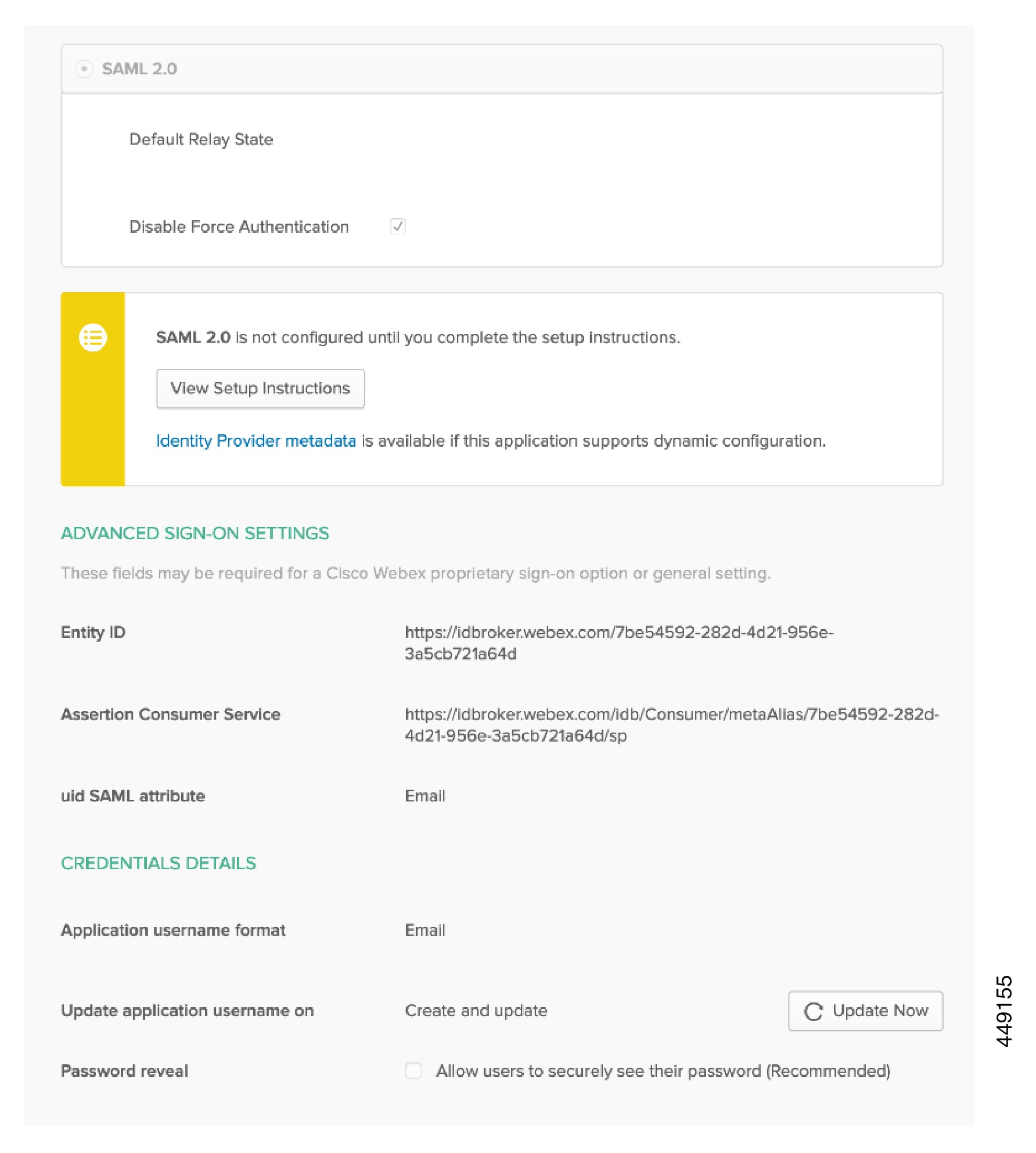
On the Cisco Webex tab in Okta, scroll down to Advanced Settings, and paste the Entity ID and Assertion Consumer Service values that you have copied from the Cisco Webex Control Hub metadata file. Click Save changes.

Step 6

Download the Identity Provider metadata file.

Step 7

Copy and paste the contents of IdP metadata into a file and save as metadata.xml.

Note 

Do not use any spaces in the file name.

Step 8

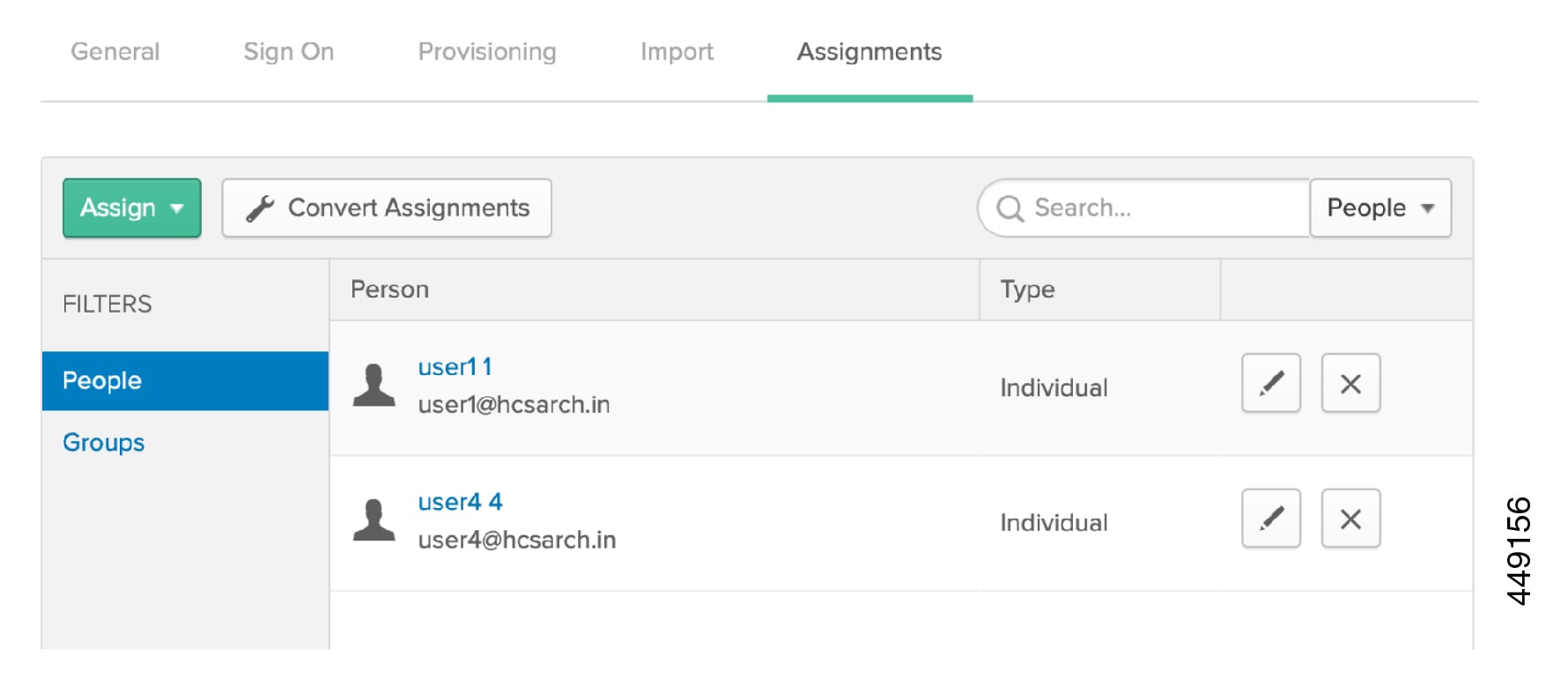
Click Assignments. Select all the users and relevant groups that you want to associate with the applications and services managed in Cisco Webex Control Hub. Click Assign and click Done.

Note 

Cisco Webex Control Hub and Okta integration will not work if this step is skipped.

Step 9

Activate the Application.


Expressway SSO Configuration

Procedure


Step 1

Export the SAML Metadata from the Expressway-C.

  1. Navigate to Configuration > Unified Communications > Configuration.

  2. In MRA Access Control section, select mode from the SAML Metadata list:

    Mode

    Description

    Cluster

    Generates a single cluster-wide SAML metadata file. You must import only this file to an IdP for the SAML agreement

    Peer

    Generates the metadata files for each peer in a cluster. You must import each metadata file to IdP for the SAML agreement. The Peer option is selected by default when Expressway is upgraded from an earlier SAML SSO enabled release to 12.5.

    For new deployments, the default SAML Metadata mode is Cluster.

    For existing deployments, the default SAML Metadata is:

    • Cluster, if SAML SSO was disabled in the previous Expressway release.

    • Peer, if SAML SSO was previously enabled.

  3. Click Export SAML data.

    Note 

    This page lists the connected Expressway-E, or all the Expressway-E peers if it's a cluster. These are listed because data about them is included in the SAML metadata for the Expressway-C.

  4. If you choose Cluster for SAML Metadata, click Generate Certificate.

  5. Perform the following:

    • To download the single cluster-wide metadata file on the cluster-wide mode, click Download.

    • To download the metadata file for an individual peer on the per-peer mode, click Download next to the peer. To export all in a .zip file, click Download All.

  6. Copy the resulting file(s) to a secure location that you can access when it is required to import SAML metadata to the IdP.

Step 2

Import the SAML Metadata from the IdP

  1. On the Expressway-C, navigate to Configuration > Unified Communications > Identity providers (IdP).

    Note 

    This is required only on the primary peer of the cluster.

  2. Click Import new IdP from SAML.

  3. Use Import SAML file control to locate the SAML metadata file from the IdP.

  4. Set the Digest to the required SHA hash algorithm.

    Note 

    This is used by the Expressway for signing SAML authentication requests for clients to present to the IdP. The signing algorithm must match the one expected by the IdP for verifying SAML authentication request signatures.

  5. Click Upload.

    Note 

    The Expressway-C will authenticate the IdP's communications and encrypts SAML communications to the IdP.

    Note 

    To change the signing algorithm after importing the metadata:

    • navigate to Configuration > Unified Communications > Identity providers (IdP)

    • locating the IdP row

    • click Configure Digest in Actions column

Step 3

Associate Domains with an IdP:

  1. Open the IdP list on the Expressway-C. Navigate to Configuration > Unified Communications > Identity providers (IdP). Verify that your IdP is listed.

    Note 

    The IdPs are listed by their entity IDs. The associated domains for each IdPs are shown next to the ID.

  2. Click Associate domains in the row for your IdP. Associated domain shows:

    • List of all the domains on the Expressway-C.

    • The domains that are associated with this IdP.

    • The IdP entity IDs if there are different IdPs associated with other domains in the list.

  3. Select the domains you want to associate with the IdP.

    Note 

    Click Transfer to transfer the domains association from previous IdP to the current IdP.

  4. Click Save to associate the selected domains with the current IdP.


Expressway SSO Configuration on OKTA

Procedure


Step 1

Perform the Step 1 of Expressway SSO Configuration.

Step 2

Login to the OKTA Tenant as an administrator. (example.okta.com), where example is the company or (organization name).

Step 3

Navigate to Applications, and click Add Application.

Step 4

Click Create New App to create new application integration.

Step 5

On the Create New Application Integration window, select Web from the Platform drop-down list and select SAML 2.0 for Sign On method field.

Step 6

Click Create.

Step 7

Enter Name (Expressway-C) for the application and click Next.

Step 8

On the Create SAML Integration window, configure the required parameters on General Settings, and click Next.

Step 9

Configure the following mandatory fields for SAML settings from the details available in the metadata XML file downloaded from the Service Provider:

  • Single sign on URL—enter the SSO URL of the publisher node.

    Note 

    Find the SSO URL by searching on index 0 of the AssertionConsumerService.

  • Use this for Recipient URL and Destination URL—Select this option to enable matching of the recipient and destination URLs.

  • Allow this app to request other SSO URLs—Select this option if there are multiple nodes in the UC deployment and you want to allow requests from other SSO URLs besides the publisher.

  • Requestable SSO URLs—This field is available only if the Allow this app to request other SSO URLs is selected. Enter SSO URLs for other nodes as required. You can find the ACS URLs in the metadata file by searching for the AssertionConsumerService (ACS) addresses that use the HTTP-POST Binding. Add the searched details for this field. Click Add Another to add multiple URLs.

    Note 

    It is not required to add HTTP-Redirect URLs to this field.

  • Audience URI (SP Identity ID)—Search and enter the entityID address from the metadata file.

  • Name ID Format—Select Transient from the drop-down list.

  • Application username—Select the username format that matches the UserID field that is available in the Cisco Unified Communications Manager cluster.

Step 10

Enter the attribute UID to the Cisco Unified Communications Manager cluster.

Note 

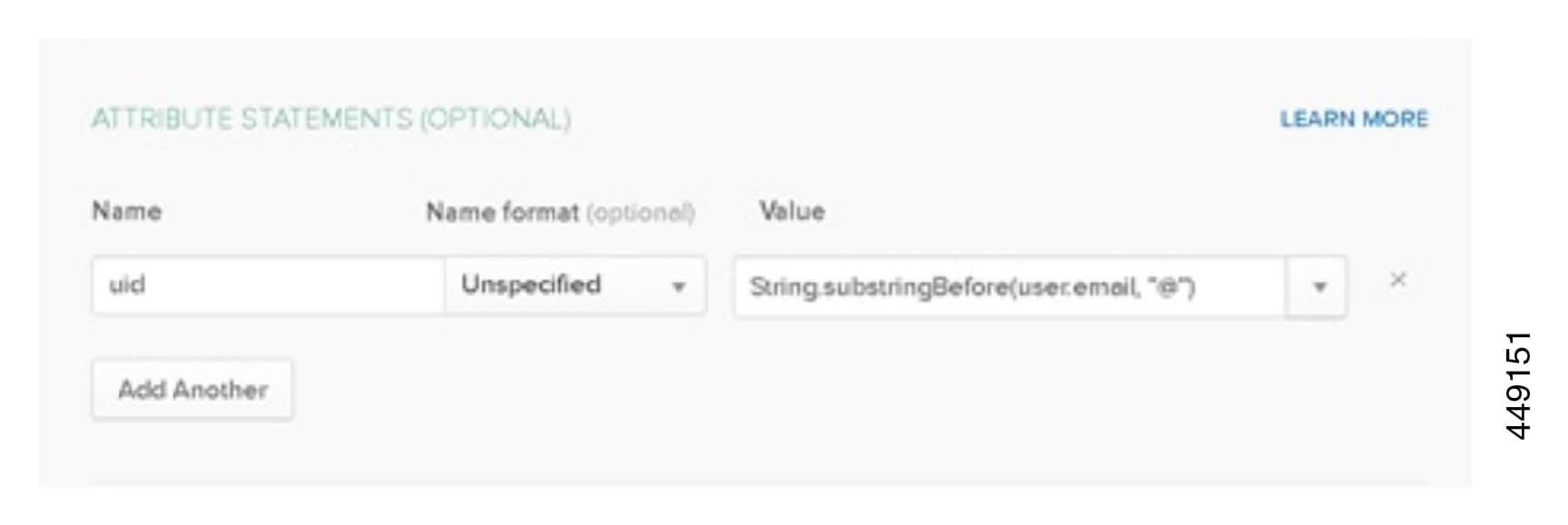
Make sure that the attribute UID value matches the userID field value that is available in Cisco Unified CM Administration on the User Management > End User page. In the following example the userID is mapped to sAMAccountName via a UID string String.substringBefore(user.email, "@") .

Step 11

On the Feedback tab, select “I'm a software vendor. I'd like to integrate my app with Okta” and click On the Import tab, assign the users or groups that you requi to enable and click Done..

Step 12

On the Import tab, assign the users or groups that you requi to enable and click Done.

Step 13

On the Sign On tab, click the Identity Provider metadata link to download the Okta metadata file.

Step 14

Open the downloaded metadata file, change the NameIDFormat to <md:NameIDFormat>urn:oasis:names:tc:SAML:2.0:nameid-format:transient</md:NameIDFormat>, and save the file.

Step 15

Continue with Step 2 of Expressway SSO Configuration.


Cisco Unified CM SSO Configuration

Procedure


Step 1

Export UC Metadata from Cisco Unified Communications Manager.

  1. From Cisco Unified CM Administration, select System > SAML Single Sign-On

  2. From the SAML Single Sign-On window, select one of the following for the SSO Mode field:

    • Cluster wide—A single SAML agreement for the cluster.

      Note 

      Make sure that Tomcat servers for all the nodes in the cluster have the same multi-server SAN certificate.

    • Per Node—Each node has a separate SAML agreement.

  3. From the SAML Single Sign-On window, select one of the following for the Certificate field:

    • Use system generated self-signed certificate

    • Use Tomcat certificate

  4. Click Export All Metadata to export the metadata file.

    Note 

    If you select the Cluster wide, a single metadata XML file appears for a cluster for download. However, if you choose the Per Node option, one metadata XML file appears for each node of a cluster for download.

Step 2

Click Enable SAML SSO and perform the following:

  1. From Cisco Unified CM Administration, click System > SAML Single Sign-On.

  2. Click Enable SAML SSO and click Continue. Note: A warning message that all server connections will be restarted is displayed.

  3. If you have configured the Cluster wide SSO mode, click the Test for Multi-server tomcat certificate else, skip this step.

  4. Click Next. Import IdP metadata dialog box is displayed. To configure the trust relationship between the IdP and your servers, obtain the trust metadata file from the IdP and import it to all the servers.

  5. Import the metadata file that you exported from your IdP:

    1. Browse to locate and select the exported IdP metadata file.

    2. Click Import IdP Metadata.

    3. Click Next.

    4. At the Download Server Metadata and Install on IdP screen, click Next.

      Note 

      The Next button is enabled only if the IdP metadata file is successfully imported on at least one node in the cluster.

  6. Test the connection and complete the configuration:

    1. In the End User Configuration window, select an LDAP-synchronized user and has the "Standard CCM Super User" permission from the Permissions Information list box.

    2. Click Run Test. The IdP login window appears.

      Note 

      You cannot enable SAML SSO until the test is successful.

    3. Enter a valid username and password.

      After successful authentication, "SSO Test Succeeded" message is displayed. Close the browser window.

      If the authentication fails, or takes more than 60 seconds to authenticate, a "Login Failed" message is displayed on the IdP login window. “SSO Metadata Test Timed Out” is displayed on the SAML Single Sign-On window. To attempt logging in to the IdP again, select another user and run another test.

    4. Click Finish to complete the SAML SSO setup.

      Note 

      SAML SSO is enabled and all the web applications participating in SAML SSO are restarted. It may take one to two minutes for the web applications to restart.


Cisco Unified CM SSO Configuration on OKTA

Procedure


Step 1

Sign in to the OKTA Tenant as an administrator (example.okta.com), where example is the company or organization name).

Step 2

Navigate to Applications, and click Add Application.

Step 3

Click Create New App to use wizard to create new application integration

Step 4

On the Create a New Application Integration window, from the Platform drop-down list, select Web and for the Sign On method field, select SAML 2.0.

Step 5

Click Create.

Step 6

Enter Name for the application and click Next.

Step 7

On the Create SAML Integration window, configure the required par the details for fields of the General Settings tab, and click Next.

Step 8

Enter details for the following mandatory fields for SAML Settings. These details are available in the metadata XML file that you downloaded from the Service Provider.

  • Single sign on URL—enter the SSO URL of the publisher node.

    Note 

    Find the SSO URL by searching on index 0 of the AssertionConsumerService.

  • Use this for Recipient URL and Destination URL—Select this option to enable matching of the recipient and destination URLs.

  • Allow this app to request other SSO URLs—Select this option if there are multiple nodes in the UCdeployment and you want to allow requests from other SSO URLs besides the publisher.

  • Requestable SSO URLs—This field is available only if the Allow this app to request other SSO URLs is selected. Enter SSO URLs for other nodes as required. You can find the ACS URLs in the metadata file by searching for the AssertionConsumerService (ACS) addresses that use the HTTP-POST Binding. Add the searched details for this field. Click Add Another to add multiple URLs.

    Note 

    It is not required to add HTTP-Redirect URLs to this field.

  • Audience URI (SP Identity ID)—Search and enter the entityID address from the metadata file.

  • Name ID Format—Select Transient from the drop-down list.

  • Application username—Select the username format that matches the UserID field that is available in the Cisco Unified Communications Manager cluster.

Step 9

Enter the attribute UID to the Cisco Unified Communications Manager cluster.

Note 

Make sure that the attribute UID value matches the userID field value available in Cisco Unified CM Administration on the User Management > End User page. In the following is an example the userID is mapped to sAMAccountName via a UID string of String.substringBefore(user.email, "@").

Step 10

On the Feedback tab, select “I'm a software vendor. I'd like to integrate my app with Okta” and click Finish.

Step 11

On the Import tab, assign the users or groups that you want to enable, and click Done.

Step 12

On the Sign On tab, click the Identity Provider metadata link to download the Okta metadata file.

Step 13

Open the downloaded metadata file, change the NameIDFormat to <md:NameIDFormat>urn:oasis:names:tc:SAML:2.0:nameid-format:transient</md:NameIDFormat>, and save the file.