Cisco Unified Communications Domain Manager, Release 10.6(1) Self Service Guide
Bias-Free Language
The documentation set for this product strives to use bias-free language. For the purposes of this documentation set, bias-free is defined as language that does not imply discrimination based on age, disability, gender, racial identity, ethnic identity, sexual orientation, socioeconomic status, and intersectionality. Exceptions may be present in the documentation due to language that is hardcoded in the user interfaces of the product software, language used based on RFP documentation, or language that is used by a referenced third-party product. Learn more about how Cisco is using Inclusive Language.
- Updated:
- June 25, 2015
Chapter: My Information
My Information
My Information
View the "My
Information" screen from the Quick Menu, or by clicking
 on
the button bar. This screen provides you with a view of your personal
information as configured by your administrator. The following figure provides
an example of the My Information screen.
on
the button bar. This screen provides you with a view of your personal
information as configured by your administrator. The following figure provides
an example of the My Information screen.
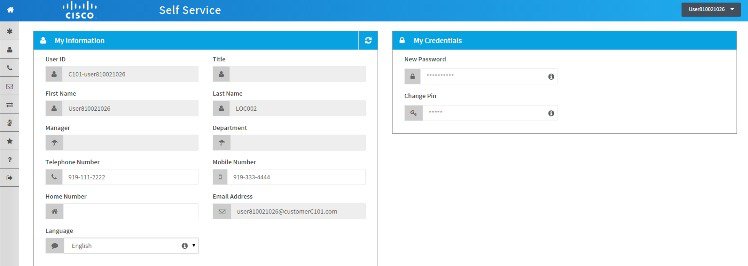
Greyed out items such as User ID, names, manager and department can not be edited. Editable details include phone numbers, email address, and language.
 Note | If you are unable to edit phone numbers and email address, it may be because of the way your Self Service interface is set up; contact your System Administrator for more information. |
The My Credentials section on the screen displays all Self Service, Cisco Unified Communications Manager and Voicemail passwords and PINS (if configured by your administrator).
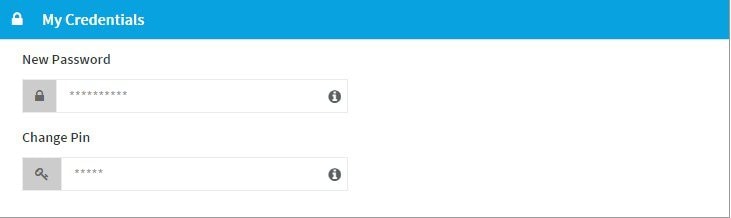
Passwords and PINs can be edited as required. See Manage Your Password and PIN for more details.
Change Your User Language
Manage Your Password and PIN
Your password enables you to log in to Self Service. Your administrator allocates a password to you upon creating your user account. See First Login if required.
Make sure that your passwords are secure. Passwords must include at least one numeral, punctuation character and must be a combination of upper case and lower case letters. See Change Your Password and Password Hints if required.
Your PIN allows you to log in to a phone using Roaming Login/Logout. You are allocated a default PIN when your administrator creates your user and roaming profile. See Change Your PIN if required.
Change Your Password
| Step 1 | Click My Information on the button bar. |
| Step 2 | In the My Credentials section of the screen, enter a new password in the appropriate password field (Self Service, Unified CM, or Voicemail) as applicable. See Password Hints for more information if required. |
| Step 3 | Confirm (re-enter) your password in the appropriate repeat password field. |
| Step 4 | Click Save to change your password. |
Password Hints
Must consist of at least eight characters, and contain at least: Do not use keyboard pattern based or obvious passwords such as a birthday or your name.
Do not share your passwords with other users.
Do not write down your password or store it in an obvious place, such as on a pin-board or in a diary.
 Feedback