Internet Script Editor

ISE Application

You can use either or both of the Internet Script Editor and the Script Editor to work with routing and administration scripts.

The Internet Script Editor provides the same functionality as the Unified ICM Script Editor software, without the need for a full Administration & Data Server.


Note


When the Unified ICM runs on a partitioned system, you cannot edit security information for a script with Internet Script Editor. Use Script Editor instead.

ISE Functionality

This section describes how Internet Script Editor works on and communicates with Administration & Data Server.

Internet Script Editor works through the IIS Web server on the Unified ICM Distributor. It uses HTTP or HTTPS to communicate with Administration & Data Server.

The Internet Script Editor and Unified ICM Script Editor GUIs are essentially the same. The menus, toolbars, palette, and work space are utilized in the same manner in both applications. The differences between the two occur primarily in the method by which each application communicates with Unified ICM.

ISE Requirements

This section describes Internet Script Editor requirements.

Internet Script Editor is supported on the operating systems listed in the Contact Center Enterprise Compatibility Matrix.


Note


For ISE to work properly, select the Enable HTTP Keepalive box on the website tab of Internet Information Services Manager/Default Web Site Properties.


Note


If you use Unified Contact Center Management Portal (Unified CCMP) or Unified Contact Center Domain Manager (Unified CCDM), you cannot use Transport Layer Security (TLS) v1.0 and v1.1 to connect with the Internet Script Editor.


TLS Requirements for ISE

Internet Script Editor connections use Transport Layer Security (TLS). TLS connections encrypt client requests and server responses.

Unified CCE has a utility (SSLUtil.exe) that provides the ability for Unified ICM Setup to create and install a self-signed server certificate. The certificate is generated, imported to the Local Machine Store, and installed on the web server.

A digital certificate is an attachment to an electronic message used for security purposes. A digital certificate verifies that a sender is who they claim to be and provides the receiver with the means to encode a reply. Your browser does not automatically recognize a self-signed certificate. A self-signed certificate does not provide any guarantee concerning the identity of the organization that is providing the website. Most browsers have a list of trusted CAs (Certification Authorities) whose certificates they automatically accept. If a browser encounters a certificate whose authorizing CA is not in the list, the browser asks you whether to accept or decline the connection.

Install the standalone encryption utility on the AW Real-time Distributor (in the AW Program Group). This enables you to change the default encryption settings (implemented by Setup). This utility contains the functionality to regenerate the self-signed certificate and replace the IIS installed certificate as needed.

ISE Client

Unified ICM setup configures a secure connection (using port 443) by default and sets up the certificate on the ISE server (the Distributor Administration & Data Server). For new ISE client installations, configure the ISE client to use the secure connection (port 443) to connect to the server. If you configure the ISE client to use HTTP (port 80) to connect to the server and the connection fails, the ISE client tries the secure connection (port 443).

When the ISE client connects to the server. one of the following occurs.

  • If the encrypted flag is not set:

    • The client starts with setting up an HTTP connection.

      • If the client successfully connects to the server, it sends the user account and password in plain text. It then establishes the session with the server through HTTP .

      • If the client cannot connect to the server, it fails over and tries to connect to the server through HTTPS. If the HTTPS connection is set up successfully, the client sends the encrypted user account and password. It also sets the encrypted flag in the registry so that the next time it will use HTTPS.

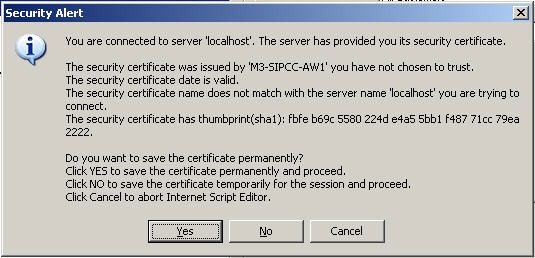
    • After the HTTPS connection is established, the server sends the certificate to the client. The client presents the certificate prompt, unless it has been previously saved locally.

      Figure 1. Security Alert Dialog Box
  • The client starts with setting up an HTTPS connection.

    • If the client successfully connects to the server, the client sends the encrypted user account and password.

    • After the HTTPS connection is established, the server sends the certificate to the client. The client presents the certificate prompt (see the Security Alert Dialog Box), unless it has been previously saved locally).

    • If the client cannot connect to the server, it prompts you to determine if it should failover to try to connect to the server via HTTP, or not. If you select Yes, the client sends in the user account and password in plain text once the HTTP connection is established. However, it does not set the encrypted flag in the registry so that the HTTPS connection will still be initiated the next time.

    • If you want to use the HTTP connection for all future connections, you must manually unset the flag in the login screen.

During runtime, the initialization is the same for every HTTPS request.

During upgrades or new installations on Windows Server, the secure connection is automatically configured to the default setting of 443 for SSL.


Note


The ISE client can revert back to unencrypted communication over port 80 if it fails to establish an HTTPS session.

Departmental Hosting

External Authorization Server for Internet Script Editor

The Internet Script Editor includes support for Departmental Hosting, which separates scripting authorization by user, group, or role. A script authorization server determines which configuration objects are valid for a user in the Internet Script Editor. This feature is supported when the deployment type is set (through CCE Administration) to one of the following:

  • UCCE: 2000 Agents

  • UCCE: 4000 Agents

  • UCCE: 12000 Agents

  • UCCE: 8000 Agents Router/Logger (for Non-Reference Designs only)

This feature is enabled by configuring a CCMP Authorization Server in Web Setup on the Admin Workstation.

The objects that can be authorized are:

  • Call Type

  • Dialed Number

  • Label

  • Precision Queue

  • Network VRU Script

  • Skill Group

An error appears if you open a script that contains data for which you are not authorized. An authorized user may need to change the user authorization configuration or the script to allow access.

Use the Feature Control Set to enforce Quick Edit and limit node access for the lower-level users. This limits which nodes a lower-level user can modify.

When you enable this feature by using Web Setup, the user cannot dynamically select targets on Precision Queue, Call Type, and Route Select nodes.

Access to Labels or Dialed Numbers by User

This scripting authorization restricts a label or a dialed number that is authorized for a particular department only to that department's users in the Internet Script Editor.

You only see list of labels for which you have authorization in the Label nodes and Dynamic label nodes.

ISE Installation and Upgrades

Install Internet Script Editor

You cannot install Internet Script Editor directly on a VM.

Procedure


Step 1

Point your browser to server-name/install/iscripteditor.htm, where server-name is the name of the computer on which you installed the distributor with the Internet Script Editor client package.

Step 2

Click Download Internet Script Editor.

Note


You can also open the iscripteditor.exe file directly from the web page.

Step 3

Navigate to the directory where you want to save iscripteditor.exe.

Step 4

Click Save to begin the download.

Step 5

After the download is complete, close the browser.

Step 6

On your desktop, navigate to iscripteditor.exe and run the file.

Step 7

When the InstallShield Wizard for Internet Script Editor starts, click Next to continue.

Step 8

Select the default Destination Folder by clicking Next; or click Browse to navigate to the desired Destination Folder, and then click Next.

Step 9

After the InstallShield Wizard indicates that the installation is complete, click Finish.


A shortcut for Internet Script Editor (IScriptEditor) appears on the desktop, and in the Start menu in the Programs/Cisco Systems Inc. program group.

Start Internet Script Editor

Procedure


Step 1

Double-click the desktop shortcut for Internet Script Editor (IScriptEditor).

Step 2

Click Connection.

Step 3

Enter the correct Address, Port, and ICM Instance information.

Step 4

Click OK.

Step 5

Enter your User Name and Password. Be sure to use a Security Account Manager (SAM) username, as the name must not exceed 20 characters in length.

Step 6

Enter the Domain of Unified ICM system.

Step 7

Click OK.

Step 8

Upgrade Internet Script Editor as necessary.


Note


You require full access to icm\<inst>\ra\dbagent.acl on the Router to use Internet Script Editor. (By default, Setup creates the file and gives full read/write access to this file to every user signed into the system.) If the access attributes of this file are not full read/write access, you cannot start Internet Script Editor. In such cases, the following error appears in iseman log: "GetLock: lock denied/insufficient permission." The error message "Unable to access dbagent.acl during security check" appears in the dbagent log.


Upgrade Internet Script Editor

After you start Internet Script Editor, if there is a newer version, you receive a message informing you that you can upgrade Internet Script Editor.


Note


In this release, the Internet Script Editor server only supports TLS 1.2 for communication with an Internet Script Editor client. Internet Script Editor client versions before Release 11.6(1) cannot properly establish a TLS 1.2 connection with the server. This prevents an automatic upgrade of the Internet Script Editor client to the current release.

You can manually upgrade the ISE Client installer by entering the following URL in your browser:

https://<DistributorHost/addr>/install/upgradescripteditor.htm

This URL reaches the upgrade web page for the Internet Script Editor client. You can then upgrade the Internet Script Editor client.


Note


Some upgrades are optional; these upgrades typically contain GUI enhancements. Other upgrades, typically involving protocol or database changes, are mandatory. You cannot use Internet Script Editor until you accept mandatory upgrades.

Procedure


Step 1

Accept a software upgrade.

A web page opens from which you can download the new Internet Script Editor.

Step 2

Click Download Internet Script Editor.

Note


You cannot use Internet Script Editor during the upgrade.

You can also open the iscripteditor.exe file directly from the web page.

Step 3

Navigate to the directory where you want to save iscripteditor.exe.

Step 4

Click Save to begin the download.

Step 5

After the download is complete, close the browser.

Step 6

On your desktop, navigate to iscripteditor.exe and run the file.

Step 7

When the InstallShield Wizard for Internet Script Editor starts, click Next to continue.

Step 8

Select the default Destination Folder by clicking Next; or click Browse to navigate to the desired Destination Folder, and then click Next.

Step 9

After the InstallShield Wizard indicates that the installation is complete, click Finish.


Troubleshooting Tools for Internet Script Editor

This section describes the tools that you can use to troubleshoot the Internet Script Editor

Client-Side Troubleshooting Tools for Internet Script Editor

The following table describes the client-side troubleshooting tools for Internet Script Editor:

Troubleshooting Method

Description

EMS trace files

Internet Script Editor writes to EMS logs and deletes old logs on startup, similar to the Unified ICM Script Editor.

Dr. Watson

Internet Script Editor is built without symbol tables to keep it small. This makes Dr. Watson output more difficult to debug.

Server-Side Troubleshooting Tools for Internet Script Editor

The following table describes the server-side troubleshooting tools for Internet Script Editor:

Troubleshooting Method

Description

IIS Logs

IIS logs its activity to the system event log or to an ODBC data source.

EMS trace files

ISAPI DLL generates trace output on the distributor. System administrators can use the Dumplog utility to display the contents of the logs.