Manage Desktop Layout

You can define the layout of the Finesse desktop on the Desktop Layout tab.


Important


Requirements, such as processor speed and RAM, for clients that access the Finesse desktop can vary. Desktops that receive events for more than one agent (such as agent and supervisor desktops running Live Data reports that contain information about other agents and skill groups) require more processing power than desktops that receive events for a single agent.

Factors that determine how much power is required for the client include, but are not limited to, the following:

  • Contact center traffic

  • Additional integrated gadgets in the desktop (such as Live Data reports or third-party gadgets)

  • Other applications that run on the client and share resources with the Finesse desktop


Gadgets and Components

Gadgets

Cisco Finesse is an OpenSocial gadget, which is an XML document that defines metadata for an OpenSocial Gadget container. The gadgets are applications that are placed within the Cisco Finesse desktop. This helps administrator to provide access to the contact center agents for all the applications that is required to service calls inside a single application.

Cisco Finesse comes with default gadgets such as, the team performance gadget, call control gadget, and call popover. JavaScript library is available for any customers with specific requirements that are not available out of the box.

Gadgets are listed in the desktop layout using the <gadget> tag.


Note


Finesse Desktop is tested to perform well with an average of 20 gadgets per Desktop (across all tabs), over a sign in period of 8 minutes for 2000 users (agents and supervisors). When you increase the total number of gadgets that are configured on the Desktop, the CPU consumption marginally increases during users sign in. When all the configured gadgets are enabled for all the users, it impacts the Finesse server. Higher number of gadgets will also need more browser memory and network bandwidth.

If considerably larger number of gadgets are configured or if more users sign in (more than the tested number of users) in a short time frame, you must monitor the CPU consumption and network bandwidth during users sign in and ensure that the end-point devices have enough memory.

Failover uses optimization to sign in the users quickly and is not considered the same as a new browser sign in.


Third-party gadgets are hosted on the Cisco Finesse server using the 3rdpartygadget web application or on an external web server. Gadgets can make REST requests to services hosted on external servers using the Cisco Finesse JavaScript Library API. To avoid browser cross-origin issues, REST requests are proxied through the backend Shindig web application. Third-party gadgets must implement their own authentication mechanisms for third-party REST services.

For more information about gadgets, see https://developer.cisco.com/docs/finesse/.

Components

Components are simple scripts that are loaded into the desktop directly at predefined positions as directed by the layout, without an enclosing frame and its document.

Components are introduced in the desktop to overcome a few rendering limitations and performance considerations inherent to gadgets.

The <component> tag lists the components in the desktop layout. Currently, the layout validations prevent creating custom components. Hence, default components are allowed in the desktop layouts. The default desktop functionalities are currently registered as components to provide flexibility and to reduce the load on the server.
Finesse Desktop Layout XML

The Finesse Layout XML defines the layout of the Finesse desktop, and the gadgets and components displayed on the desktop.

Use the Manage Desktop Layout gadget to upload an XML layout file to define the layout of the Finesse desktop for agents and supervisors.

Actions on the Manage Desktop Layout gadget are as follows.

  • Finesse Default Layout XML - Expands to show the layout XML for the default Finesse desktop.

  • Restore Default Layout - Restores the Cisco Finesse desktop to the default layout.

  • Save - Saves your configuration changes.

  • Revert - Retrieves and applies the most recently saved desktop layout.

Default Layout XML

The Cisco Finesse default desktop layout XML for Unified CCE and Packaged CCE contains optional gadgets and notes. The notes describe how to modify the layout for your deployment type.

Optional Live Data gadgets in the layout XML are commented out. After you install and configure Live Data, remove the comment tags from the reports that you want to appear on the desktop.

Following are the updates available in the default layout XML for Cisco Finesse desktop:

  • Horizontal Header is available in the layout configuration and the Header can be customized.

  • Title and Logo of Cisco Finesse desktop can be customized.

  • Desktop Chat, TeamMessage, Dialer, Agent Identity, and Non-Voice State Control are added as part of the header component.

    For upgraded layouts, TeamMessage and Desktop Chat will not appear by default. The XML must be copied from the default layout and added to the respective custom layouts. See Cisco Cisco Finesse Installation & Upgrade Guide.

  • Vertical tabs in Cisco Finesse desktop are moved to collapsible left navigation bar for which the icons can be customized.

  • Support for inbuilt java script components has been added.

  • The ID attribute (optional) is the ID of the HTML DOM element used to display the gadget or component. The ID should start with an alphabet and can contain alphanumeric characters along with hyphen(-) and underscore(_). It can be set through the Cisco Finesse Administrative portal and has to be unique across components and gadgets.

  • The managedBy attribute (optional) for Live Data gadgets defines the gadgets which manage these Live Data gadgets. The value of managedBy attribute for Live Data gadgets is team-performance. This means that the rendering of the gadget is managed by the Team Performance gadget. These gadgets are not rendered by default, but will be rendered when the options Show State History and Show Call History are selected in the Team Performance gadget.

    For upgraded layouts, the managedBy attribute will be introduced, and will have the value of the ID of the Team Performance gadget in the same tab. If there are multiple instances of Team Performance gadgets and Live Data gadget pairs, they will be associated in that order. If the ID of the Team Performance gadget is changed, the value of the managedBy attribute should also be updated to reflect the same ID for the Live Data gadgets. Otherwise, the Team Performance gadget instance will not show its respective Live Data gadgets.

  • The Hidden attribute (optional) is used to support headless gadgets. When an attribute is set to hidden="true", then the gadget is loaded by the container, but will not be displayed. The default value set for the attribute is "false".

  • maxRows is changed from being a query parameter to an attribute.

    Example of maxRows being a query parameter:
    <gadget id="team-performance">/desktop/scripts/js/teamPerformance.js?maxRows=5</gadget>
    Example of maxRows being an attribute:
    <gadget id="team-performance" maxRows="5">/desktop/scripts/js/teamPerformance.js</gadget>

    During an upgrade it will be removed from the URL of the team performance gadget and added as an attribute. The maxRows attribute (optional) is used to adjust the height of the Team Performance gadget. If there are multiple instances of the Team Performance gadget, each instance height can be set by using this attribute. During an upgrade the height of the team performance gadget will be retained. By default the maxRows attribute value is set to 10 rows.

If any changes are made to the component IDs or URLs in the default XML layout, the following features may not work as expected.

Note that the components can be rearranged in any order to show on the Cisco Finesse desktop.

Feature

Component ID

URL

Title and Logo

cd-logo

<url>/desktop/scripts/js/logo.js</url>

Voice State Control

agent-voice-state

<url>/desktop/scripts/js/agentvoicestate.component.js</url>

Non-voice state control

nonvoice-state-menu

<url>/desktop/scripts/js/nonvoice-state-menu.component.js</url>

TeamMessage

broadcastmessagepopover

<url>/desktop/scripts/js/teammessage.component.js</url>

Desktop Chat

chat

<url>/desktop/scripts/js/chat.component.js</url>

Dialer

make-new-call-component

<url>/desktop/scripts/js/makenewcall.component.js</url>

Agent identity

identity-component

<url>/desktop/scripts/js/identity-component.js</url>

Update Default Desktop Layout

When you modify the layout of the Finesse desktop, it can take up to 120 seconds to reflect the changes. However, agents who are signed in when the changes are made must sign out and sign in again to see those changes reflecting on the desktop.


Note


The call control gadget is only supported at the page level. You must ensure that the call control gadget (<gadget>/desktop/scripts/js/callcontrol.js</gadget>) is placed within the <page></page> tag for it to work correctly. Don't place this gadget within a <tab></tab> tag.

The version tag of Desktop Layout XML can’t be edited.

For the changes to take effect, refresh the page, or sign out and sign in again into Cisco Finesse.


Procedure


Step 1

Click Desktop Layout.

Step 2

In the Finesse Layout XML area, make changes to the XML as required.

Example:

If you want to add a new tab called Reports, add the following XML within the tabs tags under the <role>Agent</role> tag:

<tab>
   <id>reports</id>
   <icon>Reports</icon>
   <label>Reports</label>
</tab>

If you want to add this tab to the supervisor desktop, add the XML within the tabs tags under the <role>Supervisor</role> tag.

To add a gadget to a tab, add the XML for the gadget within the gadgets tag for that tab.


<gadgets>
<gadget>http://<ipAddress>/gadgets/<gadgetname>.xml</gadget>
</gadgets>

Replace <ipAddress> with the IP address of the server where the gadget resides.

If you want to add multiple columns to a tab on the Finesse desktop, add the gadgets for each column within the columns tags for that tab. You can have up to four columns on a tab.

<tabs>
    <tab>
        <id>home</id>
        <icon>home</icon>
        <label>finesse.container.tabs.agent.homeLabel</label>
        <columns>
            <column>
                <gadgets>
                    <gadget>/desktop/scripts/js/queueStatistics.js</gadget>
                </gadgets>
            </column>
        </columns>
    </tab>
    <tab>
        <id>myHistory</id>
        <icon>history</icon>
        <label>finesse.container.tabs.agent.myHistoryLabel</label>
        <columns>
            <column>
                <!-- The following gadgets are used for viewing the call history 
and state history of an agent. -->
            </column>
        </columns>
    </tab>
    <tab>
        <id>manageCustomer</id>
        <icon>profile-settings</icon>
        <label>finesse.container.tabs.agent.manageCustomerLabel</label>
        <gadgets>
            <gadget>/3rdpartygadget/files/FinextGadget.xml</gadget>
        </gadgets>
    </tab>

Step 3

Click Save.

Finesse validates the XML file to ensure that it’s valid XML syntax and conforms to the Finesse schema.

Step 4

After you save your changes, if you want to revert to the last saved desktop layout, click Revert. If you want to revert to the default desktop layout, click Restore Default Layout.

Note


During upgrade, any changes made to the Cisco Finesse Default Layout won’t be updated. Click on Restore Default Layout to get the latest changes.


Horizontal Header

The Horizontal Header on the Finesse desktop has the following components from left to right. All these components can be removed and replaced with custom gadgets as required.

  • Logo: Default is Cisco logo. Can be customized.

  • Product Name: Default is Cisco Finesse. Can be customized.

  • Agent State for Voice: Displays agent state for voice call.

  • Agent State for Digital Channels: Displays agent state for digital channels.

  • Dialer Component: Agent can make a new call.

  • Identity Component: Displays agent name and signout functionality with reason codes.


Note


The sum of widths set for all gadgets and components in the header (inside right aligned columns and left aligned colums) should not exceed the total header width. If it exceeds the header width, some of the gadgets/components will not be visible.


Customize Title and Logo in the Header

You can customize the title and logo displayed on the Finesse desktop:

Procedure


Step 1

Click Desktop Layout.

Step 2

Enter the product name in the config value tag with title key.

Step 3

Upload the logo file just like any third-party gadget.

For more information, see section Upload Third-Party Gadgets in Cisco Finesse Admin Guide.

Step 4

Enter the URL of the logo file in the config value tag with logo key.

Example:

<configs>
        <!-- The Title for the application which can be customised.-->
<config value="product.full-name" Key="title"/>
     <!-- The logo file for the application-->
     <!--<config key="logo" value="/3rdpartygadgets/<some_sample_image>"/-->
</configs>

The customized logo and product name is displayed on the Finesse desktop.

Note


The file size that can be uploaded for the logo must be kept within 40 pixels. The file types supported are .svg, .png, .gif, and .jpeg/jpg.


alternateHosts Configuration

The <gadget> element in the Finesse Layout XML provides an attribute to specify alternate hosts from which the gadget can be loaded. This allows the Cisco Finesse desktop to load the gadget using a different host if the primary server is unavailable.

The alternateHosts attribute contains a comma-separated list of FQDNs that will be used if the primary-host-FQDN is unavailable.

<gadget alternateHosts="host1,host2,host3,...">
         https://<primary-host-FQDN>/<gadget-URL> 
    </gadget>

The alternateHosts attribute is only applicable for gadgets with an absolute URL. That is URLs containing the FQDN of a host, an optional port, and the complete URL path to the gadget. For example: <gadget alternateHosts="host1,host2">https://primary host/relative_path</gadget>

If loading the gadget from the primary-host fails, the Cisco Finesse container attempts to load the gadget from the alternate hosts in the order specified in the alternateHosts attribute.

The Cisco Finesse desktop may fail to load the gadget even if some of the hosts are reachable. In such cases, refresh the Cisco Finesse desktop.

When the gadget is specified with a relative URL, for example: <gadget >/3rdpartygadgets/relative_path</gadget>, the alternateHosts attribute does not apply and is ignored by the Cisco Finesse desktop.


Note


If the host serving the gadget fails after the Cisco Finesse desktop was successfully loaded, the desktop must be refreshed in order to load the gadget from an alternate host. The gadget does not implement its own failover mechanism.


Headless Gadget Configuration

Headless gadgets are gadgets which do not need a display space, but can be loaded and run like a background task in the browser. The Hidden attribute (optional) is used to support headless gadgets in the layout XML. When an attribute is set to "hidden=true", then the gadget is loaded by the container, but will not be displayed. The default value set for the attribute is "false".

Customize Icons in Left Navigation Bar

You can add icons (both custom and inbuilt) to the collapsible left navigation bar of the Finesse desktop:

Procedure


Step 1

Click Desktop Layout.

Step 2

Enter name of the gadget or component in the id tag.

Step 3

Enter the value of the icon in the icon tag.

Step 4

Upload the icon file just like any third-party gadget.

For more information, see section Upload Third-Party Gadgets in Cisco Finesse Admin Guide.

Note


When adding a custom icon, provide the path in the icon tag and if you are adding an inbuilt icon, provide the icon value in the icon tag

Example:

<tab>
             <id>myHistory</id>
             <icon>/3rdpartygadgets/<some_sample_image>
             <label>finesse.container.tabs.agent.myHistoryLabel</label>
             <columns>
               <column>
                 <!-- The following gadgets are used for viewing the call history and state history of an agent. -->
                     <gadgets>
                       <gadget>https://my-cuic-server:8444/cuic/gadget/LiveData/LiveDataGadget
                          .jsp?gadgetHeight=280&amp;viewId=5FA44C6F930C4A64A6775B21A17EED6A&amp;
                             filterId=agentTaskLog.id=CL%20teamName</gadget>
                       <gadget>https://my-cuic-server:8444/cuic/gadget/LiveData/LiveDataGadget
                          .jsp?gadgetHeight=280&amp;viewId=56BC5CCE8C37467EA4D4EFA8371258BC&amp;
                             filterId=agentStateLog.id=CL%20teamName</gadget>
                       </gadgets>
                </column>
              </columns>
           </tab>
           <tab>
                <id>manageCustomer</id>
                <icon>/3rdpartygadgets/<some_sample_image>
                <label>finesse.container.tabs.agent.manageCustomerLabel</label>
                <gadgets>
                    <gadget>/desktop/gadgets/CustomerContext.xml</gadget>
                </gadgets>
            </tab>

Note


The file size that can be uploaded in the left navigation bar as custom icons is 25 pixels by 25 pixels. The maximum width of the tab title in the left navigation bar must be 80 pixels or less. The file types supported are .svg, .png, .gif, and .jpeg/jpg.


Customize Icons for Gadgets

As part of the Cisco Finesse container, various standard icons are available. Use the following procedure to customize the icons for the gadgets hosted in Finesse desktop.

Procedure


Step 1

Click Desktop Layout.

Step 2

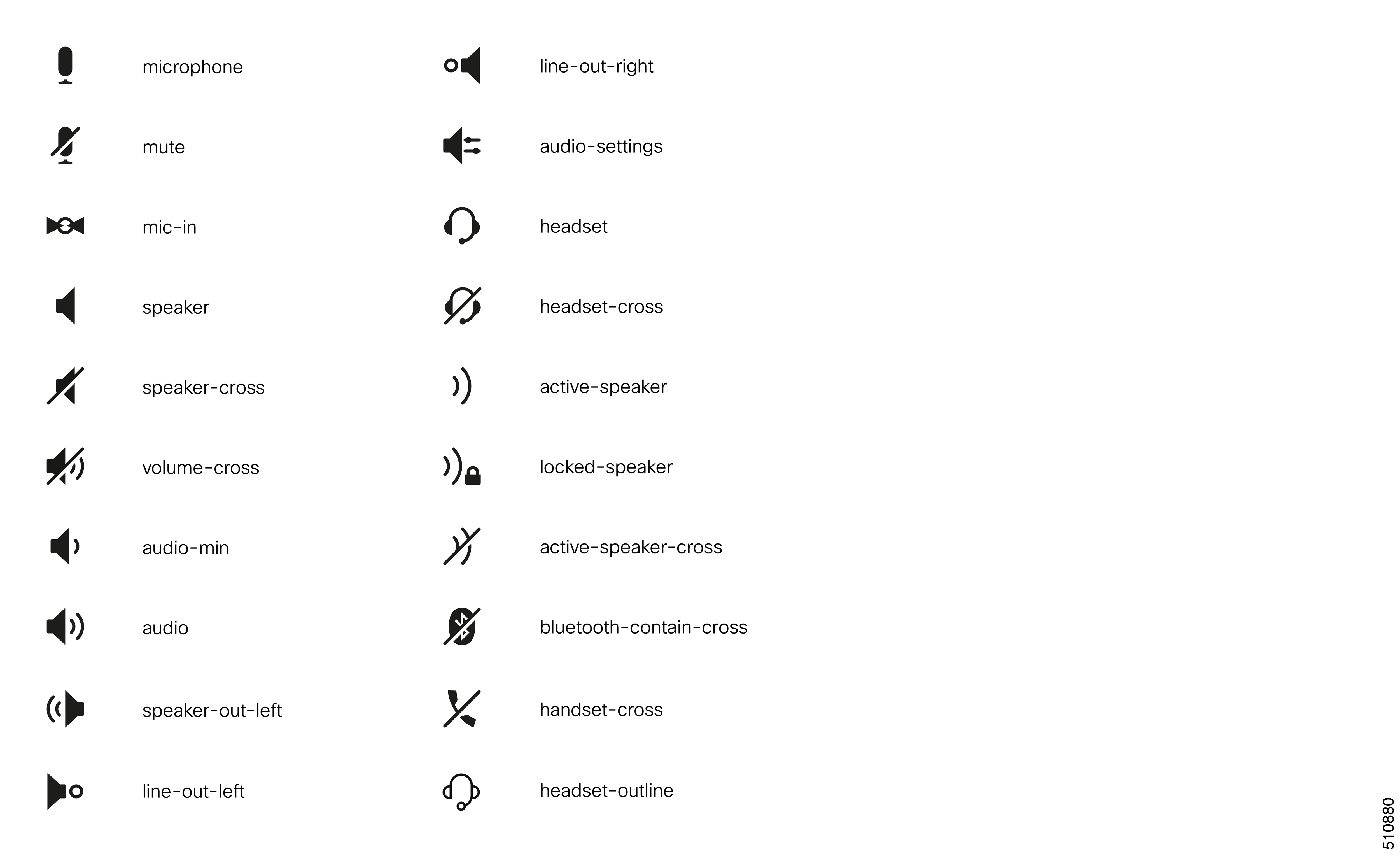
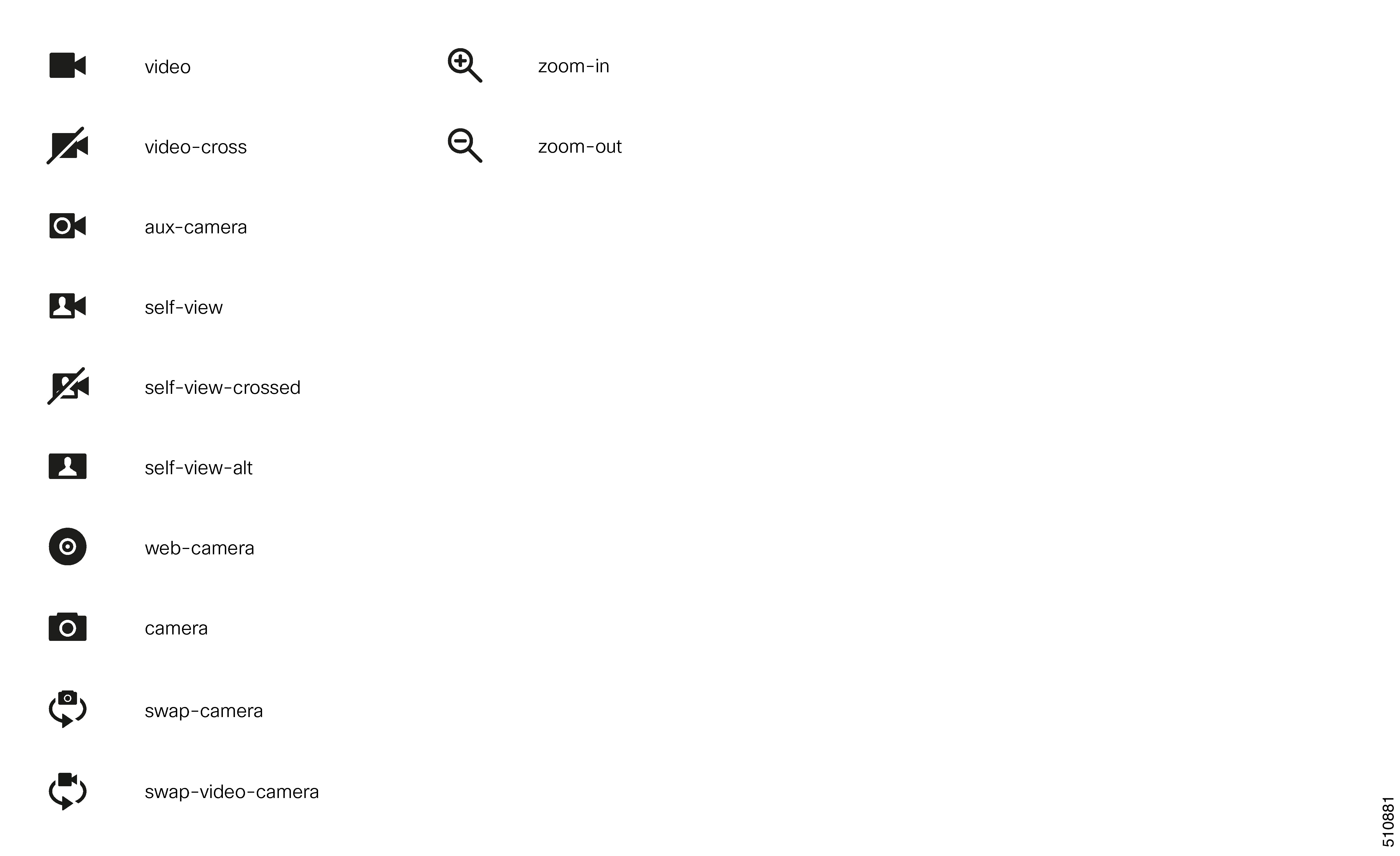
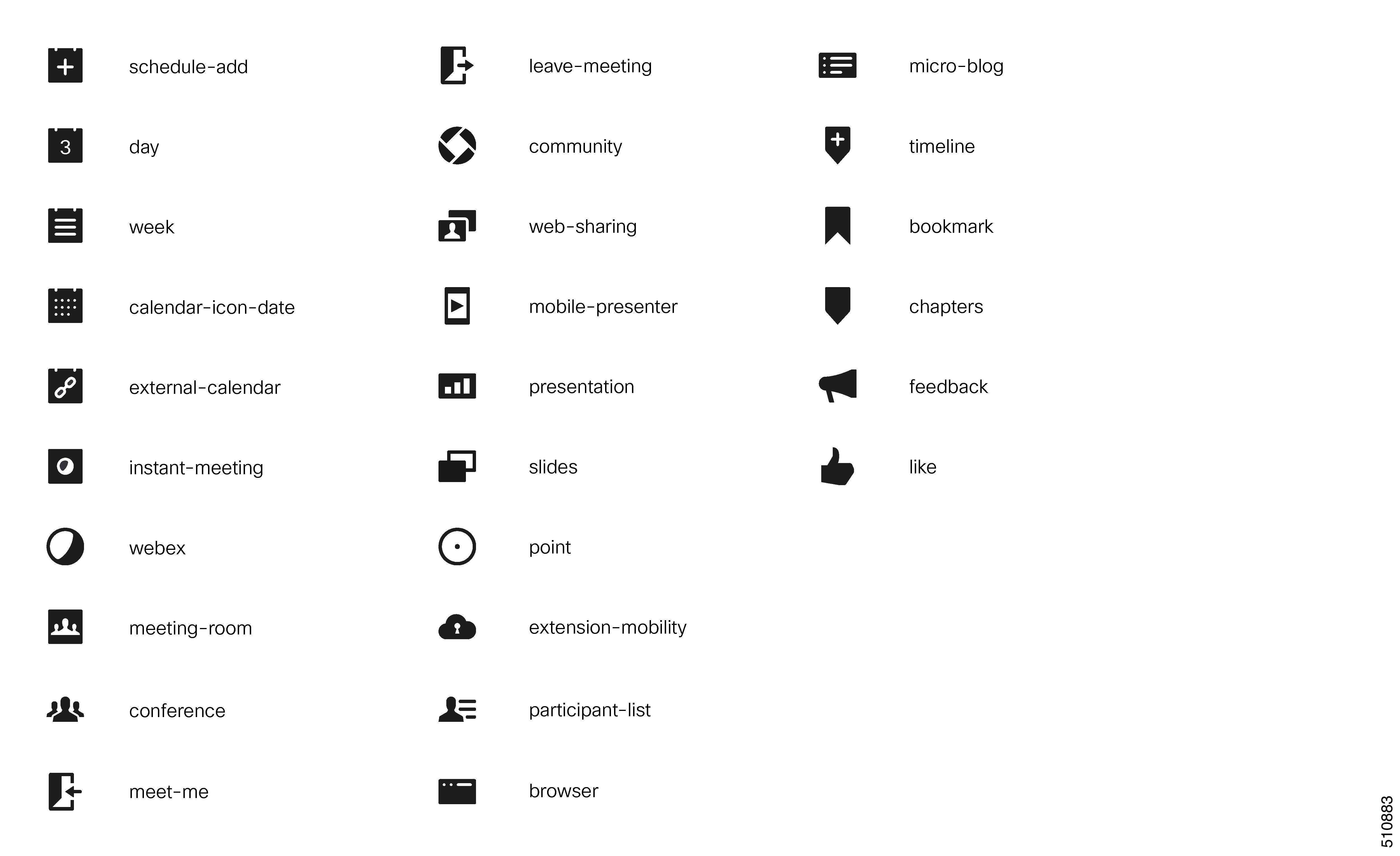
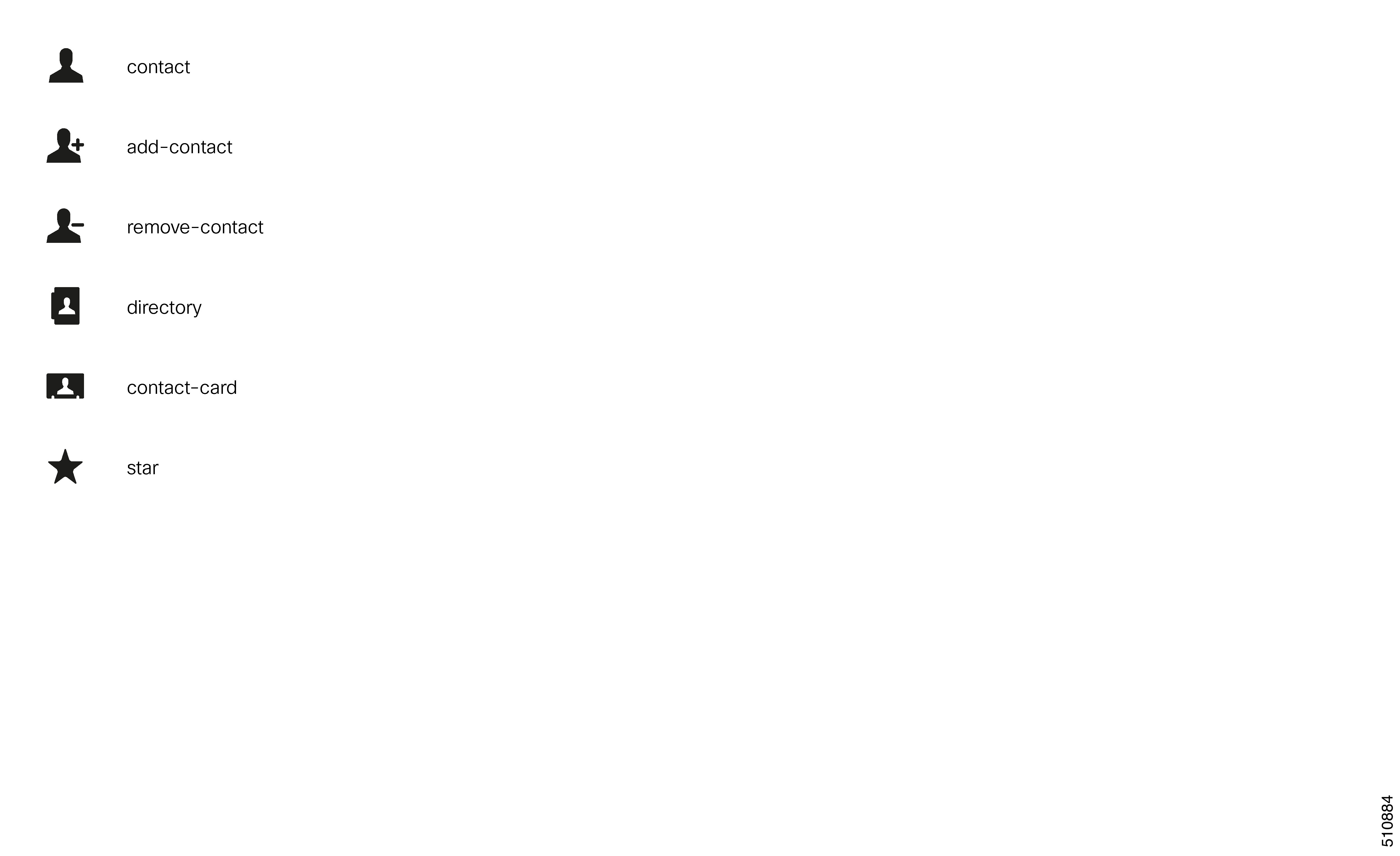
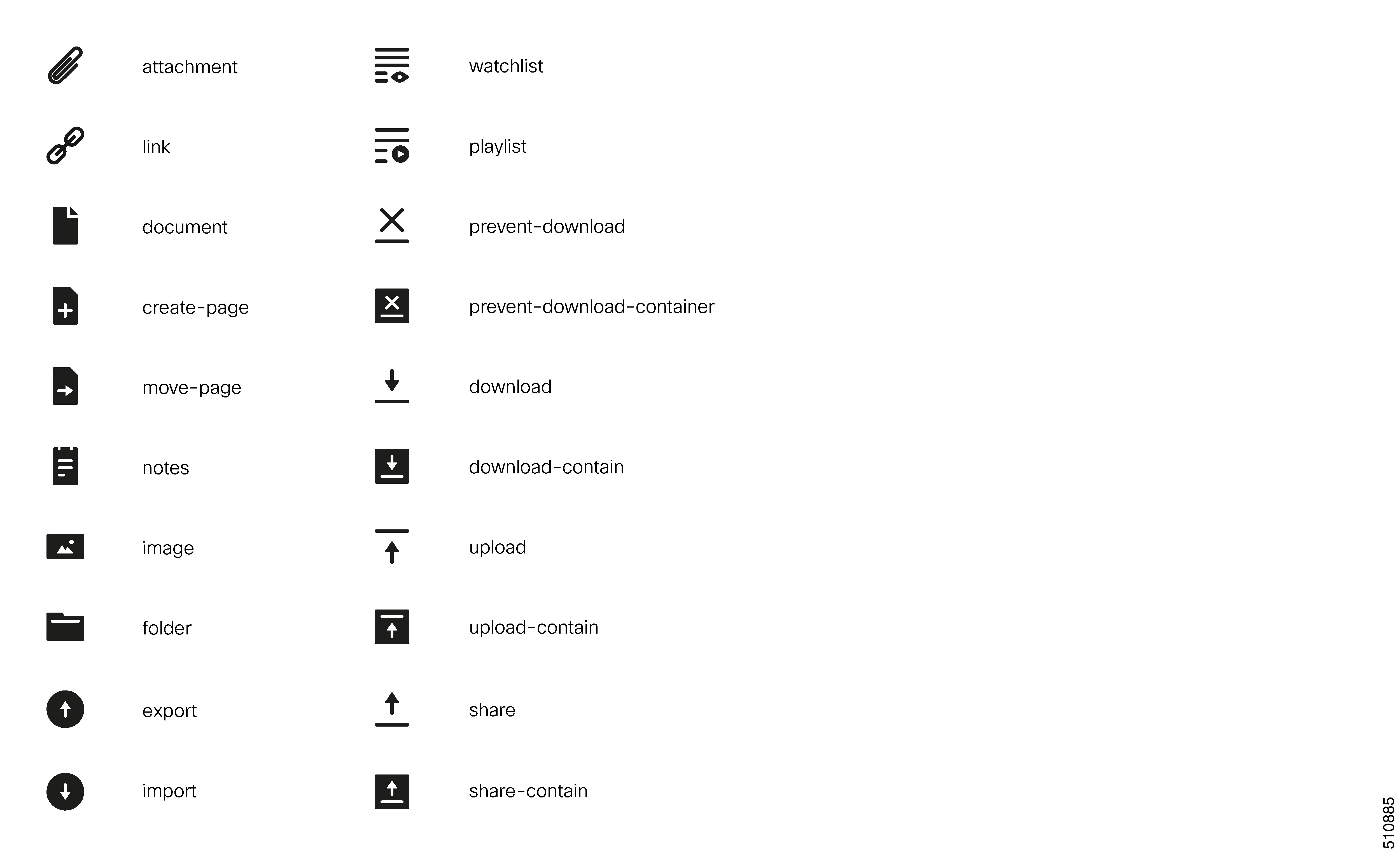
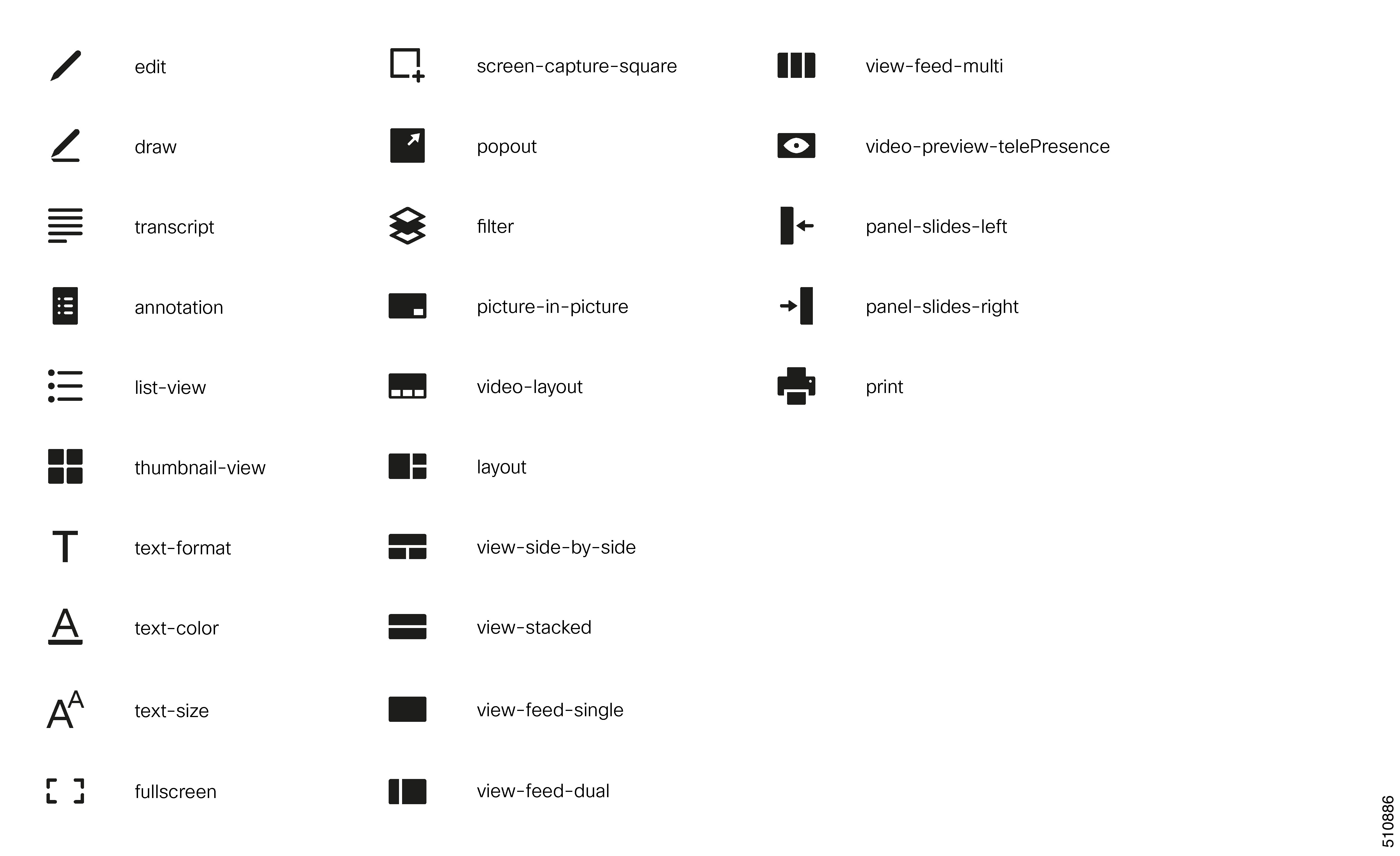
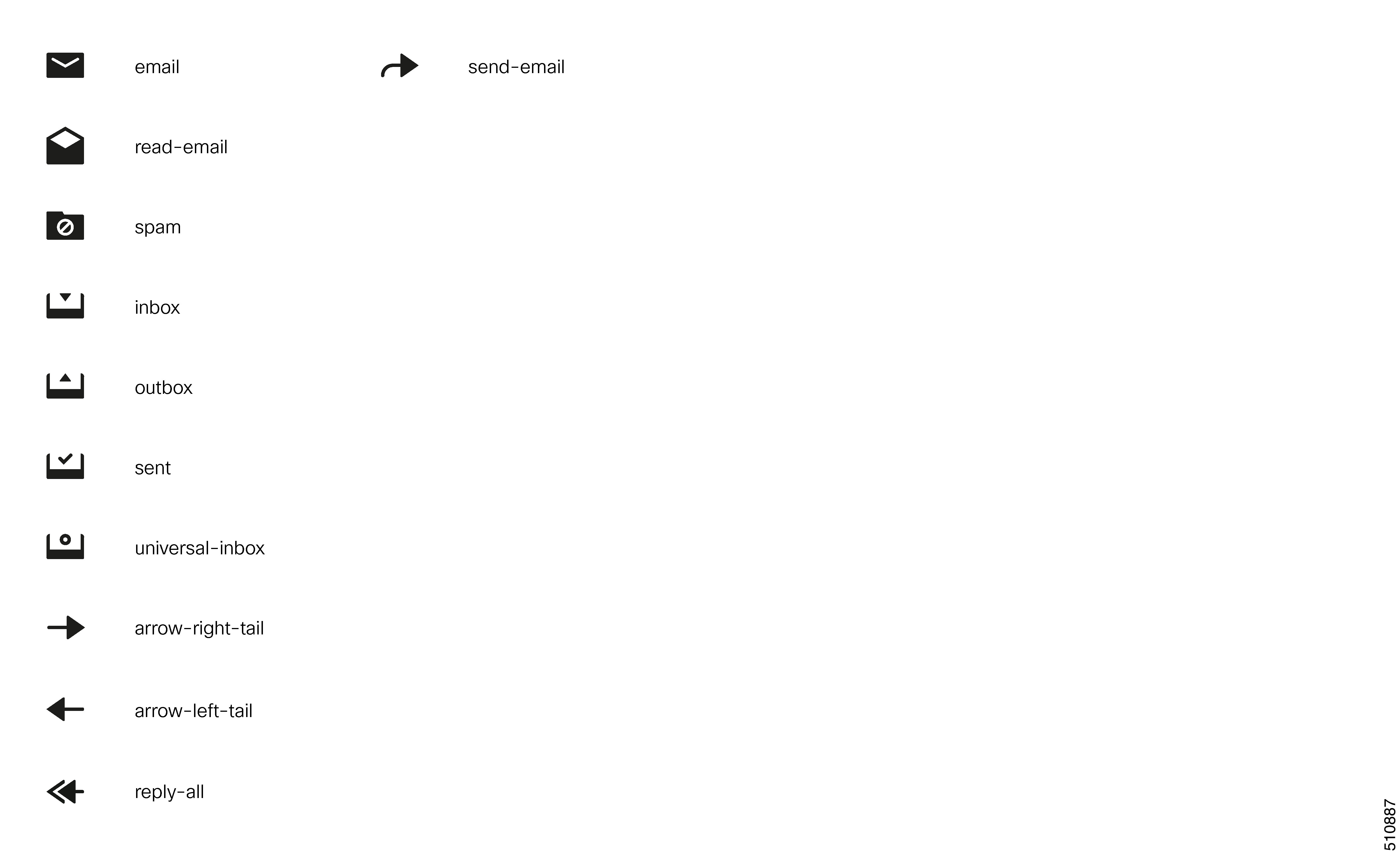
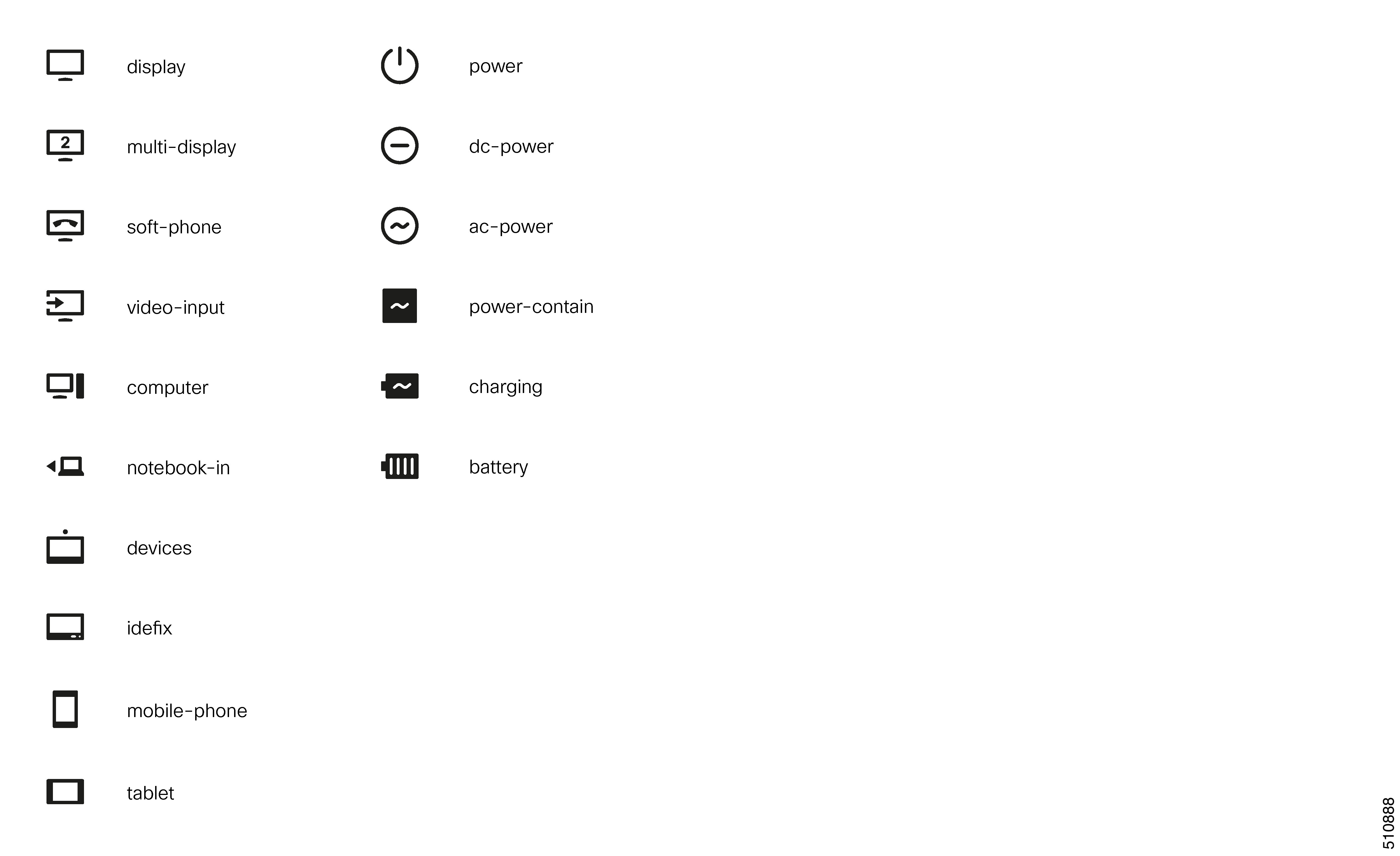
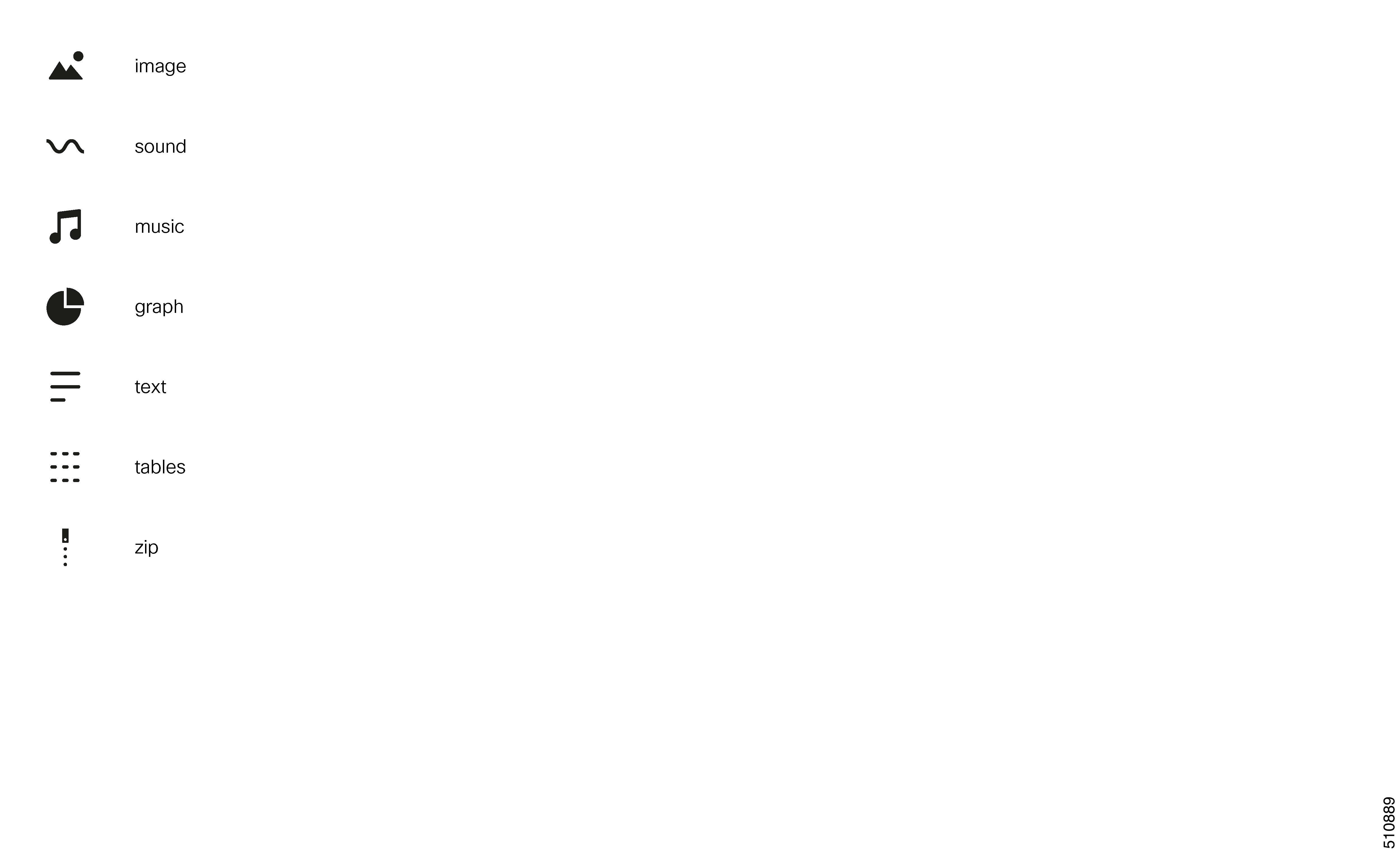
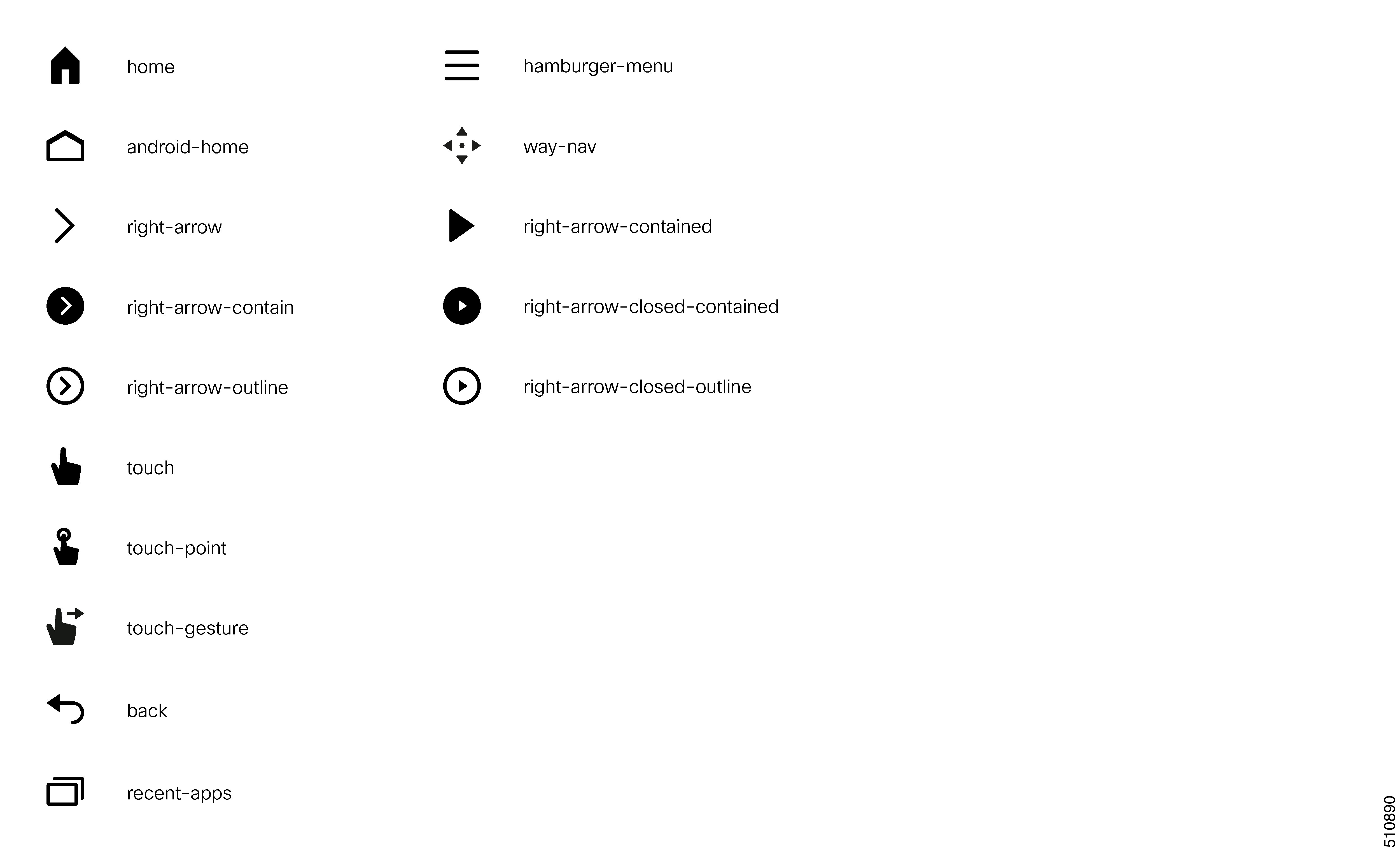
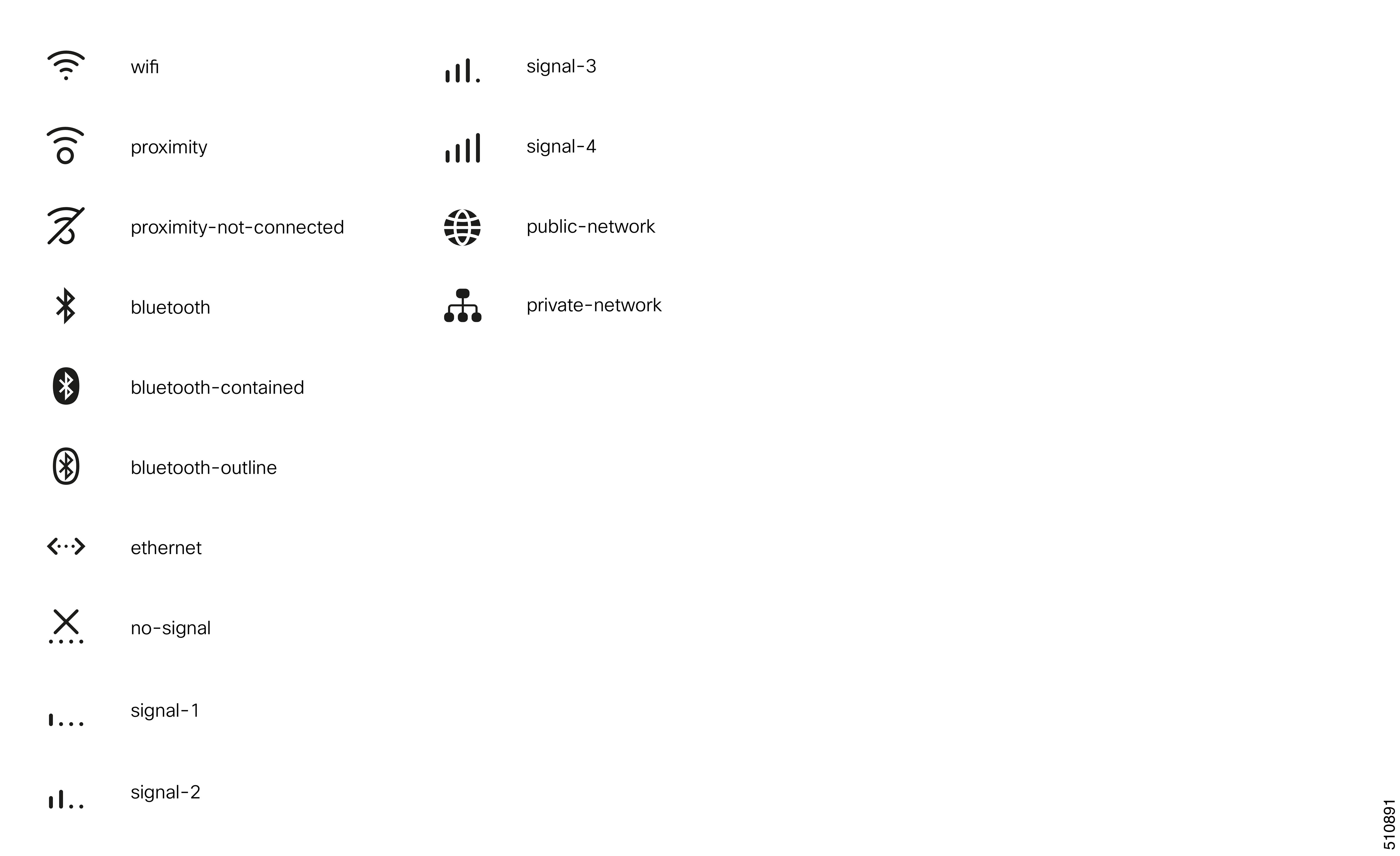
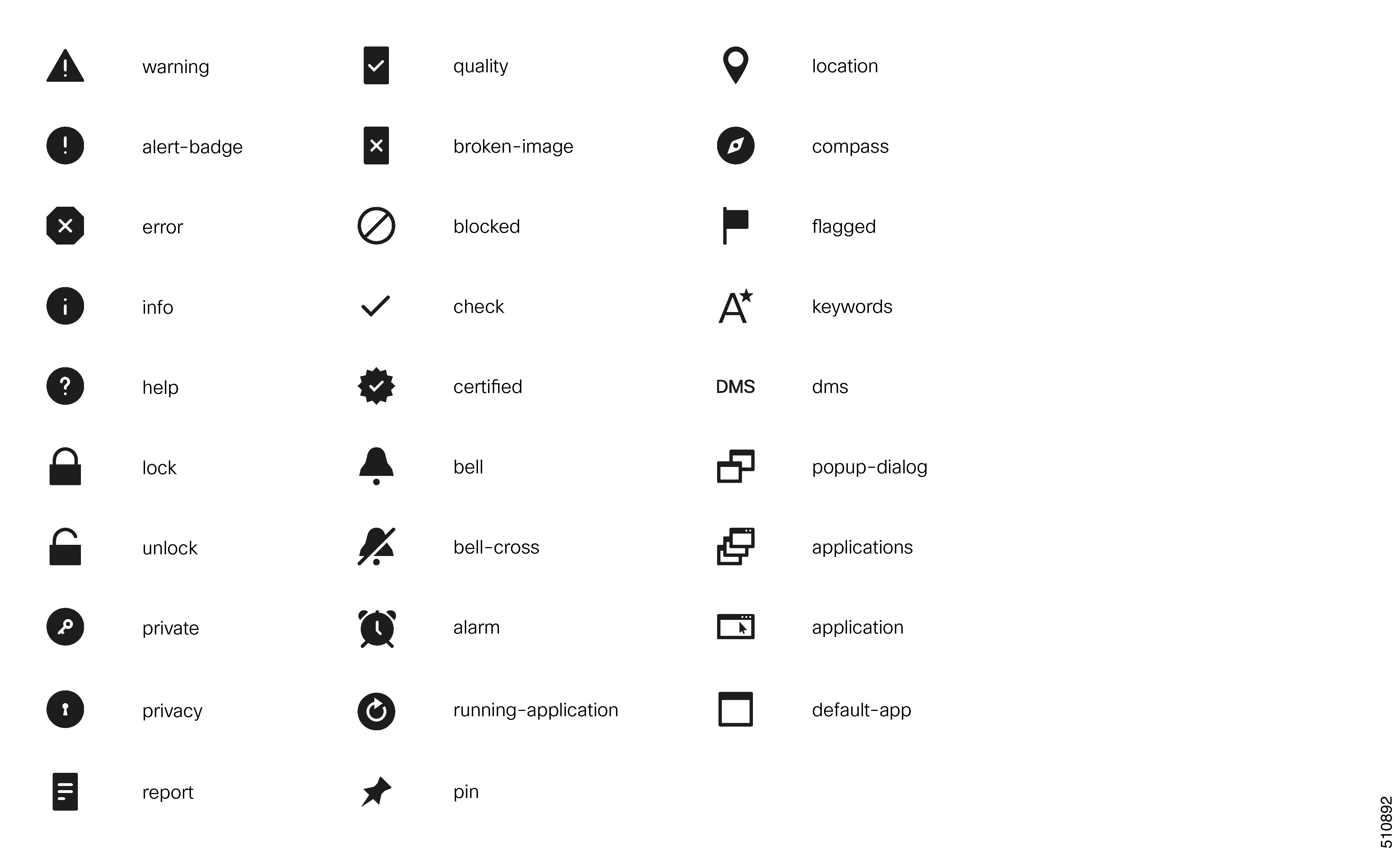
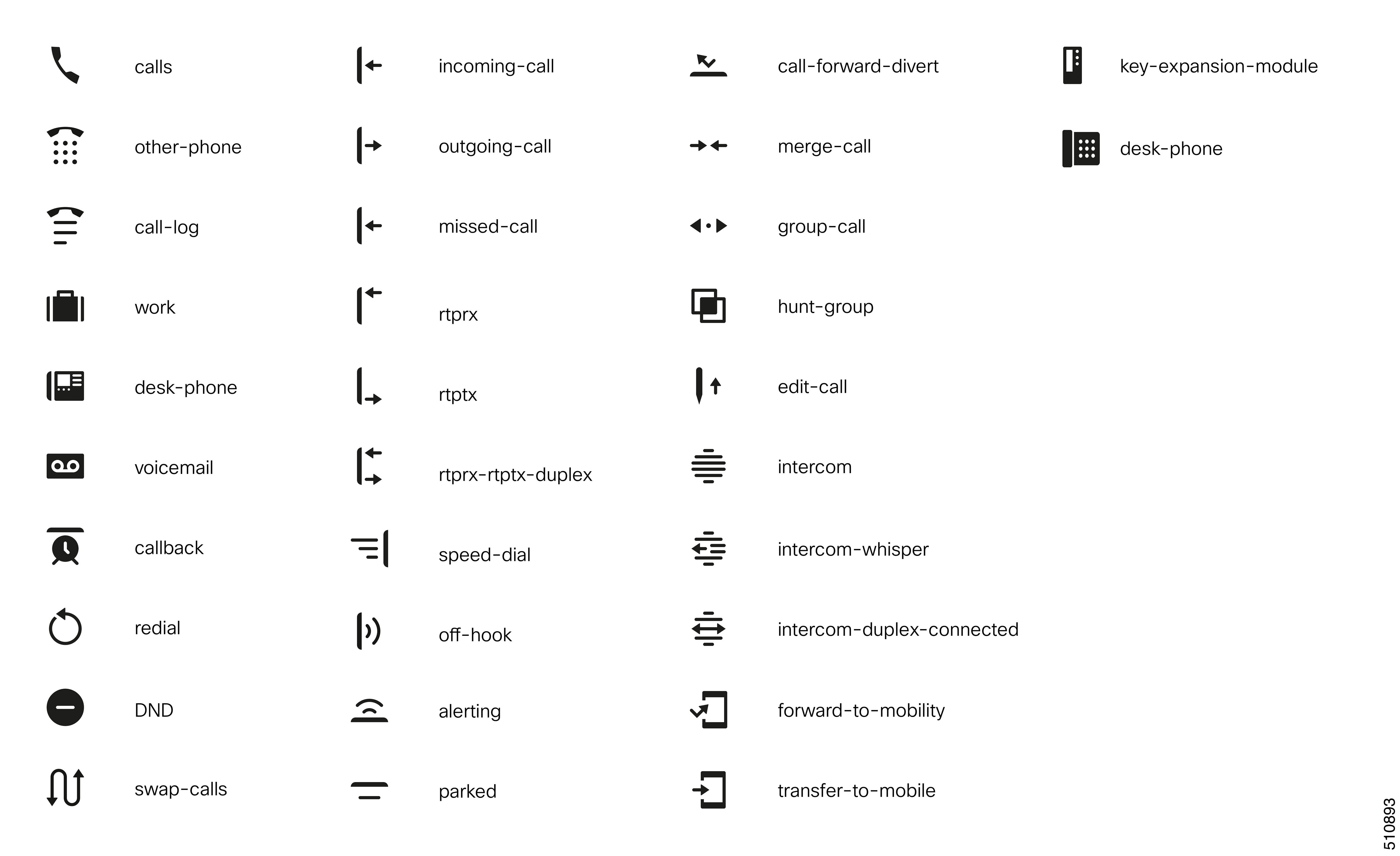
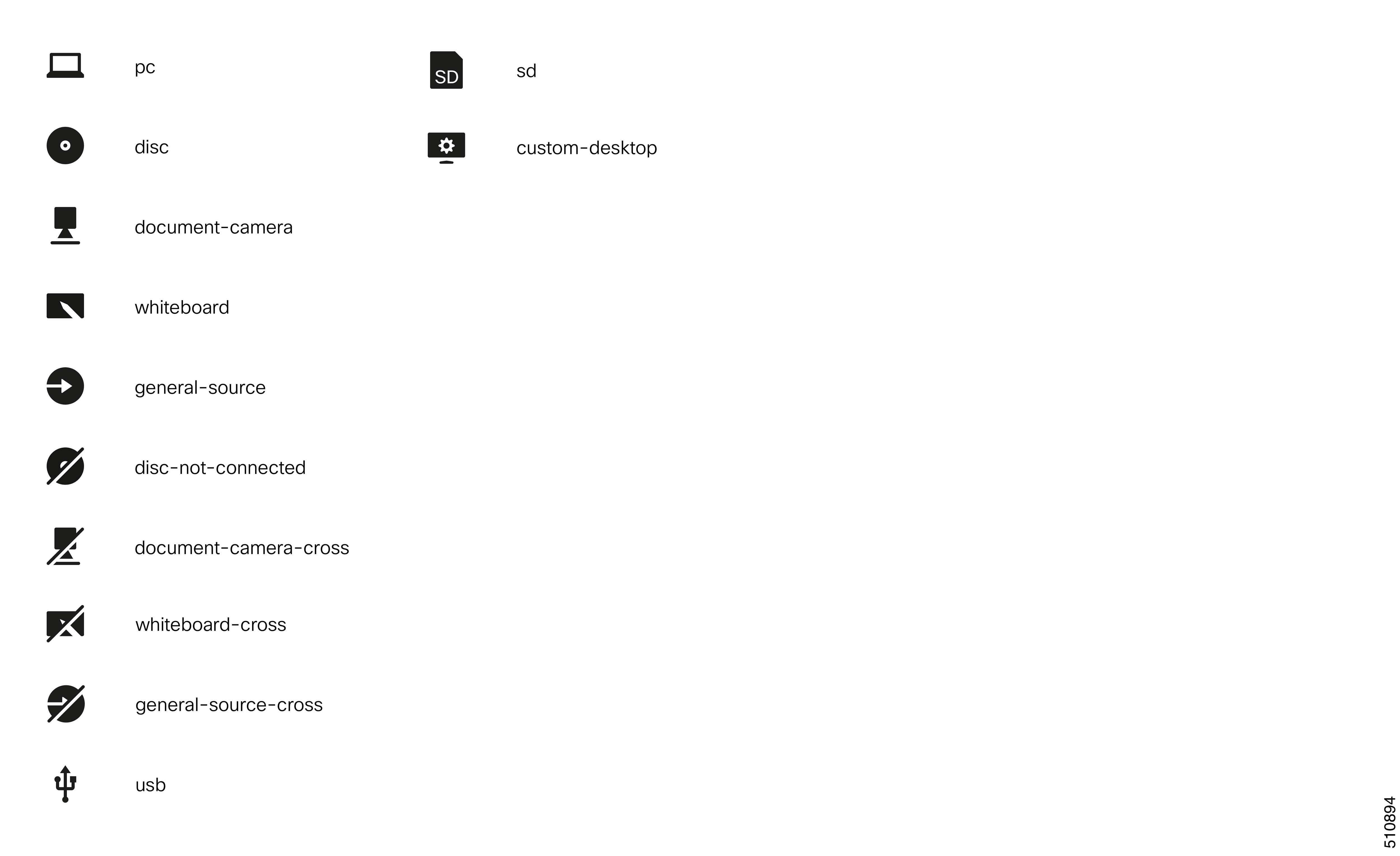
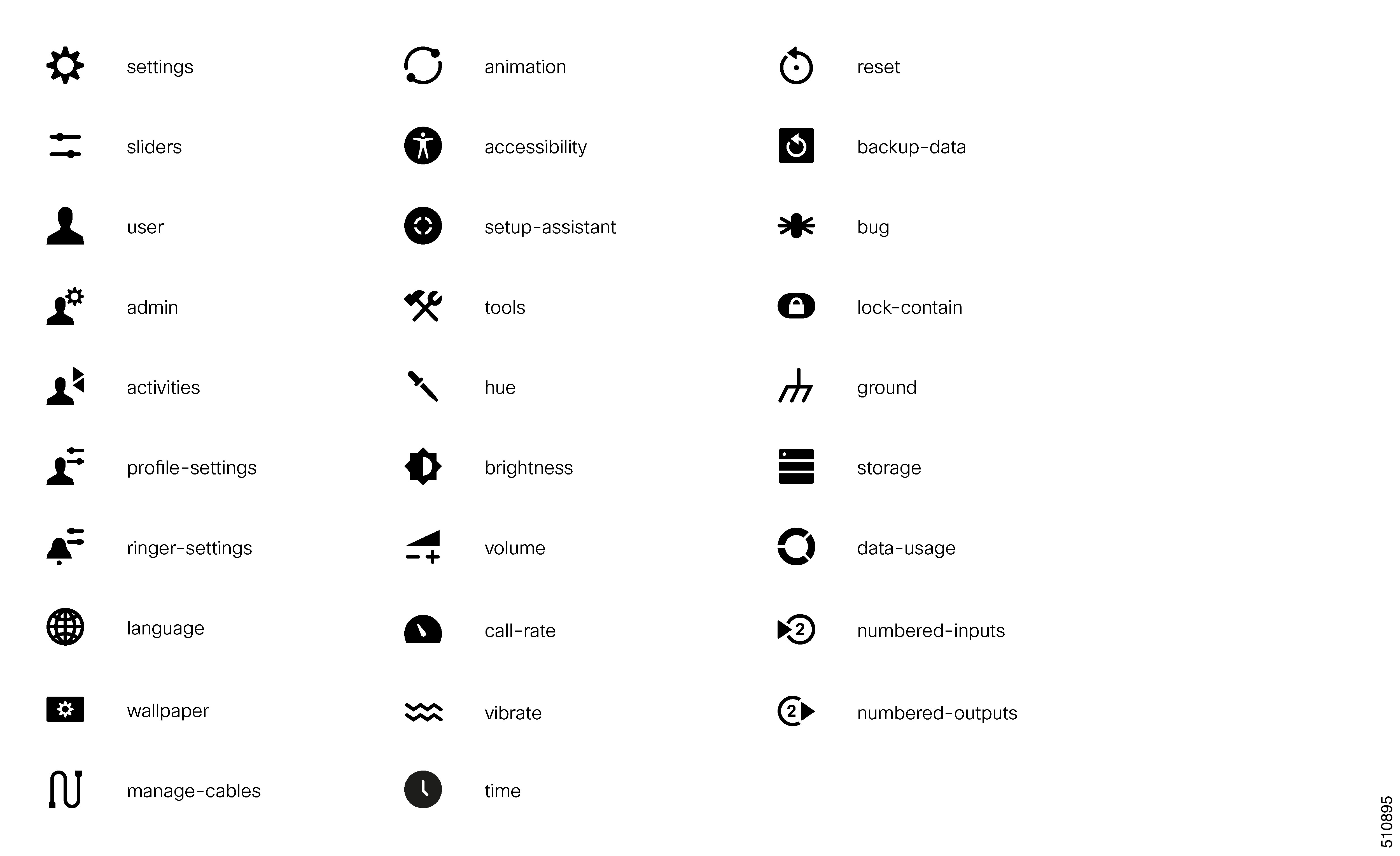
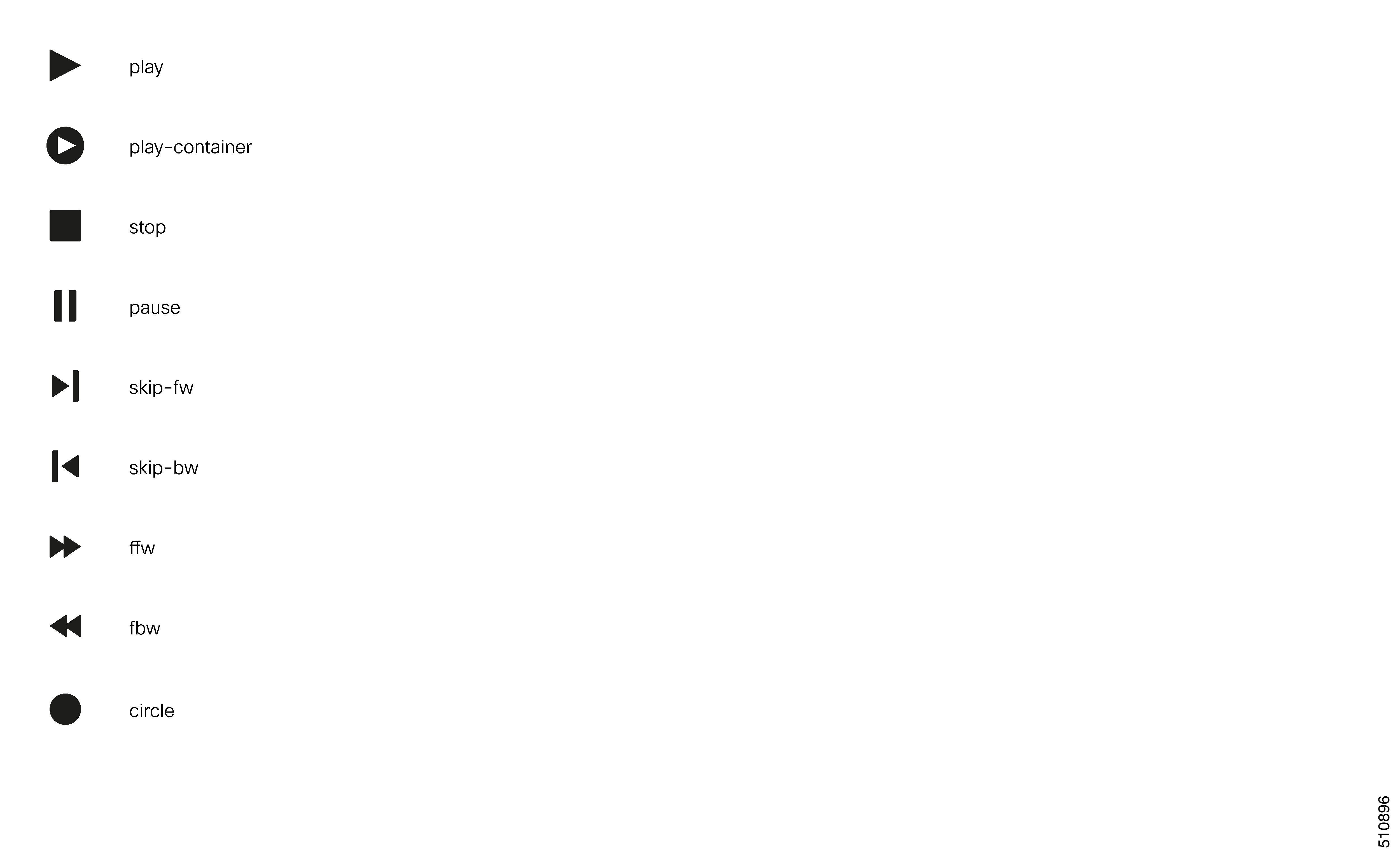
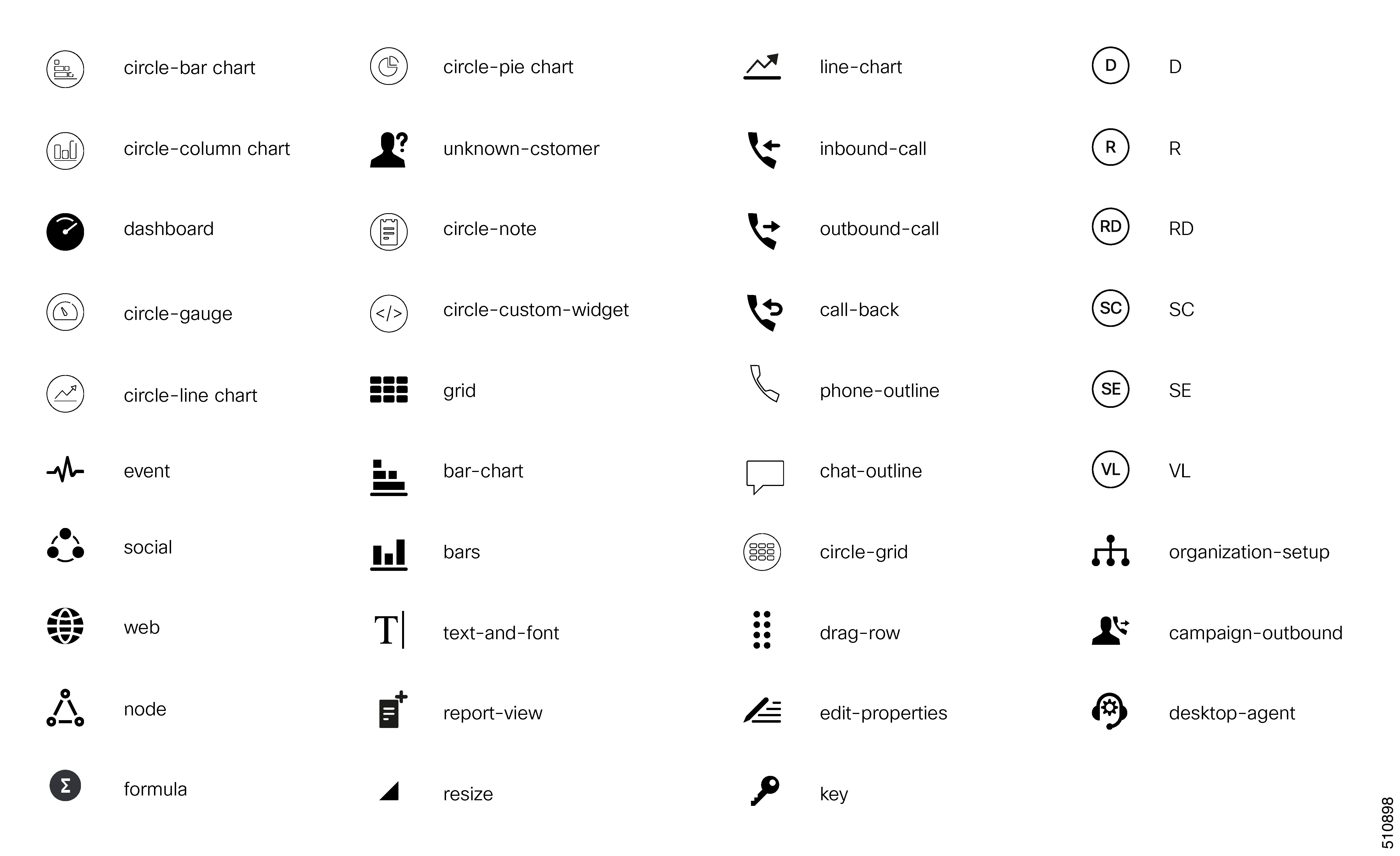
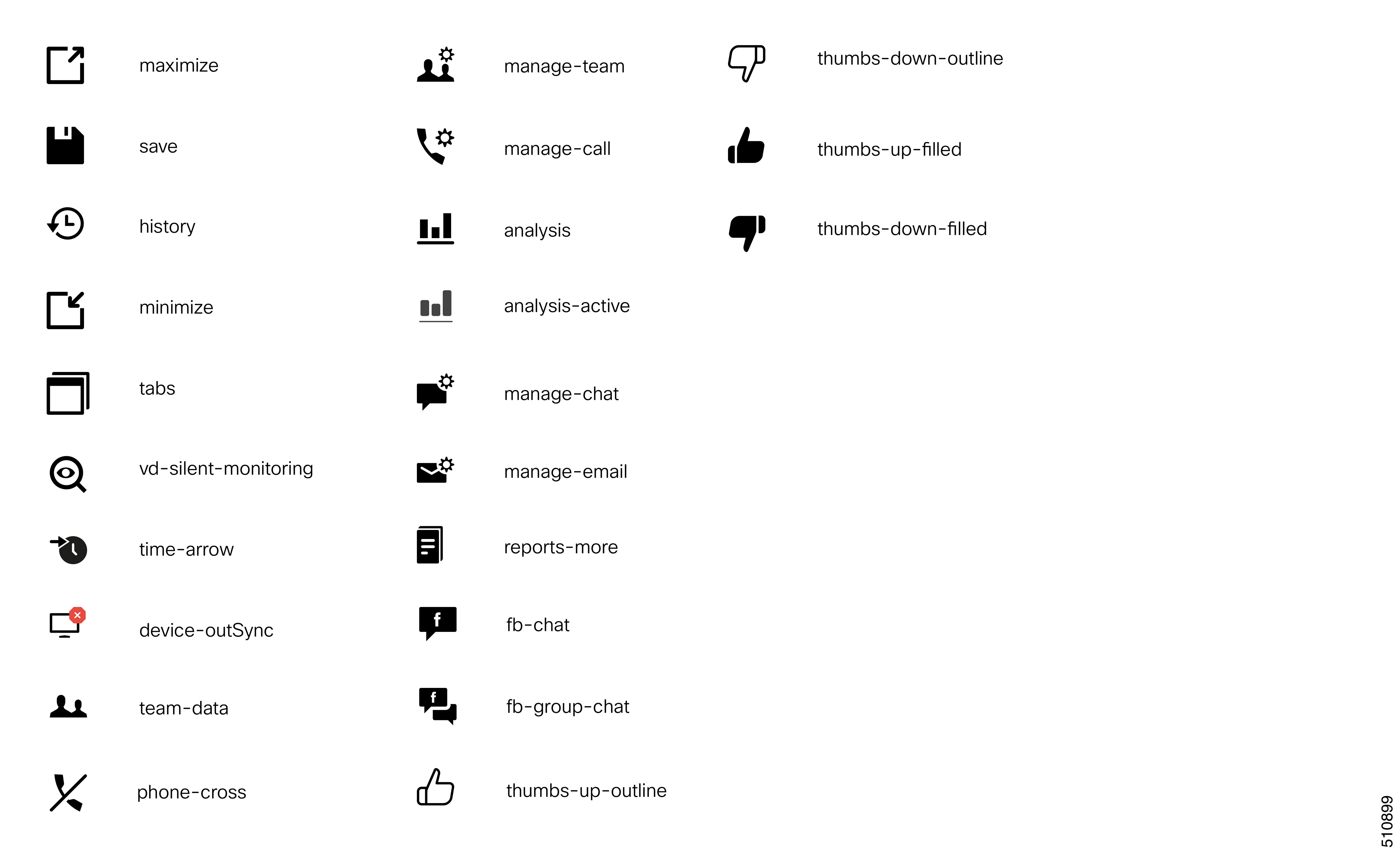
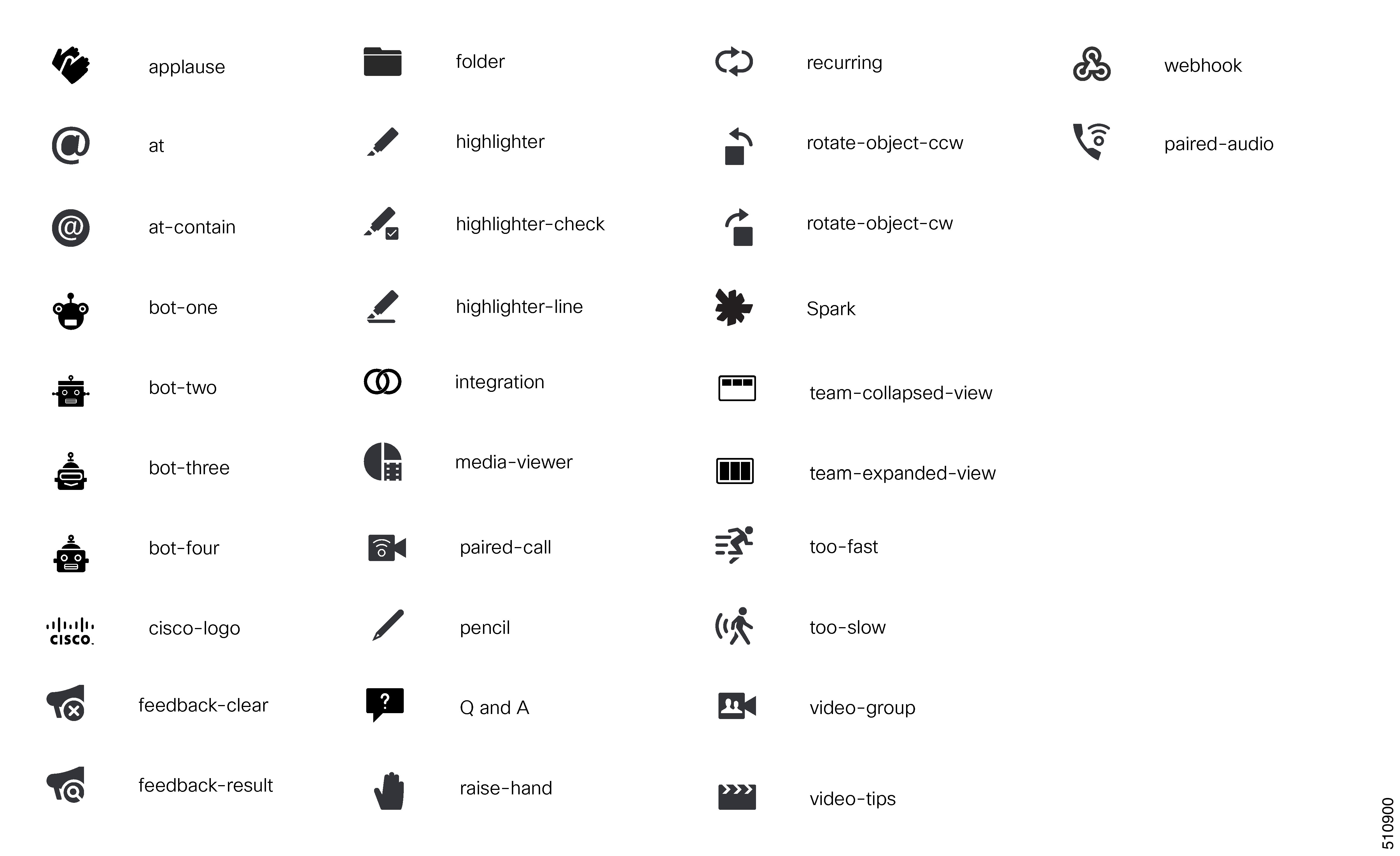
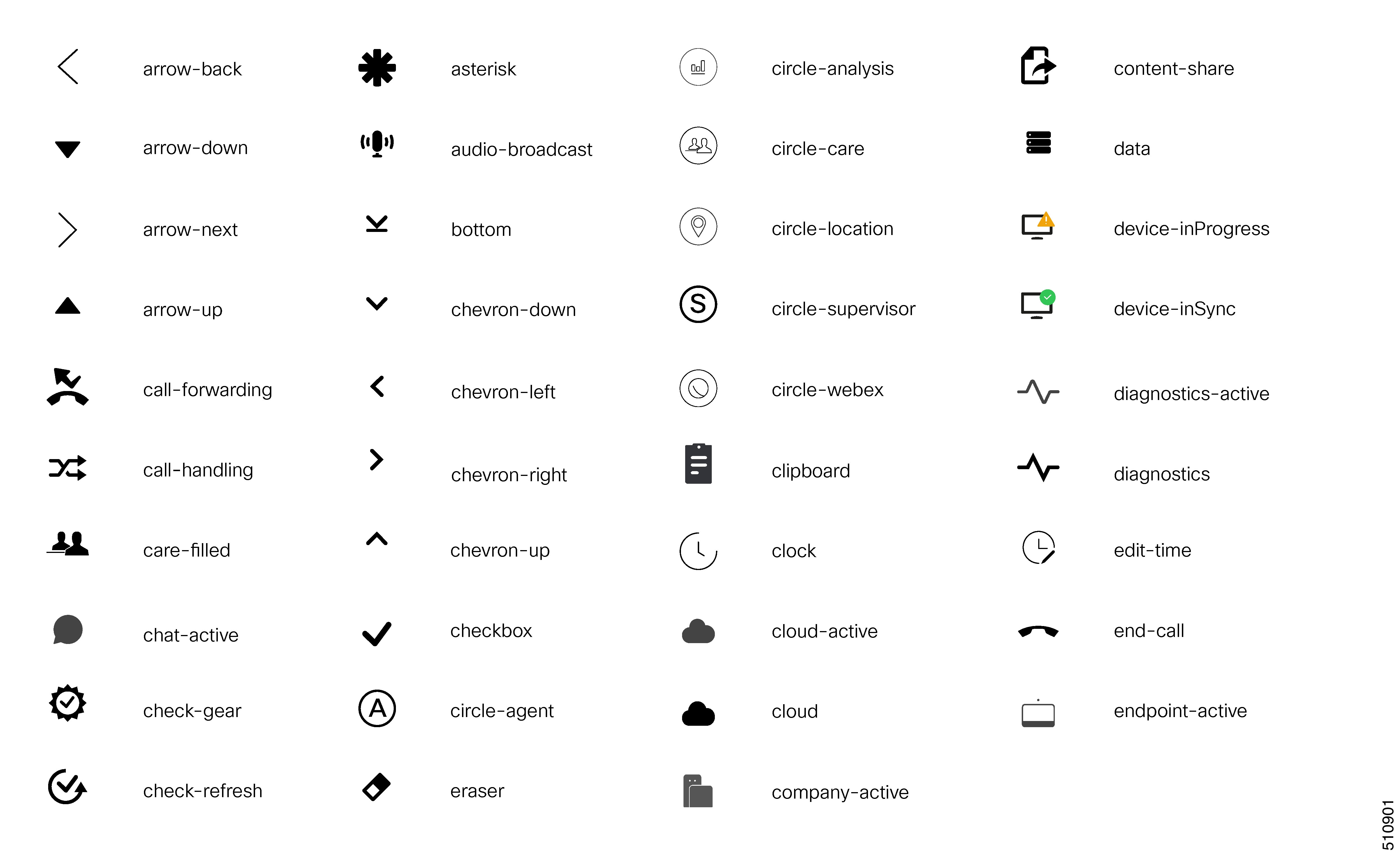
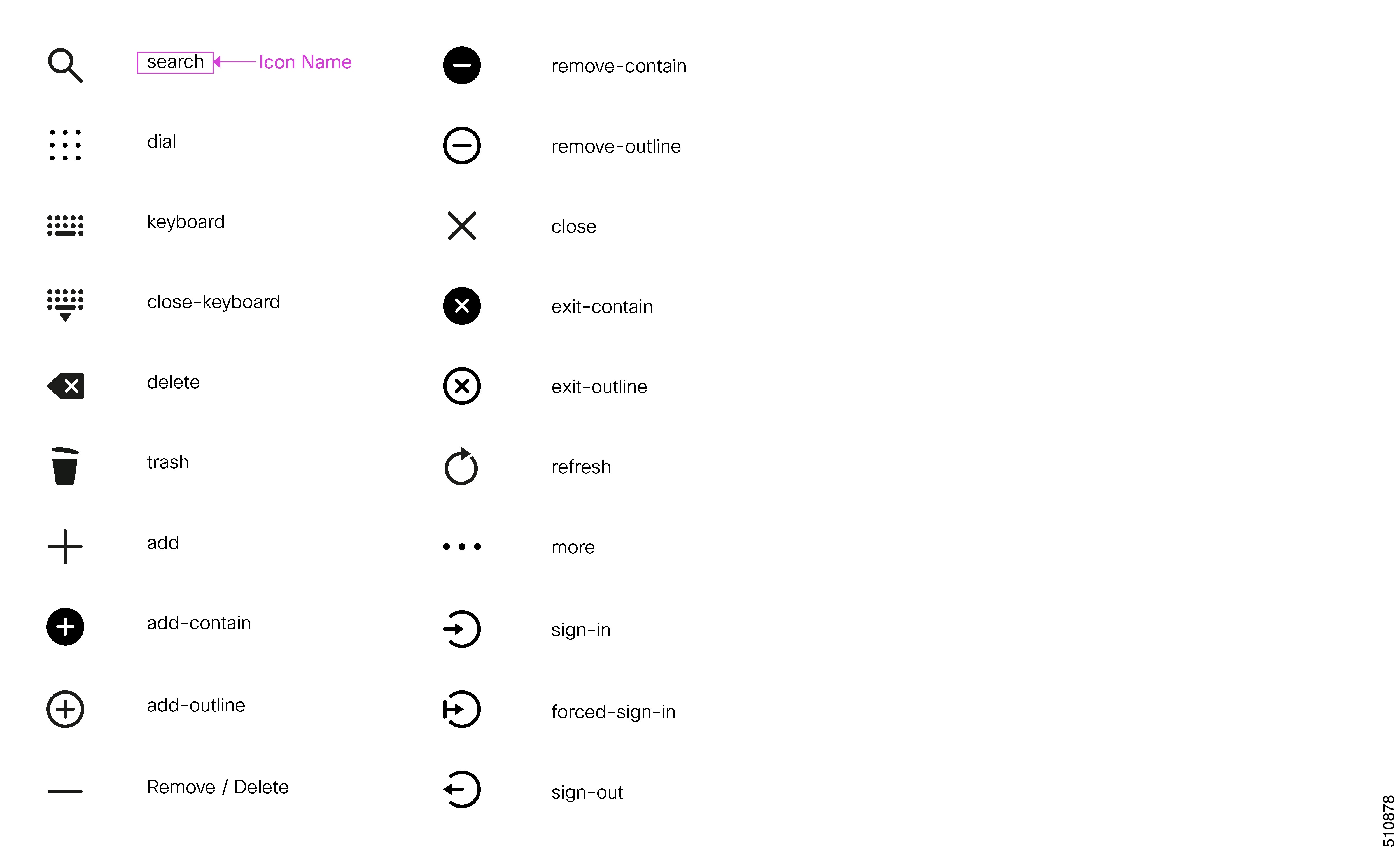
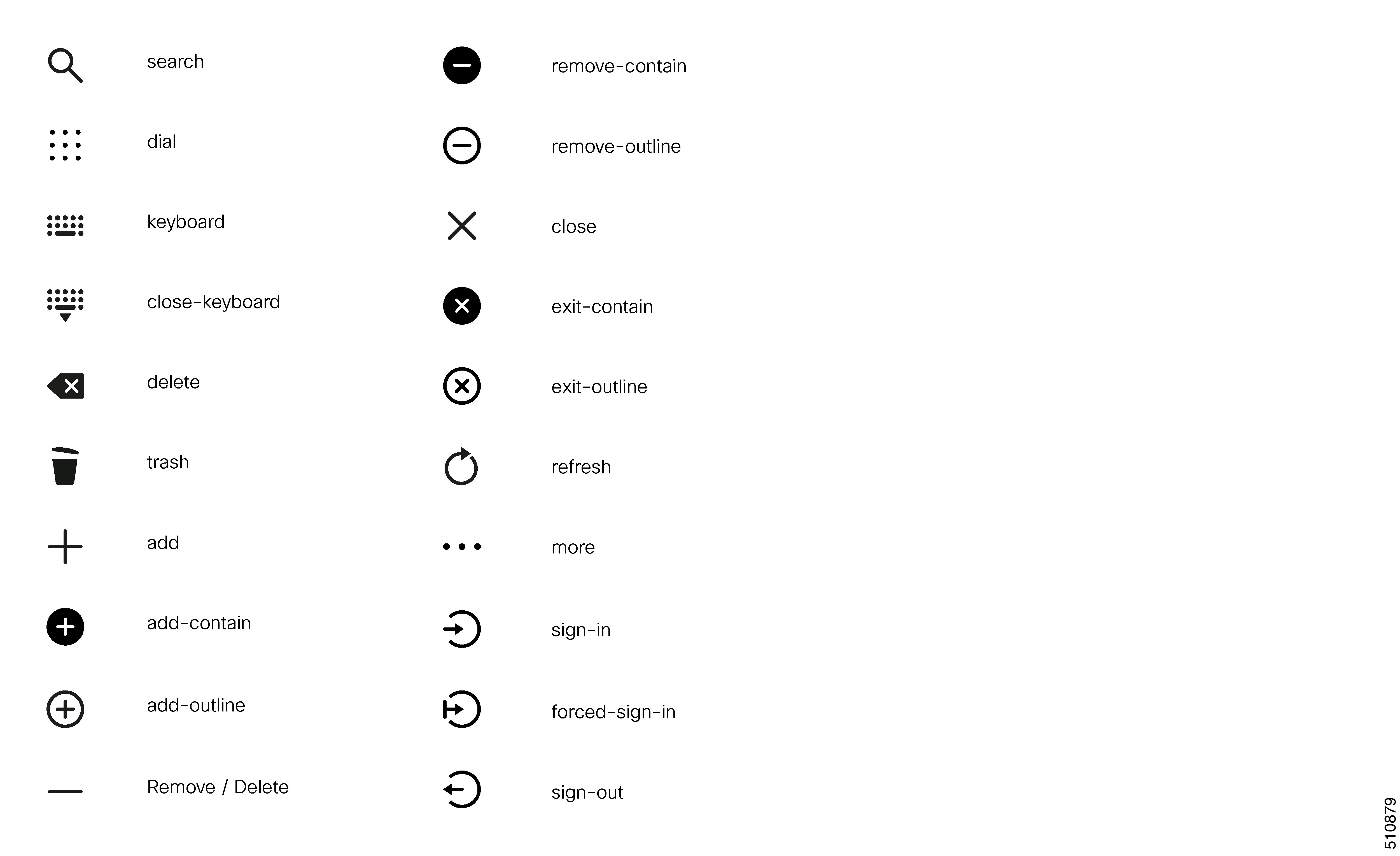
Enter the value of the icon in the icon tag. Get the icon name from the List of Icons. The icon name is located on the right of the icon image. For example, search.

Note


Icon name is case sensitive. Enter the icon name exactly as displayed in the List of Icons.

Example

An example of the desktop layout using the Search and Close-Keyboard icons.

<tab>
    <id>home</id>
    <icon>search</icon>
    <label>finesse.container.tabs.agent.homeLabel</label>
    <columns>
        <column>
            <gadgets>
                <gadget>/desktop/scripts/js/queueStatistics.js</gadget>
            </gadgets>
        </column>
    </columns>
</tab>
<tab>
    <id>sample</id>
    <icon>close-keyboard</icon>
    <label>finesse.container.tabs.agent.homeLabel2</label>
    <columns>
        <column>
            <gadgets>
                <gadget>/desktop/scripts/js/samplequeue.js</gadget>
            </gadgets>
        </column>
    </columns>
</tab>

List of Icons

The following are the icons for Actions.

The following are the icons for Audio.

The following are the icons for Camera.

The following are the icons for Chat.

The following are the icons for Collaboration.

The following are the icons for Contacts.

The following are the icons for Content.

The following are the icons for Editor.

The following are the icons for Email.

The following are the icons for Hardware.

The following are the icons for Media.

The following are the icons for Navigation.

The following are the icons for Network.

The following are the icons for Notifications and Alerts.

The following are the icons for Phone.

The following are the icons for Sources.

The following are the icons for Settings.

The following are the icons for Video Controls.

The following are the icons for Miscellaneous Icons.

For more information on customizing the visual experience, see Visual Design Kit at https://developer.cisco.com/docs/finesse/#!visual-design-guide.

XML Schema Definition

You must ensure that the XML uploaded conforms to the XML schema definition for Finesse. The XML schema definition for Finesse is as follows:

<?xml version="1.0" encoding="UTF-8"?>
<xs:schema xmlns:xs="http://www.w3.org/2001/XMLSchema" xmlns="http://www.cisco.com/vtg/finesse" targetNamespace="http://www.cisco.com/vtg/finesse" elementFormDefault="qualified">
   <!-- definition of version element -->
   <xs:element name="version">
      <xs:simpleType>
         <xs:restriction base="xs:double">
            <xs:pattern value="[0-9\.]+" />
         </xs:restriction>
      </xs:simpleType>
   </xs:element>
   <!--  The below elements are for common desktop header and configs -->
   <!--  Copied from: https://github5.cisco.com/ccbu-shared/common-desktop/blob/master/java/layout-manager/src/main/resources/layoutSchema.xsd -->
   <!--  If the common-desktop XSD changes, this too needs to be updated -->
   <!--  Only difference is that, column has been renamed to headercolumn, since column is alredy there in finesse desktop layout -->
   <xs:complexType name="configs">
      <xs:sequence>
         <xs:element name="config" type="config" minOccurs="0" maxOccurs="unbounded" />
      </xs:sequence>
   </xs:complexType>
   <xs:complexType name="config">
      <xs:attribute name="key">
         <xs:simpleType>
            <xs:restriction base="xs:string">
               <xs:pattern value="[a-zA-Z]*" />
            </xs:restriction>
         </xs:simpleType>
      </xs:attribute>
      <xs:attribute name="value" type="xs:string" />
   </xs:complexType>
   <xs:complexType name="header">
      <xs:choice>
         <xs:sequence>
            <xs:element name="leftAlignedColumns" type="listOfColumns" minOccurs="1" maxOccurs="1" />
            <xs:element name="rightAlignedColumns" type="listOfColumns" minOccurs="0" maxOccurs="1" />
         </xs:sequence>
         <xs:sequence>
            <xs:element name="rightAlignedColumns" type="listOfColumns" minOccurs="1" maxOccurs="1" />
         </xs:sequence>
      </xs:choice>
   </xs:complexType>
   <xs:complexType name="component">
      <xs:sequence>
         <xs:element name="url" type="xs:string" minOccurs="1" maxOccurs="1" />
         <xs:element name="stylesheet" type="xs:string" minOccurs="0" maxOccurs="1" />
      </xs:sequence>
      <xs:attribute name="id" use="required">
         <xs:simpleType>
            <xs:restriction base="xs:string">
               <xs:pattern value=".+" />
            </xs:restriction>
         </xs:simpleType>
      </xs:attribute>
      <xs:attribute name="order">
         <xs:simpleType>
            <xs:restriction base="xs:string">
               <xs:pattern value="[0-9]{0,10}" />
            </xs:restriction>
         </xs:simpleType>
      </xs:attribute>
   </xs:complexType>
   <xs:complexType name="listOfColumns">
      <xs:sequence>
         <xs:element name="headercolumn" type="headercolumn" minOccurs="1" maxOccurs="unbounded" />
      </xs:sequence>
   </xs:complexType>
   <xs:complexType name="headercolumn">
      <xs:choice minOccurs="0" maxOccurs="1">
         <xs:element ref="gadget" />
         <xs:element name="component" type="component" />
      </xs:choice>
      <xs:attribute name="width">
         <xs:simpleType>
            <xs:restriction base="xs:string">
               <xs:pattern value="[0-9]+(px|%)" />
            </xs:restriction>
         </xs:simpleType>
      </xs:attribute>
   </xs:complexType>
   <!--  The above elements are for common desktop header and configs -->
   <!-- definition of role type -->
   <xs:simpleType name="role">
      <xs:restriction base="xs:string">
         <xs:enumeration value="Agent" />
         <xs:enumeration value="Supervisor" />
         <xs:enumeration value="Admin" />
      </xs:restriction>
   </xs:simpleType>
   <!-- definition of simple elements -->
   <xs:element name="id">
      <xs:simpleType>
         <xs:restriction base="xs:string">
            <xs:pattern value="[a-zA-Z]([-_:\.a-zA-Z0-9])*" />
         </xs:restriction>
      </xs:simpleType>
   </xs:element>
   <xs:element name="label">
      <xs:simpleType>
         <xs:restriction base="xs:string">
            <xs:minLength value="1" />
            <xs:pattern value="[^\r\n]+" />
            <!-- This regex restricts the label string from carriage returns or newline characters -->
         </xs:restriction>
      </xs:simpleType>
   </xs:element>
   <xs:element name="icon" type="xs:anyURI" />
   <xs:element name="gadget">
      <xs:complexType>
         <xs:simpleContent>
            <xs:extension base="restrictWhiteSpaces">
               <!-- <xs:attribute name="staticMessage" type="xs:string"/> -->
               <xs:attribute name="id">
                  <xs:simpleType>
                     <xs:restriction base="xs:string">
                        <xs:pattern value="[a-zA-Z]([-_a-zA-Z0-9])*" />
                     </xs:restriction>
                  </xs:simpleType>
               </xs:attribute>
               <xs:attribute name="alternateHosts" type="xs:string" />
               <xs:attribute name="managedBy" type="xs:string" />
               <xs:attribute name="hidden" type="xs:boolean" />
            </xs:extension>
         </xs:simpleContent>
      </xs:complexType>
   </xs:element>
   <xs:element name="role" type="role" />
   <xs:element name="gadgets">
      <!-- Grouping of a set of gadgets -->
      <xs:complexType>
         <xs:sequence minOccurs="0" maxOccurs="unbounded">
            <!-- No limit to number of gadget URIs for now -->
            <xs:element ref="gadget" />
            <!-- URI of the gadget xml -->
         </xs:sequence>
      </xs:complexType>
   </xs:element>
   <xs:simpleType name="restrictWhiteSpaces">
      <xs:restriction base="xs:anyURI">
         <xs:minLength value="1" />
         <xs:pattern value="\S+" />
         <!-- This regex restricts anyURI from containing whitespace within -->
      </xs:restriction>
   </xs:simpleType>
   <xs:element name="column">
      <!-- Grouping of a set of gadgets within a column -->
      <xs:complexType>
         <xs:sequence minOccurs="0" maxOccurs="unbounded">
            <!-- No limit to number of gadget URIs for now -->
            <xs:element ref="gadgets" />
            <!-- URI of the gadget xml -->
         </xs:sequence>
      </xs:complexType>
   </xs:element>
   <xs:element name="columns">
      <!-- Grouping of a set of columns -->
      <xs:complexType>
         <xs:sequence>
            <xs:element ref="column" minOccurs="0" maxOccurs="unbounded" />
         </xs:sequence>
      </xs:complexType>
   </xs:element>
   <xs:element name="page">
      <!-- Grouping of a set of persistent gadgets -->
      <xs:complexType>
         <xs:sequence minOccurs="0" maxOccurs="unbounded">
            <!-- No limit to number of gadget URIs for now -->
            <xs:element ref="gadget" />
            <!-- URI of the gadget xml -->
         </xs:sequence>
      </xs:complexType>
   </xs:element>
   <xs:element name="tab">
      <xs:complexType>
         <xs:sequence>
            <xs:element ref="id" />
            <!-- Id of the tab selector in the desktop -->
            <xs:element ref="icon" minOccurs="0" maxOccurs="1" />
            <xs:element ref="label" />
            <!-- Label of the tab selector -->
            <xs:choice>
               <xs:element ref="gadgets" minOccurs="0" maxOccurs="1" />
               <xs:element ref="columns" minOccurs="0" maxOccurs="1" />
            </xs:choice>
         </xs:sequence>
      </xs:complexType>
   </xs:element>
   <xs:element name="tabs">
      <!-- Grouping of tabs -->
      <xs:complexType>
         <xs:sequence maxOccurs="unbounded">
            <!-- No limit to number of tabs for now -->
            <xs:element ref="tab" />
         </xs:sequence>
      </xs:complexType>
   </xs:element>
   <xs:element name="layout">
      <xs:complexType>
         <xs:sequence>
            <xs:element ref="role" />
            <!-- Type of the role -->
            <xs:element ref="page" />
            <!-- List of page gadgets -->
            <xs:element ref="tabs" />
            <!-- Grouping of tabs for this particular role -->
         </xs:sequence>
      </xs:complexType>
   </xs:element>
   <xs:element name="finesseLayout">
      <!-- Layout of the desktop -->
      <xs:complexType>
         <xs:sequence>
            <xs:element ref="version" />
            <xs:element name="configs" type="configs" minOccurs="0" maxOccurs="1" />
            <xs:element name="header" type="header" minOccurs="1" maxOccurs="1" />
            <xs:sequence maxOccurs="3">
               <!-- only support 3 roles for now -->
               <xs:element ref="layout" />
            </xs:sequence>
         </xs:sequence>
      </xs:complexType>
   </xs:element>
</xs:schema>

Live Data Reports

Prerequisites for Live Data

Before you add Live Data reports to the desktop, you must meet the following prerequisites:

  • Download the Live Data reports from Cisco.com and import them into Cisco Unified Intelligence Center. Verify that the reports are working in Unified Intelligence Center.

  • You must use either HTTP or HTTPS for both Cisco Unified Intelligence Center and Finesse. You cannot use HTTP for one and HTTPS for the other. The default setting for both after a fresh installation is HTTPS. If you want to use HTTP, you must enable it on both Cisco Unified Intelligence Center and Finesse.

    For more information, see Administration Console User Guide for Cisco Unified Intelligence Center at https://www.cisco.com/c/en/us/support/customer-collaboration/unified-intelligence-center/products-maintenance-guides-list.html.

  • Ensure that user integration synchronization is enabled for Cisco Unified Intelligence Center.

    For more information, see Administration Console User Guide for Cisco Unified Intelligence Center at https://www.cisco.com/c/en/us/support/customer-collaboration/unified-intelligence-center/products-maintenance-guides-list.html.

  • For HTTPS, you must upload security certificates to the Finesse, Cisco Unified Intelligence Center and Live Data servers. Finesse, Cisco Unified Intelligence Center, and Live Data are installed with self-signed certificates. However, if you use the self-signed certificates, agents and supervisors must accept certificates in the Finesse desktop when they sign in before they can use the Live Data gadget. To avoid this requirement, you can provide a CA certificate instead. You can obtain a CA certificate from a third-party certificate vendor or produce one internal to your organization.

Add Live Data Reports to Finesse

To add Live Data reports to the Finesse desktop. The procedure that you follow depends on several factors, described in the following table.

Procedure

When to use

Add Live Data reports to default desktop layout

After a fresh installation or after an upgrade if you have not customized the default desktop layout.

Add Live Data reports to custom desktop layout

If you have customized the Finesse desktop layout.

Add Live Data reports to team layout

To the desktop layout for specific teams only.


Note


The line breaks and spaces that appear in the example text of the procedures are provided only for readability and must not be included in the actual code.


Note


After you add a gadget, sign in to the Finesse desktop and make sure it appears the way you want. If you use a report with a large number of rows, you may want to adjust the gadget height or the screen resolution on the computer used to access the desktop to make the report easier to read or make more rows appear on the screen without needing to scroll down.

Agents who are signed in when you change the desktop layout must sign out and sign back in to see the change on their desktops.


Add Live Data Reports to Default Desktop Layout

The Finesse default layout XML contains commented XML code for the Live Data report gadgets available for the Finesse desktop. The gadgets are divided into two categories: HTTPS version of Live Data gadgets and HTTP version of Live Data gadgets.

This procedure explains how to add the Live Data report gadgets to the default desktop layout. Use this procedure after a fresh installation of Finesse. If you upgraded Finesse and do not have a custom desktop layout, click Restore Default Layout on the Manage Desktop Layout gadget and then follow the steps in this procedure.

Procedure

Step 1

Click Desktop Layout.

Step 2

Remove the comment characters (<!-- and -->) from each report that you want to add to the desktop layout. Make sure that you choose the reports that match the method that your agents use to access the Finesse desktop (HTTP or HTTPS).

Step 3

Replace "my-cuic-server" with the FQDN of your Cisco Unified Intelligence Center Server.

Step 4

Optionally, change the gadget height.

Example:

The height that is specified in the Live Data gadget URLs is 310 pixels. If you want to change the height, change the gadgetHeight parameter in the URL to the desired value. For example, if you want the gadget height to be 400 pixels, change the code as follows, replacing 310 with 400:

<gadget>https://my-cuic-server:8444/cuic/gadget/LiveData/LiveDataGadget.jsp?
        gadgetHeight=400&viewId_1=99E6C8E210000141000000D80A0006C4&
        filterId_1=agent.id=CL%20teamName&viewId_2=9AB7848B10000141000001C50A0006C4&
        filterId_2=agent.id=CL%20teamName
        </gadget>

To maintain the optimal display of the gadget with scroll bars, set the value for the gadget height to a minimum of 200 pixels. If the report does not require scroll bars, for example a one-row report, you can set a smaller gadget height (for example, 100 pixels). If you do not specify anything for the gadget height (if you remove the 310 from the URL), it defaults to 170 pixels.

Step 5

Click Save.

Note

 
In a dynamic type gadget, multiple viewId parameters is not supported. Check the URL in the error message before proceeding to save the default XML layout. The name value "type=dynamic must be part of the gadget URL.

Note


If you select a TDM agent in the Team Performance Gadget, the recent state history data of the selected agent is not populated.


Add Live Data Reports to Custom Desktop Layout

The Finesse default layout XML contains commented XML code for the Live Data report gadgets available for the Finesse desktop. The gadgets are divided into two categories: HTTPS version of Live Data gadgets and HTTP version of Live Data gadgets.

To add the Live Data report gadgets to a custom desktop layout.

Procedure

Step 1

Click the Desktop Layout tab.

Step 2

Click Finesse Default Layout XML to show the default layout XML.

Step 3

Copy the XML code for the report you want to add from the Finesse default layout XML. If your agents use HTTP to access Finesse, copy the XML code for the HTTP report. If they use HTTPS, copy the XML code for the HTTPS report.

Example:

To add the Agent Report for HTTPS, copy the following:

<gadget>https://my-cuic-server:8444/cuic/gadget/LiveData/LiveDataGadget.jsp?
        gadgetHeight=310&viewId_1=99E6C8E210000141000000D80A0006C4&
        filterId_1=agent.id=CL%20teamName&
        viewId_2=9AB7848B10000141000001C50A0006C4&
        filterId_2=agent.id=CL%20teamName
</gadget>

Step 4

Paste the XML within the tab tags where you want it to appear.

Example:

To add the report to the home tab of the agent desktop:

<layout>
  <role>Agent</role>
  <page>
    <gadget>/desktop/gadgets/CallControl.jsp</gadget>
  </page>
  <tabs>
    <tab>
      <id>home</id>
      <label>finesse.container.tabs.agent.homeLabel</label>
      <gadget>https://my-cuic-server:8444/cuic/gadget/LiveData/LiveDataGadget.jsp?
              gadgetHeight=310&viewId_1=99E6C8E210000141000000D80A0006C4&
              filterId_1=agent.id=CL%20teamName&
              viewId_2=9AB7848B10000141000001C50A0006C4&
              filterId_2=agent.id=CL%20teamName
      </gadget> 
    </tab>
    <tab>
      <id>manageCall</id>
      <label>finesse.container.tabs.agent.manageCallLabel</label>
    </tab>
  </tabs>
</layout>

Step 5

Replace my-cuic-server with the FQDN of your Cisco Unified Intelligence Center Server.

Step 6

Optionally, change the gadget height.

Example:

The height specified in the Live Data gadget URLs is 310 pixels. If you want to change the height, change the gadgetHeight parameter in the URL to the desired value. For example, if you want the gadget height to be 400 pixels, change the code as follows:

<gadget>https://my-cuic-server:8444/cuic/gadget/LiveData/LiveDataGadget.jsp?
        gadgetHeight=400&viewId_1=99E6C8E210000141000000D80A0006C4&
        filterId_1=agent.id=CL%20teamName&viewId_2=9AB7848B10000141000001C50A0006C4&
        filterId_2=agent.id=CL%20teamName
        </gadget>

To maintain the optimal display of the gadget with scroll bars, set the value for the gadget height to a minimum of 200 pixels. If the report does not require scroll bars, for example a one-row report, you can set a smaller gadget height (for example, 100 pixels). If you do not specify anything for the gadget height (if you remove the 310 from the URL), it defaults to 170 pixels.

Step 7

Click Save.


Add Live Data Reports to Team Layout

The Finesse default layout XML contains commented XML code for the Live Data report gadgets available for the Finesse desktop. The gadgets are divided into two categories: HTTPS version of Live Data gadgets and HTTP version of Live Data gadgets.

To add the Live Data report gadgets to the desktop layout of a specific team:

Procedure

Step 1

Click the Desktop Layout tab.

Step 2

Click Finesse Default Layout XML to show the default layout XML.

Step 3

Copy the XML code for the report you want to add from the Finesse default layout XML. If your agents use HTTP to access Finesse, copy the XML code for the HTTP report. If they use HTTPS, copy the XML code for the HTTPS report.

Example:

To add the Agent Report for HTTPS, copy the following:

<gadget>https://my-cuic-server:8444/cuic/gadget/LiveData/LiveDataGadget.jsp?
        gadgetHeight=310&viewId_1=99E6C8E210000141000000D80A0006C4&
        filterId_1=agent.id=CL%20teamName&viewId_2=9AB7848B10000141000001C50A0006C4&
        filterId_2=agent.id=CL%20teamName
        </gadget>

Step 4

Click Team Resources.

Step 5

Select the team from the list of teams for which you want to add the report.

Step 6

In the Resources for <team name> area, click the Desktop Layout tab.

Step 7

Check the Override System Default check box.

Step 8

Paste the XML within the tab tags where you want it to appear.

Example:

To add the report to the home tab of the agent desktop:

<layout>
  <role>Agent</role>
  <page>
    <gadget>/desktop/gadgets/CallControl.jsp</gadget>
  </page>
  <tabs>
    <tab>
      <id>home</id>
      <label>finesse.container.tabs.agent.homeLabel</label>
      <gadget>https://my-cuic-server:8444/cuic/gadget/LiveData/LiveDataGadget.jsp?
              gadgetHeight=310&viewId_1=99E6C8E210000141000000D80A0006C4&
              filterId_1=agent.id=CL%20teamName&
              viewId_2=9AB7848B10000141000001C50A0006C4&
              filterId_2=agent.id=CL%20teamName
      </gadget> 
    </tab>
    <tab>
      <id>manageCall</id>
      <label>finesse.container.tabs.agent.manageCallLabel</label>
    </tab>
  </tabs>
</layout>

Step 9

Replace "my-cuic-server" with the FQDN of your Cisco Unified Intelligence Center Server.

Step 10

Optionally, change the gadget height.

Example:

The height specified in the Live Data gadget URLs is 310 pixels. If you want to change the height, change the gadgetHeight parameter in the URL to the desired value. For example, if you want the gadget height to be 400 pixels, change the code as follows:

<gadget>https://my-cuic-server:8444/cuic/gadget/LiveData/LiveDataGadget.jsp?
        gadgetHeight=400&viewId_1=99E6C8E210000141000000D80A0006C4&
        filterId_1=agent.id=CL%20teamName&viewId_2=9AB7848B10000141000001C50A0006C4&
        filterId_2=agent.id=CL%20teamName
        </gadget>

To maintain the optimal display of the gadget with scroll bars, set the value for the gadget height to a minimum of 200 pixels. If the report does not require scroll bars, for example a one-row report, you can set a smaller gadget height (for example, 100 pixels). If you do not specify anything for the gadget height (if you remove the 310 from the URL), it defaults to 170 pixels.

Step 11

Click Save.


Modify Live Data Stock Reports for Finesse

To modify the Live Data stock reports in Cisco Unified Intelligence Center and add the modified report to the Finesse desktop layout:


Note


To make sure the modified gadget renders in the Finesse desktop, you must give the appropriate permission for that report in Cisco Unified Intelligence Center.


Procedure

Step 1

Click the Desktop Layout.

Step 2

Click Finesse Default Layout XML to show the default layout XML.

Step 3

Copy the gadget URL for the report you want to modify from the Finesse default layout XML and paste it into a text editor.

Example:

If you want to modify the Agent Report for HTTPS, copy the following URL and paste it into a text editor:

<gadget>https://my-cuic-server:8444/cuic/gadget/LiveData/LiveDataGadget.jsp?
        gadgetHeight=310&viewId_1=99E6C8E210000141000000D80A0006C4&
        filterId_1=agent.id=CL%20teamName&viewId_2=9AB7848B10000141000001C50A0006C4&
        filterId_2=agent.id=CL%20teamName
        </gadget>

Step 4

In Cisco Unified Intelligence Center, in Edit view of the report, select the view for which you want to create a gadget URL and then click Links.

The HTML Link field displays the permalink of the customized report.

Step 5

Copy the permalink of the customized report from the HTML Link field, and paste it in a text editor. Then copy the viewId value from this link into the desired view.

Example:

Copy the viewId, which is underlined in this example, from the permalink for the report.


https://<Server Name>:8444/cuic/permalink/PermalinkViewer.htmx?
viewId=5C90012F10000140000000830A4E5B33&linkType=htmlType&viewType=Grid

Step 6

Replace the desired viewId value in the gadget URL with the viewId value from the permalink of the customized report.

Note


For more information on modifying reports, see Cisco Unified Intelligence Center User Guide at https://www.cisco.com/c/en/us/support/customer-collaboration/unified-intelligence-center/products-user-guide-list.html.

Step 7

Replace my-cuic-server with the FQDN of the Cisco Unified Intelligence Center Server.

Step 8

Add the customized gadget URL to the desktop layout XML in the Manage Desktop Layout gadget and click Save.


Configure Live Data Reports with Multiple Views

Cisco Unified Intelligence Center allows you to display multiple Live Data reports or views on a single gadget. Agents can select the desired view to display from a drop-down list on the gadget toolbar, which lists up to five report views in Report Name - View Name format.

This procedure describes how to add multiple Live Data views to the Finesse desktop layout using the viewId_n and filterId_n keys. You can specify up to five report views to appear in your gadget. The first view among the five is the default view. There is no defined order for how the remaining views are displayed.

Finesse still supports the display of a single gadget using a single viewId. However, if you specify the single viewId along with multiple viewId_n keys, the multiple views are used and the single viewId is ignored.


Note


To make sure the modified gadget renders in the Finesse desktop, you must give the appropriate permission for that report in Unified Intelligence Center.


Procedure

Step 1

For each report or view that you want to include in the gadget, obtain the associated viewId from the permalink for the view:

  1. In Unified Intelligence Center, in Edit view of the report, select the desired view then click Links.

    The HTML Link field displays the permalink of the customized report.

  2. Copy the permalink of the customized report from the HTML Link field, and paste it in a text editor, and then copy the viewID value from the permalink and save it.

    Example:

    Copy the viewId, which is underlined in this example, from the permalink for the report.

    
    https://<Server Name>:8444/cuic/permalink/PermalinkViewer.htmx?
    viewId=5C90012F10000140000000830A4E5B33&linkType=htmlType&viewType=Grid


Step 2

From the Finesse default layout XML, copy the gadget URL for one of the Live Data reports and paste it into a text editor.

Example:

Copy the URL for the Agent Skill Group for HTTPS from the default layout XML and paste it into a text editor:


<gadget>https://my-cuic-server:8444/cuic/gadget/LiveData/LiveDataGadget.jsp?gadgetHeight=310&
viewId_1=9AB7848B10000141000001C50A0006C4&filterId_1=agent.id=CL%20teamName</gadget>

Step 3

To update the URL to refer to a different report view, populate the viewId_1 value (after the equal sign) with the desired viewId obtained in step 1.

Example:

The following shows the URL updated with the example viewId copied from step 1.


<gadget>https://my-cuic-server:8444/cuic/gadget/LiveData/LiveDataGadget.jsp?gadgetHeight=310&
viewId_1=5C90012F10000140000000830A4E5B33&filterId_1=agent.id=CL%20teamName</gadget>

Step 4

For each additional view you want to include:

  1. At the end of the URL, copy and paste the viewId_1 and agentId_1 strings with a leading ampersand.

    Example:
    
    <gadget>https://my-cuic-server:8444/cuic/gadget/LiveData/LiveDataGadget.jsp?gadgetHeight=310&
    viewId_1=5C90012F10000140000000830A4E5B33&filterId_1=agent.id=CL%20teamName&
    viewId_1=5C90012F10000140000000830A4E5B33&filterId_1=agent.id=CL%20teamName</gadget>
    
  2. Update the copied viewId_1 and filterId_1 in the URL to the next available integer (in this example, viewId_2 and filterId_2).

    Example:
    
    <gadget>https://my-cuic-server:8444/cuic/gadget/LiveData/LiveDataGadget.jsp?gadgetHeight=310&
    viewId_1=5C90012F10000140000000830A4E5B33&filterId_1=agent.id=CL%20teamName&
    viewId_2=5C90012F10000140000000830A4E5B33&filterId_2=agent.id=CL%20teamName</gadget>
    
  3. Populate the copied viewId value (after the equal sign) with the value defined in the permalink for the desired report (in this example, 99E6C8E210000141000000D80A0006C4).

    Example:
    
    <gadget>https://my-cuic-server:8444/cuic/gadget/LiveData/LiveDataGadget.jsp?gadgetHeight=310&
    viewId_1=5C90012F10000140000000830A4E5B33&filterId_1=agent.id=CL%20teamName&
    viewId_2=99E6C8E210000141000000D80A0006C4&filterId_2=agent.id=CL%20teamName</gadget>
    
  4. Make sure that the filterId value matches the type required by the report type, as follows:

    • Agent Reports: filterId_N=agent.id=CL%20teamName

    • Agent Skill Group Reports: filterId_N=agent.id=CL%20teamName

    • Skill Group Reports: filterId_N=skillGroup.id=CL%20teamName

    • Precision Queue Reports: filterId_N=precisionQueue.id=CL%20teamName

Step 5

Replace my-cuic-server with the FQDN of your Cisco Unified Intelligence Center Server.

Step 6

Add the customized gadget URL to the desktop layout XML in the Manage Desktop Layout gadget and click Save.