Dashboards

Overview

Dashboard is a unique feature of Cisco Unified Intelligence Center, which lets you display multiple objects like a web page, some widgets, and some reports in a consolidated view. Dashboards are contained in categories and sub-categories.


Note

You can view or create a dashboard only if have permissions to that category or sub-category.


Create Dashboard

Procedure


Step 1

Click the Dashboard tab.

Step 2

On the Dashboard tab, right-click the folder where you want to place the dashboard, and select Create Dashboard.

Step 3

Name the dashboard in the Create Dashboard window.

Step 4

Assign permissions to users, and click OK.


Add an Item to Dashboard

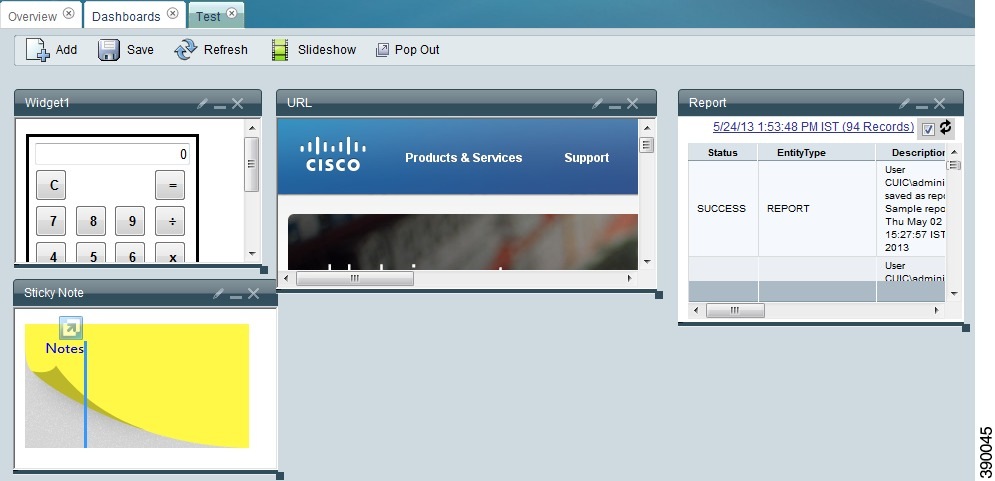
You can add the following items to a dashboard:

  • Report: Display an existing report on the dashboard.

  • Schedule: Display a scheduled report on the dashboard.

  • URL: Display a web page on the dashboard.

  • Sticky Note: Add sticky notes to the dashboard.

  • Custom Widgets: Add custom widgets to the dashboard.

Figure 1. Widgets on the Dashboard


Follow these steps to add items to the Dashboard.

Procedure


Step 1

Click Dashboards drawer.

Step 2

Click the dashboard that you want to add items to.

Note 

You can also create a dashboard and add items to it. See Create a Dashboard.

Step 3

On the dashboard, click Add.

Step 4

In the Title box, enter the name of the item.

Step 5

From the Type drop-down list, select the type of item that you want to add.

Step 6

In the Size section, define the width and height of the item in pixels.

Step 7

In the Position section, define how far the item will be placed from the left side and from the top of the dashboard.

Step 8

In the Dashboard Item Content section, define the dashboard item that you selected in Step 5.

To display a report:

  1. Click the arrows to navigate through the folders to the report that you want to display on the dashboard.

  2. Select the Report and Available Views.

  3. Click OK.

To display a scheduled report:

  1. Select the schedule from the Schedule box.

    Note 

    You can search for the schedule using the Search schedule box.

  2. Click OK.

To display a URL:

  1. In the URL box, enter the address of the web page that you want to display on the dashboard.

  2. Click OK.

To display a custom widget:

  1. In the Content box, enter Java code of the widget that you want to show on the dashboard.

  2. Click OK.

To display a Sticky Note:

  1. In the Content box, enter content for the sticky note.

  2. Click OK.


Note

You cannot configure HTTP based widget URL's in Dashboard, when Unified Intelligence Center is in the HTTPS mode.


Create Subcategory

Reporting users do not have permission by default to create a subcategory under Reports. An Administrator should create a subcategory and grant access, so you can create a subcategory within the new subcategory.

Procedure


Step 1

Right-click the folder where you want to create the subcategory and select Create Sub-category.

Step 2

In the Create Category window, enter a name for the category.

Step 3

Assign permissions in the Permissions section.