Manage and Generate Reports

Report Manager

Use Unified Intelligence Center Report Manager to view the location of reports and the hierarchy of the folders where the reports reside. You can do the following:

  • Create new folders and subfolders (called categories and subcategories in the user interface) to organize your reports.

  • Export an entire folder along with all the reports in it.

Table 1. Report Manager Tasks
Action Description

Report level actions

Run

Runs a report.

Schedule

Directs you to the Report Scheduler page to schedule the report and run at a later time or at regular intervals.

Edit

Displays the Report Editor.

Save As

Saves a copy of the report with a different name.

Note 
Reporting users do not have permission by default to create a subcategory under the Reports category in Cisco Unified Intelligence Center. Contact your administrator to get permissions.
Note 
When you save a report, in the report description do not use the following special characters: parentheses (( )), angle bracket (>), forward slash (/), question mark (?) and any executable scripts such as JavaScript. Do not start text with a double quotation (") or single quotation mark (' ).

Edit Views

Displays the available views. You can either create a new view or edit existing views.

Note 

You can create or edit views only if you have the write permission.

To modify stock reports, use Save As to create a copy of the report and make changes to the copy. You cannot directly modify a stock report.

Export

Exports a report, including online help and localization files, to your computer. This can be useful when you need to import the report into another Intelligence Center System, for example, from a Lab to a Production system.

A Report Designer with write permissions can export a custom report.

Note 

If you export a folder, all of the reports in the folder are exported. You cannot export stock reports.

When you export a report to an Excel file format, to read the exported report, the client system’s locale must match with the browser’s locale (where you had exported the report).

You cannot export stock reports.

Delete

Deletes a folder or a report.

Note 

You cannot delete a stock folder or a stock report.

Subcategory level actions

Create Sub-category

Creates a subfolder.

Note 

Applies to a root-level folder as well.

Delete

Deletes a folder or a report.

Note 

Only Administrators can delete a stock folder or a stock report.

Rename

Renames a folder or a report.

Note 

You cannot rename a stock folder or a stock report.

Note 

Applies to a root level folder as well.

Create Report

Creates a new report in the selected folder.

Stock reports are reports supported by Cisco. Stock reports can be copied and the copied versions can be edited.

Note 

Applies to a root level folder as well.

Permissions

Sets execute and write permissions for the folder.

Export

Exports a folder or a report to your computer.

A Report Designer with write permissions can export a custom report.

Note 

If you export a folder, all of the reports in the folder are exported.

Import Report

Imports an existing Unified Intelligence Center report and stores it on this instance of Unified Intelligence Center.

Note 

Applies to all folder levels (root, subcategory, and report).

Refresh

Refreshes the Report Manager.

Note 

Applies to all folder levels (root, subcategory, and report).

Generate Reports

Procedure


Step 1

In the left pane of the Unified Intelligence Center application, click Reports.

Reports open in a separate tab.
Step 2

In the Reports tab, access one of these reports as required:

  1. For Historical reports, click Stock > Unified CCX Historical.

  2. For Live Data reports, click Stock > Unified CCX Live Data.

Step 3

Click a report category under Unified CCX Historical or Unified CCX Live Data as required.

Step 4

Click the report that you want to generate.

The report opens in a separate tab.
Step 5

Set any filters that you want.

Step 6

Click Run.

Tip 

Scroll up to see Run.

Step 7

(Optional) If you are generating Live Data reports for the first time an error message appears after approximately 30 seconds, follow the below steps.

  1. Trust the self-signed certificate. See Trust Self-Signed Certificate for Live Data Reports.

  2. Follow Steps 1 to 6 to generate the report again.


The report is displayed in the Report Viewer.

Trust Self-Signed Certificate for Live Data Reports

When you generate Live Data reports for the first time, an error message appears after approximately 30 seconds.

Procedure


Perform the following steps to trust the self-signed certificate:

Option Description

If you use Internet Explorer:

  1. When you click Run the following message appears:

    Internet Explorer blocked this website from displaying content with security certificate errors.
  2. Click Show content.

If you use Firefox:

  1. When you click Run the following message appears:

    Cannot connect to the notification service. Click OK to be 
    redirected to a page where you can add a security exception for 
    the certificates issued by the CUIC server, after which the 
    current page will be reloaded. If the condition persists, 
    contact your administrator.
  2. Click OK.

    A page appears that states this connection is untrusted.

  3. Click I Understand the Risks, and then click Add Exception.

    The Add Security Exception dialog box appears.

  4. On the Add Security Exception dialog box, ensure the Permanently store this exception check box is checked.

  5. Click Confirm Security Exception.

    The page that states this connection is untrusted automatically closes.


Save an Existing Stock Report


Note

Contact administrator to assign permissions to the saved report.


Procedure


Step 1

Right-click the report that you want to save and select Save As.

Step 2

In the Save As window, enter a name for the report in the Name field.

Step 3

Enter a brief description of the report in the Description field.

Step 4

Drill down and select a report category in the Report Category field.

Step 5

Assign permissions in the Permissions section.

Step 6

Click OK.

Step 7

You can customize the report as required and click Save.


Import Reports

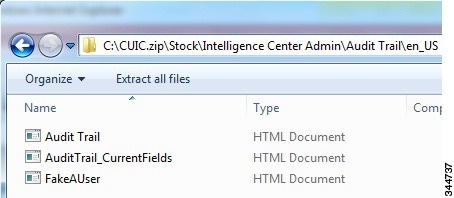
If you have an existing report, you can import that report and the related help files into Unified Intelligence Center. The format for storing the report and help content is as shown below:

Figure 1. Directory Structure of the Report ZIP File

Each report help folder has a size limit of 3 MB. If the size exceeds this limit, the system does not load the help content. You can import the following: Report, Report Definition, Value Lists, Views, Report Editor values, Thresholds, Drill downs, Permissions, and Template Help.


Note

However you cannot import the Report Filters and Collections.


Procedure


Step 1

In the Report window on the right-hand side, click on New and select Import.

You will be re-directed to the UI (prior to 11.5). In the UI follow the steps below to Import the report.
Step 2

Click the Reports drawer in the left pane.

Step 3

Navigate to the folder where you want to import the report.

Note 

If you are importing a stock report bundle from Cisco.com, it should be placed at the Reports folder level.

Step 4

Click Import Report.

Step 5

In the File Name (XML or ZIP file) field, click Browse.

Step 6

Browse to and select the XML or the compressed report file, and click Open.

Step 7

From the Data source for ReportDefinition drop-down list, select a data source used by the report definition.

Note 

This field appears only if the report definition for the report being imported is not currently defined in Unified Intelligence Center.

Step 8

From the Data Source for ValueList drop-down list, select the data source used by the value lists defined in the report definition.

Note 

You have to select a data source for the value list only if it does not use the same data source as the report definition. For report definitions of Real Time Streaming, it is mandatory to select a data source for the Value Lists.

Step 9

In the Save To field, browse to the folder where you want to place the imported report. Use the Arrow keys to expand the folders.

Step 10

Click Import.


Note

Importing a report to a different version of Unified Intelligence Center is not supported. However, when you upgrade Unified Intelligence Center, report templates continue to work in the upgraded version.

Export Reports, Report Definitions, and Categories

Any custom report, report definition, or categories of reports in Unified Intelligence Center can be exported. Reports and categories of reports are exported in a zip format and report definitions are exported as a single XML file.

When you export a Category, the reports in the category are grouped together as zip files. The grouping is done on the basis of the data source used by the report definition as well as the value lists.


Note

Export for a Report, Report Definition and Category can be performed from the UI prior to 11.5.


Note

For customized reports, you should update the version numbers of the value list and report definition before you export the report. Else, the export will not overwrite the existing default reports.

To export a Category, right-click the category, and click Export. Choose to save or open the zip file as required.


Note

Report definitions that contain multiple value lists with each value list pointing to a different data source will not be exported.

To export report definitions with value lists, ensure that all the value lists in the report definition point to the same data source.

The same applies to Categories as well. While exporting a Category, ensure that all the Value Lists in the Category point to the same data source.


When you export a report, the following items are exported:
  • Report

  • Report Definition

  • Value Lists

  • Views

  • Preferences defined in the Report Editor

  • Thresholds

  • Permissions

  • Online Help (if not bundled, an empty folder is created in the zip file)

The following items are not exported with the report:
  • Report Filters

  • Collections

Follow the steps below to export a report or a report definition.

Procedure


Step 1

On the homepage, in the left hand side navigation, click on the Report Definitions .

Step 2

You will be redirected to Old UI, in the Old UI perform the below steps to Export.

Step 3

Browse to the report or report definition that you want to export.

Step 4

Right click the report or report definition, and select Export.

Step 5

Rename the report or report definition if required but do not change the extension (Reports:.zip and Report Definitions:XML).

Step 6

Click OK.

Step 7

In the File Download window, click Save to specify the location where you want to export the report or the report definition.

Step 8

Browse to the folder where you want to save the report or the report definition.

Step 9

Click Save.