Calls

Make calls

Your phone works just like a regular phone. But we make it easier for you to make calls.

Make a call

Use your phone just like any other phone to make a call.

Procedure


Enter a number and pick up the handset.


Make a call with the speakerphone

Use your speakerphone for hands-free calling. Keep in mind that your coworkers might be able to hear your call too.

Procedure


Step 1

Enter a number using the keypad.

Step 2

Press Speakerphone .


Make a call with a headset

Use your headset for hands-free calling that won't disturb your coworker and gives you some privacy.

Procedure


Step 1

Plug in a headset.

Step 2

Enter a number using the keypad.

Step 3

Press Headset .


Make an Emergency Call

Use your phone to make an emergency call, similar to any other call. When you dial the emergency number, your emergency services get your phone number and location so that they can assist you.


Note


If your call disconnects, the emergency services can call you back.


Before you begin

Your phone must be set up to obtain your physical location. Emergency services personnel need your location to find you when you make an emergency call.

Procedure


Enter the emergency number and lift the handset.


Redial a number

You can call the most recently dialed phone number.

Procedure


Step 1

(Optional) Select a line.

Step 2

Press Redial.

Note


For Webex Calling, workspaces support Redial when Local Call history is set to the workspace devices or by using FAC *66.

Step 3

Select the call record from the Placed calls list and press Call.

You can also access the Placed calls list from Information and settings > Recents > Placed calls.


Speed Dial

Speed Dial allows you to press a button, enter a preset code, or select a phone screen item to place a call. You can configure the speed dial from the phone screen and also from the phone web page.

You can edit, delete, and validate a speed-dial code.

Assign a speed-dial code from the phone screen

You can configure a speed-dial index from your phone screen. You can also assign a speed-dial code from the phone web page.

Procedure

Step 1

Press Applications .

Step 2

Select Speed dials.

Step 3

Scroll to an unassigned speed-dial index.

Step 4

Press Edit and do one of the following:

  • Enter the name and number.
  • Select Option > Select from contact to select a contact from the address book.

Step 5

Press Save.


Make a call with a speed-dial code

Before you begin

Set up speed-dial codes on the phone web page or from your phone screen.

Procedure

Enter the speed-dial code and press Call.


Configure a Speed Dial on a Line Key

You can configure a line key to dial a number when you press the key.

You can select any available line key to configure this feature. You can also select any line key that is functioning as a speed-dial key or as a Busy Lamp Field (BLF) key monitoring a line. See Coworker Line Status for details about BLF. Your configuration will override any existing configuration for the key.

Your phone may be monitoring a BLF list. See Activate or Deactivate Monitoring of the BLF List for details. You can select a BLF list key to configure this feature. However, remember that selecting a BLF list key changes the positions of BLF list keys. Because your configuration renders the key unavailable for the BLF list, the phone adjusts the positions of BLF list keys to the next available keys.

Before you begin
  • Your administrator allows configuring speed dial on line keys.

  • The line key on which you want to configure this feature is not configured as an extension.

Procedure

Step 1

Press and hold down the line key for two seconds.

Step 2

On the Select feature screen, select Speed dial.

Step 3

In the Label field, enter the label to be displayed beside the key on the phone screen.

Step 4

In the Number field, enter the number or code to be dialed when you press the key.

Step 5

Press Save.


Remove a speed-dial from a line key

You can press a line key on your phone and delete speed dial assigned to it. The speed dial on the line key is removed. Check the phone web page to confirm that the speed dial is removed.

Procedure

Step 1

Press a line key that has a speed dial configured for at least two seconds.

Step 2

Press Option > Delete in the Speed-Dial window on the phone screen.

Step 3

Select None and confirm with OK


Use the Line in Focus for Speed-Dial Calls

You can configure a line key to perform a speed dial either with a Voice Profile ID (VID) or without a VID. When both are configured, VID has a higher priority. The call is routed to that line.

If a line key is configured without VID, you can configure a speed-dial key to use the line in focus.

Procedure


Step 1

Configure a speed-dial key without using VID.

Step 2

Change the focus to the line that you prefer.

Step 3

Press the speed-dial key to make a call.

The call is made with the line in focus.

If the existing number of calls on the line in focus is equal to the value set in the Call Appearances Per Line field in the phone web page, the speed-dial call is made from the next available line.


Use the Line in Focus to Check Speed-Dial Calls

If a line key is configured without VID, you can perform a check to confirm whether the call is made with the line in focus.

Procedure


Step 1

Configure a speed-dial key without using VID.

Step 2

Change the focus to the line that you prefer.

Step 3

Press the speed-dial key to make a call.

The call is made with the line in focus.


Dial an international number

You can dial international calls when you prefix the phone number with a plus (+) sign.

Procedure


Step 1

Press and hold star (*) for at least 1 second.

The plus (+) sign is displayed as the first digit in the phone number.

Step 2

Enter the phone number.

Step 3

Press Call or wait 10 seconds after the last key press to automatically place the call.


Secure calls

Your phone encrypts all calls to protect the calls. The lock icon displays on the phone screen for all secure calls.

You can also set a password on your phone to restrict unauthorized access.
Answer Calls

Your Cisco IP Phone works just like a regular phone. But we make it easier for you to answer calls.

Answer a Call

Procedure


Press the flashing red line button.


Answer Call Waiting

When you're on an active call, you know that a call is waiting when you hear a single beep and the line button flashes red.

Procedure


Step 1

(Optional) If you have more than one call waiting, select an incoming call.

Step 2

Press the line button.


Decline a Call

You can send an active or ringing call to your voicemail system or to a preset phone number.

Procedure


Decline a call by performing one of the following actions:

  • Press Decline.
  • If you have multiple incoming calls, highlight the incoming call and press Decline.

Silence an Incoming Call

You can silence an incoming call when you are busy and don't want to be disturbed. The phone stops ringing, but you get a visual alert, and, can answer the phone call.

Before you begin

Your administrator configures the Ignore softkey on your phone.

Procedure


Silence the incoming call by any of the methods:

  • Press the Ignore softkey. When you press this softkey, the softkey disappears from the phone screen, and is restored again during the next incoming call.
  • Press the Volume button down. If you press this button again, the ringer volume decreases.

The ringer volume is restored during the next incoming call.


Turn On Do Not Disturb

Use Do Not Disturb (DND) to silence your phone and ignore incoming call notifications when you need to avoid distractions. However, you will always receive paging and emergency calls, even when DND is turned on.

When you enable DND, your incoming calls forward to another number, such as your voicemail, if it is set up.

When DND is turned on, Do not disturb is displayed in the top bar of the phone screen.

When you enable DND, by default, it affects all lines on your phone. You can also enable DND on a specific line from the Preferences menu.

When a line key has both feature key sync and DND enabled, the DND icon is displayed next to the line key label.
Procedure


Step 1

Press DND to turn on DND.

If the DND softkey is grayed on the phone screen, contact your administrator.

Step 2

Press Clr DND to turn off DND.


Turn On or Turn Off DND Using a Star Code

You can turn on or turn off the do not disturb feature by dialing the respective star codes that are configured for your phone. The administrator enters the star codes in the DND Act Code and DND Deact Code fields respectively on the phone web page.

Procedure


Step 1

To turn on DND, dial the star code provided by your administrator.

Step 2

To turn off DND, dial the star code provided by your administrator.


Answer a Coworker's Phone (Call Pickup)

If you share call handling tasks with your coworkers, you can answer a call that is ringing on a coworker’s phone. First, your administrator has to assign you to at least one call pickup group.

Answer a Call Within Your Group (Pickup)

You can answer a call that rings on another phone within your call pickup group. If multiple calls are available for pickup, you'll answer the call that has been ringing for the longest time.

Procedure

Step 1

(Optional) Press the line button.

Step 2

Press PickUp to transfer an incoming call within your pickup group to your phone.


Mute Your Call

While you are on a call, you can mute the audio so that you can hear the other person, but they cannot hear you.

Procedure


Step 1

Press Mute .

Step 2

Press Mute again to turn mute off.


Hold Calls

Put a Call on Hold

You can put an active call on hold and then resume the call when you're ready.

Procedure


Step 1

Press Hold or Hold.

Step 2

To resume a call from hold, press Hold or Resume.


Answer a Call Left on Hold for Too Long

Your phone is configured to provide cues that let you know when you have left a call on hold for too long:

  • Flashing red line button

  • Flashing message indicator on the handset

  • Visual notification on the phone screen

  • Ringing notification on the phone if a hold reminder is configured with phone web page

Procedure


Press Hold or Resume to resume the held call.


Swap between active and held calls

You can easily switch between active and held calls.

Procedure


Press the line button for the held call, then press Resume to resume that call and place the other call on hold automatically.


Call park

You can use your phone to park a call. You can then retrieve the call either from your phone or another phone, such as a phone at a coworker’s desk or in a conference room.

A parked call is monitored by your network so you won't forget about it. If the call remains parked for too long, you hear an alert. You can then answer, decline to answer, or ignore the call on your original phone. You can also continue retrieving it from another phone.

If you don't answer the call within a certain length of time, it's routed to voicemail or another destination, as set by your administrator.

Place a call on hold with call park

You can park an active call that you answered on your phone and then use another phone in the call control system to retrieve the call.

You can also park a call on your own phone. If so, then you may not hear a recording.

You can park only one call at the call park number.

Before you begin

Your call must be active.

Procedure

Step 1

Press Park.

Your phone plays a recorded message that asks for the number of the parked call.

Step 2

(Optional) If you have call park configured on a key expansion module, press the call park line key.

Step 3

Enter the number and press Pound (#).

Step 4

(Optional) Communicate the parked number to the person retrieving the call.


Retrieve a call on hold with call park

You can pick up a parked call from anywhere in your network.

Before you begin

You need the number that was used to park the call.

Procedure

Step 1

Press Unpark.

Step 2

(Optional) Press the line key that has busy lamp field with call pickup configured to retrieve a call on hold.

Step 3

Enter the number where the call is parked followed by Pound (#).

You can also enter Pound (#) to retrieve the parked call. If you retrieve a call parked on your own phone, you may not need to enter a number.

Park and Unpark a Call with One Line Key

If your administrator has configured a Busy Lamp Field (line status) list with the prk function for you, you can park and unpark active calls. See Coworker Line Status for the idle and Parked call icons.

This feature doesn't apply to phone Cisco IP Phone 7811.

Before you begin
Activate or Deactivate Monitoring of the BLF List
Procedure

Step 1

Press the line key that monitors the user to park an active call.

Step 2

To unpark a call, do one of three things:

  • Press the monitored user that displays the parked call.

  • Press the extension line key, then press the monitored user that displays the parked call.

  • Use the navigation button to focus on the extension line key, then press the monitored user that displays the parked call.


Call Park Extension and Status

Your administrator can configure call park to support parking calls against dedicated call park extensions. These extensions are used only for call park and are not used for call routing.

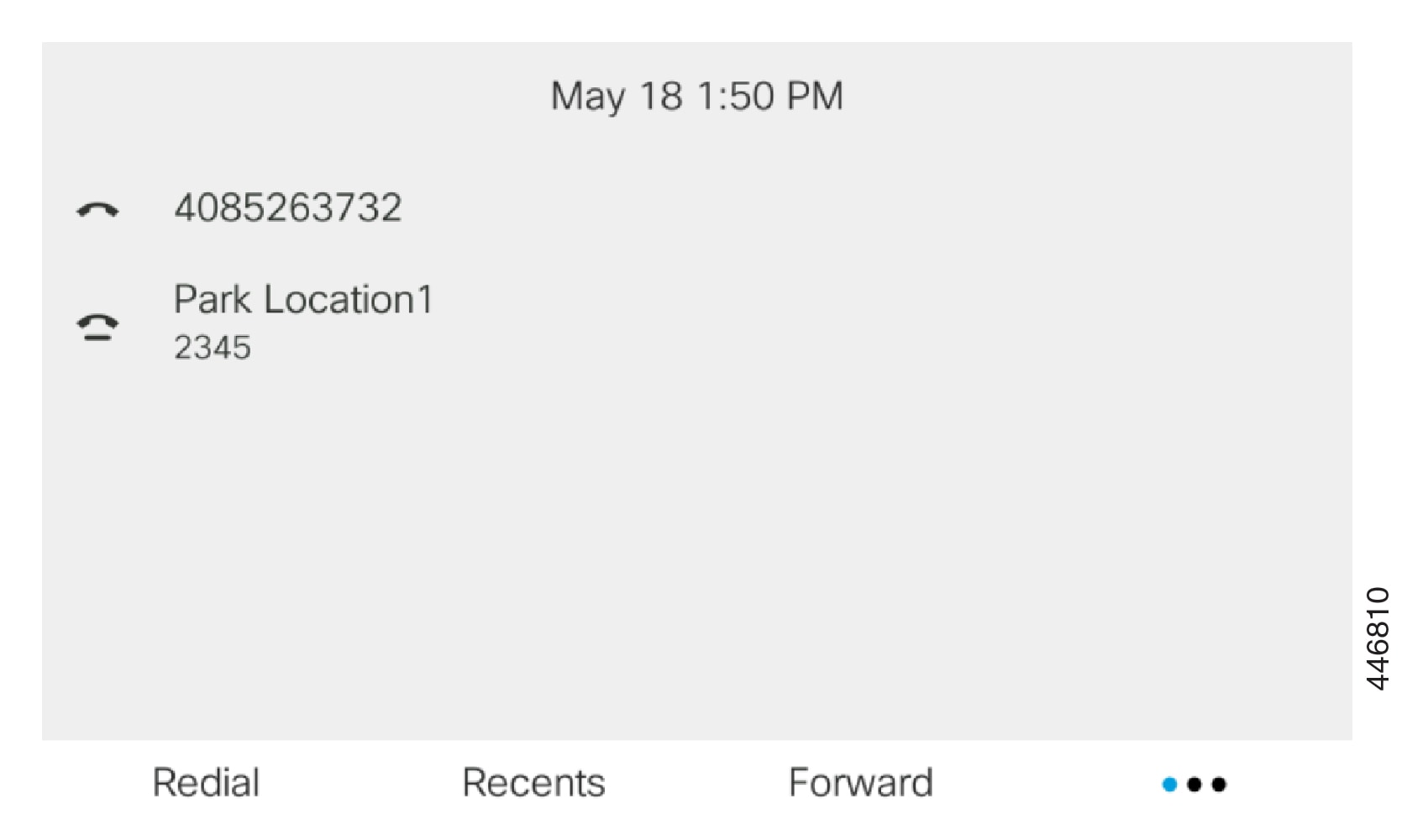
Figure 1. Call Park in Call Park Extensions

In the above example, the phone is monitoring Park Location1. Your administrator has configured a call park extension, Park Location1. If call park extensions are subscribed successfully, line keys will be assigned for call park function and get the monitored extension status.

The following table shows the call park status and the relevant icon displayed next to the call park extension:

Table 1. Call Park Status and Icons

Status

Icon

Idle

Parked

Forward Calls

You can forward calls from any line on your phone to another number. Call forward is phone-line specific. If a call reaches you on a line where call forward is not enabled, the call rings as usual.

If a line is enabled with feature key sync and call forward on it, the call forward icon is displayed next to the line key label.

There are three Call Forward services:

  • Call Forward All—Forward all incoming calls to a target phone number.

  • Call Forward Busy—Forward an incoming call to a target phone number when the line is busy.

  • Call Forward No Answer—Forward an incoming call to a target phone number when the call isn't answered.

You can set up the call forward service or services by a specific softkey.

Procedure


Step 1

Press Forward or Forward all.

If Forward all displays, you can only set up the Call Forward All service (not including Call Forward Busy and Call Forward No Answer services). After you press the softkey, the menu for only setting up the Call Forward All service displays, skip to the Step 3.

If you want to set up the Call Forward Busy and Call Forward No Answer services, see Forward Calls from Your Phone or Forward Calls with the Phone Web Page.

When your administrator enables the synchronization for call forward, the Call forward all screen displays instead of the Call forward settings screen. In this scenario, see Activate Call Forward All with Feature Activation Code Synchronization.

Step 2

Select one of the following call forward services:

  • Forward all

  • Forward busy

  • Forward no answer

Step 3

Do any of the following:

  • Enter the target number, to which you want to forward incoming calls from this phone line.
  • Press the Contacts softkey and select a contact from your contact directories.

Step 4

Press Set to apply the settings.

Step 5

Verify that your calls are forwarded by looking for the call forward icon next to the line or at the top of the phone screen.


Activate Call Forward All with Feature Activation Code Synchronization

When you press the Forward or Forward all softkey, the Call forward all screen displays and it allows you to set up your phone to forward all calls.

Before you begin

Your administrator enables a feature activation code that synchronizes the phone with a server to forward all calls.


Note


The Feature Activation Code Synchronization feature only supports the Call Forward All service. The Call Forward Busy and the Call Forward No Answer services are not supported.

When your administrator enables the feature activation code for the synchronization, the screen Call forward settings is ready-only.


Procedure


Step 1

Press Forward or Forward all

Step 2

Do any of the following:

  • Enter the target number, to which you want to forward incoming calls from this phone line.
  • Press Contacts and select a contact from your contact directories.
  • Press Redial and select an entry from the Placed calls list.

Step 3

Press Call to forward all calls to the specified number.

You can clear the call forward settings by pressing Clr fwd or Clf fwd all.

Step 4

Verify that your calls are forwarded by looking for the call forward icon next to the line or at the top of the phone screen.


Forward Calls with the Phone Web Page

Use the phone web page to set up your phone to forward calls.

You can also set up call forward on your phone screen. For more information, see Forward Calls or Forward Calls from Your Phone.

Before you begin

Your administrator must enable the call forward services. Otherwise, the configuration on the phone web page doesn't take effect.

Procedure


Step 1

On the phone web page, click User Login > Voice > User.

Step 2

In the Call Forward section, set the Cfwd All, Cfwd Busy, Cfwd No Answer, or combination of them to Yes, and enter a phone number for each of the call forward services that you want to enable:

  • Cfwd All/Cfwd All Dest—Forwards all calls.

  • Cfwd Busy/Cfwd Busy Dest—Forwards calls only if the line is busy.

  • Cfwd No Answer/Cfwd No Ans Dest—Forwards calls only if the line is not answered.

  • Cfwd No Answer/Cfwd No Ans Delay—Assigns a response delay time in seconds.

    If your administrator disables the feature key synchronization (FKS) and XSI sync for call forward on your phone, you can enter the value as number of seconds after which a call is forwarded.

    If your administrator enables feature key synchronization (FKS) or XSI sync for call forward on your phone, you can enter the value as number of rings after which a call is forwarded.

    The call forward settings on the phone web page take effect only when FKS and XSI are disabled. For more information, consult your administrator.

Step 3

Click Submit All Changes.


Transfer Calls

You can transfer an active call to another person.

When your administrator configures support for only one call per line appearance, you will not see the option to transfer the active call.

Transfer a Call to Another Person

When you transfer a call, you can stay on the original call until the other person answers. This gives you an opportunity to talk privately with the other person before you remove yourself from the call. If you don't want to talk, transfer the call before the other person answers.

You can also swap between both callers to consult with them individually before you remove yourself from the call.

Procedure


Step 1

From a call that is not on hold, press Transfer .

Step 2

Enter the other person's phone number and press Call.

Step 3

(Optional) Wait until you hear the line ring or until the other person answers the call.

Step 4

(Optional) Press the line key to return to the held call.


Consult Before You Complete a Transfer

Before you transfer a call, you can talk to the person that you're transferring the call to.

If your adminstrator configures to support only one call per line appearance and only one extension is configured, then you cannot:

  • place a new call if there is an active call.
  • transfer if there is an active call.
  • conference an active call.

Before you begin

You have an active call that needs to be transferred.

Procedure


Step 1

From a call that is not on hold, press Transfer .

Step 2

When the other person answers, you can talk to them.

Step 3

(Optional) Press the line key to return to the held call.

Step 4

(Optional) Press the line key to return to the transfer target phone number.

Step 5

Press Transfer or Transfer again.


Conference Calls and Meetings

You can talk with several people in a single call. You can dial another person and add them to the call. If you have multiple phone lines, you can join two calls across two lines. The conference ends when all participants hang up.

Add Another Person to a Call

Procedure


Step 1

From an active call, press Conference .

Step 2

Enter the phone number for the party you want to add and press Call.

Step 3

Press Conference again.


Conference with a Star Code

Press the Conference button only once to combine many active calls into a conference and talk to several people in a single call.

Before you begin

Your administrator has added a star code to the Conference button from the phone web page.

Procedure


Step 1

Make a call from a line and wait for an answer.

Step 2

Use the same line to call another number and wait for an answer. You can use the same line to call other numbers.

Step 3

Press Conference only once.

All numbers are added to the conference call and you see the star code that represents the conference bridge URL with one of the active calls.


View the Participants List as a Host in Ad Hoc Conference

You can show the list of participants when you are hosting an Ad Hoc conference.

Before you begin

Participants softkey is available.

Procedure


Step 1

Make a call (for example, user A) from a line and wait for an answer.

Step 2

Press Conference to invite another person (for example, user B) into the meeting.

Step 3

When user B answers the call, press Conference again to merge user B into the meeting.

You can add more participants into the meeting in the same way.

Step 4

Press Participants softkey. Name of all the participants who has joined the meeting will show up in the Participants screen.

Step 5

(Optional) Press Exit to exit from the Participants screen.


View the Participants List as a Participant

You can show list of participants of an Ad Hoc conference.

Before you begin

Participants softkey is available.

Procedure


Step 1

Answer the call from a host.

Participants softkey displays after your host merge you into the meeting.

Step 2

Press Participants softkey to display the list of participants.

Step 3

(Optional) Press Exit to exit from the Participants screen.


Remove a Participant as a Host in Ad Hoc Conference

As a host, you can remove a participant from the participant list. However, host and participants can invite multiple participants to join the conference, but any of the participants can only be removed by the person from whom the invite has come. For example, user A is the host of the Ad Hoc conference and calls user B and conferences user C and user D. In such situation, user A will be able to remove user B, user C, and user D. Now, if user C invites user E into the conference call, user C can remove user E but user A cannot remove user E.

Before you begin

You are host of an Ad Hoc conference.

Procedure


Step 1

When in an Ad Hoc conference, press Participants to display the pariticipants name.

Step 2

Select any of the participants who you have invited to the conference call and press Remove.

Step 3

Confirm the removal message on the phone.


Record a Call

When you're on an active call, you can record it. You might hear a notification tone as you record the call.

During a recording, you see different icons in different recording state. You see the icons on the Calls screen and also on the line key on which you are recording a call.

Table 2. Recording Icons

Icon

Meaning

Recording in progress

Recording paused

Before you begin

Your administrator enables your phone with call recording.

Procedure


Step 1

Press Record while on an active call.

Step 2

(Optional) While recording is in progress, you can press PauseRec to pause the recording.

Step 3

(Optional) Press ResumeRec to resume the recording.

Step 4

(Optional) Press StopRec to stop the recording.

Step 5

Press End Call to end the call.


Instant Message and Presence Contacts

Instant message and presence (IM&P) contacts display their presence information. You can see if the person is available, busy, or unavailable, or if the person does not want to be disturbed.

You use the UC-One Communicator to manage your lists of contacts. Your phone gets your lists of contacts from the UC-One Communicator server.

When you use the phone, the phone sends status information to the UC-One Communicator.

Presence

Your company may use the "UC-One Communicator" service and integrate it with the phone. You can use this service to display the status of your contacts.

On the phone, your status is displayed on the status line of the phone. You see one of the following:

  • Available

  • Away

  • Do Not Disturb

  • Offline

For more information on the "UC-One Communicator" service, see the Broadsoft documentation.

Make a Call to an IM and Presence Contact

When you call someone on your IM&P contacts, their presence state is displayed in your call history.

Before you begin

You administrator enables the IM&P directory in the phone.

Procedure


Step 1

Press Contacts .

Step 2

Press Category, if it displays on the phone. Otherwise, skip the step.

Step 3

Select IM&P contacts.

Step 4

Select a directory.

Step 5

Select an entry.

The entry shows the status of your contact.

Step 6

(Optional) Press Detail to view the contact details and press Back to return to the contacts list.

Step 7

Press Call.


Change Your Presence State

Because the phone is always available, you need to set your presence manually on the phone.

Before you begin

You administrator enables the IM&P directory in the phone.

Procedure


Step 1

Press Contacts .

Step 2

Press Category, if it displays on the phone. Otherwise, skip the step.

Step 3

Select IM&P contacts.

Step 4

Highlight a directory. For example, Favorite, Non-Group, All contacts, and so on.

Step 5

Press Presence.

Step 6

Select your presence from the list.

  • Available—You can take a call.
  • Away—You have stepped away from the phone for a short time.
  • Do not disturb—You don't want to take a call.
  • Offline—You are not available to take calls. Typically, you use this presence when you leave the phone for long periods of time.

Page a Group of Phones (Multicast Paging)

Your administrator can configure your phone as a part of a paging group. In a paging group, your phone can automatically answer pages from other Multiplatform phones in the phone system. Each paging group has a unique number associated with it. Your administrator gives you the configured paging group numbers. When your phone is paged, you hear three short beeps. The phone establishes one-way audio between you and the phone that called you. You do not have to accept the page.

Procedure


Dial the number of the paging group.


XML Application and Multicast Paging

If your phone is part of a paging group XML application enabled, your phone displays images or messages when you receive multicast pages from server. During a unicast and multicast paging or broadcast, phones in the paging group shows the following behavior:

  • Phone (sender) that initiates the page, does not display any XML application message.

  • Phones (receiver) that receive page displays a XML application message (incoming page) on their screen when the paging starts if your administrator configures the service.

  • If the XML application closes due to timeout (sets by your administrator) or by administrator, the receiver shows the incoming page. However, if there is no timeout configured, XML application closes when paging call ends.

Your administrator can invoke XML service from multicast paging.

View XML Application Details

You can view list of Cisco XML objects that your phone supports.

Before you begin

  • Your administrator has configured XML applications.

Procedure


Step 1

Press Applications .

Step 2

Press Settings.

Step 3

In Information and settings screen, select XML applications.

The list of supported Cisco XML objects is displayed, such as CiscoIPPhoneMenu, CiscoIPPhoneDirectory.

Note


XML applications menu is not available on your phone when your administrator disables it.


Multiple Lines

If you share phone numbers with other people, you could have multiple lines on your phone. When you have multiple lines, you have more calling features available to you.

View All Calls on Your Primary Line

You can have a list of current and missed calls display on your primary line.

Use this feature if you have multiple lines and want to see all your calls—on all lines—displayed on a single screen. You can still filter for a specific line.

Your administrator sets up this feature.

Answer the Oldest Call First

You can answer the oldest call available on all your phone lines, including Hold Reversion and Park Reversion calls that are in an alerting state. Incoming calls always have priority over Held or Park Reversion calls.

When working with multiple lines, you typically press the line button for the incoming call you want to answer. If you just want to answer the oldest call regardless of line, press Answer.

View All Calls on Your Phone

You can view a list of all your active calls—from all your phone lines—sorted in chronological order, oldest to newest.

The list of all calls is useful if you have multiple lines or if you share lines with other users. The list displays all your calls together.

Shared lines on your multiplatform desk phone

When you share a phone number, you can use that phone line just like you would any other line, but you should be aware of these special characteristics about shared lines:

  • The shared phone number can be configured to appear on a maximum of 35 devices.

  • The shared phone number appears on all phones that share the number.

  • If your coworker answers the call, the shared line button and the session button are solid red on your phone.

  • If you put a call on hold, your line button is solid red and the session button pulses red. Your coworker's line button is also solid red and the session button pulses red.

  • Once the shared line is configured, the call bridge can be invoked by using either

    • FAC Code

    • Soft keys

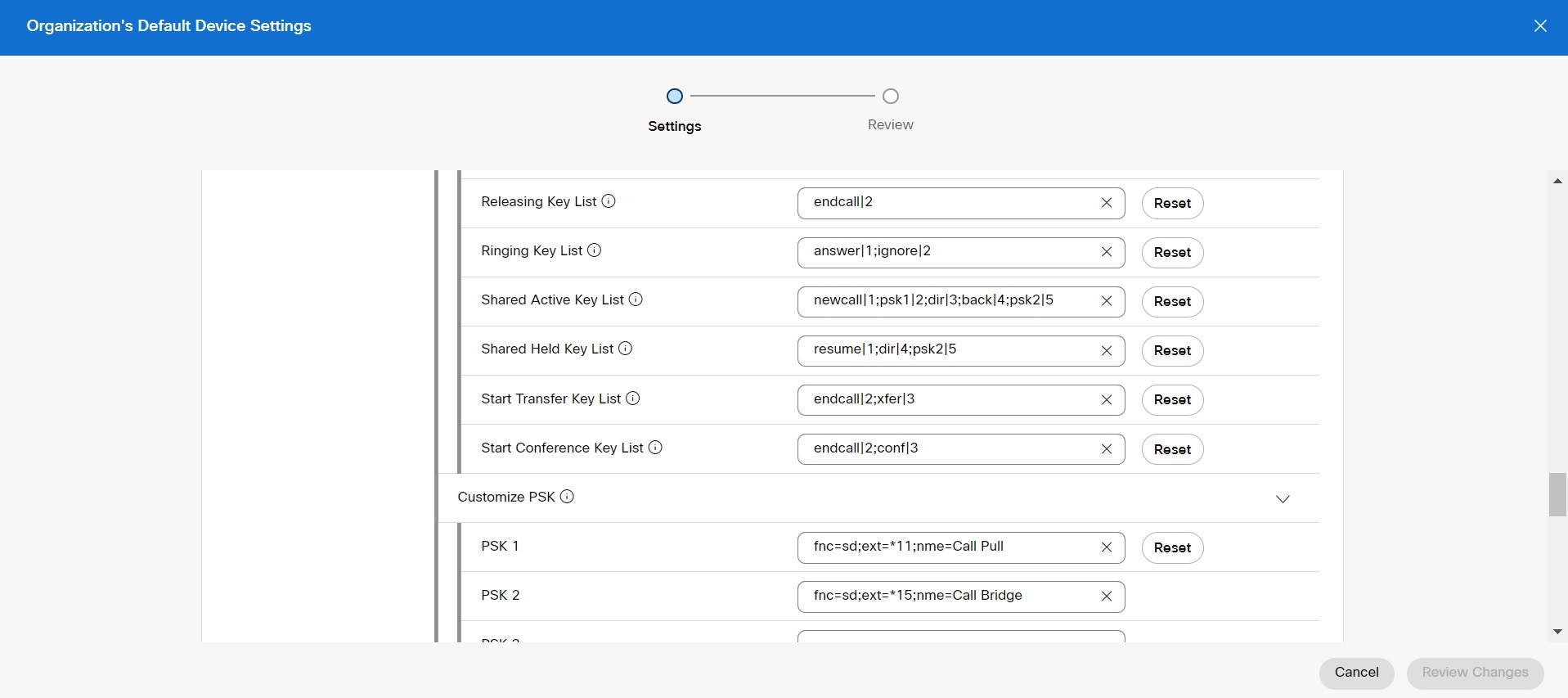
      Here is an example of customize PSK settings to add new soft key for Call Bridge as shown below:

Soft keys can be configured at three levels. See Configure and modify device settings in Webex Calling to configure soft keys at organization, location and device level.

Add yourself to a call on a shared line

You or your coworker can join a call on the shared line. Your administrator needs to enable the feature on your phone.

If a user with whom you share a line has privacy turned on, you can't see their line settings and you can't add yourself to their call.

Procedure

Step 1

Press the line button for the shared line.

Step 2

Enter *33 on your phone.

Note


If set up this way, you hear a tone to let you know that the system recognizes the access code.

Step 3

Enter the phone number of the person whose call you want to barge in to.

Note


When connected, you're a part of the current call.


Call Center Features

Your administrator configures your phone as a call center phone.

Your administrator can enable your phone with Automatic Call Distribution (ACD) features. This phone acts as a call center agent's phone and can be used to trace a customer call, to escalate any customer call to a supervisor in emergency, to categorize contact numbers using disposition codes, and to view customer call details.

Your phone can have ACD status as:

  • Sign in

  • Sign out

  • Available

  • Unavailable

  • Wrap-up

The initial ACD status is controlled by your administrator in two ways:

  • The last local status can be restored as the ACD initial status when the phone boots up, status is changed to "Registered" from "Unregistered" or "Registration failed", or registration destination ip address is changed due to failover, fallback or DNS response is changed.

  • The ACD initial status can be obtained from the server.

Sign In as a Call Center Agent

When you're ready to start your work as a call center agent, you sign into the phone and set your status.

Your administrator can set up your phone so that when you sign into the phone, your status is set to Available automatically. In this case, you don't need to manually set the status.

Procedure


Step 1

Press AgtSgnIn.

Step 2

Check your status as a call center agent.

If the status is Available, the icon displays beside your phone number. Otherwise, proceed with the next steps to manually set the status.

Step 3

Press Agt status.

Step 4

Highlight the Available status.

Step 5

Press Select.


Sign Out as a Call Center Agent

When you're ready to end your work as a call center agent, change your status and sign out of the phone. After you sign out, you won't receive more call center calls.

If you're on a call and know that you will sign off as soon as the call completes, change your status to Wrap-up.

Procedure


Press AgtSgnOut.


Change Your Status as a Call Center Agent

From time to time, you may need to take a brief break. To do that, change your status so that calls will not ring on your phone.

Procedure


Step 1

Press Agt status.

Step 2

Highlight the Unavailable status.

The Unavailable menu text box allows you to add the reason of your unavailability.

If you need, your administrator can hide the text box on the phone from the phone web interface.

Step 3

Press Select.

Step 4

Press Agt status.

Step 5

Highlight the Available status.

Step 6

Press Select.

Step 7

Highlight the Wrap-up status.

Step 8

Press Select.


Accept a Call Center Call

When you sign into the phone as a call center agent and your phone status is set to available, your phone are ready to accept call center calls. Before you answer a call, you see information about the call.

Procedure


Step 1

When you receive a call, you will see the call information page, press Back to exit and then press Answer to accept it.

Step 2

Press Call Info to see the call details.

Step 3

At the end of the call, press End call.


Hold an Agent Call

When you are on a call center call, you can put the caller on hold and return to the call. While the call is held for a long time, you will hear a reminder tone and a ring splash on the phone screen.

Procedure


Step 1

Press Hold.

Step 2

When you are ready to return, select the held call and press Resume.


Set a Disposition Code While on a Call Center Call

You can assign a disposition code to an active customer call or after you set your status to Wrap-up after a call. Disposition codes are quick labels that you apply to call records to describe a call. It is an easy way to label calls and keep track of customer contact history so that no details about the call are missed.

Before you begin

Your administrator enables your phone to add a disposition code.

Procedure


Step 1

Press Disp code.

Step 2

Press Ok.


Trace a Call

You can trace an active call and the last incoming call in any agent status.

Before you begin

Your administrator enables your phone to trace a call.

Procedure


From an active call or after a call, press Trace.


Escalate a Call to a Supervisor

When you need to escalate a call, you can add your supervisor to a conference call with you and your caller.

Before you begin

Your administrator enables emergency escalation on your phone.

Procedure


Step 1

From an active call, press Emergency.

Step 2

In the Emergency Escalation window, click OK.

You can enter preferred emergency escalation number, or you can leave it empty if you do not have any supervisor preference. You will not see any emergency escalation number.