Cisco IP Phone Hardware

Cisco IP Phone Hardware Overview

The Cisco IP Phone provides voice communication over an Internet Protocol (IP) network. The Cisco IP Phone functions much like a digital business phone, and allows you to place and receive phone calls and to access features such as mute, hold, transfer, speed dial, call forward, and more. In addition, because the phone connects to your data network, it offers enhanced IP telephony features, such as access to network information and services, and customizable features and services.

The Cisco IP Phone 7841 supports Gigabit ethernet connectivity.

When adding features to the phone line keys, you are limited by the number of line keys available. You cannot add more features than the number of line keys on your phone.

Table 1. Cisco IP Phone 7800 Series and Supported Line Keys

Phone

Supported Line Keys

Cisco IP Phone 7811

0

Cisco IP Phone 7821

2

Cisco IP Phone 7841

4

Cisco IP Phone 7861

16

A Cisco IP Phone, like other network devices, must be configured and managed. These phones encode G.711 a-law, G.711 mu-law, G.722, G.722.2/AMR-WB, G.729a, G.729ab and iLBC codecs; and decode G.711 a-law, G.711 mu-law, G.722, G.722.2/AMR-WB, G.729a, G.729ab and iLBC codecs.


Caution

Use of a cell, mobile, or GSM phone, or two-way radio in close proximity to a Cisco IP Phone might cause interference. For more information, see the manufacturer documentation of the interfering device.

Cisco IP Phones provide traditional telephony functionality, such as call forwarding and transferring, redialing, speed dialing, conference calling, and voice messaging system access. Cisco IP Phones also provide a variety of other features.

As with other network devices, you must configure Cisco IP Phones to prepare them to access Third-Party Call Control system and the rest of the IP network. By using DHCP, you have fewer settings to configure on a phone. If your network requires it, however, you can manually configure information such as: an IP address, TFTP server, and subnet information.

Cisco IP Phones can interact with other services and devices on your IP network to provide enhanced functionality. For example, you can integrate Third-Party Call Control system with the corporate Lightweight Directory Access Protocol 3 (LDAP3) standard directory to enable users to search for coworker contact information directly from their IP phones. You can also use XML to enable users to access information such as weather, stocks, quote of the day, and other web-based information.

Finally, because the Cisco IP Phone is a network device, you can obtain detailed status information from it directly. This information can assist you with troubleshooting any problems users might encounter when using their IP phones. You can also obtain statistics about a current call or firmware versions on the phone.

To function in the IP telephony network, the Cisco IP Phone must connect to a network device, such as a Cisco Catalyst switch. You must also register the Cisco IP Phone with a Third-Party Call Control system before sending and receiving calls.


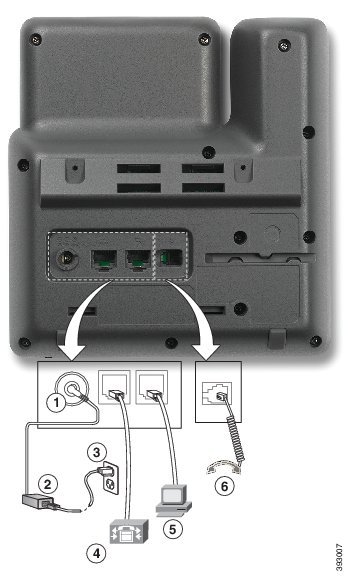
Cisco IP Phone 7811

Phone Connections

Use an Ethernet cable to connect your phone to your LAN and enable the phone's full functionality. If your Ethernet port is equipped with Power over Ethernet (PoE), you can power the phone through the LAN port. Do not extend the LAN Ethernet cable outside the building. For your phone to work, it must be connected to the IP telephony network.


1

DC adapter port (DC48V).

4

Network port (10/100 SW) connection. IEEE 802.3af power enabled.

2

AC-to-DC power supply (optional).

5

Access port (10/100 PC) connection (optional).

3

AC power wall plug (optional).

6

Handset connection.

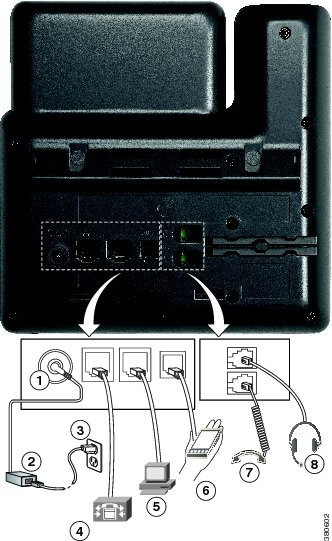
Cisco IP Phone 7821

Phone Connections

Connect your Cisco IP phone to your LAN with an Ethernet cable to enable full functionality of your Cisco IP phone. If your Ethernet port is equipped with Power over Ethernet (PoE), you can power the Cisco IP phone through the LAN port. Do not extend the LAN Ethernet cable outside the building. For your phone to work, it must be connected to the IP telephony network.


1

DC adaptor port (DC48V) (optional).

5

Access port (10/100 PC) connection (optional).

2

AC-to-DC power supply (optional).

6

Auxiliary port (optional).

3

AC power wall plug (optional).

7

Handset connection.

4

Network port (10/100 SW) connection. IEEE 802.3af power enabled.

8

Analog headset connection (optional).

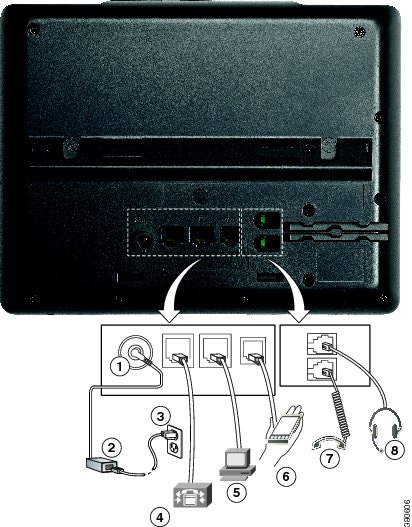
Cisco IP Phone 7841

Phone Connections

Connect your Cisco IP phone to your LAN with an Ethernet cable to enable full functionality of your Cisco IP phone. If your Ethernet port is equipped with Power over Ethernet (PoE), you can power the Cisco IP phone through the LAN port. Do not extend the LAN Ethernet cable outside the building. For your phone to work, it must be connected to the IP telephony network.


1

DC adaptor port (DC48V) (optional).

5

Access port (10/100/1000 PC) connection (optional).

2

AC-to-DC power supply (optional).

6

Auxiliary port (optional).

3

AC power wall plug (optional).

7

Handset connection.

4

Network port (10/100/1000 SW) connection. IEEE 802.3af power enabled.

8

Analog headset connection (optional).

Cisco IP Phone 7861

Phone Connections

Connect your Cisco IP phone to your LAN with an Ethernet cable to enable full functionality of your Cisco IP phone. If your Ethernet port is equipped with Power over Ethernet (PoE), you can power the Cisco IP phone through the LAN port. Do not extend the LAN Ethernet cable outside the building. For your phone to work, it must be connected to the IP telephony network.


1

DC adaptor port (DC48V) (optional).

5

Access port (10/100 PC) connection (optional).

2

AC-to-DC power supply (optional).

6

Auxiliary port (optional).

3

AC power wall plug (optional).

7

Handset connection.

4

Network port (10/100 SW) connection. IEEE 802.3af power enabled.

8

Analog headset connection (optional).

Buttons and Hardware

The Cisco IP Phone 7800 Series has distinct hardware types:

  • Cisco IP Phone 7811 No buttons on either side of the screen

  • Cisco IP Phone 7821 Two buttons on the left side of the screen

  • Cisco IP Phone 7841 Two buttons on either side of the screen

  • Cisco IP Phone 7861 16 buttons at the right edge of the phone

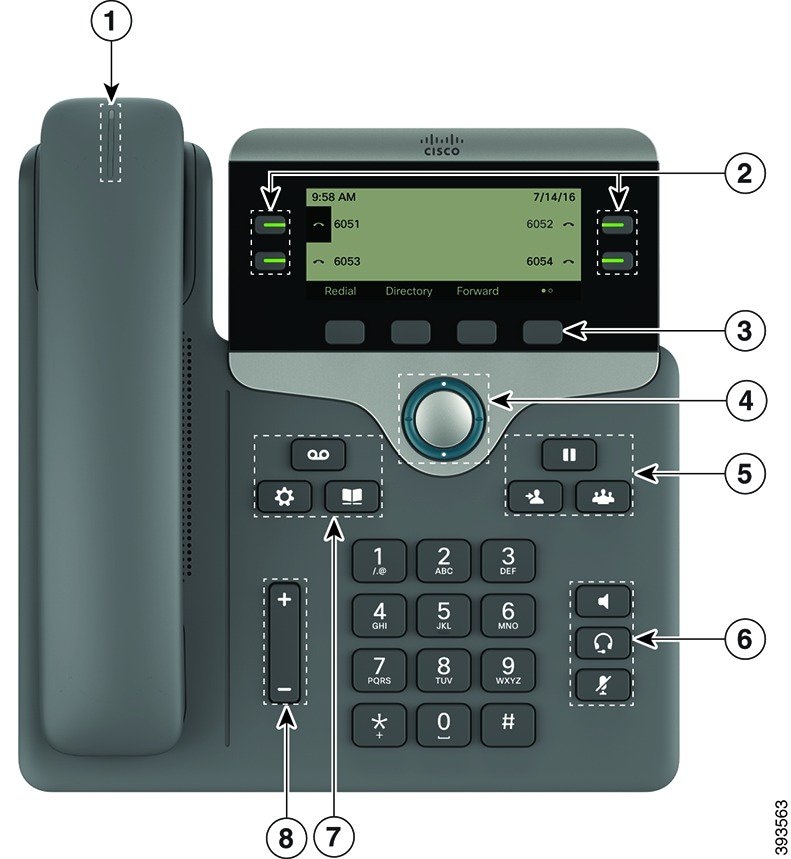
The following figure shows the Cisco IP Phone 7841.

Figure 1. Cisco IP Phone 7800 Series Buttons and Features

1

Handset and Handset light strip

Indicates whether you have an incoming call (flashing red) or a new voice message (steady red).

2

Programmable feature buttons and line buttons

Access your phone lines, features, and call sessions.

For more information, see Softkey, Line, and Feature Button on page 13.

3

Softkey buttons

Access functions and services.

For more information, see Softkey, Line, and Feature Button on page 13.

4

Navigation cluster

Navigation ring and Select button. Scroll through menus, highlight items, and select the highlighted item.

5

Hold/Resume, Conference, and Transfer

Hold/Resume Place an active call on hold and resume the held call.

Conference Create a conference call.

Transfer Transfer a call.

6

Speakerphone, Mute, and Headset

Speakerphone Toggle the speakerphone on or off. When the speakerphone is on, the button is lit.

Mute Toggle the microphone on or off. When the microphone is muted, the button is lit.

Headset Toggle the headset on or off. When the headset is on, the button is lit.

7

Contacts, Applications, and Messages

Contacts Access personal and corporate directories.

Applications Access call history, user preferences, phone settings, and phone model information.

Messages Autodial your voice messaging system.

8

Volume button

Adjust the handset, headset, and speakerphone volume (off hook) and the ringer volume(on hook).

Navigation

Use the outer ring of the Navigation cluster to scroll through menus and to move between fields. Use the inner Select button of the Navigation cluster to select menu items.

If a menu item has an index number, you can enter the index number with the keypad to select the item.

Softkey, Line, and Feature Buttons

You can interact with the features on your phone in several ways:

  • Softkeys, located below the screen, give you access to the function displayed on the screen above the softkey. The softkeys change depending on what you are doing at the time. The More ... softkey shows you that more functions are available.

  • Feature and line buttons, located on either side of the screen, give you access to phone features and phone lines.

    • Feature buttons—Used for features such as Speed dial or Call pickup, and to view your status on another line.

    • Line buttons—Used to answer a call or resume a held call. When not used for an active call, used to initiate phone functions, such as the missed calls display.

Feature and line buttons illuminate to indicate status:

  • Line button Green, steady LED—Active call or two-way intercom call

  • Line button Green, flashing LED—Held call

  • Line button Amber, steady LED—Privacy in use, one-way intercom call, or logged into a Hunt Group

  • Line button Amber, flashing LED—Incoming call or reverting call

  • Line button Red, steady LED—Remote line in use (shared line or Line Status) or Do Not Disturb (DND) active

  • Line button Red, flashing LED—Remote line on hold

Your administrator can set up some functions as softkeys or as feature buttons. You can also access some functions with softkeys or the associated hard button.

Terminology Differences

The following table highlights some of the terminology differences in the Cisco IP Phone 7800 Series Multiplatform Phones User Guide and the Cisco IP Phone 7800 Series Multiplatform Phones Administration Guide

Table 2. Terminology Differences

User Guide

Administration Guide

Message Indicators

Message Waiting Indicator (MWI) or Message Waiting Lamp

Voicemail System

Voice Messaging System