Contents

Configuration of Microsoft Components for Integration with IM and Presence Service

Line URI Configuration on Microsoft Active Directory

Before you configure the Line URI parameter on Microsoft Active Directory, note the following:

  • For the Line URI, we recommend that you use the format: tel:xxxx;phone-context=dialstring

    • xxxx also specifies the directory number that the CTI Manager reports to IM and Presence Service as the calling or called number when a call gets placed.

    • phone-context=dialstring enables the Microsoft Office Communicator client to control one of the devices that are associated with the directory number.

  • If you configure the device ID, the Microsoft Office Communicator client controls that particular device on initial sign in; for example: tel:xxxx;phone-context=dialstring;device=SEP0002FD3BB5C5

  • If you configure the partition, the Microsoft Office Communicator client specifies the partition for the directory number; for example: tel:xxxx;phone-context=dialstring;device=SEP0002FD3BB5C5;partition=myPartition

  • The Line URI only takes effect when the Microsoft Office Communicator user signs in.

  • After initial sign in, the Microsoft Office Communicator user can change the line appearance that they wish to control using the Phone Selection plug-in.

  • If you do not configure the device ID in the Line URI, the CTI Gateway determines the devices that are associated with the line Directory Number (DN). If only one device is associated with the line DN, the CTI Gateway uses that device.

Related References
Line Appearances
User Authentication on IM and Presence Service
Deployment of Phone Selection Plug-in

User Authentication on IM and Presence Service

When configuring the SIP URI on Microsoft Active Directory, consider how the IM and Presence Service performs the user authentication checks. The user authentication logic is as follows:

  1. IM and Presence Service checks if the Microsoft Office Communicator (sign in) user ID matches the Cisco Unified Communications Manager user ID. If IM and Presence Service cannot find a match:

  2. IM and Presence Service checks if the Microsoft Office Communicator user email (the From header) matches the Cisco Unified Communications Manager user email. If IM and Presence Service cannot find a match:

  3. IM and Presence Service checks if the Microsoft Office Communicator user email matches the ocsPrimaryAddress value of a Cisco Unified Communications Manager user.

For example, a user Joe has the Microsoft Office Communicator user ID joe@someCompany.com. The From header in the SIP INVITE is sip:joe@someCompany.com.

In this case, IM and Presence Service checks the following:

  • If there is a user in the Cisco Unified Communications Manager database whose user ID is ‘joe’. If this user ID does not exist:

  • If there is a user in the Cisco Unified Communications Manager database whose mail is ‘joe@someCompany.com’. If this mail does not exist:

  • If there is a user in the Cisco Unified Communications Manager database whose ocsPrimaryAddress is ‘sip:joe@someCompany.com’.

Configure Microsoft Active Directory

Before You Begin
  • Read the topic describing Line URI configuration on Microsoft Active Directory.
  • Read the topic describing the user authentication checks on IM and Presence Service.
Procedure
    Step 1   From the Microsoft Active Directory application window, add a user name and the telephone number that are associated with each particular user.
    Step 2   For each of the users that you added, open the Properties window on Microsoft Active Directory and configure the following parameters:
    1. Enable the user for the Office Communications Server.
    2. Enter the SIP URI.
    3. Enter the Microsoft OCS server name or pool.
      Caution   

      Ensure the OCS server name or pool name does not contain the underscore character.

    4. Under Telephony Settings, select Configure.
    5. Check Enable Remote call control.
    6. Enter the Remote Call Control SIP URI; for example, sip:8000@my-cups.my-domain.com, where my-cups.my-domain.com specifies the FQDN of the IM and Presence Service node that you configured for this integration.
    7. Enter the Line URI value.

      Troubleshooting Tip

      The SIP URI that you enter on Microsoft Active Directory must match the static route URI that you define when you are configuring static routes on Microsoft OCS.


    What to Do Next

    Microsoft OCS Configuration Overview

    Related References
    Line URI Configuration on Microsoft Active Directory
    User Authentication on IM and Presence Service
    Line Appearances
    Related Information
    http://technet2.microsoft.com/windowsserver/en/technologies/featured/ad/default.mspx

    Microsoft OCS Configuration Overview


    Note


    This topic provides a brief outline of the configuration required on Microsoft OCS for this integration. A detailed description of Microsoft OCS configuration is out of the scope of this module. Please refer to the Microsoft OCS documentation for this information.


    Make sure that the Microsoft OCS server is properly installed and activated. Make sure that the following items are configured on Microsoft OCS:

    • Certificate configuration
    • Static Routes
    • Authorized Host
    • Domain Name Server
    • Pool Properties
    • Server Properties
    • Pool Users
    • User Configuration
    • Microsoft Office Communicator (MOC) Configuration

    OCS Front-End Properties - Host Authorization
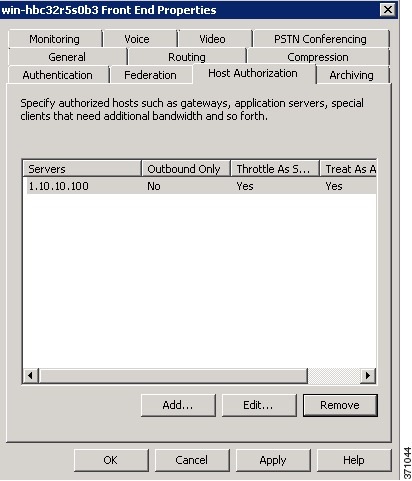
    Figure 1. OCS Front-End Properties - Host Authorization


    OCS Front-End Properties - Routing
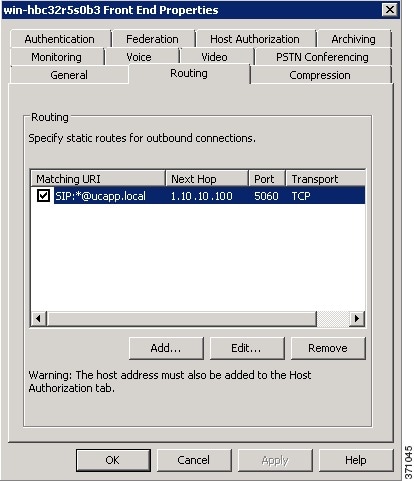
    Figure 2. OCS Front-End Properties - Routing


    OCS Front-End Server Properties - General Tab
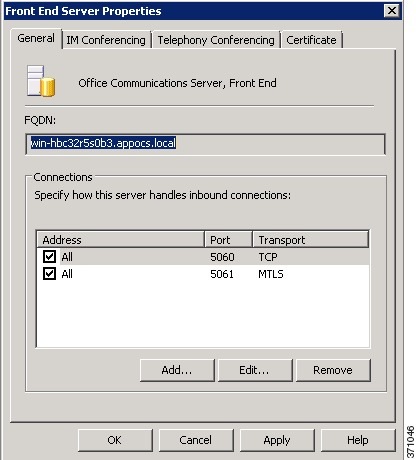
    Figure 3. OCS Front-End Server Properties - General Tab


    Related Tasks
    Configure Normalization Rules on Microsoft Active Directory
    Configure a TLS Route for IM and Presence Service on Microsoft OCS
    Configure IM and Presence Service as an Authenticated Host on Microsoft OCS
    Related Information
    Security Certificate Configuration for Microsoft OCS
    http://office.microsoft.com/en-us/communicationsserver/FX101729111033.aspx

    Configuration of Microsoft Components for Integration with IM and Presence Service

    Configuration of Microsoft Components for Integration with IM and Presence Service

    Line URI Configuration on Microsoft Active Directory

    Before you configure the Line URI parameter on Microsoft Active Directory, note the following:

    • For the Line URI, we recommend that you use the format: tel:xxxx;phone-context=dialstring

      • xxxx also specifies the directory number that the CTI Manager reports to IM and Presence Service as the calling or called number when a call gets placed.

      • phone-context=dialstring enables the Microsoft Office Communicator client to control one of the devices that are associated with the directory number.

    • If you configure the device ID, the Microsoft Office Communicator client controls that particular device on initial sign in; for example: tel:xxxx;phone-context=dialstring;device=SEP0002FD3BB5C5

    • If you configure the partition, the Microsoft Office Communicator client specifies the partition for the directory number; for example: tel:xxxx;phone-context=dialstring;device=SEP0002FD3BB5C5;partition=myPartition

    • The Line URI only takes effect when the Microsoft Office Communicator user signs in.

    • After initial sign in, the Microsoft Office Communicator user can change the line appearance that they wish to control using the Phone Selection plug-in.

    • If you do not configure the device ID in the Line URI, the CTI Gateway determines the devices that are associated with the line Directory Number (DN). If only one device is associated with the line DN, the CTI Gateway uses that device.

    User Authentication on IM and Presence Service

    When configuring the SIP URI on Microsoft Active Directory, consider how the IM and Presence Service performs the user authentication checks. The user authentication logic is as follows:

    1. IM and Presence Service checks if the Microsoft Office Communicator (sign in) user ID matches the Cisco Unified Communications Manager user ID. If IM and Presence Service cannot find a match:

    2. IM and Presence Service checks if the Microsoft Office Communicator user email (the From header) matches the Cisco Unified Communications Manager user email. If IM and Presence Service cannot find a match:

    3. IM and Presence Service checks if the Microsoft Office Communicator user email matches the ocsPrimaryAddress value of a Cisco Unified Communications Manager user.

    For example, a user Joe has the Microsoft Office Communicator user ID joe@someCompany.com. The From header in the SIP INVITE is sip:joe@someCompany.com.

    In this case, IM and Presence Service checks the following:

    • If there is a user in the Cisco Unified Communications Manager database whose user ID is ‘joe’. If this user ID does not exist:

    • If there is a user in the Cisco Unified Communications Manager database whose mail is ‘joe@someCompany.com’. If this mail does not exist:

    • If there is a user in the Cisco Unified Communications Manager database whose ocsPrimaryAddress is ‘sip:joe@someCompany.com’.

    Configure Microsoft Active Directory

    Before You Begin
    • Read the topic describing Line URI configuration on Microsoft Active Directory.
    • Read the topic describing the user authentication checks on IM and Presence Service.
    Procedure
      Step 1   From the Microsoft Active Directory application window, add a user name and the telephone number that are associated with each particular user.
      Step 2   For each of the users that you added, open the Properties window on Microsoft Active Directory and configure the following parameters:
      1. Enable the user for the Office Communications Server.
      2. Enter the SIP URI.
      3. Enter the Microsoft OCS server name or pool.
        Caution   

        Ensure the OCS server name or pool name does not contain the underscore character.

      4. Under Telephony Settings, select Configure.
      5. Check Enable Remote call control.
      6. Enter the Remote Call Control SIP URI; for example, sip:8000@my-cups.my-domain.com, where my-cups.my-domain.com specifies the FQDN of the IM and Presence Service node that you configured for this integration.
      7. Enter the Line URI value.

        Troubleshooting Tip

        The SIP URI that you enter on Microsoft Active Directory must match the static route URI that you define when you are configuring static routes on Microsoft OCS.


      What to Do Next

      Microsoft OCS Configuration Overview

      Microsoft OCS Configuration Overview


      Note


      This topic provides a brief outline of the configuration required on Microsoft OCS for this integration. A detailed description of Microsoft OCS configuration is out of the scope of this module. Please refer to the Microsoft OCS documentation for this information.


      Make sure that the Microsoft OCS server is properly installed and activated. Make sure that the following items are configured on Microsoft OCS:

      • Certificate configuration
      • Static Routes
      • Authorized Host
      • Domain Name Server
      • Pool Properties
      • Server Properties
      • Pool Users
      • User Configuration
      • Microsoft Office Communicator (MOC) Configuration

      OCS Front-End Properties - Host Authorization

      Figure 1. OCS Front-End Properties - Host Authorization


      OCS Front-End Properties - Routing

      Figure 2. OCS Front-End Properties - Routing


      OCS Front-End Server Properties - General Tab

      Figure 3. OCS Front-End Server Properties - General Tab