Enterprise Groups

Enterprise Groups Overview

When Enterprise Groups is configured, Cisco Unified Communications Manager includes user groups when it synchronizes its database with an external LDAP directory. In Cisco Unified CM Administration, you can view synced groups in the User Groups window.

This feature also helps administrators to:

  • Provision users with similar characteristics traits with a comment set of features (for example, the sales and accounting teams).

  • Target messages to all users in a specific group.

  • Configure uniform access for all members of a specific group

This feature also helps Cisco Jabber users to quickly build contact lists of users who shares common traits. Cisco Jabber users can search the external LDAP Directory for user groups and then add them to their contact list. For example, a Jabber user can search the external LDAP directory and add the sales group to a contact list, thereby adding all of the sales team members into the contact list as well. If the group gets updated in the external directory, the user's contact list is updated automatically.

Enterprise Groups is supported with Microsoft Active Directory on Windows as the external LDAP directory.


Note


If you disable the Enterprise Groups feature, Cisco Jabber users cannot search for enterprise groups or see the groups that they already added to their contact lists. If a user is already logged in when you disable the feature, the group will be visible until the user logs out. When the user logs in again, the group will not be visible


Security Groups

Security Groups are a subfeature of Enterprise Groups. Cisco Jabber users can also search for, and add, security groups to their contact list. To set up this feature, administrators must configure a customized LDAP filter and apply it to the configured LDAP directory sync. Security Groups are supported with Microsoft Active Directory only.

Maximum Allowed Entries

When configuring Enterprise Groups, make sure that you configure contact list maximums that handle groups

  • The maximum number of entries that are allowed in a contact list is the sum of the number of entries in the contact list and the number of entries in groups that are already added to the contact list.

  • Maximum entries in contact list = (number of entries in contact list) + (number of entries in groups)

  • When the Enterprise Groups feature is enabled, Cisco Jabber users can add the groups to the contact list if the number of entries in the contact list is less than the maximum allowed entries. If the maximum allowed entries is exceeded while the feature is disabled, the users are not restricted until the feature is enabled. If the user continues to be logged in after the feature is enabled, no error message is displayed. When the user logs out and logs in again, an error message is displayed that asks the users to clear the excess entries.

Enterprise Groups Deployment Models

The Enterprise Groups feature offers two deployment options for Active Directory.


Important


Ensure that Cluster 1 and Cluster 2 have a unique set of UserGroup, UserGroupMember, and UserGroupWatcherList records before synchronizing data through the Cisco Intercluster Sync Agent service. If both the clusters have unique sets of records, both the clusters will have a super set of all the records after synchronization.


Enterprise Groups Deployment Model 1

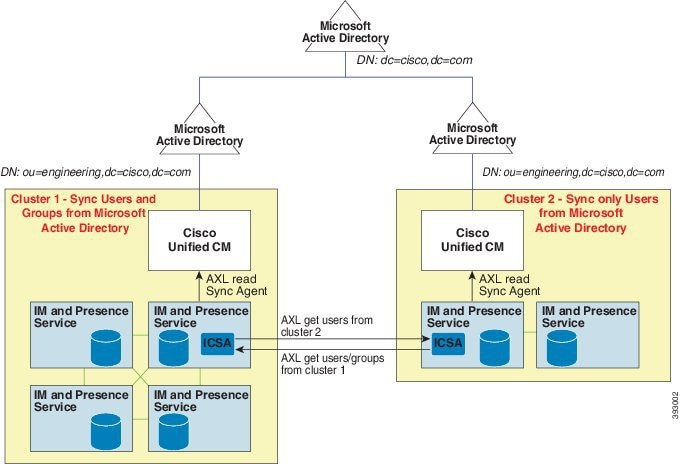
In this deployment model, Cluster 1 and Cluster 2 synchronize different subsets of users and groups from Microsoft Active Directory. The Cisco Intercluster Sync Agent service replicates the data from Cluster 2 into Cluster 1 to build the complete database of users and groups.

Figure 1. Enterprise Groups Deployment Model 1


Enterprise Groups Deployment Model 2

In this deployment model, Cluster 1 synchronizes all the users and groups from Microsoft Active Directory. Cluster 2 synchronizes only users from Microsoft Active Directory. The Cisco Intercluster Sync Agent service replicates groups information from Cluster 1 into Cluster 2.


Caution


If you are using this deployment model, ensure that you synchronize the groups data in only one cluster. The Enterprise Groups feature will not work as expected if you fail to do so.

You can verify your configuration on the Cisco Unified CM IM and Presence Administration > Presence > Inter-Clustering window.

Check the status of the Enterprise Groups LDAP Configuration parameter in the Inter-cluster peer table. No conflict found means there are no misconfigurations between peers. If there are conflicts found, click the Enterprise GroupConflicts link, and click the details button which appears. This opens a Reporting window for a detailed report.


Figure 2. Enterprise Groups Deployment Model 2


Enterprise Groups Prerequisites

This feature assumes that you already have an LDAP Directory sync schedule configured with the below conditions. For details on how to configure an LDAP Directory sync, see the "Import Users from LDAP Directory" chapter of the System Configuration Guide for Cisco Unified Communications Manager.

  • The Cisco DirSync service must be activated

  • The LDAP Directory sync must include both users and groups

  • Regular LDAP Directory syncs, as configured with the LDAP Directory Synchronization Schedule must be scheduled.

Supported LDAP Directories

Only Microsoft Active Directory is supported with enterprise groups.

Enterprise Groups Configuration Task Flow

Complete these tasks to configure the Enterprise Groups feature.

Procedure

  Command or Action Purpose

Step 1

Enable Enterprise Groups

Complete this task to enable Cisco Jabber users to search for enterprise groups in Microsoft Active Directory and add them to their contact lists.

Step 2

Enable Security Groups

(Optional) If you want Cisco Jabber users to be able to search for and add security groups to their contact lists, complete this task flow.

Step 3

View User Groups

(Optional) View Microsoft Active Directory user groups that are synchronized with Cisco Unified Communications Manager database.

Start Directory Sync Service

Before you can sync Enterprise Groups, the Cisco DirSync service must be running.

Procedure


Step 1

Log in to Cisco Unified Serviceability and choose Tools > Service Activation.

Step 2

Under Directory Services, check the Cisco DirSync check box.

Step 3

Click Save.


What to do next

Enable Enterprise Groups

Enable Enterprise Groups

The enterprise parameter Directory Group Operations on Cisco IM and Presence in the Enterprise Parameter Configuration window allows you to enable or disable the Enterprise Groups feature. Follow these steps to enable the Enterprise Groups feature.

Before you begin

The Cisco DirSync feature service must be running.

Procedure


Step 1

From Cisco Unified CM Administration, choose System > Enterprise Parameters.

The Enterprise Parameters Configuration window appears.

Step 2

In the User Management Parameters section, from the Directory Group Operations on Cisco IM and Presence drop-down list, select Enabled .

Step 3

(Optional) From the Syncing Mode for Enterprise Groups drop-down list, choose one of the following:

  • None—If you choose this option, the Cisco Intercluster Sync Agent service does not synchronize the enterprise groups and the group membership records between IM and Presence Service clusters.
  • Differential Sync—This is the default option. If you choose this option, after all the enterprise groups and group membership records from remote IM and Presence Service cluster are synchronized, the subsequent syncs synchronize only the records that were updated since the last sync occurred.
  • Full Sync—If you choose this option, after all the enterprise groups and group membership records from the remote IM and Presence Service cluster are synchronized, all the records are synchronized during each subsequent sync.

Note


If the Cisco Intercluster Sync Agent service is not running for more than 24 hours, we recommend that you select the Full Sync option to ensure that the enterprise groups and group membership records synchronize completely. After all the records are synchronized, that is, when the Cisco Intercluster Sync Agent has been running for about 30 minutes, choose the Differential Sync option for the subsequent syncs. Keeping the value of this parameter set to 'Full Sync' for a longer period could result in extensive CPU usage and therefore we recommend that you use the Full Sync option during off-business hours.

Step 4

(Optional) Set the LDAP Directory Synchronization Schedule parameters in the LDAP Directory Configuration window to configure the interval at which Microsoft Active Directory groups are synchronized with Cisco Unified Communications Manager. For more information, see the online help.

Step 5

(Optional) Enter a value for the maximum amount of users each group can contain, in the Maximum Enterprise Group Size to allow Presence Information field. The permitted range is from 1 to 200 users. The default value is 100 users.

Step 6

Click Save.


Enable Security Groups

If you want to allow Cisco Jabber users to be able to add a security group to their contact list, complete these optional tasks to include security groups in an LDAP Directory sync.


Note


You cannot add new configurations into an existing LDAP Directory configuration in Cisco Unified Communications Manager where the initial sync has already occurred.


Procedure

  Command or Action Purpose

Step 1

Create Security Group Filter

Create an LDAP filter that filters both directory groups and security groups.

Step 2

Synchronize Security Groups from LDAP Directory

Add your new LDAP filter to an LDAP Directory sync.

Step 3

Configure Cisco Jabber for Security Groups

Update existing service profiles to give Cisco Jabber users whom are associated to that service profile access to search and add security groups.

Create Security Group Filter

Create an LDAP filter that filters security groups.

Procedure

Step 1

From Cisco Unified CM Administration, choose System > LDAP > LDAP Filter.

Step 2

Click Add New.

Step 3

Enter a unique Filter Name. For example, syncSecurityGroups.

Step 4

Enter the following Filter: (&(objectClass=group)(CN=*)).

Step 5

Click Save.


Synchronize Security Groups from LDAP Directory

Add your Security Group filter to an LDAP Directory sync and complete a sync.


Note


You cannot add new configurations into an existing LDAP Directory configuration in Cisco Unified Communications Manager if the initial LDAP sync has already occurred.


Note


For detailed information on how to set up a new LDAP Directory sync, see the "Configure End Users" part of the System Configuration Guide for Cisco Unified Communications Manager.


Before you begin

Create Security Group Filter

Procedure

Step 1

In Cisco Unified CM Administration, choose System > LDAP > LDAP Directory.

Step 2

Do one of the following:

  • Click Add New to create a new LDAP Directory.
  • Click Find and select the LDAP Directory from which the security groups will be synchronized.

Step 3

From the LDAP Custom Filter for Groups drop-down list, select the security group filter that you created.

Step 4

Click Save.

Step 5

Configure any remaining fields in the LDAP Directory Configuration window. For more information on the fields and their configuration options, see Online Help.

Step 6

Click Perform Full Sync Now to synchronize immediately. Otherwise, security groups will be synchronized when the next scheduled LDAP sync occurs.


Configure Cisco Jabber for Security Groups

Update existing service profiles to allow Cisco Jabber users whom are associated to that service profile to add security groups from an LDAP directory to their contact lists.


Note


For information on how to set up new service profiles and assign them to Cisco Jabber users, see the "Configure Service Profiles" chapter of the System Configuration Guide for Cisco Unified Communications Manager.


Before you begin

Synchronize Security Groups from LDAP Directory

Procedure

Step 1

Complete any remaining fields in the Service Profile Configuration window. For help with the fields and their settings, refer to the online help.

Step 2

Click Find and select the service profile that your Jabber users use.

Step 3

Under Directory Profile, check the Allow Jabber to Search and Add Security Groups check box.

Step 4

Click Save.

Cisco Jabber users who are associated to this service profile can now search and add security groups.

Step 5

Repeat this procedure for all service profiles that your Cisco Jabber users use.


View User Groups

You can view the Active Directory user groups that are synchronized with the Cisco Unified Communications Manager database using the following steps.

Procedure


Step 1

From Cisco Unified CM Administration, choose User Management > User Settings > User Group.

The Find and List User Groups window appears.

Step 2

Enter search criteria and click Find.

A list of user groups that match the search criteria is displayed.

Step 3

To view a list of users that belong to a user group, click on the required user group.

The User Group Configuration window appears.

Step 4

Enter search criteria and click Find.

A list of users that match the search criteria is displayed.

If you click on a user in the list, the End User Configuration window appears.


Enterprise Groups Limitations

Table 1. Enterprise Groups Limitations

Limitation

Description

Intercluster peering with a 10.x cluster

Enterprise Groups is supported for releases 11.0(1) and higher.

If the synced group includes group members from a 10.x intercluster peer, users on the higher cluster cannot view the presence of synced members from the 10.x cluster. This is due to database updates that were introduced in 11.0(1) for the Enterprise Groups sync. These updates are not a part of the 10.x releases.

To guarantee that users homed on the higher cluster can view the presence of group members homed on the 10.x cluster, users on the higher cluster should manually add the 10.x users to their contact lists. There are no presence issues for manually added users.

Multilevel grouping

Multilevel grouping is not allowed for the group sync.

Group-only synchronization

When a user group and users are present in the same search base, group-only synchronization is not allowed. Instead, the user group as well as the users are synchronized.

Maximum number of user groups

You can synchronize a maximum of 15000 user groups from Microsoft Active Directory server to the Unified Communications Manager database. Each user group can contain from 1 to 200 users. You can configure the exact amount on the Cisco Unified CM IM and Presence Administration > System > Service Parameters window.

The maximum number of user accounts in the database cannot exceed 160,000.

User group migration

If a user group is moved from one organization unit to another, you must perform a full sync on the original unit followed by a full sync on the new unit.

Local groups

Local groups are not supported. Only groups synchronized from Microsoft Active Directory are supported.

Group members not assigned to IM and Presence Service nodes

Group members that are not assigned to IM and Presence Service nodes display in the contact list with the presence bubble greyed out. However, these members are considered when calculating a maximum numbers of users allowed in the contact list.

Migration from Microsoft Office Communication Server

During migration from Microsoft Office Communication Server, the Enterprise Groups feature is not supported until users are fully migrated to the IM and Presence Service node.

LDAP synchronization

If you change the synchronization option in the LDAP Directory Configuration window while the synchronization is in progress, the existing synchronization remains unaffected. For example, if you change the synchronization option from Users and Groups to Users Only when the synchronization is in progress, the users and groups synchronization still continues.

Group search functionality over the Edge

Group search functionality over the Edge is offered in this release, but has not been fully tested. As a result, full support for group searches over the Edge cannot be guaranteed. Full support is expected to be offered in a future release.

Cisco Intercluster Sync Agent service periodic synchronization

If a group name or a group member name is updated in the external LDAP directory, it gets updated on the Cisco Jabber contact list only after the periodic Cisco Intercluster Sync Agent service synchronization. Typically, the Cisco Intercluster Sync Agent service synchronization occurs every 30 minutes.

Synchronization of users and user groups through different synchronization agreements in LDAP configuration

If users and user groups are synchronized into the Cisco Unified Communications Manager database as part of the same synchronization agreement, the user and group association gets updated as expected in Cisco Unified Communications Manager database after synchronization. However, if a user and user group are synchronized as part of different synchronization agreements, the user and the group may not get associated in the database after the first synchronization. The user and group association in the database depends on the sequence in which the synchronization agreements are processed. If the users are synchronized ahead of the groups, then the groups may not be available in the database for association. In such cases, you must ensure that the synchronization agreement with groups is scheduled ahead of the synchronization agreement with the users. Otherwise, after the groups synchronize into the database, the users will get associated with the groups after the next manual or periodic sync with the sync type set as Users and Groups. Users and corresponding group info will be mapped only when the agreement sync type is set as Users and Groups

.

Tested OVA information for Enterprise Groups

Tested Scenario

In a Intercluster deployment with two clusters Cluster A and Cluster B:

Cluster A has 15K OVA and 15K users enabled for IM and Presence Service out of 160K users that are synced from Active Directory. The tested and supported average number of enterprise groups per user on 15K OVA cluster is 13 enterprise groups .

Cluster B has 25K OVA and 25K users enabled for IM and Presence Service out of 160K users that are synced from Active Directory. The tested and supported average number of enterprise groups per user on 25K OVA is 8 enterprise groups.

The tested and supported sum of user's personal contacts in roster and the contacts from enterprise groups that are in a user's roster is less than or equal to 200.

Note

 
In environments with more than 2 clusters these numbers are not supported.

Export Contact List

When you export the user's contact list using Bulk Administration > Contact List > Export Contact List, the Contact List CSV file doesn't include the details of enterprise group they had in Jabber client.