- Preface
- New and Changed Information for this Release
- Overview
- Managing Users and Groups
- Setting Up the End User Portal
- Managing System Administration Settings
- Managing Integration Settings
- Managing a Physical Infrastructure
- Managing a Virtual Infrastructure
- Managing Policies
- Managing Virtual Data Centers
- Managing Resource Groups
- Managing Catalogs
- Using Self-Service Provisioning
- Multiple Disk VM Provisioning
- Using the Chargeback Module
- System Monitoring and Reporting
- Managing Lifecycles
- Managing CloudSense Analytics
Cisco UCS Director Administration Guide, Release 6.5
Bias-Free Language
The documentation set for this product strives to use bias-free language. For the purposes of this documentation set, bias-free is defined as language that does not imply discrimination based on age, disability, gender, racial identity, ethnic identity, sexual orientation, socioeconomic status, and intersectionality. Exceptions may be present in the documentation due to language that is hardcoded in the user interfaces of the product software, language used based on RFP documentation, or language that is used by a referenced third-party product. Learn more about how Cisco is using Inclusive Language.
- Updated:
- July 7, 2017
Chapter: Overview
- Cisco UCS Director
Overview
This chapter contains the following sections:
- Cisco UCS Director
- Setting up Non-Secure Connection to the Cisco UCS Director User Interface
- Initial Login
- Recommended Order of System Setup
- Configuring the Host Name for Cisco UCS Director
- Working with Ciphers
Cisco UCS Director
Cisco UCS Director is a complete, highly secure, end-to-end management, orchestration, and automation solution for a wide array of Cisco and non-Cisco data infrastructure components, and for the industry's leading converged infrastructure solutions based on the Cisco UCS and Cisco Nexus platforms. For a complete list of supported infrastructure components and solutions, see the Cisco UCS Director Compatibility Matrix.
Cisco UCS Director is a 64-bit appliance that uses the following standard templates:
Management through Cisco UCS Director
Cisco UCS Director extends the unification of computing and networking layers through Cisco UCS to provide you with comprehensive visibility and management of your data center infrastructure components. You can use Cisco UCS Director to configure, administer, and monitor supported Cisco and non-Cisco components. The tasks you can perform include the following:
-
Create, clone, and deploy service profiles and templates for all Cisco UCS servers and compute applications.
-
Monitor organizational usage, trends, and capacity across a converged infrastructure on a continuous basis. For example, you can view heat maps that show virtual machine (VM) utilization across all your data centers.
-
Deploy and add capacity to converged infrastructures in a consistent, repeatable manner.
-
Manage, monitor, and report on data center components, such as Cisco UCS domains or Cisco Nexus network devices.
-
Extend virtual service catalogs to include services for your physical infrastructure.
-
Manage secure multi-tenant environments to accommodate virtualized workloads that run with non-virtualized workloads.
Automation and Orchestration with Cisco UCS Director
Cisco UCS Director enables you to build workflows that provide automation services, and to publish the workflows and extend their services to your users on demand. You can collaborate with other experts in your company to quickly and easily create policies. You can build Cisco UCS Director workflows to automate simple or complex provisioning and configuration processes.
Once built and validated, these workflows perform the same way every time, no matter who runs the workflows. An experienced data center administrator can run them, or you can implement role-based access control to enable your users and customers to run the workflows on a self-service basis, as needed.
With Cisco UCS Director, you can automate a wide array of tasks and use cases across a wide variety of supported Cisco and non-Cisco hardware and software data center components. A few examples of the use cases that you can automate include, but are not limited to:
-
VM provisioning and lifecycle management
-
Network resource configuration and lifecycle management
-
Storage resource configuration and lifecycle management
-
Tenant onboarding and infrastructure configuration
-
Application infrastructure provisioning
-
Self-service catalogs and VM provisioning
-
Bare metal server provisioning, including installation of an operating system
- Features and Benefits
- Physical and Virtual Management Features
- Model-Based Orchestration
- New User Interface of Cisco UCS Director
- Guided Setup Wizards in Cisco UCS Director
Features and Benefits
The features and benefits of Cisco UCS Director are as follows:
Physical and Virtual Management Features
Model-Based Orchestration
Cisco UCS Director includes a task library containing over 1000 tasks and out-of-the-box workflows. Model-based orchestration and a workflow designer enable you to customize and automate the infrastructure administrative and operational tasks. You can extend and customize the system to meet individual needs.
The following table shows the maintenance and update activities of the task library from day1 through day 3:
| Day-1 | Day-2 | Day-3 |
|---|---|---|
New User Interface of Cisco UCS Director
Cisco UCS Director introduces a new user interface for the administrative portal. This section introduces you to some of the key features of this new user interface.
Change in Navigation
In earlier releases, you could access screens using the main menu bar. Starting with this release, all navigation options are now available from a side bar, and not from the horizontal main menu bar. As a result, the main menu bar is no longer visible in the user interface. You can use your mouse or the cursor to hover over an option on the side navigation bar, and then click on any of the menu options.
Absence of User Interface Labels
The user interface no longer includes labels for actions such as Add, Edit, Delete, Export, and Filter. These actions are represented only with icons. If you use your mouse or cursor to hover over the icon, the label will display the action you can perform using that icon. You can also modify the icons in the user interface for all actions and status messages. For more information, see Modifying an Icon in the Cisco UCS Director User Interface.
Availability of the Classic View
When you login to Cisco UCS Director, by default, the new user interface is displayed. The earlier version of the interface, now referred to as the Classic View, is currently available. However, this Classic View will soon be removed from the user interface. For information on accessing the Classic View, see Switching to the Classic View.
Using Dashboard to Access Detailed Reports
If you have enabled the Dashboard, then it is the first screen that you will see when you login to Cisco UCS Director. Typically, you can use this dashboard to add important or frequently accessed report widgets. Now, you can click on any of the reports that are displayed on the Dashboard, and immediately access the screen in the user interface where more detailed information is displayed.
For more information, see Enabling the Dashboard
In addition, you can create multiple dashboards and delete them when you no longer need them. For more information, see Creating Additional Dashboards and Deleting a Dashboard.
Enhanced Capabilities with Tabular Reports
Following are some of the enhanced capabilities with tabular reports available in the user interface:
-
Right-click to view additional options
After you select a row, if you right-click on your mouse, a list of options relevant to the row you selected are displayed.
-
Filter and Search
You can use a Filter option or a Search option with tabular reports in the Cisco UCS Director interface. On any page with a tabular report, you can use the Filter option that allows you to narrow down the tabular report results with a specific criteria. You can use this Filter option on tabular reports that do not span across pages. For tabular reports that do span across multiple pages, you can use the Search option to narrow down your search result.
-
Adding tabular reports to the Favorites menu
You can add any tabular report displayed in the user interface as a Favorite. By adding a report as a favorite, you can access this report from the Favorites menu.
-
Resizing of columns
You can resize all the columns that are displayed in the tabular report, including the last column. After you expand the columns, you can use the horizontal scroll bar to view the complete screen.
-
Informational message displayed in the absence of data
If there is no information to be displayed in a report, the following message is displayed.
No Data
Removing and Restoring Tabs
On any screen that has multiple tabs available, you can choose the number of tabs that you would like to see on that screen. If you close a tab on a screen, it will no longer be displayed in the row of tabs displayed in the user interface. If you would like to bring it back on the screen, then click the arrow facing downwards that is visible on the far right of the screen. It displays a drop-down list of tabs that are available but hidden from view. Choose the tab you would like to restore.
 Note | You can remove and restore tabs on a screen only when there are a minimum of two tabs. This functionality is not available when there is only one tab displayed on a screen in the interface. |
Enhancements to Reporting Capabilities
Following are some of the enhanced reporting capabilities available in the user interface:
-
Introduction of pie charts and bar graphs
Each individual pie chart or bar graph can be exported out of the system in PDF, CSV or XLS format, or can be added to the Dashboard.
-
Availability of More Reports option
Using the More Reports option, you can now generate reports on specific data for the resources in the cloud accounts. For more information, see Generating Additional Reports for a Cloud Account.
- Landing Page
- Common Icons
- Converged View
- Generating Additional Reports for a Cloud Account
- Switching to the Classic View
Landing Page
The landing page opens when you log in to the Cisco UCS Director administrator portal. The elements that you see on the landing page depend upon how you have configured the display. By default, the Converged View is displayed when you login to the portal.
The following are the available elements for your landing page:
-
Header—Displays across the top of the screen.
-
Navigation menu—The main navigation bar is no longer on the top of the screen. It is now available as a vertical menu on the left-side of the screen.
Note | The menu does not have a scroll bar. The menu only displays the number of options that fit in the space available. Some options may not appear if you minimize your screen or zoom in. You can click Site Map to view all available options. |
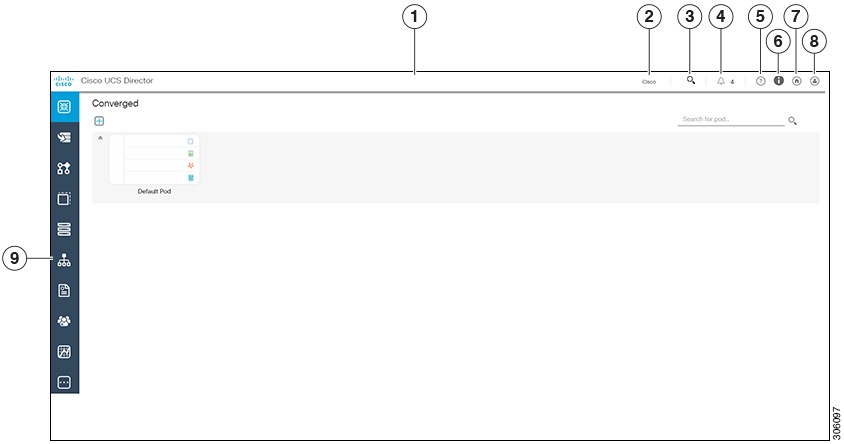
|
Number |
Name |
Description |
|---|---|---|
|
1 |
Header |
Contains frequently accessed elements, including the menu. The header is always visible. |
|
2 |
Link |
Provides a link to the Cisco website from where you can access information on using the software. |
|
3 |
Search icon |
Allows you to search for and navigate directly to a specific report in the portal. |
|
4 |
Diagnostic System Messages icon |
Displays the number of diagnostic system messages that have been logged. Clicking on this link takes you to the Diagnostic System Messages screen from where you can view detailed information. |
|
5 |
Help icon |
Links to the online help system for the administrator portal. |
|
6 |
About icon |
Displays information about the software, and the version that is currently installed. |
|
7 |
Home icon |
Returns you to the landing page from any location in the user interface. |
|
8 |
User icon |
Allows you to edit your profile, enable or disable the dashboard, access the classic view of the user interface, and log out. |
|
9 |
Navigation menu |
The vertical navigation menu using which you can access different screens in the interface. |
Common Icons
The following table provides information about the common icons used in the user interface. You can see the name of an icon when you hover over it with your mouse. Some icons may have a different name, depending upon the context in which they're used.


Note | You can view the complete list of icons and the details from the screen. These icons are listed in the Action Icon Set category. |
Converged View
When you login to the administrator portal for the first time, by default, the Converged screen is displayed. This screen displays the currently configured pods in your environment. From this screen, you can add additional pods, or you can select a pod and view additional details on the resources within the pod. Typically, the additional details displayed include the following:
You can click on any of these resources, and the screen loads additional information.
Cisco UCS Director allows you to configure the Dashboard as the first screen to be displayed when you login to the user interface. For more information, see Enabling the Dashboard.
Generating Additional Reports for a Cloud Account
You can use the More Reports option to generate specific reports for either a virtual cloud account or for a physical pod account. The type of reports that are generated using this More Reports option varies based on the type of account.
If there is no information available to generate this report, then a message stating that there is no data is displayed.
| Step 1 | Navigate to the cloud account that you want to generate additional reports for. |
| Step 2 | From the More Actions drop-down menu, click More Reports. |
| Step 3 | From the
Type drop-down list, and
Report drop-down list, choose the type of
report that you want to generate.
The report is generated and displayed in the user interface. |
| Step 4 | (Optional)Click to choose the format in which you want the report to be exported in. |
Switching to the Classic View
The classic view is the earlier version of the administrator user interface of Cisco UCS Director. You can switch to the classic view from the new user interface.
On the header, click the icon for your user name, and choose Classic View. The earlier interface opens in a new browser tab.
This Classic View option is available in the user interface only if you set the enableClassicView parameter to true.
cd /opt/infra/web_cloudmgr/apache-tomcat/webapps/app/ux/resources/
vi appConfigs.json
enableClassicView=true
You must refresh the user interface to view this option.
Guided Setup Wizards in Cisco UCS Director
Cisco UCS Director includes a set of wizards that guide you through configuring important features. The following are the available guided setup wizards:
-
Device Discovery—This wizard enables you to discover devices and assign them to a pod.
-
Initial System Configuration—This wizard helps you complete initial tasks to set up Cisco UCS Director, such as uploading licenses, and setting up SMTP, NTP, and DNS servers.
-
vDC Creation—This wizard enables you to configure the policies required to provision VMs in private clouds.
-
FlexPod Configuration—This wizard helps you set up a FlexPod account.
-
Vblock Pod Configuration—This wizard enables you to discover and assign accounts to Vblock pods.
-
VSPEX Pod Configuration—This wizard enables you to discover and assign accounts to VSPEX pods.
-
Virtual SAN Pod Configuration—This wizard enables you to set up a Virtual SAN Pod and add devices.
When you first log into Cisco UCS Director, a Wizard Explorer window is displayed. From this window, you can view the details of the available guided setup wizards and choose to launch any of them. If you do not want this Wizard Explorer to appear every time you log in, you can check the Do not show this page again checkbox. To launch these wizards later on, click .
In addition to these system-provided wizards, you can create a wizard from a workflow that you have previously configured. For more information, see Creating a Wizard from a Workflow.
Creating a Wizard from a Workflow
You can convert valid workflows into wizards, and save them in Cisco UCS Director.
You must have created valid workflows in Cisco UCS Director.
| Step 1 | Choose . | ||||||||||||||
| Step 2 | On the Guided Setup page, click Setup. | ||||||||||||||
| Step 3 | From the More Actions drop-down menu, click Create from Workflow. | ||||||||||||||
| Step 4 | In the
Create
Wizard from Workflow screen, complete the required fields, including
the following:
| ||||||||||||||
| Step 5 | Click Submit. |
What to Do Next
You can perform the following tasks:
Setting up Non-Secure Connection to the Cisco UCS Director User Interface
By default, the Cisco UCS Director user interface launches in the secure mode. If you want to bypass the secure mode, and launch the user interface in a non-secure mode (HTTP), you must follow this procedure.
| Step 1 | Log in as root. |
| Step 2 | Make the
following changes in the
/opt/infra/web_cloudmgr/apache-tomcat/conf/server.xml
file:
|
| Step 3 | Comment the
<security-constraint> tag in the
/opt/infra/web_cloudmgr/apache-tomcat/webapps/app/WEB-INF/web.xml
file.
<!-- <security-constraint> <web-resource-collection> <web-resource-name>HTTPSOnly</web-resource-name> <url-pattern>/*</url-pattern> </web-resource-collection> <user-data-constraint> <transport-guarantee>CONFIDENTIAL</transport-guarantee> </user-data-constraint> </security-constraint> --> |
| Step 4 | Restart the services. |
| Step 5 | Launch the user
interface and log in to the system.
You can now log into the system in the non-secure mode using the following URL format: http://<IP-Address>:8080 or http://<IP-Address> You can launch the user interface in both, secure and non-secure modes. |
Initial Login
Log into Cisco UCS Director by hostname or IP address with the following credentials:
Note | We recommend that you delete the startup admin account after you create the first admin account or, at least, change the default password. To access the End User Portal, you must have a valid email address. |
Recommended Order of System Setup
The following figure illustrates the workflow to set up your environment using Cisco UCS Director:
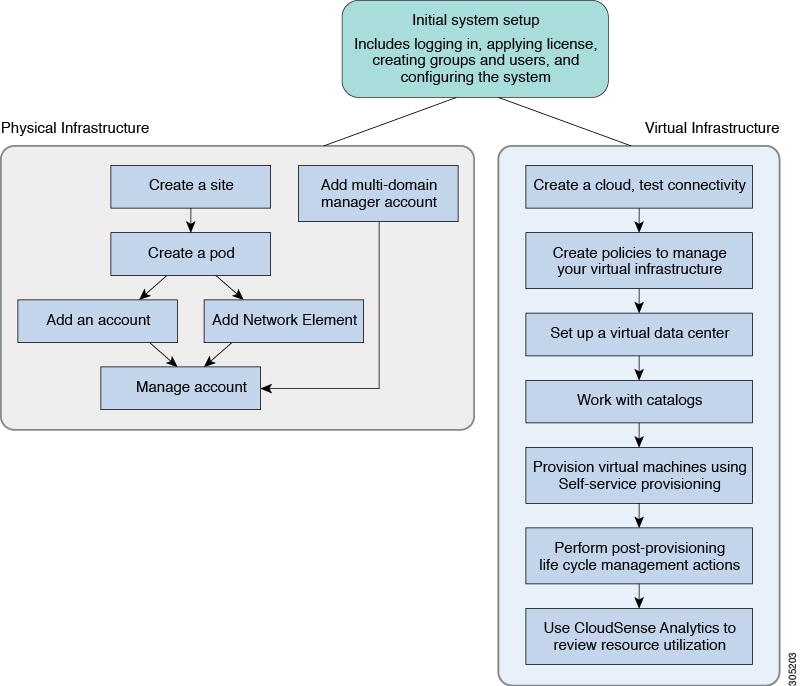
The following table describes the chapters available in this book using which you can complete setting up your environment.
| Name | Chapter | Description | ||
|---|---|---|---|---|
| Initial set up | 2, 3, 4 and 5 |
Describes how to apply a license, set up the Admin profile, create groups, and create users. You will learn how to access language support, apply portal customization, and system settings |
||
| Physical Infrastructure | 6 |
Describes how to optionally add a pod and physical account, add network elements, test the connections, and verify account discovery.
|
||
| Virtual Infrastructure | 7 |
Describes how to create a cloud, verify cloud discovery and connectivity, test the connections, and view vCenter plug ins. |
||
| Policies | 8 |
Describes how to create and manage computing policies, storage policies, network policies, and system policies. You will learn how to add OS licenses for Microsoft Windows catalogs. |
||
| Virtual Data Centers | 9 |
Describes how to set up VDCs to manage specific environments for groups. policies, and cost models, and how resource limits are configured and managed at the VDC level. |
||
| Catalogs | 10 |
Describes how to set up catalog items, attach groups with access to a catalog, and publish catalog items. |
||
| Self-Service Provisioning | 11 |
Describes how you can create and manage provisioning service requests. |
||
| Multi-Disk Provisioning | 12 |
Describes how to configure VM disk provisioning on a preferred single datastore or multiple datastores. It also provides instructions on how to configure individual disk policies for each additional disk in a template. |
||
| Chargeback | 13 |
Describes how to create chargeback summary reports, detailed reports, and resource accounting reports. It shows how cost models are defined and assigned to policies within departments and organizations. |
||
| Cloud Management | 14 |
Describes how you can get complete cloud visibility, monitor resource usage, and manage the cloud stack—clouds, clusters, host servers, and virtual machines. |
||
| Life Cycles | 15 |
Describes how to perform post provisioning life cycle management actions on VMs, such as VM power management, VM resizing, VM snapshot management, and other VM actions. |
||
| CloudSense | 16 |
Describes the analytical reports about the underlying physical and virtual infrastructure that Cisco UCS Director can generate. |
Configuring the Host Name for Cisco UCS Director
If you changed the default host name of the appliance of Cisco UCS Director using the command prompt, then you must follow this procedure to ensure that the name is updated in the /etc/hosts file.
| Step 1 | SSH to the appliance using the root account. |
| Step 2 | Edit the
/etc/hosts to update the new host name.
In a single node environment, you must update the file in the following format: vi /etc/hosts 198.51.100.1 new_hostname In a multi-node environment, if the host names of other nodes are changed, then you must update the IP address and the new host name on the primary node, service nodes and database nodes. For example: vi /etc/hosts 198.51.100.1 new_hostname Ex: 198.51.100.2 UCSD_Primary 198.51.100.3 UCSD_Service 198.51.100.4 UCSD_Inv_DB 198.51.100.5 UCSD_Mon_DB |
| Step 3 | Restart the appliance services. |
Working with Ciphers
As an administrator in Cisco UCS Director, you have the capability to enable or disable ciphers from the property file. In the event that you enable a cipher with a potential security risk, a warning message is logged in the Cisco UCS Director log file. By default, all ciphers that pose a risk are disabled. You can configure specific ciphers from the defaultEnabledCipherSuites.properties file, located in the /opt/infra/inframgr folder. For more information, see Editing Cipher Usage.
In addition, you can change the preference order of the standard set of ciphers, based on your system requirements. By default, the standard ciphers are listed according to the preference order.
Cisco UCS Director currently supports the use of "limited" and "strong" Java Cryptograpy Extension (JCE) Policy files for Java SE Runtime Environment. If you want to change these policies to "unlimited" and "strong" JCE policies, then you must download and install the latest JCE policy files from the Oracle website. For more information, see Installing the Latest Java Cryptograpy Extension (JCE) Policy Files.
Editing Cipher Usage
CipherSuites are maintained in the defaultEnabledCipherSuites.properties file. You can edit the list of ciphers in this file, based on the application requirements for your network.
We recommend that you always use the standard ciphers and not enable any broken or risky ciphers for your application.
Installing the Latest Java Cryptograpy Extension (JCE) Policy Files
Complete the following procedure to download and install the latest JCE policy files:
| Step 1 | Take a backup of the following files in the $JAVA_HOME/jre/lib/security folder: |
| Step 2 | Access the oracle Java SE download page at http://www.oacle.com/technetwork/java/javase/downloads.index.html. |
| Step 3 | Scroll to the Additional Resources section to locate the Java Cryptography Extension (JCE) Unlimited Strength Jurisdiction Policy File. |
| Step 4 | Download the Java Cryptography Extension (JCE) Unlimited Strength Jurisdiction Policy Files for JDK/JRE 8 zipped file. |
| Step 5 | Extract the contents of the zipped file. |
| Step 6 | Replace the local_policy.jar and US_export_policy.jar in the $JAVA_HOME/jre/lib/security folder. |
| Step 7 | Restart the application. |
 Feedback