Introduction to
Cisco UCS Central
Introducing Cisco UCS Central
Cisco UCS Central provides scalable management solution for growing Cisco UCS environment. Cisco UCS Central simplifies the management of multiple Cisco UCS domains from a single management point through standardization, global policies and global ID pools. Cisco UCS Central does not replace Cisco UCS Manager, which is the policy driven management for single UCS domain. Instead Cisco UCS Central focuses on managing and monitoring the UCS domains on a global level, across multiple individual Cisco UCS Classic and Mini management domains worldwide.
Cisco UCS Central enables you to manage individual or groups of classic, mini or mixed Cisco UCS domains with the following:
-
Centralized Inventory of all Cisco UCS components for a definitive view of the entire infrastructure and simplified integration with current Information Technology Infrastructure Library (ITIL) processes.
-
Centralized, policy-based firmware upgrades that can be applied globally or selectively through automated schedules or as business workloads demand
-
Global ID pooling to eliminate identifier conflicts
-
Global administrative policies that enable both global and local management of the Cisco UCS domains
-
An XML API, building on the Cisco UCS Manager XML API for easy integration into higher-level data center management frameworks
-
Remote management to manage various end points in registered Cisco UCS domains
Cisco UCS Central does not reduce or change any local management capabilities of Cisco UCS Manager, such as its API. This allows you to continue usingCisco UCS Manager the same way as when you did not have Cisco UCS Central, and also allows all existing third party integrations to continue to operate without change.
- Cisco UCS Central Features
- Overview of Cisco UCS Central HTML 5 UI
- Using the HTML5 UI
- Common User Interface Options
- Behavior and Design Changes in HTML5 UI
Cisco UCS Central Features
The following table provides a list of features with brief description on the management capabilities of Cisco UCS Central:
 Note | For a full list of new features, see the Release Notes for Cisco UCS Central. |
|
Feature |
Description |
|---|---|
|
Centralized inventory |
Cisco UCS Central automatically aggregates a global inventory of all registered Cisco UCS components, organized by domain, with customizable refresh schedules and provides even easier integration with ITIL processes, with direct access to the inventory through an XML interface. |
|
Centralized fault summary |
Cisco UCS Central enables you to view the status of all Cisco UCS infrastructure on the global fault summary panel, with a fault summary organized by domain and fault type. Also provides you the ability to view individual Cisco UCS Manager domains for greater fault detail and more rapid problem resolution. Drilling down on a fault launches the UCS Manager in context for a seamlessly integrated experience. |
|
Centralized, policy-based firmware upgrades |
You can download firmware updates automatically from the Cisco.com to a firmware library within Cisco UCS Central. Then schedule automated firmware updates, globally or selectively, based on your business requirements. Managing firmware centrally ensures compliance with IT standards and makes reprovisioning of resources a point-and-click operation. |
|
Global ID pools |
Cisco UCS Central eliminates identifier conflicts and ensures portability of software licenses. You are able to centralize the sourcing of all IDs, such as universal user IDs (UUIDs), MAC addresses, IP addresses, and worldwide names (WWNs), from global pools and gain real-time ID use summaries. Centralizing server identifier information makes it simple to move a server identifier between Cisco UCS domains anywhere in the world and reboot an existing workload to run on the new server. |
|
Domain groups |
Cisco UCS Central simplifies policy management by providing options to create domain groups and subgroups. A domain group is an arbitrary grouping of Cisco UCS domains that can be used to group systems into geographical or organizational groups. Each domain group can have up to five levels of domain sub groups. This provides you the ability to manage policy exceptions when administering large numbers of Cisco UCS domains. Each sub group has a hierarchical relationship with the parent domain group. |
|
Global administrative policies |
Cisco UCS Central helps you to ensure compliance and staff efficiency with global administrative policies. The global policies are defined at the domain group level and can manage anything in the infrastructure, from date and time and user authentication to equipment power and system event log (SEL) policies. |
|
Global service profiles and templates |
Global service profiles and templates in Cisco UCS Central enables fast and simplified infrastructure deployment and provides consistency of configurations throughout the enterprise. This feature enables global bare-metal workload mobility very similar to how hypervisor enables virtualized workload mobility. |
|
Backup |
Cisco UCS Central provides an automatic backup facility that enables quick and efficient backing up the configuration information of the registered Cisco UCS domains and the UCS Central configuration. |
|
High availability |
As with all Cisco UCS solutions, Cisco UCS Central is designed for no single point of failure. High availability for Cisco UCS Central Software allows organizations to run Cisco UCS Central using an active-standby model with a heartbeat that automatically fails over if the active Cisco UCS Central does not respond. |
|
XML API |
Cisco UCS Central, just like Cisco UCS Manager, has a high-level industry-standard XML API for interfacing with existing management frameworks and orchestration tools. The XML API for Cisco UCS Central Software is similar to the XML API for Cisco UCS Manager, making integration with high-level managers very fast. |
|
Remote Management |
Cisco UCS Central enables you to manage various end points in the registered Cisco UCS domains from one management point. You can manage chassis, servers, fabric interconnects, and fabric extenders from Cisco UCS Central GUI or CLI. You can also access tech support files for registered UCS domains from Cisco UCS Central. |
Overview of Cisco UCS Central HTML 5 UI
Cisco UCS Central HTML5 based user interface provides flexibility and task based usability for your management purposes.
The dashboard provides a quick overview of components in the system. You can pin the components you use frequently and customize the dashboard to suit your operational requirements. You can click on any object on the dashboard to go to the related page in the system.
Using the HTML5 UI
Dashboard
You can pin dashboard widgets and customize the dashboard based on your operational requirements. The following describes the basic dashboard structure, and the navigation icons, for performing management tasks:
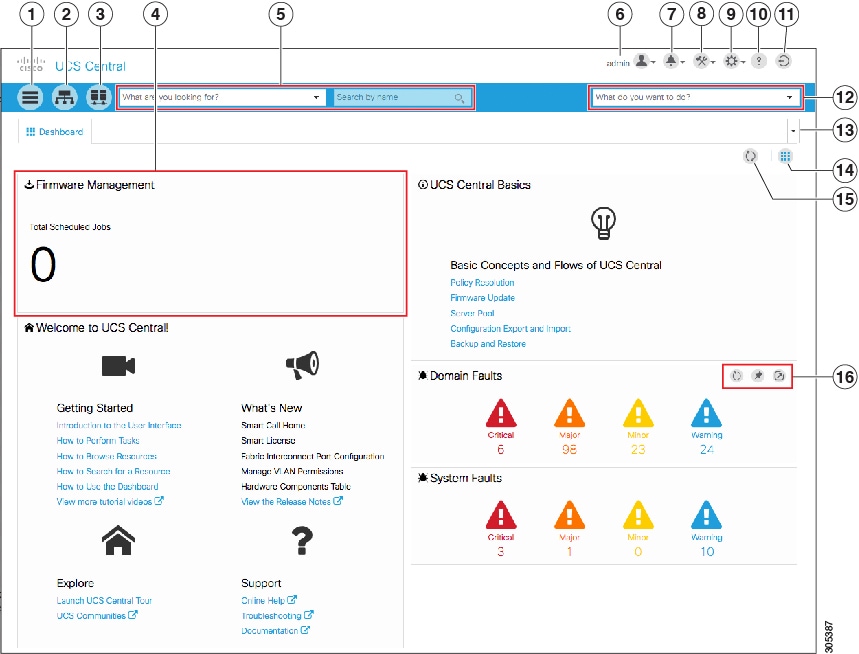
Dashboard Widgets
Dashboard widgets allow you to customize the dashboard based on your operational requirements. Cisco UCS Central contains the following types of widgets:
Default Widgets
Default widgets are listed in the widgets library on the dashboard. Click the widgets library to pin the widget to the dashboard. The widgets library includes the following widgets:
-
Welcome to UCS Central!—Displays introductory links and videos to get you started with Cisco UCS Central.
-
UCS Central Basics— Displays basic concepts and flows for Cisco UCS Central.
-
Licenses—Displays the total number of licenses and their status.
-
Backup & Restore—Displays the current backup and restore status.
-
Config Export & Import—Displays the current config export and import status.
-
Firmware Management—Displays the total number of scheduled Firmware update jobs.
-
Inventory Status—Displays the number of domains, FIs, servers, chassis, and FEX, as well as the overall status.
-
ID Universe—Displays the number of IDs that are available or in conflict.
-
System Faults—Displays the number of system faults with the top four severities.
Click the Expand icon to view the Faults Log page for all system faults. Click on a fault icon to view the system faults with the selected severity pre-selected.
-
Domain Faults—Displays the number of domain faults with the top four severities.
Click the Expand icon to view the Faults Log page for all domain faults. Click on a fault icon to view the domain faults with the selected severity pre-selected.
-
Pending Activities—Displays Pending activities. Some may need user acknowledgment.
-
Domains—Displays current number of domains registered with Cisco UCS Central.
Table Summary Widgets
Table summary widgets displays the total number of items and the status for the following:
Up to two status bars can be displayed, with the top four errors displayed in each status bar.
Click the Expand icon to view the full table.
Detailed Instance Summary Widgets
Detailed instance summary widgets display the overall status and fault summary. Click the pin icon to create a widget for the following instances:
Click the Expand icon to view the full instance page. Click on a fault icon to view a faults window with the selected severity pre-selected.
Instance Shortcut Widgets
Shortcut widgets create a read-only link to a particular instance of a policy or template. Click the pin icon on an instance to create the widget.
Adding Table Summary Widgets to the Dashboard
Adding Instance Summary Widgets to the Dashboard
Tab Navigator
The tab navigator appears on all screens, and allows you to navigate quickly through the tabs that you have opened. You can also close all tabs at once.
Using the Tab Navigator
Common User Interface Options
The following table describes user interface options:


Behavior and Design Changes in HTML5 UI
Deprecation Announcement for Cisco UCS M-Series Modular Servers
Cisco UCS M-Series Modular Servers have been deprecated and will not be supported in Cisco UCS Central release 1.5.
Feature Support
RDM-based shared storage for Cisco UCS Central HA configurations are no longer supported with Cisco UCS Central release 1.5.
The following features that are available in the older flash-based user interface are not supported in the HTML5 user interface at this time:
Note | Any functionality introduced in Cisco UCS Central release 1.4(1a) and newer releases will be available in the HTML 5 user interface only. |
Behavior Changes Based on Design
-
You must create the global service profile template before you can create a service profile.
-
vNIC and vHBA Placement is now referred to as Interface Placement.
-
Registration Policy is now referred to as Domain Group Qualification Policy.
-
ID Range Qualification Policy is now referred to as ID Range Access Control Policy.
-
There are no qualified IP addresses for ID Range Access Control Policy.
-
Only the configuration export (all-config) and backup (full-state) options are used in Cisco UCS Central. Other backup types such as config logical and config system are not supported.
 Feedback