Installing the Server Operating System or Hypervisor

This chapter includes the following sections:

Operating System or Hypervisor Installation Methods

E-Series Servers and NCE support several operating systems and hypervisors. Regardless of the platform being installed, you can install it on your server using one of the following methods:

  • KVM console

  • PXE installation server

  • Host image mapping


Caution


You must use only one method to map virtual drives. For example, you must use either the KVM console or the Host Image Mapping method. Using a combination of methods will cause the server to be in an undefined state.


KVM Console

The KVM console is an interface accessible from the CIMC that emulates a direct keyboard, video, and mouse connection to the server. The KVM console allows you to connect to the server from a remote location. Instead of using CD/DVD or floppy drives physically connected to the server, the KVM console uses virtual media, which are actual disk drives or disk image files that are mapped to virtual CD/DVD or floppy drives. You can map any of the following to a virtual drive:

  • CD/DVD or floppy drive on your computer

  • Disk image files (ISO or IMG files) on your computer

  • USB flash drive on your computer

You can use the KVM console to install an operating system or hypervisor on the server and to do the following:

  • Access the BIOS setup menu by pressing F2 during bootup.

  • Access the CIMC Configuration Utility by pressing F8 during bootup.

Installing an Operating System or Hypervisor Using the KVM Console

Because the KVM console is operated only through the GUI, you cannot install an operating system or hypervisor using the CLI. To install a platform using the KVM console, follow the instructions in the "Installing an Operating System or Hypervisor Using the KVM Console" section of the GUI Configuration Guide for Cisco UCS E-Series Servers and the Cisco UCS E-Series Network Compute Engine.

PXE Installation Servers

A Preboot Execution Environment (PXE) installation server allows a client to boot and install an operating system or hypervisor from a remote location. To use this method, a PXE environment must be configured and available on your VLAN, typically a dedicated provisioning VLAN. In addition, the server must be set to boot from the network. When the server boots, it sends a PXE request across the network. The PXE installation server acknowledges the request, and starts a sequence of events that installs the operating system or hypervisor on the server.

PXE servers can use installation disks, disk images, or scripts to install the operating system or hypervisor. Proprietary disk images can also be used to install the platform, additional components, or applications.


Note


PXE installation is an efficient method for installing a platform on a large number of servers. However, considering that this method requires setting up a PXE environment, it might be easier to use another installation method.


Installing an Operating System or Hypervisor Using a PXE Installation Server

Before you begin

Verify that the server can be reached over a VLAN.

Procedure


Step 1

Set the boot order to PXE.

Step 2

Reboot the server.

Caution


If you are using the shared LOM interfaces to access CIMC, make sure that you do not use the CIMC GUI during the server reboot process. If you use the CIMC GUI, the GUI will disconnect during PXE installation as the boot agent overrides the IP address that was previously configured on the Ethernet ports.

If a PXE install server is available on the VLAN, the installation process begins when the server reboots. PXE installations are typically automated and require no additional user input. Refer to the installation guide for the operating system or hypervisor being installed to guide you through the rest of the installation process.


What to do next

After the installation is complete, reset the LAN boot order to its original setting.

Host Image Mapping

TheHost Image Mapping feature allows you to download, map, unmap, or delete a host image. Download a host image, such as Linux, or VMware from a remote FTP or HTTP server onto the CIMC internal repository, and then map the image onto the virtual drive of a USB controller in the E-Series M6 Servers. After you map the image, set the boot order to make the virtual drive, in which the image is mounted, as the first boot device, and then reboot the server. The host image must have .iso or .img as the file extension.

Mapping the Host Image

Before you begin

  • Log in to the CIMC as a user with admin privileges.

  • Obtain the host image file from the appropriate third-party.


Note


If you start an image update while an update is already in process, both updates will fail.


Procedure

  Command or Action Purpose

Step 1

Server# scope host-image-mapping

Enters the remote install command mode.

Step 2

Server /host-image-mapping # download-image {ftp | ftps | http | https} server-ip-address path / filename [username username password password]

Downloads the image from the specified remote server onto the CIMC internal repository. The host image must have .iso as the file extension. The remote server can be a FTP, FTPS, HTTP, or HTTPS server. If the remote server requires user authentication, you must add the username and password of the remote server.

Note


If the image file exceeds the size limit, an error message is displayed.

Note


The HTTP server does not support user authentication; only FTP supports user authentication.

Step 3

(Optional) Server /host-image-mapping # show detail

Displays the status of the image download.

Step 4

Server /host-image-mapping # map-image

Mounts the image on a virtual drive of the USB controller. The virtual drive can be one of the following:

  • HDD—Hard disk drive

  • FDD—Floppy disk drive

  • CDROM—Bootable CD-ROM

Step 5

(Optional) Server /host-image-mapping # show detail

Displays the status of the host image mapping.

Example

This example maps the host image:

Server# scope host-image-mapping 
Server /host-image-mapping # download-image ftp 10.20.34.56 pub/hostimage.iso
---
Server /host-image-mapping # show detail
Host Image Info:
  Name: HostImage.iso
  Size: 6626848
  Last Modified Time: Fri, 12 Aug 2011 21:13:27 GMT
  Host Image Status: Download Successful!!
Server /host-image-mapping # map-image
---
status: ok
---
Server /host-image-mapping # show detail
Host Image Info:
  Name: HostImage.iso
  Size: 6626848
  Last Modified Time: Fri, 12 Aug 2011 21:13:27 GMT
  Host Image Status: Image mapped successfully!!

What to do next

  1. Set the boot order to make the virtual drive in which the image is installed as the first boot device. See Configuring the Server Boot Order.

  2. Reboot the server. If the image contains an answer file, the operating system installation is automated and the image is installed. Otherwise, the installation wizard displays. Follow the wizard steps to install the image.

  3. If disk drives are not displayed after you install the operating system or hypervisor, you must install drivers. For instructions on how to install drivers on a Microsoft Windows Server, see Installing Drivers for the Microsoft Windows Server.

  4. After the installation is complete, reset the virtual media boot order to its original setting.

Installing Drivers for the Microsoft Windows Server


Note


If you purchased an E-Series Server or NCE Option 1 (E-Series Server or NCE without a preinstalled operating system or hypervisor), and you installed your own version of the Microsoft Windows Server, you must install drivers.


The Microsoft Windows operating system requires that you install the following drivers:


Note


The driver 'Intel Network Adapter Driver for Windows Server 2012 R2' is applicable only for the following servers:

  • UCS-E160S-M3 Server

  • UCS-EN140N-M2 Server

  • UCS-EN120E-M2 Server

  • UCS-E180D-M3/K9 Server

  • UCS-E1120D-M3/K9 Server


Note


Additional drivers are not needed for Windows 2012.


If you have purchased a 10-Gigabit add-on card, you must also install the 10G PCIe Network Drivers for Windows 2008 R2.

Procedure

Step 1

Download the drivers from Cisco.com. See Obtaining Software from Cisco Systems.

Step 2

Copy the driver files into a USB flash drive.

Step 3

Install your own version of Microsoft Windows Server.

During the installation process, you will be prompted for the LSI Drivers.

Step 4

Plug the USB flash drive into the USB slot in the E-Series Server and then install the LSI Drivers.

This step is applicable to E-Series Servers and the SM E-Series NCE. This step is not applicable to the EHWIC E-Series NCE and the NIM E-Series NCE.

Step 5

After the Microsoft Windows Server installation is complete, install the On-Board Network Drivers (Broadcom) and the Intel Drivers.


Unmapping the Host Image

Before you begin

Log in to the CIMC as a user with admin privileges.

Procedure

  Command or Action Purpose

Step 1

Server# scope host-image-mapping

Enters the remote install command mode.

Step 2

Server /host-image-mapping # unmap-image

Unmounts the image from the virtual drive of the USB controller.

Step 3

Server /host-image-mapping # show detail

(Optional) Displays the status of the host image unmapping.

Example

This example unmaps the host image:

Server# scope host-image-mapping
Server /host-image-mapping # unmap-image
Server /host-image-mapping # show detail
Host Image Info:
  Name: HostImage.iso
  Size: 6626848
  Last Modified Time: Fri, 12 Aug 2011 21:13:27 GMT
  Host Image Status: Image unmapped successfully!!

Deleting the Host Image

Before you begin

Log in to the CIMC as a user with admin privileges.

Procedure

  Command or Action Purpose

Step 1

Server# scope host-image-mapping

Enters remote install mode.

Step 2

Server /host-image-mapping # delete-image

Removes the image from the CIMC internal repository.

Example

This example deletes the host image:

Server# scope host-image-mapping
Server /host-image-mapping # delete-image

Configuring ESX Network Connectivity through MGF (GE1) Interface

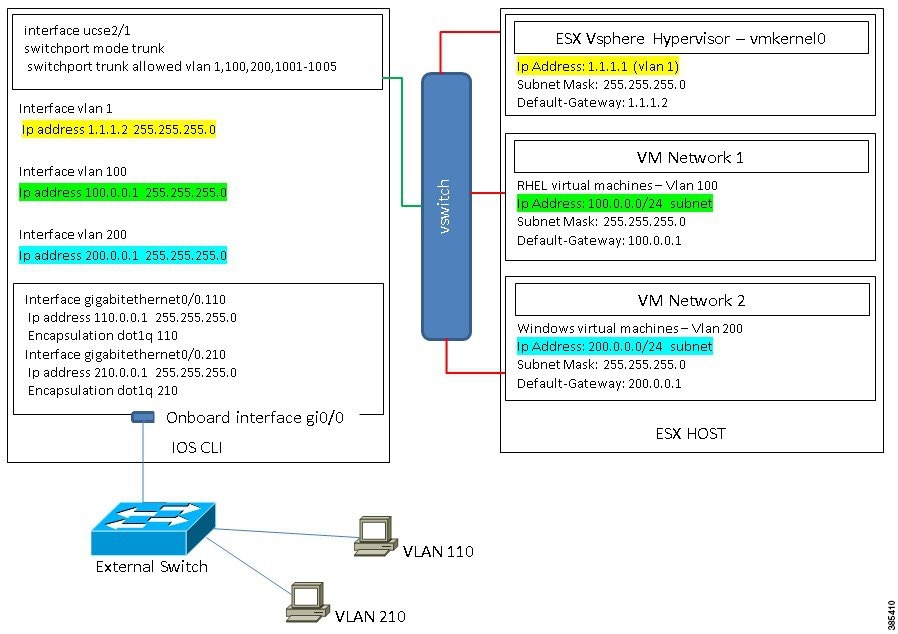
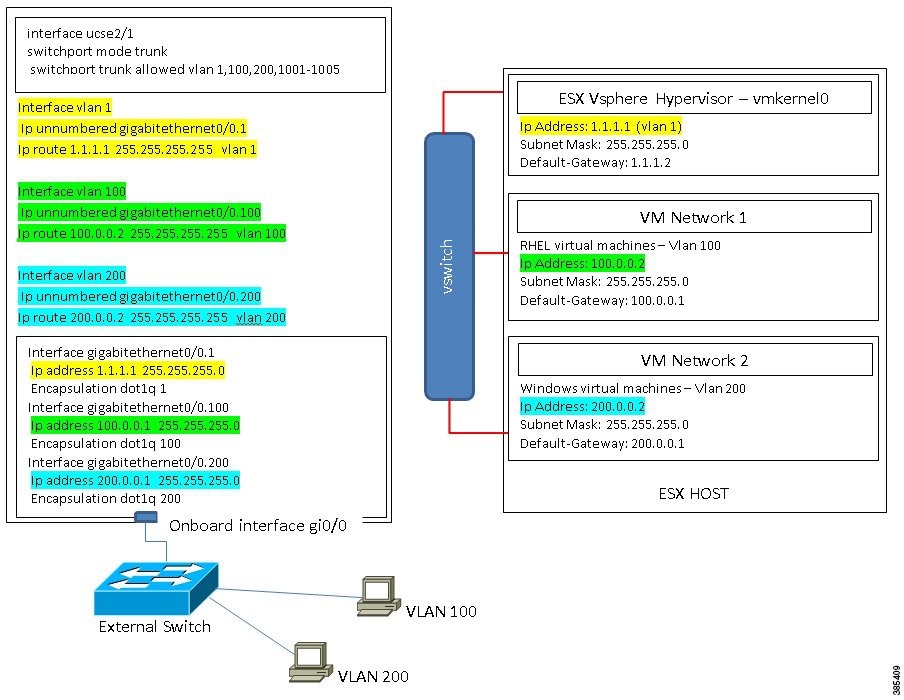
On the E-Series M6 Servers, the MGF(GE1) interface connects internally to the Ethernet Switch Module through the backplane. This section explains how to set up a communication link between the UCS E-Series hosts with the external network.

There are three scenarios where you can configure ESX Network Connectivity through the MGF (GE1) interface:

  • L2 NETWORKING: Hosts and VMs in the Same Subnet

  • L3 NETWORKING: Hosts and VMs in Different Networks

  • L3 NETWORKING: Hosts and VMs in the Same Network

L2 NETWORKING: Hosts and VMs in the Same Subnet

In this scenario, the UCS E-Series M6 Server is hosting the VMS in VLAN 100 and 200.The traffic enters the routerand passes through UCSE2/1/ GE1 interface and switches to the physical hosts by the EHWIC module.

The following configuration setup shows how the VMs and physical hosts (in the same VLANs) communicate.

L3 NETWORKING: Hosts and VMs in Different Network

In this scenario, the VMs communicate with hosts in different subnet by sending the traffic to the router throughthe UCSE2/1. On the router, the traffic hits the VLAN interface and gets L3 routed by the Catalyst 8300 Series Edge platform.

L3 NETWORKING: Hosts and VMs in the Same Network

In this scenario, the physical hosts are in the same subnet as the VMs, but no EHWIC is present on the router. The physical hosts can be connected to the onboard L3 interface with the following configuration to enable the communication between the VMs and the physical hosts.