|
1
|
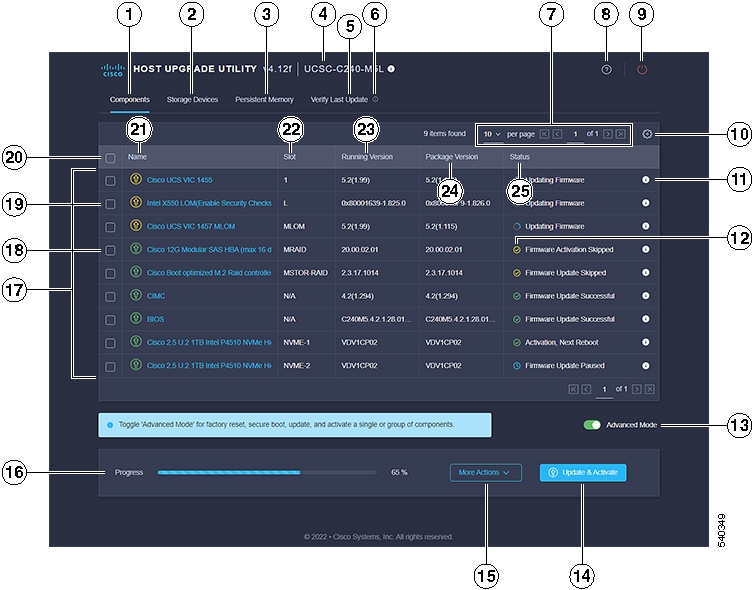
Components Tab
|
Lists all the server components for upgrade or downgrade. You can update the firmware of all components or specific components
on this list.
| Note
|
If you choose to update the firmware of specific components, you must update the Cisco IMC, CMC and BIOS to the same version.
|
|
|
2
|
Storage Devices Tab
|
Lists all the external storage drives (HDDs) available on the server. You can choose to upgrade or downgrade the firmware
of all the storage drives or specific drives available on this server.
| Note
|
Cisco recommends you to take a backup before upgrading or downgrading the firmware. Cisco is not responsible for any data
loss due to firmware upgrade or downgrade.
|
|
|
|
|
3
|
Persistent Memory Tab
|
Lists all the external Persistent Memory available on the server. You can choose to upgrade or downgrade the firmware of all
or specific memrories available on this server.
| Note
|
Cisco recommends you to take a backup before upgrading or downgrading the firmware. Cisco is not responsible for any data
loss due to firmware upgrade or downgrade.
|
|
|
4
|
Server Info
|
Provides the name of the server. Hover the cursor over the icon to view the following information about the server:
-
Host Name
-
System Type
-
Model
-
Serial Number
-
Manufacturer
-
UUID
|
|
5
|
Verify Last Update Tab
|
Provides information about firmware update status of the components after the last HUU boot. To verify the firmware update
status, reboot again to same HUU image.
|
|
6
|
Verify Last Update info icon
|
Hover the cursor to view help text.
|
|
7
|
Table Setting options
|
You can use the drop list to set the number of components listed in the table per page. You can also use the forward and backward
buttons to navigate through the table.
|
|
8
|
HUU Help icon
|
Displays the following options:
-
Site Tour—Provides a guided tour of the application to show the main features and help you understand the GUI.
-
Help—Displays the online help page for HUU.
-
About—Displays a brief description of HUU along with the HUU version.
|
|
9
|
Server Power Cycle icon
|
You can use this to recycle the server. You can also recycle the server using the power cycle option in KVM console.
| Note
|
Server may power cycle multiple times to activate firmware. Do not interrupt power cycle. Once power cycle is complete, boot
menu is displayyed.
|
|
|
10
|
Table Setting icon
|
Use this option to edit the table view.
Following options are available in Components tab:
-
Name
-
Product ID
-
Vendor
-
Slot
-
Running Version
-
Package Version
-
Status
Following options are available in Storage Devices tab:
-
Name
-
Product ID
-
Vendor
-
Enclosure
-
Drive Type
-
Model Number
-
Serial Number
-
Controller Name
-
Controller Set
-
Slot
-
Running Version
-
Package Version
-
Status
Following options are available in Persistent Memory tab:
| Note
|
Persistent Memory tab is applicable only for few servers.
|
-
Name
-
Product ID
-
Vendor
-
Enclosure
-
Drive Type
-
Model Number
-
Serial Number
-
Controller Name
-
Controller Set
-
Slot
-
Running Version
-
Package Version
-
Status
|
|
11
|
Component Firmware Upgrade Status info icon
|
Provides all the information about the update status.
|
|
12
|
Component Firmware Upgrade Status icon
|
Provides the current firmware update status of the component. This can be one of the following:
-
Green—Firmware update successful.
-
Red—Firmware update fail.
-
Yellow—Firmware update skipped.
|
|
13
|
Advanced Mode Toggle button
|
Allows you the following options:
-
Update or Activate individual components or drives through More Actions drop-down list. If you do not select any component, this action updates all the components together.
-
Perform a Factory Reset through More Actions drop-down list.
|
|
14
|
Update and Activate button
|
When Advanced Mode is off:
When Advanced Mode is on:
-
Allows you to either update and activate all components/drives with single click.
-
Or, allows to you update and activate selected components/drives with single click.
|
|
15
|
More Actions drop-down list
|
| Note
|
More Actions drop-down list is available only when Advanced Mode is on.
|
Following drop-down options are available:
-
When no components/drives are selected, allows you to update or activate all components/drives.
-
When one or more components/drives are selected, allows to you update or activate selected components/drives.
-
Perform a Factory Reset.
-
Allows you to enable secure boot in Cisco UCC S3260 M5 servers.
|
|
16
|
Progress bar
|
Shows firmware update or activation status in percentage.
|
|
17
|
List of components or drives
|
Under Components tab, list of components available in the server are displayed.
Under Storage Drives tab, list of drives available in the server are displayed.
|
|
18
|
Component checkbox
|
| Note
|
Checkbox is available only when Advanced Mode is on.
|
Allows you to select individual component/drive.
|
|
19
|
Firmware information icon
|
Firmware information is color coded:
|
|
20
|
Select All checkbox
|
| Note
|
Checkbox is available only when Advanced Mode is on.
|
Allows you to select all the components/drives listed on the page.
|
|
21
|
Name column
|
Displays the name of the component.
|
|
22
|
Slot column
|
Displays the slot on the server for the component.
|
|
23
|
Running Version column
|
Current version of the firmware.
|
|
24
|
Package Version column
|
Updated version available for upgrade.
|
|
25
|
Status column
|
Displays the firmware update status.
|
|
26 (not shown in the image
|
Enclosure column
|
| Note
|
This column is available only under Storage Devices tab.
|
Displays the enclosure number of the storage device.
|
|
27 (not shown in the image
|
Bank Label column
|
| Note
|
This column is available only under Persistent Memory tab.
|
Displays the node and DIMM channel of the persistent memory.
|
 Feedback