- Preface
- Overview
- Installing the Server OS
- Managing the Server
- Viewing Server Properties
- Viewing Sensors
- Managing Remote Presence
- Managing User Accounts
- Configuring Network-Related Settings
- Managing Network Adapters
- Managing Storage Adapters
- Configuring Communication Services
- Managing Certificates
- Configuring Platform Event Filters
- Cisco IMC Firmware Management
- Viewing Faults and Logs
- Server Utilities
- Troubleshooting
- BIOS Parameters by Server Model
- BIOS Token Name Comparison for Multiple Interfaces
- Index
Overview
This chapter includes the following sections:
- Overview of the Server Software
- Cisco Integrated Management Controller
- Overview of the Cisco IMC User Interface
Overview of the Server Software
The Cisco UCS C-Series Rack-Mount Server ships with the Cisco IMC firmware.
Cisco IMC Firmware
Cisco IMC is a separate management module built into the motherboard. A dedicated ARM-based processor, separate from the main server CPU, runs the Cisco IMC firmware. The system ships with a running version of the Cisco IMC firmware. You can update the Cisco IMC firmware, but no initial installation is needed.
Server OS
The Cisco UCS C-Series rack servers support operating systems such as Windows, Linux, Oracle and so on. For more information on supported operating systems, see the Hardware and Software Interoperability for Standalone C-series servers at http://www.cisco.com/en/US/products/ps10477/prod_technical_reference_list.html. You can use Cisco IMC to install an OS on the server using the KVM console and vMedia.
Cisco Integrated Management Controller
The Cisco IMC is the management service for the C-Series servers. Cisco IMC runs within the server.
 Note | The Cisco IMC management service is used only when the server is operating in Standalone Mode. If your C-Series server is integrated into a UCS system, you must manage it using UCS Manager. For information about using UCS Manager, see the configuration guides listed in the Cisco UCS B-Series Servers Documentation Roadmap at http://www.cisco.com/go/unifiedcomputing/b-series-doc. |
Management Interfaces
You can use a web-based GUI or SSH-based CLI or an XML-based API to access, configure, administer, and monitor the server. Almost all tasks can be performed in either interface, and the results of tasks performed in one interface are displayed in another. However, you cannot do the following:
Tasks You Can Perform in Cisco IMC
You can use Cisco IMC to perform the following server management tasks:
-
Power on, power off, power cycle, reset and shut down the server
-
Toggle the locator LED
-
Configuring BIOS settings
-
Configure the server boot order
-
View server properties and sensors
-
Manage remote presence
-
Create and manage local user accounts, and enable remote user authentication through Active Directory
-
Configure network-related settings, including NIC properties, IPv4, VLANs, and network security
-
Configure communication services, including HTTP, SSH, IPMI Over LAN, and SNMP.
-
Manage certificates
-
Configure platform event filters
-
Update Cisco IMC firmware
-
Monitor faults, alarms, and server status
-
Set time zone and view local time
-
Install and activate Cisco IMC firmware
-
Install and activate BIOS firmware
No Operating System or Application Provisioning or Management
Cisco IMC provisions servers, and as a result, exists below the operating system on a server. Therefore, you cannot use it to provision or manage operating systems or applications on servers. For example, you cannot do the following:
-
Deploy an OS, such as Windows or Linux
-
Deploy patches for software, such as an OS or an application
-
Install base software components, such as anti-virus software, monitoring agents, or backup clients
-
Install software applications, such as databases, application server software, or web servers
-
Perform operator actions, including restarting an Oracle database, restarting printer queues, or handling non-Cisco IMC user accounts
-
Configure or manage external storage on the SAN or NAS storage
Overview of the Cisco IMC User Interface
The Cisco IMC user interface is a web-based management interface for Cisco C-Series servers. You can launch the Cisco IMC user interface and manage the server from any remote host that meets the following minimum requirements:
-
Sun JRE 1.8.0_ 45 to Sun JRE 1.8.0_ 60
-
Microsoft Internet Explorer 6.0 or higher, Mozilla Firefox 3.0 or higher
-
Microsoft Windows 7, Microsoft Windows XP, Microsoft Windows Vista, Apple Mac OS X v10.6, Red Hat Enterprise Linux 5.0 or higher operating systems
-
Transport Layer Security (TLS) version 1.2.
Note | In case you lose or forget the password that you use to log in to Cisco IMC, see the password recovery instructions in the Cisco UCS C-Series server installation and service guide for your server. This guide is available from the Cisco UCS C-Series Servers Documentation Roadmap at http://www.cisco.com/go/unifiedcomputing/c-series-doc. |
Cisco IMC Home Page
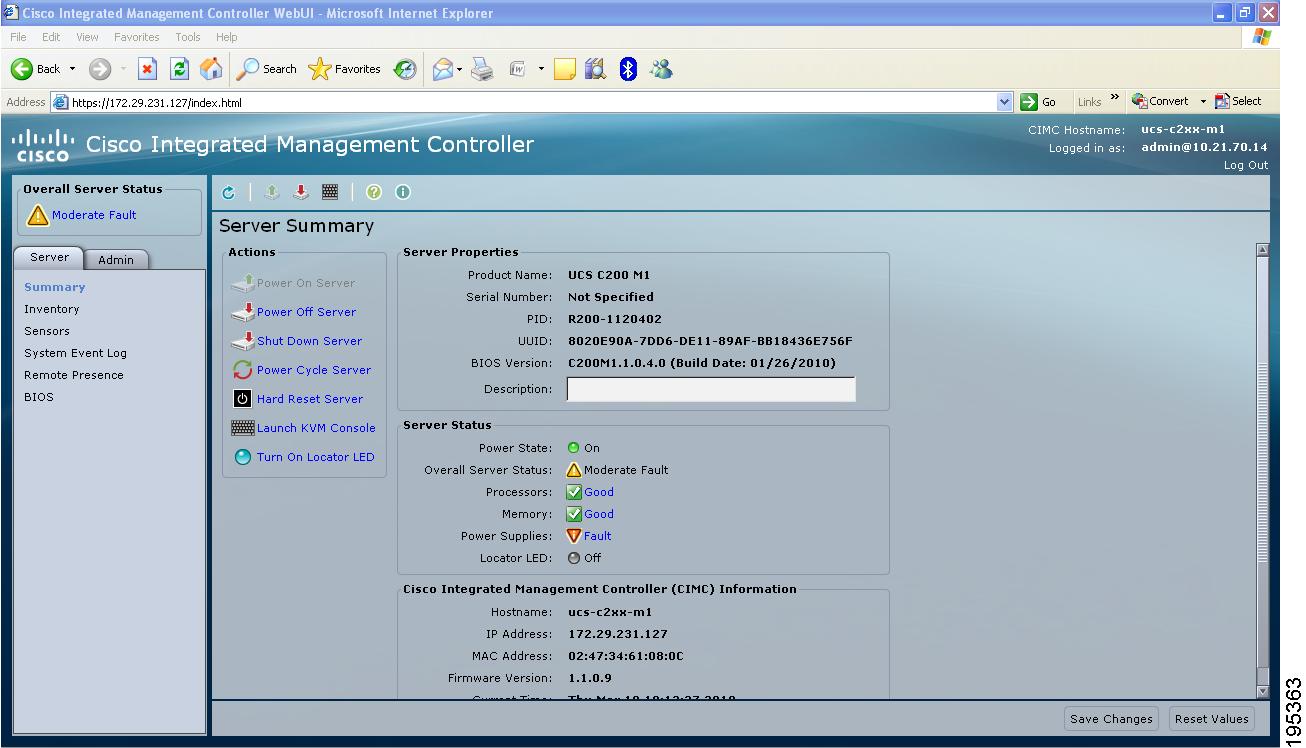
When you first log into Cisco IMC GUI, the user interface looks similar to the following illustration:
Navigation and Work Panes
The Navigation pane displays on the left side of the Cisco IMC GUI. Clicking links on the Server, Admin, or Storage tabs in the Navigation pane displays the associated tabs in the Work pane on the right.
The Navigation pane has the following areas:
Overall Server Status Area
The Overall Server Status area is above the Server, Admin, and Storage tabs. Click the link in area to refresh the Server Summary tab in the Work pane.
Note | If a different tab is displayed in the Work pane, clicking this link redisplays the Server Summary tab with updated server information. |
Server Tab
Each node in the Server tab leads to one or more tabs that display in the Work pane. These tabs provides access to the following information:
| Server Tab Node Name | Work Pane Tabs Provide Information About... |
|---|---|
|
Summary |
Server properties, status, BIOS version, Cisco IMC firmware version, IP address, and MAC address. |
|
Inventory |
Installed CPUs, memory cards, power supplies, PCI adapters, Cisco VIC adapters, network adapters, storage adapters, TPM, SAS expander, and PID catalog. |
|
Sensors |
Power supply, fan, temperature, voltage, current, LEDs, and storage sensor readings. |
|
Remote Presence |
KVM, virtual media, and Serial over LAN settings. |
|
BIOS |
The installed BIOS firmware version and the server boot order. |
|
Power Policies |
Power policy settings. |
|
Faults and Logs |
Fault summary, fault history, system event log, Cisco IMC logs, and logging controls. |
|
Troubleshooting |
Bootstrap process recording, crash recording, and player. |
Admin Tab
Each node in the Admin tab leads to one or more tabs that display in the Work pane. These tabs provides access to the following information:
| Admin Tab Node Name | Work Pane Tabs Provide Information About... |
|---|---|
|
User Management |
Locally-defined user accounts, Active Directory settings, and current user session information. |
|
Network |
NIC, IPv4, VLAN, and LOM properties, along with network security settings. |
|
Communication Services |
HTTP, SSH, XML API, IPMI over LAN, and SNMP settings. |
|
Certificate Management |
Security certificate information and management. |
|
Event Management |
Platform event filters. |
|
Firmware Management |
Cisco IMC and BIOS firmware information and management. |
|
Utilities |
Technical support data collection, system configuration import and export options, and restore factory defaults settings. |
Storage Tab
Each node in the Storage tab corresponds to the LSI MegaRAID controllers or Cisco FlexFlash controllers that are installed in theCisco UCS C-Series Rack-Mount Servers. Each node leads to one or more tabs that display in the Work pane and provide information about the installed controllers.
| Storage Tab Node Name | Work Pane Tabs Provide Information About... |
|---|---|
|
Controller Info |
General information about the selected MegaRAID controller or Cisco Flexible Flash controller. |
|
Physical Drive Info |
General drive information, identification information, and drive statusl |
|
Virtual Drive Info |
General drive information, RAID information, and physical drive information. |
|
Battery Backup Unit |
Backup battery information for the selected MegaRAID controller. |
|
Storage Log |
Storage messages. |
Toolbar
The toolbar displays above the Work pane.
| Button Name | Description |
|---|---|
|
Refresh |
Refreshes the current page. |
|
Power On Server |
Powers on the server. |
|
Power Off Server |
Powers off the server. |
|
Launch KVM Console |
Launches the KVM console. |
|
Ping |
Launches the Ping Details pane. |
|
Help |
Displays the online help for the tab displayed in the Work pane. |
|
Info |
Displays Cisco IMC information. |
Cisco Integrated Management Controller Online Help Overview
The GUI for the Cisco Integrated Management Controller (Cisco IMC) software is divided into two main sections, a Navigation pane on the left and a Work pane on the right.
This help system describes the fields on each Cisco IMC GUI page and in each dialog box.
To access the page help, do one of the following:
-
In a particular tab in the Cisco IMC GUI, click the Help icon in the toolbar above the Work pane.
-
In a dialog box, click the Help button in that dialog box.
Note | For a complete list of all C-Series documentation, see the Cisco UCS C-Series Servers Documentation Roadmap available at the following URL: http://www.cisco.com/go/unifiedcomputing/c-series-doc. |
Logging In to Cisco IMC
If not installed, install Adobe Flash Player 10 or later on your local machine.
 Feedback