- Direct Connect Mode
- Requirements for Direct Connect Mode Integration with Cisco UCS Manager 2.2
- Management Connection Policy and Connection Mode
- Connecting the C-Series Server with Cisco UCS Domain in Cluster Setup
- Physical Connectivity Illustrations for Direct Connect Mode Cluster Setup
- Connecting the C-Series Server with UCS Domain in Non-Cluster Setup
- Migrating C-Series Servers from SingleConnect to Direct Connect Mode
- Migrating C-Series Servers from Dual-wire Management to Direct Connect Mode
- Managing the Rack-Mount Server in Cisco UCS Manager after Integration
- Reverting a Server From Cisco UCS Domain Mode to Standalone Mode
Configuring Direct Connect
This chapter includes the following sections:
- Direct Connect Mode
- Requirements for Direct Connect Mode Integration with Cisco UCS Manager 2.2
- Management Connection Policy and Connection Mode
- Connecting the C-Series Server with Cisco UCS Domain in Cluster Setup
- Physical Connectivity Illustrations for Direct Connect Mode Cluster Setup
- Connecting the C-Series Server with UCS Domain in Non-Cluster Setup
- Migrating C-Series Servers from SingleConnect to Direct Connect Mode
- Migrating C-Series Servers from Dual-wire Management to Direct Connect Mode
- Managing the Rack-Mount Server in Cisco UCS Manager after Integration
- Reverting a Server From Cisco UCS Domain Mode to Standalone Mode
Direct Connect Mode
Cisco UCS Manager 2.2 supports an option to connect the C-Series Rack-Mount Server directly to the Fabric Interconnects. You do not need the Fabric Extenders. This option enables Cisco UCS Manager to manage the C-Series Rack-Mount Servers using a single cable for both management traffic and data traffic.
When you use direct connect mode, all Cisco UCS Managed adapters must be connected to the server ports on the Fabric Interconnects. Make sure you have server firmware as listed in the Requirements for Direct Connect Mode Integration with Cisco UCS Manager 2.2. If not, upgrade your server firmware before integrating the server with Cisco UCS Manager. See Upgrading the C-Series Server Firmware.
 Note | C-Series Rack-Mount Servers C200, C210, and C250 do not support Direct Connect. |
VIF Scalability
A maximum of 120 virtual interfaces will be allowed on each adapter in the server that is directly connected to the Fabric Interconnect.
Requirements for Direct Connect Mode Integration with Cisco UCS Manager 2.2
Requirements for Cluster Setup
You must have the following items to create a direct connect integration for C-Series Rack-Mount Server with Cisco UCS Manager in cluster setup:
-
A Cisco UCS system that is running Cisco UCS Manager release 2.2 and above.
-
Any of the following supported Cisco UCS C-Series servers and corresponding CIMC release versions listed in the following table:
Table 1 Minimum Required Version of CIMC, BIOS and UCS Manager for Direct Connect Mode Integration Server
CIMC
BIOS
UCS Manager
Cisco UCS C22 M3 Server
1.4(6)
1.4.7a
2.1(2a)
Cisco UCS C24 M3 Server
1.4(6)
1.4.7a
2.1(2a)
Cisco UCS C220 M3 Server
1.4(6)
1.4.7a
2.1(2a)
Cisco UCS C220 M4 Server (requires 2.2.3 or above)
2.0(3d)
2.0.3
2.2(3a)
Cisco UCS C240 M3 Server
1.4(6)
1.4.7a
2.1(2a)
Cisco UCS C240 M4 Server (requires 2.2.3 or above)
2.0(3d)
2.0.3
2.2(3a)
Cisco UCS C260 M2 Server
1.4(6)
1.4.7
2.1(2a)
Cisco UCS C420 M3 Server
1.4(7)
1.4.8
2.1(2a)
Cisco UCS C460 M2 Server
1.4(6)
1.4.7
2.1(2a)
Cisco UCS C460 M4 Server
1.5(7a)
1.5.7
2.2(2a)
Important: Direct connect supports only the VIC firmware that supports SingleConnect. The server must have Cisco UCS VIC 1225 or Cisco UCS VIC 1227 or Cisco UCS 1225T or Cisco UCS 1227T or Cisco UCS VIC 1385 or Cisco UCS VIC 1387 MLOM installed. The Firmware and Boot Loader versions are:
For the Cisco UCS VIC 1225 or Cisco UCS VIC 1227 cards:
For the Cisco UCS 1225T or Cisco UCS 1227T cards: For the Cisco UCS VIC 1385 or Cisco UCS VIC 1387 MLOM cards:The Cisco UCS VIC adapters must be installed in the correct slot in each server as mentioned in the following table:
Table 2 Cisco UCS VIC Adapters Slot for Direct Connect Integration Server
PCIe Slot
Cisco UCS C22 M3 Server
1
Cisco UCS C24 M3 Server
1
Cisco UCS C220 M3 Server
1
Cisco UCS C220 M4 Server
1
Cisco UCS C240 M3 Server
2
Cisco UCS C240 M4 Server
The supported slots are: Cisco UCS C260 M2 Server
7
Cisco UCS C420 M3 Server
4
Cisco UCS C460 M2 Server
1
Cisco UCS C460 M4 Server
4
-
Two Cisco UCS 6100 Series or 6200 Series FIs. The ports must be configured as server ports.
-
At least two 10-Gb Small Form-Factor Pluggable (SFP) cables for one card.
- Requirement for Non-cluster Setup
-
If you are integrating the server in a non-cluster setup, along with the Cisco UCS Manager and C-series rack mount server, you will need the following components :
Management Connection Policy and Connection Mode
When establishing the physical connection for the C-Series Rack-Mount Server in the Cisco UCS Domain, you must specify the connection mode and management policy in Cisco UCS Manager GUI or Cisco UCS Manager CLI. The management policy is global to all connected C-Series Rack-Mount Servers. The connection mode determines the rack server discovery in Cisco UCS Manager. Direct connect supports only sideband connectivity.
You can specify either one of the following connection policies for the rack servers:
-
Auto-acknowledged: This is the recommended and default connection mode for the C-Series Rack-Mount Server. If the connection mode is auto-acknowledged, immediately after establishing the physical connection, Cisco UCS Manager discovers the rack server and starts managing the server based on the specified management policy.
-
User-acknowledged: If the connection mode is user-acknowledged, after establishing the physical connection, you must manually acknowledge the connection and specify the connection mode in the Cisco UCS Manager GUI or Cisco UCS Manager CLI to begin the discovery. Cisco UCS Manager does not begin the C-Series Rack-Mount Server discovery until you specify the connection mode.
Note | When rack servers are discovered and are managed by Cisco UCS Manager, if you want to change the existing connection mode for one C-Series Rack-Mount Server , you have to decommission the server, re-commission it and specify the new connection mode. Only then Cisco UCS Manager can discover the server in the new connection mode. |
Connecting the C-Series Server with Cisco UCS Domain in Cluster Setup
Make sure the server CIMC is set to factory default settings to
integrate with Cisco UCS Manager.
-
Make sure the FI ports are configured as server ports. If they are not, reconfigure the ports as server ports using the Cisco UCS Manager GUI.
-
Before you connect the server, make sure the Cisco UCS VIC 1225 or Cisco VIC 1227 is installed in the correct slot for integration with Cisco UCS Manager. If the card is not installed in the correct slot, you cannot enable the direct connect management for the server.
| Step 1 | Install the server in the rack. See the Install and Upgrade Guide for the server that you are using. The install guides are available at the following url: Install and Upgrade Guides. |
| Step 2 | Configure the server ports on the FI. |
| Step 3 | Connect the
paths from
Cisco UCS VIC 1225 or Cisco VIC 1227 to the server ports on the FIs.
|
| Step 4 | Attach a power cord to each power supply in your server, and then attach the power cord to a grounded AC power outlet. |
Server discovery begins when power is applied.
Physical Connectivity Illustrations for Direct Connect Mode Cluster Setup
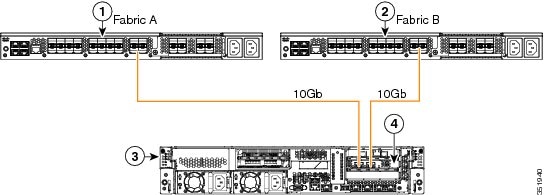
|
1 |
Cisco UCS 6100 Series or 6200 FI (Fabric A) |
3 |
C-Series Rack-Mount Server |
||
|
2 |
Cisco UCS 6100 Series or 6200 FI (Fabric B) |
4 |
Cisco UCS VIC 1225 in supported PCIe slot.
|
Connecting the C-Series Server with UCS Domain in Non-Cluster Setup
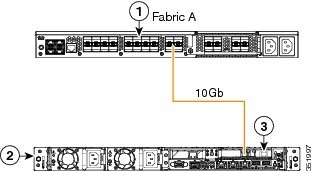
You will follow the same steps explained in Connecting the C-Series Server with Cisco UCS Domain in Cluster Setup. Instead of using two FIs to connect two cables as you will do in cluster setup, you will connect only one FI and one cable to the adapter.
The following image show the cabling configuration for Cisco UCS Manager integration with the server. The path shown in gold carry both management and data traffic.
|
1 Cisco UCS 6100 Series or 6200 FI (Fabric A) |
2 |
C-Series Rack-Mount Server |
|
|
3 |
|
||
Migrating C-Series Servers from SingleConnect to Direct Connect Mode
Before performing the migration procedure, on the Cisco UCS Manager GUI, Global Policies page, make sure the Rack Discovery Policy and Rack Management Connection Policies are set to the defaults such as,Immediate and Auto Acknowledge. This will make sure after connecting the server directly to the FI, the server is discovered immediately and Cisco UCS Manager starts managing the server without waiting for your interaction.
 Caution | Migrating from SingleConnect FEX connectivity to direct connect is a disruptive process. Make sure you do this during a scheduled outage window. You might need 15 to 20 minutes to complete this procedure. |
After the server reboots, you can resume normal operations.
Migrating C-Series Servers from Dual-wire Management to Direct Connect Mode
Before performing the migration procedure, on the Cisco UCS Manager GUI, Global Policies page, make sure the Rack Discovery Policy and Rack Management Connection Policies are set to the defaults such as,Immediate and Auto Acknowledge. This will make sure after connecting the server directly to the FI, the server is discovered immediately and Cisco UCS Manager starts managing the server without waiting for your interaction.
To enable direct connect mode to a server connected in dual-wire management mode, you will need to change the adapter. Changing the adapter may impact the PCIe numbering on a bare metal Windows system. If you had Adapters listed in the OS, after you change them they will be Adapter 3 and 4. If you are using static addressing, you will need to remove the previous adapters from the server. For more information, see http://support.microsoft.com/kb/269155
What to Do Next
Recommission the server from Cisco UCS Manager GUI. After the recommission is complete, the server is ready for operation and you can apply service profiles to the server.
Managing the Rack-Mount Server in Cisco UCS Manager after Integration
You can manage and monitor all rack-mount servers that have been integrated with a Cisco UCS domain through Cisco UCS Manager. After the integration, you will perform all rack-mount server management tasks only through the service profiles from Cisco UCS Manager GUI or Cisco UCS Manager CLI. The C-Series Rack-Mount Server Cisco IMC is not accessible when you start managing the server with Cisco UCS Manager.
Cisco UCS Manager provides information, errors, and faults for each rack-mount server that it has discovered.
For more information on managing C-Series Rack-Mount Servers from Cisco UCS Manager, see the chapter on Managing Rack-Mount Servers in your release specific Cisco UCS Manager Configuration Guide.
Reverting a Server From Cisco UCS Domain Mode to Standalone Mode
When you manage a Cisco UCS C-Series server with Cisco UCS Manager software, a UCS Manager service profile is associated with the server. If you want to revert a C-Series server to standalone mode (so that it can be managed by CIMC software), you must do the following actions in UCS Manager:
 Feedback