Configuring Flexible Netflow

Prerequisites for Flexible NetFlow

The following are prerequisites for your Flexible NetFlow configuration:

  • You must configure a source interface. If you do not configure a source interface, the exporter remains in a disabled state.

  • You must configure a valid record name for every flow monitor.

  • You must enable IPv6 routing to export the flow records to an IPv6 destination server.

  • You must configure IPFIX export protocol for the flow exporter to export netflow records in IPFIX format.

  • You are familiar with the Flexible NetFlow key fields as they are defined in the following commands in the Cisco IOS Flexible NetFlow Command Reference:

    • match datalink —Datalink (layer2) fields

    • match interface —Interface fields

    • match ipv4 —IPv4 fields

    • match ipv6 —IPv6 fields

    • match transport —Transport layer fields

  • You are familiar with the Flexible NetFlow non-key fields:

    • collect counter —Counter fields

    • collect interface —Interface fields

    • collect timestamp —Timestamp fields

IPv4 Traffic

  • The networking device must be configured for IPv4 routing.

  • One of the following must be enabled on your device and on any interfaces on which you want to enable Flexible NetFlow: Cisco Express Forwarding or distributed Cisco Express Forwarding.
IPv6 Traffic

Restrictions for Flexible NetFlow

The following are restrictions for Flexible NetFlow:

  • Microflow policing feature shares the NetFlow hardware resource with FNF.

  • Only one flow monitor per interface and per direction is supported .

  • Egress netflow is not supported.

Information About Flexible Netflow

Overview

uses flows to provide statistics for accounting, network monitoring, and network planning.

A flow is a unidirectional stream of packets that arrives on a source interface and has the same values for the keys. A key is an identified value for a field within the packet. You create a flow using a flow record to define the unique keys for your flow.

The device supports the feature that enables enhanced network anomalies and security detection. allows you to define an optimal flow record for a particular application by selecting the keys from a large collection of predefined fields.

All key values must match for the packet to count in a given flow. A flow might gather other fields of interest, depending on the export record version that you configure. Flows are stored in the cache.

You can export the data that gathers for your flow by using an exporter and export this data to a remote system such as a collector. The collector can use an IPv4 address.

You define the size of the data that you want to collect for a flow using a monitor. The monitor combines the flow record and exporter with the cache information.

Starting with the Cisco IOS XE 16.12.1 release, Source Group Tag (SGT) and Destination Group Tag (DGT) fields over Flexible NetFlow are supported for IPv6 traffic.

Original NetFlow and Benefits of Flexible NetFlow

Flexible NetFlow allows the flow to be user defined. The benefits of Flexible NetFlow include:

  • High-capacity flow recognition, including scalability and aggregation of flow information.

  • Enhanced flow infrastructure for security monitoring and dDoS detection and identification.

  • New information from packets to adapt flow information to a particular service or operation in the network. The flow information available will be customizable by Flexible NetFlow users.

  • Extensive use of Cisco’s flexible and extensible NetFlow Version 9.

  • A comprehensive IP accounting feature that can be used to replace many accounting features, such as IP accounting, Border Gateway Protocol (BGP) Policy Accounting, and persistent caches.

Flexible NetFlow allows you to understand network behavior with more efficiency, with specific flow information tailored for various services used in the network. The following are some example applications for a Flexible NetFlow feature:

  • Flexible NetFlow enhances Cisco NetFlow as a security monitoring tool. For instance, new flow keys can be defined for packet length or MAC address, allowing users to search for a specific type of attack in the network.

  • Flexible NetFlow allows you to quickly identify how much application traffic is being sent between hosts by specifically tracking TCP or UDP applications by the class of service (CoS) in the packets.

  • The accounting of traffic entering a Multiprotocol Label Switching (MPLS) or IP core network and its destination for each next hop per class of service. This capability allows the building of an edge-to-edge traffic matrix.

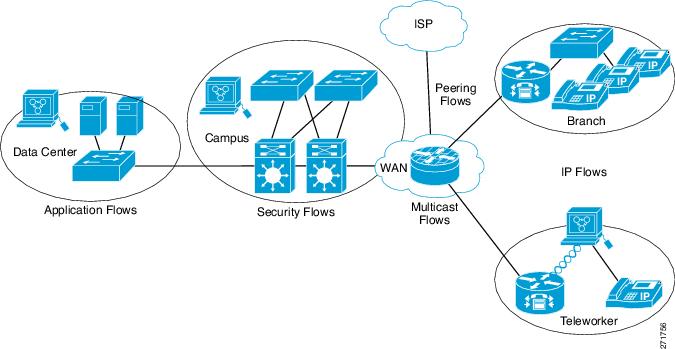
The figure below is an example of how Flexible NetFlow might be deployed in a network.

Figure 1. Typical Deployment for Flexible NetFlow

Flexible NetFlow Components

Flexible NetFlow consists of components that can be used together in several variations to perform traffic analysis and data export. The user-defined flow records and the component structure of Flexible NetFlow facilitates the creation of various configurations for traffic analysis and data export on a networking device with a minimum number of configuration commands. Each flow monitor can have a unique combination of flow record, flow exporter, and cache type. If you change a parameter such as the destination IP address for a flow exporter, it is automatically changed for all the flow monitors that use the flow exporter. The same flow monitor can be used in conjunction with different flow samplers to sample the same type of network traffic at different rates on different interfaces. The following sections provide more information on Flexible NetFlow components:

Flow Records

In Flexible NetFlow a combination of key and nonkey fields is called a record. Flexible NetFlow records are assigned to Flexible NetFlow flow monitors to define the cache that is used for storing flow data.

A flow record defines the keys that Flexible NetFlow uses to identify packets in the flow, as well as other fields of interest that Flexible NetFlow gathers for the flow. You can define a flow record with any combination of keys and fields of interest. The supports a rich set of keys. A flow record also defines the types of counters gathered per flow. You can configure 64-bit packet or byte counters. The enables the following match fields as the defaults when you create a flow record:

  • match datalink—Layer 2 attributes

  • match ipv4—IPv4 attributes

  • match ipv6—IPv6 attributes

  • match transport—Transport layer fields

  • match wireless—Wireless fields


Note


The flow monitor with flow record, that contains the CTS field, cannot be attached on the WLAN (SSID).

NetFlow Predefined Records

Flexible NetFlow includes several predefined records that you can use to start monitoring traffic in your network. The predefined records are available to help you quickly deploy Flexible NetFlow and are easier to use than user-defined flow records. You can choose from a list of already defined records that may meet the needs for network monitoring. As Flexible NetFlow evolves, popular user-defined flow records will be made available as predefined records to make them easier to implement.

The predefined records ensure backward compatibility with your existing NetFlow collector configurations for the data that is exported. Each of the predefined records has a unique combination of key and nonkey fields that offer you the built-in ability to monitor various types of traffic in your network without customizing Flexible NetFlow on your router.

Two of the predefined records (NetFlow original and NetFlow IPv4/IPv6 original output), which are functionally equivalent, emulate original (ingress) NetFlow and the Egress NetFlow Accounting feature in original NetFlow, respectively. Some of the other Flexible NetFlow predefined records are based on the aggregation cache schemes available in original NetFlow. The Flexible NetFlow predefined records that are based on the aggregation cache schemes available in original NetFlow do not perform aggregation. Instead each flow is tracked separately by the predefined records.

User-Defined Records

Flexible NetFlow enables you to define your own records for a Flexible NetFlow flow monitor cache by specifying the key and nonkey fields to customize the data collection to your specific requirements. When you define your own records for a Flexible NetFlow flow monitor cache, they are referred to as user-defined records. The values in nonkey fields are added to flows to provide additional information about the traffic in the flows. A change in the value of a nonkey field does not create a new flow. In most cases the values for nonkey fields are taken from only the first packet in the flow. Flexible NetFlow enables you to capture counter values such as the number of bytes and packets in a flow as nonkey fields.

Flexible NetFlow adds a new Version 9 export format field type for the header and packet section types. Flexible NetFlow will communicate to the NetFlow collector the configured section sizes in the corresponding Version 9 export template fields. The payload sections will have a corresponding length field that can be used to collect the actual size of the collected section.

Flexible NetFlow Match Parameters

The following table describes Flexible NetFlow match parameters. You must configure at least one of the following match parameters for the flow records.

Table 1. Match Parameters

Command

Purpose

match datalink {ethertype | mac}

Specifies a match to datalink or Layer 2 fields. The following command options are available:

  • ethertype—Matches to the ethertype of the packet.

  • mac—Matches the source or destination MAC fields.

match interface {input}

Specifies a match to the interface fields. The following command options are available:

  • input—Matches to the input interface.

match ipv4 {destination | protocol | source | tos}

Specifies a match to the IPv4 fields. The following command options are available:

  • destination—Matches to the IPv4 destination address-based fields.

  • protocol—Matches to the IPv4 protocols.

  • source—Matches to the IPv4 source address based fields.

  • tos—Matches to the IPv4 Type of Service fields.

match ipv6 {destination | protocol | source | traffic-class}

Specifies a match to the IPv6 fields. The following command options are available:

  • destination—Matches to the IPv6 destination address-based fields.

  • protocol—Matches to the IPv6 payload protocol fields.

  • source—Matches to the IPv6 source address based fields.

  • traffic-class—Matches to the IPv6 traffic class.

match transport {destination-port | source-port}

Specifies a match to the Transport Layer fields. The following command options are available:

  • destination-port—Matches to the transport destination port.

  • source-port—Matches to the transport source port.

Flexible NetFlow Collect Parameters

The following table describes the Flexible NetFlow collect parameters.

Table 2. Collect Parameters

Command

Purpose

collect interface {output }

Collects the fields from the output interface.

collect counter bytes

Configures the number of bytes seen in a flow as a nonkey field and enables collecting the total number of bytes from the flow.

collect counter packets

Configures the number of packets seen in a flow as a nonkey field and enables collecting the total number of packets from the flow.

collect timestamp sys-uptime first

Configures the system uptime for the time the first packet was seen from the flows as a nonkey field and enables collecting time stamps based on the system uptime for the time the first packet was seen from the flows.

collect timestamp sys-uptime last

Configures the system uptime for the time the last packet was seen from the flows as a nonkey field and enables collecting time stamps based on the system uptime for the time the most recent packet was seen from the flows.

Flow Exporters

Flow exporters export the data in the flow monitor cache to a remote system, such as a server running NetFlow collector, for analysis and storage. Flow exporters are created as separate entities in the configuration. Flow exporters are assigned to flow monitors to provide data export capability for the flow monitors. You can create several flow exporters and assign them to one or more flow monitors to provide several export destinations. You can create one flow exporter and apply it to several flow monitors.

NetFlow Data Export Format Version 9

The basic output of NetFlow is a flow record. Several different formats for flow records have evolved as NetFlow has matured. The most recent evolution of the NetFlow export format is known as Version 9. The distinguishing feature of the NetFlow Version 9 export format is that it is template-based. Templates provide an extensible design to the record format, a feature that should allow future enhancements to NetFlow services without requiring concurrent changes to the basic flow-record format. Using templates provides several key benefits:

  • Third-party business partners who produce applications that provide collector or display services for NetFlow do not have to recompile their applications each time a new NetFlow feature is added. Instead, they should be able to use an external data file that documents the known template formats.

  • New features can be added to NetFlow quickly without breaking current implementations.

  • NetFlow is “future-proofed” against new or developing protocols because the Version 9 format can be adapted to provide support for them.

The Version 9 export format consists of a packet header followed by one or more template flow or data flow sets. A template flow set provides a description of the fields that will be present in future data flow sets. These data flow sets may occur later within the same export packet or in subsequent export packets. Template flow and data flow sets can be intermingled within a single export packet, as illustrated in the figure below.

Figure 2. Version 9 Export Packet

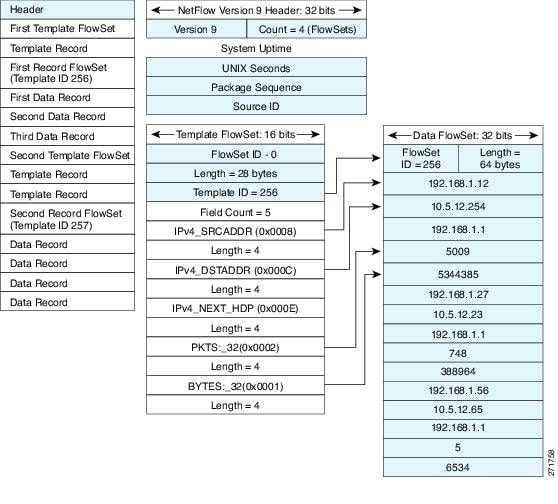
NetFlow Version 9 will periodically export the template data so the NetFlow collector will understand what data is to be sent and also export the data flow set for the template. The key advantage to Flexible NetFlow is that the user configures a flow record, which is effectively converted to a Version 9 template and then forwarded to the collector. The figure below is a detailed example of the NetFlow Version 9 export format, including the header, template flow, and data flow sets.

Figure 3. Detailed Example of the NetFlow Version 9 Export Format

Flow Monitors

Flow monitors are the Flexible NetFlow component that is applied to interfaces to perform network traffic monitoring.

Flow data is collected from the network traffic and added to the flow monitor cache during the monitoring process based on the key and nonkey fields in the flow record.

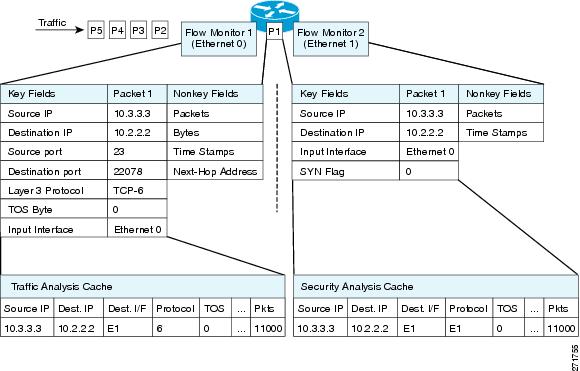
Flexible NetFlow can be used to perform different types of analysis on the same traffic. In the figure below, packet 1 is analyzed using a record designed for standard traffic analysis on the input interface and a record designed for security analysis on the output interface.

Figure 4. Example of Using Two Flow Monitors to Analyze the Same Traffic


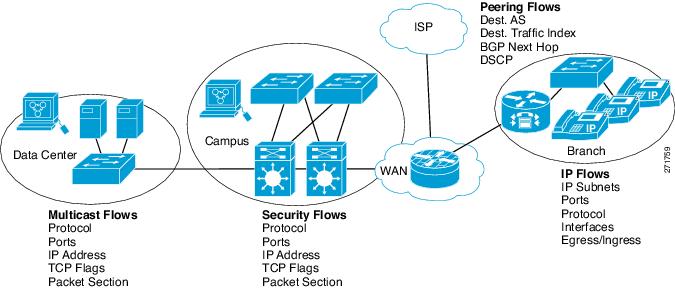
The figure below shows a more complex example of how you can apply different types of flow monitors with custom records.

Figure 5. Complex Example of Using Multiple Types of Flow Monitors with Custom Records


Normal

The default cache type is “normal”. In this mode, the entries in the cache are aged out according to the timeout active and timeout inactive settings. When a cache entry is aged out, it is removed from the cache and exported via any exporters configured.

Supported Flexible NetFlow Fields

The following tables provide a consolidated list of supported fields in Flexible NetFlow (FNF) for various traffic types and traffic direction.

Note


If the packet has a VLAN field, then that length is not accounted for.


Field

Layer 2 In

IPv4 In

IPv6 In

Notes

Key or Collect Fields

Interface input

Yes

Yes

Yes

If you apply a flow monitor in the input direction:

  • Use the match keyword and use the input interface as a key field.

  • Use the collect keyword and use the output interface as a collect field. This field will be present in the exported records but with a value of 0.

Interface output

If you apply a flow monitor in the output direction:

  • Use the match keyword and use the output interface as a key field.

  • Use the collect keyword and use the input interface as a collect field. This field will be present in the exported records but with a value of 0.

Field

Layer 2 In

IPv4 In

IPv6 In

Notes

Key Fields

Ethertype

Yes

MAC source address input

Yes

Yes

Yes

MAC source address output

MAC destination address input

Yes

Yes

Yes

MAC destination address output

IPv4 TOS

Yes

Yes

IPv4 protocol

Yes

Yes

Must use if any of src/dest port, ICMP code/type, IGMP type or TCP flags are used.

IPv4 source address

Yes

IPv4 destination address

Yes

Field

Layer 2 In

IPv4 In

IPv6 In

Notes

Key Fields continued

IPv6 protocol

Yes

Yes

Same as IP protocol. Must use if any of src/dest port, ICMP code/type, IGMP type or TCP flags are used.

IPv6 source address

Yes

IPv6 destination address

Yes

IPv6 traffic-class

Yes

Yes

Same as IP TOS.

source-port

Yes

Yes

destination-port

Yes

Yes

Field

Layer 2 In

IPv4 In

IPv6 In

Notes

Collect Fields

Interface output

Yes

Yes

Yes

Counter bytes

Yes

Yes

Yes

Counter packets

Yes

Yes

Yes

Timestamp sys-uptime first

Yes

Yes

Yes

Timestamp sys-uptime last

Yes

Yes

Yes

Default Settings

The following table lists the Flexible NetFlow default settings for the .

Table 3. Default Flexible NetFlow Settings

Setting

Default

Flow active timeout

1800 seconds

Flow timeout inactive

15 seconds

How to Configure Flexible Netflow

To configure Flexible Netflow, follow these general steps:

  1. Create a flow record by specifying keys and non-key fields to the flow.

  2. Create an optional flow exporter by specifying the protocol and transport destination port, destination, and other parameters.

  3. Create a flow monitor based on the flow record and flow exporter.

  4. Create an optional sampler.

  5. Apply the flow monitor to a Layer 2 port, Layer 3 port, or VLAN.

Creating a Flow Record

Perform this task to configure a customized flow record.

Customized flow records are used to analyze traffic data for a specific purpose. A customized flow record must have at least one match criterion for use as the key field and typically has at least one collect criterion for use as a nonkey field.

There are hundreds of possible permutations of customized flow records. This task shows the steps that are used to create one of the possible permutations. Modify the steps in this task as appropriate to create a customized flow record for your requirements.

SUMMARY STEPS

  1. enable
  2. configure terminal
  3. flow record record-name
  4. description description
  5. match {ip | ipv6 } {destination | source } address
  6. Repeat Step 5 as required to configure additional key fields for the record.
  7. Repeat the above step as required to configure additional nonkey fields for the record.
  8. end
  9. show flow record record-name
  10. show running-config flow record record-name

DETAILED STEPS

  Command or Action Purpose

Step 1

enable

Example:


Device> enable

Enables privileged EXEC mode.

  • Enter your password if prompted.

Step 2

configure terminal

Example:


Device# configure terminal

Enters global configuration mode.

Step 3

flow record record-name

Example:


Device(config)# flow record FLOW-RECORD-1

Creates a flow record and enters Flexible NetFlow flow record configuration mode.

  • This command also allows you to modify an existing flow record.

Step 4

description description

Example:


Device(config-flow-record)# description Used for basic traffic analysis

(Optional) Creates a description for the flow record.

Step 5

match {ip | ipv6 } {destination | source } address

Example:


Device(config-flow-record)# match ipv4 destination address

Note


This example configures the IPv4 destination address as a key field for the record. For information about the other key fields available for the match ipv4 command, and the other match commands that are available to configure key fields.

Step 6

Repeat Step 5 as required to configure additional key fields for the record.

Step 7

Configures the input interface as a nonkey field for the record.

Note


This example configures the input interface as a nonkey field for the record.

Step 8

Repeat the above step as required to configure additional nonkey fields for the record.

Step 9

end

Example:


Device(config-flow-record)# end

Exits Flexible NetFlow flow record configuration mode and returns to privileged EXEC mode.

Step 10

show flow record record-name

Example:


Device# show flow record FLOW_RECORD-1

(Optional) Displays the current status of the specified flow record.

Step 11

show running-config flow record record-name

Example:


Device# show running-config flow record FLOW_RECORD-1 

(Optional) Displays the configuration of the specified flow record.

Creating a Flow Exporter

You can create a flow export to define the export parameters for a flow.


Note


Each flow exporter supports only one destination. If you want to export the data to multiple destinations, you must configure multiple flow exporters and assign them to the flow monitor.

You can export to a destination using IPv4 address.


SUMMARY STEPS

  1. configure terminal
  2. flow exporter name
  3. description string
  4. destination {ipv4-address}
  5. dscp value
  6. transport udp number
  7. ttl seconds
  8. export-protocol {netflow-v9 }
  9. end
  10. show flow exporter [name record-name]
  11. copy running-config startup-config

DETAILED STEPS

  Command or Action Purpose

Step 1

configure terminal

Example:


# configure terminal

Enters global configuration mode.

Step 2

flow exporter name

Example:


(config)# flow exporter ExportTest

Creates a flow exporter and enters flow exporter configuration mode.

Step 3

description string

Example:


(config-flow-exporter)# description ExportV9

(Optional) Describes this flow record as a maximum 63-character string.

Step 4

destination {ipv4-address}

Example:


(config-flow-exporter)# destination 192.0.2.1 (IPv4 destination)


Step 5

dscp value

Example:


(config-flow-exporter)# dscp 0

(Optional) Specifies the differentiated services codepoint value. The range is from 0 to 63. The default is 0.

Step 6

transport udp number

Example:


(config-flow-exporter)# transport udp 200

(Optional) Specifies the UDP port to use to reach the NetFlow collector.

Step 7

ttl seconds

Example:

(config-flow-exporter)# ttl 210

(Optional) Configures the time-to-live (TTL) value for datagrams sent by the exporter. The range is from 1 to 255 seconds. The default is 255.

Step 8

export-protocol {netflow-v9 }

Example:


(config-flow-exporter)# export-protocol netflow-v9

Specifies the version of the NetFlow export protocol used by the exporter.

Step 9

end

Example:


(config-flow-record)# end

Returns to privileged EXEC mode.

Step 10

show flow exporter [name record-name]

Example:


# show flow exporter ExportTest 

(Optional) Displays information about NetFlow flow exporters.

Step 11

copy running-config startup-config

Example:


# copy running-config 
startup-config

(Optional) Saves your entries in the configuration file.

What to do next

Define a flow monitor based on the flow record and flow exporter.

Creating a Flow Monitor

Perform this required task to create a customized flow monitor.

Each flow monitor has a separate cache assigned to it. Each flow monitor requires a record to define the contents and layout of its cache entries. These record formats can be a user-defined format. An advanced user can create a customized format using the flow record command.

Before you begin

If you want to use a customized record, you must create the customized record before you can perform this task. If you want to add a flow exporter to the flow monitor for data export, you must create the exporter before you can complete this task.


Note


You must use the no ip flow monitor command to remove a flow monitor from all of the interfaces to which you have applied it before you can modify the parameters for the record command on the flow monitor.


SUMMARY STEPS

  1. enable
  2. configure terminal
  3. flow monitor monitor-name
  4. description description
  5. record {record-name }
  6. cache {timeout {active } seconds | { normal }}
  7. Repeat Step 6 as required to finish modifying the cache parameters for this flow monitor.
  8. exporter exporter-name
  9. end
  10. show flow monitor [[name ] monitor-name [cache [format {csv | record | table } ]] ]
  11. show running-config flow monitor monitor-name

DETAILED STEPS

  Command or Action Purpose

Step 1

enable

Example:


> enable

Enables privileged EXEC mode.

  • Enter your password if prompted.

Step 2

configure terminal

Example:


# configure terminal

Enters global configuration mode.

Step 3

flow monitor monitor-name

Example:


(config)# flow monitor FLOW-MONITOR-1

Creates a flow monitor and enters Flexible NetFlow flow monitor configuration mode.

  • This command also allows you to modify an existing flow monitor.

Step 4

description description

Example:


(config-flow-monitor)# description Used for basic ipv4 traffic analysis

(Optional) Creates a description for the flow monitor.

Step 5

record {record-name }

Example:


(config-flow-monitor)# record FLOW-RECORD-1

Specifies the record for the flow monitor.

Step 6

cache {timeout {active } seconds | { normal }}

Example:

Step 7

Repeat Step 6 as required to finish modifying the cache parameters for this flow monitor.

Step 8

exporter exporter-name

Example:


(config-flow-monitor)# exporter EXPORTER-1 

(Optional) Specifies the name of an exporter that was created previously.

Step 9

end

Example:


(config-flow-monitor)# end

Exits Flexible NetFlow flow monitor configuration mode and returns to privileged EXEC mode.

Step 10

show flow monitor [[name ] monitor-name [cache [format {csv | record | table } ]] ]

Example:


# show flow monitor FLOW-MONITOR-2 cache

(Optional) Displays the status for a Flexible NetFlow flow monitor.

Step 11

show running-config flow monitor monitor-name

Example:


# show running-config flow monitor FLOW_MONITOR-1

(Optional) Displays the configuration of the specified flow monitor.

Applying a Flow to an Interface

You can apply a flow monitor and an optional sampler to an interface.

SUMMARY STEPS

  1. configure terminal
  2. interface type
  3. {ip flow monitor | ipv6 flow monitor}name [ sampler name] {input}
  4. end
  5. show flow interface [interface-type number]
  6. copy running-config startup-config

DETAILED STEPS

  Command or Action Purpose

Step 1

configure terminal

Example:


# configure terminal

Enters global configuration mode.

Step 2

interface type

Example:


(config)# interface GigabitEthernet1/0/1

Enters interface configuration mode and configures an interface.

Step 3

{ip flow monitor | ipv6 flow monitor}name [ sampler name] {input}

Example:


(config-if)# ip flow monitor MonitorTest input

Associate an IPv4 or an IPv6 flow monitor, and an optional sampler to the interface for input or output packets.

You can associate multiple monitors to an interface in both input and output directions.

Step 4

end

Example:


(config-flow-monitor)#  end

Returns to privileged EXEC mode.

Step 5

show flow interface [interface-type number]

Example:


# show flow interface

(Optional) Displays information about NetFlow on an interface.

Step 6

copy running-config startup-config

Example:


# copy running-config 
startup-config

(Optional) Saves your entries in the configuration file.

Configuring Layer 2 NetFlow

You can define Layer 2 keys in Flexible NetFlow records that you can use to capture flows in Layer 2 interfaces.

SUMMARY STEPS

  1. configure terminal
  2. flow record name
  3. match datalink { ethertype | mac}
  4. end
  5. show flow record [name ]
  6. copy running-config startup-config

DETAILED STEPS

  Command or Action Purpose

Step 1

configure terminal

Example:


# configure terminal

Enters global configuration mode.

Step 2

flow record name

Example:

(config)# flow record L2_record
(config-flow-record)#

Enters flow record configuration mode.

Step 3

match datalink { ethertype | mac}

Example:

(config-flow-record)# match datalink ethertype

Specifies the Layer 2 attribute as a key.

Step 4

end

Example:


(config-flow-record)#  end

Returns to privileged EXEC mode.

Step 5

show flow record [name ]

Example:


# show flow record

(Optional) Displays information about NetFlow on an interface.

Step 6

copy running-config startup-config

Example:


# copy running-config 
startup-config

(Optional) Saves your entries in the configuration file.

Monitoring Flexible NetFlow

The commands in the following table can be used to monitor Flexible NetFlow.

Table 4. Flexible NetFlow Monitoring Commands

Command

Purpose

show flow exporter [broker | export-ids | name | name | statistics | templates]

Displays information about NetFlow flow exporters and statistics.

show flow exporter [ name exporter-name]

Displays information about NetFlow flow exporters and statistics.

show flow interface

Displays information about NetFlow interfaces.

Displays information about NetFlow flow monitors and statistics.

show flow monitor statistics

Displays the statistics for the flow monitor

Displays the contents of the cache for the flow monitor, in the format specified.

show flow record [ name record-name]

Displays information about NetFlow flow records.

show sampler [broker | name | name]

Displays information about NetFlow samplers.

Configuration Examples for

Example: Configuring a Flow

This example shows how to create a flow and apply it to an interface:


# configure terminal 
Enter configuration commands, one per line. End with CNTL/Z.

(config)# flow export export1
(config-flow-exporter)# destination 10.0.101.254
(config-flow-exporter)# transport udp 2055
(config-flow-exporter)# exit
(config)# flow record record1
(config-flow-record)# match ipv4 source address
(config-flow-record)# match ipv4 destination address
(config-flow-record)# match ipv4 protocol
(config-flow-record)# match transport source-port 
(config-flow-record)# match transport destination-port
 
(config-flow-record)# collect interface {output}
(config-flow-record)# collect counter bytes
(config-flow-record)# collect counter packets
(config-flow-record)# 
(config-flow-record)#  
(config-flow-record)# exit
(config)# flow monitor monitor1
(config-flow-monitor)# record record1
(config-flow-monitor)# exporter export1
(config-flow-monitor)# exit
(config)# interface tenGigabitEthernet 1/0/1
(config-if)# ip flow monitor monitor1 input
(config-if)# end 

Example: Monitoring IPv4 ingress traffic

This example shows how to monitor IPv4 ingress traffic (int g1/0/11 sends traffic to int g1/0/36 and int g3/0/11).


# configure terminal 
Enter configuration commands, one per line. End with CNTL/Z.
(config)# flow record  fr-1
(config-flow-record)# match ipv4 source address
(config-flow-record)# match ipv4 destination address
(config-flow-record)# collect interface {output}
(config-flow-record)# collect counter bytes
(config-flow-record)# collect counter packets
(config-flow-record)#  
(config-flow-record)# 
(config-flow-record)# exit

(config)# flow exporter fe-ipfix6
(config-flow-exporter)# destination 2001:0:0:24::10
(config-flow-exporter)# source Vlan106
(config-flow-exporter)# transport udp 4739
(config-flow-exporter)# export-protocol ipfix
(config-flow-exporter)# template data timeout 240
(config-flow-exporter)# exit

(config)# flow exporter fe-ipfix
(config-flow-exporter)# description IPFIX format collector 100.0.0.80
(config-flow-exporter)# destination 100.0.0.80
(config-flow-exporter)# dscp 30
(config-flow-exporter)# ttl 210
(config-flow-exporter)# transport udp 4739
(config-flow-exporter)# export-protocol ipfix
(config-flow-exporter)# template data timeout 240
(config-flow-exporter)# exit

(config)# flow exporter fe-1
(config-flow-exporter)# destination 10.5.120.16
(config-flow-exporter)# source Vlan105
(config-flow-exporter)# dscp 32
(config-flow-exporter)# ttl 200
(config-flow-exporter)# transport udp 2055

(config-flow-exporter)# template data timeout 240
(config-flow-exporter)# exit

(config)# flow monitor fm-1
(config-flow-monitor)# exporter fe-ipfix6
(config-flow-monitor)# exporter fe-ipfix
(config-flow-monitor)# exporter fe-1
(config-flow-monitor)# cache timeout inactive 60
(config-flow-monitor)#  cache timeout active 180
(config-flow-monitor)# record fr-1
(config-flow-monitor)# end

# show running-config interface g1/0/11
# show running-config interface g1/0/36
# show running-config interface g3/0/11
# show flow monitor fm-1 cache format table 

Example: Monitoring IPv4 egress traffic


# configure terminal 
Enter configuration commands, one per line. End with CNTL/Z.
(config)# flow record  fr-1 out
(config-flow-record)# match ipv4 source address
(config-flow-record)# match ipv4 destination address
(config-flow-record)# match interface output
(config-flow-record)# collect interface {output}
(config-flow-record)# collect counter bytes
(config-flow-record)# collect counter packets
(config-flow-record)# 
(config-flow-record)#  
(config-flow-record)# exit

(config)# flow exporter fe-1
(config-flow-exporter)# destination 10.5.120.16
(config-flow-exporter)# source Vlan105
(config-flow-exporter)# dscp 32
(config-flow-exporter)# ttl 200
(config-flow-exporter)# transport udp 2055
(config-flow-exporter)# template data timeout 240
(config-flow-exporter)# exit

(config)# flow exporter fe-ipfix6
(config-flow-exporter)# destination 2001:0:0:24::10
(config-flow-exporter)# source Vlan106
(config-flow-exporter)# transport udp 4739
(config-flow-exporter)# export-protocol ipfix
(config-flow-exporter)# template data timeout 240
(config-flow-exporter)# exit

(config)# flow exporter fe-ipfix
(config-flow-exporter)# description IPFIX format collector 100.0.0.80
(config-flow-exporter)# destination 100.0.0.80
(config-flow-exporter)# dscp 30
(config-flow-exporter)# ttl 210
(config-flow-exporter)# transport udp 4739
(config-flow-exporter)# export-protocol ipfix
(config-flow-exporter)# template data timeout 240
(config-flow-exporter)# exit

(config)# flow monitor fm-1-output
(config-flow-monitor)# exporter fe-1
(config-flow-monitor)# exporter fe-ipfix6
(config-flow-monitor)# exporter fe-ipfix
(config-flow-monitor)# cache timeout inactive 50
(config-flow-monitor)#  cache timeout active 120
(config-flow-monitor)# record fr-1-out
(config-flow-monitor)# end

# show flow monitor fm-1-output cache format table