Prerequisites for Ethernet Management Ports
When connecting a PC to the Ethernet management port, you must first assign an IP address.
The documentation set for this product strives to use bias-free language. For the purposes of this documentation set, bias-free is defined as language that does not imply discrimination based on age, disability, gender, racial identity, ethnic identity, sexual orientation, socioeconomic status, and intersectionality. Exceptions may be present in the documentation due to language that is hardcoded in the user interfaces of the product software, language used based on RFP documentation, or language that is used by a referenced third-party product. Learn more about how Cisco is using Inclusive Language.
When connecting a PC to the Ethernet management port, you must first assign an IP address.
The ethernet management port relay is not supported on the Cisco Catalyst 9600 Series Supervisor 1 Module.
The Ethernet management port, also referred to as the Gi0/0 or GigabitEthernet0/0 port, is a VRF (VPN routing/forwarding) interface to which you can connect a PC. You can use the Ethernet management port instead of the device console port for network management.
In addition, Cisco Catalyst 9600 Series Switches have another Ethernet management port, TenGigabitEthernet0/1, an SFP+ interface that provides pluggable connectivity from the switch to the management network. This interface supports 10G and 1G Transceivers.
By default, GigabitEthernet0/0 is enabled.
You can disable GigabitEthernet0/0 and enable TenGigabitEthernet0/1 by setting the environment variable ETHER_PORT to 1 in the ROMMON mode and booting up the switch. You can switch back to the default management port by setting the ETHER_PORT variable to 0 in ROMMON mode and rebooting the switch:
rommon> 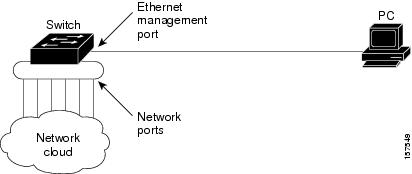
By default, the Ethernet management port is enabled. The device cannot route packets from the Ethernet management port to a network port, and the reverse. Even though the Ethernet management port does not support routing, you may need to enable routing protocols on the port.
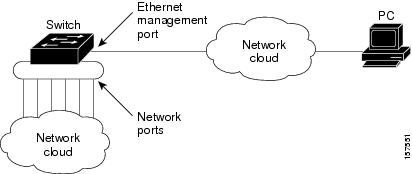
In the above figure , if the Ethernet management port and the network ports are associated with the same routing process, the routes are propagated as follows:
The routes from the Ethernet management port are propagated through the network ports to the network.
The routes from the network ports are propagated through the Ethernet management port to the network.
Because routing is not supported between the Ethernet management port and the network ports, traffic between these ports cannot be sent or received. If this happens, data packet loops occur between the ports, which disrupt the device and network operation. To prevent the loops, configure route filters to avoid routes between the Ethernet management port and the network ports.
The Ethernet management port supports these features:
Express Setup (only in device stacks)
Network Assistant
Telnet with passwords
TFTP
Secure Shell (SSH)
DHCP-based autoconfiguration
SNMP (only ENTITY-MIB and IF-MIB)
IP ping
Interface features:
Speed: 10 Mb/s, 100 Mb/s, 1000 Mb/s, and autonegotiation (default)
Duplex mode: Full, half, and autonegotiation
Loopback detection
Cisco Discovery Protocol (CDP)
DHCP relay agent
 Caution |
Before enabling a feature on the Ethernet management port, make sure that the feature is supported. If you try to configure an unsupported feature on the Ethernet Management port, the feature might not work properly, and the device might fail. |
| Command or Action | Purpose | |
|---|---|---|
|
Step 1 |
configure terminal Example: |
Enters global configuration mode. |
|
Step 2 |
interface gigabitethernet0/0 Example: |
Specifies the Ethernet management port in the CLI. |
|
Step 3 |
shutdown Example: |
Disables the Ethernet management port. |
|
Step 4 |
no shutdown Example: |
Enables the Ethernet management port. |
|
Step 5 |
exit Example: |
Exits interface configuration mode. |
|
Step 6 |
show interfaces gigabitethernet0/0 Example: |
Displays the link status. To find out the link status to the PC, you can monitor the LED for the Ethernet management port. The LED is green (on) when the link is active, and the LED is off when the link is down. The LED is amber when there is a POST failure. |
Proceed to manage or configure your switch using the Ethernet management port. See the Network Management section.
Follow these steps to enable the SFP+ interface that provides pluggable connectivity from the switch to the management interface. Enabling the TenGigabitEthernet Management port on the supervisor disables the GigabitEthernet Management port.
To switch back to the GigabitEthernet Management port, set the ETHER_PORT variable to 2, that is, use either ETHER_PORT=2 or unset ETHER_PORT command in ROMMON mode and reboot the switch.
|
Step 1 |
If the switch is running with the IOS XE image, reload the switch and bring it to the ROMMOM mode. Example: |
|
Step 2 |
Set the variable ETHER_PORT to 1. Example:If the system is in the High Availability mode and is running with redundant supervisors, perform this step on both the supervisors. |
|
Step 3 |
Boot the system with the IOS XE image. Example: |
|
Step 4 |
Configure the TenGigabit Ethernet interface 0/1 Example: |
This example shows how to configure IP address on the management interface.
		Switch# configure terminal
		Switch(config)# interface gigabitethernet1/0/1
		Switch(config-if)# vrf forwarding Mgmt-vrf
		Switch(config-if)#ip address 192.168.247.10 255.255.0.0
		Switch(config-if)# end
Switch#show running-config interface Gi0/0
Building configuration...

Current configuration : 118 bytes
!
interface GigabitEthernet0/0
vrf forwarding Mgmt-vrf
ip address 192.168.247.10 255.255.0.0
negotiation auto
end
| Related Topic | Document Title |
|---|---|
| Bootloader configuration |
See the System Management section of this guide. |
| Bootloader commands |
See the System Management Commands section of the Command Reference (Catalyst 9600 Series Switches) |
This table provides release and related information for features explained in this module.
These features are available on all releases subsequent to the one they were introduced in, unless noted otherwise.
|
Release |
Feature |
Feature Information |
|---|---|---|
|
Cisco IOS XE Gibraltar 16.11.1 |
Ethernet Management Port |
The Ethernet management port is a VRF interface to which you can connect a PC. You can use the Ethernet management port instead of the device console port for network management. |
Use Cisco Feature Navigator to find information about platform and software image support. To access Cisco Feature Navigator, go to http://www.cisco.com/go/cfn.
 Feedback