- Preface
- Configuring Domain Parameters
- NPIV
- Configuring and Managing VSANs
- DPVM
- Configuring VSAN Trunking
- Configuring and Managing Zones
- Distributing Device Alias Services
- Configuring Fibre Channel Routing Services and Protocols
- Managing FLOGI, Name Server, FDMI, and RSCN Databases
- Advanced Fibre Channel Features and Concepts
- Configuring FC-SP and DHCHAP
- Configuring Port Security
- Configuring Fabric Binding
- Configuring Port Tracking
- Index
Cisco Nexus 7000 Series NX-OS SAN Switching Configuration Guide
Bias-Free Language
The documentation set for this product strives to use bias-free language. For the purposes of this documentation set, bias-free is defined as language that does not imply discrimination based on age, disability, gender, racial identity, ethnic identity, sexual orientation, socioeconomic status, and intersectionality. Exceptions may be present in the documentation due to language that is hardcoded in the user interfaces of the product software, language used based on RFP documentation, or language that is used by a referenced third-party product. Learn more about how Cisco is using Inclusive Language.
- Updated:
- August 1, 2011
Chapter: Configuring Port Tracking
Configuring Port Tracking
This chapter contains the following sections:
Configuring Port Tracking
Cisco SAN switches offer the port tracking feature on virtual Fibre Channel interfaces. This feature uses information about the operational state of the link to initiate a failure in the link that connects the edge device. This process of converting the indirect failure to a direct failure triggers a faster recovery process towards redundant links. When enabled, the port tracking feature brings down the configured links based on the failed link and forces the traffic to be redirected to another redundant link.
- Information About Port Tracking
- Guidelines and Limitations
- Default Port Tracking Settings
- Configuring Port Tracking
Information About Port Tracking
Generally, hosts can instantly recover from a link failure on a link that is immediately (direct link) connected to a switch. However, recovering from an indirect link failure between switches in a WAN or MAN fabric with a keepalive mechanism is dependent on several factors such as the timeout values (TOVs) and on registered state change notification (RSCN) information.
In the following figure, when the direct link 1 to the host fails, recovery can be immediate. However, when the ISL 2 fails between the two switches, recovery depends on TOVs, RSCNs, and other factors.
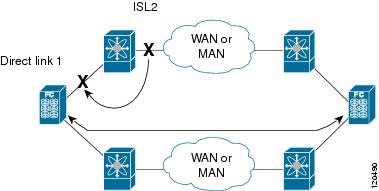
The port tracking feature monitors and detects failures that cause topology changes and brings down the links connecting the attached devices. When you enable this feature and explicitly configure the linked and tracked ports, the switch software monitors the tracked ports and alters the operational state of the linked ports on detecting a link state change.
The following terms are used in this chapter:
-
Tracked ports—A port whose operational state is continuously monitored. The operational state of the tracked port is used to alter the operational state of one or more ports. Virtual Fibre Channel, VSAN, SAN port channel, or a Gigabit Ethernet port can be tracked. Generally, ports in E and TE port modes can also be F ports.
-
Linked ports—A port whose operational state is altered based on the operational state of the tracked ports. Only virtual E or VE ports can be linked ports.
Port tracking has the following features:
-
The application brings the linked port down when the tracked port goes down. When the tracked port recovers from the failure and comes back up again, the linked port is also brought up automatically (unless otherwise configured).
-
You can forcefully continue to keep the linked port down, even though the tracked port comes back up. In this case, you must explicitly bring up the linked port when required.
Guidelines and Limitations
Port tracking is supported only on vfc interfaces.
Default Port Tracking Settings
The following table lists the default settings for port tracking parameters.
| Parameters |
Default |
|---|---|
| Port tracking |
Disabled |
| Operational binding |
Enabled along with port tracking |
Configuring Port Tracking
Before configuring port tracking, consider the following guidelines:
- Enabling the Port Tracking Feature
- About Configuring Linked Ports
- Binding a Tracked Port
- About Tracking Multiple Ports
- About Monitoring Ports in a VSAN
- Monitoring Ports in a VSAN
- About Forceful Shutdown
- Forcefully Shutting Down a Tracked Port
Enabling the Port Tracking Feature
You must enable the port track feature from the storage VDC.
5.
(Optional) show feature | port-track
6.
(Optional) copy running-config startup-config
DETAILED STEPS
| Command or Action | Purpose | |
|---|---|---|
| Step 1 | configuration terminal Example: switch# configure terminal switch(config)# |
Enters configuration mode. |
| Step 2 | switchto vdc vdc-name Example: switch(config)# switchto vdc storage switch-storage# |
Switches to the storage VDC. The vdc-name can be any case-sensitive alphanumeric string up to 32 characters. |
| Step 3 | configuration terminal Example: switch-storage# configure terminal switch-storage(config)# |
Enters configuration mode. |
| Step 4 | feature port-track Example: switch-storage(config)# feature port-track |
Enables the port tracking feature. |
| Step 5 | show feature | port-track Example: switch-storage(config)# show feature| port-track |
(Optional) Displays information about the port tracking feature. |
| Step 6 | copy running-config startup-config Example: switch-storage(config)# copy running-config startup-config |
(Optional) Copies the running configuration to the startup configuration. |
About Configuring Linked Ports
You can link ports using one of two methods:
Binding a Tracked Port
When you configure the first tracked port, operational binding is automatically in effect. When you use this method, you have the option to monitor multiple ports or monitor ports in one VSAN.
3.
port-track interface vfc if-number | san-port-channel port | vfc-port-channel port
DETAILED STEPS
| Command or Action | Purpose | |
|---|---|---|
| Step 1 | configure terminal Example: switch# configure terminal switch(config)# |
Enters configuration mode. |
| Step 2 | interface vfc if-number Example: switch(config)# interface vfc 2 switch(config-if)# |
Enters the interface configuration mode for the linked port. You can now configure the tracked ports. |
| Step 3 | port-track interface vfc if-number | san-port-channel port | vfc-port-channel port Example: switch(config-if)# port-track interface vfc-port-channel 1 |
Specifies the tracked port. When the tracked port goes down, the linked port is also brought down. |
About Tracking Multiple Ports
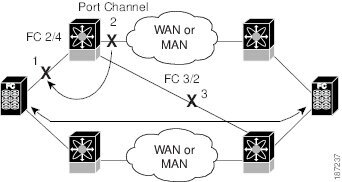
You can control the operational state of the linked port based on the operational states of multiple tracked ports. When more than one tracked port is associated with a linked port, the operational state of the linked port will be set to down only if all the associated tracked ports are down. Even if one tracked port is up, the linked port will stay up.
In the following figure, only if both ISLs 2 and 3 fail, will the direct link 1 be brought down. Direct link 1 will not be brought down if either 2 or 3 are still functioning as desired.
About Monitoring Ports in a VSAN
You can optionally configure one VSAN from the set of all operational VSANs on the tracked port with the linked port by specifying the required VSAN. This level of flexibility provides higher granularity in tracked ports. In some cases, when a tracked port is a TE port, the set of operational VSANs on the port can change dynamically without bringing down the operational state of the port. In such cases, the port VSAN of the linked port can be monitored on the set of operational VSANs on the tracked port.
If you configure this feature, the linked port is up only when the VSAN is up on the tracked port.
The specified VSAN does not have to be the same as the port VSAN of the linked port.
Monitoring Ports in a VSAN
To monitor a tracked port in a specific VSAN, perform this task :
1.
switch# configuration terminal
2.
switch(config)# interface vfc if-number
3.
switch(config-if)# port-track interface san-port-channel 1 vsan 2
4.
switch(config-if)# no port-track interface san-port-channel 1 vsan 2
DETAILED STEPS
| Command or Action | Purpose | |
|---|---|---|
| Step 1 | switch# configuration terminal |
Enters configuration mode. |
| Step 2 | switch(config)# interface vfc if-number |
Configures the specified interface and enters the interface configuration mode. You can now configure tracked ports. |
| Step 3 | switch(config-if)# port-track interface san-port-channel 1 vsan 2 |
Enables tracking of the SAN port channel in VSAN 2. |
| Step 4 | switch(config-if)# no port-track interface san-port-channel 1 vsan 2 |
Removes the VSAN association for the linked port. The SAN port channel link remains in effect. |
About Forceful Shutdown
If a tracked port flaps frequently, then tracking ports using the operational binding feature may cause frequent topology change. In this case, you may choose to keep the port in the down state until you are able to resolve the reason for these frequent flaps. Keeping the flapping port in the down state forces the traffic to flow through the redundant path until the primary tracked port problems are resolved. When the problems are resolved and the tracked port is back up, you can explicitly enable the interface.
If you configure this feature, the linked port continues to remain in the shutdown state even after the tracked port comes back up. You must explicitly remove the forced shut state (by administratively bringing up this interface) of the linked port once the tracked port is up and stable.
Forcefully Shutting Down a Tracked Port
To forcefully shut down a tracked port, perform this task:
1.
switch# configuration terminal
2.
switch(config)# interface vfc if-number
3.
switch(config-if)# port-track force-shut
4.
switch(config-if)# no port-track force-shut
DETAILED STEPS
| Command or Action | Purpose | |
|---|---|---|
| Step 1 | switch# configuration terminal |
Enters configuration mode. |
| Step 2 | switch(config)# interface vfc if-number |
Configures the specified interface and enters the interface configuration mode. You can now configure tracked ports. |
| Step 3 | switch(config-if)# port-track force-shut |
Forcefully shuts down the tracked port. |
| Step 4 | switch(config-if)# no port-track force-shut |
Removes the port shutdown configuration for the tracked port. |
 Feedback